


Adobe Acrobat Review: What Nobody Tells You (2026)
In this Adobe Acrobat review, I will share every important detail that you should know about this PDF editor. I will show you the key features, user interface, my experience, pricing, and pros and cons to give some insights into why people are using Adobe Acrobat and whether this is the tool you are looking for.
I spent several months trying and testing PDF editors on the market to find the best ones. In this article, I will share an honest Adobe Acrobat review to save you time and money instead of testing it for yourself.
Let’s dive in!
Verdict
Here’s the quick verdict if you don’t want to read the full review:
🎯 Best for: A reliable PDF editor for businesses
🚫 Not ideal for: If you need a budget-friendly solution
⭐ Biggest strength: Robust PDF editing features
⚠️ Biggest weakness: Performance may slow when working with larger files
⚖️ Verdict: A reliable PDF editor, but its high price is not justified
🏆 Score: 3.8 / 5
✅ Tested with our review & scoring methodology ✅ Real-world testing ✅ Unbiased evaluation
Adobe Acrobat Review
Summary
I think we all know or have used Adobe Acrobat in our lives. It is a PDF editor developed by Adobe Systems. Adobe Acrobat allows you to create, view, manipulate, print, and manage PDF files. After my Adobe Acrobat review, I learned that it is still a solid choice with advanced PDF editing capabilities. However, the pricing is too expensive considering the value it offers.
|
|
Has many tools to edit your PDFs
|
|
|
Easy-to-use PDF signing and form tools
|
|
|
Cloud storage
|
|
|
High security
|
|
|
Has its own ecosystem
|
|
|
Slow
|
|
|
The most expensive PDF editor
|
How We Test PDF Editors
To keep our reviews and final scores fair and consistent, we evaluate every PDF editor using a standardized testing framework built on over 3 years of hands-on experience testing these tools in real-world scenarios.
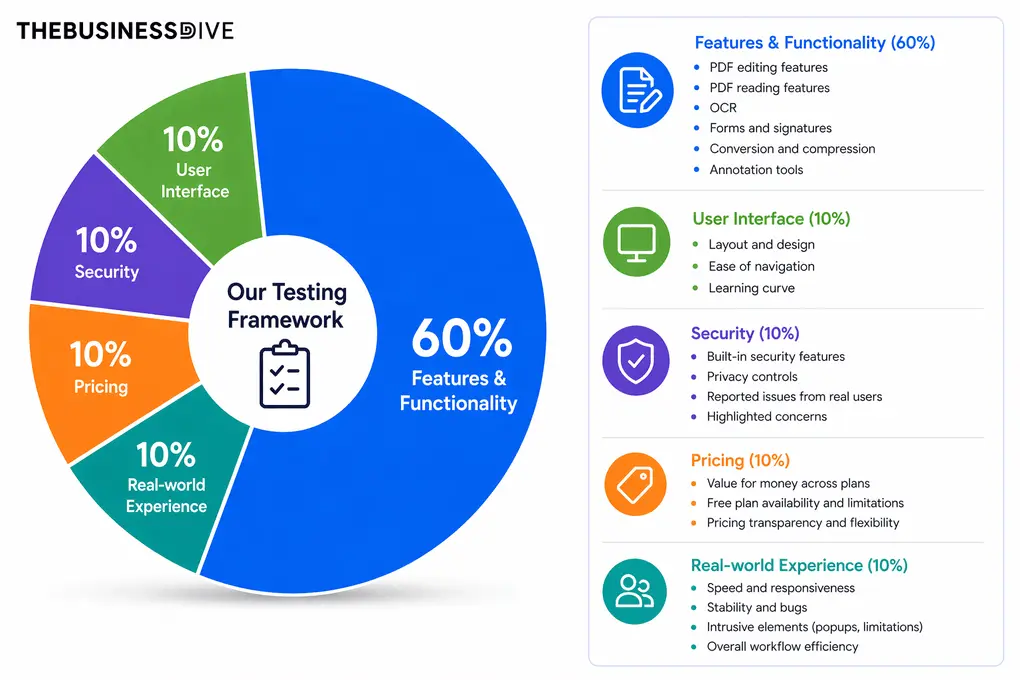
Our scoring breakdown after testing 30+ PDF editors:
🛠️ Features & functionality — 60%
🖥️ User interface — 10%
🔐 Security — 10%
💰 Pricing — 10%
👥 Real-world experience — 10%
Want a detailed breakdown of how we test each category?
Learn exactly how we test tools → Review methodology
Short on time? Here’s a quick overview of Adobe Acrobat
What is Adobe Acrobat?
I think we all know or have used Adobe Acrobat in our lives. It is a PDF editor developed by Adobe Systems. Adobe Acrobat allows you to create, view, manipulate, print, and manage PDF files.
It has features for editing PDFs, using annotations, creating and filling out forms, and converting PDF files into other formats. Adobe Acrobat has different versions, including Acrobat Reader (free for viewing PDFs), Acrobat Standard (some essential features included), and Acrobat Pro (it has advanced PDF editing tools).
Key points I found during my Adobe Acrobat review
These are the key points that I explored during my Adobe Acrobat review:
- Adobe Acrobat is still a solid PDF editor with advanced tools.
- It has easy-to-use PDF signing and form-filling features.
- Adobe Acrobat is the most expensive PDF editor on the market.
- When working with larger PDF files, Adobe Acrobat has performance issues.
My experience using Adobe Acrobat after testing it against 30+ tools
Adobe Acrobat has massive PDF editing features. However, they are not experimental. I found numerous PDF editors with PDF editing features that are as advanced or more advanced than those in Adobe Acrobat. At the same time, the Adobe Pro License is way more pricier than others on the market.
And honestly, I don’t feel it is justified. When testing UPDF or EaseUS PDF Editor, I could do the same PDF editing as with Adobe Acrobat’s paid plans, and still, I can buy these software’s license for a fraction of Adobe Acrobat Pro’s price.
Adobe Acrobat is still a solid choice for enterprises thanks to its high security. Nonetheless, for individuals, professionals, or small- and mid-sized businesses, it is extremely overpriced.
How we arrived at Adobe Acrobat’s final rating
Adobe Acrobat delivers reliable functionality across all the areas we analyze during testing. Also, it performed exceptionally well in terms of security.
However, it loses many points in pricing (1/5), since Adobe Acrobat is the most expensive PDF editor on the market.
Best use cases for Adobe Acrobat
When to consider alternatives to Adobe Acrobat
Key Features
Let’s dive into Adobe Acrobat’s key features!
PDF editor
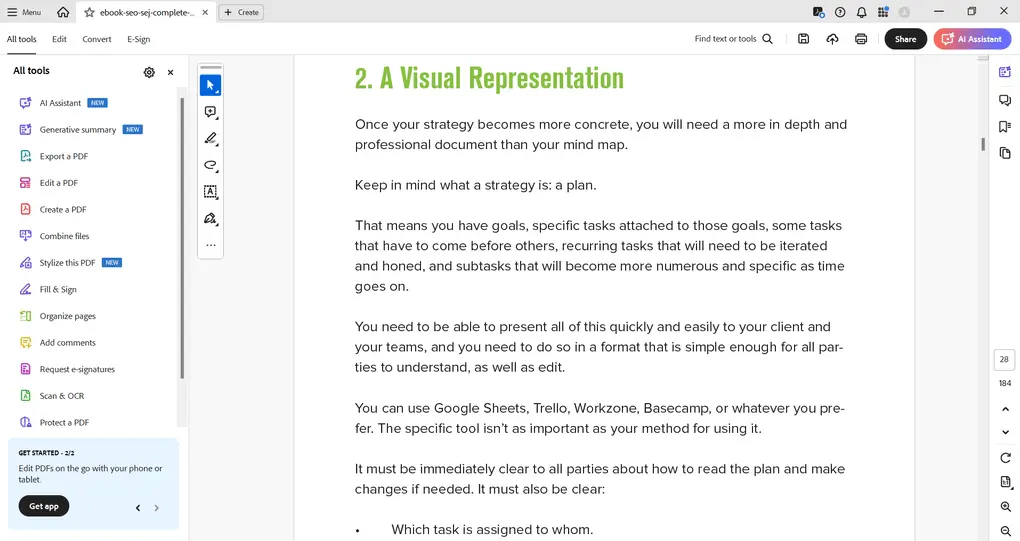
The Adobe PDF Library has solid tools to edit your PDFs. On the left sidebar, you can easily to the files that you have worked on or read.
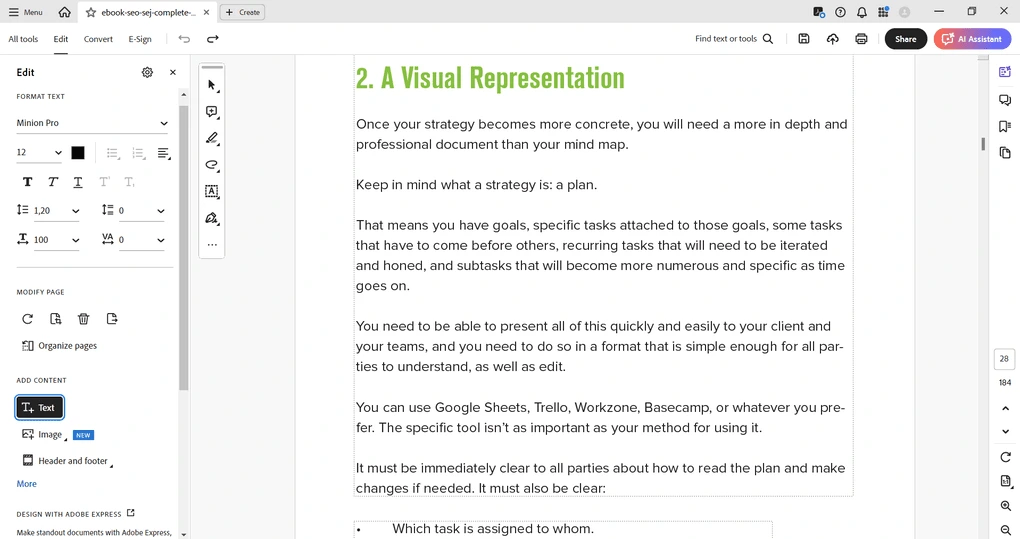
If you click the “All tools” tab, you can access Adobe Acrobat’s tools to edit your PDF. Also, if you click on any part of your PDF, you can highlight, underline, strikethrough, or copy text. Furthermore, it has a moveable sidebar that allows you to draw, fill forms, etc.
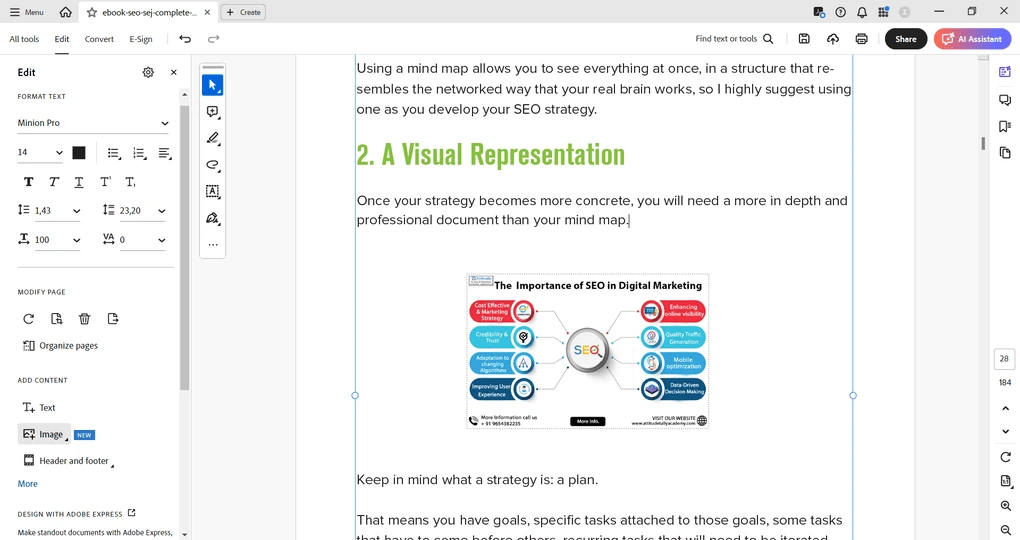
Adobe Acrobat allows you to add or remove text from a PDF document. Nevertheless, if you want to move some text or images to a different page, Adobe Acrobat does not let you drag and drop the text or image elements very smootholy. I found this strange, as all the advanced PDF editors have such an easy-to-use drag-and-drop feature.
Overall, you can easily find all the tools you need when editing your PDFs. Nevertheless, I met with more advanced PDF editing features when testing +30 PDF editors. For example, PDF-XChange or Tenorshare PDNob.
Annotate PDF documents
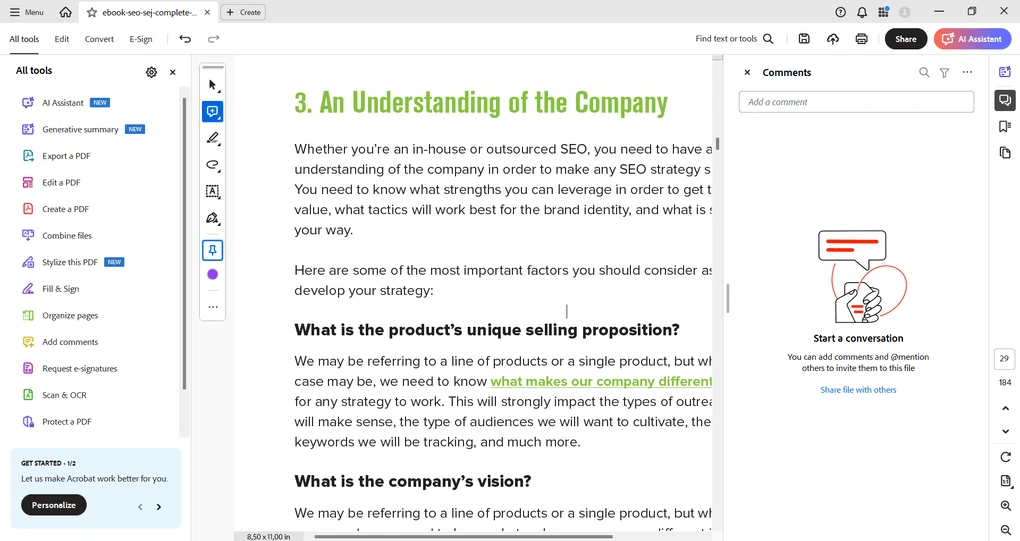
As mentioned, Adobe Acrobat has some useful annotating features like highlighting, underlining, or copying text. It also allows you to add comments, text fields, sticky notes, or shapes.
These are really useful tools when reviewing PDF documents. But honestly, I miss the stickers. They would make the review process even more efficient and visually appealing.
Organizing PDFs
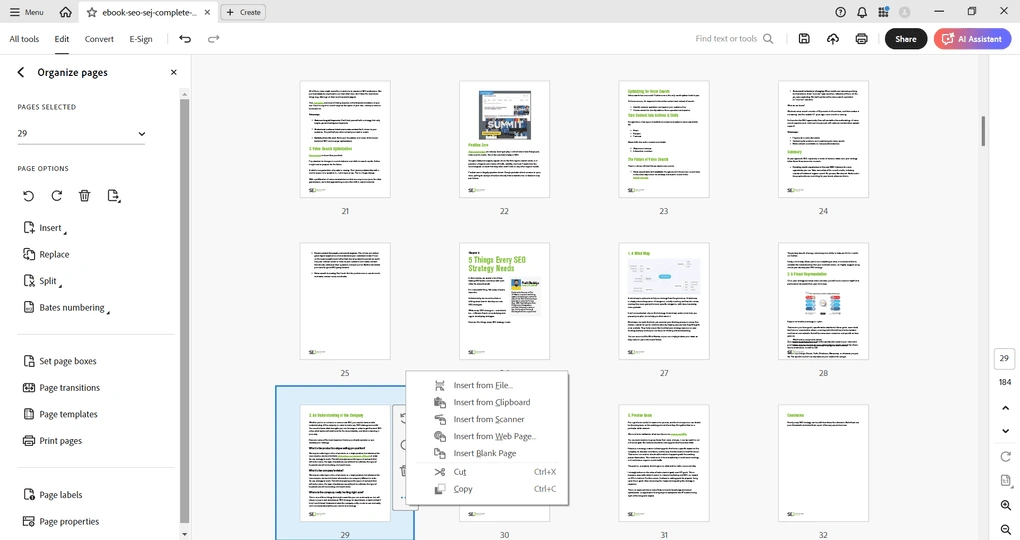
Adobe Acrobat allows you to insert, replace, extract, rotate, split, and remove pages. While this is not an advanced PDF functionality, it is still nice that you can organize your PDFs smoothly.
You can drag and drop page thumbnails to order them in the way you want them. For example, you can easily drag a Microsoft Word file into the thumbnail images of your PDF document, and Acrobat is capable of converting it into PDF format, so you can smoothly insert it into the existing PDF pages.
The one thing I did not like here is that the free version does not include even the basic PDF organization features.
PDF form filling and signatures
Just click the “Fill & Sign” tool, and you will have access to all the tools for filing PDF forms and signing documents. By enabling PDF form filling, you can complete form filling by clicking a text field and typing or inserting a text box.
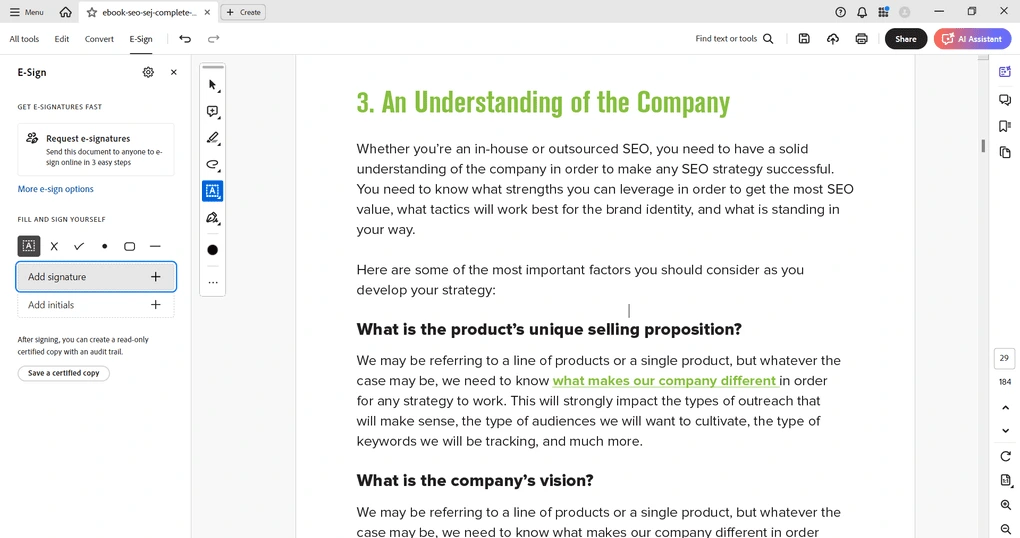
Moreover, if you hit the “Fill & Sign” button in the toolbar, you can quickly draw or type your signature and place it on the form.
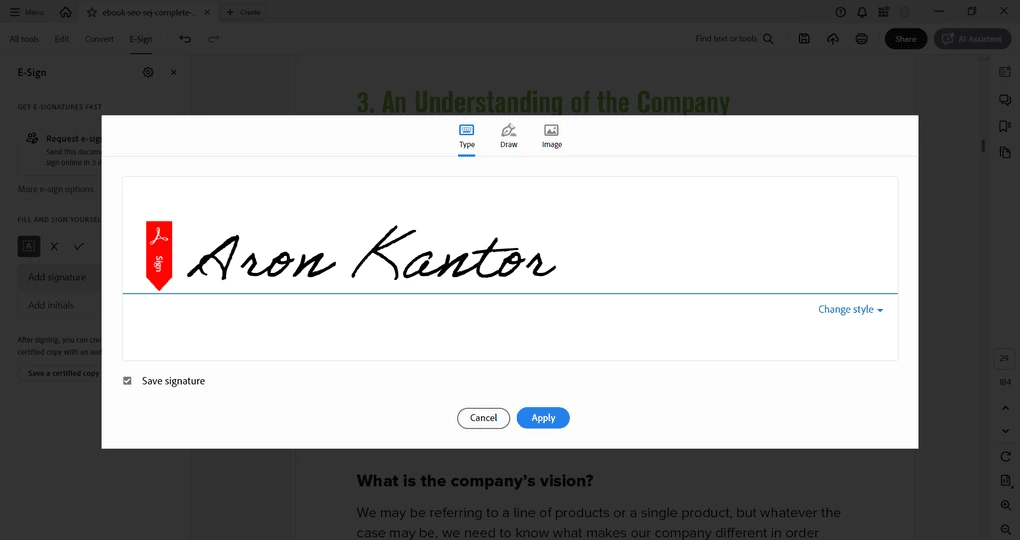
Ultimately, Adobe Acrobat has easy-to-use form-filling and signature features.
Encrypt and share
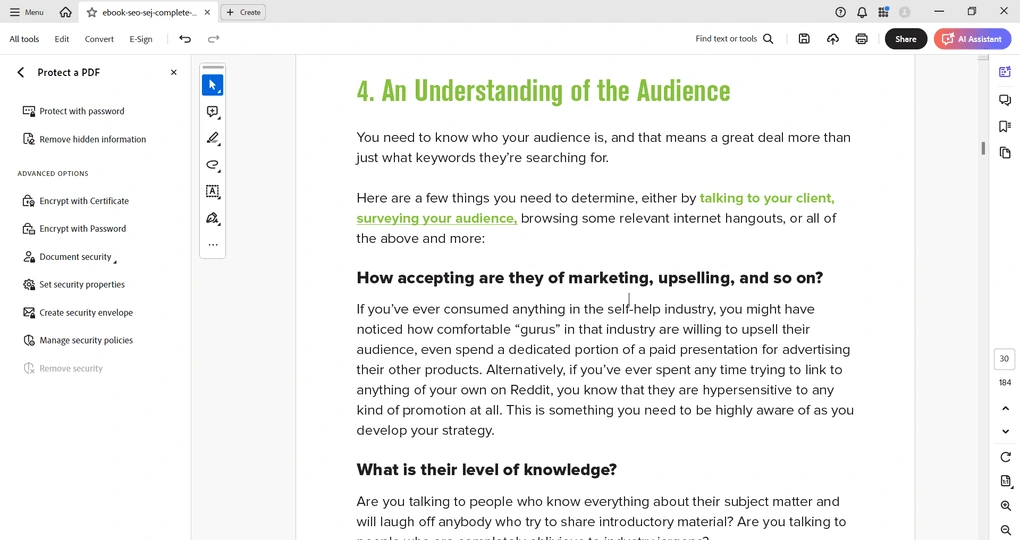
With Adobe Acrobat, you can protect your PDF files with passwords. It is also great that you can limit access to certain features like printing or editing. To use the password protection, click on the “All tools” tab and hit “Protect a PDF.” This way, you can add a password to your PDF files.
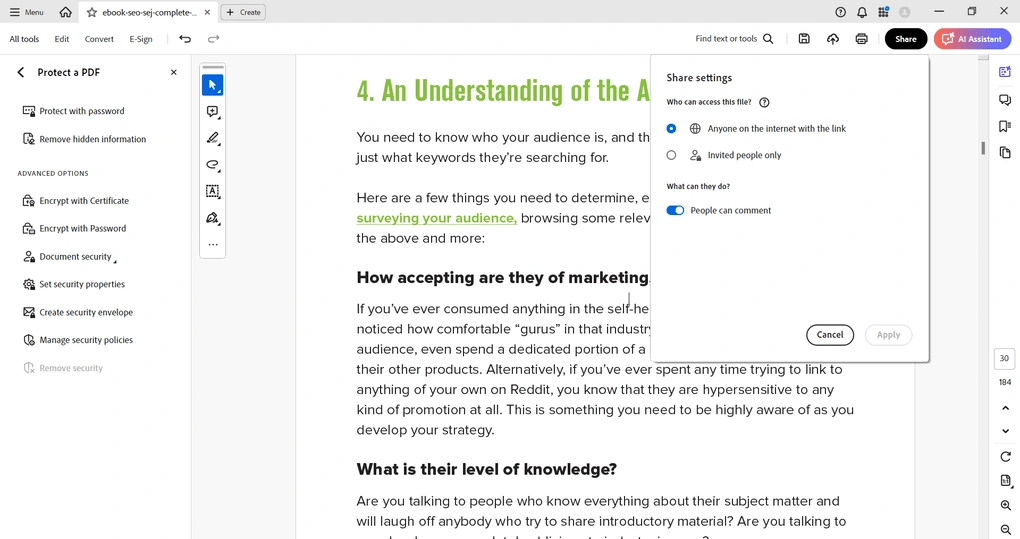
Furthermore, you can share PDF documents directly from Adobe Acrobat or after exporting them. You can create a public link to the PDF file or send it as an email attachment through your email app.
OCR
On the other hand, Adobe Acrobat does a solid job when it comes to editing text in a scanned image. It performs an optical character recognition, and after, it allows you to insert, change, or remove the recognized text.
In general, this feature works great even in the case of old printed documents. Nevertheless, found more accuarte OCR features when testing EaseUS PDF Editor and ABBYY FineReader PDF.
AI assistant
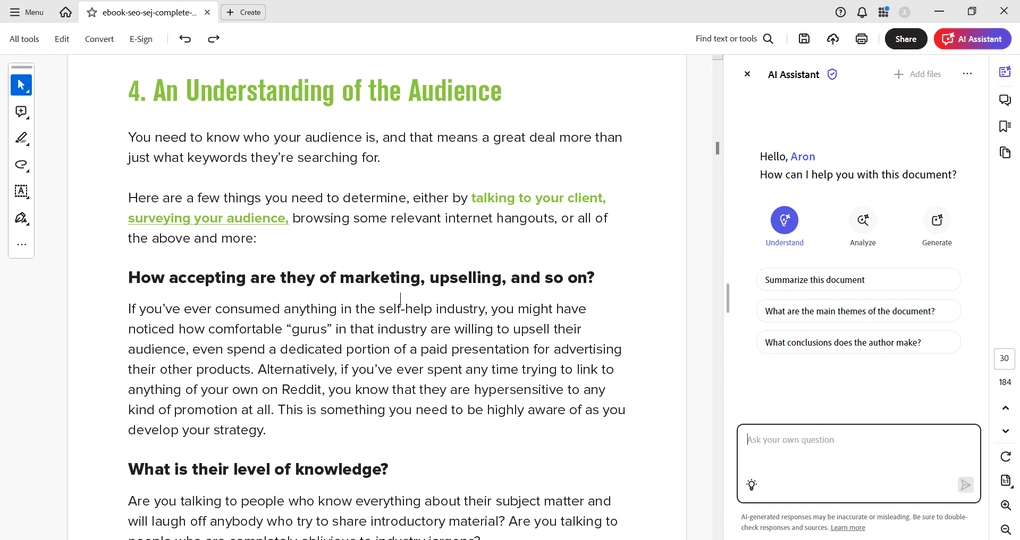
Adobe Acrobat also has an AI assistant feature for $4.99 per month if you have a paid plan. It is a useful tool to get quick answers about your PDFs, summarize content, and digest documents faster.
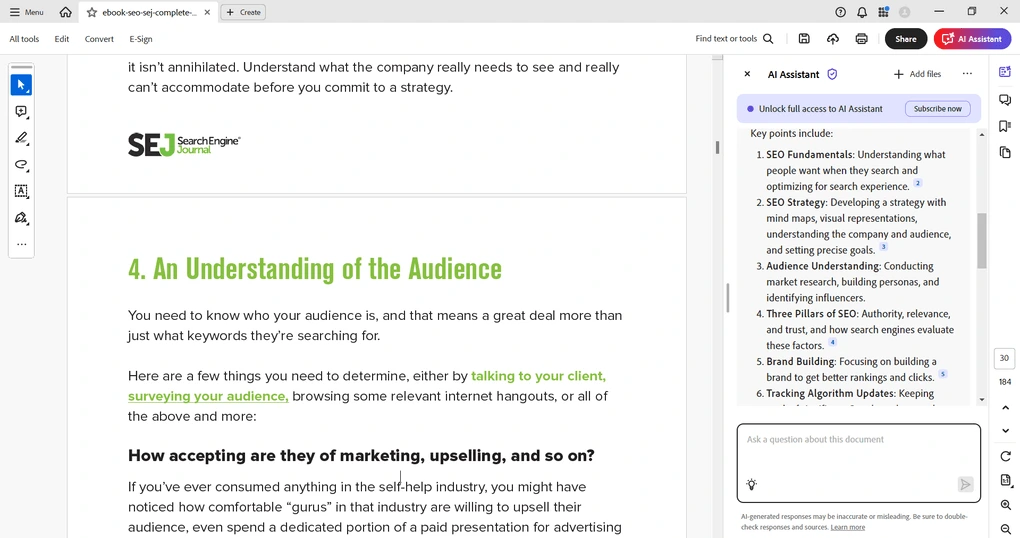
The summary feature works great; Adobe Acrobat creates a summary with one click that pulls key points from your document. It also allows you to chat with multiple documents, so you can find crucial information faster.
However, I have experienced these AI assistant features being limited.
Explore our Apps directory
A curated directory of software tools we’ve independently reviewed, with links to full reviews, comparisons, and category guides.
Adobe Acrobat user interface
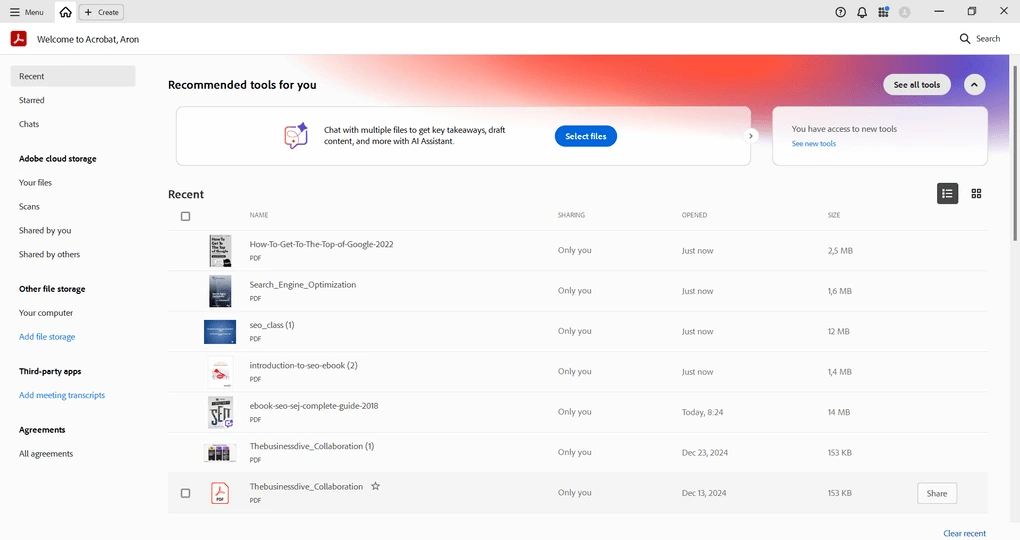
It has a clean user interface, and you can access it on Windows, Mac, iOS, Android, and online. The only issue that comes up occasionally is that it is quite slow when opening larger PDF files.
Adobe Acrobat pricing
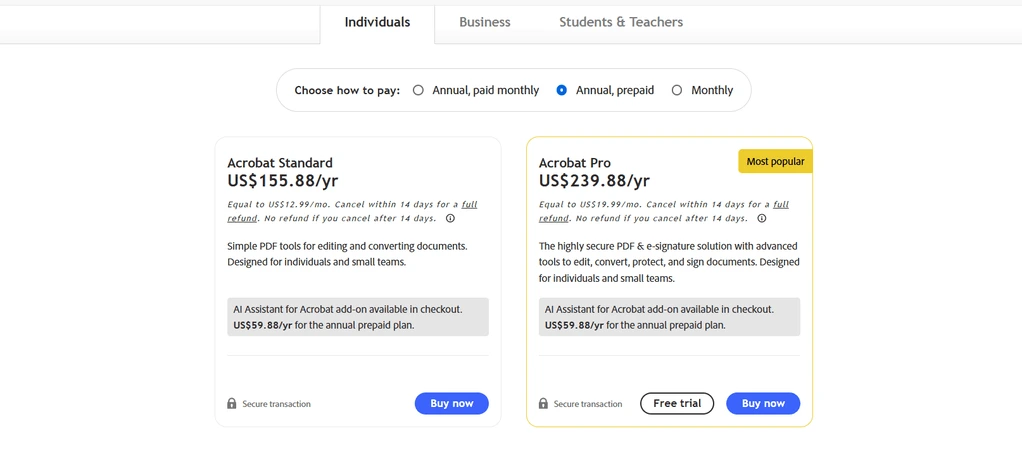
Adobe Acrobat has three plans, and you can add the AI Assistant feature for $4.99 per month. Also, the prices are different for individuals, teams, and students & teachers. As the prices vary based on whether you buy it as an individual or team member, let’s focus on the features included in the plans.
The free plan is called Adobe Reader. This plan lets you view, print, share, and add comments to your PDF files. Essentially, it has the most basic features to read PDF files.
The Acrobat Standard also includes PDF editor features, so you can edit text and images. You can sign, send, or create digital forms and add your signatures if opting for the Acrobat Standard plan. Essentially, this plan has all the basic and some advanced features to effectively edit PDFs. It costs $155.88/year/user for individuals and $179.88/year/license for businesses.
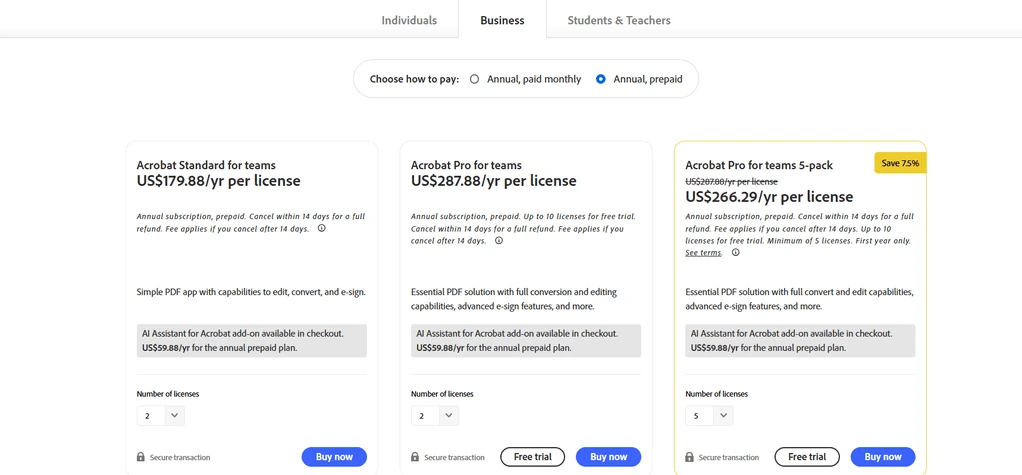
The Acrobat Pro plan includes all the PDF features you need. With this plan, you can send bulk e-signature requests, turn scanned documents into editable, searchable PDFs, compare two versions, and add branding. You can get the Acrobat Pro for $239.88/year if you purchase it as an individual. The business license is $287.88/year per license for businesses. If you are a student or a teacher, you can get discounts on the Acrobat Pro plan.
The yearly fee of the AI assistant is $59.88 per user, and it is the same for individuals and businesses.
When taking a look at the paid plans of Adobe Acrobat, you will quickly realize that the price is much higher than that of some of its competitors.
Related readings:
- Adobe Acrobat Pricing In 2026 | Why I Regret Buying It
- The 7 Best Adobe Acrobat Alternatives: 30+ PDF Editors Tested
- The 8 Best PDF Editors In 2026 | 30+ Personally Tested PDF Tools
- The 6 Best PDF Readers For 2026 (Only FREE Options)
Pros and cons I discovered during my Adobe Acrobat review
After my Adobe Acrobat review, I found these pros and cons you should know about this PDF editor.
Adobe Acrobat’s pros
First, Adobe Acrobat offers many tools to manipulate, annotate, and edit PDFs. The Acrobat Pro should fulfill all your PDF needs.
Secondly, it has easy-to-use PDF signing and form-filling features. It is smooth to add your signatures or fill out forms.
Furthermore, Adobe Acrobat provides cloud storage for your documents, so you can access them from any device.
Moreover, it is one of the most secure PDF editors and document management platforms.
Lastly, Adobe Acrobat benefits from a mature ecosystem with extensive integrations, cloud syncing, and compatibility with many business workflows.
Adobe Acrobat’s cons
I have two issues with Adobe Acrobat.
Honestly, Adobe is an expensive tool compared to other PDF tools. This should not be a huge problem if it had a decent free version. Nonetheless, Adobe Acrobat Reader has limited features, and it is only ideal for reading PDFs.
Furthermore, Adobe Acrobat was quite slow for me, particularly if I opened a large PDF file. At first, I believed it was just me, but after reading several reviews, many users experienced the same.
Wrap-up: Adobe Acrobat review
After my Adobe Acrobat review, I learned that it is still a solid choice with advanced PDF editing capabilities. However, the pricing is too expensive considering the value it offers.
Also, in the course of testing numerous PDF editors, I found Adobe Acrobat Pro as one of the slowest apps. When working with numerous PDF documents in parallel, it was far from stable.
Ultimately, while Adobe Acrobat has massive PDF tools and functions, I do not recommend it due to its high prices.
Adobe Acrobat alternatives
If you feel like Adobe Acrobat Standard or Pro is not the perfect PDF editor for you, here are the best alternatives:
|
App |
Best for |
Description |
|---|---|---|
|
Foxit |
Best affordable alternative to Adobe Acrobat |
A PDF editor with an intuitive user interface at an affordable price for Mac and Windows users. |
|
EaseUS PDF Editor |
Best all-in-one PDF editor for beginners |
It is an all-in-one PDF software to read, edit, annotate, and convert your documents. Full EaseUS PDF Editor review | Quick EaseUS PDF Editor overview |
|
Tenorshare PDNob |
Best for AI-powered PDF editing |
It is an easy-to-use AI-powered PDF editor that offers many features to edit, read, organize, and annotate your documents. Full Tenorshare PDNob review | Quick Tenorshare PDNob overview |
|
PDF Expert |
Best for Mac users |
A PDF editor for Mac, iPhone, and iPad users that offers all the tools you need to manage your PDF files, from annotation tools to signing PDFs. |
|
Xodo PDF Studio |
Best offline PDF editor |
A straightforward offline desktop PDF editor for Windows, Linux, and iOS devices, with great PDF reading and editing tools. Full Xodo PDF Studio review | Quick Xodo PDF Studio overview |
|
ONLYOFFICE PDF Editor |
Best for collaboration and team editing |
A versatile tool that combines PDF editing with document collaboration features. It lets you to edit text, add visual elements, and create fillable forms. |
|
UPDF |
Best value PDF editor with AI features |
One of my favorite PDF editors with advanced AI features and budget-friendly pricing. |
|
Nitro |
Best for business PDF workflows |
A feature-rich PDF editor with a strong focus on PDF editing. |
|
Smallpdf |
Best online PDF tool |
An online PDF software with numerous tools to convert, compress, and edit PDF files for free. |
|
pdfFiller |
Best for e-signatures and document workflows |
It offers a signing and editing solution that lets users sign and edit documents, send them for signature, and manage the full electronic document workflow in one place. |
|
LightPDF |
Best for AI PDF productivity |
An AI-powered PDF editor that lets you edit, convert, OCR, sign, annotate, chat with PDFs, and more. |
|
PDFgear |
Best free PDF editor |
A completely free, offline PDF editor with solid editing, OCR, conversion, and AI tools. |
|
PDF-XChange |
Best advanced PDF editor for Windows |
A powerful Windows-based PDF editor with advanced editing, annotation, security, and conversion tools. |
|
Sejda PDF Editor |
Best for simple, everyday PDF tasks |
An intuitive and simple PDF software best suited for personal use for those who need a PDF editor for basic PDF tasks. |
|
Soda PDF |
Best for security and file conversion |
A user-friendly PDF editor with solid core features, strong security tools, and broad file conversion options, but its advanced features come at a relatively high price. |
|
PDF Candy |
Best PDF toolkit with multiple tools |
A very practical PDF toolkit with a large number of useful tools, solid performance, and affordable pricing. |
|
Tungsten Power PDF |
Best enterprise-grade PDF solution |
A powerful PDF editor and document management tool designed for businesses, offering advanced editing, security, OCR, and collaboration features. Full Tungsten Power PDF review | Quick Tungsten Power PDF overview |
|
ABBYY FineReader |
Best for OCR and document digitization |
A powerful OCR-focused PDF tool with strong layout detection, flexible conversion, and an efficient workflow. Full ABBYY FineReader review | Quick ABBYY FineReader overview |
|
PDFelement |
Best balance of features and ease of use |
An easy-to-use PDF editor with valuable features for a reasonable price. |
|
ProPDF |
Best for quick PDF tasks |
A free online PDF editor offering tools to manage, edit, convert, and secure PDF documents. |
|
WPS Office |
Best easy-to-use office suite and PDF editor |
WPS Office is an easy-to-use office suite with solid PDF editing and AI-powered productivity tools, though its free plan is quite limited. |
Adobe Acrobat vs alternatives



Adobe VS Foxit

Adobe VS UPDF

Adobe VS Nitro

Adobe VS PDFelement
Adobe VS PDF Expert
Looking for similar tools?
Visit our library of PDF editors to explore other apps we’ve reviewed in this space and how they compare.
Why you can trust our reviews
At thebusinessdive.com, our team tests, reviews, and compares hundreds of productivity apps every year — from project management tools to note-taking apps. We dive deep into real-world use cases to help you find the right tools that actually improve your workflow, not just add noise.
Our mission? No fluff, no shortcuts—just honest, hands-on insights from productivity pros.
Discover how we stay transparent, read our review methodology, and let us know about any tools we missed.
Frequently asked questions
Is it worth subscribing to Adobe Acrobat?
I recommend trying some Adobe Acrobat alternatives, as they offer the same or more value for significantly less money. Here are some of the best Adobe Acrobat alternatives:
- UPDF: One of my favorite PDF editors with advanced AI features and budget-friendly pricing.
- PDF Expert: An ideal option for Mac and iPhone users who read a lot of PDFs.
- Foxit: A fast PDF editor with an intuitive user interface for an affordable price.
- PDF Element: An easy-to-use PDF editor with useful features for a reasonable price.
- Nitro: A feature-rich PDF editor with a strong focus on PDF editing.
- EaseUS PDF: An affordable PC-only PDF editor.
- PDFgear: A free and versatile PDF editor.
- PDF AI: A PDF editor with massive AI features.
Is Adobe Acrobat any good?
Adobe Acrobat is still a solid PDF editor with numerous useful features for businesses and individuals. However, it is the most expensive PDF editor on the market and has performance issues when working on a more complex PDF document.
Is Adobe Acrobat still free?
Adobe Acrobat’s free version is called Adobe Acrobat Reader. Using this version, you can read and view your PDF documents. However, you can not utilize editing, signing, and many other tools.
Disclosure: I only recommend products I would use myself, and all opinions expressed here are our own. This post may contain affiliate links that, at no additional cost to you, may earn a small commission. Read the full privacy policy here.

Hey there! I am Aron, the founder of Thebusinessdive. I have been testing productivity apps for almost three years now. I reach 25.000 -50.000 people monthly with the mission to help you find the perfect productivity apps. Subscribe to my YouTube channel, newsletter, and social media to hear more about the best productivity tools. Let’s dive in!
It’s great to see a comprehensive review of Adobe Acrobat, especially as it’s a tool I rely on frequently. I’m curious about the specific details that are often overlooked. Looking forward to seeing how the user interface has evolved and the updated pros and cons in this 2025 review.
I’ve now spent 20 minutes trying to figure out how to zoom in to enlarge text in Acobat. The usual + and – button are missing. I thought a workaround would be to print out the document and read the hard copy, but then I couldn’t figure out which pages to print because the page number of the current page is not displayed! A total waste of time. Giving up. DO NOT USE ACROBAT. Word to the wise.