


Nitro PDF Review: My findings after testing +30 PDF editors
In this Nitro PDF review, I will share every important detail that you should know about this PDF editor.
Over the past three years, I have tested more than 30 PDF editors with one goal: to save you time and money by helping you find the best ones worth the price.
Using that experience, I will show how Nitro PDF performed during testing and how it compares to other popular options.
Let’s jump in!
Verdict: Exceptional business features, but overkill for casual users
Here’s the quick verdict if you don’t want to read the full review:
🎯 Best for: A robust PDF editor for businesses
🚫 Not ideal for: Users needing a budget-friendly or lightweight PDF editor
⭐ Biggest strength: Powerful feature set
⚠️ Biggest weakness: Its pricing makes the most sense for frequent PDF users and businesses
⚖️ Verdict: A feature-rich PDF editor that delivers excellent value for professionals and businesses
🏆 Score: 4.5 / 5
✅ Tested with our review & scoring methodology ✅ Real-world testing ✅ Unbiased evaluation
Nitro PDF review
Summary
Nitro PDF is a robust PDF editor for document workflows. You can use it on Windows, Mac, iOS, and online. Overall, Nitro PDF delivered one of the strongest all-around PDF editing experiences I tried. It combines advanced features with a user-friendly interface, making it a capable choice for professionals and businesses working with PDFs regularly.
|
|
Precise PDF editing experience
|
|
|
Advanced image editing tools
|
|
|
Strong form creation features
|
|
|
Complete e-signature workflow
|
|
|
Excellent security and redaction tools
|
|
|
Accurate OCR performance
|
|
|
Clean and intuitive interface
|
|
|
Admin Portal & Analytics
|
|
|
Page organization could be smoother
|
|
|
No option to switch between opened PDFs
|
|
|
AI tools are web-based
|
|
|
Better value for professionals
|
Where Nitro PDF excels & falls short
| What impressed me | Pain points |
|---|---|
| ✏️ Precise PDF editing experience — Lets you edit individual lines or sections instead of forcing large content selections, making detailed edits easier. | 🗂️ Page organization could be smoother — A drag-and-drop page management interface would make rearranging PDFs faster. |
| 🖼️ Advanced image editing tools — Allows you to adjust image size, position, brightness, colors, and resolution directly inside PDFs. | 📑 No option to switch between opened PDFs — Switching between multiple open PDFs is not as convenient as some competitors. |
| 📝 Strong form creation features — Smart Automatic Form Creation can quickly turn static forms into interactive PDF forms. | 🤖 AI tools are web-based — Features like Nitro Assistant and smart extraction tools are not available directly in the desktop app. |
| ✍️ Complete e-signature workflow — Nitro Sign provides advanced signing features, custom fields, recipients, and audit trails for businesses. | 💰 Better value for professionals — Nitro offers plans for individuals, teams, and businesses, and includes AI tools, admin features, analytics, and support. However, users who only need basic PDF editing may find lower-cost alternatives. |
| 🔐 Excellent security and redaction tools — Smart Redaction automatically detects and removes sensitive information like emails and financial details. | |
| 🔎 Accurate OCR performance — Converts scanned documents into editable and searchable PDFs quickly and reliably. | |
| 🖥️ Clean and intuitive interface — Makes advanced PDF tools easier to access without a steep learning curve. | |
| 📊 Admin Portal & Analytics — Admin Portal and Analytics dashboard are included in the subscription at no extra charge. |
What I learned using Nitro PDF over time
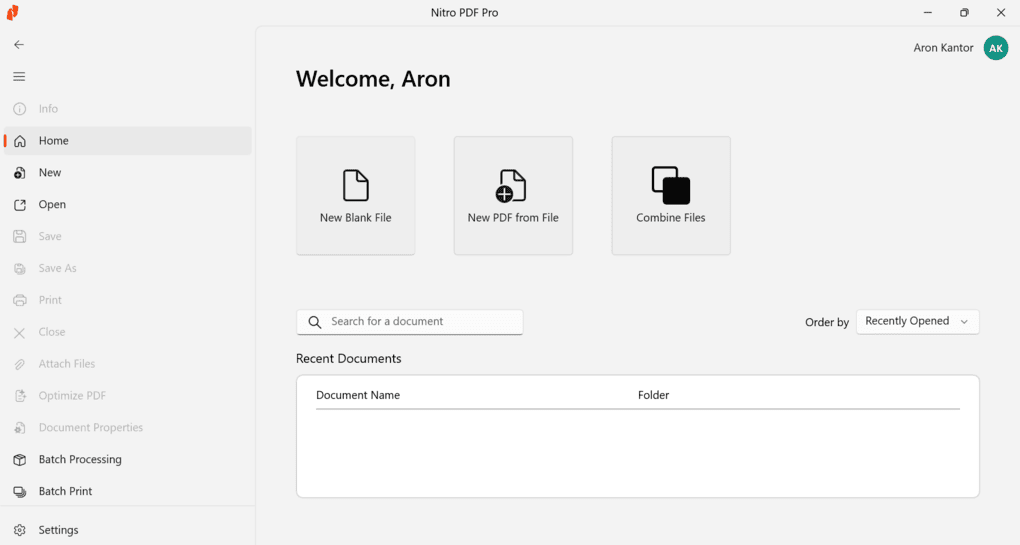
Nitro has a robust feature set when it comes to working with PDF forms and documents. You can find everything you need to read, edit, and review PDF documents.
The PDF editing experience was smoother than I expected. One thing I immediately noticed was how precisely Nitro handled text selection, while offering the flexibility to select lines or sections.
The image editor was also outstanding compared to other PDF editors I tried. Adjusting size, position, brightness, colors, and resolution worked well, and I did not run into formatting issues while moving elements around.
Besides standard password protection and redaction tools, the Smart Redaction feature was one of the most useful features I found after testing 30+ alternatives.
The e-signature and form tools were another highlight. Nitro Sign works as a dedicated e-signature app, with custom fields, audit trails, and document workflows that make sense for business users.
The interface was clean and easy to navigate overall. However, I missed the function to switch between multiple open documents, and organizing pages could be faster with a more visual drag-and-drop layout.
Overall, Nitro PDF delivered one of the strongest all-around PDF editing experiences I tried. It combines advanced features with a user-friendly interface, making it a capable choice for professionals and businesses working with PDFs regularly.
Why Nitro PDF earned a 4.5 / 5
| Area | Score | Why it gained/lost points | |
|---|---|---|---|
| 🟢 | PDF editing | 5/5 | One of the most advanced PDF editing feature sets I tested. |
| 🟢 | Forms & e-signatures | 5/5 | Robust form creation and e-signature features. |
| 🟢 | Conversion & compression | 5/5 | Outstanding conversion and compression features. |
| 🟢 | Annotations | 4.5/5 | Almost reached the maximum score with a strong set of annotation tools. |
| 🟢 | OCR | 4.5/5 | Accurate OCR performance with strong overall results. |
| 🔴 | PDF reading | 3.5/5 | Missing practical reading features such as themes and night mode. |
| 🔴 | User interface | 4/5 | The interface is polished, but Nitro lost points because you can’t easily switch between open documents. |
Also, it lost some points in pricing. While Nitro is more affordable than Adobe Acrobat and offers a broad range of business features, there are lower-cost alternatives for individuals who only need basic PDF editing.
With 4.5 points, Nitro PDF earned it’s place among my list of best PDF editors.
Who will benefit most from Nitro PDF?
Who should look for alternatives?
My key takeaway from each Nitro PDF feature
| Feature | My key takeaway |
|---|---|
| ✏️ PDF editing | One of Nitro’s strongest areas; precise text selection and unusually capable image editing stood out. |
| 📖 PDF reading | Covers the essentials, but I missed themes and a proper dark/night mode. |
| 💬 Annotations | Strong enough for regular document review, although nothing particularly unusual stood out. |
| ✍️ E-signatures | Goes far beyond adding a signature thanks to Nitro Sign’s recipients, fields, workflows, and audit trails. |
| 📝 PDF forms | Smart Automatic Form Creation is one of the more useful form features I’ve tested. |
| 🗂️ PDF organization | Capable, but rearranging pages would be faster with a more visual drag-and-drop workflow. |
| 🔐 Protection & redaction | Smart Redaction was one of the most efficient methods I’ve tested for removing sensitive information. |
| 🔄 Conversion & compression | Conversion felt nearly instant, while compression reduced my test files by more than 50%. |
| 🔎 OCR | My scanned document became editable in roughly 20–40 seconds with solid recognition accuracy. |
| 🤖 Smart Tools | Much faster than when I tested Nitro’s AI in 2023–2024, although they’re still web-based. |
| 📊 Admin & Analytics | A major differentiator for businesses managing multiple PDF users. |
Detailed feature breakdown
Here I guide you through the key features I used for testing and my related experience.
PDF editing features
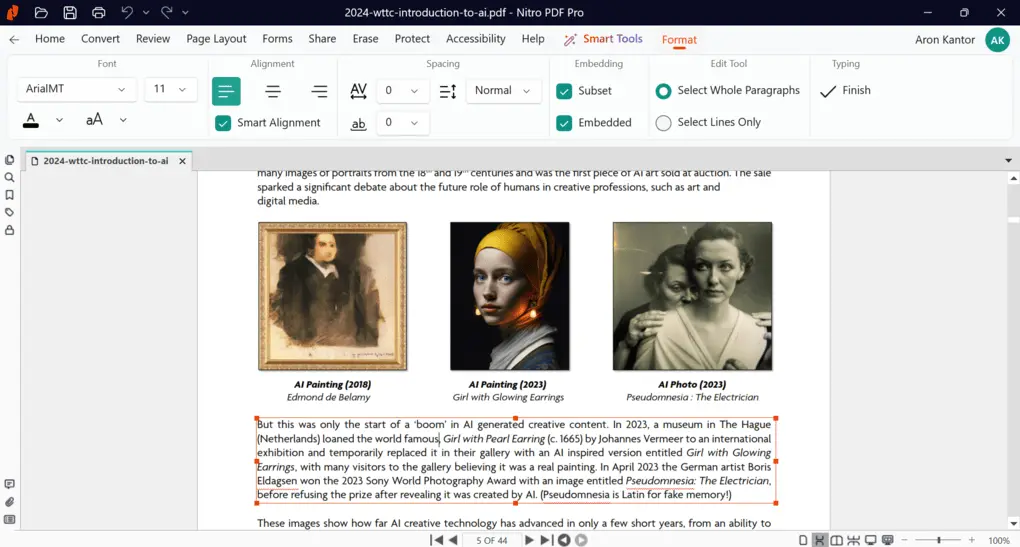
If you click on the edit button on the left side of the top toolbar, you can edit PDF documents with Nitro. You can create new text or edit the existing content.
What I noticed first, compared to other PDF editors, is how flexible it is when selecting which text you want to edit. It can either select the whole block or just a line, which is a nice touch for more precise PDF editing.
In contrast, I tried numerous PDF editors where it selected the whole page when I wanted to edit only a section.
When making changes in the text, you can adjust font type, size, color, alignment, spacing, and position. Similar to other PDF editors, you can edit both text and images, and insert new ones.
When it comes to the pictures, you can adjust resolution, brightness, color, size, and position. The picture editor worked smoothly during testing and did not encounter any issues.
After you finish editing, you can move the text blocks and pictures around by dragging and dropping them.
PDF reader
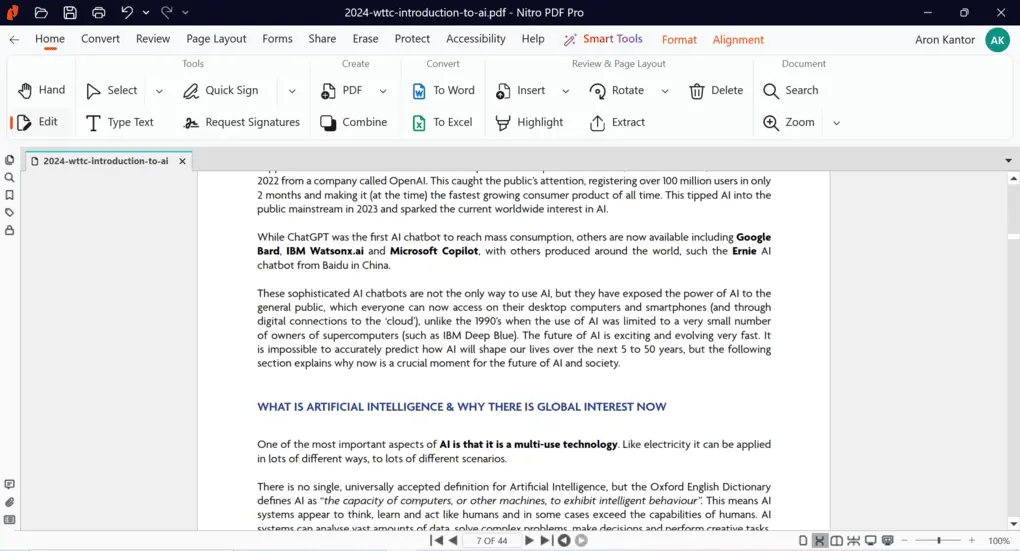
Nitro offers practical PDF reading features. You can choose from numerous view options to review your PDF documents.
The default view shows only one page at a time. However, you can easily change this view to facing pages, continuous facing pages, or full-screen mode.
Moreover, you can zoom in and out when viewing your PDF documents.
What I missed when viewing PDFs is the option to switch between dark and light modes, but aside from that, Nitro has the essential tools for PDF reading.
Annotate PDF documents
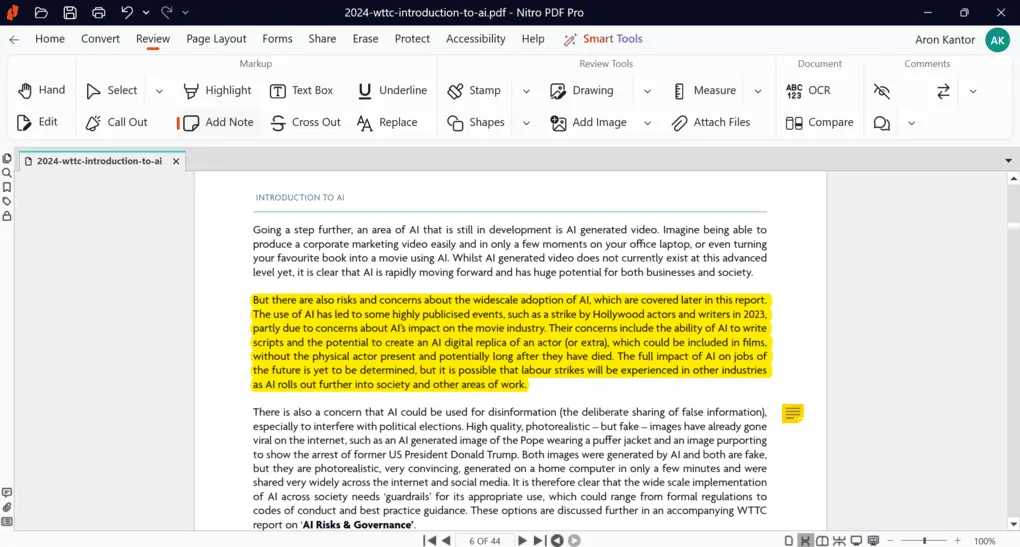
During my Nitro PDF review, I discovered that Nitro is a solid PDF annotator. With its markup tools, you can highlight text, insert notes, callouts, stamps, shapes, and more.
In addition to the essential annotation features, Nitro PDF lets you attach files and draw.
Overall, these features are useful for small businesses and for users who frequently collaborate on PDF documents.
Sign PDFs
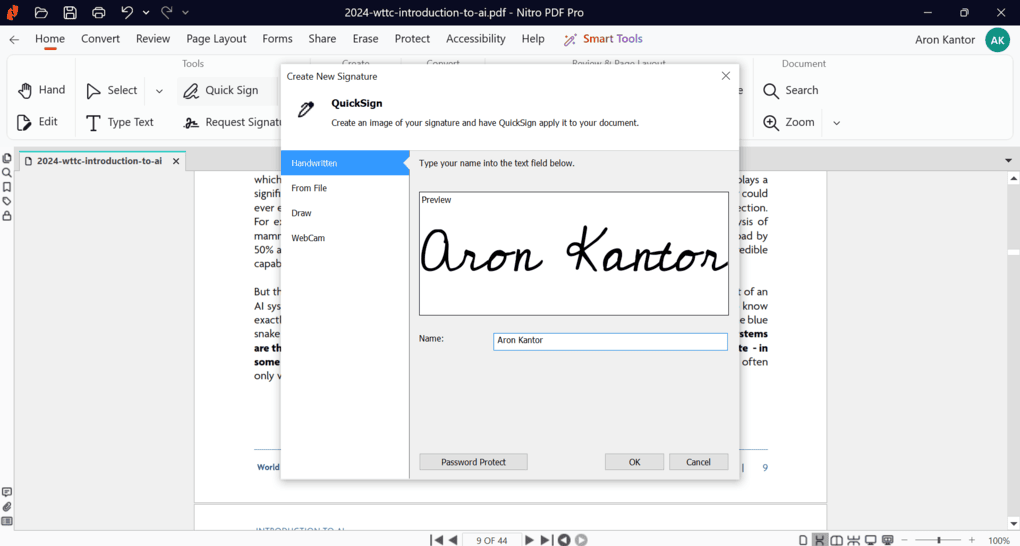
Nitro PDF has a built-in quick signature option that you can use to create your signature and sign documents fast. You can get your signature by drawing, webcam, file insertion, and typing.
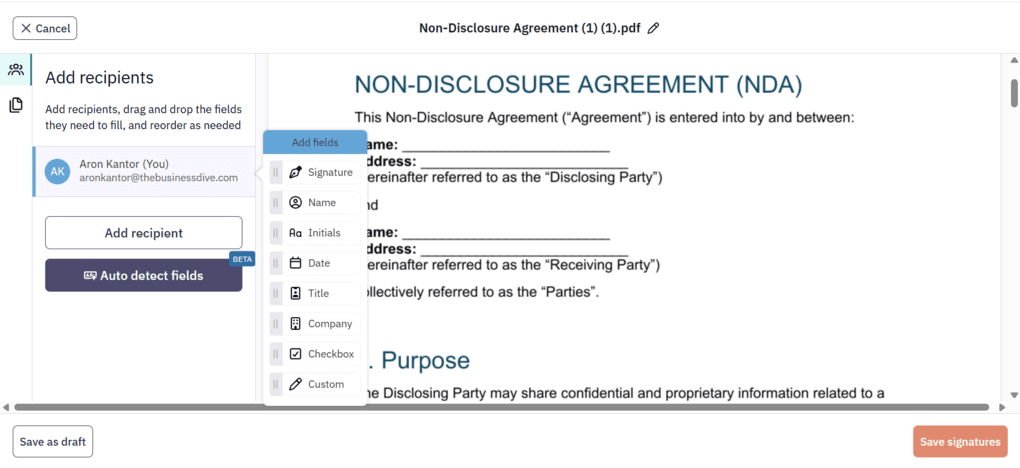
Nevertheless, if you need more advanced PDF signing, you can use Nitro Sign, which works as a full-featured e-signature platform. That said, you can insert numerous field types, such as name, date, title, company, signature, and more.
Afterward, just add the recipients and share the document for signing. Nitro Sign also provides an audit trail and a secure record of all actions taken during the signing, making it an ideal choice for businesses.
PDF forms
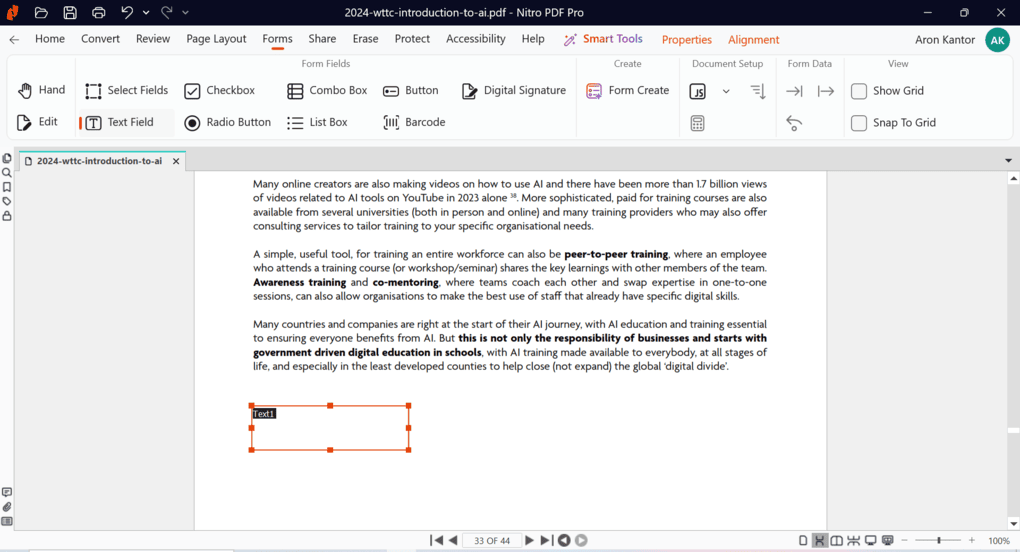
Nitro offers several tools to help you fill out forms. You can add items such as checkboxes, lists, barcodes, buttons, and more.
When you insert an item, you can easily drag and drop them, duplicate fields, and use more detailed formatting.
I found the Smart Automatic Form Creation a valuable feature here to instantly detect and convert static form elements into interactive fields. Based on my experience, only a few PDF editors offer similar features for faster form creation.
All in all, Nitro PDF has capable form creation tools that are excellent for users who regularly work with PDF forms.
Organize PDFs
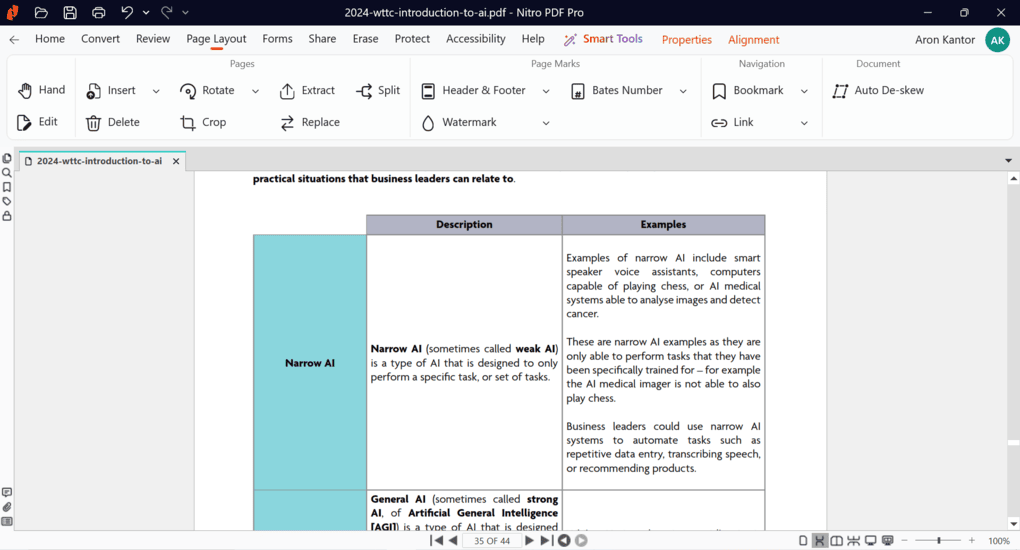
If you go to the page layout option on the top toolbar, you can organize your PDF files. You can reorder, delete, rotate them, and more.
The only thing I missed here is an interface that lets me quickly drag and drop pages to rearrange them. In my opinion, it is faster to organize your pages compared to the solution Nitro PDF offers.
PDF Protection and redaction
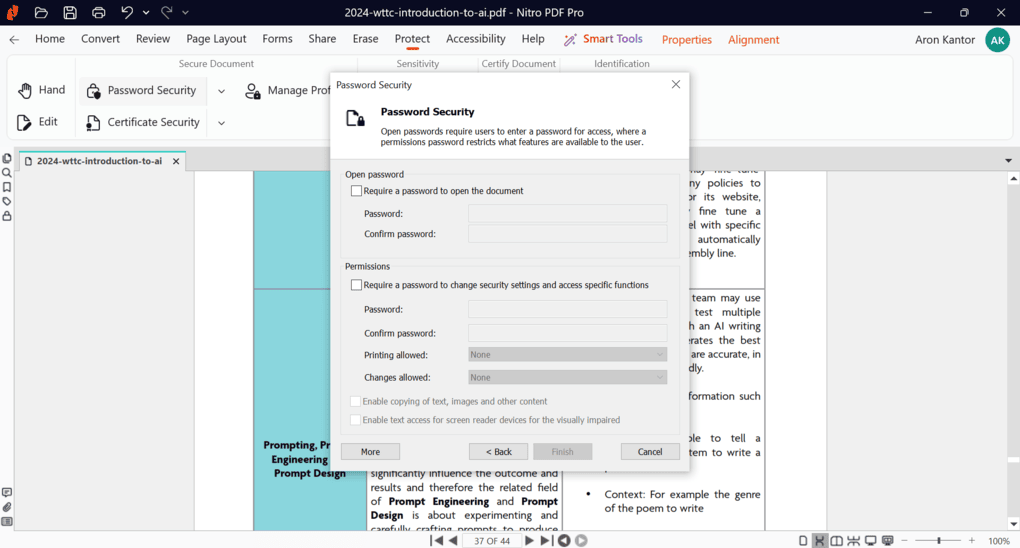
Security is key when it comes to PDFs, as they can include a lot of sensitive data. With Nitro PDF, you can add an open password and a permission password.
In the case of open passwords, you have to add a password that must be entered each time you access the PDF file. You can set a permission password to allow others to edit and print the PDFs. They are both useful for protecting your PDFs and restricting their accessibility.
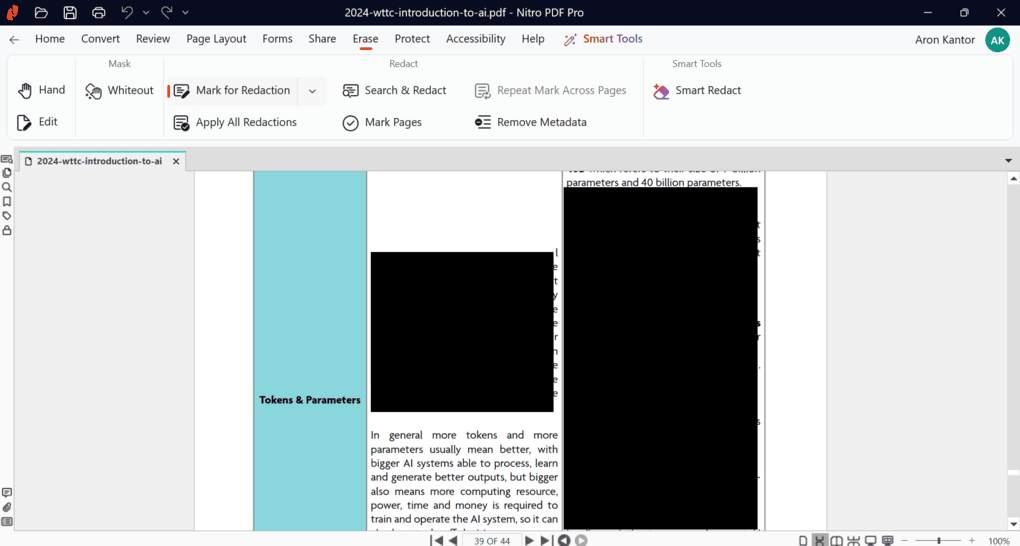
In addition, you can mark parts of the documents for redaction, and once you are ready, just click on the Apply Redaction for removal. Nitro PDF not only hides the information but permanently removes it from the document.
One thing that stood out to me is the Smart Reduction feature, which automatically redacts sensitive data from PDFs using AI, such as bank info, email addresses, and more.
After testing some of the most advanced PDF editors, such as Adobe Acrobat, PDF-Xchange, and Tungsten Power PDF, I did not find a more efficient redaction removal method.
PDF conversion and compression
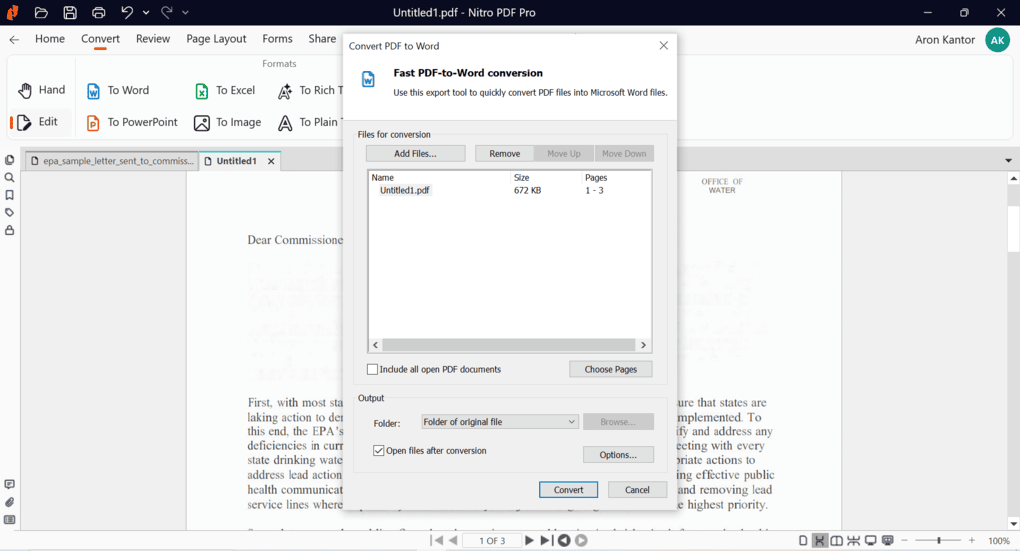
Nitro PDF allows you to convert PDFs into Word, Excel, PowerPoint, and image formats. The conversion is almost instant, and you get the file in the desired formats.
Nitro also offers PDF compression features to strip unnecessary objects and compress images to the minimum size. Based on my testing, it worked well and reduced the files’ size by more than 50%.
Optical character recognition
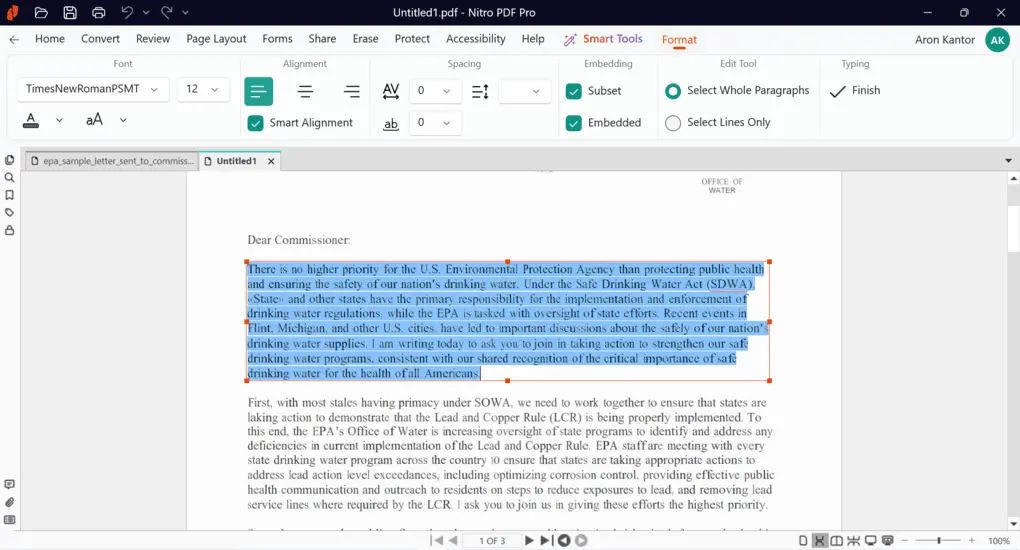
I was curious how Nitro PDF handles scanned documents, so I tried its OCR capabilities. And honestly, the result was better than I expected.
It transformed the scanned document into an easily editable PDF file that I can edit and annotate. The process took about 20-40 seconds, and you can choose whether to make it searchable or editable.
Overall, I was satisfied with the entire process and the OCR output accuracy.
Smart Tools
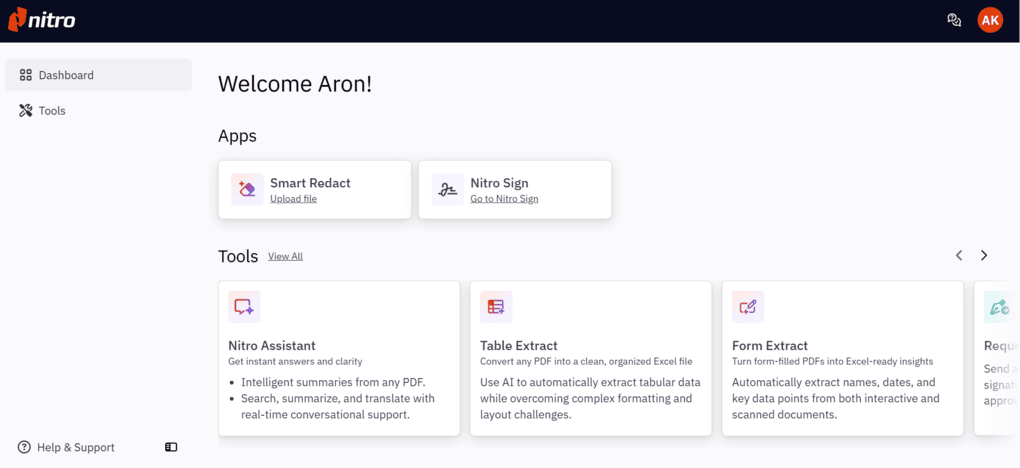
The Smart Tools are only available in the Web version.
Nitro Assistant helps you summarize and ask questions about your PDF document. The first time I used Nitro’s AI features around 2023 and 2024, I experienced slow response times. However, it’s not the case in 2026.
I got the answers in 10-15 seconds, and the output was reliable.
Besides the AI assistant, you can access Nitro’s table and form extract features to automatically get the key data points from tables and forms. If you deal with many forms and tables daily, this can be a practical solution.
Admin Portal and Analytics
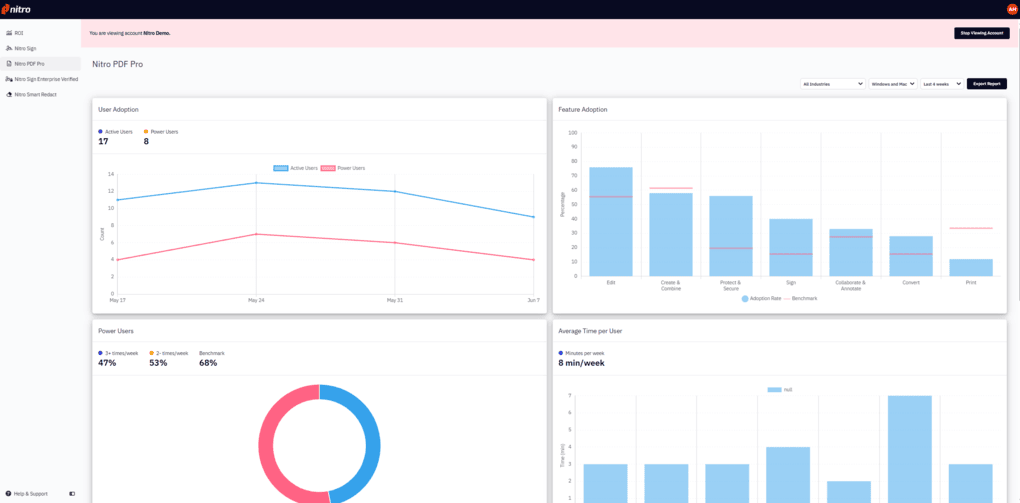
Using the Admin Portal, you can control access, allocate seats, and turn AI tools on/off. This is a unique feature, as neither Adobe Acrobat nor Foxit offers similar features for admins.
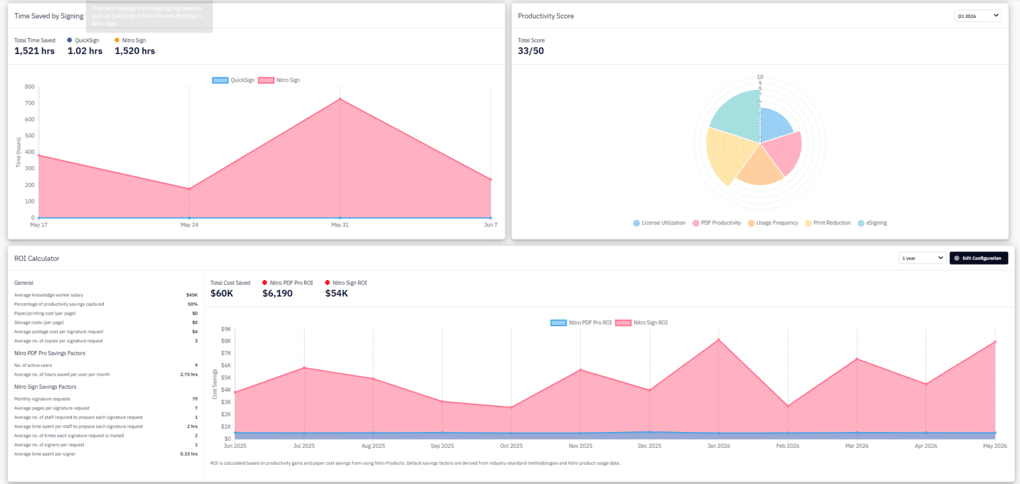
With the Analytics feature, you can track the time saved by signing, including an ROI calculator and a productivity score for your users. Such features give you insight into your team’s PDF workflows, making Nitro an appealing option for businesses with serious PDF needs.
Nitro user interface
The user interface is simple and polished. It was easy to find the functions I was looking for, and the whole user experience felt smooth. One function I missed, though.
It would be great if users could switch between different open documents without closing the one you are working on.
Explore our Apps directory
A curated directory of software tools we’ve independently reviewed, with links to full reviews, comparisons, and category guides.
Nitro PDF’s pricing plans
Nitro’s pricing structure looks like this for individuals:
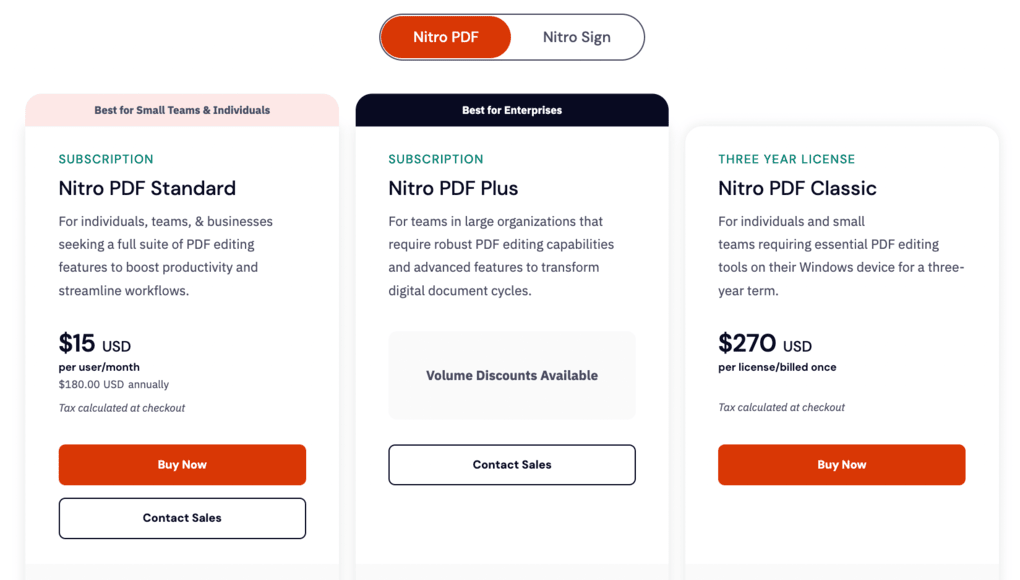
| Plan | My take |
|---|---|
| Nitro Pro Standard — $180/year | Makes sense for professionals who regularly edit PDFs and want the AI/business functionality bundled in. |
| Nitro PDF Classic — $270 one-time | More interesting for users who prefer perpetual licensing and don’t need the full subscription package. |
| Nitro PDF Plus — Custom pricing | The plan I’d look at for larger organizations needing volume licensing and administration features. |
| Nitro Sign Standard — $180/year | Only makes sense if you specifically need Nitro’s full e-signature workflow rather than occasional PDF signing. |
Related articles:
- The 6 Best PDF Readers For 2025 (Only FREE Options)
- 6 Best OCR Software For 2026 | 30+ Personally Tested Tools
Nitro PDF alternatives
If you feel like Nitro is not the perfect PDF editor for you, here are the best alternatives:
|
App |
Best for |
Description |
|---|---|---|
|
Foxit |
Best affordable alternative to Adobe Acrobat |
A PDF editor with an intuitive user interface at an affordable price for Mac and Windows users. |
|
EaseUS PDF Editor |
Best all-in-one PDF editor for beginners |
It is an all-in-one PDF software to read, edit, annotate, and convert your documents. Full EaseUS PDF Editor review | Quick EaseUS PDF Editor overview |
|
Tenorshare PDNob |
Best for AI-powered PDF editing |
It is an easy-to-use AI-powered PDF editor that offers many features to edit, read, organize, and annotate your documents. Full Tenorshare PDNob review | Quick Tenorshare PDNob overview |
|
PDF Expert |
Best for Mac users |
A PDF editor for Mac, iPhone, and iPad users that offers all the tools you need to manage your PDF files, from annotation tools to signing PDFs. |
|
Xodo PDF Studio |
Best offline PDF editor |
A straightforward offline desktop PDF editor for Windows, Linux, and iOS devices, with great PDF reading and editing tools. Full Xodo PDF Studio review | Quick Xodo PDF Studio overview |
|
ONLYOFFICE PDF Editor |
Best for collaboration and team editing |
A versatile tool that combines PDF editing with document collaboration features. It lets you edit text, add visual elements, and create fillable forms. |
|
UPDF |
Best value PDF editor with AI features |
One of my favorite PDF editors with advanced AI features and budget-friendly pricing. |
|
Adobe Acrobat |
Most popular PDF editor |
The most popular PDF editor with solid features, but an extremely high price. |
|
Smallpdf |
Best online PDF tool |
An online PDF software with numerous tools to convert, compress, and edit PDF files for free. |
|
pdfFiller |
Best for e-signatures and document workflows |
It offers a signing and editing solution that lets users sign and edit documents, send them for signature, and manage the full electronic document workflow in one place. |
|
LightPDF |
Best for AI PDF productivity |
An AI-powered PDF editor that lets you edit, convert, OCR, sign, annotate, chat with PDFs, and more. |
|
PDFgear |
Best free PDF editor |
A completely free, offline PDF editor with solid editing, OCR, conversion, and AI tools. |
|
PDF-XChange |
Best advanced PDF editor for Windows |
A powerful Windows-based PDF editor with advanced editing, annotation, security, and conversion tools. |
|
Sejda PDF Editor |
Best for simple, everyday PDF tasks |
An intuitive and simple PDF software best suited for personal use for those who need a PDF editor for basic PDF tasks. |
|
Soda PDF |
Best for security and file conversion |
A user-friendly PDF editor with solid core features, strong security tools, and broad file conversion options, but its advanced features come at a relatively high price. |
|
PDF Candy |
Best PDF toolkit with multiple tools |
A very practical PDF toolkit with a large number of useful tools, solid performance, and affordable pricing. |
|
Tungsten Power PDF |
Best enterprise-grade PDF solution |
A powerful PDF editor and document management tool designed for businesses, offering advanced editing, security, OCR, and collaboration features. Full Tungsten Power PDF review | Quick Tungsten Power PDF overview |
|
ABBYY FineReader |
Best for OCR and document digitization |
A powerful OCR-focused PDF tool with strong layout detection, flexible conversion, and an efficient workflow. Full ABBYY FineReader review | Quick ABBYY FineReader overview |
|
PDFelement |
Best balance of features and ease of use |
An easy-to-use PDF editor with valuable features for a reasonable price. |
|
WPS Office |
Best easy-to-use office suite and PDF editor |
WPS Office is an easy-to-use office suite with solid PDF editing and AI-powered productivity tools, though its free plan is quite limited. |
Nitro PDF vs alternatives



Adobe VS Nitro

Foxit VS Nitro

Nitro VS UPDF
Wrap-up: Is Nitro PDF any good?
Overall, I found that during my Nitro PDF review, it is a massive PDF software that is one of the most advanced PDF editors. After reviewing more than 30 PDF editors, I think Nitro is definitely among the top three PDF editors with the most advanced tools.
Nitro PDF lets you read, edit, review, and convert PDFs efficiently. While it may not be the lowest-cost option for casual users, it delivers excellent value for professionals and businesses thanks to its comprehensive feature set, AI capabilities, e-signature workflows, and business management tools.
Looking for similar tools?
Visit our library of PDF editors to explore other apps we’ve reviewed in this space and how they compare.
How We Test PDF Editors
To keep our reviews and final scores fair and consistent, we evaluate every PDF editor using a standardized testing framework built on over 3 years of hands-on experience testing these tools in real-world scenarios.
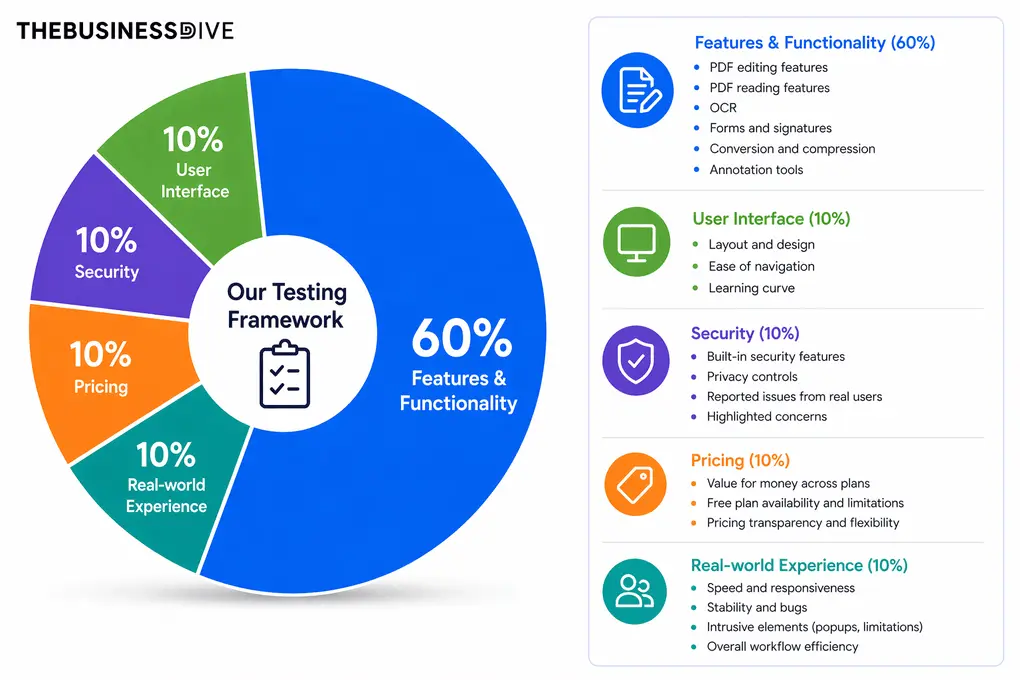
Our scoring breakdown after testing 30+ PDF editors:
🛠️ Features & functionality — 60%
🖥️ User interface — 10%
🔐 Security — 10%
💰 Pricing — 10%
👥 Real-world experience — 10%
Want a detailed breakdown of how we test each category?
Learn exactly how we test tools → Review methodology
Why you can trust our reviews
At thebusinessdive.com, our team tests, reviews, and compares hundreds of productivity apps every year — from project management tools to note-taking apps. We dive deep into real-world use cases to help you find the right tools that actually improve your workflow, not just add noise.
Our mission? No fluff, no shortcuts—just honest, hands-on insights from productivity pros.
Discover how we stay transparent, read our review methodology, and let us know about any tools we missed.
Frequently asked questions
Is Nitro as good as Adobe Acrobat?
Nitro has advanced tools in terms of PDF editing, similar to Adobe Acrobat. After my Nitro PDF review, I discovered that its Pro version is as good as Adobe Acrobat Pro, or even better.
Which is better, Foxit or Nitro?
Both Foxit and Nitro are capable alternatives to Adobe Acrobat. After testing both PDF editors, my pick would be Nitro, as it has a more advanced feature set for businesses.
Can Nitro edit a PDF?
Nitro is one of the most advanced PDF editors. So, if you need to edit PDF documents a lot or create forms, Nitro PDF could be an ideal choice.
Is Nitro PDF good?
After reviewing and testing many tools, I can easily put Nitro among the five best PDF editors currently available thanks to its advanced tools for PDF editing.
Disclosure: I only recommend products I would use myself, and all opinions expressed here are our own. This post may contain affiliate links that, at no additional cost to you, may earn a small commission. Read the full privacy policy here.

Hey there! I am Aron, the founder of Thebusinessdive. I have been testing productivity apps for almost three years now. I reach 25.000 -50.000 people monthly with the mission to help you find the perfect productivity apps. Subscribe to my YouTube channel, newsletter, and social media to hear more about the best productivity tools. Let’s dive in!
Great insights! I appreciate the detailed comparison of Nitro PDF with other editors. It’s helpful to see the pros and cons laid out clearly. I’m leaning towards trying it out based on your findings!