


5 Best Free PDF Editors (No Watermarks & Actually Free Picks)
After testing more than 30 PDF editors over the past few years, I noticed that many “free” tools come with limitations such as locked editing features, watermarks, file limits, or free trials presented as a free plan.
So, for this guide, I focused specifically on what each PDF editor lets you do without paying.
I tested their free editing tools, conversion quality, PDF organization features, signing options, restrictions, and upgrade limits to find the free PDF editors that actually deliver value.
Let’s dive in!
My Free PDF Editor Recommendations
🏆 Smallpdf → Best overall free browser-based PDF editor with editing, conversion, compression, organization, e-signatures, and AI tools.
🖥️ PDFgear → Best free desktop PDF editor thanks to its generous free plan and wide range of PDF tools.
⚙️ PDF-XChange Editor → Best option for advanced PDF editing, annotations, and professional workflows.
📄 ONLYOFFICE PDF Editor → Best choice if you need a completely free PDF editor.
⚡ PDF Candy → Best for quick PDF tasks like converting, compressing, and organizing files.
How These Free PDF Editors Compare
|
PDF editors |
Best for 🎯 |
Standout feature ⚡ |
Main drawback⚠️ |
Pricing starts 💰 |
Test score ⭐ |
|---|---|---|---|---|---|
|
Best free browser-based option |
All-in-one browser PDF toolkit + AI |
Free-plan usage limits |
Free plan+ paid from $120/year |
4.4/5 |
|
|
Best free desktop option |
Free OCR, AI, and editing tools |
Privacy concerns |
Free |
4.1/5 |
|
|
Best for advanced PDF editing |
Advanced editing, OCR, and security |
Steep learning curve |
Free + $62 one-time |
4.3/5 |
|
|
Best PDF editor for individuals who need the basic editing tools for free |
Free PDF editor + office suite |
Limited PDF editing and reading features |
Free plan+ paid from $240/year |
4.3/5 |
|
|
Best free PDF editor for quick tasks |
80+ PDF tools in one platform |
Limited editing depth |
Free + $48/year |
4.1/5 |
How we test PDF editors
To keep our reviews fair and consistent, we evaluate every PDF editor using a standardized testing framework built on over 3 years of hands-on testing and real-world use cases.
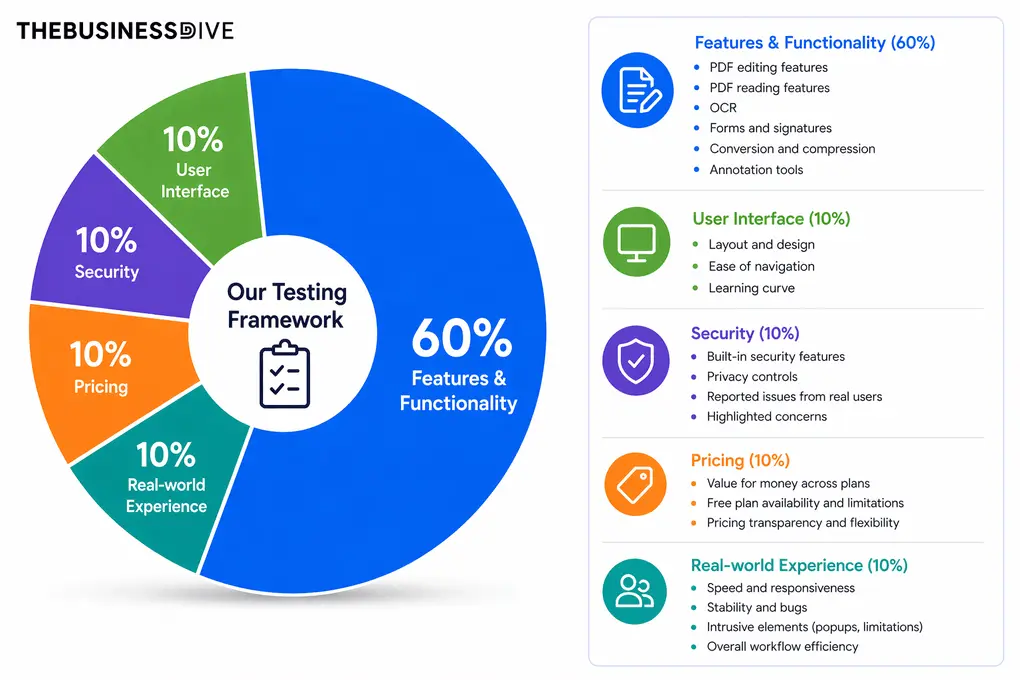
We score each tool across the following categories:
🛠️ Features & functionality — 60%
🖥️ User interface — 10%
🔐 Security — 10%
💰 Pricing — 10%
👥 Real-world experience — 10%
Since this article focuses specifically on free PDF editors, we looked at what each tool realistically offers on its free plan rather than how good the software is overall.
We paid close attention to factors such as feature limitations, usage caps, watermarks, advertisements, and which tools remained accessible without upgrading to a paid plan.
As a result, a PDF editor that scores highly in our overall reviews may not necessarily rank highly here if most of its best features are locked behind a paywall.
Likewise, some tools earned a place on this list because they provide exceptional value on their free plans, even if they are not the most advanced PDF editors overall.
You will find each tool’s score, strengths, limitations, and our hands-on experience throughout this guide.
If you want to compare PDF editors purely based on capabilities, advanced features, and overall performance instead of free-plan value, check out our full guide to the best PDF editors.
Want a detailed breakdown of how we test each category?
Learn exactly how we test tools → Review methodology
Are free PDF editors safe to use?
In most cases, yes. The free PDF editors on this list are generally safe for everyday tasks such as editing documents, converting files, filling out forms, and signing PDFs.
However, security and privacy can vary significantly between tools. Some editors process files locally on your device, while browser-based tools typically require documents to be uploaded to their servers.
During our testing, we also evaluated each editor’s security (10% of their total score). However, as a general rule, we recommend being cautious when uploading highly confidential documents to any online PDF editor and reviewing the provider’s privacy practices before using cloud-based tools.
The Free PDF Editors I Selected
Smallpdf
Smallpdf is one of the best free browser-based PDF editors, offering an extensive toolkit for editing, converting, compressing, and managing PDF files without installing any software.
Bottom line
Individuals and teams looking for a versatile browser-based PDF editor with strong document management features.
Users who need advanced PDF reading capabilities.
Extensive collection of PDF tools, integrations, and AI-powered features in one platform.
It requires internet connection to use most features.
How Far I Got Using Smallpdf for Free
I tested Smallpdf’s free plan using it for common PDF tasks like editing documents, converting files, compressing PDFs, and adding signatures. Since I used the online version during testing, I appreciated how easy it was to access the tools I needed without installing any software.
Compared to many other free online PDF editors, Smallpdf was more like a complete document management platform than a collection of standalone tools. I was able to handle different PDF workflows from one place, whether that involved converting files, organizing pages, compressing documents, or collecting signatures.
The free plan includes access to most of Smallpdf’s core tools, but usage is limited. During testing, I could edit, convert, merge, split, compress, and sign PDFs for free, but heavier workflows quickly ran into daily task restrictions.
Features such as unlimited processing, advanced OCR, and unrestricted AI tools require a paid subscription.
Why is Smallpdf the best free browser-based option?
Smallpdf earned a top spot on this list because it offers one of the most complete PDF editing experiences directly in your browser.
While other free online PDF tools usually focus on just one or two tasks, Smallpdf combines editing, conversion, compression, file organization, e-signatures, and AI-powered tools.
It’s particularly convenient that you can access most features without downloading software or dealing with a complicated setup process. Because it runs in the browser, you can also access your files from different computers and mobile devices.
While some advanced features require a paid subscription, the free plan lets you handle everyday PDF editing, conversion, compression, and signing tasks.
For users who want a capable PDF editor that works entirely in the browser, Smallpdf is my top pick.
Where Smallpdf Excels
|
Where it shines |
Why It Helps |
|---|---|
|
Generous free plan |
Covers most everyday PDF tasks, including editing, conversion, compression, and e-signatures |
|
Intuitive and user-friendly interface |
Easy to navigate, with a zero-learning-curve feel. |
|
Strong PDF organization tools |
Lets you merge, split, rotate, extract, and delete pages in just a few clicks. |
|
Fast and accurate AI features |
Includes chat, summaries, translation, and question generation, with quick output. |
|
Quick PDF compression |
Shrinks file size in seconds, which is useful for sharing PDFs online. |
|
Easy-to-use conversion tools |
Converts PDFs and other files directly in the browser without downloads or sign-ups. |
|
Useful Chrome extension for browser workflows |
Lets you use Smallpdf tools while working inside your browser, which fits online PDF use perfectly. |
|
Security |
Smallpdf is ISO 27001-certified and GDPR and eIDAS-compliant. |
Where Smallpdf Falls Short
|
Pain points |
What To Consider |
|---|---|
|
Limited annotation tools |
The annotation feature set is basic compared to desktop PDF editors. |
|
Lacks advanced PDF reading features |
It is not the best choice for users who need deep reading or markup functions. |
Smallpdf’s Free Tools
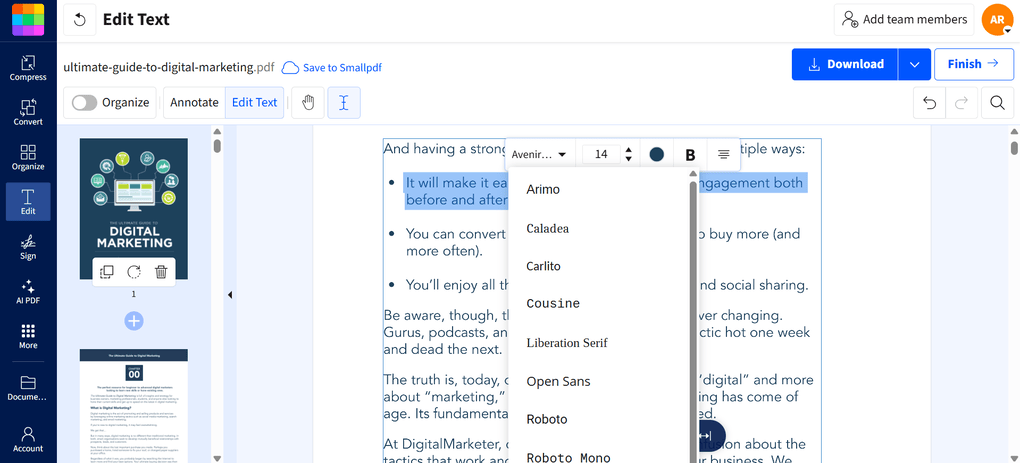
PDF editor: The free plan lets you make basic PDF edits, add text boxes, adjust formatting, and insert images, which I found sufficient for quick document updates.
Annotation tools: You can highlight content, add shapes, drawings, and comments for free, although the markup tools are fairly basic compared to desktop PDF editors.
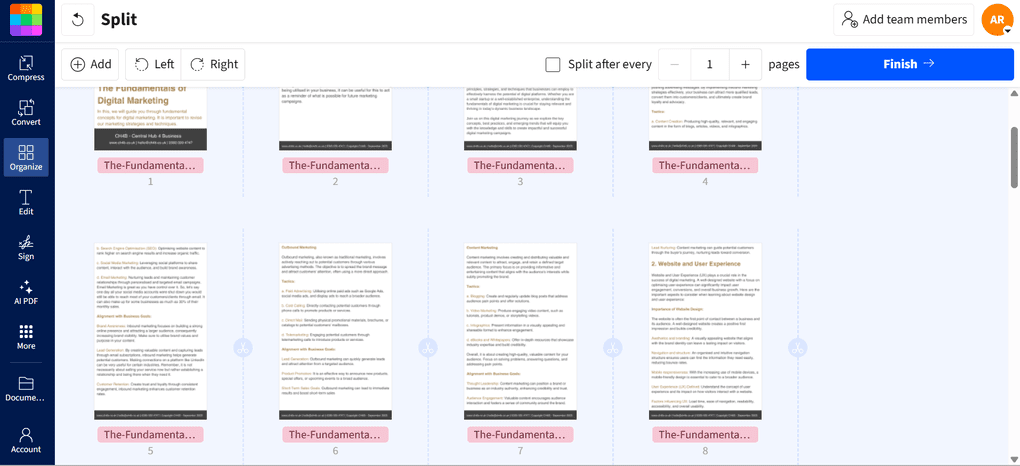
PDF organizer: Free users can merge, split, rotate, extract, and delete pages, making it easy to reorganize PDF files without installing a software.
PDF conversion: Smallpdf allows free conversions between PDFs and formats like Word, Excel, PowerPoint, and images, and I was consistently impressed by how fast the process was.
OCR: OCR is available on the free plan, but heavier OCR usage and advanced processing are part of the paid subscription.
PDF protection: You can password-protect PDFs and unlock files you have access to, which is useful for handling documents with sensitive information.
PDF compression: The free plan includes PDF compression, and during testing it reduced file sizes surprisingly well while keeping documents readable.
E-signatures: You can create signatures by typing, drawing, or uploading them and use them for basic document signing workflows.
AI tools: Smallpdf gives free users access to AI features such as PDF summaries and document chat, but usage limits apply and unrestricted access requires a paid plan.
Smallpdf Pricing: What’s Free and What’s Paid
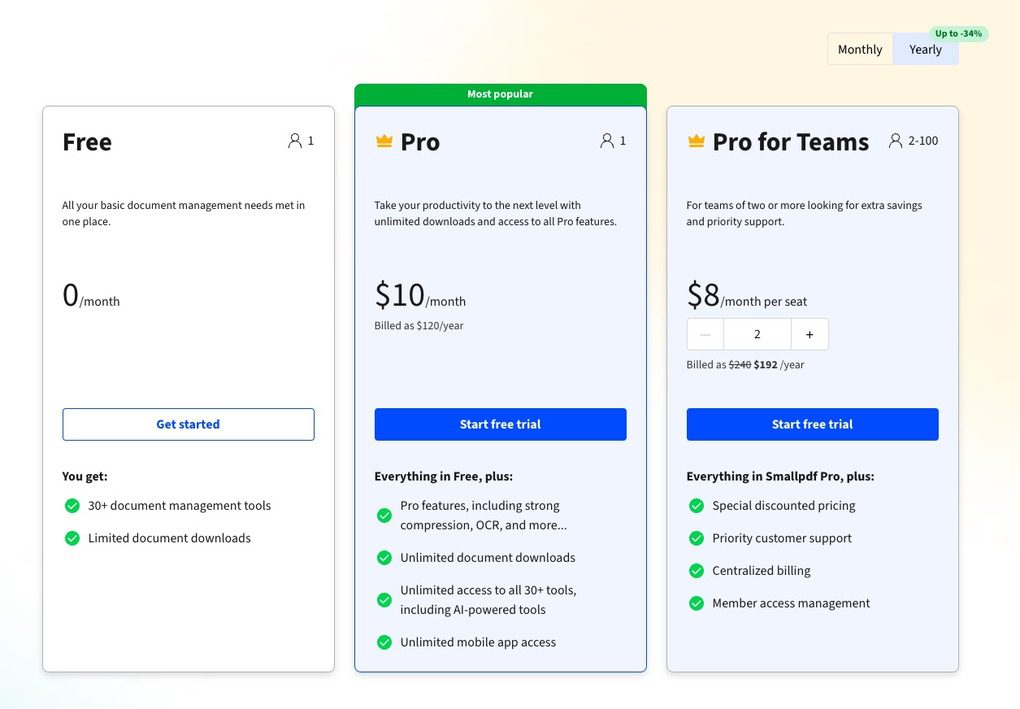
- Free plan available
- Pro plan: $10/month
- Pro for teams: $8/month/seat (min. 2 seats)
Who should pick Smallpdf
Who should skip Smallpdf
🔎Read my full review: Smallpdf Review 2026 | The Top Lightweight PDF Tool
PDFgear
PDFgear is a completely free desktop PDF editor, with reliable core tools, solid performance, and no subscription cost.
Bottom line
Users who need a completely free PDF editor with reliable core tools.
Users who need advanced editing controls or more robust security and privacy options.
It is a completely free service.
Ongoing privacy and security concerns.
How Far I Got Using PDFgear for Free
In my opinion, PDFgear is currently the best free PDF editor. Tools such as OCR, document conversion, and PDFgear Copilot are often reserved for paid users in competing PDF editors, yet they were available at no extra cost here. I also found the desktop experience smooth and reliable.
The biggest limitation was not functionality but trust. While PDFgear offers exceptional value as a free PDF editor, there are still ongoing discussions around its privacy and security practices. For personal use, this was not a major concern during my testing, but users handling sensitive business documents may want to keep it in mind.
Overall, PDFgear provided the most generous free experience of any PDF editor I tested. It delivers a feature set that many competitors reserve for paid plans while remaining completely free to use.
Why is PDFgear the best free desktop option?
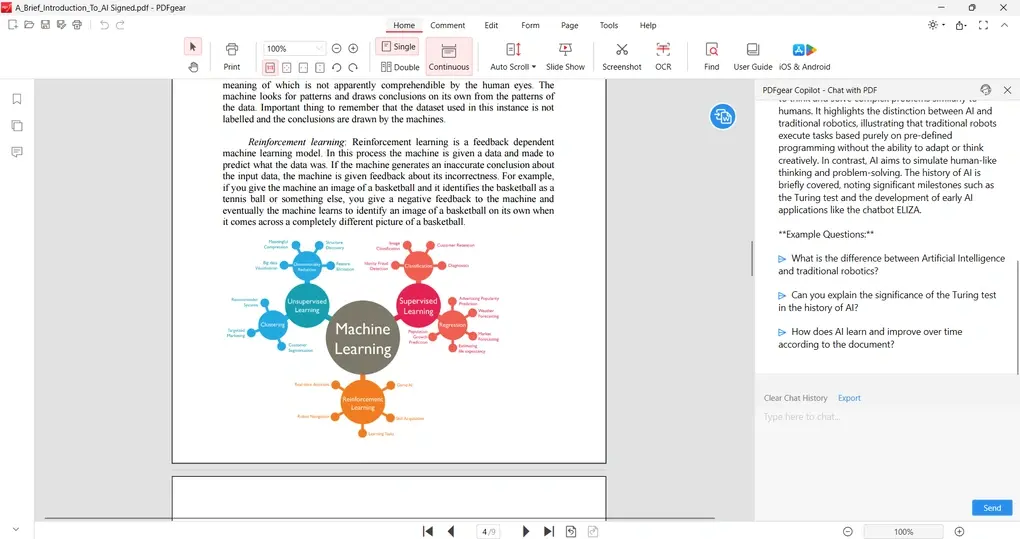
What ultimately sets PDFgear apart from most free PDF editors is that it doesn’t feel like a stripped-down version of a paid product.
Once installed, it works locally on your device and gives you access to editing, annotation, OCR, conversion, compression, and AI features without requiring a subscription.
I also liked that PDFgear offers a complete desktop experience. Unlike browser-based PDF editors, you can work with your files offline. This is a big advantage when handling larger documents or working without a stable internet connection.
While it lacks some advanced editing and security features found in premium PDF software, PDFgear covers virtually all the essentials most users need. Considering that it is completely free, it is difficult to find a desktop PDF editor that offers better value.
Where PDFgear Excels
|
Where it shines |
Why It Helps |
|---|---|
|
Completely free |
Includes OCR, conversion, compression, and signature tools at no cost. |
|
Strong OCR functionality |
Turns scanned documents into searchable PDFs and editable text. |
|
Fast performance |
Remained responsive even when working with larger PDF files. |
|
Excellent conversion tools |
Supports numerous file formats and delivers quick results. |
|
Simple and intuitive interface |
Most tools are easy to find and require little learning. |
Where PDFgear Falls Short
|
Pain points |
What To Consider |
|---|---|
|
Limited online editing |
Direct editing of existing PDF text requires the desktop app. |
|
Security concerns |
Ongoing privacy discussions may be a drawback for some users. |
|
Limited advanced features |
Missing some of the controls available in premium PDF editors. |
PDFgear’s Free Tools
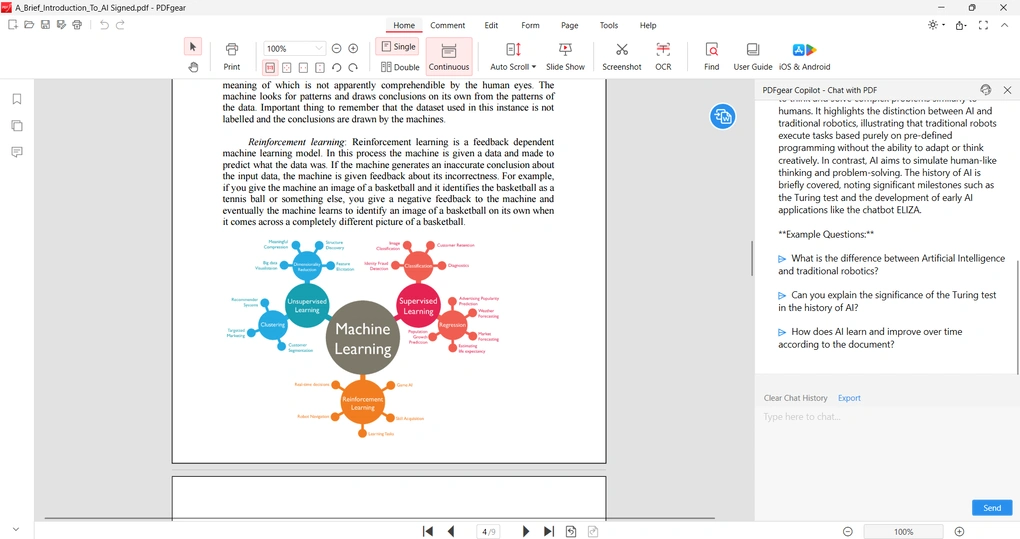
PDF editor: PDFgear lets free users edit existing PDF text, images, and formatting without watermarks, and I found the editing experience very smooth for a free tool.
PDF reader: You get access to multiple viewing modes, themes, auto-scroll, and reading tools, which made longer PDF sessions more comfortable during testing.
Annotation tools: Highlights, notes, stamps, shapes, underlines, and markup tools are all available for free and covered everything I needed for document review.
PDF organization: Free users can insert, rotate, crop, extract, duplicate, and delete pages.
Forms and signatures: PDFgear lets you fill out forms and create signatures by drawing, typing, or uploading an image, all without a paid plan.
Conversion tools: PDF-to-Word, Excel, image, and text conversion are completely free, and the results were consistently accurate in my testing.
Compression: PDF compression is included without restrictions, and I found it handy for reducing file sizes before sharing documents.
OCR: OCR is available for free in the desktop app and supports more than 30 languages.
AI features: PDFgear Copilot can summarize PDFs, answer questions, and perform certain PDF actions through chat prompts.
PDFgear Pricing: What’s Free and What’s Paid
Completely free.
Who should pick PDFgear
Who should skip PDFgear
🔎Read my full review: My Honest PDFgear Review 2026 | What They Don’t Tell You
PDF-XChange
PDF-XChange Editor is a powerful PDF editor with advanced editing, annotation, security, and review tools that rival much more expensive software.
Bottom line
Users who need robust editing capabilities and advanced PDF workflows.
f you are looking for a lightweight PDF editor
Strong security features
Overwhelming interface
How Far I Got Using PDF-XChange for Free
PDF-XChange is one of the most powerful PDF editors I have tested. Even on the free plan, I was able to edit PDFs, annotate documents, add digital signatures, perform OCR, convert files, apply password protection, and use many of its advanced review and organization tools.
In fact, more than 70% of the software’s features are available without a license.
During testing, I found that PDF-XChange was particularly well-suited for advanced workflows. It includes numerous tools that are often missing from free or entry-level PDF editors, making it a strong choice for users who regularly work with complex PDF documents.
The main drawback I noticed was the user interface. There are icons, menus, and options everywhere, so the learning curve is steeper than with most PDF editors. I also found the pricing structure confusing.
When it comes to the free version, its limitation is that some advanced features require a paid license. Tools such as advanced form creation, document comparison, certain security features, and some enhanced editing capabilities will add watermarks to exported documents if you don’t buy a license.
Overall, PDF-XChange provided one of the most capable free editing experiences I tested. While it is not as unrestricted as PDFgear or ONLYOFFICE, it offers far more advanced functionality than most free PDF editors.
Why is PDF-XChange the best free PDF editor for advanced PDF editing?
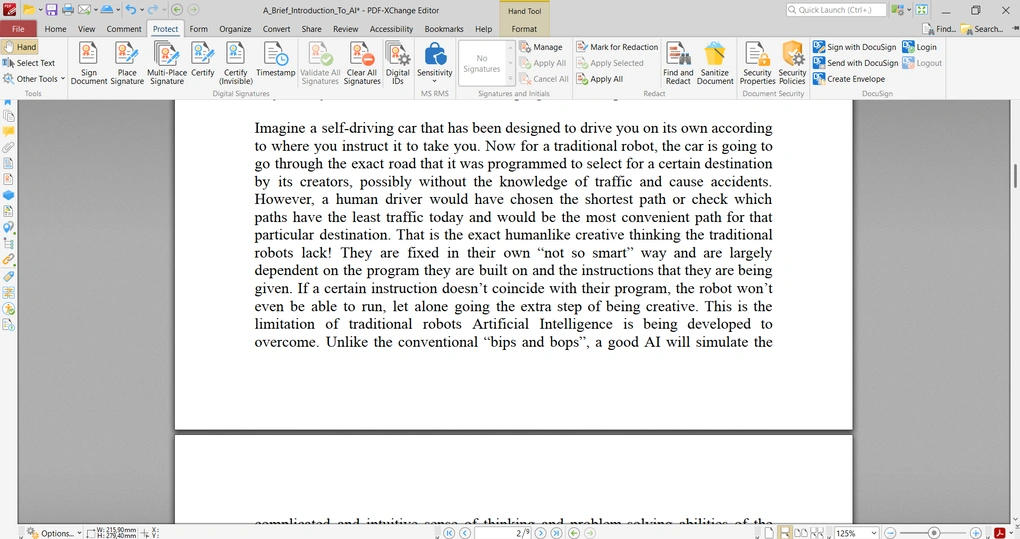
While many PDF editors focus on simple text changes and annotations, PDF-XChange provides advanced editing controls, powerful annotation tools, robust security features, digital signatures, OCR, document comparison, and extensive review capabilities.
What impressed me most was the depth of its feature set. During testing, I repeatedly found tools that are typically reserved for enterprise-level PDF software. From advanced redaction and certificate-based security to audio and video annotations, PDF-XChange offers functionality that few competitors can match.
If you only need a lightweight PDF editor, PDF-XChange will probably feel excessive. However, for users who spend hours working with PDF documents and need maximum control over editing, reviewing, securing, and managing files, PDF-XChange is my warm recommendation.
Where PDF-XChange Excels
|
Where it shines |
Why It Helps |
|---|---|
|
Advanced PDF editing tools |
Offers significantly more editing controls than most free or entry-level PDF editors. |
|
Strong security features |
Includes redaction, password protection, certificate security, and digital signatures. |
|
Excellent annotation tools |
Supports everything from highlights and notes to audio, video, and 3D annotations. |
|
Robust review features |
Makes it easier to compare documents, manage comments, and review PDFs collaboratively. |
|
Powerful OCR support |
Supports over 150 languages and batch OCR processing. |
Where PDF-XChange Falls Short
|
Pain points |
What To Consider |
|---|---|
|
Overwhelming interface |
The large number of tools and menus can make navigation difficult for new users. |
|
Confusing pricing structure |
It can be difficult to understand which license includes which features. |
|
No built-in AI features |
Lacks AI tools for summarizing or interacting with PDF documents. |
PDF-XChange’s Free Tools
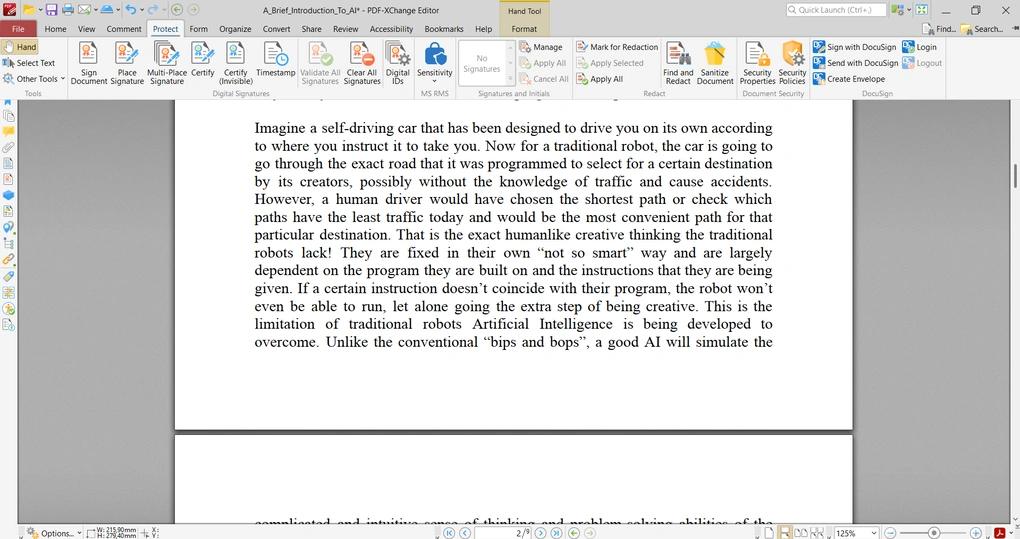
PDF reading: The free version includes advanced reading tools such as multiple viewing modes, night mode, read-aloud functionality, and page transitions, making it one of the most feature-rich PDF readers I tested.
PDF editor: You can edit text, images, formatting, and page content for free, but some advanced editing actions will add watermarks to exported documents if you use it without a license.
Annotation tools: Highlights, comments, callouts, stamps, drawing tools, audio notes, and even video annotations are available, giving free users access to one of the strongest annotation toolkits on this list.
PDF organization: Free users can insert, extract, split, crop, replace, duplicate, and reorganize pages, and I found the document management tools extensive.
Forms and signatures: You can fill forms and add digital signatures for free, while advanced fillable form creation requires the license.
PDF security: Password protection, certificate security, and redaction tools are included, although some advanced security workflows are part of the licensed version.
Conversion tools: PDF-XChange supports free conversion between PDFs, Word documents, Excel files, images, and other formats, and I was impressed by how well it preserved layouts.
Review tools: Comment management, spell checking, and document review features are available, making the free version useful even for more demanding workflows.
OCR: OCR supports more than 150 languages and is available without a license, which is something very few free PDF editors offer.
PDF-XChange Pricing: What’s Free and What’s Paid
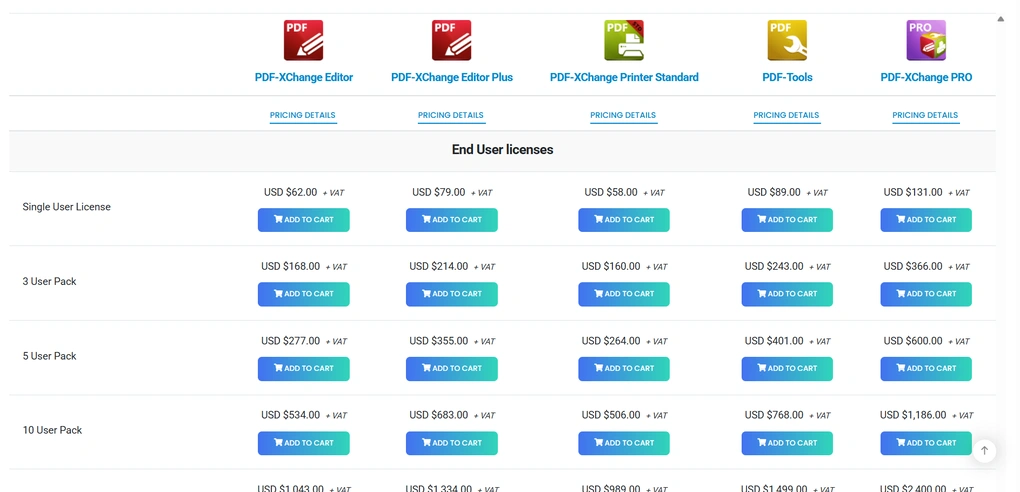
- Free plan available
- PDF-XChange Editor: $62/user (one-time purchase)
- PDF-XChange Editor Plus: $79/user (one-time purchase)
- PDF-XChange Printer Standard: $58/user (one-time purchase)
- PDF-Tools: $89/user (one-time purchase)
- PDF-XChange Pro: $131/user (one-time purchase)
Who should pick PDF-XChange
Who should skip PDF-XChange
🔎Read my full review: My Unfiltered PDF-XChange Review 2026
Explore our Apps directory
A curated directory of software tools we’ve independently reviewed, with links to full reviews, comparisons, and category guides.
ONLYOFFICE
ONLYOFFICE PDF Editor is a completely free PDF editor that combines solid editing tools with the broader functionality of an office suite.
Bottom line
Users needing a secure and collaborative platform for PDF editing
If you use MS Office
Security
Limited PDF reading features
How Far I Got Using ONLYOFFICE for Free
For my review, I primarily used the free desktop app for editing PDF files and forms.
Out of curiosity, I also explored the document, spreadsheet, and presentation editors included at no extra cost, and my overall impression was that ONLYOFFICE is one of the best alternatives to Microsoft Office in terms of compatibility and user experience.
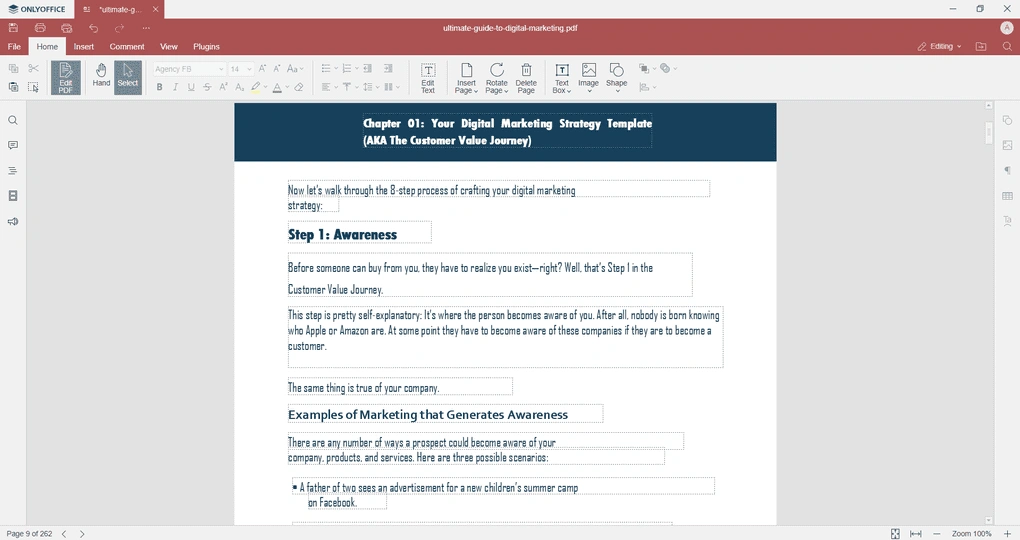
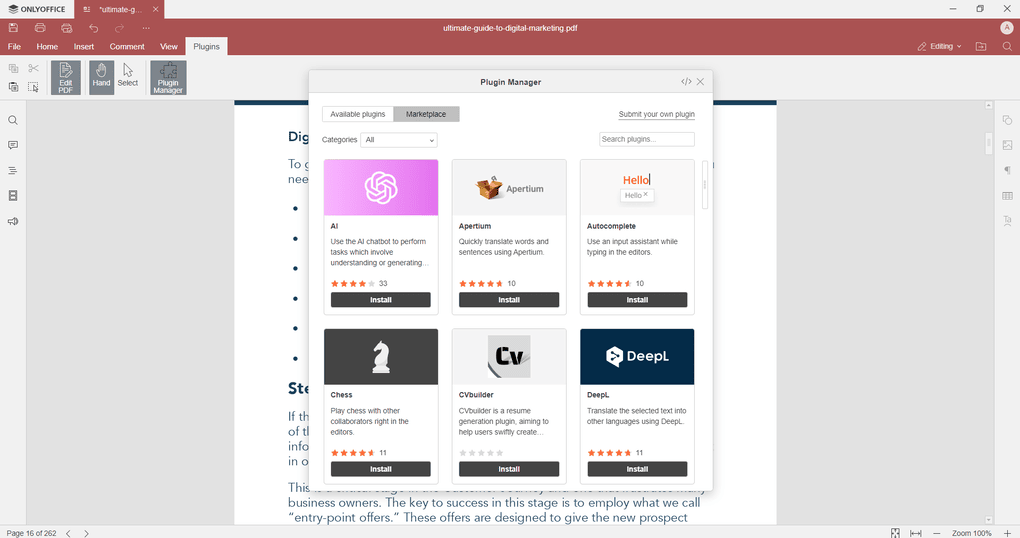
Its PDF editor delivered a similarly smooth experience. I did not experience any learning curve, and the interface was intuitive from the start. I especially enjoyed experimenting with the plugin system and being able to customize the tools available when working with PDF documents.
Most importantly, I was able to complete all the PDF tasks I tested without running into paywalls or major restrictions. Editing PDFs, creating forms, annotating documents, reorganizing pages, and adding password protection were all available for free.
The main limitations appear once you move beyond personal use and need advanced collaboration, cloud workspace management, or larger team deployments, which are part of ONLYOFFICE’s paid business offerings.
Ultimately, I had a positive experience with ONLYOFFICE PDF Editor. Beyond PDF editing, it provides a complete set of tools for working with documents, spreadsheets, and presentations, making it more versatile than many standalone PDF editors.
Why is ONLYOFFICE the best completely free PDF editor?
ONLYOFFICE is one of the few PDF editors that is genuinely free for personal use while still offering tools that are often locked behind a paywall elsewhere.
When testing, I was able to edit PDFs, create forms, annotate documents, add password protection, and customize the experience with plugins without paying for a subscription.
Another reason it stands out is that you get much more than a PDF editor. Since ONLYOFFICE is part of a broader office suite, you also have access to tools for documents, spreadsheets, and presentations.
If you regularly work with multiple file types, this makes ONLYOFFICE a more practical option than many standalone PDF editors.
Where ONLYOFFICE Excels
|
Where it shines |
Why It Helps |
|---|---|
|
Completely free for personal use |
Gives you access to PDF editing tools without a subscription or hidden costs. |
|
More than just a PDF editor |
Includes tools for documents, spreadsheets, presentations, and collaboration, making it a complete office suite. |
|
Customizable with plugins |
Lets you add tools such as AI or OCR based on your workflow, which is uncommon among PDF editors. |
|
Easy and intuitive to use |
The interface is straightforward and has a short learning curve, even for new users. |
Where ONLYOFFICE Falls Short
|
Pain points |
What To Consider |
|---|---|
|
Limited PDF reading features |
Lacks advanced viewing options such as split view, 2-page spread, and 4-page layouts. |
|
Can feel overwhelming at first |
The broad range of tools and settings may take some time to explore and configure. |
ONLYOFFICE’s Free Tools
PDF editor: The free desktop version lets you edit existing PDF text, adjust formatting, and move elements around the page.
PDF reader: You get essential reading features such as zoom controls, themes, and viewing modes, although I missed more advanced layouts like split view and multi-page spreads.
Annotation tools: Comments, highlights, drawing tools, and text markup are all available for free and worked well for reviewing documents.
PDF organizer: ONLYOFFICE lets you reorder PDF pages using drag-and-drop thumbnails for quick and intuitive basic document organization.
PDF forms: Free users can create fillable forms with text fields, checkboxes, dropdown lists, images, and signature fields.
PDF protection: Password protection is included at no extra cost, and setting restrictions on documents only takes a few clicks.
Plugins: The free version supports plugins for features such as AI and OCR, and I especially liked being able to customize the workspace around my workflow.
Office suite tools: Beyond PDFs, the free version also includes editors for documents, spreadsheets, and presentations, making it far more versatile than a typical PDF editor.
ONLYOFFICE Pricing: What’s Free and What’s Paid
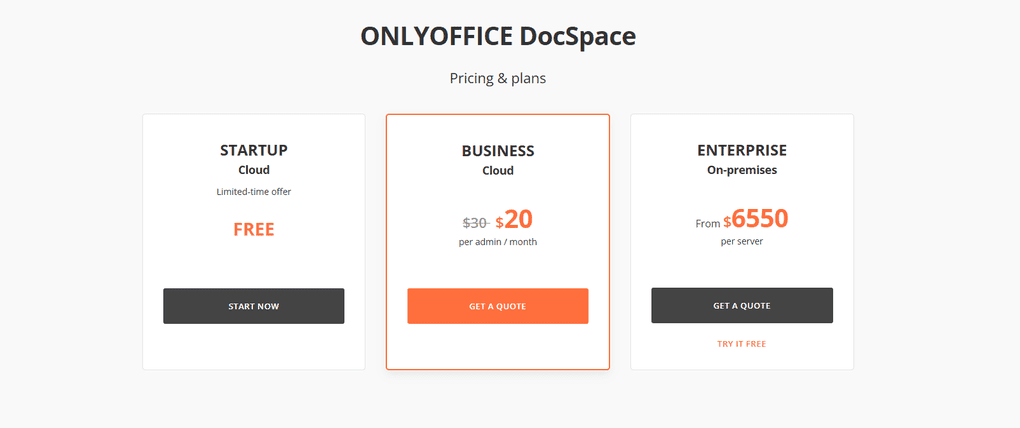
- Free plan available
- Business plan: $20/admin/month
- Enterprise plan: from $6550 per server
Who should pick ONLYOFFICE
Who should skip ONLYOFFICE
🔎Read my full review: ONLYOFFICE PDF Editor Review | An Exciting Option (2026)

PDF Candy
PDF Candy is a practical PDF toolkit with dozens of tools for editing, converting, organizing, and protecting PDF documents.
Bottom line
Users who need a practical PDF toolkit for basic PDF tasks
If you need more powerful features for PDF management
Free version available with access to many core tools
Editing and forms features are limited
How Far I Got Using PDF Candy for Free
I tested PDF Candy by performing several common PDF tasks, including editing documents, converting files, compressing PDFs, and reorganizing pages. The platform is very straightforward—you simply select a tool, upload your file, and apply the action you need.
PDF Candy gives free users access to a surprisingly large collection of tools, including OCR, PDF conversion, signatures, document protection, and basic editing features.
The main limitation is that the free version restricts how frequently you can use the tools, as it is designed more for occasional PDF work than heavy daily use. Because of that, free users will face task limits, smaller file size allowances, and no batch processing.
That said, I found PDF Candy’s free version very useful for occasional PDF tasks. As long as you do not need to process large numbers of files every day, it provides access to far more tools than most free PDF editors.
Why is PDF Candy the best free PDF editor for quick tasks?
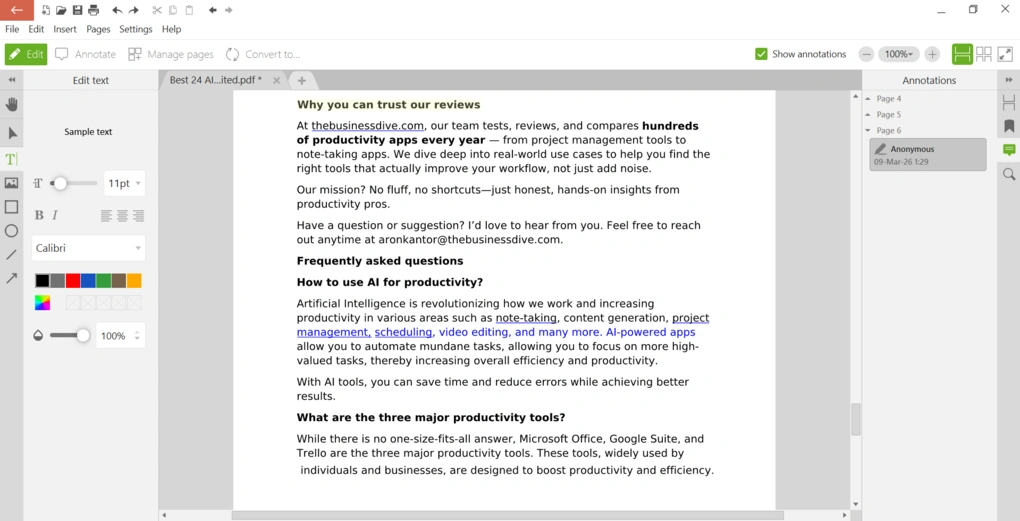
PDF Candy is designed around speed and simplicity as it focuses on helping users complete common PDF tasks as quickly as possible.
It’s biggest advantage is the variety of tools it offers. Whether you need to merge PDFs, split documents, compress files, run OCR, convert formats, add a signature, or protect a document, there is usually a dedicated tool ready to handle the task. Since each feature is separated into its own workflow, you can upload a file, complete the task, and move on within minutes.
For users who only need to make occasional PDF edits or conversions, PDF Candy is often faster and more convenient than opening a full-featured PDF editor.
Where PDF Candy Excels
|
Where it shines |
Why It Helps |
|---|---|
|
80+ PDF tools |
Covers editing, conversion, organization, OCR, signatures, and document protection in one platform. |
|
Very easy to use |
Uses a simple upload-and-process workflow with almost no learning curve. |
|
Generous free plan |
Gives you access to many core PDF tools without creating an account. |
|
Strong conversion tools |
Supports a wide range of file formats and includes OCR for scanned documents. |
|
Web and desktop versions available |
Lets you choose between browser-based and offline workflows. |
Where PDF Candy Falls Short
|
Pain points |
What To Consider |
|---|---|
|
Windows-only desktop app |
Linux and Mac users must rely primarily on the web version. |
|
Basic editing features |
Lacks the advanced editing depth found in dedicated PDF editors. |
PDF Candy’s Free Tools
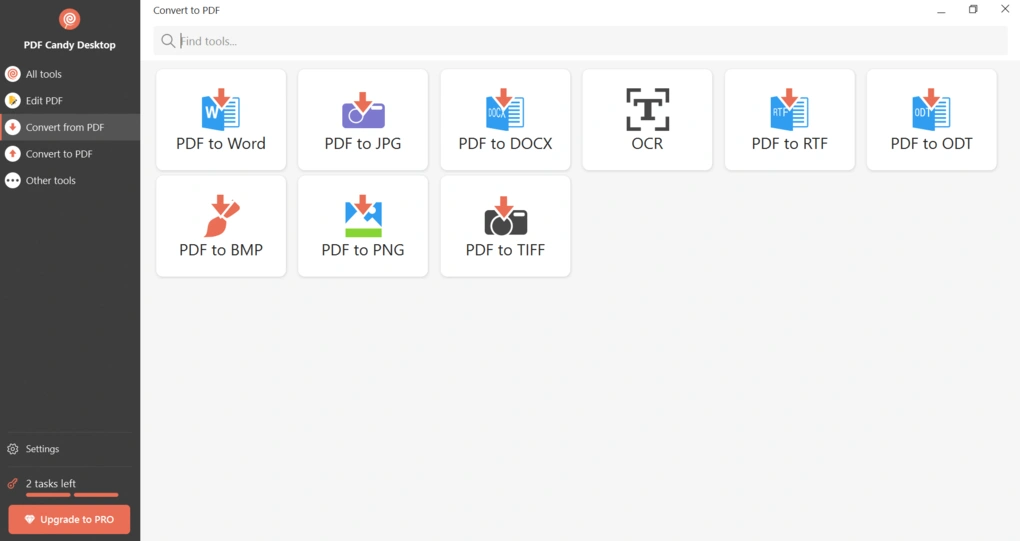
PDF editor: The free version lets you edit text, add text boxes, adjust formatting, and insert images, although the editing depth is noticeably more limited than in dedicated PDF editors.
PDF reader: You can open, view, zoom, and navigate PDF files directly in the browser.
Annotation tools: Highlights, comments, shapes, stamps, and markup tools are available for free and cover most basic document review needs.
PDF organizer: Free users can merge, split, rearrange, crop, and remove pages.
Forms and signatures: You can fill forms and add signatures by typing, drawing, or uploading an image without creating an account.
Conversion tools: PDF Candy supports free conversion between PDFs, Word, Excel, PowerPoint, images, and many other formats, and I found the results consistently reliable.
OCR: OCR is included on the free plan and can convert scanned documents into searchable and editable text.
PDF protection: You can add passwords, remove passwords from authorized files, apply watermarks, and manage document permissions using the free version.
AI assistant: PDF Candy includes an AI assistant for summarizing PDFs and answering questions about document content.
PDF Candy Pricing: What’s Free and What’s Paid
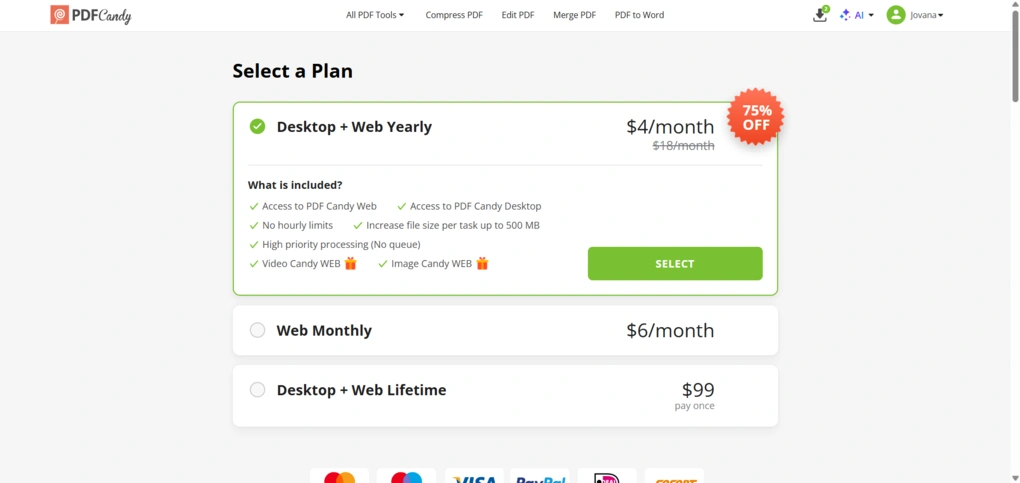
- Free plan available
- Web Monthly: $6/month
- Web Yearly: $48/year
- Desktop + Web Lifetime License: $99 (one-time payment)
Who should pick PDF Candy
Who should skip PDF Candy
🔎Read my full review: PDF Candy Review 2026 | My Unfiltered Thoughts
Wrap-up: The best free PDF editors
After years of testing, I found these to be the best free PDF editors available in 2026. While there are many other free PDF editors on the market, these were the ones that delivered the most value during my testing.
Related posts:
- 9 Best PDF Editors In 2026 | 30+ Personally Tested PDF Tools
- 6 Best OCR Software For 2026 | 30+ Personally Tested Tools
- The 6 Best PDF Readers For 2026 (Only FREE Options)
Whether you need to modify PDFs, convert documents, fill out forms, or organize files, there is a free PDF editor on this list that can handle the job.
I will continue testing new PDF editors and updating this guide to ensure these recommendations reflect the current state of the PDF software market.
Looking for similar tools?
Visit our library of PDF editors to explore other apps we’ve reviewed in this space and how they compare.
Why you can trust our reviews
At thebusinessdive.com, our team tests, reviews, and compares hundreds of productivity apps every year — from project management tools to note-taking apps. We dive deep into real-world use cases to help you find the right tools that actually improve your workflow, not just add noise.
Our mission? No fluff, no shortcuts—just honest, hands-on insights from productivity pros.
Discover how we stay transparent, read our review methodology, and let us know about any tools we missed.
Frequently asked questions
What is the best free PDF editor?
Smallpdf is my top choice among free online tools, PDFgear offers the best overall value for desktop users, and ONLYOFFICE is one of the few completely free PDF editors available today.
If you need advanced editing capabilities, PDF-XChange Editor is the strongest option, while PDF Candy is ideal for quick PDF tasks.
Can I edit PDF files for free?
Yes, many free PDF editors allow you to edit PDF documents without paying for a subscription. Depending on the tool, you can edit text, insert images, annotate documents, fill out PDF forms, and reorganize PDF pages.
However, most free PDF editors come with certain limitations, such as usage caps, watermarks, or restricted access to advanced features.
Is there a free alternative to Adobe Acrobat?
Yes. Several free PDF editor apps can handle many of the same tasks as Adobe Acrobat or Adobe Acrobat Pro. Tools such as PDFgear, ONLYOFFICE, and PDF-XChange Editor offer PDF editing, conversion, annotation, and document protection features without requiring a paid subscription.
While they may not match every advanced feature found in Adobe Acrobat Pro, they provide excellent value for most users.
Can free PDF editors convert files to and from other formats?
Most of the best free PDF editors include tools to convert PDFs into other file formats, including Microsoft Word, Microsoft Excel, images, and text files.
Many also allow you to create PDFs from Word documents, spreadsheets, presentations, and image formats. The quality and number of conversions available often depend on the free plan limitations.
Are free online PDF editors safe to use?
In most cases, yes. Reputable free online PDF editor tools typically offer security features such as password protection, permission controls, and encrypted file transfers.
That said, online services require you to upload PDF documents to their servers, so users working with highly sensitive information may prefer a desktop app that processes files locally. Before using any online PDF editor, it is worth reviewing its privacy and data security practices.
Disclosure: I only recommend products I would use myself, and all opinions expressed here are our own. This post may contain affiliate links that, at no additional cost to you, I may earn a small commission. Read the full privacy policy here.

Hey! I’m Jovana, a content writer who loves writing, researching, and testing new productivity apps. With a background in philosophy, I bring a thoughtful but no-bullshit approach to everything I do. Let’s connect on Linkedin!
Great that you filtered out tools that only offer free trials as the “free plan” — so many sites still list those. Would love to see a comparison of file-size limits across the editors, since that often blocks real-world usage.
**Finally, a list that calls out watermark scams!** I’m tired of tools promising “free” but hiding locked editing features behind paywalls. Which editor had the best conversion quality in your testing?
Nothing beats finding a free PDF editor that actually lets you edit and sign without hitting a paywall or watermark after two clicks. Appreciate that you tested over 30 tools—the difference between “free” and “free trial disguised as free” is too often glossed over in other roundups. Which of these five handled scanned document OCR the best in your testing?
Great to see someone actually testing the “free” claims instead of just listing names. The watermark trick is the worst—thanks for calling it out.