


My Honest Soda PDF Review 2026 | It Failed Successfully?
Soda PDF is often compared to Adobe Acrobat in terms of functionality and pricing. But is it justified, or are people just overhyping this?
I don’t want to waste your time, so I will get to the point right away: after my Soda PDF review, I think it falls short of expectations. At least, this is how I feel after testing 30+ PDF editors.
Scroll down, because I will break down its key features, pricing, pros & cons, and reveal why I came to this conclusion.
Let’s dive in!
Verdict
Here’s the quick verdict if you don’t want to read the full review:
🎯 Best for: Easy-to-use PDF editing
🚫 Not ideal for: Users looking for an advanced PDF editor
⭐ Biggest strength: Visually appealing user interface
⚠️ Biggest weakness: No Mac support
⚖️ Verdict: A user-friendly PDF editor with solid core features, but its advanced features come at a relatively high price
🏆 Score: 4.1 / 5
✅ Tested with our review & scoring methodology ✅ Real-world testing ✅ Unbiased evaluation
Soda PDF Review
Summary
Soda PDF is a PDF editor for desktop and online as well. The desktop version is available for Windows (no Mac support, unfortunately), while Soda PDF Online is a well-designed web-based editor that allows users to work on PDFs from any device. To summarize, I mostly had a positive experience when testing Soda PDF, but found some major trade-offs.
|
|
Offers a user-friendly interface
|
|
|
Powerful PDF protection features
|
|
|
Provides electronic and digital signatures as well
|
|
|
Solid PDF reading options
|
|
|
Support many file types for conversion
|
|
|
I encountered some annoying pop-ups after downloading the desktop version
|
|
|
The text selection during PDF editing was off sometimes
|
|
|
The desktop version doesn’t work on Mac
|
|
|
Advanced features are included in the Business plan, which is pricey
|
|
|
No free trial
|
How We Test PDF Editors
To keep our reviews and final scores fair and consistent, we evaluate every PDF editor using a standardized testing framework built on over 3 years of hands-on experience testing these tools in real-world scenarios.
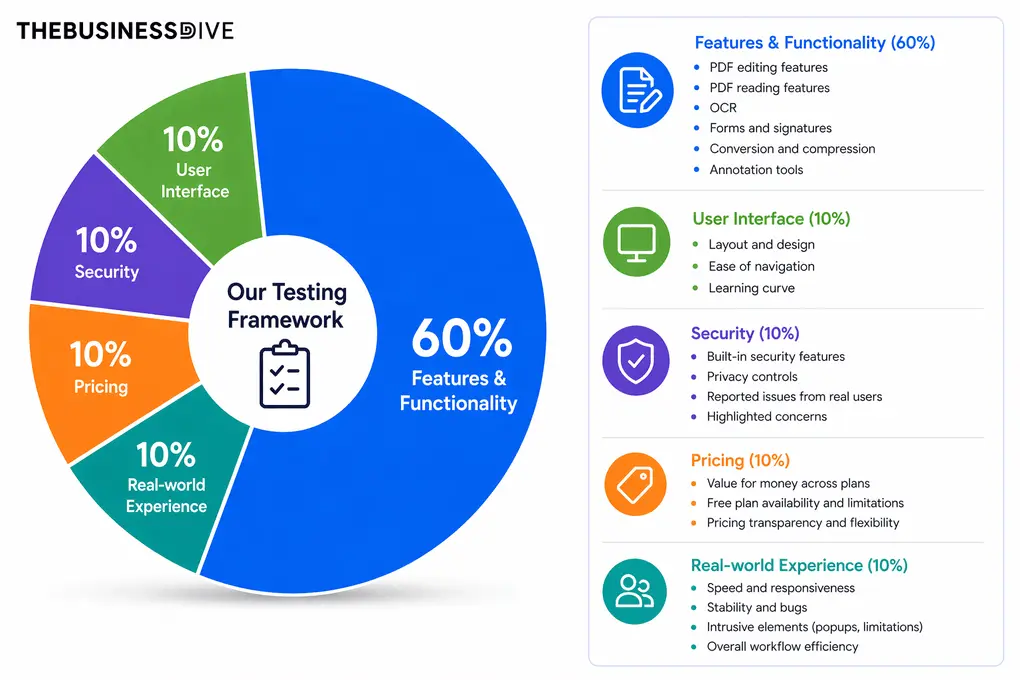
Our scoring breakdown after testing 30+ PDF editors:
🛠️ Features & functionality — 60%
🖥️ User interface — 10%
🔐 Security — 10%
💰 Pricing — 10%
👥 Real-world experience — 10%
Want a detailed breakdown of how we test each category?
Learn exactly how we test tools → Review methodology
Short on time? Here’s a quick overview of Soda PDF
What is Soda PDF?
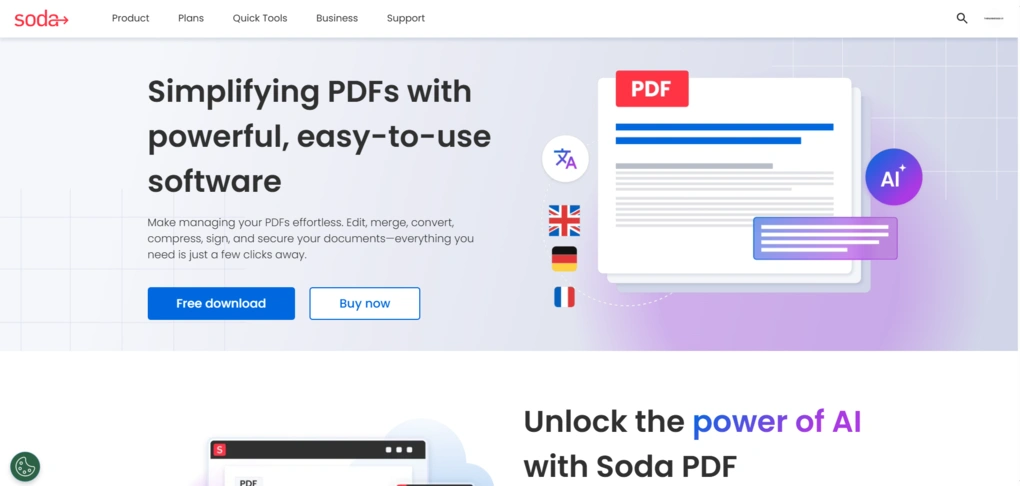
Soda PDF is a PDF editor for desktop and online as well. The desktop version is available for Windows (no Mac support, unfortunately), while Soda PDF Online is a well-designed web-based editor that allows users to work on PDFs from any device.
With Soda PDF, users can perform quick tasks such as securing a PDF file or converting one to a Microsoft Office format from Soda PDF Online’s home page.
Before scrolling down to the key takeaways, I just wanted to let you know that during my Soda PDF review, I mostly used its desktop version.
That said, most of the strengths and limitations I found relate to the desktop version of PDF Soda.
How Soda PDF performed in my daily workflow
In the course of my Soda PDF review, I mostly used its desktop software on a Windows device. Thanks to its intuitive interface, I was able to find the features I was looking for.
The PDF editing features are generally fine, but I didn’t like how you select text to edit, since I sometimes felt Soda PDF is arbitrary in how it selects sections for editing.
Apart from that, Soda PDF has an impressive feature set. Not too complex, not too simple, and found the right balance.
However, I encountered some ads and pop-ups when using the desktop software, which was genuinely frustrating. It can be really pushy when you work on something totally different, and then a pop-up comes up. I had a similar experience with PDFelement, and it’s just so annoying.
As for the pricing, I don’t see the Business plan’s price justified, as there are PDF editors with cheaper pricing plans that offer more advanced features. Since the Standard plan is too limited, the reasonable choice would be the Pro subscription.
Nonetheless, the Pro plan seems a trade-off to me, since for this price, you can purchase an annual plan of some other PDF editors, while the features included still have limitations.
That said, when I tested EaseUS PDF Editor or UPDF, I found that they offer more advanced features for less than Soda PDF.
Why Soda PDF earned a 4.1 / 5
Since I had some difficulties with the text section, Soda PDF got only 4 out of 5 for core features. Also, its OCR was not reliable, especially when working with more complex formats and elements, so it received 3 out of 5.
Soda PDF lost points in our pricing analysis, as it is overpriced for the value it offers, based on our experience testing 30+ PDF editors. Also, we encountered annoying pop-ups that severely degraded the overall testing experience.
When to choose Soda PDF
When you should skip Soda PDF
Key Features
Now, let’s delve into Soda PDF’s key features!
PDF reading
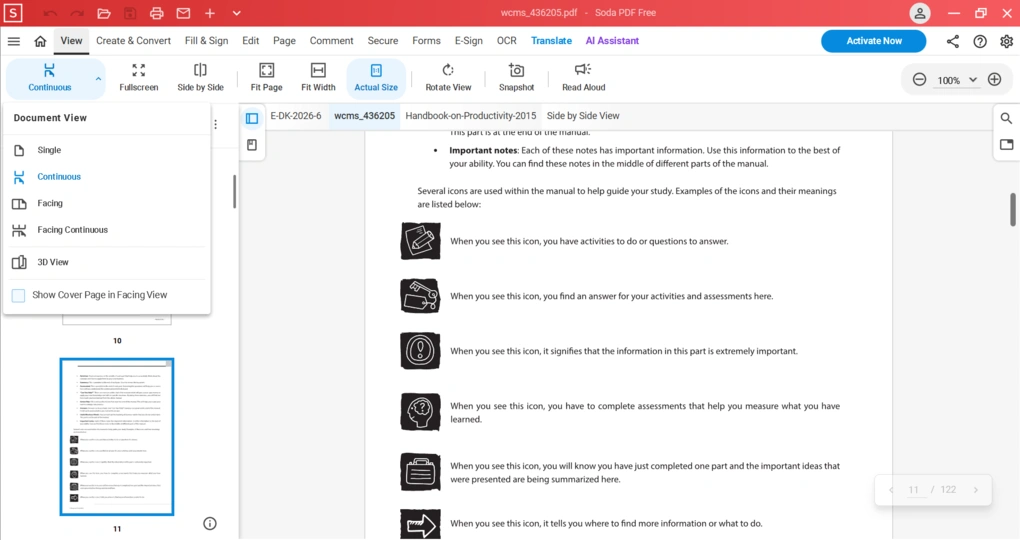
Soda PDF offers surprisingly powerful PDF reading features. You can zoom in and out, change the document views, use the full-screen mode, and more. It was great to see that it has a 3D view as well for reading your PDF documents.
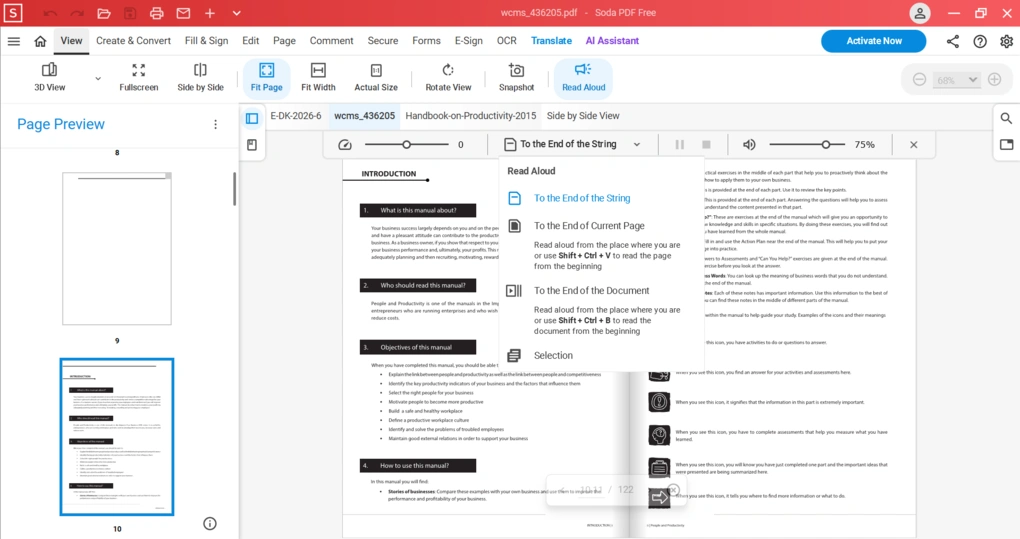
Furthermore, you can take a snapshot of a specific area of the page or the whole page. I also found its Read Aloud feature helpful. If using this function, Soda PDF will read your PDF document at a desired pace and volume. This PDF editor lets you utilize this function until the end of the sentence, page, or document.
Overall, I was satisfied with the PDF reading features during my Soda PDF review.
PDF editor
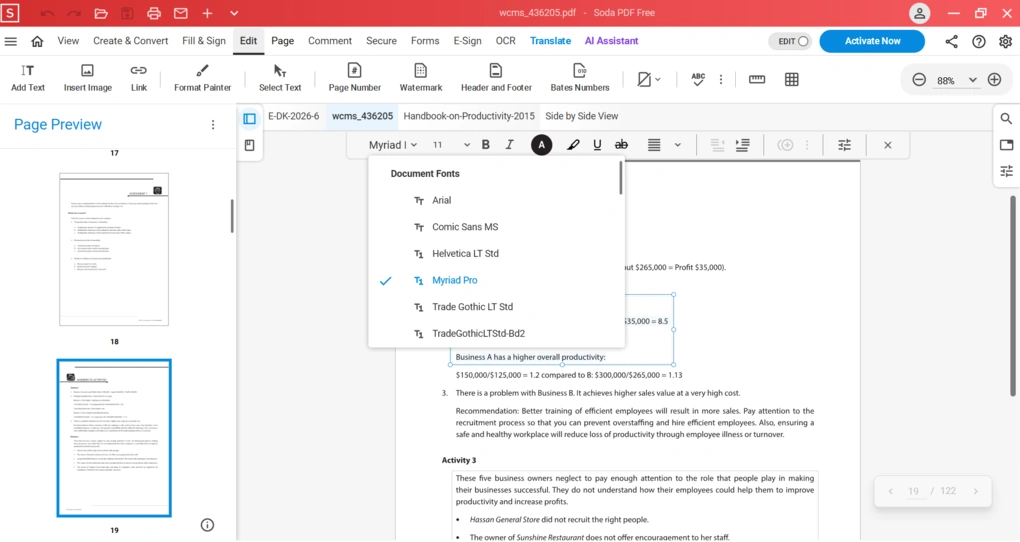
If you double-click on the text, Soda PDF will select the related section to edit. While this feature looks convenient at first, I had a hard time sometimes selecting the exact text boxes I wanted.
During my Soda PDF review, I discovered that it offers numerous font types and colors you can use to adjust text. You can change paragraph alignment, make text bold, italic, and more.
Moreover, you can add new text boxes with just a few clicks. Here, you have the same functionalities when editing text.
Soda PDF allows you to insert images as well. You can easily adjust its size, flip it, move it around, and more. It was great that you could crop the image without switching to another tab. Also, you can access the OCR features instantly when clicking on the image.
While it does not have many advanced editing features when it comes to images (no opacity level change, for example), it was fairly simple to make the changes I wanted.
Lastly, you can insert links to web pages and files. However, it only shows a blank box as a link, and it would be better if Soda PDF would use an icon or something more shtick.
To wrap it up, I was mostly satisfied with the PDF editing features during my Soda PDF review. One major thing I did not find practical was the way you select text to edit.
Annotation tools
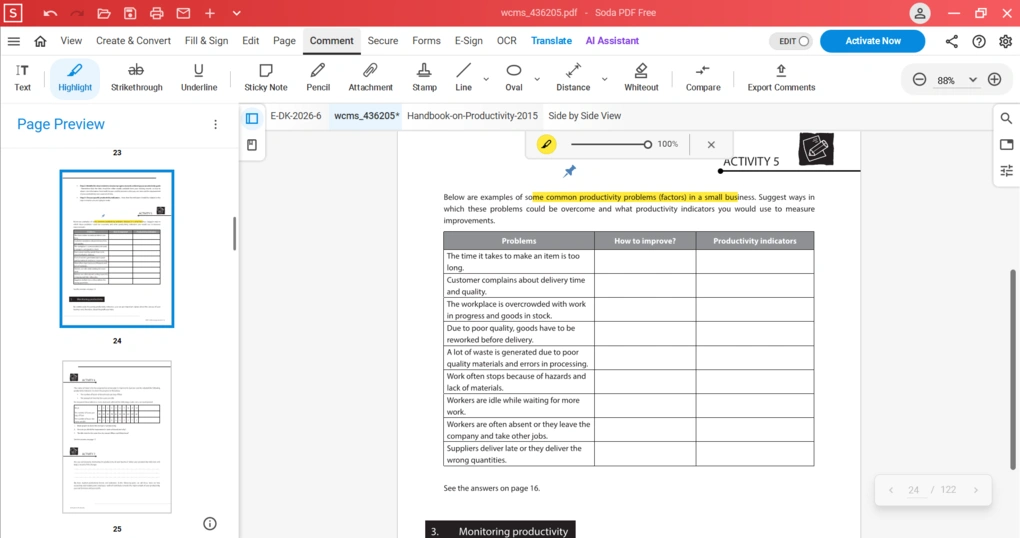
Soda PDF is solid in terms of annotation tools. You have all the options to collaborate on your PDF files. That said, you can place sticky notes, attachments, stamps, shapes, and compare the PDF file with another document.
Furthermore, you can leave attachments and export comments in XML format. The comment export is quite unique, and I did not see this feature when testing other PDF editors. Not sure if this is something that I would use regularly, but it’s nice to have.
PDF organization
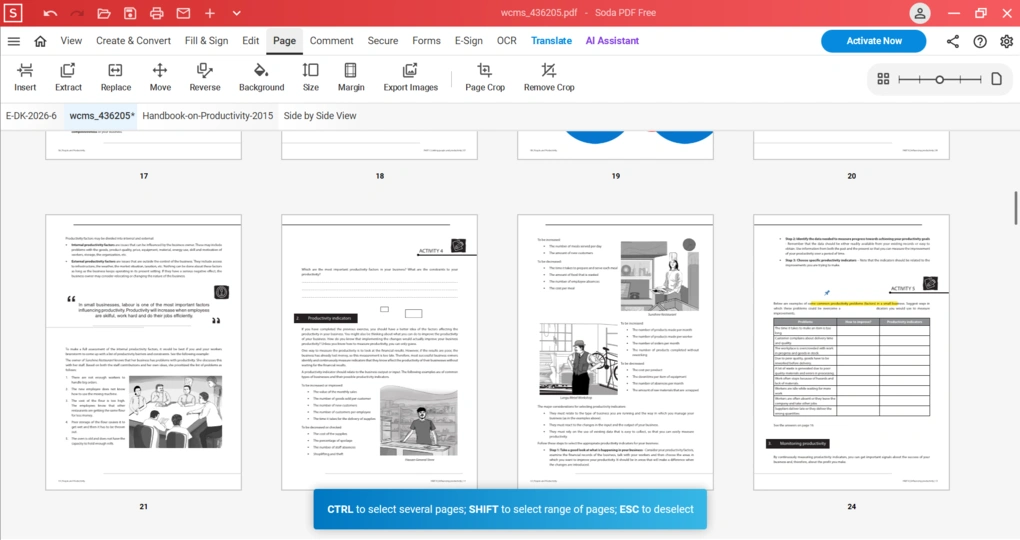
If you click on the “Page” tab, you can access Soda PDF functionalities to organize your pages. Soda PDF allows you to insert, extract, replace, move, and crop pages.
All the features worked well during my Soda PDF review, so I was satisfied with this part of the product.
Forms and electronic signatures
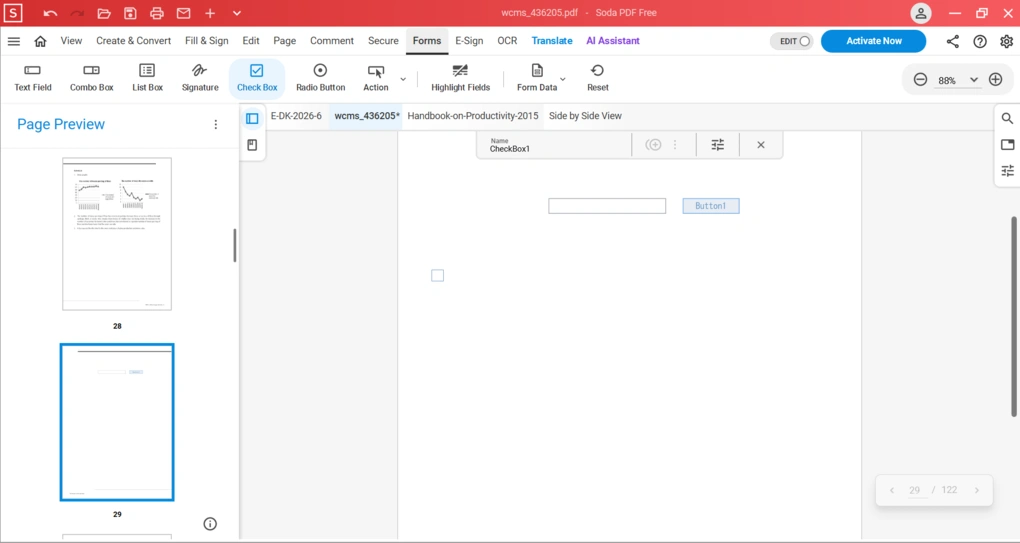
With Soda PDF, you can fill and create forms. When creating forms, you have essential options such as text field, combo box, list, checkbox, and more.
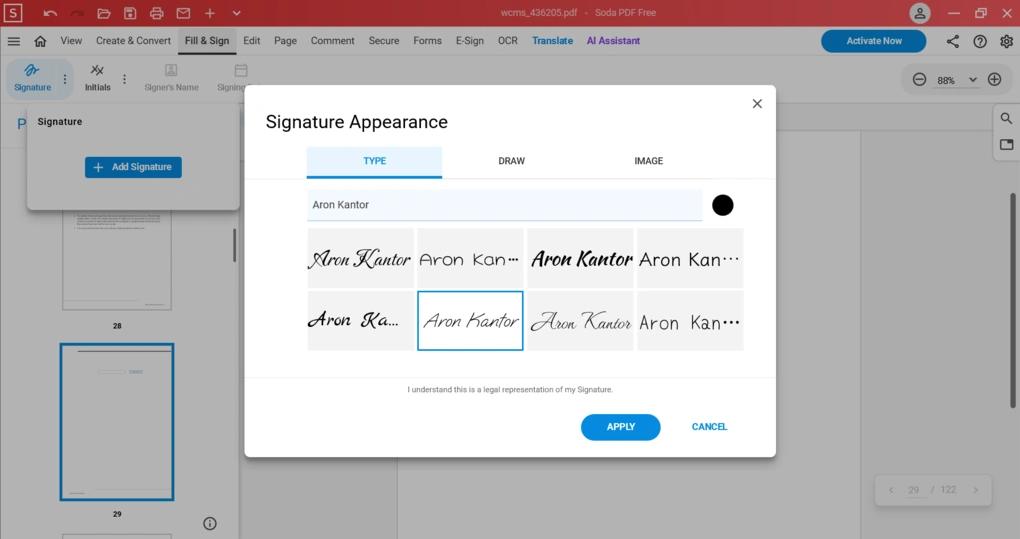
In addition, Soda PDF lets you type, draw, or insert your signature as an image. Just a heads-up: it creates legally binding signatures for your PDF files. Soda PDF includes 256-bit AES password encryption for security and legally binding digital signatures through Soda E-Sign.
When typing your signature, you can select numerous styles and colors. Finally, it is worth noting that you can create digital signatures, which are cryptographically secured, an electronic stamp of authentication for PDF files.
PDF security
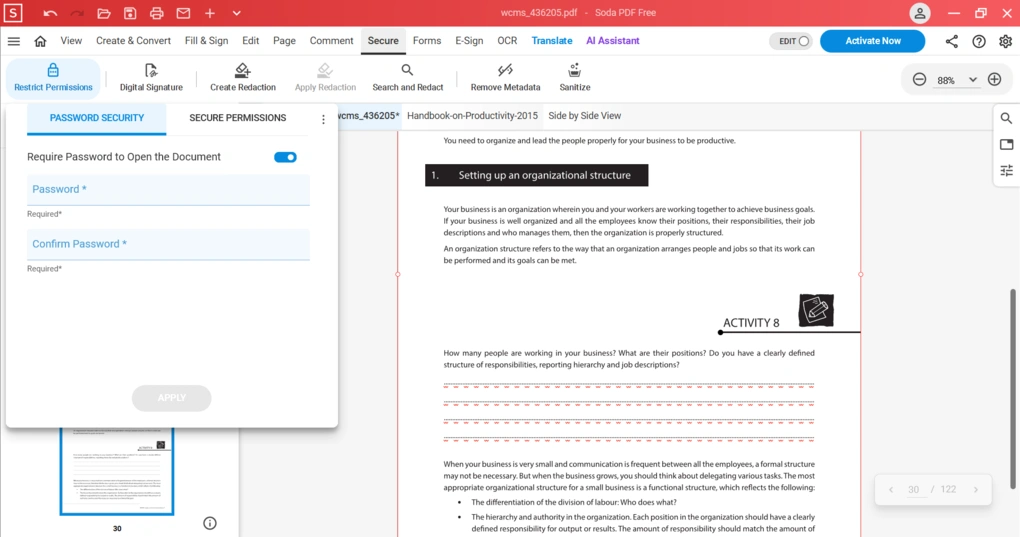
Using Soda PDF, you can set passwords to open your PDF files. Moreover, you can use permissions to access specific features like commenting or form filling.
If you want to remove sensitive information from your PDF files, the redaction features can help you. Just hit the “Create redaction”, and once you select all the text you want to remove, click on “Apply Redaction”. It also has a search function to redact the information faster.
If you want to make sure that the information is removed before sharing the PDF document, you can use the sanitize feature to permanently remove hidden, sensitive, or confidential information.
Conversion features
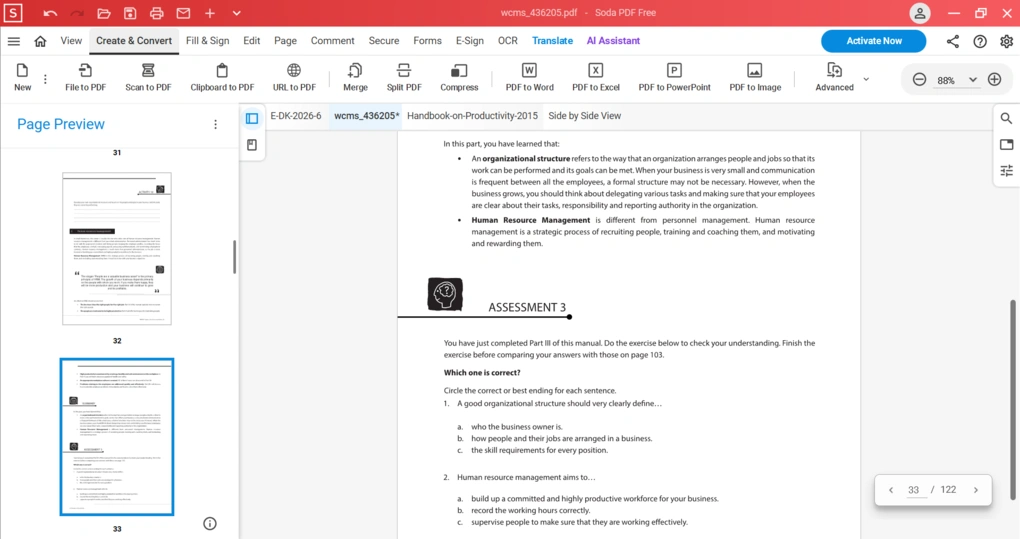
You can convert your PDF document into Word, PowerPoint, Excel, image, TXT, RTF, and HTML. So, this PDF software offers more options for converting PDFs than other apps.
Of course, you can convert these files back into PDF format if you want, with a few clicks.
Compressing tools
If you deal with large PDF files, the compression feature can help you reduce the size by lowering image quality, so you can share and store more easily. Soda PDF offers three compression levels, so you can find the ideal balance between quality and size.
OCR
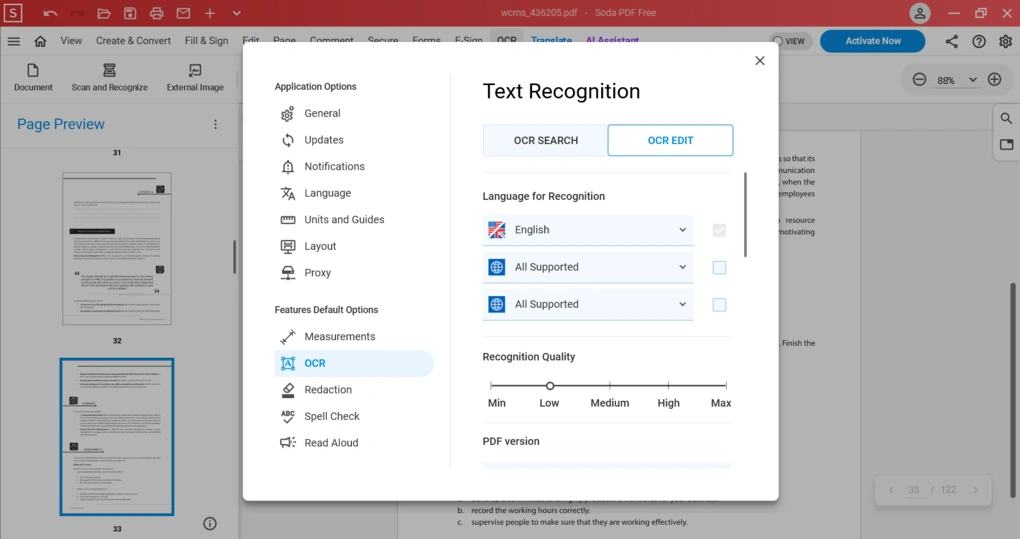
Soda PDF provides an optical character recognition feature to convert scanned images into editable text. It supports 130+ languages and allows bulk document processing.
Nevertheless, the accuracy is only decent since I encountered some formatting issues when using the OCR feature.
AI features
This PDF editor offers AI features as well, but only if you use the Soda PDF online version. You can ask questions, get instant summaries about your PDF document, or translate it.
The AI features are quite versatile, as you can ask the AI assistant to merge, split, or compress files. However, such features are locked behind paywalls.
Soda PDF user interface
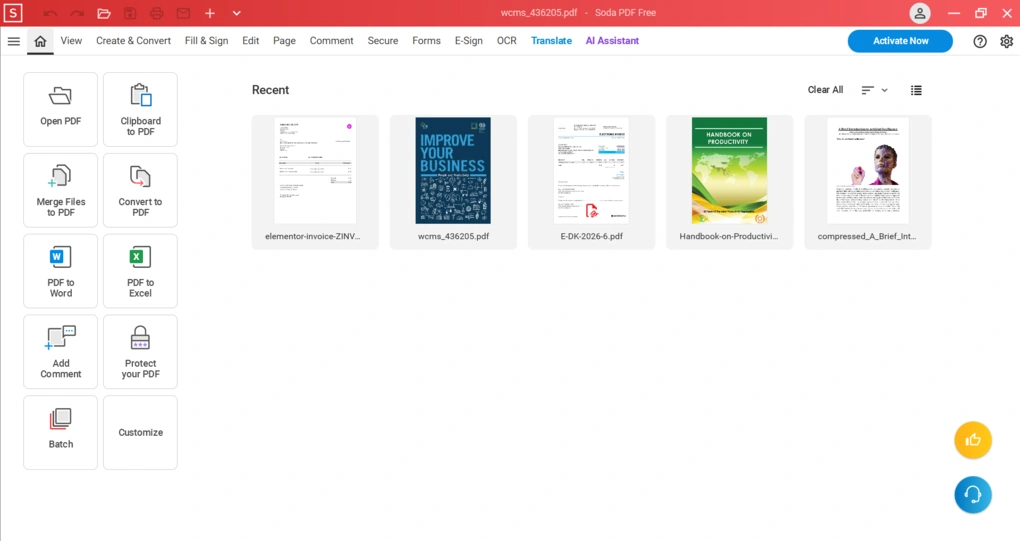
The desktop software has a user-friendly interface. On the homepage, you will find the PDF tools and the recently opened documents.
In general, it is easy to find all the options and features you want to use and has a short learning curve compared to other programs, including Adobe Acrobat.
Explore our Apps directory
A curated directory of software tools we’ve independently reviewed, with links to full reviews, comparisons, and category guides.
Soda PDF pricing
Free version
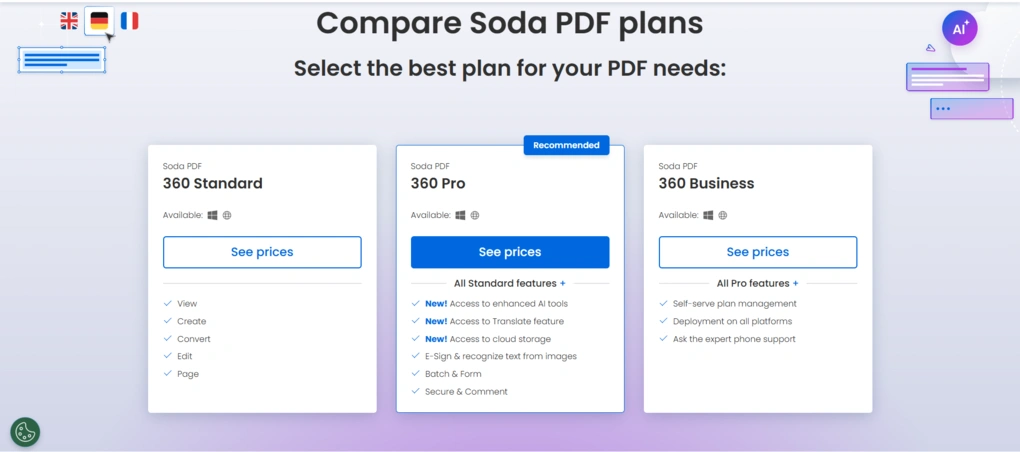
Soda PDF offers a free download to use the desktop version. With the free version, you can edit, annotate, and view PDFs. Also, you will access the security and signing features as well.
Unfortunately, Soda PDF does not offer a free trial, so you can try the advanced features only if you actually upgrade.
Standard plan
The Standard plan is $7.00 per month with annual billing and covers some additional features like converting and 10 questions/month for the AI tools, and 2GB cloud storage.
Pro plan
With the Pro subscription, you access some advanced features, for example, batch processing or OCR search, 50 questions per month for the AI tools, and 5 GB cloud storage. This plan is $10.42 per month with annual billing.
Business plan
If you need all the advanced features of Soda PDF review, you have to go with the Business plan. It costs $16.50 per month, billed annually, and includes all the features, 200 questions per month for the AI features, and access to 10 GB cloud storage.
Overall, I think Soda PDF is a bit overpriced compared to other apps since the advanced features are available in the Pro and Business plans.
Soda PDF security
During my Soda PDF review, I also wanted to take a closer look at its security and privacy. It uses the industry-standard encryption to protect documents and claims to remove files after processing.
After browsing and doing my research, I found Soda PDF a safe PDF editor based on other users’ reports, and I also had the same experience when testing it.
Pros and cons I discovered during my Soda PDF review
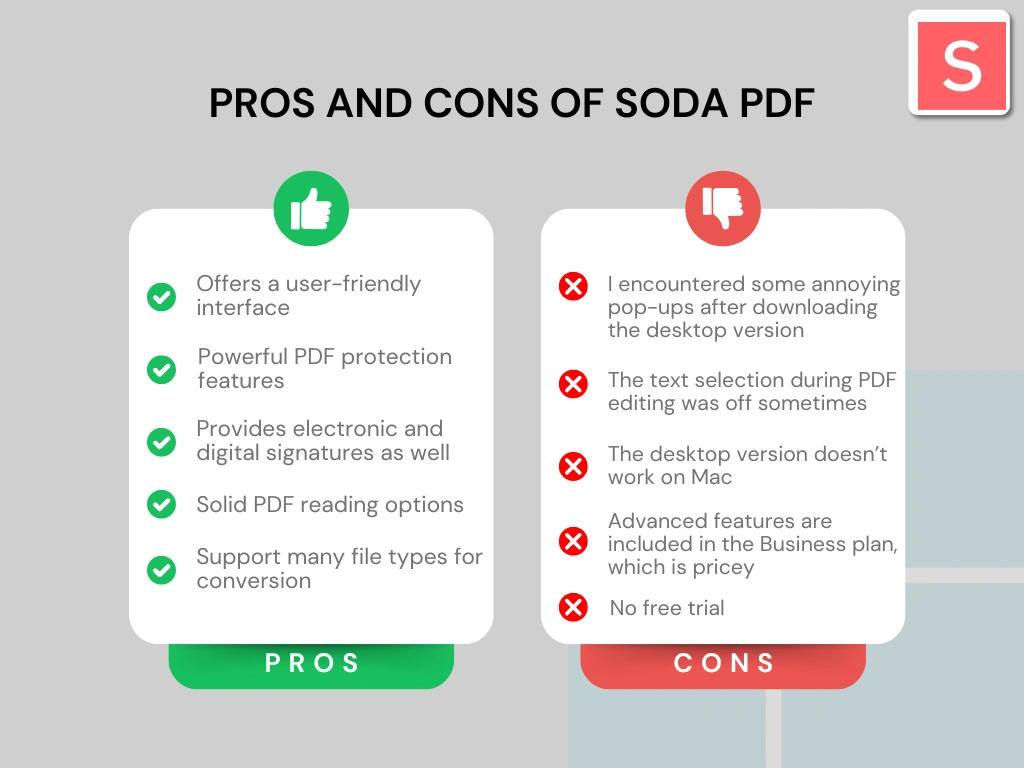
After my Soda PDF review, I found these pros and cons you should know about this PDF software.
Soda PDF’s pros
Soda PDF’s cons
Soda PDF alternatives
If you feel that Soda PDF might not be for you, here are the best alternatives:
|
App |
Best for |
Description |
|---|---|---|
|
Foxit |
Best affordable alternative to Adobe Acrobat |
A PDF editor with an intuitive user interface at an affordable price for Mac and Windows users. |
|
EaseUS PDF Editor |
Best all-in-one PDF editor for beginners |
It is an all-in-one PDF software to read, edit, annotate, and convert your documents. Full EaseUS PDF Editor review | Quick EaseUS PDF Editor overview |
|
Tenorshare PDNob |
Best for AI-powered PDF editing |
It is an easy-to-use AI-powered PDF editor that offers many features to edit, read, organize, and annotate your documents. Full Tenorshare PDNob review | Quick Tenorshare PDNob overview |
|
PDF Expert |
Best for Mac users |
A PDF editor for Mac, iPhone, and iPad users that offers all the tools you need to manage your PDF files, from annotation tools to signing PDFs. |
|
Xodo PDF Studio |
Best offline PDF editor |
A straightforward offline desktop PDF editor for Windows, Linux, and iOS devices, with great PDF reading and editing tools. Full Xodo PDF Studio review | Quick Xodo PDF Studio overview |
|
ONLYOFFICE PDF Editor |
Best for collaboration and team editing |
A versatile tool that combines PDF editing with document collaboration features. It lets you to edit text, add visual elements, and create fillable forms. |
|
UPDF |
Best value PDF editor with AI features |
One of my favorite PDF editors with advanced AI features and budget-friendly pricing. |
|
Nitro |
Best for business PDF workflows |
A feature-rich PDF editor with a strong focus on PDF editing. |
|
Smallpdf |
Best online PDF tool |
An online PDF software with numerous tools to convert, compress, and edit PDF files for free. |
|
Adobe Acrobat |
Most popular PDF editor |
The most popular PDF editor with solid features, but an extremely high price. |
|
pdfFiller |
Best for e-signatures and document workflows |
It offers a signing and editing solution that lets users sign and edit documents, send them for signature, and manage the full electronic document workflow in one place. |
|
LightPDF |
Best for AI PDF productivity |
An AI-powered PDF editor that lets you edit, convert, OCR, sign, annotate, chat with PDFs, and more. |
|
PDFgear |
Best free PDF editor |
A completely free, offline PDF editor with solid editing, OCR, conversion, and AI tools. |
|
PDF-XChange |
Best advanced PDF editor for Windows |
A powerful Windows-based PDF editor with advanced editing, annotation, security, and conversion tools. |
|
Sejda PDF Editor |
Best for simple, everyday PDF tasks |
An intuitive and simple PDF software best suited for personal use for those who need a PDF editor for basic PDF tasks. |
|
PDF Candy |
Best PDF toolkit with multiple tools |
A very practical PDF toolkit with a large number of useful tools, solid performance, and affordable pricing. |
|
Tungsten Power PDF |
Best enterprise-grade PDF solution |
A powerful PDF editor and document management tool designed for businesses, offering advanced editing, security, OCR, and collaboration features. Full Tungsten Power PDF review | Quick Tungsten Power PDF overview |
|
ABBYY FineReader |
Best for OCR and document digitization |
A powerful OCR-focused PDF tool with strong layout detection, flexible conversion, and an efficient workflow. Full ABBYY FineReader review | Quick ABBYY FineReader overview |
|
PDFelement |
Best balance of features and ease of use |
An easy-to-use PDF editor with valuable features for a reasonable price. |
|
WPS Office |
Best easy-to-use office suite and PDF editor |
WPS Office is an easy-to-use office suite with solid PDF editing and AI-powered productivity tools, though its free plan is quite limited. |
Wrap-up: Soda PDF review
Soda PDF is an intuitive PDF editor and document management software that also offers an online version. It has solid features for managing your PDF documents, but some are locked behind higher-tier plans.
While I had a positive experience during my Soda PDF review, based on my opinion, there are more advanced PDF editors in its price range.
Related articles:
- The 8 Best Adobe Acrobat Alternatives: 30+ PDF Editors Tested
- The 10 Best PDF Editors In 2026 | 30+ Personally Tested PDF Tools
- The 6 Best PDF Readers For 2025 (Only FREE Options)
- 6 Best OCR Software For 2026 | 30+ Personally Tested Tools
- 6 Best PDF Converter For 2026 | 30+ Personally Tested Tools
Hope I was able to help you find the best PDF editor for you. As always, I will update this PDF-XChange review over time so you guys have up-to-date information about this PDF software.
Looking for similar tools?
Visit our PDF editors library to explore other apps we’ve reviewed in this space and how they compare.
Why you can trust our reviews
At thebusinessdive.com, our team tests, reviews, and compares hundreds of productivity apps every year — from project management tools to note-taking apps. We dive deep into real-world use cases to help you find the right tools that actually improve your workflow, not just add noise.
Our mission? No fluff, no shortcuts—just honest, hands-on insights from productivity pros.
Discover how we stay transparent, read our review methodology, and let us know about any tools we missed.
Frequently asked questions
Is the Soda PDF editor good?
Yes, Soda PDF is a good PDF editor. It is often compared to Adobe Acrobat in terms of functionality and pricing. However, it is more user-friendly and cheaper than Adobe Acrobat, but it also has its own limitations.
Is a Soda PDF installer safe?
Yes, the Soda PDF installer is safe. Besides my own experience, I did not find any privacy or safety concerns about Soda PDF.
Is Soda PDF totally free?
No, it offers a free version limited to the essential features. The free version of Soda PDF allows users to view PDFs and explore some features, while saving documents and using advanced tools requires a paid subscription.
To use the advanced features, you need to purchase a paid subscription.

Hey there! I am Aron, the founder of Thebusinessdive. I have been testing productivity apps for almost three years now. I reach 25.000 -50.000 people monthly with the mission to help you find the perfect productivity apps. Subscribe to my YouTube channel, newsletter, and social media to hear more about the best productivity tools. Let’s dive in!