


WPS Office Review 2026: Great AI, Frustrating Free Version
In this WPS Office review, we’ll find out whether it is just a good MS Office clone or offers more.
Reddit and other forums have many discussions about whether WPS Office is worth it.
To find out what WPS Office can actually deliver, I tested it myself. While I mostly focused on the PDF editing features, I also looked at its other apps.
Let’s dive in!
Verdict: Excellent AI features, but expect paywalls and upgrade pop-ups
Here’s the quick verdict if you don’t want to read the full review:
🎯 Best for: Individuals and small businesses needing an easy-to-use office suite and PDF editor
🚫 Not ideal for: Users looking for a fully free PDF editor with advanced features
⭐ Biggest strength: Strong AI tools and intuitive PDF editing experience
⚠️ Biggest weakness: Free version includes ads and limited advanced PDF features
⚖️ Verdict: A balanced and user-friendly office suite with solid PDF editing and impressive AI features, but the free plan is restrictive
🏆 Score: 3.9 / 5
✅ Tested with our review & scoring methodology ✅ Real-world testing ✅ Unbiased evaluation
WPS Office
Summary
I found WPS Office easy to use, with solid PDF editing features and impressive AI tools. It covers editing, annotation, conversion, organization, and PDF protection while keeping a clean interface. The AI slide generation stood out during my testing. However, the free version is limited, includes ads, and the refund policy may frustrate some users. Overall, WPS Office is a strong and affordable Microsoft Office alternative for individuals and small businesses.
|
|
Easy-to-use software
|
|
|
Full compatibility with MS Office files
|
|
|
Advanced AI features
|
|
|
Its homepage integrates documents, spreadsheets, and PDFs in a single window
|
|
|
Solid PDF protection features
|
|
|
The free version contains ads
|
|
|
Limited free plan if you need advanced features for PDF editing
|
|
|
Strict refund policy
|
WPS Office explained: What you actually get
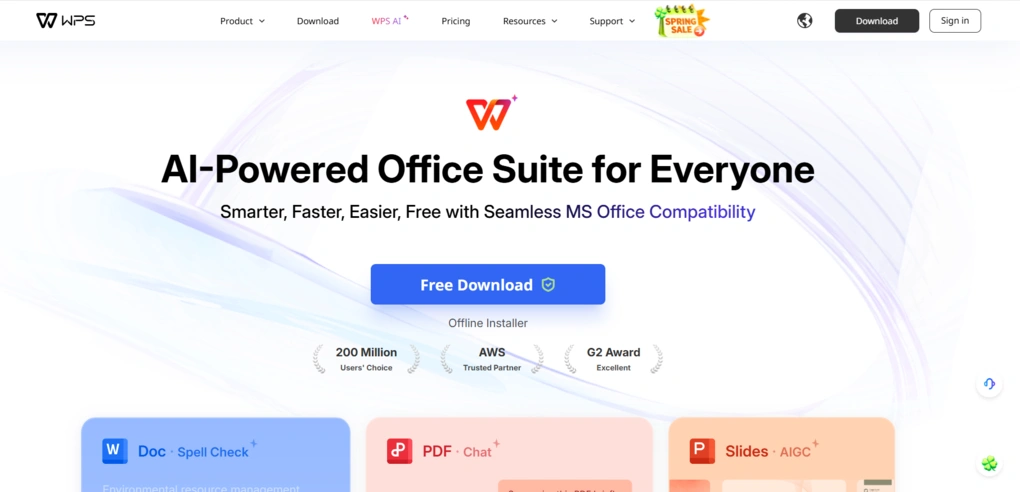
WPS Office is a productivity suite with apps for PDFs, documents, images, sheets, and slides. It was developed by Kingsoft Office Software, and more than 200 million users utilize it for daily tasks.
WPS Office is a remarkable alternative to Microsoft Office, replicating its overall appearance and fundamental functionalities. If you have used Microsoft Office before, you will be familiar with WPS Office files and features.
It works on Windows, Mac, Linux, Android, and iOS devices.
Is WPS good? The highlights and drawbacks
| Highlights | Drawbacks |
|---|---|
| 🖥️ Easy to use — The interface feels familiar and has a short learning curve, especially if you’ve used Microsoft Office. | 📢 Ads & upgrade prompts — The free version occasionally shows prompts that annoy me over time. |
| 📄 Strong Microsoft Office compatibility — Works with familiar Word, Excel, and PowerPoint formats. | 🔒 Restrictive free plan — Many advanced PDF editing and AI features require a paid plan. |
| 🤖 Advanced AI features — Useful tools for writing, summarizing, creating slides, generating mind maps, and working with PDFs. | 💳 Strict refund policy — The refund policy is relatively restrictive, and some users report difficulties getting refunds for accidental charges or renewals. |
| 🧩 All-in-one workspace — Documents, spreadsheets, slides, and PDFs are accessible from one homepage. | |
| 🔐 Solid PDF protection — Includes passwords, permission controls, digital certificates, and watermarks. |
How WPS Office performed in my testing
My overall experience with WPS Office was positive and smooth. It is easy to use and has a short learning curve if you are switching from MS Office.
It offers solid PDF editing features and includes all the tools you need to manipulate your PDF files. To be fair, WPS didn’t make my list of the best PDF editors, but it performed better than I expected.
I also found its AI features strong, and I liked how WPS implemented them.
As for drawbacks during my WPS Office review, I encountered ads while using the free version.
Also, I felt the free version was limited in its PDF editing features. Besides the really basic features, all the other tools require paid plans.
Who WPS Office is a good fit for
Who WPS Office is not ideal for
Why WPS Office got a 3.9 / 5 score
WPS Office delivered a smooth and beginner-friendly experience with solid PDF editing tools and useful AI-powered features. It covers all the essentials for editing, annotating, converting, organizing, and protecting PDF files while maintaining a clean interface similar to Microsoft Office.
Where it lost points is pricing and limitations in the free version. Many advanced PDF and AI features require paid plans, the free version includes ads, and the refund policy may frustrate some users.
Is WPS Pro worth it?
Here’s how I see each plan:
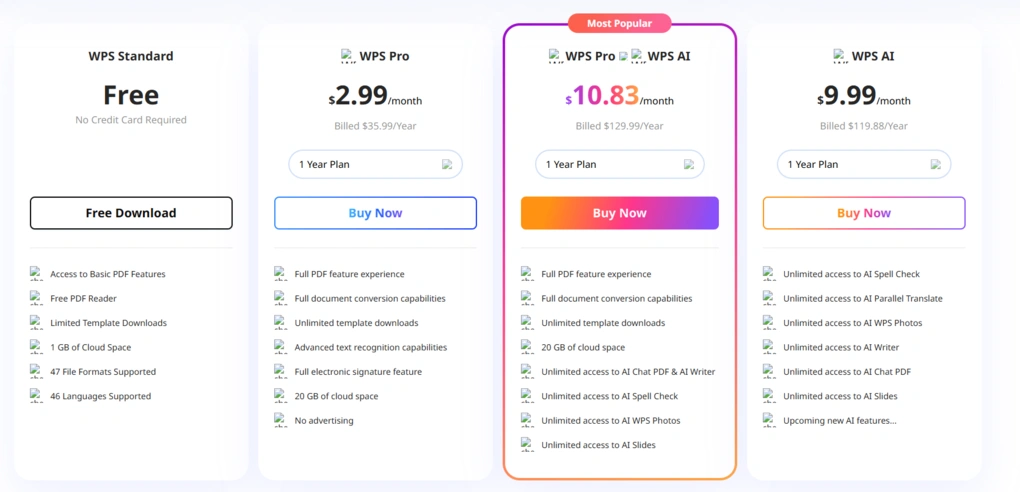
| Plan | My take |
|---|---|
| Free | Fine for basic Office work and occasional PDF use, but the feature restrictions and upgrade pop-ups became annoying during my testing. |
| WPS Pro — $35.99/year | Best value for most users. It removes the ads and unlocks the PDF editing, conversion, templates, and e-signature tools that make WPS much more useful. |
| WPS AI — $119.88/year | Harder for me to justify on its own. The AI tools impressed me, but this is a significant jump from Pro. |
| Pro + AI — $129.99/year | Makes much more sense than buying WPS AI alone. The extra $10.11/year gets you the Pro features as well. |
| Team — $2.49/user/month | Affordable for small teams, but the lack of AI tools makes it less attractive if AI is one of the reasons you’re considering WPS. |
Free plan
The free version is enough to see whether you like WPS Office. You get basic PDF tools, a PDF viewer, 1 GB of cloud storage, and compatibility with Microsoft Office formats.
Nonetheless, I wouldn’t choose the free plan for regular PDF work. Most of the features are locked behind paywalls, and the constant pop-ups make the experience frustrating.
WPS Pro
At $35.99 per year, WPS Pro is the plan I think makes the most sense for most people. It unlocks the PDF editing and conversion tools, unlimited templates, e-signatures, and 20 GB of cloud storage while removing the upgrade ads.
Considering you’re getting both an Office suite and a capable PDF editor, I think the price is pretty reasonable based on what I tested.
One thing I would consider before subscribing is the refund policy. Based on user reports I found, some customers have had difficulty obtaining refunds for accidental charges or renewals.
WPS AI
This is where the value proposition doesn’t seem right to me.
The AI tools were genuinely one of the things that impressed me most about WPS Office, particularly AI Slides and the AI tools integrated directly into documents and PDFs. Nevertheless, $119.88 per year is difficult for me to justify for the AI plan alone.
WPS Pro and WPS AI
If you want WPS’s AI features, I’d skip the standalone AI plan and consider Pro + AI instead.
It costs $129.99/year versus $119.88/year for WPS AI, a difference of only $10.11 per year. For that relatively small difference, you also get the Pro features.
Team plan
The Team plan starts at $2.49 per user/month for two users, making it affordable for small teams. However, AI isn’t included, which is worth knowing because AI was one of WPS Office’s strongest features in my testing.
My takeaway from each WPS Office feature
| Feature | My key takeaway |
|---|---|
| 📖 PDF reading | Covers everything I need for everyday reading, but dedicated PDF editors offer more advanced viewing tools. |
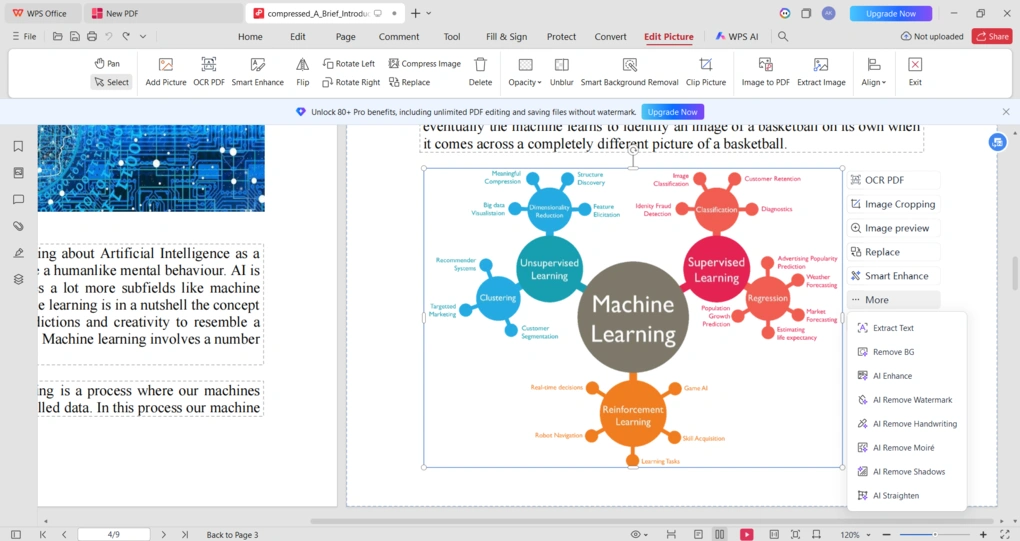
| ✏️ PDF editing | One of WPS’s strongest areas—the contextual AI tools and background removal genuinely stood out during my testing. |
| 💬 Annotations | Easy to use and covers the essentials, although the toolkit isn’t particularly advanced. |
| 🗂️ PDF organization | Straightforward page management with all the tools I regularly use, including splitting, extracting, replacing, and rearranging pages. |
| ✍️ Forms & signatures | Good for filling and signing PDFs yourself, but I wouldn’t use it for advanced e-signature workflows. |
| 🔐 PDF protection | Surprisingly comprehensive, with granular permissions, certificates, passwords, and watermarks. |
| 🔄 PDF conversion | Supports the formats I’d expect, and worked smoothly during review. |
| 🗜️ PDF compression | Three compression levels and batch processing are useful. |
| 🔎 OCR | Offers both scanned-PDF recognition and image-to-text extraction, but the accuracy isn’t close to some of the other PDF editors I have tested. |
| 📝 WPS Docs | Very familiar for Word users, with useful AI writing tools built directly into the workflow. |
| 📊 WPS Slides | The AI slide generator was one of the most impressive features I tested—it turned documents into presentations within minutes. |
| 📈 WPS Sheets | Familiar for Excel users, although I only tested it briefly. |
WPS Office features: My detailed testing results
Below is my detailed breakdown of each feature compared with other PDF editors and office suites.
WPS PDF
Over the past few years, I tested 30+ PDF editing software and was curious how WPS Office stacks up against them. Therefore, during my WPS Office review, I tested all its PDF features to see how it performs compared to the most popular PDF editors.
Scroll down to see the results.
PDF reading
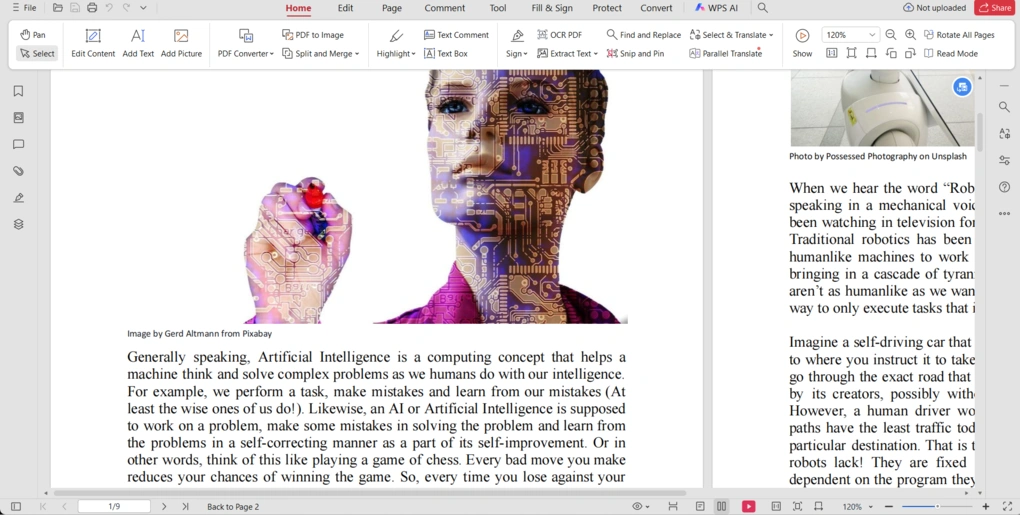
You can access the PDF viewing features on the button in the right corner. WPS lets you apply different view modes, such as light, dark, comfort, and parchment.
Furthermore, you can choose from layout options, so you can read your PDFs with single and two-page views. Also, you can view your PDFs in full screen for maximum reading comfort.
Ultimately, WPS Office provides the essential PDF reading features. Compared to PDF-XChange or Tungsten Power PDF, the reading features might be more limited, but you have all the necessary functions that 80% of PDF editors offer.
PDF editor
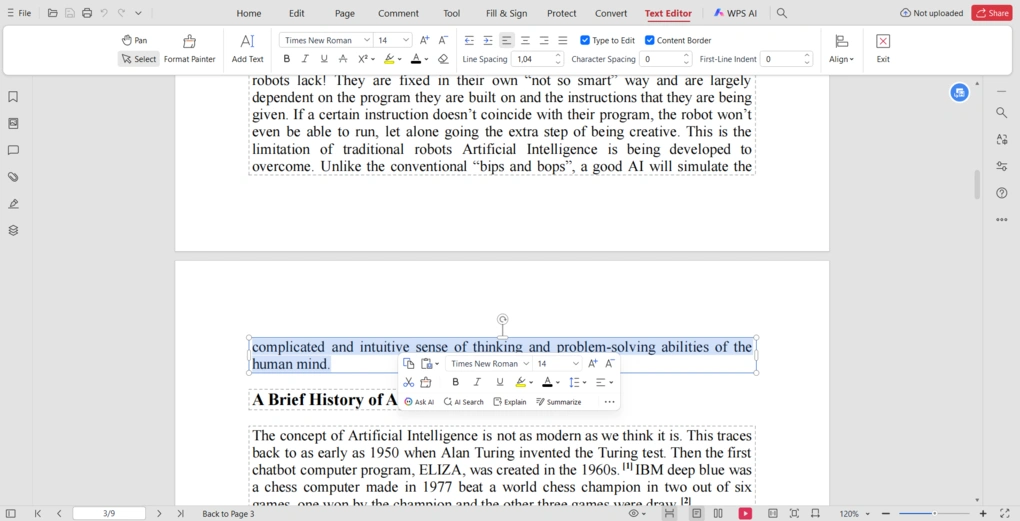
If you click on “Edit content”, WPS Office selects the text boxes for editing. It offers numerous font types, colors, alignment options, and more.
When changing the font size, I noticed that you can’t just simply type in the number, but you have to select it; otherwise, WPS Office won’t apply the selected size. This was a bit annoying, but all the other text editing functionality worked smoothly during my WPS Office review.
On the other hand, it was great that many AI features appeared when selecting the text box. With this feature, you can ask WPS to summarize, expand, explain, and more. It’s a useful addition, and I did not see this solution when testing other PDF editors.
Moreover, you can place images in your PDF documents with WPS Office. Once inserted, you can adjust the size, position, opacity, and more.
I appreciated its Smart Background Removal feature, and surprisingly, it worked great for most of the pictures. This is something I missed when testing even more advanced PDF editors.
In addition to incorporating text, images, WPS Office lets you insert links, audio, video, and shapes.
Ultimately, I was satisfied with WPS Office’s PDF editing features. While it might not have as many advanced features as PDF-XChange or other PDF editors, it’s not stuffed with functions and icons, and it makes sense where you find the relevant options.
Annotation tools
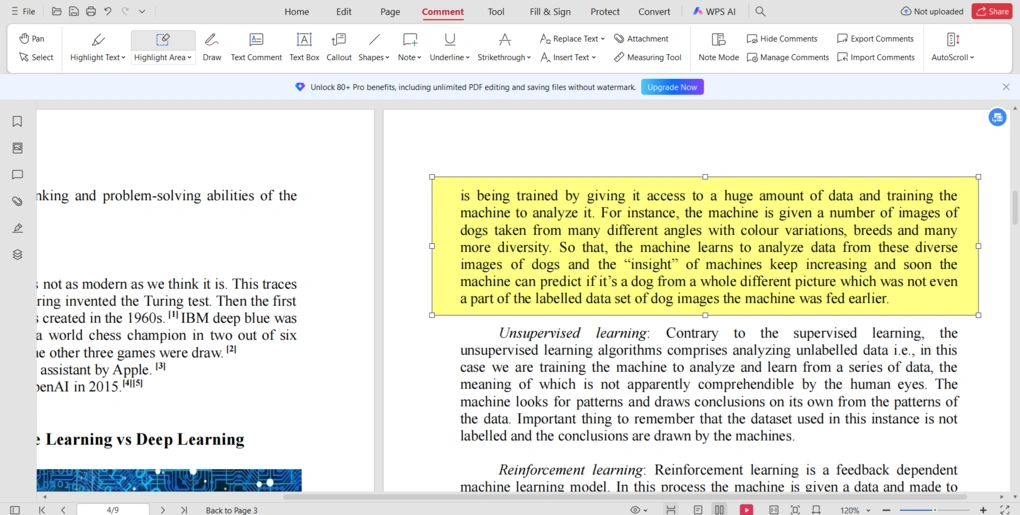
If you click on the “Comment” tab, you can find the annotation features. You can highlight text or an area, draw, leave comments, callouts, and more.
I found that during my WPS Office review that if you click on the properties of each annotation tool, you can further customize them. So, you can change the color, opacity level, and apply similar options.
Overall, I was satisfied with the annotation tools, which make WPS Office a suitable choice for teams managing PDF files.
PDF organization
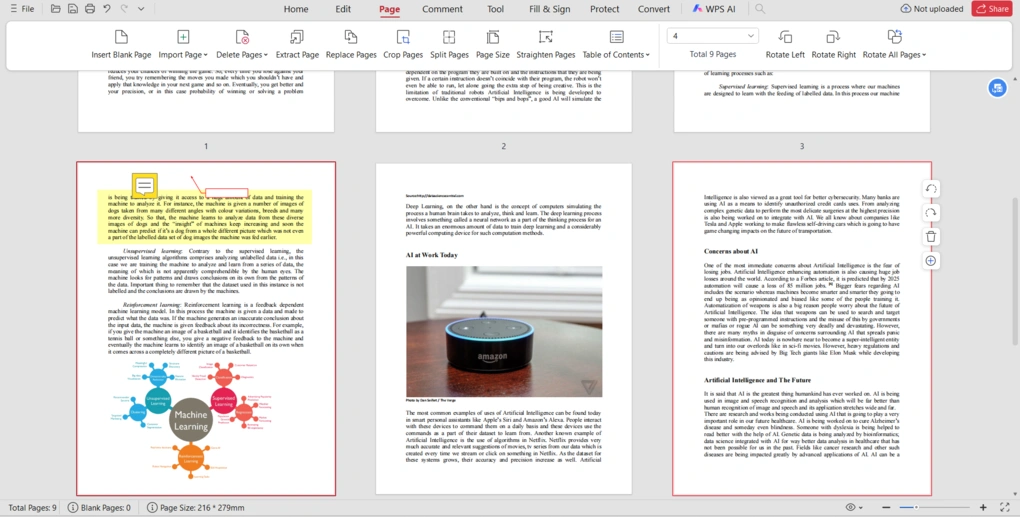
With WPS Office, you can organize your pages. It allows you to import, delete, extract, replace, crop, and split pages with a few clicks. You can also drag and drop the pictures of the pages to easily change their positions.
Forms and electronic signatures
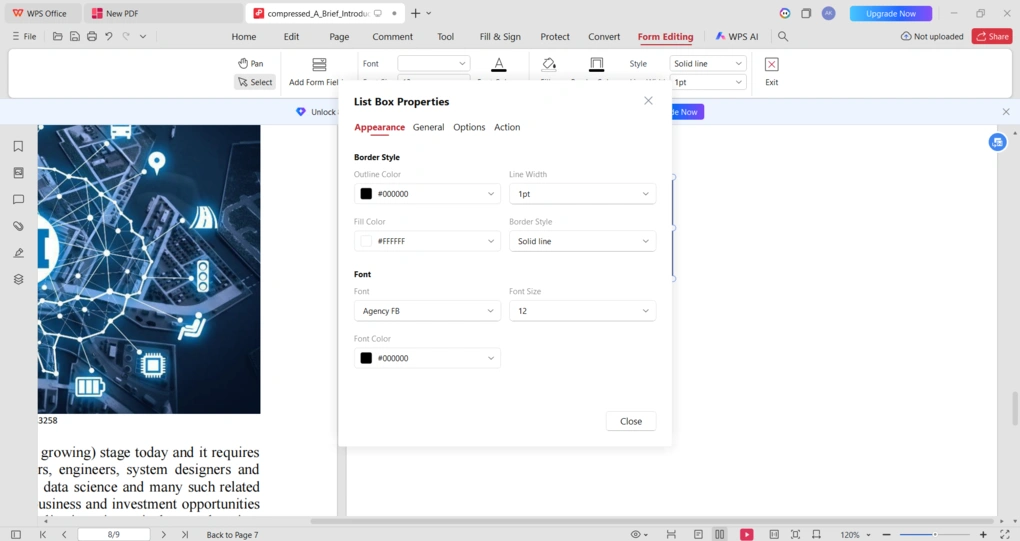
You can use WPS Office for form filing and creation. These features are best for users who are looking for essential form creation tools. You can insert six different elements, such as text boxes, check boxes, or lists, and further personalize the appearance, action list, and options.
Furthermore, you can sign documents with WPS Office. You can generate your e-signature by drawing, typing, or inserting it from a picture. Also, you can add initials.
It’s ideal for occasional signing on your personal computer or tablet. Once you have created your signature, you can insert it with one click. Nevertheless, the free version allows you to create only one signature.
PDF protection
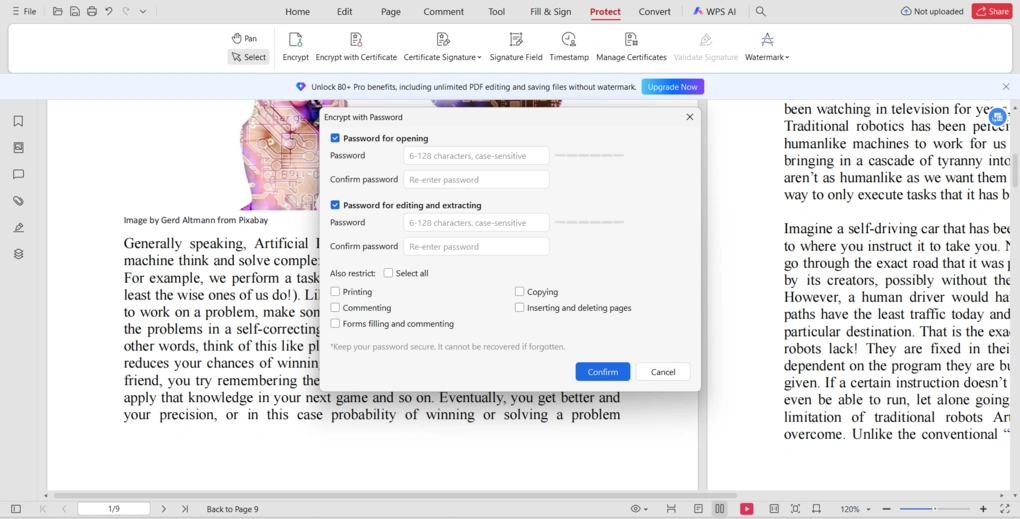
WPS Office provides solid protection for your PDF files. You can add a password for opening, editing, and extracting. You can also restrict printing, commenting, copying, form-filling, and inserting or deleting pages.
Moreover, you can insert digital certificates for encryption and add watermarks to your files.
Conversion features
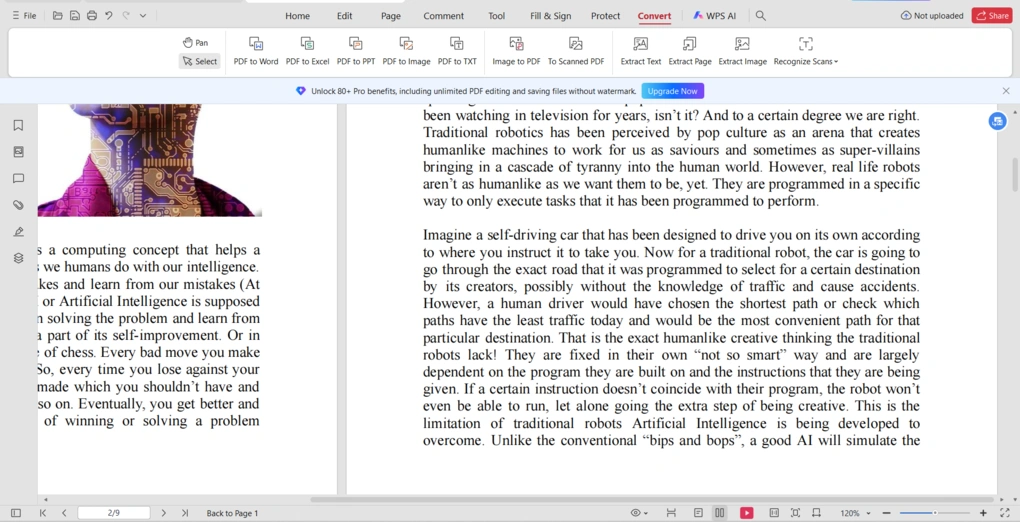
WPS Office also offers conversion features for your PDF documents. You can convert PDF files into Excel, PPT, and Word documents. Additionally, you can convert PDF files into pictures and TXT.
Compressing tools
WPS Offers supports PDF compression as well. It supports multiple compression levels, including HD, Recommended, and Smallest. Besides, you can batch process numerous files.
OCR
Using WPS’s OCR feature, you can transform scanned documents into editable ones. You can access this feature under the Convert tab. WPS offers two types of OCR features.
The first converts scanned PDFs into editable and searchable documents, making it ideal for organizations or schools that need to digitize archives, for example, quickly retrieving and updating contracts, agreements, or study materials.
The second allows users to extract text from images and export it directly into TXT, Word, or Excel formats. This is especially useful in study or work scenarios, such as turning a photo of a classroom whiteboard or a meeting slide screenshot into an editable document within seconds.
WPS Docs
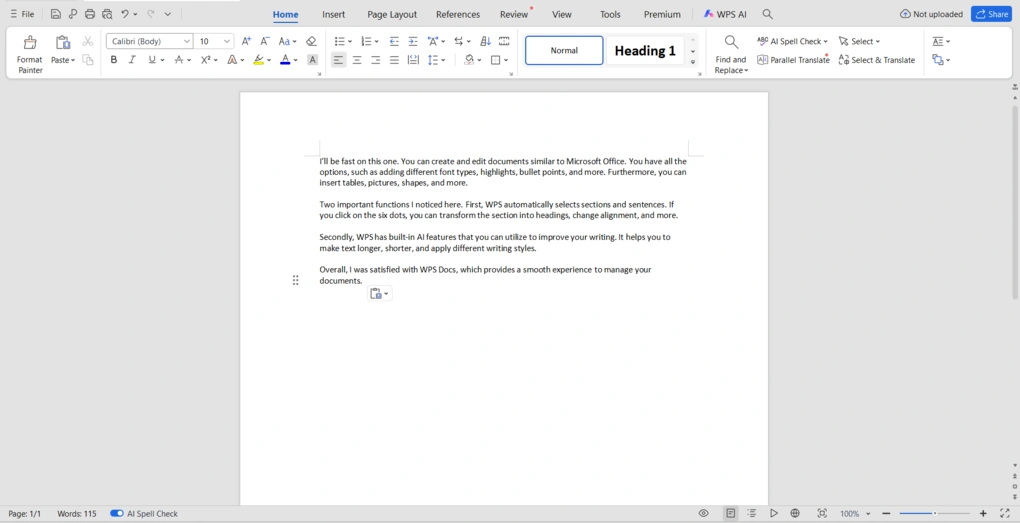
I’ll be fast on this one. You can create and edit documents similar to Microsoft Word. You have all the options, such as adding different font types, highlights, bullet points, and more. Furthermore, you can insert tables, pictures, shapes, and more.
Two important functions I noticed here are: First, WPS automatically selects sections and sentences. If you click on the six dots, you can transform the section into headings, change alignment, and more.
Secondly, WPS has built-in AI features that you can utilize to improve your writing. It helps you make text longer or shorter and apply different writing styles.
Overall, I was satisfied with WPS Docs, which provides a smooth experience for managing your documents.
WPS Slides
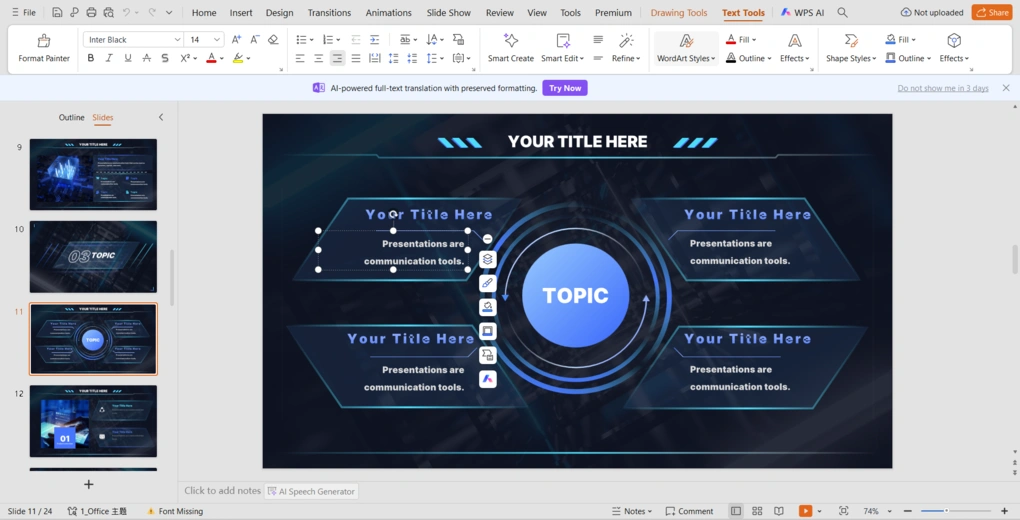
With WPS Slides, you can create slide decks easily. Compared to other office suites, WPS Slides works similarly, and I found it ideal for creating slides fast.
That said, you can choose a template from the library of more than 10,000 covering work, educational, personal, and other categories. This helps to speed up the process of creating well-structured slides.
Furthermore, WPS implemented its built-in AI features into this software. Besides helping you polish your text, you can utilize it for creating slides.
During my WPS review, I discovered that WPS Slides is easy to use and has a short learning curve since you can find all the functionalities quickly if you have used PowerPoint.
WPS Sheets
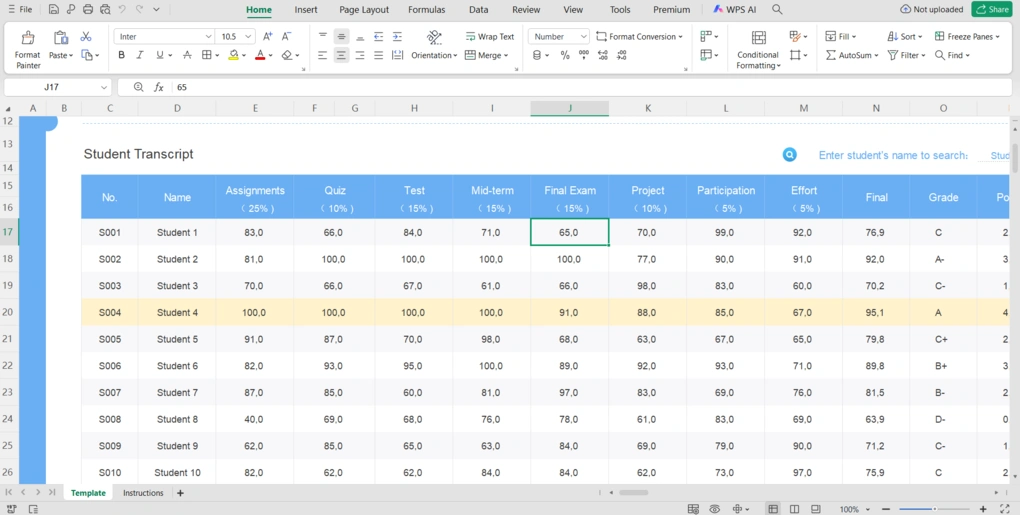
WPS Sheets is a solid alternative to Microsoft Excel for creating, editing, and sharing spreadsheets. With WPS Sheets, you can visualize, analyze, and use formulas for your data.
Essentially, the formulas work the same as MS Office. So, if you are familiar with the previous functions, you will experience a short learning curve if you are switching from MS Office.
AI features
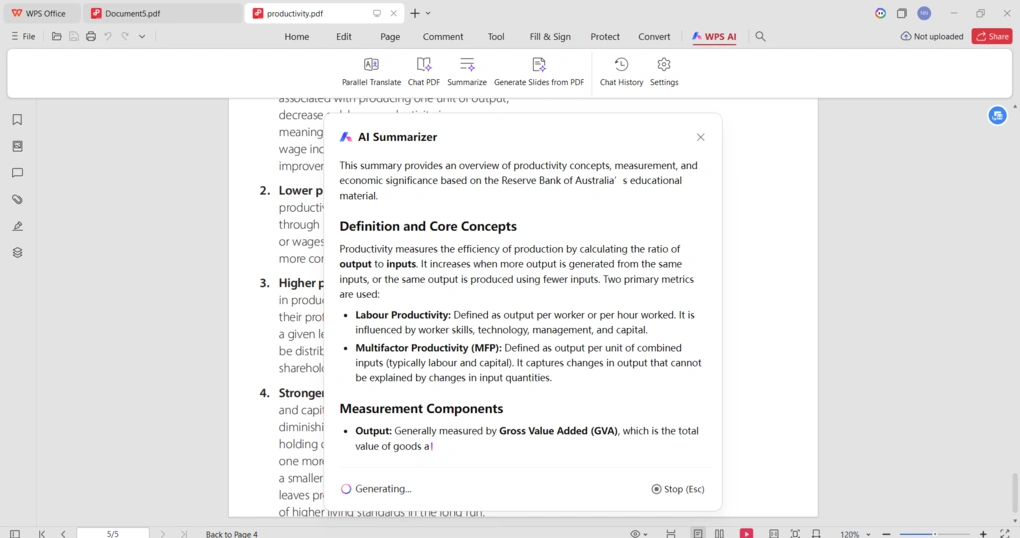
WPS Office’s AI features are useful for summarizing documents, finding information quickly, translating pages, and generating mind maps, slides, and images. While the document summarization was a bit slow, WPS Office generated mind maps in seconds.
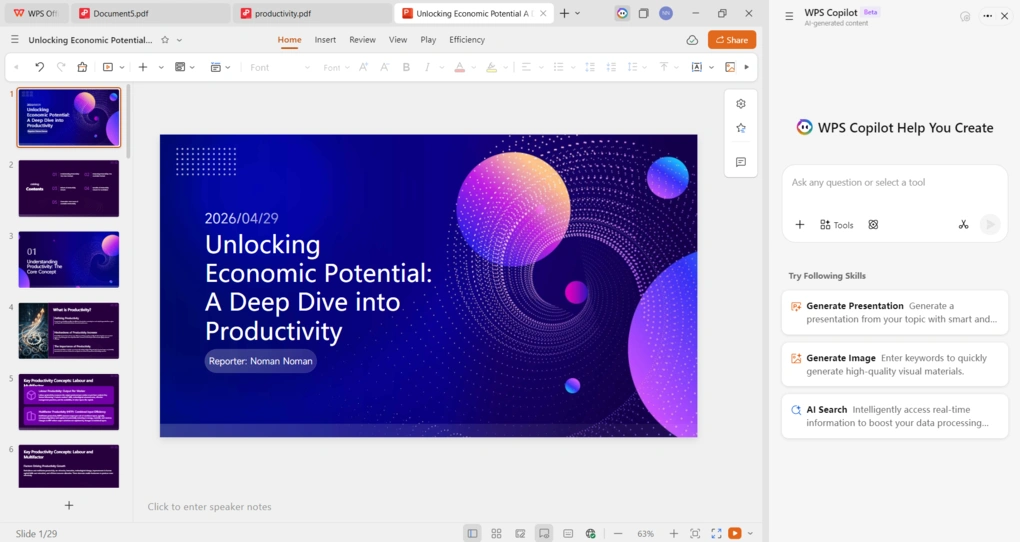
Furthermore, the AI slide generator truly impressed me during my WPS review. It extracts the key details from your documents and organizes them into slides. After that, you only need to select the template you want to apply, and it will prepare the entire slide deck in a few minutes.
It’s a really useful addition for those who work a lot with PPTs and want to prepare slides faster. As with other PDF editors with AI tools like UPDF or PDNob, WPS’s advanced AI capabilities are locked behind premium subscription tiers as well.
Explore our Apps directory
A curated directory of software tools we’ve independently reviewed, with links to full reviews, comparisons, and category guides.
WPS Office user interface
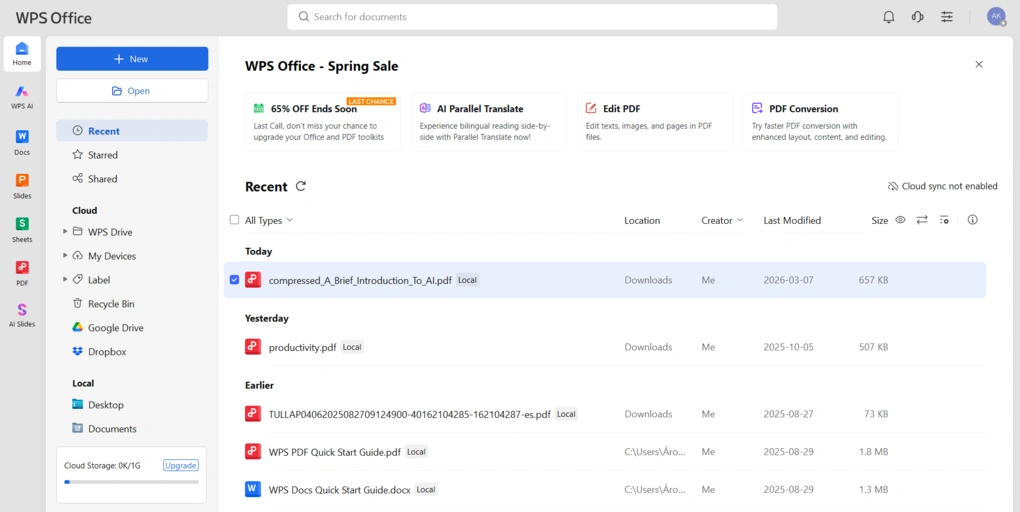
WPS Office offers a user-friendly interface. From the homepage, you can access the Docs, Slides, Sheets, and PDF software as well. You can also find the files you worked on recently here.
WPS Office alternatives
Since I mostly focused on the PDF editing features, here are some of the best alternatives to WPS Office if you need a PDF software:
|
App |
Best for |
Description |
|---|---|---|
|
Foxit |
Best affordable alternative to Adobe Acrobat |
A PDF editor with an intuitive user interface at an affordable price for Mac and Windows users. |
|
EaseUS PDF Editor |
Best all-in-one PDF editor for beginners |
It is an all-in-one PDF software to read, edit, annotate, and convert your documents. Full EaseUS PDF Editor review | Quick EaseUS PDF Editor overview |
|
Tenorshare PDNob |
Best for AI-powered PDF editing |
It is an easy-to-use AI-powered PDF editor that offers many features to edit, read, organize, and annotate your documents. Full Tenorshare PDNob review | Quick Tenorshare PDNob overview |
|
PDF Expert |
Best for Mac users |
A PDF editor for Mac, iPhone, and iPad users that offers all the tools you need to manage your PDF files, from annotation tools to signing PDFs. |
|
Xodo PDF Studio |
Best offline PDF editor |
A straightforward offline desktop PDF editor for Windows, Linux, and iOS devices, with great PDF reading and editing tools. Full Xodo PDF Studio review | Quick Xodo PDF Studio overview |
|
UPDF |
Best value PDF editor with AI features |
One of my favorite PDF editors with advanced AI features and budget-friendly pricing. |
|
Nitro |
Best for business PDF workflows |
A feature-rich PDF editor with a strong focus on PDF editing. |
|
Smallpdf |
Best online PDF tool |
An online PDF software with numerous tools to convert, compress, and edit PDF files for free. |
|
pdfFiller |
Best for e-signatures and document workflows |
It offers a signing and editing solution that lets users sign and edit documents, send them for signature, and manage the full electronic document workflow in one place. |
|
LightPDF |
Best for AI PDF productivity |
An AI-powered PDF editor that lets you edit, convert, OCR, sign, annotate, chat with PDFs, and more. |
|
Adobe Acrobat |
Most popular PDF editor |
The most popular PDF editor with solid features, but an extremely high price. |
Wrap-up: WPS Office review
Throughout my testing, WPS Office provided a smooth experience. It’s a balanced option for small businesses and individuals who need a solid Microsoft Office alternative with an intuitive PDF editor.
Related articles:
- The 8 Best Adobe Acrobat Alternatives: 30+ PDF Editors Tested
- The 6 Best PDF Readers For 2025 (Only FREE Options)
- 6 Best OCR Software For 2026 | 30+ Personally Tested Tools
Hope I was able to help you find the best PDF editor for you. As always, I will update this WPS review over time so you guys have up-to-date information about this PDF software.
Looking for similar tools?
Visit our library of PDF editors to explore other apps we’ve reviewed in this space and how they compare.
How We Test PDF Editors
To keep our reviews and final scores fair and consistent, we evaluate every PDF editor using a standardized testing framework built on over 3 years of hands-on experience testing these tools in real-world scenarios.
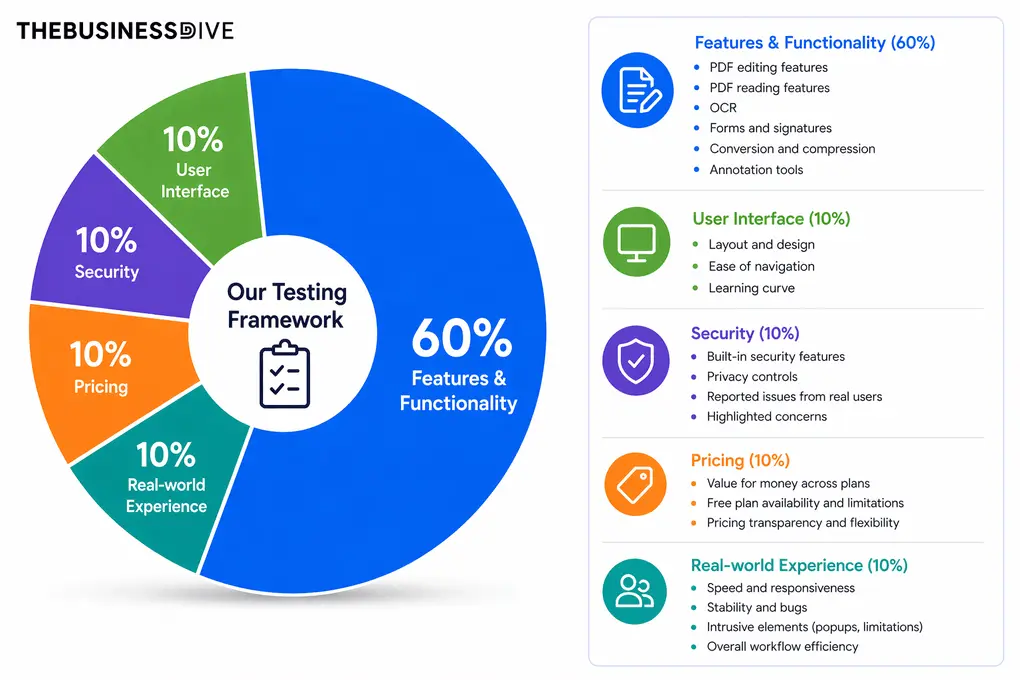
Our scoring breakdown after testing 30+ PDF editors:
🛠️ Features & functionality — 60%
🖥️ User interface — 10%
🔐 Security — 10%
💰 Pricing — 10%
👥 Real-world experience — 10%
Want a detailed breakdown of how we test each category?
Learn exactly how we test tools → Review methodology
Why you can trust our reviews
At thebusinessdive.com, our team tests, reviews, and compares hundreds of productivity apps every year — from project management tools to note-taking apps. We dive deep into real-world use cases to help you find the right tools that actually improve your workflow, not just add noise.
Our mission? No fluff, no shortcuts—just honest, hands-on insights from productivity pros.
Discover how we stay transparent, read our review methodology, and let us know about any tools we missed.
Frequently asked questions
Is WPS Office good or bad?
Based on my WPS Office review, I found it to be a solid solution to manage your files. Considering its feature set and pricing, it is an ideal choice for individuals and small businesses.
Is WPS a Chinese company?
Yes, WPS Office was developed by the Chinese company Kingsoft Office Software.
What are the disadvantages of WPS?
If you use the free version, you will probably encounter pop-ups that can be bothersome during work. Also, I discovered that you can not access advanced features for PDF editing with the free version.
Can I trust the WPS Office?
Based on my research, I found that WPS Office is trustworthy in terms of functionality and file security. It’s not an open-source office suite, and its source code operates under a proprietary license. If this makes it a no-go for you (for me, it isn’t), I recommend checking out LibreOffice or OnlyOffice.
Disclosure: I only recommend products I would use myself, and all opinions expressed here are our own. This post may contain affiliate links through which, at no additional cost to you, I may earn a small commission. Read the full privacy policy here.

Hey there! I am Aron, the founder of Thebusinessdive. I have been testing productivity apps for almost three years now. I reach 25.000 -50.000 people monthly with the mission to help you find the perfect productivity apps. Subscribe to my YouTube channel, newsletter, and social media to hear more about the best productivity tools. Let’s dive in!