


10 Best Docusign Alternatives (2026) | No Marketing Hype, Just Real Testing
Docusign is expensive, but you are not sure what other options you have. If that’s the case, I’ve compiled the best Docusign alternatives based on real-world & independent testing for anyone tired of rankings where brands put themselves in the first position.
Tools mentioned
|
Tool |
Best for 🎯 |
Where it beats Docusign ✨ |
Where Docusign still wins ⚠️ |
Pricing starts 💰 |
|---|---|---|---|---|
|
Complete document workflow |
PDF editing, AI summaries, template import, better value |
Enterprise reporting & admin controls |
Free + paid from $10/seat/mo |
|
|
Unlimited users |
Unlimited-user licensing, Forms Library, lower scaling costs |
Enterprise administration & compliance |
Trial + paid from $8/user/mo |
|
|
PDF workflows |
Complete PDF lifecycle, Nitro PDF integration |
Reporting, integrations, enterprise management |
Trial + paid from €8.75/user/mo |
|
|
Budget-conscious teams |
Much lower pricing, generous free plan |
Advanced enterprise features |
Free + paid from $5/user/mo |
|
|
Flexible pricing |
Pay-as-you-go billing, embedded signing |
Dashboards, reporting, admin tools |
Trial + PAYG (£1.50/envelope) or paid from £29/mo |
|
|
Google Workspace |
Native Gmail & Google Drive workflow, AI Assistant |
Workflow automation & analytics |
Free + paid from $8/mo |
|
|
Sales & document workflows |
Document creation, proposals, CRM integrations |
Better if you only need e-signatures |
Free + paid from $19/user/mo |
|
|
Simplicity & support |
Easier to use, excellent human support, QuickBooks integration |
Enterprise workflows & integrations |
Free + paid from $10/mo |
|
|
PDF editing |
Full PDF editing, OCR, conversion |
Collaborative signing & document routing |
Paid from $19.95/mo |
|
|
User experience |
Smooth UI, Dropbox integration, online fax |
Enterprise workflows & reporting |
Free + paid from $15/user/mo |
TL;DR: Which DocuSign Alternative Should You Pick in 2026? (Without the Brand Bias)
🥇 Xodo Sign → Best Docusign alternative overall
👤 SignNow→ Best Docusign alternative for unlimited users
🏆 Nitro Sign→ Best Docusign alternative for PDF-based document workflows
💲 BoldSign → Best budget-friendly Docusign alternative
💰 Signable → Best Docusign alternative for flexible pricing
🌐 DocHub → Best Docusign alternative for Google-based teams
👥 PandaDoc → Best Docusign alternative for teams
🌱 SignWell → Best simple Docusign alternative
📄 EaseUS PDF → Best Docusign alternative for PDF editing
🖥️ Dropbox Sign → Best Docusign alternative for user experience
How we choose the best alternatives to Docusign?
When selecting the best Docusign alternatives, I used our standardized testing framework for e-signature software, developed over 3+ years of testing productivity apps.
The recommendations in this article are based on hands-on testing across the entire document signing workflow, including document preparation, electronic signatures, templates, signing workflows, PDF capabilities, security, integrations, pricing, and overall user experience.
I didn’t rank these alternatives solely by their review score. A tool with a slightly lower rating can still be a better choice if it solves a specific problem better than Docusign.
Instead, I organized them based on where they outperform Docusign and who they’re best suited for, whether that’s PDF-based document workflows, proposal-to-signature workflows, unlimited users, Google Workspace, customer support, flexible pricing, or enterprise compliance.
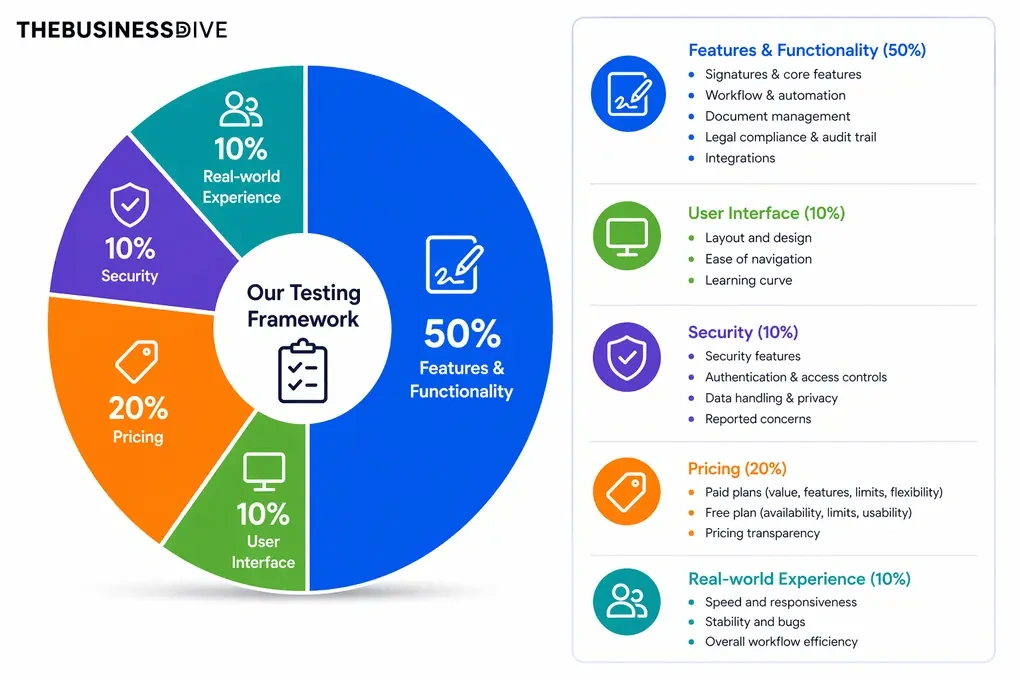
Our scoring breakdown after testing 10+ e-signature apps:
✍️ Features & functionality — 50%
🖥️ User interface — 10%
🔐 Security — 10%
💰 Pricing — 20%
👥 Real-world experience — 10%
Want a detailed breakdown of how we test each category?
Learn exactly how we test tools → Review methodology
Why Each Docusign Alternative Made My List

Xodo Sign
Xodo Sign combines electronic signatures, PDF editing, document management, templates, and AI-powered document summaries in one platform. It also lets you import Docusign templates, making the transition easier for teams that already have established document workflows.
Quick verdict
You want PDF editing, document preparation, and electronic signatures in one platform at a lower price.
Your organization depends on advanced reporting, enterprise administration, or large-scale compliance features.
Built-in PDF editing, AI summaries, and reusable templates in one tool.
Reporting and analytics aren’t as comprehensive as Docusign’s enterprise features.
Why I Recommend Xodo Sign for Teams Leaving Docusign
The biggest reason I’d choose Xodo Sign over Docusign is that document preparation doesn’t stop once a PDF is uploaded.
You can edit text, highlight content, redact sensitive information, summarize long agreements with AI, and then send the same document for signature without opening another app.
Moving from Docusign also requires rebuilding as little as possible. Xodo Sign helped with that by supporting Docusign template imports, so existing templates didn’t have to be recreated from scratch.
For teams handling contracts every day, those additions reduced the amount of work happening outside the e-signature platform while keeping pricing well below Docusign’s business plans.
What I Liked (and What I Missed Compared to Docusign)
The PDF editor was the biggest improvement over Docusign. Instead of only preparing documents for signature, I could edit text, annotate files, redact information, and generate AI summaries before sending them. That covered most of the document preparation process from one workspace.
I also appreciated being able to save multiple signatures and import templates directly from Docusign. Automatic reminders, expiration dates, branding options, and team roles covered the document workflows I tested, while cloud storage integrations kept files synchronized with Google Drive, Dropbox, OneDrive, and Box.
Compared to Docusign, Xodo Sign offers less detailed reporting and fewer enterprise administration tools. Larger organizations that rely on advanced analytics, organization-wide visibility, or complex permission structures may still prefer Docusign.
Xodo Sign’s top features
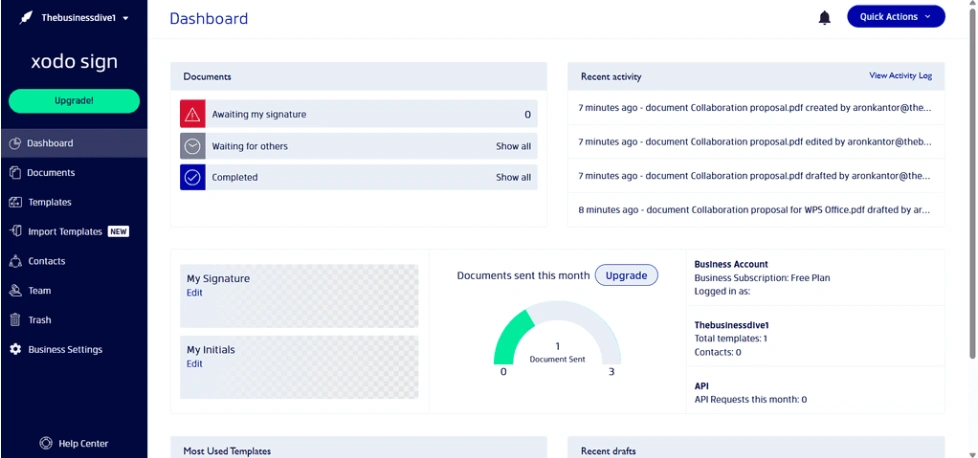
Built-in PDF editor with AI document review: One of the biggest differences I noticed while testing was being able to edit documents before sending them for signature. I could update text, highlight important sections, redact sensitive information, and use the AI Summarizer to quickly review longer agreements without leaving the editor.
Import existing Docusign templates: If you’re moving from Docusign, this feature can save a significant amount of setup time. Instead of recreating recurring agreements, I could import existing Docusign templates and continue using the same signer roles, fields, and document structure.
Multiple signatures and reusable templates: I liked being able to save multiple signatures and initials and switch between them depending on the document. Reusable templates with predefined signer roles also meant contracts and other recurring documents required very little preparation before sending.
Google Drive and cloud storage integration: Most of the documents I tested were already stored in cloud storage, so being able to open them directly from Google Drive, Dropbox, OneDrive, or Box kept the workflow uninterrupted. Once the signing process was complete, the files could be saved back to the same location.
Xodo Sign’s pricing
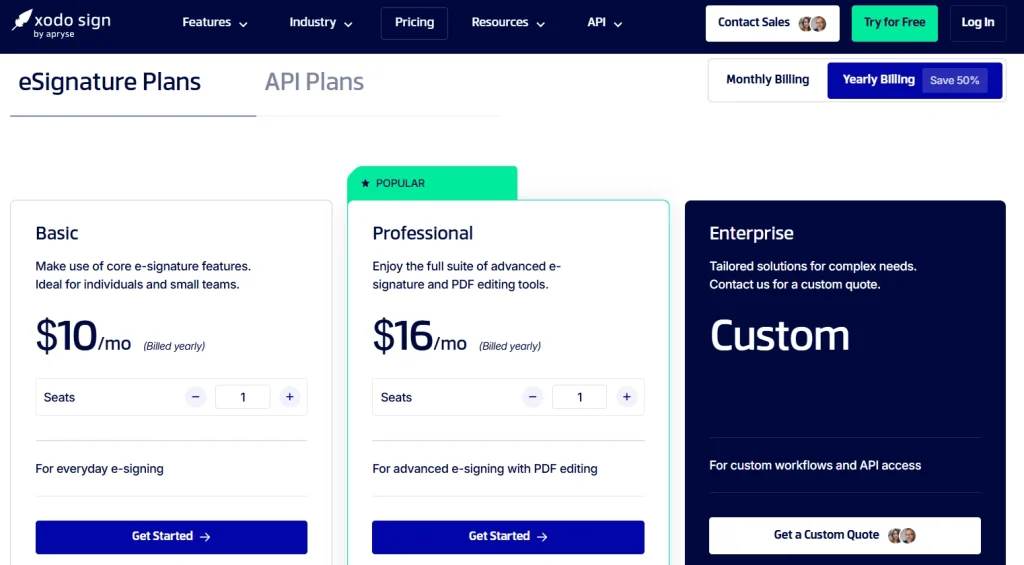
- Free plan available, as well as a 7-day free trial
- Basic: $10 per seat/month (annual billing)
- Professional: $16 per seat/month (annual billing)
- Enterprise: Custom pricing
Wins & trade-offs when choosing Xodo Sign
Pros
Cons
How does Xodo Sign stack up against Docusign itself?


Xodo Sign VS Docusign
🔎 Read my full review: Xodo Sign Review 2026: The Best E-Sign Solution?

SignNow
SignNow is an e-signature platform built around team collaboration and scalable document workflows. It combines electronic signatures with shared workspaces, reusable templates, reporting, document tracking, and workflow automation.
Quick verdict
Your business needs to add more users without paying for every seat and regularly works with recurring document workflows.
You need the most comprehensive enterprise administration, reporting, or compliance features.
Unlimited users, flexible team collaboration, and workflow tools at a significantly lower starting price.
The unlimited-user model still includes annual limits on signature invites, and many advanced capabilities require higher-tier plans.
Why I Recommend SignNow for Teams Leaving Docusign
The pricing model was the first thing that caught my attention. Unlike Docusign, where costs increase as more users are added, SignNow allows organizations to give access to unlimited users while paying per signature invite instead of per seat.
Beyond pricing, I found SignNow well suited for teams handling recurring paperwork. I could organize shared documents, assign recipient roles, define signing orders, schedule invitations, and manage templates from the same workspace.
I also appreciated how much visibility the platform gives into document activity. Workspace Analytics, document reports, and team leaderboards made it much easier to monitor what was happening across the workspace than I expected from a platform in this price range.
What I Liked (and What I Missed Compared to Docusign)
Preparing documents is very efficient. I could upload files from several sources, assign recipients, add custom fields, schedule invitations, request payments, and send documents by email, SMS, or signing link from the same section of the platform.
The Forms Library was another pleasant surprise. Instead of building every recurring document myself, I could start from thousands of existing legal, tax, and business forms or convert my own documents into reusable templates.
Compared to Docusign, though, SignNow’s interface isn’t as polished, and some enterprise capabilities remain available only on higher-tier plans. It’s also worth remembering that the unlimited-user model still includes 100 signature invites per year before additional usage moves to pay-as-you-go pricing.
SignNow’s top features
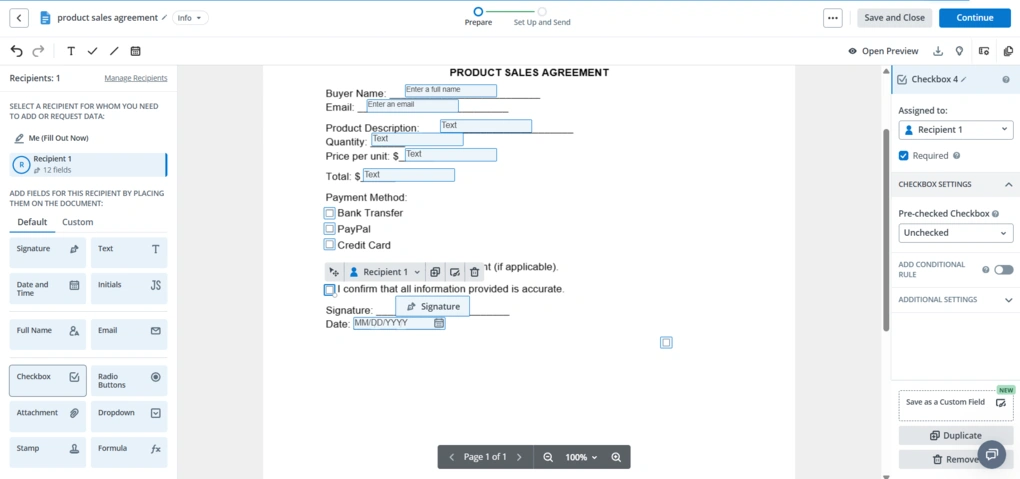
Unlimited-user licensing: The pricing model caught my attention because it approaches scaling differently from most e-signature platforms. Instead of paying for every additional user, the Site License lets organizations add unlimited users and pay per signature invite.
Automatic Field Detection: Preparing longer documents required less work than I expected. SignNow identified where signature and form fields should be placed, so I spent more time reviewing the document than positioning fields for each recipient.
Forms Library: I didn’t have to build every recurring document from scratch. The Forms Library includes thousands of legal, HR, tax, and business forms, and I could also save my own documents as reusable templates for future signing requests.
Workspace Analytics and reporting: I found the reporting tools more useful than simple document tracking. Workspace Analytics, team leaderboards, and exportable reports gave me a much clearer picture of document activity across the entire workspace.
SignNow’s pricing
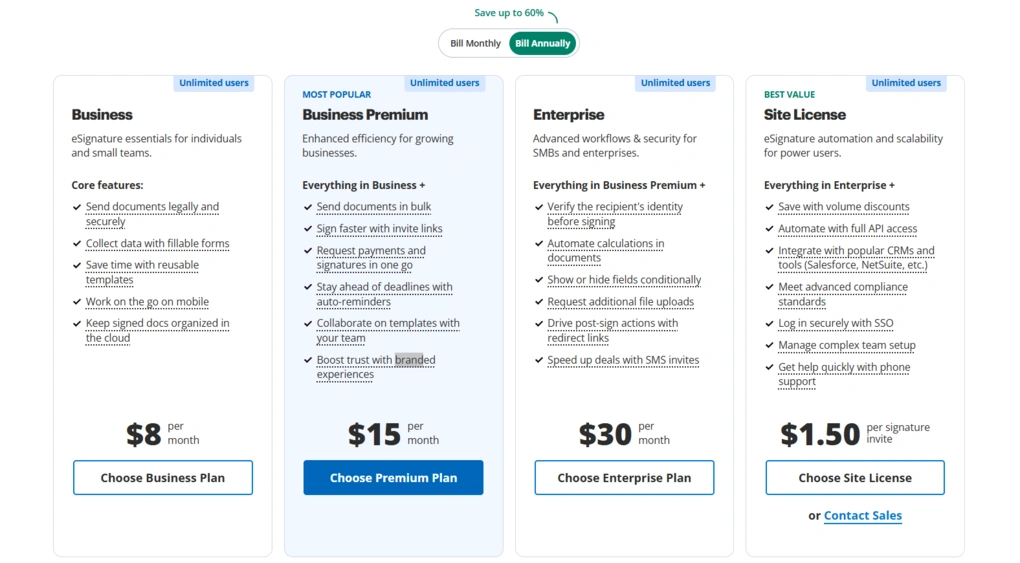
- No free plan available, only a 7-day free trial
- Business plan: $8/month
- Business Premium plan: $15/month
- Enterprise plan: $30/month
- Site license: $1.50/signature invite
Wins & trade-offs when choosing SignNow
Pros
Cons
🔎 Read my full review: An Honest SignNow Review 2026 | Before You Buy

Nitro Sign
Nitro Sign is an eSignature platform for preparing, sending, tracking, and managing legally binding signature requests. It focuses on the core signing workflow, making it a good option for teams that already create documents elsewhere and simply need a reliable way to send them for signature.
Quick verdict
You want a dedicated eSignature platform with straightforward signing workflows and more predictable pricing.
You need advanced enterprise administration, extensive integrations, or features like conditional routing, web forms, and eWitness.
A focused eSigning experience with pricing based on completed envelopes rather than every signature request.
Lacks some advanced enterprise workflow features, such as conditional routing, web forms, and eWitness.
Why I Recommend Nitro Sign for Teams Leaving Docusign
I recommend Nitro Sign to teams that want a simpler and more predictable alternative to Docusign.
Preparing signature requests was quick. I uploaded the document, assigned recipients, placed signature fields, and sent everything from the same workspace. Color-coded recipient fields also made multi-signer requests easy to review before sending.
Another difference I noticed was Nitro Sign’s pricing model. Only completed envelopes count toward the included allowance, while canceled or unfinished requests don’t. That makes monthly costs easier to predict for teams sending documents regularly.
For businesses that mainly need a reliable platform for sending, signing, and tracking agreements, Nitro Sign covers the core eSigning workflow without many of the enterprise-focused features that contribute to Docusign’s higher cost.
What I Liked (and What I Missed Compared to Docusign)
What I liked most about Nitro Sign was how easy it was to prepare signature requests.
Everything I needed, including recipient management, signature fields, signing order, reminders, and audit trails, was available from a clean, easy-to-navigate interface, so I could move from uploading a document to sending it in just a few steps.
Compared to Docusign, Nitro Sign focuses on the core eSigning workflow rather than offering the same breadth of enterprise functionality.
Docusign provides more advanced reporting, deeper administrative controls, and a larger integration ecosystem, making it a stronger fit for organizations with more complex workflow and compliance requirements.
Nitro Sign’s top features
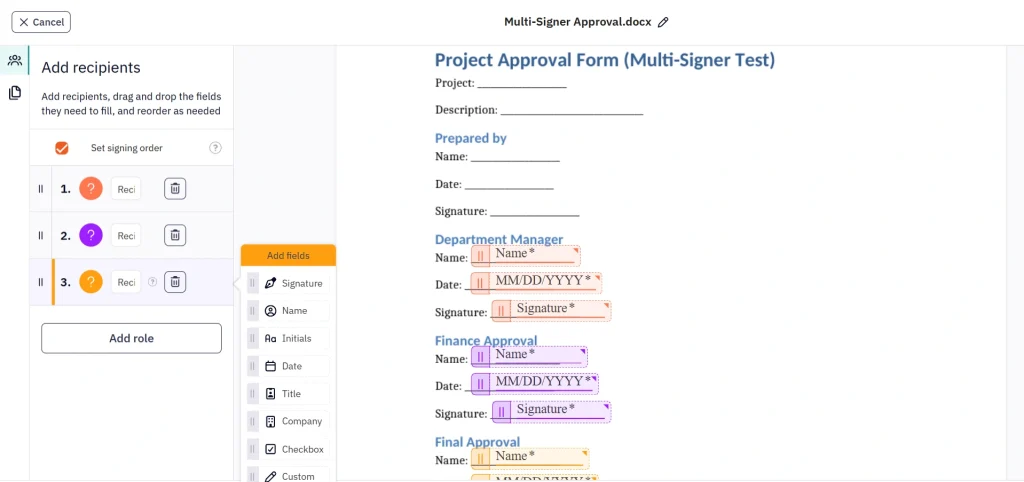
Multi-document signature requests: One thing I liked was being able to send several related documents in a single signature request instead of creating separate envelopes. It made agreements that required multiple forms much easier to organize and track.
Flexible signing workflows: Preparing documents only took a few minutes. I could assign recipients, choose sequential or parallel signing orders, add signature fields and reminders, and verify signer identities from the same workflow.
Bulk Send: For repetitive signing tasks, I could send the same document to multiple recipients at once instead of preparing individual signature requests. It was especially useful for forms that needed to be distributed to larger groups.
Reusable templates: After setting up a document once, I could save it as a reusable template with predefined fields and recipients. That eliminated most of the repetitive setup when sending the same agreements again.
Detailed audit trails: Every completed document included a clear record of signatures, recipient activity, timestamps, and email notifications, making it easy to confirm exactly what happened throughout the signing process.
Nitro Sign’s pricing
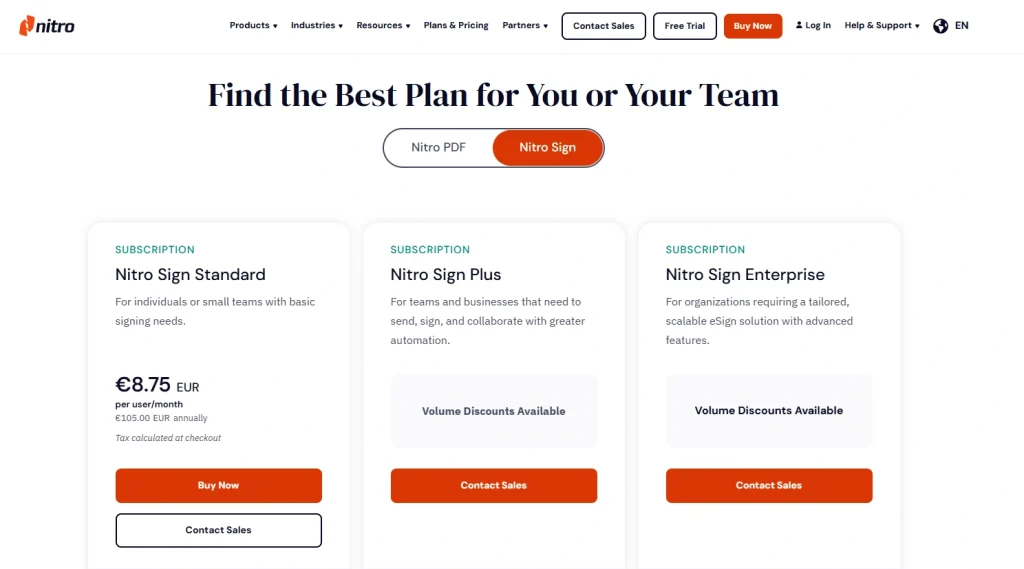
- No free plan available, only a 14-day free trial
- Nitro Sign Standard: $10/user/month with annual billing
- Nitro Sign Plus: Custom pricing
- Nitro Sign Enterprise: Custom pricing
Wins & trade-offs when choosing Nitro Sign
Pros
Cons

BoldSign
BoldSign combines electronic signatures with reusable templates, team collaboration, branding, and document management in a straightforward interface. It covers the core signing workflow at a much lower price than Docusign.
Quick verdict
You want the core e-signature features most businesses need without paying enterprise-level prices.
You rely on advanced enterprise administration, extensive reporting, or highly specialized compliance features.
A generous free plan and significantly lower pricing while still covering everyday document workflows.
Some advanced capabilities are available only as paid add-ons, and you can save only one signature and one set of initials.
Why I Recommend BoldSign for Teams Leaving Docusign
Pricing was the biggest reason I kept comparing BoldSign to Docusign throughout testing. The free plan includes enough signature requests and templates to evaluate the platform properly, while the paid plans remain considerably less expensive than Docusign’s equivalent tiers.
The signing workflow is also well thought out. I could upload a document, place signature fields, preview everything, and send it within a few minutes. Templates, branding, team management, and contacts covered most of the workflows I would expect from a business e-signature platform.
For smaller businesses that don’t need enterprise administration or advanced compliance, I never felt like I was sacrificing the core signing experience simply because the software costs less.
What I Liked (and What I Missed Compared to Docusign)
Preparing documents was straightforward from start to finish. Templates could be cloned or reused for recurring agreements, contacts eliminated repetitive data entry, and branding options made outgoing signature requests look much more professional.
I also appreciated how much functionality BoldSign includes before requiring an upgrade. Features like template sharing, team management, in-person signing, and AI-powered field detection become available at much lower price points than comparable Docusign plans.
However, some capabilities remain more limited. Bulk Send is a paid add-on rather than a standard feature, and only one signature and one set of initials can be saved at a time.
BoldSign’s top features
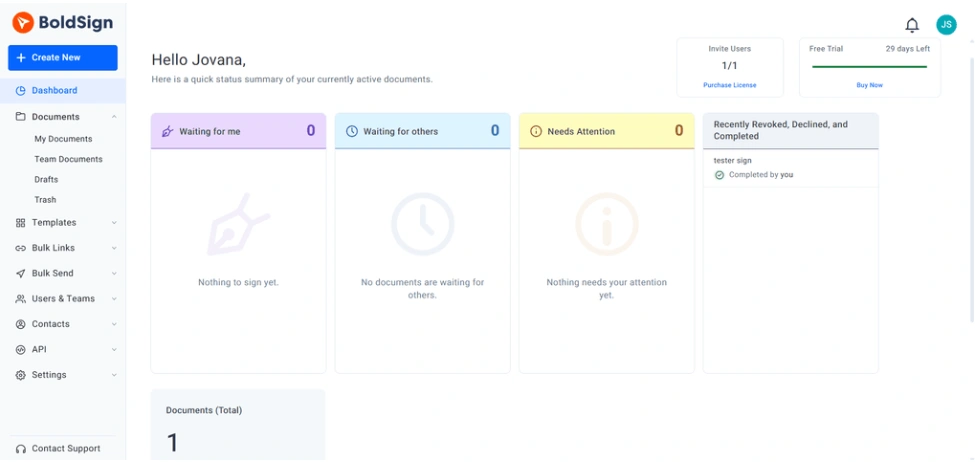
Generous free plan: Unlike many competitors, BoldSign’s free plan gave me enough room to test the platform in real projects. With 25 signature requests per month, reusable templates, branding, and audit trails included, I wasn’t limited to a basic product demo.
Reusable templates: After preparing a document once, I could clone it, edit it, or share it with teammates instead of rebuilding the same workflow. That saved the most time when sending recurring agreements.
AI-powered field detection: On Business plans, BoldSign automatically detects where signature and form fields belong after a document is uploaded.
Team management and branding: I could add team members, assign permissions, upload company branding, and preview emails before sending signature requests.
BoldSign’s pricing
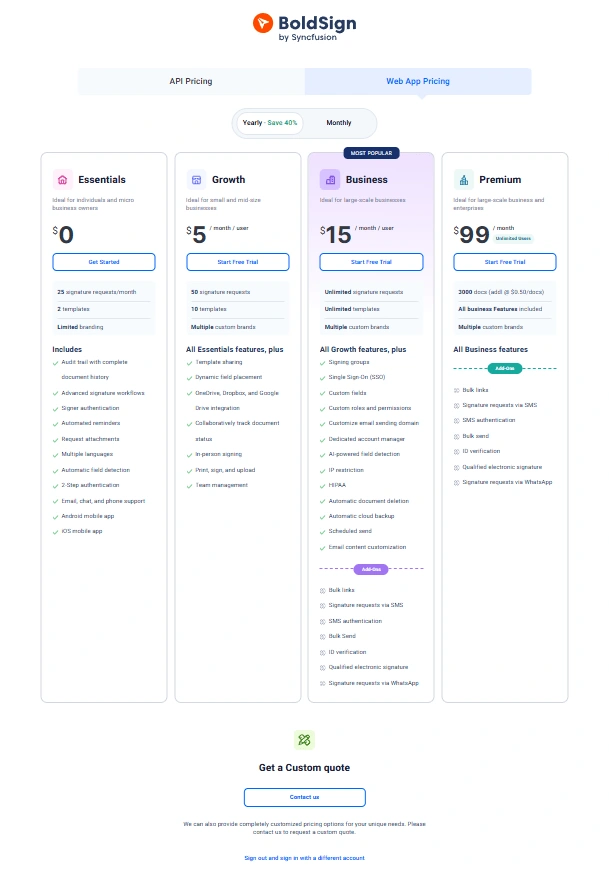
- Free plan available, as well as a 30-day free trial
- Growth plan: $5/user/month
- Business plan: $15/user/month
- Premium plan: $99/user/month
- Custom quotes: Upon request
Wins & trade-offs when choosing BoldSign
Pros
Cons
How does Xodo Sign stack up against other Docusign alternatives?

BoldSign VS SignWell

BoldSign VS PandaDoc
🔎 Read my full review: BoldSign Review 2026: But will this work for ME?

Signable
Signable is an e-signature platform built around flexible pricing rather than fixed subscriptions. Alongside electronic signatures, it offers templates, Bulk Send, branding, unlimited users, and embedded signing widgets.
Quick verdict
You don’t send documents every day and prefer paying only for the envelopes you actually use.
You need advanced reporting, enterprise administration, or more sophisticated document workflows.
A pay-as-you-go pricing model that lets you avoid monthly subscriptions while still including unlimited users and templates.
There’s no centralized dashboard, and you can’t save multiple signatures for reuse.
Why I Recommend Signable for Teams Leaving Docusign
The main reason I’d recommend Signable is that it gives businesses much more flexibility in how they pay for electronic signatures. If you don’t send documents every day, the pay-as-you-go model is a practical alternative to paying for a monthly subscription regardless of usage.
I also think it’s a good fit for smaller teams that don’t need enterprise-level administration. For businesses that want a reliable signing platform but don’t need everything Docusign offers, Signable covers the core workflow while giving you more control over ongoing costs.
What I Liked (and What I Missed Compared to Docusign)
The pricing model was the biggest advantage I noticed over Docusign. Paying per envelope instead of committing to a monthly subscription makes much more sense when document volume changes throughout the year.
I also appreciated being able to test Bulk Send during the free trial, since many competitors reserve that feature for paid plans.
Another feature I used was embedded signing. Instead of emailing every agreement, I could generate a signing widget for a website or share it through a direct link. Field Tags also reduced manual setup by automatically placing signature fields when documents were uploaded.
Compared to Docusign, I did miss a central dashboard and more advanced signature management. I couldn’t save multiple signatures or initials, and the platform offers fewer reporting and administration tools for larger organizations.
Signable’s top features
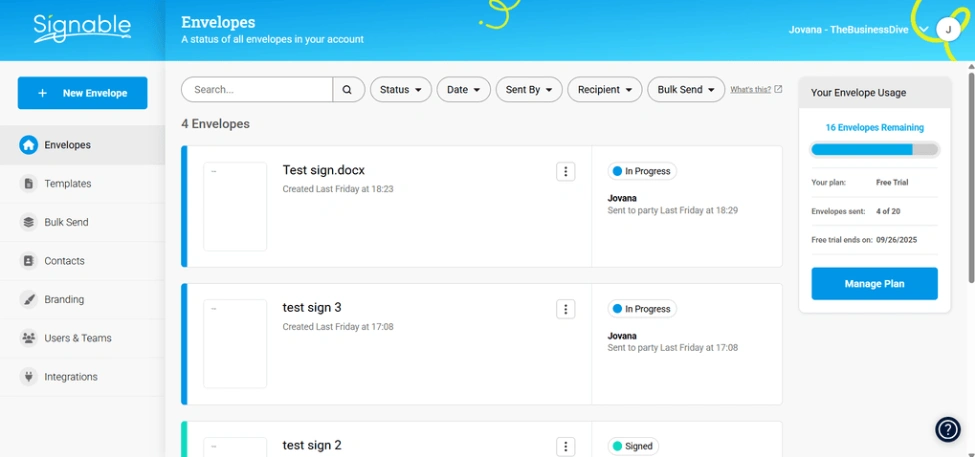
True pay-as-you-go pricing: This wasn’t just a marketing claim. During testing, I could use Signable without committing to a subscription, paying only for the envelopes I sent.
Embedded signing widgets: Besides sending documents by email, I could generate a widget and embed it directly on a website. That creates a much smoother signing experience for forms, applications, or agreements that customers complete online.
Bulk Send available during the free trial: I could upload a CSV file, define the signing order, configure reminders, and see how the feature handled larger recipient lists instead of discovering its limitations after upgrading.
Field Tags for faster document preparation: Rather than manually placing every field after uploading a document, Field Tags let me prepare documents in advance. Signable automatically recognized where signatures, dates, and other fields belonged.
Signable’s pricing
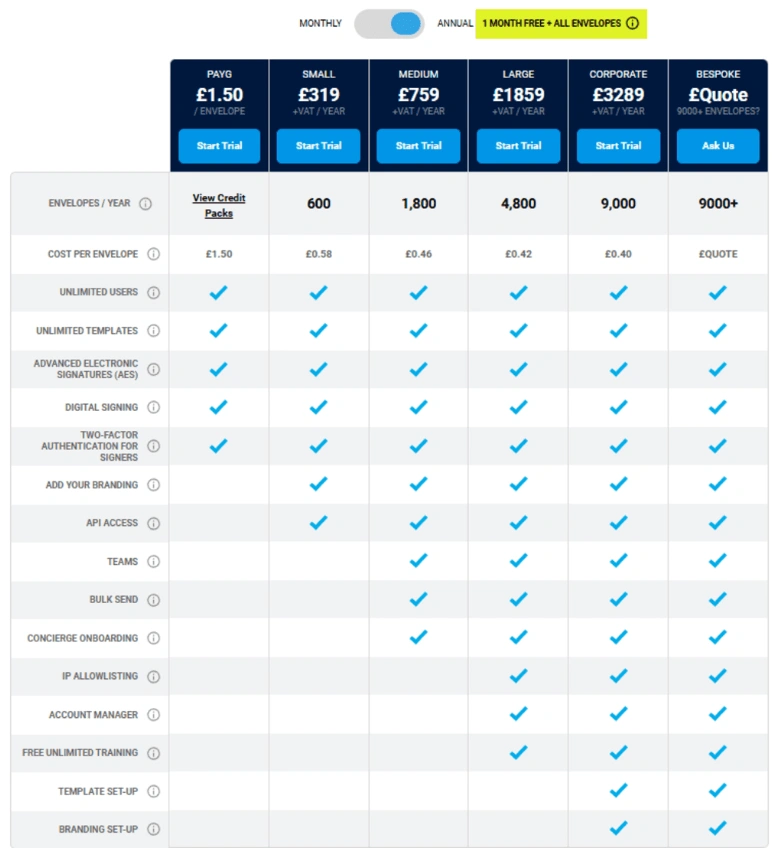
- No free plan available, only a 14-day free trial
- Pay as you go: £1.50 per envelope
- Small: £29/month or £319/year
- Medium: £69/month or £759/year
- Large: £169/month or £1859/year
- Corporate: £299/month or £3289/year
- Bespoke: Custom pricing
Wins & trade-offs when choosing Signable
Pros
Cons
How does Signable stack up against Docusign itself?
Signable VS Docusign
🔎 Read my full review: Signable Review 2026: Is it too good to be true?

DocHub
DocHub combines PDF editing, electronic signatures, document management, and Google Workspace integrations in one platform. It’s designed for freelancers and small teams that want to manage documents inside the Google ecosystem rather than adopting a larger enterprise signing platform.
Quick verdict
Your team works primarily in Google Workspace and wants to prepare, edit, and sign documents directly from Google Drive and Gmail.
You need advanced workflow automation, reporting, or enterprise administration.
Native Google Workspace integration combined with document editing and AI-powered document assistance.
PDF editing focuses on annotations rather than full native text editing, and workflow automation is more limited than Docusign.
Why I Recommend DocHub for Teams Leaving Docusign
I recommend DocHub to teams that already rely on Google Workspace throughout the day. During testing, I could open documents directly from Google Drive or Gmail, prepare them for signature, and save everything back to the same location, which fit naturally into an existing Google-based workflow.
Another reason I’d choose DocHub is its built-in AI assistant. It helped me summarize contracts, rewrite sections of legal text, and answer technical questions while I was editing documents.
For organizations that don’t need enterprise workflow automation, DocHub covers the document preparation and signing process while keeping everything connected to the tools they’re already using.
What I Liked (and What I Missed Compared to Docusign)
The Google Workspace integration was the biggest advantage I noticed over Docusign. Opening attachments directly from Gmail or files stored in Google Drive eliminated several extra steps I normally go through when preparing documents for signature.
The QR code signing option was another feature I hadn’t seen in other e-signature platforms.
Its AI assistant handled document summaries, rewrote sections of legal text, and helped draft new content directly inside the editor.
Compared to Docusign, however, DocHub provides fewer workflow and reporting capabilities. The PDF editor is annotation-based rather than full native text editing, there’s no analytics dashboard, and integrations outside the Google ecosystem remain fairly limited.
DocHub’s top features
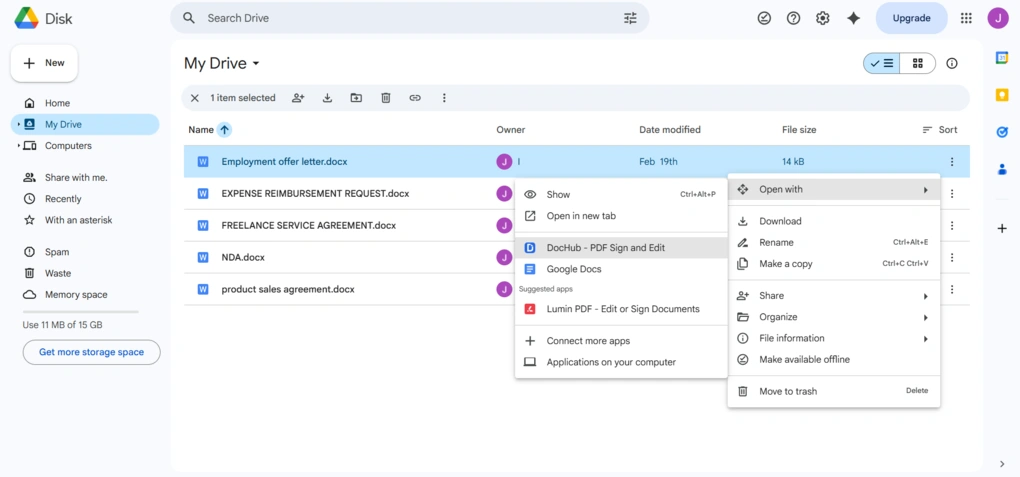
Native Google Workspace integration: The Google Drive and Gmail add-ons became the feature I used most. I could open files directly from Drive or email attachments, prepare them for signing, and save them back without downloading or re-uploading documents.
QR code signature: This was the most unique feature I found during testing. After scanning a QR code, I could sign on my phone and have the signature instantly appear in the document on my computer, which was much more natural than using a mouse or trackpad.
Built-in AI Assistant: Instead of acting as a simple chatbot, the AI Assistant helped summarize contracts, rewrite legal sections, answer technical questions, and draft document content directly inside the editor. It became more useful the longer I worked with the platform.
Organization and shared Rooms: Beyond personal document management, DocHub lets teams create organizations, assign user roles, manage permissions, and collaborate through shared Rooms on the Pro plan. For smaller teams, it provides enough structure without requiring enterprise administration tools.
DocHub’s pricing
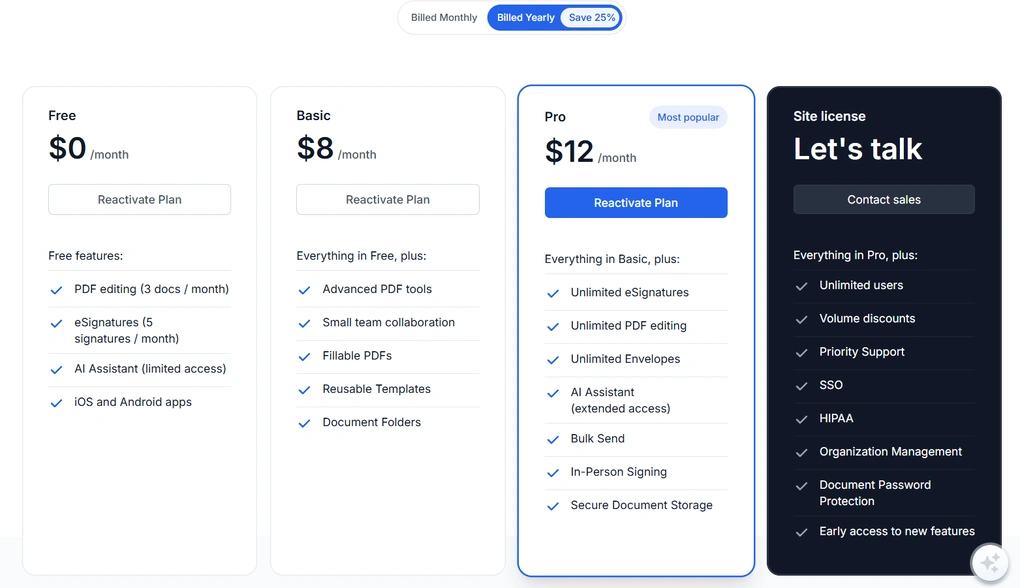
- Free plan available, as well as a 30-day free trial
- Basic plan: $8/month
- Pro plan: $12/month
- Site license: Custom pricing
Wins & trade-offs when choosing DocHub
Pros
Cons
🔎 Read my full review: DocHub Review 2026 | My Brutally Honest Take
Explore our Apps directory
A curated directory of software tools we’ve independently reviewed, with links to full reviews, comparisons, and category guides.
PandaDoc
PandaDoc is an e-signature platform for businesses that manage documents throughout the entire sales process. Alongside electronic signatures, it includes document creation, reusable content, approval workflows, CRM integrations, and sales-focused automation.
Quick verdict
You want to create, approve, send, and manage business documents from the same platform.
You don’t require document creation, sales workflows, or CRM integrations.
PandaDoc combines document creation, content management, approvals, and electronic signatures in a single platform.
Most of the features that differentiate PandaDoc from Docusign are available only on the Business and Enterprise plans.
Why I Recommend PandaDoc for Teams Leaving Docusign
I recommend PandaDoc to teams that need more than document signing.
You can create documents from templates, edit Word files, organize everything into folders, manage reusable content, and send documents for approval and signature from the same workspace. That covers a much larger part of the document workflow than Docusign alone.
I also found PandaDoc better suited for sales-driven businesses. Features like the Content Library, approval workflows, CRM integrations, and deal-focused templates are designed for teams that prepare proposals, quotes, and contracts every day.
What I Liked (and What I Missed Compared to Docusign)
The document workflow was the biggest improvement I noticed over Docusign. I also liked the Stamps feature, which is useful for businesses that still rely on company seals or internal approval marks.
That said, I wouldn’t recommend PandaDoc if you’re only replacing Docusign’s signing features. Much of what makes PandaDoc different becomes available only on the Business plan, so smaller teams may end up paying for functionality they don’t need.
PandaDoc’s top features
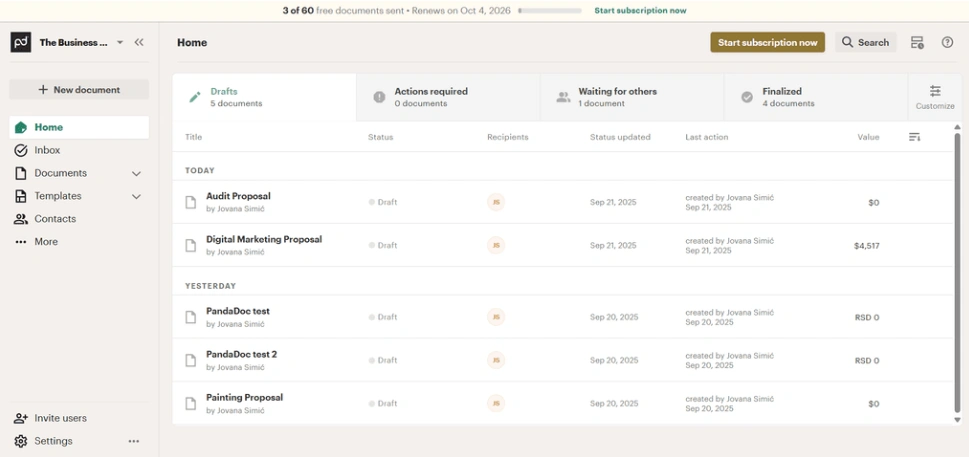
Content Library: Instead of recreating pricing tables, legal clauses, company information, or testimonials for every proposal, I could save them once and insert them into future documents whenever I needed them.
Document creation and editing: PandaDoc gave me several ways to prepare documents. I could upload existing files, start from a template, or create documents from scratch using the drag-and-drop editor. Word documents could also be edited directly inside the platform.
Extensive template gallery: The platform includes templates for sales, HR, legal, finance, healthcare, real estate, and many other business scenarios. I found them useful for getting started quickly, although several advanced content blocks required the Business plan before they could actually be used.
Stamps: PandaDoc was one of the few platforms I tested that supports reusable company stamps. While not every business needs them, they’re valuable for organizations that still include official seals or internal approval marks in their document workflows.
PandaDoc’s pricing
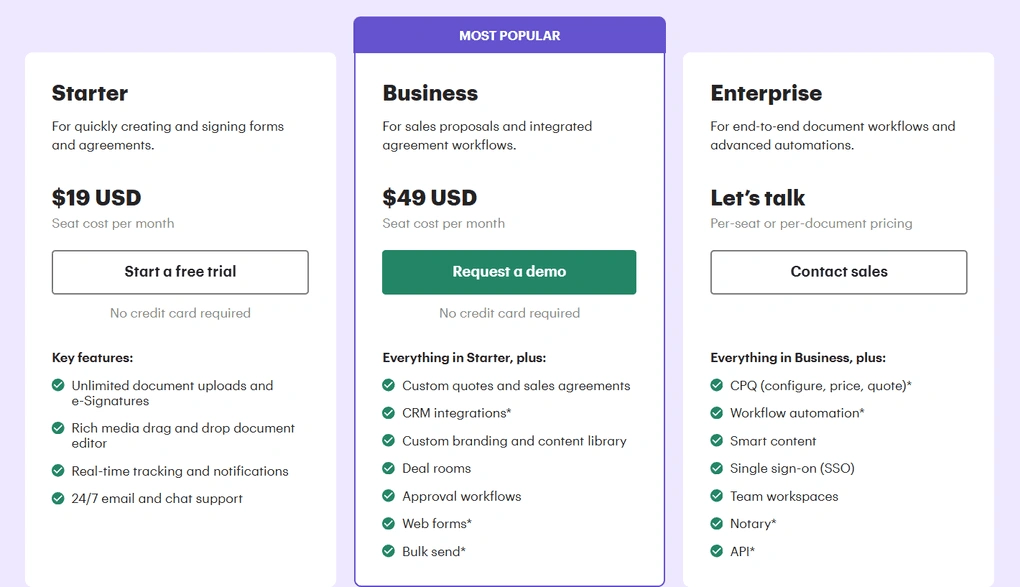
- Free plan available, as well as a free trial
- Starter plan: $19/seat/month with annual billing
- Business plan: $49/seat/month with annual billing
- Enterprise plan: Custom pricing
Wins & trade-offs when choosing PandaDoc
Pros
Cons
How does PandaDoc stack up against other Docusign alternatives (and Docusign itself)?
SignWell VS PandaDoc
BoldSign VS PandaDoc
Docusign VS PandaDoc
🔎 Read my full review: PandaDoc Review: What Nobody Tells You (2026)
SignWell
SignWell focuses on making document signing fast and approachable rather than packing the platform with enterprise features. It combines clean document workflows, reusable templates, bulk sending, and responsive customer support at a lower price than Docusign.
Quick verdict
You want a straightforward signing platform with responsive human support and affordable pricing.
Your team depends on advanced workflow automation, enterprise administration, or a large integration ecosystem.
A much simpler experience backed by genuinely responsive 24/7 human support.
Advanced workflow customization and enterprise features are more limited than in Docusign.
Why I Recommend SignWell for Teams Leaving Docusign
I recommend SignWell because it delivers the core signing workflow most businesses need at a lower cost than Docusign, while backing it with some of the best customer support I experienced during testing.
The biggest reason I placed SignWell in this category, though, was the customer support. When I reached out to the support team, I quickly got a helpful response from a real person. After testing dozens of eSignature tools, that level of support still stands out.
I also found SignWell to be a better fit than Docusign for QuickBooks Online users. It offers the only native QuickBooks Online integration, allowing estimates and invoices to be sent for signature directly from QuickBooks.
What I Liked (and What I Missed Compared to Docusign)
Beyond everything I’ve already mentioned, I also liked how SignWell approaches everyday document preparation.
The editor only includes the fields you actually need, so I was able to prepare documents quickly, whether I was assigning recipients, creating templates, or setting up Bulk Send requests.
I also appreciated smaller details like setting recipient languages, redirecting signers to a custom page after signing, and removing recipients from Bulk Send requests after they had already been created.
Compared to Docusign, however, SignWell offers fewer workflow customization options and native integrations. It also doesn’t include a free trial for its paid plans, so unless you contact support, the limited free plan is the primary way to evaluate the platform before upgrading.
SignWell’s top features
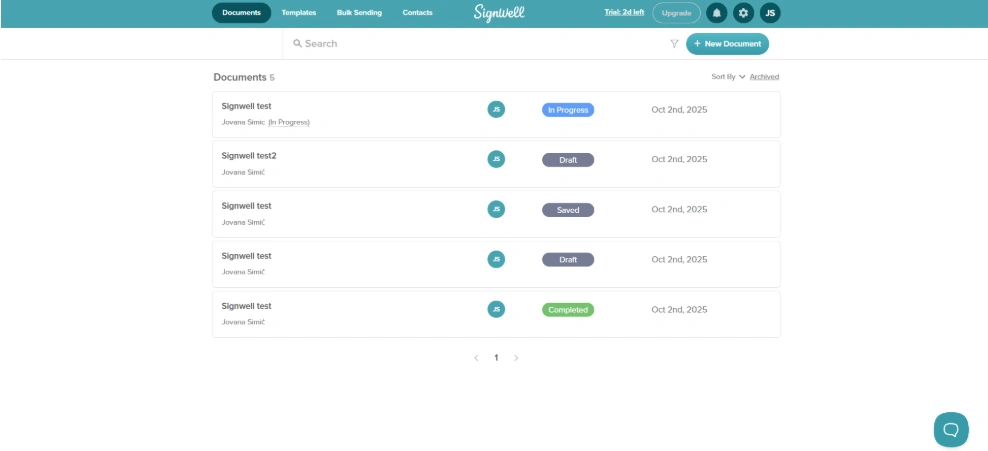
24/7 live human support: This was the feature that left the strongest impression during testing. When I contacted support, I received a fast response from a real person who resolved my request instead of directing me through automated help articles.
Flexible templates: Beyond reusable templates, SignWell lets you configure placeholder recipients, automatic reminders, recipient language, and custom redirect pages after signing.
Native QuickBooks integration: Unlike most e-signature platforms I tested, SignWell offers a native integration with QuickBooks Online, allowing businesses to send documents for signature directly from their accounting workflow.
SignWell’s pricing
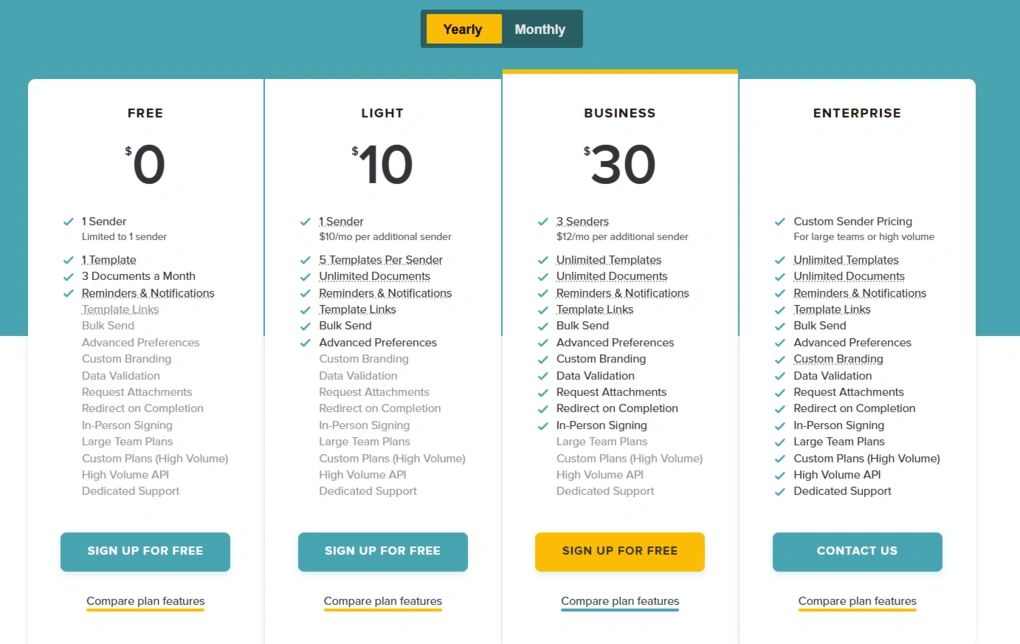
- Free plan available
- Light: $10 per month (annual billing)
- Business: $30 per month (annual billing)
- Enterprise: Custom pricing
Wins & trade-offs when choosing SignWell
Pros
Cons
How does SignWell stack up against other Docusign alternatives?
BoldSign VS SignWell
SignWell VS PandaDoc
🔎 Read my full review: SignWell Review 2026: Docusign FINALLY has a Competitor

EaseUS PDF Editor
EaseUS PDF Editor is a full-featured PDF editor that also includes reliable electronic signature capabilities. It’s a strong choice for freelancers, small businesses, and professionals who spend as much time editing PDFs as signing them.
Bottom line
You regularly edit, convert, organize, and sign PDF documents from the same application.
Your team needs collaborative signing workflows, document routing, or cloud-based approvals.
Combines full PDF editing with electronic signatures in a single desktop application.
It’s designed primarily for individual document editing rather than collaborative signing workflows.
Why I Recommend EaseUS PDF Editor for Teams Leaving Docusign
I recommend EaseUS PDF Editor to freelancers and small businesses that prepare their own PDF documents before sending them. During testing, I could edit, convert, organize, and sign PDFs from the same application.
That’s the biggest difference compared to Docusign. Rather than focusing primarily on collecting signatures, EaseUS supports the work that happens beforehand, whether that’s revising contracts, reorganizing pages, filling forms, or converting files before they’re ready to send.
If your team mostly exchanges completed agreements between multiple recipients, Docusign remains the stronger choice. But if one person is responsible for preparing and finalizing documents before they’re shared, EaseUS PDF Editor covers a much larger part of that workflow.
What I Liked (and What I Missed Compared to Docusign)
Beyond its PDF editing capabilities, I liked how responsive the software was throughout testing. Even larger documents opened quickly, OCR produced accurate results across multiple languages, and converting PDFs to Word or Excel usually took less than half a minute.
Preparing signatures was equally straightforward since I could save multiple signatures and place them anywhere with drag-and-drop.
Compared to Docusign, however, EaseUS isn’t designed for collaborative signing. It doesn’t provide recipient management, approval workflows, audit trails, or cloud-based document tracking, and there’s currently no mobile application or built-in AI assistant.
EaseUS PDF Editor’s top features
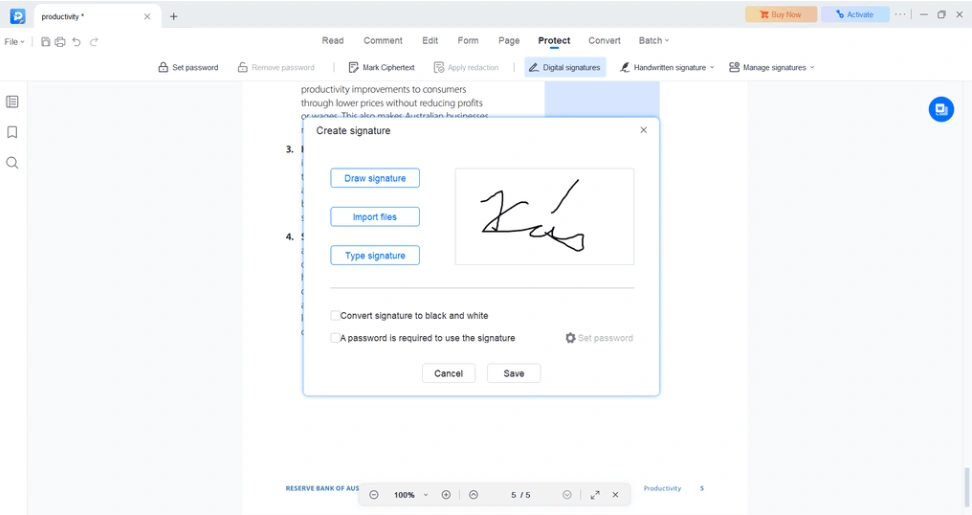
Complete PDF editing: During testing, I could edit text, images, page layouts, backgrounds, and graphics directly inside the document instead of exporting PDFs into another editor before requesting signatures.
OCR and document conversion: OCR recognized text in 29 languages with impressive accuracy, while PDF conversions to Word, Excel, and image formats finished quickly and preserved formatting well.
PDF organization tools: Merging files, splitting documents, rearranging pages, filling forms, and adding annotations all happen inside the same workspace.
Built-in document protection: Password protection, permission controls, watermarking, and AES encryption are all included. Those tools make it easier to protect contracts and other sensitive PDF documents before sharing them.
EaseUS PDF Editor’s pricing
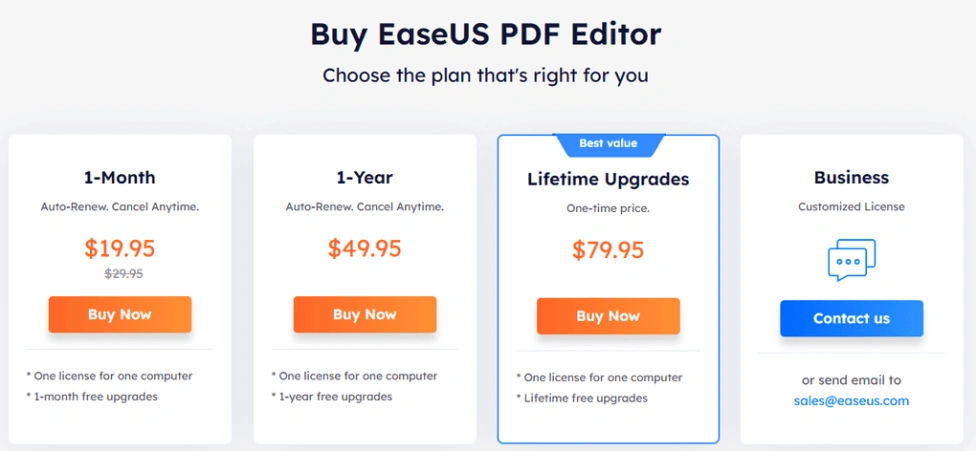
- Monthly: $19.95
- Yearly: $49.95
- Lifetime: $79.95 (one-time purchase)
Wins & trade-offs when choosing EaseUS PDF Editor
Pros
Cons
🔎 Read my full review: EaseUS PDF Editor Review 2026 | My Unfiltered Opinion
If you think you may need the advanced features, use the above link for signup and enter the code THEBUSINESSDIVE20 to receive 20% OFF if you fall in love with EaseUS PDF later.

Dropbox Sign
Dropbox Sign is an e-signature platform that offers legally binding electronic signatures, reusable templates, audit trails, automatic reminders, and deep integrations with Dropbox, Google Drive, OneDrive, and Box.
Quick verdict
You want a polished signing experience that integrates naturally with Dropbox and other cloud storage services.
You need advanced document workflows, reporting, or enterprise administration.
One of the smoothest signing experiences I tested, combined with excellent cloud storage integrations.
Document editing is minimal, and several collaboration features require higher-tier plans.
Why I Recommend Dropbox Sign for Teams Leaving Docusign
I recommend Dropbox Sign to teams that value a polished day-to-day signing experience. During testing, uploading documents, assigning recipients, sending signature requests, and tracking their status all followed a very natural workflow with little manual setup.
Another reason I’d choose Dropbox Sign is its cloud storage integration. Documents could be opened directly from Dropbox, Google Drive, OneDrive, or Box, and signed files automatically appeared back in the same location once the process was complete.
For businesses already storing contracts in Dropbox, the transition is natural because document storage and signing become part of the same workflow.
What I Liked (and What I Missed Compared to Docusign)
Beyond its cloud integrations, I appreciated the amount of attention given to small workflow details.
Dropbox Sign remembers saved signatures, initials, and frequently used fields, so preparing recurring documents became progressively faster. Automatic reminders and real-time notifications also reduced the amount of manual follow-up.
I also didn’t expect to find built-in online faxing. While it’s not something every business needs, organizations that still exchange documents by fax can manage both signatures and fax communication from the same account.
Compared to Docusign, however, Dropbox Sign provides fewer enterprise workflow options. It doesn’t include native document editing, and features such as team management, custom branding, and bulk sending are only available on higher-tier plans.
Dropbox Sign’s top features
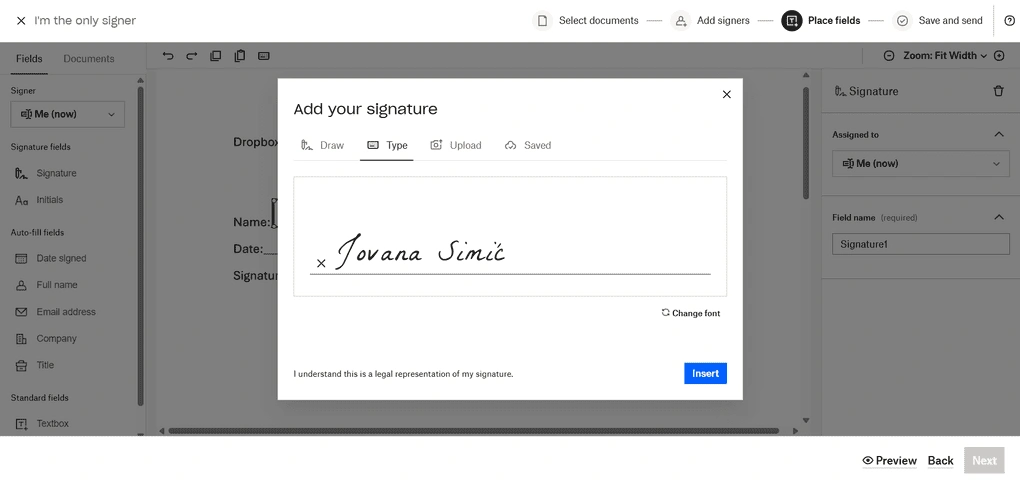
Deep Dropbox integration: The strongest part of the experience was working directly from Dropbox. I could send documents for signature from my cloud storage, and completed files automatically synced back into the same folders after signing.
Built-in online fax: Dropbox Sign is one of the few e-signature platforms that also includes cloud faxing. Documents can be sent and received by fax while remaining connected to cloud storage services like Dropbox, Google Drive, Box, and Evernote.
Reusable signing setup: The platform remembers signatures, initials, recipient fields, and templates, so preparing recurring agreements required much less manual work after the initial setup.
Automatic reminders and activity tracking: After sending documents, Dropbox Sign automatically reminded recipients and tracked every stage of the signing process.
Dropbox Sign’s pricing
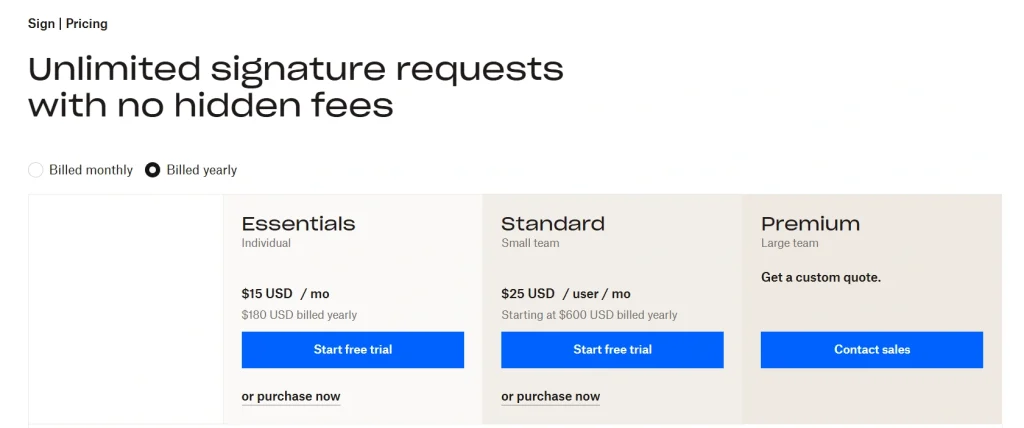
- Free plan available
- Essentials plan: $15/user/month
- Standard plan: $25/user/month
- Premium plan: Custom pricing
Wins & trade-offs when choosing Dropbox Sign
Pros
Cons
Summary: Best Docusign alternatives in 2026
Docusign is still a reliable tool, but it’s no longer the only one worth using. While many businesses are looking for end-to-end contract signing and management tools, Docusign is one of the priciest option.
After testing all these platforms, I can say that there are tools that easily hold their own, and some even beat Docusign in usability and value.
Hopefully, this Docusign alternatives list helps you find the electronic signature software that actually fits your workflow. I’ll keep updating it as new tools come out and old ones improve.
Related posts:
- The 6 Best eSign Software For 2026 | 15+ Apps Tested
- 7 Best Adobe Sign Alternatives | #1 is a Game Changer (2026)
- 8 Best PandaDoc Alternatives You MUST See (2026)
Looking for similar tools?
Visit the link to explore other apps we’ve reviewed in this space and how they compare.
Why you can trust our reviews
At thebusinessdive.com, our team tests, reviews, and compares hundreds of productivity apps every year — from project management tools to note-taking apps. We dive deep into real-world use cases to help you find the right tools that actually improve your workflow, not just add noise.
Our mission? No fluff, no shortcuts—just honest, hands-on insights from productivity pros.
Have a question or suggestion? I’d love to hear from you. Feel free to reach out anytime at aronkantor@thebusinessdive.com.
Frequently asked questions
Which free Docusign alternative offers the best value?
If you’re looking for a free Docusign alternative, Xodo Sign, Dropbox Sign, SignWell, and DocHub all offer a free plan, while some also provide a free trial of their paid plans. For frequent signing documents, Xodo Sign offers an excellent balance of document management, reusable templates, and pricing. Dropbox Sign and SignWell are great choices for occasional use.
Are Docusign alternatives legally binding?
Yes. Most Docusign alternatives support legally binding electronic signatures that comply with ESIGN, UETA, and eIDAS. The signing process also generates a digital audit trail, making electronic signatures legally enforceable for most business and legal documents.
Which Docusign alternative is best for document management?
If you need document creation, editing, and document management, PandaDoc is the strongest choice thanks to its comprehensive document management and workflow automation. Xodo Sign combines PDF editing, AI summaries, and signing, while EaseUS PDF Editor is a good alternative to Docusign if PDF editing is your priority.
Which Docusign alternative is best for teams?
It depends on your workflow. SignNow is ideal for multiple users, while PandaDoc works well for a sales team thanks to its automated workflows. If your business relies on Google Drive or Google Docs, consider DocHub. Dropbox Sign integrates seamlessly with Dropbox and other cloud storage services, while Adobe Acrobat Sign inside Adobe Document Cloud offers advanced electronic signatures for enterprise teams.
How much do Docusign alternatives cost?
Many Docusign competitors offer a free account or free trial, and most paid plans start between $8 and $15 per user/month when billed annually. Higher-tier Business Plan, Professional Plan, Team Plan, and Enterprise Plan options unlock advanced features like custom branding, workflow automation, and premium support plans. If you need an affordable electronic signature solution, Xodo Sign, SignNow, and SignWell offer some of the best value.
Disclosure: I only recommend products I would use myself, and all opinions expressed here are my own. This post may contain affiliate links that, at no additional cost to you, may earn a small commission. Read the full privacy policy here.

Hey! I’m Jovana, a content writer who loves writing, researching, and testing new productivity apps. With a background in philosophy, I bring a thoughtful but no-bullshit approach to everything I do. Let’s connect on Linkedin!
Finally, a list that actually admits Docusign is pricey instead of pretending it’s worth every penny. The independent testing angle is exactly why I trust this over the usual “best tools” posts where vendors rank themselves #1.
Appreciate that you actually tested these tools independently instead of just ranking your own product first — that’s rare in this space. Curious if you compared pricing tiers beyond the basic plans, since that’s usually where the hidden costs show up.