


9 Best Email Apps in 2026 | My Thoughts After Testing +15 Apps
Email is still one of the most important tools we use every day, but not all email apps are built the same.
Some are great for individual inbox management, others focus on team collaboration, while some help reduce distractions and save time with automation.
In this guide, I’ve rounded up the best email apps based on testing +15 email apps, focusing on how they handle inbox organization, productivity, and everyday email workflows.
I hope this list will help you find the best email app for your needs.
Let’s dive in!
Best Email Apps in 2026
When preparing my list of the best email apps, I considered their core features, ease of use, and how well they help individuals and teams manage emails more efficiently. I also looked at automation options, collaboration features, and how each app fits into real-world email workflows.
Using these criteria, here are my 9 best email apps in 2026:
|
Best Email Apps |
My Experience |
|
|---|---|---|
 |
Best email app for hands-off inbox management |
|
 |
Best for team collaboration and shared inboxes |
|
 |
Best for privacy and security |
|
 |
Best for personalized AI-powered inbox organization |
|
 |
Best for bulk unsubscribing and long-term inbox cleanup |
|
 |
Best email app for everyday email use |
|
 |
Best email app for Apple ecosystem users |
|
 |
Best email app for smart inbox management |
|
 |
Best email app for AI-first email productivity |
Best Email Apps for 2026
Now, let’s see a more detailed breakdown of the best email apps in 2026!
Best Email App #1 | SaneBox
Best email app for hands-off inbox management
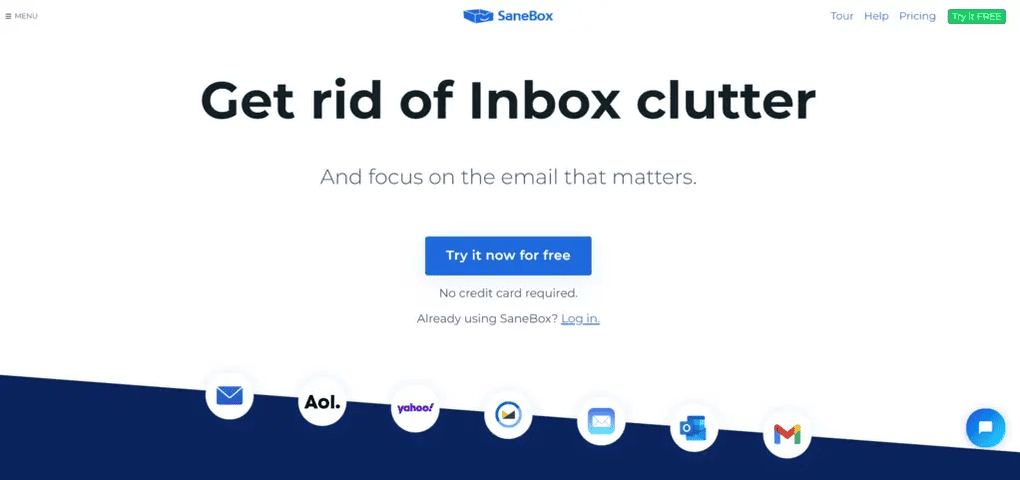
SaneBox is an AI-powered email app that helps you manage your inbox and incoming emails with high efficiency. Instead of replacing your existing email client, it works alongside Gmail, Outlook, or Apple Mail and optimizes your inbox directly inside them. It is especially useful for handling large volumes of newsletters and subscription emails automatically.
SaneBox key features
SaneLater: This feature filters incoming emails and moves non-urgent messages into the SaneLater folder so you can focus on important emails in your main inbox. You can check this folder whenever you want, and SaneBox also sends you a summary of these messages once a day or more often, depending on your preferences. This feature helps reduce daily distractions caused by less important emails.
SaneBlackHole: It allows you to block unwanted senders so their emails never appear in your inbox again. Instead of manually deleting the same emails over and over, you simply move one message to the BlackHole folder. If you later realize that an email is important, you can remove it from the BlackHole, and SaneBox will stop blocking that sender.
SaneNews: SaneNews manages newsletters and subscription emails by keeping them organized in a separate folder. Once activated, future subscription emails are collected there, so you no longer face newsletter overload in your inbox. SaneBox also sends a digest of these emails, and you can set rules to automatically move them to the trash or another folder.
SaneReminders: SaneBox lets you schedule reminders for emails that need attention. When creating a reminder, you can choose exactly when SaneBox should notify you. This feature is especially useful when combined with other email tracking tools, helping you avoid forgetting important messages.
SaneNoReplies: This feature collects all unanswered emails in one folder, making it easier to track which messages still require a response. Instead of searching through your inbox, you can quickly see which emails need follow-up. When used together with reminders, it offers a very efficient way to stay on top of communication.
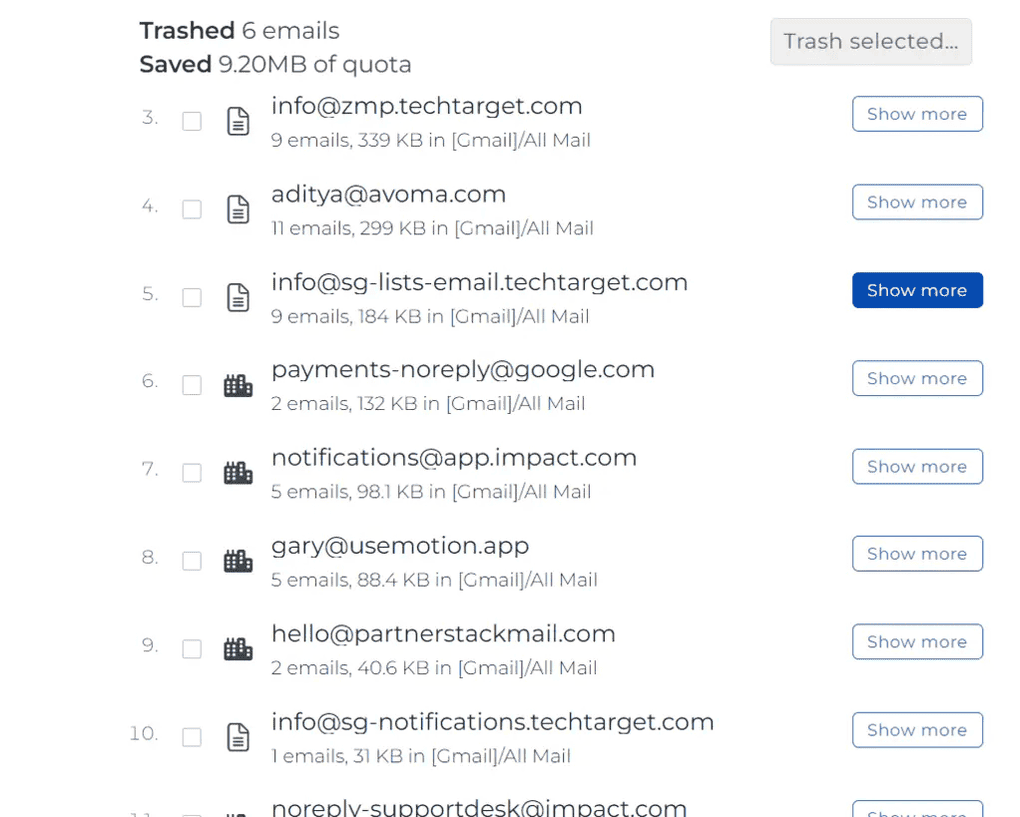
Deep Clean: This is an easy-to-use feature designed to help you free up storage space and delete old emails. SaneBox scans your inbox and summarizes non-important emails by size and count. You can then delete thousands of emails in a short amount of time, while still reviewing details before confirming the removal.
Daily Digest: This feature provides a summary of unopened emails that were sorted out of your inbox. From the Digest view, you can take bulk actions such as marking emails as read, archiving them, or moving them to the trash. You can also handle emails one by one if you prefer more control.
SaneDoNotDisturb: It helps eliminate distractions by moving incoming emails into a separate folder. You can set specific rules for when this folder should be active, such as during weekends or certain times of the day. This allows you to focus on work without constant email interruptions.
Email Organize: Email Organize provides a central hub to review all emails from both your Inbox and Sane folders. It works similarly to the Daily Digest, but includes both opened and unopened emails. This makes it easier to manage and delete non-important emails efficiently.
SaneAttachments: This lets you store large email attachments in connected cloud storage services such as Google Drive, Dropbox, Box, OneDrive, and Evernote. It helps keep your inbox lean and allows emails to load faster while still keeping attachments accessible.
SaneBox pricing
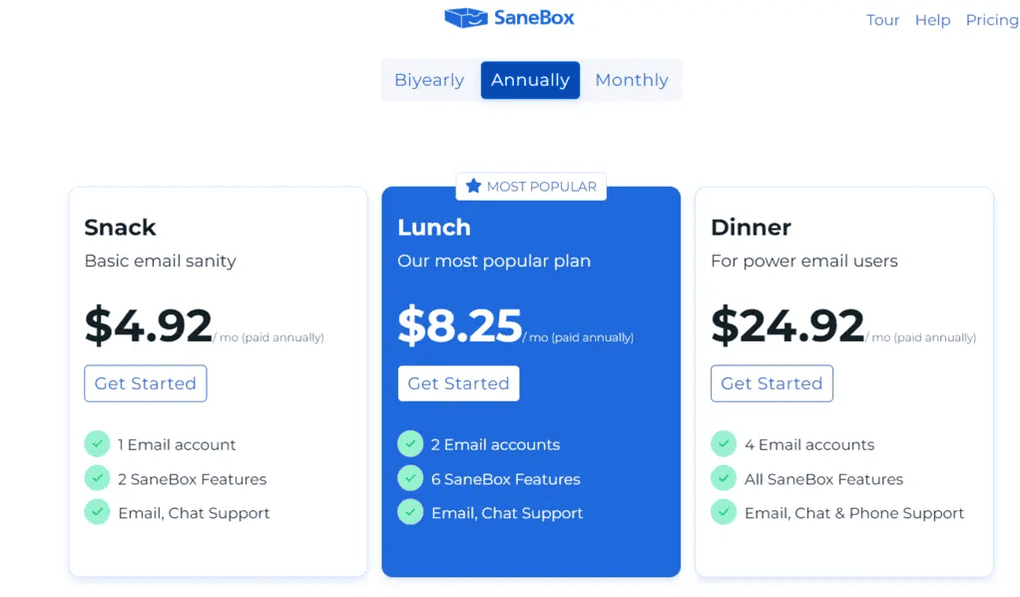
Sanebox offers a 14-day trial, which is a good thing for trying out all the features and deciding if this is the right email app for you.
Sanebox has three plans. The Snack plan is $4.92 per month if choosing the annual payment. It includes the Deep Clean, Email Organize, and Daily Digest features. Also, you can choose two features from the Power Tools. If I had to choose, SaneNews and SaneBlackHole would be the most useful features for me to achieve and maintain inbox zero. With the Snack plan, you can connect one email account to Sanebox. In case of any issues, you will email and chat with support from Sanebox.
The Lunch plan is $8.25 per month if opting for the annual payment. It includes everything from the Snack plan, but with a bit more juice. The Lunch plan allows you to use six features from the Power Tools per email account. Furthermore, you can connect two email accounts to Sanebox if you choose the Lunch plan.
Lastly, Sanebox offers its ultimate package called the Dinner plan for $24.92. It includes all the features, and you can connect four email accounts. When it comes to customer support, you get email, chat, and phone support.
My experience with SaneBox
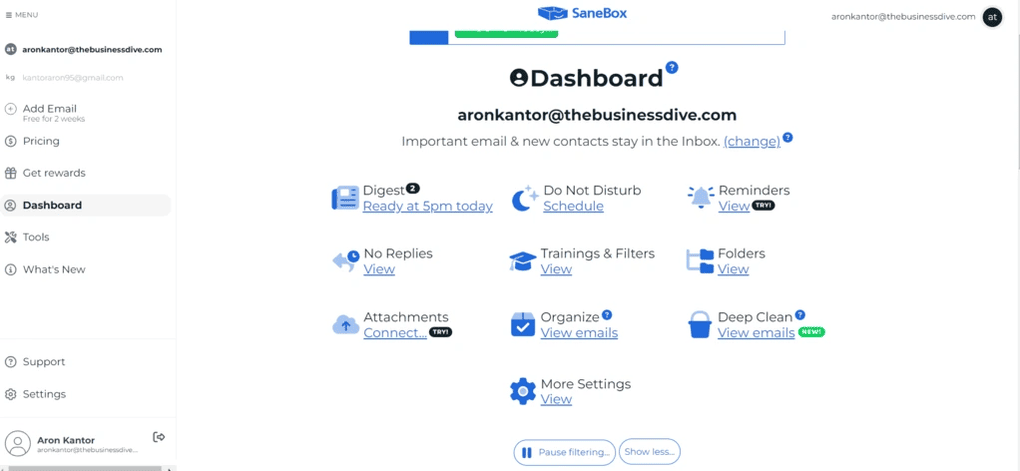
During my time with SaneBox, I had a very positive experience overall. It helped me quickly clean up my Gmail inbox and organize incoming emails without changing how I normally use email. Instead of dealing with email overload every morning, only important messages stayed in my main inbox.
What I especially liked is that SaneBox does the sorting in the background. I spent far less time managing emails, while features like smart folders and automatic sorting made reading and responding to emails much less stressful.
🔎Read my full SaneBox review: The Best Email App For Inbox Management? (2026)
Short on time? Here’s a quick overview of SaneBox
SaneBox pros and cons
Pros of SaneBox:
Cons of SaneBox:
Why is it the best email app for hands-off inbox management?
SaneBox is one of the best email apps for hands-off inbox management because it works in the background and organizes emails inside your existing email client. It automatically sorts non-urgent messages, newsletters, and distractions without requiring constant manual input. This makes it much easier to keep the inbox clean and focused with minimal daily effort.
Best Email App #2 | Missive
Best for team collaboration and shared inboxes
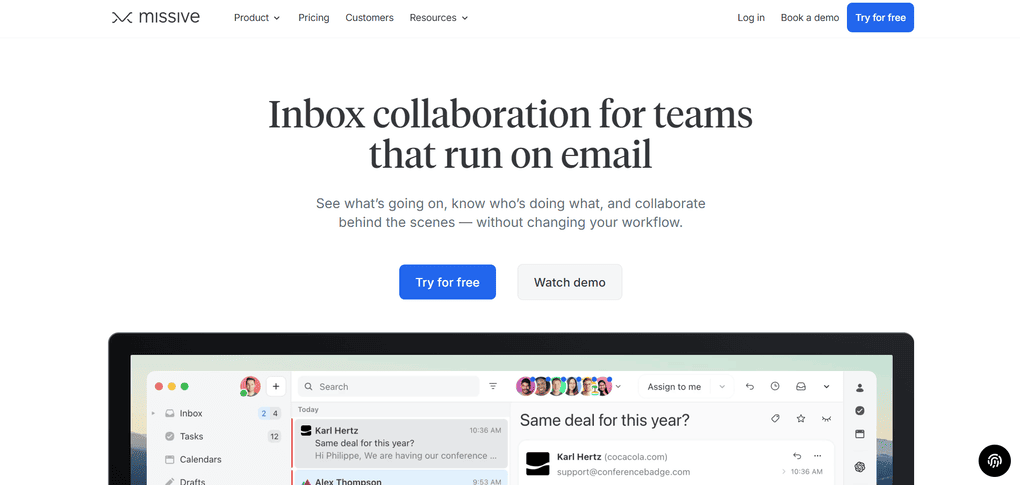
Missive is a business-first email app designed for people and teams who spend a lot of time communicating over email. It brings multiple email accounts into one place and adds powerful collaboration features on top of them.
Missive key features
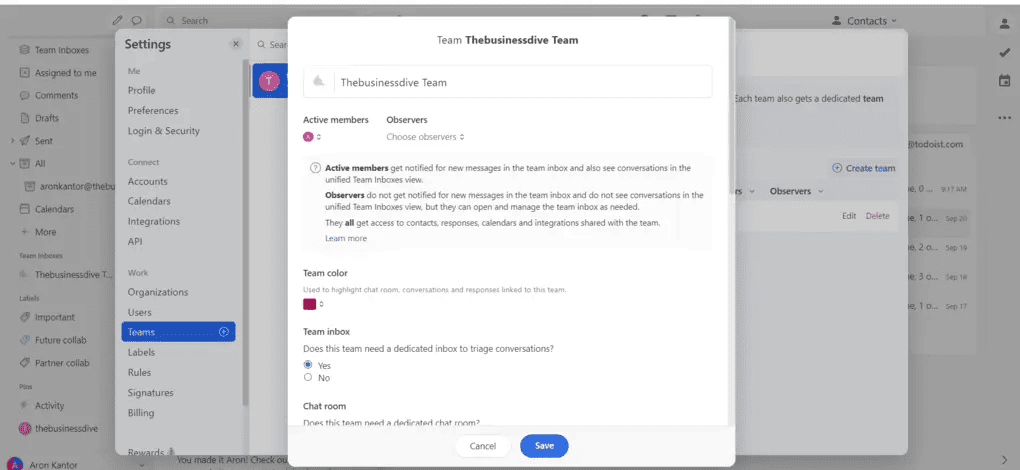
Multiple email accounts in one place: Missive lets you connect all your email accounts, including Gmail, Outlook, and Apple Mail, into a single app. This way, you can manage both work and personal emails without switching between different clients. Having everything in one place also reduces the risk of missing important conversations.
Labels and rules: Labels help categorize emails, while rules allow you to automate what happens to those emails. When combined, they offer one of the most efficient ways to streamline email workflows. You can automatically move, notify, or follow up on conversations based on custom conditions.
AI-powered email replies: Missive integrates OpenAI to help generate replies, write emails faster, and translate messages. The canned responses feature is especially useful for handling repetitive emails. This significantly reduces the time spent writing similar replies every day.
Team inboxes and task management: Team inboxes allow emails to be shared and organized by responsibility, so everyone knows who is handling what. Emails can be assigned as tasks, moved between inboxes, and closed once resolved. This structure prevents duplicated work and missed messages.
Team chat: Missive includes a built-in team chat directly inside email conversations. Team members can comment under emails, assign tasks, share attachments, and brainstorm without switching to tools like Slack. This keeps communication centralized and transparent.
Snooze feature: Missive’s snoozing feature allows you to postpone emails and deal with them later. You can create rules around snoozing and even discard snooze when someone replies. This helps reduce distractions and maintain focus during work.
Email analytics: Missive provides analytics that track response times and communication habits. You can analyze performance by individual, team, label, or time period. This feature is useful for understanding and improving both internal and external communication.
Integrations: Missive integrates with various third-party tools such as Slack, Trello, and Google Drive. Integrations are easy to access and set up directly from the app. This helps connect email workflows with the rest of your tool stack.
Missive pricing
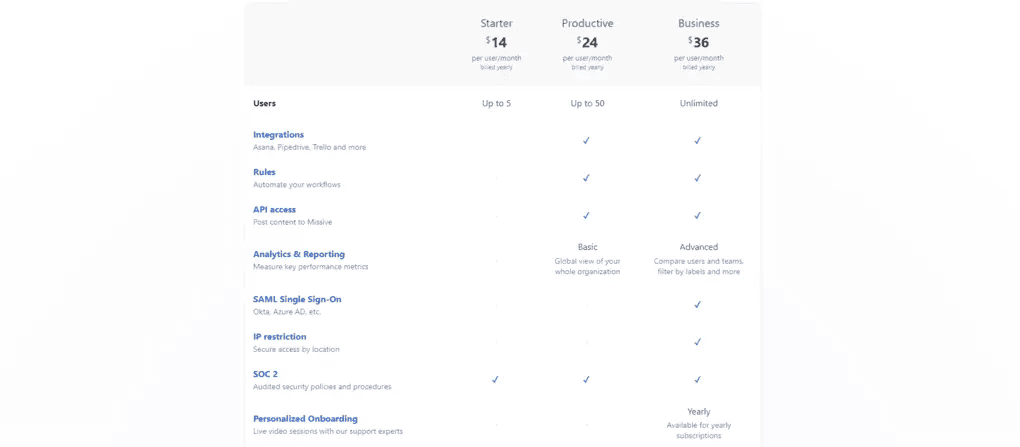
Missive has four plans. The Free plan is limited to 3 users, a 15-day history, and 5 shared accounts per user. Also, you can try the rules and the integrations for 30 days. With the Free plan, you can access many useful features like snoozing or team inboxes.
The starter plan includes the same features as the Free plan; it is not limited to 3, but 5 users. The cost of the starter plan is $14 monthly per user (billed yearly).
If you want a real upgrade to your experience with Missive, you need to go for the Productive Plan. For $24 monthly per user, you can access the integrations, rules, and basic analytics features besides the ones included in the Free and Starter Plans. You can use the Productive Plan for up to 50 people.
Finally, you can opt for the Business Plan if you want to have all the features. The Business Plan will give you a more advanced analytics feature, IP restrictions, and personalized onboarding with the support team. You can buy the Business Plan for $36 monthly per user (billed yearly) and use it without limits on the user count.
My experience with Missive
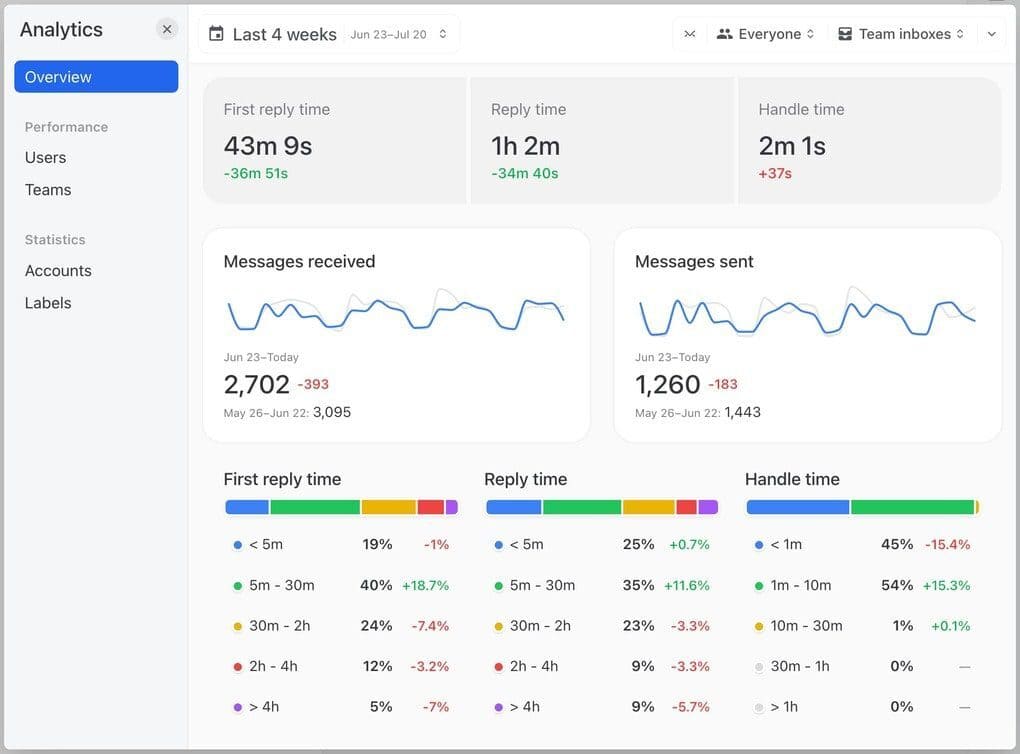
My experience with Missive was very positive. Connecting multiple email accounts took only a few minutes, and the interface was easy to navigate from the start. Labels, rules, and snoozing helped automate a large part of my email communication and saved a lot of time.
What stood out the most were the team collaboration features. Team inboxes, task assignments, and built-in chat made working with others much more organized. Over time, Missive became a tool I continued using even after testing, which says a lot about its value.
🔎Read my full Missive review: This Email App Will SHOCK You (2026)
Short on time? Here’s a quick overview of Missive
Missive pros and cons
Pros of Missive:
Cons of Missive:
Why is it the best email app for team collaboration?
Missive is the best email app for team collaboration because it brings email, team chat, and task management into one place. Team inboxes and shared conversations make it easy to see who is handling which message and prevent duplicated work. This structure keeps communication clear, organized, and much more efficient for teams.
Best Email App #3 | Proton Mail
Best email app for privacy and security
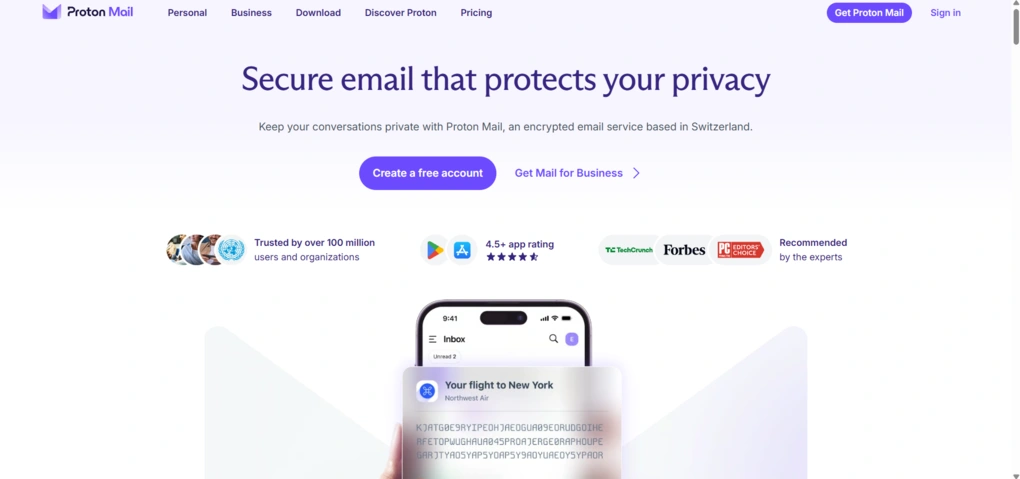
Proton Mail is a privacy-focused email service designed for users who want more control over their email and personal data. Unlike email productivity tools that work on top of existing providers, Proton Mail provides its own encrypted email environment, with privacy and security built into the service itself.
Proton Mail key features
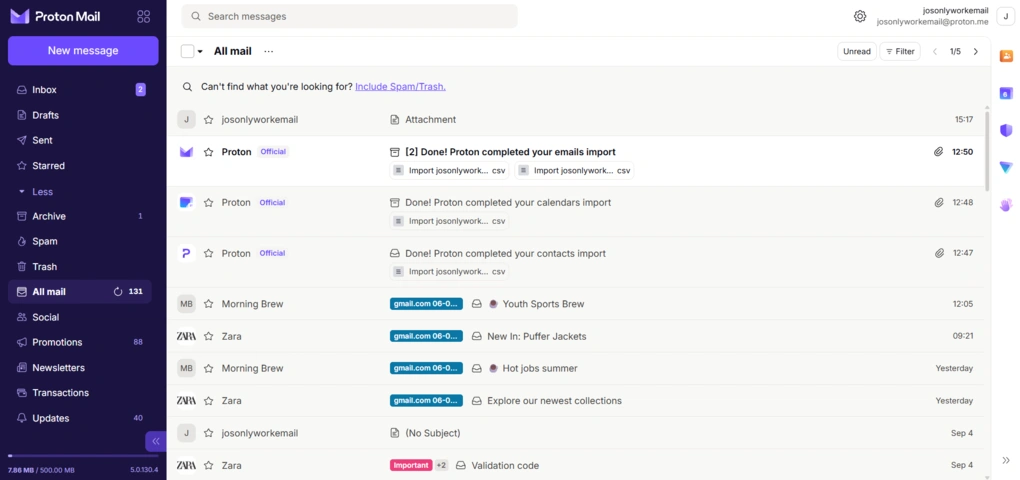
End-to-end encryption: Proton Mail automatically encrypts messages sent between Proton Mail users, while stored messages are protected with zero-access encryption. Emails sent to external providers use TLS by default, with password-protected emails and PGP available when stronger encryption is needed.
Tracker blocking: Proton Mail automatically detects and blocks known email trackers and tracking URLs. I could check the tracker status directly from an email using the privacy badge, which also showed what would have been collected if a tracker had not been blocked.
Private email search: Proton Mail lets you search the content of encrypted emails without giving Proton access to the message contents. When enabled, it creates an encrypted local index in your browser and performs content searches on your device.
Inbox organization: Proton Mail offers Categories, folders, labels, filters, and advanced search, giving you plenty of flexibility without relying on third-party inbox management tools. Categories can also learn from your corrections and improve how similar messages are sorted.
Easy Switch: If you’re moving from another email provider, Easy Switch can import emails, contacts, and calendars. It can also preserve existing Gmail labels, including nested labels, which makes the migration process much less tedious.
Hide-my-email aliases: Proton Mail lets you create additional addresses and Hide-my-email aliases that forward messages to your inbox without exposing your primary email address. You can also use custom domains.
Secure email options: The composer includes features such as password-protected emails and message expiration, while Schedule Send and Undo Send cover some of the more conventional productivity needs. Proton Scribe is also built into the composer for drafting, proofreading, rewriting, and adjusting the tone of emails.
Proton Mail pricing
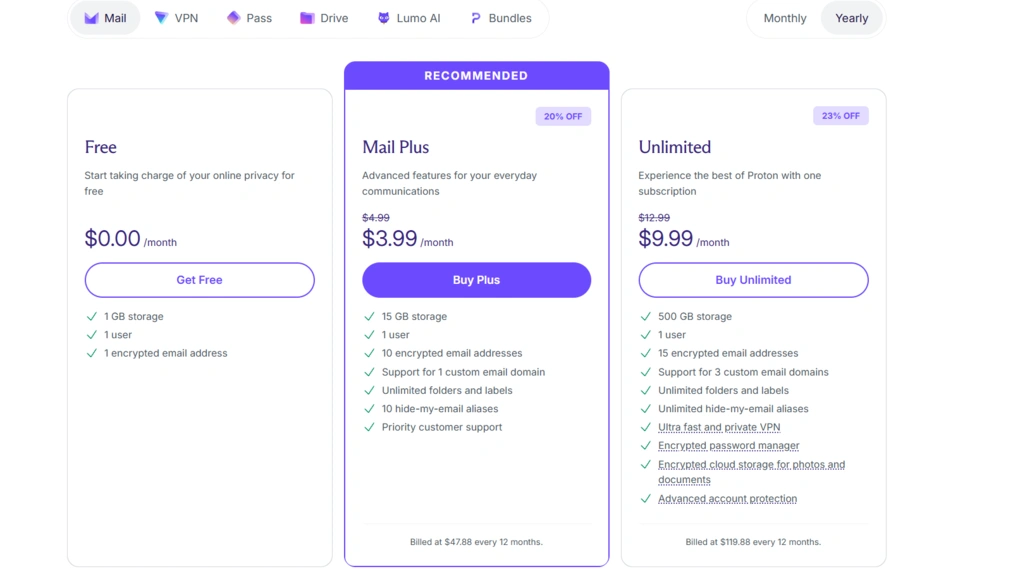
Proton Mail offers a free plan and several paid plans. For individual users, there are Free, Mail Plus, and Proton Unlimited.
The Free plan has no time limit and includes one email address, up to 1 GB of Mail storage, Easy Switch, and core email features.
Mail Plus costs $3.99 per month when billed annually and includes 15 GB of storage, up to 10 email addresses, one custom domain, unlimited folders and labels, and 10 Hide-my-email aliases.
Proton Unlimited costs $9.99 per month with annual billing and includes 500 GB of shared storage, up to 15 email addresses, three custom domains, unlimited Hide-my-email aliases, and premium access to other Proton services.
Proton also offers a 14-day Mail Plus trial through its referral program and a 30-day Unlimited trial in specific circumstances. For businesses, separate Mail Essentials, Workspace Standard, and Workspace Premium plans are available and priced per user.
My experience with Proton Mail
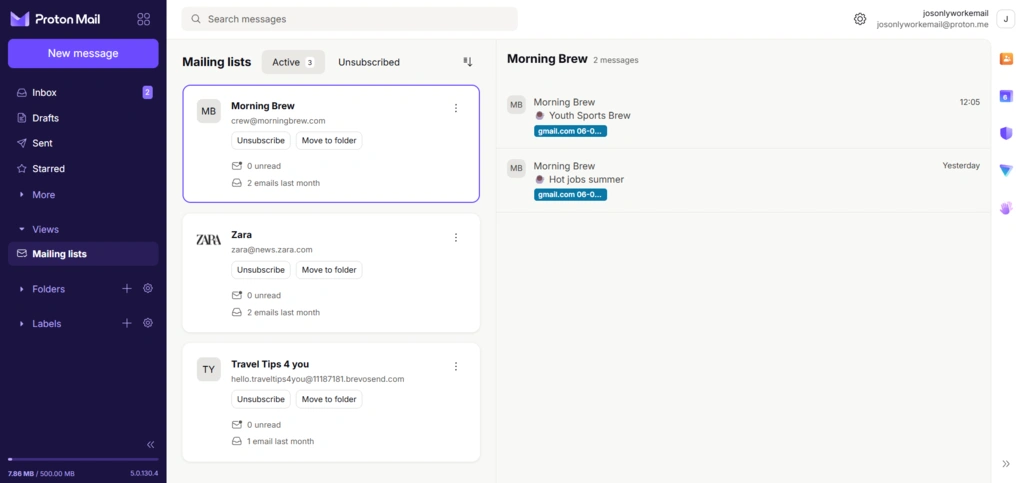
Proton Mail is one of the more complete email services I tested, and its overall score reflects that.
The interface feels familiar if you’ve used Gmail or Outlook, but you get considerably more privacy-focused features built into the everyday experience. Inbox organization, search, aliases, scheduling, and other everyday tools are all there alongside its encryption features.
Proton Mail doesn’t have the same focus on AI productivity as Notion Mail or Shortwave, and it isn’t designed around team collaboration like Missive. Instead, it offers a more traditional email experience while putting privacy and security at the center of the product.
🔎Read my full Proton Mail review: Proton Mail Review 2026 | Privacy, Security, and Everything Else
Short on time? Here’s a quick overview of Proton Mail
Proton Mail pros and cons
Pros of Proton Mail:
Cons of Proton Mail:
Why is it the best email app for privacy and security?
Proton Mail is the best email app for privacy and security because it combines strong encryption with a full-featured everyday email experience.
Unlike tools that mainly improve productivity on top of an existing email provider, Proton builds privacy into the service itself. At the same time, you still get the familiar interface, inbox organization, customization, and everyday features you’d expect from a modern email app.
Best Email App #4 | Notion Mail
Best for personalized AI-powered inbox organization
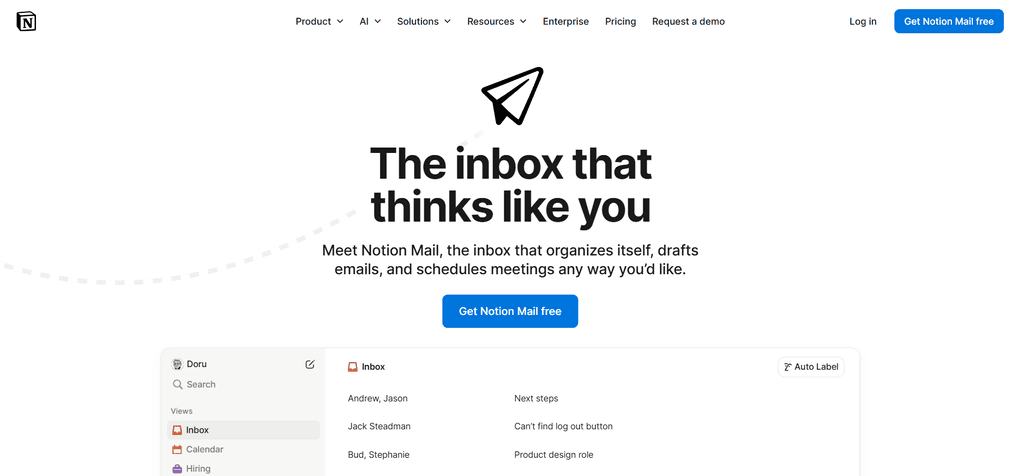
Notion Mail is a modern, AI-native email client built by Notion that works on top of your Gmail account and helps you organize your inbox with smart automation and customizable views. Rather than replacing Gmail entirely, it brings Notion’s flexible interface and AI capabilities to email management.
Notion Mail key features
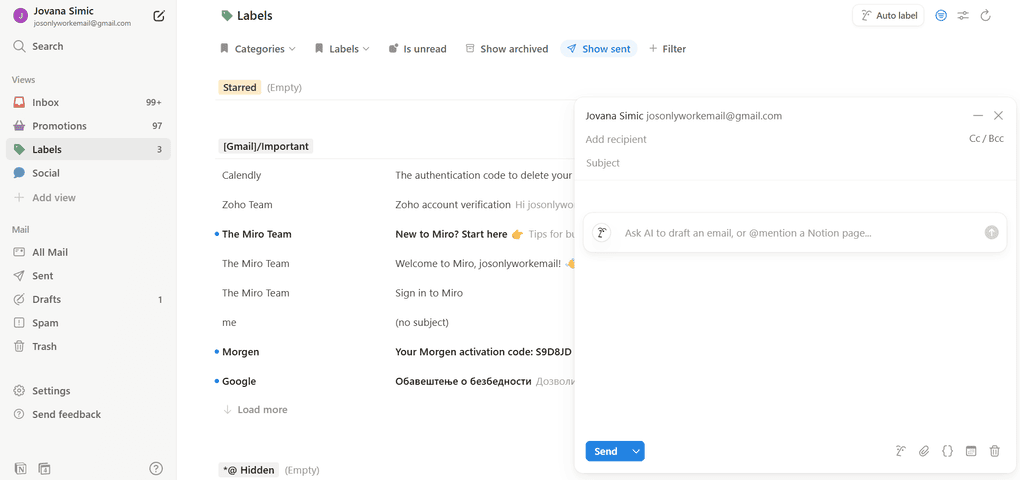
AI autopilot and auto-labeling: Notion Mail uses built-in AI to automatically label and prioritize incoming emails based on simple prompts you give it. This feature alone saved me so much time.
AI email drafting and replies: With AI assistance, you can generate smart first drafts and replies directly in the app. In my experience, writing repetitive emails stopped being so tiresome, and I was able to respond faster.
AI summarization: Another great Notion Mail’s AI feature summarizes long email threads. It gives you the key points at a glance so you can quickly understand the most important parts.
Custom views and organization: Instead of a traditional inbox, Notion Mail lets you create custom views and group messages in ways that make sense for your own workflow. You can filter by labels, status, or other criteria.
Snippets and templates: Notion Mail includes a library of reusable snippets and templates. These are genuinely helpful when inserting commonly used text or replies since you don’t have to rewrite them each time.
Scheduling and integration features: Notion Mail supports scheduling availability directly from the email editor and integrates with some calendar tools.
Notion Mail pricing
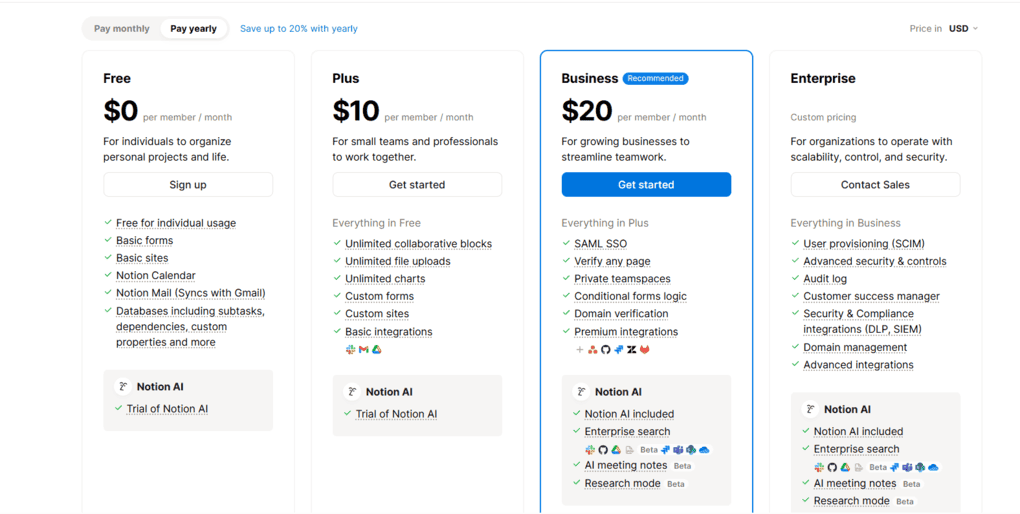
Notion Mail itself is free to use with a Notion account, but advanced AI features require a Notion AI add-on. The AI add-on is typically an additional subscription (around $8–$10/month when billed annually), which unlocks auto-labeling, drafting, and other AI-powered tools.
My experience with Notion Mail
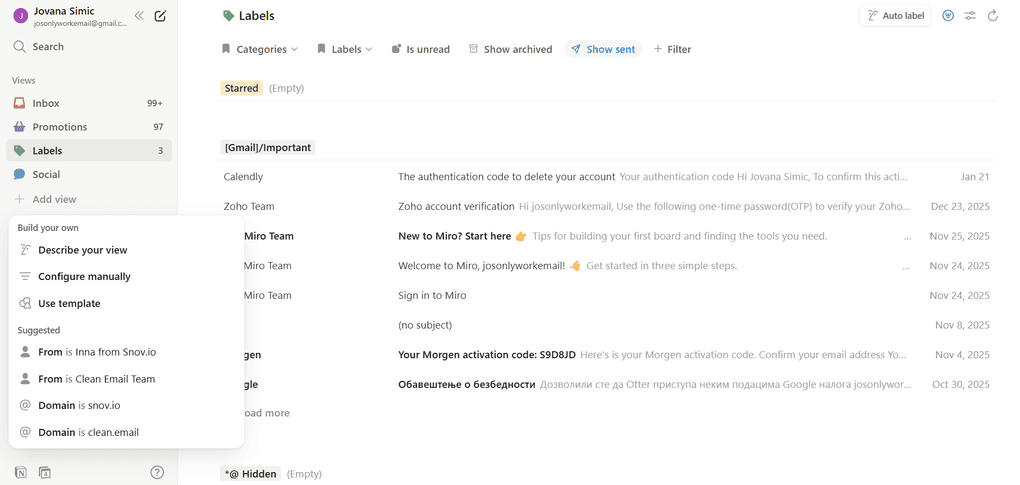
Using Notion Mail is familiar if you already spend time in the Notion ecosystem. The interface is clean and flexible, and it doesn’t feel like a traditional inbox. Instead, emails are easier to group and review.
What stood out to me most is how much less manual sorting I had to do since the AI features help with organizing and summarizing emails. Overall, it’s a great email app, especially if you like customizing how things are displayed.
🔎Read my full Notion review: My Honest Notion Review After Using It For +2 Years (2026)
Short on time? Here’s a quick overview of Notion
Notion Mail pros and cons
Pros of Notion Mail:
Cons of Notion Mail:
Why is it the best email app for personalized AI-powered inbox organization?
Notion Mail is the best email app for personalized AI inbox organization because it adapts to how you want to work. With AI-powered sorting, summaries, and custom views, it reduces the need for constant manual cleanup.
Best Email App #5 | Clean Email
Best for bulk unsubscribing and long-term inbox cleanup
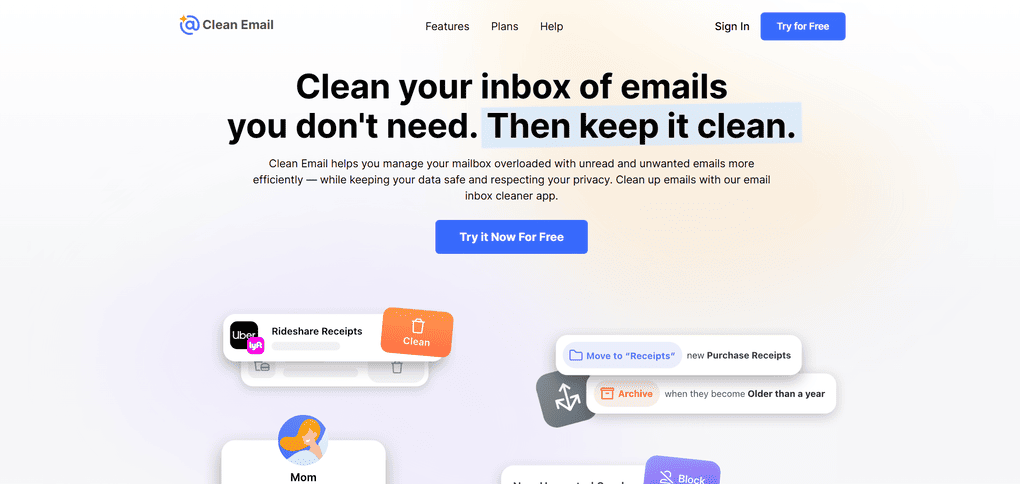
Clean Email is an email management tool built for people whose inboxes are already overloaded. Instead of relying on AI or smart replies, it focuses on safe, user-controlled cleanup and clear organization. It’s especially useful if you receive a large volume of newsletters and recurring emails and want a structured way to regain control.
Clean Email key features
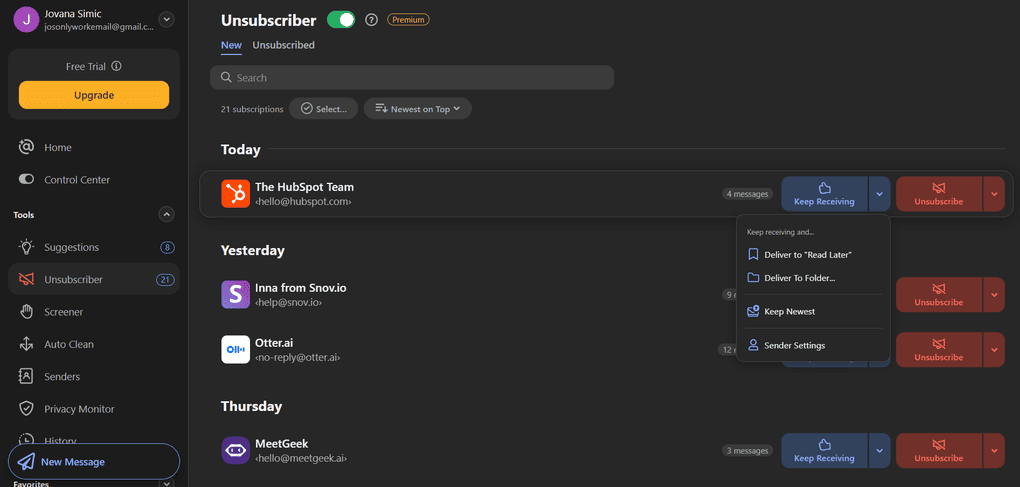
Cleaning Suggestions: Cleaning Suggestions scans your inbox and groups similar emails based on senders, frequency, and past interactions. It then suggests actions, but nothing happens automatically. You always decide whether emails should be deleted, archived, moved, or ignored. During testing, this feature felt reliable and safe, even when handling very large inboxes.
Unsubscriber: Unsubscriber acts as a central place to manage all your subscriptions. You can see active mailing lists and decide whether to fully unsubscribe, pause emails, or keep receiving them. The interface is compact and easy to navigate, and bulk actions make unsubscribing much faster than doing it manually.
Smart Folders: This feature automatically organizes emails into predefined categories without manual sorting. While you can’t create custom Smart Folders, the existing selection covers most common use cases. Which folders appear depends on the type of emails you receive, which means your interface will be relevant and uncluttered.
Screener: This works as an inbox gatekeeper for first-time senders. When enabled, emails from unknown senders are held for review before reaching your inbox. You can allow, block, or redirect future emails and even pre-approve certain senders, domains, or keywords.
Auto Clean rules: Auto Clean lets you automate inbox cleanup by creating custom rules. You choose which emails the rule applies to and what action should be taken. Rules can affect future emails only or existing ones as well, and everything can be edited, paused, or disabled at any time.
Privacy Monitor: Privacy Monitor automatically checks whether your email address appears in known data breaches. It runs in the background and alerts you only if action is needed, adding an extra layer of security awareness.
Clean Email pricing
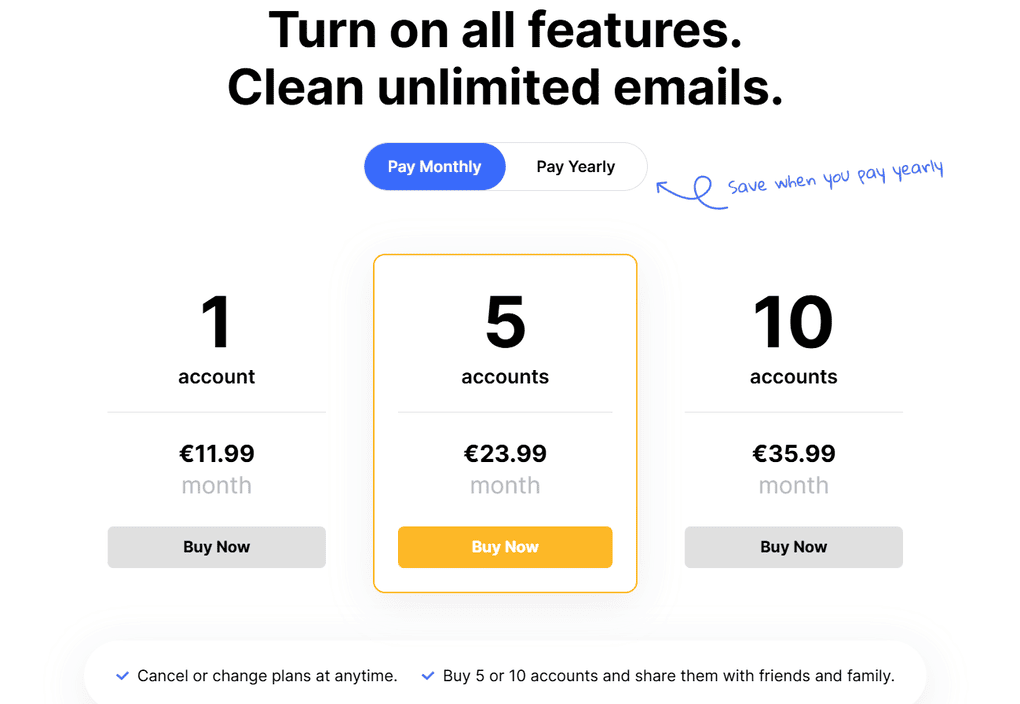
Clean Email offers a free plan and a generous 14-day free trial. The free version lets you clean up to 1,000 emails and unsubscribe from up to 25 newsletters. However, it doesn’t include premium features like Unsubscribe, Screener, Sender, Mailing List Settings, and Auto Clean.
Unlike free services like Unroll.me or Cleanfox, which monetize user data, Clean Email operates on a paid subscription model and does not sell user information. Premium plans are based on the number of email accounts you want to manage.
Pricing starts at €11.99 per month with monthly billing for one account. If you want 5 accounts, the price is €23.99 monthly, while 10 accounts will cost you €35.99. You can see the prices for annual billing in the screenshot.
Overall, Clean Email is not the cheapest, but its pricing is reasonable for what you get.
My experience with Clean Email
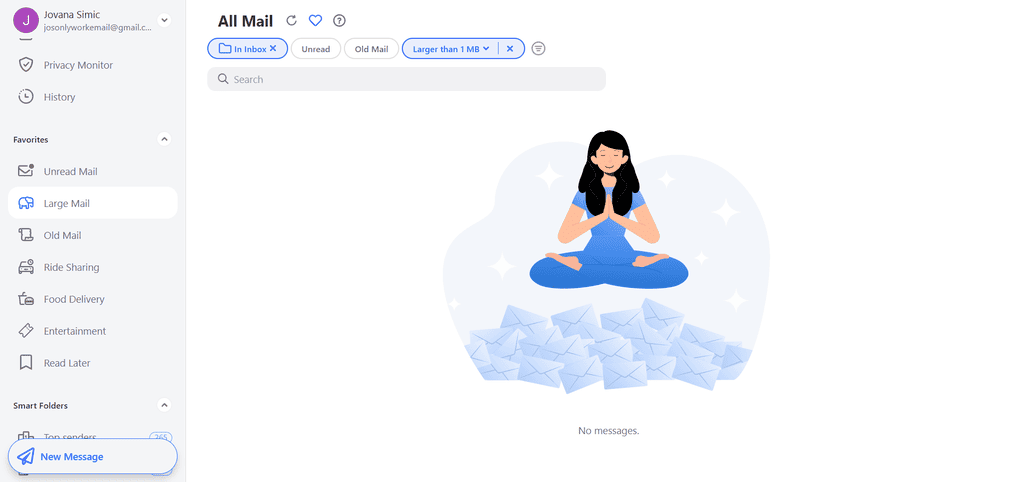
I used this app regularly for several weeks, and I didn’t run into any issues during testing. The experience was smooth and predictable from the start, and I really liked the balance between automation and manual control. I could complete most of the actions in just a few clicks.
I’d recommend Clean Email to anyone who wants a reliable, long-term way to keep their inbox organized, especially if they deal with a lot of newsletters and recurring emails. If you’re looking for AI-powered features or smart replies, this probably isn’t the right tool, but for practical inbox cleanup, it works really well.
🔎Read my full Clean Email review: My Independent View (2026)
Short on time? Here’s a quick overview of Clean Email
Clean Email pros and cons
Pros of Clean Email:
Cons of Clean Email:
Why is it the best unsubscribe app for bulk inbox cleanup?
Clean Email is the best unsubscribe app for bulk inbox cleanup because it gives you full control over subscriptions and recurring emails without acting automatically. Instead of one-click unsubscribing, it offers a structured system for reviewing, managing, and cleaning subscriptions at scale. This makes it especially effective for long-term inbox organization.
Best Email App #6 | Gmail
Best for everyday email use
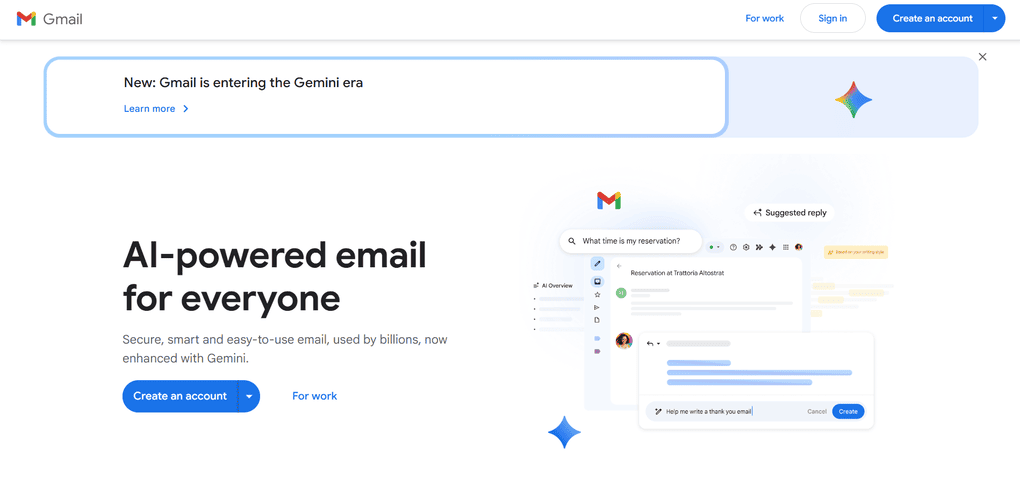
Gmail is one of the most widely used email apps in the world and a default choice for many users. It combines email, search, basic automation, and integrations into one familiar interface. For everyday email use, Gmail offers a stable and well-rounded experience without the need for additional tools.
Gmail key features
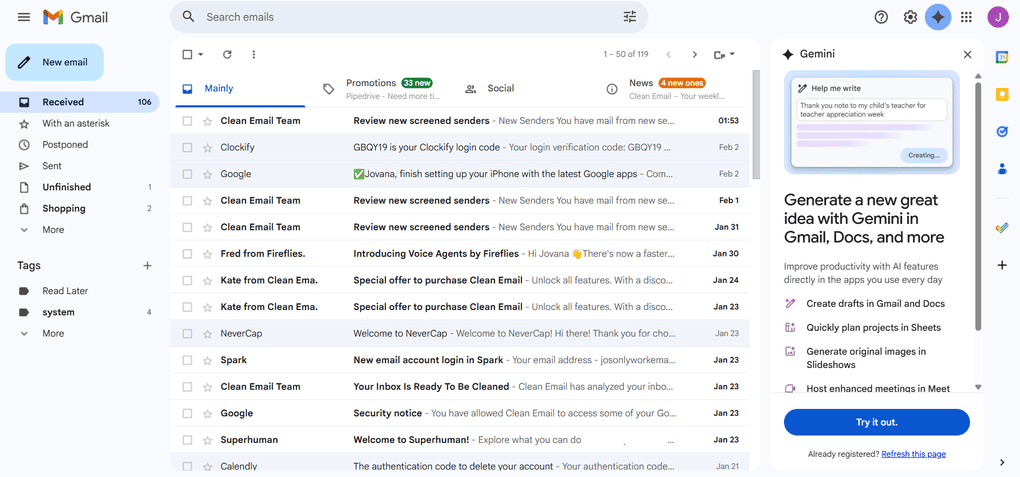
Smart inbox categories: Gmail automatically sorts emails into categories like Primary, Social, and Promotions. This helps reduce inbox clutter and makes important emails easier to spot without manual setup.
Powerful search: Search is one of Gmail’s strongest features. You can quickly find emails using keywords, senders, dates, or attachments, even in inboxes with years of history.
Filters and rules: Gmail allows you to create filters that automatically label, archive, delete, or forward emails based on specific criteria. While powerful, these rules usually require manual setup and ongoing maintenance.
Spam protection: Gmail’s spam filtering is very effective and works quietly in the background. Most unwanted emails are blocked before they ever reach your inbox.
Integrations with Google Workspace: Gmail integrates seamlessly with Google Calendar, Drive, Docs, and Meet. This makes it a natural choice for users already relying on Google’s ecosystem for work or personal use.
AI assistance: Gemini is being rolled out directly into Gmail, and helps with writing emails, drafting replies, summarizing long threads, and generating ideas. You can ask it to rewrite messages, adjust tone, or quickly catch up on conversations without reading entire threads.
Gmail pricing
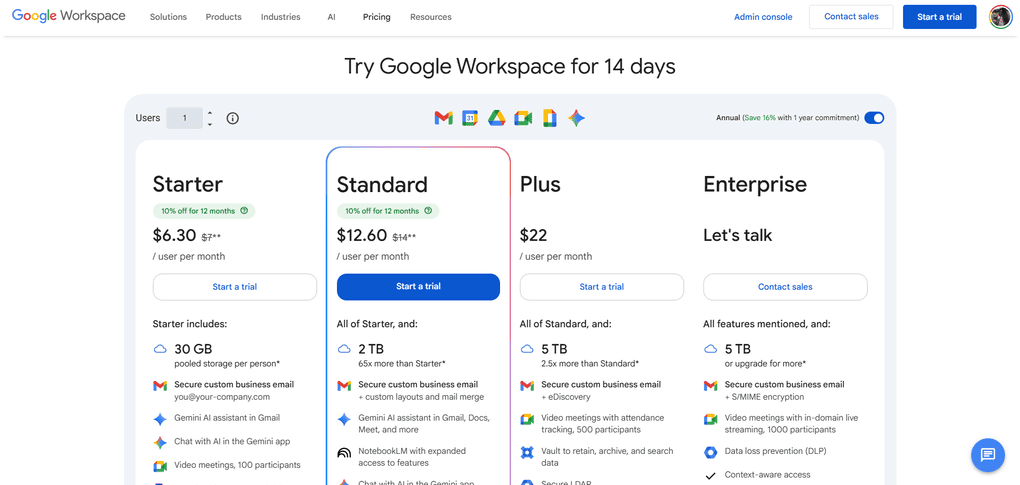
Gmail is free for personal use with a Google account.
For business use, Gmail is included in Google Workspace plans, which start with paid subscriptions that add custom domains, increased storage, and admin controls. Pricing depends on the selected Workspace plan.
My experience with Gmail
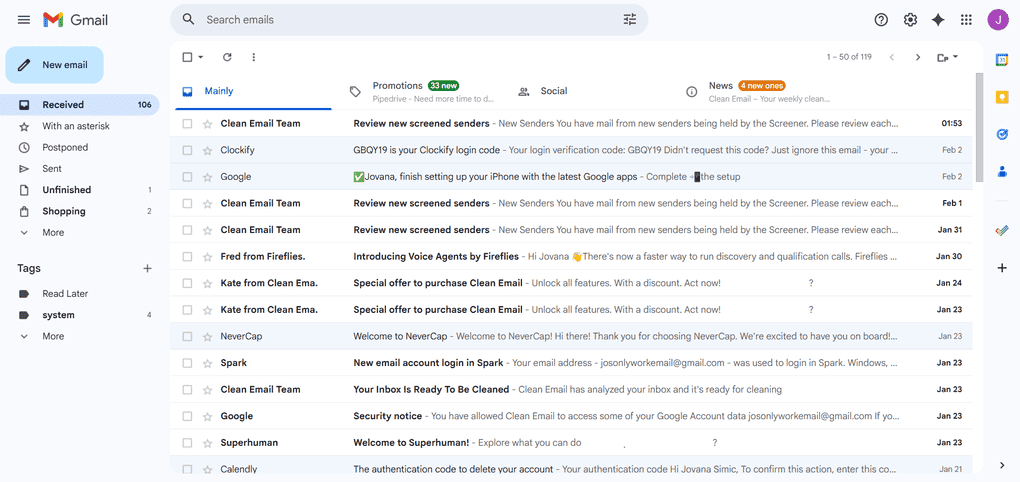
Gmail is reliable and familiar, which is exactly why many people stick with it. It works well out of the box and doesn’t require much setup to be usable. However, managing a busy inbox often means spending time creating filters, labels, and rules manually.
While Gmail handles spam and basic organization well, it can start to feel limiting for users who deal with large volumes of newsletters, recurring emails, or complex workflows. In those cases, it often works best when paired with additional inbox management tools.
You can use it on any device, and it is currently one of the best Android email apps for those who need a simple setup.
Gmail pros and cons
Pros of Gmail:
Cons of Gmail:
Why is it the best email app for everyday use?
Gmail is the best email app for everyday use because it offers a reliable, familiar, and well-integrated experience. It handles the basics extremely well and fits naturally into daily workflows. For many users, it’s the simplest way to manage email.
Best Email App #7 | Apple Mail
Best email app for Apple ecosystem users
Apple Mail is the default email app for macOS and iOS users and is deeply integrated into the Apple ecosystem. It focuses on reliability, privacy, and a clean user experience rather than advanced automation or AI features. For users who want a straightforward email app that works seamlessly across Apple devices, Apple Mail is a solid choice.
Apple Mail key features
Native integration with Apple devices: Apple Mail works smoothly across Mac, iPhone, iPad, and Apple Watch. Emails, folders, and settings stay in sync through iCloud, so you can easily switch between devices.
Privacy Protection features: Apple Mail includes privacy-focused features, such as Mail Privacy Protection, which helps hide your IP address and prevents senders from tracking email opens. This is especially useful for users who care about email privacy and data protection.
Smart Mailboxes: Smart Mailboxes automatically group emails based on predefined conditions, such as unread messages or flagged emails. While useful, they require some manual setup and are more basic compared to advanced inbox automation tools.
Rules on macOS: On macOS, Apple Mail allows you to create rules to move, label, or delete emails automatically. These rules are functional but limited compared to dedicated inbox management or automation tools.
Support for multiple email accounts: Apple Mail supports Gmail, Outlook, iCloud, Yahoo, and other IMAP-based email providers. This allows you to manage several inboxes in one place, so you don’t have to rely on third-party apps.
Apple Mail pricing
Apple Mail is completely free and included with macOS and iOS. There are no paid plans or subscriptions required to use the app.
My experience with Apple Mail
Apple Mail is very similar to Gmail in the sense that it works well straight out of the box. There’s nothing to set up or fine-tune to get started, which makes it great for everyday email use. Reading, replying, and managing multiple accounts feels smooth and reliable across devices.
Apple Mail pros and cons
Pros of Apple Mail:
Cons of Apple Mail:
Why is it the best email app for Apple ecosystem users?
Apple Mail is the best email app for Apple ecosystem users because it integrates seamlessly with macOS and iOS while prioritizing privacy and simplicity. It offers a stable email experience without the need for third-party tools.
Explore our Apps directory
A curated directory of software tools we’ve independently reviewed, with links to full reviews, comparisons, and category guides.
Best Email App #8 | Spark
Best for smart inbox management
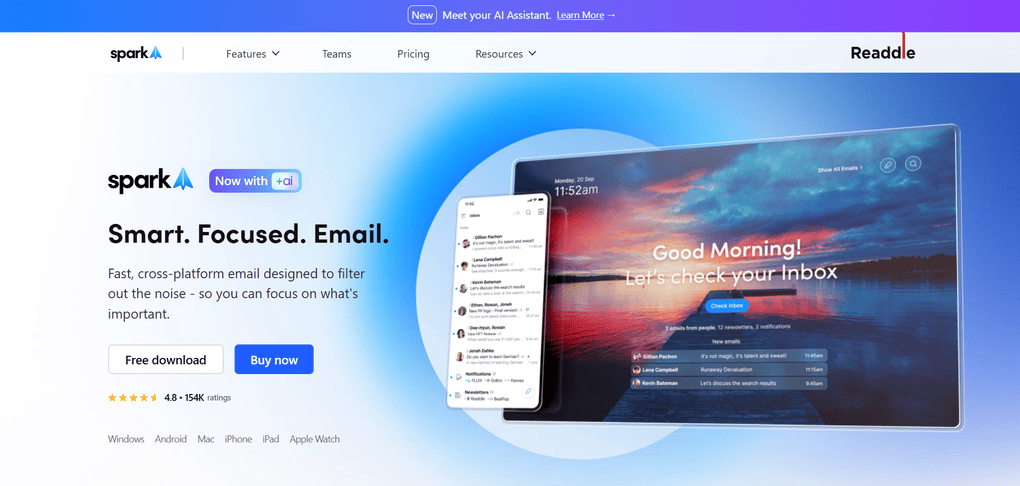
Spark is an email app designed to help users stay focused and productive when dealing with a busy inbox. It combines a clean interface with smart organization features and built-in collaboration tools. Spark works well for both individuals and small teams who want more structure than default email apps offer.
Spark key features
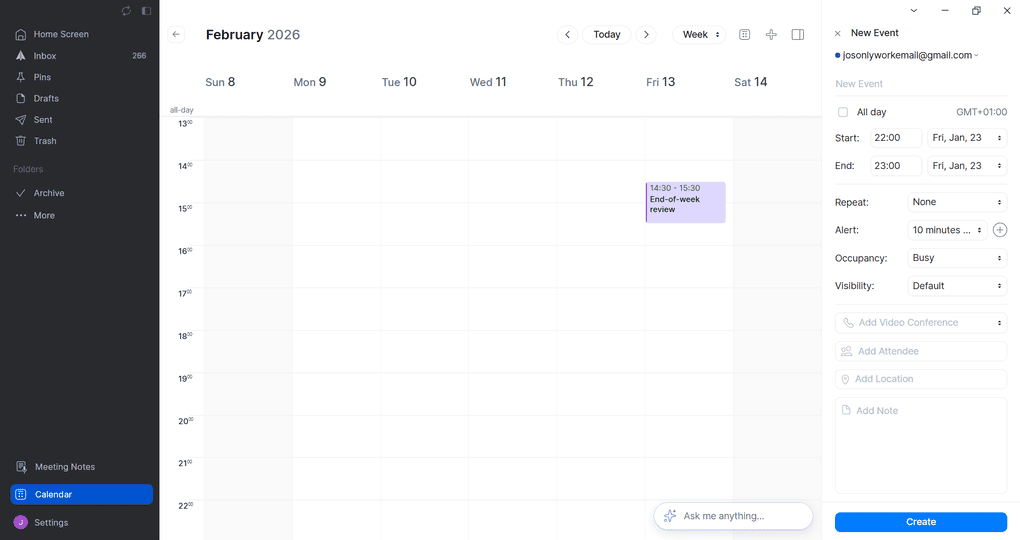
Smart Inbox: Spark automatically groups emails into categories such as Personal, Notifications, and Newsletters. This makes it easier to focus on important messages first, while less urgent emails stay out of the way. The Smart Inbox works immediately, without much setup.
Email snoozing: Spark lets you snooze emails and bring them back at a specific time. This is useful for postponing messages that don’t need immediate attention and helps keep the inbox clean during the day.
Email scheduling: With Spark, you can schedule emails to be sent later. This is especially helpful when working across time zones or when you want to prepare emails in advance.
Built-in AI features: Spark includes AI-powered tools such as email summaries and writing assistance. These features help you quickly understand long threads and draft replies faster, making daily email work more efficient.
Team collaboration tools: Spark offers shared inboxes, comments on emails, and basic team collaboration features. While not as advanced as Missive, these tools are useful for small teams that want light collaboration without switching apps.
Calendar and scheduling: Spark even includes a built-in calendar that lets you view your schedule, join meetings, and plan your day directly from the app.
Meeting notes and recordings: Spark also offers meeting-related features, including the option to record meetings and capture key notes.
Integrations: Spark integrates with popular tools like Google Drive, Dropbox, Asana, and Trello.
Spark pricing
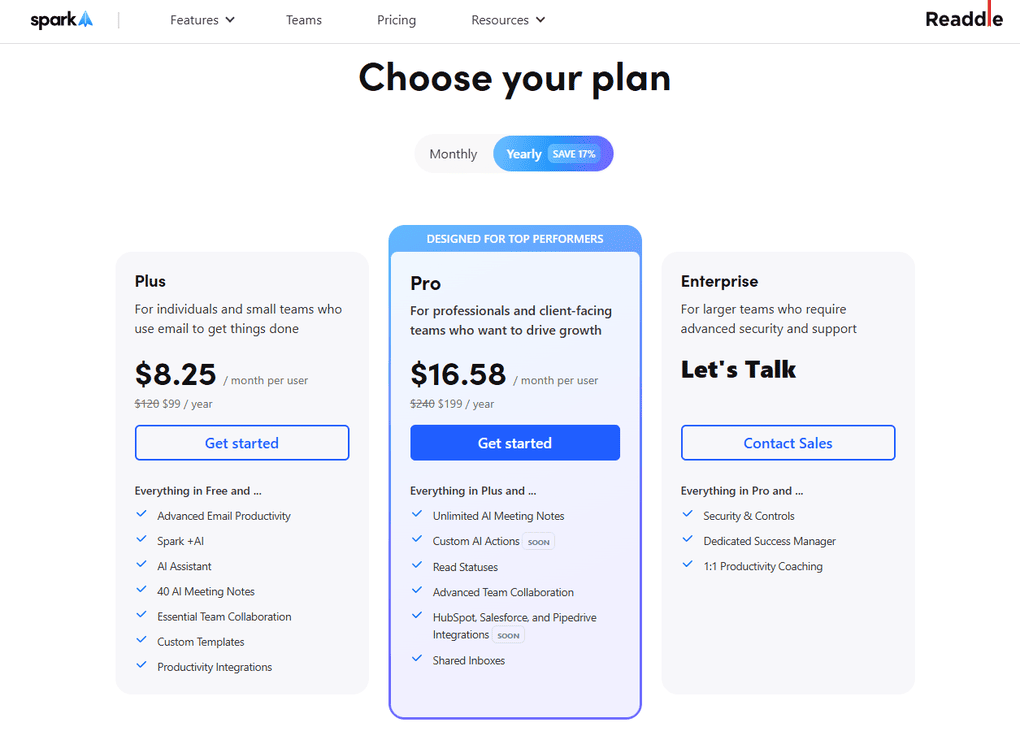
Spark has a free plan with access to core email productivity features and basic AI tools. On top of that, Spark offers three paid plans.
The Plus plan costs $8.25 per user per month and is designed for individuals and small teams. It includes advanced email productivity features, Spark + AI, an AI assistant, up to 40 AI meeting notes, essential team collaboration, custom templates, and productivity integrations.
The Pro plan is $16.58 per user per month, and adds unlimited AI meeting notes, advanced team collaboration features, shared inboxes, read statuses, and integrations with tools like HubSpot and Salesforce.
For larger teams, Spark also offers an Enterprise plan with custom pricing, which includes everything in Pro plus additional security controls, a dedicated success manager, and 1:1 productivity coaching.
My experience with Spark

Using Spark is a step up from default email apps when it comes to organization. The Smart Inbox immediately made my inbox feel more manageable, and features like snoozing and scheduling reduced distractions.
What really stood out to me was the user interface. Spark has a very modern, visually appealing, and calming design that made my inbox look less stressful. Even though the app offers a lot of features, everything is easy to find.
🔎Read my full Spark review: My Honest Experience After 2 Months
Short on time? Here’s a quick overview of Spark
Spark pros and cons
Pros of Spark:
Cons of Spark:
Why is it the best email app for smart inbox organization?
Spark is the best email app for smart inbox organization because it automatically prioritizes important emails and reduces clutter without a heavy setup. Its Smart Inbox and productivity features help users stay focused and process emails more efficiently. For those who want more structure than Gmail or Apple Mail, Spark offers a practical upgrade.
Best Email App #9 | Shortwave
Best for AI-first email productivity
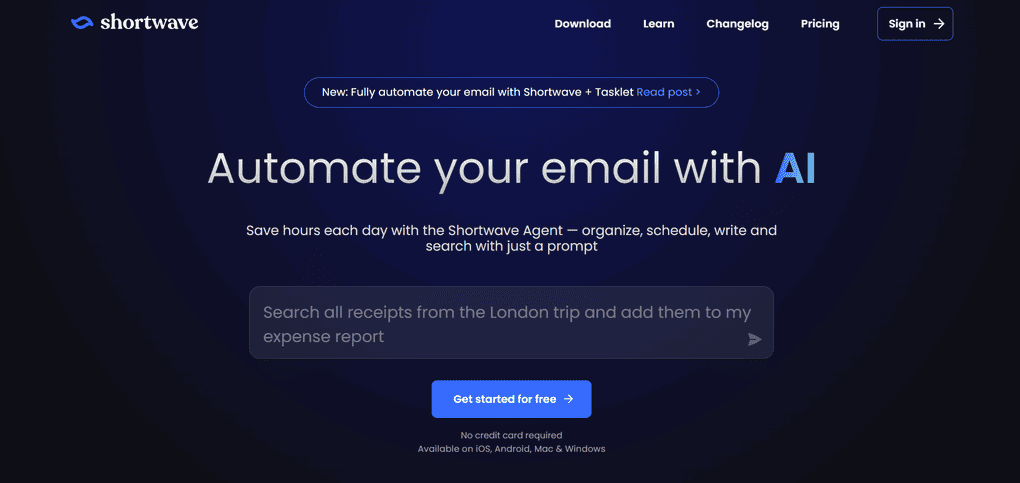
Shortwave is a modern email app built around AI and productivity. It’s designed for users who want to handle email faster, with less manual work, using summaries, reminders, and smart organization.
Shortwave key features
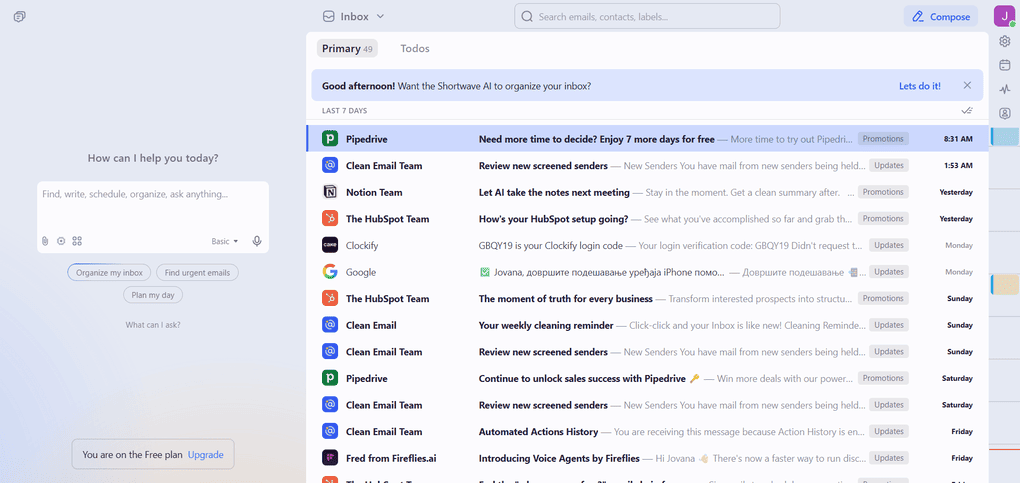
AI summaries: One of the first things I noticed with Shortwave is how much time AI summaries can save. Instead of reading through long email threads, I could quickly see the main points and decide whether I need to jump in or not. This is especially useful when you’re coming back to your inbox after a break.
AI writing and rewrites: Shortwave makes replying to emails faster by helping you draft responses or rephrase messages when you’re not sure how to word something. It’s not about writing emails for you, but about speeding up the parts that usually take the longest. I found this particularly helpful for repetitive or straightforward replies.
Tasks and reminders: You can turn your emails into tasks or set reminders, which helps make sure important messages don’t get lost. This works well if you like keeping your to-dos close to your email instead of switching between multiple apps.
Flexible organization with tags: Instead of relying heavily on folders, Shortwave uses tags and views to organize emails. This feels more lightweight and flexible, especially if you don’t enjoy constantly sorting messages. It makes the inbox feel less rigid and easier to scan.
Shared conversations: Shortwave allows multiple people to follow and work on the same email threads. While it’s not built as a full team workspace, this feature is useful for staying aligned on conversations without forwarding emails back and forth.
Built on Gmail: Shortwave works on top of your Gmail account, which means you don’t have to change your email address or migrate anything. You keep Gmail’s infrastructure while getting a completely different way of handling email on top of it.
Shortwave pricing
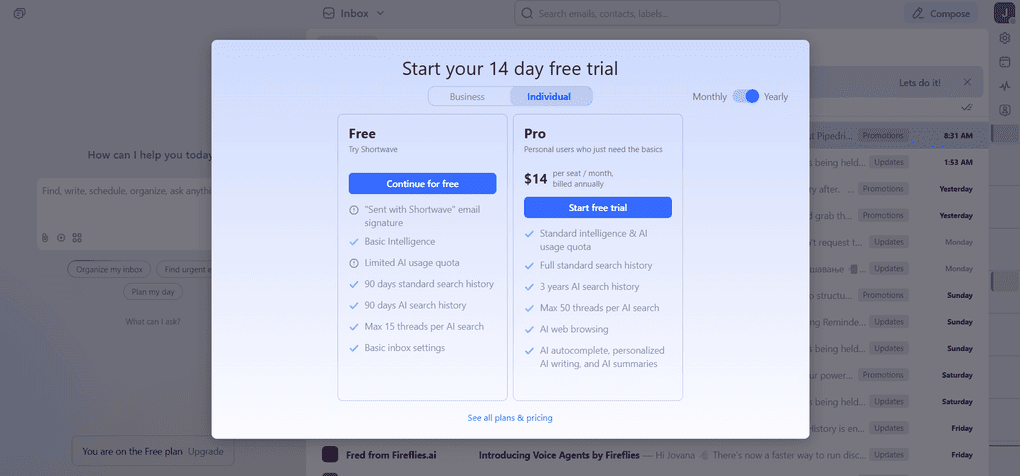
Shortwave offers a free plan and a 14-day free trial on its paid plans.
The Free plan includes basic intelligence, basic inbox settings, and limited AI usage. Emails sent from the free plan also include a “Sent with Shortwave” signature.
For individual users who want more AI capabilities, Shortwave offers the Pro plan at $14 per seat per month. This plan includes standard intelligence with higher AI usage limits, full standard search history, up to 50 threads per AI search, AI web browsing, and AI-powered features such as autocomplete, personalized writing, and AI summaries.
For business users, Shortwave provides three additional plans. The Business plan starts at $24 per seat per month, and includes more AI usage, extended AI search history, AI-powered filters, and advanced email productivity features.
The Premier plan costs $36 per seat per month and adds advanced intelligence, higher AI usage limits, unlimited AI search history, and smarter AI responses.
The most advanced option is the Max plan, priced at $100 per seat per month, which includes expert-level intelligence, the highest AI usage limits, the largest number of threads per AI search, and live 1:1 training.
My experience with Shortwave
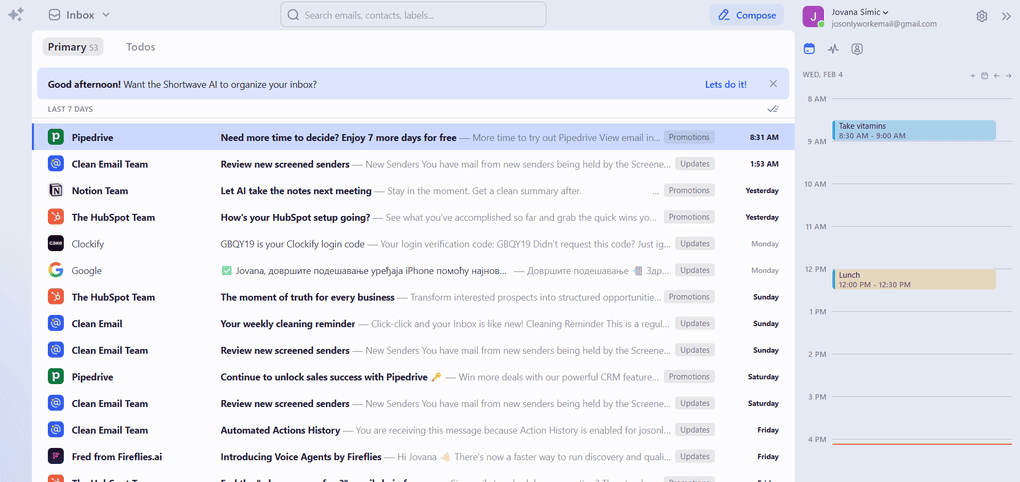
Using Shortwave genuinely changed the way I move through my inbox. I was relying on AI for writing and summarizing, and that saved me a lot of time. Shortwave works best if you’re comfortable letting AI take the lead. If that sounds appealing, it can make email feel lighter, faster, and far more manageable.
Shortwave pros and cons
Pros of Shortwave:
Cons of Shortwave:
Why is it the best email app for AI-first productivity?
Shortwave is the best email app for AI-first productivity because it prioritizes speed and understanding over manual organization. With AI summaries, writing assistance, and built-in reminders, it helps users process emails faster and stay focused on what matters most.
Summary: The best email apps in 2026
We’ve almost reached the end of this article, so it’s a good moment to quickly recap the tools on this list.
If you’re looking for a reliable, everyday email app, Gmail and Apple Mail are still the safest choices. They work well out of the box and cover most daily email needs. Spark is a great upgrade if you want better inbox organization and productivity features without losing simplicity, while Missive is the strongest option for teams that need shared inboxes and collaboration.
Related articles:
- Best 5 Email Productivity Apps To Accomplish More In 2026
- The 7 Best Unsubscribe Apps in 2026 | My Honest List
- Sanebox Review: The Best Email App For Inbox Management? (2026)
- Clean Email Review: My Independent View (2026)
- Missive App Review: This Email App Will SHOCK You (2026)
- Quetext Review 2026: My Honest Take After Testing It
- Kai Review 2026: How It Helped Me Save 90 Minutes a Day
For more advanced workflows, Shortwave and Notion Mail stand out for AI-driven email productivity and flexible organization. If your main problem is inbox overload, SaneBox and Clean Email are better suited for long-term inbox cleanup and subscription management.
Hopefully, you’ve found at least one email app on this list that fits the way you work. I tried to include tools for different styles, whether you prefer a simple default inbox, team collaboration, AI-powered productivity, or serious inbox cleanup.
I’ll keep this article updated as email apps evolve, and I’d love to hear your thoughts or experiences in the comments.
Why you can trust our reviews
At thebusinessdive.com, our team tests, reviews, and compares hundreds of productivity apps every year — from project management tools to note-taking apps. We dive deep into real-world use cases to help you find the right tools that actually improve your workflow, not just add noise.
Our mission? No fluff, no shortcuts—just honest, hands-on insights from productivity pros.
Discover how we stay transparent, read our review methodology, and let us know about any tools we missed.
Frequently asked questions
Is there a better email than Google?
It depends on what you expect from an email app. Google Gmail is still one of the best email services for everyday use, especially for Gmail users who rely on Google Calendar, Google Drive, and a familiar email interface.
However, some third-party apps offer features Gmail doesn’t focus on, such as deeper email management, a unified inbox for multiple accounts, or advanced collaboration features. For power users, teams, or those managing multiple email accounts, these other email clients can feel like a better fit than Google Gmail alone.
What are the 10 most popular emails?
Some of the most popular email platforms and email clients today include Gmail, Apple Mail, Yahoo Mail, Microsoft Outlook, and several third-party email apps designed for productivity and team collaboration.
Many users combine an email provider like Gmail or Yahoo Mail with an email client that offers a better user interface, smarter inbox organization, or support for multiple email accounts. This flexibility is why not all users rely on a single default option anymore.
Which free email is best?
For most people, the best free email option is still Gmail or Apple Mail, depending on the device you use. Both offer a solid free version, reliable mobile apps, and good performance across mobile devices and desktops. Gmail is especially popular on Android phones, while Apple Mail is pre-installed on Apple devices and works well for Mac users.
That said, some email apps also offer a free plan that includes useful features like a unified inbox, basic email triage, or limited AI features, which can be enough for personal usage.
Which platform is best for email?
The best platform for email depends on how and where you use it. If you rely heavily on mobile devices, choosing an email app for Android or iOS with strong mobile apps is key. Windows users and Mac users may prefer a desktop version or a web app that supports multiple accounts and fast-loading emails.
Some platforms focus on simplicity and act as a default option, while others are built for power users who need advanced search, security features like end-to-end encryption, or team collaboration tools. The best email platform is ultimately the one that fits your workflow, whether that’s personal email, a work account, or managing all the apps you use in one inbox.
Disclosure: I only recommend products I would use myself, and all opinions expressed here are our own. This post may contain affiliate links that, at no additional cost to you, I may earn a small commission. Read the full privacy policy here.

Hey! I’m Jovana, a content writer who loves writing, researching, and testing new productivity apps. With a background in philosophy, I bring a thoughtful but no-bullshit approach to everything I do. Let’s connect on Linkedin!