


11 Best Daily Planner Apps | 20+ Personally Tested Tools (2026)
Most people spend more time planning their day than actually doing the work.
Daily planner apps promise to fix that, but not all of them deliver. Some are too simple, others are too complex, and many look great in theory but fall apart the moment your schedule shifts.
So I tested 20+ daily planner apps over several months to find the ones that truly work. And the result?
I am confident to say that I found the 11 best daily planner apps for 2026.
It was not easy, though, and I probably invested 50+ hours into this project to save you time and money.
Stick here, because I will reveal my top picks based on features, pricing, my personal experience, and pros & cons.
Let’s dive in!
How I chose the best planner apps in 2026
To narrow a long list of planner apps down to the top picks, I focused on what actually helps people manage time effectively, stay consistent with their daily tasks, and avoid bouncing between multiple apps just to stay organized.
Here are the criteria I used.
Without further ado, let’s see which daily planner apps made the list.
My list of the best daily planner apps in 2026
Here are the best daily planner apps in 2026:
|
Daily planning apps |
Overall experience |
My top picks |
|---|---|---|
 |
Best daily planner app overall |
|
 |
Best daily planner app for guided daily planning |
|
 |
Best daily planner app for task management |
|
 |
Best daily planner app for teams |
|
 |
Best to-do list app for daily planning |
|
 |
Best daily planner app for automatic scheduling |
|
 |
Best all-in-one daily planner workspace |
|
 |
Best free daily planner app |
|
 |
Best daily planner for simple scheduling |
|
 |
Best predictive daily planner for time blocking |
|
 |
Best minimalist daily planner app |
Best Daily Planner App #1 | Morgen
Best daily planner app overall
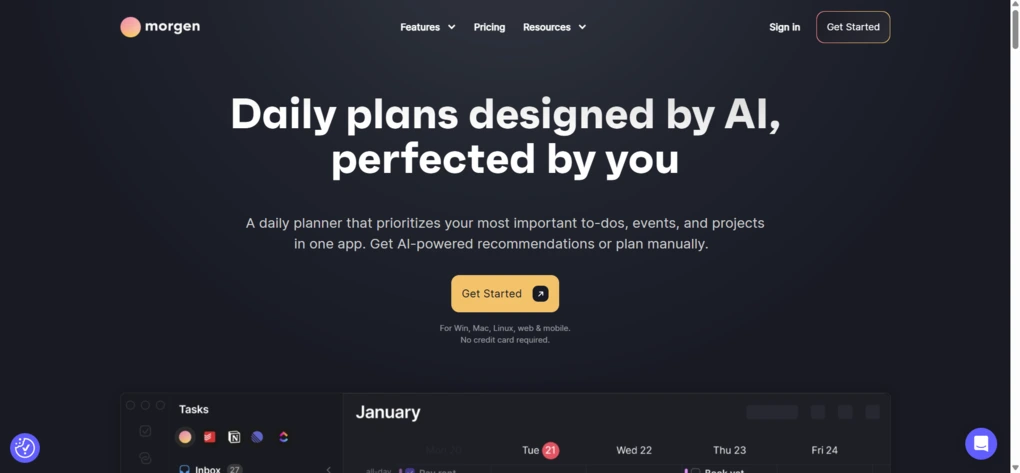
Morgen is a cross-platform daily planner that combines calendars, tasks, and scheduling in one app. It runs on Windows, macOS, Linux, web, iOS, and Android, so you can plan your day from almost any device.
In my testing, it came closest to replacing the usual combo of Google Calendar plus a separate task manager, while still staying straightforward to use.
Key features
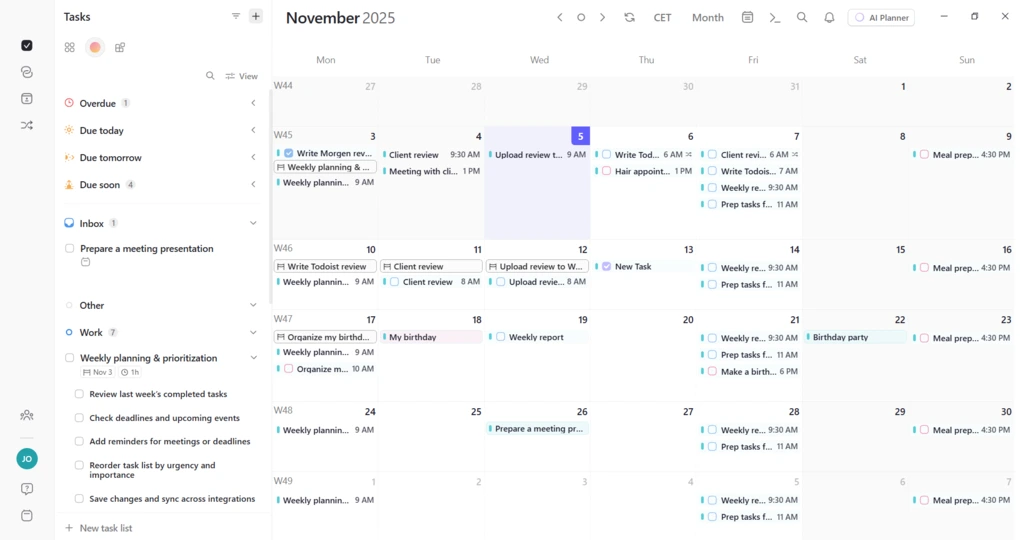
Unified calendar and tasks: Morgen combines multiple calendars and task lists in one view. You can connect Google Calendar, Outlook, iCloud, and other CalDAV accounts, then see events and to-dos together, which makes it easier to plan realistic days instead of separate “ideal” lists and calendars.
Flexible calendar views and time blocking: You can switch between day, week, two-week, month, and agenda views or save a custom view. Drag-and-drop, recurring events, reminders, and color-coding make time blocking fast and visual, so you can see exactly where your time goes.
Straightforward task management: You can create tasks from the calendar or sidebar, group them into lists, and add due dates, tags, colors, and subtasks. When something needs time, you drag it onto the grid, and it becomes an event, which keeps task management and scheduling in sync.
AI Planner and Frames: The AI Planner places tasks around existing meetings based on duration and priority, while Frames like “deep work” or “admin” give structure to your day. It is still in beta, but it is already helpful if you want semi-automatic planning instead of micro-managing every block.
Meeting scheduler and booking links: Morgen includes a built-in meeting scheduler. You can add Zoom, Google Meet, Teams, or Webex links, invite attendees, and share booking links that respect your busy times across connected calendars, which is usually a separate app on its own.
Integrations: Morgen integrates with tools like Todoist, Notion, ClickUp, Linear, Apple Reminders, Google Tasks, Obsidian, Microsoft To Do, and more, on top of its calendar connections. It is GDPR compliant and stores data locally where possible, which is handy if you care about privacy but still want everything in one place.
Excellent mobile app: The mobile app on iOS and Android is fast and simple. Sync is smooth, adding or editing tasks and events is quick, and even the week view feels comfortable on a small screen, which makes it easy to adjust your day on the go.
Pricing

Morgen keeps pricing straightforward, with separate plans for individuals and teams.
You can start with a 14-day free trial that unlocks nearly all Pro features, giving you enough time to properly test the app before committing. There’s no permanent free plan, so after the trial, you’ll need a subscription to continue using Morgen.
For individuals, Morgen Pro costs €30 per month or €15 per month when billed yearly. Teams pay €25 per seat monthly or €10 per seat on annual billing, with a minimum of two seats and extra collaboration options like shared booking pages.
There is also a 30-day money-back guarantee, plus discounts for people switching from certain tools and for students, academics, and nonprofits. In some regions, localized pricing can bring the total down further.
My experience with Morgen
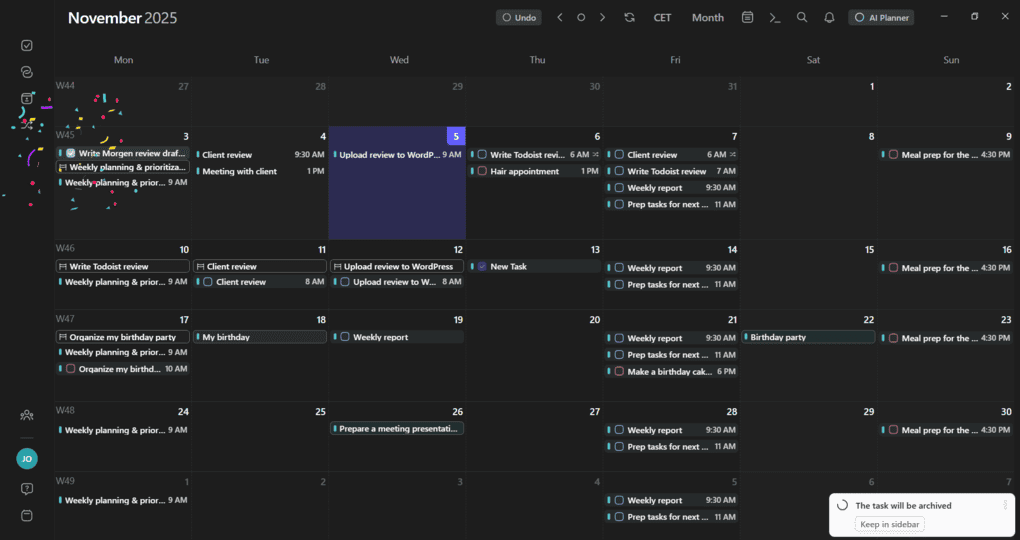
I planned my entire schedule in Morgen for a few weeks, including client work, meetings, and personal errands. It did not take long to get used to it, and I liked how little context switching I had to do once everything was inside Morgen.
The mix of multiple calendars, task lists, time blocking, AI planning, and scheduling links made daily planning feel calmer instead of more complex. The AI Planner still needs polish, but the core experience was stable and reliable.
🔎 Read my full review: My Honest Morgen Review After 5 Weeks (2026)
Short on time? Here’s a quick overview of Morgen
Pros and cons of Morgen
Pros of Morgen
Cons of Morgen
Why Morgen is the best daily planner app overall
Morgen combines calendars, tasks, time blocking, and scheduling in a single app, so you spend less time jumping between tools and more time working with a realistic daily plan. That mix of unified view, strong integrations, and an easy learning curve is what makes it my pick for the best overall daily planner app on this list.
Best Daily Planner App #2 | Sunsama
Best daily planner app for guided daily planning
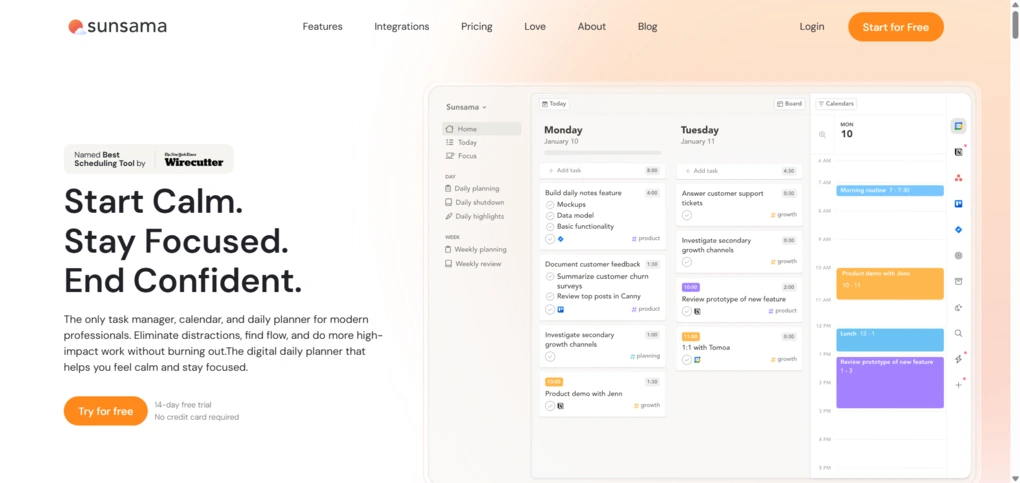
Sunsama is a daily planning app that combines your tasks, calendar events, and time tracking in one focused workspace. It runs on web, desktop, and mobile, and guides you through daily and weekly planning so you create realistic schedules instead of endless to-do lists.
Key features
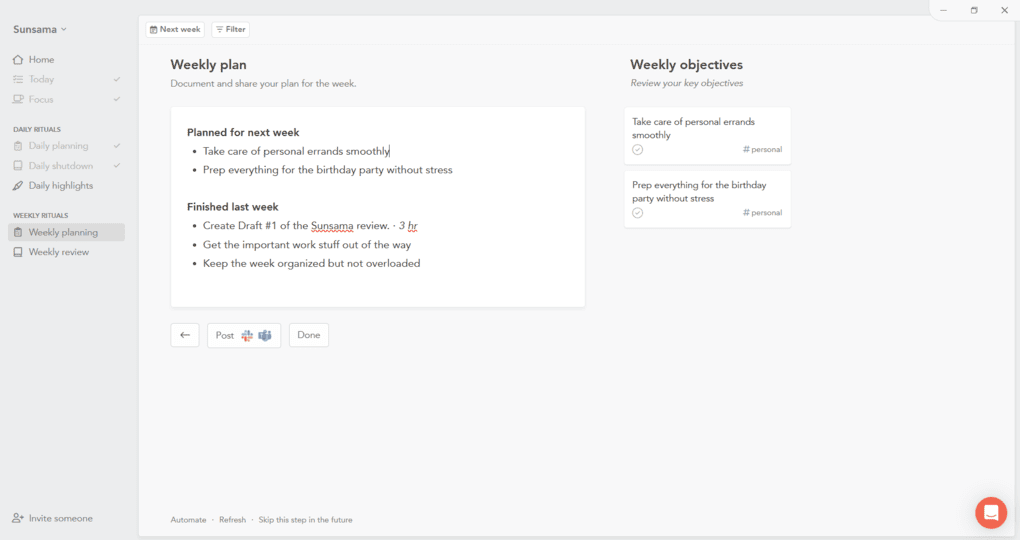
Guided daily planning workflow: Sunsama is built around a daily planning ritual. You review your tasks, drag what matters into the day, and place everything on the calendar. Once scheduled, Sunsama shows a timestamped overview in the sidebar so you always know what comes next and how much time you have left.
Weekly objectives and review: You can set weekly objectives and link them to tasks. At the end of the week, Sunsama shows completed tasks, time distribution, and overall workload. It is a simple but effective system for preventing overcommitment and burnout.
Task management with channels and contexts: Each task can have a planned time, subtasks, tags, and recurring schedules. Channels help categorize different types of work, while contexts group multiple channels, such as Work, Personal, or Clients. This structure keeps planning clean and helps you focus on one area at a time.
Built-in time tracking and Focus Mode: You can track how long tasks actually take compared to planned time. Focus Mode and the Pomodoro-style timer help reduce distractions, and time analytics reveal patterns in your workflow.
Thoughtful interface and customization: The interface is calm, minimalistic, and well-structured. You can customize channels, contexts, planning rituals, and themes to fit your working style. Everything feels intentional and designed to reduce friction during busy days.
Integrations: Sunsama integrates with Google Calendar, Outlook, iCloud, Todoist, Asana, Notion, Trello, and other productivity tools. Imported tasks appear in a sidebar where you can drag them directly into your daily plan, which makes time blocking much easier.
Pricing

Sunsama does not offer a free plan, but you can try it with a 14-day free trial with no credit card required. The trial unlocks the full planner, including daily and weekly workflows, time tracking, and integrations.
After the trial, Sunsama has a single paid plan that costs $20 per month, or $16 per month when billed annually. All features are included in this tier, and team members are billed per user at the same price. It is more expensive than many daily planners, but it makes sense if you plan to use Sunsama as your primary planning environment.
My experience with Sunsama
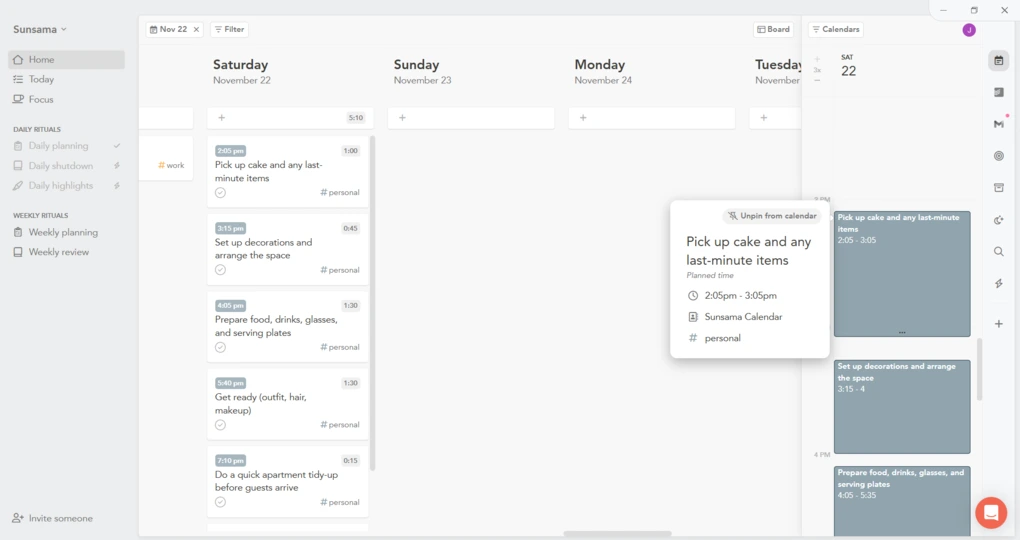
I used Sunsama for several weeks to plan real workdays, not just sample tasks. The guided workflows made planning more intentional, while the daily shutdown and weekly review helped me stay organized without burning out. Time tracking also helped me understand how realistic my planning habits truly were.
The price is on the higher end, but the experience feels polished and genuinely useful if you want a structured, guided system. So, for me, Sunsama has to be among the best planner apps.
🔎 Read my full review: An Unfiltered Sunsama Review (2026): Is It Worth $20/Month?
Short on time? Here’s a quick overview of Sunsama
Pros and cons of Sunsama
Pros of Sunsama
Cons of Sunsama
Why Sunsama is the best daily planner app for guided daily planning
Sunsama does not just store tasks. It guides you through planning your time, reviewing your progress, and keeping workloads realistic. If you want a planner that helps you follow consistent routines and stay intentional with your schedule, Sunsama is the strongest choice in this category.
Related posts:
- Akiflow vs Sunsama (2026): An Honest Comparison
- Sunsama vs Motion 2026: I found the best one for you
Best Daily Planner App #3 | Akiflow
Best daily planner app for task management
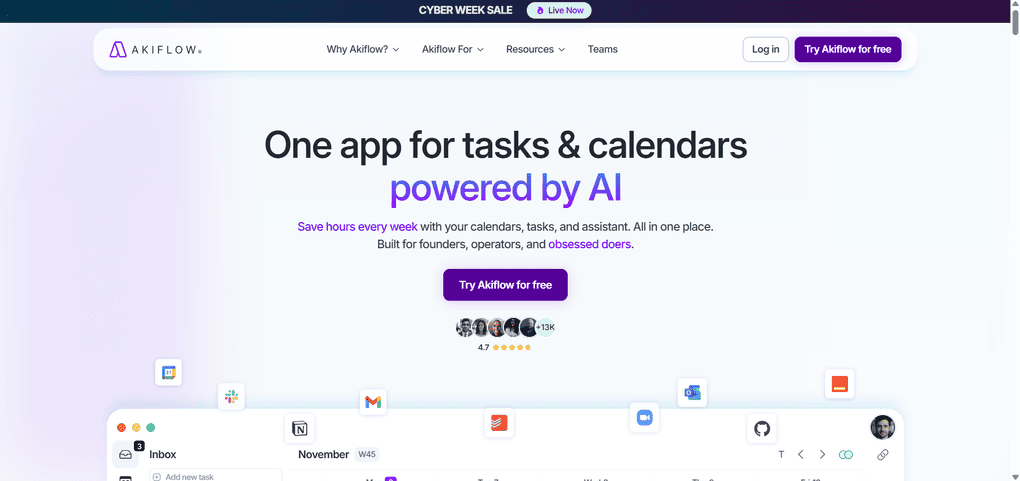
Akiflow is a calendar-centered daily planner that brings all your tasks, events, and inbox items into one place. It combines a universal inbox, fast task capture, and time blocking on top of a clean calendar view to manage tasks with high efficiency.
Key features
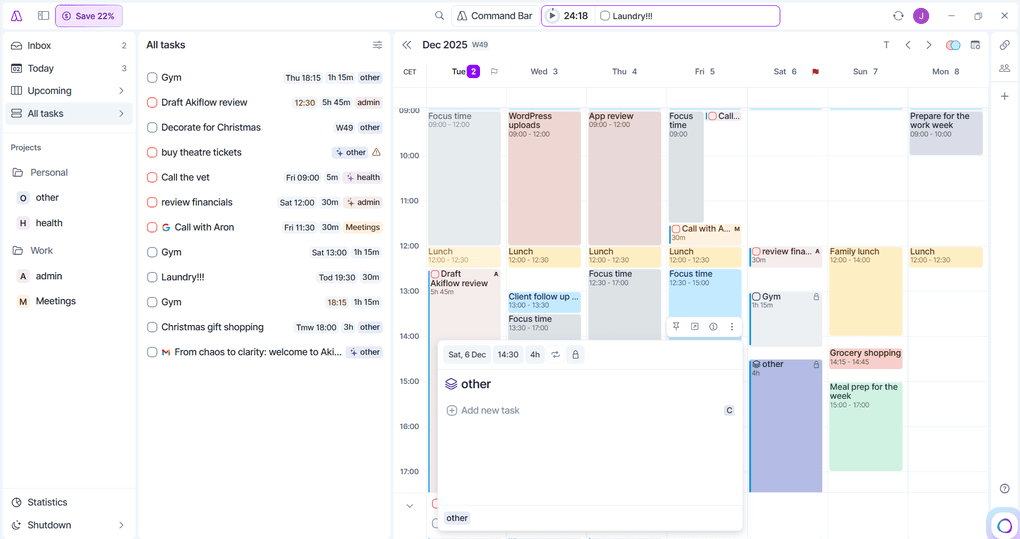
Universal inbox and quick capture: Akiflow’s inbox collects tasks and inputs from multiple sources, such as email, calendar invites, Slack messages, saved links, and browser tabs. From there, you can turn each item into a task, schedule it, snooze it, or assign it to a project in just a few clicks. The Command Bar lets you add tasks from anywhere in the app without breaking your flow.
Planning and time blocking: Dragging a task into the calendar turns it into a time block immediately. The block takes your project color, shows the duration, and becomes part of your schedule. You can also plan from list views like Inbox, Today, or Upcoming. It was great to see that tasks are easy to move, which keeps your day flexible while still structured.
Integrated calendar views: Akiflow connects to Google Calendar and Outlook and shows events and tasks side by side. Tasks with deadlines appear as small flags at the top of the calendar, and scheduled tasks become blocks in the grid. You can switch between different calendar ranges, resize the panel, and navigate days and weeks quickly, which makes everyday calendar management straightforward.
Natural language input: You can type tasks the way you would say them. Phrases like “Call the vet tomorrow at 9” or “Pay rent on the first of every month” are converted into scheduled or recurring tasks. Natural language also works in the Command Bar, which keeps task entry fast and simple.
Task management and views: Tasks are organized into four main views: Inbox, Today, Upcoming, and All Tasks. Each task can have a project, labels, a deadline, and a scheduled time. You can pin important tasks instead of juggling multiple task priority levels, and keep project organization light without turning Akiflow into a full project management tool.
AI workflows and focus timer: Akiflow includes light AI workflows that send short updates, such as daily schedule previews or reminders about overdue tasks. You can use built-in templates or create your own prompt and schedule. A simple focus timer lets you start a session from a task or calendar block and stay committed to one thing at a time.
Share availability and scheduling: With Share availability, you choose a few time slots, set the meeting duration, and send a booking link. When someone picks a time, Akiflow adds the event to your calendar automatically. You can control buffers, meeting location, such as Google Meet, and how far in advance people can book, which is helpful if you schedule calls often.
Integrations: Akiflow connects with tools such as Google Calendar, Outlook, Gmail, Slack, Todoist, Notion, Asana, ClickUp, Trello, Linear, Jira, Zoom, and more. Through Zapier and IFTTT, you can also hook up apps like Spotify, YouTube, and WhatsApp.
Pricing
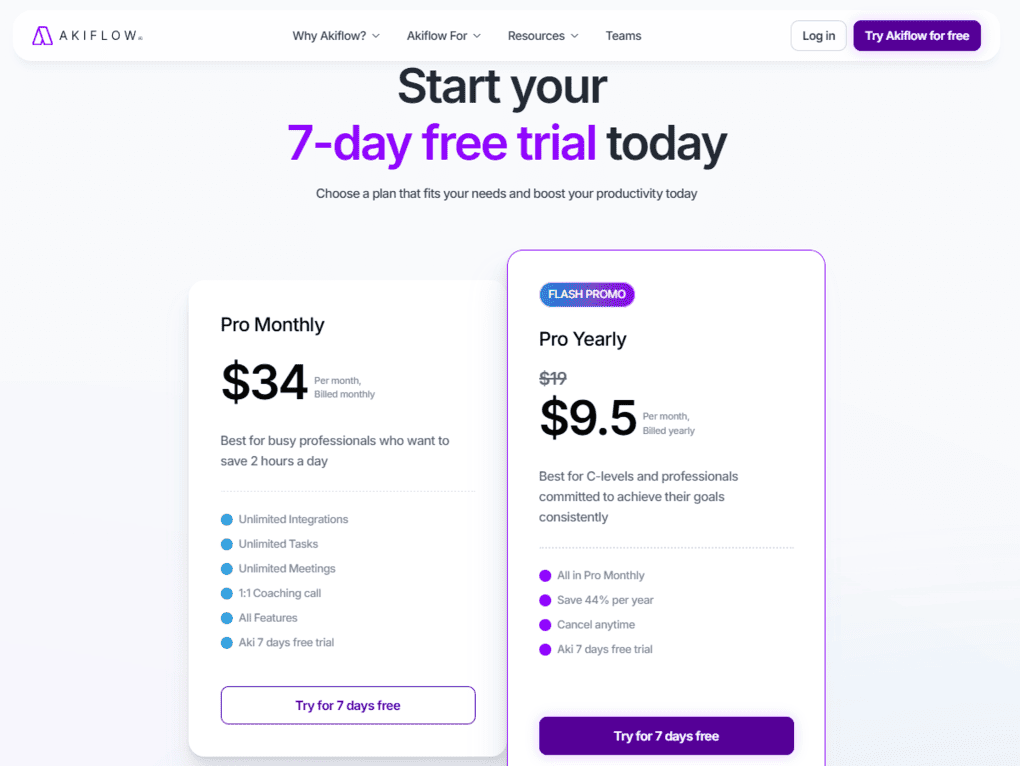
Akiflow does not offer a free plan, but you can start with a 7-day free trial to see how it fits your workflow. During the trial, you get access to all features so you can properly test them.
After the trial, you can choose between two Pro plans. Pro Monthly costs $34 per month, billed monthly, and is aimed at busy professionals who want a straightforward daily planner.
Pro Yearly is currently available as a flash promo at $9.5 per month, billed yearly. Both plans include unlimited integrations, unlimited tasks, unlimited meetings, all features, a 1:1 coaching call, and access to Aki.
My experience with Akiflow
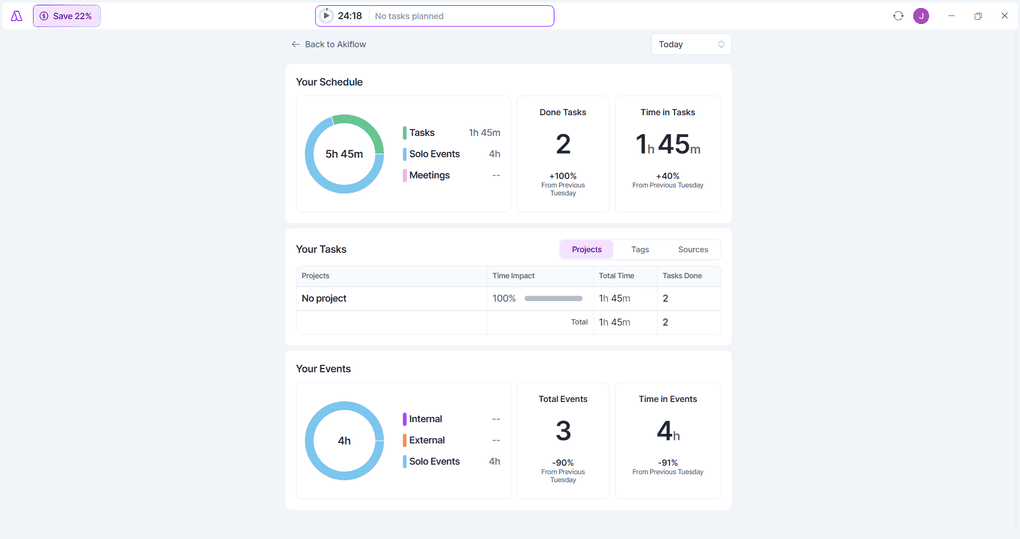
I tested Akiflow on the Windows desktop app during the free trial, and it felt smooth from the start. The combination of the inbox, calendar, and the Command Bar made capturing tasks and turning them into time blocks fast and natural.
In my testing, I especially liked that everything I wanted to act on later could live inside Akiflow. That includes not only tasks and emails, but also podcasts, YouTube videos, and other content I saved for later listening or watching. It felt like a central hub for both my work and the things I wanted to revisit.
Ultimately, Akiflow helped me manage tasks efficiently in my day-to-day work. Thanks to these massive task management features, it made the cut as one of the best planner apps.
🔎 Read my full review: An Honest Akiflow Review 2026: Is It Worth $34 For You?
Short on time? Here’s a quick overview of Akiflow
Pros and cons of Akiflow
Pros of Akiflow
Cons of Akiflow
Why Akiflow is the best daily planner app for task management
Akiflow focuses on one core job. It pulls tasks, events, and inputs from different apps into a single view and then makes it very easy to turn all of that into a realistic plan for the day.
If you are tired of working across several tools and want one calendar-based planner that can handle your inbox, tasks, schedule, and even content such as podcasts and videos you want to revisit, Akiflow is the strongest option in this category.
Related posts:
Best Daily Planner App #4 | Motion
Best daily planner app for teams
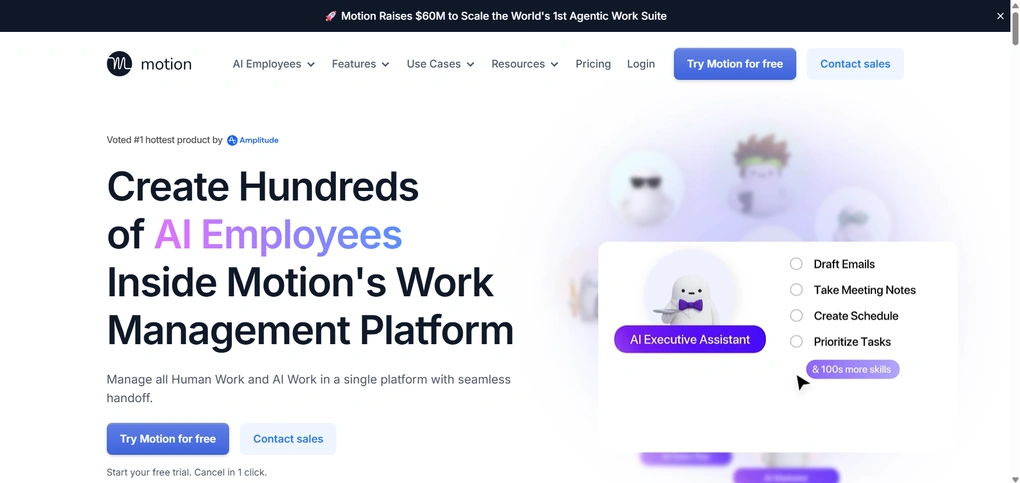
Motion is an AI-driven daily planner that blends scheduling, task management, and lightweight project planning into one tool. It brings personal and work calendars into a unified view and automatically builds schedules based on deadlines, priorities, and availability.
In testing, it stood out for teams that need less manual planning, more automation, and better visibility into who is doing what and when.
Key features
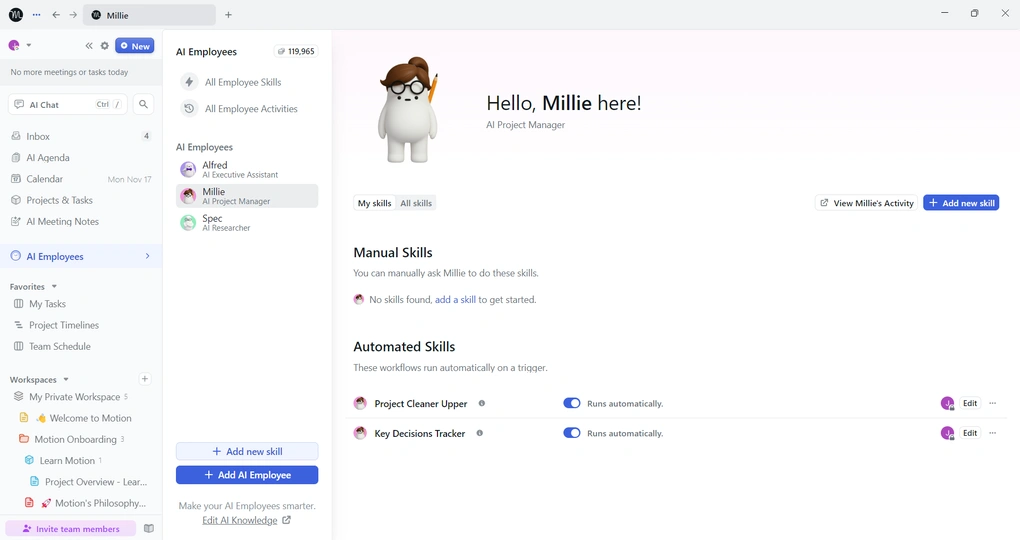
AI calendar and scheduling: Motion connects to Google Calendar, Outlook, and Apple Calendar and displays everything in a single timeline. Its AI auto-schedules tasks into free time blocks and reshuffles them as meetings or priorities change.
Task management hub: You can add your task details from almost any page, set priorities and durations, and let Motion place them into your day. Recent improvements to recurring tasks and duration prediction make planning smoother.
Project management for small teams: Motion includes list, board, and Gantt views. Once you add project tasks, Motion schedules them automatically, updating deadlines and time blocks as work progresses.
AI note-taker and docs assistant: Motion records and summarizes Zoom, Teams, and Google Meet calls. Its AI Docs feature converts notes into actionable tasks that sync directly into your projects.
AI Employees: These customizable AI assistants can scan your tasks, notes, and documents, extract action items, prepare follow-ups, or build task lists that sync instantly into Motion’s calendar views.
Meeting assistant and booking links: You can customize availability, set buffers, limit daily meetings, and share booking links. The redesigned UI makes it easier to adjust settings and avoid scheduling back-and-forth.
Integrations: Motion connects to major calendars and integrates with Zapier for thousands of apps. The updated Zapier workflows make automations more reliable for teams.
Mobile app: Available on iOS and Android, with frequent performance updates. It mirrors the desktop experience closely and is ideal for quick schedule changes.
Pricing
Motion does not offer a free plan, but a 7-day free trial gives you a realistic sense of how its scheduling and team features work in practice. After that, you can choose monthly or annual billing.
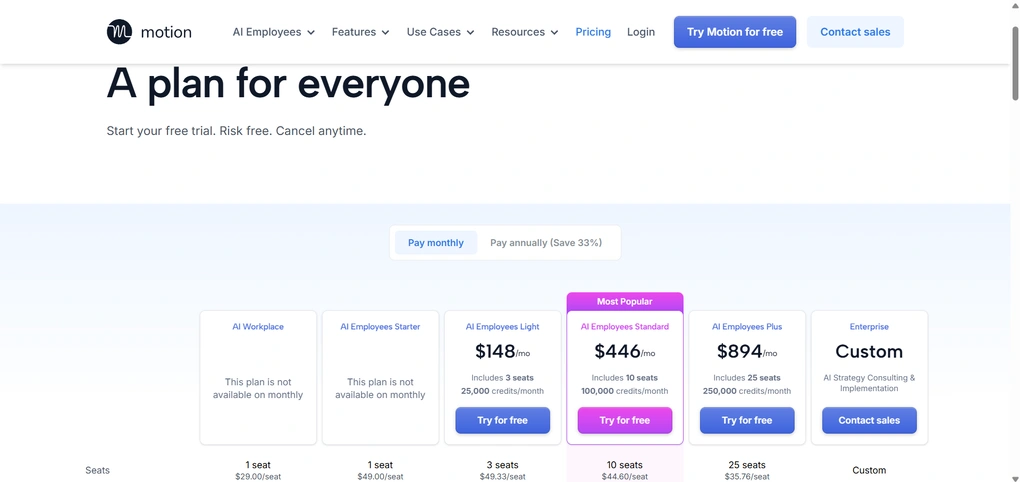
The AI Workplace plan costs $29 per month with annual billing and includes one seat with 1,000 AI credits. It covers calendar scheduling, task and project management, booking links, and AI features like the Note-taker and AI Docs.
The AI Employees Starter plan is $49 per month with annual billing and includes one seat with 10,000 AI credits, designed for individuals or small teams who want to explore workflow automation.
While these two plans are only available with annual billing, you can pay monthly on the higher AI Employees tiers.
The AI Employees Light plan is $99 monthly with annual billing, or $148 monthly for three seats. The AI Employees Standard plan costs $299 per month with annual billing or $446 monthly for ten seats, and the AI Employees Plus plan is $599 with annual billing, or $894monthly, and includes twenty-five seats.
Larger organisations can choose an Enterprise plan with custom pricing.
My experience with Motion
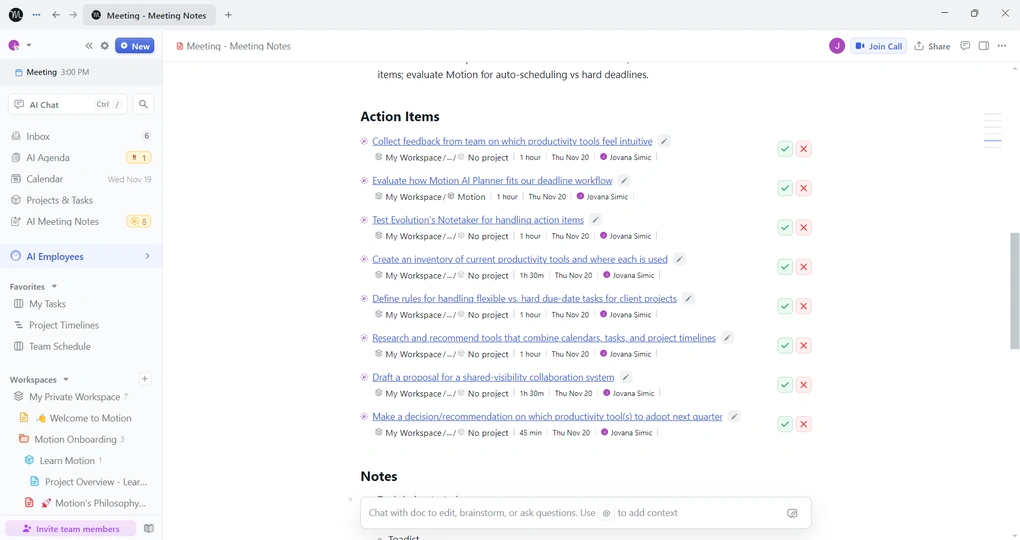
Setting up Motion was straightforward, though it took some time to understand all the scheduling and availability settings. Once configured, the AI handled most of the planning for me, rescheduling tasks automatically when meetings shifted or new priorities appeared.
As a team tool, Motion’s strength became even clearer: shared visibility, automated planning, and the ability to turn notes or documents into tasks helped eliminate a huge amount of manual coordination.
When personally testing Motion, I realized that the learning curve is there, but the payoff is significant.
Short on time? Here’s a quick overview of Motion
Pros and cons of Motion
Pros of Motion
Cons of Motion
Why Motion is the best daily planner app for teams
Motion gives teams a unified calendar, structured task and project views, and an AI engine that keeps everyone’s schedules up to date automatically. If you want less manual coordination and more hands-off planning, Motion offers the strongest team-focused workflow on this list.
Related posts:
Best Daily Planner App #5 | Todoist
Best to-do list app for daily planning
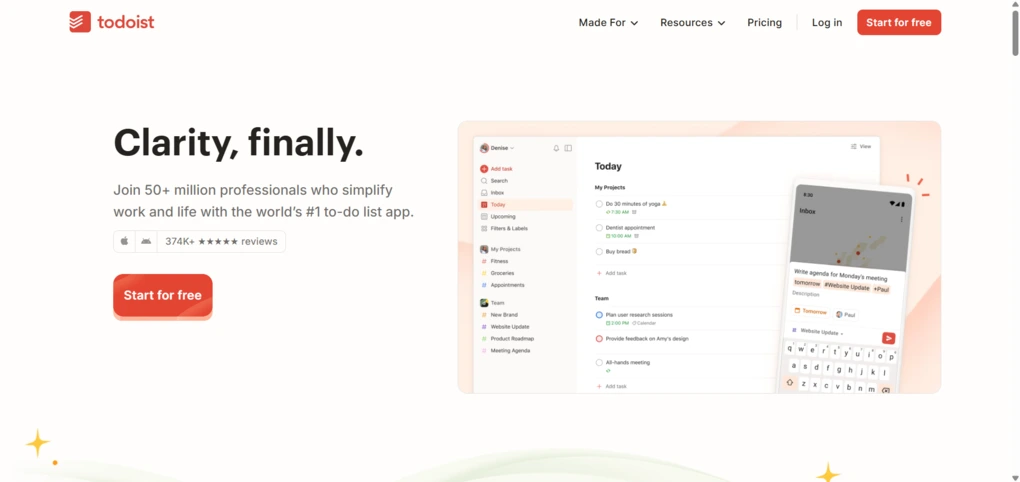
Todoist is a cross-platform to-do list and task manager built for speed, clarity, and everyday organization. It works across web, iOS, Android, Windows, and macOS, syncing instantly so your tasks stay aligned no matter where you plan.
In my testing, Todoist stood out as the simplest and most reliable place to capture tasks quickly, organize projects, and keep personal and professional to-dos under control.
Key features
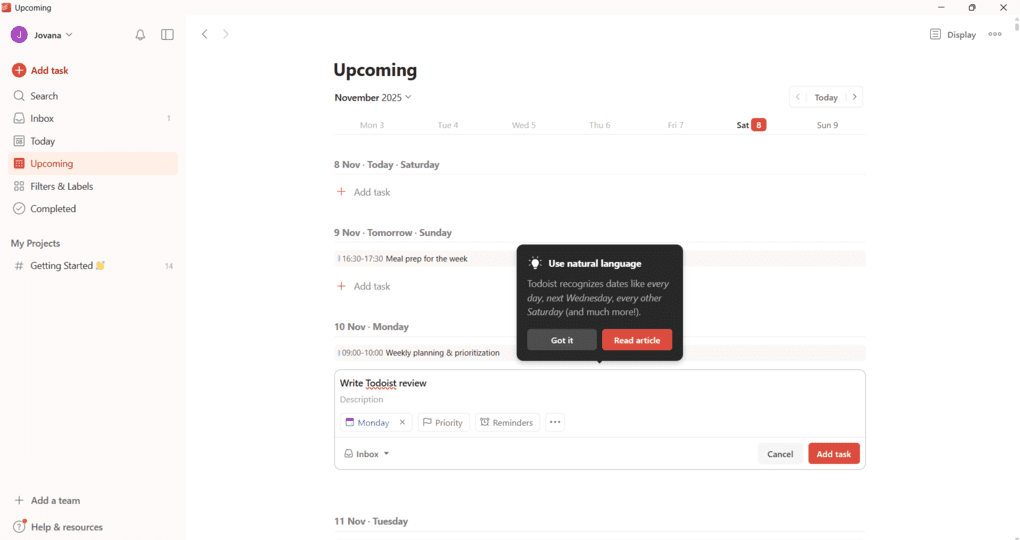
Fast task creation and organization: Task creation is instant. You type, press Enter, and the task appears. Tasks land in your Inbox before being sorted into projects, each with labels, due dates, priorities, and subtasks. You can use list view, kanban boards, or the calendar layout to structure your workload however you prefer.
Natural language input: Todoist understands phrases like “Submit report every second Thursday” or “Call client tomorrow at 3 PM” and converts them into tasks with the correct dates and recurring patterns. It keeps you in flow and makes task entry feel effortless.
Productivity features: Todoist Karma shows progress, streaks, and completed tasks, adding a light motivational layer without overwhelming you. Automatic backups and fast sync across all platforms keep projects safe and up to date.
Collaboration and sharing: You can share projects, assign tasks, upload files, and leave comments. For small teams, Todoist works as a simple but effective project management system with clear communication and project visibility.
Customization and filters: Todoist adapts to your workflow with custom filters, color themes, sidebar adjustments, and templates. Filters help you surface high-priority tasks, upcoming deadlines, or specific labels, and Todoist can create them based on a plain English description.
User interface: Todoist’s clean and responsive design feels intuitive on every platform. Light and dark themes, smooth animations, and thoughtful layout make everyday planning feel calm and organized.
Integrations: Todoist works with Google Calendar, Outlook Calendar, Zapier, IFTTT, email clients, and file storage services. You can time block tasks, automate repetitive steps, and bring tasks into your calendar for better daily planning.
Mobile app: The iOS and Android apps are fast and polished. They support voice input, widgets, offline access, and rich notifications, making it easy to capture tasks or check your list on the go.
Pricing
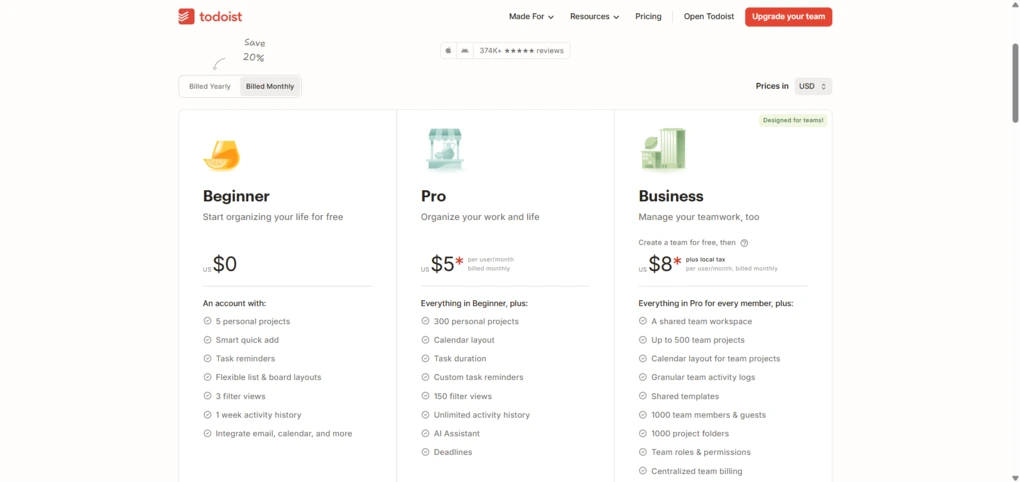
Todoist offers a free plan and two paid tiers. The free version includes up to five active projects, Smart Quick Add, reminders, list and board layouts, basic filters, and cross-platform sync. It is a great starting point for building a personal task system.
The Pro plan is $5 per month or $4 with annual billing. It unlocks custom filters, Calendar layout, AI Assistant, task duration, automatic backups, and up to 300 personal projects. It is a strong fit for freelancers and professionals who want more structure.
The Business plan costs $8 per user per month or $6 with annual billing. It adds a shared workspace, up to 500 team projects, activity logs, team templates, permissions, centralized billing, and CSV imports. It works well for small teams that want clarity without a full project management platform.
Todoist offers a 14-day free trial on paid plans and a 30-day refund window, so you can explore premium features without risk.
My experience with Todoist
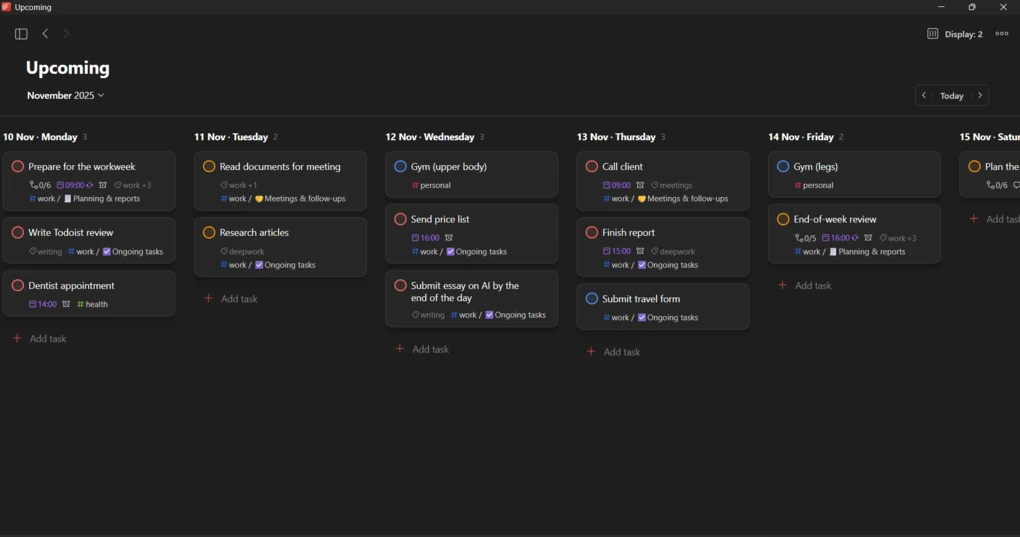
I used Todoist for several weeks across desktop and mobile and found it consistently fast, stable, and easy to use. Capturing tasks was almost instant, natural language input worked beautifully, and recurring tasks helped automate daily routines.
Custom filters were especially helpful for staying focused each day. Whether planning on my laptop or capturing tasks on Android, everything synced quickly and stayed organized.
🔎 Read my full review: My Honest Todoist Review After 3 Years & 1,400 Tasks
Short on time? Here’s a quick overview of Todoist
Todoist struck the right balance between simple personal planning and light project management, which made it one of the most dependable daily tools I tested.
Pros and cons of Todoist
Pros of Todoist
Cons of Todoist
Why Todoist is the best to-do list for daily planning
Todoist combines speed, clarity, and customization in a way few task apps manage. It is fast enough for daily task capture, flexible enough for project planning, and polished enough to rely on every day, which is why it earns the spot as the best to-do list for daily planning.
Related posts:
Best Daily Planner App #6 | Reclaim AI
Best daily planner app for automatic scheduling
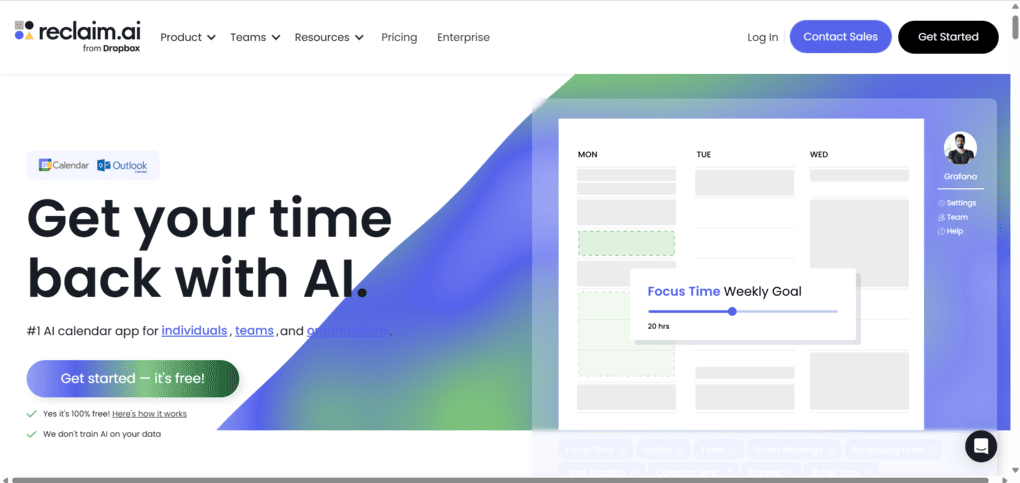
Reclaim AI is a smart scheduling tool that automatically finds time for tasks, habits, and meetings by reshuffling your calendar as your week changes. It is designed for busy professionals and teams who want less manual planning and more protected focus time.
In testing, it proved especially strong at defending routines, reducing calendar clutter, and keeping a realistic schedule without constant adjustments.
Key features
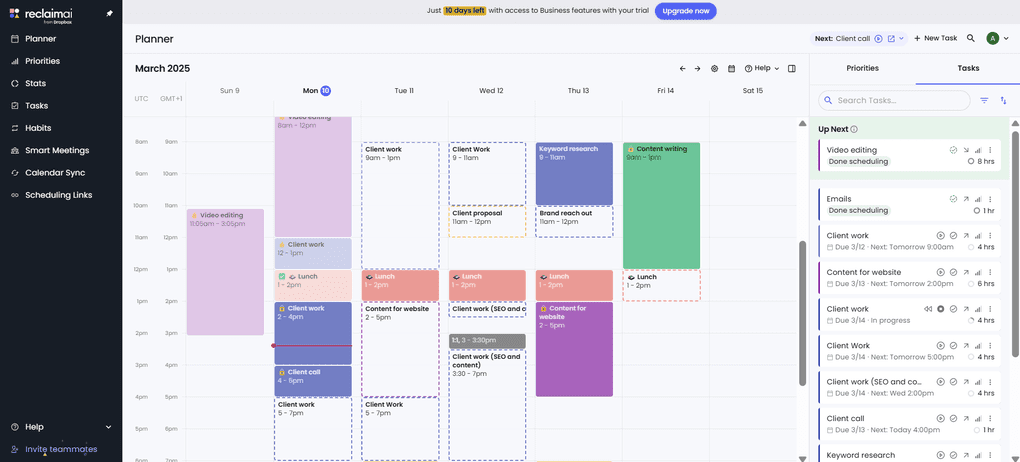
Unified calendar scheduling: Reclaim syncs your work and personal calendars through Google Calendar and lets you view everything in one place. You can also share iCloud or Outlook calendars with Google to bring them into Reclaim, and a native Outlook integration is on the way.
Habits and recurring routines: Reclaim schedules habits like workouts, lunch automatically, or focus time based on your priorities, rules, and working hours. If your schedule changes, Reclaim reschedules these blocks so you still maintain your routines without micromanaging your calendar. After testing numerous productivity apps, Reclaim AI is one of the best habit tracking apps out there.
Scheduling links: You can share availability across multiple calendars and let others book meetings without back-and-forth emails. Links can reflect high-priority events, habits, and no meeting times, or show only the most flexible slots depending on what you prefer.
Task management with automatic scheduling: You can create tasks directly in Reclaim or pull them in from tools like Todoist, Asana, ClickUp, Jira, HubSpot, and Google Tasks. Reclaim schedules tasks automatically based on priority, duration, and deadlines. Drag and drop also works if you prefer manual adjustments.
Smart meetings: Reclaim finds the best time for recurring team meetings, one-on-ones, or client calls by checking everyone’s calendars and preferred hours. It helps prevent scheduling conflicts and reduces the effort of coordinating across multiple people.
Time tracking and analytics: Reclaim provides insight into your work-life balance, meeting load, focus time, and team productivity. You can see where your time goes and use that data to plan upcoming projects more realistically.
Integrations: Reclaim works with Google Calendar and integrates with major task and project tools, including Todoist, Asana, Jira, ClickUp, HubSpot, and Google Tasks. Integrations ensure tasks and deadlines flow into your calendar automatically.
Pricing
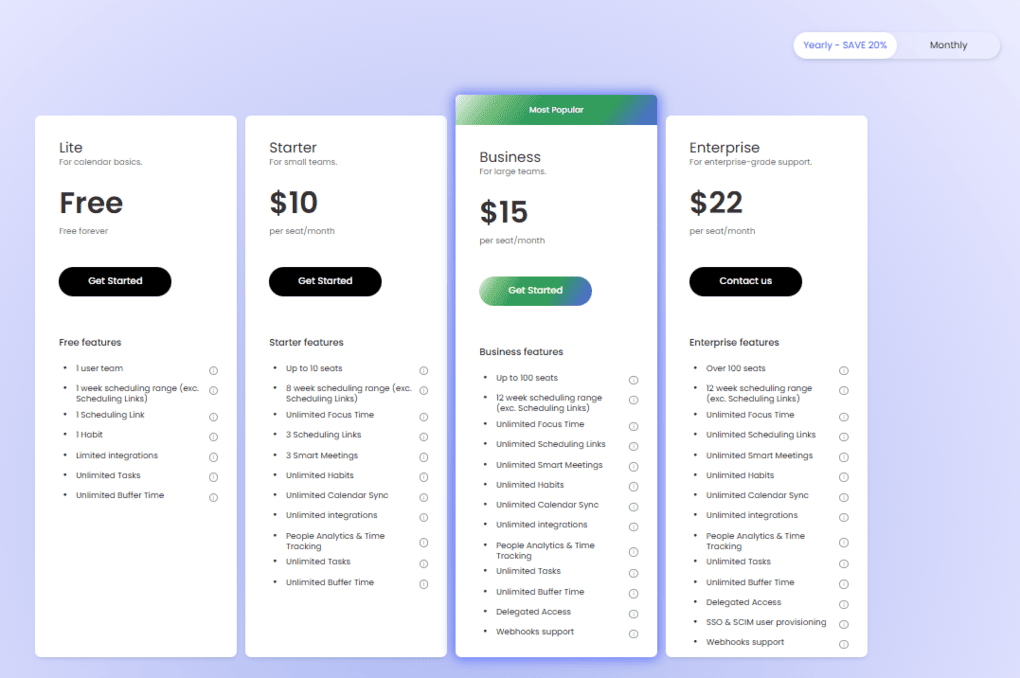
Reclaim offers a free tier that includes 1 scheduling link, 1 smart meeting, 3 habits, a single calendar sync, limited integrations, and a 3-week scheduling range. It is suitable for personal use but too limited for heavier workloads.
The Starter plan costs $10 per user monthly with annual billing. It includes up to 10 users, 3 scheduling links, 3 smart meetings, unlimited habits, full integrations, calendar sync, analytics, and an 8-week scheduling range.
The Business plan is $15 per user monthly and supports up to 100 seats. It adds unlimited scheduling links, calendar sync, integrations, and a 12-week scheduling range, making it suitable for teams.
Large businesses that need additional support can opt for an enterprise plan at $22 per user monthly with annual billing.
There is a 14-day free trial, so you can test all features before upgrading.
Discounts are available for students, nonprofits, startups, and users switching from Clockwise, Motion, or Calendly. Ultimately, Reclaim AI’s pricing is very reasonable compared to many other competitors on the market.
My experience with Reclaim AI
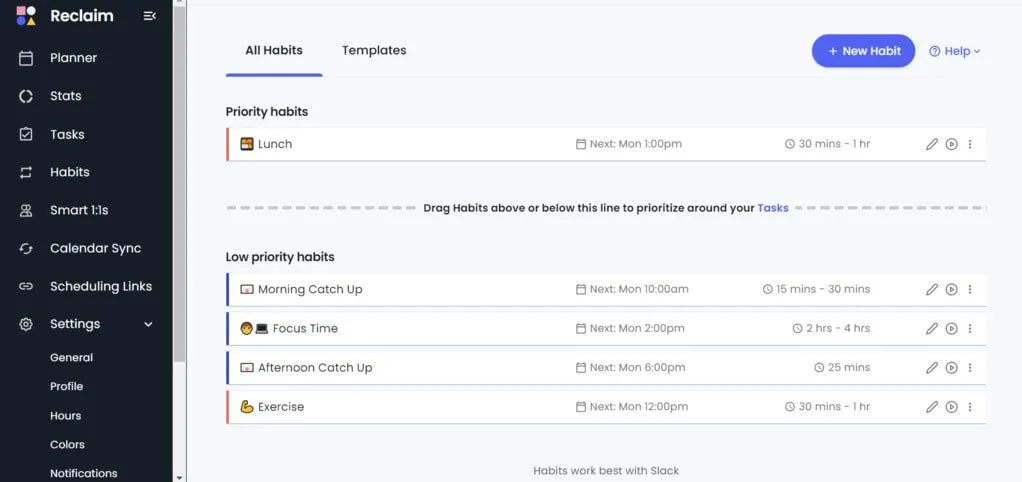
Reclaim felt easy to set up, and the learning curve was short. Drag and drop worked smoothly, and habit templates and recurring routines saved a surprising amount of time. Automatic scheduling was accurate, flexible, and genuinely reduced calendar stress.
Integrations with task managers worked well, and I appreciated how Reclaim adjusted my week automatically whenever meetings shifted. The main drawback is the lack of a native mobile app, but if you primarily plan on desktop, the overall experience still feels strong.
Reclaim is especially useful for busy professionals who want to protect their focus time, simplify meeting scheduling, and automate repetitive planning steps.
Short on time? Here’s a quick overview of Reclaim AI
Pros and cons of Reclaim AI
Pros of Reclaim AI
Cons of Reclaim AI
Why Reclaim AI is the best daily planner app for automatic scheduling
Reclaim AI offers one of the most flexible and intelligent scheduling engines available today. It protects habits, finds time for tasks, adapts to changing weeks, and removes the manual work of calendar management. For anyone who wants automatic daily planning with minimal effort, Reclaim stands out as the strongest choice in this category.
Explore our Apps directory
A curated directory of software tools we’ve independently reviewed, with links to full reviews, comparisons, and category guides.
Best Daily Planner App #7 | Notion Calendar
Best all-in-one daily planner workspace
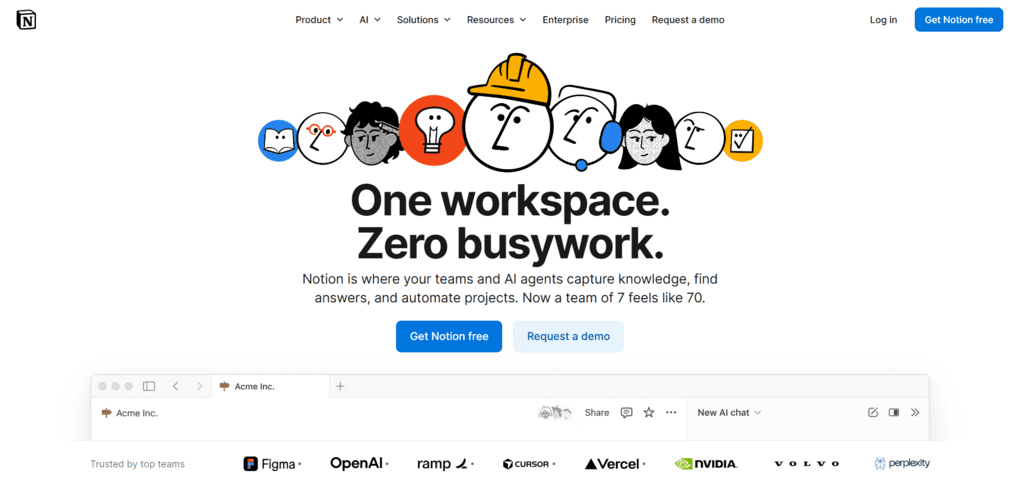
Notion Calendar is part of Notion’s all-in-one workspace that blends notes, tasks, projects, and scheduling into a single system. Unlike traditional planners, Notion lets you build your own planning setup with databases, templates, and flexible views, so your daily workflow adapts to you instead of the other way around.
In my testing, it stood out as the most customizable planning environment for people who want everything in one place and prefer a workspace that grows with them.
Key features
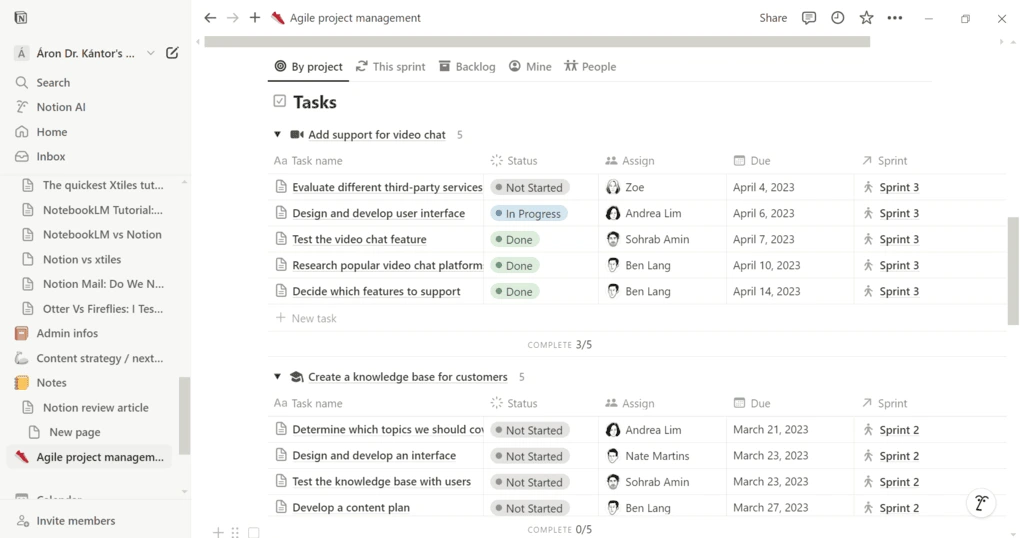
Highly customizable planning pages: Notion uses a block-based system that makes every page flexible. You can create daily planner templates, task lists, habit trackers, project dashboards, and calendar views in minutes. Drag and drop keeps everything clean, and you can mix text, media, tables, and databases in one place.
Task and project management: You can manage tasks with due dates, statuses, assignees, and priority levels. Tasks can appear in list, board, table, or timeline views, and you can filter them to show only what is relevant for the day. This makes Notion strong for people who want both simple to-do lists and deeper project management.
AI writing and planning tools: Notion AI summarizes notes, creates task lists from your pages, fixes writing, extracts action items, and answers questions about your content. It can also summarize PDFs and images, which is helpful when preparing your daily schedule.
Templates for any workflow: With more than 20,000 free templates, you can build planners, habit trackers, project dashboards, reading lists, meal plans, and more. It saves time and lets you start with a structure that already works.
Collaboration features: Teams can co-edit pages, leave comments, assign tasks, and build shared knowledge hubs. This makes Notion useful for group planning, especially if your team needs notes, calendars, and tasks in one space.
Integrations: Notion connects to Google Calendar so you can see meetings and appointments alongside your tasks and pages. On top of that, it integrates with Zapier for access to thousands of apps, plus tools like Google Drive, Asana, ClickUp, Jira, Slack, and Dropbox. This helps you keep events, tasks, and project data in one daily planner workspace.
Pricing
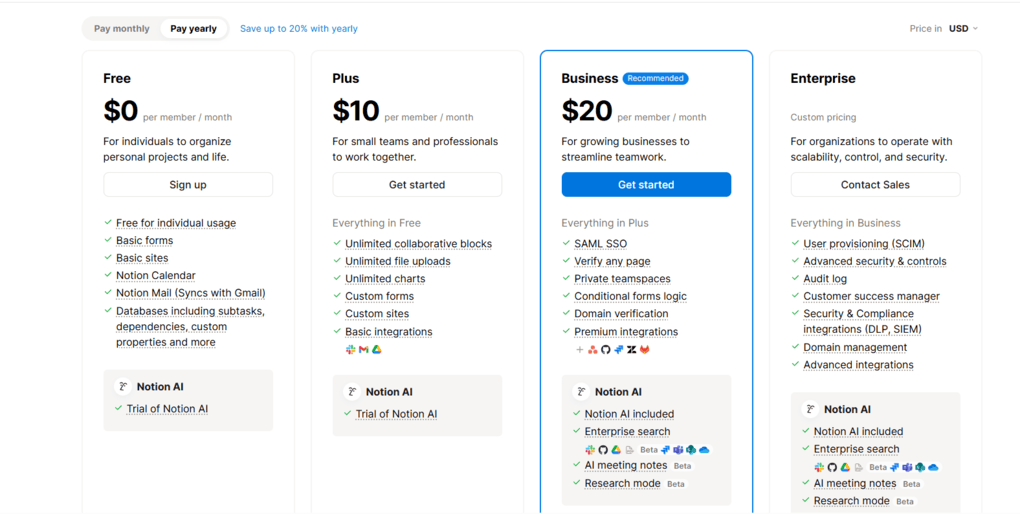
Notion has a free plan and three paid plans.
The free plan includes a collaborative workspace, basic forms and sites, Notion Calendar and Mail. It also supports databases with subtasks, dependencies, and custom properties. Based on my experience, Notion’s free version is totally sufficient for individuals to organize their notes and projects.
The plus plan is $10 per seat per month. It has unlimited collaborative blocks, unlimited file uploads, charts, custom forms and sites, and basic integrations. The plus plan is ideal for small teams and individuals who work a lot with others.
The business plan costs you $20 per seat monthly. It offers features like granular database permissions, private teamspaces, domain verification, conditional forms logic, and premium integrations. Business users also get access to Notion AI features. I recommend the business plan for bigger teams who want to utilize more advanced features.
Finally, Notion has an enterprise plan as well with custom pricing. By choosing the enterprise plan, you will receive a dedicated success manager, advanced integrations, and advanced security and control features, among other things.
Keep in mind that, while Notion AI is included in the price of Notion’s Business and Enterprise plans, there is only a trial usage on Free and Plus plans.
For users who rely heavily on documentation and structured workflows, the pricing still makes sense, especially if Notion replaces several other tools.
My experience with Notion
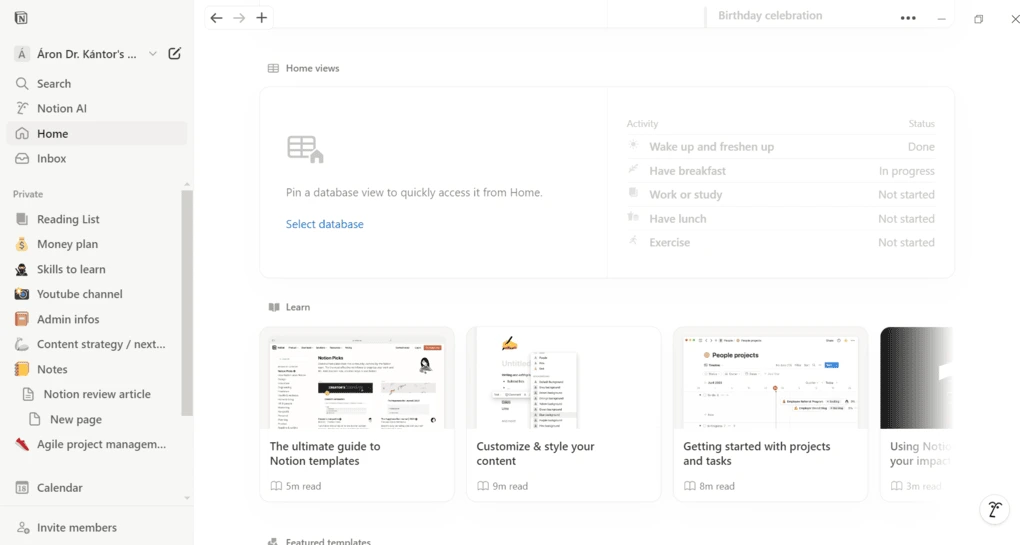
I have used Notion for years, and it remains one of the best tools for organizing everything in one place. It is not the simplest daily planner, but once your workspace is set up, it becomes incredibly powerful.
There is a learning curve, especially with databases, but the long-term flexibility is unmatched. If you want a planner that adapts to your workflow, Notion remains one of the best choices.
🔎 Read my full review: My Honest Notion Review After Using It For +2 Years (2026)
Short on time? Here’s a quick overview of Notion
Pros and cons of Notion
Pros of Notion
Cons of Notion
Why Notion is the best all-in-one daily planner workspace
Notion brings notes, tasks, calendars, databases, and AI tools together in one system. Whether you need a simple to-do list or a full planning dashboard, Notion can become your personal and professional command center, which makes it the strongest all-in-one daily planner workspace on this list.
Best Daily Planner App #8 | Google Calendar
Best free daily planner app

Google Calendar is one of the most reliable and accessible daily planners available today. It works across web, iOS, Android, and integrates deeply with Gmail, Google Tasks, and Google Workspace.
Even without a paid version, it offers enough features for most people to manage schedules, plan events, and organize daily routines.
In testing, Google Calendar stood out as the best free option for users who want a simple, synced, and dependable planner without committing to a subscription.
Key features
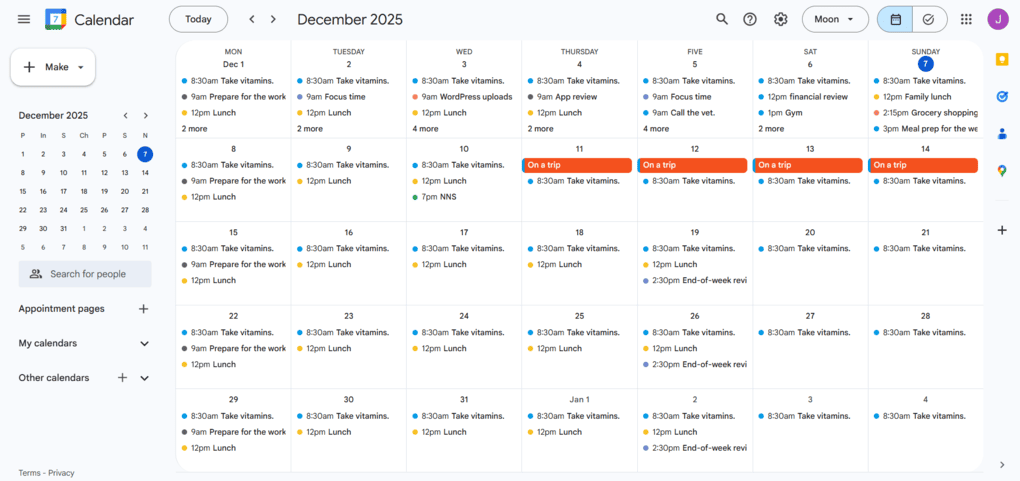
Clean calendar views and easy scheduling: Google Calendar includes day, week, month, and schedule views that are simple to navigate. Creating events is fast. You can drag and drop, invite attendees, add video calls, set reminders, or mark recurring activities with a few clicks.
Strong integrations with Gmail and Google Workspace: Meeting invites from Gmail automatically appear in your calendar. When someone sends you a date or appointment in an email, Google often suggests adding it with one tap. This removes a lot of manual planning.
Reminders, tasks, and goals: You can add Google Tasks directly from the sidebar or turn emails into tasks. Reminders and repeating events help maintain routines. Everything syncs instantly across all devices.
Multiple calendars in one place: You can combine shared calendars, work calendars, holiday calendars, and personal calendars, each with its own color. This makes it easy to visualize different parts of your life without switching tools.
Google Meet and conferencing integration: Every event can include a Google Meet link by default. For teams and remote workers, this makes meeting scheduling quick and simple.
Time blocking support: Google Calendar works well for basic time blocking. You can manually block focus time, add buffers, or create recurring work sessions. It is not as advanced as Motion or Reclaim, but it covers the essentials.
Reliable mobile apps: The mobile versions on iOS and Android are polished and stable. Sync is fast, and notifications stay consistent across all devices.
Pricing
Google Calendar is completely free to use, as there is no subscription and no premium tier.
Although users with Google Workspace accounts get extra collaboration tools such as shared resources, team calendars, and administrative controls, Google Calendar itself remains free. This makes it the strongest free daily planner on this list.
My experience with Google Calendar
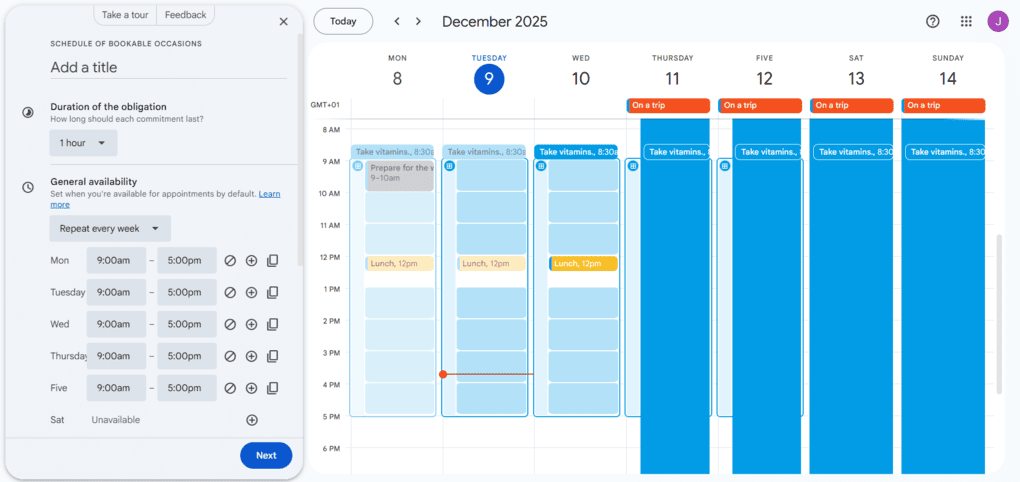
I used Google Calendar for both personal and professional planning and found it stable, predictable, and very easy to maintain. Event creation is quick, sync is flawless, and Gmail integration removes a lot of manual scheduling.
It does not handle advanced task management or automation, but pairing it with Google Tasks or another to-do list app creates a complete workflow at no cost.
For users who want a simple daily planner that just works, Google Calendar remains one of the most practical choices.
Pros and cons of Google Calendar
Pros of Google Calendar
Cons of Google Calendar
Why Google Calendar is the best free daily planner app
Google Calendar provides everything most people need for daily planning. It is simple, reliable, well integrated with tools many already use, and entirely free. That combination makes it the most accessible and well-rounded free daily planner app on this list.
Best Daily Planner App #9 | Routine
Best daily planner for simple scheduling
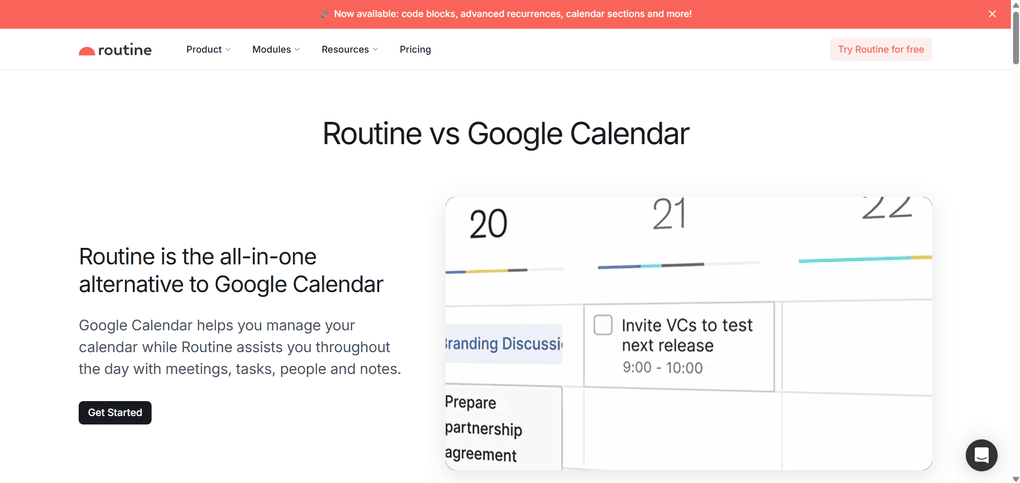
Routine is a minimalist daily planner that combines calendars, tasks, notes, and lightweight journaling in one place. It gives you a calm, structured workspace for planning your day without too many advanced features getting in the way.
In my testing, Routine felt clean and pleasant to use, especially in the Agenda view where tasks and events sit side by side.
Key features
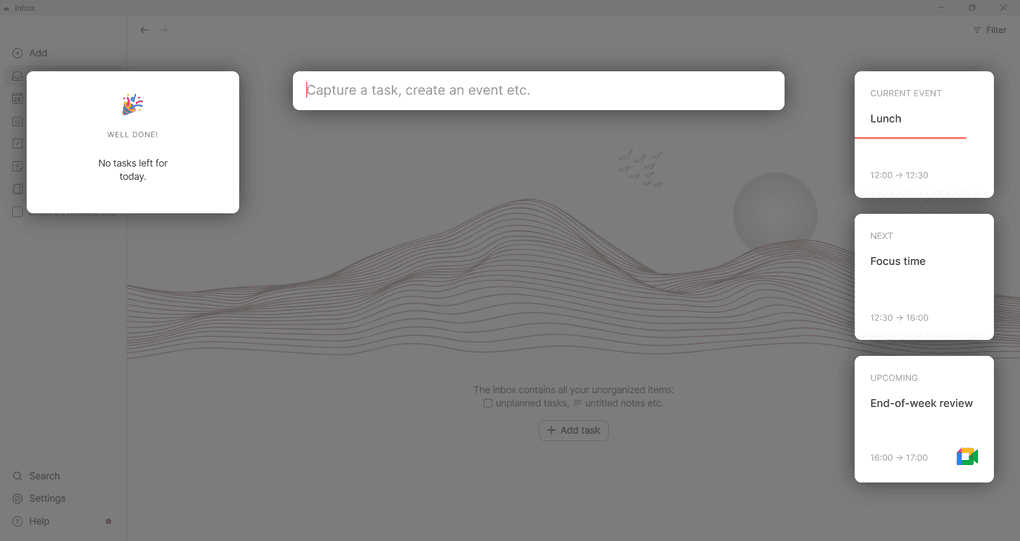
Inbox and quick capture: Routine’s Inbox helps you collect new tasks, ideas, or notes throughout the day. When you add a task, Routine shows what you are doing now, what is next, and what is left for the day, which makes it easier to place new items in context. Natural language input works, but not as smoothly as in Todoist or Akiflow.
Agenda view: This is Routine’s strongest feature. Tasks for today appear on the left and events for the day on the right. It gives you a clear picture of what your day actually looks like, without switching between apps. Editing tasks and events is simple, and you can add notes or agendas directly inside each item.
Calendar: Routine’s calendar is easy to use, with quick event creation and smooth drag and drop for rescheduling. Tasks can appear next to events, and you can turn any task into an event by dragging it into the calendar grid. The main limitation is the lack of color coding, which makes busy days harder to scan at a glance.
Task management: Routine offers only basic task features. You can add subtasks, attachments, and simple properties, but there are no priority levels, labels, advanced filtering, or automation. It is best suited for simple daily planning rather than full project management.
Notes and journal: Routine includes a Notes section with templates for meeting notes, lists, and journaling. The sidebar Journal shows completed tasks and the events you had that day, more like a daily recap than a personal diary.
Customization and settings: You can reorder the sidebar, pick your home view, and switch between light and dark themes. More advanced options like Types and Hotkeys feel unfinished and were confusing during testing.
Integrations: Routine integrates with Google Calendar for event syncing and supports tools like Zapier, Notion, and Google Workspace Directory. Integrations work reliably, but the ecosystem is still small and much more limited compared to apps like Motion, Akiflow, or Morgen.
Pricing
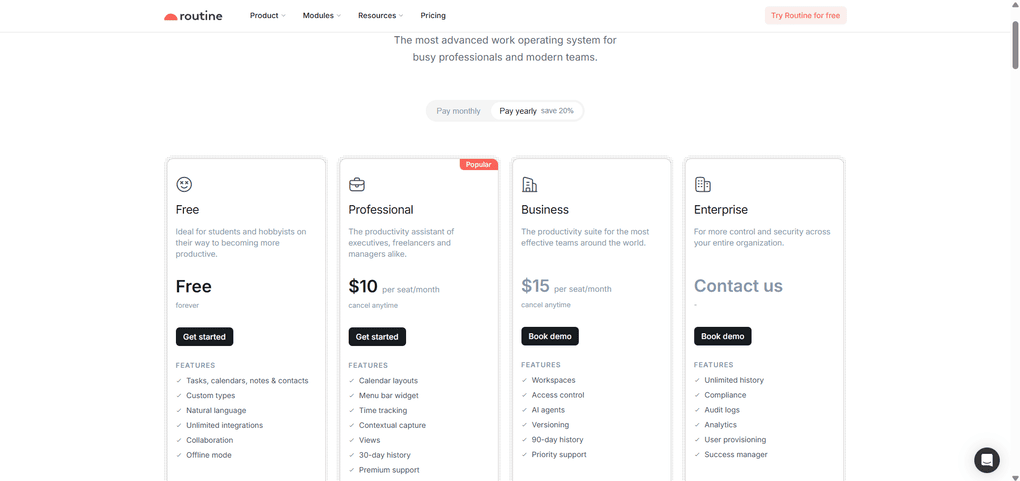
Routine offers a free plan, generous for personal use and enough to explore the full workflow.
The Professional plan costs $12 per seat monthly or $10 per seat with yearly billing. It adds calendar layouts, time tracking, contextual capture, additional view options, and a 30-day activity history.
The Business plan starts at $18 per seat monthly or $15 with annual billing. It adds workspaces, access control, AI agents, versioning, and a 90-day history for teams that need more structure.
Enterprise plan includes custom pricing, unlimited history, audit logs, compliance tools, and advanced analytics.
My experience with Routine
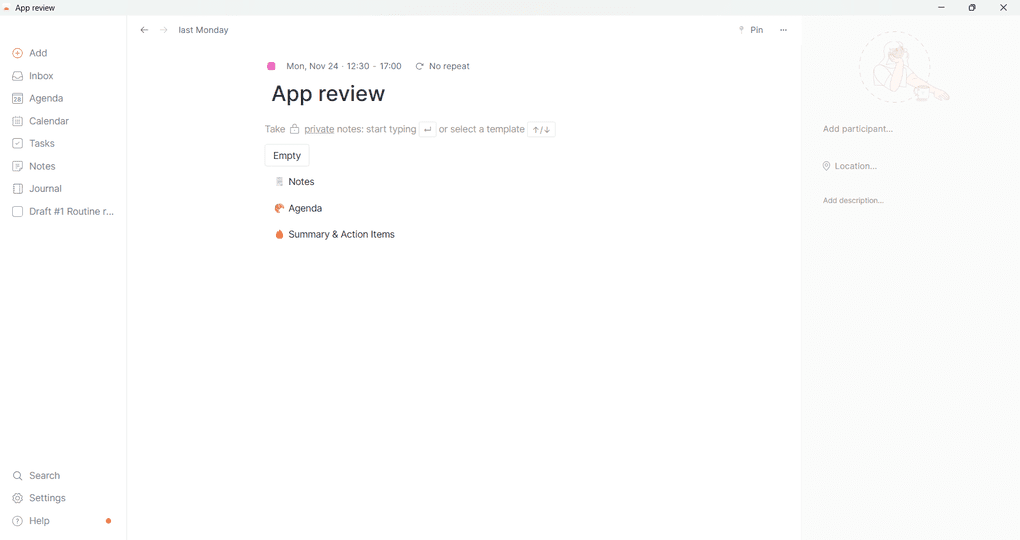
I tested the free desktop version and immediately liked how clean and modern it looked. The Agenda view made my days feel more structured, and the drag-and-drop workflow was smooth.
However, the lack of calendar color coding, unintuitive settings, and the experimental feel of certain features made Routine harder to rely on long-term. It works beautifully for simple planning and habit building, but it is not strong enough to replace a dedicated task manager.
🔎 Read my full Routine Review 2026 | Bye Google Calendar?
Short on time? Here’s a quick overview of Routine
Pros and cons of Routine
Pros of Routine
Cons of Routine
Why Routine is the best daily planner for simple scheduling
Routine provides a calm, uncluttered planning space that combines tasks, events, and notes in a simple layout. The Agenda view is excellent for seeing your day at a glance, and the free plan offers plenty of room for basic daily planning. If your ideal tool is minimal, structured, and distraction-free, Routine is the strongest simple option on this list.
Best Daily Planner App #10 | TimeHero
Best predictive daily planner for time blocking
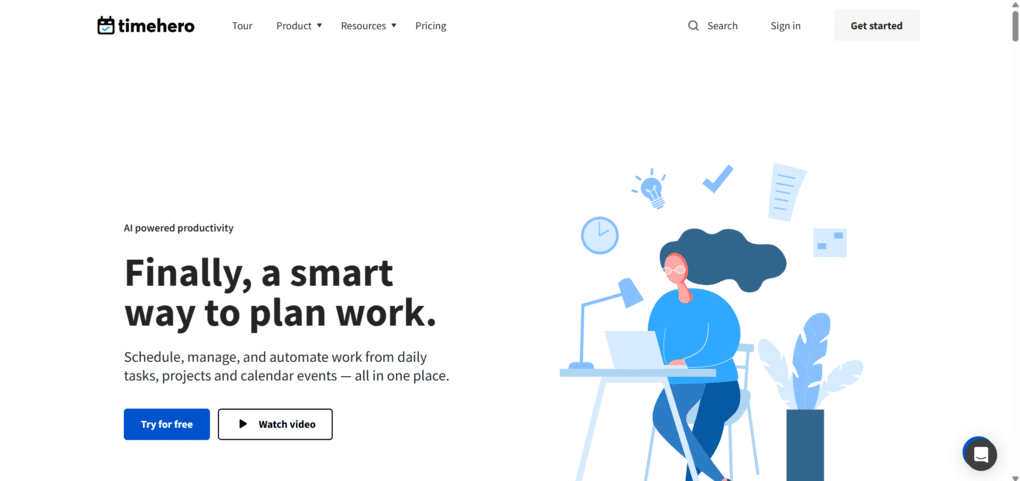
TimeHero is a predictive planning app that automatically schedules your tasks, projects, and recurring work around meetings and available time. It focuses on continuous, automated time blocking rather than manual drag-and-drop planning.
In testing, TimeHero stood out for people who want an autopilot approach to planning.
Key features
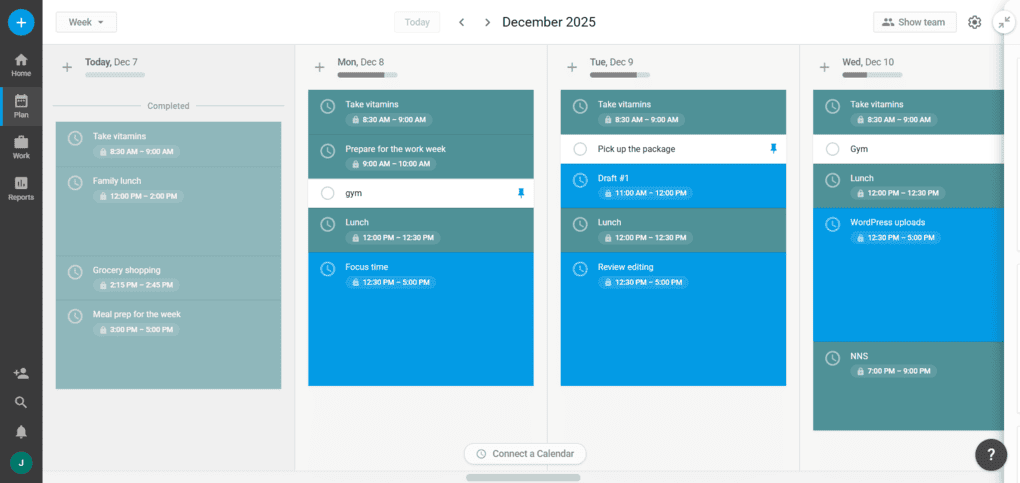
Predictive time blocking: TimeHero’s core strength is automatic scheduling. You add tasks with deadlines, durations, and priority levels, and the app finds the best time for them based on your availability. If a meeting appears or your workload shifts, TimeHero adjusts the schedule instantly.
Project planning with built-in forecasts: Projects include timelines, task dependencies, milestones, and progress predictions. As work gets completed or delayed, TimeHero updates the status automatically, so you always see which tasks are on track and which are falling behind.
Recurring tasks and workflows: You can create routines such as weekly reviews, monthly reporting, or daily checklists. TimeHero schedules these automatically and keeps them from clashing with existing work.
Task automation: TimeHero can generate tasks from checklists, templates, or workflows. When you assign due dates or link tasks to specific projects, the system organizes and schedules them with minimal input.
Team collaboration and capacity planning: Teams can assign tasks, see workload distribution, and forecast deadlines based on individual availability. TimeHero identifies overloaded team members early and reallocates tasks if needed.
Integrations: TimeHero integrates with Google Calendar, Outlook, Zapier, and a small set of project and communication tools. Calendar syncing is the strongest part, keeping your schedule accurate as plans change.
Pricing
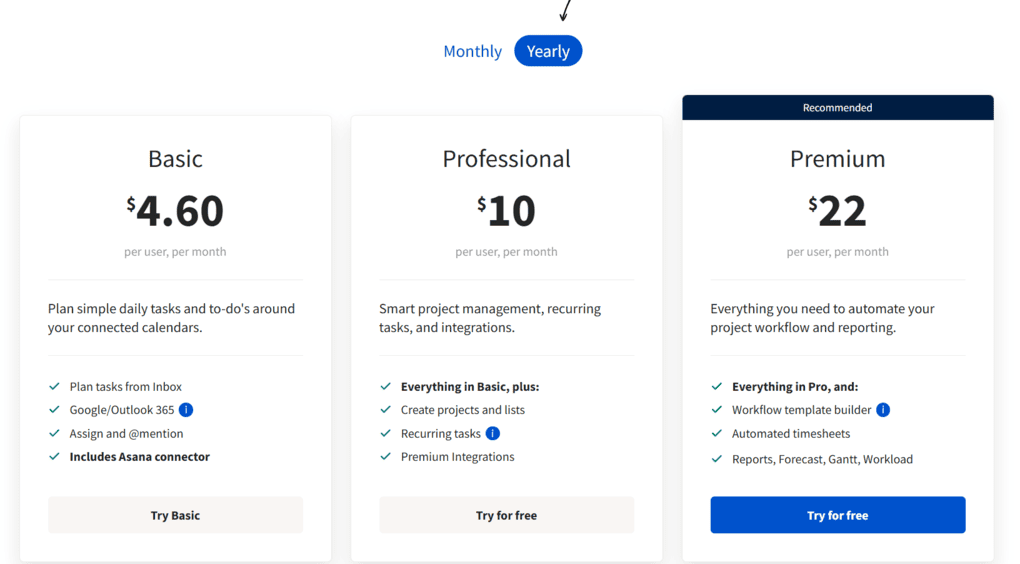
TimeHero does not offer a permanent free plan, but you can try its paid plans with a 7-day free trial.
The Basic plan, at $4.6 per user monthly with annual billing, includes predictive scheduling, basic project planning, recurring tasks, and core integrations with Google and Outlook.
Professional comes in at $10 per user monthly with annual billing and adds capacity planning, advanced workflows, team features, templates, and automated task creation.
For growing teams, the Business tier is priced from $22 per user monthly with annual billing and includes advanced reporting, workload forecasting, admin controls, and priority support.
Enterprise options with custom pricing are available for larger organizations that need more control and support.
My experience with TimeHero
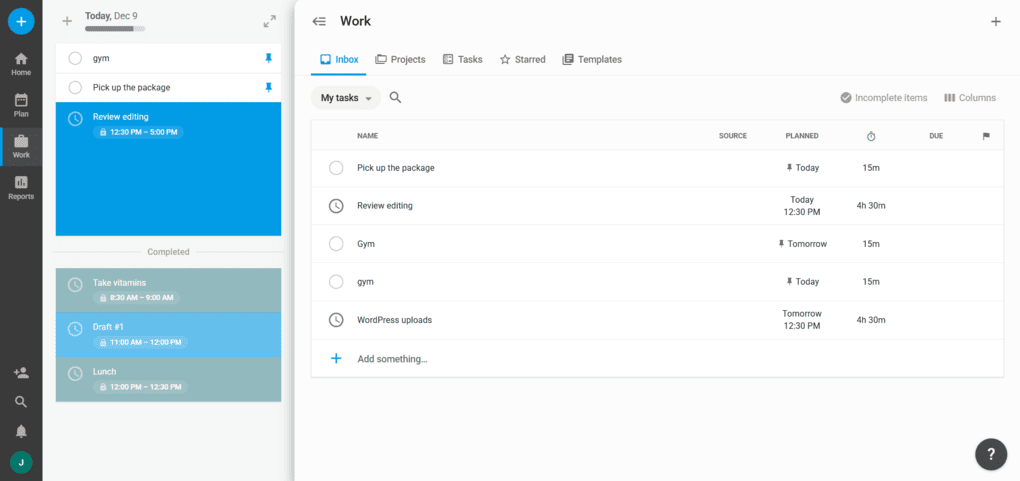
TimeHero was quick to set up. After connecting my calendar and adding a few tasks, it generated a schedule within minutes and felt more like a planning assistant than a standard calendar app. The predictive engine handled shifting priorities well and quietly rescheduled tasks whenever meetings moved.
The main challenge was learning to trust it. TimeHero prefers to take over the planning, so if you love manual time blocking, you might feel less in control at first.
Pros and cons of TimeHero
Pros of TimeHero
Cons of TimeHero
Why TimeHero is the best predictive daily planner for time blocking
TimeHero excels at hands-off planning. It continuously builds and updates your schedule based on availability, deadlines, and project requirements. For anyone who wants a planner that thinks ahead and removes the need for manual time blocking, TimeHero offers one of the strongest predictive engines on the market.
Best Daily Planner App #11 | Ellie
Best minimalist daily planner app
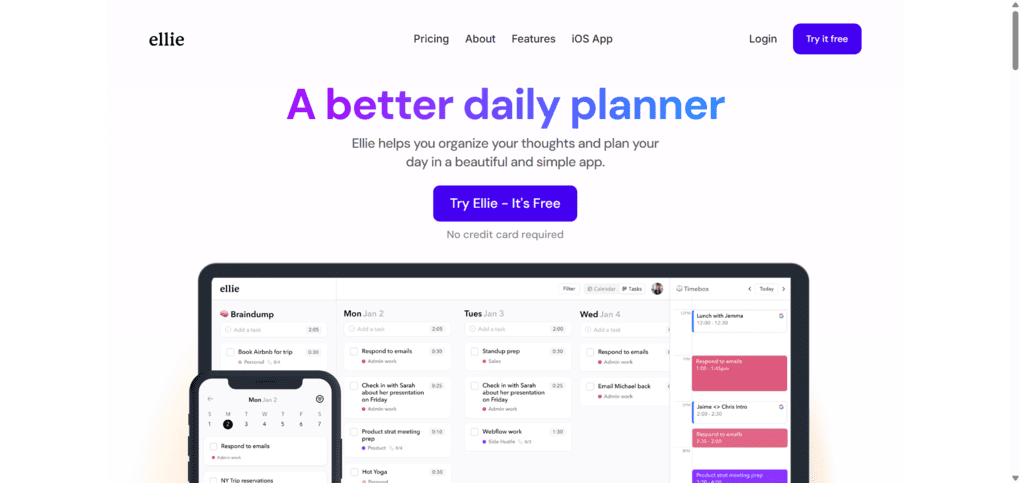
Ellie is a simple daily planner built around a clean layout, braindump lists, and a light time-blocking workflow. It avoids heavy project features and focuses instead on helping you turn scattered tasks into a calm, structured daily plan.
Key features
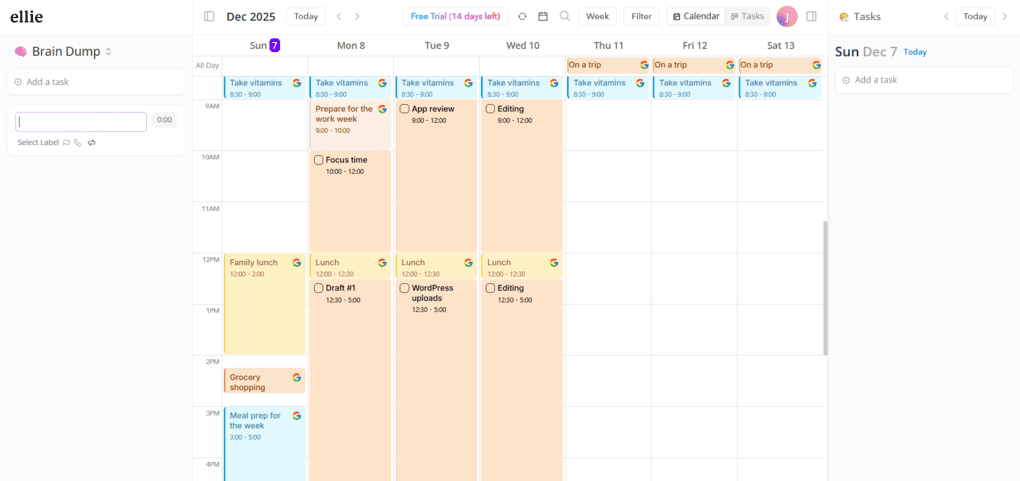
Braindump inbox: Ellie’s braindump section is a central part of its workflow. You can quickly offload tasks, ideas, or notes without worrying where they belong. When you’re ready to plan, you drag items into your schedule or daily list. It keeps planning flexible and helps reduce mental clutter.
Daily planner and kanban views: Ellie combines a simple day-by-day planner with a kanban board for organizing tasks before committing them to a date. Drag and drop between days is smooth and makes adjusting your plan easy when priorities shift.
Light time blocking: Ellie includes a built-in timeboxing mode where you can drag tasks into a visual schedule. It integrates with Google Calendar, Outlook, and Apple Calendar, so you can plan around real meetings and appointments without switching tools.
Recurring tasks and routines: Pro users can create recurring tasks for weekly reviews, workouts, study sessions, or routines you want to maintain. It keeps your structure consistent without overwhelming you with settings.
Clean writing and planning experience: Writing notes or planning your day feels natural thanks to a distraction-free editor with basic formatting, checklists, and templates. It works well as a hybrid planner and light journal.
Integrations: Ellie works on web, macOS, and iOS, with fast sync across devices. There is no native Android app yet, though the web version works reliably on Android. Integrations are limited but include Google Calendar, Outlook, Apple Calendar, and a simple Notion sync.
Pricing
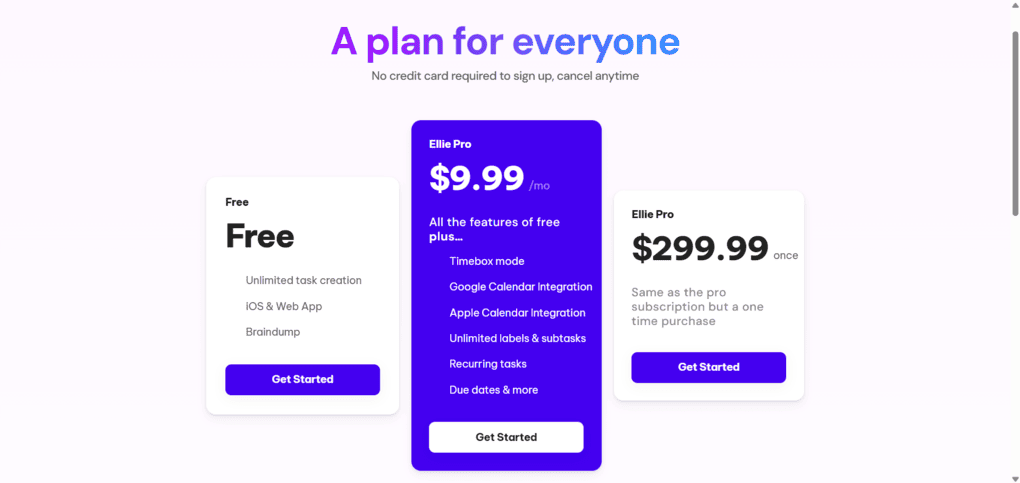
Ellie has a free plan that offers more than enough for personal planning.
Ellie Pro is $9.99 per month and adds recurring tasks, labels, subtasks, advanced search, templates, themes, and full calendar integrations. A lifetime option is available for $299.99, which unlocks all Pro features permanently.
My experience with Ellie
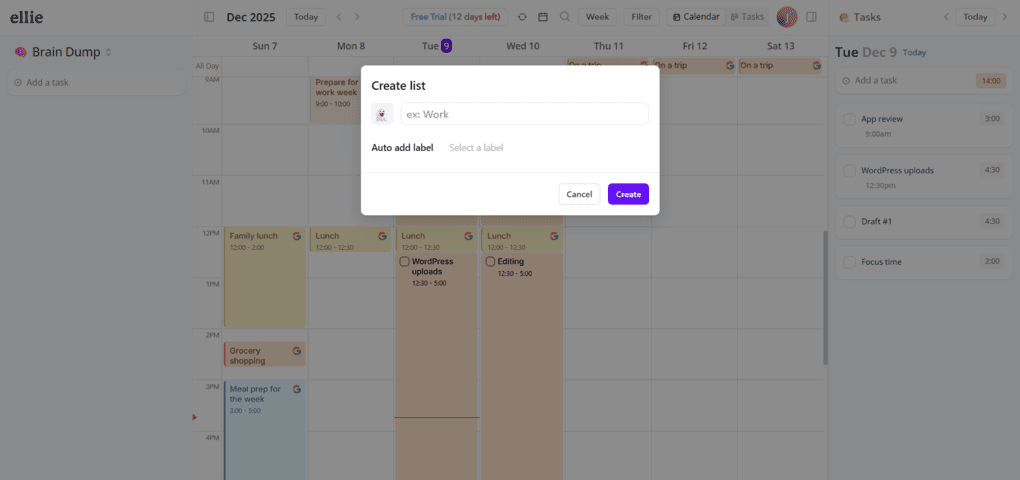
I used Ellie as my main planner for several days and found it very simple to use. The braindump made it easy to collect everything in one place, and dragging tasks into a daily layout kept planning quick and clear.
Ellie is not meant for complex workflows or team projects, but as a minimalist daily planner, it strikes a great balance between structure and calm.
Pros and cons of Ellie
Pros of Ellie
Cons of Ellie
Why Ellie is the best minimalist daily planner
Ellie focuses on essential planning. You capture tasks, organize them visually, and build a simple daily schedule without distractions. The result is a clear, minimalist planning system that keeps your day structured without overwhelming you, which makes Ellie the strongest minimalist daily planner on this list.
Summary: Best daily planner apps in 2026
Daily planning looks different for everyone, which is why there is no single app that fits every workflow. The good news is that the best tools of 2026 cover every style of planning.
No matter which app you choose, the goal is the same. A good planner reduces friction, protects your focus, and gives you a realistic view of what you can accomplish. With the right tool, daily planning stops being a chore and starts becoming a system you can rely on.
Looking for similar tools?
Visit the link to explore other apps we’ve reviewed in this space and how they compare.
Why you can trust our reviews
At thebusinessdive.com, our team tests, reviews, and compares hundreds of productivity apps every year — from project management tools to note-taking apps. We dive deep into real-world use cases to help you find the right tools that actually improve your workflow, not just add noise.
Our mission? No fluff, no shortcuts—just honest, hands-on insights from productivity pros.
Discover how we stay transparent, read our review methodology, and let us know about any tools we missed.
Frequently asked questions
What makes a daily planner app better than a basic digital planner?
A good daily planner app offers more than basic task management. It helps you organize all your tasks, use a clean daily planner template, and intelligently plan both personal tasks and work tasks without switching tools.
Do daily planner apps include project management capabilities?
Some daily planner apps include light project management capabilities such as task organization, due dates, and simple project status tracking. They are not full project management tools, but they work well if you want to manage projects and daily tasks in the same efficient app.
Can I use a day planner app if I work across shared calendars?
Yes. Most planner apps sync with shared calendars and your main calendar, so you can coordinate schedules across different tools without friction. This is especially helpful if you juggle multiple accounts or work tasks.
Are there planner apps good for Android users?
Most day planner apps offer strong Android versions, though a few tools still focus on iOS first. Android users looking for a simple digital planner should check whether the app supports recurring tasks, a clean calendar view, and robust features before committing to a monthly subscription or a yearly subscription.
Do daily planning apps support more advanced features like a board and card system?
Yes. Some apps include a board and card system for visual task organization, letting you move tasks between lists or days easily. This works well for personal growth goals, tracking work tasks, or building a simple onboarding process inside a planner.
Disclosure: I only recommend products I would use myself, and all opinions expressed here are my own. This post may contain affiliate links that, at no additional cost to you, may earn a small commission. Read the full privacy policy here.

Hey! I’m Jovana, a content writer who loves writing, researching, and testing new productivity apps. With a background in philosophy, I bring a thoughtful but no-bullshit approach to everything I do. Let’s connect on Linkedin!