


Asana Review 2026: I Might Be BANNED for Saying This
Asana is one of the most popular project management softwares. During my Asana review, I wanted to figure out how this project management software stacks up against other tools and whether it is right tool for you.
So, I have been using Asana in the past weeks and thanks to my +2 years of personal experience and testing in the project management software space, I have a chance to put this tool into perspective.
In this Asana review, I will share the key features I tried, pricing, red flags, pros and cons, and ultimately, my and other users’ experience with this project management software.
Here is my goal: I want to give you an honest and unfiltered view of Asana so you can easily decide whether this project management software is for you or if you have other alternatives.
Let’s dive in!
Verdict
Here’s the quick verdict if you don’t want to read the full review:
🎯 Best for: Teams that want a simple, structured, and reliable project management tool
🚫 Not ideal for: Budget-conscious users or those needing advanced customization
⭐ Biggest strength: Clean UX + strong core project management features
⚠️ Biggest weakness: Pricing model and customer support concerns
⚖️ Verdict: It is one of the most polished and reliable project management tools on the market, but its pricing model and reported support issues make it harder to fully recommend over competitors.
🏆 Score: 3.9 / 5
✅ Tested with our review & scoring methodology ✅ Real-world testing ✅ Unbiased evaluation
Asana
Summary
Asana is project management software that helps teams organize, track, and manage projects and workflows. Honestly, I think Asana has the potential to become one of the best project management software if we consider its features. Nevertheless, its cons made me a no-go when it comes to project management tools.
|
|
User friendly interface
|
|
|
It’s goal tool offers a great way to connect and visualize business, teams, and personal goals
|
|
|
Great project view options
|
|
|
Many integrations
|
|
|
Recurring tasks
|
|
|
It was slow sometimes when changing between views
|
|
|
Misleading pricing
|
|
|
Poor customer service
|
How We Test Project Management Tools
To keep our reviews & final score for each project management app fair and consistent, we evaluate every tool using the same testing framework based on real-world usage, feature depth, and overall value.
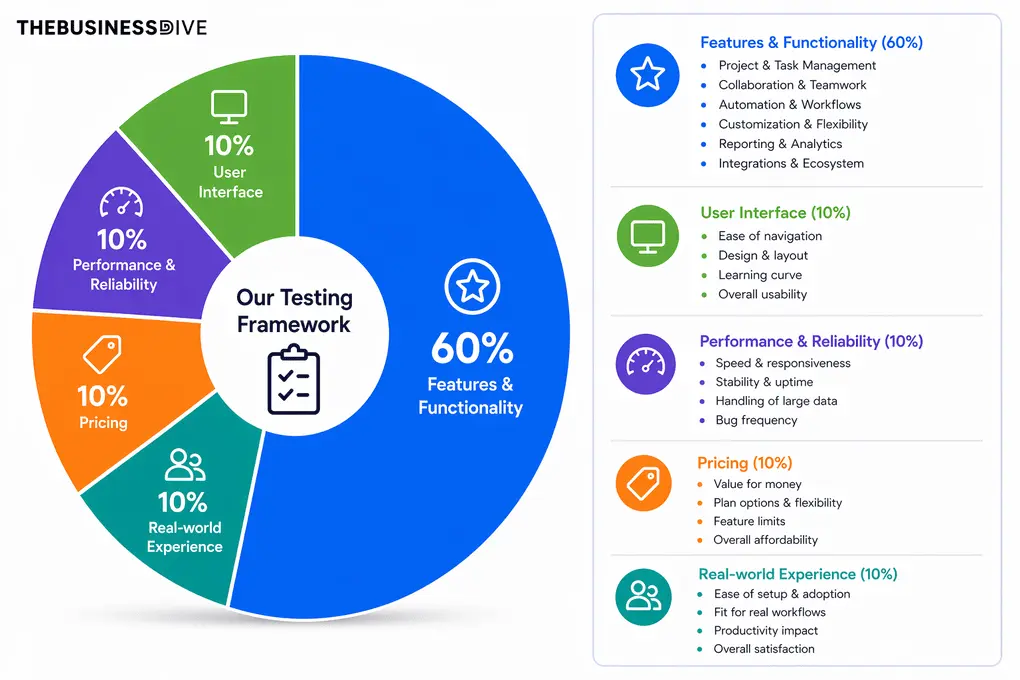
Our scoring breakdown after testing 20+ project management apps:
⚙️ Features & functionality — 60%
🖥️ User interface — 10%
⚡ Performance & Reliability —10%
💰 Pricing — 10%
👥 Real-world experience — 10%
Want a detailed breakdown of how we test each category?
Learn exactly how we test tools → Review methodology
Short on time? Here’s a quick overview of Asana
What is Asana?
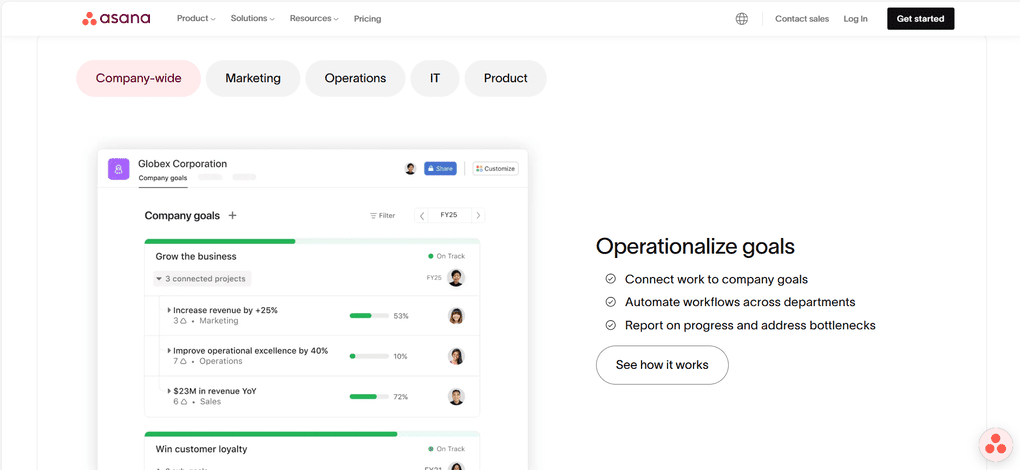
Asana is project management software that helps teams organize, track, and manage projects and workflows. It offers numerous view options for projects and tasks, and overall, it is an easy-to-use app compared to other project management software.
You can use Asana on the web and on your desktop. Furthermore, Asana has mobile apps for iOS and Android devices.
When signing in, you have the option to add extra security by using two-factor authentication. This essentially means that Asana will ask for another code besides your email address and password when you log in next time.
My experience with Asana
I loved the simplicity of working with Asana. It has a user-friendly interface and a short learning curve. While it does not have as many project management tools as other apps, it offers all the features you need, even for managing large teams.
It was great to be able to use multiple project views and easily customize them. The goals feature is also very useful, especially for teams.
However, Asana’s pricing model is unfair. There is no single-user subscription, and you will be charged for at least two seats. Based on user reports, Asana denies the refund. I took some screenshots and will share them under the pricing section of this Asana review to ensure you don’t fall for it.
Furthermore, I have read many negative reports about Asana’s customer support. Many Asana users who had issues were ghosted multiple times before finally replying and resolving the issue.
Overall, I think Asana is a solid project management tool from a product perspective. However, its pricing structure and customer experience left a really negative impression.
Why Asana didn’t score higher (and where it loses points)
Asana lost points mainly in pricing (2/5) and real-world experience (3/5).
Its pricing structure is misleading, with no true single-user option and a minimum seat requirement that can significantly increase costs.
It also scored lower in real-world experience due to consistent negative user feedback about customer support and concerns about how the company handles billing and refunds. These factors hurt trust, even though Asana performed well as a project management software.
Who Asana is a good fit for
Who Asana is not ideal for
Asana’s key features
I collected all the essential features I tried during my Asana review here.
Home Dashboard
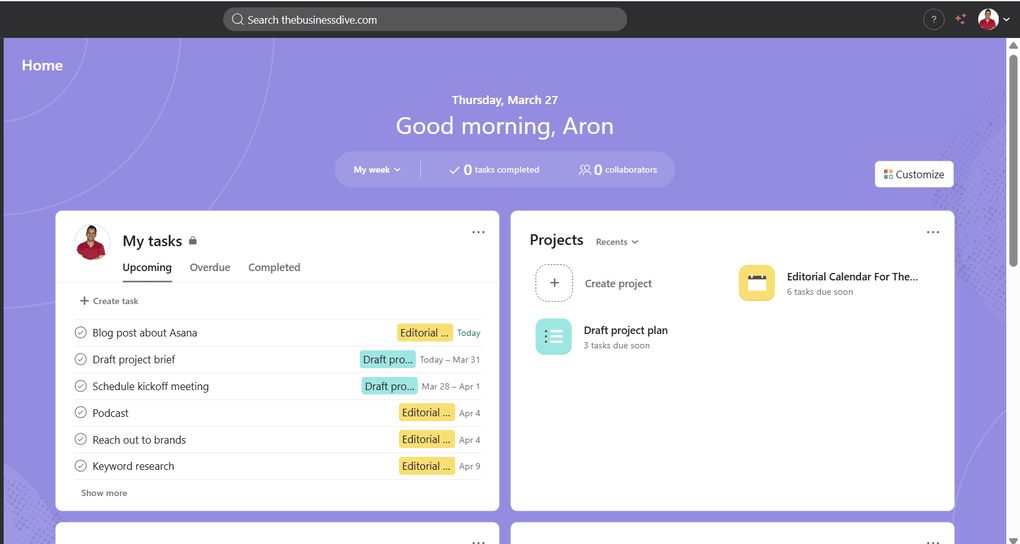
Your home dashboard gives you a quick overview of your tasks and projects. Under the “Good morning, Aron” part, you can filter your monthly or weekly tasks.
Also, you have the option to see only the upcoming, overdue, or completed tasks for a more focused view. I enjoyed that Asana offers customization options for your dashboard.
You can drag and drop the cards, and move them around, change background color, and add widgets like notepad, Asana AI, or comments mentioning me. While you might not have infinite options to customize your home page, you can put here are the workflows you need.
On the top, you will access a search bar, which is quite useful for quickly accessing specific tasks or projects in your workspace. You can use this search bar on every page of Asana.
At the next step of this Asana review, let’s dive into its project management tools!
Project management tools
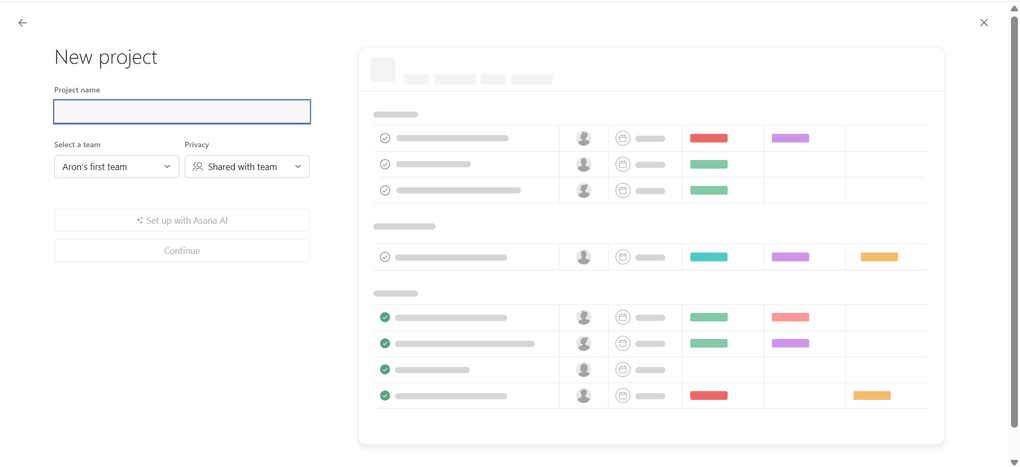
Using this project management tool, you can create projects in a few minutes. You only need to add the essential information, such as due dates or team members, to get started. Furthermore, you can accelerate the process by using the Asana intelligence (AI) tool.
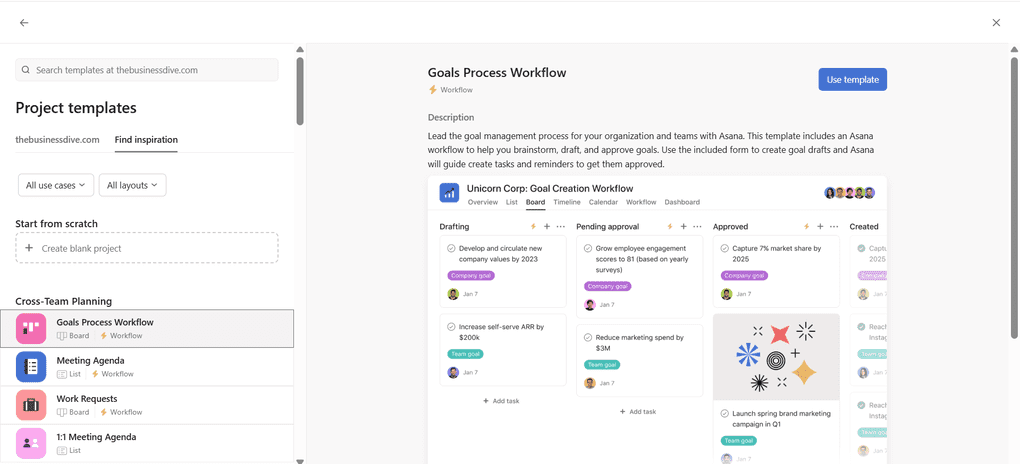
When creating projects, Asana offers some templates that you can use. There are templates for marketing, IT, sales, and product teams. When using a template, you have no further to dos, just to change the example tasks and their parameters.
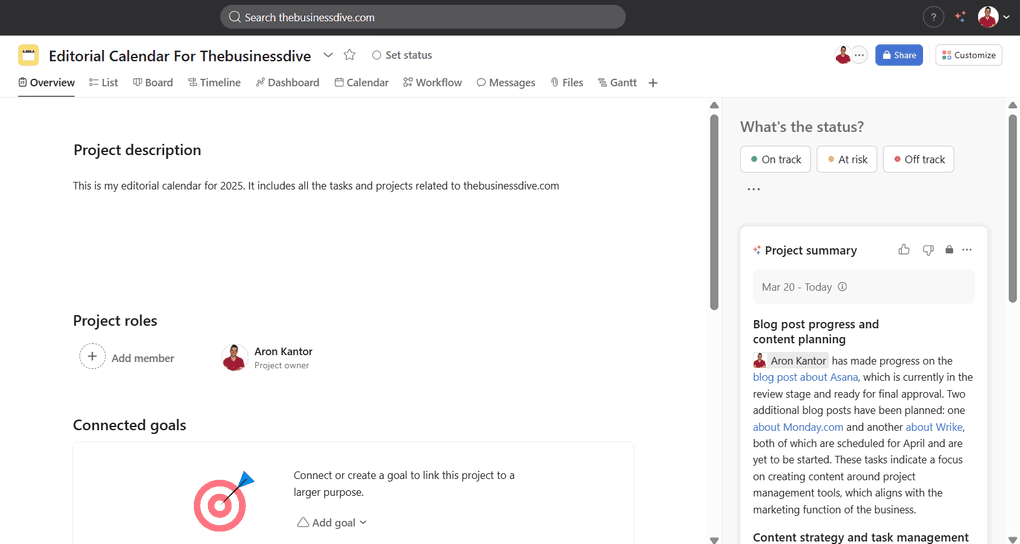
The heart of your project management are the project views. You can choose from numerous view options like Gantt charts, kanban boards, workflow, list, calendar views, etc.
The project overview provides you with the some essential information about the specfic projects. On the right side, you can ask Asana’s AI tool to summarize what happened on this project lately.
While other project management softwares also have AI tools, I found this helpful since you can generate a report with one click.
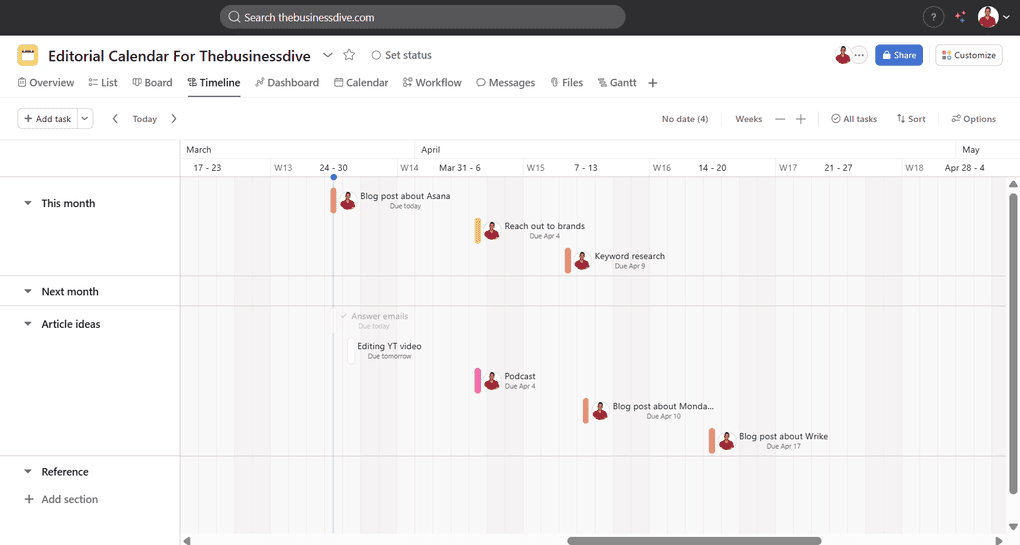
You can change between the project views with a click, although some view options took time to load. If you click on the “+” icon, you will access some additional view options, for example, a workload view, which is quite valuable for resource planning.
It is also worth mentioning that Asana offers a portfolio feature that provides a holistic view of all your projects in one place. You can create more portfolios and decide which projects you want to involve in each portfolio.
Now, let me show you some task management tools I tried during my Asana review.
Task management tools
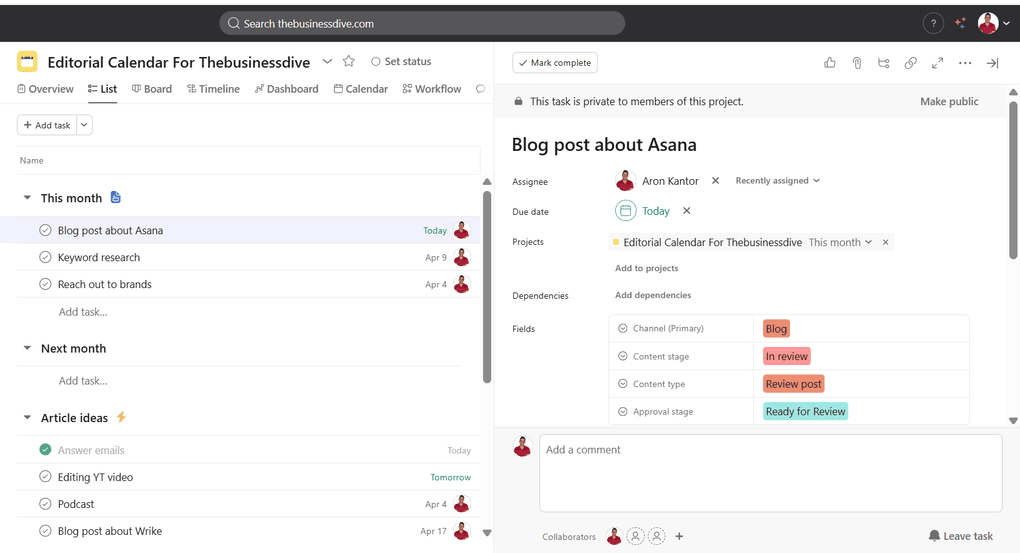
No matter which project views you use, you can easily add new tasks. When you click on the task, you can edit, change due dates, assignees, and leave comments.
It is great that you can add recurring tasks in Asana. You can change the frequency of the task, and it will pop up based on your instructions.
Although this is a small thing, it saves you from constantly adding repetitive tasks.
Overall, Asana’s task management tool is quite easy to use, and you can easily track progress on your home page.
Collaboration tools
As mentioned earlier, you can add task comments, but you can also leave comments under the project view. This option is useful when you have a more general comment regarding your project rather than a task specific.
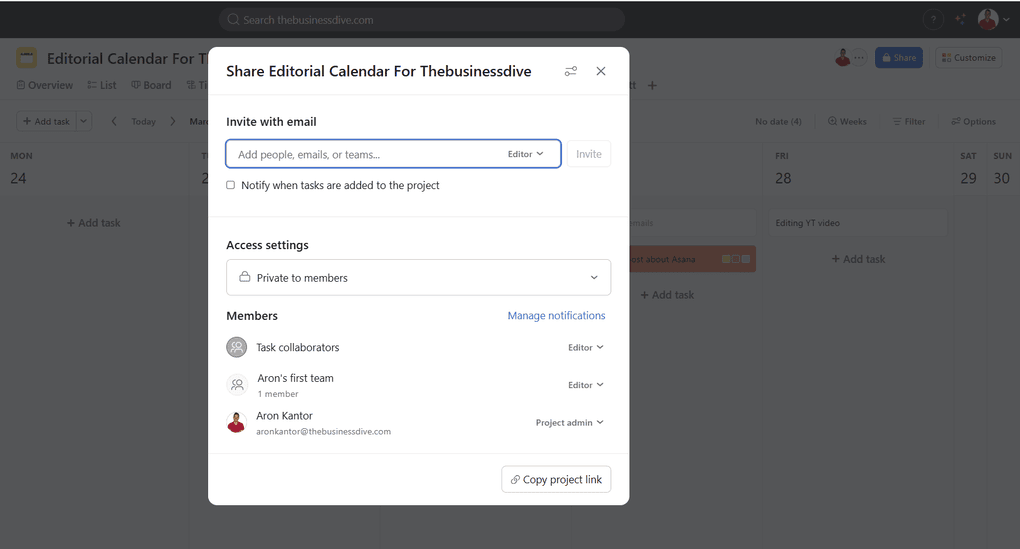
In the top right corner, you can share projects with your team members. You can also change the access level and user permissions so you can choose whether everyone inside your organization should see the project or only those who received an invite.
Among the view options, you will find the “files.” By clicking on it, you can drag and drop files to share them with your team members inside the project. If you want to attach a file only to a task, that is not a problem, you can do it inside the task.
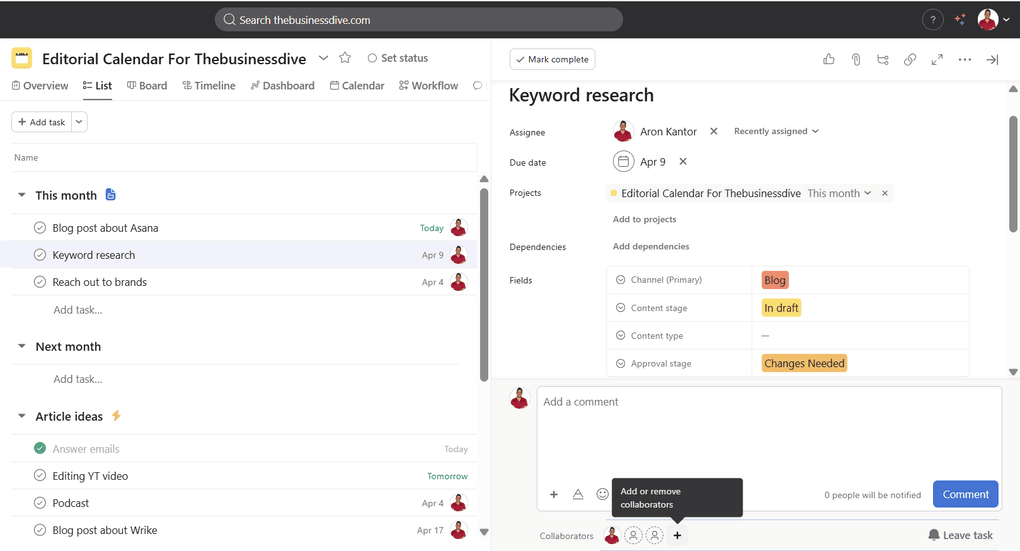
Another exciting feature I discovered during my Asana review is the collaborators. When you assign tasks to your team members, you can also add collaborators. Collaborators can work actively on a task and track how the task is going.
Rules
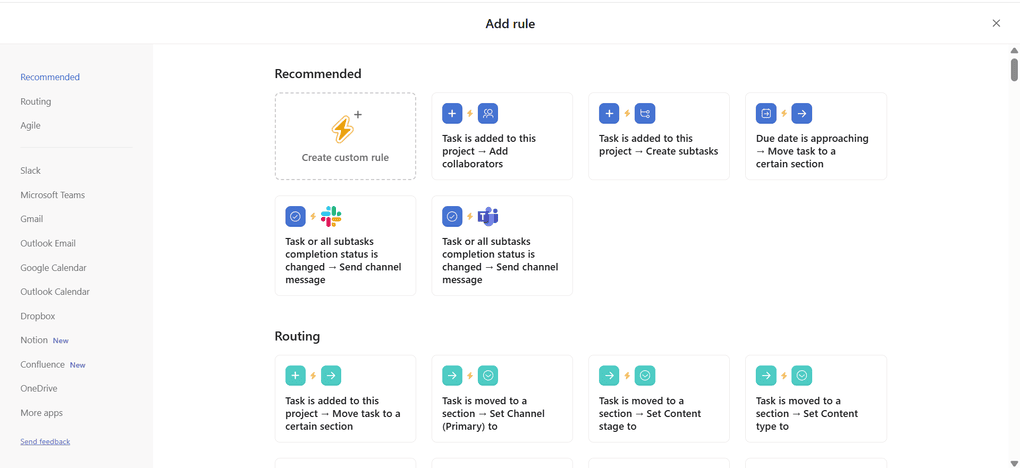
Asana’s automation builder tool is called Rules. You can access this tool under the customize options inside your projects.
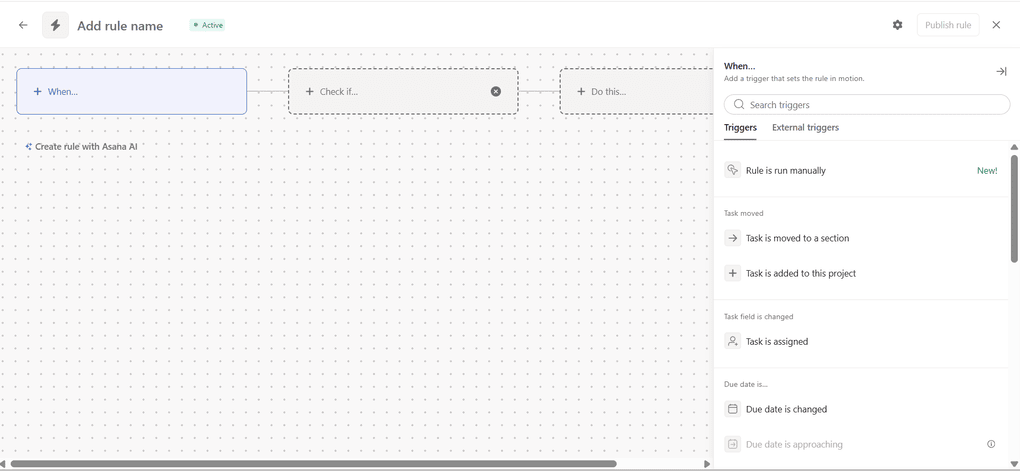
There are rules for automation, but you can also create custom rules. Similarly to other project management tools, it follows the “when” and “then” logic. It also great that you can use Asana AI here to help you setup your own rules.
All in all, the rules are easy to set up, and Asana AI can help a lot with this process. Now, if we are here, let’s check Asana’s AI tool more closely!
Asana AI
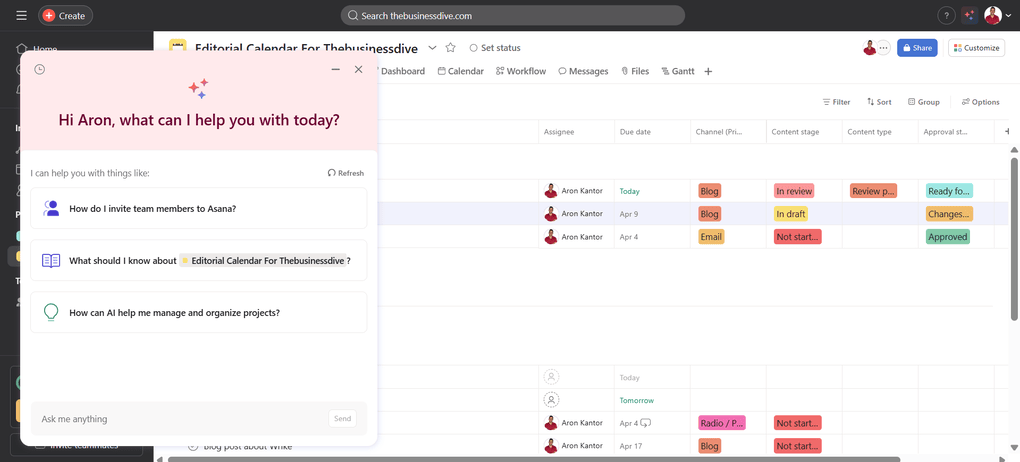
To access this feature, click on the AI icon at the top right corner. Essentially, this tool helps you obtain the project data or information you need and answers your questions.
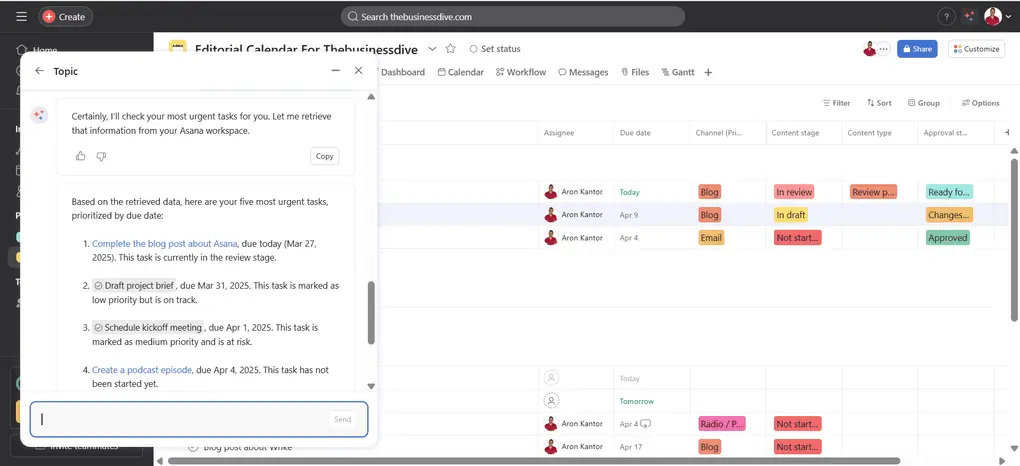
Based on my experience, it works pretty fast, and it is also useful to include references from your projects.
When it comes to the outputs, I got relevant and quite good answers from Asana’s AI assistant. So, overall, I was satisfied with this feature.
Goals
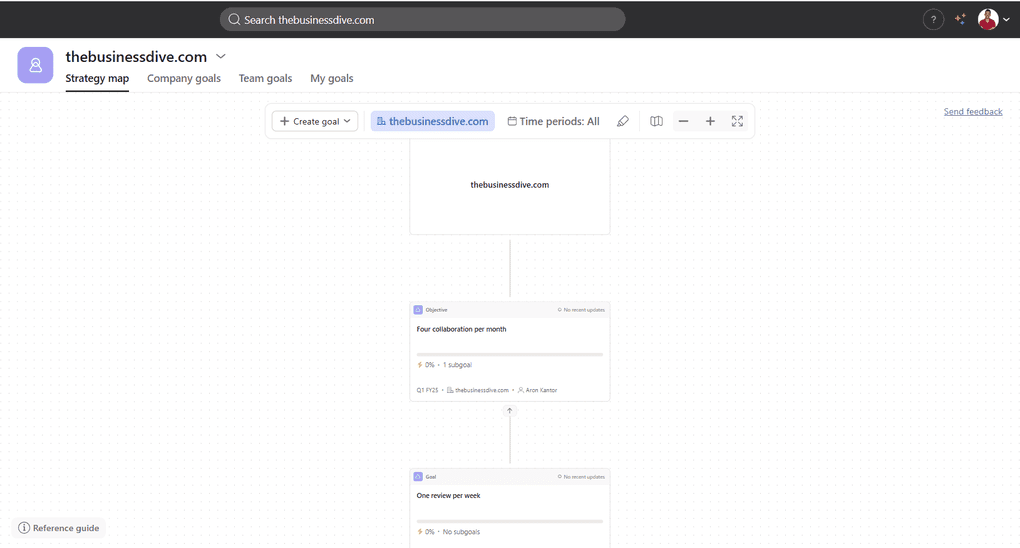
You can add three types of goals in Asana. First, there are company goals that focus on your business’s mission, priorities, and objectives.
Second, there are team goals. These goals are created by different teams to support company goals and other teams’ goals. Lastly, there are my goals. These objectives focus on your performance and aims.
This tool helps you track your key objectives and gives you a fantastic overview of how your goals are connected to each other. You can connect your goals, leave comments under them, and add owners.
Honestly, this feature was one of my favorites during my Asana review.
Asana’s integrations
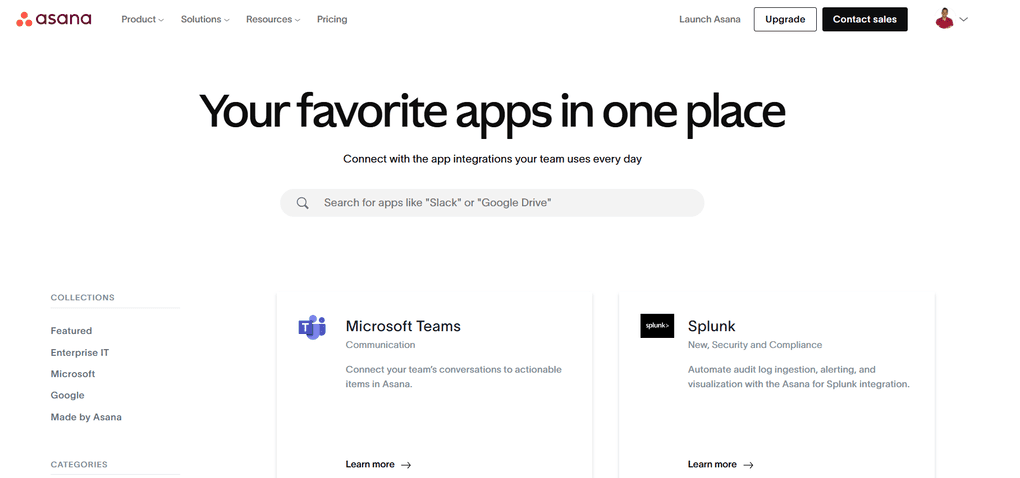
Asana offers many third-party integrations like Google Calendar, Microsoft Teams, and more. Furthermore, you can connect Asana with Zapier, so you can access an additional +7,000 third-party apps.
Asana’s user interface
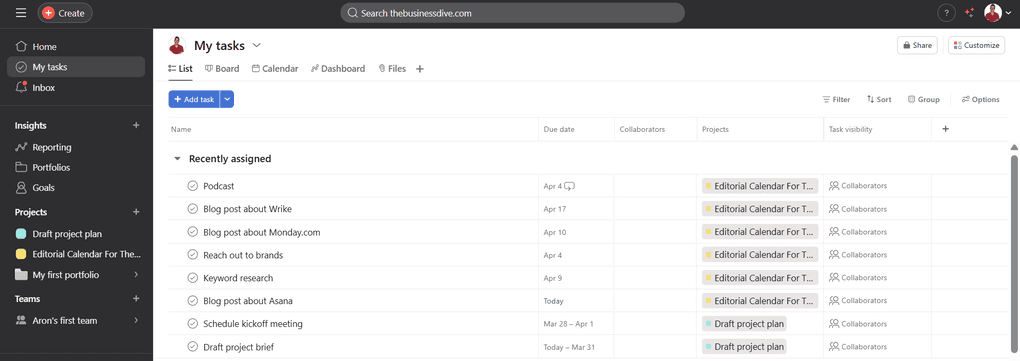
Asana has a user-friendly interface. You can easily navigate among its features, and you can quickly find all the tools you need.
When it comes the learning curve, it is relatively short compared to many other project management tools. There are two reasons behind this.
First, Asana’s user-friendly interface helps you find all the features smoothly. Second, Asana has fewer features than some other tools, such as ClickUp.
Asana’s mobile app
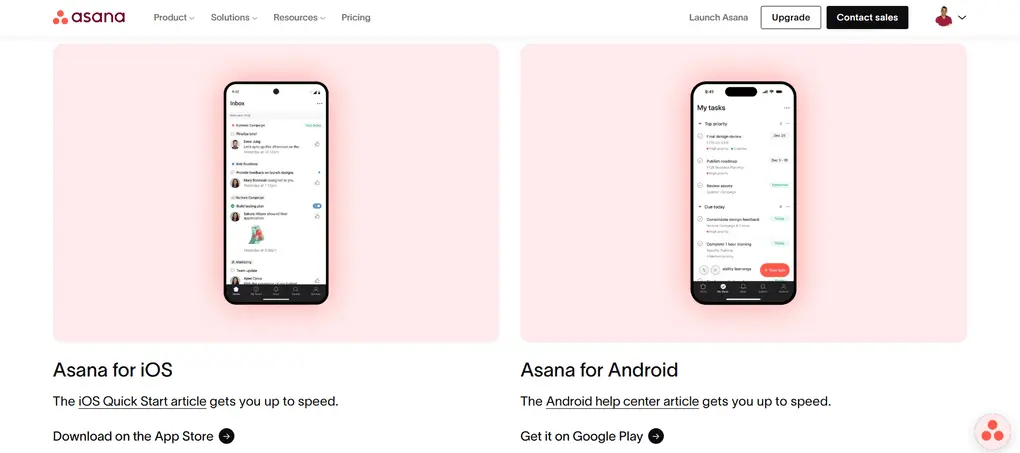
Asana’s mobile apps for iOS and Android allow you to track projects and tasks from your phone. The iOS app is decent; however, I ran into some bugs, and the user interface was far from perfect.
Explore our Apps directory
A curated directory of software tools we’ve independently reviewed, with links to full reviews, comparisons, and category guides.
Asana’s pricing
Let’s see what I found during my Asana review when it comes to pricing.
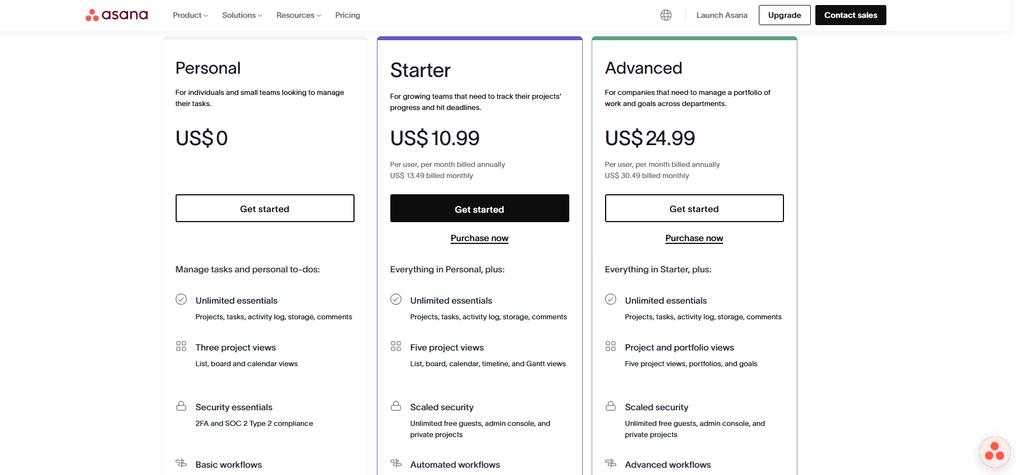
Personal Plan (i.e. Free Plan)
Asana’s Free Plan includes some of the most essential features like projects, tasks, activity log, storage, and comments. With the free Plan, you can access the list, board and calendar views, a few integrations for your workflow builder, and basic reporting tools.
Compared to other project management tools’ free plans, I would say Asana has a decent one, and it is ideal for personal use.
Starter Plan
Asana’s Starter plan is $10.99 per month if you choose the annual billing. It covers all the features in the Free Plan, plus a list, board, calendar, timeline, and Gantt views. Furthermore, you will access Asana’s AI tool, advanced integrations, and scaled security.
It is ideal for small teams and individuals, BUT here is the problem with Asana’s paid plans. There is no single-user subscription, and you will charged for at least two seats without clear notice from Asana.
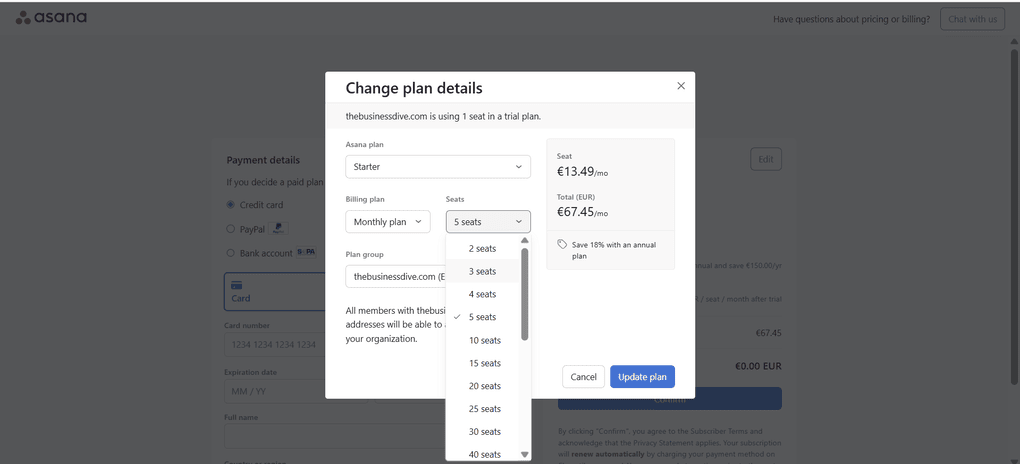
When I read the user reports, I did not believe them first, so I also checked them for myself. And I also ran into the same issue when I tried to upgrade my Plan.
Moreover, the default setting for your Plan is for 5 seats. So, if you do not check the details, you can easily buy the Starter plan for 5 seats.
So, if you want to use Asana alone, the Starter Plan is actually $21.98 if you opt for the annual billing.
Advanced Plan
You can get Asana’s Advanced Plan for $24.99 in case of annual billing. Besides the features included in the Starter plan, you can use five project views, portfolios, goals, advanced reporting, and resource management tools. These features make Asana ideal for teams.
Asana’s pricing mechanic works same here, so you can purchase two seats at minimum for $49.98, which makes this project management tool one of the most expensive on the market.
Enterprise Plan
Lastly, Asana offers Enterprise and Enterprise + plans for larger teams and businesses. Here, they apply custom pricing.
Related post: Asana Pricing For 2026 | This Will Save You +$300
Pros and cons I discovered during my Asana review
Let’s summarize the pros and cons I found during my Asana review!
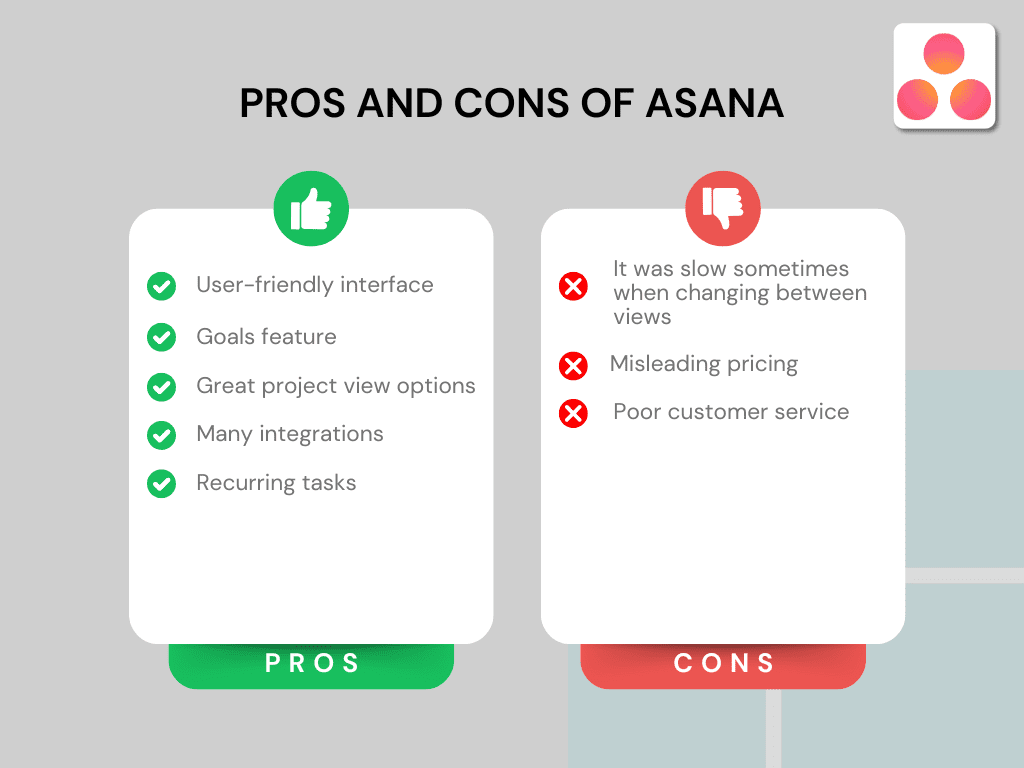
Pros of Asana
I loved Asana’s user interface and the fact that they put an emphasis on simplicity and have only the relevant tools to manage projects.
Asana’s goal tool offers a great way to connect and visualize business, teams, and personal goals in one place.
Furthermore, Asana has fantastic project view options where you can see the task dependencies, deadlines, responsible team members, and more.
Moreover, Asana supports a wide range of integrations, so you can easily connect it with other popular apps.
Lastly, Asana allows you to add recurring tasks, which I really appreciate.
Cons of Asana
Sometimes, I experienced that Asana is slow when changing between views and even freezes out.
However, there is a more significant problem: their pricing model. Asana’s pricing is misleading, and you can only realize it when you check out.
Lastly, the user reports regarding Asana’s customer support are a huge con for me.
Asana alternatives
Here are some alternatives to Asana if you think it is not right for you.
|
App |
Best for |
Description |
|---|---|---|
|
Hive |
Best for small teams |
A project management app for small teams with advanced collaboration and AI features. |
|
SmartSuite |
Best for no-code workflow building |
A collaborative work management solution for teams to track and manage workflow. |
|
Monday.com |
Best for visual workflows |
An intuitive project management app with advanced features for teams. |
|
Taskade |
Best lightweight AI tool |
An AI-powered workflow and lightweight project management app. |
|
Coda |
Best for custom workflows |
An all-in-one app that is similar to Notion, however, with more massive project management tools. |
|
Notion |
Best for notes & projects |
It provides a centralized workspace where you can organize your thoughts, notes, tasks, projects, and documents in one place. |
|
Motion |
Best for AI scheduling |
It is an AI calendar app, but it also works as a project management software. |
|
ClickUp |
Best all-in-one |
An easy-to-use AI-powered project management software. |
|
Teamwork.com |
Best for client work |
An excellent project management software for client-facing teams. |
|
Zoho Projects |
Best for structured planning |
A structured project management tool designed to help teams plan, track, and deliver projects with clear processes and long-term visibility. |
|
ProofHub |
Best for approvals & feedback |
A project and team management app with outstanding collaboration, proofing, and customization options. |
|
Jira |
Best for agile teams |
An advanced project management and issue tracking tool, built mainly for agile software and IT teams. |
|
Vaiz |
Best lightweight all-in-one |
A lightweight project management platform that combines tasks, docs, collaboration, automation, and AI in one workspace. |
Compare Asana vs alternatives



Monday.com VS Asana

Notion VS Asana

Teamwork VS Asana

Asana VS ClickUp

Motion VS Asana
Related article:
Wrap-up: Asana review
Honestly, I think Asana has the potential to become one of the best project management software if we consider its features. It would be an ideal app for project managers and even individuals to manage their personal tasks.
Nevertheless, its cons made me a no-go when it comes to project management tools. Because of these factors, I can not recommend Asana, even though I personally had a good experience with it.
Looking for similar tools?
Visit the link to explore other apps we’ve reviewed in this space and how they compare.
Hope I was able to help you to find the best project management app for you. As always, I will update this Asana review over time, so you guys have up-to-date information about this project management software.
Why you can trust our reviews
At thebusinessdive.com, our team tests, reviews, and compares hundreds of productivity apps every year — from project management tools to note-taking apps. We dive deep into real-world use cases to help you find the right tools that actually improve your workflow, not just add noise.
Our mission? No fluff, no shortcuts—just honest, hands-on insights from productivity pros.
Discover how we stay transparent, read our review methodology, and let us know about any tools we missed.
Frequently asked questions
What are the disadvantages of Asana?
Asana has fantastic project management tools, and user-friendly interface. However, they have a misleading pricing, and non-responsive customer support team.
How good is Asana’s customer support?
During my Asana review, I also considered user reports, and many of those involved their customer support team. In a nutshell, there were only negative reports on their customer support.
What is better than Asana?
It depends on your preferences and goals. I think Coda, SmartSuite, ClickUp, Notion, and even Taskade could be a great alternative.
Is Asana really free?
Asana has a free plan. It includes some of the most essential features like projects, tasks, activity log, storage, and comments. With the free Plan, you can access the most basic features you need to manage tasks and projects.

Hey there! I am Aron, the founder of Thebusinessdive. I have been testing productivity apps for almost three years now. I reach 25.000 -50.000 people monthly with the mission to help you find the perfect productivity apps. Subscribe to my YouTube channel, newsletter, and social media to hear more about the best productivity tools. Let’s dive in!