


My Honest Zoom AI Companion Review 2026 | Is It Worth It?
Zoom AI companion is Zoom’s built-in AI assistant for your online meetings. The question is whether you should upgrade your Zoom account because of this feature and how it stacks up against other AI note-takers.
Stay here, because I will share my personal experience from my Zoom AI Companion review and help you decide if it makes sense to upgrade your Zoom Workspace or not.
Let’s dive in!
Verdict
Here’s the quick verdict if you don’t want to read the full review:
🎯 Best for: Zoom users who need basic AI note-taking and transcription
🚫 Not ideal for: Non-Zoom users or those who need more advanced features
⭐ Biggest strength: Seamless integration within the Zoom ecosystem
⚠️ Biggest weakness: Limited feature set
⚖️ Verdict: A solid option for existing Zoom users with a paid plan who need basic AI note-taking. However, it’s not worth upgrading to Zoom solely for this feature.
🏆 Score: 3.5 / 5
✅ Tested with our review & scoring methodology ✅ Real-world testing ✅ Unbiased evaluation
Zoom AI Companion Review
Summary
Zoom AI Companion is a simple and easy-to-use AI note-taker that delivers solid meeting summaries and decent transcription accuracy. While it works well within the Zoom ecosystem and offers a smooth user experience, its feature set is too basic compared to more advanced alternatives, so it may not be compelling enough to justify upgrading your plan.
|
|
It’s part of an extensive ecosystem
|
|
|
Easy-to-use AI features
|
|
|
You can create documents with Zoom AI Companion
|
|
|
You will access numerous team collaboration features with a paid Zoom subscription
|
|
|
The AI chat is fast and reliable
|
|
|
It offers too limited AI capabilities for meetings
|
|
|
The meeting transcription is basic compared to other AI note-takers
|
|
|
It would be great if the recordings, transcriptions, and summaries were located in one place
|
How We Test AI Note-Takers
To keep our reviews and final scores fair and consistent, we evaluate every AI note-taking tool using a standardized testing framework built on real-world usage and hands-on experience.
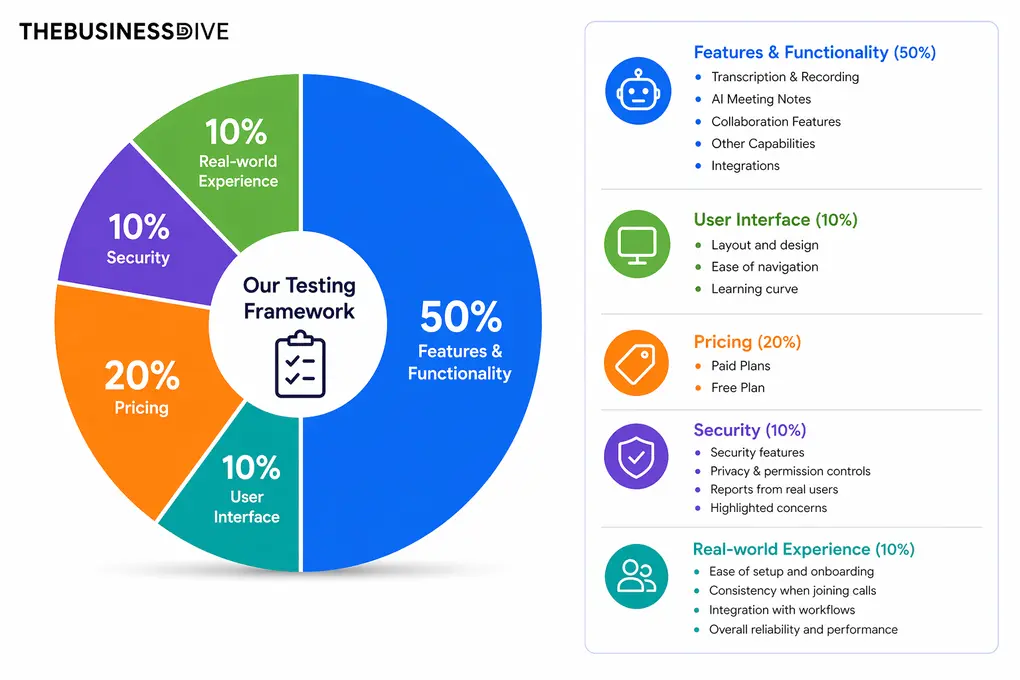
Our scoring breakdown after testing 20+ AI note-takers:
🤖 Features & functionality — 50%
🖥️ User interface — 10%
💰 Pricing — 20%
🔐 Security — 10%
👥 Real-world experience — 10%
Want a detailed breakdown of how we test each category?
Learn exactly how we test tools → Review methodology
Short on time? Here’s a quick overview of Zoom AI Companion
What is Zoom AI Companion?
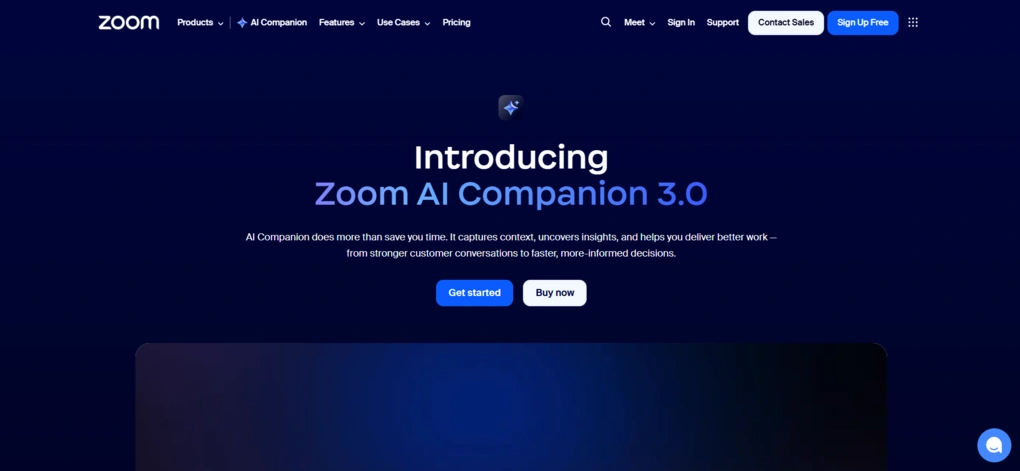
Zoom AI companion is Zoom’s AI assistant built into the workspace that provides real-time meeting summaries, action item generation, and content drafting for chat, email, and whiteboards.
Therefore, the only way to use Zoom AI Companion is if you download Zoom’s desktop app and subscribe to one of Zoom’s paid plans.
My experience with Zoom AI Companion
Zoom AI Companion is a decent AI note-taking app for those who already have a paid Zoom subscription. It is a simple app with a quite short learning curve, even if this is your first time using an AI meeting assistant.
But if you don’t have a paid Zoom plan, is it worth upgrading to the free plan just for this feature?
No.
For this money, you can find some better options out there, and the issues I found during my Zoom AI Companion review do not justify its price for me.
The first and quite obvious issue with this AI note-taker is the feature set. There are no conversational intelligence tools, no advanced library tools to structure your calls, quite a few collaboration features, and so on.
Secondly, you can not use it for in-person meetings, which can be crucial for some of you. Also, based on user reports, speaker identification is limited to Zoom users, meaning if someone outside of the meeting spoke, for example, a team member next to you, it won’t be transcribed.
Overall, Zoom AI Companion is an okay AI note-taker. However, given its pricing, feature set, and use cases, there are significantly more advanced AI meeting assistants that can transcribe, summarize, and record your Zoom calls.
Breaking down Zoom AI Companion’s final score
Zoom AI Companion delivers only decent performance when evaluating its features and functionalities. For transcription & recording and meeting notes, it gets 3.5 out of 5.
Nevertheless, it gets maximum points for integrations (5/5) and privacy & safety (5/5), mainly thanks to its deep integration within the Zoom ecosystem.
It also performs mediocre in pricing (3.5/5) and offers a limited free plan (2.5/5). However, the biggest limitations come from its feature depth and flexibility, which significantly decrease the overall score of Zoom AI Companion.
Ideal users for Zoom AI Companion
Where Zoom AI Companion falls short
Key Features
Below, I will guide you through the key features I tried during my Zoom AI Companion review.
Transcription and recording
Zoom AI Companion offers transcription and recording features for your online meetings. However, before joining a call, I recommend that you open your settings and choose when you want the AI companion to join, who can ask it questions during the meeting, and where the summaries should be shared — whether that’s by email, Slack, or not at all.
Furthermore, you can set your preferences on when you want the Zoom AI Companion to be used for some specific meetings. That said, you can adjust your preferences on a case-by-case basis on when you want it to join your calls.
When scheduling your call, you can select if you want to automatically start the AI companion, which can ask questions about the meeting transcript and what template it should follow.
When joining your Zoom calls, you can choose whether to auto-start the AI companion. But it offers possibilities to help you prepare for the meeting if you provide additional information on the call, ask for icebreakers, and tips for effective meetings. Once all set and done, you can join the call.
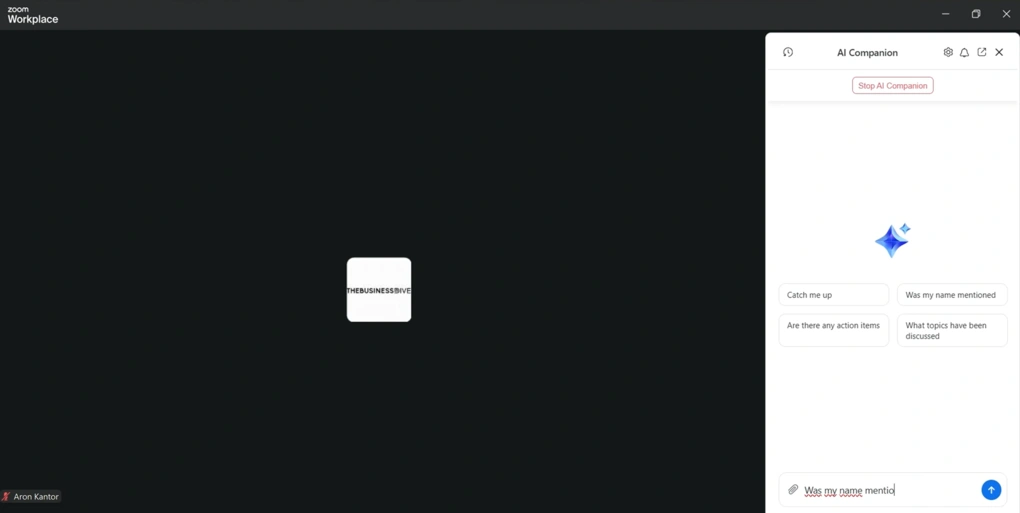
During the meeting, you can access the AI companion in the top-right corner. Moreover, you can also stop the AI Companion feature or ask questions like, “Was my name mentioned?” or ask for key action items, but basically anything. That said, late joiners or distracted meeting participants can ask for a recap without interrupting the meeting.
Also, you can attach files if needed during virtual meetings, which is a useful addition.
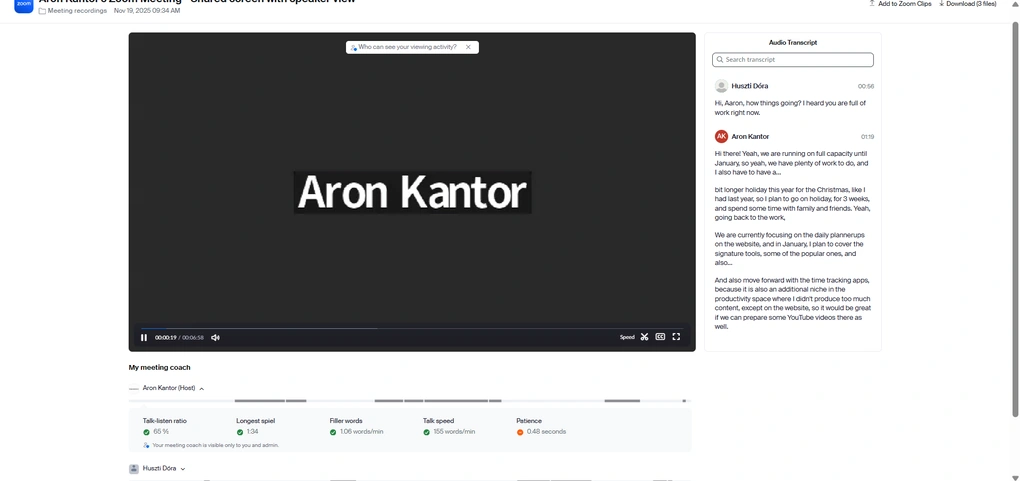
After the meeting, Zoom will send you an email about your call, including the meeting recording and transcription. Nevertheless, you can also find a list of transcripts by navigating to Recordings & Transcripts in the Zoom Web Portal.
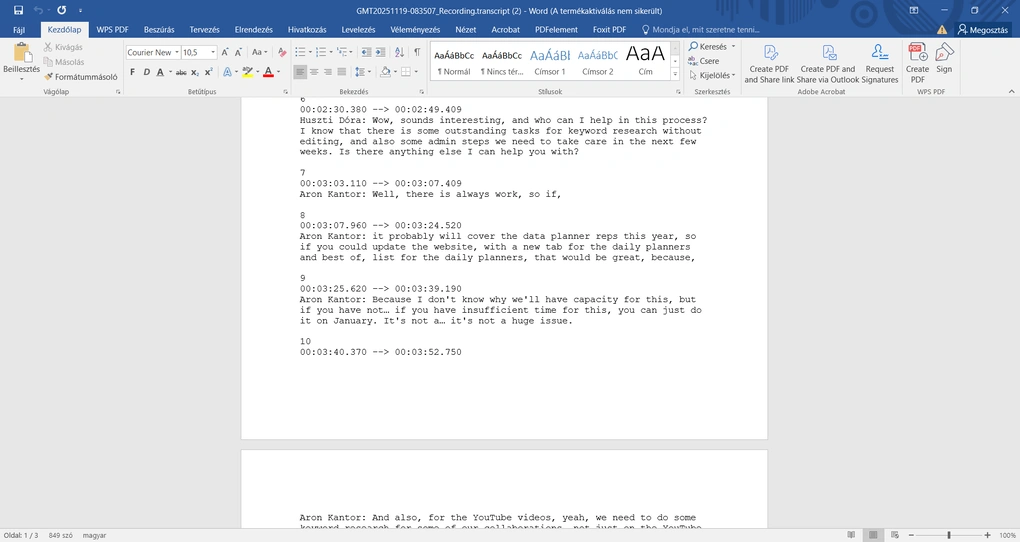
The transcription is quite basic, nothing extra. During my Zoom AI Companion review, I discovered that it offers decent transcription accuracy between 80 and 90%. You can also download the meeting transcript in a Microsoft Word file.
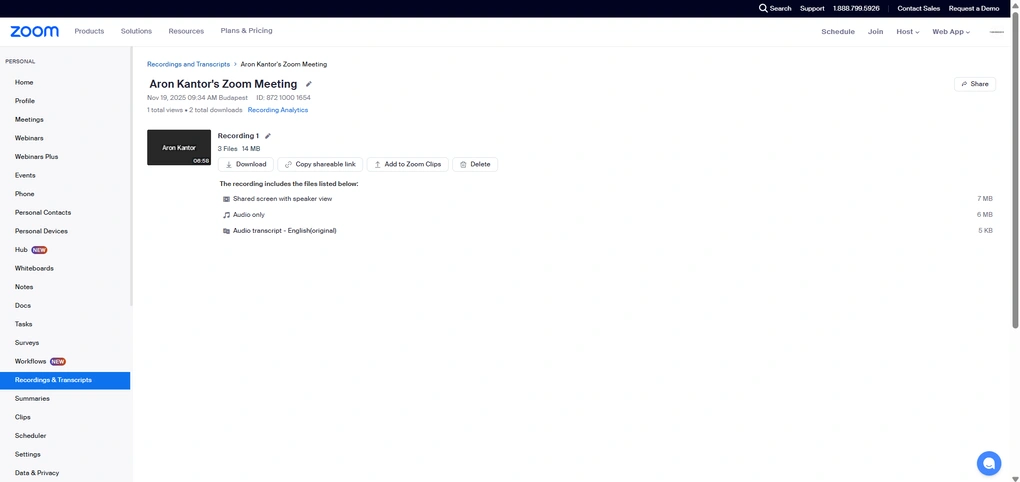
Personally, I would love to see if the transcription and recording are in the same place where you can find the meeting recap. It is just more convenient to find everything in one place next to each other.
With Zoom AI Companion, it is a bit frustrating to me that if I want to review the transcription, I have to log in to the Web Portal, and I can not do it inside the app.
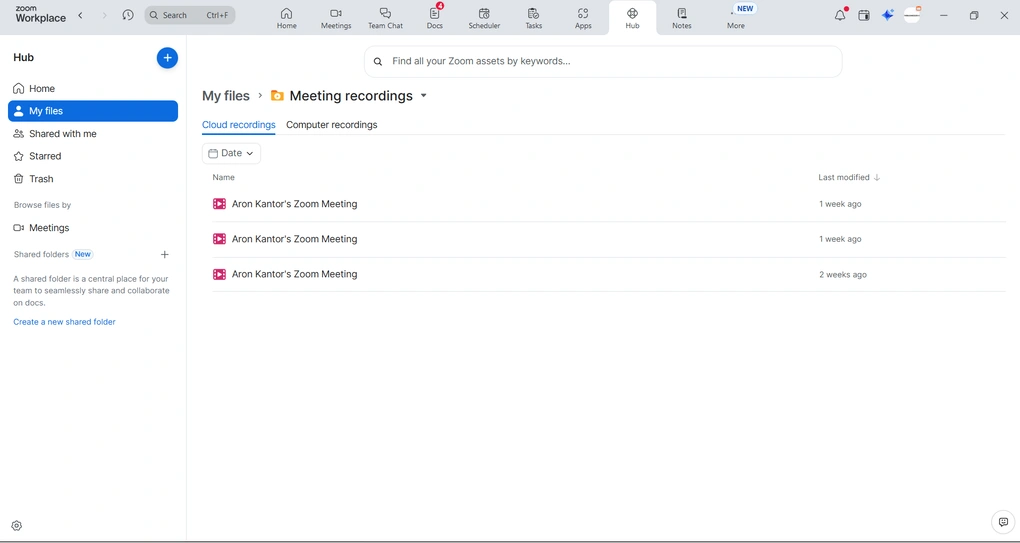
Overall, I felt the meeting transcripts were too basic, and I don’t see the logic for storing them in the Web portal instead of the desktop app. After testing tools like Fellow, the contrast between the transcriptions was huge.
Meeting summaries
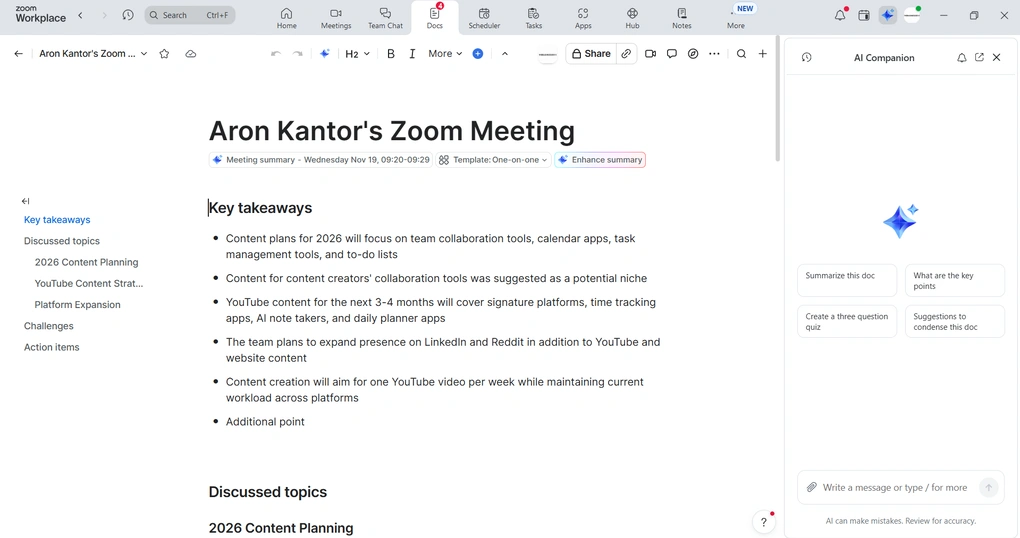
When your meeting is over, Zoom AI companion will provide you with a meeting recap, and you can ask questions about your calls. You can access the meeting recaps in the app, the Web portal, and it is also attached to the email once your call is concluded.
If you want to access the meeting summary later, just click Docs to review your past meetings anytime, along with the other documents you created in Zoom Workspace.
Zoom AI Companion summarizes the most essential points from your entire meeting. It includes a quick recap, next steps, and a longer summary. You can create and choose from meeting templates, and it will structure the meeting summary accordingly. Also, you can write prompts and ask for more details, the key takeaways, topics, risks, action items, and more.
If Zoom AI Companion missed anything, you can add further details as it works like a block-based text editor. So, you can add bullet points, files, headings, and more. If you click the three dots, you can access additional settings such as page width, translation, link copying, and more.
Lastly, it is useful that you can add comments to the meeting summaries, mention your team members, and attach files.
In general, the meeting notes are fine but far less powerful than MeetGeek’s, so I would only recommend them to lightweight users.
AI chat
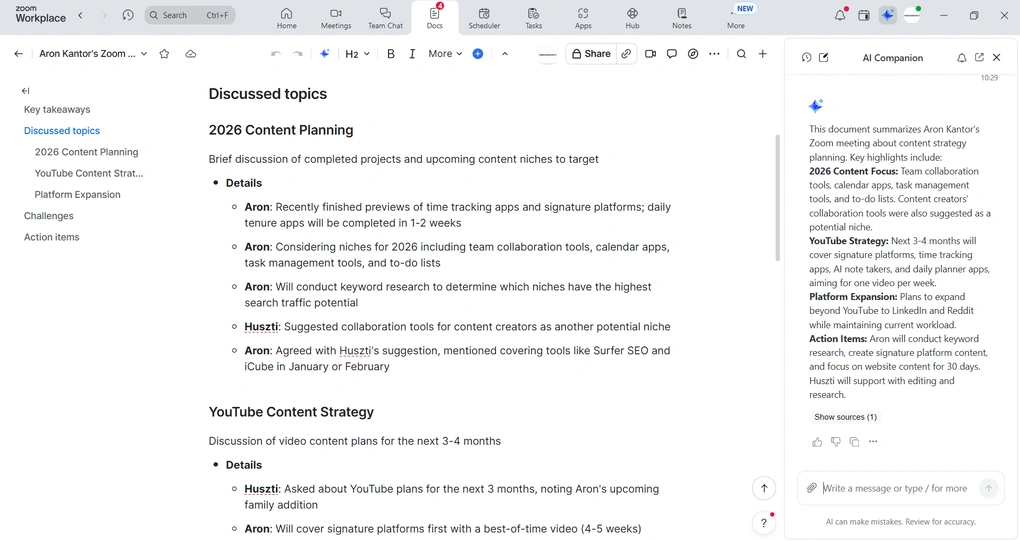
Zoom’s AI-powered assistant worked surprisingly well during my Zoom AI Companion review. It provides reliable outputs fast, and you can ask it to highlight key points, questions about your meeting notes, documents, and more.
While it is not as advanced as third-party AI meeting assistants like Fellow, it can do the work.
Tasks
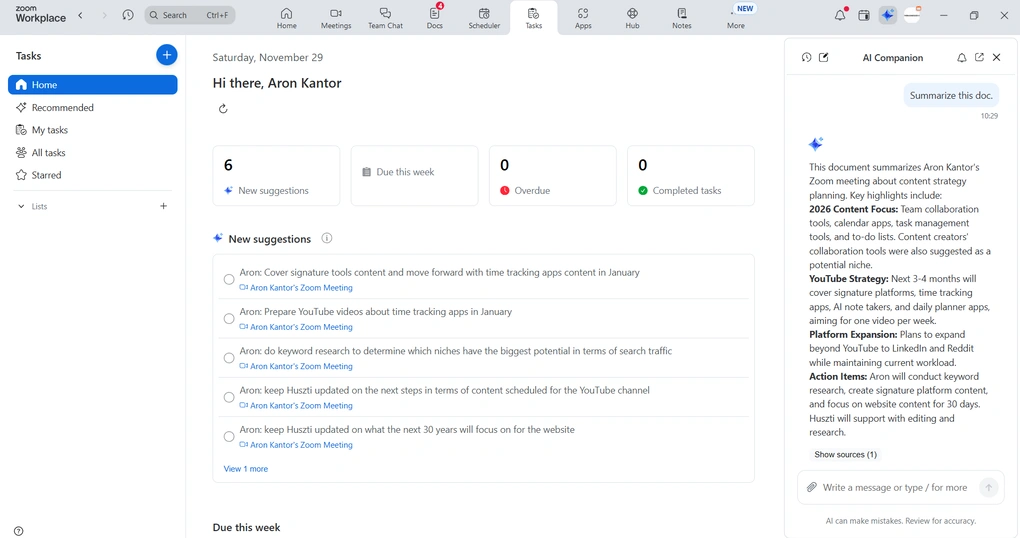
This feature helps users automate the lifecycle of action items, from identification to completion. It identifies your meeting notes, recordings, and transcriptions to find the action items and collect them in one place.
It is also great that each recommended task includes a link to the original conversation to ensure you have the context.
Similar to some other previous features, if we compare this feature with Radiant or Fellow task management features, it only provides the essentials, and you won’t find advanced tools to manage your pulled-out tasks from your calls.
Docs
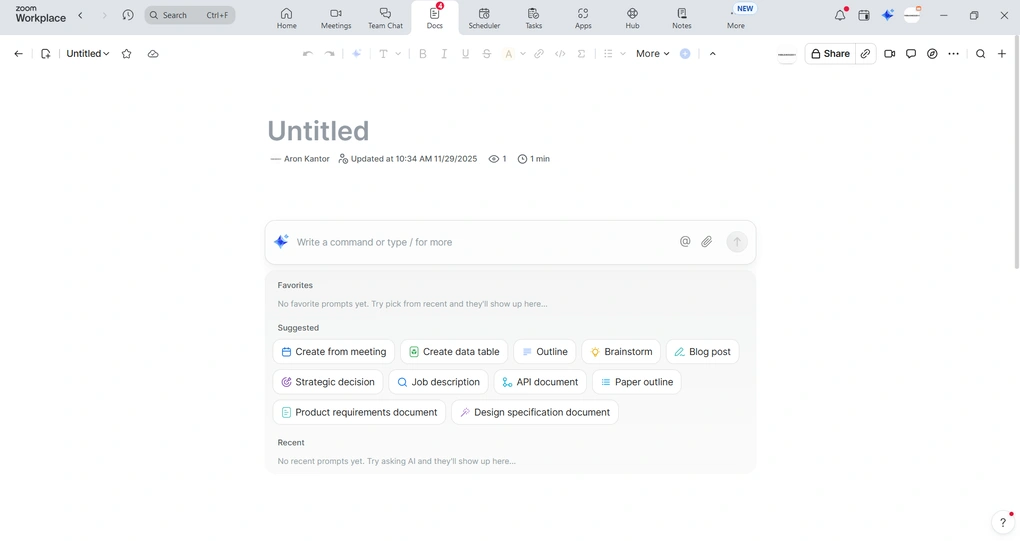
Zoom AI Companion offers more than just smart recording, meeting summaries, and transcription. It can help you create content in your Zoom Workspace.
Inside the Docs, you can create content like posts, forms, tables, and more. You can use Zoom AI Companion to improve drafts, prepare content from scratch, and brainstorm ideas.
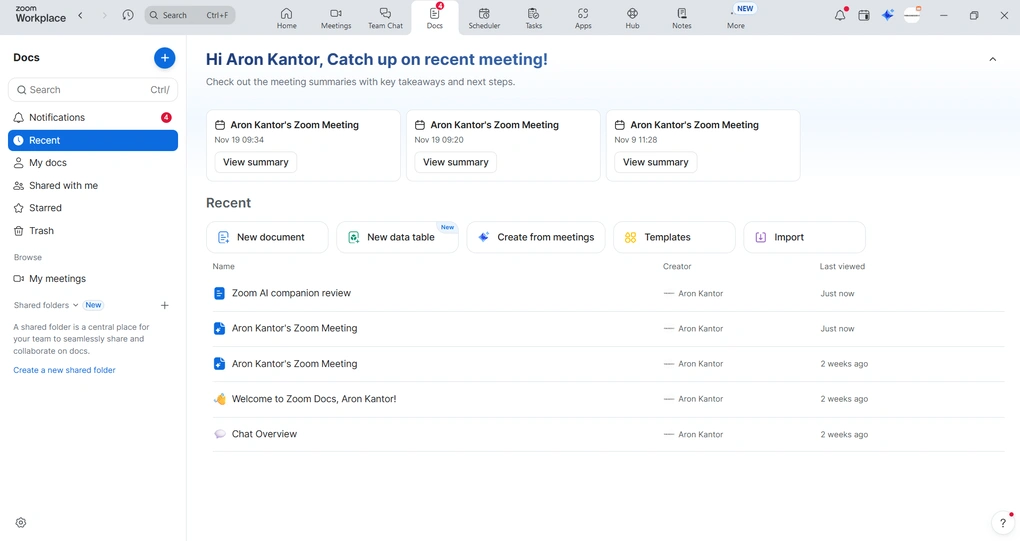
If you have used Notion before, the way Docs works will be familiar. It allows users to structure content as blocks that can be dragged and dropped onto pages.
Integrations
You can connect Zoom AI Companion with numerous third-party apps, including Google Workspace, Slack, Asana, Jira, Zendesk, Notion, and more.
If you log in to your Zoom Web Portal, you can enable additional data sources like Google Docs or Microsoft 365, allowing Zoom AI Companion to access that information.
Explore our Apps directory
A curated directory of software tools we’ve independently reviewed, with links to full reviews, comparisons, and category guides.
User interface
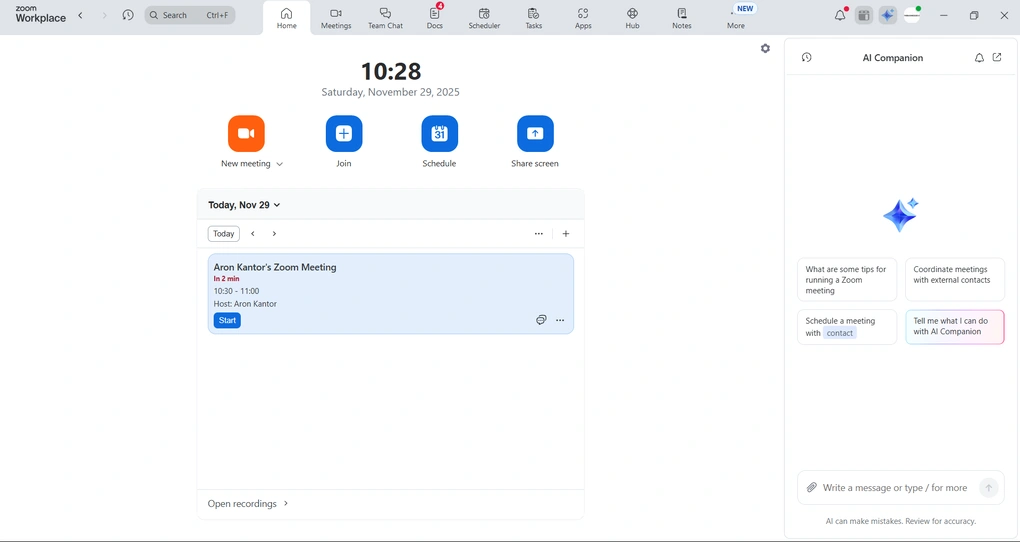
Zoom Workspace has a user-friendly interface where you can easily find all key features, from team chat messages to Docs. Ultimately, the whole Zoom platform requires a short learning curve, including Zoom AI Companion features.
Pricing
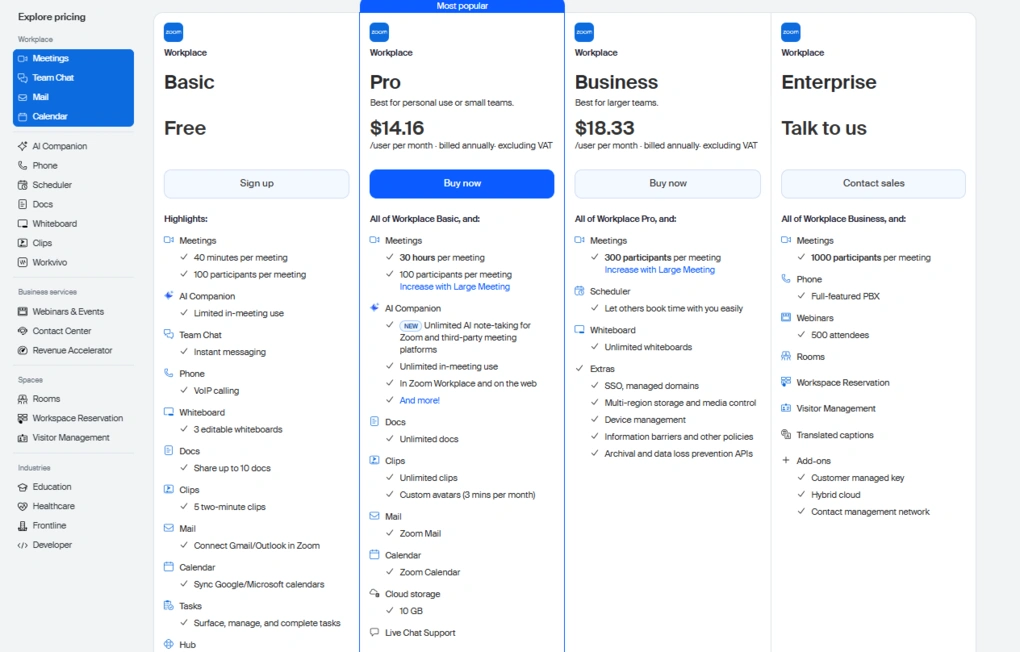
Zoom AI Companion is included with all paid Zoom plans, including Pro, Business, and Enterprise. However, the Free plan also covers three meetings per month where you can use Zoom AI Companion.
To utilize all the benefits, you need to purchase at least the Pro plan, which costs $14.16 per user per month with annual billing. A quick note: Zoom AI Companion is included at no additional cost for users with paid Zoom accounts and offers unlimited AI note-taking for Zoom meetings and third-party video conferencing platforms.
Pros and cons I found during my Zoom AI Companion review
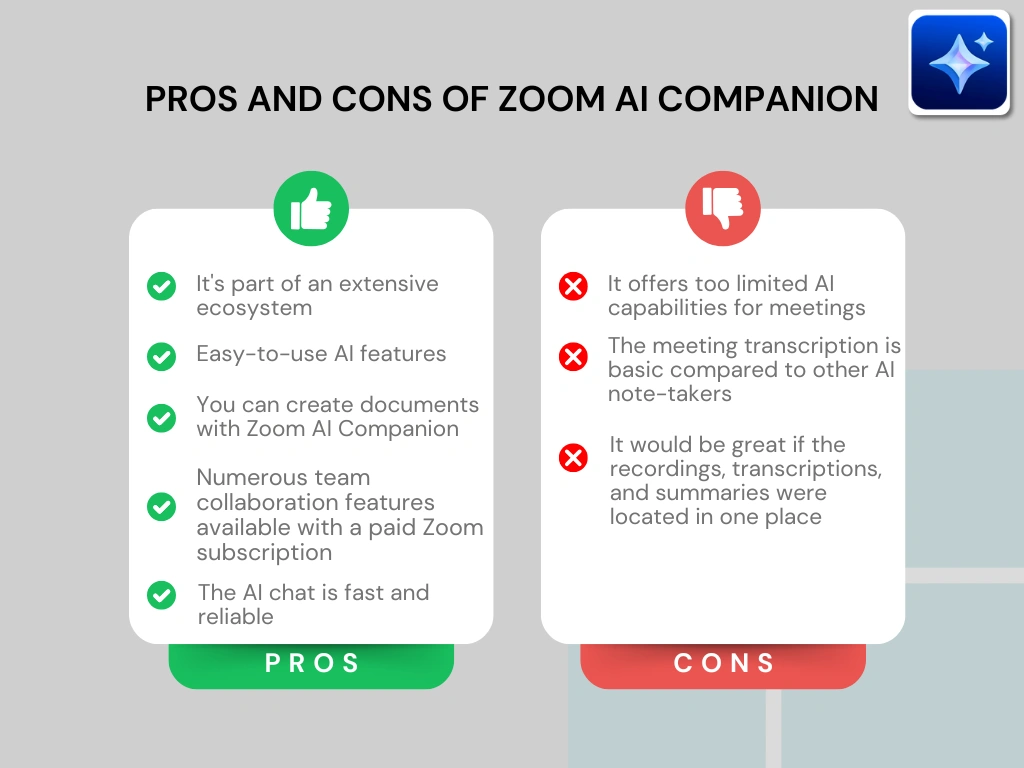
Let me break down the pros and cons I found when personally testing Zoom AI Companion for my Zoom meetings.
Pros of Zoom AI Companion
Cons of Zoom AI Companion
Zoom AI Companion alternatives
If you are still unsure whether Zoom AI Companion is the right AI note-taker for you, check out these alternatives:
|
App |
Best for |
Description |
|---|---|---|
|
Fellow |
Best overall |
A top AI note-taker for professionals and teams. This is the one I use for online meetings. |
|
Fireflies AI |
Best budget-friendly option |
A popular and budget-friendly AI meeting assistant for individuals and teams. |
|
Notta |
Best for multi-language transcription |
A unique AI note-taker that allows multi-language transcription, enabling people to speak two different languages during online meetings. |
|
Fathom |
Best free AI note-taker |
An accurate AI note-taker with an extensive free plan. |
|
MeetGeek |
Best for multi-language transcription |
A versatile AI note-taking app with the best AI meeting summaries. |
|
tl;dv |
Best simple AI note-taker |
A simple option for individuals with a feature-rich free plan. |
|
Radiant |
Best free AI note-taker for Mac |
It is a 100% free AI bot-less note-taker for Mac users for in-person and online meetings. |
|
Otter AI |
A popular AI note-taker |
One of the most popular AI note-takers for Google Meet, Zoom, and Microsoft Teams. |
|
Granola |
Best for users need a simple bot-less AI note-taker |
Granola is a lightweight AI note-taking app that transcribes and summarizes meetings without bots, with a generous free tier, but it’s basic and lacks advanced features. |
|
Krisp |
Best bot-less AI note-taker supporting high audio quality |
Krisp is a Voice AI platform for clearer communication and more productive meetings, combining real-time audio enhancements with AI note-taking. |
|
Bluedot |
An easy-to-use bot-less AI note-taker |
Bluedot is a straightforward and easy-to-use bot-free AI note-taker. |
|
Tactiq |
Best for individuals and workflow automation |
Tactiq is an AI meeting assistant that provides real-time transcription, customizable summaries, and workflow automation. |
|
Read AI |
Best for teams & individuals who want an all-in-one AI meeting assistant |
Read AI is an AI meeting assistant with solid transcription, summaries, and search, but limited features on lower plans and privacy concerns make it hard to rely on. |
|
Plaud |
Best for in-person conversations |
A unique AI note-taker with dedicated hardware for recording meetings, phone calls, and ideas wherever you are. |
Looking for similar tools?
Visit our AI note-takers library to explore other apps we’ve reviewed in this space and how they compare.
Wrap-up: Zoom AI Companion review
To wrap it up, it was nice to see that Zoom finally had its own AI note-taking solution, but for me, it is just too limited. However, if you already have a Zoom subscription, it can be a good option for many of you.
Otherwise, I would not recommend buying the Pro plan just because of it, since there are way better alternatives out there for a lower price.
Related articles:
- Best 5 Otter AI Alternatives | 20+ Personally Tested Apps (2026)
- 5 Best Bot-Free AI Note-Takers In 2026 (NOT What You’d Think)
- Best 9 AI Note-Takers | My Top Picks After +2 Years Testing (2026)
Hope I was able to help you find the best AI note-taker for you. As always, I will update this Zoom AI Companion review over time so you guys have up-to-date information about this generative AI assistant.
Why you can trust our reviews
At thebusinessdive.com, our team tests, reviews, and compares hundreds of productivity apps every year — from project management tools to note-taking apps. We dive deep into real-world use cases to help you find the right tools that actually improve your workflow, not just add noise.
Our mission? No fluff, no shortcuts—just honest, hands-on insights from productivity pros.
Discover how we stay transparent, read our review methodology, and let us know about any tools we missed.
Frequently asked questions
Is the Zoom AI Companion worth it?
If you have already bought a paid Zoom plan, it can be a reasonable choice. Nonetheless, if you want to upgrade your Zoom Workspace just because of Zoom AI Companion features, I don’t think it’s worth it since there are more advanced solutions out there for less money.
What is the best AI companion for Zoom?
Personally, I use Fellow for my virtual meetings. It offers a robust feature set with numerous team collaboration features, and it works on all the major video conferencing platforms.
What are the benefits of Zoom AI Companion?
During my Zoom AI Companion review, I identified these benefits:
- It’s part of the Zoom ecosystem
- Offers simple AI features
- It allows you to create documents with Zoom AI Companion
- Besides Zoom AI Companion, you will access the Zoom Team chat and other collaboration features with the paid plans
- The AI chat is fast and reliable

Hey there! I am Aron, the founder of Thebusinessdive. I have been testing productivity apps for almost three years now. I reach 25.000 -50.000 people monthly with the mission to help you find the perfect productivity apps. Subscribe to my YouTube channel, newsletter, and social media to hear more about the best productivity tools. Let’s dive in!