


Todoist vs Notion (2026): I Used Both For 3+ Years
If you’re struggling to decide between Todoist and Notion, you’re in the right place. In this Todoist vs Notion comparison, I’ll break down which tool actually fits your workflow better.
Both are popular productivity apps, but they serve very different purposes. Todoist is built for fast and structured task management, while Notion works as a highly flexible all-in-one workspace for notes, projects, and collaboration.
So, which one should you use?
To answer that, I’ll walk you through the key differences between Todoist and Notion, including features, pricing, and pros and cons.
Let’s dive in!
Verdict
Here’s the quick verdict if you don’t want to read the full Todoist vs Notion review:
🎯 Best for:
Todoist: Individuals and small teams who want a fast, intuitive task manager for organizing daily work and routines
Notion: Building a centralized workspace for notes, tasks, and projects
🚫 Not ideal for:
Todoist: Users who need advanced time blocking or full-scale project management features
Notion: Users who need advanced project or task management features
⭐ Biggest strength:
Todoist: Simple, fast task capture with powerful customization and cross-platform sync
Notion: Flexibility and ability to replace multiple tools
⚠️ Biggest weakness:
Todoist: Limited calendar/time-blocking capabilities and some advanced features locked behind paid plans
Notion: Limited offline support and requires setup time
⚖️ Verdict:
Todoist is better for fast, structured task management and daily productivity, while Notion is ideal for flexible all-in-one workspaces, notes, and project organization.
🏆 Winner:
Todoist for pure task management and simplicity, Notion for flexibility and all-in-one workflows
✅ Tested with our review & scoring methodology ✅ Real-world testing ✅ Unbiased evaluation
My ratings: Todoist vs Notion
Todoist
|
|
Fast and intuitive task creation
|
|
|
Cross-platform sync
|
|
|
Highly customizable
|
|
|
Motivating productivity features
|
|
|
Reliable integrations
|
|
|
Extensive free plan
|
|
|
Budget-friendly pricing
|
|
|
Occasional misinterpretation in natural language input
|
|
|
Some users report delayed responses from customer support and unresolved issues
|
|
|
Limited project management tools
|
|
|
Lacks advanced time blocking features
|
Notion
|
|
Easy-to-use note-taking app
|
|
|
Fantastic all-in-one app
|
|
|
Advanced collaboration features
|
|
|
Extensive tutorials
|
|
|
Feature-rich free plan
|
|
|
Limited offline access
|
|
|
No password protection
|
|
|
Steep learning curve for new users
|
How We Test Daily Planners
To keep our reviews & final score for each daily planner app fair and consistent, we evaluate every tool using the same testing framework based on real-world usage, feature depth, and overall value.
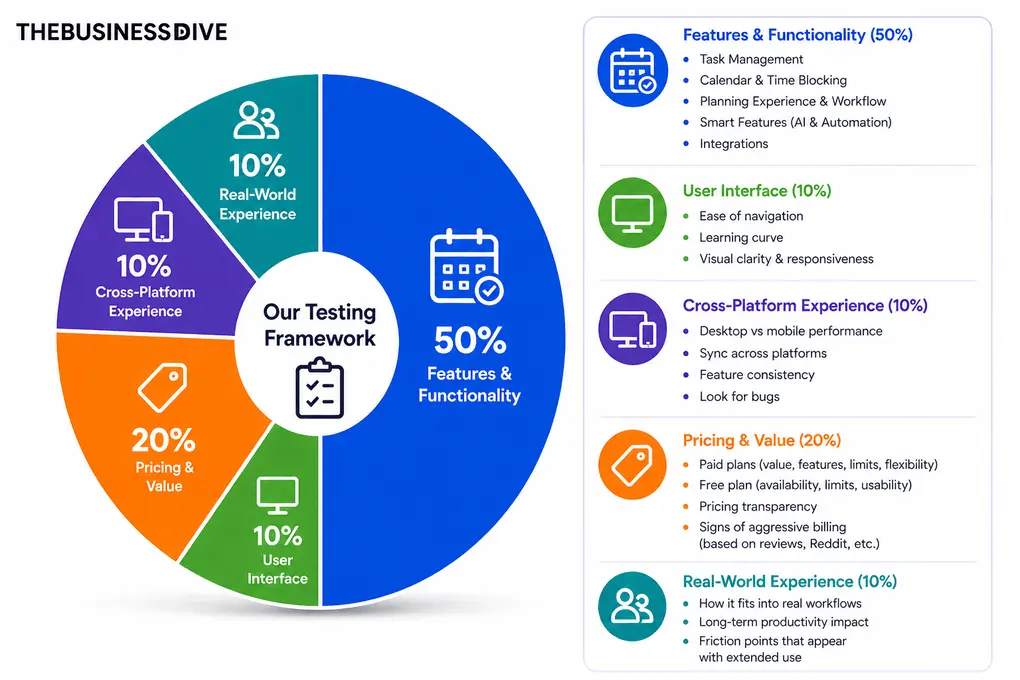
Our scoring breakdown after testing 10+ daily planner apps:
⚙️Features & functionality — 50%
🖥️ User interface — 10%
⚡Cross-platform performance—10%
💰 Pricing — 20%
👥 Real-world experience — 10%
Want a detailed breakdown of how we test each category?
Learn exactly how we test tools → Review methodology
Key differences between Todoist and Notion
Here’s a quick overview of the main differences that stood out during testing:
|
|
|||
|---|---|---|---|
|
Best for |
Fast personal task management and daily productivity |
Flexible all-in-one workspace for notes, tasks, and projects |
|
|
Core focus |
Lightweight task and to-do management with strong organization features |
Centralized workspace for notes, projects, workflows, and collaboration |
|
|
Key strengths |
|
|
|
|
Main limitations |
Limited time blocking and project management depth |
Limited offline mode and requires setup time |
|
|
Ease of use |
Easy |
Moderate |
|
|
Pricing |
|
|
|
|
Integrations |
Extensive integrations |
Extensive integrations |
|
|
Cross-platform |
Web / Desktop / Mobile |
Web / Desktop / Mobile |
What is Todoist?
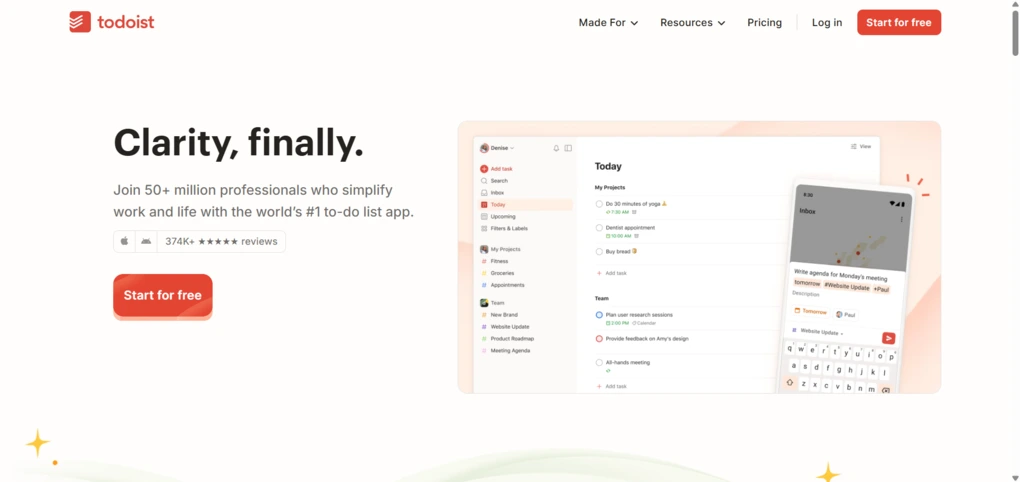
Todoist is one of the original task managers, founded in 2007. It is a cross-platform task manager and to-do app designed to keep your professional and personal life organized in one place.
Available on web, iOS, Android, Windows, and macOS, it helps you capture thoughts instantly and turn them into structured action items. Its intuitive design makes task creation and organization feel simple, even when your schedule is not.
Todoist is one of the most popular task management apps for personal use and small teams. It encourages routines, helps you stay consistent, and brings clarity to daily planning.
🔎 Read my full review: My Honest Todoist Review After 3 Years & 1,400 Tasks
Short on time? Here’s a quick overview of Todoist
What is Notion?
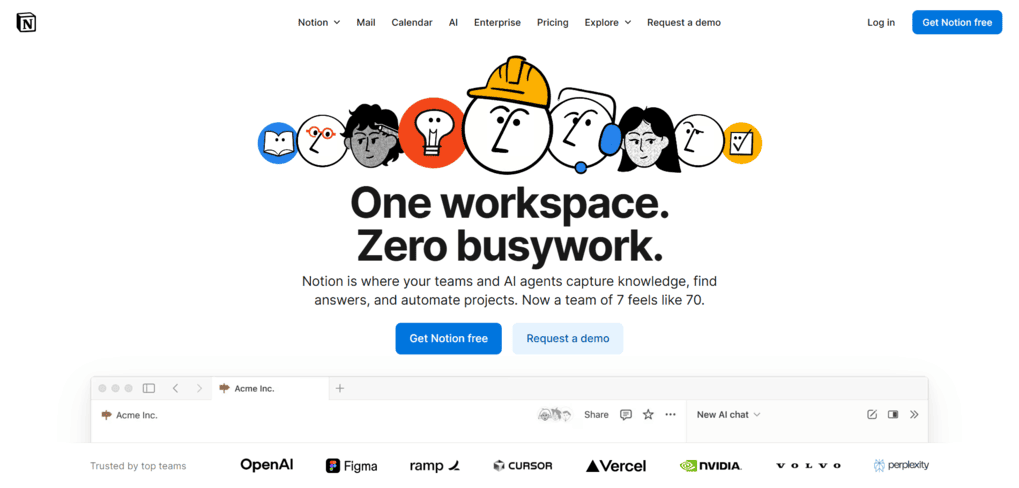
Notion is like a Swiss army knife; you can use it for many purposes. It provides a centralized workspace where you can organize your thoughts, notes, tasks, projects, and documents in one single app. This makes Notion a highly customizable all-in-one workspace for both personal and team use.
Personally, I use Notion to write scripts, track projects, and organize learning.
You can create pages for almost every purpose, such as reading lists, meeting summaries, goals, etc. Every item on a page is customizable; you can easily drag and drop items and insert pictures or videos.
It is also a great app with numerous team collaboration tools. You can invite your team members to work on pages in real-time, create and assign tasks and projects to others, and much more.
🔎 Read my full review: My Honest Notion Review After Using It For +2 Years (2026)
Short on time? Here’s a quick overview of Notion
Comparison: Todoist vs Notion
Below, I’ll walk you through each tool step by step. First, we will break down the features for each tool, then we’ll take a look at the integrations, user interfaces, pricing plans, pros and cons, and finally, I’ll share my personal experience using both.
Features
Let’s start with Todoist’s features!
Todoist’s features
Here, I will share the key features and how they performed during my Todoist review.
My Honest Todoist Review After 3 Years & 1,400 Tasks
Task management and organization
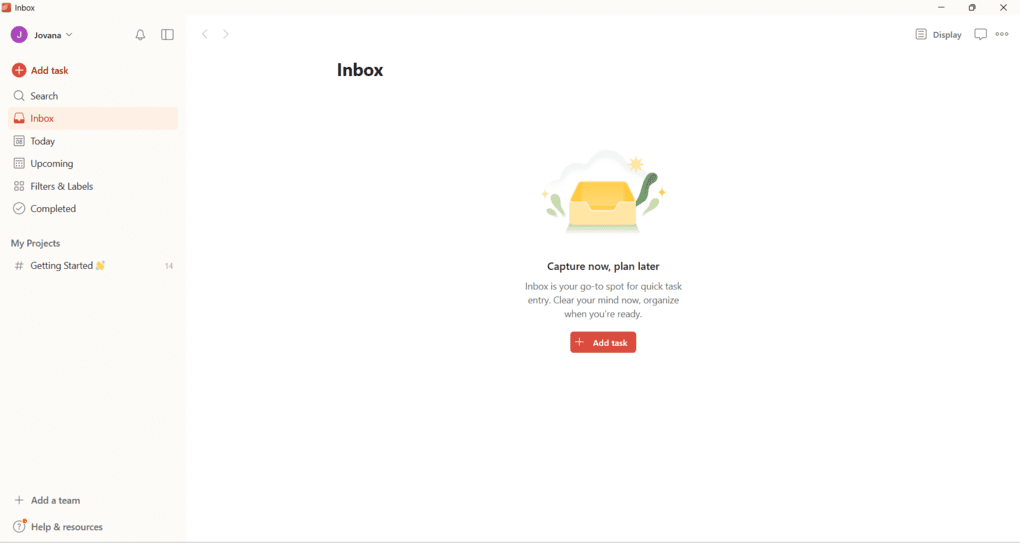
Creating a new task is instant. Click Add Task or press Q, type what you need, and hit Enter. Each task goes to your Inbox, which works as a quick capture space before sorting them into the right projects.
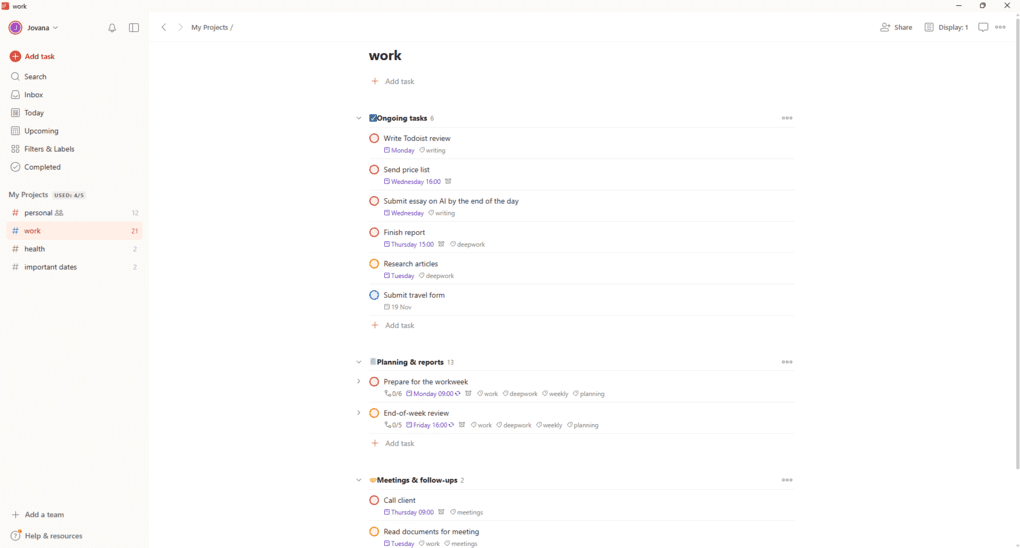
Every task can include a description, labels, due dates, reminders, sub-tasks, and so on. You can assign priority levels to highlight what is urgent or create smaller steps for bigger goals. It sounds like a lot of options, but everything feels clean and intuitive, which is what I loved most while testing.
I organized my projects into four simple categories: Personal, Work, Health, and Important Dates. Each one can be color-coded, so even when my schedule was packed, it was easy to spot what mattered at a glance. This visual clarity made a huge difference in staying organized throughout the week.
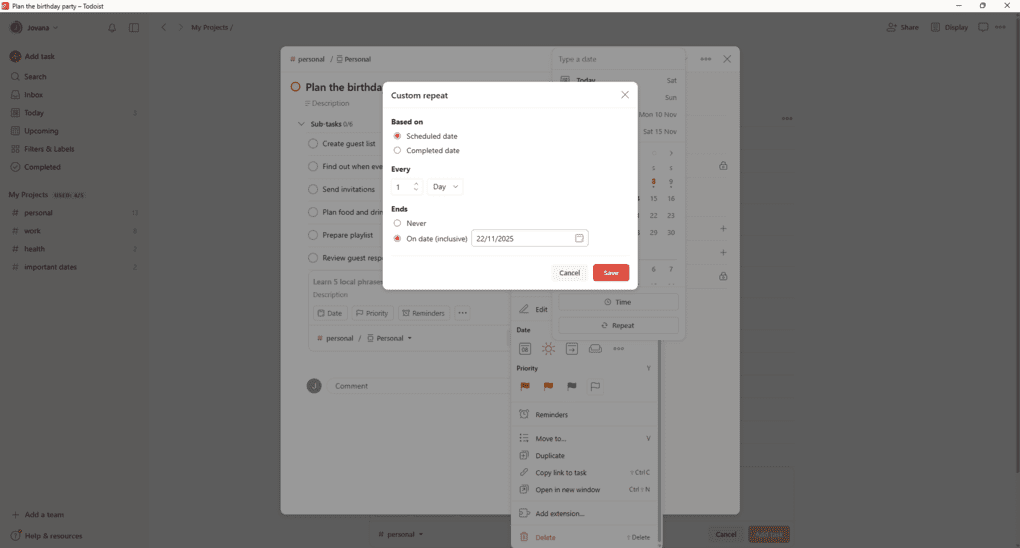
Todoist also supports recurring tasks, which I found incredibly useful for routines like invoices, gym sessions, or weekly reviews. Once set up, they repeat automatically and help build consistent habits.
You can visualize your task lists as a simple list, a kanban board, or a calendar view.
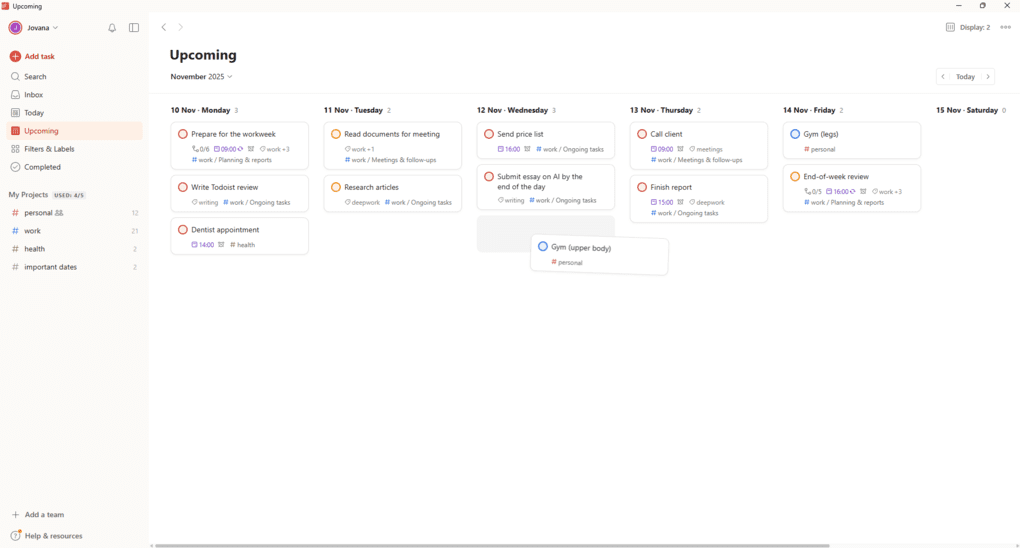
If you need to reschedule something, you can simply drag and drop the task to a new time slot, and Todoist automatically updates its due date. The calendar view syncs with Google Calendar and Outlook Calendar, so you can time block tasks across all your devices.
Just a heads-up: Todoist does not have built-in task dependency features, as it is more like a task manager than a project management app.
Natural language input
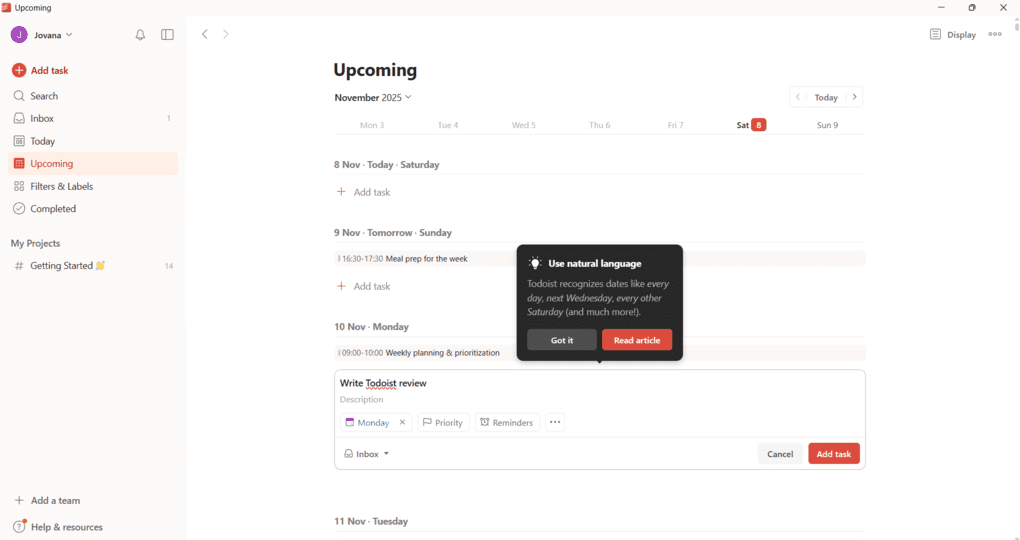
This is the coolest feature, in my opinion, and one of the main reasons Todoist feels so fast.
Instead of clicking through menus, you just type what you mean, and the app handles the rest. I could write “Call the client tomorrow at 3 PM” or “Submit report every second Thursday,” and Todoist immediately recognized it as a new task with the correct date, time, and recurring pattern.
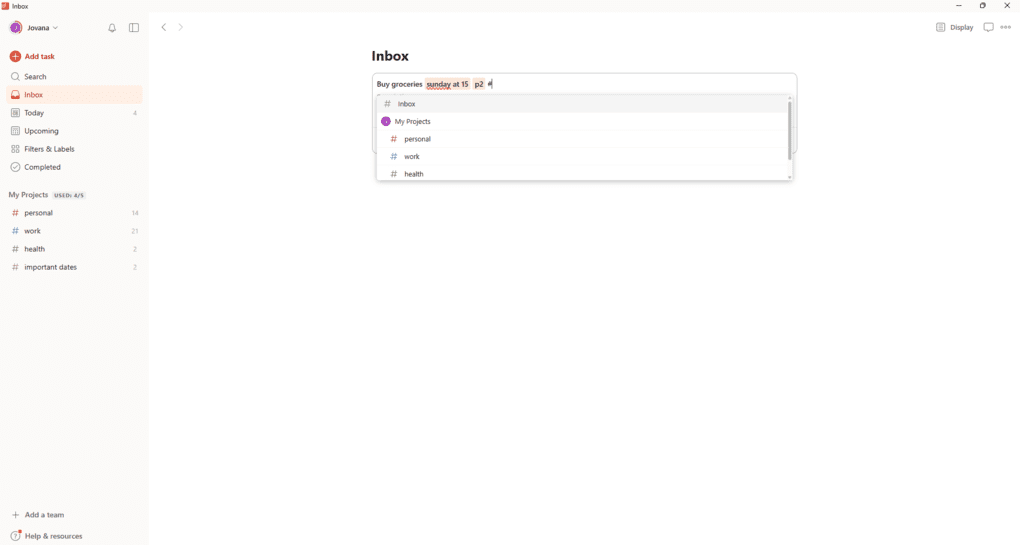
Natural language input made adding tasks feel almost fun. I stayed in flow, typed freely, and Todoist understood everything, from deadlines to priorities. If I mistyped or changed my mind, editing took seconds.
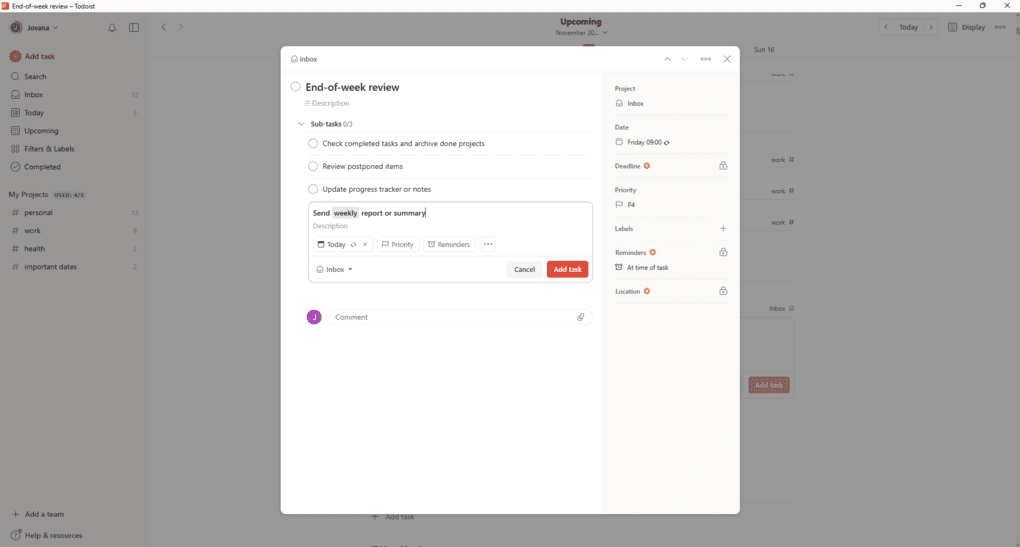
There was only one small thing I noticed while testing. Todoist sometimes interprets certain words, like “week” or “weekly,” as time indicators even when I mean them as part of a title. It’s a small detail, but something to keep in mind when naming your tasks.
For personal task management, this saved me so much time. It is perfect for people who like to get things out of their heads quickly. You think, you type, and your task management system keeps up. This feature alone makes Todoist stand out from other to-do list apps I have tried.
Productivity and automation
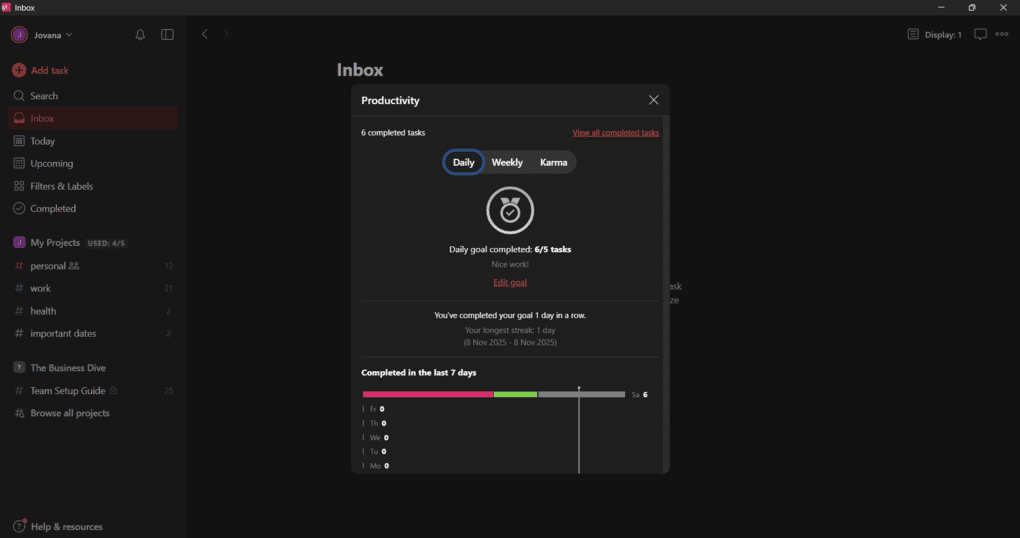
Todoist is not just about listing things; it also helps you stay consistent. I loved how easy it was to see completed tasks and monitor streaks. It is satisfying to watch progress build up visually over time.
Todoist Karma adds a playful twist to productivity. Each time you complete a task, your Karma score goes up, and you unlock new levels. You can set goals and rest days, or turn the feature off if you prefer it that way.
Automatic backups and fast sync across Windows, macOS, Android, iOS, and web kept my projects safe and up to date. Templates and integrations with other productivity apps reduce repetitive work and keep professional tasks moving.
If you subscribe to Todoist Pro, you can access its AI assistant that helps manage workloads, suggest schedules, and balance tasks automatically. It already saves time if you manage multiple active projects.
Collaboration and sharing
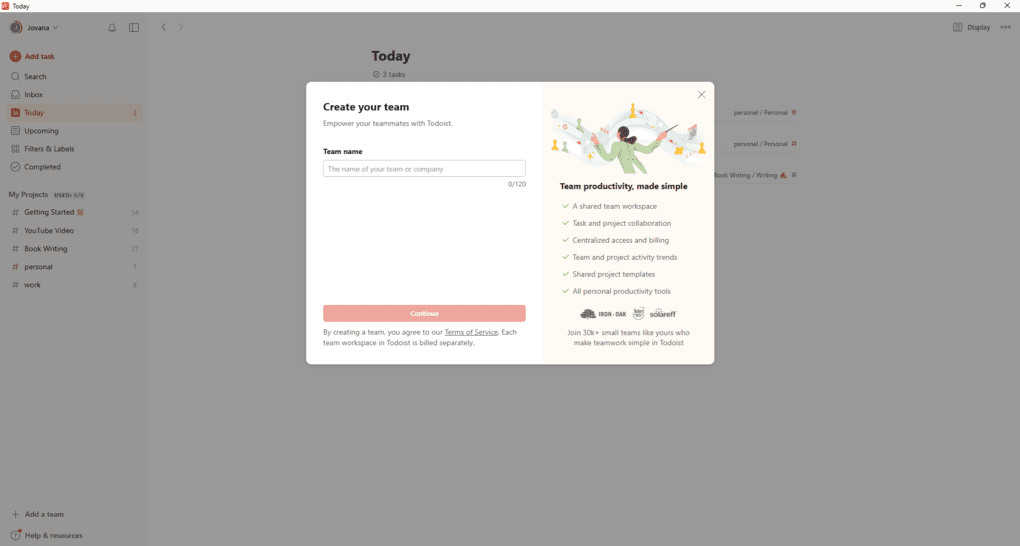
Even though Todoist is perfect for personal use, I tested its team features and found them surprisingly capable. You can assign tasks, share projects, upload files, and leave comments, which makes it a simple yet effective project management tool for small teams.
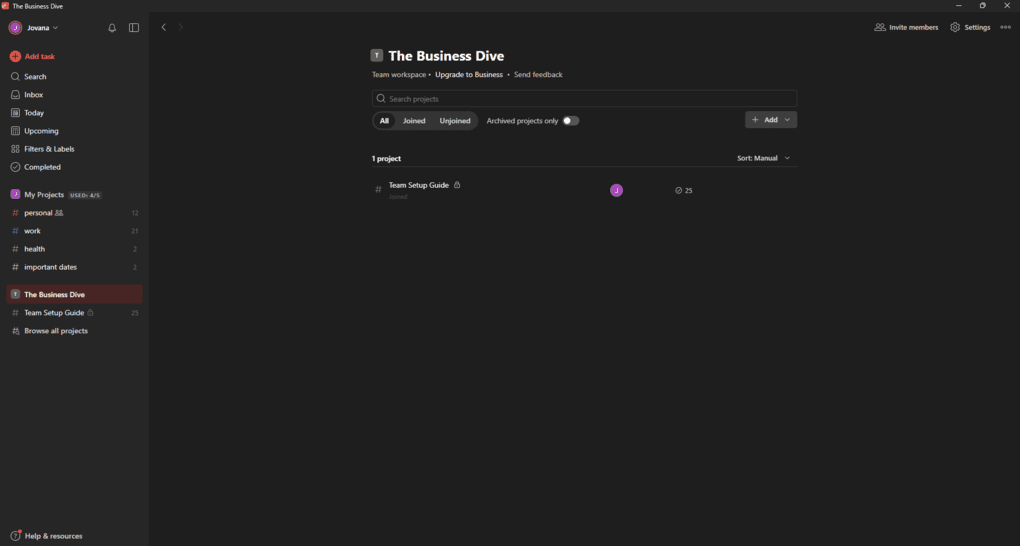
I invited a friend to collaborate on a shared list, and everything was smooth. Comments kept communication clear, and seeing all changes in one place helped us stay aligned. You can also set access levels and manage who sees what in shared projects.
On the Business plan, teams get centralized billing, priority support, and CSV imports for bulk task creation. So, it is an ideal app for business users as well.
Customization and filters
One of the things I appreciated most about Todoist is how personal it can feel.
You can adjust your sidebar, choose custom colors, and rename sections to match your workflow. It might sound small, but this kind of personalization makes a big difference when you open the app every day.
I experimented with custom filters, and they were incredibly helpful. You can quickly display tasks that are high priority, due this week, or tagged with a specific label. If you are unsure how to create one, you can describe what you want in plain English, and Todoist will generate it for you instantly.
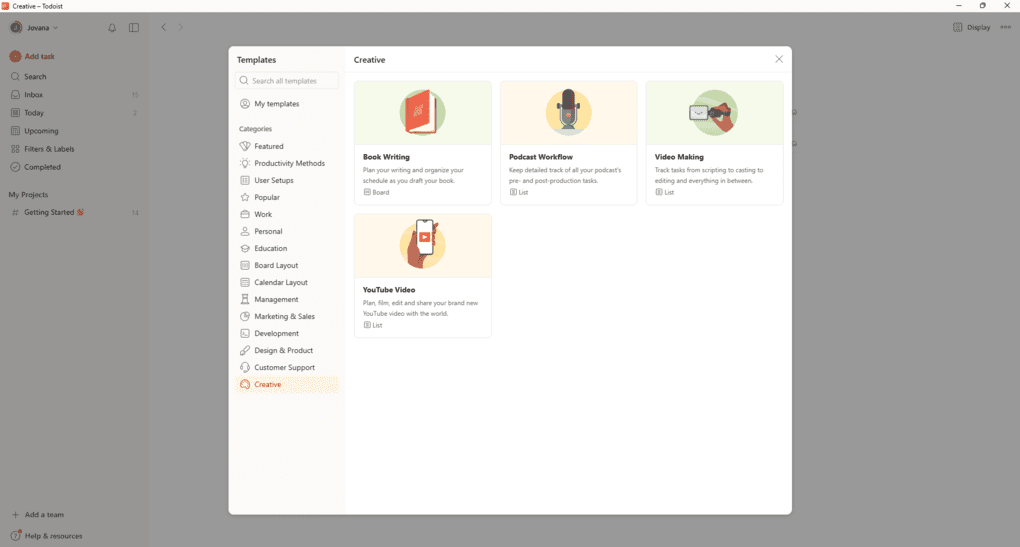
Templates were another feature I genuinely enjoyed testing. You can start a new project from scratch or choose from Todoist’s large library of templates for marketing plans, personal goals, or travel checklists. I found them genuinely useful, not just filler examples.
All these customization options make Todoist one of the most flexible and user-friendly task management systems I have used so far. It gives you structure without ever feeling restrictive.
Notion’s features
Now, it’s time to delve into Notion’s features!
Note-taking app
Notion is one of the most popular note-taking tools, and it is not an accident. Just to give you a background on how this app works: You can have multiple workspaces in which you structure your notes and basically everything. For example, you can have a workspace for personal or work-related items. The workspaces include your pages.
The Notion pages are the fundamentals of your workspaces. You can use them for notes, projects, tasks, and so on. There are no strict rules on how you structure your pages or what information you want to include in them. For instance, in my Notion workspace, there are pages dedicated to self-development, money plans, YT scripts, admin info, and notes. Now, let’s go back to note-taking!
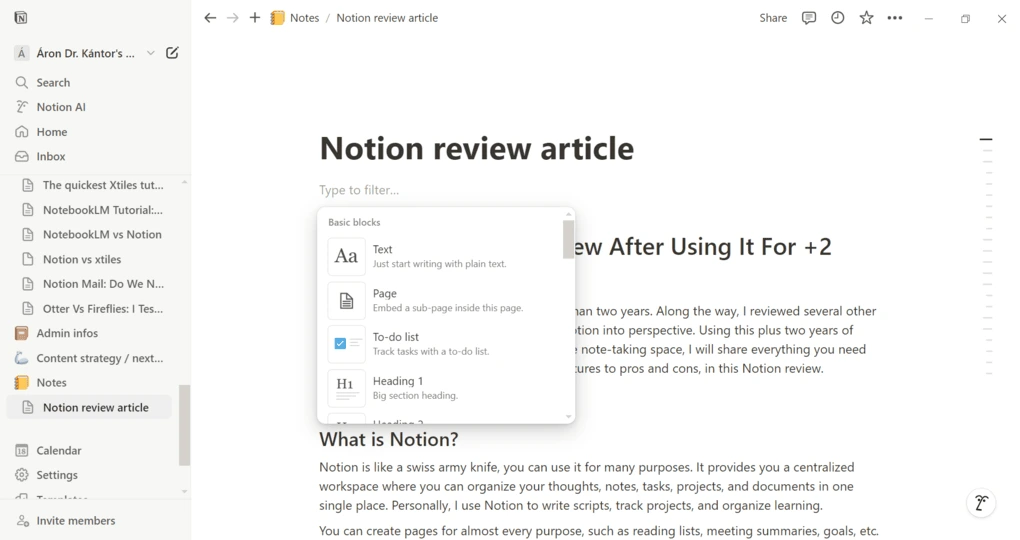
Notion is a sophisticated text editor that allows you to easily add and organize different types of content called blocks. When writing your notes, you can add headings, subpages, bullet points, and tables without touching your mouse.
In your notes, you can insert images, bookmarks, videos, code, a Kanban board, and more by simply hitting the “/” button on your keyboard. I especially love the embedded functions. Notion offers multiple embedded forms like YouTube videos, Google Docs, Google Maps, Miro, and more.
Notion is incredibly useful for note organization and knowledge management. You can tag notes with custom keywords, add teammates, set a due date, etc. You can access all your notes with your sidebar on the left.
Project management tool
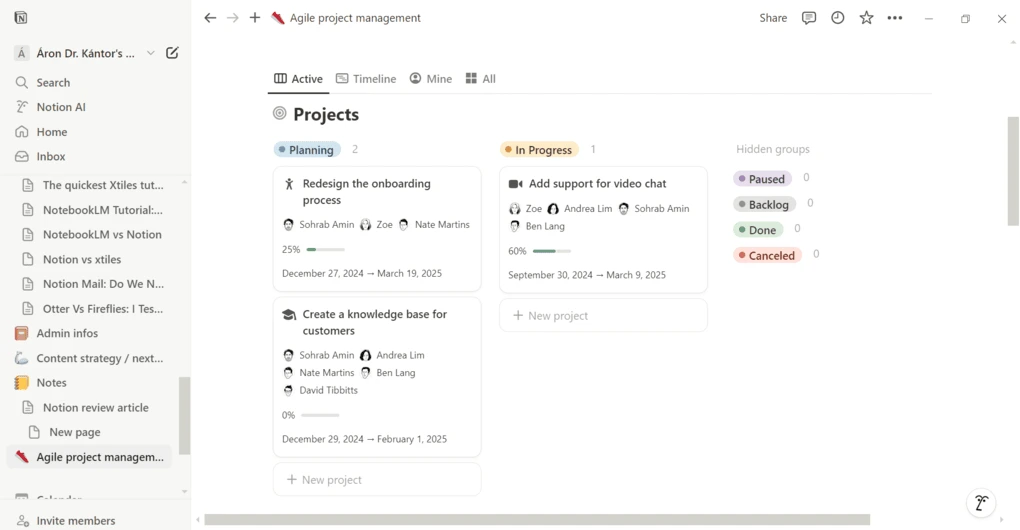
Notion also works as a lightweight task and project management software, where you can plan and execute your projects with your team. Let’s start with the project management features.
With Notion, you canvisualize your projects’ workflows in different formats, from calendars to boards. Depending on the format you choose, Notion allows you to use progress bars to show how your project is moving forward.
You can also create charts or visualize dependencies to see when one task is blocking another and avoid bottlenecks. Such data visualization options help a lot in project tracking.
When checking your projects, you can utilize filters to show only the tasks assigned to you or the urgent ones.
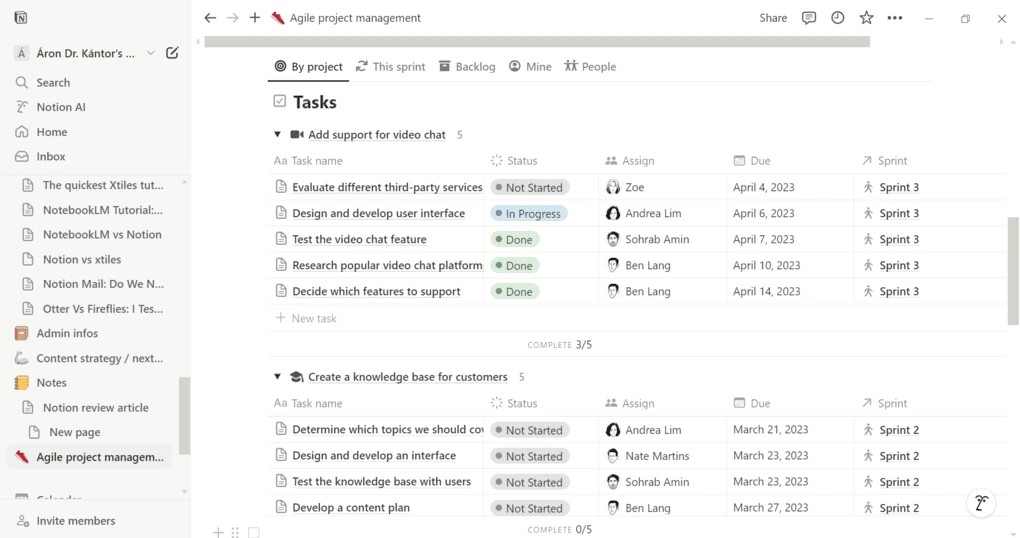
Notion’s task management features have everything that you need. You can break your projects into manageable tasks and add status, assignee, or due dates.
Whether you want to use Notion for task or project management, you do not have to spend hours creating the proper form for you or your team. This is where you can use the templates.
Templates
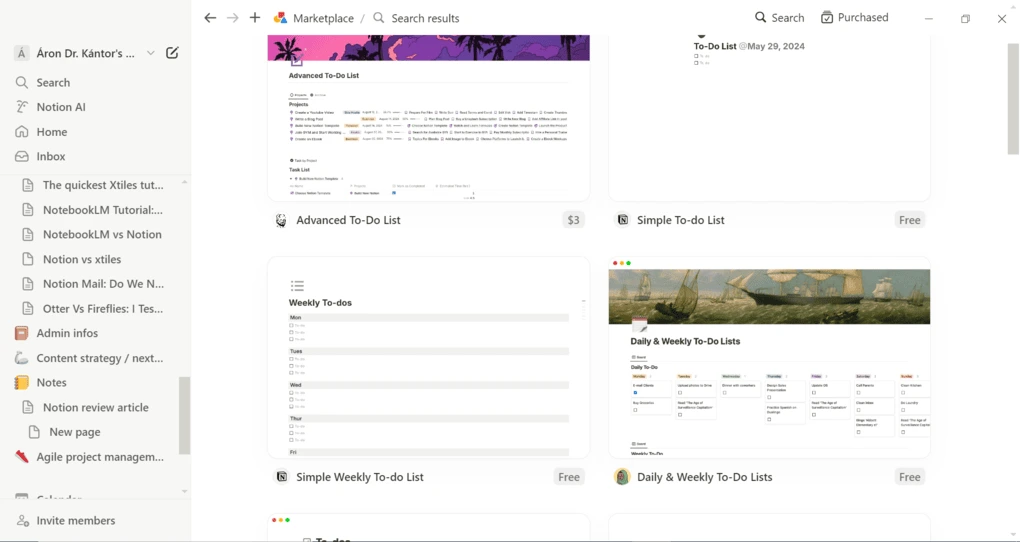
Notion currently has more than20,000 free templates from which you can browse. This is an insane number. Just to give you an example: if you want to create a to-do list, you can choose from almost a thousand templates.
Utilizing the templates, you do not have to go through the time-consuming process of creating pages to track your projects or tasks. With a few clicks, you can insert a template you like, and you just need to add the databases.
Notion AI writing assistant
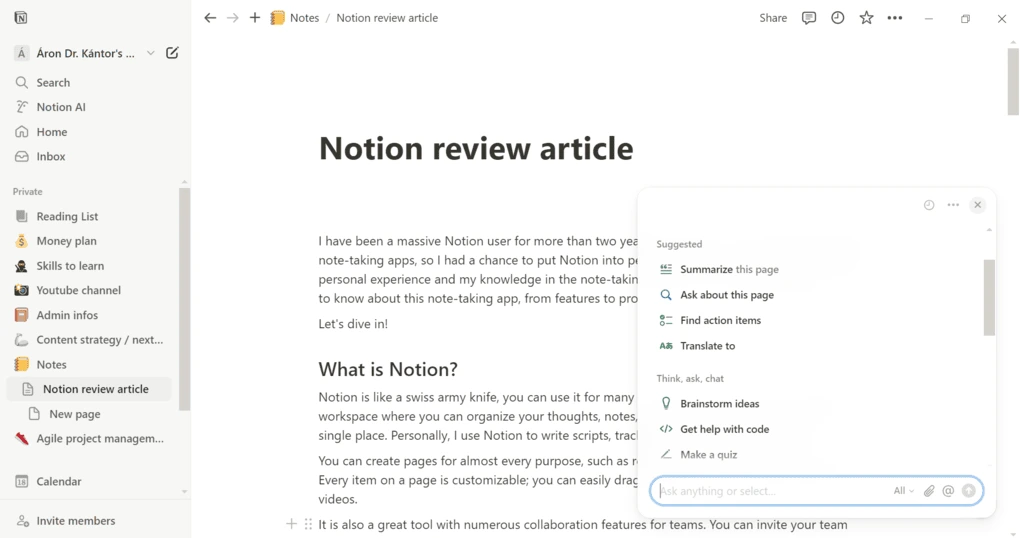
Notion’s AI writing assistant is one of Notion’s AI features. It can greatly improve your writing by detecting errors and correcting misspelled words and incorrect grammar. But it can do much more.
In the bottom left corner of Notion, you can access the AI assistant feature that answers your questions, gives you summaries, translates your page, finds action items, and helps you improve your writing. Basically, it works like a built-in ChatGPT.
But it can do more than just work with text. The AI writing assistant’s feature can help you gather information from various file types, including PDFs and images.
Overall, these tools help you to become more efficient when taking notes. However, it’s worth noting that Notion AI is not included in the standard plans and requires a separate paid add-on. For individuals or teams who heavily rely on AI for daily workflows, this can be justified, but for casual use, the additional cost may feel unnecessary.
Wikis & knowledge management
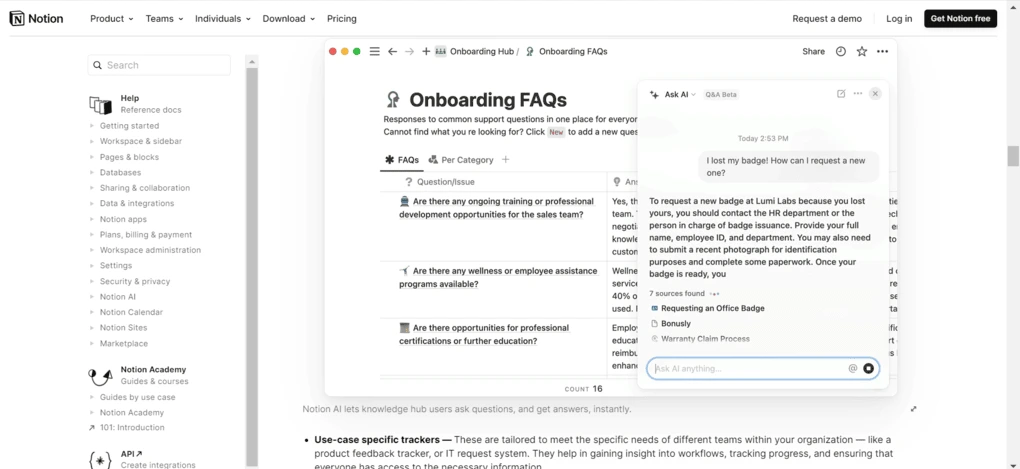
Team members often struggle to find the information they need. Using Notion, you can create your own knowledge library. These hubs can help your team members find and understand the information they need to do their jobs.
Imagine how powerful it could be when onboarding new employees or just wanting to have organized databases where your team members can access the information they need to do their jobs.
Calendar
You can connect your Google Calendar with your existing Notion workspace, so you will be able to see your meetings and appointments in your Notion calendar. Notion’s calendar is synced with your entire workspace, so you can make references to specific pages in the meeting invite.
Notion Calendar is available for iPhone and Android devices and integrates with Google Calendar and Apple iCloud, while Outlook support is still pending.
Ultimately, Notion’s integrated calendar helps you to centralize your calendar management, notes, and project management tasks in a centralized app.
AI meeting notes
Notion recently released its AI note-taker for Zoom, Microsoft Teams, and Google Meet calls. Basically, it joins your calls without a bot and transcribes & summarizes them.
It is a useful AI feature for your calls, as it can turn your conversations into insights and action items in your Notion workspace.
Explore our Apps directory
A curated directory of software tools we’ve independently reviewed, with links to full reviews, comparisons, and category guides.
Integrations
Now, it’s time to check their integrations!
Todoist’s integrations
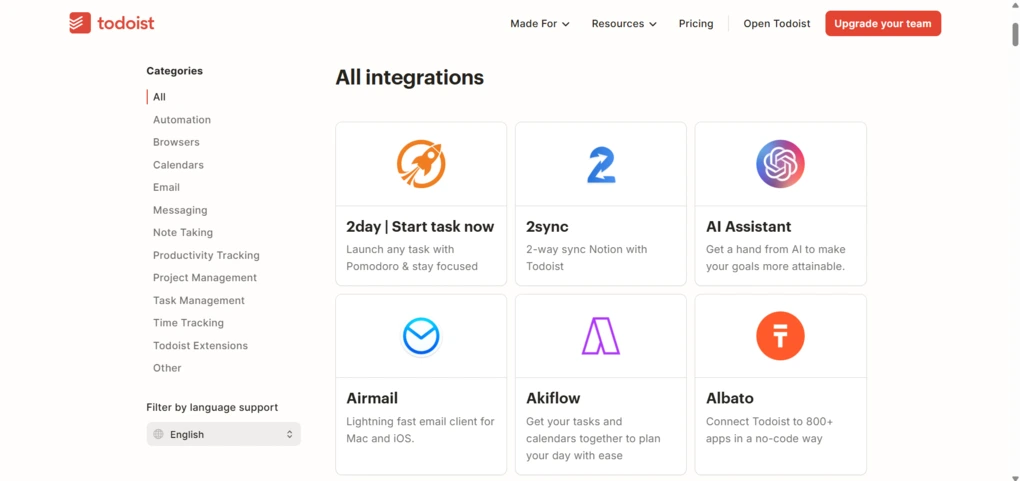
Todoist connects smoothly with a wide range of productivity apps. It integrates with Google Calendar, Outlook Calendar, and other scheduling tools, so your tasks and events always stay in sync. You can create or update tasks directly from your calendar, which helps with time blocking and daily planning.
During testing, I found that integrations with email clients, file storage apps, and automation platforms like Zapier or IFTTT work reliably. They let you automate repetitive steps, such as creating tasks from incoming emails or syncing attachments from Google Drive.
Todoist also supports API access for advanced users and third-party integrations for popular project management tools. Whether you are using it for personal task management or team projects, these integrations make Todoist more than just a to-do list app.
Notion’s integrations
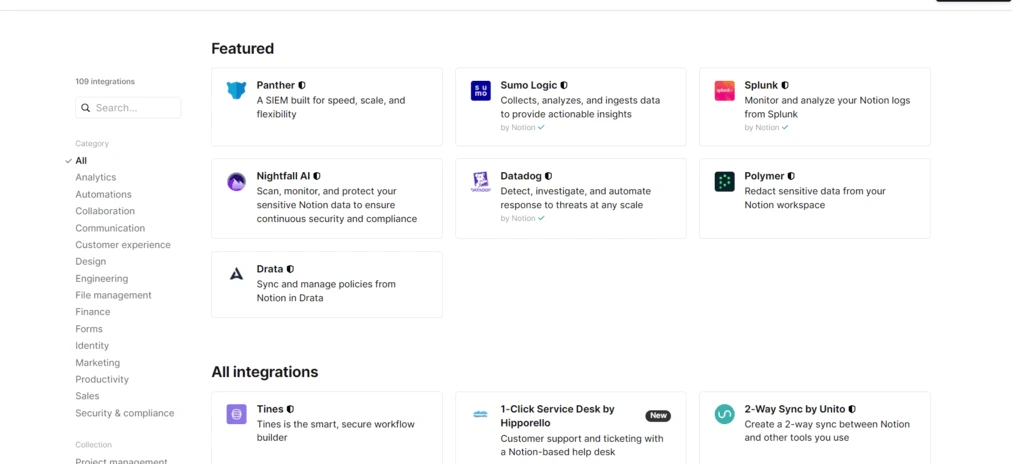
During my Notion review, I realized this is one of the note-taking apps with the most integrations. You can connect Notion with many other tools. First of all, you can connect it with Zapier, which will give you access to more than 8000 apps.
Besides the Zapier integration, you can integrate Notion with more than 100 other apps, including Asana, ClickUp, Dropbox, Google Drive, and Jira.
Pricing
In this round of the Todoist vs Notion comparison, let’s take a look at the pricing structure of each app.
Todoist’s pricing plans
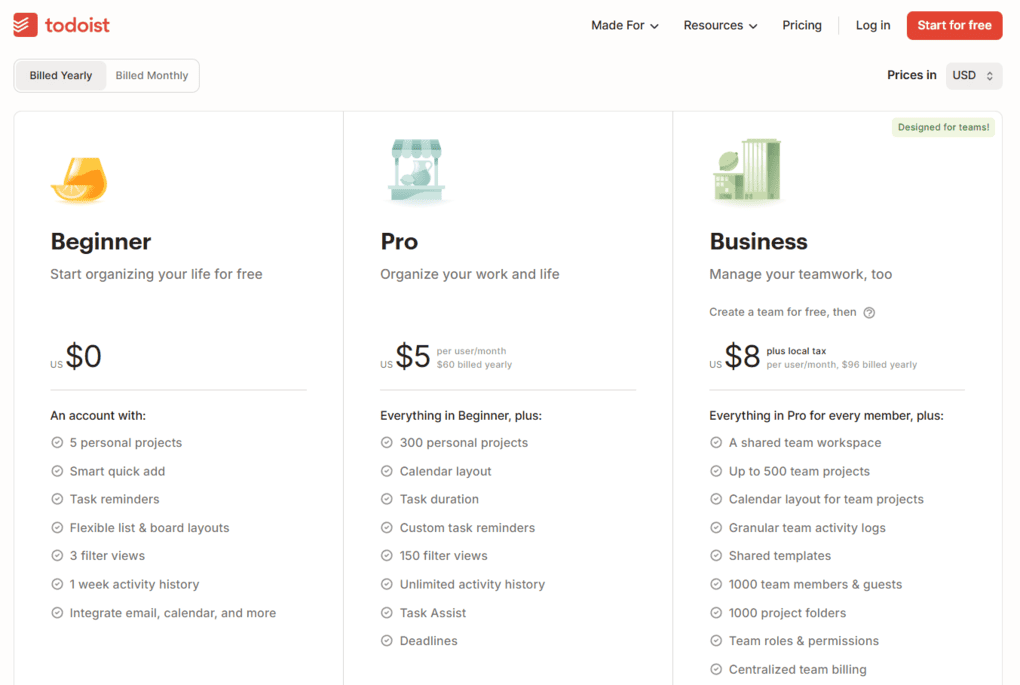
Todoist offers one free and two paid plans. Here’s what you get with each.
Beginner plan
If you are just getting started, the free version covers everyday personal task management without cost. You get up to 5 personal projects, Smart Quick Add, task reminders, flexible list and board layouts, 3 filter views, and 1 week activity history that syncs on web, desktop, and mobile.
With the free tier, you can connect Todoist with email and calendar, so your basic to-do list setup feels complete from day one. Use it to build habits before deciding if premium features are worth paying for.
Pro plan
The Pro plan is $7 per user monthly or $5 per user monthly with annual billing. It unlocks automatic backups, custom task reminders, custom filters, Calendar layout, Task duration, and the AI Assistant for smarter scheduling.
You also jump to 300 personal projects with unlimited activity history, which makes Pro a strong value for freelancers and professionals that want more automation and control.
Business plan
The Business plan is $10 per user monthly or $8 per user monthly with annual billing. You can access the business features, such as a shared workspace, up to 500 team projects, a calendar layout for team projects, and granular team activity logs for visibility.
You also gain shared templates, team roles and permissions, centralized billing, priority support, and CSV imports, plus capacity for 1000 team members and guests with 1000 project folders. It is a lightweight project management option for small teams.
Free trial
You can explore premium features with a 7-day free trial on both Pro and Business. Test reminders, automatic backups, advanced filters, and team features before you commit.
If it is not the right tool, there is a 30-day refund window, which keeps the upgrade decision low risk.
Notion’s pricing plans
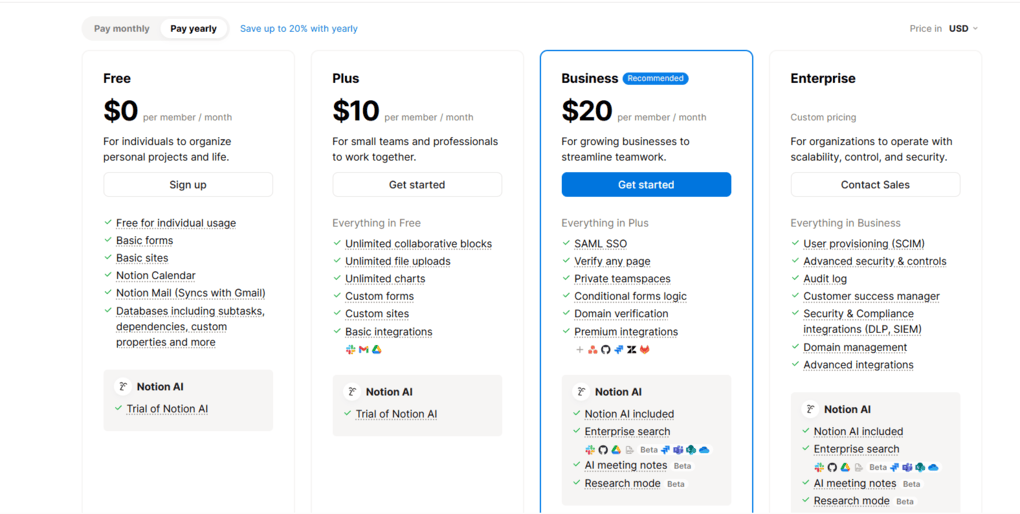
Notion has a free plan and three paid plans.
The free plan includes a collaborative workspace, basic forms and sites, Notion Calendar and Mail. It also supports databases with subtasks, dependencies, and custom properties. Based on my experience, Notion’s free version is totally sufficient for individuals to organize their notes and projects.
The plus plan is $10 per seat per month. It has unlimited collaborative blocks, unlimited file uploads, charts, custom forms and sites, and basic integrations. The plus plan is ideal for small teams and individuals who work a lot with others.
The business plan costs you $20 per seat monthly. It offers features like granular database permissions, private teamspaces, domain verification, conditional forms logic, and premium integrations. Business users also get access to Notion AI features. I recommend the business plan for bigger teams who want to utilize more advanced features.
Finally, Notion has an enterprise plan as well with custom pricing. By choosing the enterprise plan, you will receive a dedicated success manager, advanced integrations, and advanced security and control features, among other things.
Keep in mind that, while Notion AI is included in the price of Notion’s Business and Enterprise plans, there is only a trial usage on Free and Plus plans.
For users who rely heavily on documentation and structured workflows, the pricing still makes sense, especially if Notion replaces several other tools.
User interface
Todoist’s user interface
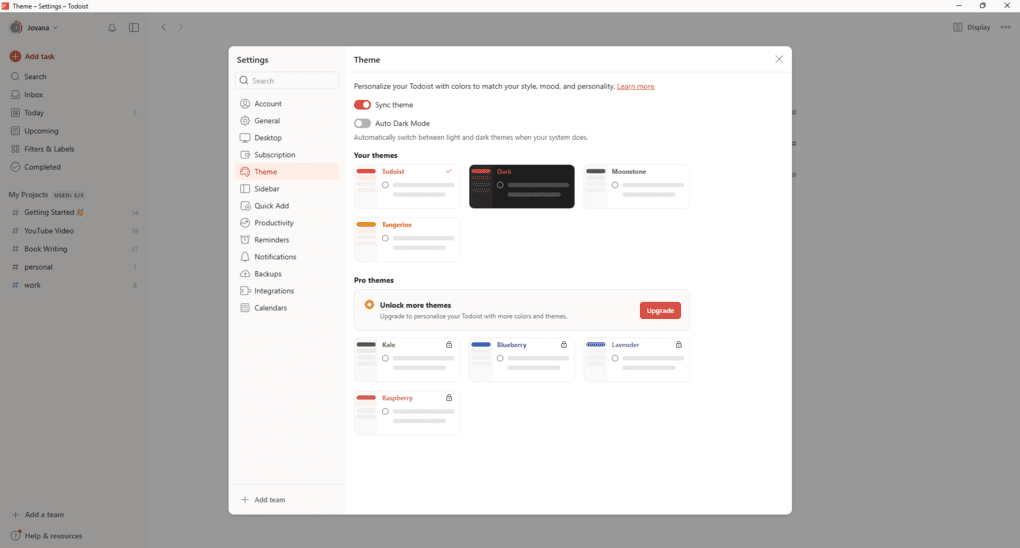
Todoist’s user interface feels like it was built with real attention to detail. The layout is clean, light, and responsive on every platform: web, desktop, and mobile. You can tell how much work went into it because every small interaction, from adding a task to checking one off, feels fast and polished.
I switched between light and dark mode a few times, and both looked equally polished. Combined with the color themes, filters, and labels from the customization options, the interface feels personal and flexible. Based on my experience, Todoist’s user interface truly deserves a 10 out of 10.
Notion’s user interface
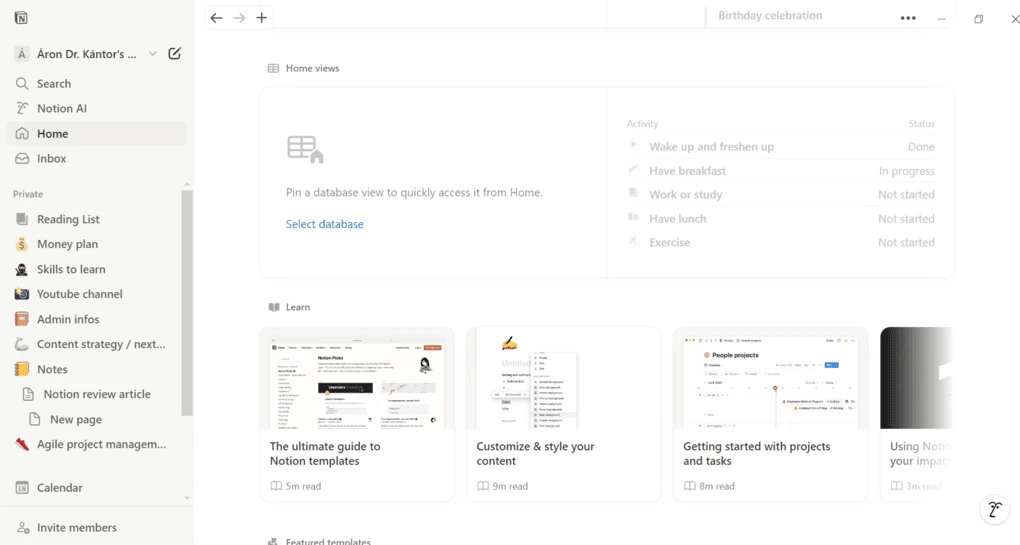
Notion’s user interface is simple. It has a minimalist ux design with white space, clear typography, and subtle colors are in the focus. Even if you are a first-time Notion user, you will be able to quickly navigate the pages, as you will find all the important information on the sidebar.
Notion has an extensive feature set, which creates a learning curve at first. Even though I have used Notion for more than 2 years, I have not explored all its features and potential.
When working in Notion, you will quickly realize that it uses a block system that works like Lego. It transforms all the content into movable, customizable pieces, which gives you the flexibility to move these blocks around.
My experience with Todoist
After several weeks using Todoist for personal and professional projects, it earned its spot among my favorite task management apps.
Creating tasks is instant, sync is reliable across devices, and natural language input plus recurring tasks planning is effortless. Custom filters made it easy to focus on the right work each day.
The balance impressed me most. Todoist is one of the easiest task management apps to use out of the box. It is simple for personal task tracking yet strong enough for light project management and collaboration.
I planned on the desktop app and captured on the Android app with voice input, and the experience stayed smooth, intuitive, and consistent for a daily productivity app.
Overall, I found that during my Todoist review, this task manager’s place in your productivity system is still justified.
My full review: Todoist review (2026): Is it worth it anymore?
My experience with Notion
In the past years, Notion has become a must-have tool for me to keep my notes and projects organized. While I think there are tools with more features for note-taking, Notion is still one of the best note-taking apps in 2026.
For me, the reason behind this is not purely about note-taking. It is about centralizing my ideas, databases, and stuff in one platform, instead of juggling several separate tools and Notion stacks. With its calendar feature and email capabilities (Notion Mail), Notion is on its way to becoming an all-in-one app.
While it has a steep learning curve compared to other tools like Xtiles, Notion can be an ultimate solution for both team and individual users since it can replace 5+ apps.
Overall, Notion has helped me increase my productivity in the past years and take my organization to the next level.
My full review: My Honest Notion Review After Using It For +2 Years (2026)
Todoist’s pros and cons
Now, I will show you Todoist’s pros and cons I discovered.
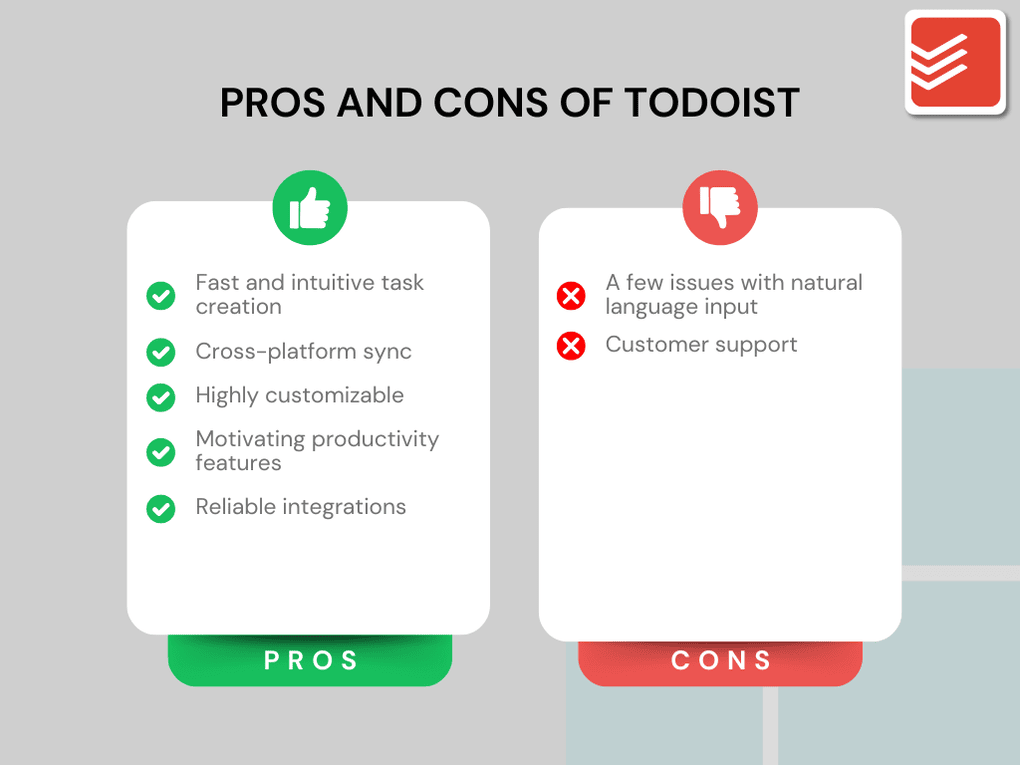
Pros of Todoist
Cons of Todoist
Notion’s pros and cons
Let’s continue with Notion’s pros and cons!
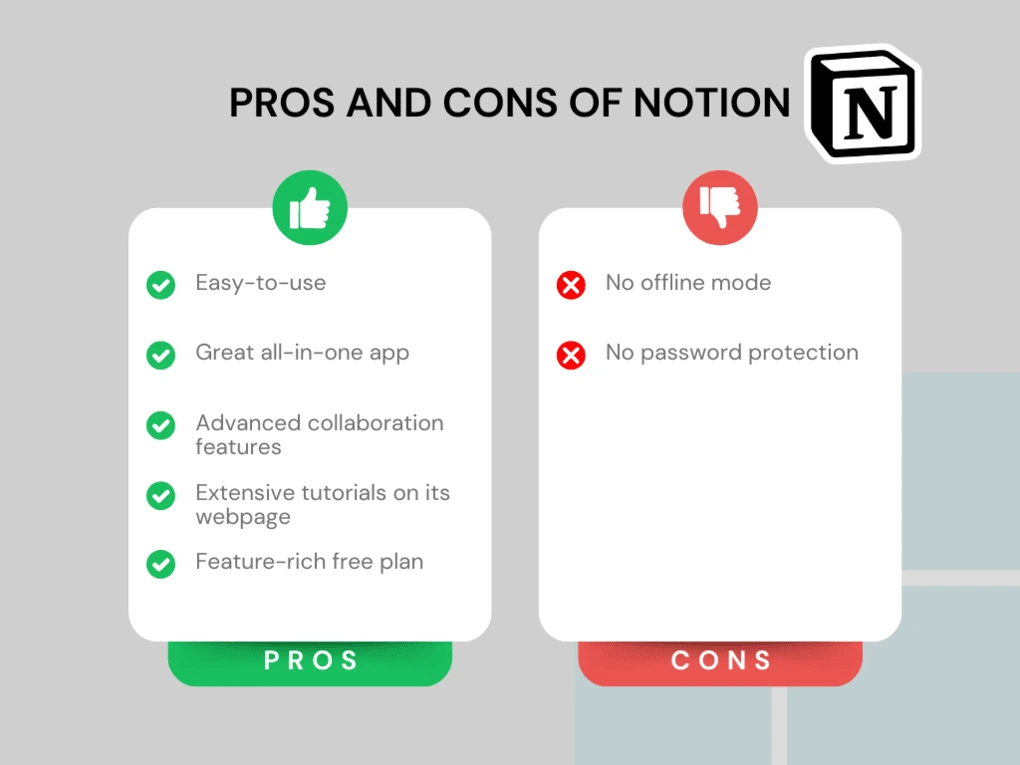
Pros of Notion
Cons of Notion
Alternatives to Todoist and Notion
If you are not sure if Todoist and Notion are the best choice for you, here are some worth considering:
|
App |
Best for |
Description |
|---|---|---|
|
Morgen |
Best for calendar-based planning |
A daily planner that prioritizes your most important to-dos, events, and projects in one app. |
|
Akiflow |
Best for time blocking |
A calendar-centered productivity app that brings all your tasks, events, and inbox items into one place for structured daily planning and time blocking. |
|
Motion |
Best AI daily planner |
An AI-powered planner that automatically fills your professional and personal schedule using real-time scheduling links and auto-adjusted events. |
|
Reclaim AI |
Best for smart calendar automation |
Reclaim is half the price of Sunsama and offers similar task management and time blocking capabilities, but is only available for Google Calendar. |
|
ClickUp |
Best for complex workflows |
It is another alternative that provides extensive features for project management, but has a steeper learning curve. |
|
Routine |
Best minimalist planner |
Routine is a minimalist productivity app that combines calendars, tasks, notes, and simple journaling in one place. |
|
Sunsama |
Best for mindful planning |
A mindful productivity tool designed to help you create balanced days and focus on priorities, with built-in task scheduling and reflective daily planning. |
My pick: Todoist vs Notion
When comparing Todoist vs Notion, the main difference comes down to how you prefer managing tasks and organizing your work. Todoist is built as a dedicated task manager focused on simple task management, daily tasks, and quickly capturing tasks, while Notion is an all-in-one workspace designed for project management, knowledge management, and managing complex projects.
If you’re deciding between Notion vs Todoist, the best tool depends on whether you want a focused to-do list app or an all-in-one solution that combines notes, databases, team wikis, and project timelines.
Related article:
- 11 Best Daily Planner Apps | 20+ Personally Tested Tools (2026)
- My Honest Morgen Review After 5 Weeks (2026)
- Motion App Review: My $348 Experience and Why I Don’t Regret It
- 9 Best Motion Alternatives | I Tried 20+ Apps (2026)
In short, choose Todoist if you want speed, structure, and minimal setup, and choose Notion if you need deep customization and flexible workflows. Notion is incredibly powerful, but that power comes with a learning curve and setup time, while Todoist stays intentionally simple and focused.
As always, I will keep updating this Todoist vs Notion article.
Looking for similar tools?
Visit the link to explore other apps we’ve reviewed in this space and how they compare.
Why you can trust our reviews
At thebusinessdive.com, our team tests, reviews, and compares hundreds of productivity apps every year — from project management tools to note-taking apps. We dive deep into real-world use cases to help you find the right tools that actually improve your workflow, not just add noise.
Our mission? No fluff, no shortcuts—just honest, hands-on insights from productivity pros.
Discover how we stay transparent, read our review methodology, and let us know about any tools we missed.
Frequently asked questions
Is Todoist or Notion better for task management?
When comparing Todoist vs Notion, Todoist works better as a focused task manager for task management, to-do lists, and daily tasks, especially if you want to quickly add tasks and stay organized. Notion, on the other hand, is an all-in-one workspace built for project management, knowledge management, and long-term planning. The best tool depends on whether you want simple execution or a broader productivity system.
Can Todoist replace Notion for everyday work?
For many users, Todoist can replace Notion if their workflow revolves around specific tasks, task reminders, and managing future tasks with minimal setup. The Todoist app is designed for quick capture, an intuitive interface, and a lower learning curve, which makes it ideal for personal life organization. However, if you rely on note-taking tools, databases, or team wikis, you may still prefer Notion.
Is Notion better for complex projects and team collaboration?
Yes, Notion is generally better for managing complex projects that involve team tasks, project timelines, and structured team collaboration. Notion allows teams to assign tasks, track progress, and build custom workflows using databases and deep customization. Its extensive feature set and Notion’s flexibility make it a powerful tool for teams working across major platforms.
Which tool is easier to use for beginners?
Todoist is usually the better choice for beginners because it offers simple task management, a lower learning curve, and an easy way to create tasks using natural language input. Users with less technological understanding often find Todoist more approachable than Notion. Notion is incredibly powerful, but its learning curve can feel steep before the system starts to click.
How do Todoist and Notion handle advanced features and AI?
Both Notion and Todoist include an AI assistant, but they focus on different areas. Todoist’s AI helps optimize task lists, priorities, and todoist task scheduling, while Notion offers AI tools for writing, summaries, and knowledge management. Notion also includes advanced features like task dependencies, collaboration tools, and unlimited file uploads on higher plans, making it a strong all-in-one solution for teams.
Disclosure: I only recommend products I would use myself, and all opinions expressed here are our own. This post may contain affiliate links through which, at no additional cost to you, I may earn a small commission. Read the full privacy policy here.

Hey! I’m Jovana, a content writer who loves writing, researching, and testing new productivity apps. With a background in philosophy, I bring a thoughtful but no-bullshit approach to everything I do. Let’s connect on Linkedin!