



Lumr Review 2026: Is This All-in-One PDF Platform Worth It?
Lumr brings PDF editing, conversion, legal templates, invoicing, and expense tracking together in one platform.
But does this combination actually make document management easier, and are its features worth paying for?
I tested Lumr to find out what works well, where it falls short, and whether it’s a good fit for freelancers and small businesses.
Verdict: An all-in-one PDF and business tool, but most features require a paid plan
Here’s the quick verdict if you don’t want to read the full review:
🎯 Best for: Freelancers and small businesses looking to combine PDF tools, invoicing, and expense tracking
🚫 Not ideal for: Users who need advanced PDF editing, highly accurate OCR, or sophisticated e-signature workflows
⭐ Biggest strength: A solid range of PDF and business tools in one platform
⚠️ Biggest weakness: Most features are locked behind paid plans
⚖️ Verdict: A convenient all-in-one platform for everyday PDF management and business administration, although its limitations and subscription requirements may make alternatives more appealing.
🏆 Score: 4 / 5
✅ Tested with our review & scoring methodology ✅ Real-world testing ✅ Unbiased evaluation
Lumr
Summary
After testing Lumr’s PDF and business tools, I was impressed by how easily I could manage documents, create invoices, and track client expenses in one place. I particularly liked its smooth PDF conversion tools and automatic expense markups, but its inconsistent OCR, basic e-signature features, and expensive monthly plan were disappointing. Overall, Lumr is a practical option for freelancers and small businesses that need more than a PDF editor, but I’d choose a specialized alternative for advanced PDF tasks.
Combines PDF editing, invoicing, and expense tracking | |
Automatic receipt scanning and expense markups | |
Useful legal templates with guided document creation | |
Includes useful invoice customization |
PDF editing lacks advanced features | |
Inconsistent OCR accuracy and limited scanned-text editing | |
Basic e-signatures without multi-signer workflows | |
Most features require a paid subscription |
How We Test PDF Editors
To keep our reviews and final scores fair and consistent, we evaluate every PDF editor using a standardized testing framework built on over 3 years of hands-on experience testing these tools in real-world scenarios.
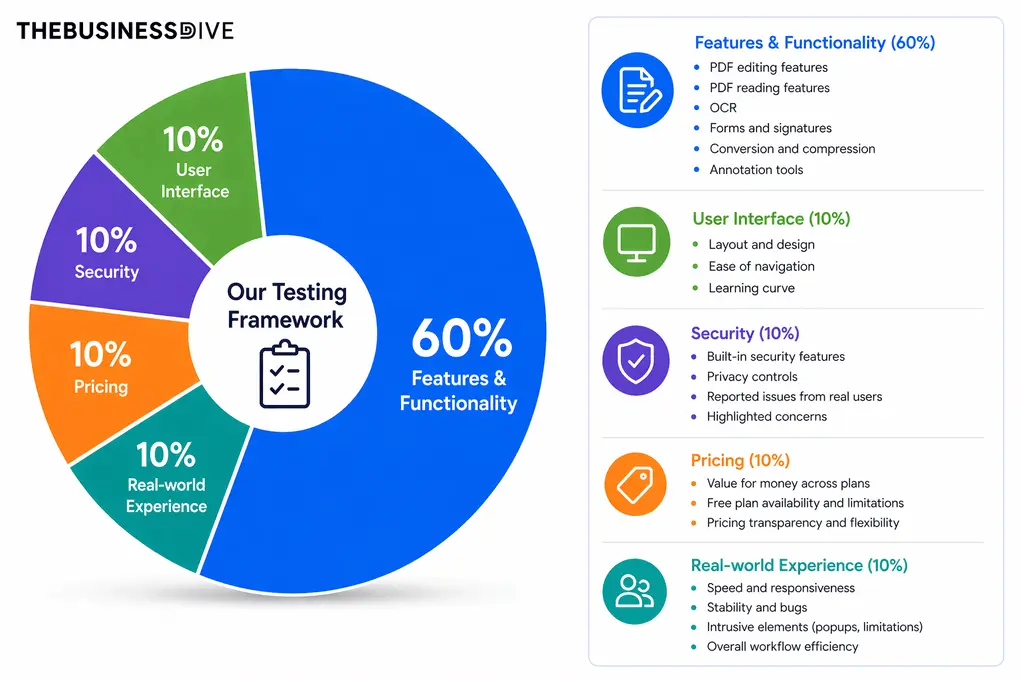
Our scoring breakdown after testing 30+ PDF editors:
🛠️ Features & functionality — 60%
🖥️ User interface — 10%
🔐 Security — 10%
💰 Pricing — 10%
👥 Real-world experience — 10%
Want a detailed breakdown of how we test each category?
Learn exactly how we test tools → Review methodology
What is Lumr?
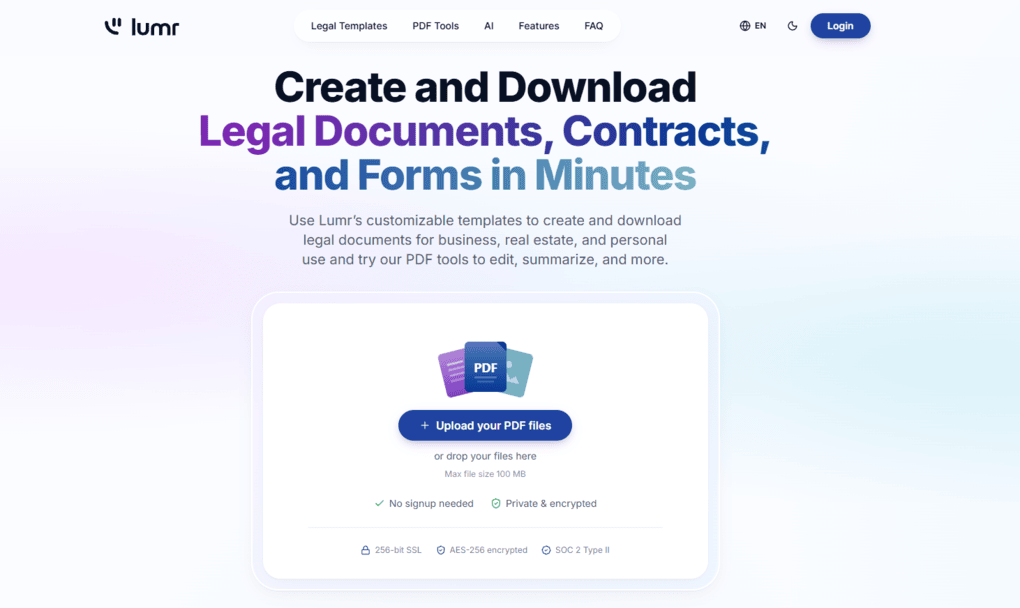
Lumr is an online platform for PDF management and legal document creation, designed primarily for individuals and small businesses in the United States.
The platform aims to simplify everyday document workflows by bringing PDF editing, conversion, electronic signatures, legal templates, and AI-powered tools together in one place. Since everything works directly in a web browser, users don’t need to install additional software.
Lumr pricing: Free access, but most features require Pro
💡 Key takeaway: Lumr offers free access to some tools, but most advanced features require a Pro subscription.
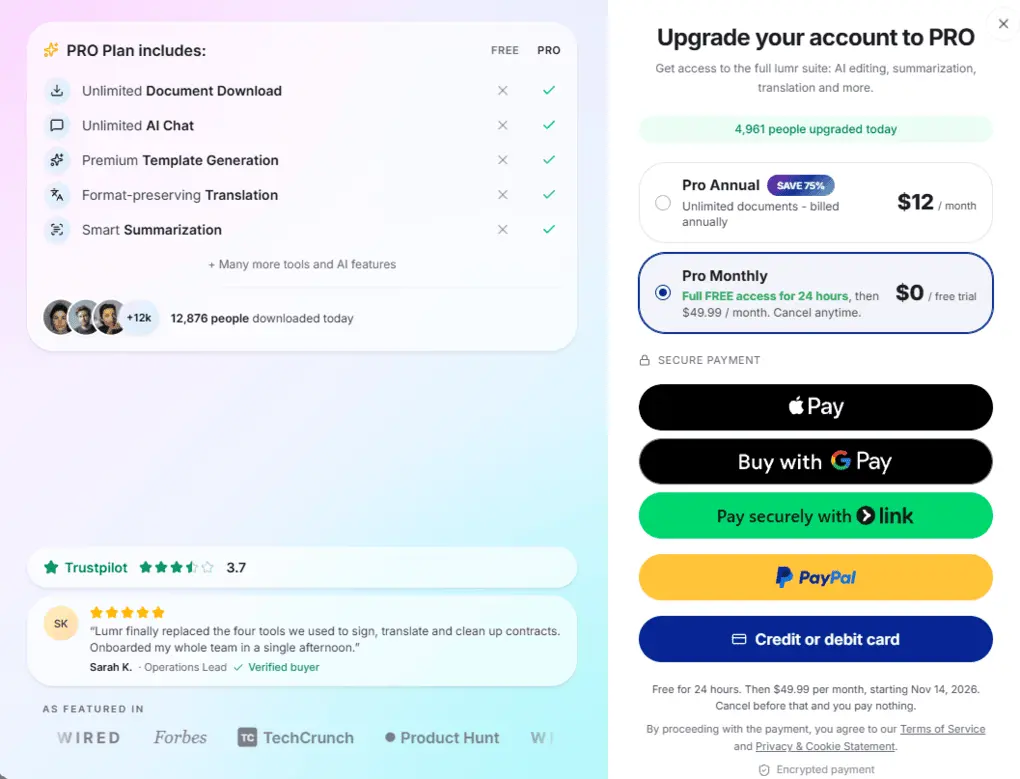
Lumr offers two paid subscription options:
Plan | Pricing |
|---|---|
Pro Annual | $12/month, billed annually ($144/year) |
Pro Monthly | Free for 24 hours, then $49.99/month |
The Pro plan unlocks document downloads, AI features, template search, alongwith other advanced features.
While the annual plan is considerably more affordable, I found the monthly subscription relatively expensive, especially for occasional PDF tasks.
Also, keep in mind that the 24-hour free trial automatically converts into a $49.99/month subscription unless you cancel before it ends.
My experience with Lumr after testing its features
💡 Key takeaway: Lumr is a convenient all-in-one platform for everyday PDF tasks, invoicing, and expense tracking, but its paywalled features, inconsistent OCR, and limited advanced PDF tools hold it back.
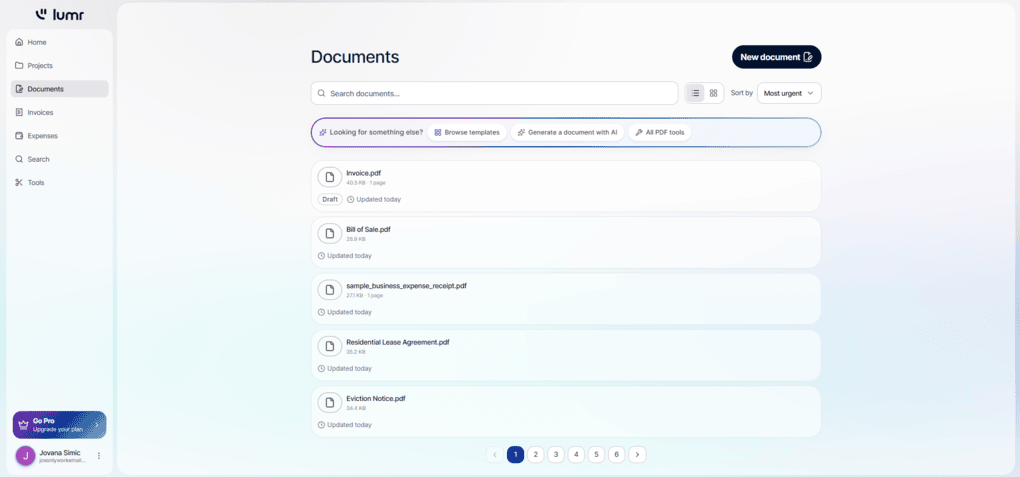
Lumr offers more than a traditional PDF editor. Alongside PDF editing, annotation, conversion, and organization tools, it includes legal document templates, invoice creation, and expense tracking.
During my Lumr review, I liked how its invoicing and expense tracking features work together. I could upload receipts, assign expenses to clients, and include eligible costs in invoices with automatically calculated markups.
This makes Lumr an interesting option for freelancers and small businesses that want to manage more of their document-related work in one place.
I also had a generally positive experience with its PDF conversion, compression, splitting, and merging tools. The interface was straightforward, and I didn’t find the platform difficult to navigate.
However, Lumr has some drawbacks. Most of its features are locked behind paid plans, which limits how much you can accomplish without a subscription. I also found its OCR results inconsistent, while its PDF editing and e-signature tools lack some of the advanced capabilities available in competing solutions.
Would I recommend Lumr to a friend?
Yes, particularly if they are a freelancer or small business owner looking for a combination of PDF tools, invoicing, and expense tracking. Having these features under one roof can make everyday administrative tasks easier.
However, if they primarily need an advanced PDF editor, highly accurate OCR, or more sophisticated electronic signing workflows, I’d recommend comparing Lumr with specialized alternatives before committing to a subscription.
What I Loved & What Could Be Better
This is what I found after testing Lumr’s features:
✅ What Lumr Does Best | ❌Lumr’s Biggest Drawbacks |
|---|---|
Combines PDF tools, invoicing, and expense tracking in one platform | PDF editing lacks some advanced features |
Automatically extracts receipt details and connects client expenses to invoices | OCR results were inconsistent during testing |
Offers guided legal document creation with jurisdiction options | Basic e-signature functionality |
Includes useful invoice customization and automatic expense markups | Most of the features are locked behind paid plans |
Who should use Lumr
Who should NOT use Lumr
Is Lumr safe?
💡 Key takeaway: Lumr advertises strong encryption and data protection measures, but I would be cautious about uploading sensitive documents.
According to Lumr, the platform uses AES-256 encryption and 256-bit SSL protection to keep files secure. Its website also advertises SOC 2 Type II compliance.
The company also states that it doesn’t sell users’ files and takes measures to protect personal information. However, there is one thing worth keeping in mind: documents submitted to Lumr’s AI features are sent to third-party AI providers for processing.
Lumr says its AI gateway deletes submitted content after processing, although providers may retain requests for a limited period.
That being said, I’d feel comfortable using Lumr for everyday documents. However, whenever I use a web-based PDF tool, I try to be mindful of what I upload and how that information might be processed or stored.
Key features: What I found when testing Lumr
Here are my impressions of Lumr’s key features after testing its PDF tools, legal templates, invoicing, and expense management.
PDF editing and annotation: A solid set of tools for everyday tasks
💡 Key takeaway: Lumr covers the basics well, with text editing, annotations, stamps, watermarks, and page management, but lacks the depth of more advanced PDF editors.
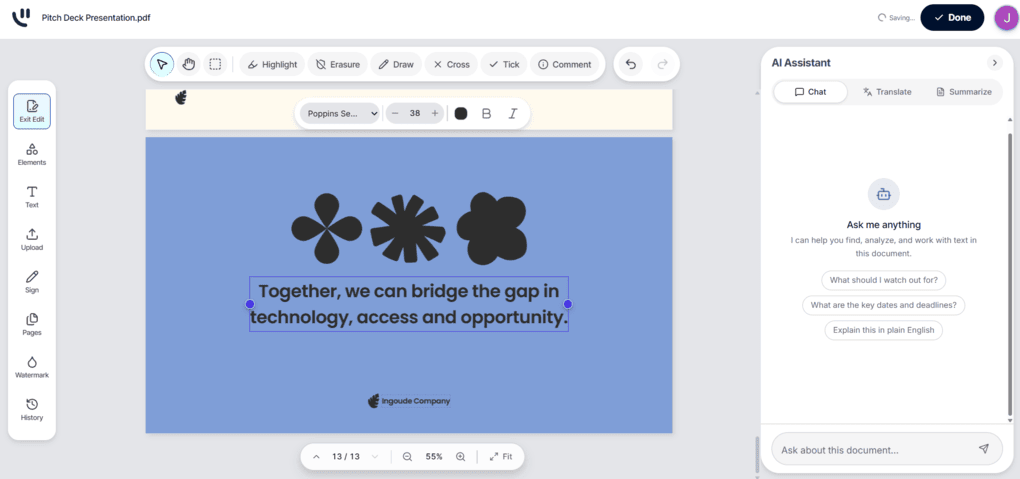
During my Lumr review, I tested its PDF editor using different documents. I was able to edit existing text, move or delete text boxes, and adjust the font, size, and color. The editor also supports inserting new text and uploading images, which can be resized and repositioned within the document.
The editor also includes various annotation tools, along with shapes and predefined stamps.
I also tried adding custom watermarks. I could adjust the text, color, size, opacity, and diagonal positioning, and save the watermark for future use.
Finally, Lumr offers basic page management tools. I could add, delete, duplicate, rotate, resize, and rearrange pages, as well as import another document.
Overall, Lumr offers a convenient set of tools for occasional PDF edits and document markups. I found it practical for basic text changes, annotations, adding visual elements, and organizing pages.
However, compared with more advanced PDF editors I’ve tested, its editing and annotation capabilities are relatively basic. I would consider it suitable for everyday document tasks, but not necessarily for more complex PDF editing workflows.
PDF conversion and organization: Smooth conversions and useful file management tools
💡 Key takeaway: Lumr offers a convenient collection of PDF conversion, compression, splitting, and merging tools that worked well during my testing.
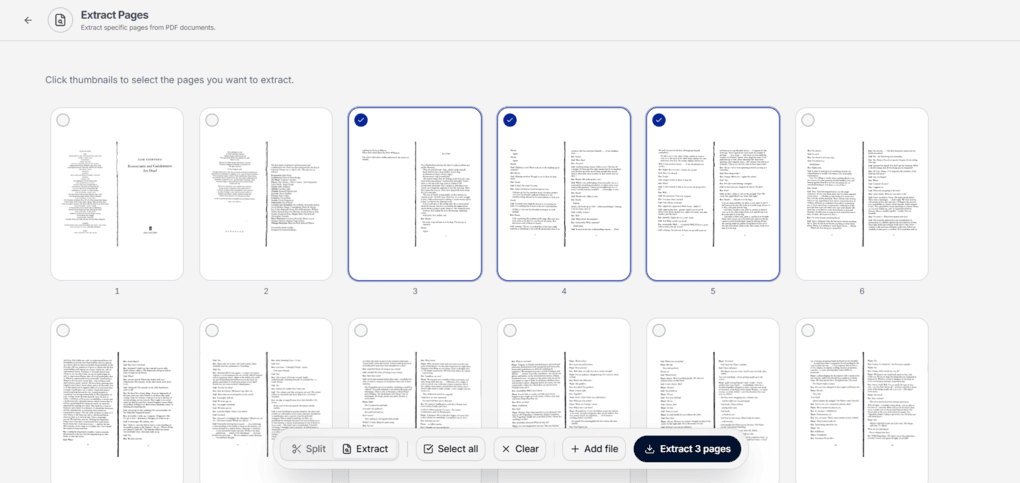
Lumr includes a variety of tools for converting PDF files into other formats and vice versa. I could work with formats such as Word, Excel, PowerPoint, and images, making it easier to reuse document content or prepare files for sharing.
I also tested Lumr’s PDF compression, split, and merge tools. The results were good overall, and I found these functions straightforward to use. I could reduce PDF file sizes, separate documents into smaller files, and combine multiple PDFs into a single document.
For additional file organization, Lumr also let me rearrange, rotate, extract, and delete individual pages.
OCR: Inconsistent results, with limited text editing capabilities
💡 Key takeaway: Lumr can make scanned PDFs searchable, but OCR accuracy varied in my tests, and recognized text wasn’t always editable.
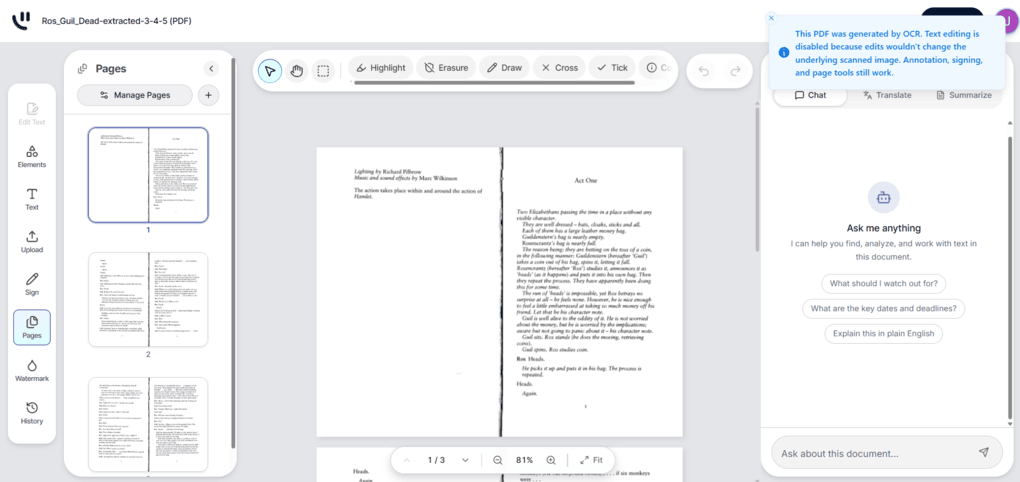
Lumr includes an OCR tool that converts scanned PDFs into searchable documents. It offers automatic language detection and several language options.
During my testing, OCR results were inconsistent. Some text was recognized correctly, while other parts appeared duplicated.
Another limitation is that making a scanned PDF searchable doesn’t necessarily make its text editable. In my tests, Lumr generated an OCR version but disabled text editing because the original pages were still scanned images.
Overall, Lumr’s OCR can be useful for making scanned documents searchable, but I’d recommend checking the results carefully, particularly when working with longer documents or less widely supported languages.
Legal document templates: Guided document creation with jurisdiction options
💡Key takeaway: Lumr simplifies legal document creation with guided questionnaires and jurisdiction-specific options, although its in-app template library has some limitations.
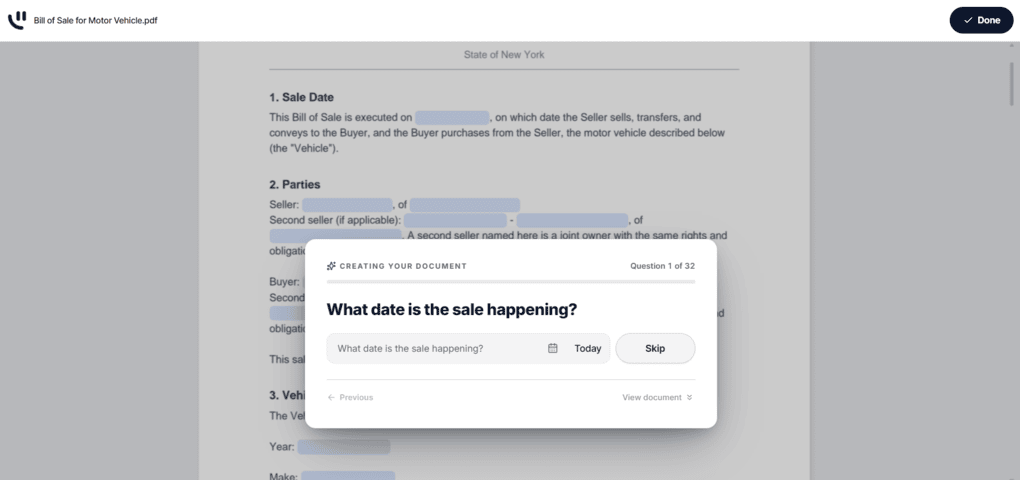
One of Lumr’s more distinctive features is its collection of legal document templates. Instead of starting with a blank document, I could select a template and answer a series of questions. Lumr then used my answers to populate the document automatically.
During my testing, I found the process straightforward. The questionnaires were tailored to each document type and covered the relevant information needed to generate a completed document. I also liked that templates included a jurisdiction selector, allowing me to choose a US state.
However, I noticed that the templates available through the in-app search did not always match the broader selection advertised on Lumr’s website. Some templates were missing from the internal library, while searching for external templates required a Pro subscription.
Although the guided process makes document creation easier, I would still recommend carefully reviewing the generated documents before using them for actual legal matters.
Adding electronic signatures: Easy PDF signing, but limited workflow options
💡Key takeaway: Lumr makes it easy to add signatures to PDFs, but its signing tools are more basic than those found in some competing PDF editors.
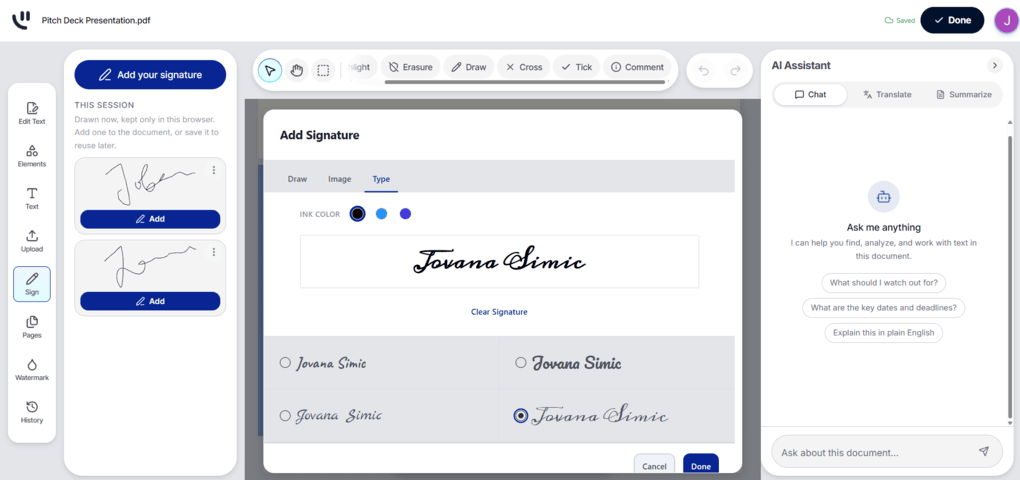
Lumr lets me add electronic signatures directly to PDF documents in three ways: drawing a signature, typing my name, or uploading an image of an existing signature.
I found the process straightforward. After creating a signature, I could position it anywhere in the document and save it for future use.
However, Lumr only lets me add my own signature to a PDF. It doesn’t offer options for sending documents to others for signing, tracking signing progress, or managing multiple signers and signing order, which are available in some competing PDF editors, such as Foxit.
As a result, I found Lumr’s signature tools best suited to straightforward situations where I simply need to sign a PDF myself, rather than manage a more complex signing workflow.
PDF security: Basic password protection and unlocking tools
💡 Key takeaway: Lumr includes simple tools for password-protecting PDFs and removing existing password restrictions.
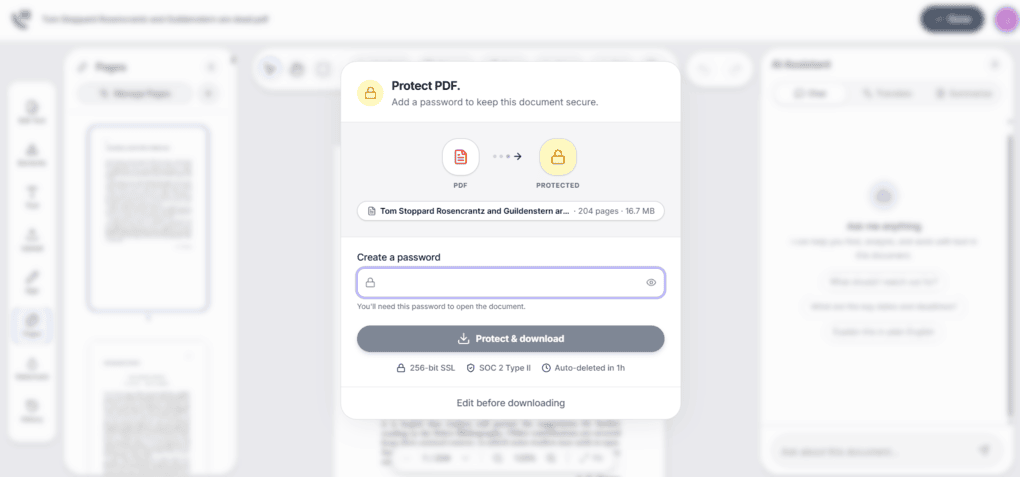
Lumr offers two dedicated PDF security tools: Password Protect PDF and Unlock PDF. The first let me add password protection to a document, while the second is designed to remove password restrictions from an existing PDF.
These tools are useful for basic document protection and access management, especially when sharing files containing private or sensitive information.
However, Lumr’s security features appear relatively limited compared with more advanced PDF editors that offer additional controls over printing, copying, editing permissions, and encryption settings.
Invoice creation and management: Professional invoices with automatic expense markups
💡 Key takeaway: Lumr combines invoice creation with automatic expense markups and customizable invoice templates.
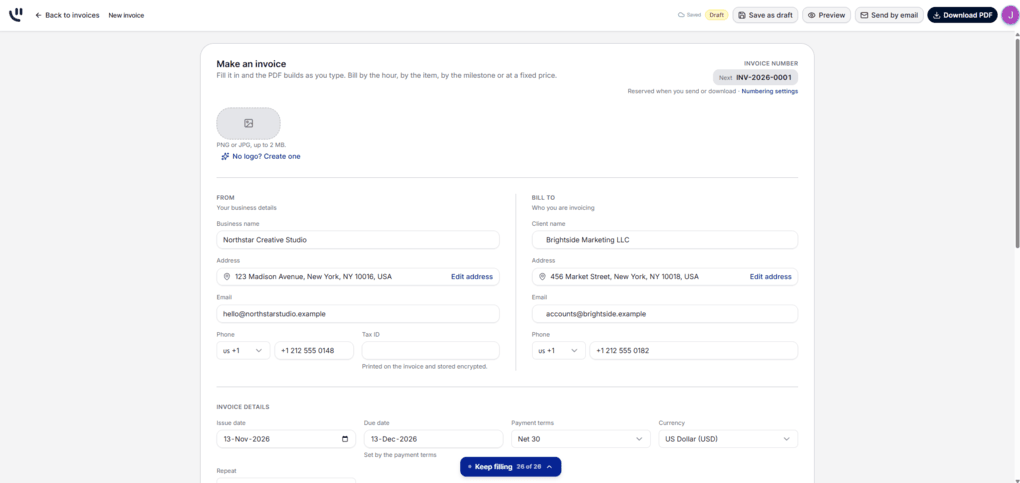
Lumr includes an invoicing feature that let me create professional invoices and incorporate tracked client expenses directly into them.
The invoice editor covers all the essentials, including business and client details, invoice numbers, issue and due dates, payment terms, currencies, services, and individual line items. I could also add payment instructions, notes, and late fees.
One feature I particularly like is the ability to automatically add eligible client expenses to invoices and apply markups. Lumr calculates the markup and updates the invoice total accordingly, saving manual calculations and making it easier to bill clients for business-related expenses.
I found Lumr’s invoicing tools useful for freelancers and small businesses that bill clients for both their services and related expenses. The combination of customizable invoices and automatic expense calculations makes the billing process more convenient.
Expense tracking and client billing: Convenient receipt scanning and expense management
💡 Key takeaway: Lumr simplifies expense tracking with receipt scanning, automatic data extraction, and the option to bill expenses directly to clients.
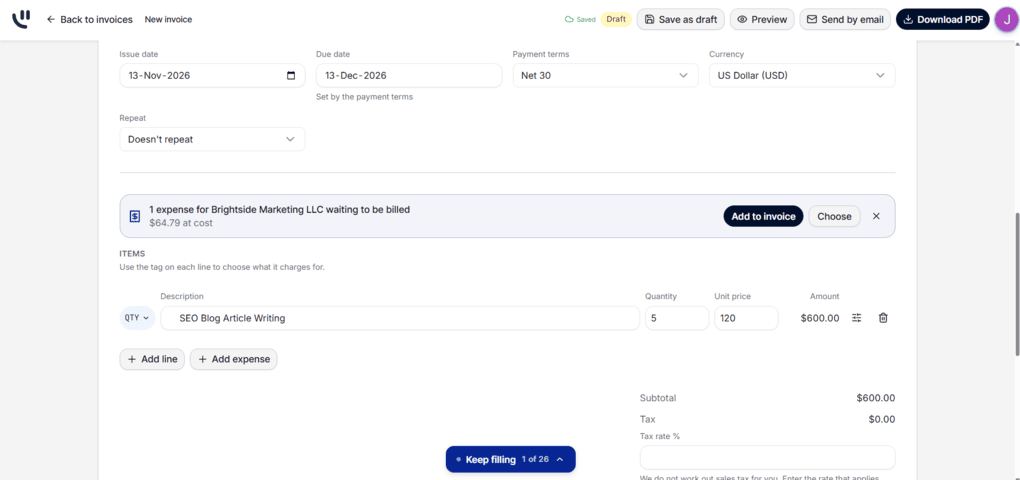
Alongside its invoicing tools, Lumr includes an expense tracking feature that let me upload receipts, extract relevant information, categorize expenses, and assign them either to the business or a specific client.
During my testing, receipt recognition worked well with JPG images. Lumr automatically extracted key details, which made recording expenses much faster than entering everything manually.
I also like the option to distinguish between business expenses and client-related costs. I could link an expense to a specific customer and mark it for inclusion on the next invoice. This connects expense tracking with invoicing, making it easier to keep track of reimbursable costs and bill clients accurately.
I found this feature particularly useful for keeping business expenses organized and passing eligible costs on to clients. Combined with Lumr’s invoicing tools, it creates a straightforward workflow from recording an expense to including it in a client invoice.
User interface
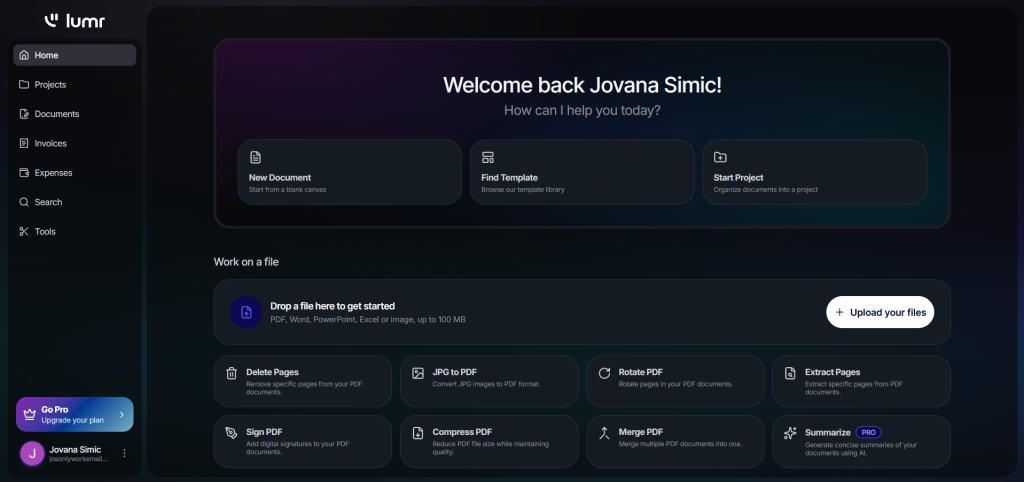
Lumr has a clean, browser-based interface that brings its different PDF and business tools together in one place. I found the layout relatively easy to navigate, with tools organized into clear categories, making it straightforward to find the features I needed.
Lumr alternatives we have tested
If you feel like EaseUS PDF Editor is not the perfect one for you, here are the best alternatives:
App | Best for | Description |
|---|---|---|
Foxit | Solid enterprise alternative to Adobe Acrobat | A A PDF editor with an intuitive user interface for Mac and Windows enterprise users. |
EaseUS PDF Editor | Best affordable PDF editor for individuals | It is an all-in-one PDF software to read, edit, annotate, and convert your documents. Full EaseUS PDF Editor review | Quick EaseUS PDF Editor overview |
Tenorshare PDNob | Best for AI-powered PDF editing | It is an easy-to-use AI-powered PDF editor that offers many features to edit, read, organize, and annotate your documents. Full Tenorshare PDNob review | Quick Tenorshare PDNob overview |
PDF Expert | Best for Mac users | A PDF editor for Mac, iPhone, and iPad users that offers all the tools you need to manage your PDF files, from annotation tools to signing PDFs. |
Xodo PDF Studio | Best offline PDF editor | A straightforward offline desktop PDF editor for Windows, Linux, and iOS devices, with great PDF reading and editing tools. Full Xodo PDF Studio review | Quick Xodo PDF Studio overview |
ONLYOFFICE PDF Editor | Best for collaboration and team editing | A versatile tool that combines PDF editing with document collaboration features. It lets you edit text, add visual elements, and create fillable forms. |
UPDF | Best value PDF editor with AI features | One of my favorite PDF editors with advanced AI features and budget-friendly pricing. |
Nitro | Best for business PDF workflows | A feature-rich PDF editor with a strong focus on PDF editing. |
Smallpdf | Best online PDF tool | An online PDF software with numerous tools to convert, compress, and edit PDF files for free. |
Adobe Acrobat | Most popular PDF editor | The most popular PDF editor with solid features, but an extremely high price. |
pdfFiller | Best for e-signatures and document workflows | It offers a signing and editing solution that lets users sign and edit documents, send them for signature, and manage the full electronic document workflow in one place. |
LightPDF | Best for AI PDF productivity | An AI-powered PDF editor that lets you edit, convert, OCR, sign, annotate, chat with PDFs, and more. |
PDFgear | Best free PDF editor | A completely free, offline PDF editor with solid editing, OCR, conversion, and AI tools. |
PDF-XChange | Best advanced PDF editor for Windows | A powerful Windows-based PDF editor with advanced editing, annotation, security, and conversion tools. |
Sejda PDF Editor | Best for simple, everyday PDF tasks | An intuitive and simple PDF software best suited for personal use for those who need a PDF editor for basic PDF tasks. |
Soda PDF | Best for security and file conversion | A user-friendly PDF editor with solid core features, strong security tools, and broad file conversion options, but its advanced features come at a relatively high price. |
PDF Candy | Best PDF toolkit with multiple tools | A very practical PDF toolkit with a large number of useful tools, solid performance, and affordable pricing. |
Tungsten Power PDF | Best enterprise-grade PDF solution | A powerful PDF editor and document management tool designed for businesses, offering advanced editing, security, OCR, and collaboration features. Full Tungsten Power PDF review | Quick Tungsten Power PDF overview |
ABBYY FineReader | Best for OCR and document digitization | A powerful OCR-focused PDF tool with strong layout detection, flexible conversion, and an efficient workflow. Full ABBYY FineReader review | Quick ABBYY FineReader overview |
PDFelement | Best balance of features and ease of use | An easy-to-use PDF editor with valuable features for a reasonable price. |
WPS Office | Best easy-to-use office suite and PDF editor | WPS Office is an easy-to-use office suite with solid PDF editing and AI-powered productivity tools, though its free plan is quite limited. |
Looking for similar tools?
Visit our library of PDF editors to explore other apps we’ve reviewed in this space and how they compare.
Final verdict
I like the idea behind Lumr, especially because it brings several useful tools together. The invoicing and expense tracking features were probably the biggest surprise during my testing, and I can see freelancers and small business owners getting real value from them.
Still, Lumr isn’t perfect. Some PDF tools could be more advanced, the OCR results weren’t always consistent, and the Pro subscription is quite expensive if you only need a few features.
Would I recommend it?
Yes, if you regularly work with PDFs and also need invoicing and expense tracking. Otherwise, I’d probably stick with a more affordable, specialized PDF editor.
Why you can trust our reviews
At thebusinessdive.com, our team tests, reviews, and compares hundreds of productivity apps every year — from project management tools to note-taking apps. We dive deep into real-world use cases to help you find the right tools that actually improve your workflow, not just add noise.
Our mission? No fluff, no shortcuts—just honest, hands-on insights from productivity pros.
Discover how we stay transparent, read our review methodology, and let us know about any tools we missed.
Frequently Asked Questions
Is Lumr free to use?
Lumr offers free access to some PDF tools, but many features require a Pro subscription. Pro costs $12/month when billed annually or $49.99/month after a 24-hour free trial.
Is Lumr a good PDF editor?
Lumr is a good option for everyday PDF tasks, as well as managing invoices and business expenses. However, its PDF editing capabilities are more limited than those of advanced PDF editors.
Is Lumr safe to use?
Lumr advertises AES-256 encryption, 256-bit SSL protection, and SOC 2 Type II compliance. However, I recommend being cautious with sensitive documents, particularly when using AI features that send document content to third-party providers.

Hey! I’m Jovana, a content writer who loves writing, researching, and testing new productivity apps. With a background in philosophy, I bring a thoughtful but no-bullshit approach to everything I do. Let’s connect on Linkedin!