


ClickUp Review: I Tested It Across My 2 Businesses & 10+ Projects (Just Updated)
Before writing this ClickUp review, I implemented it in two of my businesses and managed 10+ projects in the past three months.
From setting up projects and organizing tasks to collaborating with team members, I’ll share what worked, what frustrated me, and where ClickUp fell short.
Verdict: More features don’t always mean better project management
Here’s my quick verdict after testing ClickUp across two businesses and 10+ projects:
🎯 Best for: Teams that want an all-in-one, highly customizable project management tool
🚫 Not ideal for: Users looking for simplicity or a lightweight experience
⭐ Biggest strength: Feature depth and flexibility across workflows
⚠️ Biggest weakness: Slow performance, a steep learning curve, and limited AI credits
💰 Pricing: Generous free plan; paid plans start at $9/user/month
🧠 Learning curve: Steep. Expect to spend several hours setting up and customizing complex workflows
⚖️ Verdict: ClickUp is one of the most feature-rich project management tools I’ve tested. Its flexibility makes it excellent for managing complex workflows, but the learning curve and performance issues make it less appealing for simpler projects.
🏆 Score: 4.2 / 5
✅ Tested with our review & scoring methodology ✅ Real-world testing ✅ Unbiased evaluation
ClickUp Review
Summary
After three months of testing ClickUp across two businesses and 10+ projects, I found its customization, collaboration tools, and AI features particularly valuable for complex workflows. However, occasional slow performance, limited AI credits, and a steep learning curve make it less appealing for simpler projects.
Generous free plan | |
Extensive customization | |
Powerful, integrated AI tools | |
Excellent collaboration tools | |
Easy-to-use automation templates | |
Built-in time tracking | |
AI-powered project setup |
It was slow sometimes | |
Steep learning curve | |
Limited monthly AI credits (even in paid plans) | |
Lacks advanced automations | |
Limited mobile functionality | |
Basic AI meeting notes | |
Annoying upgrade pop-ups |
What I Learned Using ClickUp for Two Different Businesses
💡 Key takeaway: After using ClickUp for both businesses, I found it more valuable for Floviu, where managing multiple projects across fields from development to marketing made its advanced features and customization worthwhile. For TheBusinessDive, I mainly benefited from its AI agents and simpler task management features, while much of its functionality felt unnecessary. However, ClickUp’s occasional performance issues were frustrating.
What I evaluated | TheBusinessDive (Content Business) | Floviu (Software Development) |
|---|---|---|
Most valuable features⭐ | AI agents helped me draft replies faster and turn written articles into YouTube video scripts. At 30-40 daily emails, it saved me around 40-70 minutes daily, while AI agents saved 1-2 hours weekly and scripts were usable immediately | Task dependencies and Board View helped me coordinate development tasks and marketing campaigns. |
Features I rarely needed🔍 | I barely used Dashboards. Most of my daily work involved ClickUp’s simpler task management features. | I rarely used Whiteboards because they frequently felt too slow to work with efficiently. |
Setup complexity⚙️ | Relatively straightforward workflow with a few statuses and views that took me 2-3 hours to set up everything. | Setting up development stages, campaigns, task types, and priorities took around 4–6 hours. |
Customization needed🎛️ | Mainly customizing content statuses and adding editorial information. | More extensive customization to distinguish bugs, feature requests, development priorities, and marketing tasks. |
Biggest advantage🏆 | Having articles, videos, and publishing deadlines organized in one place. | In my Floviu space, I could manage projects from marketing to development in detail, and the collaboration tools made work with my team smooth. |
Biggest frustration⚠️ | ClickUp felt unnecessarily complex for some tasks, and SpreadSheets worked better. | Performance became frustrating as I spent more time in ClickUp. Switching between larger project views sometimes took 5–6 seconds, and the app didn’t always respond immediately when I clicked something, making everyday tasks feel unnecessarily slow. |
Was ClickUp worth it?💰 | For my relatively small content business, simpler tools like Notion or spreadsheets could handle most workflows. I see more value in ClickUp for larger content teams (5+ people). | ClickUp was more valuable for Floviu because I needed to coordinate different projects and workflows. Its advanced features justified the additional setup and complexity. |
What I Loved & What Could Be Better
✅ What ClickUp Does Best | ❌ Where ClickUp Struggles |
|---|---|
Extensive customization: Flexible views, custom fields, and subtasks helped me manage Floviu’s development and marketing workflows. | Slow performance: Opening tasks took 2–3 seconds, while switching between larger project views sometimes took 5–6 seconds. |
Generous free plan: Most essential project management features are available without upgrading. | Steep learning curve: Setting up complex workflows takes time, and the extensive features can feel overwhelming for simpler projects. |
Powerful, well-integrated AI: AI Agents and Brain are useful and accessible throughout the workspace. | Limited AI credits: Even paid plans can run out of credits within a week when using AI Agents, AI notes, and Brain frequently. |
Extensive collaboration tools: Whiteboards, Docs, and Chat connect directly with tasks, keeping collaboration and project management together. | Lacks advanced automations: Simple automations worked well, but complex date calculations and time-based triggers were restrictive. |
Easy-to-use automation templates: Ready-made templates simplify automating repetitive tasks without configuring everything manually. | Limited mobile experience: The iOS app was better for quick task updates than complex workflows, and Chat was less convenient than messaging apps like Slack or Teams. |
Built-in time tracking: Task timers and timesheets can replace a basic time-tracking app for some teams. | AI Note-taker falls short of dedicated tools: Bot-based recording and limited meeting intelligence make it less appealing than specialized alternatives. |
AI project setup: I particularly liked ClickUp’s AI-powered project setup, which suggested the right structure roughly 90% of the time without consuming AI credits. | Annoying upgrade pop-ups: In four hours on the Free Plan, I saw two upgrade pop-ups, which felt unnecessarily intrusive. |
Why ClickUp Got a 4.2/5 Score
💡 Key takeaway: ClickUp earned 4.2/5 because its extensive features and customization make it excellent for complex workflows, but occasional slow performance and unnecessary complexity make it less appealing for simpler projects.
ClickUp scored particularly well for its project and task management features (5/5), collaboration tools (5/5), customization (5/5), and integrations (5/5). After testing it across two businesses and 10+ projects, I found it one of the most feature-rich project management platforms I’ve used.
I gave automation and workflows, reporting and analytics, and user interface 4/5. Simple automations worked reliably, but advanced workflows had limitations, particularly with time-based triggers. While I liked ClickUp’s dashboards and found its interface relatively intuitive, navigating its extensive features wasn’t always seamless.
The biggest weakness was performance and reliability (2/5). Opening tasks sometimes took 2–3 seconds, while creating new project views could take 4–7 seconds. These delays weren’t constant, but they made everyday navigation frustrating.
I also deducted points for pricing and my overall experience (4/5 each). ClickUp offers a generous free plan, but limited AI credits, frequent upgrade pop-ups, and the steep learning curve affected my experience.
ClickUp vs. Alternatives: Quick Comparison
This is how ClickUp compares to other project management software.
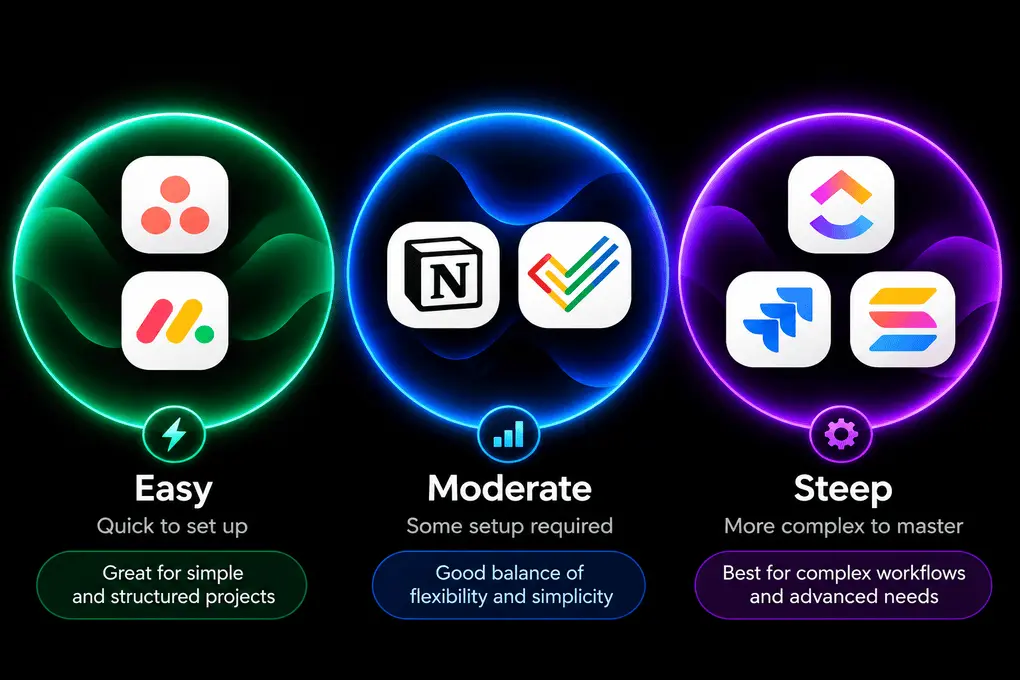
App | Learning curve | PM functionality | Best suited to |
|---|---|---|---|
🟢🟢🟢 Easy | Advanced | Structured team projects | |
🟢🟢🟡 Easy–Moderate | Advanced | Visual project management | |
🟡🟡🟡 Moderate | Basic | Notes, docs & simple projects | |
🟡🟡🟡 Moderate | Advanced | Structured planning & reporting | |
🟡🟡🔴 Steep | Very advanced | Custom workflows & databases | |
ClickUp | 🟡🟡🔴 Steep | Very advanced | Complex, all-in-one workflows |
🔴🔴🔴 Very steep | Very advanced | Software & agile teams |
What is ClickUp, and what makes it different?
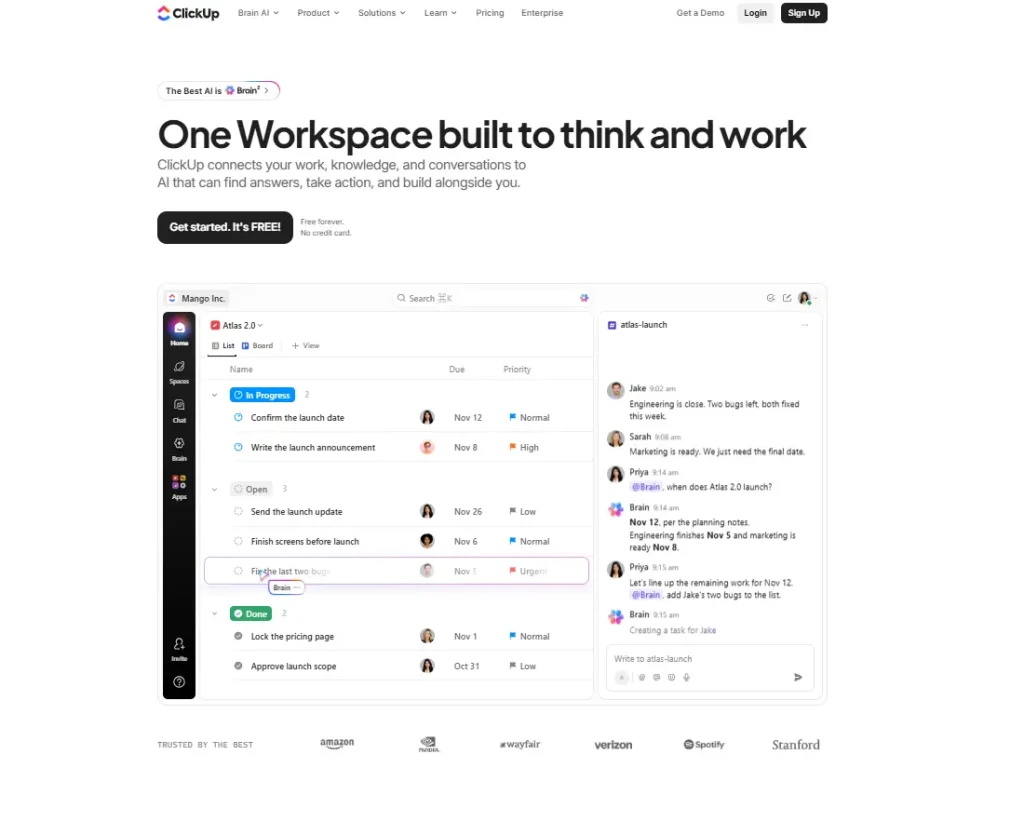
ClickUp is project management software designed to help teams organize tasks, collaborate effectively, and manage multiple projects.
For me, what sets ClickUp apart from most project management software is its extensive feature set and emphasis on collaboration.
It offers a range of features, including task assignments, goal tracking, time tracking, document sharing, and integrations with other tools, making it suitable for various workflows.
You can customize your workspace with numerous views, such as lists, boards, or calendars, and smoothly integrate ClickUp’s workflows from daily planning to emails. into the tool stack you use.
Is ClickUp worth it?
⚖️ My take: ClickUp’s Free plan offers surprisingly good value for individuals, while Core is the sweet spot for most small teams that need customization and automations. Business becomes more attractive when you need advanced reporting, resource management, and higher automation limits.
Best for | Free ($0) | Core ($9/user/month) | Business ($17/user/month) | Enterprise (Custom) | MAX ($100/user/month) |
|---|---|---|---|---|---|
Solo users managing personal tasks and projects | ✅ | ❌ | ❌ | ❌ | ❌ |
Freelancers managing multiple clients and projects | ✅ | ✅ | ❌ | ❌ | ❌ |
Small teams (2–5 people) | ✅ | ✅ | ❌ | ❌ | ❌ |
Growing teams (5–20 people) | ❌ | ✅ | ✅ | ❌ | ❌ |
Larger teams (20–100 people) | ❌ | ❌ | ✅ | ✅ | ❌ |
Large organizations (100+ people) | ❌ | ❌ | ❌ | ✅ | ❌ |
Teams needing advanced reporting and resource management | ❌ | ❌ | ✅ | ❌ | ❌ |
Organizations requiring advanced security and permissions | ❌ | ❌ | ❌ | ✅ | ❌ |
Teams heavily relying on AI agents and automation | ❌ | ❌ | ✅ | ❌ | ✅ |
The table above provides general recommendations based on team size, but I wouldn’t choose a plan based on employee count alone. Your workflow complexity and the specific features you need matter much more.
A small software development team might need Business, while a larger team managing straightforward projects could be perfectly fine with Core.
ClickUp Pricing: Three Important Things Before You Upgrade
ClickUp’s Free plan is more capable than you might expect
It already includes unlimited tasks, collaborative documents, Kanban boards, Calendar View, time tracking, and other project management features. This makes it a reasonable starting point even for some small teams, although storage and other limits can become restrictive.
However, be prepared for pop-ups about purchasing AI credits, which can get annoying over time.
Upgrading can become expensive as your team grows
ClickUp requires you to upgrade your entire workspace, not individual members. For example, moving a 20-person team from Core to Business increases the annual subscription cost from $2,160 to $4,080—an additional $1,920 per year.
Paying More Doesn’t Mean Better Performance
My main frustration with ClickUp is performance. A higher plan doesn’t address this problem.
Which ClickUp features actually mattered in my testing
I collected all the essential features I tried during my ClickUp review here.
Project management tools
💡 Key takeaway: ClickUp offers extensive project management features, even on its free plan. I particularly liked its flexible project views and AI-powered project setup, which suggested the right structure roughly 90% of the time without consuming AI credits. However, occasional 2–3-second loading delays made it frustrating to navigate between tasks.
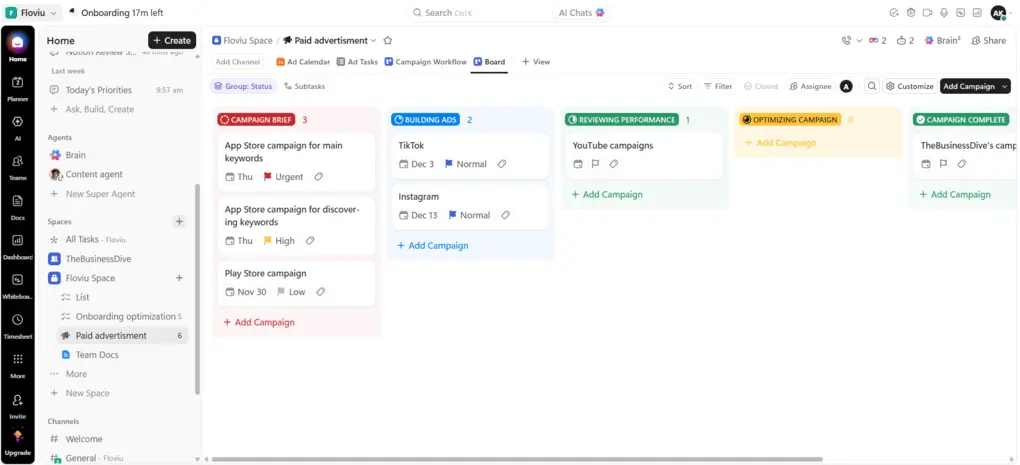
What nobody can take away from ClickUp is its extensive free version. With the Free plan, I could use almost all the project management features I needed to manage projects and a few team members.
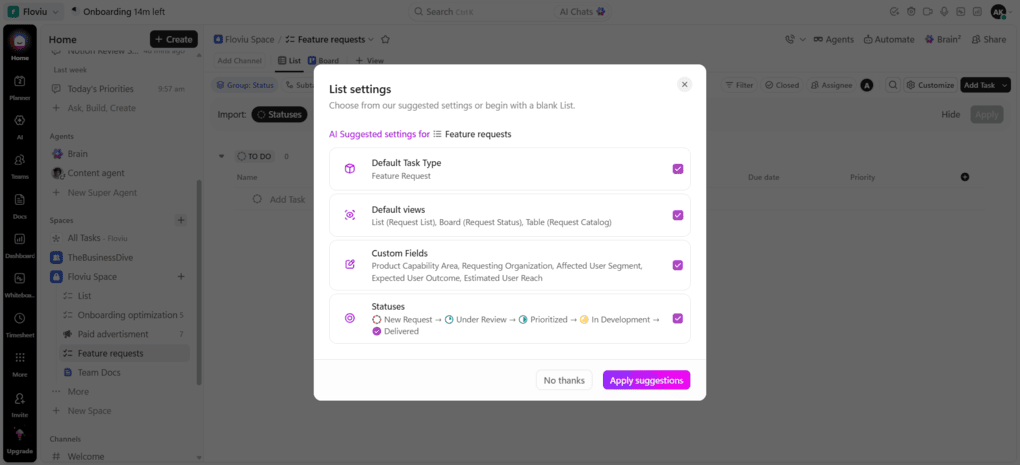
When setting up a project, ClickUp offers AI suggestions based on your project name and description. Surprisingly, it nailed the right setup 90% of the time.
If you click the “+ View” icon, you will see many other view options, like list, Kanban board, calendar, or Gantt chart views. For me, the Board view was the most useful one for managing software development processes, as I could easily move tasks from one status to another.
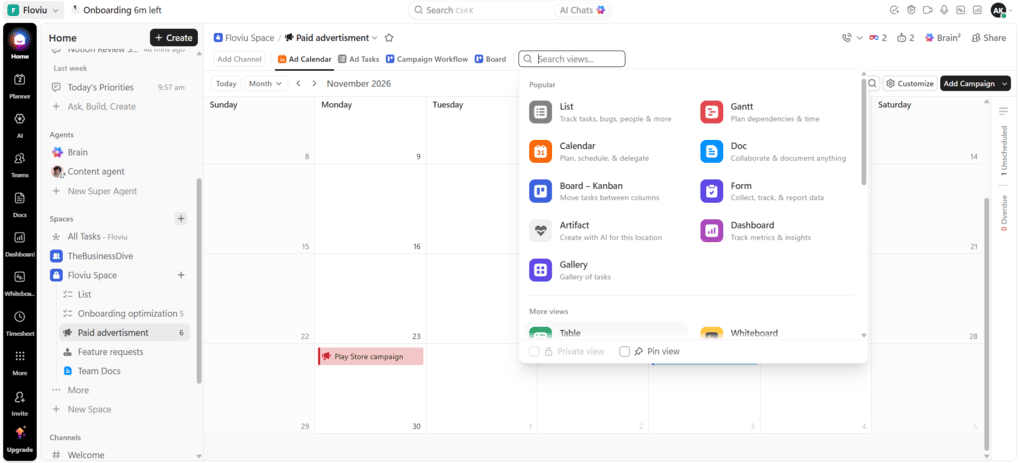
When testing how much time it takes to create a new view, it was pretty fast, between 4 and 7 seconds. But this performance isn’t true for the rest of the tools and functions.
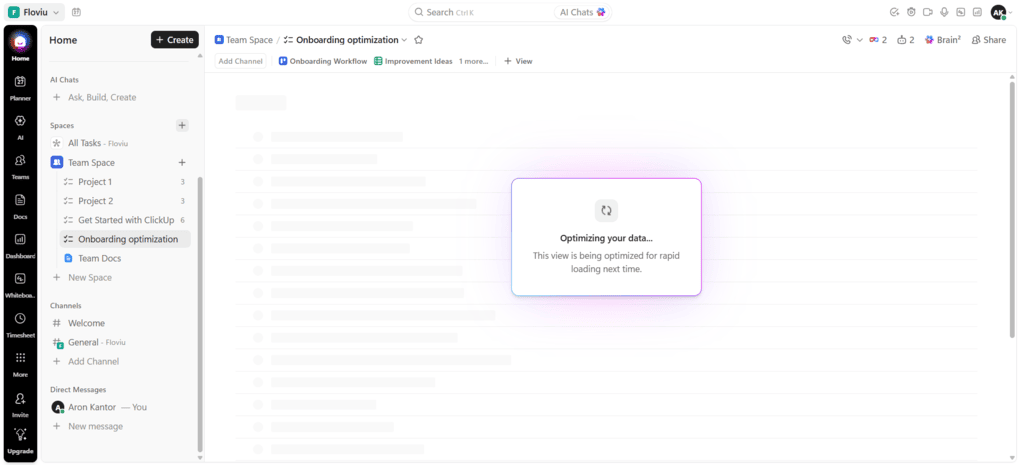
Sometimes, just simply opening a task or switching between features took me 2 to 3 seconds. I know, it doesn’t sound too horrible. But believe me, if you use ClickUp daily for hours, this can be a significant drawback.
My Experience: Managing TheBusinessDive vs. Floviu
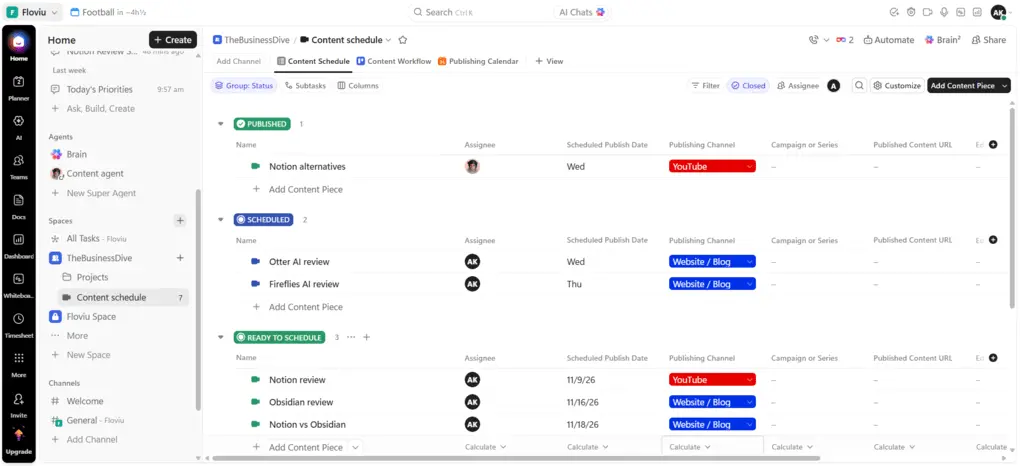
I tested ClickUp for two very different workflows: managing content production for TheBusinessDive and coordinating software development and marketing for Floviu.
For Floviu, ClickUp’s extensive features were genuinely useful. I could track campaign budgets using custom fields, break down development milestones into subtasks, and see project progress in one dashboard. While it has a steep learning curve to customize my workflows, it’s worth it in the end.
However, TheBusinessDive was a completely different story. I mainly needed to organize articles, YouTube videos, and publishing deadlines. For these relatively simple workflows, ClickUp’s extensive customization felt unnecessary, and I only used the basic task management features after a few days.
The difference became clear: ClickUp’s value depends more on workflow complexity than team size. For Floviu, its advanced features justified the additional complexity. For TheBusinessDive, they just made project management more complicated than it needed to be.
Task management tools
💡Key takeaway: ClickUp combines powerful task management features with genuinely useful AI automation. However, AI credits run out quickly: Core includes 1,000 monthly credits per user, Business 1,500, and Enterprise 3,000. With AI agent runs potentially consuming 100–300 credits each, even Business users could exhaust their allowance after just 5–15 runs.
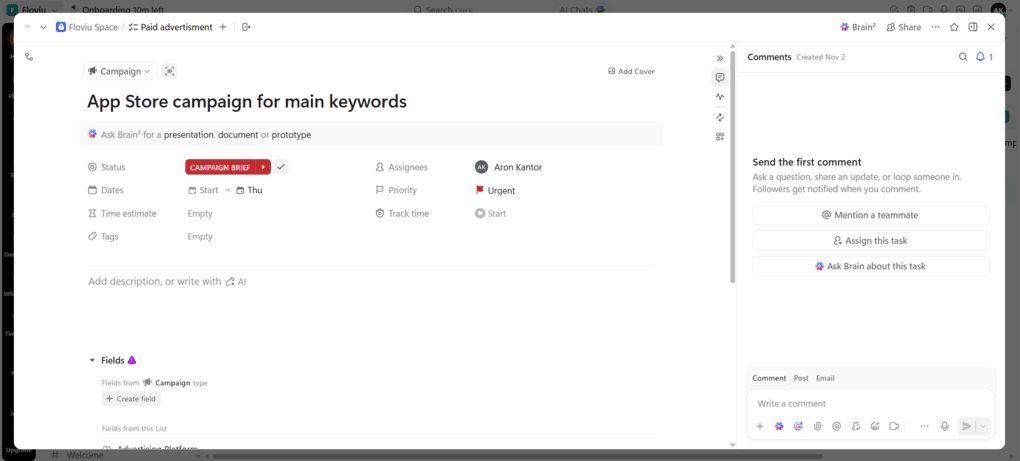
If you click on a task, you will arrive in the heart of ClickUp’s task management tools. From here, you can create subtasks, add tags, due dates, mention others, attach files, and more.
One thing I both liked and disliked was ClickUp’s AI features.
Unlike some productivity apps that add AI features without a clear purpose, ClickUp integrates them directly into everyday task management.
For example, its AI can:
- Automatically update task fields based on task information.
- Generate subtasks to break larger assignments into smaller steps.
- Check project progress and provide updates without manually reviewing every task.
These features are especially useful when managing multiple projects because they reduce the time you spend organizing and updating tasks.
However, there’s a catch.
AI activities can consume credits in the background, even when you’re not actively using ClickUp Brain.
The Core plan includes 1,000 monthly AI credits, while Business provides 1,500. Depending on how frequently you use AI-powered fields, progress updates, and other automated actions, you could exhaust those credits within a week.
This is worth considering before upgrading primarily for ClickUp’s AI features. Having access to AI functionality doesn’t necessarily mean you can use it extensively without additional costs.
Another feature I appreciated was ClickUp’s built-in time tracking.
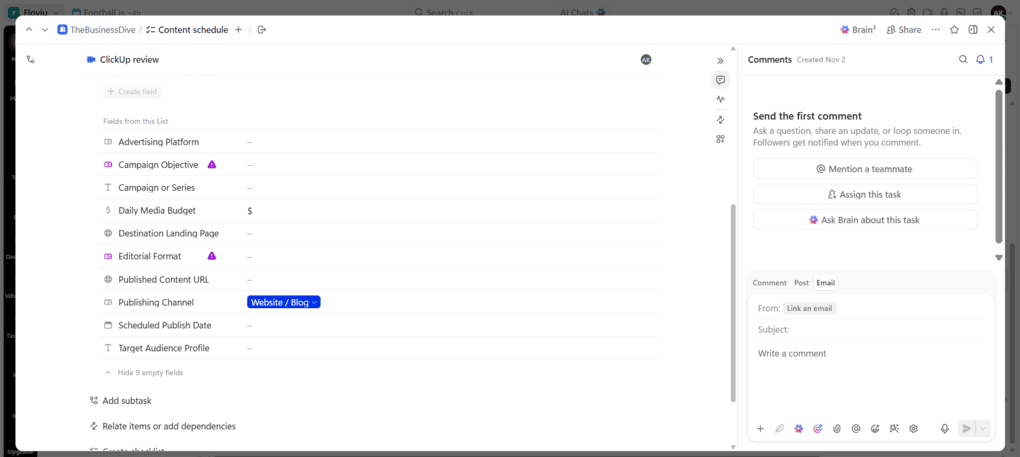
You can start a timer directly from a task and track how much time you spend working on it. Combined with the timesheet feature, it is a practical choice for freelancers or small teams that mainly need task-level time tracking; it can replace lightweight time-tracking apps like Clockify.
I also liked that you can send tasks via email with one click, which makes sharing assignments with people outside your workspace easier.
Finally, ClickUp Brain is accessible directly within tasks, allowing you to ask questions about task information without switching to another section of the platform.
Collaboration tools
💡Key takeaway: ClickUp’s collaboration tools are well integrated with project management, allowing you to turn Whiteboard ideas and Chat conversations into actionable tasks while managing shared documents in one place. I particularly liked the flexibility of Whiteboards and Docs, but occasional loading delays and the extra effort of switching to ClickUp Chat on mobile made the experience less seamless.
Whiteboards
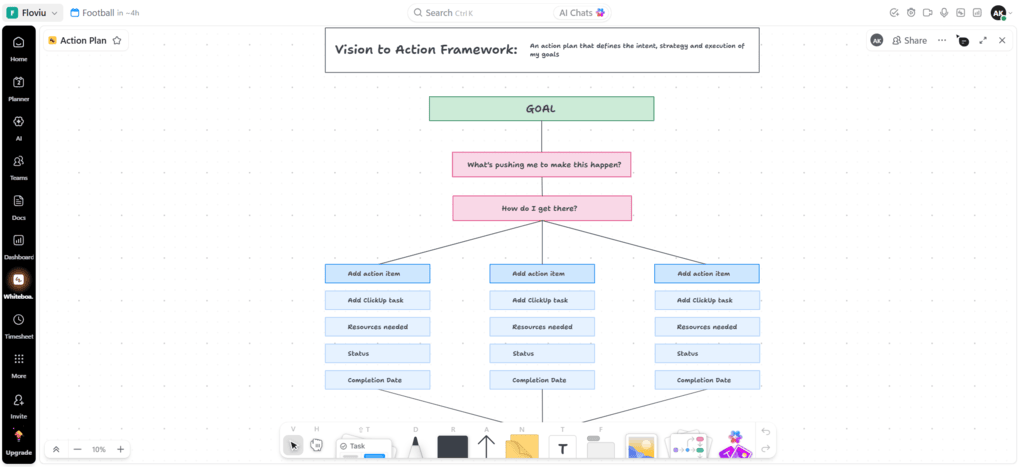
ClickUp’s Whiteboards go beyond simple brainstorming. You can add existing tasks and documents directly to the canvas, alongside sticky notes, shapes, images, and drawings.
This is particularly useful when planning a project because you can visualize ideas and connect them to the tasks your team is already working on.
For example, when planning a software development milestone, I could map out the different stages on a Whiteboard and place the relevant ClickUp tasks next to each stage. This keeps your project planning and execution connected instead of managing them in separate tools.
The collaboration features are also well implemented. You can see who is currently working on the Whiteboard and follow their cursor movements in real time, making it easier to brainstorm together remotely.
What I liked: ClickUp Whiteboards offers extensive customization, and dragging and dropping elements felt intuitive. I particularly liked being able to connect visual ideas directly with existing tasks and documents.
What I disliked: Despite these advantages, I rarely ended up using Whiteboards because they frequently felt slow to open. For occasional brainstorming, this wasn’t a major issue, but the loading delays made them less practical for everyday project management.
Chat
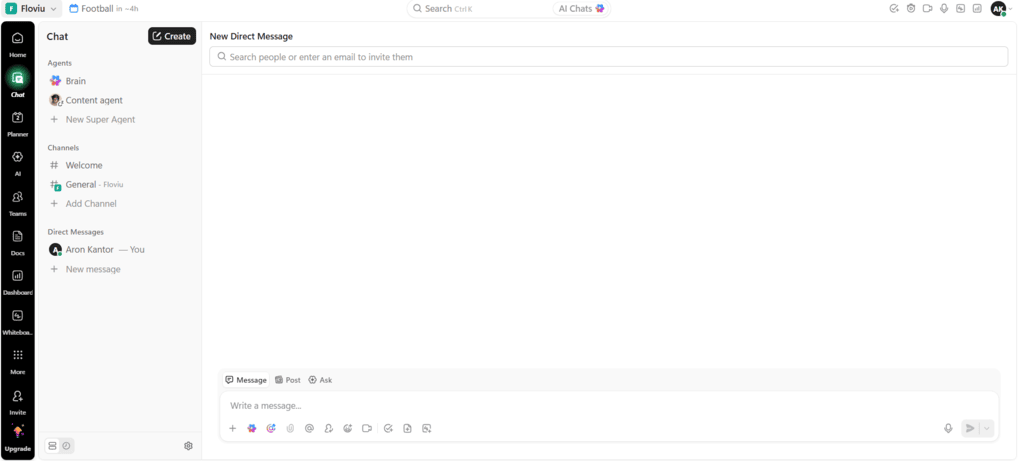
I only tested ClickUp Chat briefly, as our team mainly communicates through WhatsApp and Gmail, and we had no plans to switch.
What I liked: Chat is tightly integrated into ClickUp, allowing you to create tasks, assign team members, and use Ask Brain directly from conversations.
What I disliked: Unlike our existing communication tools, using ClickUp Chat would mean opening another app and navigating to the chat section just to respond. For our team, that added friction wasn’t worth it.
Collaborative Docs
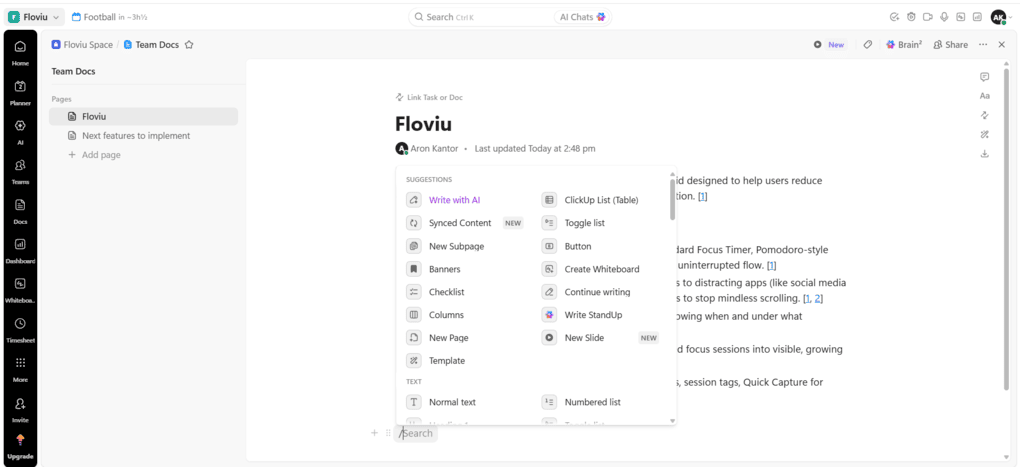
ClickUp Docs lets you create meeting notes, company wikis, knowledge bases, and other documents directly within your workspace.
Its editor feels similar to Notion. By typing /, you can insert tables, buttons, embedded bookmarks, and other elements without leaving the document.
One feature I particularly liked was how easy it is to organize documents. Simply drag one page onto another, and ClickUp automatically turns it into a subpage. This is especially useful when building larger knowledge bases with multiple sections.
You can also edit documents with team members in real time, making Docs useful for collaborative planning and maintaining shared information.
ClickUp offers categorized document templates for different teams and use cases, so you don’t always need to start from scratch.
🔒 One limitation worth knowing: Unlike some popular document-sharing, ClickUp Docs doesn’t support standalone password protection for individual documents. Instead, it relies on workspace permissions, sharing settings, and page protection.
Automation
💡Key takeaway: ClickUp’s automation templates make it easy to automate routine tasks without building workflows from scratch, and simple automations worked reliably during my testing. Nevertheless, advanced workflows are more restrictive, particularly when using time-based triggers or complex date calculations.
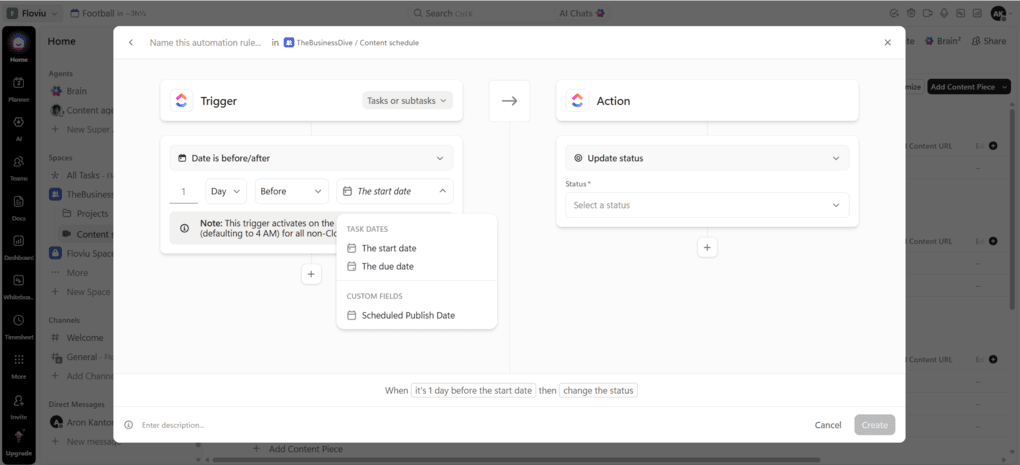
ClickUp uses “when” and “then” logic when creating automations. You can create automations for task management, communication, dates, and more.
I was pleased during my ClickUp review that it also has automation templates. Honestly, I just do not like setting up rules and testing, so the templates make it easier for people like me.
For instance, you can create an automation to move the parent task to the next phase once all the sub-tasks are completed, but there are automations for Calendly or Google Calendar as well.
ClickUp ran more straightforward automations smoothly. However, it falls short for advanced or multi-step logic. For example, time-based triggers are heavily restricted (limited to due and start date), and calculating complex date offsets often didn’t work natively.
AI features
💡Key takeaways: ClickUp’s AI features are well integrated across the workspace, with customizable AI Agents, Brain features, and AI meeting notes that turn action items into tasks. However, limited AI credits on paid plans make frequent use expensive, while its AI Note-taker falls short of dedicated alternatives.
AI Agents
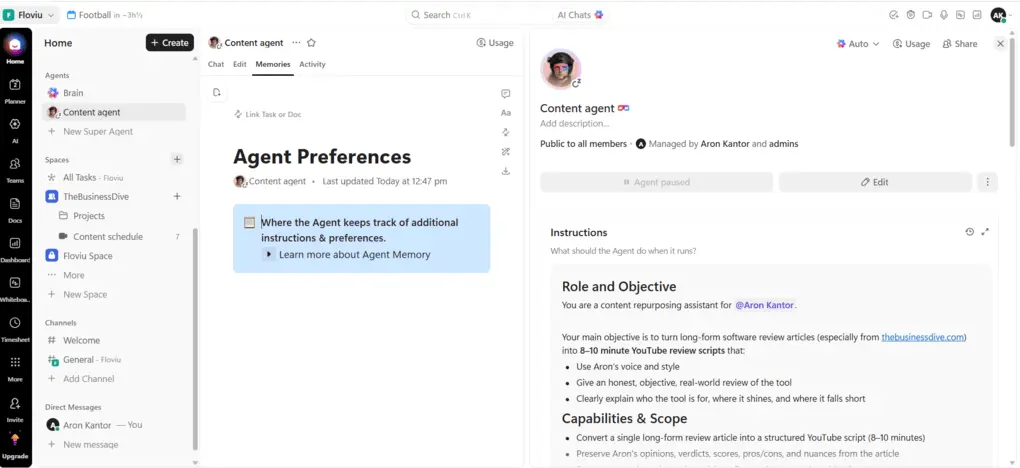
I found ClickUp’s AI Agents surprisingly easy to set up, even without technical knowledge. You can choose from numerous customization options to automate different workflows.
What I liked: Creating AI Agents was quick, and the extensive personalization options made it easy to tailor them to specific tasks and workflows.
What I disliked: Frequent use can burn through your monthly AI credits fast, making AI Agents 100% available for teams with the MAX plan.
Brain
ClickUp Brain is integrated throughout the workspace, making it accessible without constantly switching to the Brain screen.
What I liked: You can use Brain to draft email replies directly from tasks, create content in Docs, and summarize Chat conversations. I particularly liked how naturally these features fit into everyday workflows.
What I disliked: The monthly AI credit allowances on paid plans are quite limited, so frequent use of Brain across different features can quickly exhaust your credits.
AI note-taking
AI note-taking is one of the many features ClickUp has introduced recently. It’s a useful addition, especially for teams already using ClickUp, but I wouldn’t consider it a replacement for dedicated AI note-takers.
What I liked: ClickUp’s AI Note-taker extracts action items from meetings and turns them directly into ClickUp tasks. This is particularly useful for teams already managing their projects in ClickUp.
What I disliked: Compared to dedicated AI note-takers, ClickUp feels limited. A visible bot joins your meetings, which isn’t ideal for sensitive calls, and transcription accuracy can struggle with overlapping conversations, accents, and technical terminology.
My experience with ClickUp’s mobile app
💡My takeaway: ClickUp’s mobile app works well for keeping projects moving on the go, but I wouldn’t rely on it as my primary project management tool.
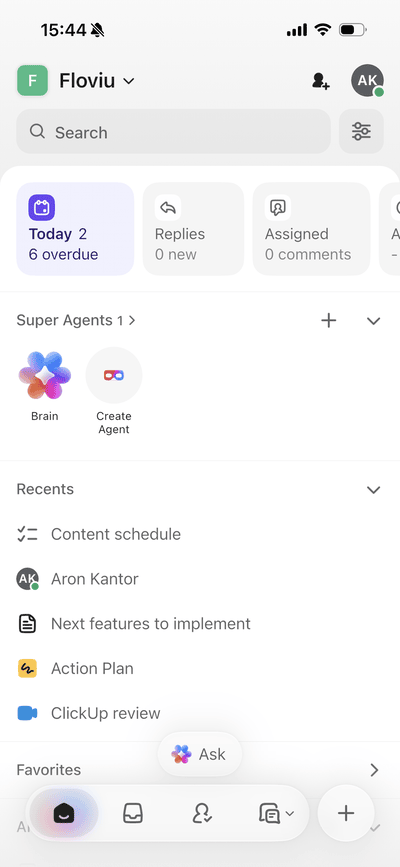
ClickUp also has a mobile app for iOS and Android. Personally, I used its iOS version and didn’t run into any bugs, despite many users complaining about frequent bugs.
However, ClickUp’s extensive feature set doesn’t translate particularly well to mobile. The app feels like a lightweight version of the desktop platform, best suited for checking project progress, creating tasks, and making quick updates rather than managing complex workflows.
I also found ClickUp Chat less convenient on mobile than dedicated messaging apps like Slack or Microsoft Teams. Another limitation is that you can’t use ClickUp’s AI Note-taker directly in the mobile app, making it less practical for capturing meetings when you’re away from your computer.
Explore our Apps directory
A curated directory of software tools we’ve independently reviewed, with links to full reviews, comparisons, and category guides.
When to choose ClickUp
✅ ClickUp is a good fit if… | ❌ ClickUp is not ideal if… |
|---|---|
You manage complex projects involving multiple workflows, teams, or departments. | You only need basic task management or simple project tracking. |
You want an all-in-one platform combining project management, Docs, Chat, and Whiteboards. | You prefer a lightweight tool that works without extensive setup. |
You need extensive customization with custom fields, project views, dashboards, and automations. | You prioritize fast performance when navigating between tasks and projects. |
You want integrated AI tools to automate tasks, generate content, and manage workflows. | You rely heavily on AI features but don’t want to pay for additional credits or higher-tier plans. |
You want a generous free plan with advanced project management functionality. | You primarily manage projects on mobile and need access to advanced features. |
You don’t mind spending time learning and customizing the platform. | You need complex automations involving advanced conditions or time-based triggers. |
ClickUp User Reviews: What Real Users Like & Dislike
After reading through 100+ user comments and reviews, I noticed something interesting: ClickUp users seem to fall into two camps. Some can’t imagine managing their projects without it, while others want to avoid it at all costs.
Based on my experience, the truth lies somewhere in between. Many of the features that make ClickUp valuable for complex projects can also make it frustrating for simpler workflows.
Let’s look at what actual users have to say and how their experiences compare to mine.
Users Who Love ClickUp
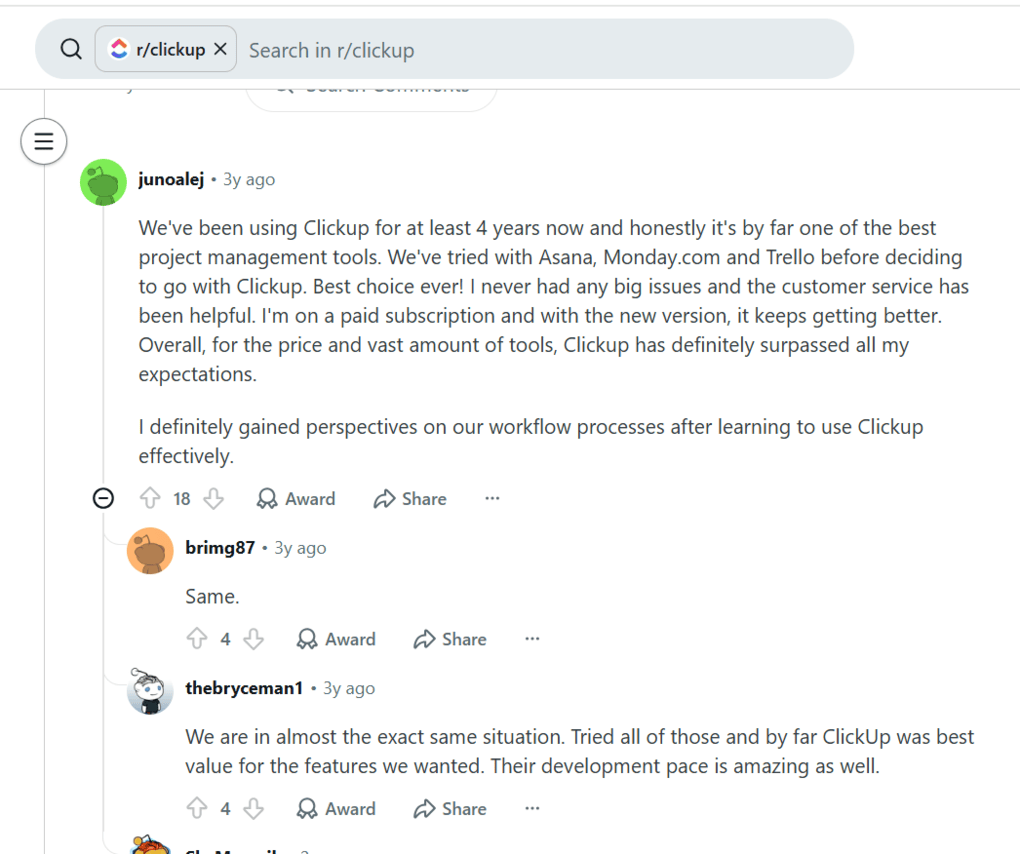
In this Reddit thread, junoalej praises ClickUp’s customer support and extensive feature set. However, I came across numerous complaints about customer support while reading through 100+ user comments and reviews, so I don’t entirely agree with this part of their assessment.
Nonetheless, when it comes to the price and features, I completely agree with junoalej’s perspective. ClickUp’s pricing plans are reasonable, except for the MAX plan, as I think it’s overpriced.
On the features side, ClickUp is one of the most robust solutions in the project management software space, so we agree.
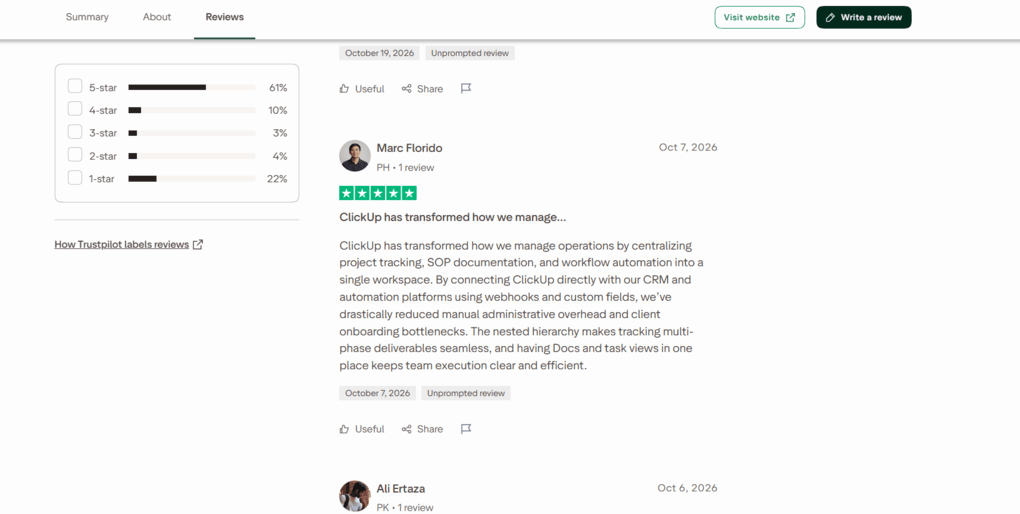
On ClickUp’s TrustPilot page, Marc Florido highlighted how ClickUp helped with centralizing project tracking, automation, and documentation into one workspace.
He also made a good point about connecting ClickUp with their CRM; through webhooks and custom fields, they reduced manual work.
This was my experience as well, actually, when I used ClickUp for my software business. When I needed more advanced tools, versatility, and integration options, ClickUp performed really well.
Users Who Had a Negative Experience With ClickUp
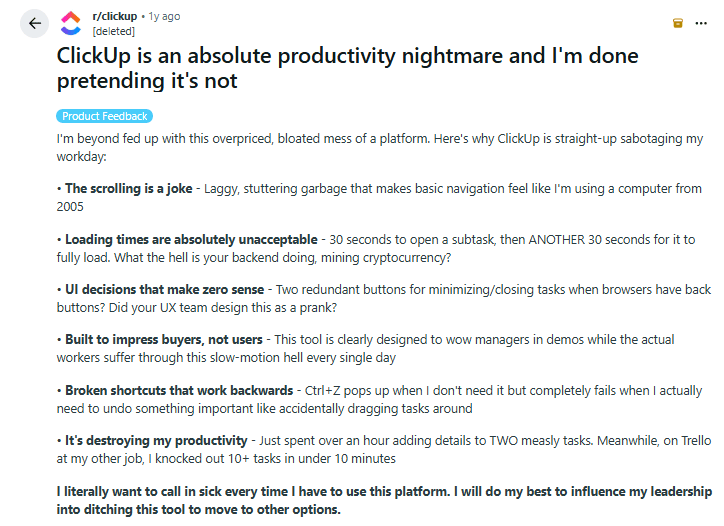
Not everyone shares that enthusiasm. A deleted user in this Reddit thread calls ClickUp “an absolute productivity nightmare.”
Some of the complaints are understandable, particularly those related to performance.
For example, the user reported waiting 30 seconds for a subtask to open and another 30 seconds for it to load completely.
My experience wasn’t nearly that bad. I also encountered loading delays, but most were under five seconds, even on larger projects.
I also disagree with the criticism of ClickUp’s scrolling and navigation. I found ClickUp’s interface relatively intuitive once I understood how everything was organized. My biggest frustration was occasional sluggishness, not the interface itself.
However, the user’s broader point about productivity is worth discussing.
I wouldn’t directly compare ClickUp with Trello because they serve different needs. Trello focuses on straightforward task management, while ClickUp offers a much broader set of project management capabilities.
Nevertheless, I experienced a similar frustration when managing TheBusinessDive. For organizing articles, YouTube videos, and publishing deadlines, ClickUp often felt unnecessarily complicated. A simpler tool like Trello could probably handle those workflows with less effort.
That’s why I believe ClickUp’s value depends more on workflow complexity than team size.
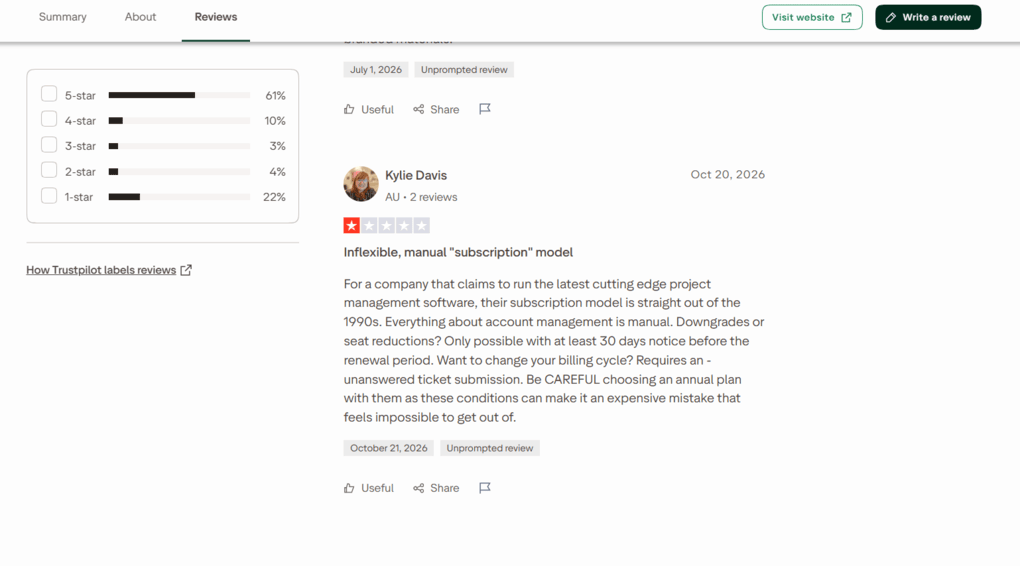
Another interesting complaint comes from Kylie Davis, who raises concerns about ClickUp’s 30-day notice requirement for certain subscription changes, including renewals and billing-cycle adjustments.
This is something I hadn’t considered during my own testing.
For larger businesses, where subscription changes may require multiple approvals, such requirements can create unnecessary complications and potentially significant costs.
Based on the feedback I reviewed, some customers have also found ClickUp relatively inflexible when handling billing-related requests.
While I haven’t personally experienced these issues, I’d recommend reviewing the cancellation, renewal, and billing terms carefully before committing to a larger subscription.
ClickUp Alternatives
While I think ClickUp is an excellent project management software, here are some alternatives you might want to check if you think it is not ideal for you:
App | Best for | Description |
|---|---|---|
Hive | Best for small teams | A project management app for small teams with advanced collaboration and AI features. |
SmartSuite | Best for no-code workflow building | A collaborative work management solution for teams to track and manage workflow. |
Monday.com | Best for visual workflows | An intuitive project management app with advanced features for teams. |
Taskade | Best lightweight AI tool | An AI-powered workflow and lightweight project management app. |
Coda | Best for custom workflows | An all-in-one app that is similar to Notion, however, with more massive project management tools. |
Notion | Best for notes & projects | It provides a centralized workspace where you can organize your thoughts, notes, tasks, projects, and documents in one place. |
Motion | Best for AI scheduling | It is an AI calendar app, but it also works as a project management software. |
Asana | Best for ease of use | A popular and easy-to-use project management tool. |
Teamwork.com | Best for client work | An excellent project management software for client-facing teams. |
Zoho Projects | Best for structured planning | A structured project management tool designed to help teams plan, track, and deliver projects with clear processes and long-term visibility. |
ProofHub | Best for approvals & feedback | A project and team management app with outstanding collaboration, proofing, and customization options. |
Jira | Best for agile teams | An advanced project management and issue tracking tool, built mainly for agile software and IT teams. |
Vaiz | Best lightweight all-in-one | A lightweight project management platform that combines tasks, docs, collaboration, automation, and AI in one workspace. |
Kanera | Best for cross-project visibility | A flexible project management tool with visual scheduling, task dependencies, automations, and cross-project tracking. |
ClickUp vs Alternatives: Detailed Breakdowns



Notion VS ClickUp

ClickUp VS Monday.com

SmartSuite VS ClickUp

Teamwork VS ClickUp

Asana VS ClickUp
Related article:
Looking for similar tools?
Visit the link to explore other apps we’ve reviewed in this space and how they compare.
Final Verdict: ClickUp Review
After three months of using ClickUp across two businesses and 10+ projects, I found that its biggest strength can also be its biggest weakness: the sheer number of features.
For Floviu, where I needed to coordinate software development, marketing campaigns, and multiple workflows, ClickUp’s AI tools, customization, advanced features made it a suitable choice.
However, for TheBusinessDive, where I mainly needed to manage content production and publishing deadlines, most of these advanced tools felt unnecessary. Simpler tools could handle the job with less effort.
My biggest frustrations were the slow performance, steep learning curve, and limited AI credits, which made some advanced features less practical than I expected.
Overall, I recommend ClickUp for teams managing complex projects that can use its extensive functionality. However, if you only need straightforward task management, I’d look for a simpler alternative.
How We Test Project Management Tools
To keep our reviews & final score for each project management app fair and consistent, we evaluate every tool using the same testing framework based on real-world usage, feature depth, and overall value.
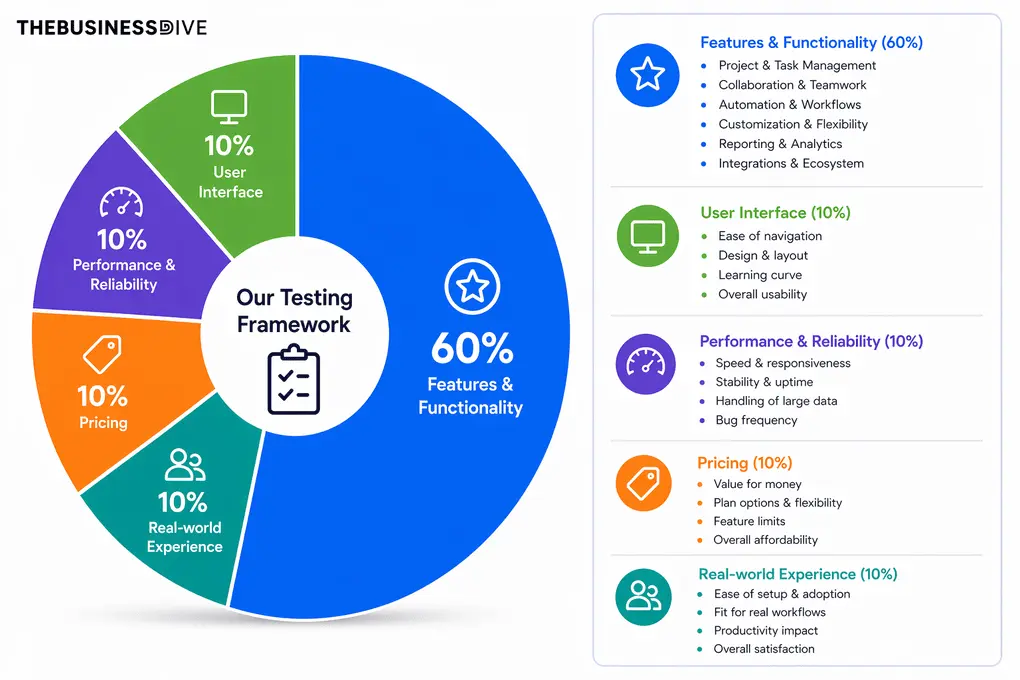
Our scoring breakdown after testing 20+ project management apps:
⚙️ Features & functionality — 60%
🖥️ User interface — 10%
⚡ Performance & Reliability —10%
💰 Pricing — 10%
👥 Real-world experience — 10%
Want a detailed breakdown of how we test each category?
Learn exactly how we test tools → Review methodology
Why You Can Trust Our Reviews
At thebusinessdive.com, our team tests, reviews, and compares hundreds of productivity apps every year — from project management tools to note-taking apps. We dive deep into real-world use cases to help you find the right tools that actually improve your workflow, not just add noise.
Our mission? No fluff, no shortcuts—just honest, hands-on insights from productivity pros.
Discover how we stay transparent, read our review methodology, and let us know about any tools we missed.
Frequently Asked Questions
Is ClickUp totally free?
Yes, ClickUp offers a generous free plan with unlimited tasks, 60MB of storage, multiple project views, and basic collaboration tools.
When testing, I could manage most projects without upgrading, but run into some annoying pop-ups. However, advanced features have restrictions, AI usage is limited, and I encountered two annoying upgrade pop-ups within four hours.
Is ClickUp any good?
Yes, ClickUp is one of the most feature-rich project management apps I’ve tested, particularly for teams managing complex workflows.
After using it across two businesses and 10+ projects, I discovered its customization, collaboration tools, and integrated AI genuinely useful. Nevertheless, for simple projects, its extensive features create unnecessary complexity and extra work.
What are the disadvantages of ClickUp?
The biggest disadvantage I experienced was its slow performance. Opening tasks sometimes took 2–3 seconds, while switching between larger project views could take 5–6 seconds.
The mobile app is also less practical for more complicated tasks, and advanced automations had some limitations.
How good is ClickUp’s customer support team?
I can’t evaluate customer support from my own testing. However, while researching user experiences, I found mixed feedback, including complaints about slow response times and difficulties reaching a human representative. I would consider this before choosing ClickUp for business-critical workflows, although these reports don’t necessarily reflect everyone’s experience.
Disclosure: I only recommend products I would use myself, and all opinions expressed here are our own. This post may contain affiliate links that, at no additional cost to you, may earn a small commission. Read the full privacy policy here.

Hey there! I am Aron, the founder of Thebusinessdive. I have been testing productivity apps for almost three years now. I reach 25.000 -50.000 people monthly with the mission to help you find the perfect productivity apps. Subscribe to my YouTube channel, newsletter, and social media to hear more about the best productivity tools. Let’s dive in!
I have spent well over an hour trying to get started on ClickUp. The tutorial is vague. I get stuck. I ask for help. The on-site info doesn’t help. I have gotten e-mails, but they only take me one step further. Then I get stuck. I was following the tutorial (which covered the screen, so I had to hop back and forth to try to do what was written), but I was told to change the status of a task, but it didn’t say how: There was an inverted caret, but that didn’t bring up options. Finally I just guess to overwrite “To do.” Sorry, that is not intuitive , especially with the caret. Using pencil and paper is much simpler at this point. The UI is so confusing for a lay person. There are some unexplained icons. I guess for screen-generation people this is useful, but I come from a text generation: I can understand normal sentences, but I don’t know what % or $ mean out of context. Maybe this system is designed for people who have already used similar software, but for me it is terrible. Also, every time I go back to the page, it takes about a minute to start up.
Hey Kim,
Many thanks for your insights! Sad to hear that ClickUp did not work out for you. We will update the content soon, and make sure include this aspect as well.
Best,
Aron
ClickUp certainly has a learning curve, but I found a helpful shortcut within the system. I used the AI feature to ask for directions on setting up areas, and it provided a step-by-step breakdown that allowed me to get started immediately. The free version is a great place to “try before you buy”. Personally, I’m loving it.