


Kanera review 2026: A Hands-On Look
TL;DR: In this Kanera review, I’ll share my experience testing its project management features. I’ll cover how its boards, different views, task dependencies, and cross-project overviews worked in practice, what I liked and what could be better, and whether I think Kanera is worth using.
My Testing Results in Short
Here’s the quick verdict if you don’t want to read the full review:
🎯 Best for: Teams managing multiple projects that need flexible workflows, task dependencies, and a clear overview of progress.
🚫 Not ideal for: Teams that need extensive native integrations or full resource-capacity planning.
⭐ Biggest strength: Combining flexible task management with cross-project visibility and project scheduling tools.
⚠️ Biggest weakness: Limited native integrations compared with tools that offer a wider range of ready-made connections.
⚖️ Verdict: Kanera brings task management, project scheduling, and progress reporting together in one workspace. It’s worth considering for teams that want visibility across projects without relying on a collection of separate tools.
🏆Score: 4.5/5
✅ Tested with our review & scoring methodology ✅ Real-world testing ✅ Unbiased evaluation
Kanera
Summary
Kanera is a flexible project management tool for teams managing multiple projects. I liked its intuitive interface, customizable views, task dependencies, and cross-project overviews. Gantt-style scheduling and time-in-progress tracking add useful planning tools, although native integrations are limited and it lacks full resource-capacity planning.
Flexible task views and workflows | |
Customizable boards and workspaces | |
Useful My Cards and Up Next overviews | |
Gantt charts and task dependencies | |
Team progress reporting | |
Time-in-progress tracking and automations | |
Easy-to-use search and filters | |
Customizable interface |
Limited Free plan | |
Some integrations require Pro | |
Few native third-party integrations | |
Self-hosting requires maintenance |
How We Test Project Management Tools
To keep our reviews & final score for each project management app fair and consistent, we evaluate every tool using the same testing framework based on real-world usage, feature depth, and overall value.
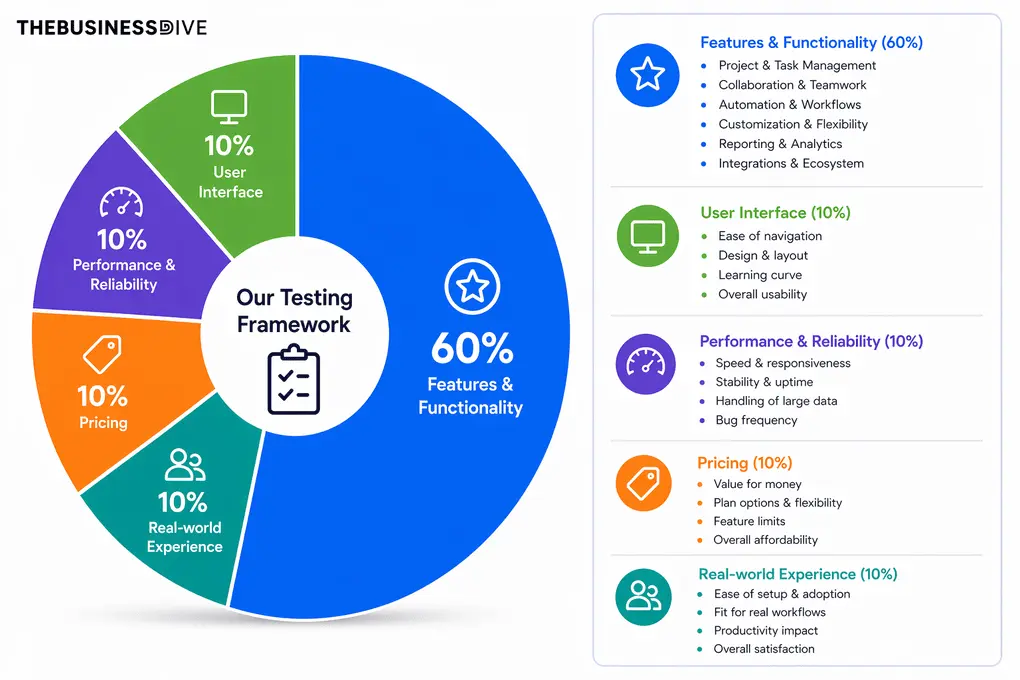
Our scoring breakdown after testing 20+ project management apps:
⚙️ Features & functionality — 60%
🖥️ User interface — 10%
⚡ Performance & Reliability —10%
💰 Pricing — 10%
👥 Real-world experience — 10%
Want a detailed breakdown of how we test each category?
Learn exactly how we test tools → Review methodology
Kanera in a nutshell

Kanera is a project management and work management tool that helps teams organize tasks, manage multiple projects, and track progress in one place. It combines visual boards with Table, Calendar, and other views, so you can adapt the way you manage work to your team’s needs.
Unlike tools that focus mainly on individual task lists, Kanera also offers cross-project overviews, task dependencies, automations, and reporting features. It supports AI integrations through tools such as ChatGPT and Claude, allowing teams to connect their existing AI assistants to their project workflows.
Kanera is operated by Happen Software Limited, an Irish company. You can use it as a hosted service or self-host it using Docker, giving teams the choice between a managed platform and running the software on their own infrastructure.
What I Learned After Testing Kanera
💡 What I learned: Kanera offers more flexibility than I expected from a project management tool, especially when it comes to organizing tasks across boards and switching between different views. It offers plenty of customization options, but I found the interface easy to navigate and the main features straightforward to use.
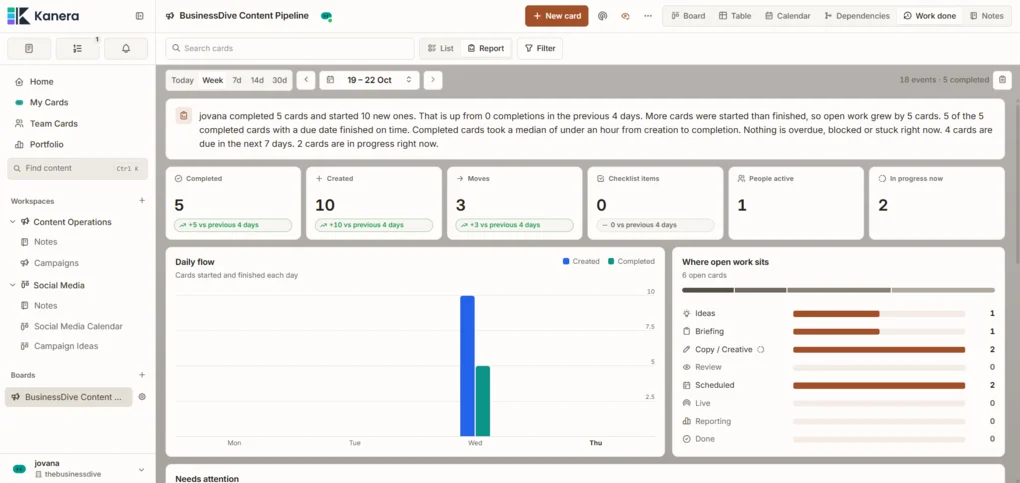
I tested Kanera by creating boards for content planning and organizing tasks across workspaces. Moving tasks between lists, changing views, and adjusting table columns was straightforward, and the search and filters made it easy to find specific tasks.
What stood out most was how Kanera connects individual task management with a broader project overview. My Cards helped me keep track of assigned work, while Up Next gave me a simple way to organize my priorities.
Overall, I found Kanera useful for managing multiple projects without losing sight of individual tasks. Its range of views and customization options makes it a good fit for teams that want more control over their workflows.
What I liked about Kanera
Where Kanera falls short
Why did I give it a 4.5/5 score?
I gave Kanera 4.5/5 for its intuitive interface, flexible task views, Gantt-style scheduling, task dependencies, and useful automation features. I also liked its cross-project overviews and affordable pricing.
However, limited native integrations and the restrictions of the Free plan keep it from scoring higher.
Who Should Use Kanera?
🟢 Kanera is a good fit if… | 🔴 Kanera is not ideal if… |
|---|---|
You manage multiple projects: Track tasks and progress across boards and use team overviews to see what needs attention. | You only need a basic to-do list: Kanera’s project views and scheduling tools may be more than you need. |
You need visual project scheduling: Use Timeline to organize tasks by dates and see how work fits together. | You need full resource-capacity planning: Progress reports and team overviews don’t replace dedicated capacity-planning tools. |
You work with task dependencies: Use dependency relationships and critical-path analysis to understand what could delay a project. | You need extensive native integrations: Some connections require additional setup, and certain integrations are limited to Pro. |
You want consistent workflows across projects: Share lists and labels across boards in the same workspace. | You need advanced integrations on the Free plan: Chat destinations, custom webhooks, and workspace API keys require Pro. |
You want an affordable project management tool: Start with the Free plan and upgrade when you need unlimited boards and more automation. | You don’t want to manage your own infrastructure: Self-hosting requires you to handle hosting, backups, security, and updates. |
Is Kanera worth it?
💡 Key takeaway: Kanera offers a generous set of project management features, but its free plan is limited to three active boards and three automations. The 30-day Pro trial lets you test the full platform before deciding whether the paid plan is worth it.
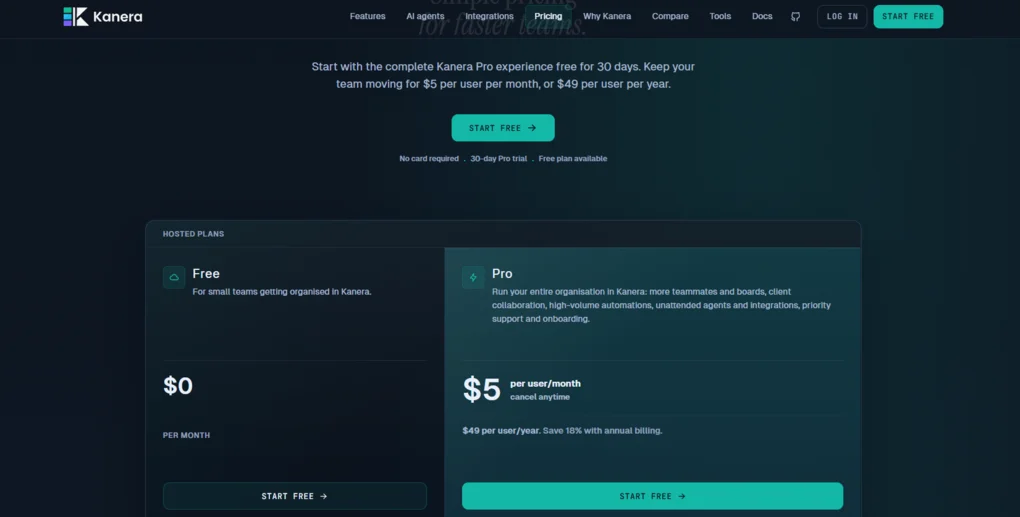
Plan | Price | Best for | Key features |
|---|---|---|---|
Free | $0 | Individuals and small teams getting started | Up to 4 members, 3 active boards, 3 automations, all views, custom fields |
Pro (Monthly) | $5/user/month | Teams that prefer monthly billing | Unlimited boards, unlimited automation executions, client collaboration, API access |
Pro (Annual) | $49/user/year | Teams looking to save on subscription costs | Same Pro features at around 18% less than monthly billing |
Self-hosted | No Kanera license or per-user fee | Teams that want to run Kanera on their own infrastructure | Same product features, with hosting and maintenance managed by your team |
Additional pricing details: Kanera offers a 30-day Pro trial without a credit card. Afterward, you can upgrade or continue with the Free plan, where items exceeding plan limits become read-only. Pro includes 200 GiB of storage, priority support, and guided onboarding. Self-hosting has no license fees, but you manage infrastructure and maintenance.
My take: I’d start with the Free plan for basic task management and a few boards. For larger teams that need more boards, automation, and client collaboration, I’d choose Pro at $49 per user annually. It’s reasonably priced for the features included.
How Kanera’s Features Performed During My Testing:
I tested Kanera’s main features to see how well they support everyday task management, project coordination, and tracking progress across multiple projects.
Here’s what I found.
Task Management: Organize Tasks on a Board
💡 Key takeaway: I found Kanera easy to work with. Moving tasks around and changing the board layout was quick and intuitive, and I liked being able to customize the way I viewed my work.
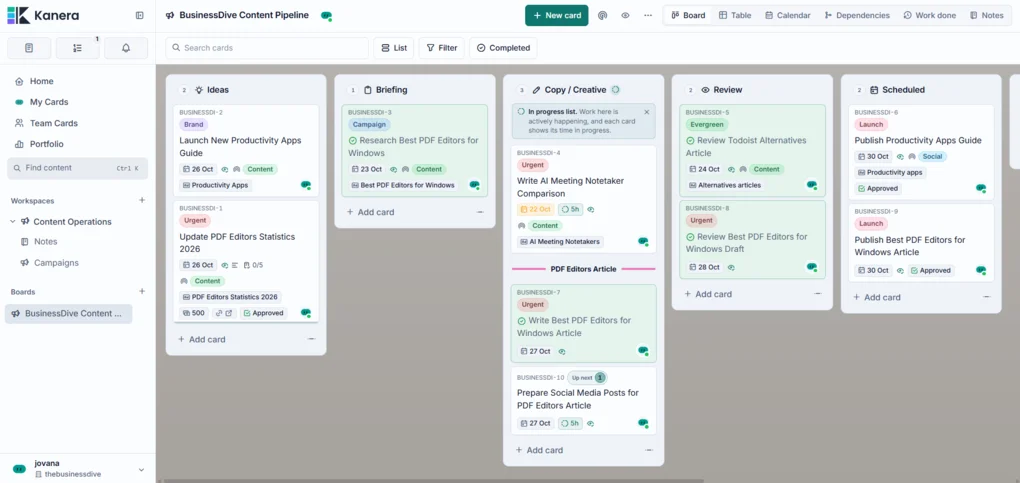
I tested Kanera using my BusinessDive Content Pipeline board, which I use to organize content tasks across stages such as Ideas, Briefing, Copy / Creative, Review, and Scheduled.
I could easily adapt the board to the way I wanted to work. For example, I moved a section separator within my Copy / Creative list to change how I grouped article-related tasks. The change appeared immediately, so I could adjust the layout as I worked.
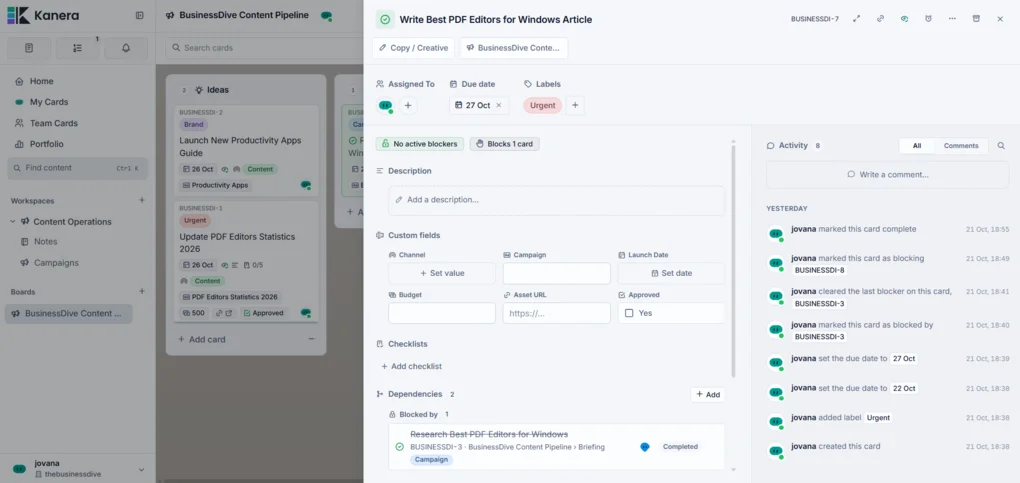
This might seem like a small detail, but it makes a difference when you’re managing an active workflow. Rather than treating the board as a fixed template, Kanera lets you rearrange its contents as your priorities and organizational needs change.
Task cards can also contain details such as due dates, labels, and checklist items. This gives each card room to hold the information needed to move a task forward, while the board provides a broader overview of the workflow.
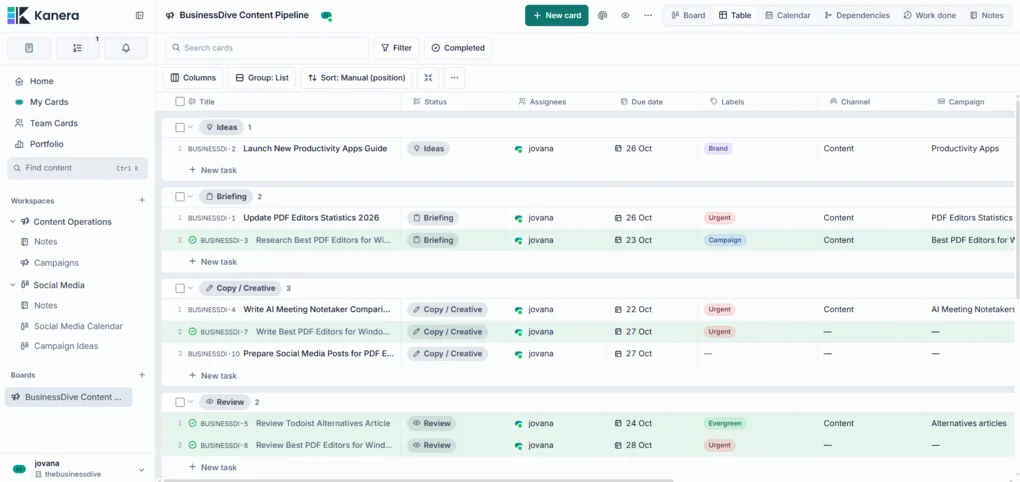
Kanera also offers Table and Calendar views, and I found both useful in different ways. The Table view gives you a more structured overview of your tasks, with customizable columns that let you choose which details to display. I liked being able to show the information I needed.
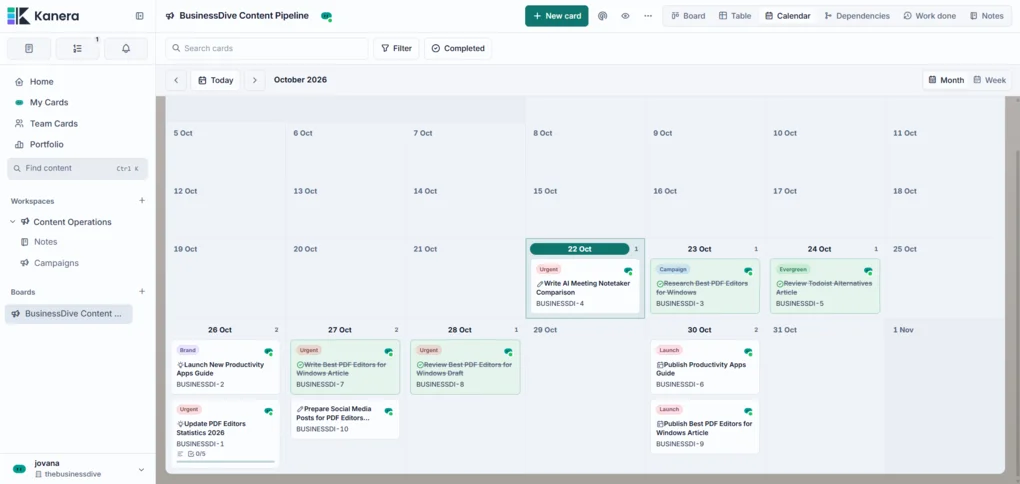
The Calendar view is handy for planning around deadlines. You can switch between month and week views, depending on whether you want to look ahead or focus on the next few days. Both views support drag and drop, so rearranging tasks or adjusting your schedule is just as straightforward as moving cards on the board.
I mainly tested the board-based workflow, though, and that was where Kanera worked best for me.
Workspaces: Use the Same Workflow Across Projects
💡 Key takeaway: I like that Kanera lets you keep projects on separate boards without having to set up each one from scratch. Lists, card labels, custom fields, checklists, and automations are shared across boards in the same workspace, so you can change them once and use them everywhere.
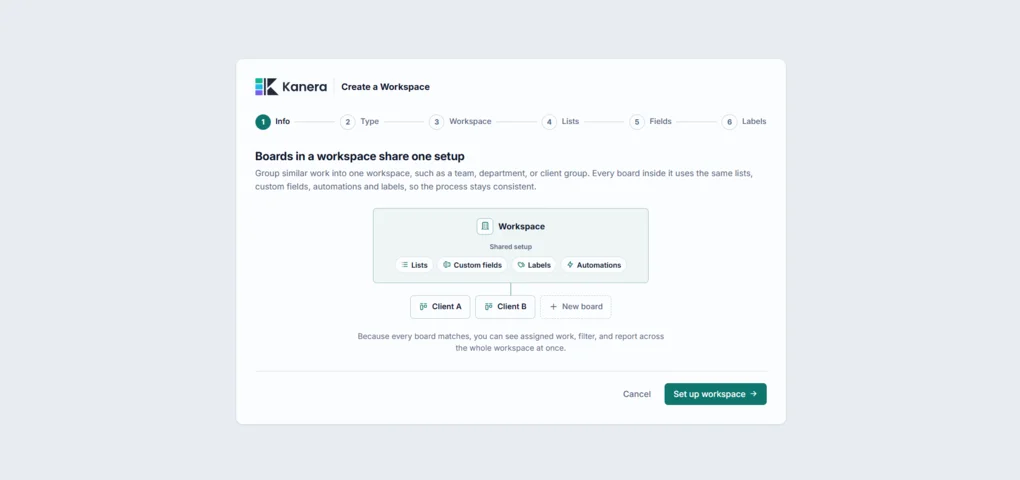
This makes sense for work that follows a similar process, such as managing several content calendars or marketing campaigns. Each board can hold a different set of tasks, but you don’t have to recreate the same workflow for every project.
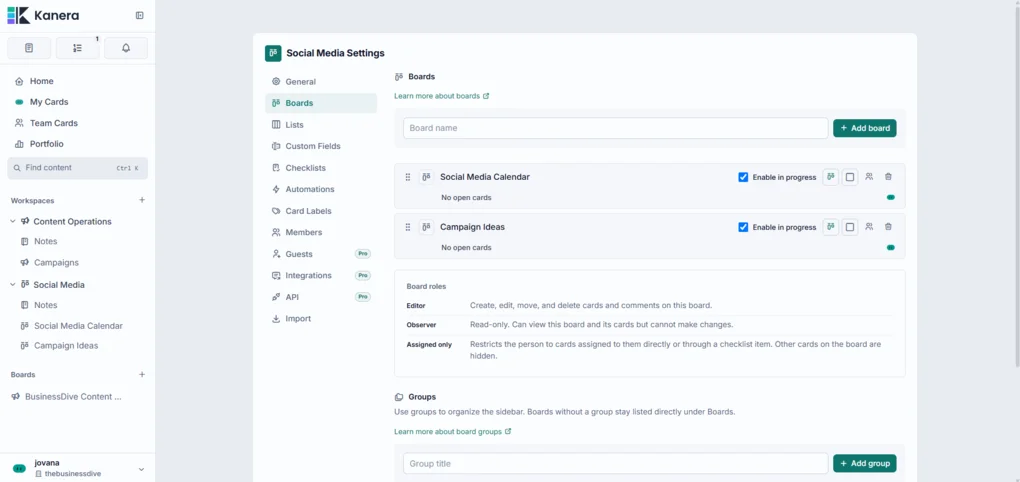
I tested this by creating two boards in one workspace and adding a new list through the workspace settings. It appeared on both boards, just like the card label I created afterward. That worked exactly as I’d expect: I could keep the projects separate while using the same basic setup for both.
I can see this being handy when a team runs several campaigns at once. If you add a new stage to your workflow or introduce a label to organize tasks, you don’t have to remember to make the same change on every board. You make the change at workspace level, and it’s reflected across the projects there.
My Cards, Up Next, and Team Overview: Keep Track of Work
💡 Key takeaway: I like that Kanera gives me different ways to keep track of my work. My Cards brings assigned tasks together, Up Next lets me decide what to focus on first, and Team Overview provides a broader picture of the team’s current workload, priorities, overdue tasks, and progress over time.
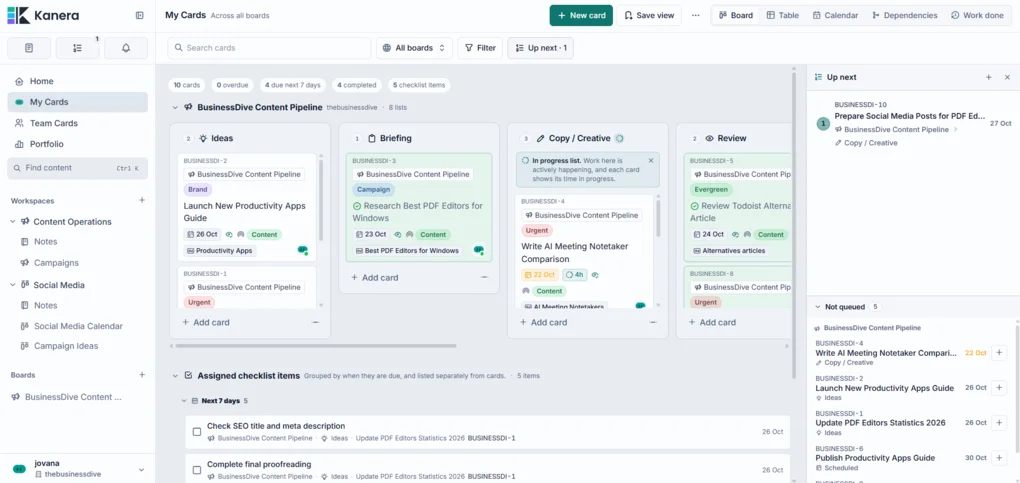
I found My Cards useful because I didn’t have to switch between boards to see what I was working on. It brought my assigned tasks together, including individual checklist items, and showed me how many tasks were coming up, overdue, or already completed.
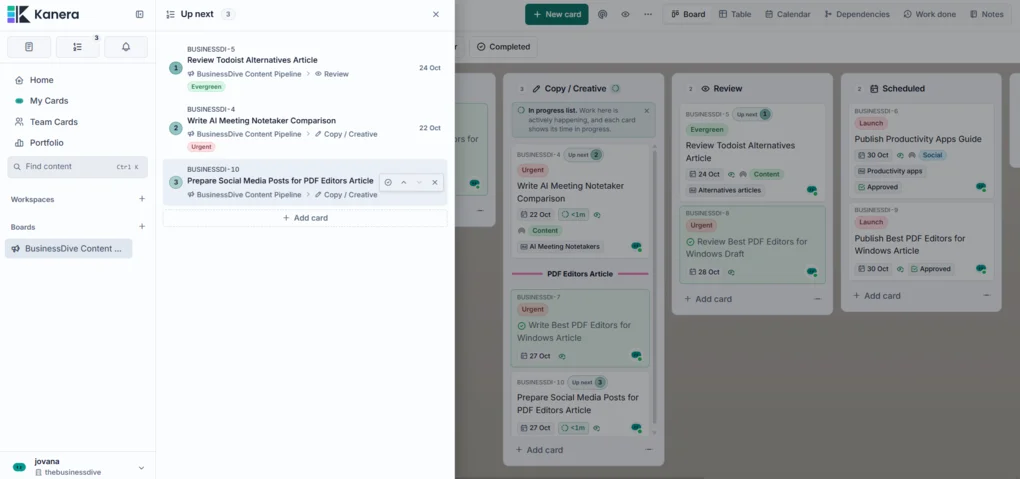
Up Next is more personal. I could add cards to my list, drag them into a different order, and decide which tasks should come first.
Removing a card from Up Next didn’t remove it from the original board; it simply disappeared from my personal list, and the remaining tasks were renumbered automatically. So I could change my priorities without worrying about accidentally deleting or moving work in the actual project.
Kanera’s team overview and reporting features provide a broader look at current work, priorities, overdue tasks, and progress over time. Team Cards also lets users view work across boards, which can be useful when coordinating several projects.
These views serve different purposes: My Cards helps me keep track of my own work, Up Next lets me organize priorities, and the team overview provides a broader picture of ongoing work.
Task Dependencies and Timelines: Plan Work in the Right Order
💡 Key takeaway: Kanera combines task dependencies, visual scheduling, and critical-path analysis to help teams understand how work fits together and what could delay a project.
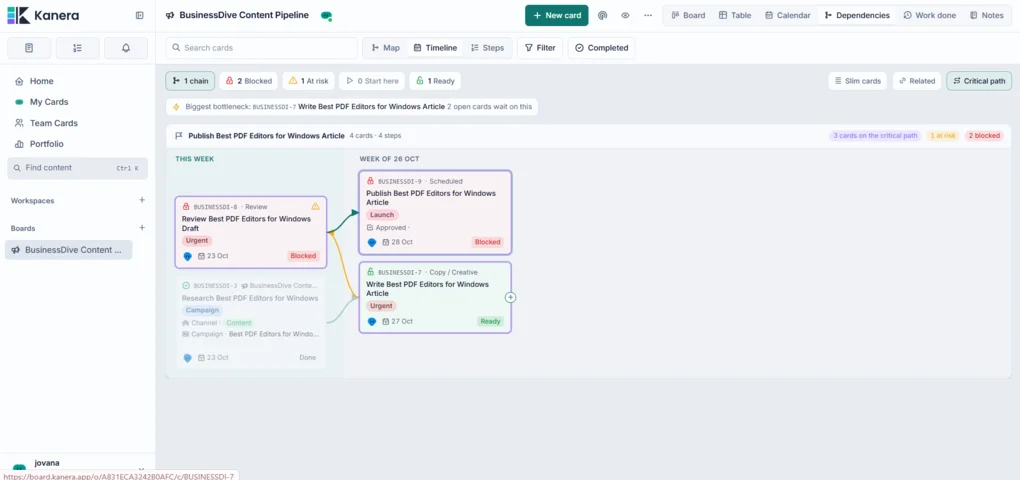
Some tasks can’t start until others are finished. Kanera lets you show these relationships using dependencies such as Blocked by, Blocks, and Relates to. For example, if an article needs to be written before it can be edited, you can link the two tasks to show how they depend on each other.
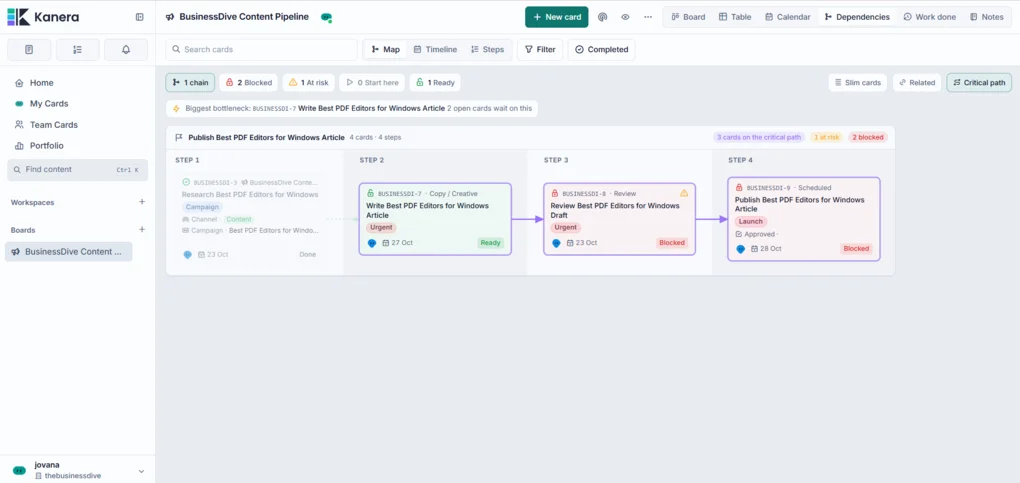
Kanera also offers Map, Timeline, and Steps views, giving you different ways to look at your project and how the work fits together. The Timeline view includes a Gantt-style chart, where tasks appear as horizontal bars on a calendar. You can group tasks by list, assignee, or label to organize the schedule around your workflow.
You can also use the Ready, Blocked, and At risk statuses to spot tasks that are ready to move forward, waiting on something else, or potentially falling behind.
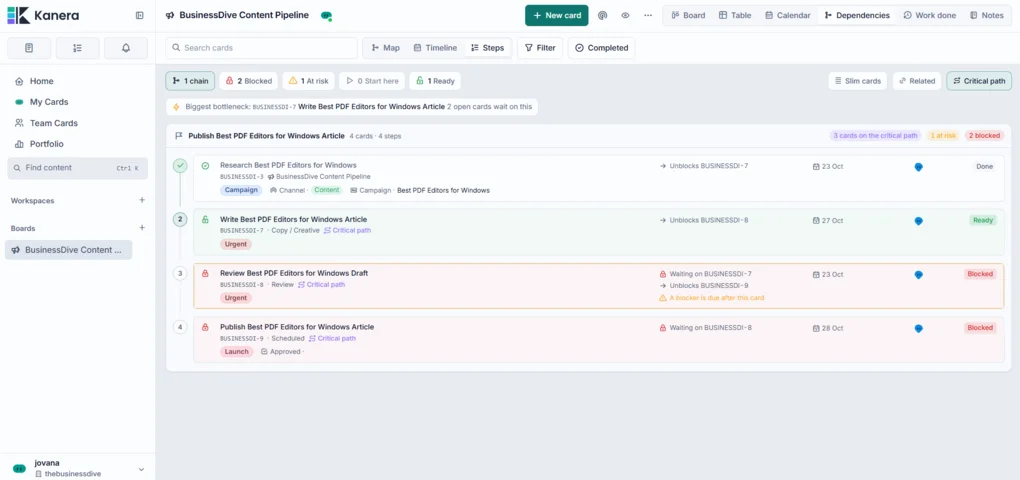
Another option is the Critical Path view. The critical path is the sequence of tasks that determines the earliest possible completion date for a project. Kanera’s scheduling tools also include features for analyzing slack, estimating projected completion dates, and detecting scheduling conflicts.
These features are useful for projects with several stages or dependencies. Instead of just tracking what’s on your to-do list, you can see how tasks affect one another and get a better idea of what might hold up the project.
Time-in-Progress Tracking: Spot Tasks That Are Taking Too Long
💡 Key takeaway: Kanera helps teams identify potential bottlenecks by tracking how long tasks stay in progress and flagging work that may need attention.
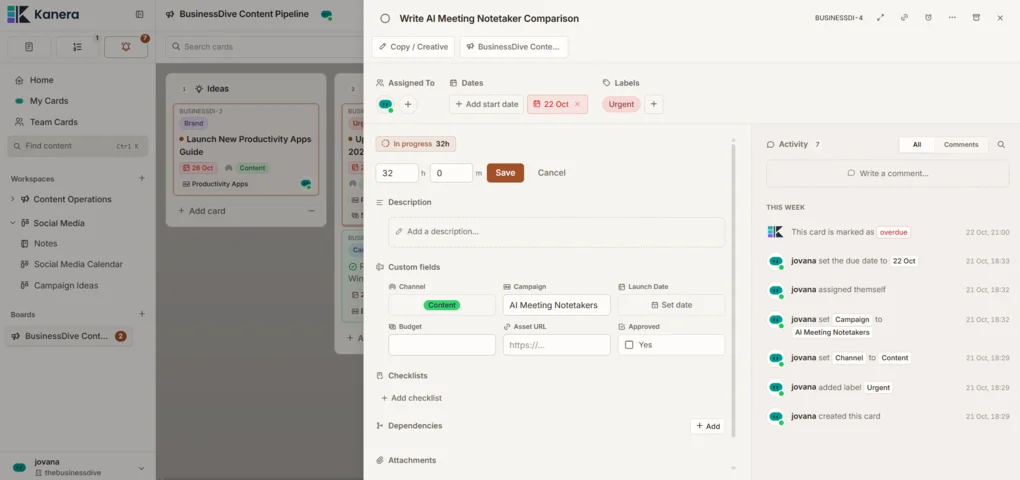
Kanera tracks how long tasks remain in progress and displays the elapsed time directly on each card, along with the tracked working hours. In my testing, I found this useful for spotting tasks that had been sitting in progress for a while without needing to track them separately.
You can also set up alerts and automations to flag tasks that exceed a certain time threshold. This helps teams identify work that may be stuck and follow up before delays affect the rest of a project.
Unlike traditional time-tracking tools, this feature focuses on how long tasks remain in progress rather than tracking billable hours or managing timesheets.
Notes, Scratchpad, and Notifications: Keep Notes and Reminders Close at Hand
💡 Key takeaway: Kanera includes a few handy extras that let you save information, jot down quick notes, and keep track of reminders without leaving the app.
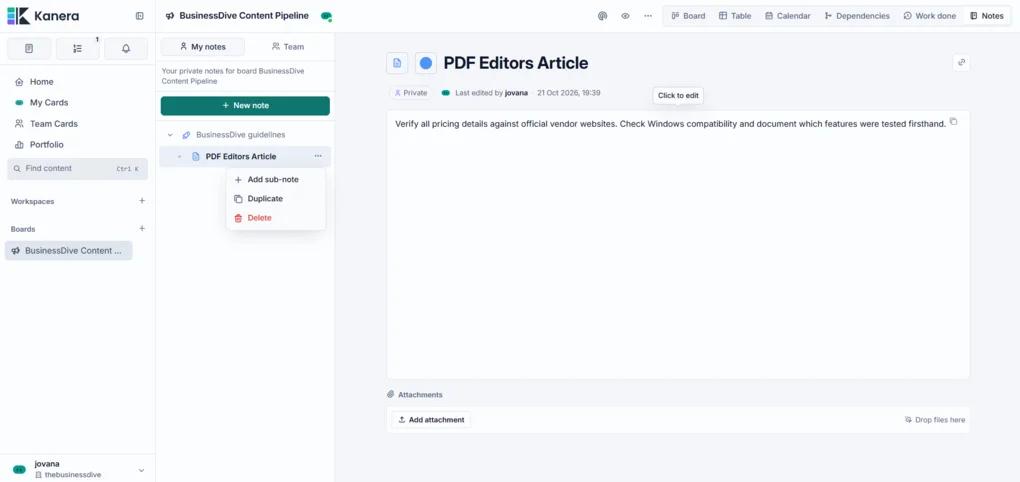
The Notes feature lets you create and organize notes in one place. I tested both private notes and team notes, including nested notes. I like that distinction because some notes are just for me, while others are useful to share with the team.
For example, you can keep personal project reminders separate from shared editorial guidelines or team priorities.
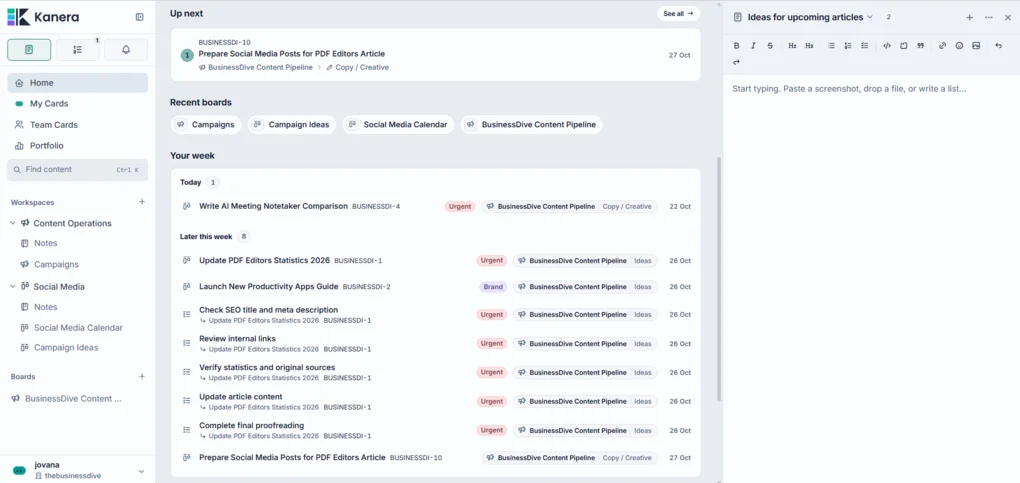
Scratchpad is better suited to quick notes. You can create separate pages and return to them later, which is useful when you need to jot something down without turning it into a formal document or task.
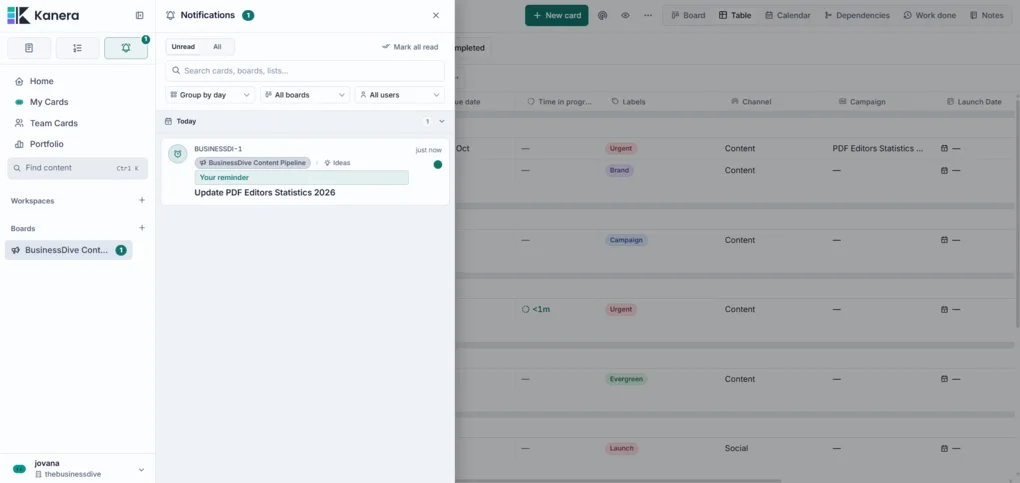
Kanera also sends notifications for task reminders. During testing, I set a reminder for a task and received both an in-app notification and an email reminder. Having the reminder arrive by email was a nice touch, since I might not have Kanera open when it’s time to work on something.
These aren’t the main reasons I’d choose a project management tool, but they’re useful additions. Notes and Scratchpad give you somewhere to keep information, while in-app and email reminders help make sure important tasks don’t slip your mind.
Explore our Apps directory
A curated directory of software tools we’ve independently reviewed, with links to full reviews, comparisons, and category guides.
Testing Kanera’s user interface
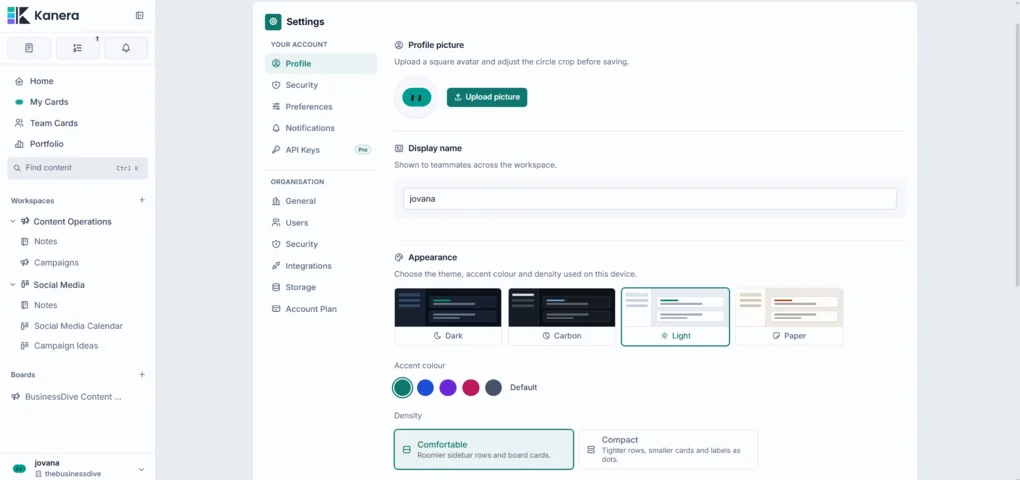
I found Kanera thoughtfully designed and easy to navigate, and I liked how much I could customize. You can adjust the interface to suit your preferences, from the way tasks are displayed to smaller visual details.
I didn’t need much time to find my way around Kanera. The sidebar keeps the main sections within easy reach, while workspaces and boards are grouped underneath.
In the profile settings, you can change the appearance and the accent color, and switch between Comfortable and Compact density. You can also customize individual boards to show the information you need.
I also liked the smaller details. Kanera lets you use different labels and colors to distinguish tasks, and the interface includes visual cues for statuses, deadlines, and completed work. These details make a busy board easier to scan without having to open every card.
The ability to reorganize cards and other board elements with drag and drop also makes everyday adjustments natural.
Integrations
Kanera offers several ways to connect your projects with other tools, although some options require more technical setup than typical plug-and-play integrations.
Its built-in chat integrations include Slack, Discord, Telegram, and Zulip. You can send task updates to team channels when a card is created, its status changes, or someone updates its details.
For more advanced workflows, Kanera offers a REST API, webhooks, and an MCP server that can connect AI assistants such as ChatGPT, Claude, Copilot, and Codex to your boards.
These options can help you build custom workflows, sync tasks with other systems, and let AI tools interact with your project data.
Not all these features have the same plan requirements. On Kanera’s hosted version, chat destinations, custom webhooks, and workspace API keys require Pro or an active Pro trial. Personal API keys and interactive AI agent connections are also available on the Free plan, subject to fair-use limits.
Kanera alternatives
If you don’t think this is the right tool for you, these alternatives are worth considering.
App | Best for | Description |
|---|---|---|
Trello | Best for simple Kanban project management | A visual project management tool built around Kanban boards, with task automation and team collaboration features. |
Hive | Best for small teams | A project management app for small teams with advanced collaboration and AI features. |
SmartSuite | Best for no-code workflow building | A collaborative work management solution for teams to track and manage workflows. |
ClickUp | Best all-in-one | An easy-to-use AI-powered project management software. |
Taskade | Best lightweight AI tool | An AI-powered workflow and lightweight project management app. |
Coda | Best for custom workflows | An all-in-one app that is similar to Notion; however, with more robust project management tools. |
Notion | Best for notes & projects | It provides a centralized workspace where you can organize your thoughts, notes, tasks, projects, and documents in one place. |
Motion | Best for AI scheduling | It is an AI calendar app, but it also works as project management software. |
Asana | Best for ease of use | A popular and easy-to-use project management tool. |
Teamwork.com | Best for client work | An excellent project management software for client-facing teams. |
Zoho Projects | Best for structured planning | A structured project management tool designed to help teams plan, track, and deliver projects with clear processes and long-term visibility. |
ProofHub | Best for approvals & feedback | A project and team management app with outstanding collaboration, proofing, and customization options. |
Jira | Best for agile teams | An advanced project management and issue tracking tool, built mainly for agile software and IT teams. |
Vaiz | Best lightweight all-in-one | A lightweight project management platform that combines tasks, docs, collaboration, automation, and AI in one workspace. |
Kanera vs Trello
Trello is one of the more familiar alternatives to Kanera, especially for teams that manage projects through visual boards. However, Kanera offers additional project management capabilities, including shared workflows across boards, cross-project visibility, Gantt-style scheduling, and critical-path analysis.
If you’re considering moving from Trello to Kanera, pricing is another factor worth looking at. Kanera also supports importing Trello data, so you can bring existing project information into your new workspace.
Pricing plan | Kanera | Trello |
|---|---|---|
Free plan | Available | Available |
Standard / Pro plan | $49/user/year | $60/user/year |
Premium plan | Not available | $120/user/year |
💡 Key takeaway: Kanera Pro costs $49 per user annually, compared with $120 for Trello Premium. For a team of 10, that’s $490 per year with Kanera versus $1,200 with Trello Premium, a difference of $710 annually. If you need more advanced project scheduling and cross-project visibility, Kanera offers these features at a lower annual subscription price.
Related posts:
Wrap Up: Kanera Review
After testing Kanera, I found it useful for managing tasks across multiple projects. I liked being able to switch between different views, keep track of my own tasks, and organize boards around the way I work.
My favorite features were My Cards, Up Next, and the flexible board views. They made it easy to see what I needed to work on and find specific tasks without jumping between boards.
Kanera also offers Gantt-style scheduling, critical-path analysis, team progress reporting, and time-in-progress tracking, extending its capabilities beyond everyday task management.
The main drawbacks are its limited range of ready-made integrations and the restrictions on some features in the Free plan. Teams that need full resource-capacity planning may also need a more specialized tool, as visibility into team workloads doesn’t necessarily provide detailed capacity planning.
⚖️ My final verdict: Kanera is worth considering if you want flexible task management, visual project scheduling, and a clearer overview of work across multiple projects. The Free plan is a good starting point, while Pro makes sense if you need unlimited boards and more automation. If your team needs more advanced planning, it’s worth exploring Kanera’s scheduling and reporting tools to see whether they fit your workflow.
Looking for similar tools?
Visit the link to explore other apps we’ve reviewed in this space and how they compare.
Why you can trust our reviews
At thebusinessdive.com, our team tests, reviews, and compares hundreds of productivity apps every year — from project management tools to note-taking apps. We dive deep into real-world use cases to help you find the right tools that actually improve your workflow, not just add noise.
Our mission? No fluff, no shortcuts—just honest, hands-on insights from productivity pros.
Discover how we stay transparent, read our review methodology, and let us know about any tools we missed.
Frequently asked questions
Is Kanera a reliable project management tool?
Kanera is a project management tool for organizing tasks, coordinating work, and monitoring progress across multiple projects. It offers customizable boards, different views, task dependencies, and reporting features, making it useful for teams that need a clearer overview of their work.
Can I use Kanera for my business?
Yes. Kanera can help businesses organize projects, assign tasks, track deadlines, and coordinate team workflows. Its workspaces and cross-project views are particularly useful for teams managing multiple projects at once.
Does Kanera offer a free plan?
Yes. Kanera has a free plan that supports up to four organization members and three active boards. It includes all available views and custom fields, while the Pro plan adds unlimited boards, more automation capacity, and additional collaboration features.
How can I contact Kanera support?
Kanera provides documentation and self-service resources for Free users, while Pro subscribers get priority email support and guided onboarding. If you need help with your account or technical issues, check Kanera’s official website for the available support options.

Hey! I’m Jovana, a content writer who loves writing, researching, and testing new productivity apps. With a background in philosophy, I bring a thoughtful but no-bullshit approach to everything I do. Let’s connect on Linkedin!