


My Honest ABBYY FineReader PDF Review 2026
ABBYY FineReader is often mentioned as one of the best OCR tools on the market. But is it really that good?
In this ABBYY FineReader PDF review, I will show you everything you need to know about this OCR software and PDF editor. I tested its core features, including OCR, PDF editing, conversion, and workflow capabilities, to see how it actually performs in real use.
Let’s dive in!
Verdict
Here’s the quick verdict if you don’t want to read the full review:
🎯 Best for: Large volume of OCR tasks
🚫 Not ideal for: Users looking for a free or budget-friendly solution
⭐ Biggest strength: OCR features
⚠️ Biggest weakness: Limited Mac version
⚖️ Verdict: A powerful OCR-focused PDF tool with strong layout detection, but no free plan is offered
🏆 Score: 4.2 / 5
✅ Tested with our review & scoring methodology ✅ Real-world testing ✅ Unbiased evaluation
Abbyy FineReader PDF
Summary
ABBYY FineReader is a powerful OCR software and PDF editor. It stands out for its strong OCR capabilities, layout preservation, and efficient workflow that connects recognition, editing, and conversion in one place. While its OCR accuracy is not always perfect in challenging cases, it is still one of the best tools for document-heavy workflows. Overall, ABBYY FineReader is a reliable OCR that can handle large volumes of files.
|
|
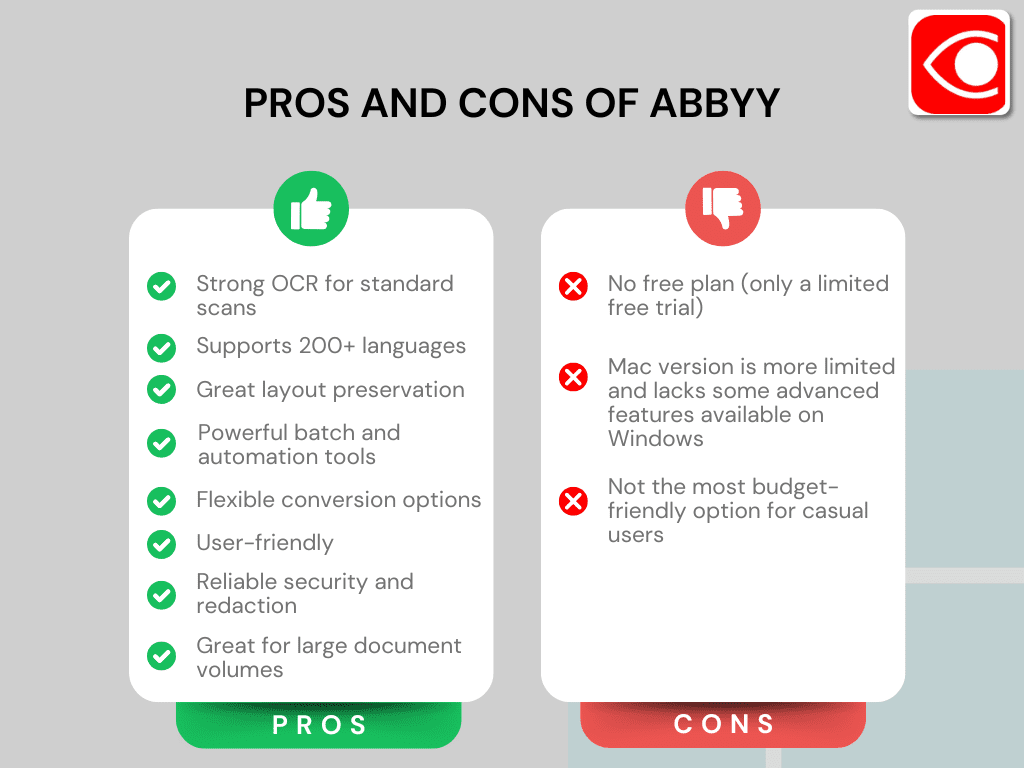
Excellent OCR performance for standard scanned documents
|
|
|
Supports 200+ languages, including complex scripts
|
|
|
Strong layout and formatting preservation
|
|
|
Powerful batch processing and automation features
|
|
|
Flexible conversion options with multiple output modes
|
|
|
User friendly interface with smooth, all-in-one workflow
|
|
|
Reliable security features with solid redaction tools
|
|
|
Great for handling large volumes of documents
|
|
|
No free plan (only a limited free trial)
|
|
|
Mac version is more limited and lacks some advanced features available on Windows
|
|
|
Not the most budget-friendly option for casual users
|
How We Test PDF Editors
To keep our reviews and final scores fair and consistent, we evaluate every PDF editor using a standardized testing framework built on over 3 years of hands-on experience testing these tools in real-world scenarios.
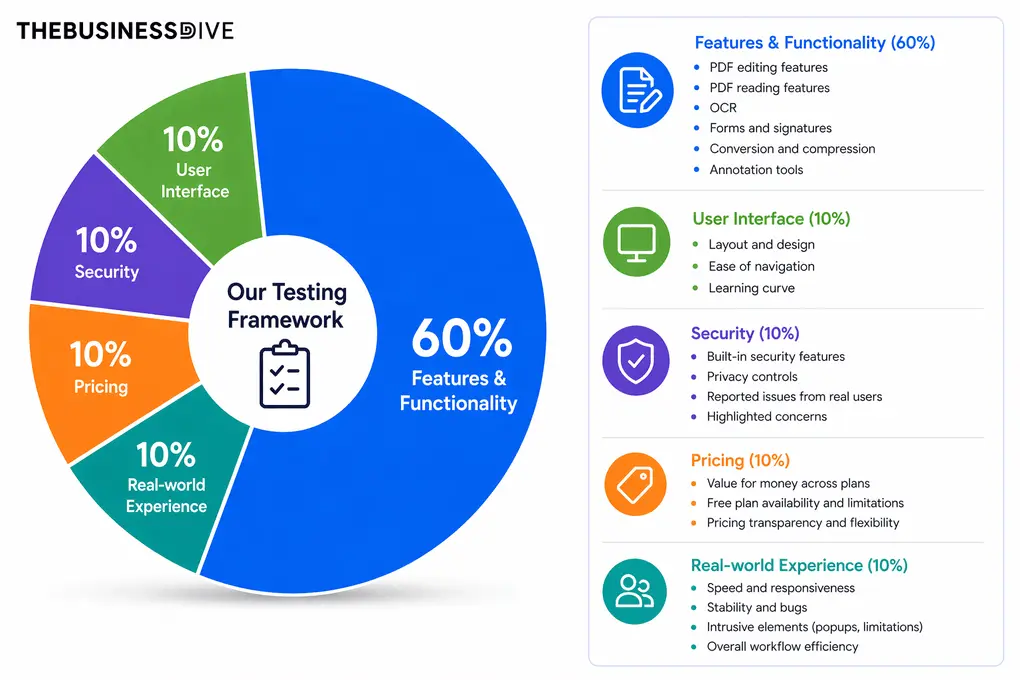
Our scoring breakdown after testing 30+ PDF editors:
🛠️ Features & functionality — 60%
🖥️ User interface — 10%
🔐 Security — 10%
💰 Pricing — 10%
👥 Real-world experience — 10%
Want a detailed breakdown of how we test each category?
Learn exactly how we test tools → Review methodology
Short on time? Here’s a quick overview of ABBYY FineReader PDF
What is ABBYY FineReader PDF?
ABBYY FineReader is a document processing tool that combines OCR technology with PDF editing features. The software is developed by ABBYY, a company known for its long-standing expertise in OCR technology.
Over the years, FineReader has built a strong reputation as one of the most reliable tools for recognizing text and preserving document structure, especially when working with complex layouts.
It is primarily designed for professionals and businesses that regularly work with scanned documents or large volumes of files.
My real-world experience with ABBYY FineReader PDF
During my Abbyy FineReader review, the tool handled standard scanned documents without issues, supported multiple languages, and preserved layout better than most tools I tried.
On top of that, the whole workflow was very practical thanks to its well-thought-out UI.
However, I expected more. Since it’s so heavily focused on OCR, I thought the accuracy would be close to perfect.
It was good, but not flawless, and experienced similar or even better accuracy with Tenorshare PDNob and EaseUS PDF Editor.
When it comes to pricing, it is not the cheapest tool out there, but it makes sense for what you get. The Corporate plan especially stands out if you are dealing with large volumes and need automation.
Why ABBYY FineReader PDF scored 4.2 out of 5
ABBY FineReader PDF performed great when we tested the OCR functions and the document conversion tools. As for other features, it delivered good results but not outstanding ones.
Where ABBYY FineReader PDF loses points is its pricing, which is mostly due to the lack of a free version and its high price.
When to choose ABBYY FineReader PDF
When you should skip ABBYY FineReader PDF
Key functions
Stick here, because I will show the key features I tried during my ABBYY FineReader review.
OCR (Optical character recognition)
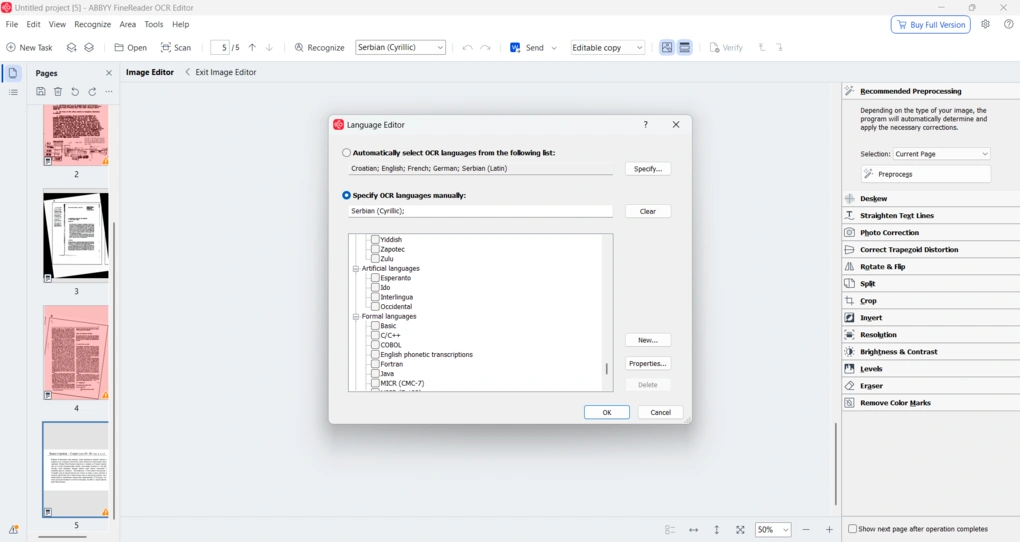
If you are dealing with scanned PDFs and want to turn them into editable text, it does a really solid job. In my tests, it handled standard scanned documents without mistakes, even with non-Latin scripts like Cyrillic.
The key thing here is to select the correct language (and script, if needed) because ABBYY supports 201 OCR languages, including natural, and even artificial and formal languages, which is far beyond what most competitors offer.
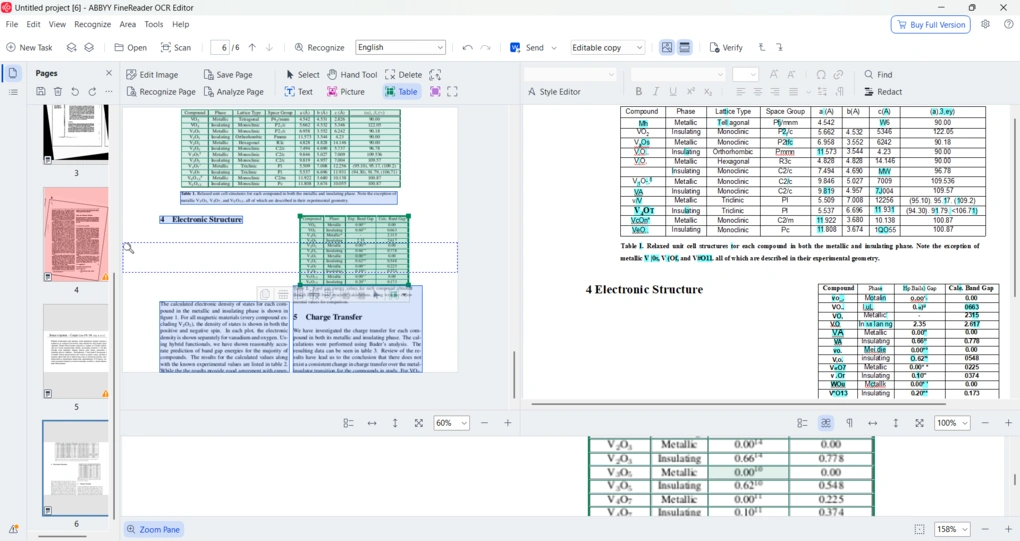
When it comes to converting image files into text, the experience was similar. If the image quality is decent, it can extract text quite reliably, regardless of the language. That is exactly what you would expect from a tool that positions itself as one of the strongest OCR software solutions on the market.
It also does a good job of keeping the original formatting and layout, which is a big deal when you are working with documents that include columns, tables, and complex structures.
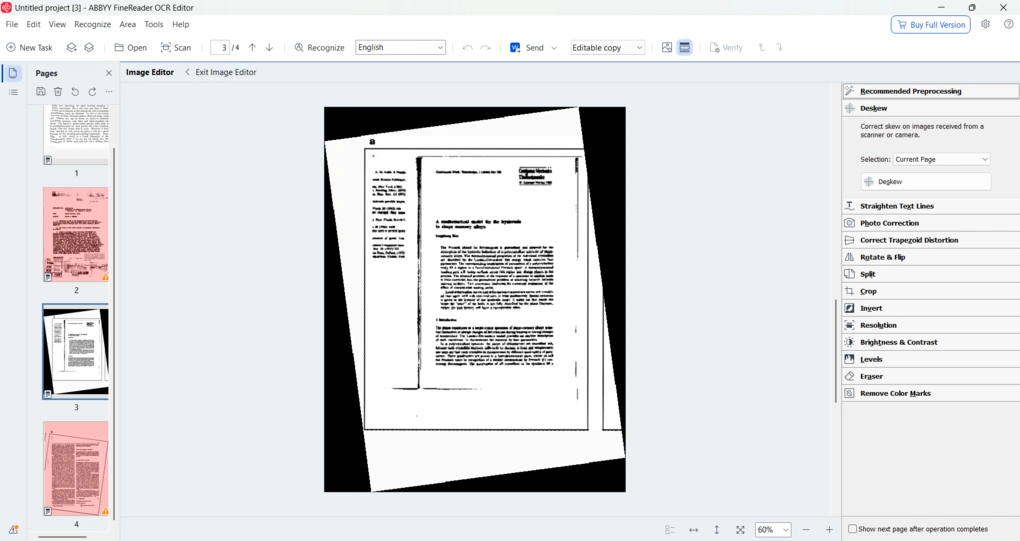
One thing I genuinely liked is the integrated image preprocessing editor. You can deskew pages, straighten text lines, fix trapezoid distortion, adjust brightness and contrast, remove color marks, crop, rotate, and basically clean up everything before running OCR.
You also get a lot of control over how your OCR results look. If you notice any mistakes or want to change formatting or layout, you can fix it inside the same editor. And if you are working with sensitive documents, you can even redact content right there. Finally, you can choose between different output modes like Exact copy, Editable copy, or Formatted text.
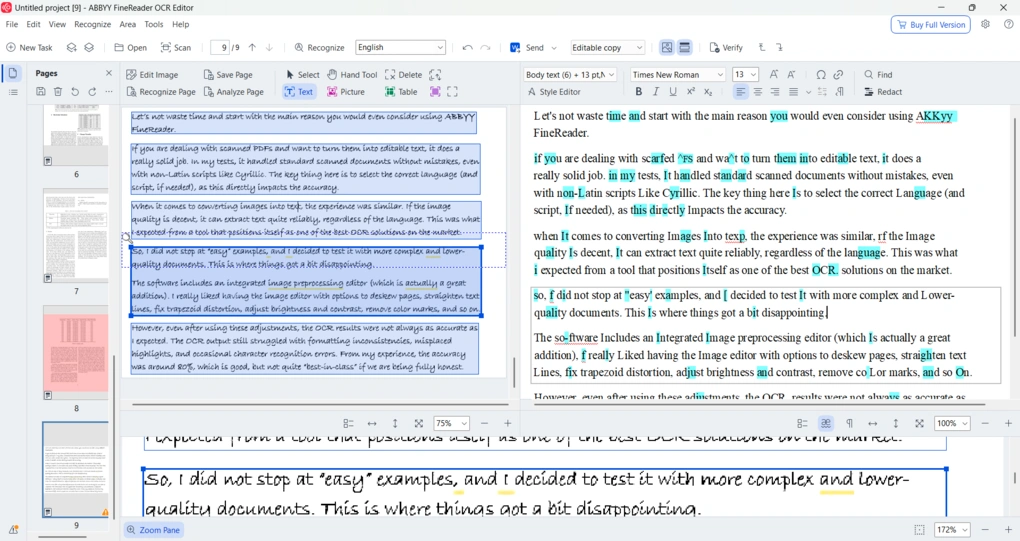
However, this is where I expected more. Even after editing the image and using all those preprocessing options, the OCR results were not always as accurate as I hoped. I still ran into formatting issues, misplaced highlights, and occasional recognition errors. From my experience, the accuracy is around 80%.
That said, ABBYY FineReader earned its place on my list of best OCR software, but it was only enough for third place, as EaseUS PDF Editor and Tenorshare PDNob offered higher accuracy.
That said, ABBYY FineReader still stands out in one important area: workflow efficiency. It allows you to process large volumes of documents, handle multiple OCR tasks at once, and quickly convert scanned files into editable formats. So, while it’s not necessarily perfect in accuracy, it’s great for handling OCR at scale.
PDF reading
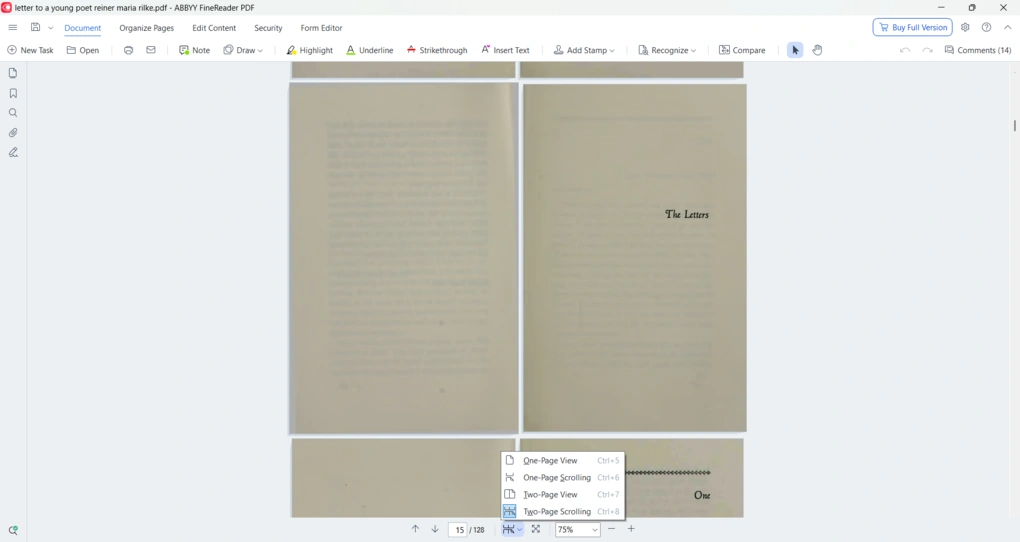
ABBYY FineReader also works as a solid PDF reader for everyday use.
The reading experience itself is pretty standard, but it covers everything you actually need. You can zoom in and out, switch between different viewing modes, and quickly move between pages.
It also allows you to search within documents and add bookmarks.
PDF editor
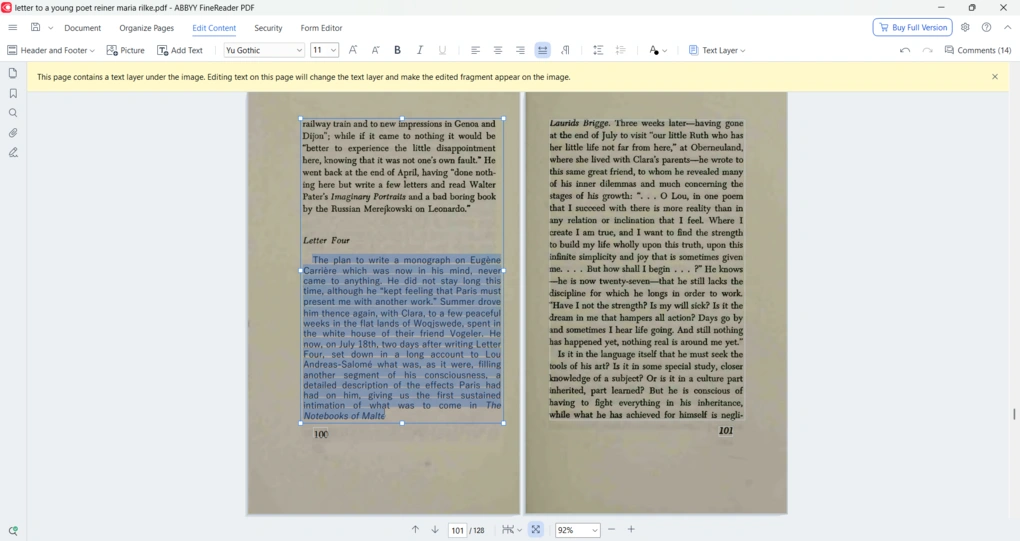
This feature is located under the edit content tab. From here, you can click on any text block and start making changes.
When selecting a text box, you can modify the content, adjust formatting, and reposition it within the document. The editing panel lets you change font types, sizes, alignment, and spacing, so you have full control over how your content looks.
Besides editing existing text, you can also add new text boxes to your PDF. Just choose the add text option, place it anywhere on the page, and customize it as needed.
Inserting pictures is supported as well. Once added, you can move and adjust them directly within the editor.
Annotation tools
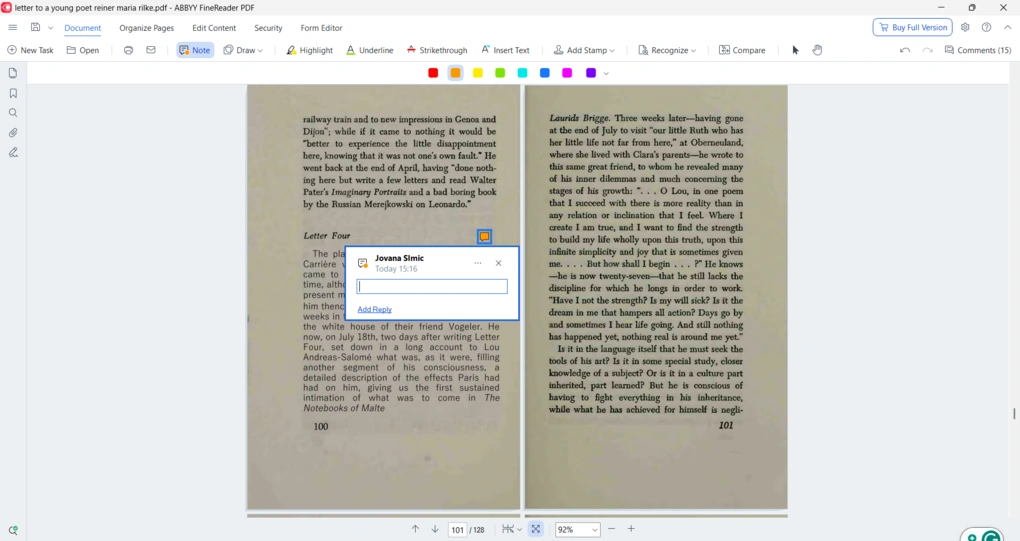
ABBYY FineReader also includes the essential tools you need to annotate PDF documents.
There are options to highlight, underline, and strike through text, as well as to draw and insert text. You can also add comments, notes, and stamps, which can be useful when reviewing documents or collaborating with others.
When you add annotations, you can easily customize them. You can adjust colors, modify comments, or move them around the document as needed.
Compare documents
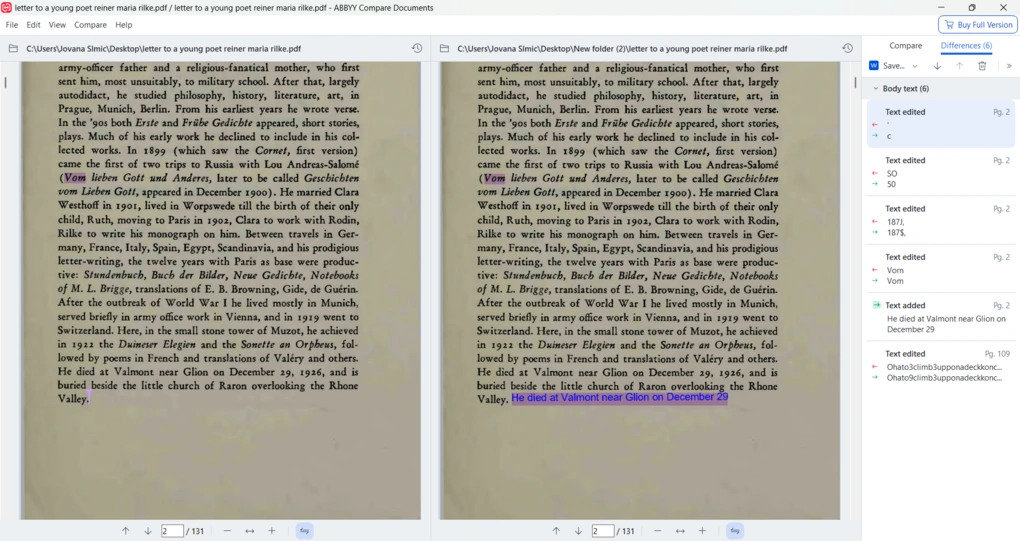
ABBYY FineReader also includes a document comparison feature, which is something you do not see in most PDF tools. This feature can be of great use for contracts, legal documents, or any situation where you need to track revisions.
To use it, just upload two versions of the same document, and the tool automatically analyzes and highlights all differences between them. This includes changes in text, formatting, and structure. Differences are highlighted directly in the document, so you do not have to manually scan through pages or compare files side by side.
PDF organization
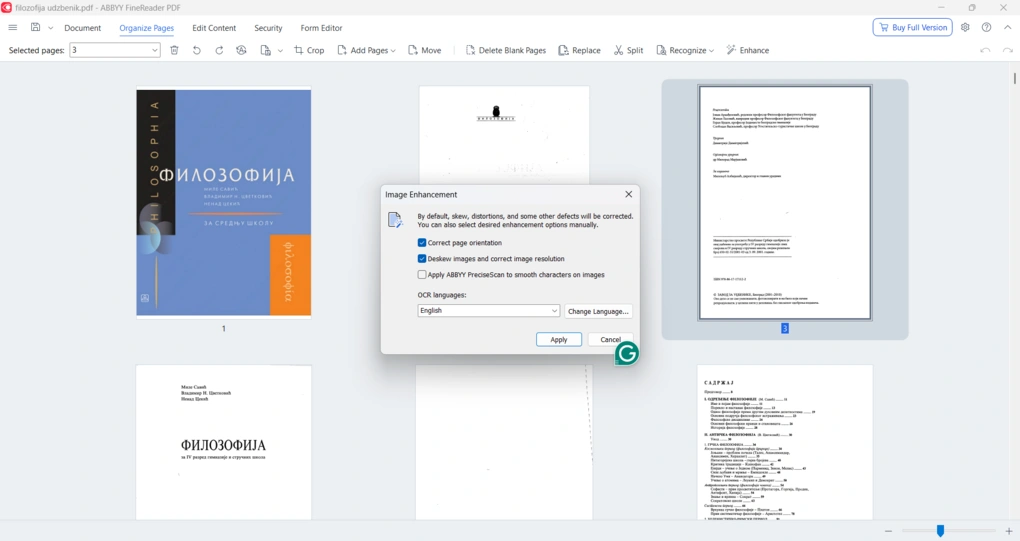
Before organizing or processing pages, you can quickly fix common scan issues like incorrect orientation, skewed pages, or low-quality resolution using the built-in image enhancement tool. It also offers automatic corrections and options like smoothing characters, which can improve the overall readability of your document before running OCR.
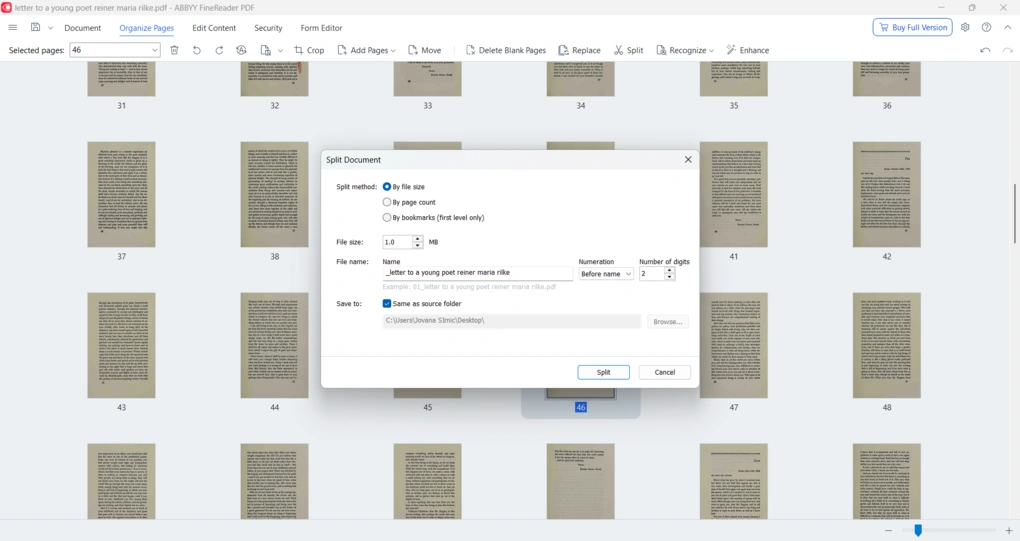
Furthermore, you can organize a document page-by-page or by selecting multiple pages. If you want to switch their places, you can just drag and drop them. Also, you can delete, insert pages, swap, extract, and split them if you want. There is also a convenient option to remove blank pages.
I particularly liked the crop option. It allows the same crop size across the entire document while still adjusting the position of the cropping frame for each page individually.
Forms and electronic signatures
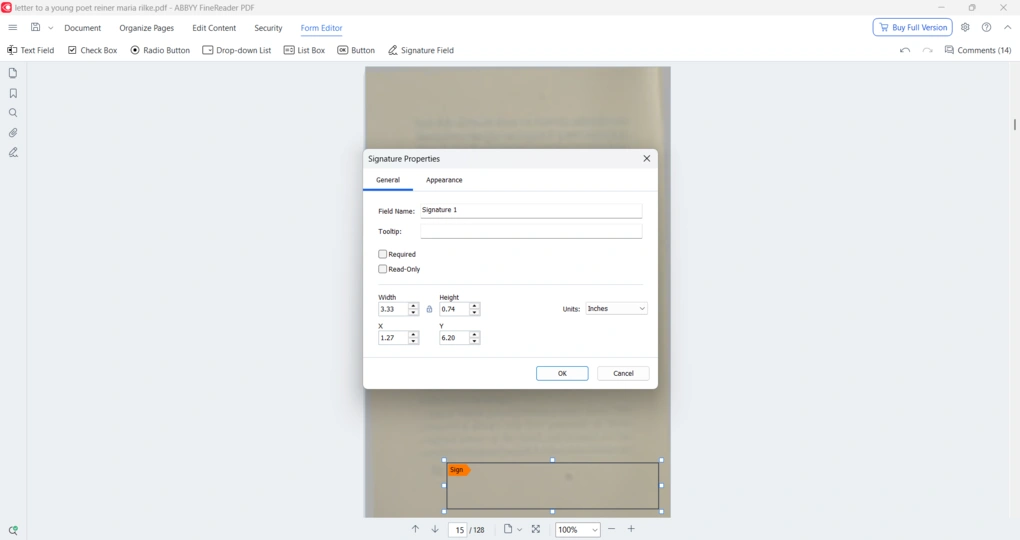
ABBYY FineReader also lets you work with PDF forms and add electronic signatures. To get started, you can open the Form Editor and add different types of fields, including text fields, checkboxes, radio buttons, drop-down lists, and buttons.
You can also fill out existing forms without any issues. When it comes to signatures, ABBYY allows you to add digital signature fields and sign documents directly within the editor.
PDF security
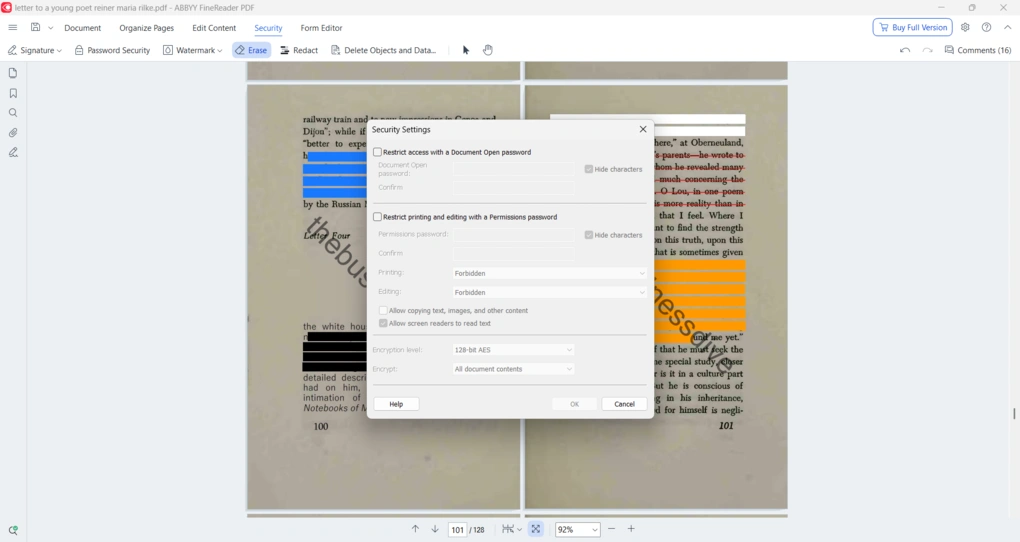
ABBYY FineReader also includes a solid set of security features for protecting your documents.
You can add password protection to control who can open or edit your PDFs when sharing sensitive files, or add a watermark to mark it as confidential.
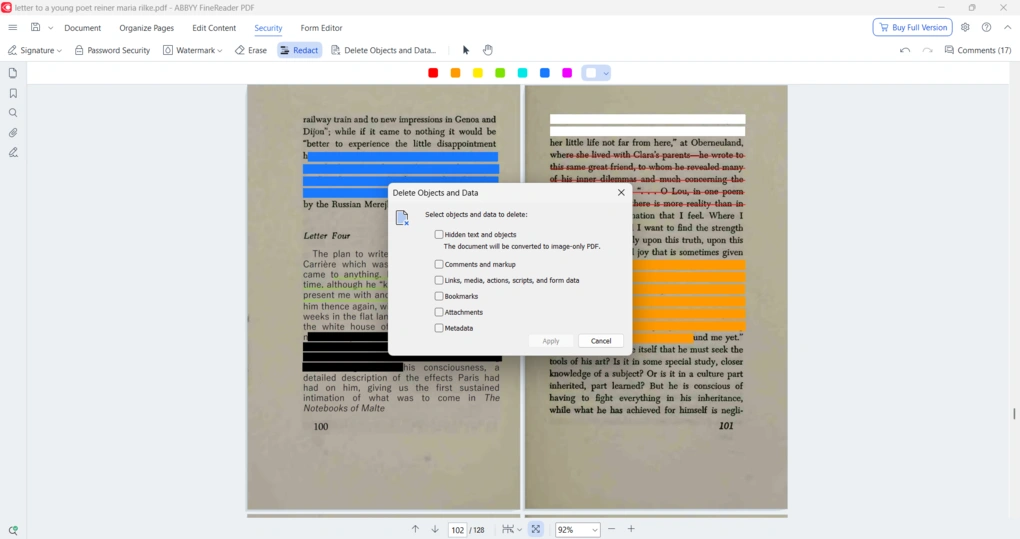
It also comes with built-in redaction tools. You can permanently remove sensitive information from your documents, and even choose different colors to mark redacted areas. There is also an erase tool that literally removes selected content from the document, not just hides it.
Another useful feature is the ability to remove hidden data and metadata from your files. You can delete things like comments, bookmarks, attachments, and other embedded data, which helps ensure that no unwanted information is left behind.
Conversion features
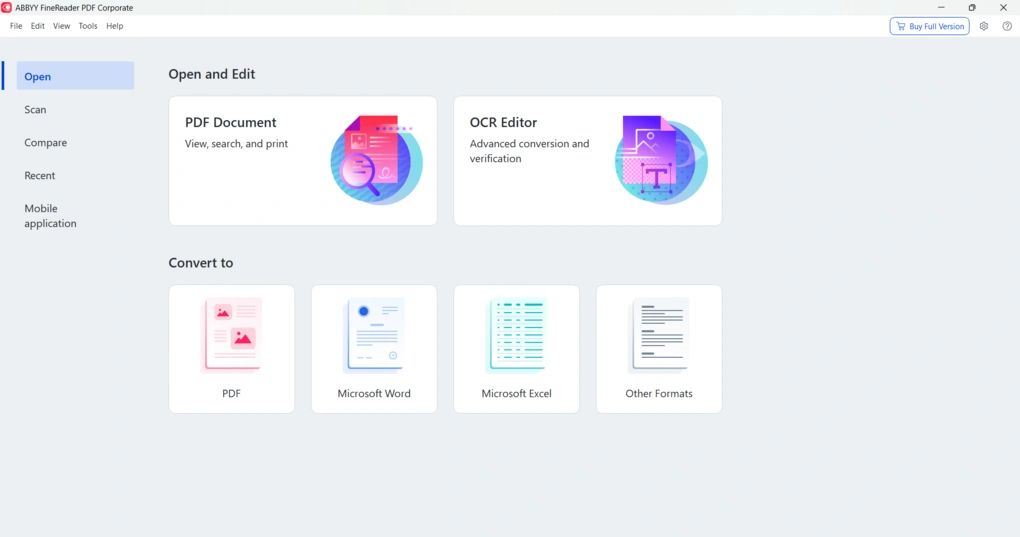
ABBYY FineReader offers strong file conversion capabilities, and this is where its OCR really pays off.
You can convert PDFs into Microsoft Word, Excel, PowerPoint, and other editable formats, while also creating PDFs from more than 25 different formats.
What stands out is the flexibility of the output options: you can choose between Exact copy, Editable copy, Formatted text, and other saving modes depending on whether you want to preserve the original layout or prioritize easier editing.
Compressing tools
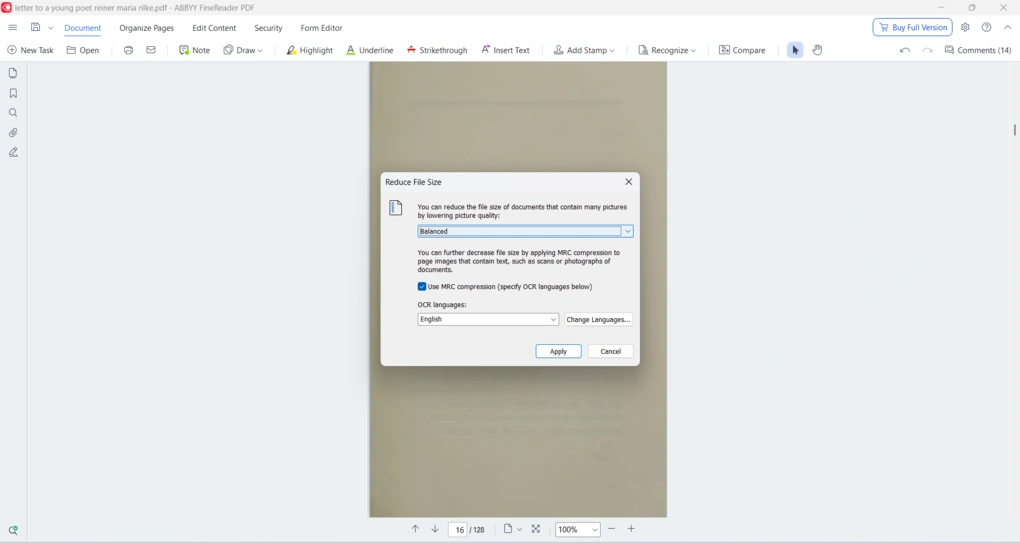
ABBYY FineReader also includes a proper PDF file size reduction feature, and it is more useful than the typical “basic compression” option you see in many PDF apps.
In FineReader PDF for Windows, you can go to File -> Reduce File Size and choose between lowering the image quality or using MRC compression for recognized pages. MRC can considerably reduce file size while preserving the visual quality of page images. However, it can make scrolling and viewing slower in some cases, and it may also blur images after processing.
What makes this more interesting is that ABBYY ties compression directly to OCR. It recommends selecting the correct OCR language before applying MRC compression, which makes sense because the compression is applied to recognized pages.
There is also a batch workflow for multiple documents: you can convert several files to PDF and enable MRC compression during that process.
AI features
ABBYY FineReader does not really position itself as an “AI-powered” tool, but it still uses AI behind the scenes, mainly in its OCR technology.
Its OCR engine relies on AI-based recognition to detect text, languages, and document structure, including tables, columns, and formatting. This is what allows it to preserve layout relatively well and handle complex documents better than simpler OCR software.
That said, do not expect features like AI chat, document summarization, or smart assistants. Unlike many newer tools, ABBYY focuses its AI almost entirely on improving text recognition and document processing, not on adding extra productivity features.
ABBYY FineReader PDF user interface
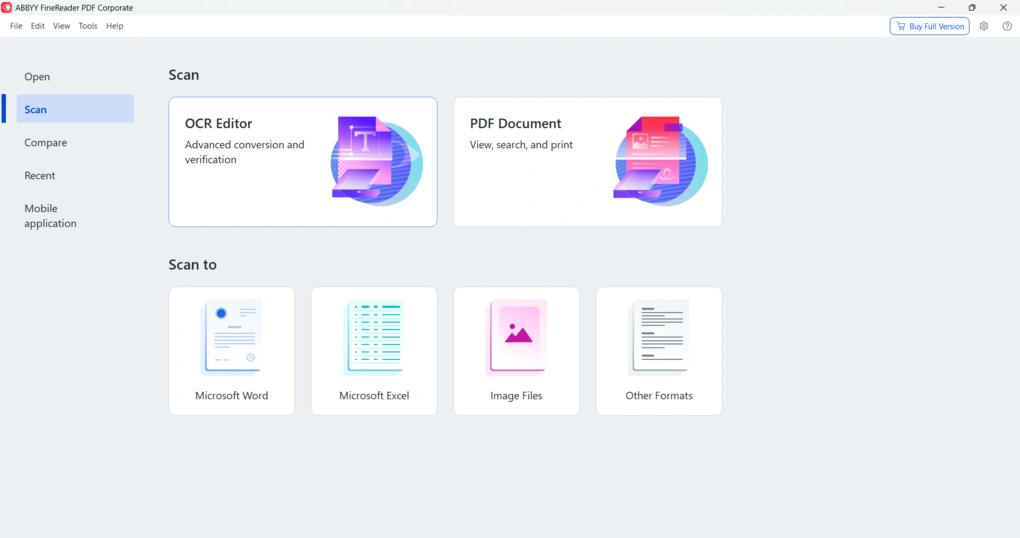
ABBYY FineReader has a well-designed and user friendly interface.
Even though the tool is quite powerful, I was able to find everything quickly without any confusion. The layout is logical, and all the key functions are easily accessible.
I also liked how everything is connected, from OCR to editing and organizing, so you do not need to switch between different sections or tools.
Explore our Apps directory
A curated directory of software tools we’ve independently reviewed, with links to full reviews, comparisons, and category guides.
ABBYY FineReader PDF pricing
ABBYY FineReader does not offer a free plan, but it does come with a free trial.
You can test the full version for 7 days, with access to all features. The only limitation is that you can export up to 100 pages after OCR. After the trial expires, the tool switches to a limited viewer mode where you can only read, comment, and print documents.
ABBYY offers three main subscription plans for individual users.
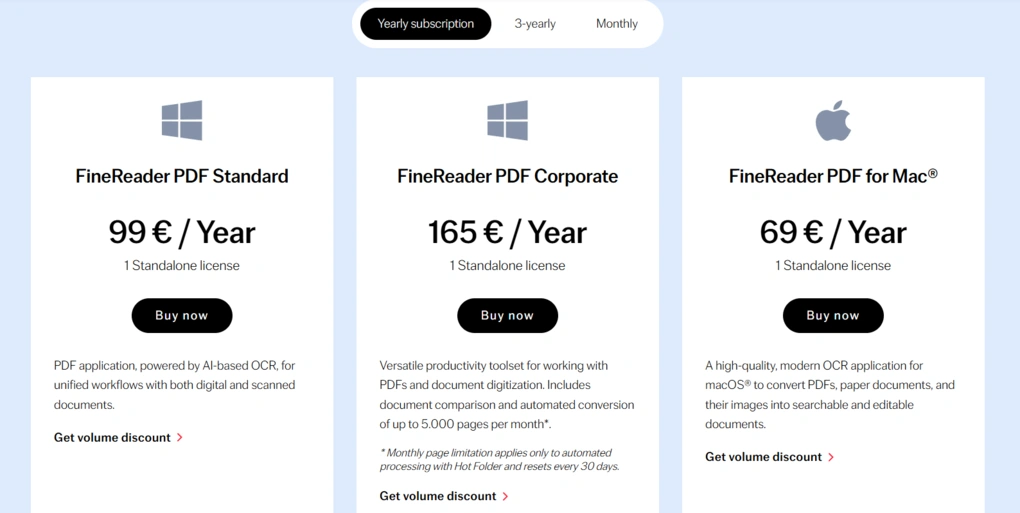
The FineReader PDF Standard plan for Windows costs €99 per year (or €16 per month) and includes all the core features you would expect, such as OCR, PDF editing, annotation tools, and document organization. It is clearly designed for individuals or professionals who need a reliable tool for everyday PDF work combined with OCR.
The FineReader PDF Corporate plan costs €165 per year (or €24 per month) and builds on the Standard version with more advanced features. It introduces tools like document comparison, automated OCR workflows, and batch processing, making it a much better fit for businesses or users who handle large volumes of documents regularly.
For Mac users, there is a separate FineReader PDF for Mac plan, which costs €69 per year. However, this version is more limited and focuses primarily on OCR and conversion, without offering the full range of PDF editing features available on Windows. It is best suited for users who mainly need OCR rather than a full PDF editing suite.
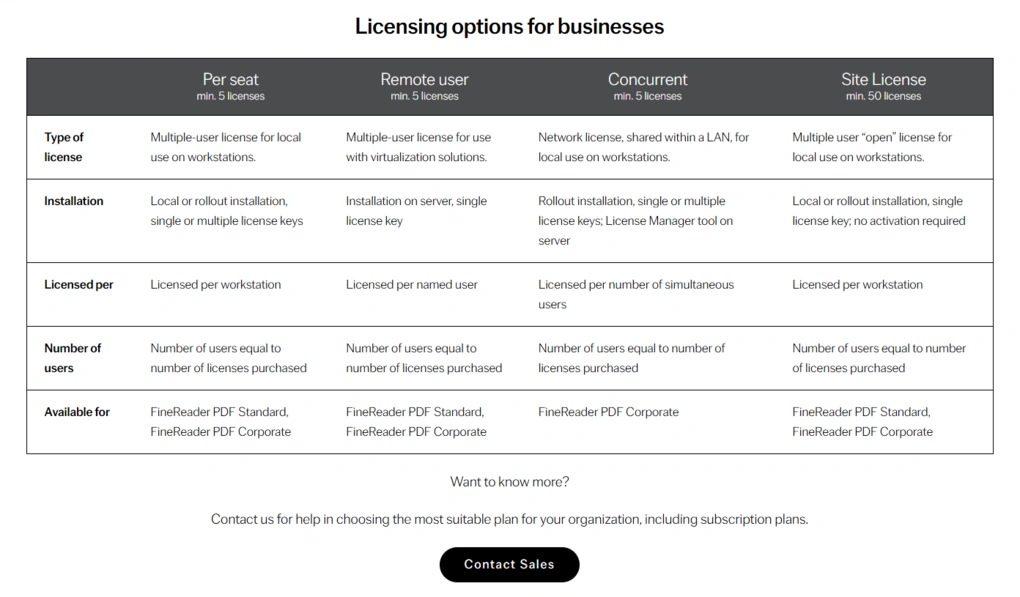
For teams and enterprises, ABBYY also offers more flexible licensing options, including per-seat, concurrent, and site licenses, with pricing upon request.
ABBYY FineReader PDF security
When it comes to security, ABBYY FineReader is a reliable and safe option, especially for handling sensitive documents.
One important thing to note is that it is primarily a desktop-based tool, which means your files are processed locally on your device, not constantly uploaded to the cloud. This significantly reduces the risk of data exposure compared to fully cloud-based PDF tools.
ABBYY also has a long-standing reputation in the OCR space, and its software is widely used in business environments where data privacy matters. From my perspective, it feels like a tool built with enterprise use in mind rather than casual file handling. Nonetheless, for enterprise use, I found PDF-XChange and Tungsten Power PDF to be more advanced PDF editors during testing.
Of course, like with any PDF software, the security also depends on how you use it (for example, whether you protect your files with passwords or properly remove sensitive data). But overall, the foundation is solid.
Pros and cons I discovered during my ABBYY FineReader PDF review
After my ABBYY FineReader PDF review, I found these pros and cons you should know about this PDF software.
ABBYY FineReader PDF’s pros
ABBYY FineReader PDF’s cons
ABBYY FineReader PDF alternatives
If you feel like ABBYY FineReader PDF is not the perfect one for you, here are the best alternatives:
|
App |
Best for |
Description |
|---|---|---|
|
Foxit |
Best affordable alternative to Adobe Acrobat |
A PDF editor with an intuitive user interface at an affordable price for Mac and Windows users. |
|
EaseUS PDF Editor |
Best all-in-one PDF editor for beginners |
It is an all-in-one PDF software to read, edit, annotate, and convert your documents. Full EaseUS PDF Editor review | Quick EaseUS PDF Editor overview |
|
Tenorshare PDNob |
Best for AI-powered PDF editing |
It is an easy-to-use AI-powered PDF editor that offers many features to edit, read, organize, and annotate your documents. Full Tenorshare PDNob review | Quick Tenorshare PDNob overview |
|
PDF Expert |
Best for Mac users |
A PDF editor for Mac, iPhone, and iPad users that offers all the tools you need to manage your PDF files, from annotation tools to signing PDFs. |
|
Xodo PDF Studio |
Best offline PDF editor |
A straightforward offline desktop PDF editor for Windows, Linux, and iOS devices, with great PDF reading and editing tools. Full Xodo PDF Studio review | Quick Xodo PDF Studio overview |
|
ONLYOFFICE PDF Editor |
Best for collaboration and team editing |
A versatile tool that combines PDF editing with document collaboration features. It lets you to edit text, add visual elements, and create fillable forms. |
|
UPDF |
Best value PDF editor with AI features |
One of my favorite PDF editors with advanced AI features and budget-friendly pricing. |
|
Nitro |
Best for business PDF workflows |
A feature-rich PDF editor with a strong focus on PDF editing. |
|
Smallpdf |
Best online PDF tool |
An online PDF software with numerous tools to convert, compress, and edit PDF files for free. |
|
Adobe Acrobat |
Most popular PDF editor |
The most popular PDF editor with solid features, but an extremely high price. |
|
pdfFiller |
Best for e-signatures and document workflows |
It offers a signing and editing solution that lets users sign and edit documents, send them for signature, and manage the full electronic document workflow in one place. |
|
LightPDF |
Best for AI PDF productivity |
An AI-powered PDF editor that lets you edit, convert, OCR, sign, annotate, chat with PDFs, and more. |
|
PDFgear |
Best free PDF editor |
A completely free, offline PDF editor with solid editing, OCR, conversion, and AI tools. |
|
PDF-XChange |
Best advanced PDF editor for Windows |
A powerful Windows-based PDF editor with advanced editing, annotation, security, and conversion tools. |
|
Sejda PDF Editor |
Best for simple, everyday PDF tasks |
An intuitive and simple PDF software best suited for personal use for those who need a PDF editor for basic PDF tasks. |
|
Soda PDF |
Best for security and file conversion |
A user-friendly PDF editor with solid core features, strong security tools, and broad file conversion options, but its advanced features come at a relatively high price. |
|
PDF Candy |
Best PDF toolkit with multiple tools |
A very practical PDF toolkit with a large number of useful tools, solid performance, and affordable pricing. |
|
Tungsten Power PDF |
Best enterprise-grade PDF solution |
A powerful PDF editor and document management tool designed for businesses, offering advanced editing, security, OCR, and collaboration features. Full Tungsten Power PDF review | Quick Tungsten Power PDF overview |
|
PDFelement |
Best balance of features and ease of use |
An easy-to-use PDF editor with valuable features for a reasonable price. |
|
WPS Office |
Best easy-to-use office suite and PDF editor |
WPS Office is an easy-to-use office suite with solid PDF editing and AI-powered productivity tools, though its free plan is quite limited. |
Looking for similar tools?
Visit our PDF editors library to explore other apps we’ve reviewed in this space and how they compare.
Wrap-up: ABBYY FineReader PDF review
We have reached the end of this ABBYY FineReader PDF review, and I hope you found it helpful and got a clear idea of what it actually offers.
If you ask me, it is great for page segmentation, especially when handling columns and complex layouts. However, I found it less impressive when it comes to actual OCR accuracy, particularly with more challenging documents.
Related articles:
- The 8 Best Adobe Acrobat Alternatives: 30+ PDF Editors Tested
- The 10 Best PDF Editors In 2026 | 30+ Personally Tested PDF Tools
- The 6 Best PDF Readers For 2025 (Only FREE Options)
- 6 Best OCR Software For 2026 | 30+ Personally Tested Tools
- 6 Best PDF Converter For 2026 | 30+ Personally Tested Tools
As always, I will update this ABBYY FineReader PDF review over time so you guys have up-to-date information about this PDF software.
Why you can trust our reviews
At thebusinessdive.com, our team tests, reviews, and compares hundreds of productivity apps every year — from project management tools to note-taking apps. We dive deep into real-world use cases to help you find the right tools that actually improve your workflow, not just add noise.
Our mission? No fluff, no shortcuts—just honest, hands-on insights from productivity pros.
Discover how we stay transparent, read our review methodology, and let us know about any tools we missed.
Frequently asked questions
Is ABBYY FineReader a good PDF editor compared to Adobe Acrobat?
ABBYY FineReader PDF is a strong PDF editor, but it is primarily built as an OCR software. Compared to Adobe Acrobat or Adobe Acrobat Pro, it offers better optical character recognition and more accurate document conversion, especially when working with scanned PDFs and image files. However, Acrobat may be a more polished choice for pure PDF editing.
Can ABBYY FineReader convert scanned documents into editable text?
Yes, this is where ABBYY FineReader really stands out. It can scan paper documents, images, and PDF files and convert them into editable text while preserving layout, tables, and formatting. Its OCR technology is considered one of the most accurate, although some users report occasional errors with complex layouts or non-Latin languages.
Is ABBYY FineReader worth it for everyday users?
ABBYY FineReader is best suited for professionals who regularly work with documents and need reliable OCR and conversion tools. While it is a powerful and user-friendly software, it may feel expensive for casual users who only need basic PDF editing.
That said, it is an essential tool for workflows involving large volumes of documents, multiple formats, and high-quality document conversion.

Hey there! I am Aron, the founder of Thebusinessdive. I have been testing productivity apps for almost three years now. I reach 25.000 -50.000 people monthly with the mission to help you find the perfect productivity apps. Subscribe to my YouTube channel, newsletter, and social media to hear more about the best productivity tools. Let’s dive in!