


6 Best Meeting Recording Apps 2026 | 2+ Years Testing
Do you need a meeting recording app for your online calls, but are not sure where to start? Let me save you a few hours of researching.
In this article, I selected the best meeting recording apps for 2026 after personally testing 20+ options to save you time and money.
It was not a short process, though. After finding the best meeting recording apps, I ranked them based on features, platform support, pricing, and more, so you can make an easier decision.
Let’s dive in!
Best meeting recording apps I tried
Here are my rankings for the best meeting recording apps in 2026:
|
Meeting Recording App |
Overall experience |
My top picks |
|---|---|---|
 |
Best meeting recording app overall |
|
 |
Best free meeting recording app |
|
 |
A meeting recording app with detailed notes |
|
 |
An easy-to-use meeting recording app |
|
 |
A solid meeting recording app |
|
 |
A botless meeting recording app |
Best meeting recording apps in 2026
Let’s delve into the best six meeting recording apps!
Meeting Recording App #1 | Fellow
Best meeting recording app overall
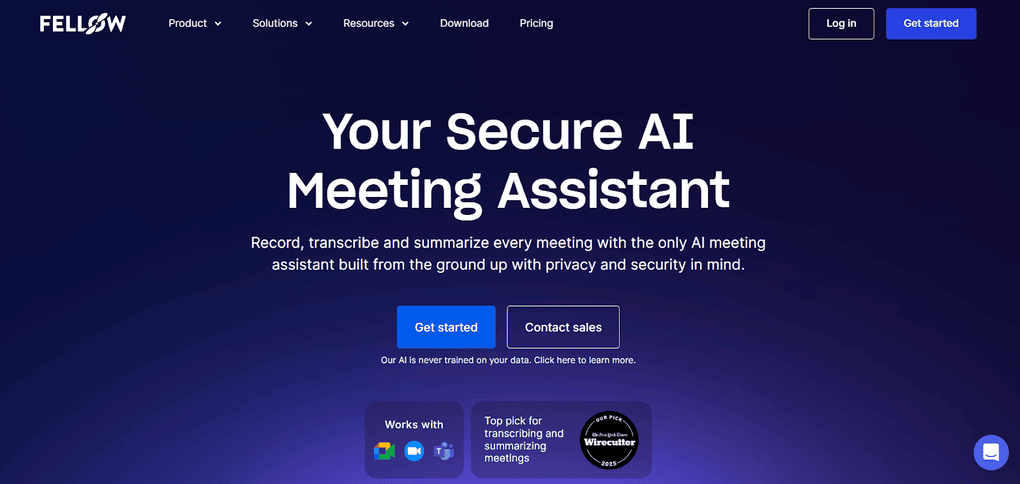
Fellow is an AI meeting assistant I’ve been using for 7 months for all my meetings. It records meetings on Zoom, Microsoft Teams, Slack, and Google Meet. Also, it provides numerous advanced tools, such as clip creation and a recording library, to manage your recordings efficiently.
But Fellow is more than just a meeting recording app.
It transcribes your online meetings, with or without a meeting bot, summarizes calls, and offers numerous tools to make your meeting-related workflows more effective.
Key features
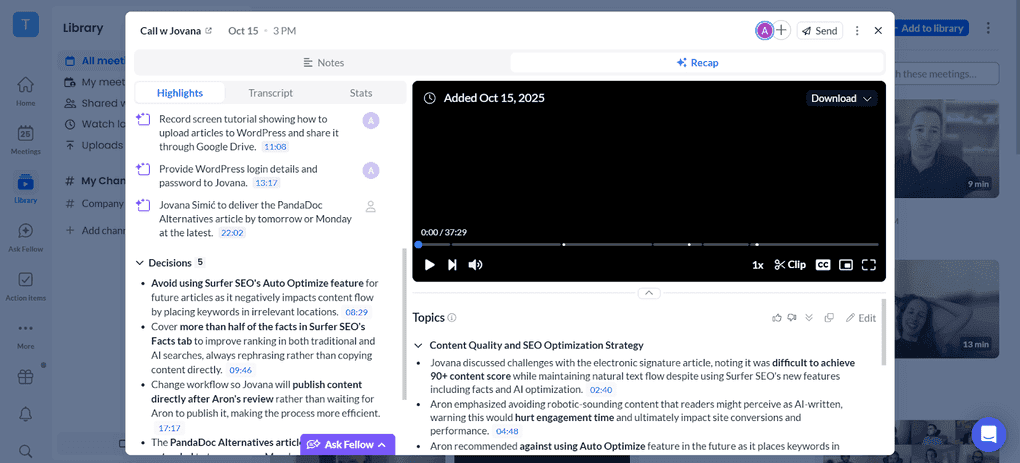
Meeting recording: When Fellow is added to your online meeting, it will seamlessly record your call in the background. Once the online meeting is over, it will share a high-quality recording with you. You can adjust the playback speed from 1x to 2.5x, and Fellow includes timestamps in the recordings for each topic you discussed during the meeting.
AI meeting notes: Fellow’s AI-generated summaries include the key decisions and action items of your meeting alongside the transcription. The way this meeting recording app breaks down your calls into topics and action items makes the whole meeting easy to digest in seconds. Plus, you can customize your own AI meeting notes templates so your notes are organized the way you want them to be.
Bot and Bot-less transcription: With Fellow, you can capture virtual meetings without a bot, with the same enterprise governance as its bot-based recordings & transcriptions. Just select the “Record without bot” option in your meeting, and Fellow will transcribe it in the background without compromising privacy or security. It supports 92 languages, which makes it an excellent choice for global teams.
Clips: If you only need to share or revisit a portion of the discussion, you can create clips. For this, you only need to select the portion of the video or enter the Start time and End time of the portion you’d like to clip, and then you can easily share it with others.
Meeting library: This AI meeting assistant provides a library where you can organize your recordings in one place. Fellow has strict privacy and sharing controls, helping you to keep everything centralized while controlling who has access.
Ask Fellow: It is a valuable feature for bringing the maximum out of your meetings. Ask Fellow helps create follow-up emails and gather info across all your previous meetings. For this, it utilizes your transcriptions, meeting notes, and recordings to answer questions with high accuracy.
Mobile app: Fellow offers mobile apps for iOS and Android devices, making it an ideal AI meeting assistant for in-person meetings as well.
Integration options: You can directly connect Fellow with Monday.com, Glean, HubSpot, Salesforce, Asana, Linear, Jira, Microsoft Outlook, and over 50 other apps. With its Zapier integration, you can access 8,000+ additional third-party integrations. Fellow’s API and MCP Server let you create custom workflows with your meeting insights.
AI privacy controls: Fellow is built for companies that cannot take risks with their meeting data. Unlike many AI note takers that train their models on customer content, Fellow never uses your recordings, transcripts, or notes to train any AI system. Teams in regulated industries like finance, health tech, and legal choose Fellow because it gives them enterprise-grade governance, bot or botless recording options with identical security protections, redaction tools for sensitive information, and a privacy architecture that was designed from day one for organizations that must meet high standards rather than simply claim them.
Use this link to sign up and get 10% off the paid plans if you decide to upgrade in the future.
Pricing
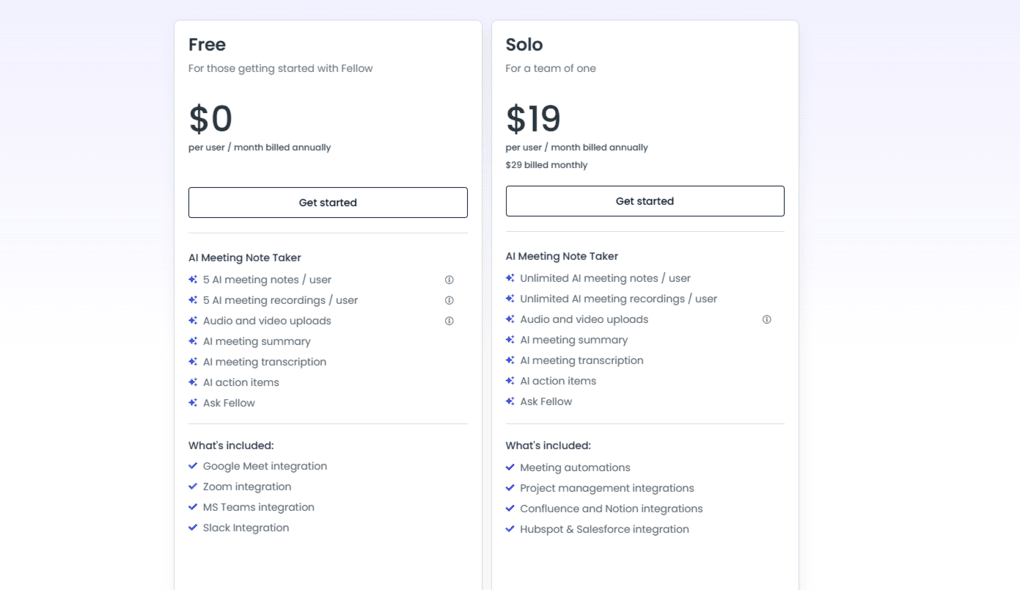
For individuals, Fellow offers a Free and a Solo plan.
With the Free plan, you will get 10 AI notes and recordings, so you can explore whether Fellow is the best botless AI note-taker for you.
To get unlimited features, you have to purchase the Solo Plan for $19. With this plan, you will access the integrations and automations.
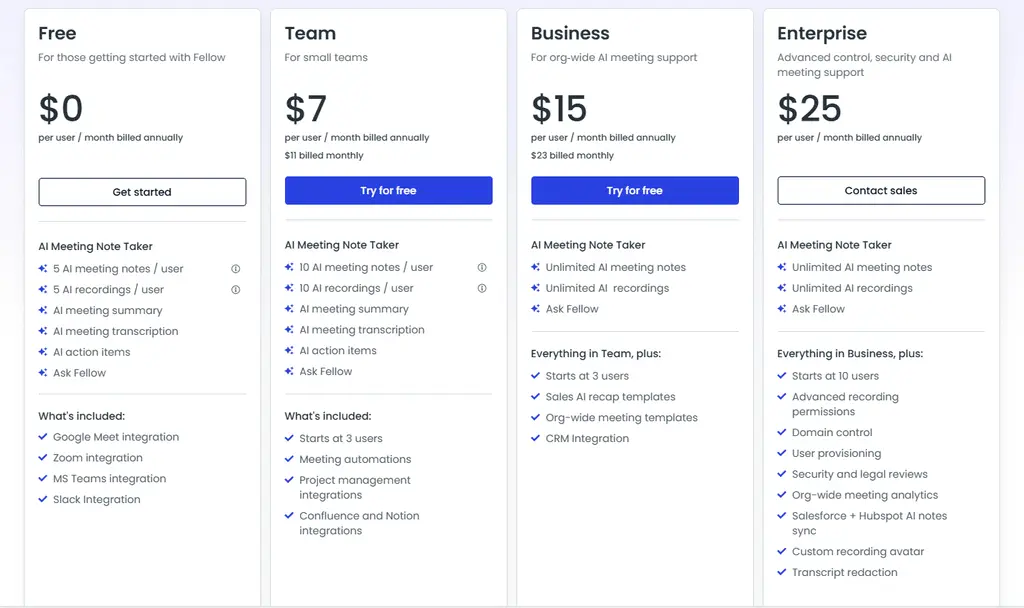
For teams, Fellow provides Free, Team, Business, and Enterprise plans. The free version has the same limitations as the Free plan for individuals.
Choosing the Team plan, you can utilize its integrations and get 10 AI notes for $7 per user per month. If you want unlimited AI meeting notes, the Business plan is ideal for you, as it has no caps and gives you access to all advanced features. The Business plan is $15 per user per month.
Finally, Fellow offers an Enterprise plan with advanced control, security, and AI meeting support. However, they apply custom pricing here.
My experience with Fellow
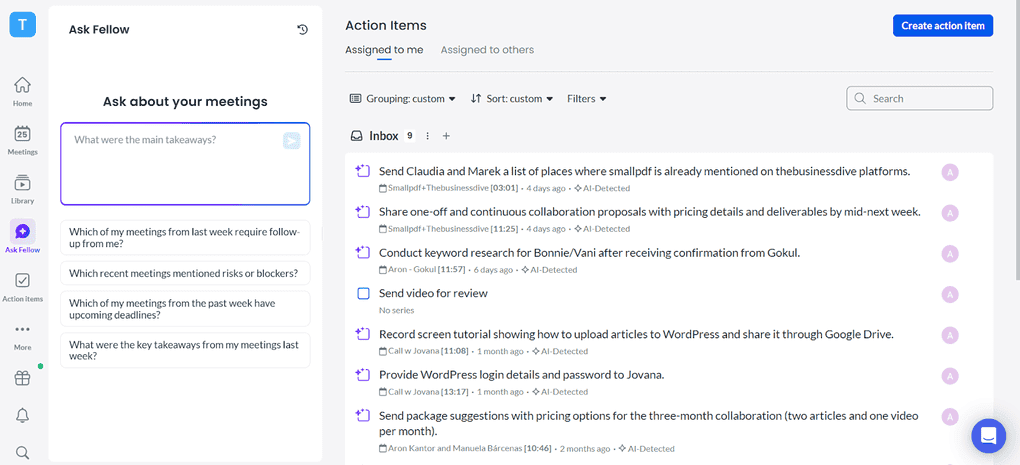
After testing numerous AI note-takers, I found Fellow to be the best meeting recording app. Besides offering high-quality meeting recordings, you can adjust the playback speed, create short clips from memorable moments, and effectively organize all your meeting recordings in your library.
You can use it for Zoom, Microsoft Teams, and Google Meet calls, and it transcribes meetings with 95%+ accuracy. After my online meetings, it sends recordings, AI meeting summaries, and transcriptions within minutes, so I can quickly review how it went.
I also love that I can decide whether to bring my meeting bot to my calls or record without it. I value the privacy here, as internal participants always know when recording is happening, even when you use botless recording.
🔎 Read my full Fellow Review: My Thoughs After +12 Months (2026)
Short on time? Here’s a quick overview of Fellow
Pros and cons of Fellow
Pros
Cons
Use this link to sign up and get 10% off the paid plans if you decide to upgrade in the future.
Meeting Recording App #2 | Fathom
Best free meeting recording app
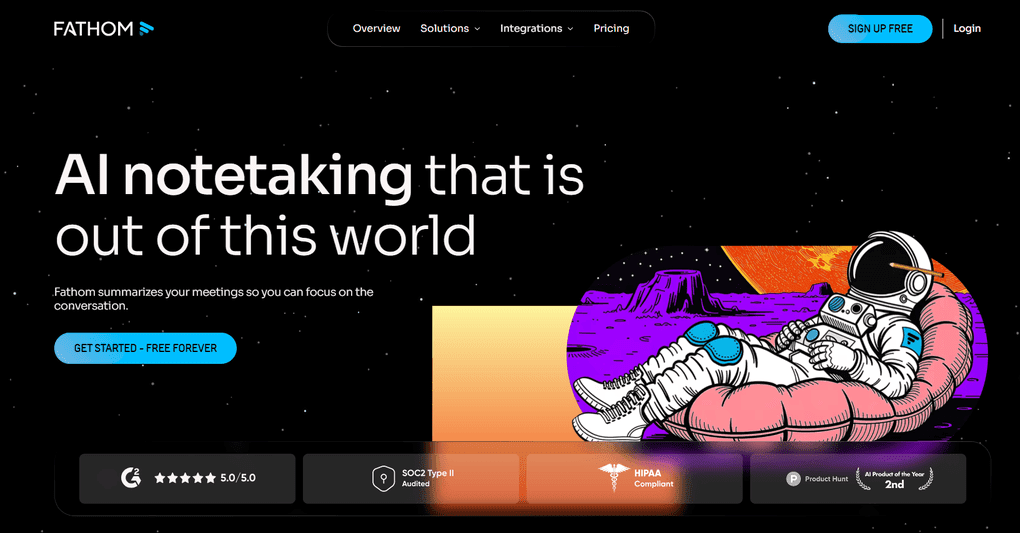
Fathom is a simple AI meeting assistant with an extensive free plan. While I use Fellow for my online meetings as it has more advanced features, Fathom could be the right choice for those who only need the core features for free.
You can utilize it on Google Meet, Zoom, and Microsoft Teams meetings, and it supports 38 languages.
Key features
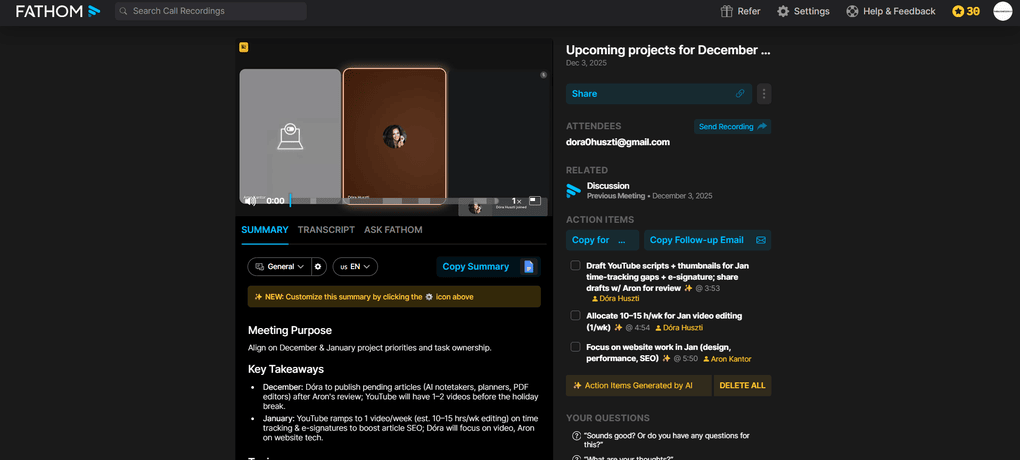
Meeting recording: After your call ends, you can access the recordings alongside the meeting notes and transcripts. The meeting recordings have good quality, and you can change the playback speed between 1x and 2x.
AI meeting notes: Fathom’s AI summaries break down your meetings into different points. However, the exact structure depends on the meeting template you choose. It’s not as thorough as Fellow’s meeting notes, but it’s ideal for those who need short meeting recaps from previous video calls.
Transcription: Fathom allows you to transcribe meetings with a bot. Unfortunately, there is no botless option. The meeting transcriptions are accurate, and you can edit or delete specific parts if needed. If you click on a specific part of the transcription, the recording will jump to that specific moment. You can quickly copy the summary and turn conversations into Google Docs.
Highlights: You can create highlighted clips from your calls that you can share with your team members. Nevertheless, I could only use this feature during the meeting, and did not find it after the calls.
Templates: You can apply a different template for different calls. For example, there are templates for sales calls, Q&A &, interviews, and more.
Ask Fathom: The “Ask Fathom” feature is a conversational AI tool that allows users to interact with their meeting recordings by asking questions in natural language, much like a chatbot. It provides instant answers, summaries of key decisions, drafts follow-up emails, and can even give feedback on speaking style.
Integration options: Thanks to the Zapier integration, you can integrate Fathom with over 8000 apps. However, using the Premium or Team Edition plan, you only have limited access to Zapier integrations. Besides the Zapier integration, Fathom connects with tools like Notion, Salesforce, and Slack for note sharing.
If you want to try out Fathom, use this link to get FREE 3 months of premium features without an extra cost. This way, you can have 3X more time to test Fathom’s advanced features and decide whether to upgrade or stay with the free plan.
Pricing
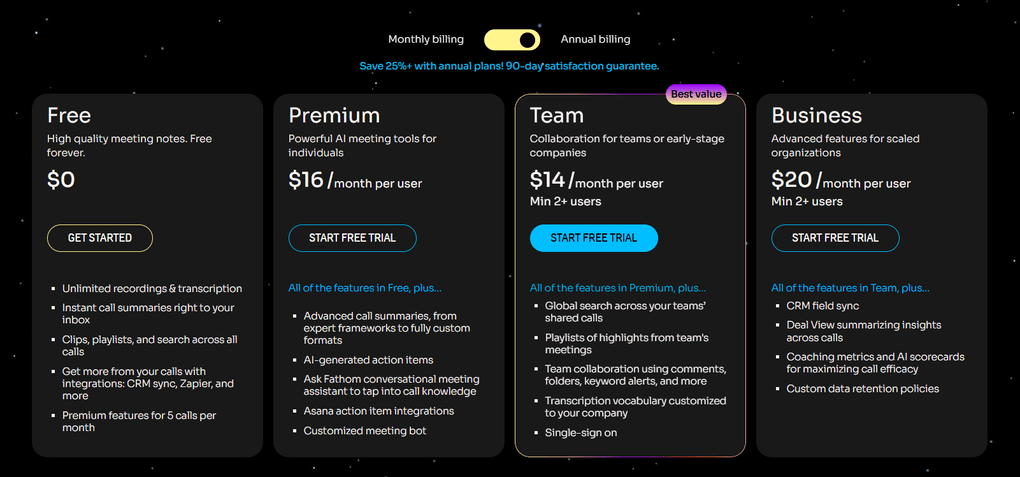
Fathom has four pricing plans. The Free plan includes unlimited recordings, transcription, and instant summaries. Also, you get premium features for 5 calls per month and access to some integrations.
The Premium plan is ideal for people who want to utilize the more advanced features. It includes all the features of the free plan, plus Ask Fathom, advanced call summaries, action items, and other advanced features. It is $16 per month per user with annual billing.
The Team plan is designed for small teams and requires a minimum of 2 users. With this plan, you will have access to team collaboration features such as folders, comments, mentions, and playlists of highlights from team meetings. It costs $14 per month per user with annual billing.
If you want powerful features like coaching and deal view, you have to pay for the Business plan. It is $20 per user per month with annual billing.
My experience with Fathom
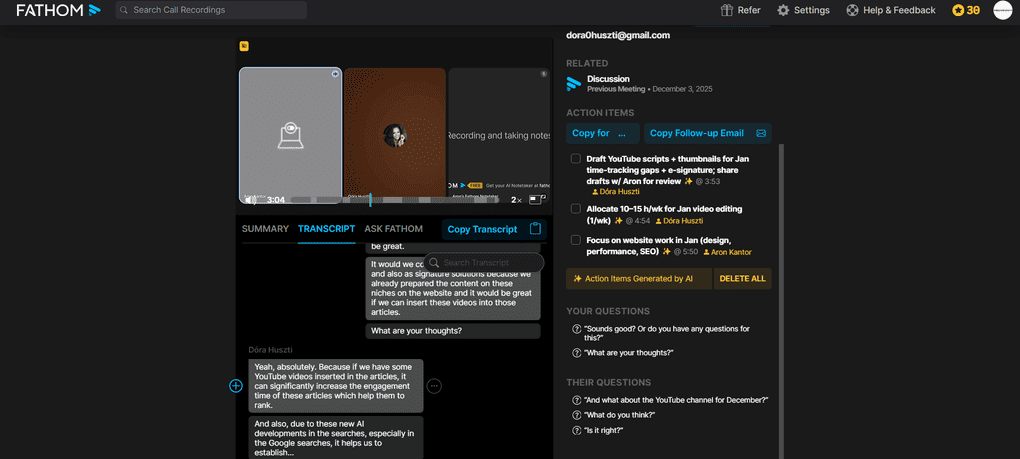
Fathom is a straightforward AI meeting assistant for Google Meet, Zoom, and Microsoft Teams meetings.
The core features worked great anytime I used them in my meetings. The transcription is accurate, the meeting notes extract key insights, and the recording has good quality.
Nevertheless, if you need more than just the basic features, Fathom is probably not the app you are looking for. Even the few advanced features it has are available with the Teams plan.
That said, there is no meeting library, offers no mobile app for in-person meetings, and you can only use it if a bot joins your calls.
Overall, I think Fathom is an excellent AI note-taker with an extensive free plan and generous pricing. I recommend it for those who need a simple solution for transcribing and summarizing their meetings.
🔎 Read my full review: My Honest Fathom Review After Using It For +3 Months (2026)
Short on time? Here’s a quick overview of Fathom
Pros and cons of Fathom
Pros
Cons
If you want to try out Fathom, use this link to get FREE 3 months of premium features without an extra cost. This way, you can have 3X more time to test Fathom’s advanced features and decide whether to upgrade or stay with the free plan.
Meeting Recording App #3 | MeetGeek
A meeting recording app with detailed notes
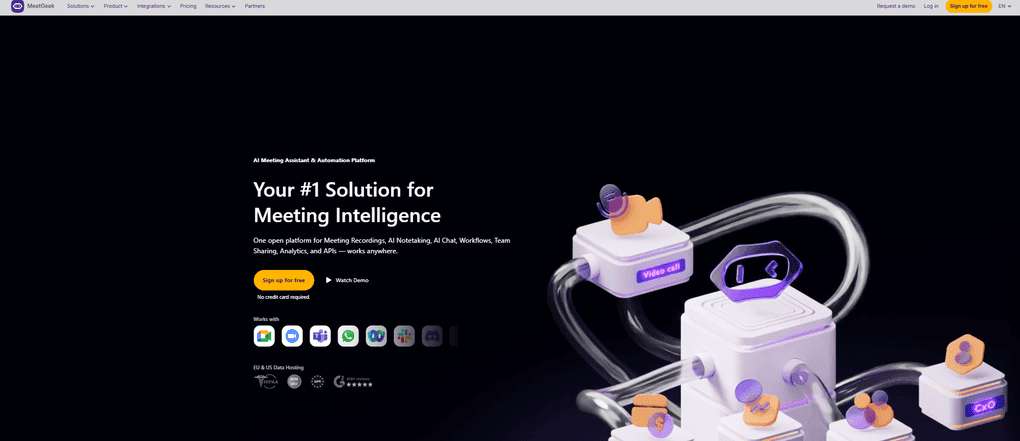
MeetGeek is an AI note-taking app with advanced meeting recording and AI summaries. It is compatible with many video conferencing platforms and supports 60+ languages.
Key features
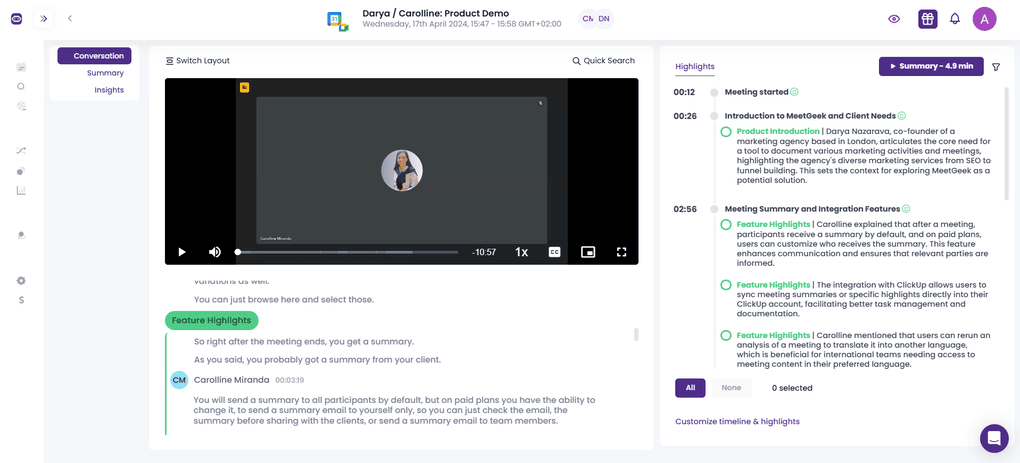
Meeting recording: Whenever you join a virtual meeting on Microsoft Teams, Zoom, or Google Meet, MeetGeek will automatically join and record it. After your calls, you can review your meeting recordings and change the playback speed.
Meeting notes: MeetGeek sends you highly detailed AI meeting summaries about your video calls. It takes 5-10 minutes to process your calls, and MeetGeek will send the meeting notes after. When using MeetGeek, I loved its meeting summaries, which were more detailed than those of other tools.
Transcription: I used MeetGeek for 6-7 months, and it offered me accurate transcriptions. It offers auto-language detection, which comes in handy when you use multiple languages in your day-to-day work. You can also upload audio and video files to transcribe and summarize them.
Library: You can organize your video calls into different folders in MeetGeek, making it easy to find previous meeting recordings.
Conversation intelligence features: MeetGeek offers super-useful analytics for your past conversations. It includes actionable insights & recommendations to improve your performance over time, which is especially useful for customer success teams.
Mobile app: MeetGeek has mobile apps for iOS and Android devices, so you can transcribe in-person meetings as well.
Integrations: You can easily integrate MeetGeek with over 8,000 apps.
Pricing
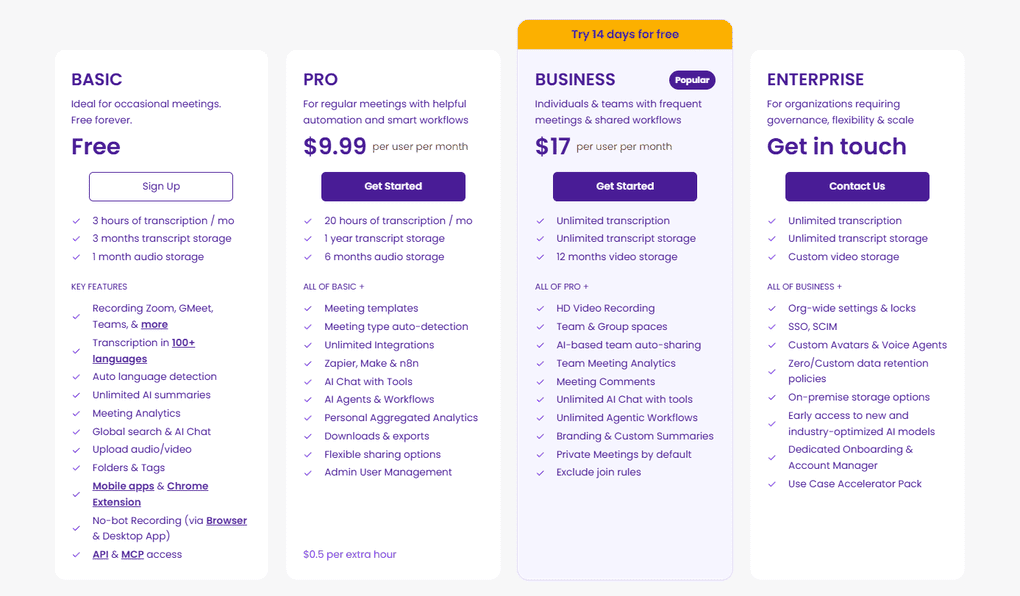
MeetGeek’s Free plan includes advanced features such as auto-language detection, AI meeting summaries, folders, and smart search. However, it has a limit of 3 hours of transcription and storage per month.
The Pro plan is for professional and small teams that have more meetings. It includes all the features in the free plan, plus AI agents & workflows, unlimited integrations, and more.
The Business plan is ideal for teams and individual professionals who want to use all the features. It offers HD video recording, team spaces, and team meeting analytics.
MeetGeek also offers an Enterprise plan that includes extras such as org-wide settings, custom avatars & voice agents, and more.
My experience with MeetGeek
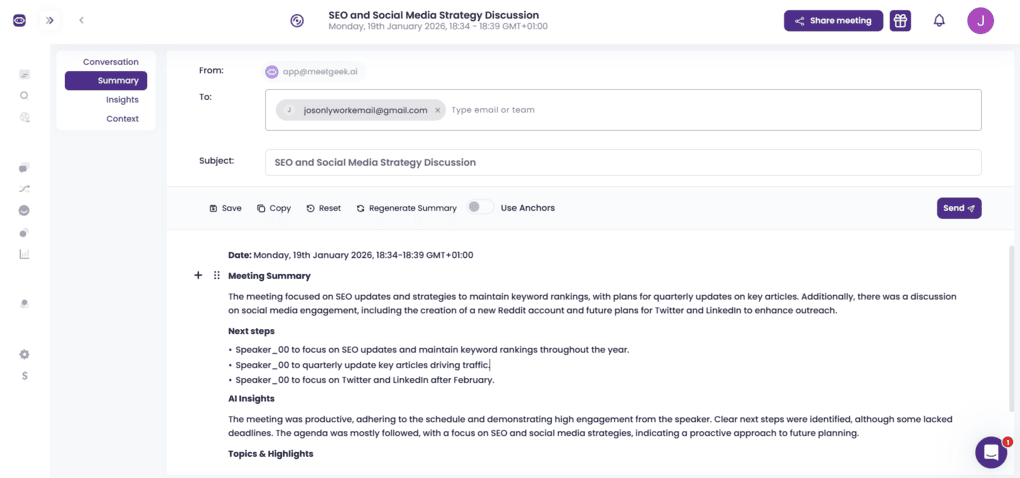
After using MeetGeek for months, I discovered that it is a fantastic AI meeting assistant. There were two aspects that I found outstanding compared to other tools.
The first one is the meeting summaries. I experienced that they were accurate and structured the online meetings in a way that made even 1-hour-long meetings more digestible.
Secondly, I enjoyed its conversational intelligence features, which offered practical recommendations for improving my meetings. However, its Free plan, and even the Pro plan, are somewhat limited by transcription limits.
Overall, MeetGeek is a great tool for recording meetings and extracting key insights.
🔎 Read my full review: MeetGeek Review: Is It The Best AI Note-Taker For You? (2026)
Short on time? Here’s a quick overview of MeetGeek
Pros and cons of MeetGeek
Pros
Cons
Meeting Recording App #4 | Tl;dv
An easy-to-use meeting recording app
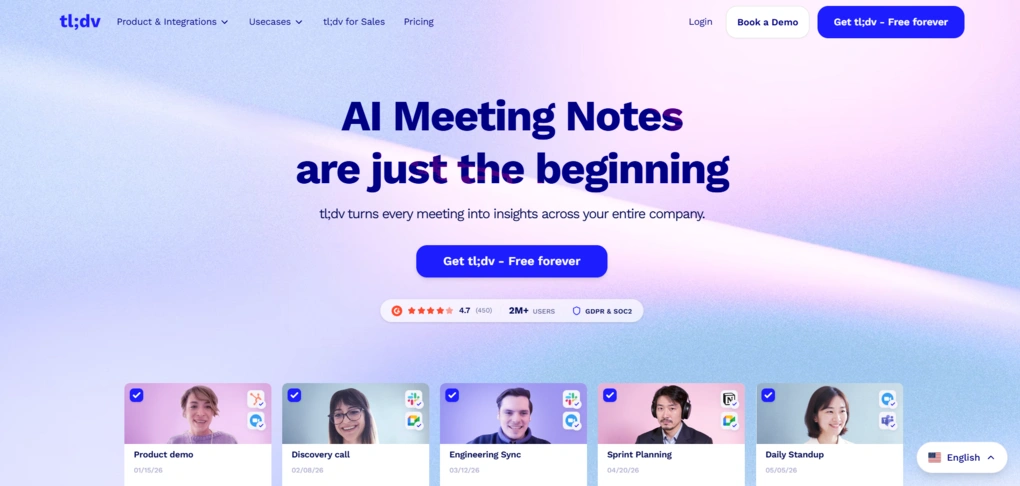
For me, tl;dv is a bit similar to Fathom. It has a solid free tier and offers a straightforward solution for recording, summarizing, and transcribing meetings on Google Meet, Zoom, Slack, and Microsoft Teams.
Currently, its meeting notes and transcription functions support over +30 languages.
Key features
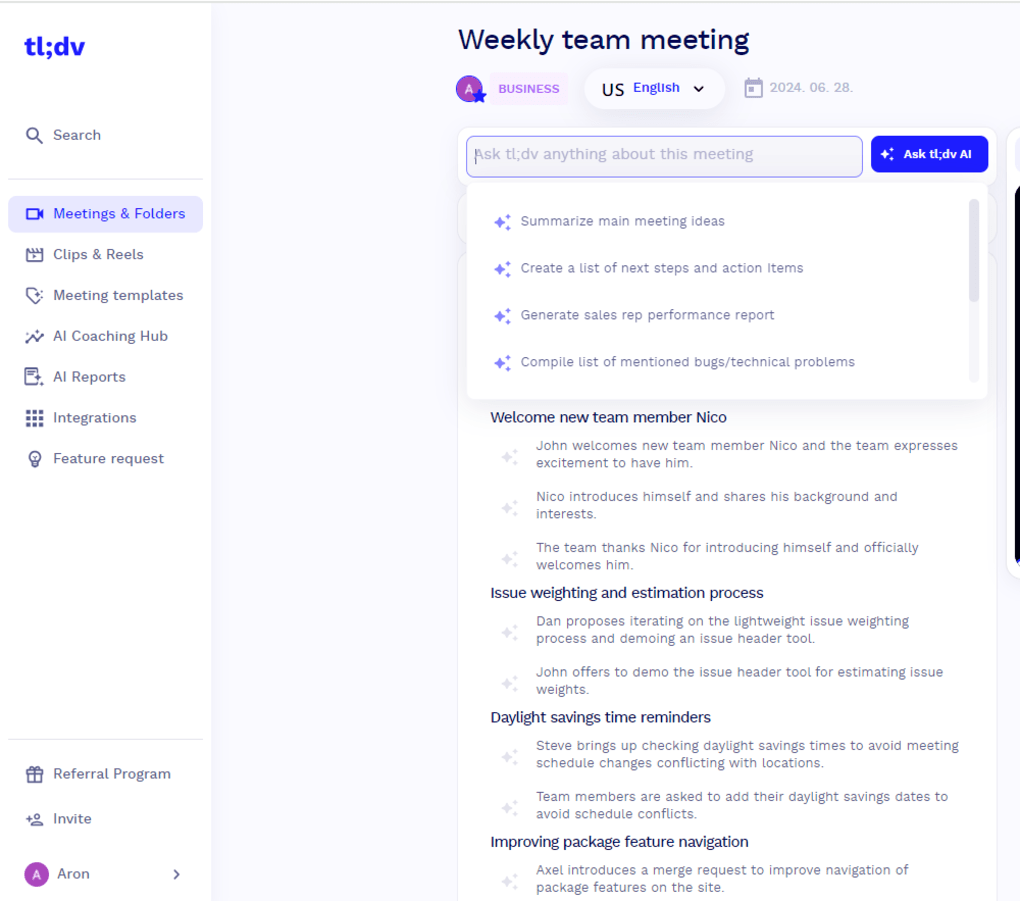
Meeting recording: Tl;dv records your meetings that you can easily share with your team members. You can change the playback speed, and whenever you click on a specific part of the transcription, it will jump to the exact time on the recording when it was discussed.
AI meeting notes: Tl;dv’s meeting notes cover key points of your discussions. Additionally, you can filter the next steps, general information, and customizable points depending on which meeting templates you use.
Transcription: Whenever you join online meetings on Microsoft Teams, Zoom, or Google Meet, tl;dv’s bot will automatically transcribe and record them. Tl;dv can transcribe meetings and video or audio files. It provides accurate meeting transcriptions, but it only works if you use a bot.
Meeting folders: Tl;dv’s folders help you to organize your meeting notes, transcriptions, and recordings in one place. It lets you create folders for different types of meetings, like interviews or sales calls.
Clips: You can create clips and reels from your meetings using tl;dv. It is a great way to capture and highlight key moments and to share them with your team members. You have two choices when creating clips. You can create clips either from the transcription or from the meeting notes. Ultimately, it is an easy-to-use feature for sharing important moments from a meeting.
AI chat: This feature helps you to summarize next steps, action items, and tasks for your upcoming meetings.
AI reports: The AI reports offer a smooth way to collect the relevant data from your previous meetings. For example, it can generate a list of next steps or action items from all your previous conversations this month.
Integration options: Tl;dv offers seamless integrations with more than 8,000 apps via Zapier.
If you fall in love with tl;dv and switch to paid plans in the future, you will get a 30% discount for the first six months if you use this link for sign-up.
Pricing
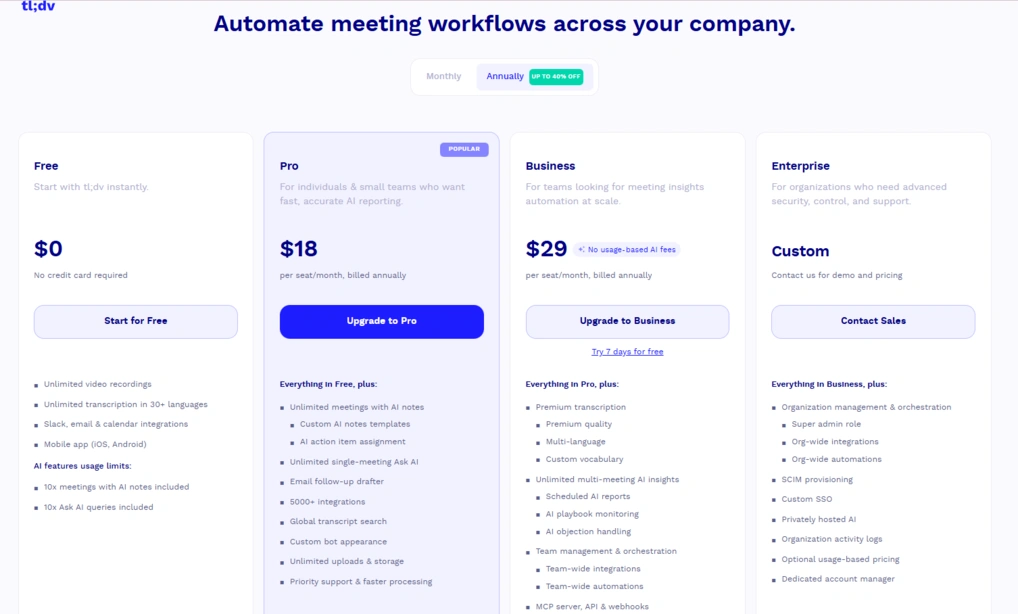
Tl;dv offers four plans for individual users and teams. The free plan includes unlimited video recordings and unlimited transcription, five file uploads, AI notes for up to 10 meetings and up to 10 Ask AI queries. Compared with other tools, tl;dv’s free plan is pretty generous and includes many features.
The Pro plan is ideal for individuals or small teams with many meetings each month. It includes all the features in the free plan, including unlimited meetings with AI notes, unlimited single-meeting Ask AI, global transcript search, 5000+ integrations, and unlimited uploads & storage.
If you want the premium features, you have to pay for the Business plan. This plan includes valuable features for sales & customer-facing teams, such as a sales playbook and AI coaching.
The Enterprise plan is for large businesses only, with custom pricing. With this plan, tl;dv provides a dedicated customer success manager, custom invoicing, and advanced data management features.
My experience with Tl;dv
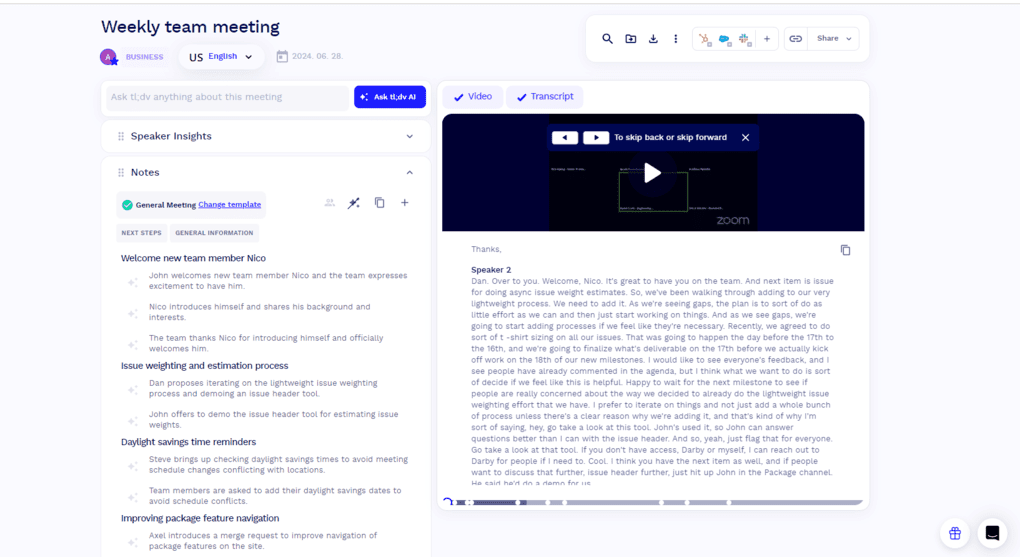
While tl;dv is a simple AI meeting assistant, it offers excellent meeting summaries and AI features. You can easily record meetings with tl;dv, and the meeting transcripts are quite accurate.
Also, I loved that it offers an extensive free version, making it an ideal AI note-taking app for individuals.
On the other hand, it does not work for in-person meetings because it lacks a mobile app. Also, if you need advanced features, it is a pricier option than some of the other AI note-taking apps on this list.
🔎 Read my full review: My Honest Tl;dv Review After Using It For +18 Months (2026)
Short on time? Here’s a quick overview of tl;dv
Pros and cons of Tl;dv
Pros
Cons
If you fall in love with tl;dv and switch to paid plans in the future, you will get a 30% discount for the first six months if you use this link for sign-up.
Meeting Recording App #5 | Fireflies AI
A solid meeting recording app
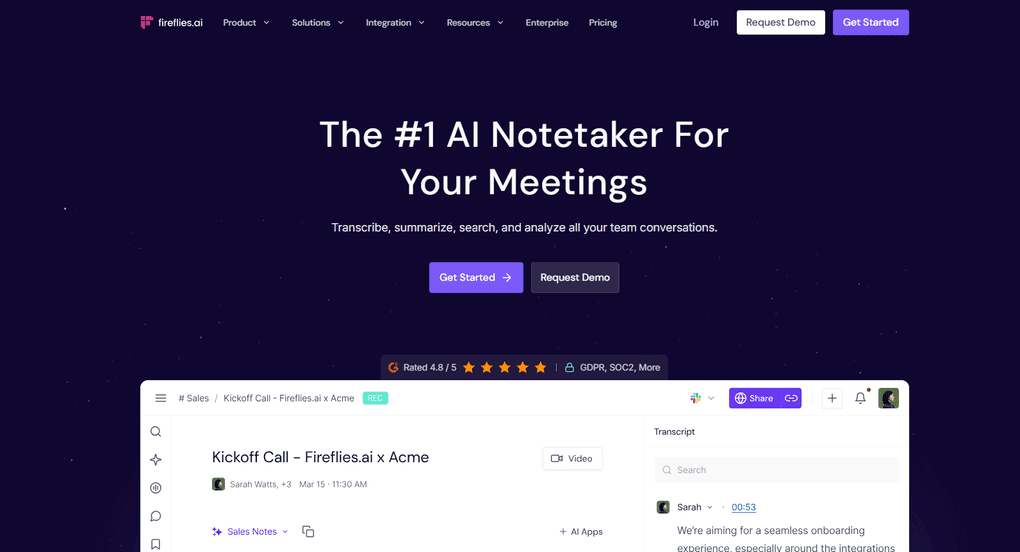
Fireflies AI is a popular AI meeting assistant to record meetings and automate note-taking on Microsoft Teams, Zoom, Google Meet, Webex, GoToMeeting, Lifesize, and Dialpad. It supports over 100 languages, and it is a budget-friendly solution for individuals.
Key features
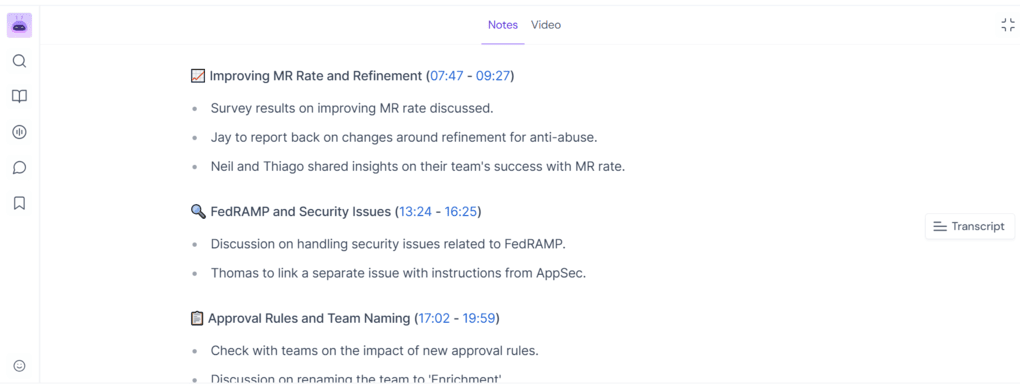
Meeting recording: After your meeting, Fireflies AI sends you the meeting recording with transcription and meeting notes. Just a heads-up: Fireflies AI can only record meetings if its bot is participating in the call.
AI meeting notes: When your meeting is over, send you the meeting notes covering an overview, key points with timestamps, and action items. Such AI summaries help you to review past conversations quickly and assign tasks easily.
Transcription: Fireflies AI can transcribe meetings and video or audio files as well. In my experience, this meeting recording app offers 90%+ transcription accuracy.
Conversation intelligence: Fireflies AI offers sentiment analysis for your calls. This feature can be crucial for sales teams, as it helps to analyze meetings and close deals more effectively.
Live assist: In addition to post-meeting summaries, Fireflies AI can also help you during meetings. This feature quickly summarizes what’s been discussed so far, points out action items as they come up, and helps you catch up if you join a meeting late.
AskFred: Fireflies AI’s AI chat is called AskFred. This tool helps you collect data from multiple meetings, prepare a follow-up email, and more. It is a useful feature to get multi-meeting insights and have a clear view of the outstanding tasks.
Mobile app: This meeting recording app offers a mobile version for iOS and Android users, so you can deploy it in in-person meetings as well.
Integration options: Fireflies integrates with most of the best CRM tools on the market. Also, with its Zapier integration, you can access an additional 8,000 third-party apps.
Pricing
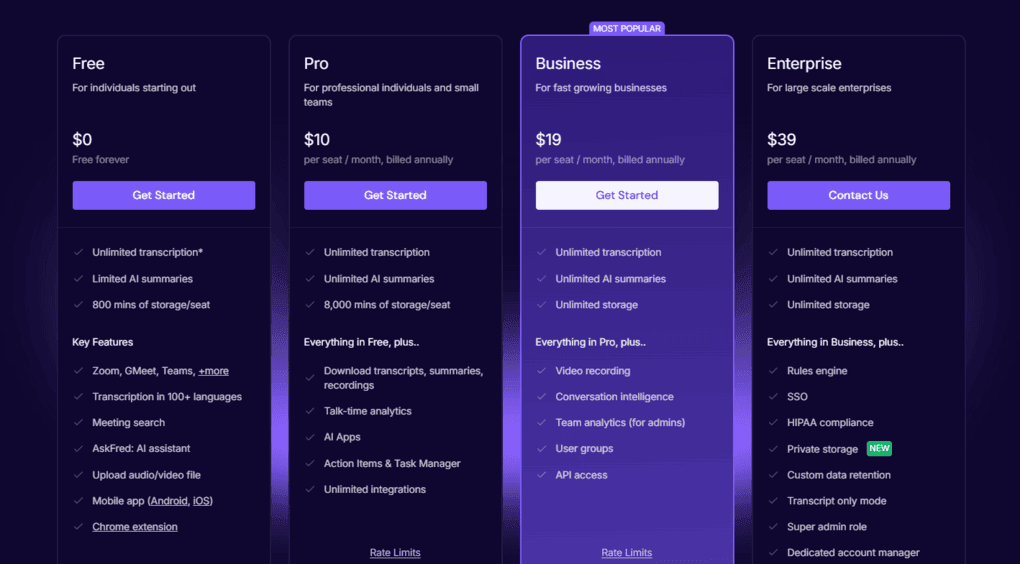
Fireflies AI offers a Free plan that includes unlimited transcription, 800 mins of storage/seat, and AskFred. Compared to other AI note-takers, there are some limitations in the Free plan, such as limited AI summaries or access to only the essential tools.
The Pro plan is $10 per month per user and was designed for individuals or small teams with more monthly meetings. It includes unlimited transcription minutes and meeting recaps. You will also have access to the AI assistant and smart search filters.
If you need more advanced features like conversation intelligence, you have to purchase the Business plan for $19 per user per month with annual billing. This plan is ideal for customer success or sales teams that can take advantage of these extra features.
The Enterprise plan is for large-scale enterprises. You will get a dedicated support team and an onboarding program here.
My experience with Fireflies AI
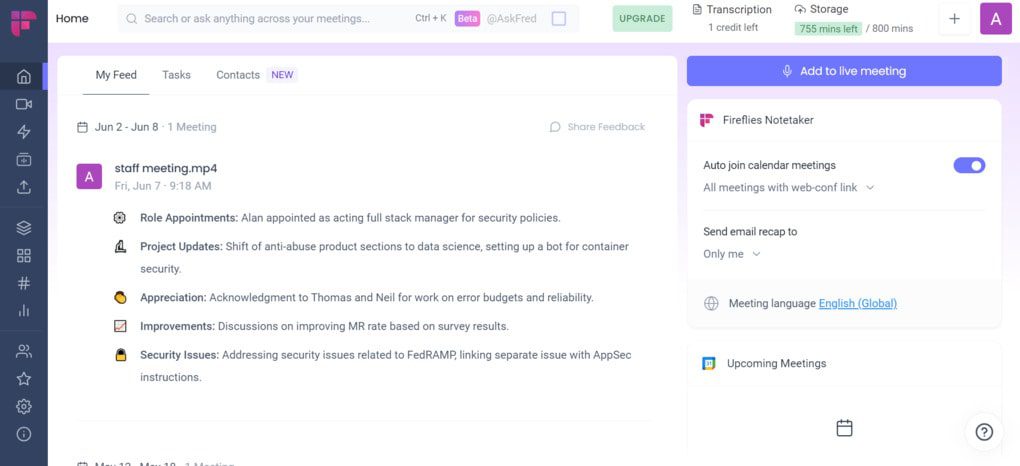
Fireflies was one of the first meeting recorder solutions on the market. It’s not a surprise that it is among the most popular AI note-taking apps, as it offers a budget-friendly solution for individuals.
Although it’s a solid meeting recording app, it has limitations. For example, sometimes the bot joined late in the call, the conversation intelligence feature is only accessible with the Business plan, and the video recording is not available with the Free and Pro plans.
🔎 Read my full review: Fireflies AI Review: Why is EVERYONE using it for meeting notes?
Short on time? Here’s a quick overview of Fireflies AI
Pros and cons of Fireflies AI
Pros
Cons
Meeting Recording App #6 | Bluedot
A botless meeting recording app
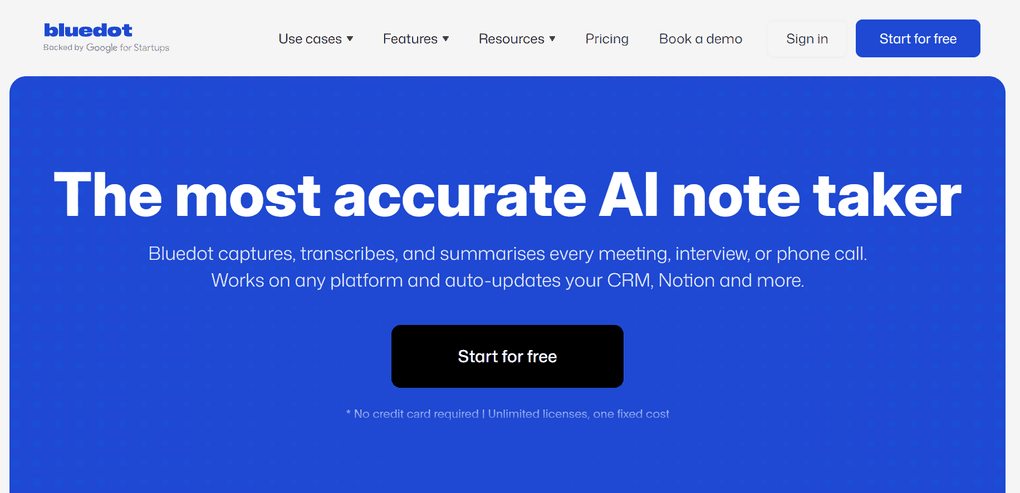
Bluedot records every conversation without any bots on Zoom, Microsoft Teams, and Google Meet. Although it does not offer as many features as Fellow or some others on this list, it is an easy-to-use, botless AI note-taker for your meetings.
Key features
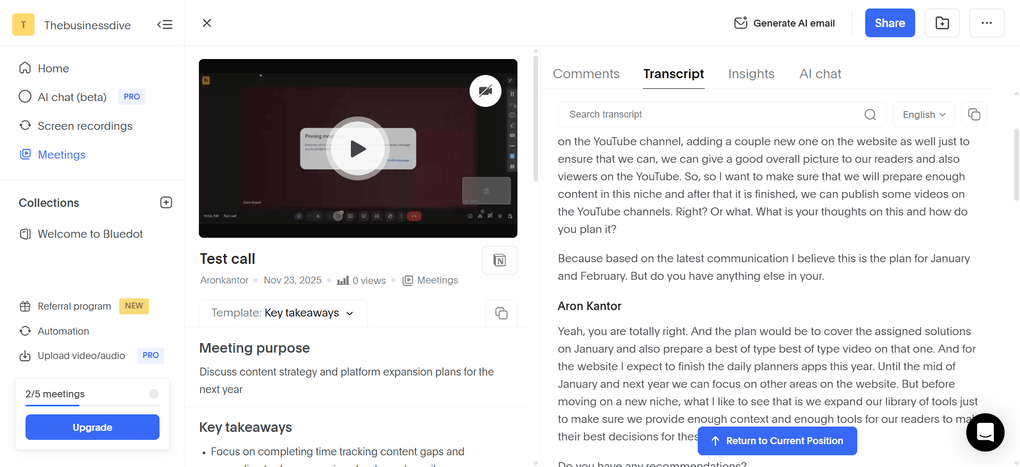
Meeting recording: Bluedot offers high-quality meeting recordings for your calls. You can choose from different playback speeds, and the meeting transcripts show where you are in the recording.
AI meeting notes: The meeting notes are well structured. It pulls out the key takeaways from your calls and organizes them into an overview, topics, next steps, and action items. Based on the meeting template you choose, it will organize your notes. Also, you can upload video or audio files for transcription and summarization.
Bot-less transcription: It was super straightforward to set up Bluedot, and it captured my calls without any issues. The transcriptions are quite fast and mostly accurate. The speaker identification was solid throughout the meeting. What I also liked about this botless AI note-taker is that you can still edit the transcription and the video. I noticed that as well, that Bluedot automatically cuts your uhms and filler words, making the transcripts look way more neat.
Collaboration tools & meeting library: Bluedot has some team collaboration features. That said, you can organise your recordings into shared libraries where teammates can comment, edit, and work on meeting notes in one centralized space.
AI chat: If you have any questions, you can ask the AI chat for insights. It helps to find information quickly or summarize important details or discussion points with a few clicks.
Meeting templates: This meeting recording app lets you choose from its pre-built templates or create your own. That said, you can organize your meeting notes in a way that is ideal for sales calls, interviews, technical discussions, and other types of meetings.
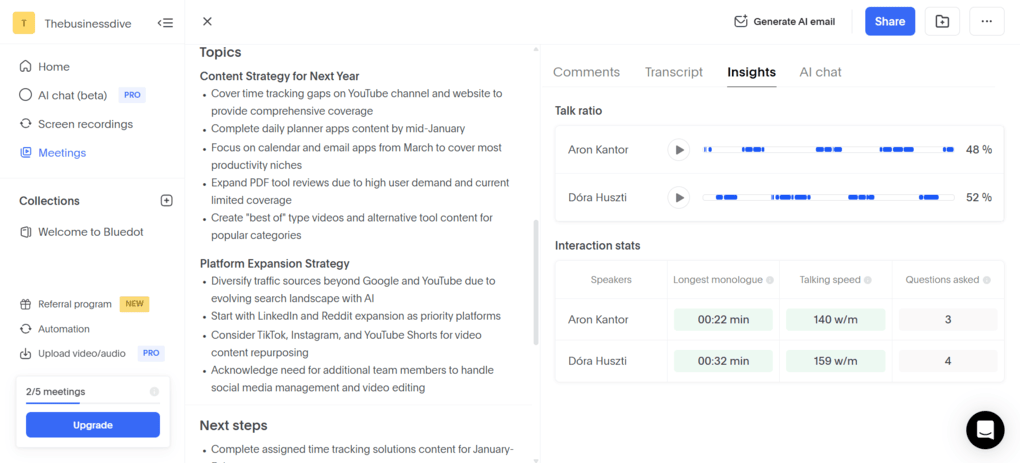
Conversation intelligence: Bluedot shares some data about talk ratio, talking speed, longest monologue, and the number of questions asked.
Mobile app: Bluedot recently launched its mobile app for iOS and Android devices, so you can utilize it for in-person meetings as well.
Integration options: Bluedot automatically syncs meeting notes with popular CRMs like HubSpot and Salesforce. That said, you can connect Bluedot with various third-party apps, including direct integrations with tools like Slack, HubSpot, and Notion, and broader connections through Zapier.
Pricing
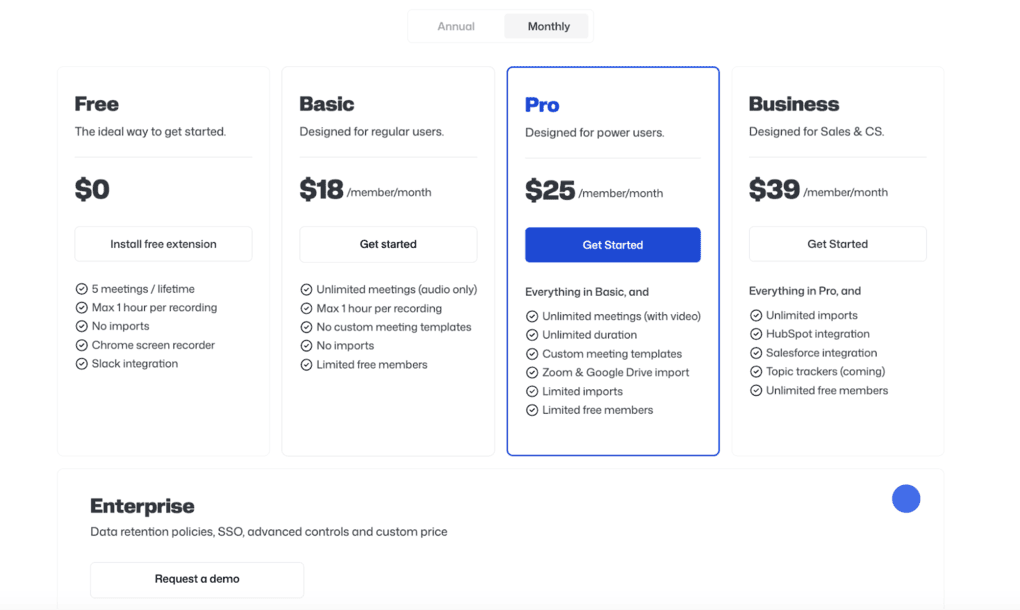
Using its Free plan, Bluedot lets you record and transcribe up to five meetings with a maximum of 1 hour per recording. You also have access to the Slack integration and the Chrome screen recorder.
If you buy the Basic plan for $14 per month with annual billing, it unlocks unlimited audio recordings and storage. If you need longer recordings and custom meeting templates, the Pro plan could be ideal for $20 per month per user.
My experience with Bluedot
It is one of the meeting recording apps where everything worked smoothly from recording the meeting to sharing it with others. There were no technical difficulties, and everything felt simple.
You can easily control when you want to record meetings and when you want the recording to stop. And most importantly, you can do it without a meeting bot.
Overall, I found Bluedot an easy-to-use meeting recording app ideal for those who want to record meetings without a bot.
🔎 Read my full review: My Honest Bluedot Review After Testing 25+ AI Note-Takers
Short on time? Here’s a quick overview of Bluedot
Pros and cons of Bluedot
Pros
Cons
Explore our Apps directory
A curated directory of software tools we’ve independently reviewed, with links to full reviews, comparisons, and category guides.
Wrap-up: Best meeting recording apps for 2026
After testing 20-30 meeting recording apps, I think these are the best in 2026. Although there are differences in terms of features, pricing, and use cases, none of these tools will let you down.
For me, Fellow is the best meeting recording app, and I have been using it for almost a year now. While I personally tested all these meeting recording apps on this list, none of them offered as many features (and safety) as I need to maximize my time in meetings.
Related articles:
- Best Granola Alternatives 2026 | My Top 6 After Testing 25+ Tools
- Best 5 Otter AI Alternatives | 20+ Personally Tested Apps (2025)
- 15 Best AI Tools | 200+ Tested By A Skeptical (2025)
I hope I was able to find the best meeting recording apps for you. As always, I will keep updating this list to ensure it reflects reality.
Looking for similar tools?
Visit our AI note-takers library to explore other apps we’ve reviewed in this space and how they compare.
Why you can trust our reviews
At thebusinessdive.com, our team tests, reviews, and compares hundreds of productivity apps every year — from project management tools to note-taking apps. We dive deep into real-world use cases to help you find the right tools that actually improve your workflow, not just add noise.
Our mission? No fluff, no shortcuts—just honest, hands-on insights from productivity pros.
Discover how we stay transparent, read our review methodology, and let us know about any tools we missed.
Frequently asked questions
What is the best app to record meeting minutes?
Personally, I think the best meeting recording app for meeting minutes is Fellow. It records meetings on Zoom, Microsoft Teams, Slack, and Google Meet. Also, it provides numerous advanced tools, such as clip creation and a recording library, to manage your recordings efficiently.
What app can I use to record meetings?
There are numerous apps available that you can use to record meetings or phone calls. In addition to the ones I mentioned, here are some other solutions:
- Granola: It is a lightweight and simple bot-less AI note-taker for online meetings.
- Notta: A unique AI note-taker that allows multi-language transcription, enabling people to speak two different languages during online meetings.
- ClickUp: ClickUp is a work management app that combines tasks, projects, and documents in one platform, but also has an AI note-taking feature.
- MinutesLink: It provides human-accurate meeting minutes in 50+ languages on Google Meet and Zoom.
Is MeetGeek free?
MeetGeek’s Free plan includes advanced features like auto language detection, AI meeting summaries, folders, and smart search features. However, it has a limit of 3 hours of transcription and storage per month.
Therefore, if you need more advanced features and want to use it without limits, you need to purchase one of its paid plans.
Which is the best AI meeting assistant in 2026?
For me, the best AI meeting assistant in 2026 is Fellow. However, all the others on this list are included among the best AI meeting assistants.
You can check out the full list here: Best 9 AI Note-Takers | My Top Picks After +2 Years Testing (2025)
Disclosure: I only recommend products I would use myself, and all opinions expressed here are our own. This post may contain affiliate links through which, at no additional cost to you, I may earn a small commission. Read the full privacy policy here.

Hey there! I am Aron, the founder of Thebusinessdive. I have been testing productivity apps for almost three years now. I reach 25.000 -50.000 people monthly with the mission to help you find the perfect productivity apps. Subscribe to my YouTube channel, newsletter, and social media to hear more about the best productivity tools. Let’s dive in!