


Files Editor Review 2026 | Is It a Good PDF Editor?
If you need a PDF editor that works directly in your browser, this Files Editor review takes a closer look at its editing, OCR, annotation, redaction, and e-signature tools. I tested its features to see where Files Editor stands out, where it falls short, and whether it’s worth paying for.
Verdict
🎯 Best for: Users who need a broad range of PDF tools and especially reliable OCR.
🚫 Not ideal for: Users looking for a genuinely free PDF editor or anyone working with highly sensitive documents.
⭐ Biggest strength: Fast and accurate optical character recognition (OCR), including for non-English PDFs.
⚠️ Biggest weakness: You need to upgrade to download your file.
⚖️ Verdict: Files Editor has a solid selection of PDF tools and performs particularly well when it comes to OCR, but the restrictive free plan, subscription concerns, and lack of stronger security transparency keep it from being an easy recommendation.
🏆 Score: 4/ 5
✅ Tested with our review & scoring methodology ✅ Real-world testing ✅ Unbiased evaluation
Files Editor
Summary
Files Editor offers a solid range of PDF tools, with OCR being the standout feature during my testing. However, its free version is quite limited, as you need to upgrade to download edited files. While I liked its features, the restrictive free plan may not work for some users.
Practical OCR | |
Wide range of PDF tools | |
Straightforward interface | |
PDF redaction | |
Simple e-signatures |
Free plan download restriction | |
Subscription concerns | |
Web-based workflow | |
OCR page limit |
What is Files Editor?
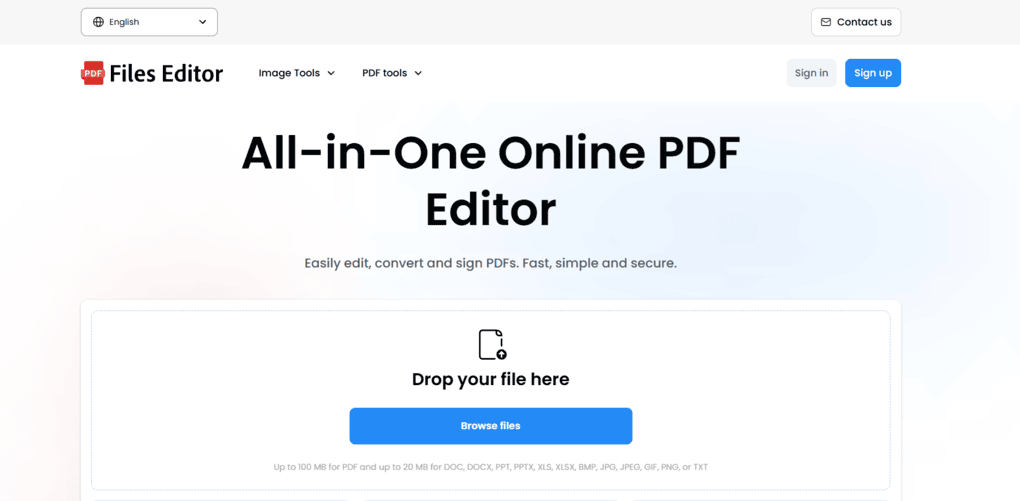
Files Editor is an online PDF and document management tool that lets you edit, annotate, convert, organize, sign, and protect PDFs from your browser. It also includes OCR and several image editing tools.
My experience with Files Editor
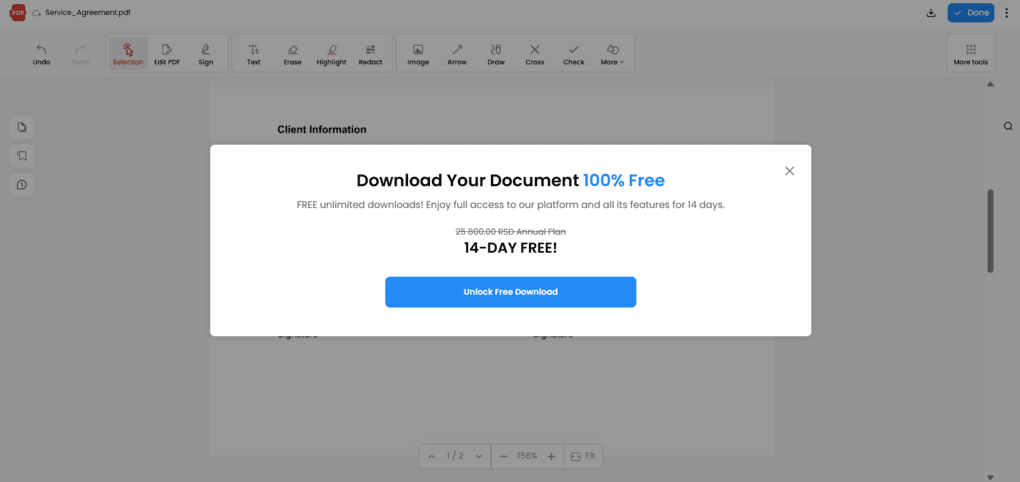
I tested Files Editor’s free version and ran into one of its biggest limitations pretty quickly. While many of the tools and features are available to try, you need to upgrade to download the file you’ve worked on.
That makes the free plan feel more like a trial than a genuinely usable free version.
As a PDF tool, though, Files Editor has a solid range of features, and its OCR was easily the strongest part of my testing.
I’m also more cautious with web-based PDF tools when it comes to sensitive documents, as I generally feel more comfortable with software that can be installed and used locally.
Overall, I probably would have recommended Files Editor to a friend based on its features alone.
Related articles:
- The 9 Best Adobe Acrobat Alternatives: 30+ PDF Editors Tested
- 10 Best PDF Editors In 2026 | 30+ Personally Tested PDF Tools
- The 7 Best PDF Readers For 2026 (Only FREE Options)
Files Editor wins & trade-offs
After reviewing Files Editor, I found some pros and cons I think you should know about.
Files Editor’s best parts
| Files Editor’s standout features | Why I like them |
| OCR | OCR was the strongest part of my testing. It was relatively fast and accurately recognized text, including in non-English PDFs. |
| Wide range of PDF tools | Files Editor covers most of the PDF tasks I’d expect, from editing and organizing pages to conversion, redaction, OCR, and e-signatures. |
| Straightforward interface | I found the main tools easy to locate and use, and I didn’t need much time to figure out how the different features worked. |
| PDF redaction | I liked that redacted content was actually removed from the document rather than simply covered with a black box. After applying redaction, I could no longer select or recognize the original content. |
| Simple e-signatures | The e-signature tool is basic, but that also makes it quick and easy to use when I just need to sign a document without unnecessary steps. |
Where Files Editor falls short
| Files Editor’s limitations | Why it matters |
| Free plan download restriction | I could use many of the tools without paying, but I had to upgrade to download the finished file, which makes the free version feel more like a trial. |
| Subscription concerns | Negative user feedback around subscriptions, billing, and cancellations made me more hesitant to recommend the service. |
| Web-based workflow | Since Files Editor processes documents online, I’d be more cautious about using it for highly sensitive files than a desktop PDF editor that can process documents locally. |
| OCR limitations | The OCR tool has a 200-page limit, which can be restrictive for longer scanned documents even when the file itself is relatively small. |
Who should use Files Editor
Who should consider alternatives
Why did it get a 4 out of 5?
I gave Files Editor 3.5/5 because it has a solid set of PDF tools, and most of the features I tested worked well. OCR was the standout, with fast and accurate results even on non-English PDFs.
The score is held back by the restrictive free plan, which requires an upgrade to download finished files, as well as the relatively high pricing.
I’m also more cautious about using it for sensitive documents because it’s web-based and offers limited security transparency.
Is Files Editor safe?
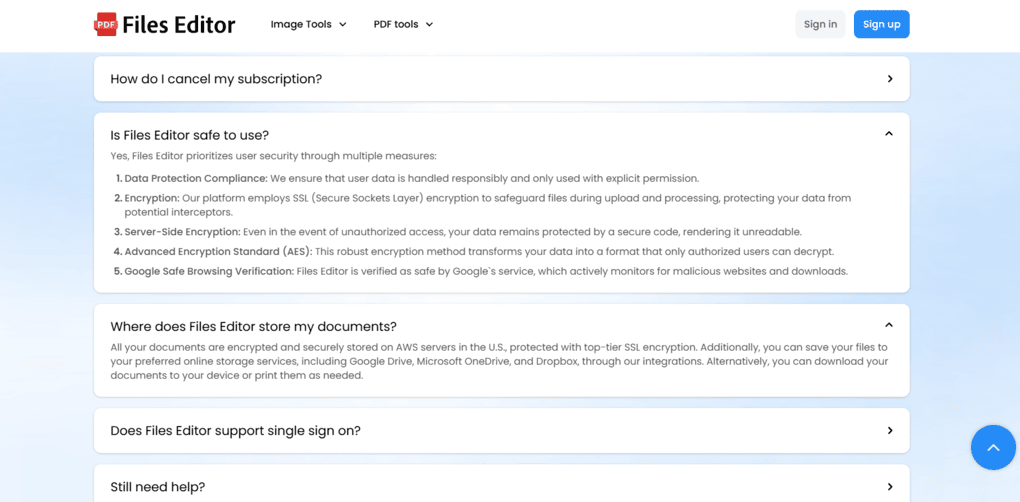
Files Editor appears reasonably safe for everyday PDF tasks, but I’d be more cautious when working with highly sensitive documents.
The company says it uses encrypted storage and other technical and organizational security measures, and its privacy policy explains how personal data is collected, processed, shared, and deleted.
However, I couldn’t find enough detailed information about its security certifications or exactly how uploaded files are protected and retained to confidently recommend it for confidential legal, medical, or financial documents.
For regular documents that don’t contain highly sensitive information, I wouldn’t consider Files Editor an obvious security risk.
However, if I were handling something confidential, I’d choose a more established PDF editor with clearer security documentation and, ideally, local processing.
Testing Files Editor: My experience
After testing Files Editor’s features, these are the ones that stood out to me, along with the limitations I noticed along the way.
PDF editing: Smooth and intuitive, but fairly basic
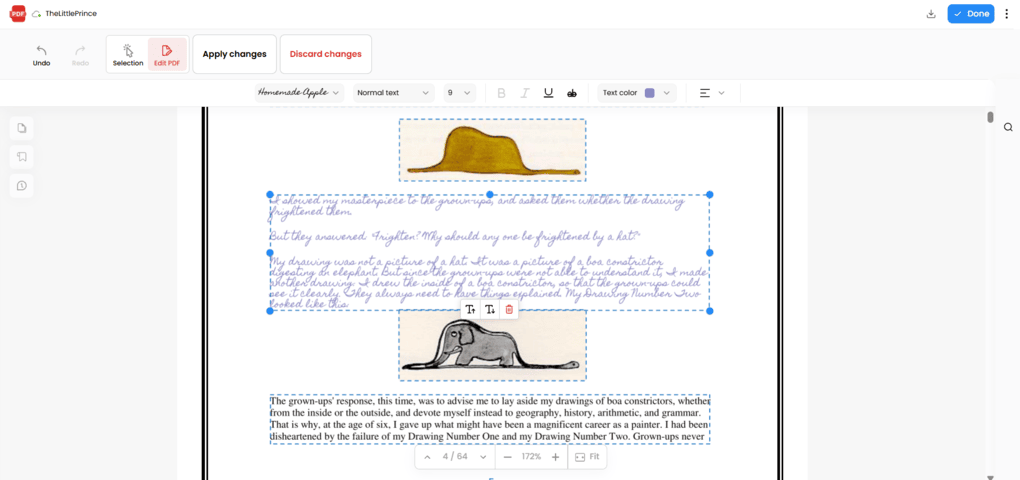
During my testing, I could edit existing text, change the font, text size, color, and alignment, as well as add new text or delete existing text from the document.
I could also move text blocks around the page using drag-and-drop, while triple-clicking a text block let me edit its actual content.
What’s good:
Where it falls short:
Annotations: Everything I needed for marking up PDFs
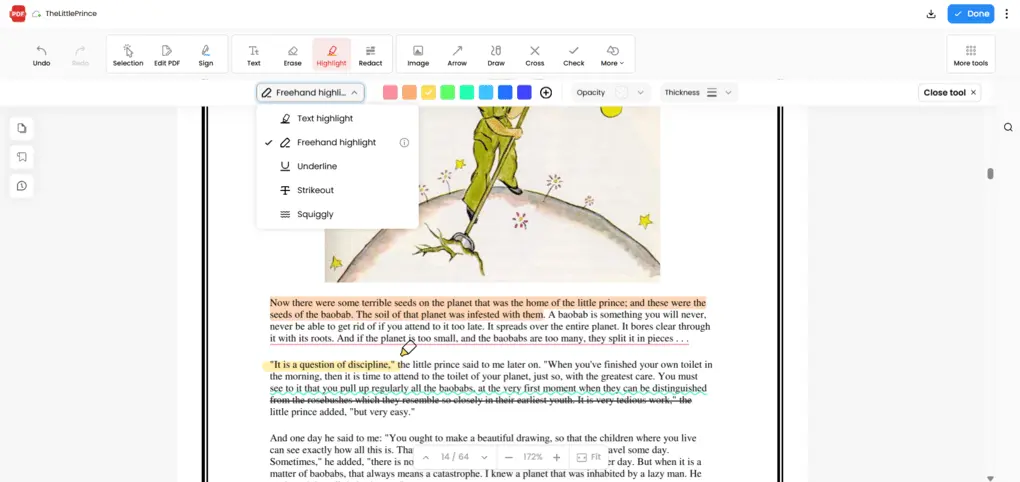
Files Editor offers a solid range of annotation tools for marking up and reviewing PDFs, from text markup and freehand drawing to shapes, stamps, and sticky notes.
I also found useful options for marking items as completed or incorrect. The tools were easy to find and use, and I didn’t run into any issues during testing.
What stood out:
Where it falls short:
PDF organization: Simple and flexible
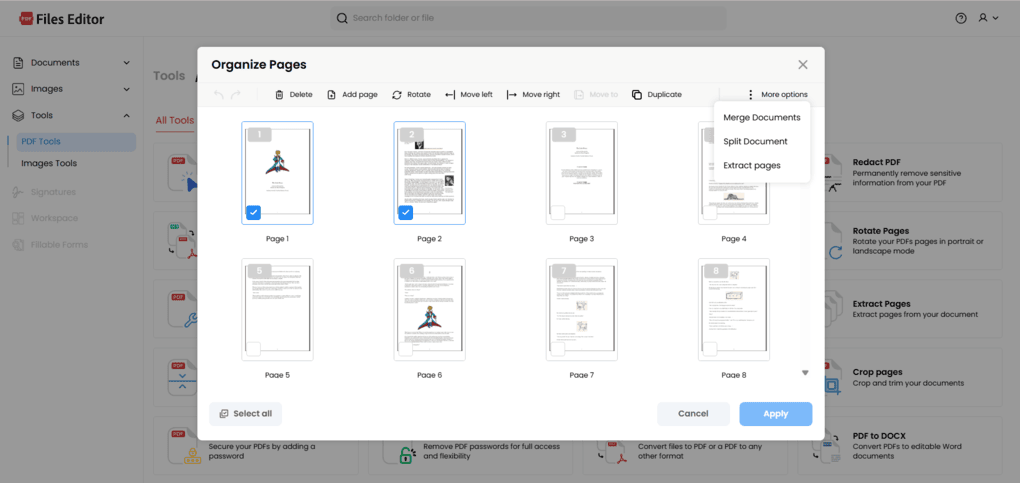
Files Editor’s PDF organization tools cover the main tasks I would expect when rearranging a document. I could delete, add, rotate, move, and duplicate pages, as well as merge documents, split a PDF, and extract individual pages.
The interface also makes it easy to select multiple pages and apply changes at once.
What worked well in my testing:
Where it falls short:
PDF conversion: Plenty of options for everyday conversions
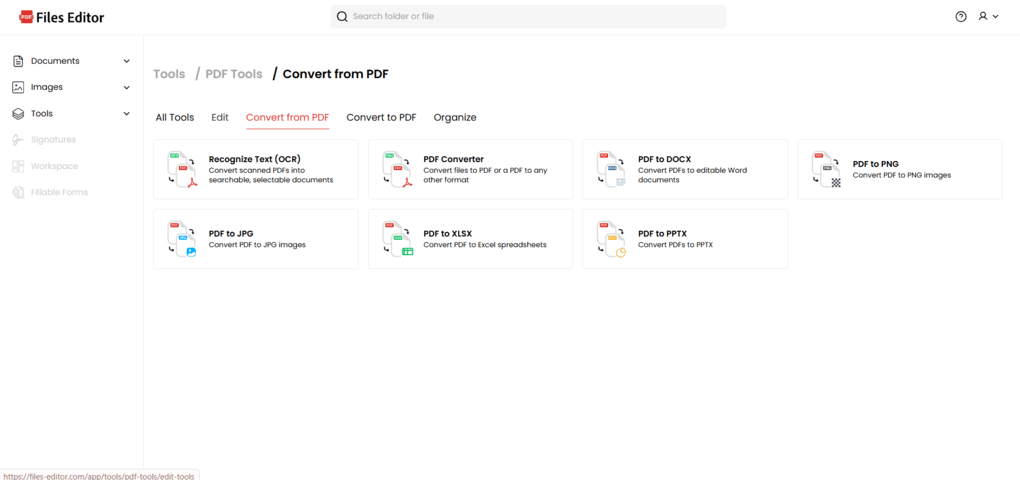
I found Files Editor’s conversion tools easy to navigate during my testing. I could convert PDFs to formats such as DOCX, XLSX, and PPTX, as well as JPG and PNG images.
I could also convert DOCX, XLSX, PPTX, TXT, JPG, and PNG files back to PDF, so I had the main conversion options I would expect in a PDF editor.
What’s good:
What’s missing
PDF Protection: It’s straightforward
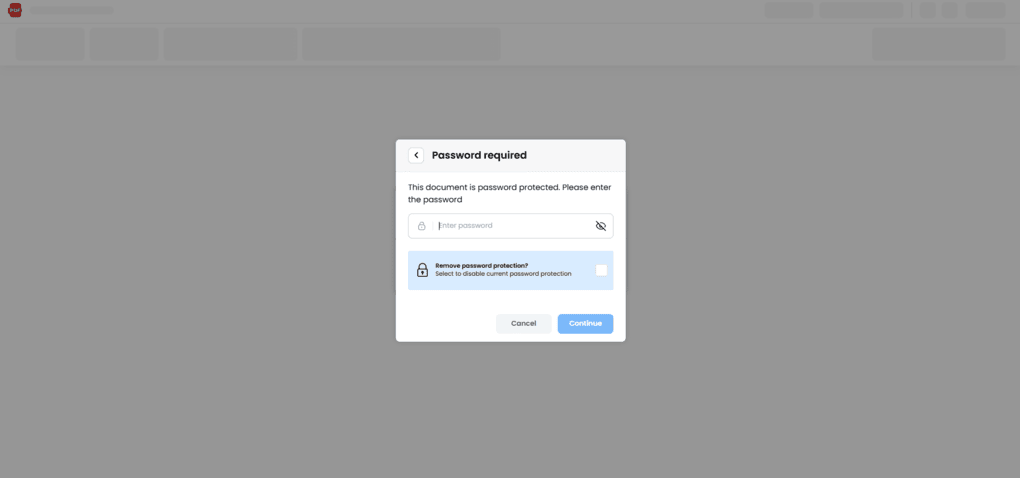
I found Files Editor’s PDF protection tools straightforward. I could add a password to a PDF and remove existing password protection after entering the current password.
Where it impressed me:
Any drawbacks?
OCR: Accurate and easy to use
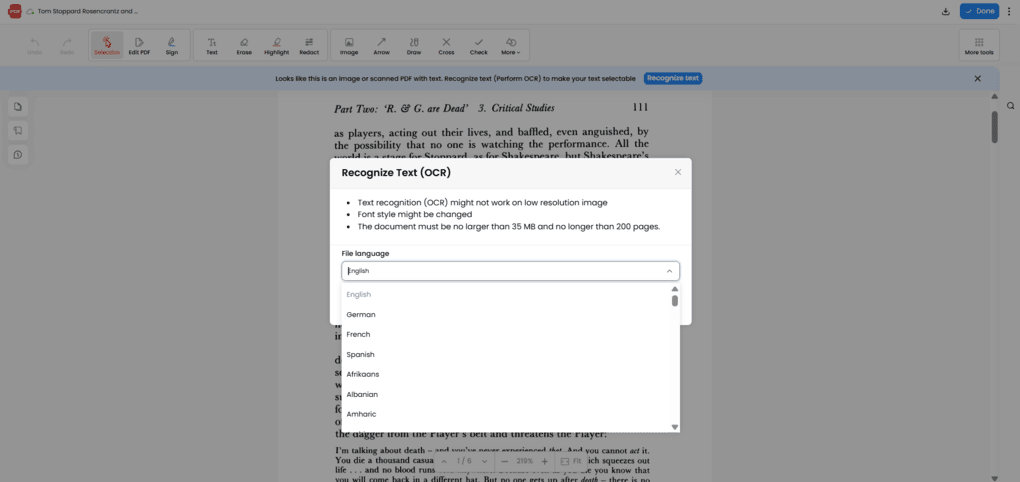
I was particularly impressed with Files Editor’s OCR during testing. When I opened a scanned PDF, the editor immediately recognized it and offered to make the text selectable, so I didn’t have to look for the OCR tool myself.
The process was relatively quick, and the text recognition was accurate even when I tested documents in languages other than English.
Where it excelled:
What’s missing
Related article: 7 Best OCR Software For 2026 | 30+ Personally Tested Tools
E-signatures: Basic but very easy to use
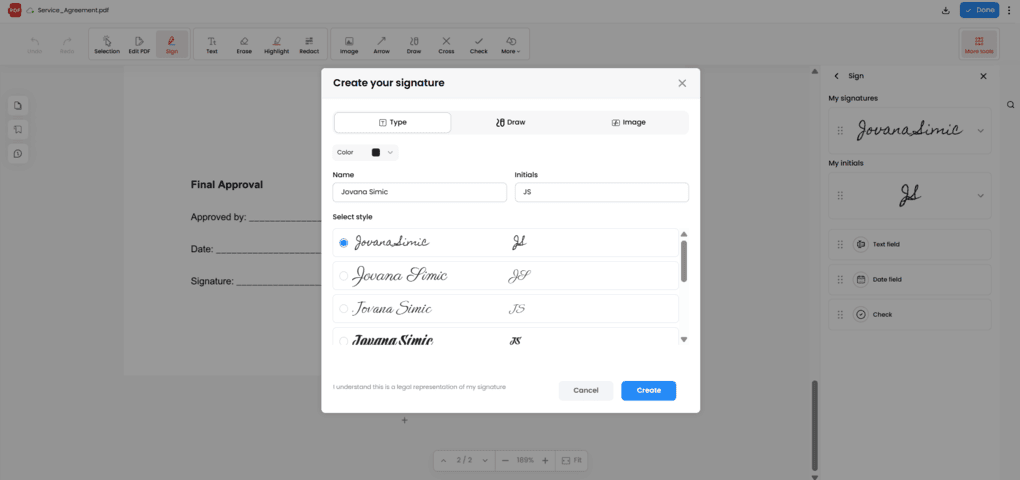
I found the e-signature feature simple and straightforward during testing. I could create a signature by typing my name, drawing it, or uploading an image, then place and resize it directly in the PDF.
What’s good:
What’s missing:
PDF Redaction: Ideal for simple workflows
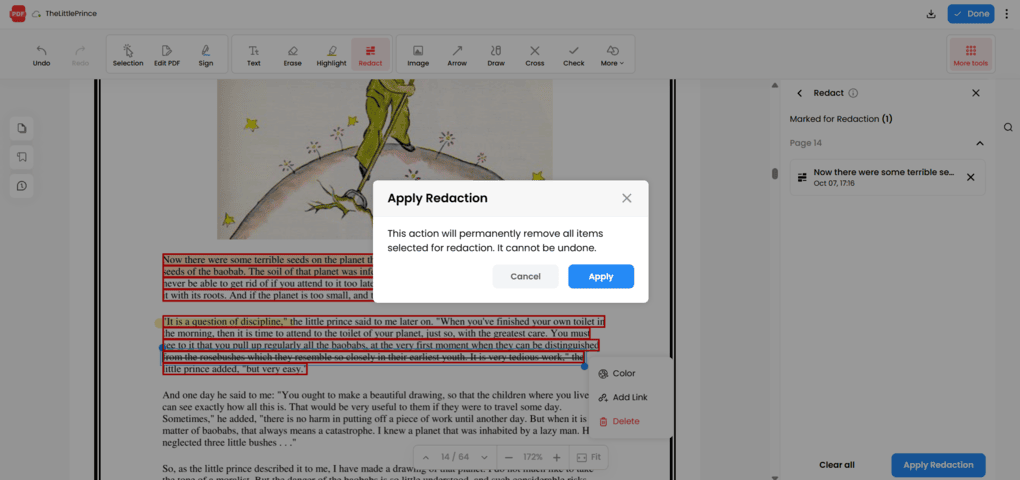
I found Files Editor’s redaction tool easy to use during my testing. I could select text directly in the PDF, review the marked sections in the side panel, and apply the redactions when I was ready.
After applying them, I could no longer select, search for, or interact with the redacted content, so it was actually removed rather than simply covered up.
What’s good:
What’s missing:
Explore our Apps directory
A curated directory of software tools we’ve independently reviewed, with links to full reviews, comparisons, and category guides.
Files Editor user interface
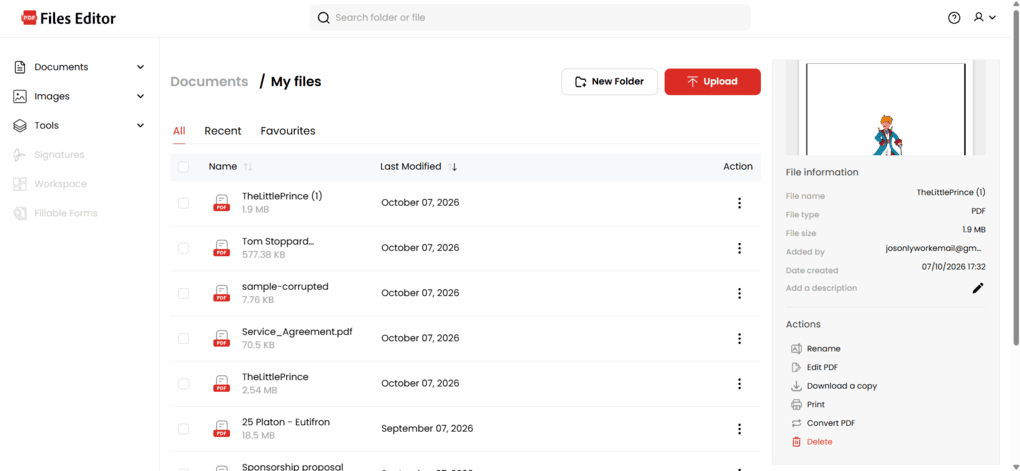
Files Editor’s interface isn’t particularly impressive or modern, but it’s functional and fairly easy to navigate. I could find the main tools without much trouble, and the overall layout is straightforward.
Files Editor pricing plans
Free Plan
Files Editor’s free version gives you access to many of its PDF tools, including editing, annotation, conversion, OCR, and other document management features. However, there’s a major catch: while I could use the tools during my testing, I couldn’t download the finished file without upgrading.
This makes the Free Plan feel more like a way to test the available features rather than a genuinely usable free PDF editor.
Premium Plan
Files Editor’s paid plan costs $49.95 per month or $239.40 per year, with the annual option working out to $19.95 per month.
The paid plan removes the download restriction and gives you full access to the platform’s features. However, I don’t think the pricing is particularly competitive, especially considering that some established PDF editors offer more generous free plans and lower-priced premium options.
Wrap up: Files Editor Review
Overall, this Files Editor review comes down to what you need. It’s a good option for everyday PDF tasks, but there are better choices if you want a genuinely free tool or regularly work with sensitive documents.
I hope this review helped you decide whether Files Editor is the right PDF editor for you. I’ll keep updating it over time as the software and its pricing change.
Files Editor alternatives
App | Best for | Description |
|---|---|---|
Foxit | Solid enterprise alternative to Adobe Acrobat | A PDF editor with an intuitive user interface for Mac and Windows enterprise users. |
EaseUS PDF Editor | Best affordable PDF editor for individuals | It is an all-in-one PDF software to read, edit, annotate, and convert your documents. Full EaseUS PDF Editor review | Quick EaseUS PDF Editor overview |
Tenorshare PDNob | Best for AI-powered PDF editing | It is an easy-to-use AI-powered PDF editor that offers many features to edit, read, organize, and annotate your documents. Full Tenorshare PDNob review | Quick Tenorshare PDNob overview |
PDF Expert | Best for Mac users | A PDF editor for Mac, iPhone, and iPad users that offers all the tools you need to manage your PDF files, from annotation tools to signing PDFs. |
Xodo PDF Studio | Best offline PDF editor | A straightforward offline desktop PDF editor for Windows, Linux, and iOS devices, with great PDF reading and editing tools. Full Xodo PDF Studio review | Quick Xodo PDF Studio overview |
ONLYOFFICE PDF Editor | Best for collaboration and team editing | A versatile tool that combines PDF editing with document collaboration features. It lets you edit text, add visual elements, and create fillable forms. |
UPDF | Best value PDF editor with AI features | One of my favorite PDF editors with advanced AI features and budget-friendly pricing. |
Nitro | Best for business PDF workflows | A feature-rich PDF editor with a strong focus on PDF editing. |
Smallpdf | Best online PDF tool | An online PDF software with numerous tools to convert, compress, and edit PDF files for free. |
Adobe Acrobat | Most popular PDF editor | The most popular PDF editor with solid features, but an extremely high price. |
pdfFiller | Best for e-signatures and document workflows | It offers a signing and editing solution that lets users sign and edit documents, send them for signature, and manage the full electronic document workflow in one place. |
LightPDF | Best for AI PDF productivity | An AI-powered PDF editor that lets you edit, convert, OCR, sign, annotate, chat with PDFs, and more. |
PDFgear | Best free PDF editor | A completely free, offline PDF editor with solid editing, OCR, conversion, and AI tools. |
PDF-XChange | Best advanced PDF editor for Windows | A powerful Windows-based PDF editor with advanced editing, annotation, security, and conversion tools. |
Sejda PDF Editor | Best for simple, everyday PDF tasks | An intuitive and simple PDF software best suited for personal use for those who need a PDF editor for basic PDF tasks. |
Soda PDF | Best for security and file conversion | A user-friendly PDF editor with solid core features, strong security tools, and broad file conversion options, but its advanced features come at a relatively high price. |
PDF Candy | Best PDF toolkit with multiple tools | A very practical PDF toolkit with a large number of useful tools, solid performance, and affordable pricing. |
Tungsten Power PDF | Best enterprise-grade PDF solution | A powerful PDF editor and document management tool designed for businesses, offering advanced editing, security, OCR, and collaboration features. Full Tungsten Power PDF review | Quick Tungsten Power PDF overview |
ABBYY FineReader | Best for OCR and document digitization | A powerful OCR-focused PDF tool with strong layout detection, flexible conversion, and an efficient workflow. Full ABBYY FineReader review | Quick ABBYY FineReader overview |
PDFelement | Best balance of features and ease of use | An easy-to-use PDF editor with valuable features for a reasonable price. |
WPS Office | Best easy-to-use office suite and PDF editor | WPS Office is an easy-to-use office suite with solid PDF editing and AI-powered productivity tools, though its free plan is quite limited. |
Looking for similar tools?
Visit our library of PDF editors to explore other apps we’ve reviewed in this space and how they compare.
How We Test PDF Editors
To keep our reviews and final scores fair and consistent, we evaluate every PDF editors using a standardized testing framework built on over 3 years of hands-on experience testing these tools in real-world scenarios.
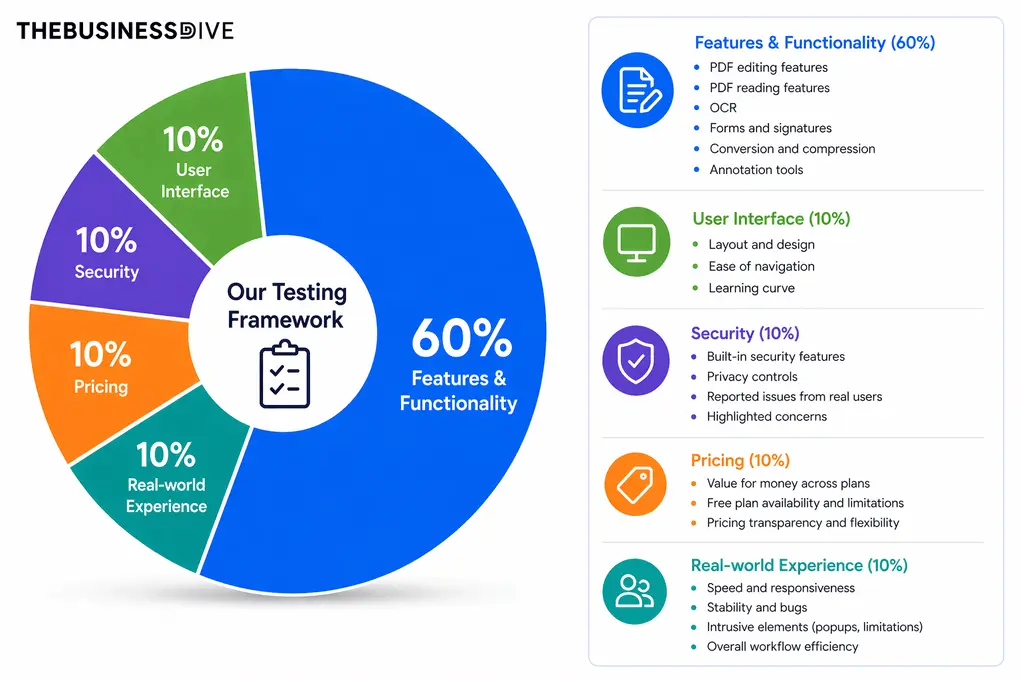
Our scoring breakdown after testing 30+ PDF editors:
🛠️ Features & functionality — 60%
🖥️ User interface — 10%
🔐 Security — 10%
💰 Pricing — 10%
👥 Real-world experience — 10%
Want a detailed breakdown of how we test each category?
Learn exactly how we test tools → Review methodology
Why you can trust our reviews
At thebusinessdive.com, our team tests, reviews, and compares hundreds of productivity apps every year — from project management tools to note-taking apps. We dive deep into real-world use cases to help you find the right tools that actually improve your workflow, not just add noise.
Our mission? No fluff, no shortcuts—just honest, hands-on insights from productivity pros.
Discover how we stay transparent, read our review methodology, and let us know about any tools we missed.
Frequently asked questions
Is Files Editor easy to use?
Yes. Files Editor has a straightforward interface that makes common PDF tasks easy to handle, from reading and writing PDF documents to adding comments, editing pages, and exporting files.
Most people should be able to find the main tools without much difficulty, although the interface isn’t as polished as some other apps.
Does Files Editor work on Windows, Mac, Android, and iOS?
Files Editor is a web-based PDF editor, so you can use it from a computer or other device with a supported browser rather than relying on a specific Windows, Mac, Android, or iOS app.
This makes it a convenient solution if you need to work with PDF documents across different devices.
Is Files Editor the best PDF editor?
Files Editor has a solid selection of features, including PDF editing, annotations, comments, conversion, OCR, e-signatures, and redaction.
However, I wouldn’t call it the best PDF editor for everyone.

Hey there! I am Aron, the founder of Thebusinessdive. I have been testing productivity apps for almost three years now. I reach 25.000 -50.000 people monthly with the mission to help you find the perfect productivity apps. Subscribe to my YouTube channel, newsletter, and social media to hear more about the best productivity tools. Let’s dive in!