


ONLYOFFICE vs LibreOffice 2026 | Which One Is Better?
ONLYOFFICE and LibreOffice have quite a bit in common. Both offer a full set of tools for working with documents, spreadsheets, and presentations, and both can handle PDFs to some extent. They’re also free to use, which makes them popular alternatives to Microsoft Office.
So why compare them?
Because even though they seem similar on the surface, they are different:
- ONLYOFFICE is more modern and easier to use
- LibreOffice is more traditional and less intuitive
- ONLYOFFICE handles PDFs better
- LibreOffice is better for offline use and full control
- ONLYOFFICE is simpler, LibreOffice is more complex
If you already have a preference based on this, you probably know which way to go.
If not, keep reading this ONLYOFFICE vs LibreOffice review, where I’ll walk you through everything from features and pricing to my honest experience using them.
Let’s dive in!
Verdict
Here’s the quick verdict if you don’t want to read the full ONLYOFFICE vs LibreOffice review:
🎯 Best for:
ONLYOFFICE: Users needing a secure and collaborative platform for PDF editing
LibreOffice: Free offline and open-source productivity work
🚫 Not ideal for:
ONLYOFFICE: If you use MS Office
LibreOffice: Users needing smooth PDF editing and collaboration
⭐ Biggest strength:
ONLYOFFICE: Security
LibreOffice: Free and highly customizable offline suite
⚠️ Biggest weakness:
ONLYOFFICE: Limited PDF reading features
LibreOffice: Inconsistent PDF editing
⚖️ Verdict:
ONLYOFFICE is better for most users thanks to its modern interface, smoother workflow, and collaboration tools, while LibreOffice is ideal if you want a fully free and open-source offline suite.
🏆 Winner:
ONLYOFFICE for usability and collaboration, LibreOffice for offline open-source flexibility
✅ Tested with our review & scoring methodology ✅ Real-world testing ✅ Unbiased evaluation
My ratings: ONLYOFFICE Vs LibreOffice
ONLYOFFICE
|
|
Free for individual use
|
|
|
Full office suite (docs, spreadsheets, presentations, PDFs)
|
|
|
Built-in collaboration features
|
|
|
Customizable with plugins
|
|
|
Clean and intuitive interface
|
|
|
Limited PDF reading modes (no split view or multi-page view)
|
LibreOffice
|
|
Completely free and open-source
|
|
|
Full office suite (Writer, Calc, Impress, Draw)
|
|
|
Works fully offline
|
|
|
Strong PDF export options
|
|
|
No subscriptions or locked features
|
|
|
No true PDF editor (uses Draw workaround)
|
The Scoring System We Used for ONLYOFFICE Vs LibreOffice
To keep our reviews and final scores fair and consistent, we evaluate every PDF editor using a standardized testing framework built on over 3 years of hands-on experience testing these tools in real-world scenarios.
During our testing, we also explored the broader office suite capabilities of ONLYOFFICE and LibreOffice, including document editing, collaboration, compatibility, and overall usability.
However, since this comparison primarily focuses on PDF editing and document management, the scores in this article reflect how well these tools perform specifically for PDF-related tasks.
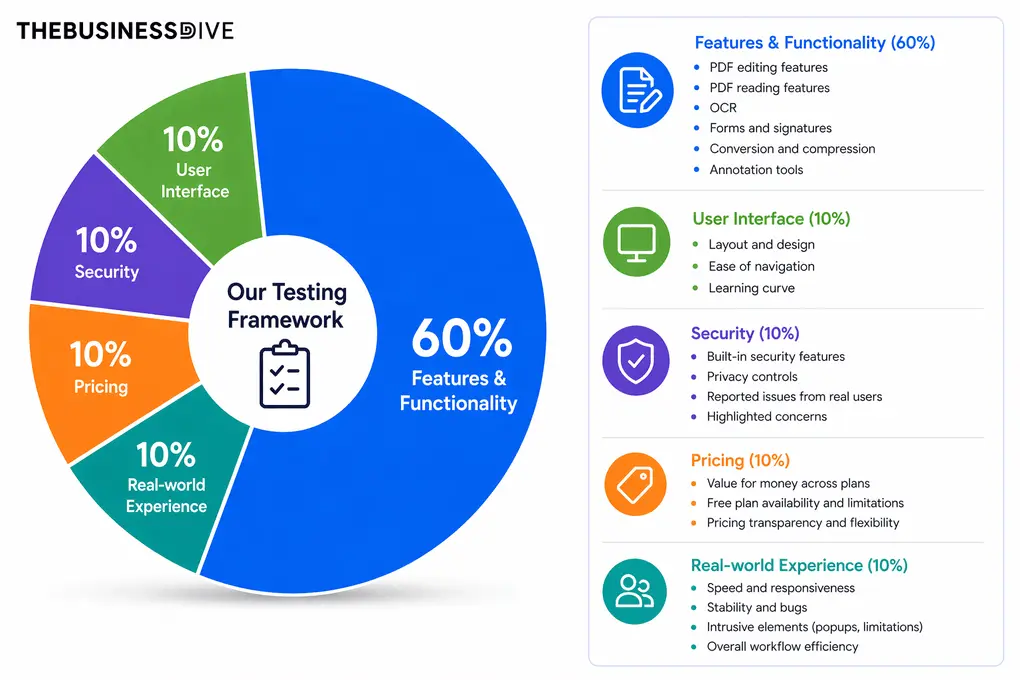
Our scoring breakdown after testing 30+ PDF editors:
🛠️ Features & functionality — 60%
🖥️ User interface — 10%
🔐 Security — 10%
💰 Pricing — 10%
👥 Real-world experience — 10%
Want a detailed breakdown of how we test each category?
Learn exactly how we test tools → Review methodology
Key differences between ONLYOFFICE and LibreOffice
Here is a short overview of the key differences I found in the LibreOffice vs ONLYOFFICE showdown:
|
|
|||
|---|---|---|---|
|
Best for |
Modern collaborative document and PDF workflows |
Free offline and open-source productivity work |
|
|
Core focus |
Office suite with collaboration and PDF editing |
Offline office suite with open-source flexibility |
|
|
Key strengths |
|
|
|
|
Main limitations |
Limited advanced PDF viewing modes |
No true PDF editor and less intuitive user interface |
|
|
Ease of use |
Easy |
Moderate |
|
|
Pricing |
|
|
|
|
Integrations |
AI plugins, cloud collaboration, and third-party integrations |
Extensions and community add-ons |
|
|
Cross-platform |
Web / Desktop / Mobile |
Desktop |
Comparison: ONLYOFFICE vs LibreOffice
First, I will show you my experience of both tools one by one. After, I will guide you through their key features, pricing, and user interfaces. Finally, I collected the pros and cons that I discovered during the ONLYOFFICE vs LibreOffice comparison.
Testing ONLYOFFICE PDF editor in everyday use
During my ONLYOFFICE PDF editor review, I used the ONLYOFFICE desktop app for my PDF files and forms. Just out of curiosity, I also took a look at the spreadsheet, document, and presentation editors.
They work quite similarly to Microsoft Word, Excel, and PowerPoint and offer a smooth experience. Overall, my feeling was that ONLYOFFICE is one of the best alternatives to Microsoft Office in terms of document compatibility and user interface.
Its PDF editor had a smooth experience as well. I did not experience any learning curve, and the whole process was very intuitive. I especially enjoyed trying some plugins and the way I can customize my tool stack for PDF documents.
During my ONLYOFFICE PDF editor review, I did not experience any performance issues compared to Adobe Acrobat.
Ultimately, I had a smooth and positive experience with ONLYOFFICE PDF editor. It offers not only a PDF editing solution but a wide array of tools for your documents, presentations, and spreadsheets.
🔎 Read my full ONLYOFFICE PDF Editor Review | An Exciting Option (2026)
Short on time? Here’s a quick overview of ONLYOFFICE
Who should use ONLYOFFICE
Who should NOT use ONLYOFFICE
My hands-on experience with LibreOffice
During my LibreOffice review, I used the desktop app to test documents, spreadsheets, presentations, and a few PDF files to see how it performs across different use cases.
From the start, it felt quite different from the PDF tools I’ve used before, since it’s not really designed as a typical PDF editor.
As I used it more, it became clear that LibreOffice is built for a different type of user. It makes the most sense for people who want a completely free, open-source office suite, especially students, public institutions, or teams that want full control and don’t rely on cloud tools. It also fits more advanced users who don’t mind a more complex interface in exchange for flexibility.
Overall, my experience with LibreOffice was mixed. It’s reliable and capable, but not the most intuitive choice if you’re used to more modern tools.
When to choose LibreOffice
When you should skip LibreOffice
Key features
Let’s continue with ONLYOFFICE’s features!
ONLYOFFICE’s features
Below, I guide you through the key features I tried during my ONLYOFFICE vs LibreOffice testing.
PDF software
Here, I break down the PDF functions of ONLYOFICE.
PDF editor
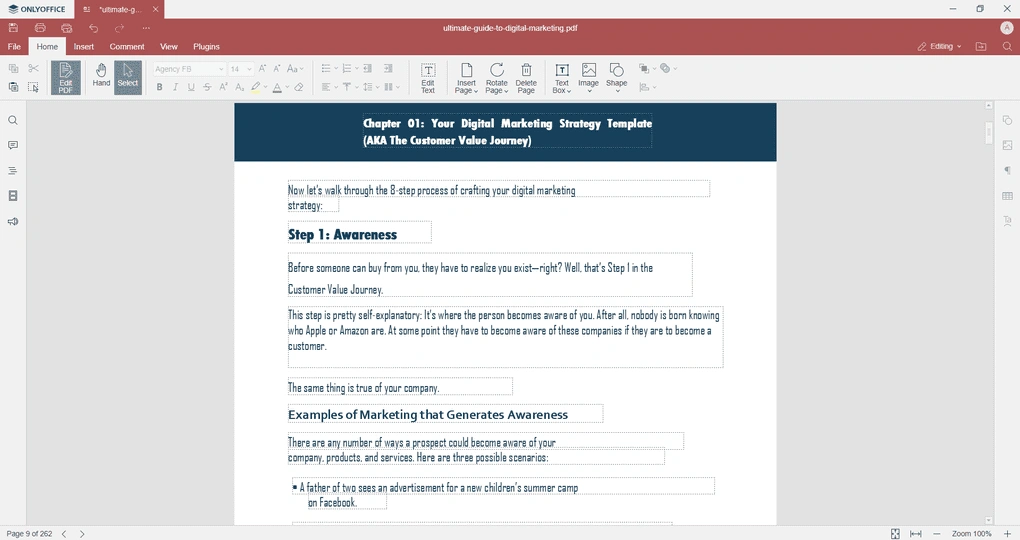
If you click on the edit PDF, you will see all the options to make changes in a PDF file. You can edit existing text, use a different font type for the text, adjust the size, and change the margins of a content block and paragraph alignment and spacing.
ONLYOFFICE PDF editor uses a drag-and-drop system when editing text in your PDF files. So, when you select a text box, you can not only edit it but also move around on the pages.
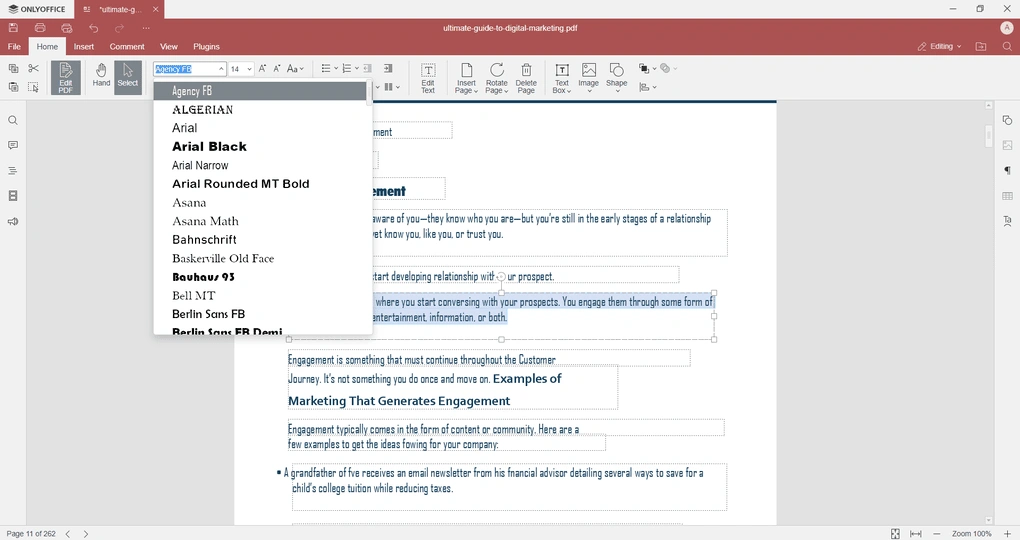
Besides editing existing text, you can add new text to your PDF. To add a new text box, just select the text box option above. Similarly to the editing features, you can change your text box’s fonts, color, etc.
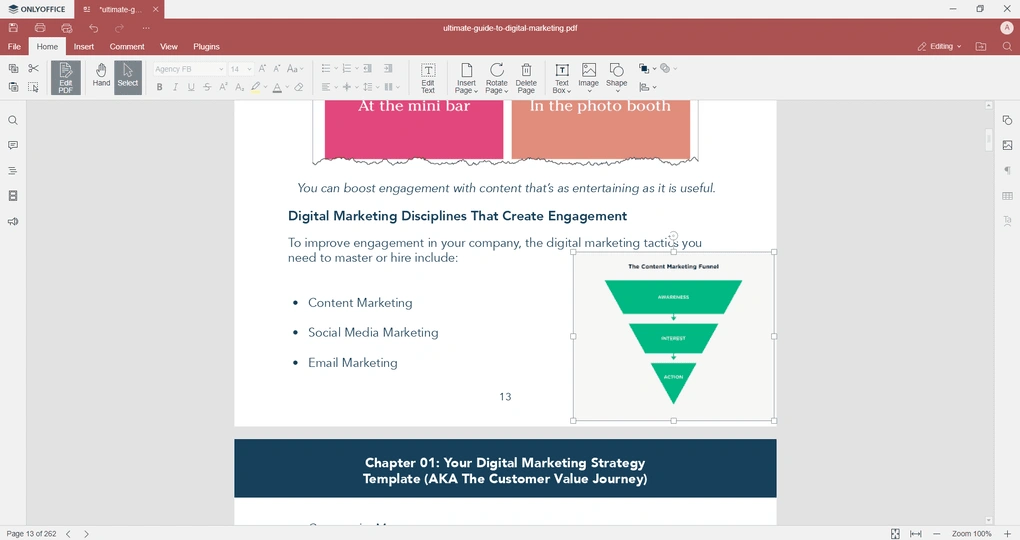
In addition to text editing, you can insert pictures into PDF documents using ONLYOFFICE PDF editor. When inserting a picture, it also follows a drag-and-drop system.
Therefore, once you insert the picture, to move it somewhere else, you only need to click on the edited picture, and you can place it somewhere else smoothly.
PDF reader
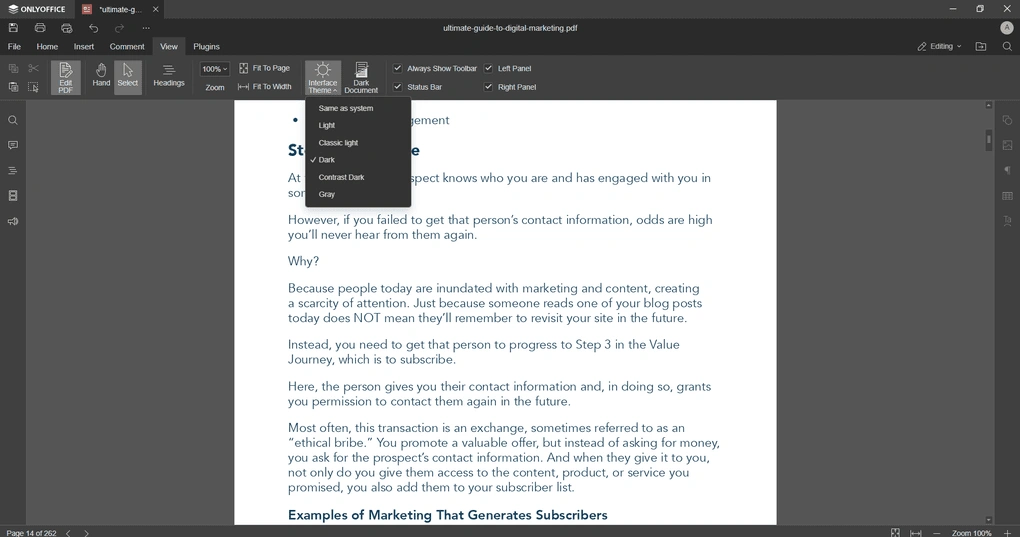
ONLYOFFICE has some essential PDF reader tools as well. On the right button of the page or the view option, you can zoom and choose from more themes.
For instance, you can use light or dark themes when reading your PDF documents. Personally, I really enjoyed the fact that the ONLYOFFICE PDF editor offers numerous themes for reading your PDFs.
Annotate PDF documents
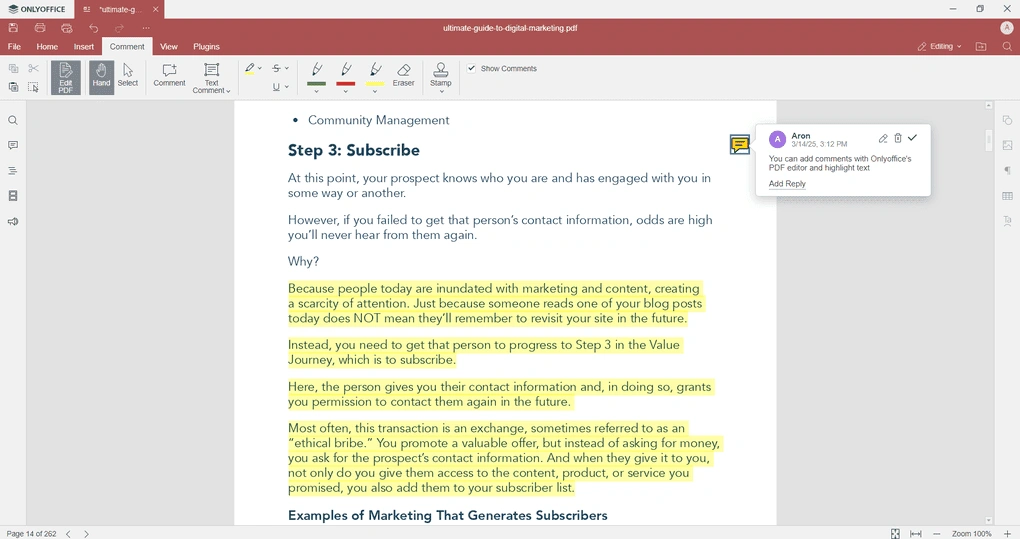
Annotating PDF documents is critical when it comes to team collaboration. Efficient PDF annotation tools help to review documents faster and more efficiently.
With the ONLYOFFICE PDF editor, you can access the PDF annotation tools by clicking on the Comment tab. Here, you will find the options to add comments, highlight text, apply strikethrough, or access the drawing tools.
PDF organizer
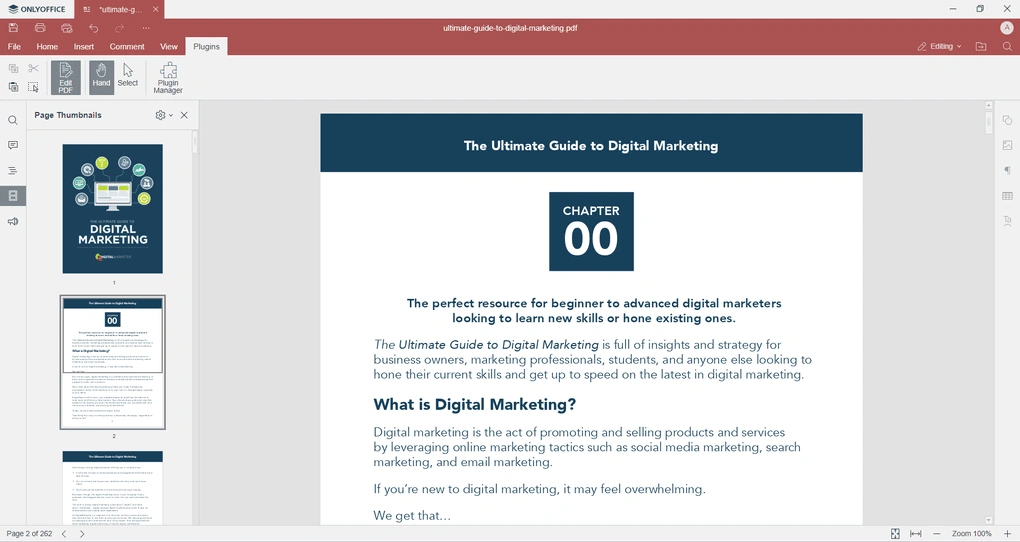
If you hit the Page Thumbnails button on the left, you can easily reorganize your pages with the ONLYOFFICE PDF editor. You only need to drag and drop the page’s thumbnail, and you can change the order.
PDF forms
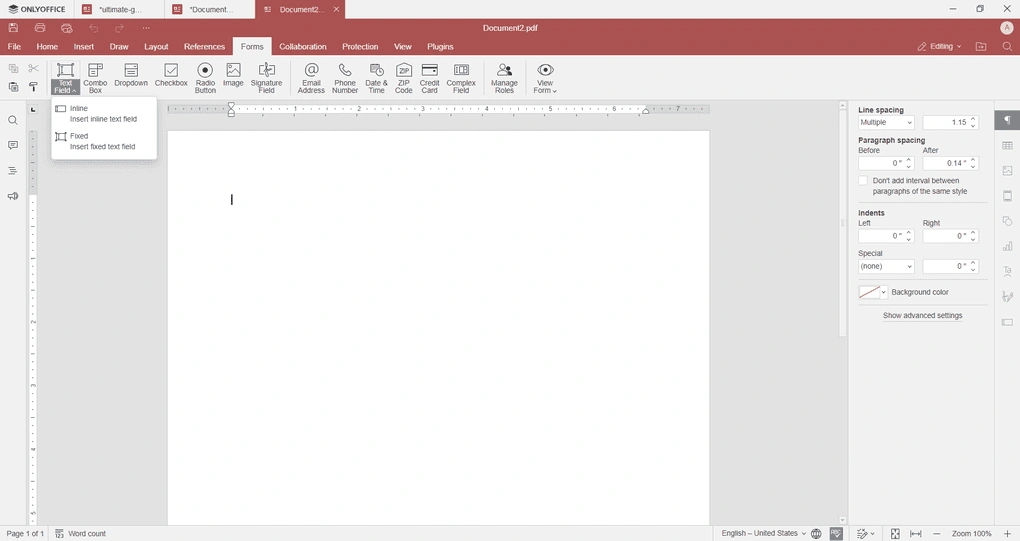
ONLYOFFICE PDF editor allows you to create PDF forms. If you go to the home page, select the PDF form on the left, and you will reach the same page as above.
Compared to other PDF editors, ONLYOFFICE PDF editor has all the tools to create customizable forms. You can insert text boxes, dropdown lists, checkboxes, images, signature fields, etc.
PDF protection
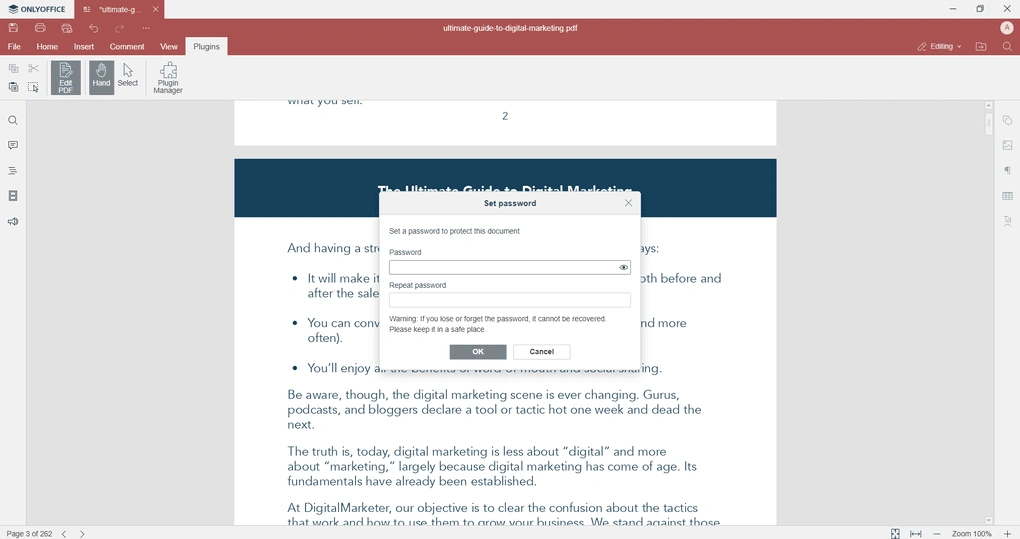
PDF protection is an important factor you need to consider, particularly for business users, as your PDFs can include your and other’s sensitive information.
If you click on the file, you can easily add passwords to your PDF files and restrict access. Just a side note here: you can not recover the password for your PDF file, so make sure you keep it in a safe place that you will not forget about.
Plugins
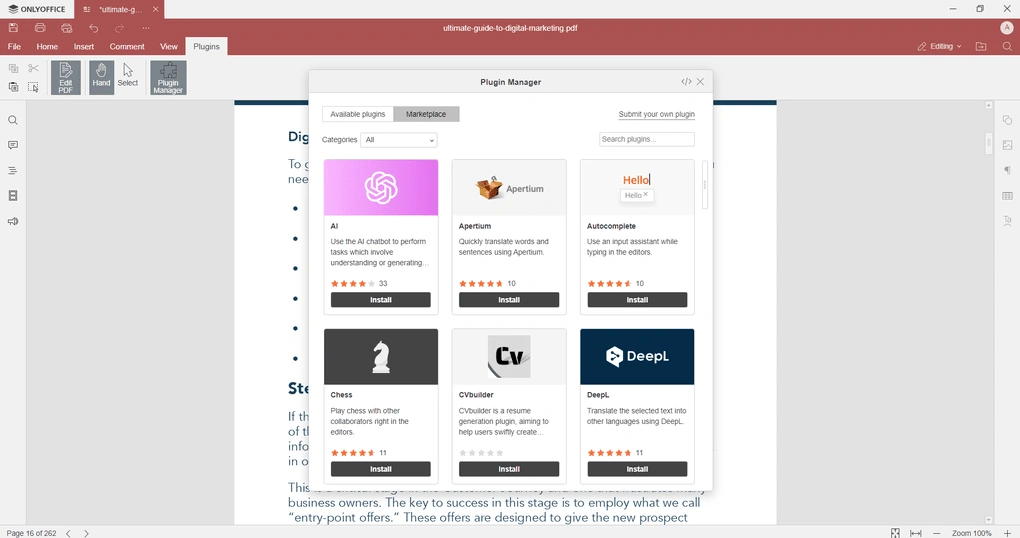
ONLYOFFICE PDF editor’s plugin feature is really special on the market. This is probably thanks to the fact that ONLYOFFICE is not only a PDF editor, but the ONLYOFFICE Suite includes other tools as well, such as presentation, document, and spreadsheet editor.
Using the plugins, you can boost your PDF experience with additional tools. For instance, you can install an AI chatbot plugin to perform tasks in your PDF and document editor. You can also install an OCR plugin for your PDF documents.
I really loved that all the plugins you can access are free, and I can personalize the tools I need for my PDF documents.
AI agents
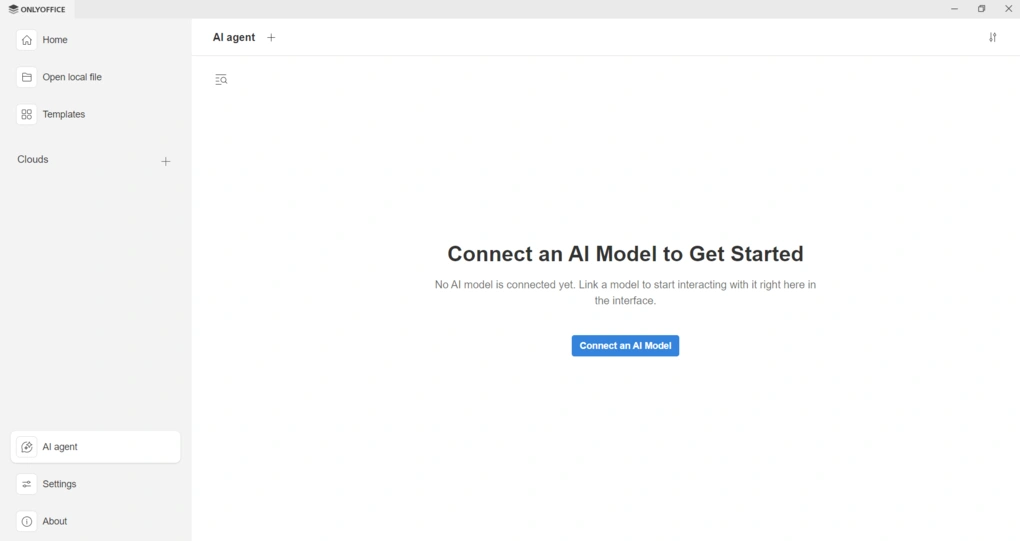
ONLYOFFICE also includes AI tools that can help you work faster inside the suite.
In ONLYOFFICE Desktop Editors, AI agents can analyze document content, search for information in files and on the web, and generate text. In the desktop app, the AI agent can generate and rewrite text, help with formatting, and even analyze and visualize spreadsheet data or create slide content from prompts.
Besides the standalone AI agent, ONLYOFFICE also offers an AI plugin that works directly inside documents, spreadsheets, presentations, and PDFs. You can use it to generate content, rewrite or summarize text, translate content, correct grammar and spelling mistakes, and perform other AI-powered editing tasks without leaving the editor.
Another advantage is that the AI plugin supports multiple AI providers, including ChatGPT, Claude, Gemini, DeepSeek, and local AI models, so you can customize how AI works inside the suite.
Keep in mind that you need to install and connect the AI plugin first, as AI is not enabled by default.
Document Editor
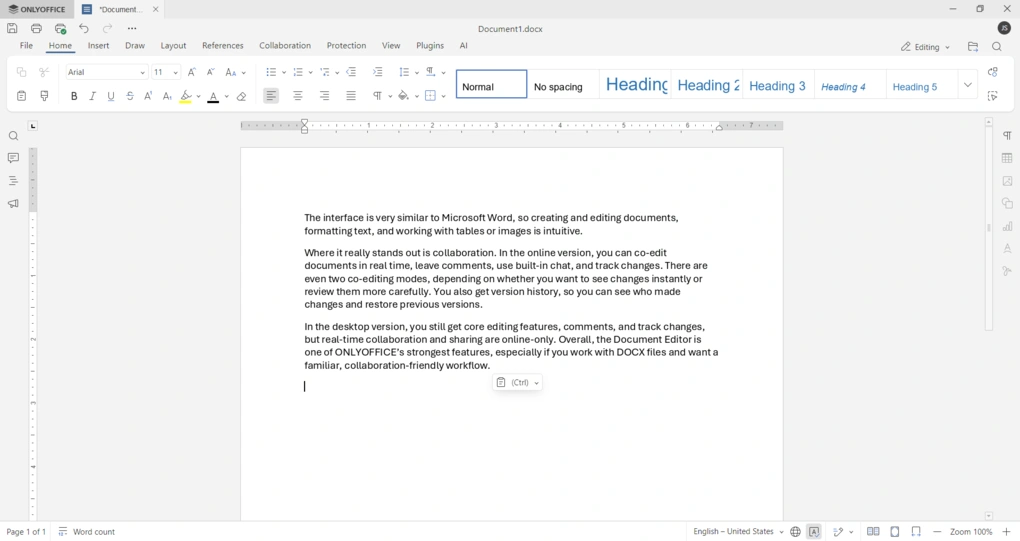
This is one of ONLYOFFICE’s strongest features. The interface is very similar to Microsoft Word, so creating and editing documents, formatting text, and working with tables or images is intuitive.
Where it really stands out is collaboration. In the online version, you can co-edit documents in real time, leave comments, use built-in chat, and track changes. There are even two co-editing modes, depending on whether you want to see changes instantly or review them more carefully. You also get version history, so you can see who made changes and restore previous versions.
In the desktop version, you still get core editing features, comments, and track changes, but real-time collaboration and sharing are online-only.
Spreadsheet Editor
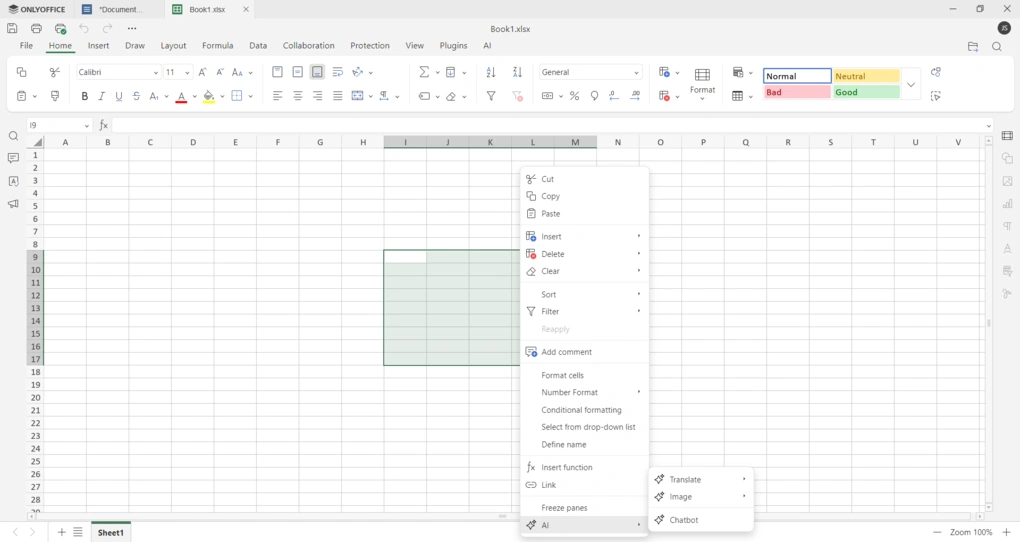
ONLYOFFICE’s Spreadsheet Editor supports all major formats like XLSX, XLS, ODS, and CSV, so working with Excel files is not a problem.
In terms of features, it covers both basic and advanced use cases. You get more than 400 functions and formulas, along with tools like pivot tables, conditional formatting, sorting and filtering, data validation, and macros.
There are also visualization options like charts, sparklines, and graphics, so it works well for both simple tracking and more complex data analysis.
For collaboration, the online version supports real-time co-editing, comments, chat, and version history, while the desktop app focuses on local editing.
Presentation Editor
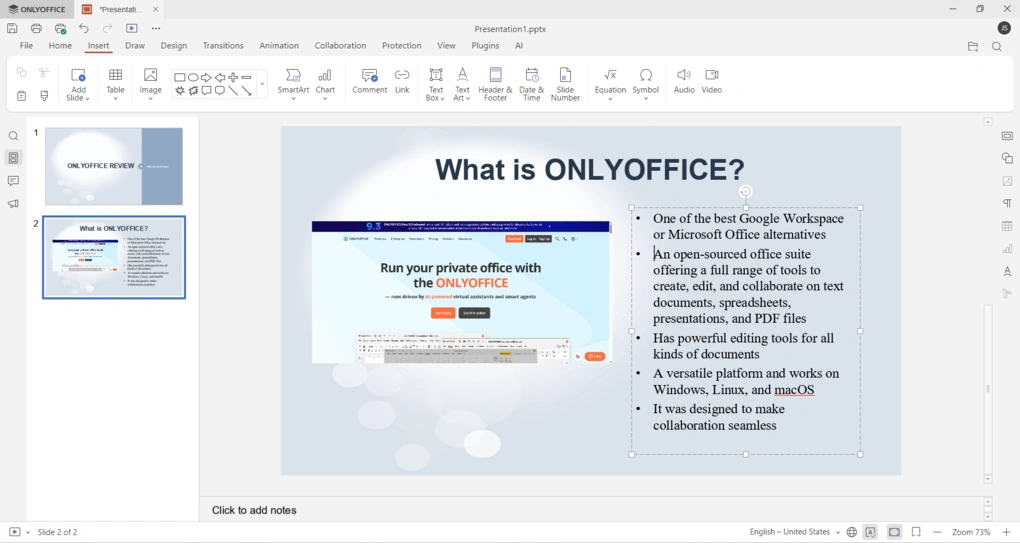
The Presentation Editor covers all the essentials, including creating new presentations, opening existing ones, changing color schemes, and using standard actions like copy, paste, undo, and redo.
For teams, it also offers collaboration features. In the online version, you can co-edit presentations in real time, leave comments, chat, share files, and track version history. In the desktop version, comment management is still available, but full sharing and live co-editing are online-only.
It also supports the formats most people actually use, including PPTX, PPT, ODP, PPSX, and KEY, and it can export presentations to PDF, PNG, and JPG. For viewing, you also get basic navigation tools like zoom and previous/next slide controls.
LibreOffice’s features
Now, it’s time to delve into LibreOffice’s features!
Document editor
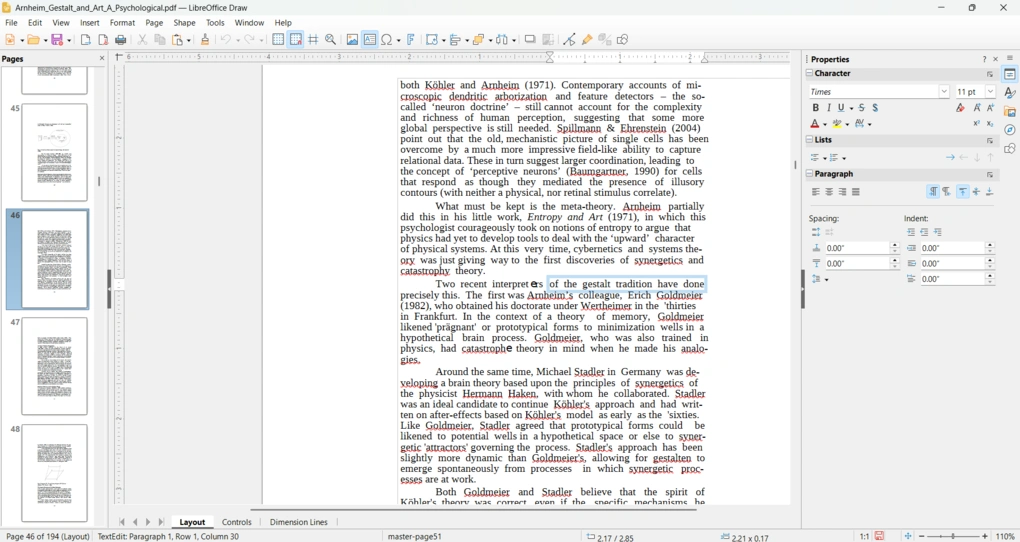
LibreOffice Writer is the suite’s core word processor and one of the main reasons many users choose LibreOffice in the first place.
It gives you everything you need to create and edit documents, from basic text formatting to more advanced layout options such as headers, footers, styles, tables, and columns.
During testing, the Writer was the most useful when I worked with longer, more structured documents. It is a traditional desktop editor, so it is not as polished or collaboration-focused as ONLYOFFICE, but it offers a solid set of tools for everyday writing.
PDF support
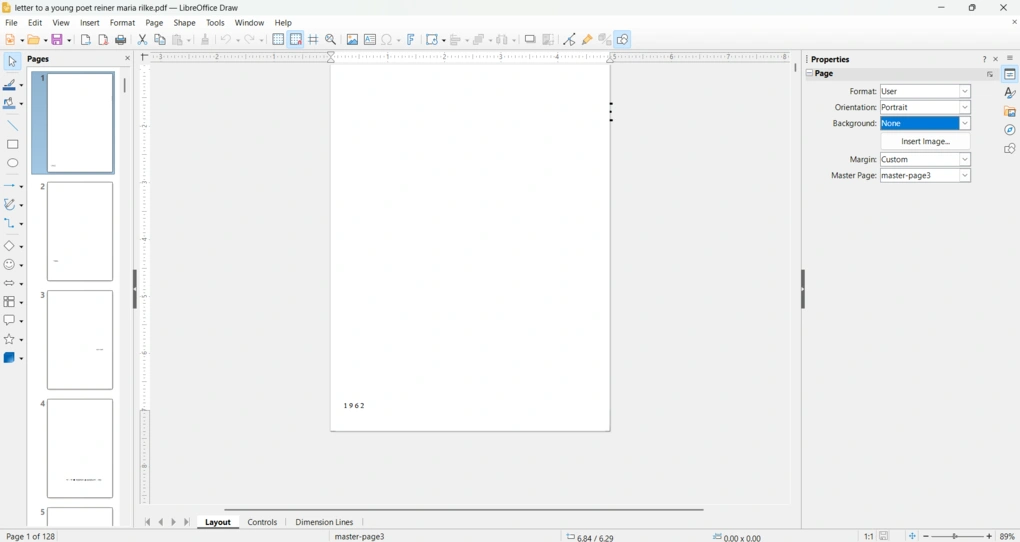
LibreOffice is not really a PDF editor in the same sense as dedicated PDF tools. Instead, it lets you open PDFs in Draw, where the file is converted into editable objects. In some cases, this works well enough for simple PDFs with clean layouts and selectable text.
However, this is also where LibreOffice shows one of its biggest weaknesses. More complex PDFs, especially scanned files, heavily formatted pages, or documents with unusual fonts, can open imperfectly or not render correctly at all. So while you can technically edit some PDFs, the experience is far from seamless.
Draw
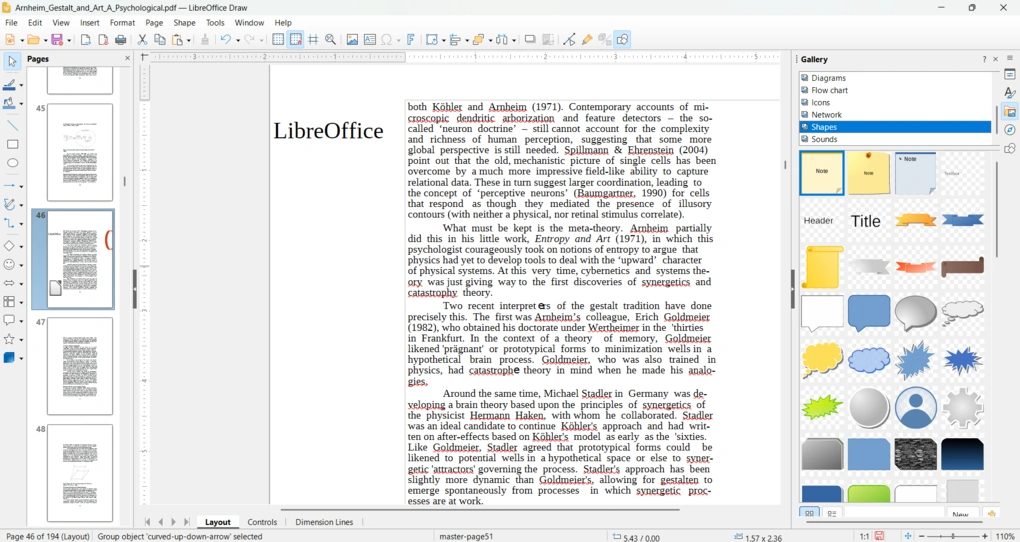
LibreOffice Draw is the feature that makes PDF handling possible in the first place. It is a vector graphics and layout tool, but many users rely on it to make basic edits to PDF files, such as adjusting text blocks, moving objects, or changing certain elements on the page.
That said, Draw is best treated as a workaround rather than a true PDF editor. It can be useful for light edits, but it is not the most reliable option if you want to work with PDFs regularly.
Spreadsheet editor
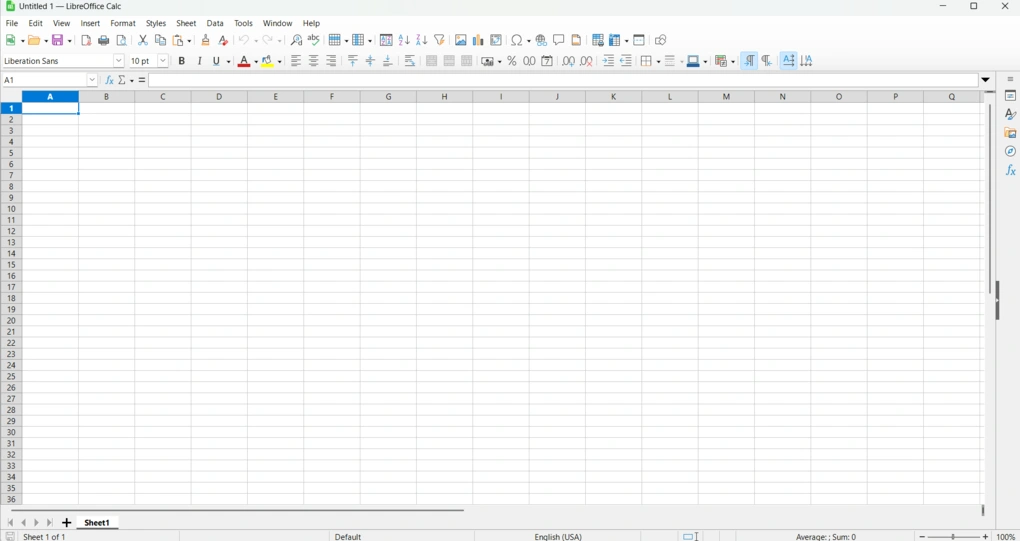
LibreOffice Calc is the suite’s spreadsheet tool, and it is one of the strongest parts of the platform. It includes the usual spreadsheet essentials, such as formulas, charts, sorting, filtering, and pivot tables, so it’s suitable for both simple and more advanced data work.
Compared to ONLYOFFICE, Calc is a bit more traditional, but it’s still a capable tool if you need to manage data locally.
Presentation editor
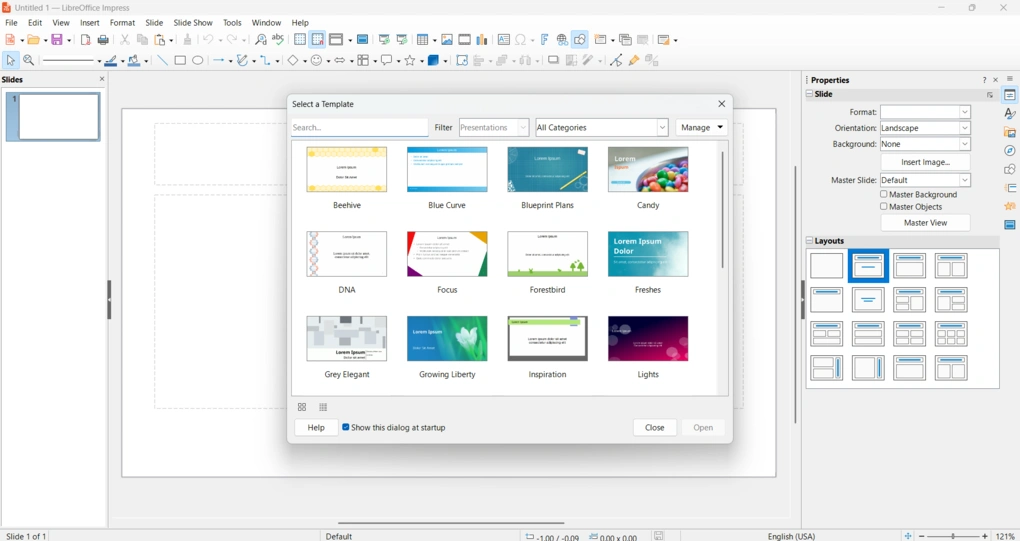
LibreOffice Impress lets you create and edit presentations, and it covers the basics well. You can build slides, add text and images, and work with transitions and animations. It is not the most modern presentation editor out there, but it gets the job done.
For users who need a free offline alternative to mainstream office suites, Impress is a practical option.
Open-source flexibility
One of LibreOffice’s biggest strengths is that it is completely open source and free to use. That’s a big plus for individuals, schools, nonprofits, businesses, or anyone who wants to avoid subscriptions and keep full control over their software.
This also means LibreOffice has a strong community behind it, along with extensions and customization options that can make the suite more adaptable over time.
File compatibility and export options
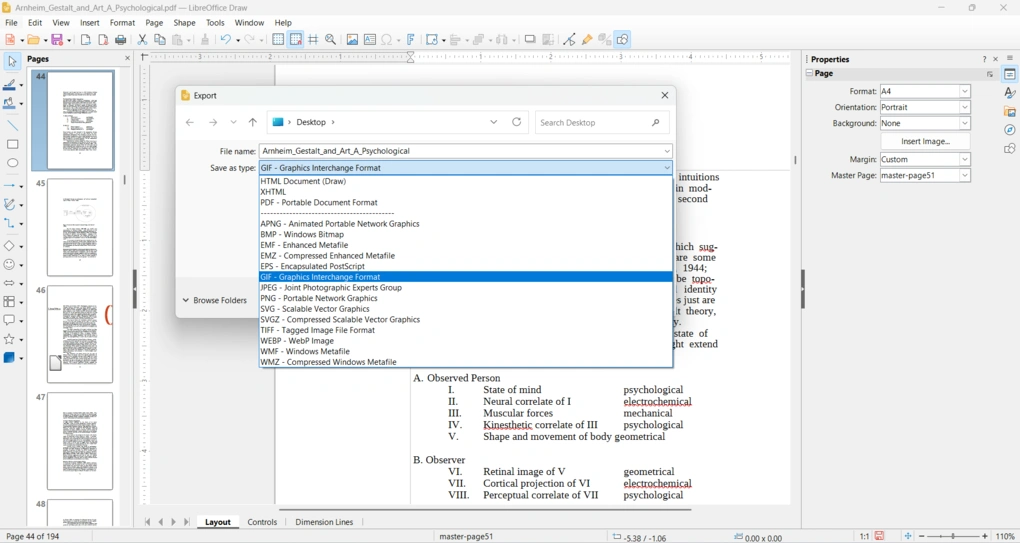
LibreOffice supports a wide range of file formats, including its native ODF formats as well as common Microsoft Office files. It also offers strong export options, especially when it comes to saving documents as PDFs.
From my experience, it’s most useful when your main goal is to create documents locally and export them into a shareable format at the end.
Plans & value
Let’s take a look at the pricing structure of each tool.
ONLYOFFICE’s cost breakdown

You can use ONLYOFFICE in two ways.
First, you can download the desktop app (i.e., ONLYOFFICE Desktop Editors), and after you install it, you can use it for free.
Second, you can create a free ONLYOFFICE DocSpace account and work on PDFs and other office files. DocSpace also offers a paid plan with some benefits and more storage space. It starts at $20 per admin monthly.
Explore our Apps directory
A curated directory of software tools we’ve independently reviewed, with links to full reviews, comparisons, and category guides.
LibreOffice’s cost breakdown
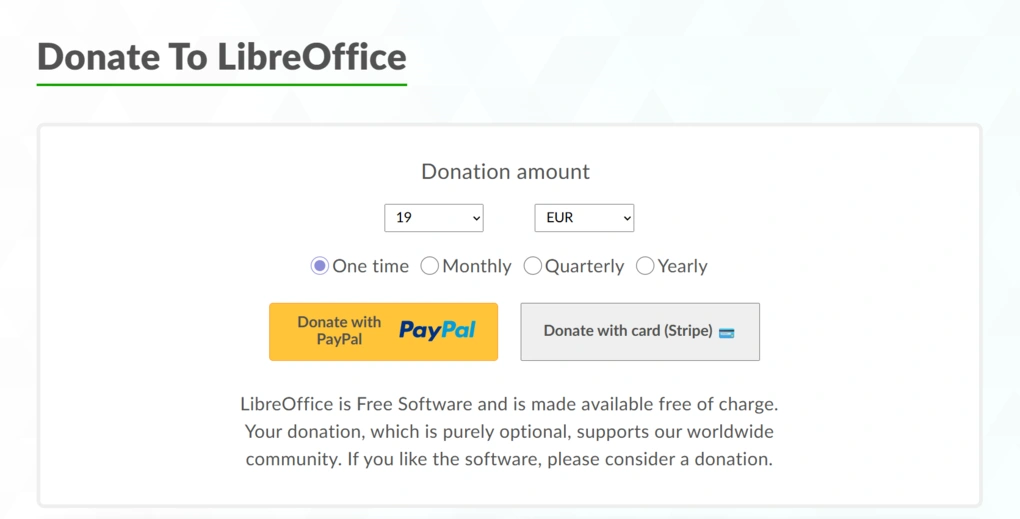
LibreOffice is completely free to download and use, with no subscriptions, licensing fees, or paid tiers to unlock features.
You get access to the full suite (Writer, Calc, Impress, Draw, and more) without any limitations, whether you’re using it personally or for business.
The only exception is if you install it through app stores like the Microsoft Store or Mac App Store, where there might be a small one-time fee, but that’s mainly to support distribution and development, while the software itself remains open-source and free.
In short, LibreOffice is one of the few tools in this space that gives you full functionality without any ongoing costs or upgrade pressure.
User interface
ONLYOFFICE’s user interface
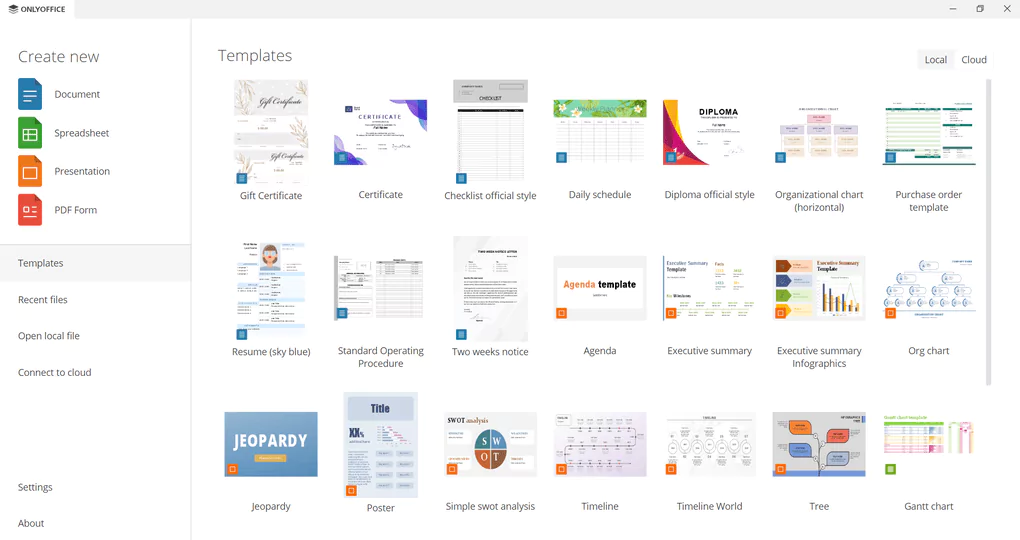
ONLYOFFICE PDF editor has a simple user interface with many easy-to-use tools. It is an excellent PDF editor for both work and personal use.
Moreover, you can access some templates for documents, spreadsheets, or presentations. It is also a quite unique addition.
LibreOffice’s user interface
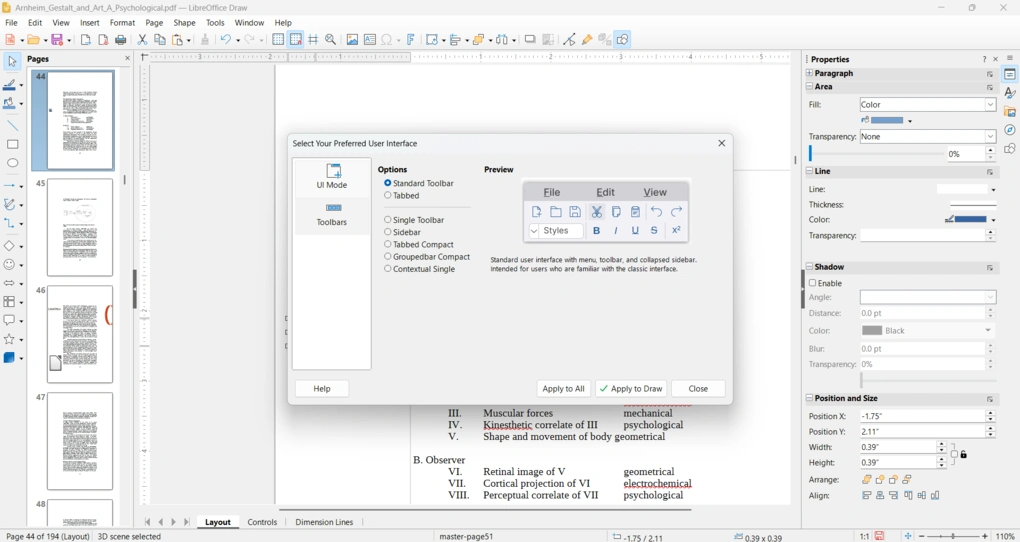
LibreOffice has a very traditional interface with lots of menus and toolbars. There are a lot of options, many of which I didn’t personally need, which made my experience a bit overwhelming at first.
That said, LibreOffice does offer some customization options, such as switching to a tabbed (ribbon-style) view or adjusting the toolbar to better fit your workflow. This helps make the interface more usable, but it still leans more toward functionality than simplicity.
Overall, LibreOffice’s interface is practical and reliable, but it is not as intuitive or visually polished as some newer office tools.
Pros and cons of ONLYOFFICE
After reviewing my ONLYOFFICE PDF editor, I found the pros and cons you should know about this software.
ONLYOFFICE PDF editor’s pros
ONLYOFFICE PDF editor’s cons
Pros and cons of LibreOffice
Here, I summarize the pros and cons I found throughout my LibreOffice review.
LibreOffice pros
LibreOffice cons
Alternatives to ONLYOFFICE and LibreOffice
If you feel like ONLYOFFICE or LibreOffice is not perfect for you, here are the best alternatives:
|
App |
Best for |
Description |
|---|---|---|
|
EaseUS PDF Editor |
Best all-in-one PDF editor for beginners |
It is an all-in-one PDF software to read, edit, annotate, and convert your documents. Full EaseUS PDF Editor review | Quick EaseUS PDF Editor overview |
|
Tenorshare PDNob |
Best for AI-powered PDF editing |
It is an easy-to-use AI-powered PDF editor that offers many features to edit, read, organize, and annotate your documents. Full Tenorshare PDNob review | Quick Tenorshare PDNob overview |
|
PDF Expert |
Best for Mac users |
A PDF editor for Mac, iPhone, and iPad users that offers all the tools you need to manage your PDF files, from annotation tools to signing PDFs. |
|
Xodo PDF Studio |
Best offline PDF editor |
A straightforward offline desktop PDF editor for Windows, Linux, and iOS devices, with great PDF reading and editing tools. Full Xodo PDF Studio review | Quick Xodo PDF Studio overview |
|
UPDF |
Best value PDF editor with AI features |
One of my favorite PDF editors with advanced AI features and budget-friendly pricing. |
|
Nitro |
Best for business PDF workflows |
A feature-rich PDF editor with a strong focus on PDF editing. |
|
Smallpdf |
Best online PDF tool |
An online PDF software with numerous tools to convert, compress, and edit PDF files for free. |
|
pdfFiller |
Best for e-signatures and document workflows |
It offers a signing and editing solution that lets users sign and edit documents, send them for signature, and manage the full electronic document workflow in one place. |
|
LightPDF |
Best for AI PDF productivity |
An AI-powered PDF editor that lets you edit, convert, OCR, sign, annotate, chat with PDFs, and more. |
|
PDFgear |
Best free PDF editor |
A completely free, offline PDF editor with solid editing, OCR, conversion, and AI tools. |
|
PDF-XChange |
Best advanced PDF editor for Windows |
A powerful Windows-based PDF editor with advanced editing, annotation, security, and conversion tools. |
|
Sejda PDF Editor |
Best for simple, everyday PDF tasks |
An intuitive and simple PDF software best suited for personal use for those who need a PDF editor for basic PDF tasks. |
|
Soda PDF |
Best for security and file conversion |
A user-friendly PDF editor with solid core features, strong security tools, and broad file conversion options, but its advanced features come at a relatively high price. |
|
PDF Candy |
Best PDF toolkit with multiple tools |
A very practical PDF toolkit with a large number of useful tools, solid performance, and affordable pricing. |
|
Tungsten Power PDF |
Best enterprise-grade PDF solution |
A powerful PDF editor and document management tool designed for businesses, offering advanced editing, security, OCR, and collaboration features. Full Tungsten Power PDF review | Quick Tungsten Power PDF overview |
|
ABBYY FineReader |
Best for OCR and document digitization |
A powerful OCR-focused PDF tool with strong layout detection, flexible conversion, and an efficient workflow. Full ABBYY FineReader review | Quick ABBYY FineReader overview |
|
PDFelement |
Best balance of features and ease of use |
An easy-to-use PDF editor with valuable features for a reasonable price. |
My pick: ONLYOFFICE vs LibreOffice
After testing both tools, my pick is ONLYOFFICE.
It’s simply closer to what most people expect today: a clean interface, intuitive workflow, and a much more consistent experience when working with PDFs.
LibreOffice, on the other hand, is not a bad tool at all, but it’s built with a different mindset. It makes more sense if you specifically want a completely free, open-source solution and don’t mind a more complex interface or a less predictable PDF workflow.
Related articles:
- 6 Best OCR Software For 2026 | 30+ Personally Tested Tools
- 10 Best PDF Editors In 2026 | 30+ Personally Tested PDF Tools
- The 6 Best PDF Readers For 2026 (Only FREE Options)
- 6 Best PDF Converter For 2026 | 30+ Personally Tested Tools
Looking for similar tools?
Visit our library of PDF editors to explore other apps we’ve reviewed in this space and how they compare.
Why you can trust our reviews
At thebusinessdive.com, our team tests, reviews, and compares hundreds of productivity apps every year — from project management tools to note-taking apps. We dive deep into real-world use cases to help you find the right tools that actually improve your workflow, not just add noise.
Our mission? No fluff, no shortcuts—just honest, hands-on insights from productivity pros.
Discover how we stay transparent, read our review methodology, and let us know about any tools we missed.
Frequently asked questions
What is the main difference between ONLYOFFICE vs LibreOffice?
The main difference in ONLYOFFICE vs LibreOffice comes down to usability and workflow. ONLYOFFICE offers a more modern UI, better compatibility with Microsoft Office formats (DOCX, XLSX, PPTX), and strong real-time collaboration. LibreOffice, on the other hand, is a fully open source office suite focused on offline use, open standards, and extensive customization.
Which office suite is better for Microsoft Office compatibility?
ONLYOFFICE is generally better for working with Microsoft Office formats, as it is built around Office Open XML (OOXML). This means files from Microsoft Word, Microsoft Excel, and PowerPoint usually keep their formatting. LibreOffice supports these formats too, but complex documents may not always look the same.
Is LibreOffice a good alternative to Microsoft Office?
Yes, LibreOffice is a strong Microsoft Office alternative, especially if you want a free, open source office suite. It includes a word processor, spreadsheet tool (LibreOffice Calc), and presentation editor, along with extra tools like Base and Math. It’s especially useful for users who prefer working offline on desktop apps.
Does ONLYOFFICE support collaboration and cloud features?
Yes, ONLYOFFICE offers advanced real-time collaboration, including co-editing, comments, version history, and cloud connectivity. It works well for teams that rely on cloud services and shared documents. In comparison, LibreOffice has limited collaborative editing and is more focused on local desktop use.
Which one should you choose: ONLYOFFICE or LibreOffice?
You should choose ONLYOFFICE if you want a more familiar interface, better file compatibility, and strong collaboration features. Choose LibreOffice if you prefer a fully free, open source office suite with offline capabilities and more control over your files.

Hey! I’m Jovana, a content writer who loves writing, researching, and testing new productivity apps. With a background in philosophy, I bring a thoughtful but no-bullshit approach to everything I do. Let’s connect on Linkedin!