


Read AI Review 2026: Is It Safe to Use? (My REAL Test)
Read AI positions itself as an AI copilot, not just a meeting assistant. It connects meetings, emails, and chats into one system that generates summaries, insights, and answers.
So, how well does it deliver on that?
While it does go beyond note-taking by connecting meetings, emails, and chats, it still falls short in a few key areas, especially when it comes to privacy and feature access.
In this Read AI review, I’ll walk you through what it’s actually like to use the tool, from core features to pricing and privacy red flags.
Let’s dive in!
Verdict
Here’s the quick verdict if you don’t want to read the full review:
🎯 Best for: Teams & individuals who want an all-in-one AI meeting assistant with transcription, summaries, and insights
🚫 Not ideal for: Privacy-sensitive users and teams that need advanced collaboration features
⭐ Biggest strength: Strong all-in-one system with accurate transcription, summaries, and searchable meeting insights
⚠️ Biggest weakness: Privacy concerns and key features locked behind higher-tier plans
⚖️ Verdict: AI meeting assistant that goes beyond note-taking, but concerns around privacy and limited access in lower plans make it hard to recommend
🏆 Score: 3.1 / 5
✅ Tested with our review & scoring methodology ✅ Real-world testing ✅ Unbiased evaluation
Read AI Review
Summary
Read AI is an AI meeting assistant with solid transcription, summaries, and search that help you quickly revisit meetings. However, limited features on lower plans and ongoing privacy concerns make it harder to rely on.
|
|
Reliable transcription with speaker labels and timestamps
|
|
|
Strong all-in-one system (summaries, playback, search, analytics)
|
|
|
Useful playback and search for quickly revisiting meetings
|
|
|
Coaching and analytics can help improve communication skills
|
|
|
Integrates well with major meeting tools
|
|
|
Privacy concerns (bot joining meetings without clear consent reported by users)
|
|
|
Limited collaboration features for teams
|
|
|
Key features locked behind higher-tier plans (including during trials)
|
How We Test AI Note-Takers
To keep our reviews and final scores fair and consistent, we evaluate every AI note-taking tool using a standardized testing framework built on real-world usage and hands-on experience.
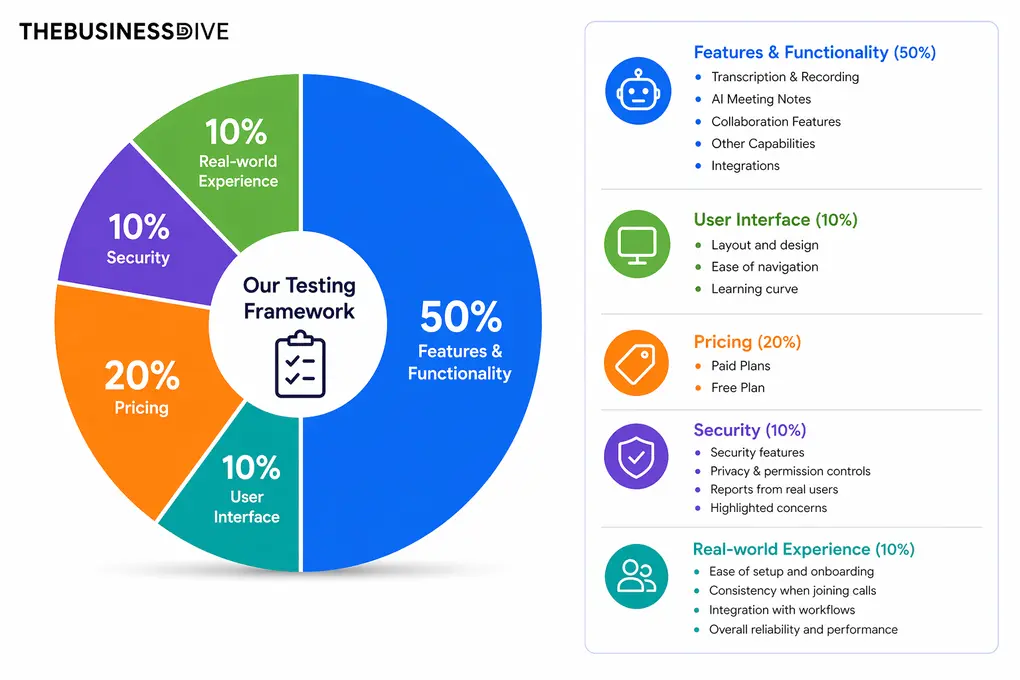
Our scoring breakdown after testing 20+ AI note-takers:
🤖 Features & functionality — 50%
🖥️ User interface — 10%
💰 Pricing — 20%
🔐 Security — 10%
👥 Real-world experience — 10%
Want a detailed breakdown of how we test each category?
Learn exactly how we test tools → Review methodology
Short on time? Here’s a quick overview of Read AI
What is Read AI?
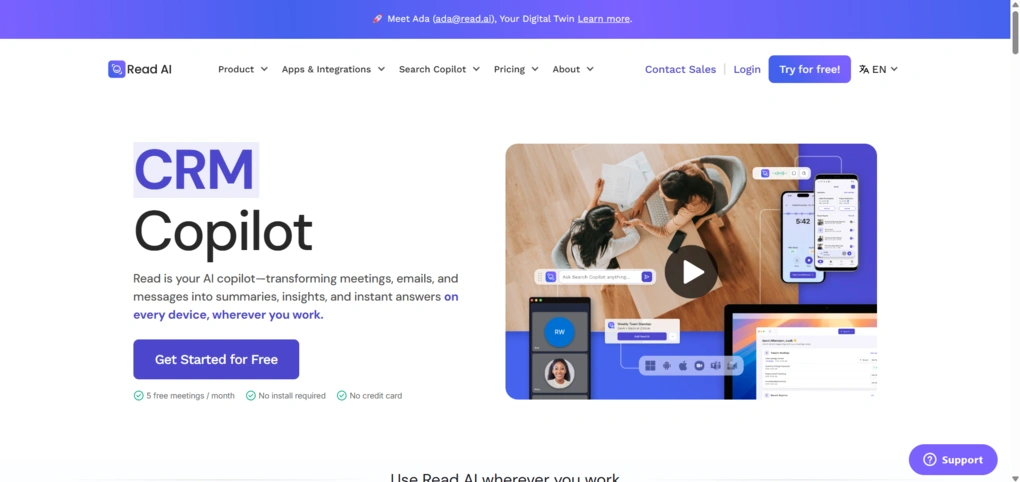
Read AI is an AI-powered meeting assistant developed by the company Read AI, a relatively new player in the productivity space.
The platform records, transcribes, and generates automated meeting summaries for major video conferencing tools like Zoom, Google Meet, and Microsoft Teams. Beyond basic note-taking, it adds layers such as meeting insights, engagement tracking, and communication feedback.
It supports more than 25 languages, including major global languages like English, Spanish, French, German, and Chinese. It can automatically detect the language used in your meetings and generate transcripts and summaries accordingly.
Read AI has gained popularity largely among individuals and small teams looking to automate documentation and get more value out of their calls.
At the same time, user feedback around privacy, pricing transparency, and overall reliability has been mixed, which is something worth keeping in mind from the start.
My experience with Read AI
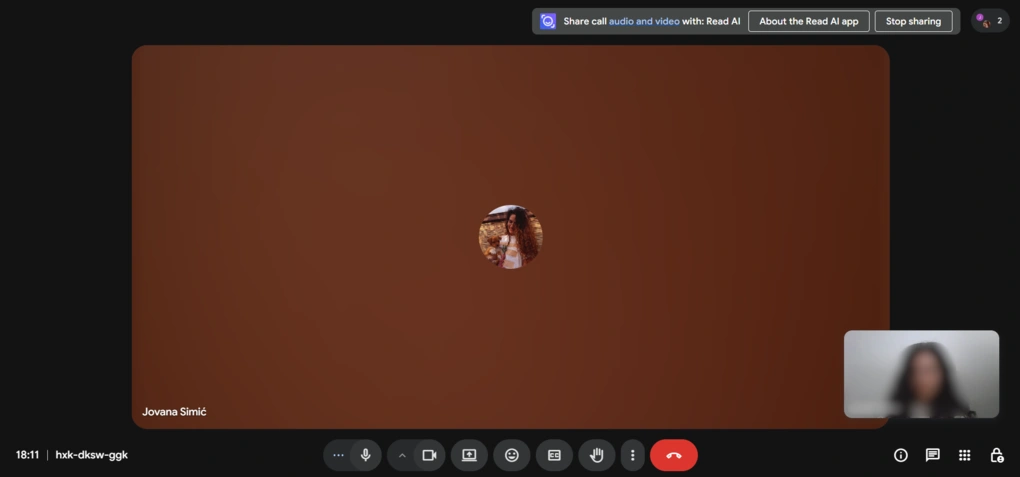
Overall, my experience with Read AI was a bit split. The core features work well. Transcription is accurate, summaries are easy to skim, and I found myself actually using playback and search to go back to specific parts of meetings instead of rewatching everything.
The whole system feels like it’s trying to turn meetings into something searchable and reusable, not just recorded.
At the same time, not everything is equally useful. Some features, like recommendations or parts of the analytics, were more like extras than something I’d rely on regularly.
The interface also took some time getting used to, and ongoing privacy concerns about Read AI may discourage some of you. But I will show you later everything you need to know about its safety and privacy.
Why Read AI got a 3.1 / 5 score
Read AI performs well when it comes to transcription, summaries, playback, and search, and it does a good job of turning meetings into something searchable and reusable. It also goes beyond basic note-taking with features like coaching, recommendations, and a personalized feed.
Where it loses points is in privacy concerns, limited collaboration features, and the fact that some important capabilities are locked behind higher-tier plans. The free version is especially restricted, which makes it harder to recommend as a full solution.
Who Read AI is a good fit for
Who Read AI is not ideal for
Read AI’s key features
Let’s take a deep dive into the key features I tried during my Read AI review!
Meeting Transcription
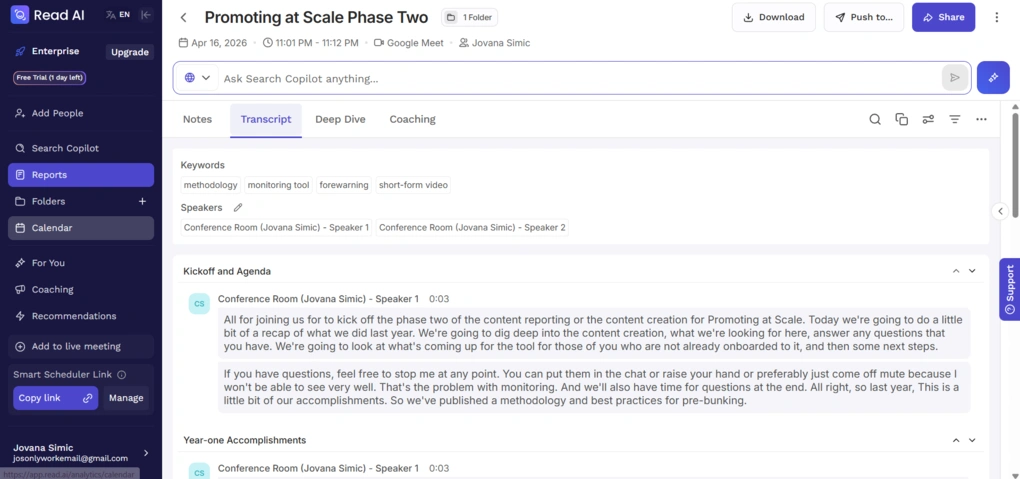
At its core, it works as a meeting assistant, and Read AI joins meetings, records them, and generates transcripts.
It integrates with Zoom, Google Meet, and Microsoft Teams, so once it’s set up, it can capture meetings with minimal manual input. The transcripts are generally accurate, with speaker labels and timestamps that make it easy to follow conversations and revisit specific moments.
What sets it apart from basic transcription tools is the added layer of context. Read AI enriches transcripts with summaries, action items, key questions, and audience reactions.
So, instead of going through the entire recording, you can identify at a glance where key decisions or important discussions actually happened.
When it comes to transcription accuracy, it scored around 85% during my testing, which is solid but well behind tools like Fellow or MeetGeek that can reach 95% or even more.
That said, the experience still depends on the quality of the meeting itself. In longer or more chaotic calls, speaker identification can get inconsistent, and not all highlighted moments are equally useful.
AI Summaries
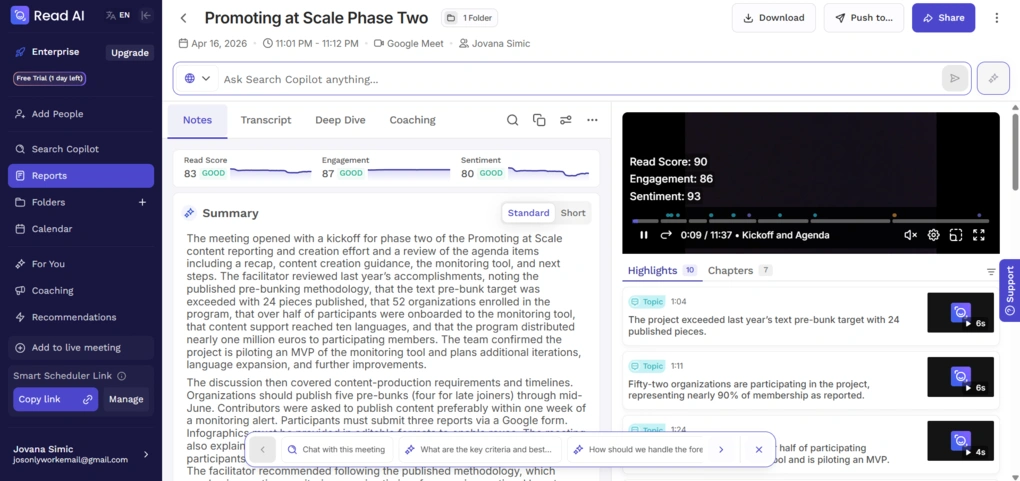
One of the main reasons to use a tool like Read AI is to avoid going through full meeting recordings. Instead, you get AI-generated summaries and highlighted key moments right after the call.
The summaries are structured and easy to scan. They usually include a general overview of the meeting, main discussion points, and action items.
Read AI also identifies key moments based on engagement and reactions, and surfaces them as highlights. This should help you focus only on the most important parts of the conversation. However, the quality is somewhat inconsistent.
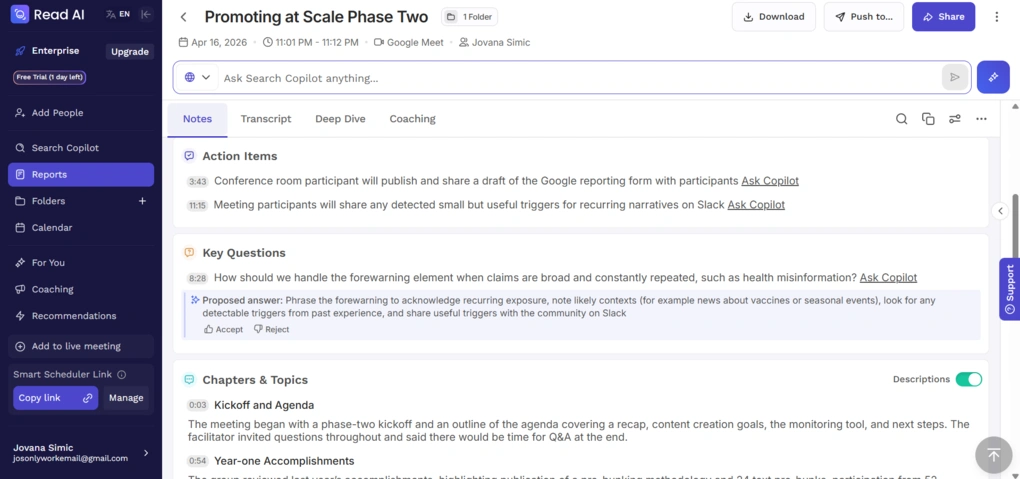
For straightforward meetings, like status updates or short calls, the summaries are clear and useful. But in longer or more complex discussions, they can feel a bit generic and sometimes miss important context.
The highlighted moments are helpful, but not always perfectly aligned with what you would personally consider “key.” Some are genuinely useful, while others are less relevant.
Even though this feature saves time, it still requires a quick review to be sure you didn’t miss anything important.
File Uploads
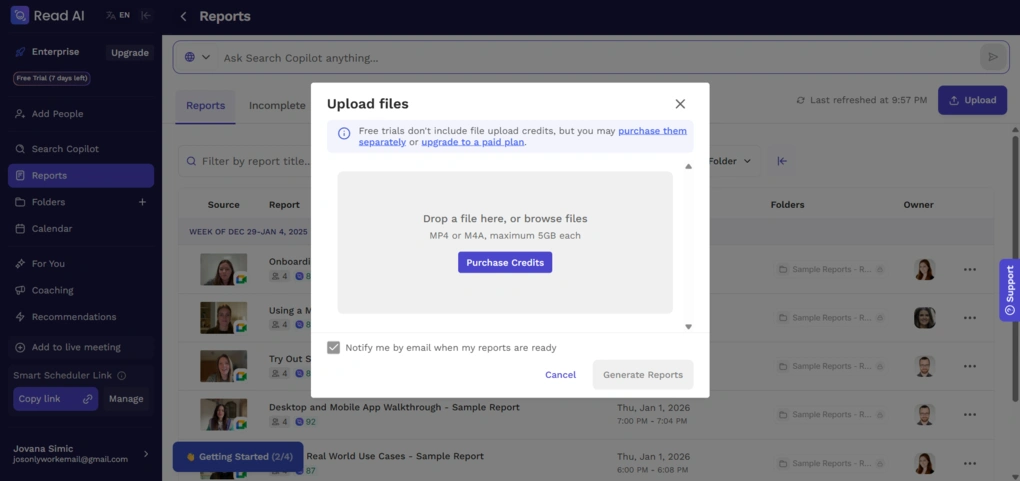
In addition to recording live meetings, Read AI also allows you to upload existing audio or video files and generate transcripts, summaries, and insights from them.
This can be useful if you want to analyze past calls, interviews, or recordings that weren’t captured through the platform.
However, this is also where I ran into one of the more frustrating limitations.
During my testing, I used the Enterprise free trial, but the file upload feature was still locked behind a paywall. That means I couldn’t actually test how well it works in practice, which is disappointing considering it’s a fairly important use case.
This made it harder to fully evaluate the platform and raised some questions about how much value you can access before committing to a paid plan.
Meeting Playback
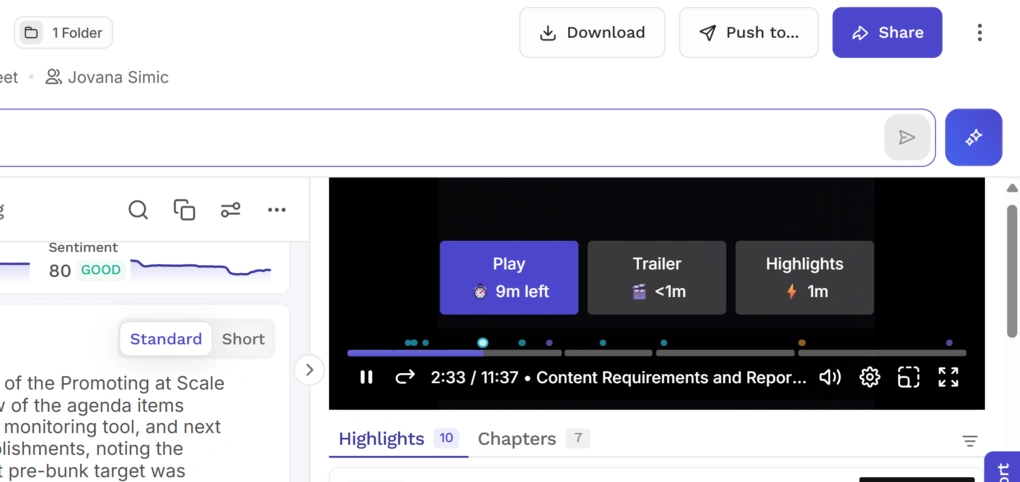
While summaries help you understand what happened in a meeting, Read AI’s playback features focus on how you revisit it.
Instead of going through full recordings, you can jump directly to specific parts of the meeting using interactive playback. The transcript, highlights, and video are synced, so clicking on a moment takes you straight to that point in the recording.
This is one of the more practical features, especially if you prefer watching over reading. It works particularly well when you already know what you’re looking for and just need to jump to the right moment.
However, its usefulness still depends on how well those moments are identified in the first place. If the highlights miss the mark, the playback experience becomes less efficient.
AI Search & “For You” Feed
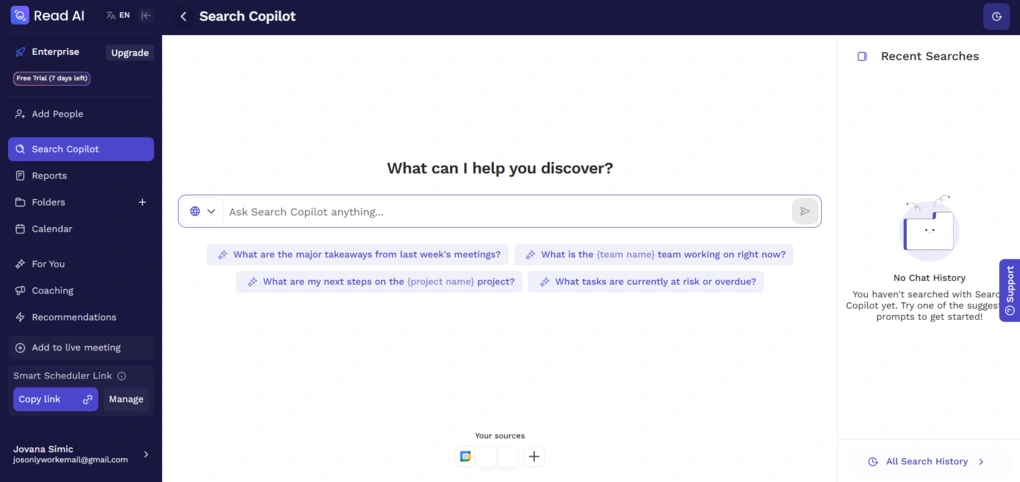
One of the more ambitious parts of Read AI is how it handles information after your meetings are done.
Instead of just storing transcripts and summaries, it lets you search across them using natural language. You can ask questions and get direct answers pulled from past meetings, along with references to where that information came from.
In addition to that, Read AI offers a personalized “For You” feed that surfaces relevant insights, summaries, and updates based on your recent activity. The idea is to bring important information to you, instead of making you dig through past meetings.
In practice, this is where Read AI starts to feel more like an AI workspace than just a meeting tool.
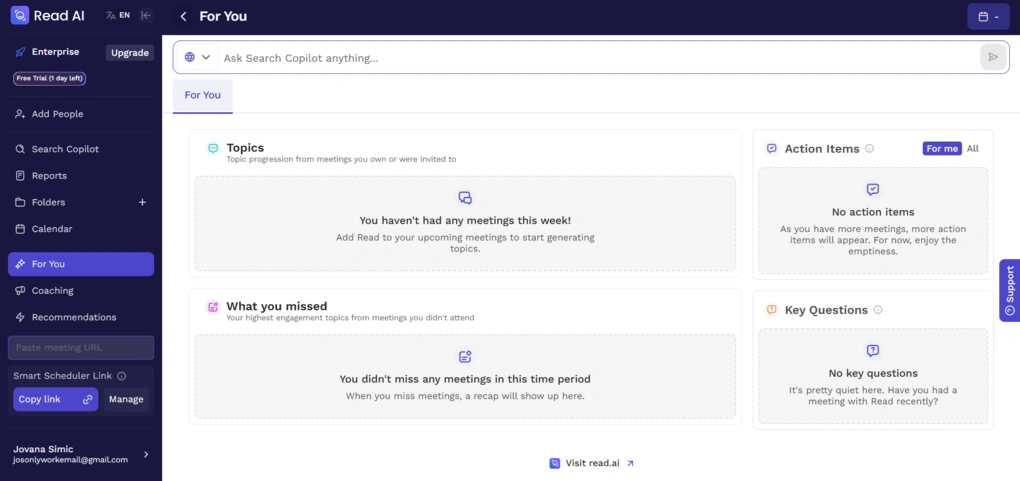
That said, the experience is still evolving. The search works well for straightforward queries, but it can struggle with more complex or vague questions. The “For You” feed is useful, but not always essential, and its value depends on how actively you use the platform.
Overall, this feature has a lot of potential, especially for people who handle a high volume of meetings, but it doesn’t fully replace manually reviewing important conversations yet.
Personalized Coaching
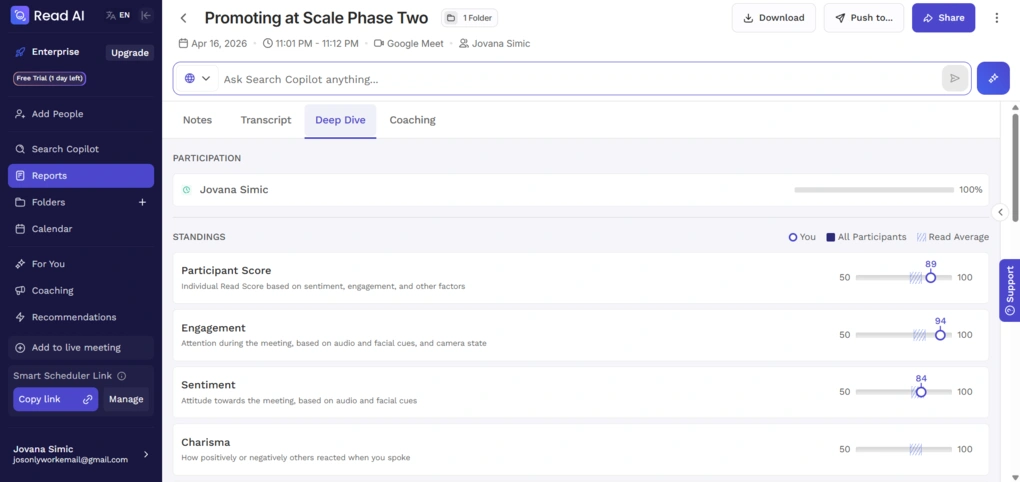
Read AI goes beyond transcription and summaries by offering insights into how you communicate during meetings.
It tracks metrics like talk time, pace, interruptions, and overall engagement, and presents them in a way that’s easy to review after each call. You also get sentiment analysis and feedback on how others reacted during the conversation.
For roles like sales, recruiting, or leadership, these insights can be valuable for improving communication and spotting patterns over time. However, they’re not essential for every user, and their value increases the more intentional you are about improving your communication.
Recommendations
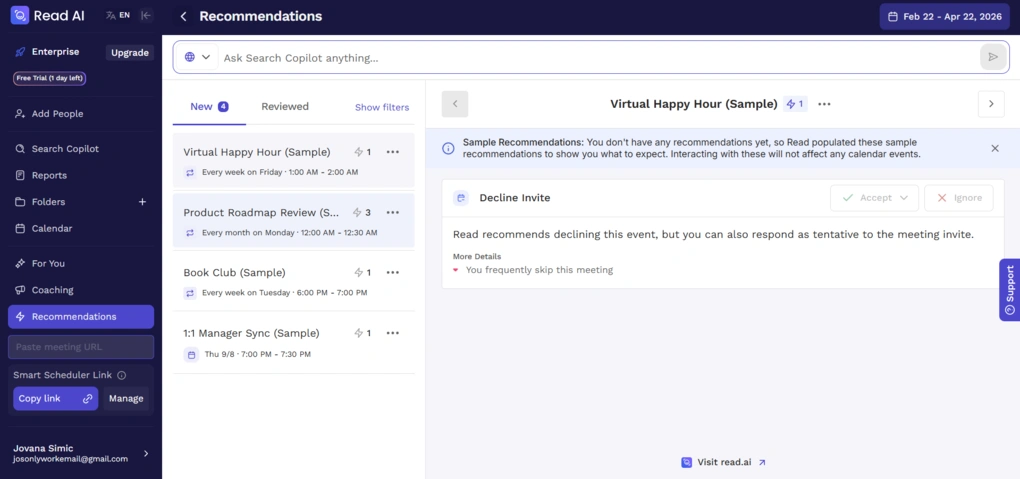
One feature that sets Read AI apart is its ability to suggest ways to improve your meeting efficiency over time.
Based on past calls, it generates recommendations related to participation, structure, and overall efficiency. For example, it might suggest reducing the number of participants, adjusting meeting length, or encouraging more balanced discussion for higher meeting productivity.
Smart Scheduler
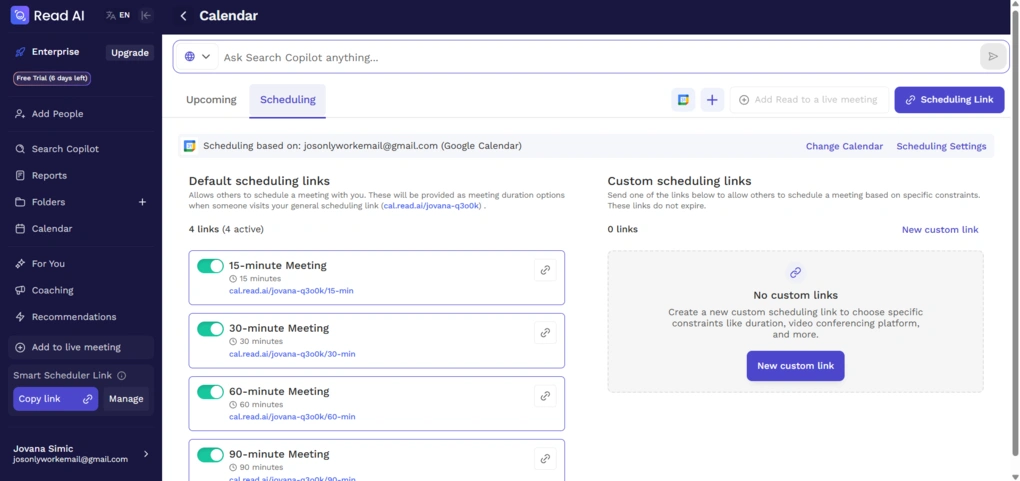
Read AI also includes a built-in scheduling feature that helps you book meetings.
You can create and share scheduling links, allowing others to book time directly in your calendar based on your availability. This works similarly to tools like Calendly.
What makes it different is that Read AI doesn’t just suggest available time slots. It also analyzes your past meetings and recommends times that are more likely to lead to better engagement and more productive conversations.
Collaboration tools & Workspaces
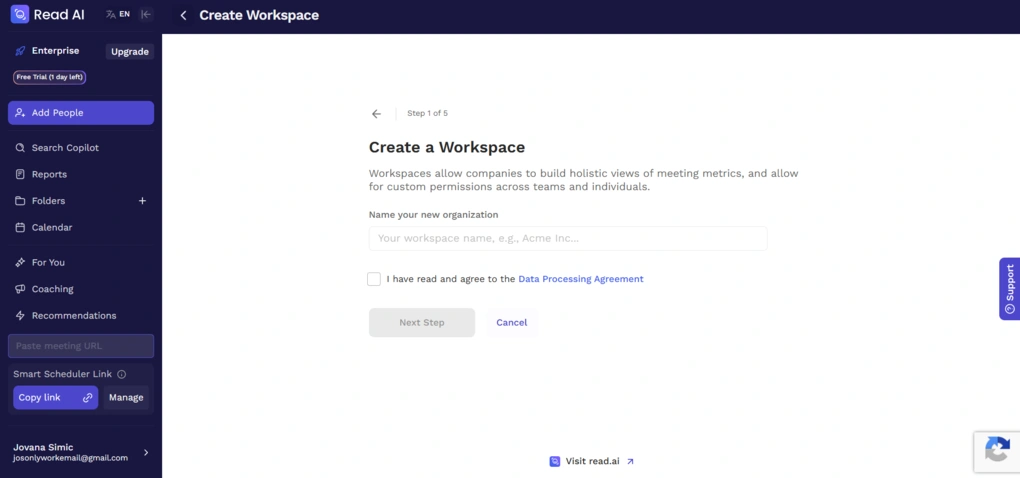
Read AI includes collaboration features through shared workspaces, where you can store and access meeting notes, transcripts, and recordings with your team.
You can share meetings, organize content, and distribute summaries through tools like Slack or email. For basic use, this works fine and keeps everything in one place.
However, this is also where Read AI starts to become limited.
The collaboration layer is quite simple and doesn’t go much beyond sharing and viewing content. There’s no real depth when it comes to working together on meetings, such as detailed commenting, structured feedback, or more advanced permission controls.
Because of this, Read AI is much more suitable for individual use or small teams than for larger, collaboration-heavy environments.
Read AI integrations
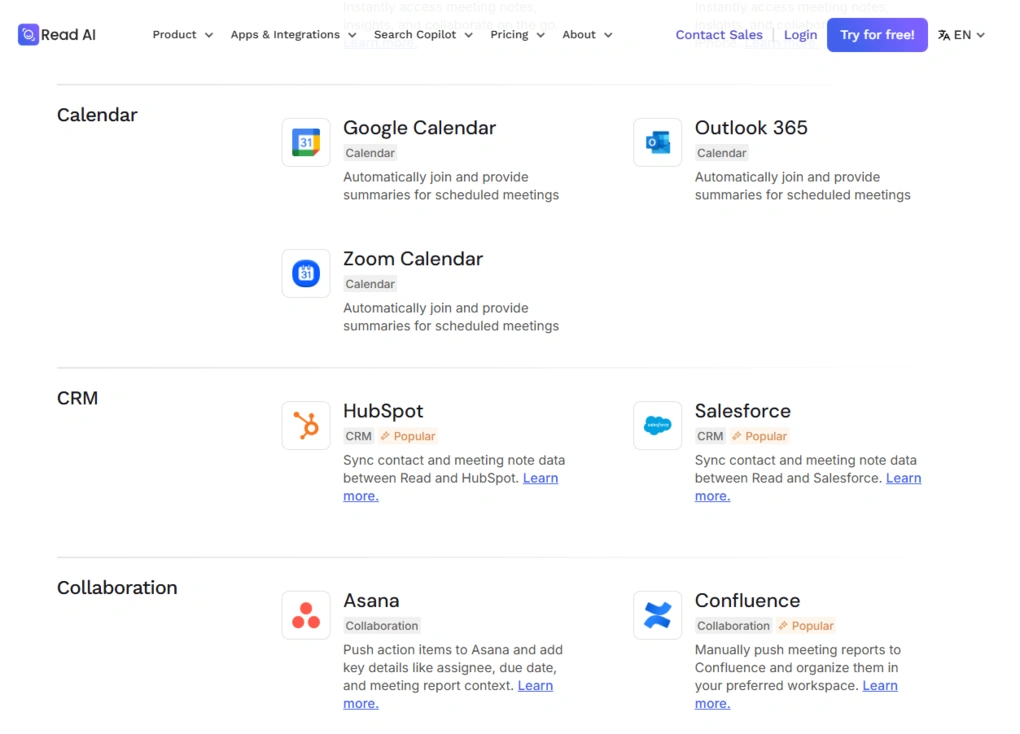
You can connect Read AI with various third-party applications, including communication tools, CRM systems, and knowledge platforms.
It integrates with tools like Slack, Gmail, HubSpot, and Notion, and also supports automation through Zapier, which allows you to connect it with thousands of other apps and workflows.
Nevertheless, access to integrations is somewhat limited. Some of the more advanced integrations, such as CRM and automation tools, are only available on paid plans, which means the free version gives you access to only the basics.
Explore our Apps directory
A curated directory of software tools we’ve independently reviewed, with links to full reviews, comparisons, and category guides.
User interface
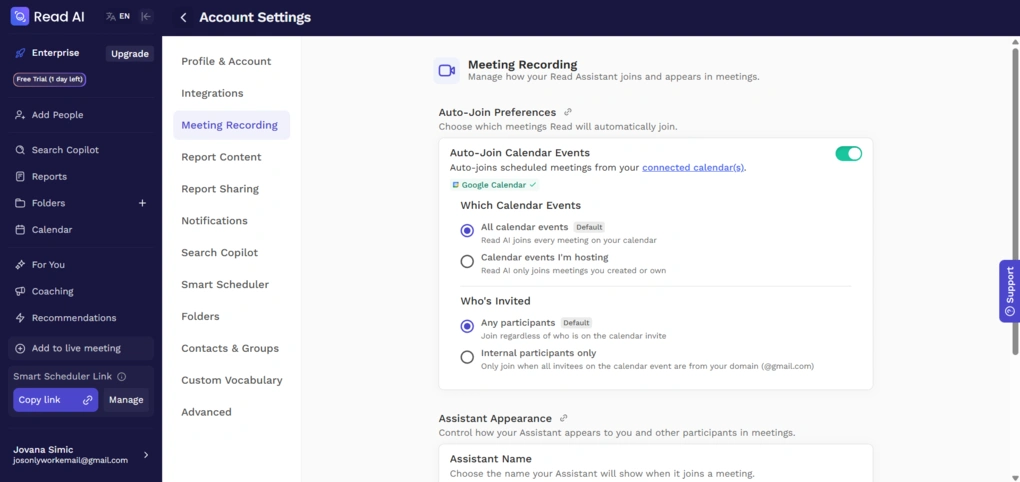
I had mixed impressions of Read AI’s user interface.
It looks clean at first, but navigation can feel a bit cluttered once you start using it more. Most features are placed in a sidebar, and you often need to scroll to access everything, which makes it harder to get a clear overview.
Overall, it’s usable, but the layout and navigation make the learning curve slightly longer than it needs to be.
Security and privacy risks
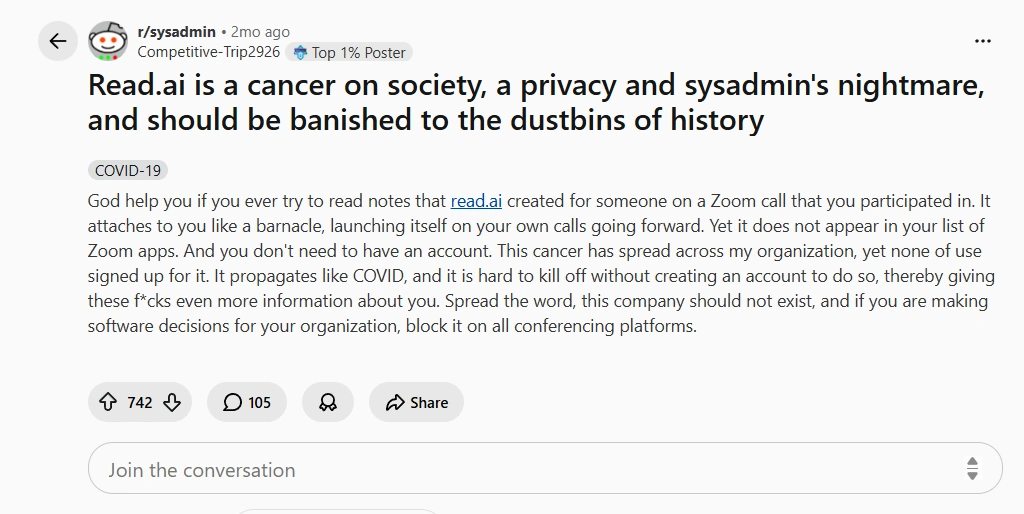
One of the biggest concerns with Read AI isn’t what it does, but how it does it.
Because it connects directly to your calendar and meeting tools, Read AI can automatically join meetings, record conversations, and generate reports. While this requires permissions, in practice it can still be intrusive, especially if other attendees are not fully aware that a bot is present or recording.
This is where most of the privacy concerns come from, and it’s something I kept seeing mentioned in user discussions as well. Some users on Reddit report that Read AI joined meetings without their knowledge or was automatically added to calls even when they didn’t have an account, while others had trouble removing it once it was connected.
A lot of those posts also sound genuinely frustrated, which says a lot about how strongly people feel about this issue.
There are also broader concerns about permissions and data access. In some threads, users describe the tool as overly aggressive in requesting permissions or being enabled through indirect onboarding flows, which can lead to people unknowingly giving it access to their meetings.
To be fair, this isn’t unique to Read AI. Most AI note-takers that join meetings as bots come with similar trade-offs. Still, if you’re working with sensitive information or external clients, it’s something you’ll want to think through in advance.
In my experience, the tool is useful, but it does require a certain level of trust. And whether that feels acceptable or not will really depend on how you and your team prefer to handle meeting privacy.
Read AI pricing plans
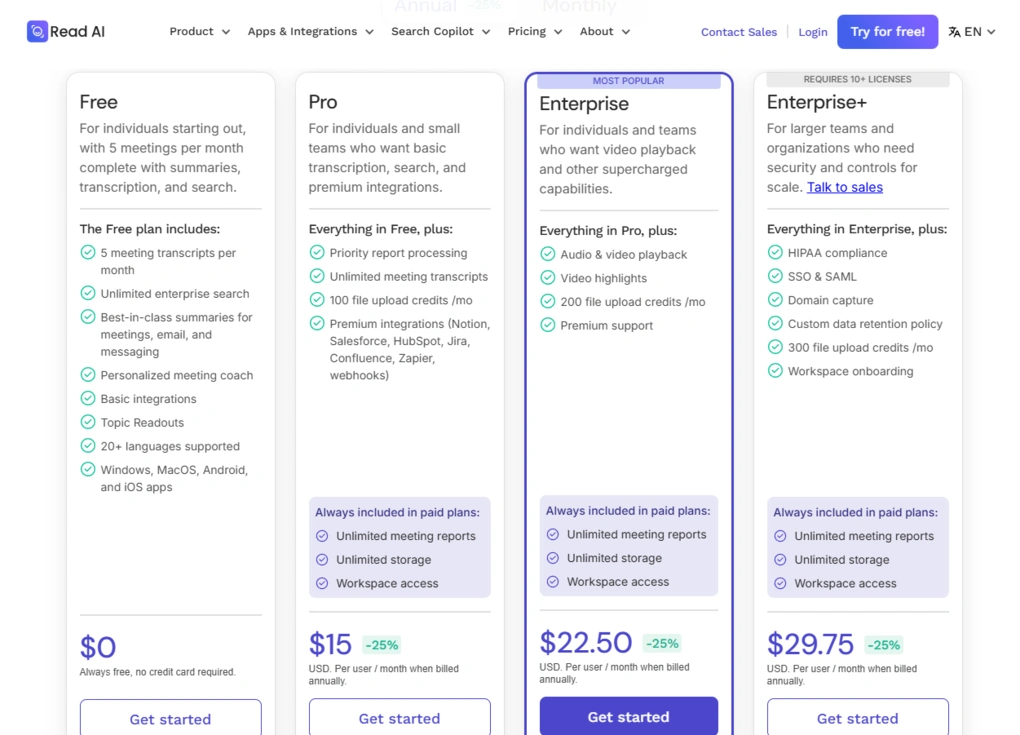
Read AI offers four pricing plans.
Its Free plan includes up to 5 meetings per month, along with basic transcription, summaries, search, and coaching features. It’s a solid starting point, but it comes with clear limitations, especially when it comes to integrations and uploads.
Its Pro plan starts at $15 per user per month when billed annually. With this plan, you get unlimited meetings, premium integrations, and up to 100 file uploads per month, making it more suitable for individuals and small teams.
The Enterprise plan costs $22.50 per user per month with annual billing. It adds features like video playback, highlights, priority support, and increases file upload limits to 200 per month.
Lastly, the Enterprise+ plan costs $29.75 per user per month when billed annually. It includes advanced features like SSO and SAML, HIPAA compliance, custom data retention, and up to 300 file uploads per month, but typically requires a minimum number of users.
Pros and cons I found during my Read AI review
Here, I summarize the pros and cons I found throughout my Read AI review.
Pros of Read AI
Cons of Read AI
Related articles:
- Best 9 AI-Note Takers | My Top Picks After +2 Years Testing (2026)
- 6 Best Meeting Recording Apps 2026 | 2+ Years Testing
Read AI alternatives
Check out these Read AI alternatives:
|
App |
Best for |
Description |
|---|---|---|
|
Fireflies AI |
Best budget-friendly option |
A popular and budget-friendly AI meeting assistant for individuals and teams. |
|
Fellow |
Best overall |
A top AI note-taker for professionals and teams. This is the one I use for online meetings. |
|
Notta |
Best for multi-language transcription |
A unique AI note-taker that allows multi-language transcription, enabling people to speak two different languages during online meetings. |
|
Fathom |
Best free AI note-taker |
An accurate AI note-taker with an extensive free plan. |
|
MeetGeek |
Best for multi-language transcription |
A versatile AI note-taking app with the best AI meeting summaries. |
|
tl;dv |
Best simple AI note-taker |
A simple option for individuals with a feature-rich free plan. |
|
Radiant |
Best free AI note-taker for Mac |
It is a 100% free AI bot-less note-taker for Mac users for in-person and online meetings. |
|
Otter AI |
A popular AI note-taker |
One of the most popular AI note-takers for Google Meet, Zoom, and Microsoft Teams. |
|
Granola |
Best for users need a simple bot-less AI note-taker |
Granola is a lightweight AI note-taking app that transcribes and summarizes meetings without bots, with a generous free tier, but it’s basic and lacks advanced features. |
|
Krisp |
Best bot-less AI note-taker supporting high audio quality |
Krisp is a Voice AI platform for clearer communication and more productive meetings, combining real-time audio enhancements with AI note-taking. |
|
Bluedot |
An easy-to-use bot-less AI note-taker |
Bluedot is a straightforward and easy-to-use bot-free AI note-taker. |
|
Zoom AI Companion |
Best for Zoom users needing built-in AI note-taking |
A solid built-in AI assistant for Zoom that offers meeting summaries, basic transcription, and action items, but lacks advanced features. Full Zoom AI Companion review | Quick Zoom AI Companion overview |
|
Tactiq |
Best for individuals and workflow automation |
Tactiq is an AI meeting assistant that provides real-time transcription, customizable summaries, and workflow automation. |
|
Plaud |
Best for in-person conversations |
A unique AI note-taker with dedicated hardware for recording meetings, phone calls, and ideas wherever you are. |
Wrap up: Read AI review
We’ve reached the end of this Read AI review, and I hope this helped you decide whether this is the right AI note taker for you.
Overall, Read AI handles transcription, summaries, and meeting insights well, and it does a good job of positioning itself as an AI copilot that connects your meetings into one system.
However, based on my experience and what I’ve seen from other users, I wouldn’t recommend Read AI. It’s just not worth the security and privacy risks.
The market is full of AI note-takers right now, and many of them offer similar core features without raising the same level of privacy concerns. Because of that, it’s hard to justify choosing Read AI unless its specific features really stand out for your use case.
As always, I will update this Read AI review over time so you have the most up-to-date information about this AI meeting assistant.
Looking for similar tools?
Visit our AI note-takers library to explore other apps we’ve reviewed in this space and how they compare.
Why you can trust our reviews
At thebusinessdive.com, our team tests, reviews, and compares hundreds of productivity apps every year — from project management tools to note-taking apps. We dive deep into real-world use cases to help you find the right tools that actually improve your workflow, not just add noise.
Our mission? No fluff, no shortcuts—just honest, hands-on insights from productivity pros.
Discover how we stay transparent, read our review methodology, and let us know about any tools we missed.
Frequently asked questions
Is Read AI free to use?
Yes, Read AI offers a free plan, but it is quite limited. You get up to 5 meetings per month with basic features like meeting transcripts, meeting summaries, and not- taking, which is enough for light users but not for those handling multiple meetings.
Read AI also has four pricing plans in total, and most advanced features like video playback, integrations, and higher upload limits are only available through paid plans or a paid subscription, especially under the Enterprise plan with annual billing.
What is better than Read AI?
It depends on your needs, because Read AI positions itself as an AI copilot, not just a note-taking tool.
Compared to other AI notetakers, it offers more advanced features like sentiment analysis, engagement insights, and cross-platform search across Google Meet, Microsoft Teams, and other popular video conferencing tools.
However, some users prefer AI alternatives that are simpler, more focused on meeting transcription, or offer better team collaboration and fewer privacy risks, especially for internal teams or sales teams handling sensitive virtual meetings.
Does Read AI use your data?
Read AI states that your data is protected, not sold, and only used to provide the service, with options to control or delete your Read AI account data. It also follows standards like SOC 2, GDPR, and HIPAA compliance in higher-tier plans.
However, some concerns exist around permissions and privacy risks, since the AI meeting assistant connects to calendars, meeting recordings, and other tools, which can give it broad access to sensitive data and previous calls if not carefully managed.

Hey! I’m Jovana, a content writer who loves writing, researching, and testing new productivity apps. With a background in philosophy, I bring a thoughtful but no-bullshit approach to everything I do. Let’s connect on Linkedin!