


PDF Candy Review 2026 | My Unfiltered Thoughts
In this PDF Candy review, I’ll walk you through everything you need to know about this PDF toolkit.
I’ll cover its key features, user interface, pricing, pros and cons, and share my personal experience using the tool so you can better understand what it offers and where it falls short.
I’ve spent a lot of time testing different PDF editors and PDF tools on the market to see which ones are actually worth using.
In this unfiltered review, I’ll give you a straightforward look at PDF Candy to help you decide whether it’s the right tool for your workflow.
Let’s dive in.
Verdict
Here’s the quick verdict if you don’t want to read the full review:
🎯 Best for: Users who need a practical PDF toolkit for basic PDF tasks
🚫 Not ideal for: If you need more powerful features for PDF management
⭐ Biggest strength: Free version available with access to many core tools
⚠️ Biggest weakness: Editing and forms features are limited
⚖️ Verdict: A versatile PDF toolkit with many useful tools for handling everyday PDF tasks, but its editing features are more basic than those of premium PDF editors
🏆 Score: 4.1 / 5
✅ Tested with our review & scoring methodology ✅ Real-world testing ✅ Unbiased evaluation
PDF Candy
Summary
PDF Candy is a very practical PDF toolkit with a large number of useful tools, solid performance, and affordable pricing. While it doesn’t offer the advanced editing depth of premium PDF editors, its versatility and ease of use make it a strong option for everyday PDF tasks.
|
|
80+ PDF tools for editing, converting, organizing, and protecting documents
|
|
|
Very easy to use, with a simple upload-and-process workflow
|
|
|
Free version available with access to many core tools
|
|
|
Strong file conversion support, including OCR for scanned documents
|
|
|
Web and desktop versions available
|
|
|
Desktop app is Windows-only
|
|
|
Editing features are fairly basic compared to advanced PDF editors
|
How We Test PDF Editors
To keep our reviews and final scores fair and consistent, we evaluate every PDF editor using a standardized testing framework built on over 3 years of hands-on experience testing these tools in real-world scenarios.
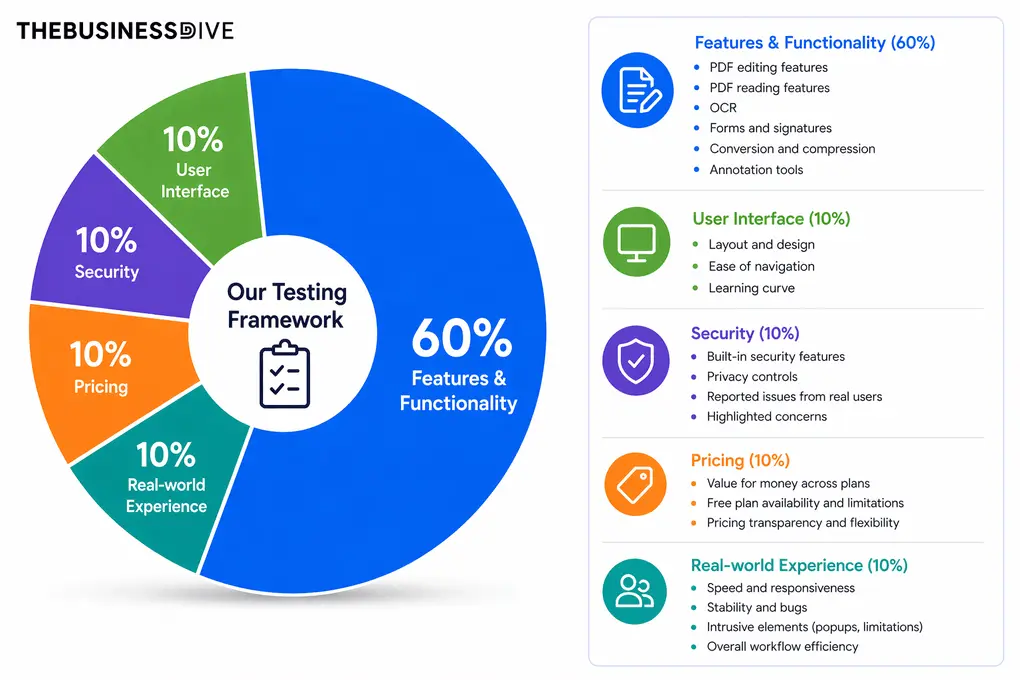
Our scoring breakdown after testing 30+ PDF editors:
🛠️ Features & functionality — 60%
🖥️ User interface — 10%
🔐 Security — 10%
💰 Pricing — 10%
👥 Real-world experience — 10%
Want a detailed breakdown of how we test each category?
Learn exactly how we test tools → Review methodology
Short on time? Here’s a quick overview of PDF Candy
What is PDF Candy?
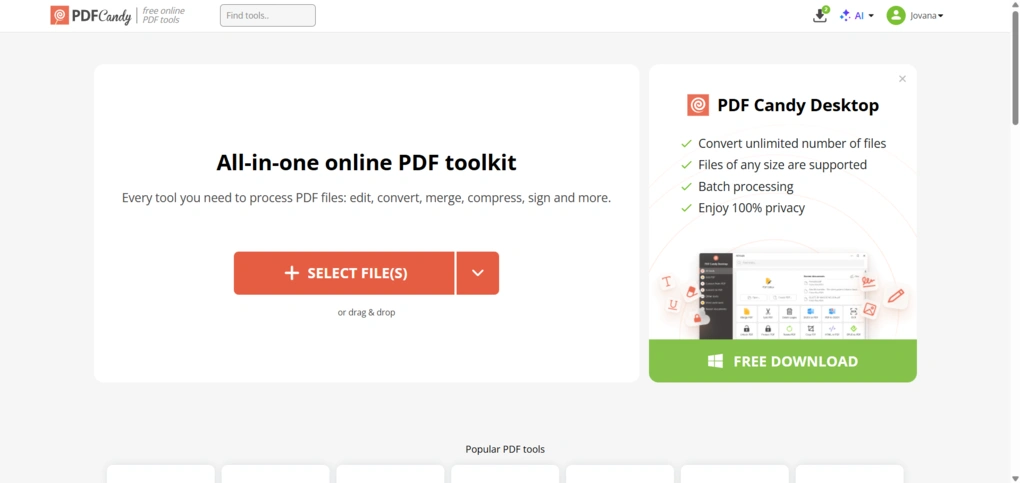
PDF Candy is an online PDF toolkit that offers a wide range of tools for editing, converting, organizing, and protecting PDF documents. Instead of focusing on just one part of PDF management, it brings together dozens of utilities that help users handle different document tasks from a single platform.
The tool is primarily known for its large collection of PDF utilities. Users can convert files to and from PDF, merge or split documents, compress large files, run OCR on scanned documents, and perform many other common tasks.
Because each function is available as a separate tool, it’s easy to upload a file and quickly apply the operation you need.
PDF Candy is mainly designed as a web-based platform, but it also offers a Windows desktop version for users who prefer working offline.
My experience with PDF Candy
I tested PDF Candy by running several common PDF tasks, including editing a document, converting files to Word, compressing large PDFs, and reorganizing pages.
The platform is very straightforward. You simply choose a tool from the homepage, upload your file, and apply the action you need.
For basic tasks like conversion, merging, or compression, everything worked smoothly. Files processed relatively quickly, and the interface made it easy to move between different tools without much learning curve.
That said, PDF Candy feels more like a collection of individual PDF tools than a fully integrated PDF workspace.
While it handles many simple tasks well, features like editing and document workflows are more limited compared to more advanced PDF editors.
Why PDF Candy earned a 4.1 / 5
PDF Candy received good ratings across the key features, except for PDF editing and the forms & signatures features, which received 3.5 and 3 stars, respectively. What sets it apart from most PDF editors is its pricing: it offers a great free plan and affordable paid plans.
There is no exceptionally low score for any of the criteria. And it’s a little bit true for the whole PDF software.
It’s good overall; there are no major drawbacks, but it doesn’t stand out in any areas besides pricing.
Ideal users for PDF Candy
When PDF Candy might not work for you
Key features
Let’s take a closer look on the key features I tried during my PDF Candy review!
PDF editor
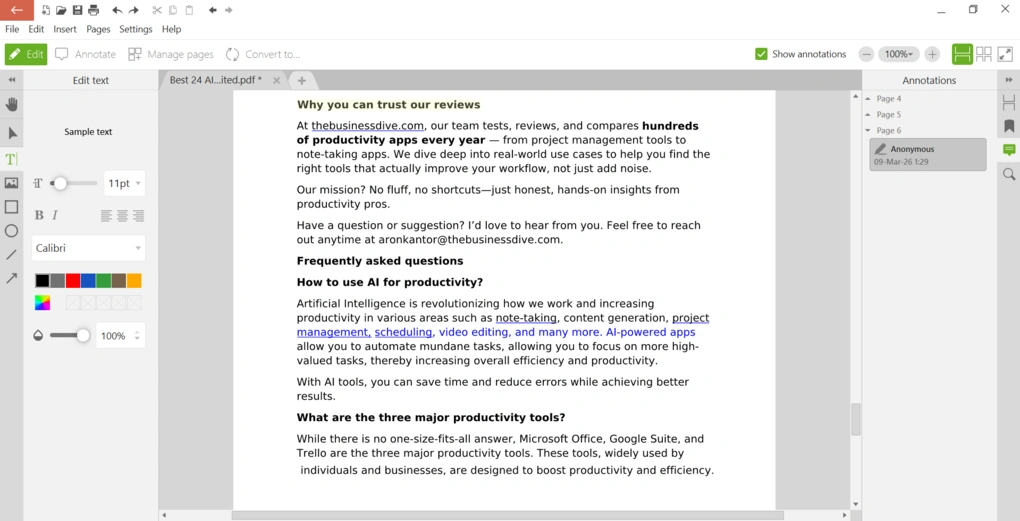
PDF Candy includes a basic PDF editor that lets you make quick changes to your documents without converting them first. Instead of exporting the file to Word or another format, you can open the PDF directly and modify its contents inside the editor.
Besides editing existing text, you can also add new text to your PDF. You can insert a text box and place it anywhere on the page.
The editor also gives you a few formatting options when working with text. You can change the font style, adjust the text size and color, and arrange the text to move backward of forward.
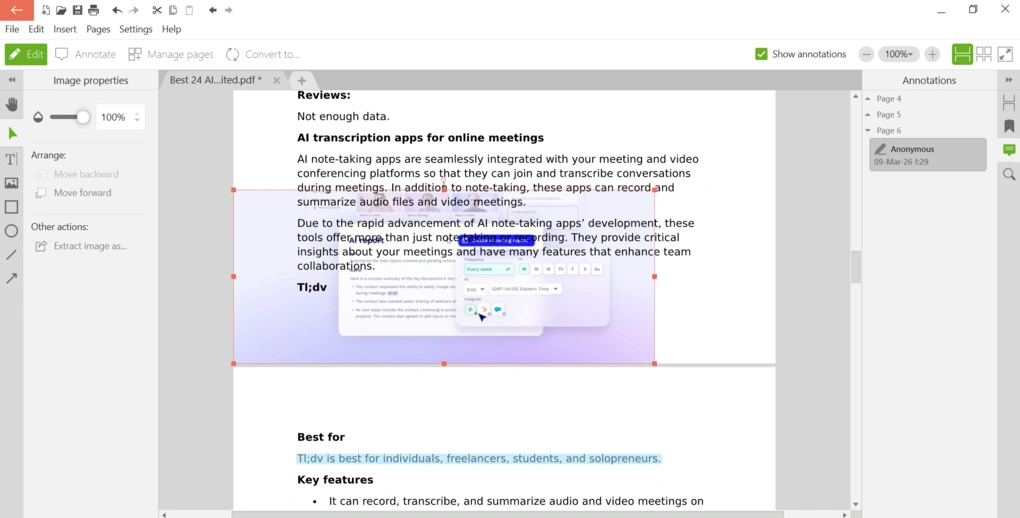
Apart from text editing, PDF Candy also allows you to insert images into your PDF files. Just like with text elements, images can be placed and repositioned, so adjusting the layout is fairly straightforward.
Overall, the editor is designed more for quick document edits and small adjustments rather than complex layout changes, but for most everyday PDF editing tasks, it covers the basics well. Compared to PDF editors like Foxit or UPDF, PDF Candy feels like a more limited option.
PDF reader
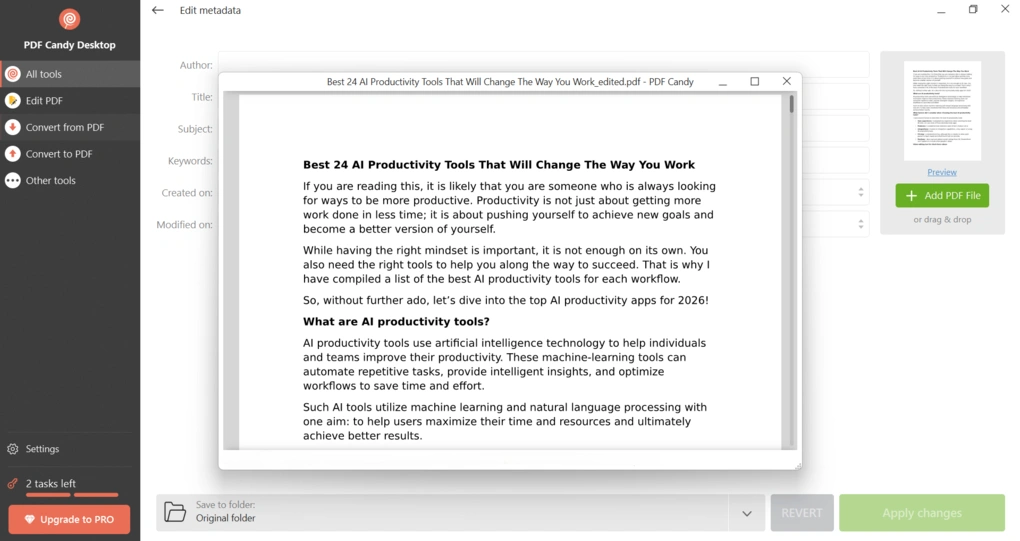
PDF Candy also works as a lightweight PDF reader. You can quickly view files without needing a separate PDF viewer installed on your device.
The reader provides basic navigation options such as scrolling through pages, zooming in or out, and moving between sections of the document.
While the reader itself is fairly minimal, it’s convenient to have a built-in way to view documents.
Annotate PDF Documents
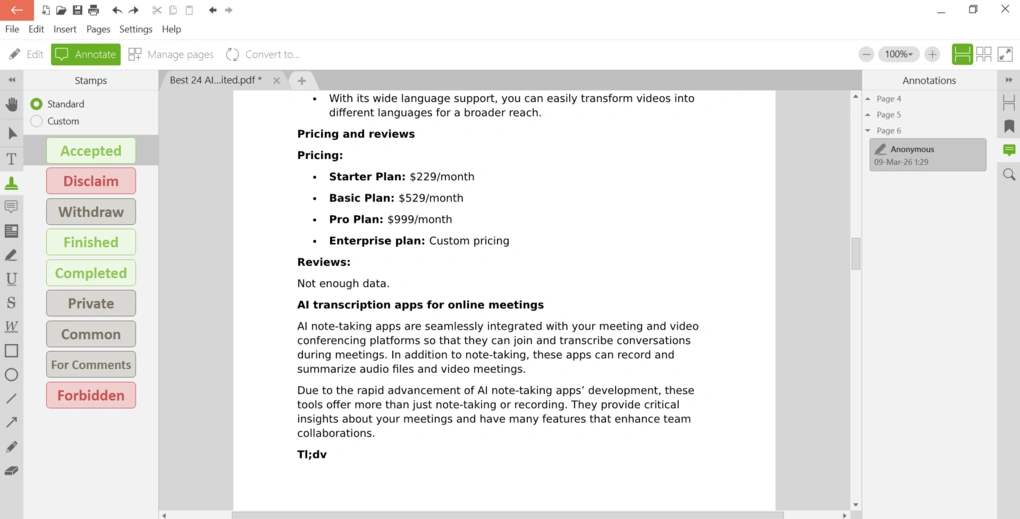
If you need to review or mark up documents, PDF Candy includes several annotation tools. You can highlight text, underline important sections, draw shapes, add comments, and place stamps directly on the PDF.
The annotation features are simple, but they cover the essentials most users expect when working with PDF documents.
PDF Organizer
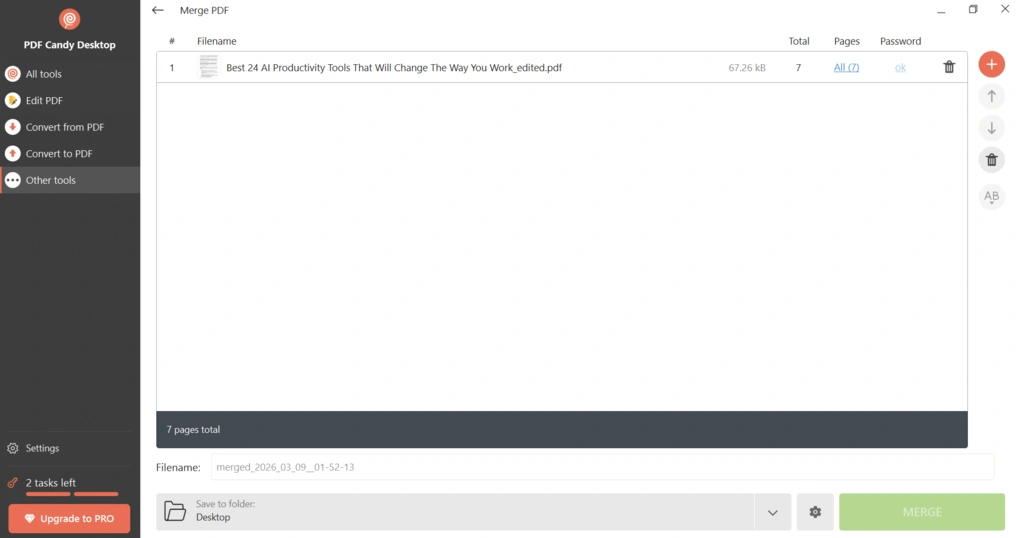
PDF Candy also provides several tools for organizing documents. You can merge multiple PDFs into one file, split large documents into smaller ones, and rearrange or remove pages.
If you’re working with reports, presentations, or document collections that need to be reorganized before sharing, this feature will help you a lot.
Instead of editing the content itself, these tools focus on adjusting the structure of the file, which is often exactly what you need when managing PDFs.
Forms and Signatures
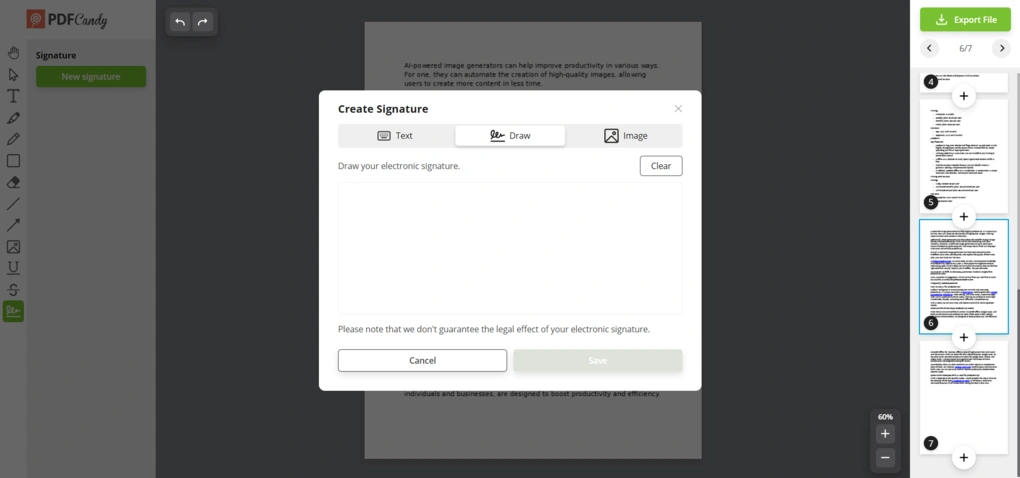
Another practical feature is the ability to fill out forms and add electronic signatures. PDF Candy allows you to type a signature, draw it with your mouse or touchpad, or upload an image of a handwritten signature. This feature is primarily available in the web version of PDF Candy, though.
You can sign agreements, contracts, or other documents without printing them first. However, PDF Candy doesn’t guarantee the legal effect of your electronic signature.
While it doesn’t offer advanced form workflows or automation, it handles basic digital signing and form completion well.
Converting and Scanning to PDF
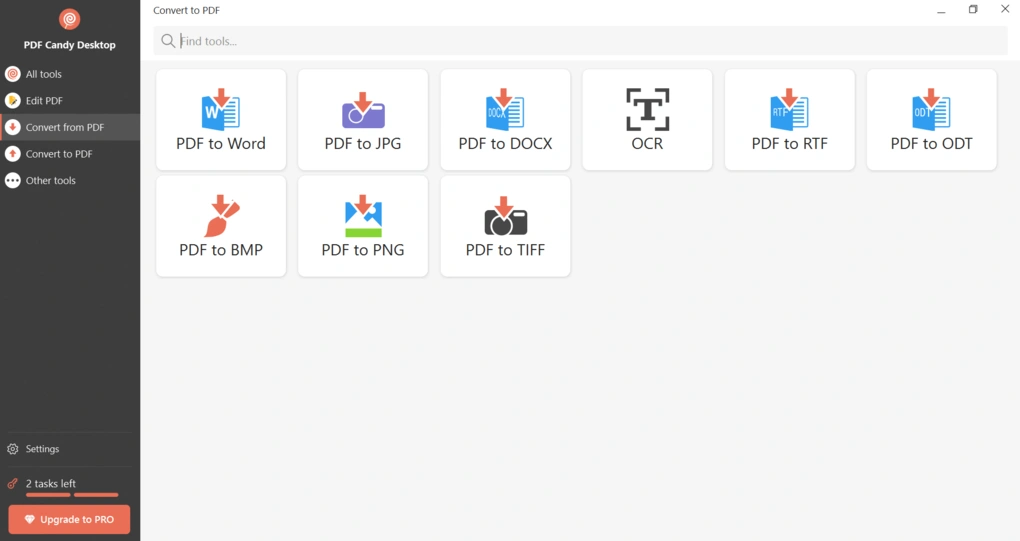
One of PDF Candy’s strongest areas is file conversion. The platform supports converting files both to and from PDF, so you can easily switch between formats.
For example, you can convert PDFs into editable formats such as Word, Excel, or PowerPoint, or turn images and other documents into PDFs.
PDF Candy also supports OCR technology. This allows scanned documents or images to be converted into searchable and editable text.
PDF Protection
PDF Candy includes several tools designed to help protect documents. You can add password protection to restrict access to a file or remove passwords from PDFs if you already have the necessary permissions.
In addition, the platform provides options for adding watermarks or managing document permissions, which can help prevent unauthorized editing or sharing.
These features aren’t extremely advanced, but they provide a basic level of document protection.
AI Assistant
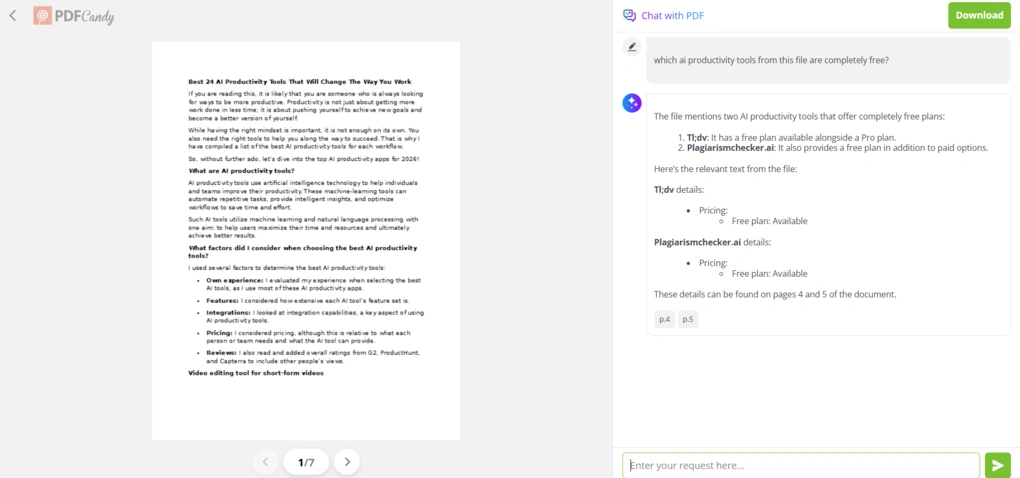
PDF Candy has also added an AI assistant designed to help users interact with their documents more efficiently. The AI can analyze a PDF and generate summaries or answer questions based on the document’s content.
It’s a newer addition to the platform, but it shows how PDF tools are starting to integrate AI to make document workflows faster and easier.
Explore our Apps directory
A curated directory of software tools we’ve independently reviewed, with links to full reviews, comparisons, and category guides.
PDF Candy user interface
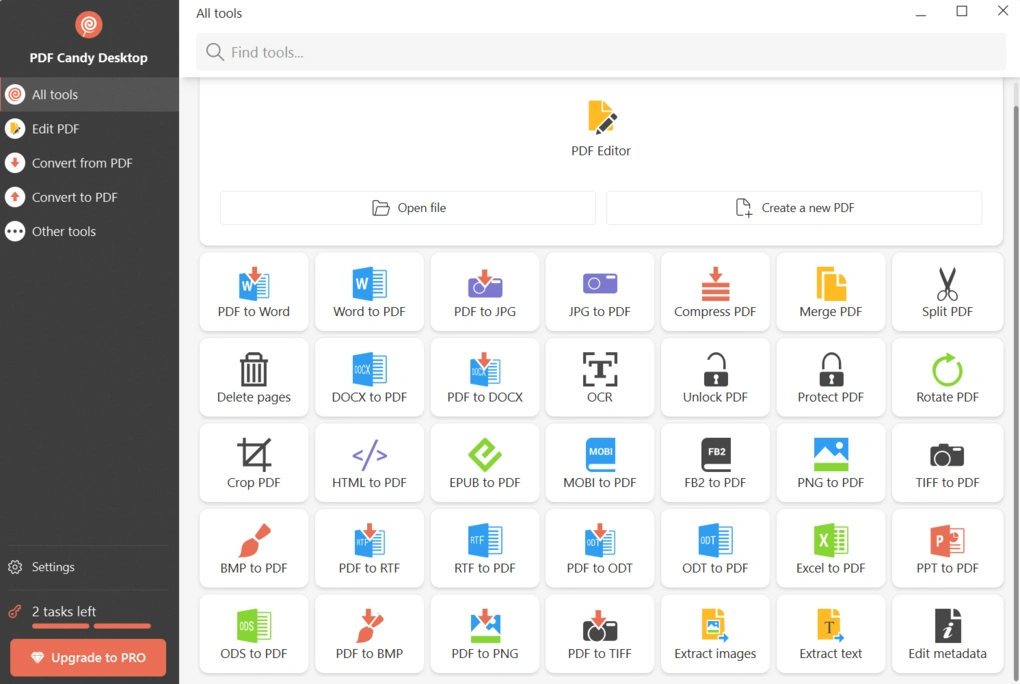
PDF Candy’s user interface is simple and task-focused, especially in the web version. The homepage displays all tools as separate options, so you can quickly choose the function you need, upload your file, and start working.
However, in my experience, the desktop version has a cleaner and more polished interface compared to the web version.
Pricing
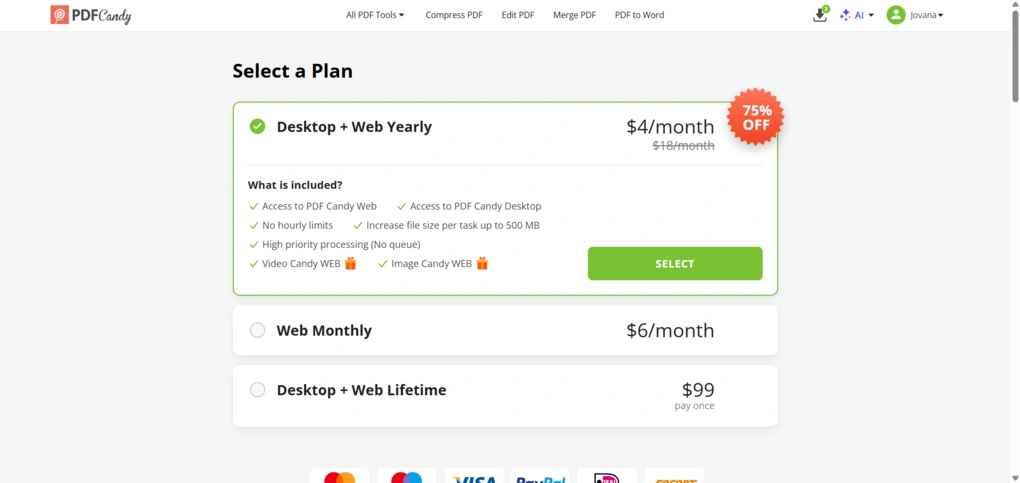
PDF Candy offers a freemium pricing model, meaning you can use most tools for free, but with certain limitations.
The free version is available both on the web platform and the desktop app, and you can access many of the core tools without even creating an account. However, it includes restrictions such as hourly limits on tasks, smaller file sizes, and no batch processing, which can slow things down if you need to process multiple documents.
If you want to remove these limitations, PDF Candy offers a few paid options.
The Web Monthly plan costs $6 per month and provides full access to the online tools without hourly limits, along with faster processing and larger file size support (up to 500 MB per task). There is also a Web Yearly plan for $48 per year, which lowers the price to about $4 per month.
For users who want both the desktop and web versions, PDF Candy offers a Desktop + Web yearly plan as well as a lifetime license for $99, which gives permanent access to both platforms with no recurring subscription.
Overall, the pricing is relatively affordable compared to many PDF editors, especially if you only need occasional access to PDF tools and can rely on the free version for lighter tasks.
PDF Candy security
To make this review as complete as possible, I also looked into PDF Candy’s security and privacy practices.
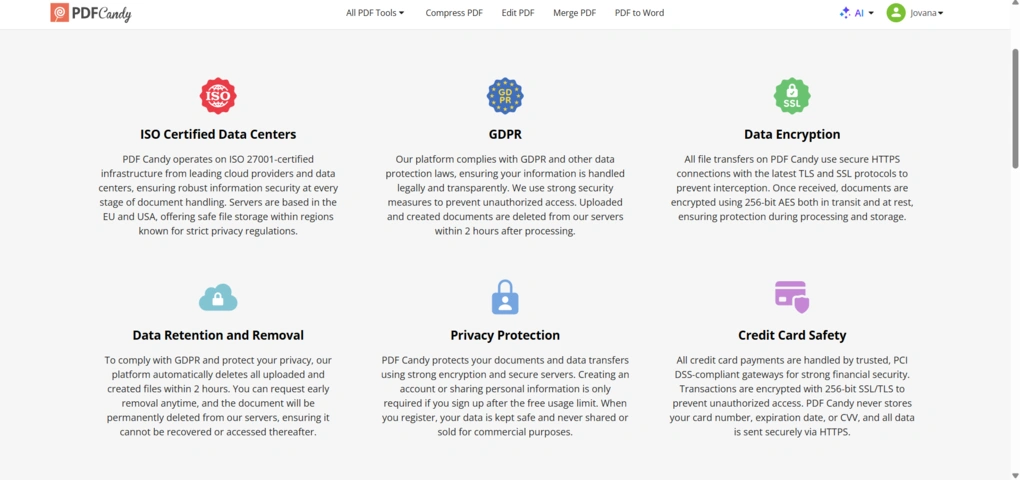
According to PDF Candy’s official information, the platform uses ISO 27001-certified infrastructure, with servers located in the EU and the United States. This standard is commonly used for information security management and suggests that the company follows established practices for protecting user data.
The service also states that uploaded files are processed securely and automatically removed from their servers after a certain period of time.
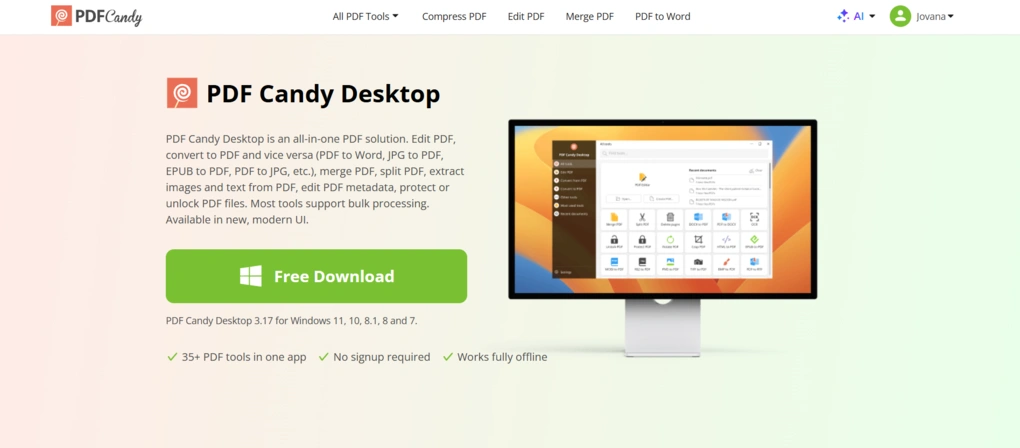
As I already mentioned, PDF Candy offers a Windows desktop app that works offline. When using the desktop version, documents are processed locally on your computer instead of being uploaded to external servers. This can be asafer option if you need to work with sensitive files and prefer keeping them on your own device.
While researching the tool, I also looked at discussions on Reddit and other forums. Many users recommend PDF Candy for everyday tasks like converting, merging, or splitting PDFs, and overall the tool seems to have a good reputation among users.
Personally, I didn’t encounter any security or privacy issues while using PDF Candy during my testing. Based on the available information, the platform appears to be a legitimate and safe PDF tool for everyday use, especially if you use the desktop version when working with more sensitive files.
Pros and cons I discovered during my PDF Candy review
Pros of PDF Candy
Cons of PDF Candy
PDF Candy alternatives
If you feel like PDF Candy is not the perfect PDF editor for you, here are the best alternatives:
|
App |
Best for |
Description |
|---|---|---|
|
Foxit |
Best affordable alternative to Adobe Acrobat |
A PDF editor with an intuitive user interface at an affordable price for Mac and Windows users. |
|
EaseUS PDF Editor |
Best all-in-one PDF editor for beginners |
It is an all-in-one PDF software to read, edit, annotate, and convert your documents. Full EaseUS PDF Editor review | Quick EaseUS PDF Editor overview |
|
Tenorshare PDNob |
Best for AI-powered PDF editing |
It is an easy-to-use AI-powered PDF editor that offers many features to edit, read, organize, and annotate your documents. Full Tenorshare PDNob review | Quick Tenorshare PDNob overview |
|
PDF Expert |
Best for Mac users |
A PDF editor for Mac, iPhone, and iPad users that offers all the tools you need to manage your PDF files, from annotation tools to signing PDFs. |
|
Xodo PDF Studio |
Best offline PDF editor |
A straightforward offline desktop PDF editor for Windows, Linux, and iOS devices, with great PDF reading and editing tools. Full Xodo PDF Studio review | Quick Xodo PDF Studio overview |
|
ONLYOFFICE PDF Editor |
Best for collaboration and team editing |
A versatile tool that combines PDF editing with document collaboration features. It lets you to edit text, add visual elements, and create fillable forms. |
|
UPDF |
Best value PDF editor with AI features |
One of my favorite PDF editors with advanced AI features and budget-friendly pricing. |
|
Nitro |
Best for business PDF workflows |
A feature-rich PDF editor with a strong focus on PDF editing. |
|
Smallpdf |
Best online PDF tool |
An online PDF software with numerous tools to convert, compress, and edit PDF files for free. |
|
Adobe Acrobat |
Most popular PDF editor |
The most popular PDF editor with solid features, but an extremely high price. |
|
pdfFiller |
Best for e-signatures and document workflows |
It offers a signing and editing solution that lets users sign and edit documents, send them for signature, and manage the full electronic document workflow in one place. |
|
LightPDF |
Best for AI PDF productivity |
An AI-powered PDF editor that lets you edit, convert, OCR, sign, annotate, chat with PDFs, and more. |
|
PDFgear |
Best free PDF editor |
A completely free, offline PDF editor with solid editing, OCR, conversion, and AI tools. |
|
PDF-XChange |
Best advanced PDF editor for Windows |
A powerful Windows-based PDF editor with advanced editing, annotation, security, and conversion tools. |
|
Sejda PDF Editor |
Best for simple, everyday PDF tasks |
An intuitive and simple PDF software best suited for personal use for those who need a PDF editor for basic PDF tasks. |
|
Soda PDF |
Best for security and file conversion |
A user-friendly PDF editor with solid core features, strong security tools, and broad file conversion options, but its advanced features come at a relatively high price. |
|
Tungsten Power PDF |
Best enterprise-grade PDF solution |
A powerful PDF editor and document management tool designed for businesses, offering advanced editing, security, OCR, and collaboration features. Full Tungsten Power PDF review | Quick Tungsten Power PDF overview |
|
ABBYY FineReader |
Best for OCR and document digitization |
A powerful OCR-focused PDF tool with strong layout detection, flexible conversion, and an efficient workflow. Full ABBYY FineReader review | Quick ABBYY FineReader overview |
|
PDFelement |
Best balance of features and ease of use |
An easy-to-use PDF editor with valuable features for a reasonable price. |
|
WPS Office |
Best easy-to-use office suite and PDF editor |
WPS Office is an easy-to-use office suite with solid PDF editing and AI-powered productivity tools, though its free plan is quite limited. |
Wrap-up: PDF Candy Review
PDF Candy is a solid option if you’re looking for a simple, flexible toolkit for handling everyday PDF tasks.
At the same time, it feels more like a collection of PDF utilities than a fully integrated document workspace. While it works well for quick tasks, users who need more advanced editing or document workflows may prefer a more powerful PDF editor.
Overall, PDF Candy is best suited for users who want an easy way to process PDFs online or through a lightweight desktop app without paying for a complex enterprise-level solution.
Related articles:
- The 8 Best Adobe Acrobat Alternatives: 30+ PDF Editors Tested
- The 10 Best PDF Editors In 2026 | 30+ Personally Tested PDF Tools
- The 6 Best PDF Readers For 2025 (Only FREE Options)
- 6 Best OCR Software For 2026 | 30+ Personally Tested Tools
Hope I was able to help you find the best PDF editor for you. As always, I will update this PDF Candy review over time so you guys have up-to-date information about this PDF software.
Looking for similar tools?
Visit our PDF editor library to explore other apps we’ve reviewed in this space and how they compare.
Why you can trust our reviews
At thebusinessdive.com, our team tests, reviews, and compares hundreds of productivity apps every year — from project management tools to note-taking apps. We dive deep into real-world use cases to help you find the right tools that actually improve your workflow, not just add noise.
Our mission? No fluff, no shortcuts—just honest, hands-on insights from productivity pros.
Discover how we stay transparent, read our review methodology, and let us know about any tools we missed.
Frequently asked questions
Is PDF Candy a good free PDF editor?
Yes, PDF Candy is a capable free online PDF editor that offers a wide range of PDF tools for everyday PDF editing. Also, it has a desktop version as well.
During my PDF Candy review, the platform stood out for allowing users to edit, merge PDF, split PDF, and convert files to formats like Word, Excel, and images.
The PDF Candy web version works as an online PDF editor, while a desktop version and desktop app are available for Windows and Mac, making it flexible for both quick online tasks and working with larger PDF documents.
What can you do with PDF Candy?
PDF Candy includes many PDF tools that help users manage PDF documents and other files. With the platform, you can edit, merge, and split PDF pages, rearrange pages, add watermarks, and convert documents between formats such as Word, Excel, JPG, and other images.
The PDF Candy web platform lets users upload files, complete a PDF task, and download the processed documents, while the desktop app provides similar features for offline work.
Does PDF Candy have a free version?
Yes, PDF Candy offers a free version that allows users to perform common PDF tasks like PDF editing, merge PDF, split PDF, and converting PDF files. However, the free plan includes hourly limits, which restrict how many files or tasks you can process.
To remove these limits, users can purchase the premium plan, which includes a lifetime license for the desktop app or a yearly subscription for the web version.

Hey there! I am Aron, the founder of Thebusinessdive. I have been testing productivity apps for almost three years now. I reach 25.000 -50.000 people monthly with the mission to help you find the perfect productivity apps. Subscribe to my YouTube channel, newsletter, and social media to hear more about the best productivity tools. Let’s dive in!
PDF Candy will not print on desktop local assigned printer.
I have even tried to print to a Brother’s local printer .pdf files that were created under Adobe.
No luck. The print function will not even send the file to the printer Queue.
Thanks for the feedback, really helpful!