


The 7 Best PDF Readers For 2026 (Only FREE Options)
I tested & reviewed more than 30 options and spent over a yar to find the best PDF readers in 2026.
I didn’t rank these PDF readers based on brand popularity. Instead, I focused on these points:
- 100% free PDF reading
- Quality of the reading experience
- Available features before the paywall
- Upgrade value
Quick Verdict: Which PDF viewer fits you?
You look for | Start with | Pricing starts at |
|---|---|---|
Easy-to-use PDF reader | Tenorshare PDNob | Free plan + paid from $49.99/year |
Affordable everyday PDF reading & editing | EaseUS PDF Editor | Free plan + paid from $49.95/year |
The best experience on Mac | PDF Expert | Free plan + paid from $79.99/year |
A 100% free PDF reader & editor for Windows and Mac | PDFgear | Free |
Best free PDF reader online | Smallpdf | Free plan + paid from $120/year |
Best business-focused PDF reader | Foxit | Free plan + paid from $129.99/year |
A familiar PDF reader | Adobe Acrobat Reader | Free plan + paid from $179.88/year |
How the Top PDF Readers Compare
PDF Reader | Best for 🎯 | Free reading features 📖 | Useful free extras🛠️ | Performance⚡ | Why you might skip it⚠️ |
|---|---|---|---|---|---|
User-friendly & feature-rich | Single/two-page, scrolling, full-screen, backgrounds | Cloud storage, and annotations | 🟢 Fast | No Android version | |
Affordable everyday use | Multiple viewing layouts, reading mode, | Page management, PDF conversion up to 3 pages | 🟢 Fast | No mobile apps | |
Apple users | Single & two-page view, split view, themes, bookmarks | Annotation tools | 🟢 Fast | Apple devices only | |
100% free PDF use | Single/two-page view, zoom, auto-scroll, slideshow, 3 themes & 5 backgrounds | Editing, annotations, OCR, forms, e-sign, conversion, compression & AI | 🟢 Fast | Privacy concerns | |
Online PDF reading | Basic PDF viewing & zoom | Conversion, compression, and organizing pages | 🟢 Fast | Basic PDF reading features | |
Businesses | Read mode, night mode & multiple viewing options | Annotations, commenting & highlighting | 🟠 Okay | Many advanced features are behind paywall | |
Reliable everyday PDF reading | Single/two-page view, scrolling, Read Mode, full-screen & themes | Annotations, comments, form filling & signing | 🔴 Slow | High price |
Breaking down the top PDF readers
Tenorshare PDNob
Why I picked it as the best easy-to-use PDF reader?
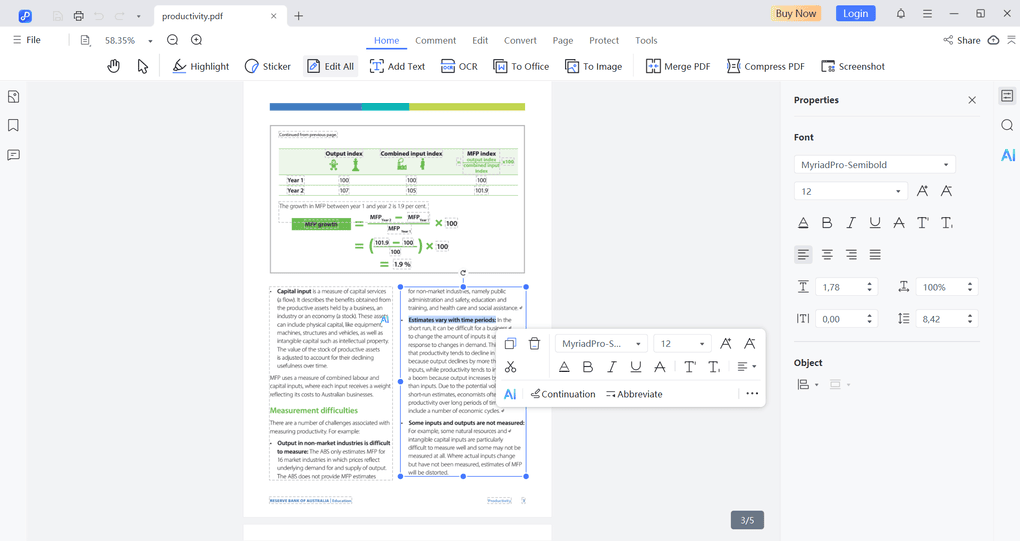
PDNob is my top pick if you want a free PDF reader that’s easy to use but still gives you plenty of room to do more with your PDFs. Its free reader combines multiple viewing layouts, full-screen reading, backgrounds, and smooth navigation with free annotations and limited access to OCR and conversion.
It also offers one of the most affordable pricing plans if you need to upgrade for advanced features.
🟢 Pick PDNob if: You want an easy-to-use, fast PDF reader with flexible viewing options and useful free extras like annotations, limited OCR, and conversion.
🔴 Skip PDNob if: You need an Android PDF reader or want unrestricted editing, OCR, and conversion without upgrading.
Tenorshare PDNob’s PDF reader features

Just click on the View Settings on the top toolbar, and you can choose from numerous options. It supports one single page, single page scrolling, two-page, and two-page scrolling layouts.
Furthermore, you can switch to fit height, width, window, or actual size. For long reading sessions, you can use the full-screen mode for distraction-free reading.
Moreover, you can zoom in and out on your PDF pages, and also change the background if needed. No matter which operating system you use on desktop, Tenorshare PDNob offers a smooth way to read documents in PDF format.
PDNob’s best parts
PDNob’s biggest pain points
What else you get for free
Optical character recognition (1 free scan/week): In my experience, it offers one of the most accurate OCR features among PDF editors.
Convert PDFs: (1 free conversion/week): It allows converting Excel, PowerPoint, images, MS Word documents, and more to PDF format.
Annotate PDFs: With this PDF reader, you can easily insert annotations, such as comments, text highlights, and more for free.
Pricing
Plan | Price | Best For | Key Features |
|---|---|---|---|
Free plan | $0 | Testing PDNob before buying | 50 AI credits, 2 GB cloud storage, editing & organization, watermarked exports |
1-Year License | $49.99/year | Regular PDF users | Same core features as monthly plan at a much lower monthly cost |
Lifetime License | $69.99 one-time | Long-term users | Lifetime access to all features and future updates |
What users are saying
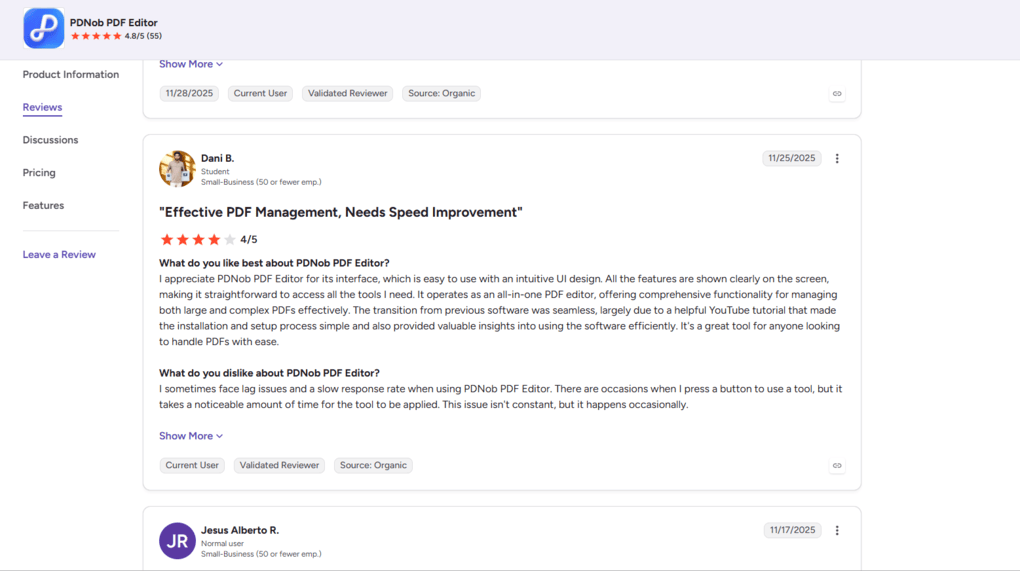
While PDNob has 4.8 on G2, it’s only 3.1 on Trustpilot.
On G2, a PDNob user praised its intuitive interface and all-in-one PDF toolkit, saying it was easy to learn and handle large, complex PDFs. However, they also reported occasional lag and slow response times when applying certain tools.
Personally, I haven’t experienced these performance issues, and PDNob introduced a new PDF engine with faster processing in 2026. Still, it’s worth keeping this user report in mind.
Use the link above and discount code TS-TBD-20 to get 20% OFF paid plans.
🔎Read my full review: Tenorshare PDNob Review 2026 | My Unfiltered Opinion
Short on time? Here’s a quick overview of Tenorshare PDNob
EaseUS PDF
Why did I pick it as the best option for affordable everyday reading & editing?
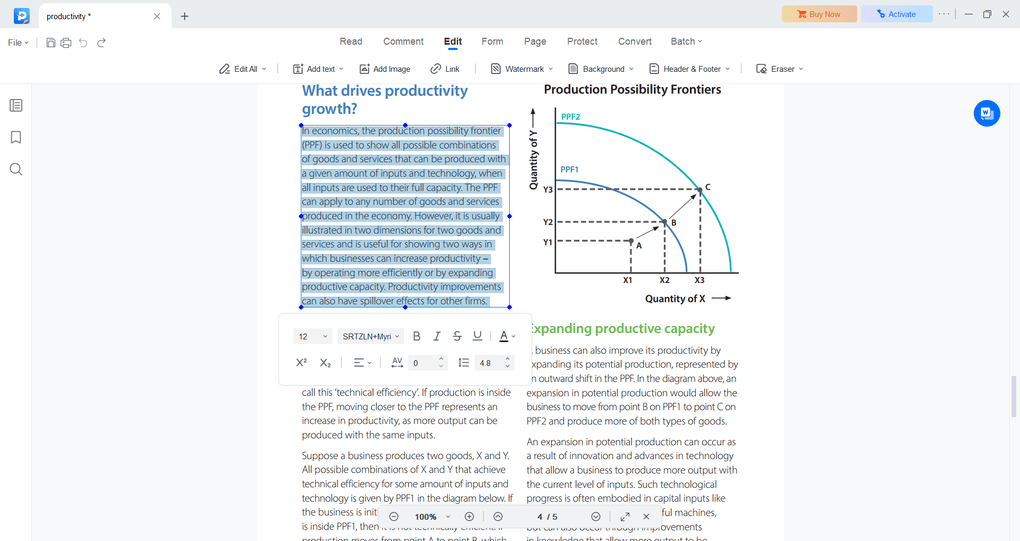
I picked EaseUS PDF Editor for people who want an affordable PDF reader that can also handle everyday editing. During my testing, it provided a smooth reading experience, even with larger PDF files, and its interface was straightforward with almost no learning curve.
What makes EaseUS particularly useful is what you get beyond reading. You can manage pages and access limited PDF conversion for free, while the paid version adds editing, OCR, forms, signatures, and other useful PDF tools without reaching Adobe-level pricing.
The biggest drawback is platform support. EaseUS does not have mobile apps, so it makes the most sense if you primarily work with PDFs on a Windows or Mac computer.
🟢 Pick EaseUS if: You want a simple, fast PDF reader for Windows or Mac with useful free extras like page management, limited OCR, and conversion.
🔴 Skip EaseUS if: You need mobile apps or want more advanced annotation and enterprise features.
EaseUS PDF reader features
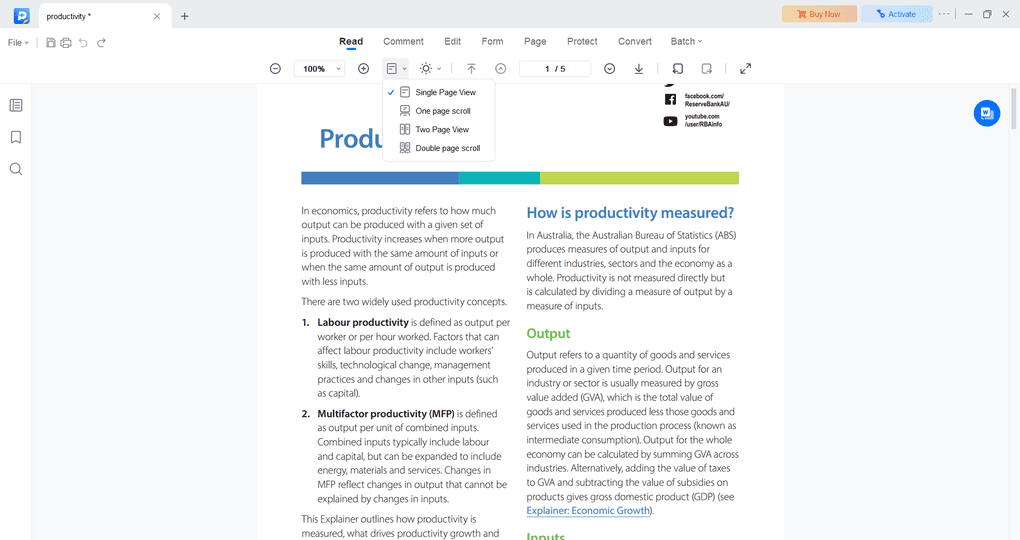
EaseUS offers solid reading features for your PDFs. It allows you to choose from different layout options, such as single-page view or two-page view. During my testing, I especially appreciated the fact that it has a dedicated mode for reading e-books for maximum eye comfort.
Furthermore, you can rotate and zoom your pages, which helps you read your documents with ease. Another standout feature is “search and replace,” which helps you find the term you are looking for and replace it in a few clicks.
EaseUS PDF’s best parts
EaseUS PDF’s biggest pain points
What else you get for free
Combine PDFs (up to 3 files): I found its page-management tools among the strongest I’ve tested, making it easy to combine PDFs and images into a single document.
Split PDFs (first 3 pages of the range): Splitting, extracting, replacing, and rearranging pages felt straightforward, with all the important page-management tools grouped together
PDF conversion (first 3 pages): Supports 10+ formats, including Word, Excel, and PNG; my files were usually ready in around 20–30 seconds with strong output quality
Optical character recognition (first 3 pages): One of the most accurate OCR tools I’ve tested across 30+ PDF editors, although some formatting still required manual adjustments.
Pricing
Plan | Price | Best For | Key Features |
|---|---|---|---|
1-Year License | $49.95/year | Professionals who regularly work with PDFs | Full feature set, one license for one computer, 1-year free upgrades |
Lifetime Upgrades | $79.95 one-time | Individuals & small businesses with ongoing PDF needs | Full feature set with lifetime upgrades |
What users are saying
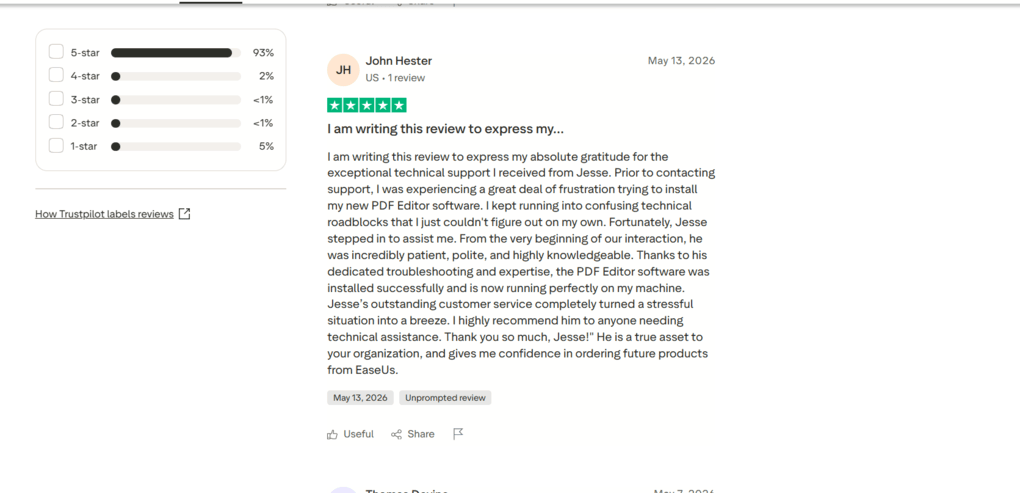
I was surprised by how many users write about the positive customer support experience with EaseUS PDF. In this comment, John Hester also praises the customer support service.
And he is not alone; EaseUS has a 4.9 rating on Trustpilot, one of the highest I have seen among PDF editors. My experience was the same, so it’s no wonder EaseUS PDF Editor ranked first among the best PDF editors.
If you need advanced features, use the link above to sign up and use code THEBUSINESSDIVE20 for 20% OFF if you fall in love with EaseUS PDF later.
🔎Read my full review: EaseUS PDF Editor Review 2026 | My Unfiltered Opinion
Short on time? Here’s a quick overview of EaseUS PDF Editor
PDF Expert
Why I picked it as the best PDF reader for Apple users?
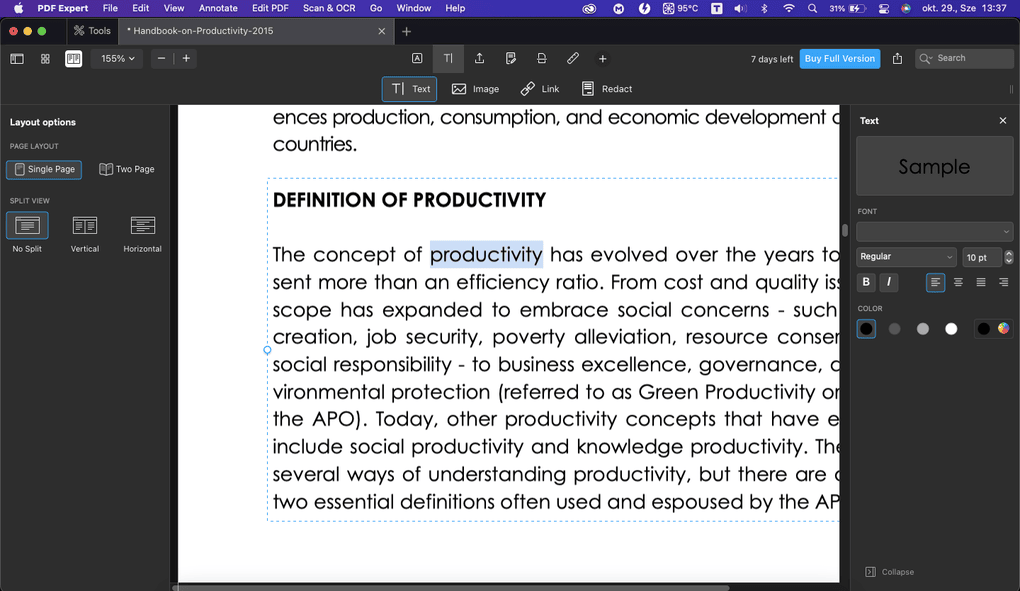
I picked PDF Expert for Apple users who want the best overall PDF reading experience. After testing 30+ PDF editors, its combination of reading features, speed, and clean interface is one of the strongest I’ve used.
What particularly stood out during testing was how lightweight it felt. Even when I worked with larger PDFs or had multiple files open, loading times were minimal, and I experienced no crashes.
At the same time, you get useful reading features like split view, multiple page layouts, three reading themes, and synced bookmarks.
The obvious trade-off is the ecosystem: PDF Expert is built exclusively for Apple devices. If you use Windows or work in a mixed-device environment, I would choose another PDF reader.
🟢 Pick PDF Expert if: You use Apple devices and want a fast, smooth PDF reader with excellent layouts, reading themes, split view, and a clean interface.
🔴 Skip PDF Expert if: You need a PDF reader for Windows or Linux, or want a completely free option with more advanced PDF tools
PDF Expert’s PDF reader features

When reading documents in PDF Expert, you can choose from a one-page or a two-page layout. PDF Expert also offers the possibility to view two pages vertically next to each other or horizontally after each other.
During my PDF Expert testing, I valued that it provides three different themes when viewing your PDF documents. It means you can choose day, night, or sepia mode to reach the best eye comfort.
To summarize, PDF Expert is a minimalist PDF reader and editor, and offers a solid free solution for Apple users.
PDF Expert’s best parts
PDF Expert’s biggest pain points
What else you get for free
Annotate PDFs: Using this free PDF reader, you can highlight text, comment, draw, and add stickers and shapes. I particularly loved that you can leave audio comments in the documents.
Organize PDFs: It is super easy to rotate, add, reorder, and remove pages from your PDF documents. With a few clicks, you can combine multiple PDFs into one or split a PDF into multiple documents.
Forms & signatures: PDF Expert automatically detects form fields and makes existing forms easy to fill and sign, although it isn’t designed for creating advanced fillable forms from scratch.
Pricing
Plan | Price | Best For | Key Features |
|---|---|---|---|
Yearly | $79.99/year | Professionals & small businesses using multiple Apple devices | Premium features across Mac, iPhone & iPad, ongoing updates |
Lifetime | $139.99 | Individuals, professionals & small businesses with limited scaling needs | Lifetime Mac access, bug fixes & support; future major features may require an optional paid upgrade |
What users are saying
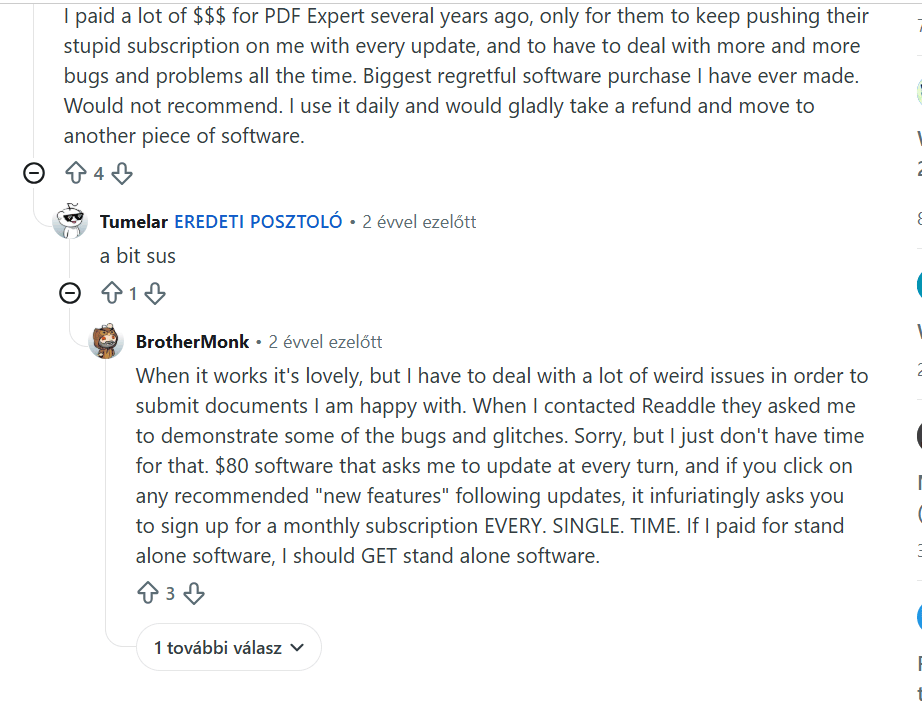
Regarding PDF Expert, I found more mixed user feedback. While it scores 4.7 on G2, it gets only 1.7 on Trustpilot.
When I dug deeper, I saw a Reddit post where BrotherMonk highlighted that PDF Expert uses pushy tactics to upsell. When I used PDF Expert for a few weeks to test, I didn’t run into this problem, but PDF Expert probably changed its approach afterward.
So, if you are sensitive to this upselling, I would recommend skipping PDF Expert.
🔎Read my full review: PDF Expert Review 2026 | Is it REALLY the best for Mac Users?
Short on time? Here’s a quick overview of PDF Expert
PDFgear
Why I picked it as the best free PDF reader & editor

I picked PDFgear for people who want a genuinely free PDF reader without giving up advanced PDF tools. Its reading experience was smooth during my testing, even with larger files, and you get plenty of viewing options, including single and two-page layouts, auto-scroll, slideshow mode, themes, and customizable backgrounds.
What really separates PDFgear from the other options on this list is how much you get without paying a cent. Beyond reading PDFs, you can edit and annotate documents, use OCR, fill and sign forms, convert and compress files, and access AI features.
The main concern is privacy. I found no evidence that PDFgear is malware or spyware during my research and had no issues myself, but there have been privacy and security concerns raised online.
That’s worth considering if you regularly handle highly sensitive documents.
🟢 Pick PDFgear if: You want a 100% free PDF reader and editor with advanced extras like editing, OCR, conversion, e-signatures, and AI.
🔴 Skip PDFgear if: You regularly work with highly sensitive documents and the privacy concerns around PDFgear make you uncomfortable.
PDFgear PDF reader features
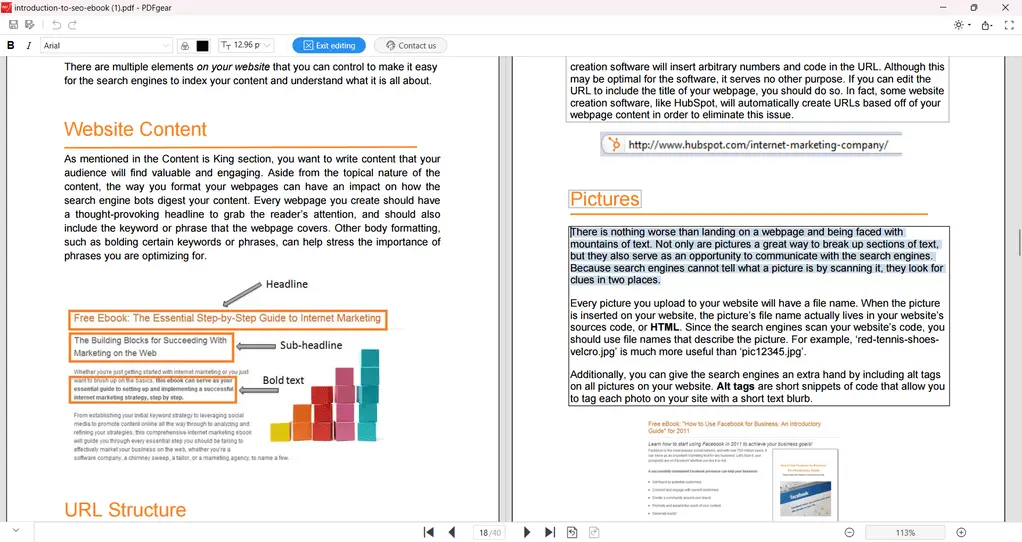
PDFgear offers single and double-page view options, and it also has an auto-scroll tool, which can be helpful when reading PDF files.
You can use PDFgear’s features to read PDFs on the web or desktop. Its online viewer shows your documents in a book-like format, offering a natural and familiar reading experience.
What separates PDFgear from other PDF software is that you can access all the tools completely free, which can also enhance the overall reading experience.
PDFgear’s best parts
PDFgear’s biggest pain points
What else you get for free
PDF editing tools: This PDF reader lets you edit text, adjust fonts, color, and size, and make it bold or italic. Although it does not have as many editing tools as some other options mentioned in this list, it includes some useful tools to manage documents for free.
Annotate PDFs: Using PDFgear, you can highlight, underline, and strike through text with a few clicks. Also, you can highlight areas of your pages and add notes, shapes, and text boxes.
Organize PDFs: With PDFgear, you can extract, delete, insert, and rotate pages of your scanned documents. If you want to move them, simply drag and drop them.
PDF forms and signatures: PDFgear provides essential features for creating and filling out forms. Also, you can create your e-signatures to sign documents.
Convert files: You can convert PDF files into many other formats, such as Word documents or pictures, and vice versa.
Optical character recognition: PDFgear has an easy-to-use OCR feature to extract text from images and scanned documents. I especially valued that it has an in-built AI feature, which can also help in the OCR tasks.
Password protection: This PDF reader allows you to control who can open the PDF file. Nevertheless, there is no option to restrict the editing or printing of the PDF files.
AI tools: When launching the AI co-pilot, you will get some sample prompts you can use to interact with your PDFs. It is also valuable that you can not only chat but also add commands to the AI, for example, protecting the PDF with a password or converting it into another format.
Pricing
PDFgear is a 100% free PDF reader.
What users are saying
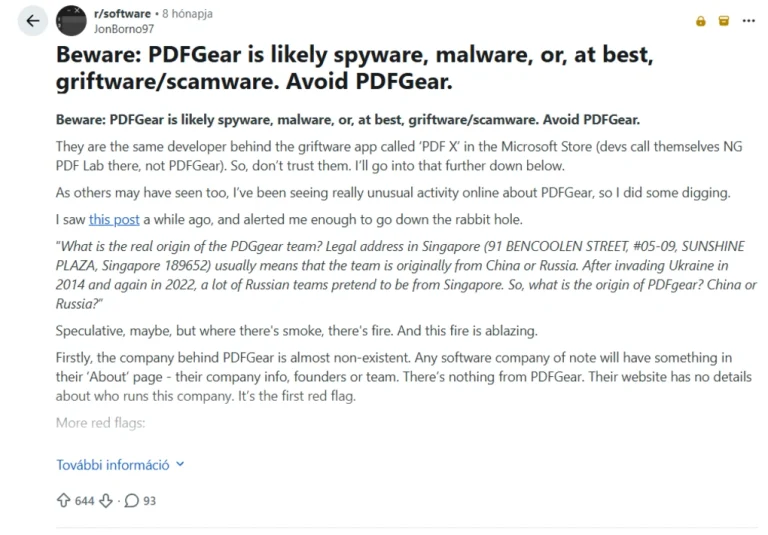
There are many interesting stories about PDFgear on Reddit & how they address these issues. Here, JonBorno97 breaks down what he found about PDFgear.
Personally, the Reddit thread did not convince me that PDFgear is harmful to privacy, and the debate still goes on. For more info, read my review article, where I break down PDFgear’s privacy saga.
🔎Read my full review: My Honest PDFgear Review 2026 | What They Don’t Tell You
Short on time? Here’s a quick overview of PDFgear
Smallpdf
Why I picked it as the best free online PDF reader
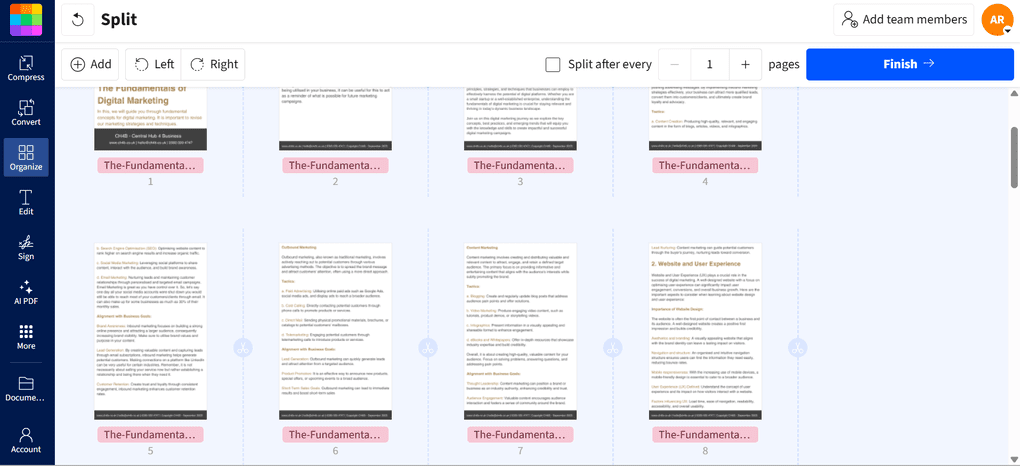
I picked Smallpdf for people who want to quickly read and work with PDFs directly in their browser without installing a dedicated desktop app. Its PDF reader is simple and fast, making it a convenient option if you mostly handle PDFs online.
Where Smallpdf stands out is everything surrounding the reader. You get access to 30+ PDF tools for tasks like compression, conversion, annotation, e-signatures, and document management. This makes it particularly convenient when you need to do more than simply open a PDF without downloading separate software.
The biggest drawback is the reading experience itself. Compared with dedicated PDF readers like PDNob or PDF Expert, Smallpdf offers fewer advanced viewing and customization options, so I wouldn’t choose it for long or frequent reading sessions.
🟢 Pick Smallpdf if: You want a fast, browser-based PDF reader with plenty of additional online tools for managing and working with PDFs.
🔴 Skip Smallpdf if: You want advanced reading features and customization options, or primarily read long PDF documents.
Smallpdf PDF reader features

With Smallpdf, you can read your PDF files smoothly and zoom in and out with one click. Furthermore, you have the option to select whether you want to fit the page to height or width.
Although it does not have many PDF reading features, the way you handle your documents within your browser compensates for this.
You can access its tools, including the PDF reader feature, inside your Google Workspace and Dropbox apps. This way, you can read, edit, compress, sign, merge, convert, and summarize PDF files with SmallPDF’s AI feature without leaving your Google Workspace.
In addition, Smallpdf launched its OneDrive integration, so users can upload OneDrive files to Smallpdf for processing. It works similarly to other integrations, so you can seamlessly manage your PDF documents directly within the OneDrive environment.
Smallpdf’s best parts
Smallpdf’s biggest pain points
What else you get for free
PDF annotation (daily limit): Add annotations to PDFs for free, alongside tools for numbering pages, cropping, redacting, and adding watermarks.
E-signatures (daily limit): Sign PDF documents online for free, although frequent use requires upgrading.
PDF conversion (daily limit): Utilizing Smallpdf, you can convert PDFs into Excel, images, PowerPoint, and Word files. It works vice versa, so you can convert the supported file formats into PDF documents.
PDF protection (daily limit): Protect, unlock, and flatten PDFs directly from the browser.
Explore our Apps directory
A curated directory of software tools we’ve independently reviewed, with links to full reviews, comparisons, and category guides.
Pricing
Plan | Price | Best For | Key Features |
|---|---|---|---|
Pro | $120/year | Individuals & professionals regularly working with PDFs | Unlimited downloads, OCR, text editing, strong compression, batch processing & no file-size limits |
Pro for Teams | $96/seat annually | Small & growing teams that need centralized PDF workflows | Everything in Pro + centralized billing, member management & priority support |
What users are saying
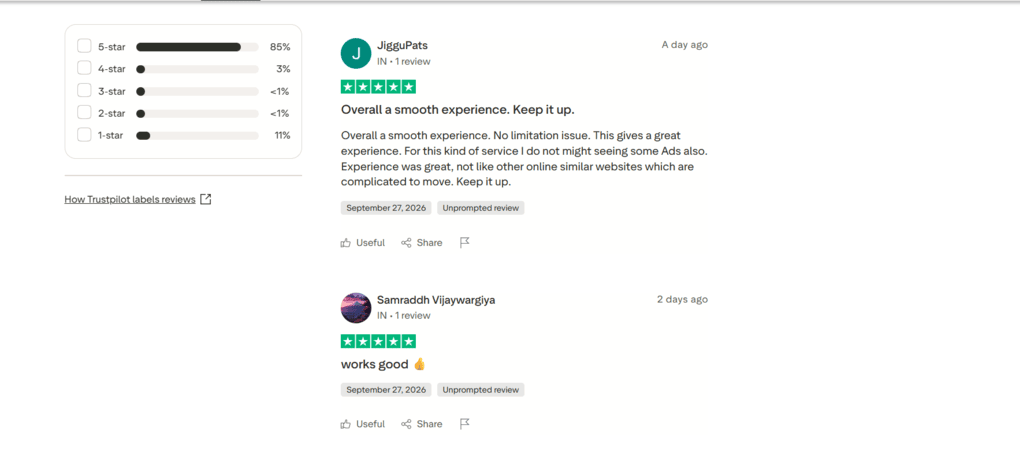
Generally, Trustpilot has almost entirely positive comments about Smallpdf. Users praise its ease of use and how quickly they can use its features.
Some negative comments on Reddit mentioned the refund policy, but I didn’t find any other widespread issues with Smallpdf.
🔎Read my full review: Smallpdf Review 2026 | The Top Lightweight PDF Tool
Short on time? Here’s a quick overview of Smallpdf
Foxit PDF Reader
Why I picked Foxit as the best free PDF reader for businesses

I picked Foxit for people who want a free PDF reader that can fit into a broader professional or enterprise PDF workflow. It works across Windows, Mac, iOS, Android, and the web, while its free reader gives you solid viewing options such as Read Mode, Night Mode, and multiple page layouts.
During my testing, Foxit handled larger PDF files reliably, although the overall reading experience wasn’t as smooth as PDNob, EaseUS, or PDF Expert.
The biggest drawback is the paywall. The free version is primarily a PDF reader, and many of Foxit’s more advanced capabilities require one of its paid plans.
🟢 Pick Foxit if: You want a free cross-platform PDF reader with the option to upgrade to advanced PDF and business features later.
🔴 Skip Foxit if: You want the smoothest reading experience or need advanced editing, OCR, and other PDF tools for free.
Foxit PDF Reader features

If you click on the View tab, you will have access to some Foxit PDF reader features to read and review your PDF files smoothly.
You can use the read mode, change to night view if you want, and change between numerous view options. If you use the multi-tab reading mode, it helps you to open multiple PDF files in different tabs in the same instance.
Ultimately, Foxit has all the tools you need for convenient PDF viewing.
Foxit’s best parts
Foxit’s biggest pain points
What else you get for free
Online Tools: Free web tools for single-file conversions, merging, and splitting.
AI tools (300 free credits/month): Every Foxit gets 300 credits monthly to use its AI-powered PDF tools like summarizing and answering questions about your PDFs.
Pricing
Plan | Price | Best For | Key Features |
|---|---|---|---|
PDF Editor | $129.99/year | Individuals & professionals who need full PDF editing | Advanced PDF editing, forms, conversion, OCR, organization & security |
PDF Editor+ | $172.79/year | Businesses that need enterprise workflows | Everything in PDF Editor + eSign, Smart Redact, mobile access & additional advanced features |
AI Assistant add-on | +$49.99/year | Businesses needing Foxit’s complete toolkit | 2,000 AI credits/month, PDF summaries, document Q&A & AI-powered assistance |
What users are saying
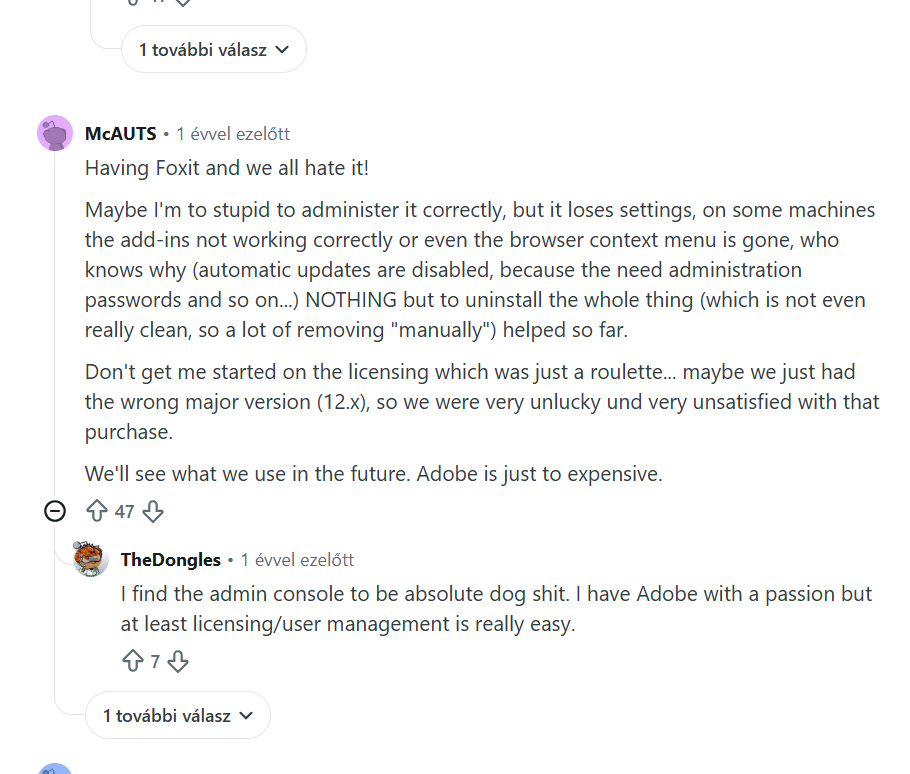
Since I recommended Foxit Reader to enterprises, here is an interesting discussion on this Reddit thread. It seems the admins didn’t like Foxit as much as I do.
They are complaining about the user management and admin features. So if those features matter to you, I recommend checking out Nitro PDF, as it has one of the best admin panels I have used so far.
🔎Read my full review: My Honest Foxit Review After Trying +30 PDF Editors (2026)
Short on time? Here’s a quick overview of Foxit
Adobe Acrobat Reader
Why I picked Adobe Acrobat Reader as the best familiar PDF reader
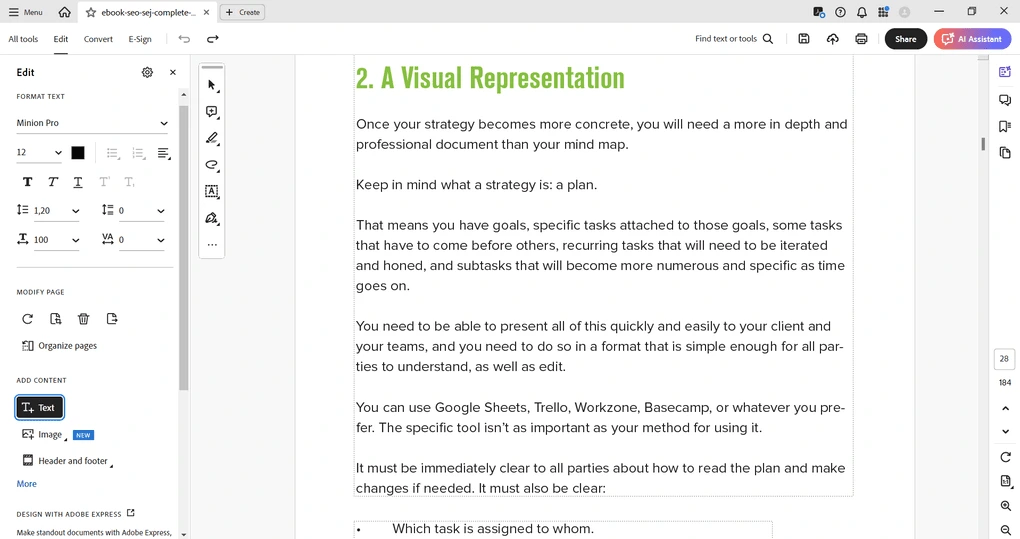
I will be honest, guys. I don’t like Adobe Acrobat. My personal opinion is this: While Adobe Acrobat Pro has solid PDF reading and editing features, it is incredibly overpriced, and this is one of the main reasons why I do not recommend it normally.
However, I picked Adobe Acrobat Reader for people who want a familiar, reliable PDF reader without learning a new interface. Its free version covers the essentials well, with multiple viewing layouts, scrolling, full-screen and Read Mode, themes, search, and other everyday reading tools.
The trade-off is performance and price if you upgrade. In my testing, Acrobat felt heavier and slower than lightweight alternatives such as PDF Expert, and Acrobat Pro is also one of the more expensive options on this list.
🟢 Pick Adobe Reader if: You want a familiar free PDF reader with solid reading, annotation, form-filling, and signing tools.
🔴 Skip Adobe Reader if: You prioritize a fast, lightweight reading experience or want advanced PDF editing features without an expensive upgrade.
Adobe Acrobat Reader’s features

Adobe Acrobat offers single-page and two-page views, and you can also enable scrolling when reading PDFs.
If switching on the reader mode, Adobe Reader reformats the page into a simpler layout, with clear fonts and proper spacing, but without the tools on the left or right side.
Moreover, it has a full-screen mode, but personally, I did not like this option for reading. For better eye comfort, you can choose from dark gray, light gray, and system themes.
Adobe Acrobat Reader’s best parts
Adobe Acrobat Reader’s biggest pain points
What else you get for free
Annotate PDFs: Adobe Acrobat Reader has some useful annotation tools for free. With these tools, you can highlight, underline, or copy text. Also, it allows you to add comments, text fields, sticky notes, or shapes.
PDF forms and signatures: You can fill & sign documents with Adobe Acrobat Reader for free.
Password protection: With Adobe Acrobat, you can protect your PDF files with passwords. I appreciated that you can limit access to certain features like printing or editing.
Pricing
Plan | Price | Best For | Key Features |
|---|---|---|---|
Acrobat Standard | $179.88/year | Individuals who need everyday PDF editing | PDF editing, conversion, organization, forms & e-signatures |
Acrobat Pro | $239.88/year | Professionals who need advanced PDF tools | Everything in Standard + OCR, PDF comparison, advanced e-signatures & additional tools |
AI Assistant | +$59.88/year | Users who regularly work with AI on documents | PDF summaries, document Q&A, content analysis & AI assistance |
Acrobat Studio | $299.88/year | Users who want Adobe’s complete PDF & AI toolkit | Acrobat Pro + AI Assistant + Adobe Express Premium |
Related articles:
What users are saying
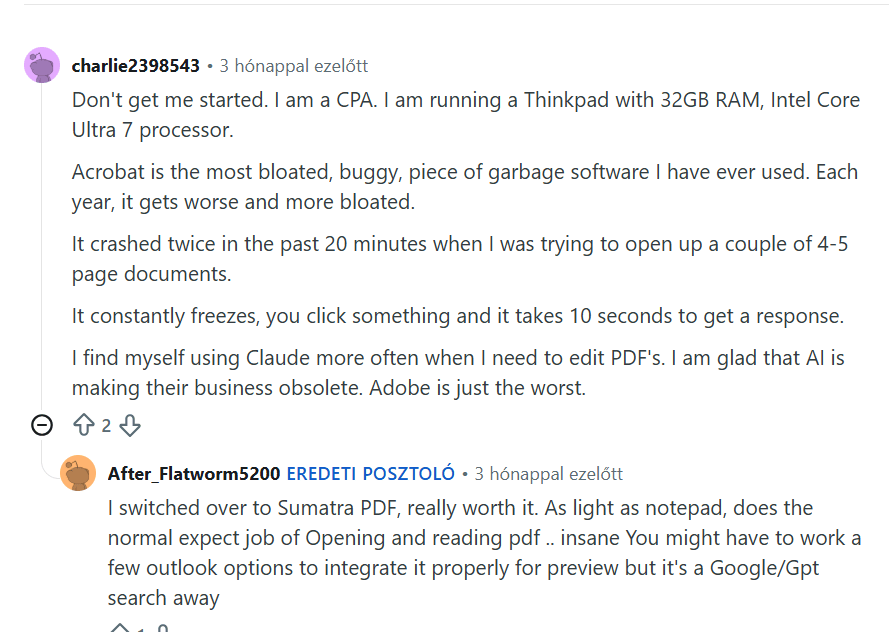
When it comes to Adobe Acrobat, people are raging about it. And I completely understand why.
In this Reddit thread, charlie2398543 confirms my experience with Adobe Acrobat Pro. Whenever I opened a larger file, it suddenly froze, and I had to start over. When I got lucky, it did not freeze, just became frustratingly slow.
That’s why I recommend looking for Adobe Acrobat alternatives, since you can get a better experience for 3x less money.
🔎Read my full review: Adobe Acrobat Review: What Nobody Tells You (2026)
Short on time? Here’s a quick overview of Adobe Acrobat
Related articles:
- Adobe Acrobat Vs Foxit: I Tried Both and Found The BEST (2026)
- Adobe Acrobat Vs Nitro: A Honest Comparison (2026)
- 6 Best PDF Converter For 2026 | 30+ Personally Tested Tools
Summary: The best PDF readers in 2026
I know, there are 100+ PDF readers, and it’s tough to decide which one to use. Although I did not test all of them, after using 30+ PDF readers, I found these to be the best PDF readers in 2026.
Related article:
- 6 Best OCR Software For 2026 | 30+ Personally Tested Tools
- The 8 Best PDF Editors In 2026 | 30+ Personally Tested PDF Tools
I hope I was able to find the best PDF readers in 2026. As always, I will keep updating this list to ensure it reflects reality.
Looking for similar tools?
Visit our library of PDF editors to explore other apps we’ve reviewed in this space and how they compare.
Why you can trust our reviews
At thebusinessdive.com, our team tests, reviews, and compares hundreds of productivity apps every year — from project management tools to note-taking apps. We dive deep into real-world use cases to help you find the right tools that actually improve your workflow, not just add noise.
Our mission? No fluff, no shortcuts—just honest, hands-on insights from productivity pros.
Discover how we stay transparent, read our review methodology, and let us know about any tools we missed.
Frequently asked questions
Which is the best free PDF reader?
After personally testing over 30 PDF editors, I think PDNob, EaseUS, and PDF Expert, and are the top three best PDF readers. Besides the ones I mentioned in this list, you can check the following:
- PDF-XChange Editor: A PDF editor with many valuable reading features, but no free plan is available.
- Nitro PDF Reader: It offers a touchscreen mode, which could be useful for tablet users.
- SlimPDF: It is a lightweight PDF reader for those who only need to work with PDF files occasionally.
- Xodo PDF Reader: Xodo PDF Studio is an offline desktop PDF editor. It allows reading, editing, and annotating PDF files on Windows, Linux, iOS, and Android devices.
Is there a better PDF reader than Adobe?
In my testing, I preferred PDNob, EaseUS, PDF Expert, and PDFgear over Adobe Reader for the overall reading experience, although the best choice depends on your platform and the features you need.
However, many free PDF readers have limited capabilities compared to paid versions, especially for collaboration and document management. If you need these features as well, but want a completely free PDF editor and reader, check out PDFgear.
If you are a business, I recommend Nitro PDF Reader, Tungsten Power PDF, and PDF-XChange Editor as replacements for Adobe Acrobat Pro.
What is the best way to read a PDF?
It depends on how you “consume” such a document. Most users prefer to download the PDF file and read it on a desktop. However, numerous PDF readers support in-browser PDF reading, so you do not even need to open your desktop app.
Foxit’s Safe Reading Mode can also improve security when opening PDFs by disabling potentially harmful JavaScript actions.
What’s the best PDF reading software for Windows?
Based on testing 30+ PDF editors, I find PDNob and EaseUS PDF Editor to be the best PDF reading software for Windows.
PDNob stands out for its advanced reading options, fast performance, and simple interface. At the same time, EaseUS provides a similarly smooth experience and remained responsive even when I tested it with larger PDF files.
What’s the easiest PDF reader to use?
I found PDNob to be the easiest PDF reader to use.
It recently released a new interface that is clean and intuitive, with almost no learning curve. It also felt fast and responsive during my testing, making it a strong choice if you want to open a PDF and start reading without learning a complicated interface.
However, it is more than just a PDF reader. It offers advanced tools to edit PDFs, convert documents, and more.
Disclosure: I only recommend products I would use myself, and all opinions expressed here are my own. This post may contain affiliate links through which, at no additional cost to you, I may earn a small commission. Read the full privacy policy here.

Hey there! I am Aron, the founder of Thebusinessdive. I have been testing productivity apps for almost three years now. I reach 25.000 -50.000 people monthly with the mission to help you find the perfect productivity apps. Subscribe to my YouTube channel, newsletter, and social media to hear more about the best productivity tools. Let’s dive in!
Excellent roundup, Aron — your point about some top picks having no Android app is exactly the kind of detail that matters if you do most of your reading on a phone. From my experience on Android: PDFgear’s mobile app is the best genuinely free option, and Foxit’s Android app works well offline for reviewing documents on the go. One tip I’d add — check whether the app supports form-filling and compression on mobile before installing, since several desktop favorites strip those features from their Android versions.