


5 Best PDFelement Alternatives 2026 (NOT What You’d Think)
You tried PDFelement, but it did not work out? Don’t worry, I collected the best PDFelement alternatives you can find in 2026.
I personally tested +30 PDF editors to ensure I have enough experience and context to help you find the most suitable PDFelement alternative for you.
No matter if you are looking for a good all-around PDFelement alternative or a completely free PDF editor, I covered the main use cases to help you make a faster, easier decision.
Let’s dive in!
Which are the best PDFelement alternatives in 2026?
When putting together my list of best PDFelement alternatives, I considered numerous factors:
Features: I collected those PDF editors that offer similar or even more advanced features than PDFelement.
Pricing: Considered pricing, so I selected free & budget-friendly PDFelement alternatives for both businesses and individuals.
My experience: I also ranked these PDFelement alternatives based on my experience with them. I tested all these PDF editors with a goal to find the key pros & cons.
User reports: Lastly, I considered other people’s opinions & experience on different PDF tools in case I did not identify anything positive or even negative during my review.
Top PDFelement alternatives | +30 personally tested apps
Based on these factors, here are the best 5 PDFelement alternatives:
|
PDFelement Alternatives |
My Top Picks |
|---|---|
 |
Best PDFelement alternative overall |
 |
Best PDFelement alternative for Windows |
 |
Best free PDFelement alternative |
 |
Best PDFelement alternative for the web |
 |
Best PDFelement alternative for Mac |
Best PDFelement Alternatives in 2026
Let’s see the list of the best PDFelement alternatives!
LightPDF
Best all-in-one PDFelement alternative
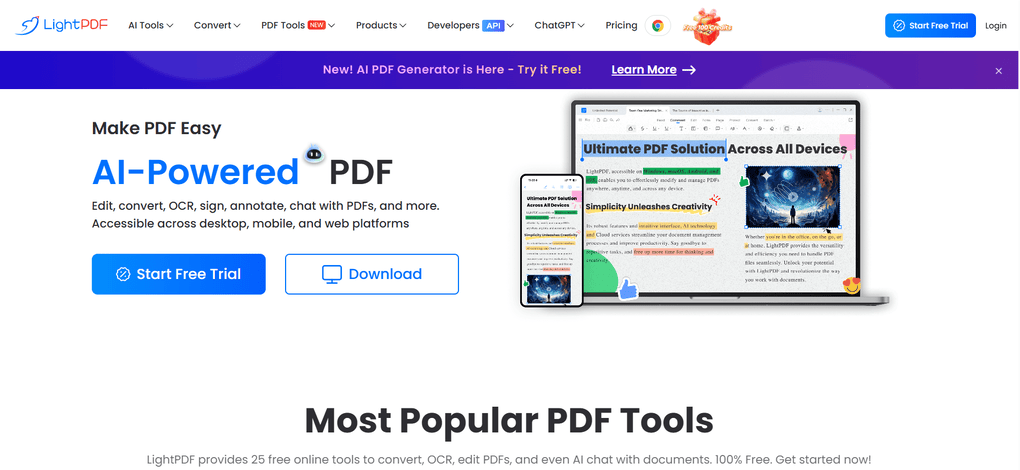
LightPDF is an AI-powered PDF editor that lets you edit, convert, OCR, sign, annotate, chat with PDFs, and more. While it is significantly cheaper than PDFelement, it offers a similarly comprehensive feature set.
It has impressive AI features, and the batch processing tools help you manage a high volume of PDF documents.
Platform support
Windows, Mac, Android, iOS, and web
Key features
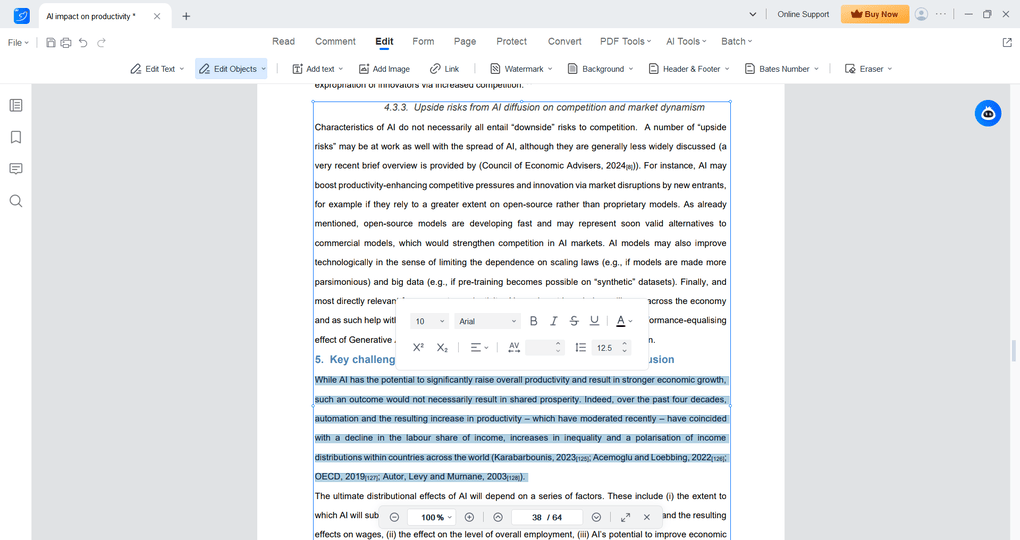
PDF editor: You can use the paragraph mode that selects the paragraph (for me, it was normally the whole page), and you can easily make the necessary changes. Alternatively, you can use the line mode for editing, which lets you only select the line you want to work with. With LightPDF, you can change the size, font type, alignment, color, and more. Also, you can insert and edit images.
OCR: When using the OCR features, you can select the page range and the language included in the document. LightPDF supports over 20 languages for its OCR capabilities, including handwriting recognition.
PDF conversion: LightPDF allows users to convert between PDF and over 15 other formats, including Word, Excel, and PowerPoint. If you use the conversion features on your desktop version, LightPDF allows you to convert PDFs into Word, Excel, PPT, TXT, HTML, and images.
Annotation tools: LightPDF provides all the annotation tools you need. If you click on the “Comment”, you can add annotations like highlights, comments, callouts, shapes, strikethroughs, and more.
Organization features: Using LightPDF, you can smoothly organize pages. It allows you to merge, extract, split, replace, and crop your pages.
Signing PDFs: With LightPDF, you can create your signature and sign documents easily. You can draw signatures using the cursor, type your name with custom fonts, or upload an image of their signature.
Password protection: When testing LightPDF, I was glad to see that you can set a permission and an open password as well. If selecting the permission password, you can further control who can do what with the PDF file.
AI tools: One of the strongest aspect of LightPDF are the AI features. You can chat with PDFs, ask for a summary or a mind map, watermark removal, and so on.
Batch processing: With this feature, you can convert multiple files, including images and Word documents, to PDF format or process numerous scanned documents into an editable format.
My experience with LightPDF
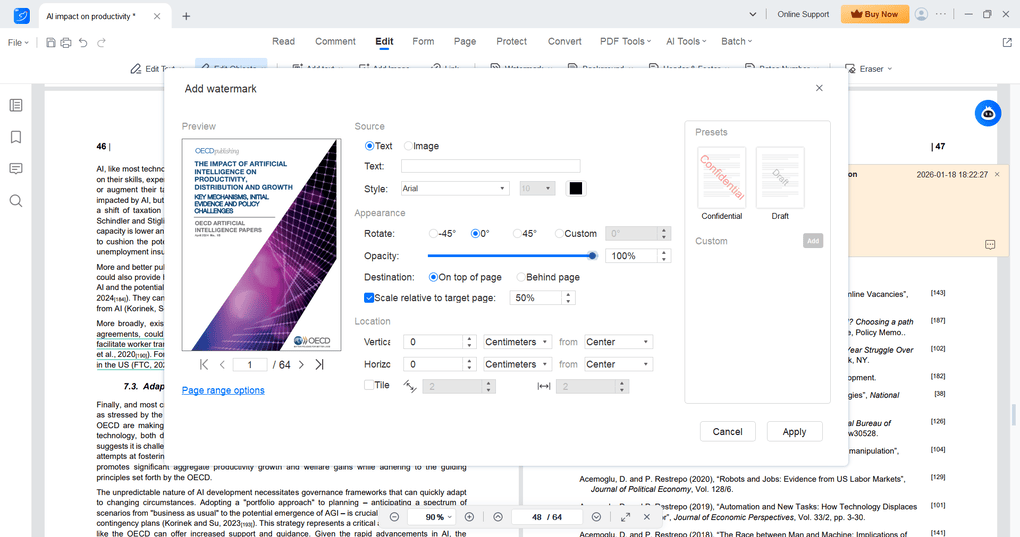
LightPDF is an all-in-one PDF tool that offers a clean, fast, and easy-to-understand interface. I found two outstanding features when testing.
Its AI features were impressive and can really help digest PDFs faster. Here, I also appreciated the accuracy of the AI replies to my questions.
Second, its batch processing features are helpful if you need to deal with a high volume of PDF documents. This makes document management fast and efficient.
On the other hand, personally, I prefer PDF editing with drag and drop functionalities, and I did not find this when testing LightPDF. Apart from this, I was satisfied with LightPDF’s features & performance during my review.
Pricing
LightPDF offers a free plan that includes 25+ tools and allows users to edit, convert and utilize the PDF tools for up to five files per day for free. However, the free version is available only on the web.
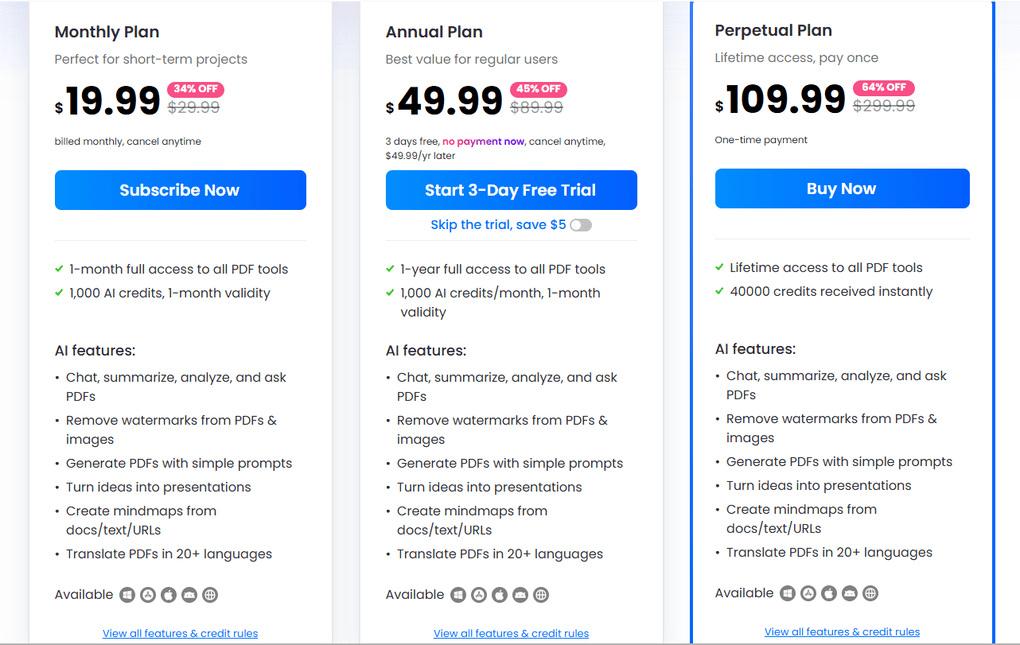
For individuals, LightPDF offers three paid plans. The monthly plan is $19.99, while LightPDF’s annual plan costs $49.99 and is billed yearly.
Furthermore, LightPDF offers a perpetual (lifetime) plan for a one-time payment of $109.99. In terms of features, it includes all the tools available in the monthly and annual plans. When it comes to the AI-powered tools, you will get 40000 credits to utilize them.
LightPDF also offers pricing plans for teams, starting at 2 users. These plans start at $143.98 per two users.
Unlike many other tools that charge separately for PDF editing and AI features, LightPDF offers a unified subscription model. One payment unlocks all features, including both PDF tools and AI capabilities.
Moreover, your subscription works across all platforms—Windows, web, and mobile, so you get full access on any device with one subscription.
LightPDF’s pros and cons
Pros of LightPDF
Cons of LightPDF
Why is LightPDF the best all-in-one PDFelement alternative?
The reason LightPDF ranked first for me is that it offers a similar feature set to PDFelement but at a more reasonable price. With its outstanding batch processing features and AI tools, LightPDF could be an ideal PDFelement alternative for individuals and businesses working with many PDF documents.
🔎Read my full review: LightPDF Review: My Honest Opinion (2026)
Short on time? Here’s a quick overview of LightPDF
EaseUS PDF Editor
Best PDFelement alternative for Windows
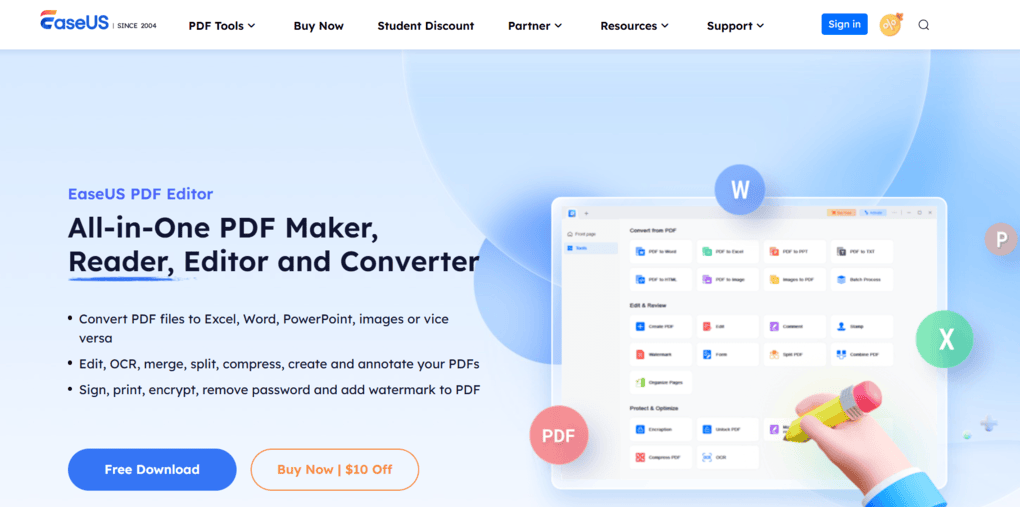
EaseUS PDF Editor is a budget-friendly PDF editor software for Windows and Mac. It offers advanced PDF editing features with a user-friendly interface.
Platform support
Windows, Mac
Key features
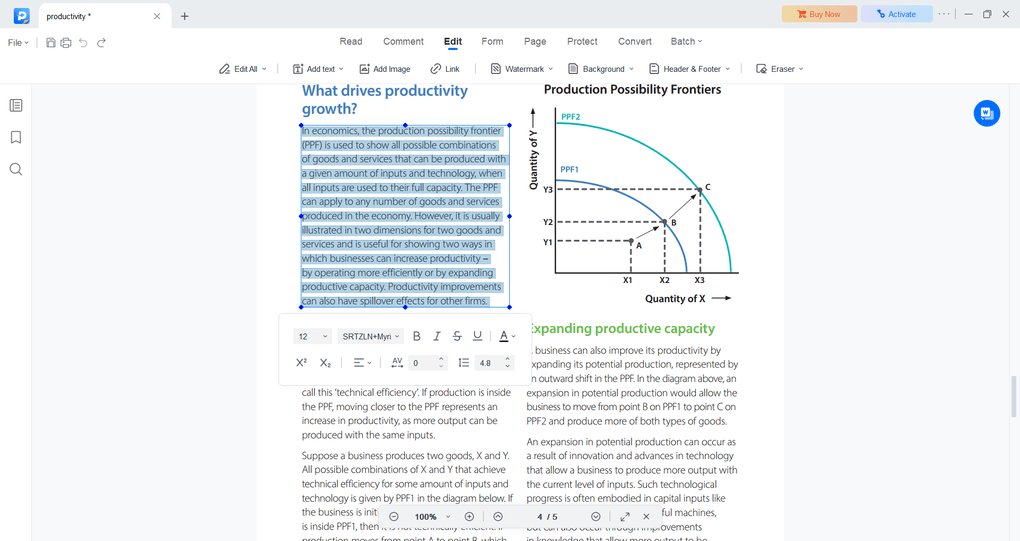
PDF editor: Using this Wondershare PDFelement alternative, you can edit all the elements of the PDF files, including text, images, shapes, and shades. You only need to select the “all options” function, and you can edit the item you click on. The PDF editing is straightforward and smooth.
OCR: EaseUS PDF Editor has a pretty accurate OCR feature. I used it numerous times and performed the tasks with around 95% accuracy.
PDF conversion: You can convert PDF documents into Docx files, Excel, PPT, image files, TXT, or HTML formats.
Annotation tools: You can highlight text, use underline, or strikethrough, but there are also other options. For example, you can add sticky notes and callouts, or you can even draw.
Organization features: Using the Page Tab, you can rearrange your PDF pages, merge, crop, delete, split, and extract pages.
Password protection: EaseUS PDF Editor offers essential password protection features to restrict access.
PDF forms and signatures: EaseUS PDF offers simple solutions for creating and filling out forms. When creating a form, you can choose from inserting a text field, checkboxes, drop-down menus, and more. You can also create your digital signature with one click.
My experience with EaseUS PDF Editor
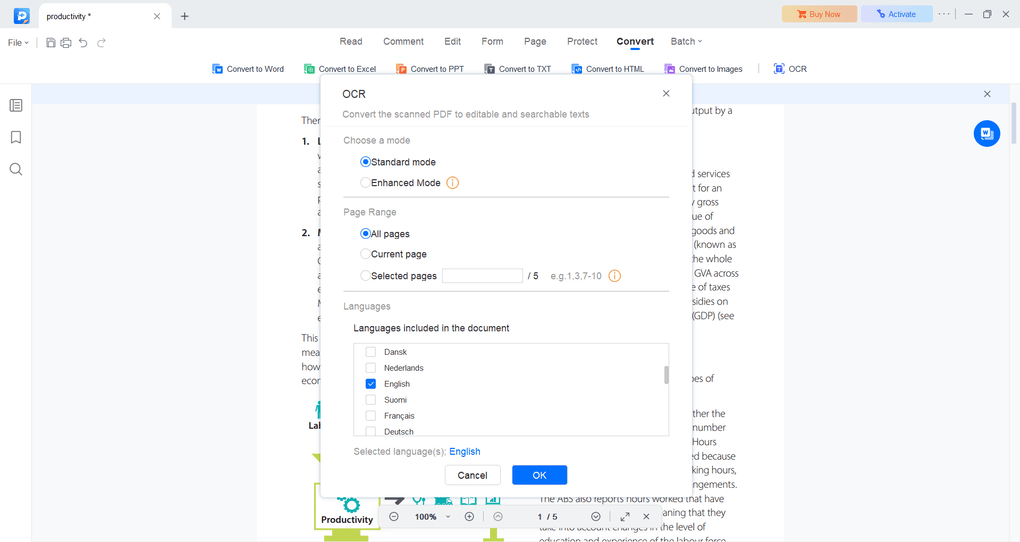
EaseUS PDF has an intuitive interface and some useful tools for editing and reading PDF files. This tool is very simple.
You can find all the tools you need, whether it is OCR or annotation tools in seconds. Furthermore, I did not notice any performance issues even when I worked with larger PDF documents.
There are two limitations here. First, it has no mobile version. Second, the AI assistant is currently only available online.
These are two key reasons why I could not place EaseUS PDF Editor as the best PDFelement alternative.
Nevertheless, I had a good experience with EaseUS PDF when testing it, and it is ultimately an affordable PDF editor for Windows & Mac users.
If you think you may need the advanced features, use the above link for signup and enter the code THEBUSINESSDIVE20 to receive 20% OFF if you fall in love with EaseUS PDF later.
Pricing
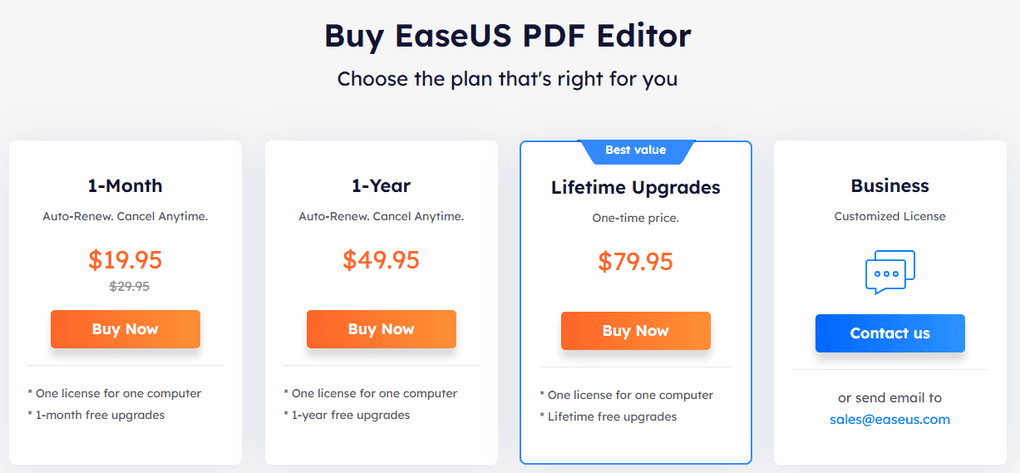
EaseUS PDF Editor’s monthly plan is €19.47, while the yearly plan is €46.95. They include one license for one computer and 1-year free upgrades.
If you go for the lifetime upgrades, it will cost you €79.95.
Overall, EaseUS PDF Editor is currently one of the cheapest PDF editors on the market.
EaseUS PDF Editor’s pros and cons
Pros of EaseUS PDF Editor
Cons of EaseUS PDF Editor
Why is EaseUS PDF Editor the best PDFelement alternative for Windows?
If you don’t need a PDF editor for mobile and web, and you don’t particularly require AI features, EaseUS PDF Editor could be an ideal solution. It has super PDF editing features and offers a fast & intuitive platform to manipulate your PDF files.
🔎Read my full review: EaseUS PDF Editor Review 2026 | My Unfiltered Opinion
Short on time? Here’s a quick overview of EaseUS PDF Editor
If you think you may need the advanced features, use the above link for signup and enter the code THEBUSINESSDIVE20 to receive 20% OFF if you fall in love with EaseUS PDF later.
PDFgear
Best free PDFelement alternative
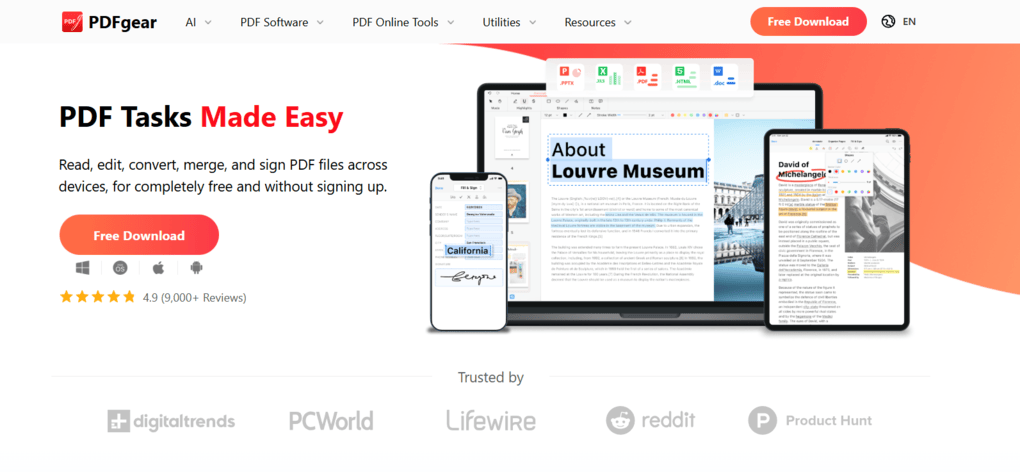
If you don’t want to spend a penny on PDF editors but need a PDF solution for your desktop, or even a web version, I can recommend PDFgear. It is a free PDF editor that lets you manage your PDF files with ease.
Platform support
Windows, Mac, iOS, Android, and Online
Key features
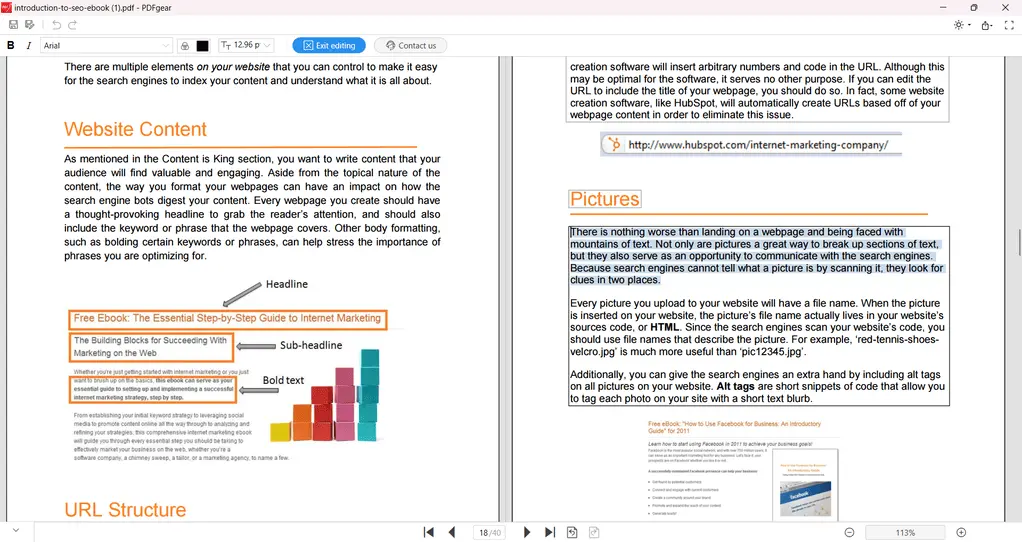
PDF editing tools: With PDFgear, you can edit text, adjust fonts, color, and size, and make it bold or italic. Although it does not have as many editing tools as other paid PDF editors, it includes the most useful features, and you can get them for free.
Annotate PDFs: You can access valuable collaboration & annotation tools using this free PDF editor. You can highlight, underline, and strike through text. I loved that you can highlight areas of your pages. Besides these options, you can add notes, shapes, and text boxes.
Organize PDFs: You can extract, delete, insert, and rotate pages, and if you want to move them, just drag and drop the page thumbnails. Organizing your PDF pages is super easy with PDFgear.
PDF forms and signatures: PDFgear only has the essential features to create and fill forms. Moreover, you can generate your digital signatures and sign documents digitally.
Convert PDFs: You can convert files into many other formats, such as Microsoft Word files or pictures, and vice versa.
Optical character recognition: You can find the OCR tool on the homepage, so you can quickly extract text from scanned documents.
Password protection: PDFgear allows you to control who can open the PDF file with the password. Nevertheless, there is no option to restrict the editing or printing of the PDF files.
AI tools: When opening up the AI co-pilot, you will get some sample prompts you can use to interact with your PDFs. It is also great that you can not just chat but also add commands to AI, for example, protect the PDF with a password or convert the PDF into another format.
My experience with PDFgear
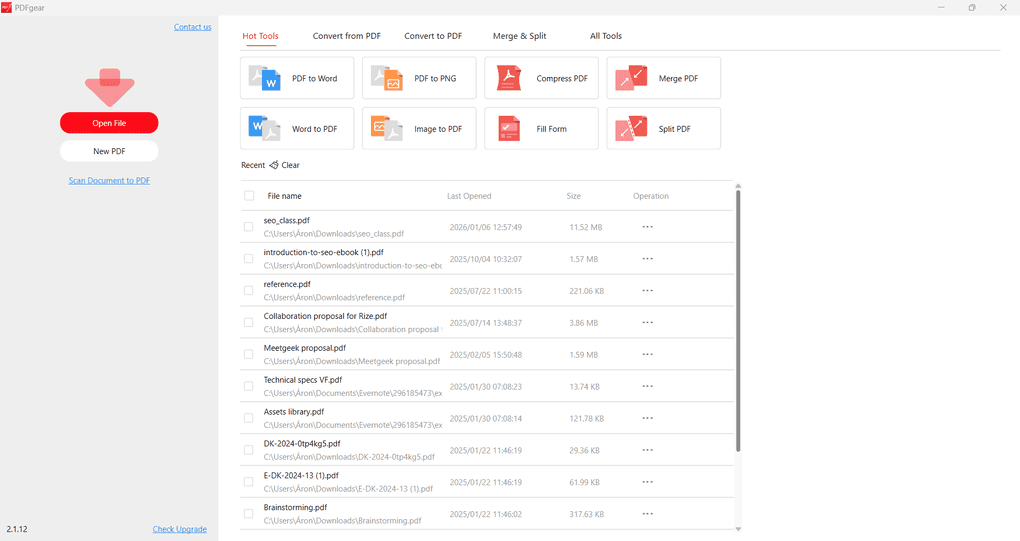
PDFgear is a simple but, most importantly, a free PDFelement alternative that has all the basic editing features to effectively manage PDF documents. It is a versatile PDF editor that works on all platforms and offers fantastic AI features.
Pricing
PDFgear is a free PDF editor.
PDFgear’s pros and cons
Pros of PDFgear
Cons of PDFgear
Why is PDFgear the best free PDFelement alternative?
There are many free PDF readers for desktop, but only a few for PDF editing. One of them is PDFgear. If you don’t want to spend a dime on PDF editors, but need more than just reading functions, PDFgear is a great option.
🔎Read my full review: My Honest PDFgear Review 2026 | What They Don’t Tell You
Short on time? Here’s a quick overview of PDFgear
Smallpdf
Best PDFelement alternative for the web
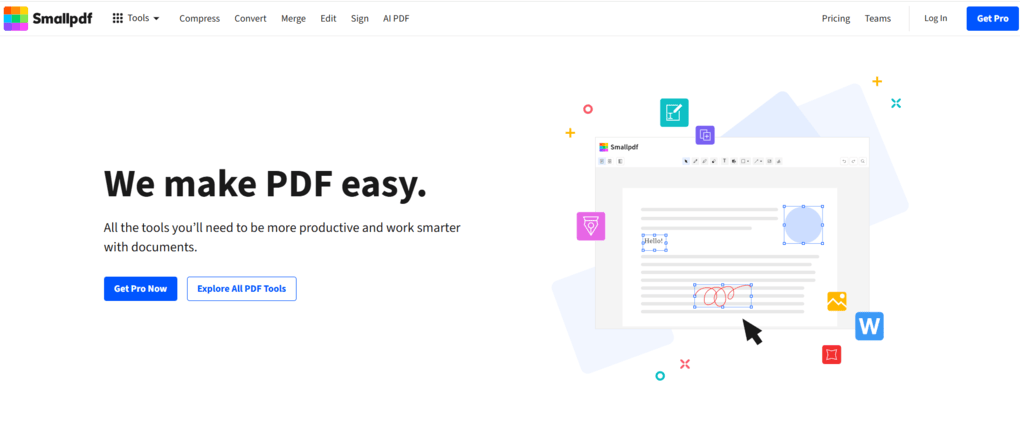
If you need a simple alternative to PDFelement for web-based PDF editing, check out Smallpdf. It offers a Chrome extension that lets you use its tools when you open a PDF in your browser, and you can access them in Google Drive and Dropbox.
Platform support
Windows, iOS, Android, and Online
Key features
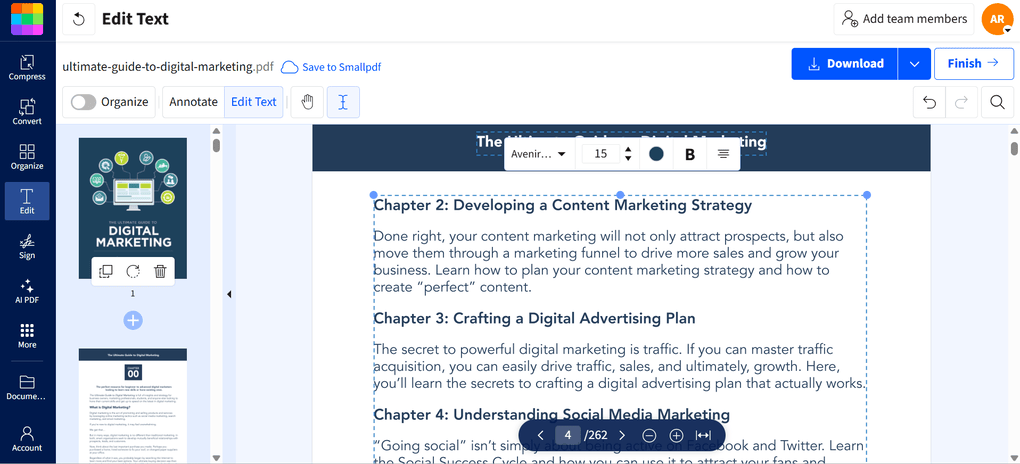
PDF editing tools: Smallpdf utilizes drag-and-drop functions for editing text and images in your PDFs. When clicking on a text box, you make it smaller, larger, and move it around. Smallpdf allows you to use a different font type for the text, adjust the size, and change the color and alignment. In addition to editing existing text, you can add new text boxes to your PDF documents. Apart from adding new text boxes, you can insert image files into PDF documents.
Annotate PDFs: It has the essential annotation tools for PDF files, but the focus was not on these features. You can add text, drawings, shapes, and highlights. If you click on the highlight option, you will access some additional tools like text underlining, strikethrough, and squiggle.
Organize PDFs: Smallpdf offers valuable features for organizing your PDF files and supports other formats, including images (JPG and PNG), Excel, PPT, and Word files. With this PDF tool, you can merge, split, rotate, delete, and extract pages. You can combine multiple PDFs into one longer document, which makes it easy to read and review everything in one file.
Electronic signatures: You can either draw, type, or upload the signature you want to use to sign PDFs. Once you have your signature, you only need to insert it in the place where you need to sign the PDF, and that’s it. It works like images, so you can move, rotate, and adjust the size.
Convert PDFs: Another area where Smallpdf worked great is its PDF conversion tools. You can convert PDFs into Excel, images, PowerPoint, and Word files. It works vice versa, so you can convert the supported file formats into PDF documents.
Optical character recognition: Smallpdf provides OCR tools as well, which allow you to convert scanned documents and images into editable and searchable text. The OCR is particularly useful when you work with printed materials or older documents that you want to digitize.
Password protection: With Smallpdf, you can set passwords for your PDFs and other file formats. Moreover, it has an Unlock feature, so you only need to upload your file, enter the password, and download your unrestricted document.
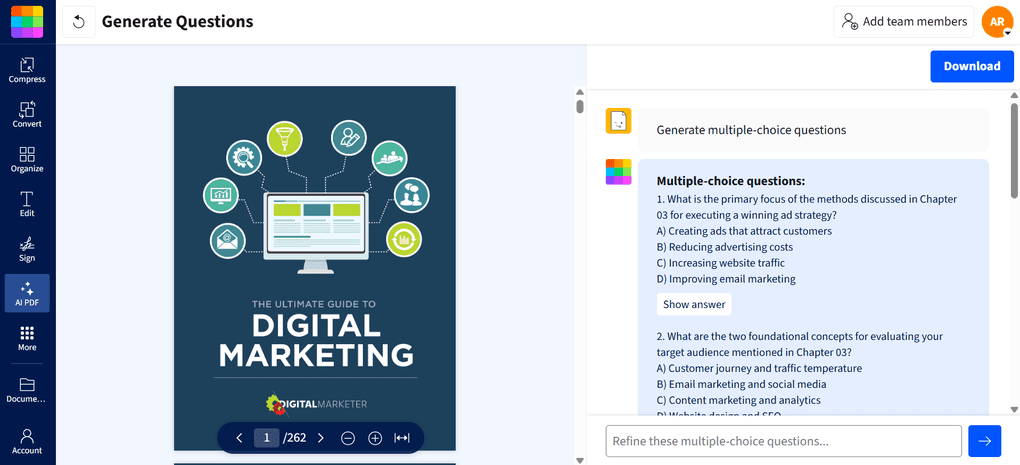
AI tools: Smallpdf offers extensive AI features, allowing you to chat, summarize, and translate your PDF documents. Additionally, it features a function to generate questions based on the PDF file you uploaded.
My experience with Smallpdf
I mostly used Smallpdf’s online version when testing this PDF tool. With its intuitive user interface, it was super easy to access all the features I needed.
When editing PDFs, Smallpdf adopted a drag-and-drop functionality, which made it easy to edit PDFs quickly and smoothly. Furthermore, Smallpdf offers advanced PDF organization, conversion, and AI features.
I also appreciated the option to add team members. With its discounted pricing for teams, Smallpdf is an ideal solution for teams as well.
Overall, I had an absolutely positive experience with Smallpdf, and I think it is a top PDFelement alternative.
Pricing
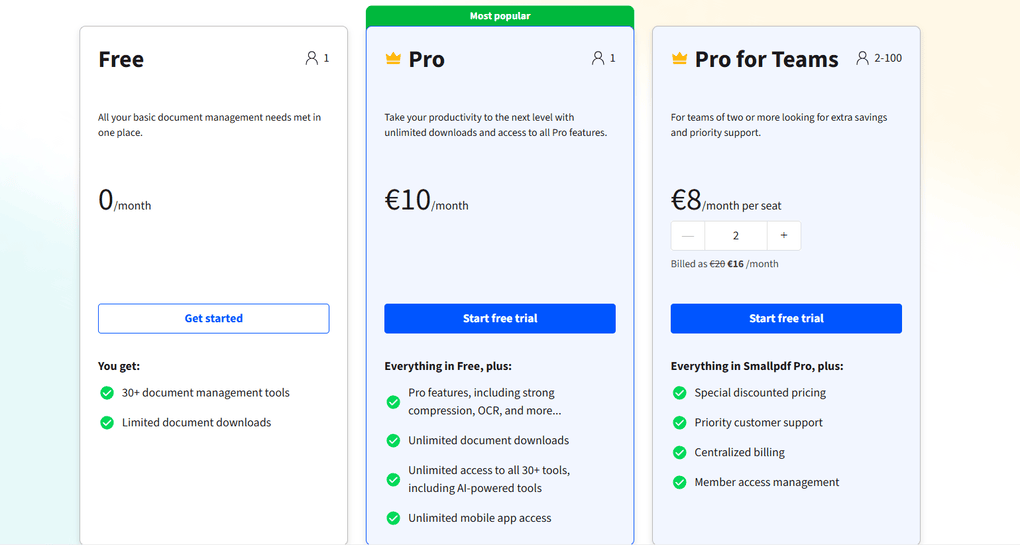
Smallpdf’s free version gives you access to all the basic tools for document management. It covers the compression, PDF conversion tools, passwords, PDF editor, and e-signature features. Nevertheless, the Free Plan has a daily download limit for these features.
The Pro Plan is excellent for professionals who need unlimited downloads and access to all the Pro features. The Pro version of Smallpdf starts at $10 per month if the annual billing is chosen. Alternatively, if you want to pay monthly, you can use its monthly plan for $15.
Using the 7-day free trial version, you will have a chance to test Smallpdf’s Pro features for yourself before buying it. The Pro Plan includes all the features in the free version without limits, plus you will access some more advanced features.
After testing +30 PDF editors, I can say that Smallpdf offers a reasonable price for its features.
SmallPDF has a dedicated plan for teams. You can get this plan for $8/month per seat if opting for the yearly billing. In the case of monthly billing, the Pro For Teams Plan will cost you $12/month per seat.
Smallpdf’s pros and cons
Pros of Smallpdf
Cons of Smallpdf
Why is Smallpdf the best web-based PDFelement alternative?
Smallpdf’s Chrome extension lets you use its tools when you open a file in your browser, and you can access its tools inside your Google Drive and Dropbox.
If you work a lot in your browser on PDF documents, Smallpdf is a top choice for teams & individuals as well.
🔎Read my full review: Smallpdf Review 2026 | The Top Lightweight PDF Tool
Short on time? Here’s a quick overview of Smallpdf
Explore our Apps directory
A curated directory of software tools we’ve independently reviewed, with links to full reviews, comparisons, and category guides.
PDF Expert
Best PDFelement alternative for Mac
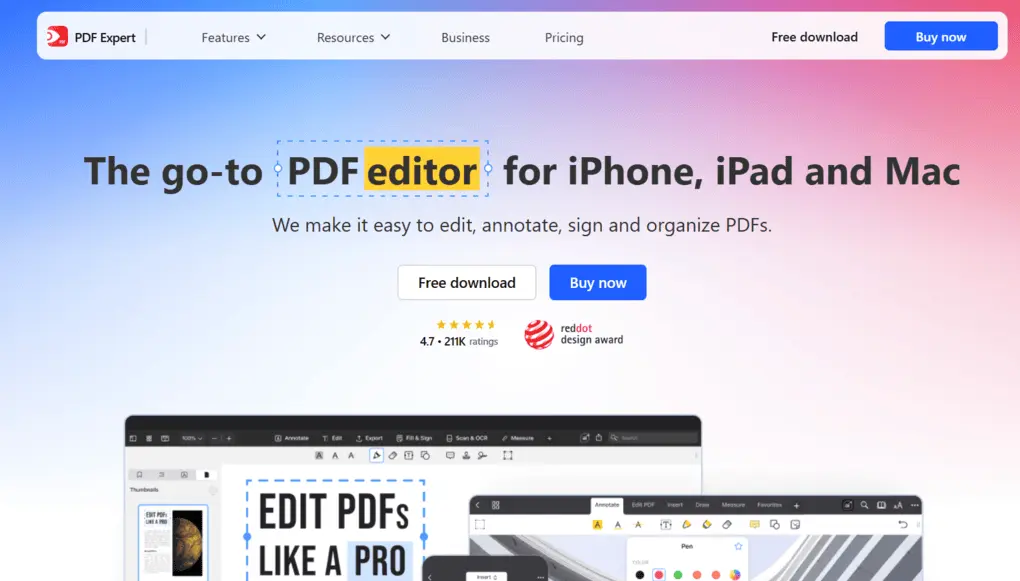
If you need a lightweight PDFelement alternative for Mac, PDF Expert is my number one recommendation. It is fast, easy to use, and offers numerous features to manipulate PDFs.
Platform support
Mac and iOS
Key features
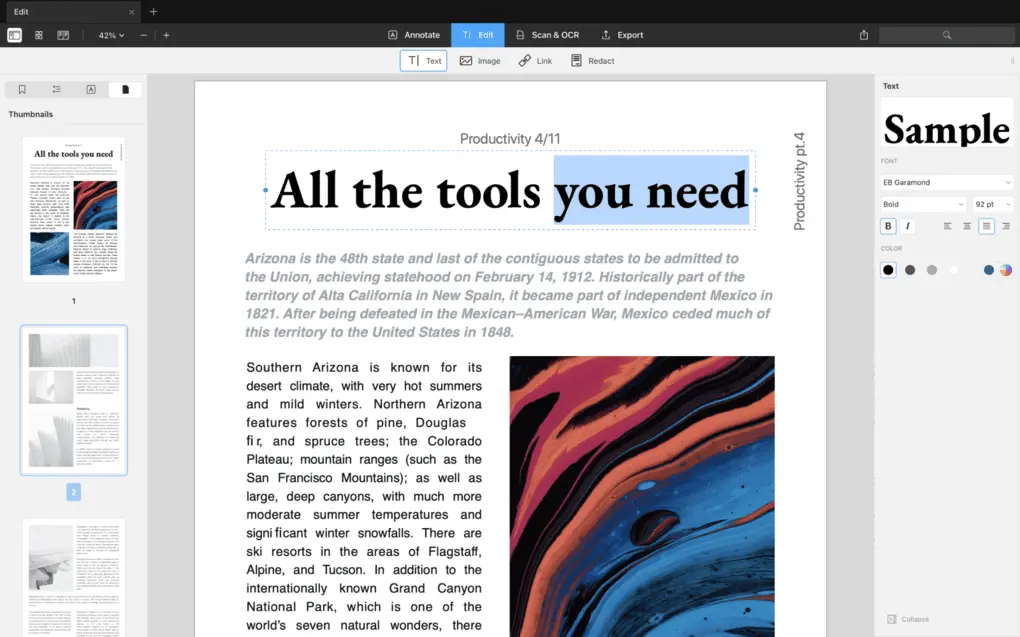
PDF editing tools: It is a straightforward app for PDF editing. You can easily add, replace, and resize images and text boxes in your documents. I appreciated that during testing, you can easily insert links in the PDF document that point to external websites or to other pages in the document.
Annotate PDFs: Using PDF Expert, you can highlight text, insert comments, draw, and add stickers and shapes. When reviewing PDF documents, you can leave audio comments, which is a valuable feature to save time and collaborate with team members smoothly.
Organize PDFs: It is super easy to rotate, add, reorder, and remove pages from your PDFs. With a few clicks, you can combine multiple PDFs into one or split a PDF into multiple documents.
Signatures: You can manage forms with PDF Expert. That said, it lets you insert text boxes, number fields, checkboxes, and places for signatures. Besides, it has an e-signature tool as well, where you can type your name, and PDF Expert will transform it into a handwriting format.
Convert PDFs: With its PDF converter, you can transform PDFs to and from Word, Excel, PowerPoint, JPG, PNG, and more quickly.
Optical character recognition: PDF Expert has a built-in OCR technology, so it recognizes the font type and seamlessly inserts the new text in the same format.
Password protection: Similar to other PDFelement alternatives, PDF Expert has security features. With this PDF editor, you can set passwords to your files in a quite straightforward way.
AI tools: PDF Expert has an AI assistant feature that you can utilize to generate summaries and list the main points.
My experience with PDF Expert
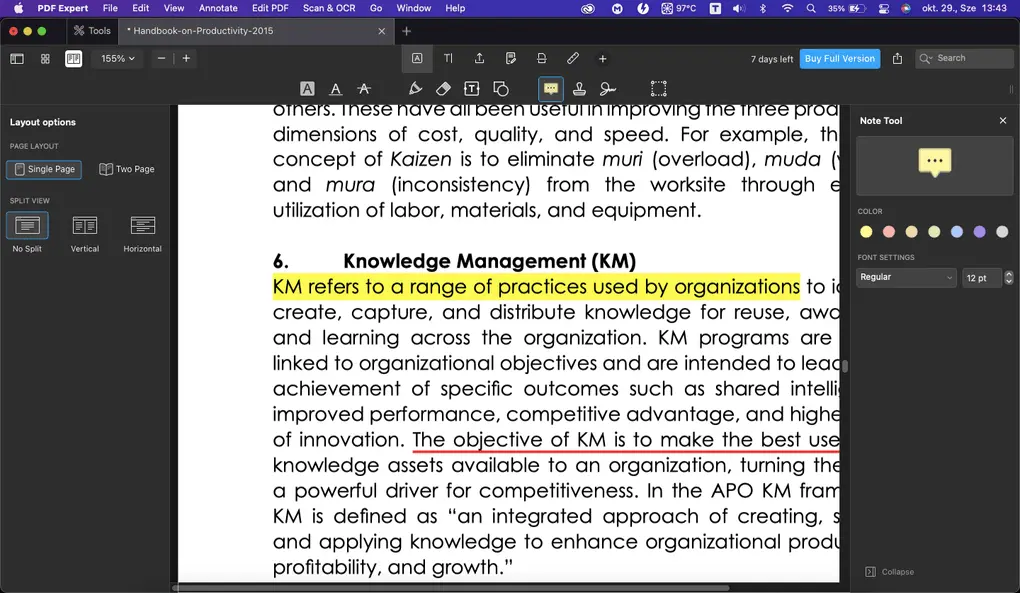
PDF Expert is a pretty fast, lightweight PDF editor, especially if we compare it to Foxit, Nitro PDF, or Adobe Acrobat. It is a solid PDF viewer that allows you to change between different themes. So, it offers a pleasant experience when reading PDF files.
Moreover, PDF Expert is a simple PDF editor. It has the most crucial features to edit PDFs fast. While it does not have as many PDF editing features as Foxit or Nitro PDF, it is easy to use its tools.
Finally, I loved PDF Expert’s user-friendly interface. It is easy to navigate its pages, access the tools, and convert PDF files into different formats.
Overall, I had a positive experience with PDF Expert and did not encounter many issues.
Pricing
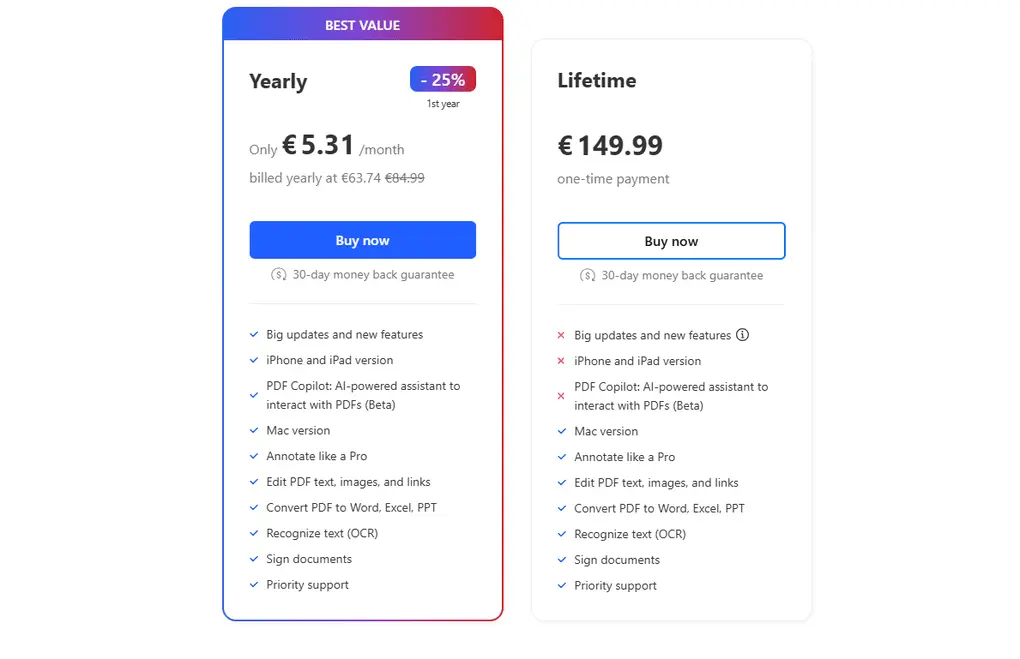
You can get a lifetime subscription for a one-time fee of €149.99. While it includes almost all the features except the PDF Co-pilot, you have to pay for the updates, and you will not have access to the iPhone and iPad versions.
The annual subscription is €63.74 for the first year and €84.99 for the remaining years. It includes the updates, iPhone and iPad versions, and the PDF Co-pilot.
All in all, PDF Expert is way cheaper than Adobe Acrobat and an affordable PDF solution on the market.
PDF Expert’s pros and cons
Pros of PDF Expert
Cons of PDF Expert
Why is it the best PDFelement alternative for Mac users?
Personally, PDF Expert is one of my favorite PDF editors for Mac. It has a beautiful user interface and feels really fast. Its PDF reader is top-notch, so if you view many PDFs, it is an ideal choice.
🔎Read my full review: PDF Expert Review 2026 | Is it REALLY the best for Mac Users?
Short on time? Here’s a quick overview of PDF Expert
Related readings:
- The 10 Best PDF Editors In 2025 | 30+ Personally Tested PDF Tools
- The 8 Best Adobe Acrobat Alternatives: 30+ PDF Editors Tested
- The 7 Best PDF Readers For 2026 (Only FREE Options)
- 6 Best PDF Converters For 2026 | 30+ Personally Tested Tools
Summary: Best PDFelement alternatives in 2026
PDFelement is a solid PDF editor, but it is not perfect for everyone. After testing 30+ popular PDF editors on the market, I found these as the best PDF software to replace PDFelement.
Since there are numerous options on the market and I am not completely sure of all your preferences, I recommend checking out our library of PDF editors to find the right one for you. We tested all these options personally to help you get an independent view when choosing a PDF editor.
Looking for similar tools?
Visit our PDF editor library to explore other apps we’ve reviewed in this space and how they compare.
I hope I was able to find the best PDFelement alternatives in 2026. As always, I will keep updating this list to ensure it reflects reality.
Why you can trust our reviews
At thebusinessdive.com, our team tests, reviews, and compares hundreds of productivity apps every year — from project management tools to note-taking apps. We dive deep into real-world use cases to help you find the right tools that actually improve your workflow, not just add noise.
Our mission? No fluff, no shortcuts—just honest, hands-on insights from productivity pros.
Discover how we stay transparent, read our review methodology, and let us know about any tools we missed.
Frequently asked questions
Is there a 100% free PDF editor?
Yes, this is why I included PDFgear in this list of best PDFelement alternatives. It is 100% free and allows you to edit your PDF documents easily.
What are the best PDFelement alternatives?
For me, the best PDFelement alternatives are LightPDF, EaseUS PDF Editor, PDFgear, Smallpdf, and PDF Expert. Besides these, there are some additional popular alternatives:
- Adobe Acrobat: Adobe Acrobat DC is widely used in legal, government, and finance settings for secure PDF workflows.
- Foxit: Foxit PDF Editor is marketed as a cheaper alternative to Adobe Acrobat, offering comprehensive features.
- Nitro PDF Editor: Nitro PDF Editor is designed for teams that prefer a Microsoft Office-style interface for managing PDFs.
- Xodo PDF Editor: Xodo Pro is a cloud-friendly PDF editor that offers consistent access across multiple devices.
- PDF-XChange Editor: PDF-XChange Editor is a powerful option for Windows power users seeking a one-time purchase with precise controls and technical markup tools.
- pdfFiller: pdfFiller is a robust web-based platform that excels in form management and e-signatures, allowing users to edit and share documents entirely within a browser.
Is PDFelement worth it?
PDFelement is an okay PDF editor. Although it is more pricier than others in this list, it offers an extensive feature set. I especially enjoyed using its PDF editing and OCR features during testing. However, numerous users mentioned how annoying the constant pop-ups are when using it.
Read my full review here: My Honest Wondershare PDFelement Review (2026)
What is the difference between PDFelement and Xodo?
When testing Xodo PDF Editor, it made a better impression on me than Wondershare PDFelement. Xodo feels like a more complete document management solution since it offers massive PDF editing and signature features.
Disclosure: I only recommend products I would use myself, and all opinions expressed here are our own. This post may contain affiliate links through which, at no additional cost to you, I may earn a small commission. Read the full privacy policy here.

Hey there! I am Aron, the founder of Thebusinessdive. I have been testing productivity apps for almost three years now. I reach 25.000 -50.000 people monthly with the mission to help you find the perfect productivity apps. Subscribe to my YouTube channel, newsletter, and social media to hear more about the best productivity tools. Let’s dive in!