


Spark Review 2026 | My Honest Experience After 2 Months
Spark used to be one of the most recommended email apps on Reddit. But when I begin my Spark review, I realized that the conversation around it has shifted, and some longtime users have become more divided in their opinions.
That made me curious to see what is going on.
I hadn’t used Spark in the past, so I can’t compare it to earlier versions. But I did spend two months using the desktop app, and I can share my personal experience, and pros and cons.
Stay here, because in this Spark review, I will reveal whether it is still worth it in 2026.
Let’s dive in!
Verdict
Here’s the quick verdict if you don’t want to read the full review:
🎯 Best for: Individuals and small teams who want a modern email client with AI features and smart inbox organization
🚫 Not ideal for: Users looking for a strong free plan or advanced team-focused collaboration tools
⭐ Biggest strength: Clean, user-friendly interface combined with useful AI features and smart inbox management
⚠️ Biggest weakness: Limited free plan with most advanced features locked behind paid tiers
⚖️ Verdict: A well-rounded and modern email client that balances usability, AI, and productivity features, but requires a paid plan to unlock its full potential
🏆 Score: 4.4/5
✅ Tested with our review & scoring methodology ✅ Real-world testing ✅ Unbiased evaluation
Spark review
Summary
Spark is a cross-platform email client available on macOS, Windows, iOS, and Android. It works with major email services such as Gmail, Outlook, iCloud, Yahoo, IMAP, and others. Spark combines everyday email essentials with advanced features like AI writing and summaries, an integrated calendar, and team collaboration tools. My experience has been genuinely positive, and I’d recommend Spark to anyone open to using a paid email client.
|
|
Beautiful, user-friendly interface
|
|
|
Unique Home Screen
|
|
|
Built-in AI for writing, summaries, search, and translation
|
|
|
Integrated calendar with multi-account support
|
|
|
AI Meeting Notes with transcripts and action items
|
|
|
Solid team collaboration for shared inbox workflows
|
|
|
Free plan is very limited
|
|
|
Data is not entirely processed on your device
|
How We Test Email Apps
To keep our reviews & final score for each email app fair and consistent, we evaluate every tool using the same testing framework based on real-world usage, feature depth, and overall value.
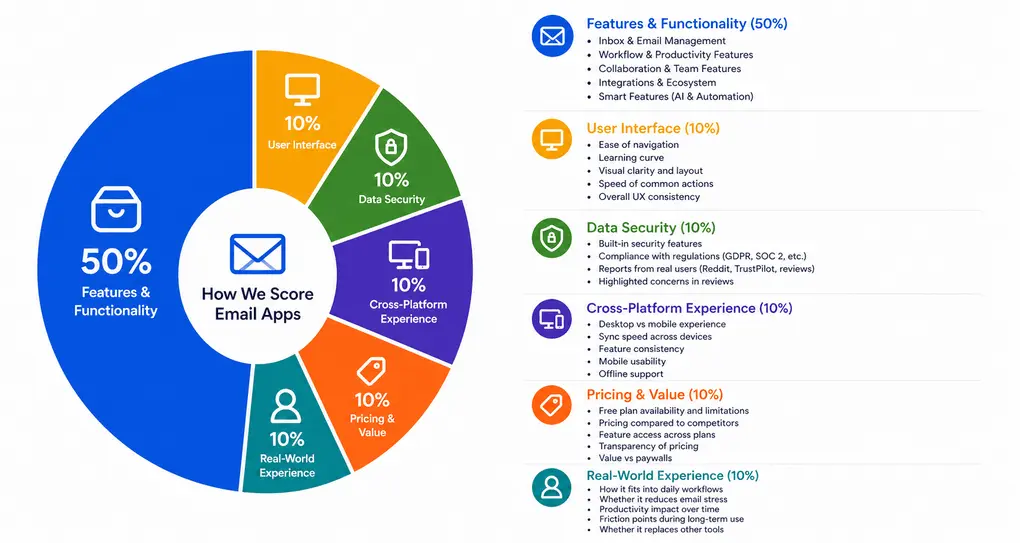
Our scoring breakdown after testing 10+ email apps:
⚙️ Features & functionality → 50%
🖥️ User interface → 10%
🛡️ Data security → 10%
📱 Cross-platform experience → 10%
💰 Pricing & value → 10%
👥 Real-world experience → 10%
Want a detailed breakdown of how we test each category?
Learn exactly how we test tools → Review methodology
Short on time? Here’s a quick overview of Spark
What is Spark?
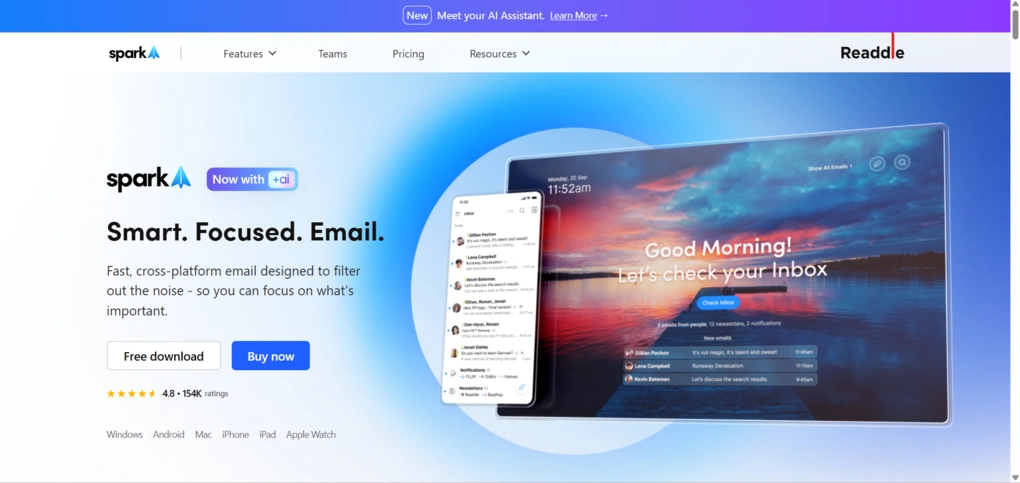
Spark is a cross-platform email client designed to help individuals and teams manage their inboxes. The app is developed by Readdle, a privately held software company known for productivity apps such as PDF Expert, Scanner Pro, Documents, and Calendars.
Spark is available on macOS, Windows, iOS, and Android, and is built to work with major email services such as Gmail, Outlook, iCloud, Yahoo, IMAP, and others.
It aims to blend everyday email essentials with advanced features like AI writing and summaries, integrated calendars, and team collaboration tools into a single hands-on productivity app.
What I learned using Spark over time
I tested Spark’s Windows desktop app for two months, and overall, I’m genuinely very satisfied with the experience. I didn’t encounter any issues, and all features worked well throughout my testing period.
It effectively combines numerous tools and workflows into a single platform that you can access on desktop and mobile.
If there’s one downside, it’s the pricing structure. The free plan is quite limited, and the free trial lasts only seven days.
How Spark scored in our testing
Spark reached a high score thanks to its integrations, collaboration, and workflow features. The combination of Smart Inbox, AI tools, built-in calendar, and team collaboration features makes it a well-rounded productivity app rather than just an email client.
The areas where it falls short are pricing and security. It offers a limited free plan, and the paid plans are not expensive but not cheap either.
As for security, the data is not entirely processed on your device, which does not make it a good fit for those considering end-to-end encrypted email providers.
Who gets the most value from Spark
Where Spark falls short
Key functions
Let’s now take a closer look at its core features I used during my Spark review.
Home screen
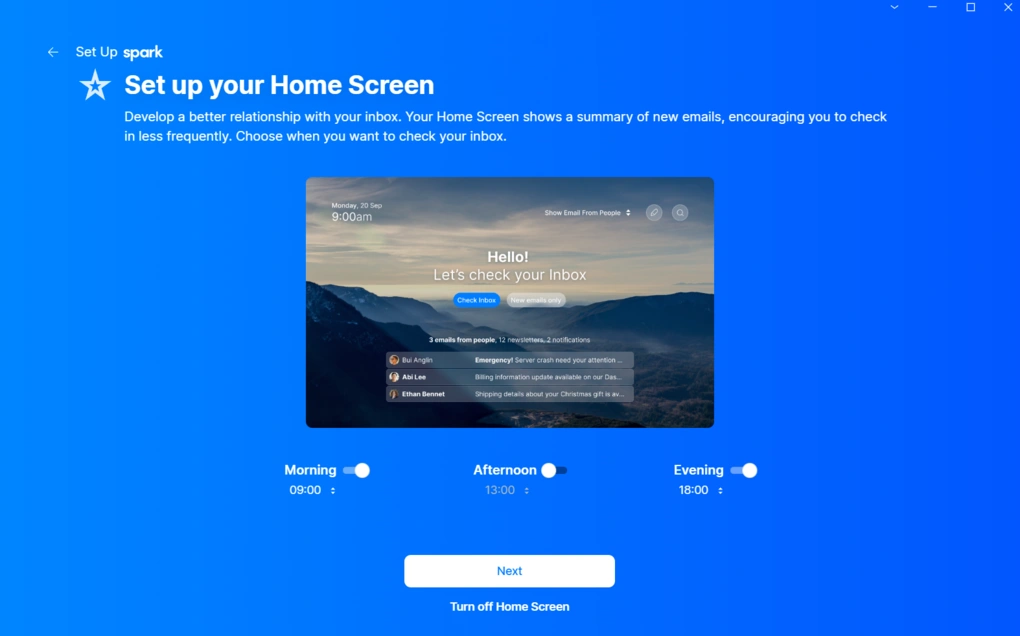
Spark’s Home Screen is a feature I didn’t expect to care about until I saw it. Instead of opening the app and immediately facing a wall of unread emails, you’re welcomed by a calm landing screen with a simple suggestion for when to check your inbox.
It looks good, yes, but the real purpose goes beyond aesthetics.
Once you set your preferred check-in times, Spark holds new messages until those windows. In practice, this protected my focus time surprisingly well since I was checking my inbox less frequently.
At the same time, you’re not completely cut off. The Home Screen can show a quick overview of what’s waiting, including emails from people or a short summary of incoming messages. And if this approach doesn’t suit you, you can turn it off and go back to a traditional inbox-first layout.
Since this feature plays a big role in how Spark differentiates itself, it is worth keeping in mind that it isn’t available on the free plan.
Smart inbox
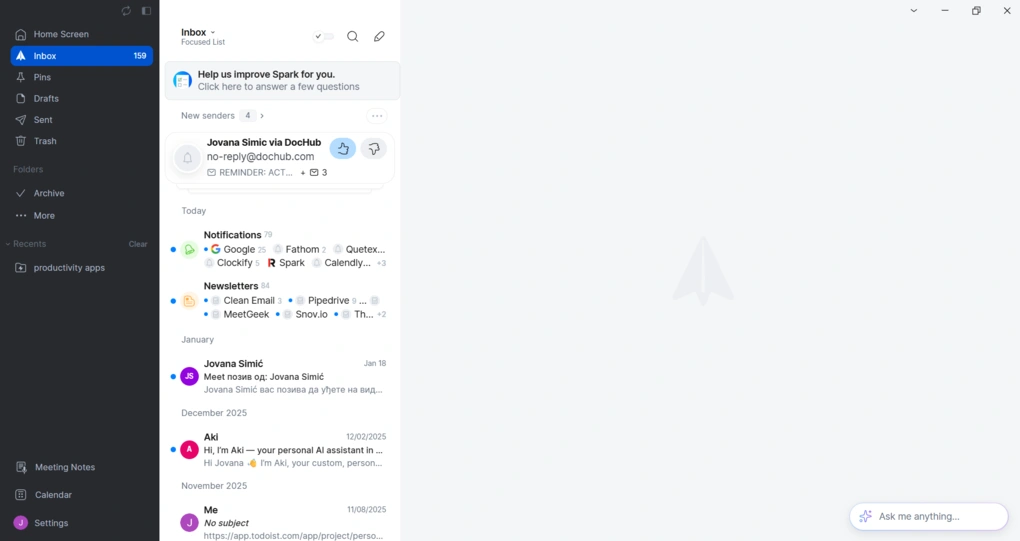
In the Inbox tab, your emails are automatically grouped into categories like New Senders, Newsletters, and Notifications.
Spark also includes predefined folders like Snoozed, Delegated, Shared drafts, and more, that automatically organize incoming emails. If that’s not enough, you can create your own custom folders, as well as Smart Folders that automatically group emails based on specific rules.
You can switch between different views, including Focused List, Unread Cards, and Simple List. If you’re dealing with a large volume of emails, Smart Search lets you quickly find messages by sender, keyword, attachment, etc.
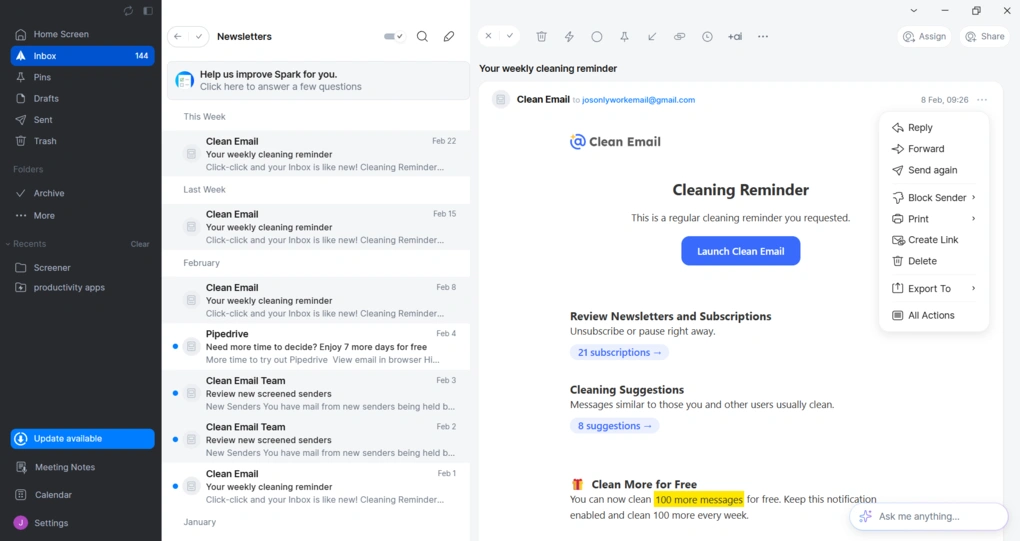
You can review each message individually or bulk-select and archive, delete, or mark it as unread with a single click. I liked that every action can be undone. There’s also a simple toggle to hide or show emails that have already been marked as done.
And once you open an email, you get even more control. You can mark it as Priority to push it to the top of your inbox, pin it, set it aside to reply later, snooze it, block the sender, or assign and share it with others, among other options. There was no point during my Spark review when I felt like another option was missing.
Gatekeeper
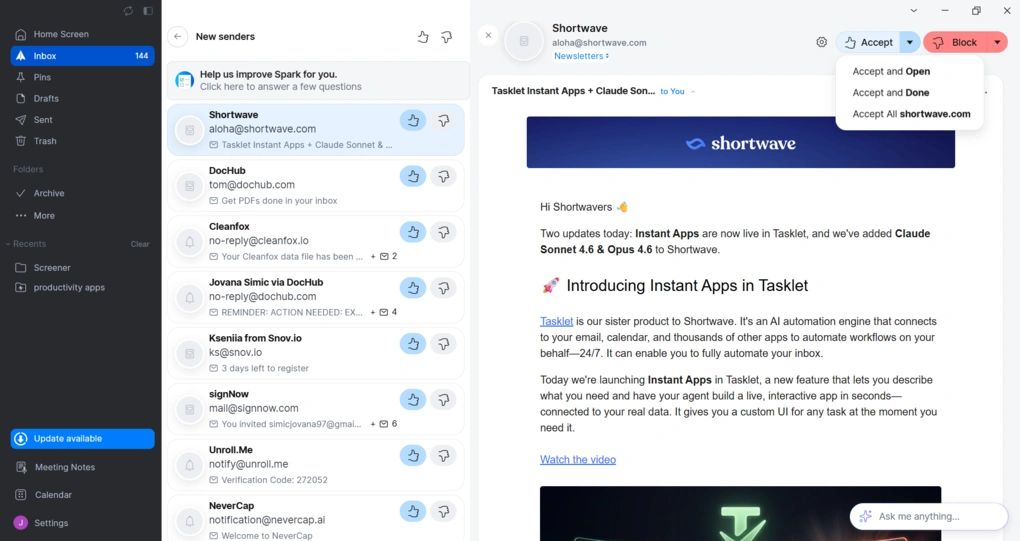
This feature is basically your inbox bouncer. Instead of letting every new address land directly in your inbox, it screens messages from senders you haven’t emailed before and asks whether you want to accept or block them.
The first time someone new emails you, you’ll see a prompt giving you the option to either accept future mail from that sender or block it entirely. Spark won’t notify the sender, so it’s invisible on the other end. You can also set Gatekeeper to appear at the top of your inbox or inside emails.
AI features
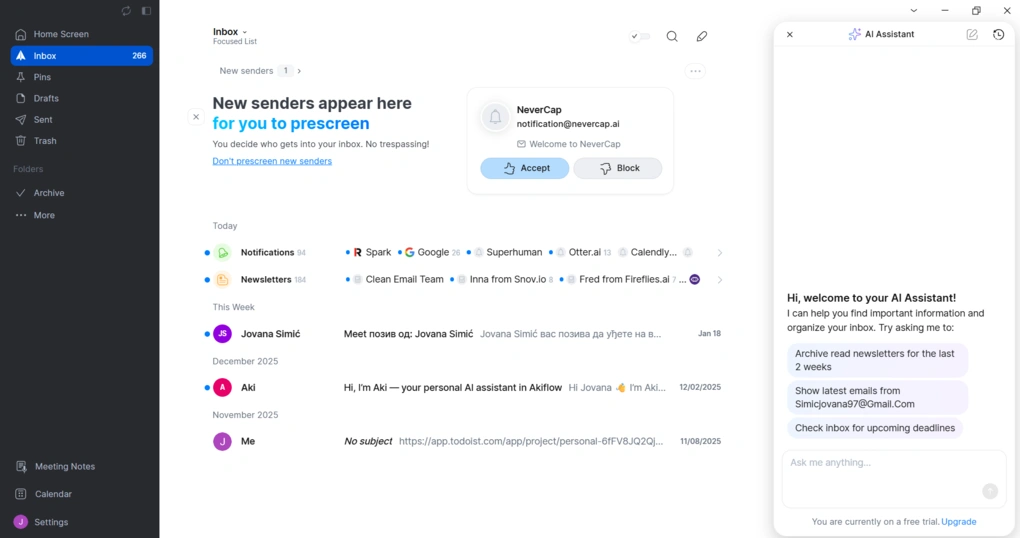
Spark’s AI can help you write, understand, search, summarize, and even translate emails.
One of the most immediately useful tools is the AI writing assistant. You can tell the AI what you want to write, and it will generate a full email for you or suggest replies based on context. You can also ask it to rephrase or proofread text, adjust tone, shorten or expand messages, and more.
Spark also offers AI summaries that turn long emails or lengthy threads into concise overviews. You can choose different summary styles (short, detailed, or action points) and catch up on conversations much quicker. And if you’re dealing with messages in another language, Spark AI can help translate emails.
Spark’s AI Assistant can help you find information across your inbox using plain language prompts (like “what’s the deadline for this project?”) and even help manage calendars and tasks tied to your emails. You don’t have to worry about privacy, since Spark says it doesn’t use your data for AI training.
However, keep in mind that these AI features are only available on paid plans.
Composer
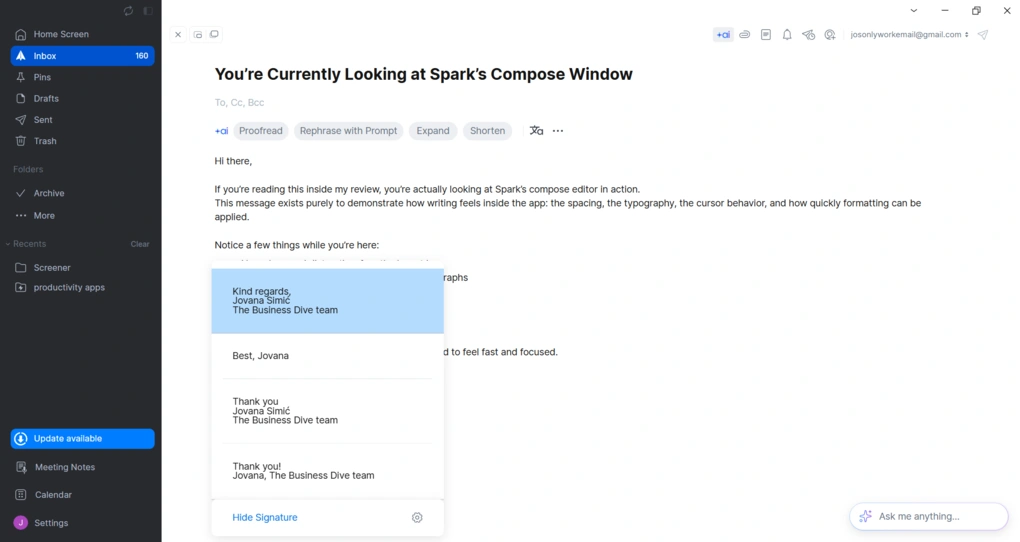
Since you can access this feature from almost any tab in the app with a single click, starting an email is quick and accessible. Once inside, you get a focused editor with formatting tools like bold, lists, and links, plus quick actions for attachments and scheduling.
You can drag and drop files, insert links or emojis, and schedule emails directly from the compose window. Furthermore, Spark +AI is built directly into the editor, and it can generate full drafts, suggest replies, rewrite text for clarity or tone, shorten or expand messages, and proofread before sending.
Spark also offers email signature management. You can create multiple signatures, assign them to different accounts, and switch between them when composing or replying.
This is particularly useful if you handle both personal and professional communication.
Templates
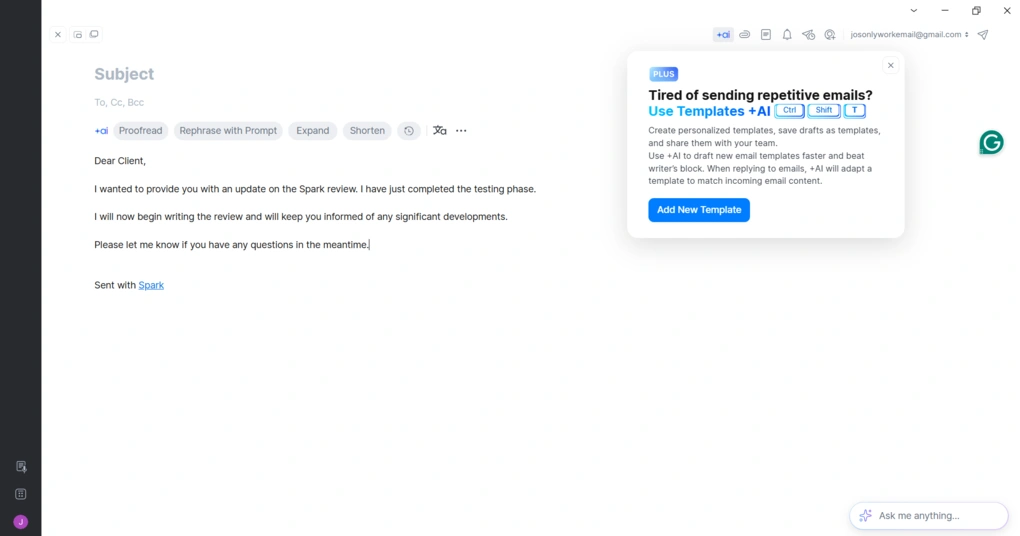
Once you draft an email, you can save it directly from the editor as a template if you know you’ll be using it again.
You can create, edit, and organize templates for different use cases. Like other AI-powered features, Templates +AI are available on paid plans.
Calendar
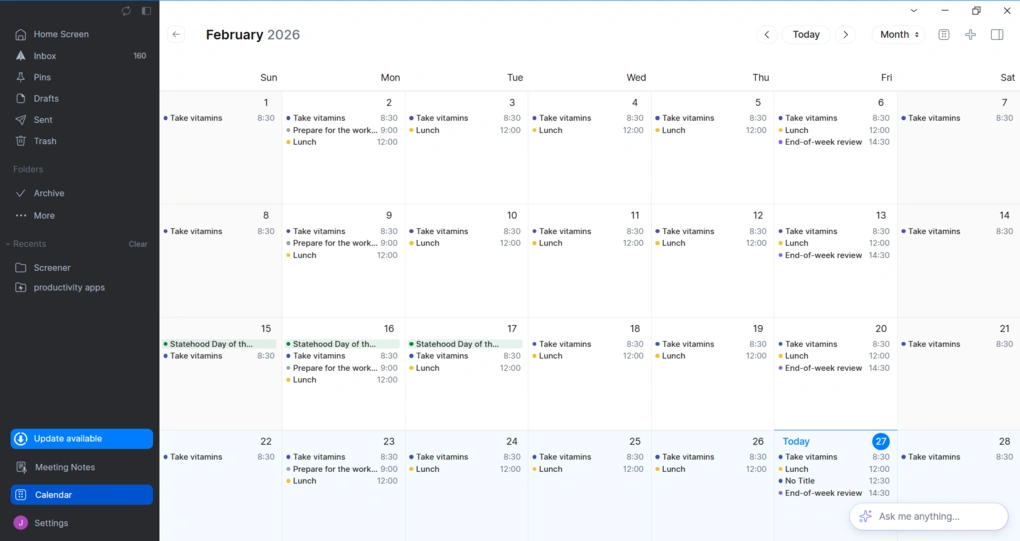
Spark’s built-in calendar is accessible directly from the sidebar and supports month, week, and day views.
You can add multiple email accounts, and Spark will aggregate their calendars into a unified view. Each account keeps its own calendar source (Google, Outlook, iCloud, etc.), but you can see everything in one place and choose which account to use when creating a new event.
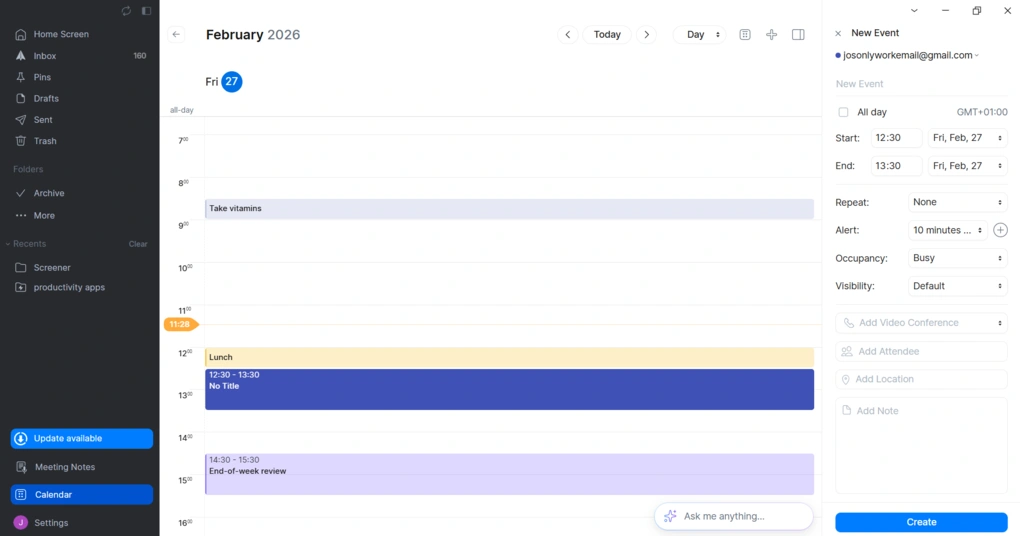
You can create new events directly inside Spark, add alerts, choose availability status, and create repeating events, add attendees, video conferencing links, locations, notes, and more. In practice, it covers the essentials most users need.
Not every email app includes a built-in calendar, and many rely on external integrations. If you already rely heavily on Google Calendar or another advanced scheduling tool, Spark’s calendar may not replace it. But for managing meetings alongside your email, having Calendar built into Spark is a great addition.
Meeting Notes
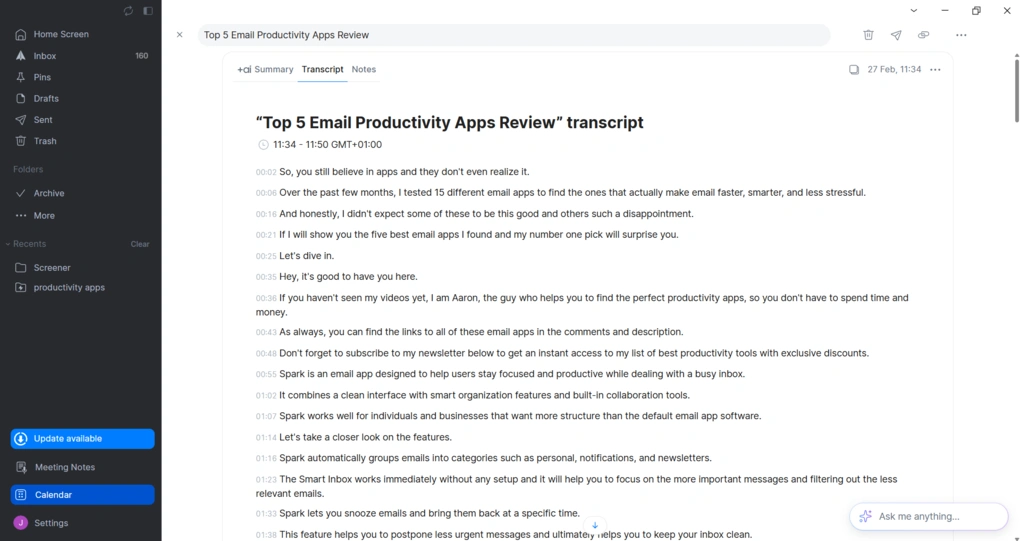
Beyond email and calendar, Spark also offers a dedicated Meeting Notes feature.
It can record your meetings and automatically generate a transcript once the call ends. On top of that, you get an AI-generated summary with key points and action items. You can also add your own notes alongside the transcript.
It works with Zoom, Google Meet, and Microsoft Teams, and can automatically detect the meeting language or let you choose the summary language in settings.
Although it supports over 40 languages, the AI model is most heavily trained in English. Because of that, transcription and summaries tend to be the most accurate and reliable in English.
Team collaboration
If you’ve used tools like Sanebox or Clean Email, Spark offers a different experience by combining email, calendar, and collaboration into one app.
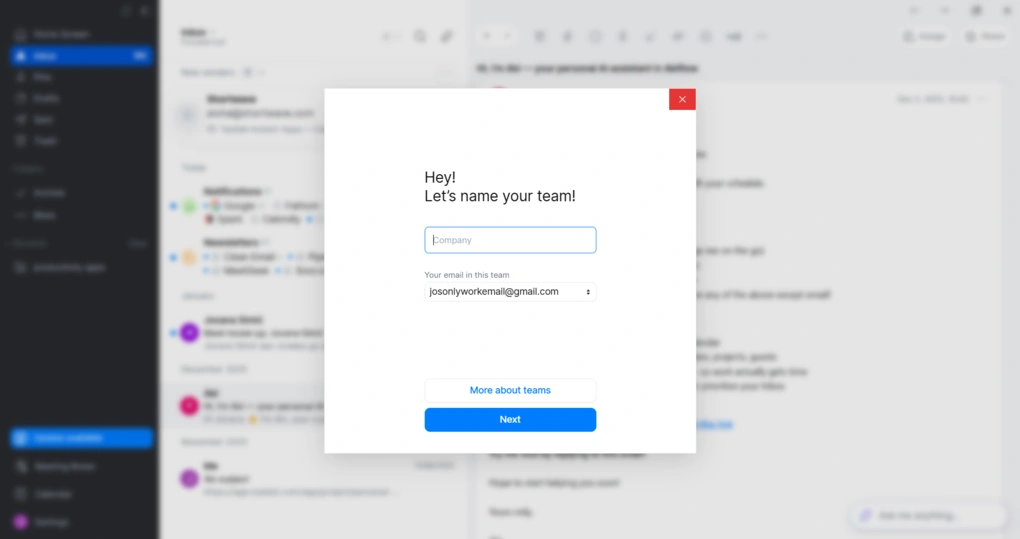
Spark allows multiple users to collaborate on shared inboxes. You can assign emails to teammates, leave internal comments on threads, create shared drafts, and use shared templates to keep communication consistent.
Teams can also set roles and permissions, and track who handled each email.
This makes Spark’s team collaboration tools solid for small teams and shared inbox workflows. However, they’re not as deep as what you’d find in tools built specifically for team email support.
Explore our Apps directory
A curated directory of software tools we’ve independently reviewed, with links to full reviews, comparisons, and category guides.
User interface
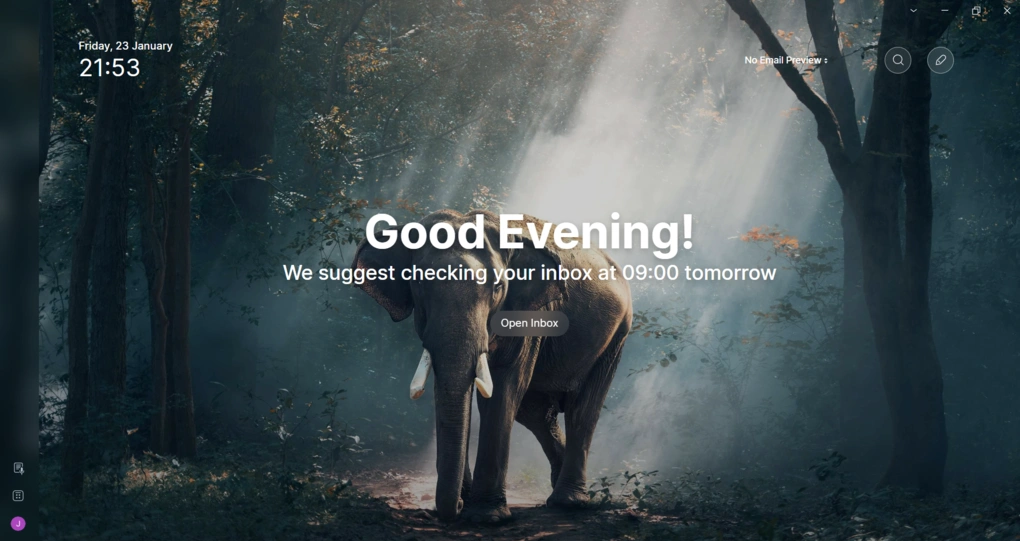
Spark looks really good. The design is clean and modern, but it’s also practical. Even with a lot of features built in, the interface is very user-friendly.
What really makes it stand out for me is the Home Screen. It sets the tone from the moment you open the app and makes the UI a solid 10 out of 10 for me.
Integrations
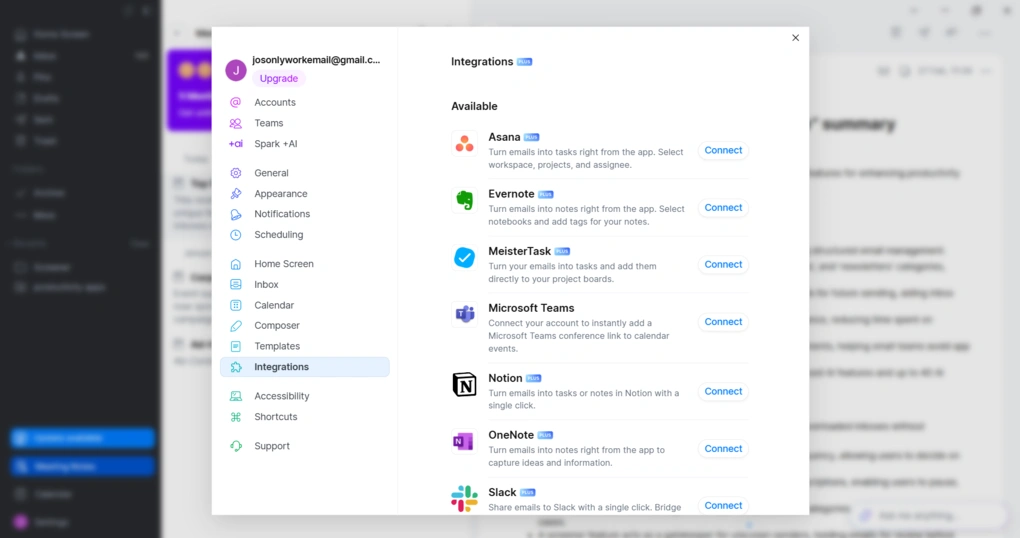
In the course of my Spark review, I discovered the integrations cover the most commonly used productivity tools. You can integrate it with popular task and project management tools, including Asana, Trello, Todoist, TickTick, and MeisterTask. It also connects with note-taking apps like Evernote, OneNote, Bear, and Agenda.
For file management and meetings, Spark supports Google Drive, Dropbox, Box, and OneDrive for attachments, as well as Zoom, Microsoft Teams, and GoToMeeting for scheduling calls.
Security
Spark uses Google Cloud services (US-based) and holds SOC-2 and ISO 27001 certifications. However, when taking a closer look at its privacy, I found one interesting thing.
It processes emails on its own servers to enable features like “Smart Inbox” and push notifications, which means your data is not entirely processed on your device.
So, if your priority is zero-access encryption, where even the service provider cannot access your data, Spark is not an ideal choice.
Spark pricing
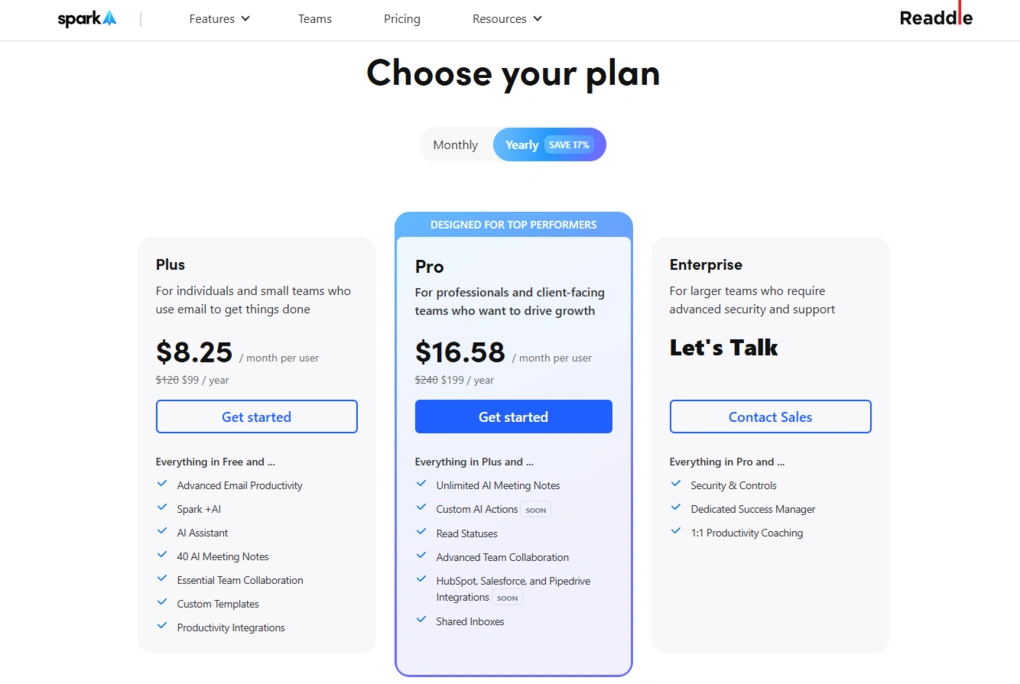
Spark offers a free plan and three paid plans.
The free version gives you the essentials, including a unified inbox for multiple accounts, Smart Inbox, basic email actions, and core productivity tools. However, many advanced features require a paid subscription.
The Plus plan unlocks Spark +AI, more advanced inbox tools, integrations, and additional customization options. It costs $8.25 per user per month with annual billing, and is best for individuals and small teams.
For professionals and client-facing teams, the Spark Pro plan provides all individual premium features plus shared inboxes, shared drafts, internal comments, and more robust team tools. It’s $16.58 per user per month when billed annually.
Both Spark Plus and Spark Pro come with a 7-day free trial.
Enterprise plan is custom-priced and is aimed at larger teams that require advanced security and support.
Pros and cons I discovered during my Spark review
Here’s a straightforward breakdown of Spark’s main pros and cons:
Pros of Spark
Cons of Spark
Spark alternatives
If you’re still unsure whether this is the right email management app for you, we’ve got you! Here are some solid Spark alternatives worth considering:
|
App |
Best for |
Description |
|---|---|---|
|
Clean Email |
Best for inbox cleanup |
A reliable and transparent inbox management tool that gives you full control over email cleanup, but most advanced features require a paid plan. |
|
Unroll.me |
Best for unsubscribing |
One of the more popular free apps for unsubscribing from marketing emails. However, it monetizes user data, which may raise security concerns. |
|
Cleanfox |
Best free unsubscribe tool |
A free tool designed to help users remove unwanted marketing emails and unsubscribe from newsletters. Like Unroll.me, it relies on data monetization rather than a paid subscription model. |
|
Missive |
Best for team collaboration |
A collaborative email client designed for teams, with shared inboxes and task assignment. It’s more of a productivity workspace than a cleanup tool, but useful if you need collaboration plus email management. |
|
Sanebox |
Best for automatic email filtering |
An email organizer that filters unimportant messages into separate folders automatically. It works with any email provider and focuses on a clean inbox, though its feature set and pricing differ from Clean Email. |
|
Virtualworkforce.ai |
Best for automating email workflows with AI agents |
Virtualworkforce.ai is an AI agent platform that automates email workflows by handling replies, classification, knowledge retrieval, and data extraction from emails and documents. Full Virtualworkforce.ai review | Quick Virtualworkforce.ai overview |
Wrap up: Spark review
To be clear, I hadn’t used Spark in the past, so I approached it without any expectations tied to older versions. I can’t compare it to what it used to be, but I can judge it based on how it performs today.
And based on two months of use, my experience has been genuinely positive. Aside from the limited free version and short trial period, I don’t have any meaningful complaints.
But if you’re open to a paid plan, I’d say it’s worth trying.
Related articles:
- The 7 Best Unsubscribe Apps in 2026 | My Honest List
- 8 Best Email Apps in 2026 | My Thoughts After Testing +15 Apps
Hope I was able to help you find the best email app for you. As always, I will update this Spark review over time so you guys have up-to-date information about this email app.
Why you can trust our reviews
At thebusinessdive.com, our team tests, reviews, and compares hundreds of productivity apps every year — from project management tools to note-taking apps. We dive deep into real-world use cases to help you find the right tools that actually improve your workflow, not just add noise.
Our mission? No fluff, no shortcuts—just honest, hands-on insights from productivity pros.
Discover how we stay transparent, read our review methodology, and let us know about any tools we missed.
Frequently asked questions
Is Spark the best email client in 2026?
Spark is widely considered one of the best email client options on the market, especially for users who value a clean user interface and Smart Inbox organization. Compared to Gmail, Outlook, or Apple Mail, Spark often feels more structured and intentional.
That said, whether it’s the best email client depends on what you need. Superhuman offers more refined AI and speed-focused performance, while Missive may be better for heavy team delegation. For most individual users, Spark strikes a strong balance between features and cost.
Does Spark have a free version, and is it enough?
Yes, Spark has a free version, but it’s fairly limited. The free version supports one email account and a small AI quota, while premium plans unlock unlimited accounts, full AI features, Meeting Notes, and advanced collaboration tools.
If you’re using Spark casually or managing a single Gmail account, the free version may make sense. But if you want the full experience, you’ll likely need to pay for Plus or Pro. Spark’s Premium Individual plan costs $59.99 per year, while the Teams plan starts at $83.88 per user per year.
Is Spark better than Apple Mail or other email clients?
Spark’s user interface is generally considered more modern and intuitive than Apple Mail or Outlook. Its Smart Inbox automatically categorizes emails into Personal, Notifications, and Newsletters, helping users manage their inbox more efficiently.
Features like Gatekeeper, AI writing tools, Meeting Notes, and shared inbox collaboration aren’t available natively in Apple Mail. While Spark’s AI isn’t as advanced as Superhuman’s tone-learning capabilities, it covers most everyday productivity needs at a lower cost, making it a strong alternative in today’s email client market.
Disclosure: I only recommend products I would use myself, and all opinions expressed here are our own. This post may contain affiliate links that, at no additional cost to you, may earn a small commission. Read the full privacy policy here.

Hey there! I am Aron, the founder of Thebusinessdive. I have been testing productivity apps for almost three years now. I reach 25.000 -50.000 people monthly with the mission to help you find the perfect productivity apps. Subscribe to my YouTube channel, newsletter, and social media to hear more about the best productivity tools. Let’s dive in!