


My Honest Todoist Review After 3 Years & 1,400 Tasks
Before writing this Todoist review, I had been using it for over 3 years and created more than 1,400 tasks. After all that time, I started to wonder:
Is Todoist worth it these days?
In this Todoist review, I’ll give you an unfiltered picture of its key features, pricing, pros & cons, and ultimately, how it affected my productivity over the past years, and whether you should consider switching.
Let’s dive in!
Verdict: Simple task management done well
Here’s the quick verdict if you don’t want to read the full review:
🎯 Best for: Individuals and small teams who want a fast, intuitive task manager for organizing daily work and routines
🚫 Not ideal for: Users who need advanced time blocking or full-scale project management features
⭐ Biggest strength: Simple, fast task capture with powerful customization and cross-platform sync
⚠️ Biggest weakness: Limited calendar/time-blocking capabilities and some advanced features locked behind paid plans
⚖️ Verdict: A reliable task manager that excels at simplicity, speed, and everyday productivity, but lacks deeper planning and automation features found in more advanced tools.
🏆 Score: 4.3 / 5
✅ Tested with our review & scoring methodology ✅ Real-world testing ✅ Unbiased evaluation
Todoist Review
Summary
Todoist is a cross-platform task manager and to-do app that keeps personal and professional tasks organized in one place. It works across web, iOS, Android, Windows, and macOS with fast sync and an intuitive interface that makes planning feel effortless. In my review, it proved reliable, quick, and easy to use every day.
Fast and intuitive task creation | |
Cross-platform sync | |
Highly customizable | |
Motivating productivity features | |
Reliable integrations | |
Extensive free plan | |
Budget-friendly pricing |
Occasional misinterpretation in natural language input | |
Some users report delayed responses from customer support and unresolved issues | |
Limited project management tools | |
Lacks advanced time blocking features |
How We Test Daily Planners
To keep our reviews & final score for each daily planner app fair and consistent, we evaluate every tool using the same testing framework based on real-world usage, feature depth, and overall value.
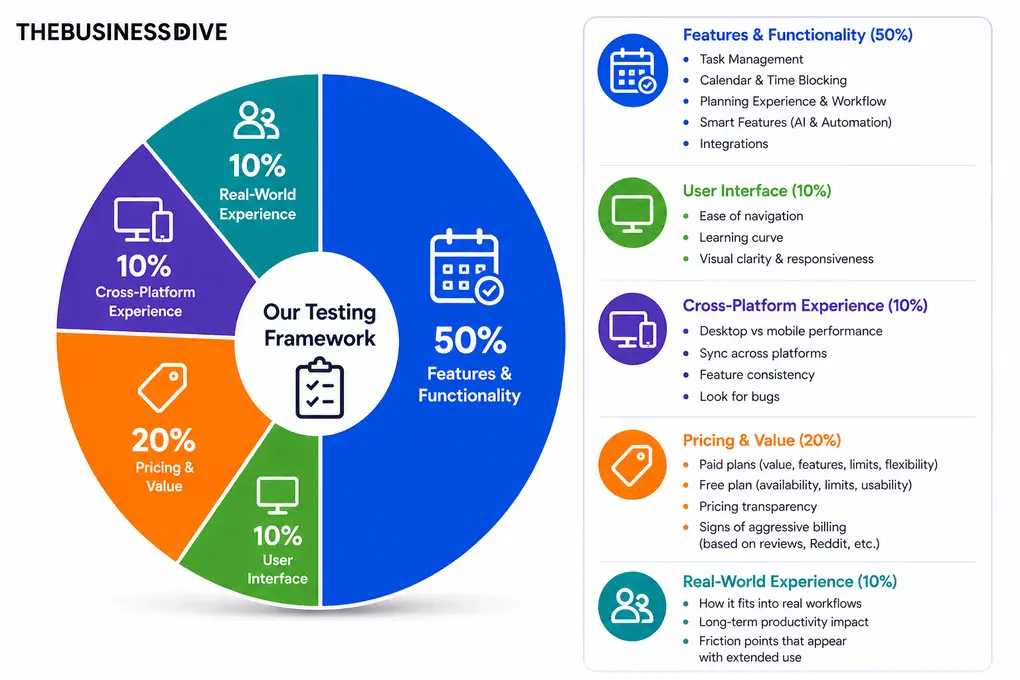
Our scoring breakdown after testing 10+ daily planner apps:
⚙️Features & functionality — 50%
🖥️ User interface — 10%
⚡Cross-platform performance—10%
💰 Pricing — 20%
👥 Real-world experience — 10%
Want a detailed breakdown of how we test each category?
Learn exactly how we test tools → Review methodology
Todoist at a glance
| Feature | Todoist |
|---|---|
| Task management | ✅ Excellent |
| Quick task capture | ✅ Fast and intuitive |
| Voice-to-task (Ramble) | ✅ Accurate, but keep an eye on background capture |
| Natural language input | ⚠️ Excellent, occasional misinterpretations |
| Recurring tasks | ✅ Excellent for routines |
| Task dependencies | ❌ No |
| File attachments | ✅ Yes |
| Project management | ⚠️ Basic features only |
| Search | ✅ Fast, including completed tasks |
| Labels & filters | ✅ Useful for managing large task lists |
| Time blocking | ⚠️ Limited |
| Free plan | ✅ Extensive; I used it for years |
| Mobile app | ✅ Android & iOS; no bugs in my testing |
| Cross-platform sync | ✅ Fast and reliable |
| Google & Outlook integration | ✅ Yes |
| Team collaboration | ⚠️ Basic, suitable for small teams |
My experience with Todoist after 1,400 tasks
I’ve used Todoist for over three years and completed more than 1,400 tasks. Even after testing numerous daily planners and task management apps, I still use it almost every day, mostly on my phone.
I keep using Todoist for its simplicity, speed, and reliability. I can capture tasks in seconds, organize them with labels and filters, and access everything across my devices.
Another thing worth mentioning is that I used Todoist’s free plan for years, and it was more than enough for managing my personal tasks. Unless you need advanced calendar features or team collaboration, I don’t think upgrading is necessary.
That said, Todoist has its limitations. Its project management and time-blocking features are relatively basic, so I wouldn’t recommend it for complex workflows.
Overall, after more than three years of use, Todoist still has a permanent place in my productivity system. It doesn’t try to do everything, and that’s exactly why I like it.
Its simplicity, speed, and reliability make it one of my favorite tools for everyday task management and earned it a spot on our list of the best daily planner apps.
🟢 Pick Todoist if: You want a fast, intuitive, and reliable task manager with natural language input, recurring tasks, cross-platform sync, and an extensive free plan.
🔴 Skip Todoist if: You need advanced project management features, task dependencies, powerful time blocking, or automatic AI scheduling.
Is Todoist Good? My Biggest Wins & Trade-Offs
After using Todoist for over three years and completing more than 1,400 tasks, here are the biggest strengths that keep me using it and the limitations I’ve noticed along the way.
What I Liked About Todoist
Where Todoist Falls Short
Why Todoist got a 4.3/5 score
Todoist earned a 4.3/5 overall score thanks to its excellent task management features, intuitive interface, and reliable integrations. Where it falls short is its limited time-blocking and advanced project management capabilities.
For pricing and value, Todoist scores well thanks to its extensive free plan and relatively affordable paid options.
Is Todoist Pro worth it?
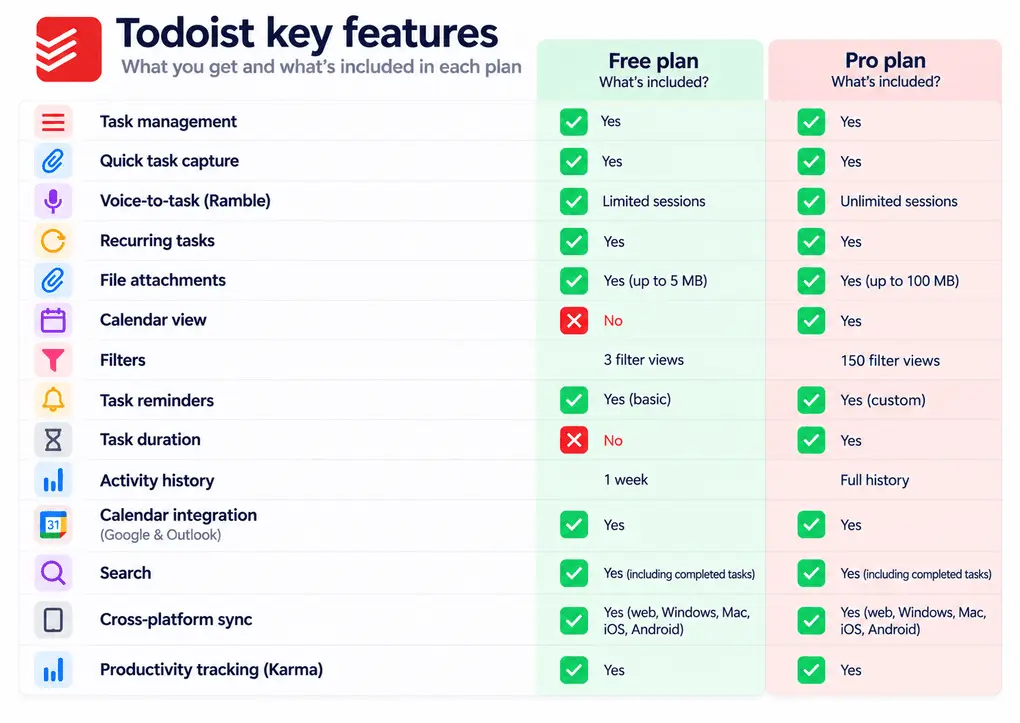
🟢 Upgrade to Pro: If you plan your day mostly in a calendar and need advanced filters for task management.
🔴 Stick with Todoist’s free plan: If you mainly need simple task management, don’t use Ramble too much, and don’t need many filters to manage your to-do list.
Todoist also offers a Business plan for teams, which includes shared workspaces, up to 500 team projects, team roles and permissions, and centralized billing.
It’s a solid option for small teams that need basic project management and collaboration features without the complexity of a dedicated project management tool.
Which Todoist features actually mattered in my testing
Now let’s delve into the key features and how they performed during my Todoist review!
Task management and organization
💡 Key takeaway: Todoist makes capturing and organizing tasks incredibly fast. I found recurring tasks, priorities, and simple project organization especially useful, but its time-blocking and project management capabilities are limited.
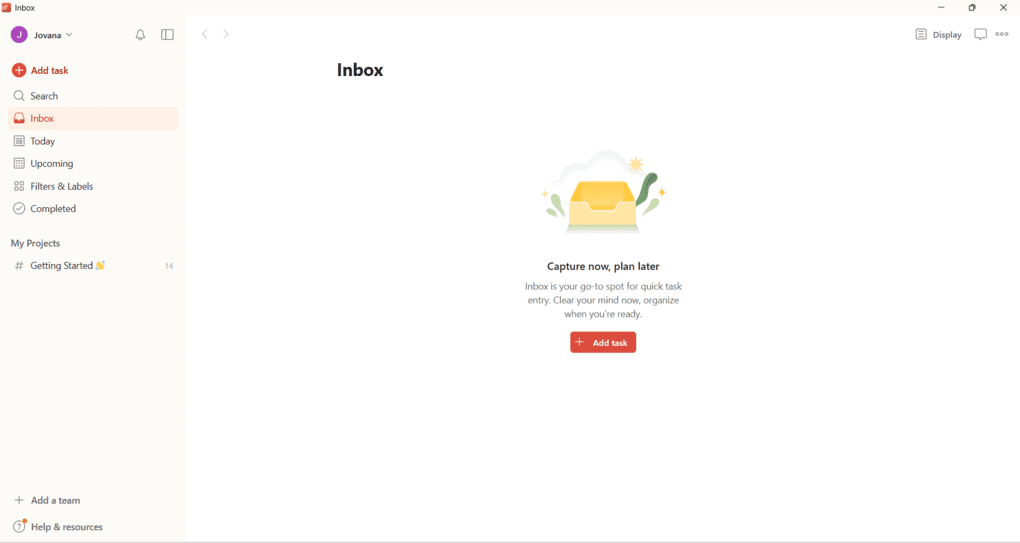
Creating a new task is instant. Click Add Task or press Q, type what you need, and hit Enter. Each task goes to your Inbox, which works as a quick capture space before sorting them into the right projects.
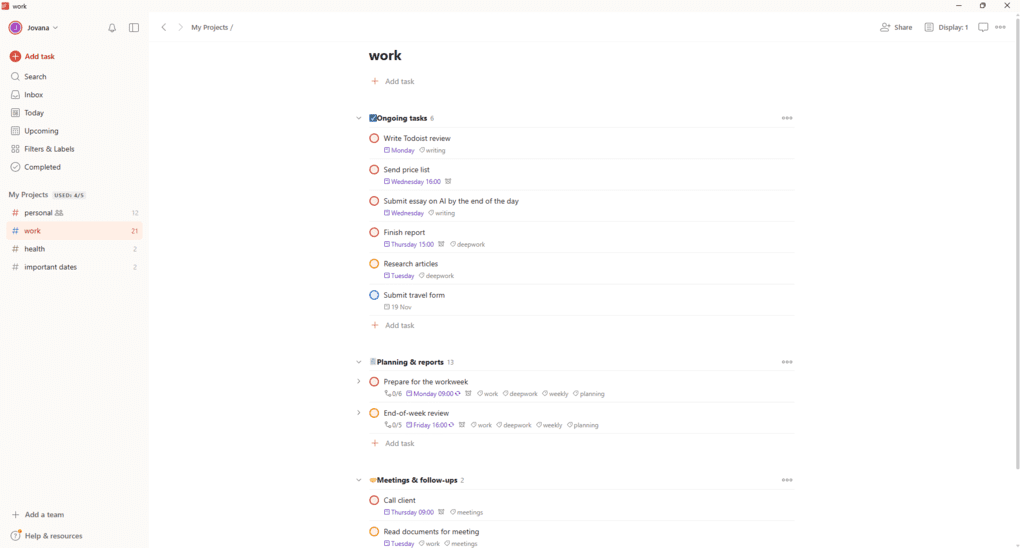
Every task can include a description, labels, due dates, reminders, sub-tasks, and so on. You can assign priority levels to highlight what is urgent or create smaller steps for bigger goals. It sounds like a lot of options, but everything feels clean and intuitive, which is what I loved most while testing.
I organized my projects into four simple categories: Personal, Work, Health, and Important Dates. Each one can be color-coded, so even when my schedule was packed, it was easy to spot what mattered at a glance. This visual clarity made a huge difference in staying organized throughout the week.
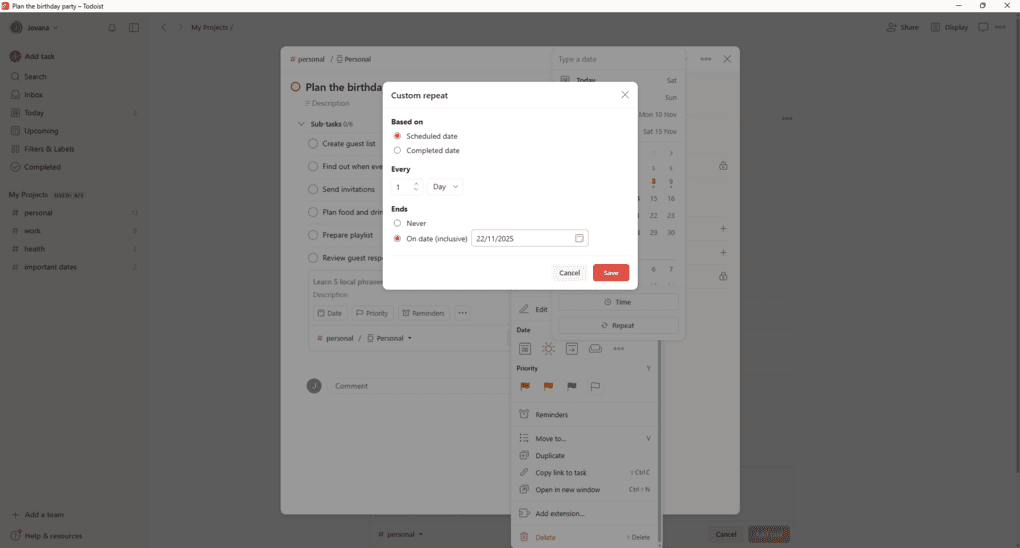
Todoist also supports recurring tasks, which I found incredibly useful for routines like invoices, gym sessions, or weekly reviews. Once set up, they repeat automatically and help build consistent habits.
You can visualize your task lists as a simple list, a kanban board, or a calendar view.
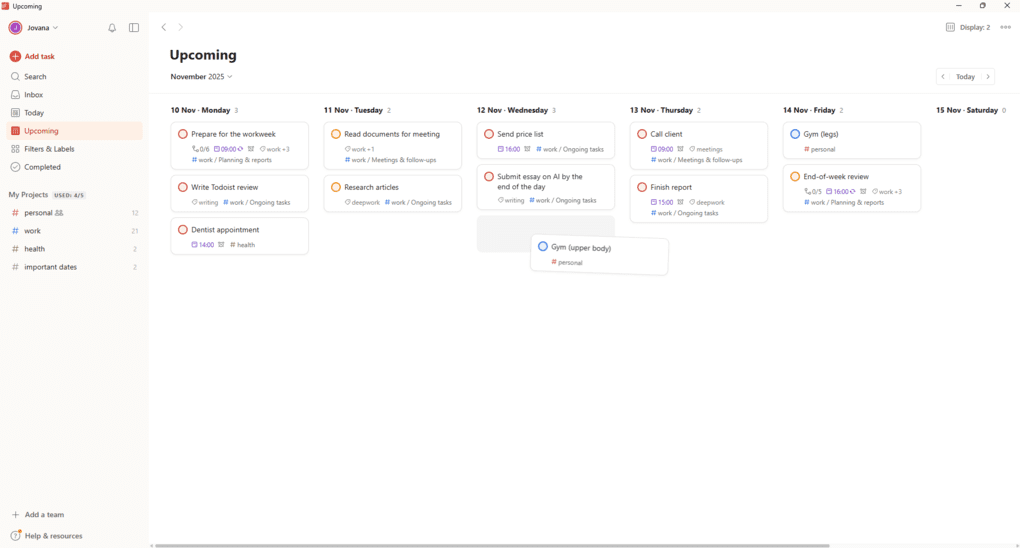
If you need to reschedule something, you can simply drag and drop the task to a new time slot, and Todoist automatically updates its due date. The calendar view syncs with Google Calendar and Outlook Calendar, so you can time block tasks across all your devices.
Unlike AI scheduling tools such as Motion or Reclaim AI, Todoist does not automatically assign tasks to your calendar. Instead, it gives you full control over when and how you plan your work.
Just a heads-up: I discovered that during my Todoist review that it does not have built-in task dependency features, as it is more like a task manager than a project management app.
However, its time-blocking features are limited, and the calendar view is available only with paid plans. Compared to Reclaim AI, Motion, or Akiflow, Todoist is more limited and better suited to task management than time blocking.
Therefore, I can give Todoist only 2 out of 5 for calendar and time blocking.
Natural language input and Ramble
💡 Key takeaway: Natural language input is one of Todoist’s biggest time-savers, although it occasionally misinterprets words like “weekly” as scheduling instructions. If you use Ramble, don’t forget to turn it off afterward, as it can keep listening and add unwanted tasks to your list without you realizing it.
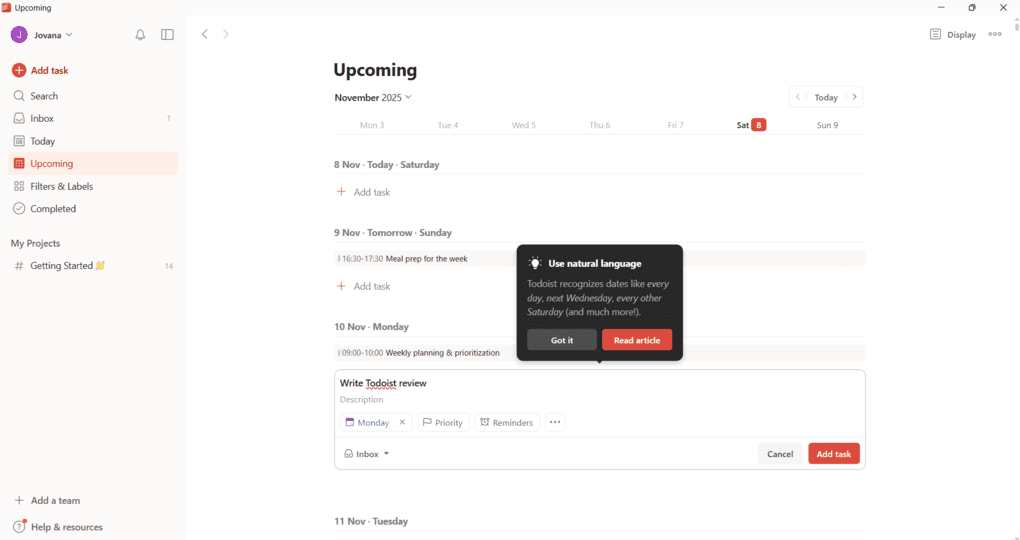
This is the coolest feature, in my opinion, and one of the main reasons Todoist feels so fast.
Instead of clicking through menus, you just type what you mean, and the app handles the rest. I could write “Call the client tomorrow at 3 PM” or “Submit report every second Thursday,” and Todoist immediately recognized it as a new task with the correct date, time, and recurring pattern.
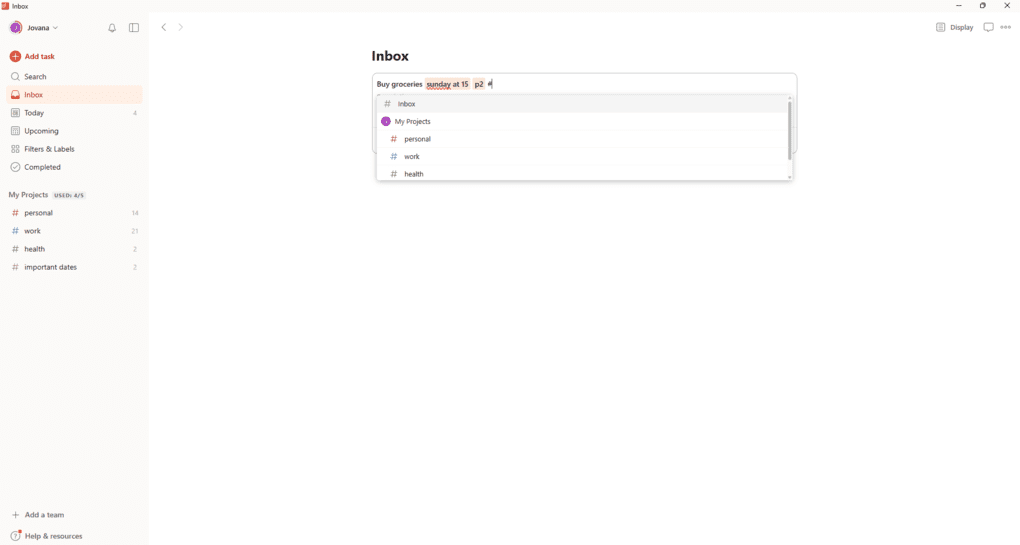
Natural language input made adding tasks feel almost fun. I stayed in flow, typed freely, and Todoist understood everything, from deadlines to priorities. If I mistyped or changed my mind, editing took seconds.
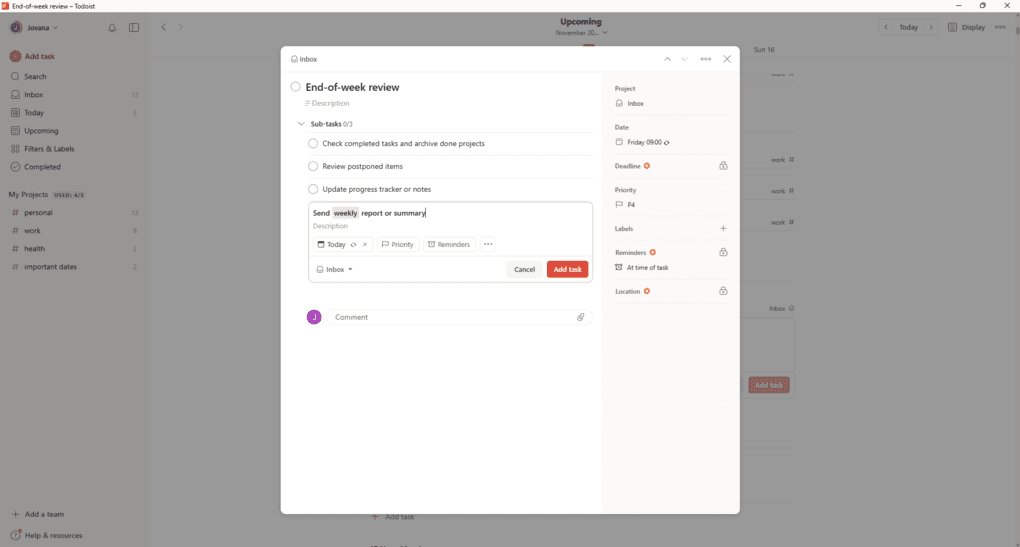
There was only one small thing I noticed while testing. Todoist sometimes interprets certain words, like “week” or “weekly,” as time indicators even when I mean them as part of a title. It’s a small detail, but something to keep in mind when naming your tasks.
Ramble takes quick task capture a step further by letting you create tasks using your voice instead of typing.
During my testing, I found it surprisingly accurate and fun to use. I could speak naturally, mention deadlines or priorities, and Ramble would turn what I said into actionable tasks without having to enter everything manually.
However, I noticed one important drawback: if you leave Ramble active, it can continue capturing tasks in the background. I ended up with unwanted tasks in my list, so I’d recommend turning it off as soon as you’re finished.
Overall, these two features are among my favorite parts of Todoist. Whether I’m typing or speaking, they make getting tasks out of my head and into my to-do list incredibly easy.
Productivity and automation
💡 Key takeaway: Karma, streaks, and recurring tasks make it easier to stay consistent with daily routines. However, Todoist’s automation features are more limited than those of dedicated AI scheduling apps.
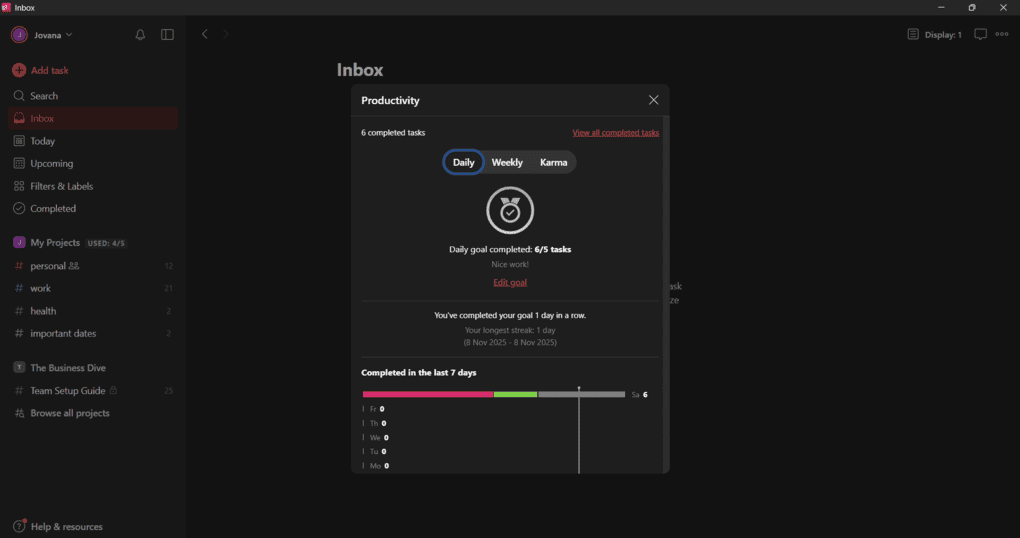
Todoist is not just about listing things; it also helps you stay consistent. I loved how easy it was to see completed tasks and monitor streaks. It is satisfying to watch progress build up visually over time.
Todoist Karma adds a playful twist to productivity. Each time you complete a task, your Karma score goes up, and you unlock new levels. You can set goals and rest days, or turn the feature off if you prefer it that way.
Automatic backups and fast sync across Windows, macOS, Android, iOS, and web kept my projects safe and up to date. Templates and integrations with other productivity apps reduce repetitive work and keep professional tasks moving.
Collaboration and sharing
💡 Key takeaway: Sharing projects, assigning tasks, and leaving comments work smoothly. It’s enough for basic team collaboration, but I wouldn’t use Todoist to manage projects with multiple dependencies.
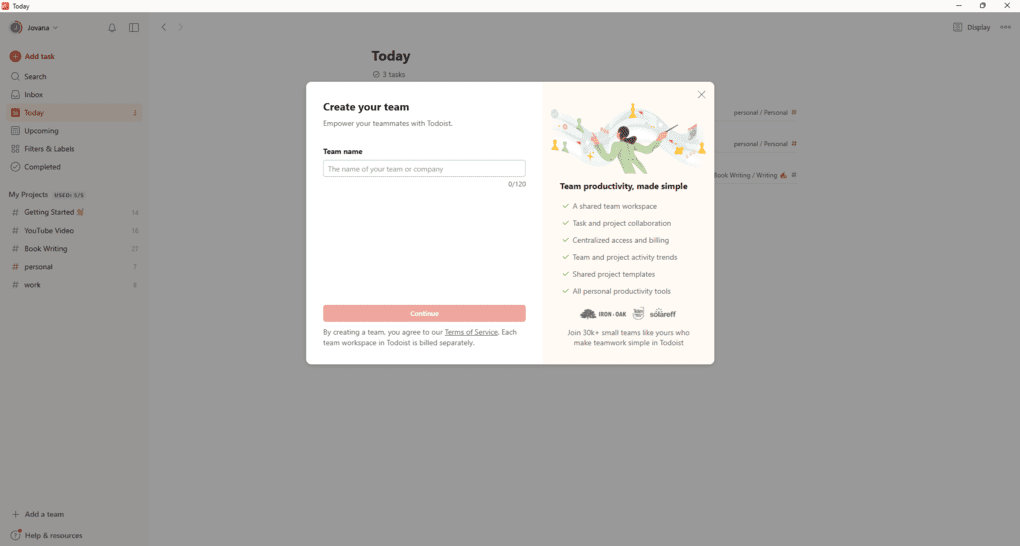
Even though Todoist is perfect for personal use, I tested its team features and found them surprisingly capable. You can assign tasks, share projects, upload files, and leave comments, which makes it a simple yet effective project management tool for small teams.
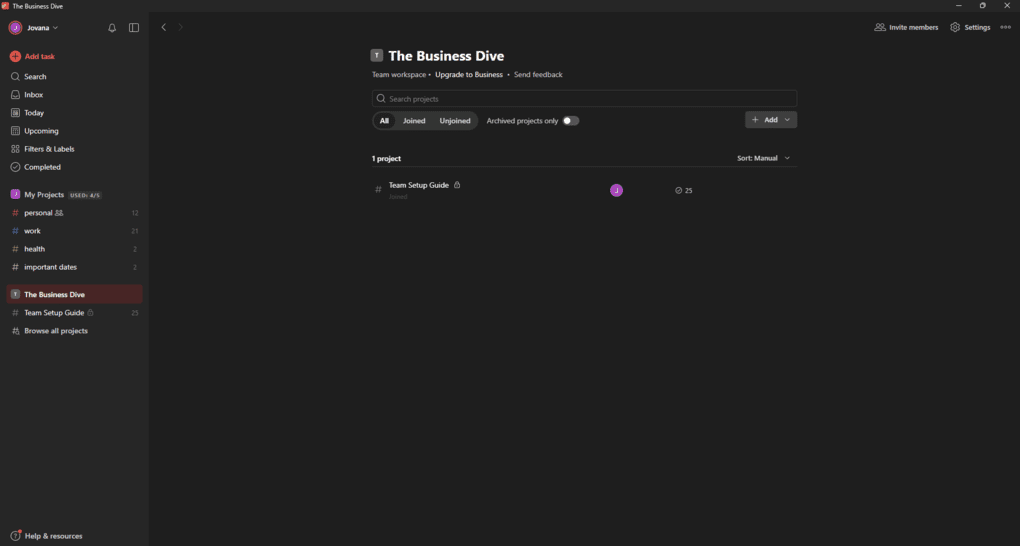
I invited a friend to collaborate on a shared list, and everything was smooth. Comments kept communication clear, and seeing all changes in one place helped us stay aligned. You can also set access levels and manage who sees what in shared projects.
On the Business plan, teams get centralized billing, priority support, and CSV imports for bulk task creation.
Based on my testing, it’s a solid option for small teams that need basic task management and collaboration features. However, don’t expect the same level of collaboration and project management functionality you’d get with Notion or a dedicated project management app.
Customization and filters
💡 Key takeaway: Custom filters were useful when my task list became overwhelming. Combining deadlines and priorities helped me quickly identify what needed attention, while labels and project colors kept everything organized without adding complexity.
One of the things I appreciated most about Todoist is how personal it can feel.
You can adjust your sidebar, choose custom colors, and rename sections to match your workflow. It might sound small, but this kind of personalization makes a big difference when you open the app every day.
I experimented with custom filters, and they were incredibly helpful. You can quickly display tasks that are high priority, due this week, or tagged with a specific label. If you are unsure how to create one, you can describe what you want in plain English, and Todoist will generate it for you instantly.
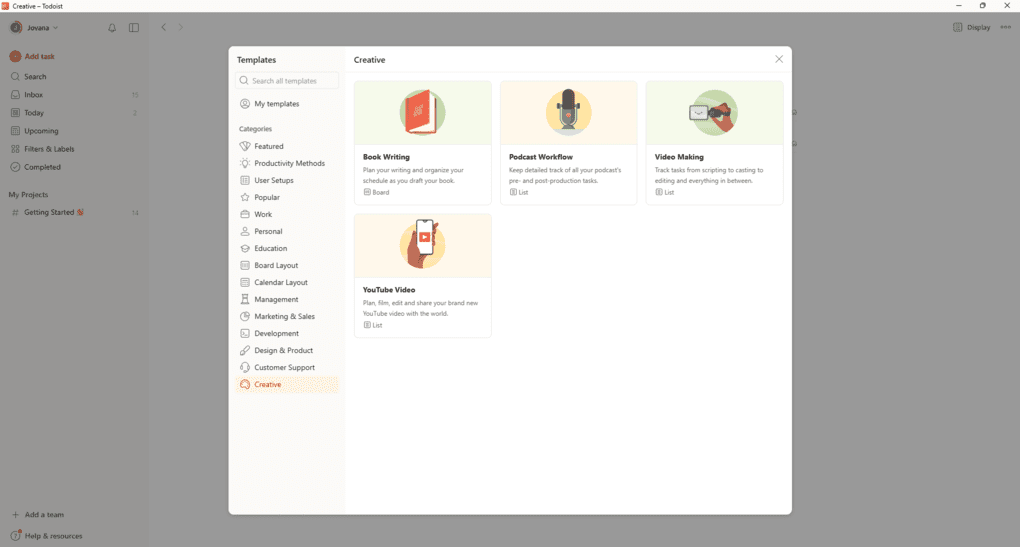
Templates were another feature I genuinely enjoyed testing. You can start a new project from scratch or choose from Todoist’s large library of templates for marketing plans, personal goals, or travel checklists. I found them genuinely useful, not just filler examples.
All these customization options make Todoist one of the most flexible and user-friendly task management systems I have used so far. It gives you structure without ever feeling restrictive.
Todoist user interface
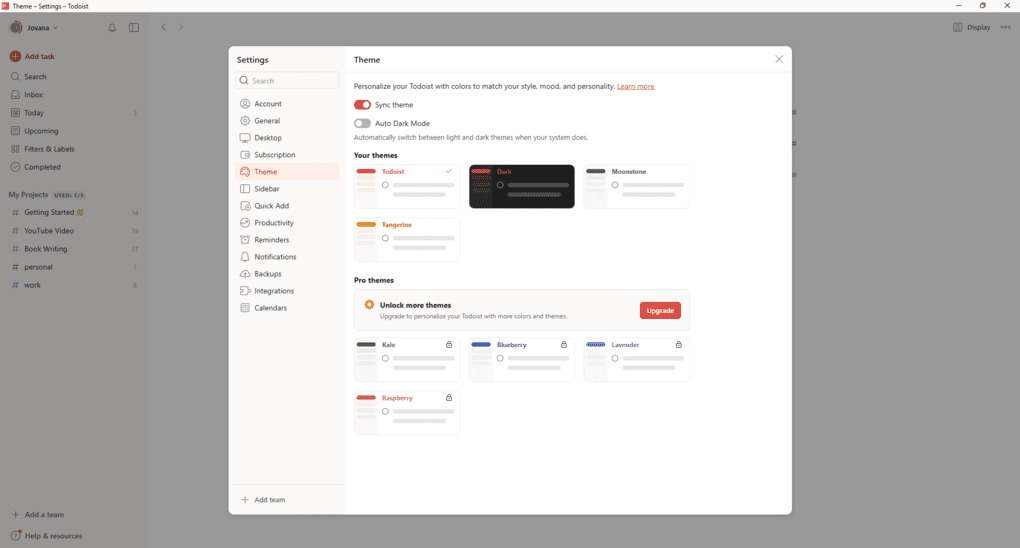
Todoist’s user interface feels like it was built with real attention to detail. The layout is clean, light, and responsive on every platform: web, desktop, and mobile. You can tell how much work went into it because every small interaction, from adding a task to checking one off, feels fast and polished.
I switched between light and dark mode a few times, and both looked equally polished. Combined with the color themes, filters, and labels from the customization options, the interface feels personal and flexible. Based on my experience, Todoist’s user interface truly deserves a 10 out of 10.
Todoist integrations
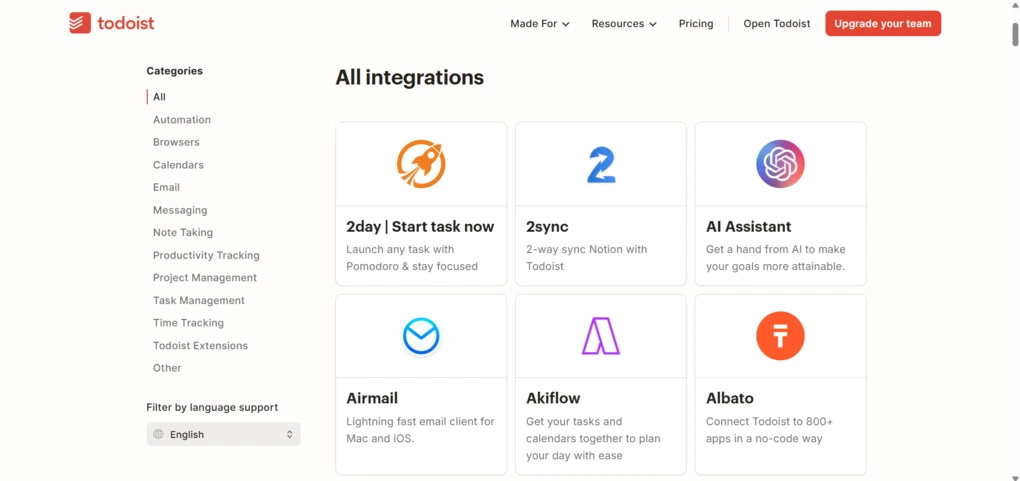
Todoist integrates with Google Calendar and Outlook Calendar, allowing you to see your calendar events alongside your tasks. You can also sync scheduled Todoist tasks to your calendar and update their dates or times directly from Google or Outlook Calendar, which makes daily planning and time blocking easier.
During testing, I found that integrations with email clients, file storage apps, and automation platforms like Zapier or IFTTT work reliably. They let you automate repetitive steps, such as creating tasks from incoming emails or syncing attachments from Google Drive.
Todoist also supports API access for advanced users and third-party integrations for popular project management tools. Whether you are using it for personal task management or team projects, these integrations make Todoist more than just a to-do list app.
Explore our Apps directory
A curated directory of software tools we’ve independently reviewed, with links to full reviews, comparisons, and category guides.
Todoist mobile app
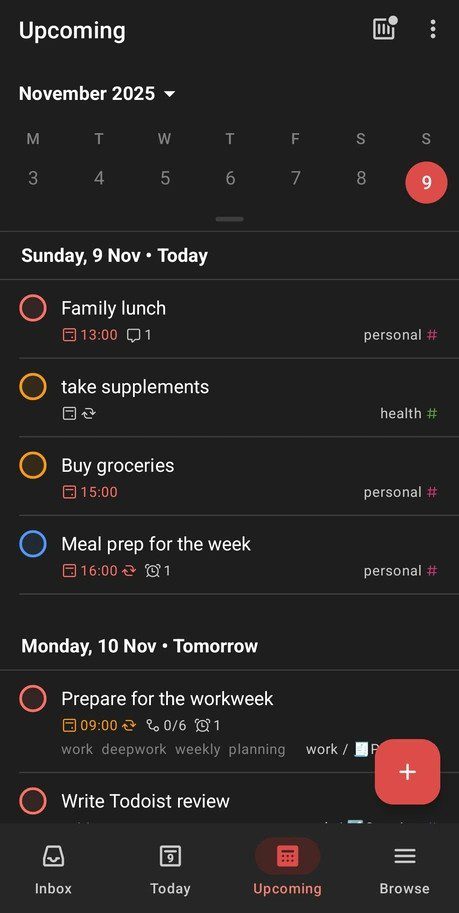
Todoist offers award-winning apps for iOS and iPadOS, plus Mac, Windows, and Linux, along with Apple Watch and WearOS. You can also use the browser extension and email add-ons. In my view, the polish across platforms fully justifies the awards.
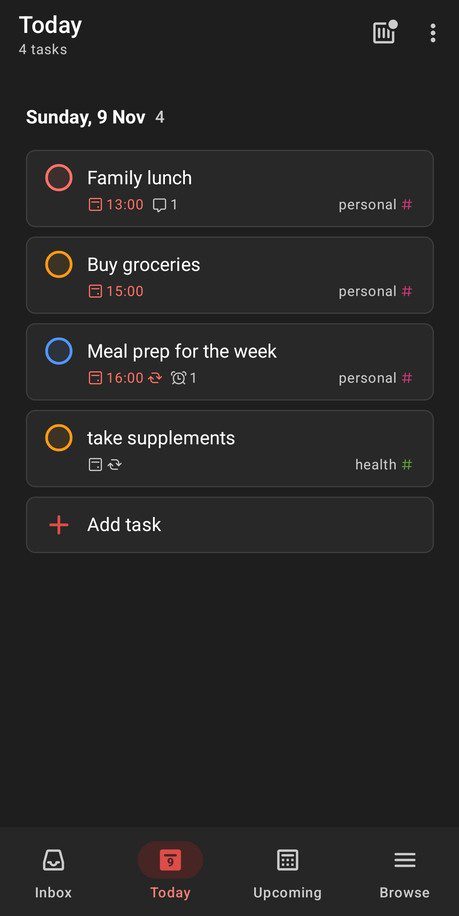
I started by testing Todoist as a desktop app on Windows, then tried the Android app, which felt even faster. Voice input lets you create tasks on the go in seconds, and syncing keeps everything aligned across devices.
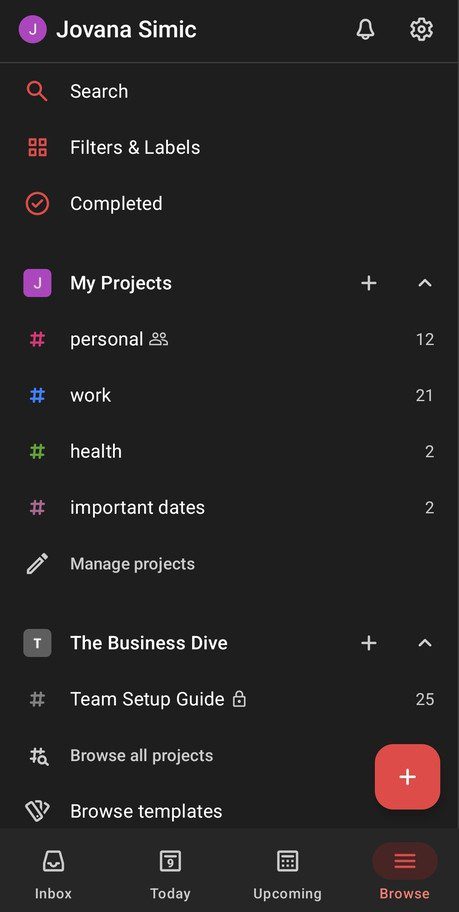
On Android, the app supports home screen widgets, rich push notifications, and the system share sheet, so you can send links or notes to Todoist with one tap. Quick Add and swipe gestures make it a true mobile task management app, with offline access when you are out of coverage.
Todoist alternatives
If you are still unsure whether Todoist is the right fit for you, check out these alternatives:
App | Best for | Description |
|---|---|---|
Morgen | Best for calendar-based planning | A daily planner that prioritizes your most important to-dos, events, and projects in one app. |
Akiflow | Best for time blocking | A calendar-centered productivity app that brings all your tasks, events, and inbox items into one place for structured daily planning and time blocking. |
Notion Calendar | Best for flexible planning | A flexible calendar built into Notion’s workspace, great for users who already manage projects, notes, and tasks there and want task integration within one platform. |
Motion | Best AI daily planner | An AI-powered planner that automatically fills your professional and personal schedule using real-time scheduling links and auto-adjusted events. |
Reclaim AI | Best for smart calendar automation | Reclaim is half the price of Sunsama and offers similar task management and time blocking capabilities, but is only available for Google Calendar. |
ClickUp | Best for complex workflows | It is another alternative that provides extensive features for project management, but has a steeper learning curve. |
Routine | Best minimalist planner | Routine is a minimalist productivity app that combines calendars, tasks, notes, and simple journaling in one place. |
Sunsama | Best for mindful planning | A mindful productivity tool designed to help you create balanced days and focus on priorities, with built-in task scheduling and reflective daily planning. |
Compare Todoist vs alternatives



Todoist VS Notion
Wrap up: Todoist review
After my Todoist review, it’s clear why it remains one of the most popular task management apps today. It blends speed, structure, and flexibility better than most tools I’ve tried. Tools like Akiflow offer more advanced workflows by combining tasks, calendars, and inboxes into one system, but Todoist stands out for its simplicity and speed.
From quick-add and natural language input to cross-platform sync and deep customization, it’s a to-do list app that genuinely improves daily planning.
Related articles:
- 11 Best Daily Planner Apps | 20+ Personally Tested Tools (2026)
- 9 Best Motion Alternatives | I Tried 20+ Apps (2026)
- Todoist vs Notion (2026): I Used Both For 3+ Years
Of course, it’s not perfect. The customer support can be slow, and advanced features are locked behind paid tiers, but those are small trade-offs for what you get. So overall, I think Todoist is absolutely worth a try.
Looking for similar tools?
Visit the link to explore other apps we’ve reviewed in this space and how they compare.
Why you can trust our reviews
At thebusinessdive.com, our team tests, reviews, and compares hundreds of productivity apps every year — from project management tools to note-taking apps. We dive deep into real-world use cases to help you find the right tools that actually improve your workflow, not just add noise.
Our mission? No fluff, no shortcuts—just honest, hands-on insights from productivity pros.
Discover how we stay transparent, read our review methodology, and let us know about any tools we missed.
Frequently asked questions
Is Todoist free to use?
Yes. Todoist offers a free plan that covers the basics of personal task management, including up to five active projects, Smart Quick Add, task reminders, and cross-platform sync. It’s a great way to try the app before exploring the Pro or Business plans for more advanced features.
What makes Todoist different from other task management apps?
Todoist stands out for its intuitive design, natural language input, and cross-platform availability on web, iOS, Android, macOS, and Windows. It combines speed and structure, making it equally effective for personal planning and small team projects, with integrations for Google Calendar, Outlook, and Zapier.
Who should use Todoist?
Todoist is ideal for individuals who want a clear to-do list app to organize personal goals and routines, and for small teams that need lightweight project management tools.
With features like recurring tasks, an AI assistant, and custom filters, it helps both professionals and casual users stay productive and consistent across all devices.
Disclosure: I only recommend products I would use myself, and all opinions expressed here are our own. This post may contain affiliate links through which, at no additional cost to you, I may earn a small commission. Read the full privacy policy here.

Hey! I’m Jovana, a content writer who loves writing, researching, and testing new productivity apps. With a background in philosophy, I bring a thoughtful but no-bullshit approach to everything I do. Let’s connect on Linkedin!