


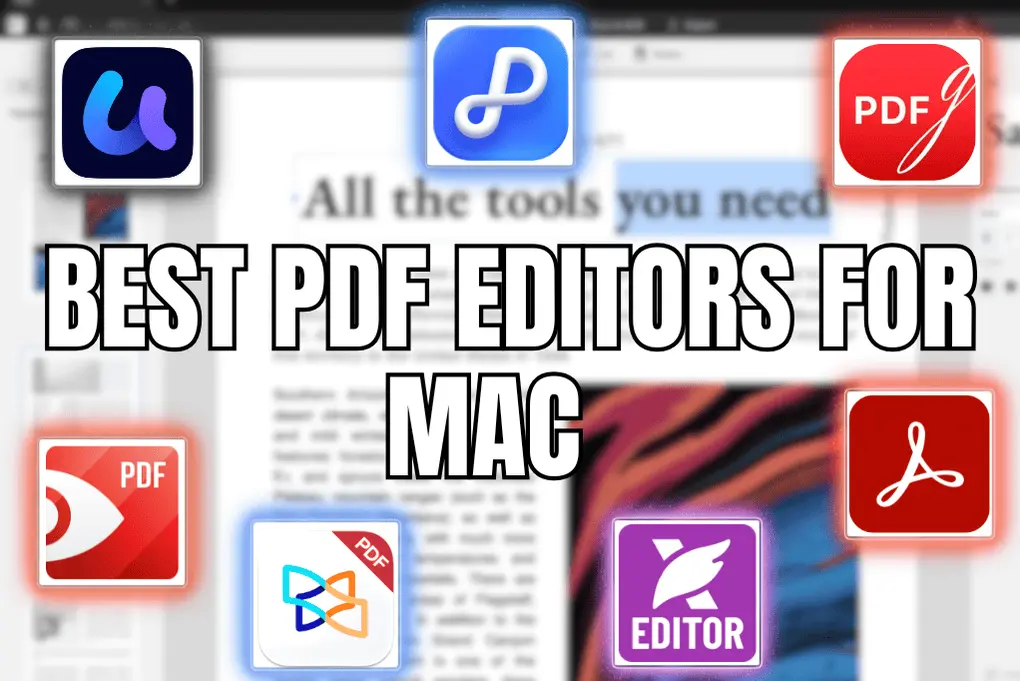
7 Best PDF Editor for Mac 2026 | I Tested +30 PDF Editors
Looking for the best PDF editors for Mac in 2026?
There are dozens of PDF editors available for Mac today. The real question is: which ones are actually worth using?
To answer that, I tested more than 30 PDF editors and spent 200+ hours comparing their features, pricing, performance, and overall usability on macOS. And honestly, it was not always easy. Many tools promise a lot, but only a few of them truly deliver a smooth experience on Mac.
In this guide, I will walk you through the best PDF editors for Mac in 2026.
Let’s dive in!
Which PDF editors for Mac are best in 2026?
When putting together my best PDF editor software list, I considered features, versatility, my experience, and user interface. While I can not summarize all my findings in this table, this will help you get an overview of the key information for each PDF editor.
Here are the top 7 PDF editors for Mac that stood out the most to me in 2026:
|
PDF editors for Mac |
My ratings |
My top picks |
|---|---|---|
 |
Best overall PDF editor for Mac users |
|
 |
Best for native Mac performance |
|
 |
Best free PDF editor for Mac |
|
 |
Best affordable PDF editor for Mac with AI features |
|
 |
Best for advanced offline PDF editing on Mac |
|
 |
Best for advanced PDF editing on Mac |
|
 |
Best PDF editor for businesses |
Best PDF editors for Mac in 2026
Let’s see the best PDF editors for Mac in 2026!
Best PDF editor for Mac #1 | Tenorshare PDNob
Best overall PDF editor for Mac users
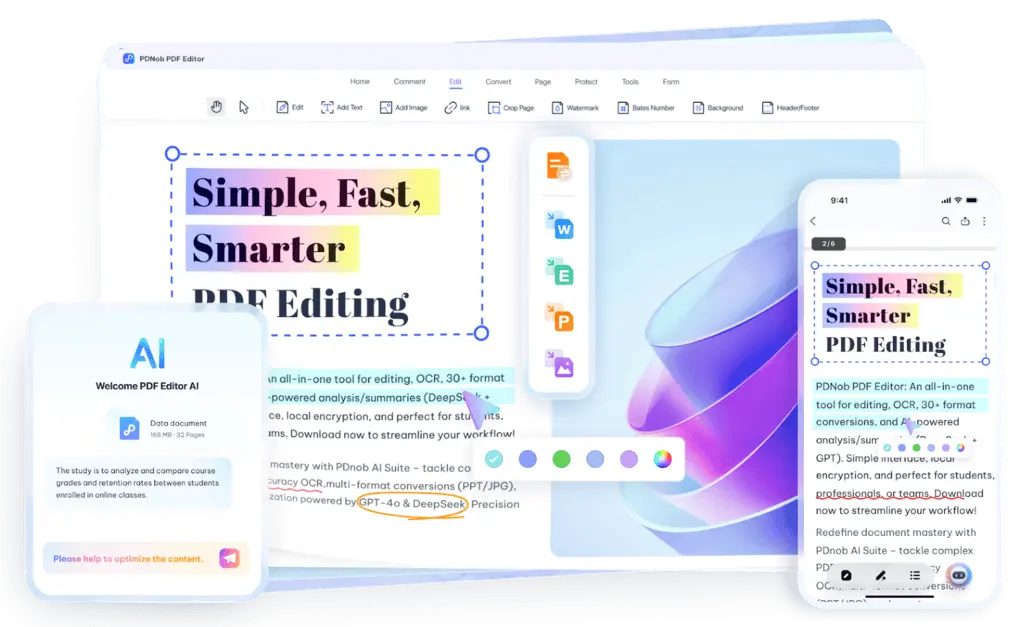
Tenorshare PDNob PDF Editor is a lightweight PDF editor that focuses on simplicity and AI-powered productivity tools. It allows you to edit, convert, annotate, and organize PDF files while also using AI features to summarize or extract information from documents.
Key features
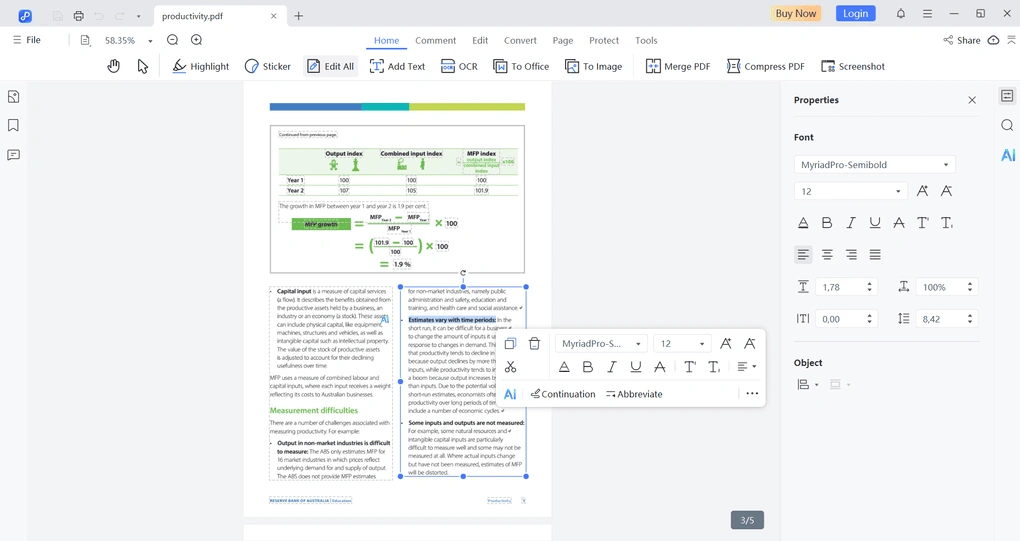
PDF reader: Tenorshare PDNob allows you to open and read PDF files with several viewing options. You can zoom in and out, switch between different page layouts, and scroll through long documents smoothly. While the reader mode is fairly simple, it works well if you just want to review documents quickly.
PDF editing tools: Tenorshare PDNob uses a simple drag-and-drop editing system. You can edit existing text, add new text boxes, insert images, and adjust fonts or formatting. You can also modify or remove watermarks and backgrounds, which can be useful when preparing documents for sharing.
Organize PDF pages: Tenorshare PDNob also includes tools to manage pages inside your PDF documents. You can insert new pages, delete unnecessary ones, rotate pages, split documents, or change their order. This makes it easier to restructure longer PDFs.
Annotate PDFs: If you need to review documents, Tenorshare PDNob provides the standard annotation tools. You can highlight text, underline sections, add comments, or leave notes. These features are useful when reviewing contracts, reports, or shared documents.
PDF conversion: With Tenorshare PDNob, you can convert PDF files into several formats such as Word, Excel, PowerPoint, or image files. The conversion process usually takes only a few seconds, making it easy to continue working with the document in another format.
Optical Character Recognition (OCR): PDNob includes an OCR feature that allows you to extract text from scanned documents. By selecting the correct language, you can improve recognition accuracy and turn scanned PDFs into searchable and editable files.
Password protection: The software also provides security options. You can add password protection and restrict actions such as editing or printing, which is useful when sharing sensitive documents.
AI tools: One of the best features of PDNob is its AI assistant. You can ask it to summarize documents, answer questions about the content, translate text, or rewrite parts of the document. The AI tools are particularly useful when working with longer reports or research documents.
PDF compression: Tenorshare PDNob allows you to compress large PDF files to reduce their size. This is especially helpful when sending documents via email or uploading them to online platforms.
Screenshot tool: Tenorshare PDNob also includes a built-in screenshot tool that lets you capture your screen or a selected area. This can be useful when preparing visual notes or documentation.
Online PDF editor: Tenorshare PDNob also offers a free online PDF editor. It lets you to perform tasks such as OCR, converting, compressing, and merging PDF files directly in your browser without installing the desktop app.
Use the above link and the discount code TS-TBD-20 to get 20% OFF from the paid plans.
My experience with PDNob
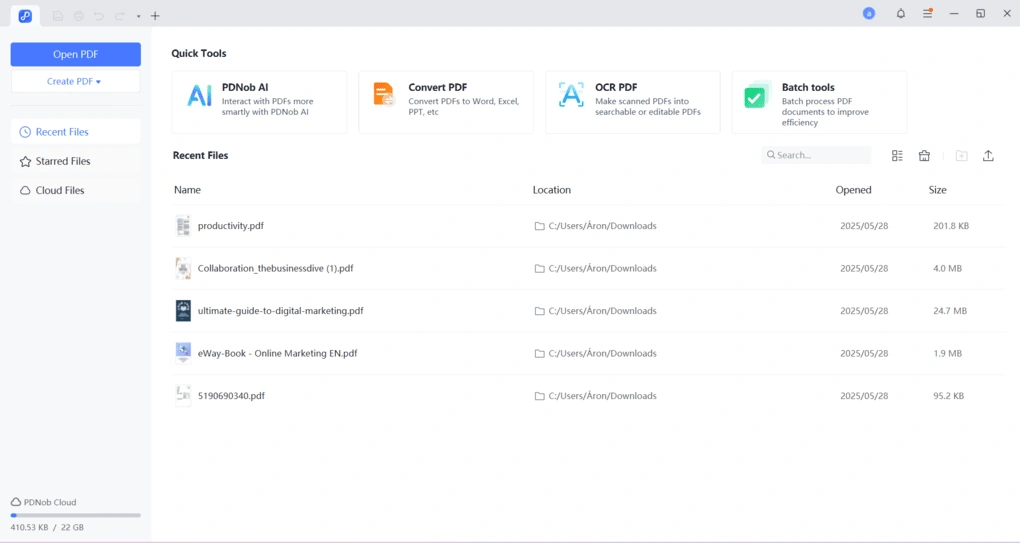
After testing Tenorshare PDNob, I found it to be one of the easier PDF editors to use. The interface is clean, and it does not take long to figure out where everything is.
Text and image editing worked smoothly, and the page organization tools were simple but effective. The AI assistant was also useful when working with longer documents, especially for summarizing content quickly.
Overall, Tenorshare PDNob focuses more on simplicity and productivity than advanced enterprise features. But if you are looking for a practical PDF editor with AI tools, it can be a solid choice.
Pricing
Tenorshare PDNob offers an unlimited free trial (i.e. free plan). You can access 50 AI Credits, 2 GB cloud storage, and the ability to upload 120 pages per file, and the size has to be below 15MB. Also, you can access some advanced features, but they include a time or file limit.
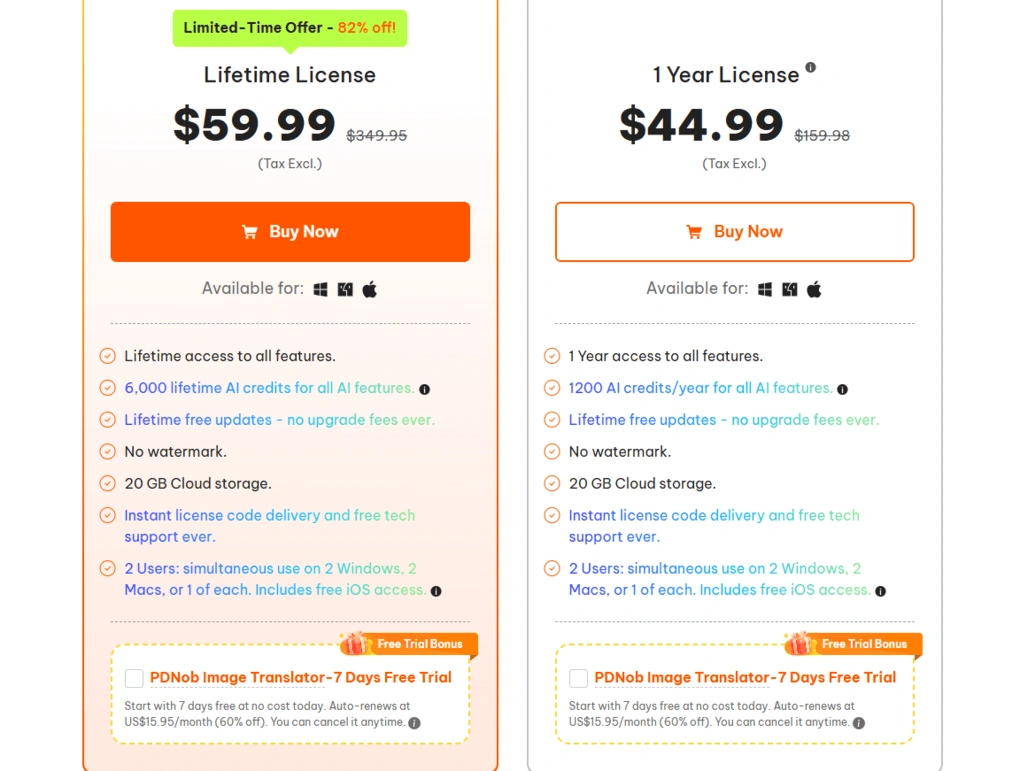
The one-year license’s original price is $159.98, but you can get it for $44.99 now. It unlocks the premium features, 20 GB of cloud storage, and includes no watermarks.
Finally, Tenorshare PDNob has lifetime access for $349.95. Its current price is $59.99, and it offers lifetime access to all the features.
Use the above link and the discount code TS-TBD-20 to get 20% OFF from the paid plans.
Pros and cons of PDNob
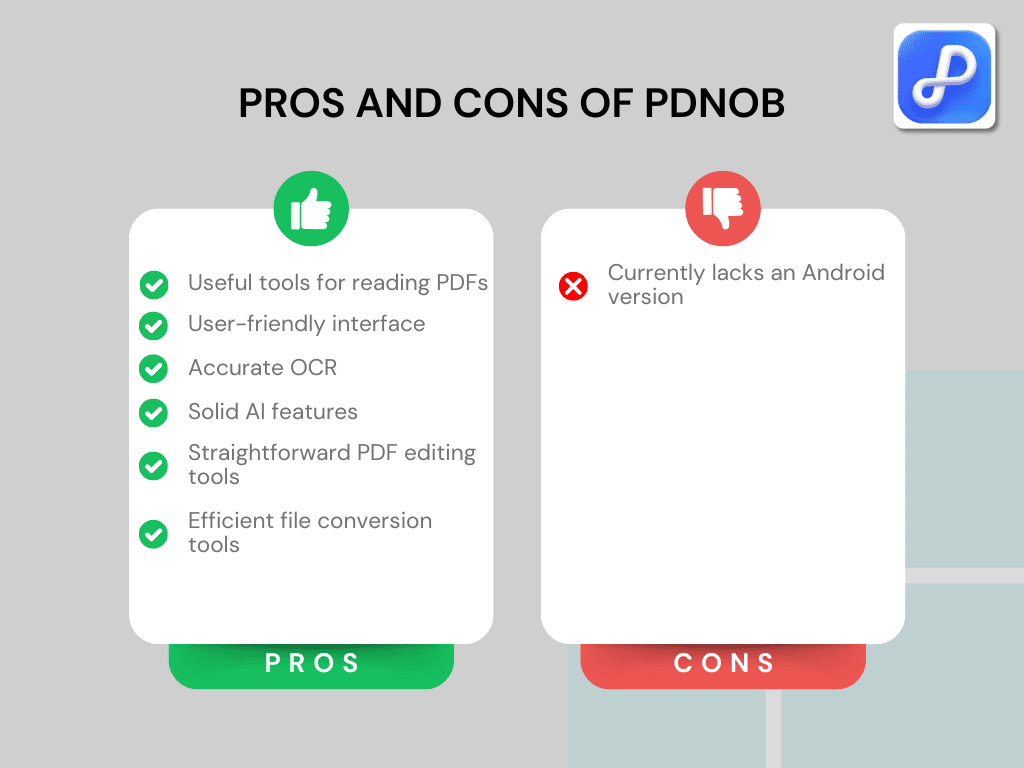
Pros of PDNob
Cons of PDNob
Use the above link and the discount code TS-TBD-20 to get 20% OFF from the paid plans.
Why is it the best PDF editor for Mac?
PDNob combines essential PDF editing tools with AI-powered features in a clean and easy-to-use interface. It is a good option for Mac users who want a simple PDF editor that can help them process documents faster without dealing with overly complex software.
🔎Read my full review: Tenorshare PDNob Review 2026 | My Unfiltered Opinion
Short on time? Here’s a quick overview of Tenorshare PDNob
Best PDF editor for Mac #2 | PDF Expert
Best for native Mac performance
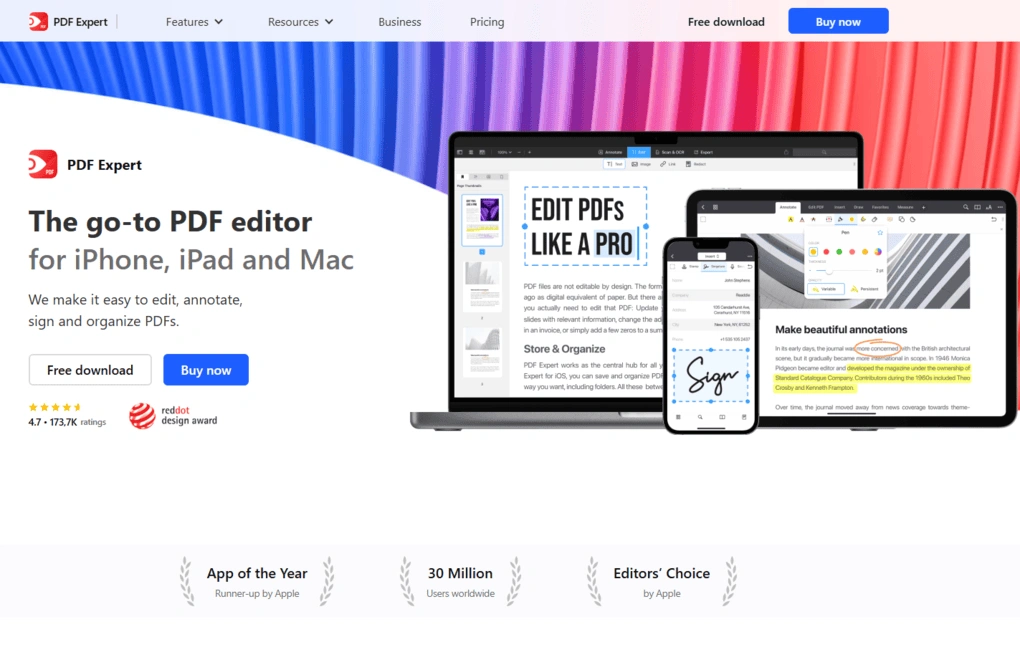
Readdle’s PDF Expert is a PDF editor for Mac, iPhone, and iPad users. It offers all the tools you need to manage your PDF files, from annotation tools to signing PDFs.
PDF Expert allows synchronization of documents across all Apple devices, so you can work on the same file on Mac, iPhone, and iPad — as long as it’s stored in a supported cloud service and connected on each device.
Key features
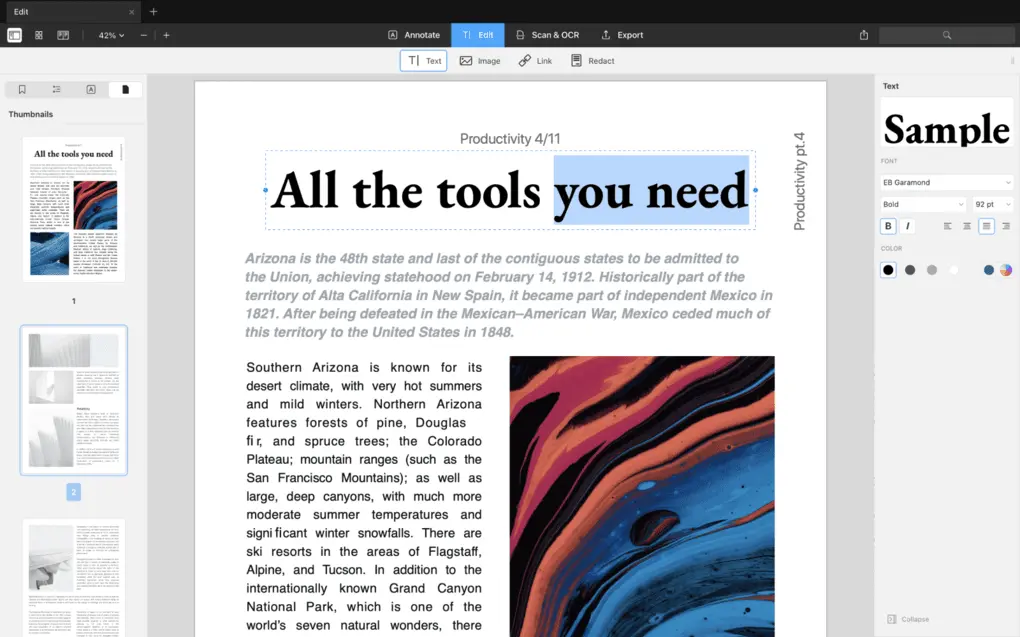
PDF reader: When reading documents in PDF Expert, you can choose from a one-page or a two-page layout. PDF Expert also offers the possibility to view two pages vertically next to each other or horizontally after each other. It provides three different themes when viewing your PDF documents, so you can choose day, night, or sepia mode to reach the best eye comfort. If your files are stored in the same cloud service, your bookmarks and reading progress can sync across your Mac, iPhone, and iPad.
PDF editing tools: With PDF Expert, you can edit existing text, add new text boxes, and insert images using a simple drag-and-drop approach. You can also adjust fonts, colors, and formatting easily. Another useful feature is the ability to add links inside the document, whether they point to external websites or other pages in the same PDF.
Annotate PDFs: PDF Expert provides a wide range of annotation tools. You can highlight text, underline sections, add notes, draw shapes, and insert stamps. It also works well with Apple Pencil, which makes handwriting and drawing annotations very convenient on iPad.
Organize PDFs: Managing pages in PDF Expert is very straightforward. You can rotate, insert, delete, copy, or reorder pages with drag-and-drop. The software also allows you to merge multiple PDFs into one document or split a large PDF into several smaller files.
PDF forms and signatures: PDF Expert can automatically detect form fields in documents, making it easy to fill out forms. While it is mainly designed for filling and signing forms rather than creating complex forms from scratch, it works very well for everyday use. You can generate a signature by typing your name, drawing it, or uploading an image, and then drag and drop it into the document.
Convert PDFs: PDF Expert supports converting PDF files into multiple formats, including Word, Excel, PowerPoint, text files, and images. During testing, the conversion process usually took around 10–15 seconds and produced accurate results.
Optical character recognition: The built-in OCR feature allows you to recognize text from scanned documents and turn them into searchable and editable PDFs. PDF Expert usually detects the language automatically, but you can also change it manually to improve accuracy.
Password protection and redaction: You can protect PDF documents by adding passwords and restricting access. In addition, PDF Expert offers redaction tools that allow you to permanently remove or black out sensitive information before sharing documents.
PDF compression: PDF Expert allows you to reduce the file size of large documents. This is particularly useful when sharing PDFs via email or uploading them to online platforms.
AI tools: PDF Expert includes an AI assistant called PDF Copilot. It can summarize long PDF documents, extract key points, translate text, and help you navigate large files faster. This feature is still in beta but can already be useful when working with lengthy reports or research documents.
My experience with PDF Expert
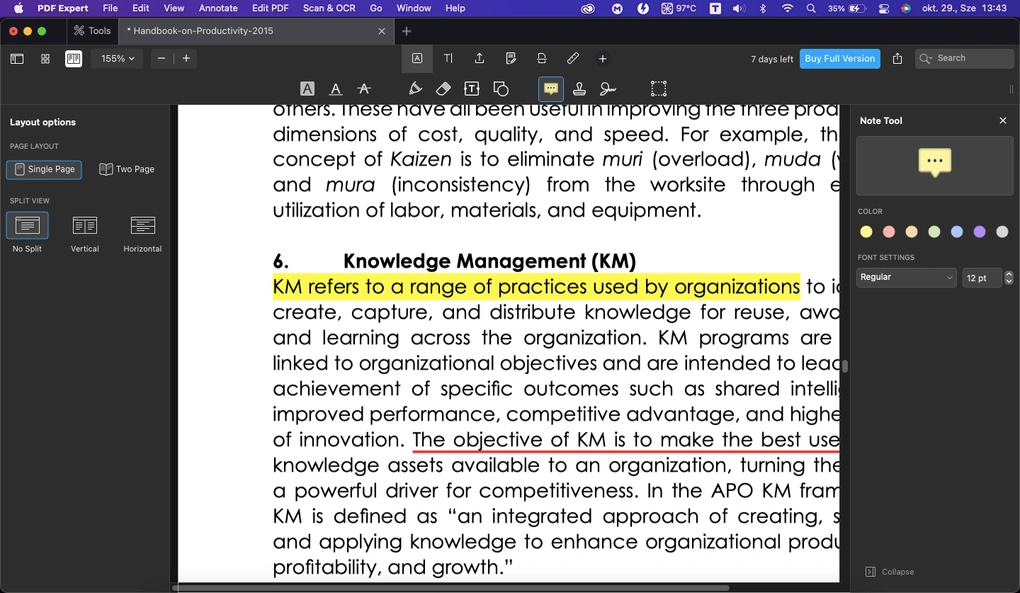
After testing PDF Expert, I quickly understood why it is so popular among Apple users. It is a fast and reliable PDF editor that integrates very well with macOS.
Opening large PDF files was smooth, and I did not experience any performance issues during my testing. Compared to some other PDF editors I tried, PDF Expert felt noticeably faster when navigating through documents or switching between files.
Another thing I appreciated was its clean and intuitive interface, and it never felt overwhelming. While it has intermediate PDF editing features, its intuitive interface helped me forget this after a few minutes.
Overall, PDF Expert strikes a very good balance between simplicity and functionality. It offers enough advanced features for most PDF tasks while keeping the experience fast and easy to use for Mac users.
Pricing
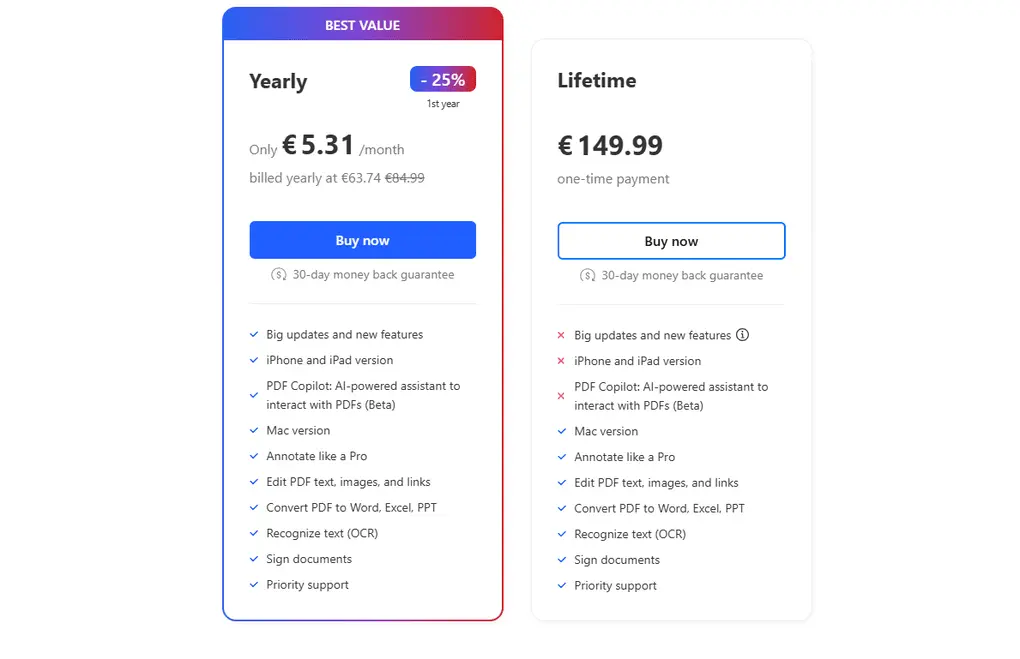
PDF Expert offers two paid plans.
You can get a lifetime subscription for a one-time fee of €149.99. While it includes almost all the features except the PDF Co-pilot, you have to pay for the updates, and you will not have access to the iPhone and iPad versions.
The annual subscription is €63.74 for the first year and €84.99 for the remaining years. It includes the updates, iPhone and iPad versions, and the PDF Co-pilot.
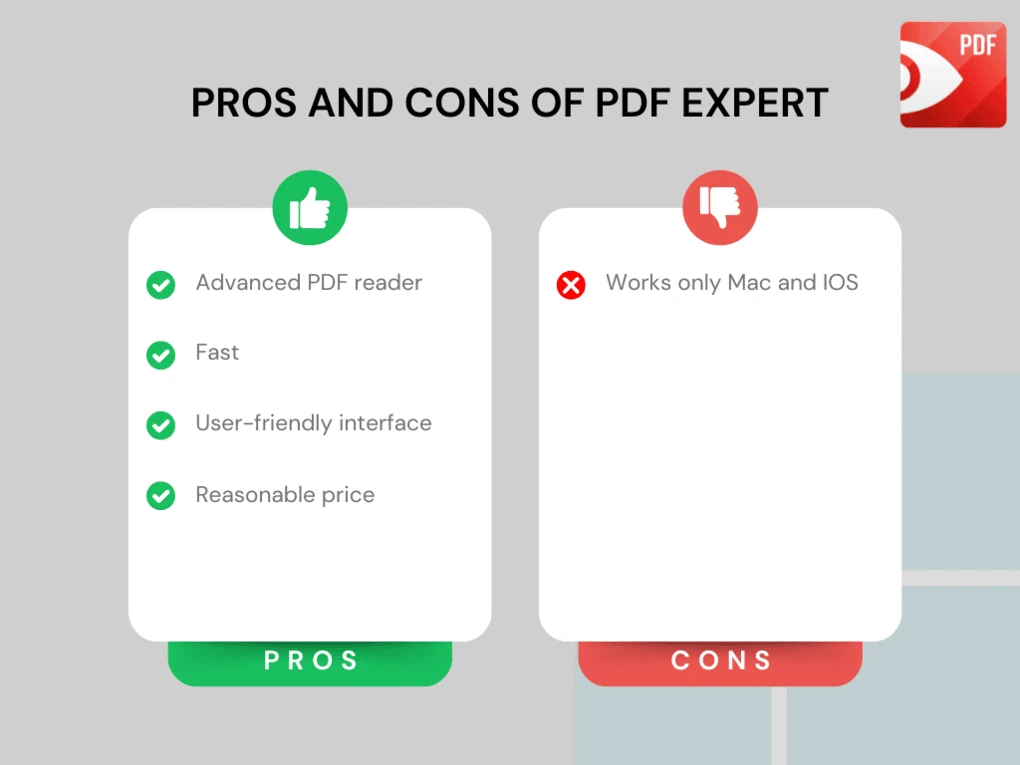
All in all, PDF Expert is a great free PDF viewer. If you decide to upgrade to one of its paid plans for the advanced features, PDF Expert comes at a reasonable price. It is way cheaper than Adobe Acrobat Pro, Nitro, or Foxit.
Pros and cons of PDF Expert
Pros of PDF Expert
Cons of PDF Expert
Why is it the best PDF editor for native Mac performance?
PDF Expert is built specifically for Apple devices, which is why it runs so smoothly on macOS. Its clean interface follows Apple’s design principles, and the ability to sync files across Mac, iPhone, and iPad through cloud services makes it a natural fit for users working within the Apple ecosystem.
🔎Read my full review: PDF Expert Review 2026 | Is it REALLY the best for Mac Users?
Short on time? Here’s a quick overview of PDF Expert
Best PDF editor for Mac #3 | PDFgear
Best free PDF editor for Mac
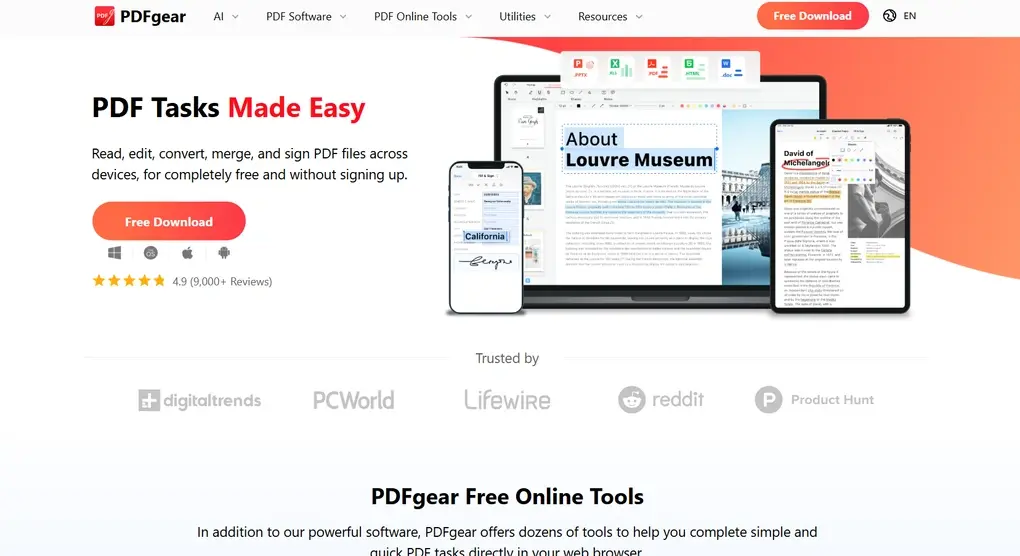
PDFgear is one of the few PDF editors that are completely free while still offering a solid set of features. It allows you to read, edit, annotate, convert, compress, and organize PDF documents without paying for a subscription.
The software works on Mac, Windows, and mobile devices, and once installed, it runs locally on your device. This means you can work with PDF files offline without relying on cloud services.
Key features
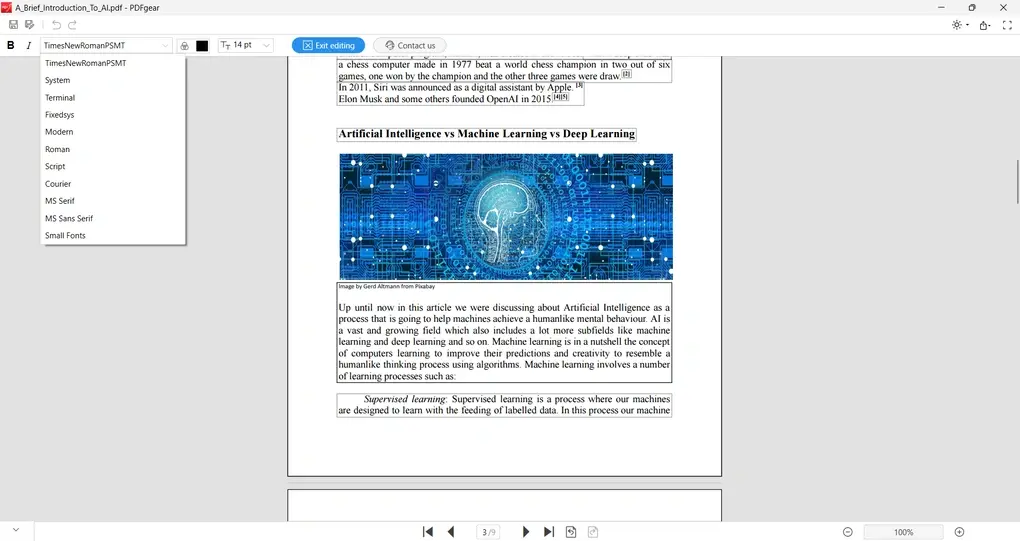
PDF reader: PDFgear provides a smooth reading experience with multiple viewing options. You can switch between single-page and double-page views, zoom in and out, and enable auto-scroll to move through documents automatically. It also includes slideshow mode and several viewing themes with different background colors to make reading more comfortable.
PDF editing tools: PDFgear allows you to edit both text and images inside PDF files. You can modify text boxes, change fonts, adjust sizes, and insert new images or text elements. The editing process is straightforward and works similarly to editing a document in a basic text editor.
Annotate PDFs: The annotation tools include highlighting text, adding notes, underlining content, and inserting shapes or stamps. These tools make it easier to review documents or collaborate with others.
Organize PDF pages: With PDFgear, you can insert, rotate, crop, delete, or extract pages from your PDF files. The page organization tools are simple to use and help you quickly restructure longer documents.
PDF forms and signatures: PDFgear supports filling out PDF forms and adding electronic signatures. You can create signatures by typing, drawing, or uploading an image and then place them anywhere in the document.
PDF converter: This free software supports converting PDF files to other file formats such as Microsoft Word, Excel, images, and text files. Conversion usually takes only a few seconds and worked reliably during testing.
PDF compression: PDFgear also includes a compression tool that allows you to reduce the size of PDF files. In many cases, it can reduce the file size by around 50% without noticeably affecting the quality.
Optical Character Recognition (OCR): PDFgear supports OCR for more than 30 languages, allowing you to convert scanned documents into searchable and editable formats. While it may struggle with more complex layouts, it performs well for most standard documents.
AI tools: PDFgear includes an AI assistant called PDFgear Copilot, which is powered by ChatGPT. It can summarize documents, answer questions about the content, and even execute commands such as converting files or adding password protection.
My experience with PDFgear
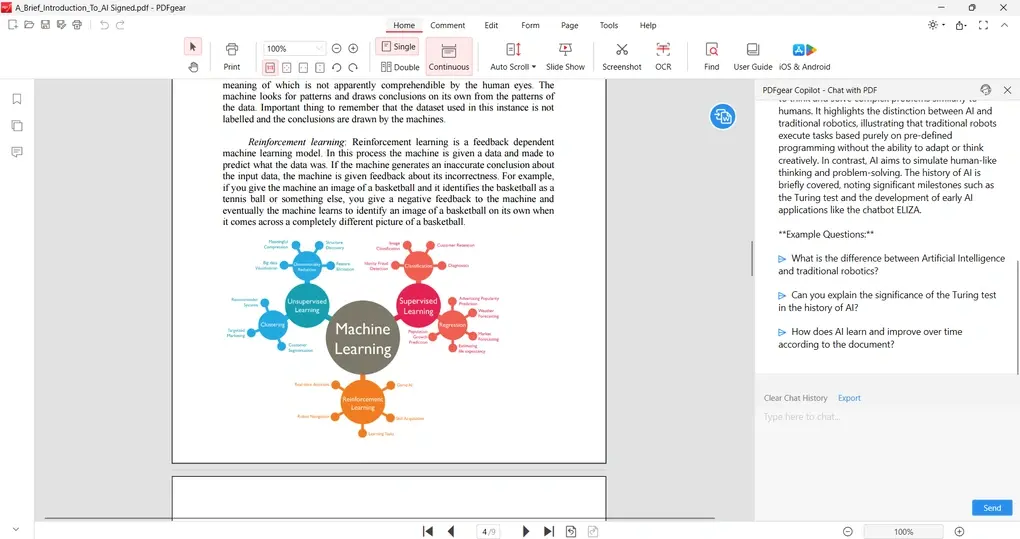
I will get straight to the point: PDFgear is currently one of the best completely free PDF editors I tested.
During my testing, it handled large PDF files without performance issues, and the editing tools worked reliably. I particularly enjoyed using the PDFgear Copilot feature, which can quickly summarize documents and answer questions about their content.
However, it is worth mentioning that PDFgear still lacks some advanced editing and security options compared to premium PDF editors. There is also ongoing debate about its privacy practices online, although I did not encounter any issues during my testing.
Overall, if you want a capable PDF editor without paying for a subscription, PDFgear is an excellent option.
Pricing
PDFgear is currently 100% free to use. It offers all its core features without requiring a subscription or paid plan.
According to the company, a paid version may be introduced in the future with additional advanced features. However, as of now, PDFgear remains one of the few PDF editors that offer editing, OCR, conversion, and AI tools completely free.
Pros and cons of PDFgear
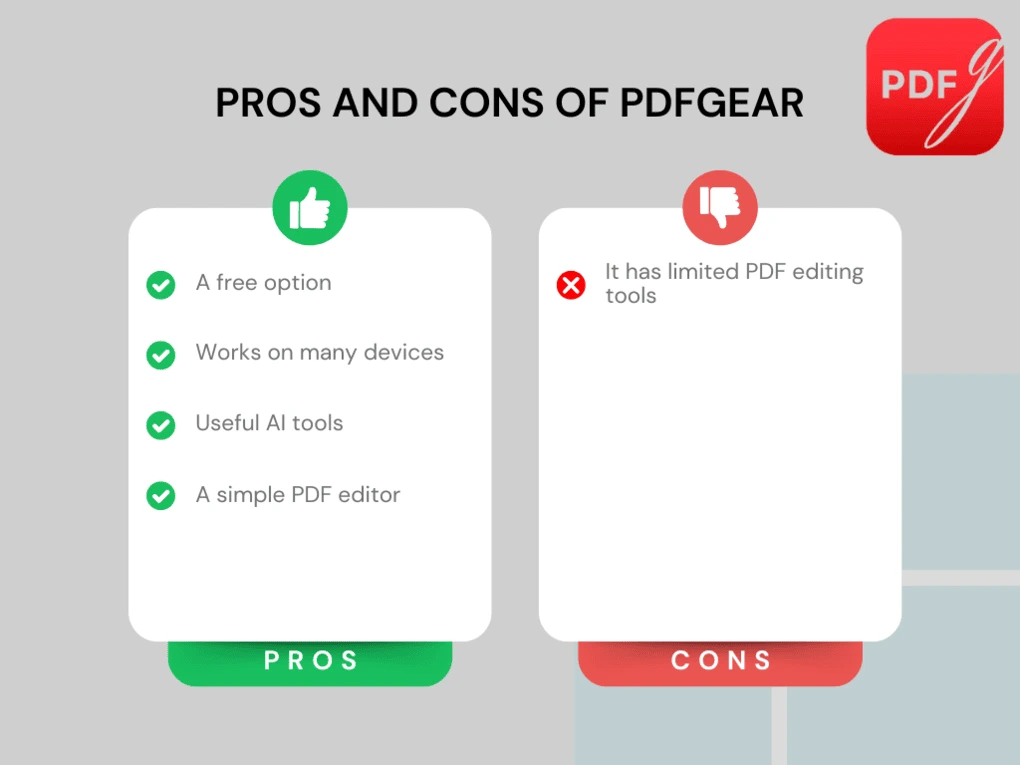
Pros of PDFgear
Cons of PDFgear
Why is it the best free PDF editor for Mac?
PDFgear offers many features that are usually available only in paid PDF editors, including editing tools, OCR, conversion, and AI assistance. Since all these features are currently available for free, it is one of the most attractive options for Mac users who want a capable PDF editor without paying for a subscription.
🔎Read my full review: My Honest PDFgear Review 2026 | What They Don’t Tell You
Short on time? Here’s a quick overview of PDFgear
Best PDF editor for Mac #4 | UPDF
Best affordable PDF editor for Mac with AI features
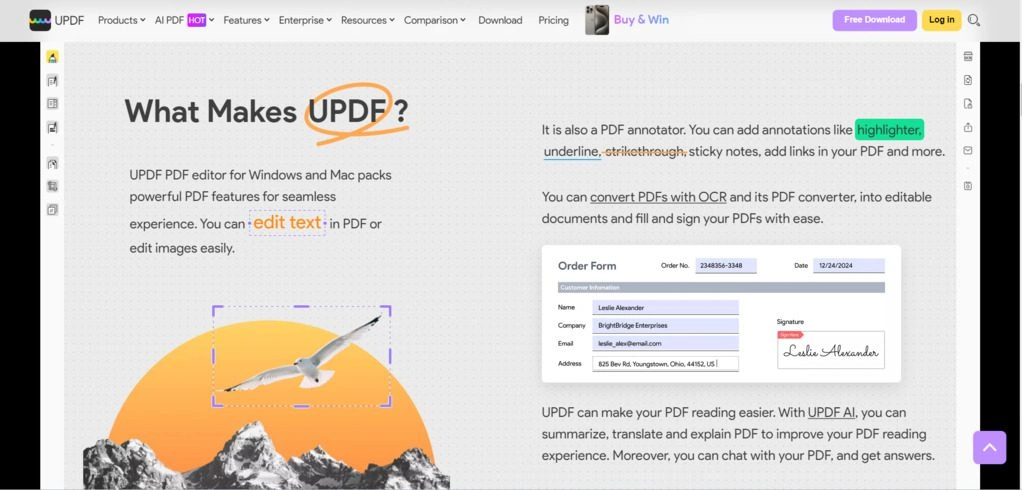
UPDF is an AI-powered PDF editor that allows you to view, edit, annotate, convert, and organize PDF files across multiple devices. One of its biggest advantages is that you can use it on Mac, Windows, iPhone, iPad, and Android with a single license.
Key features
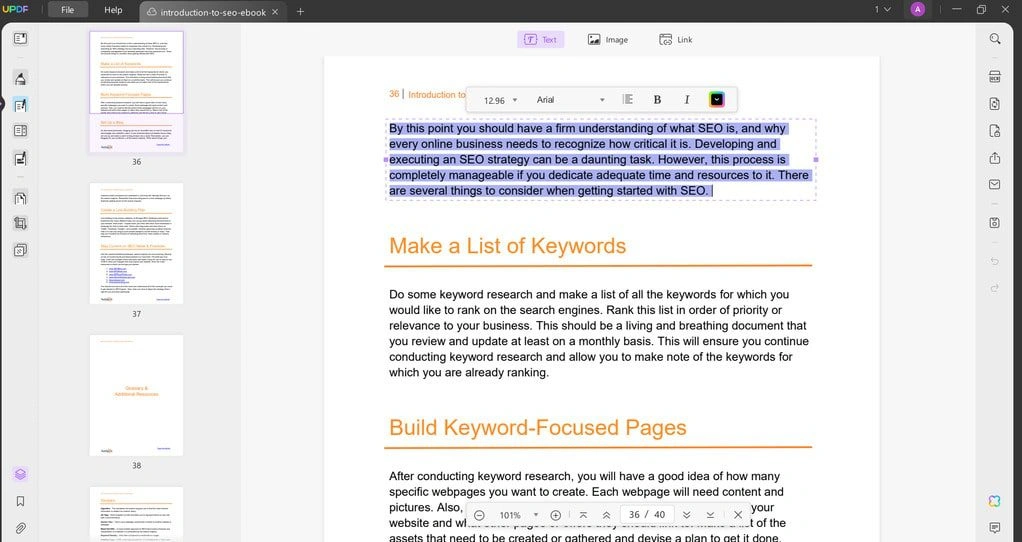
PDF editing tools: UPDF allows you to edit every element of your PDF documents, including text and images. You can modify existing text, add new text boxes, and customize fonts, colors, and alignment. It also allows you to insert, crop, rotate, replace, and extract images inside your PDFs.
Annotate PDFs: UPDF offers a wide range of annotation tools such as sticky notes, highlights, callouts, and strikethrough text. One feature I particularly liked was the sticker tool, which can help quickly mark important sections when reviewing documents.
PDF organization: You can easily rearrange, merge, crop, or split PDF pages with UPDF. These tools help restructure larger documents quickly without needing another PDF app.
PDF forms and signatures: UPDF allows you to add digital signatures to documents. You can place your signature anywhere on the page and adjust its size and properties.
PDF conversion: UPDF supports converting PDFs into multiple file formats, including Word, Excel, PowerPoint, PNG, JPEG, and HTML. In total, it supports more than 14 output formats.
Optical Character Recognition (OCR): UPDF’s OCR feature allows you to convert scanned PDFs into editable documents. This makes it easier to work with scanned files that normally cannot be edited.
AI tools: One of UPDF’s strongest features is its AI assistant. It can summarize long PDF documents, answer questions about the content, translate PDFs, and even generate mind maps based on the document’s structure. These AI tools can significantly speed up document analysis.
Cross-platform support: UPDF works on Mac, Windows, iOS, and Android devices. With one license, you can use the software across all supported platforms.
My experience with UPDF
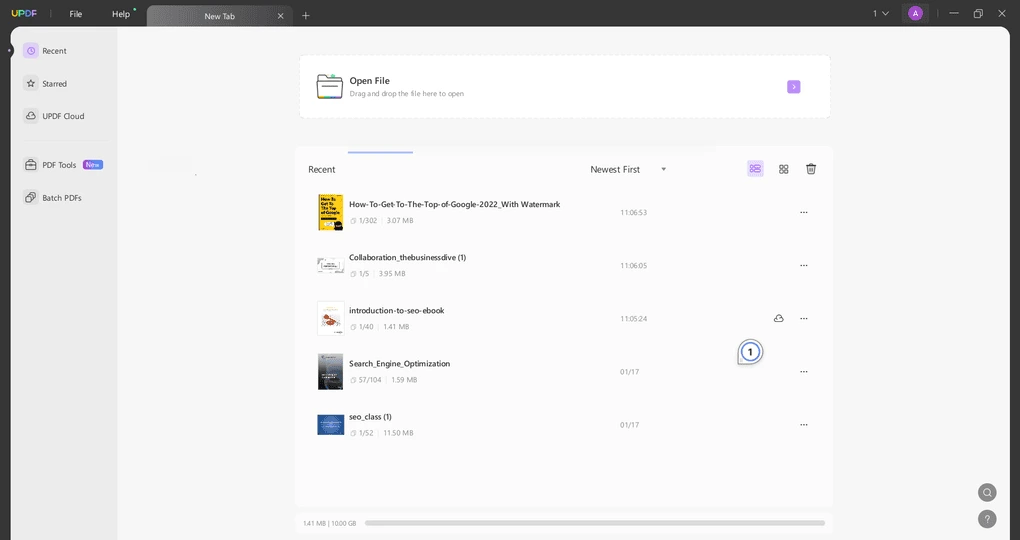
During my testing, UPDF felt like a very versatile PDF editor. The interface is clean and easy to navigate, and most tools are accessible within one or two clicks.
Editing PDF documents was particularly flexible compared to many other editors I tested. I could easily modify text, adjust images, or reorganize pages without any issues.
However, the most impressive part was the AI features. They helped summarize and analyze PDF documents quickly, which can save a lot of time if you regularly work with long documents.
Overall, UPDF offers a very balanced combination of editing tools, AI features, and affordability.
Pricing
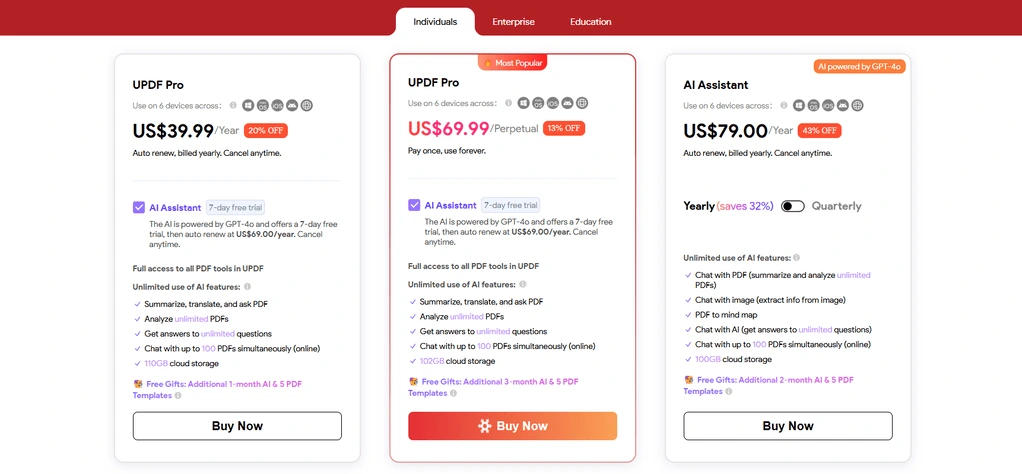
UPDF has three plans. The pricing structure changes depending on whether you are an individual, student, or enterprise client.
The free plan includes limited AI assistant features (i.e., Analyze three files, ask 30 questions) and two file conversions per day. While you can use many editing features, UPDF will add watermarks to your document.
With the UPDF Pro license, you can access all the editing features without watermarks. If you are not interested in AI features, a lifetime license is an ideal option.
If you want to use the AI tools, opt for the UPDF with AI plan. Using this UPDF license, you can utilize all the editing and AI features without limits.
Explore our Apps directory
A curated directory of software tools we’ve independently reviewed, with links to full reviews, comparisons, and category guides.
Pros and cons of UPDF
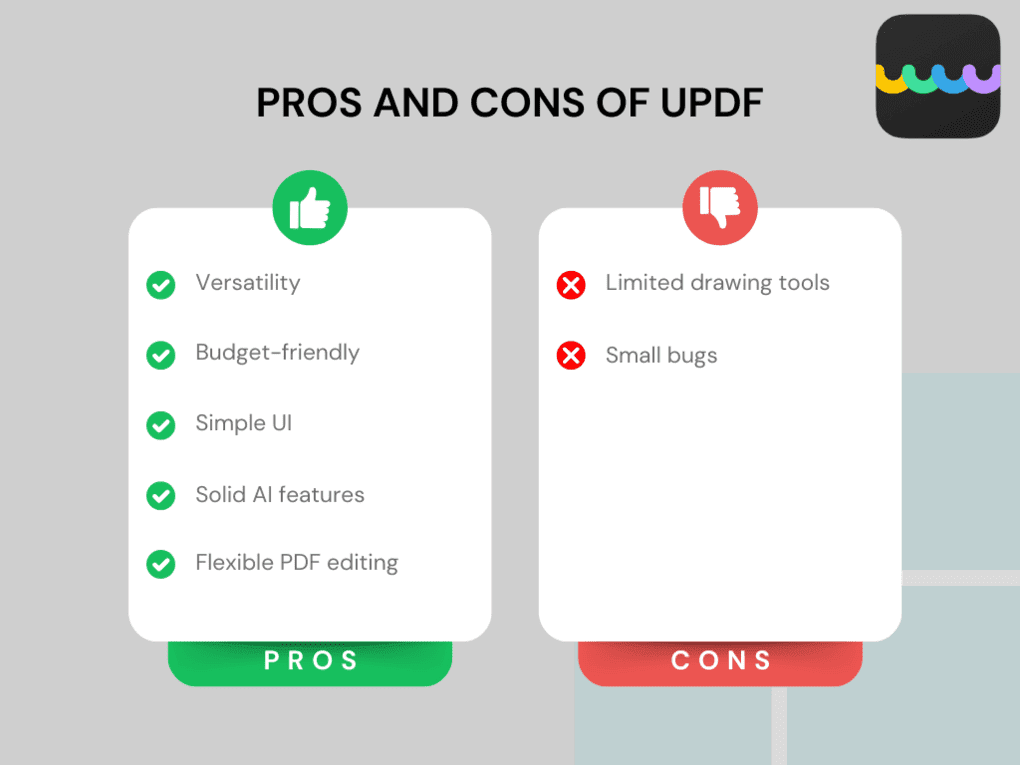
Pros of UPDF
Cons of UPDF
Why is it the best affordable PDF editor for Mac with AI features?
UPDF offers advanced PDF editing tools, powerful AI features, and cross-platform support at a relatively affordable price. Because of this combination, it is one of the most attractive options for users who want a capable PDF editor without paying the premium prices of tools like Adobe Acrobat.
🔎Read my full review: UPDF Review: Is It The Best PDF Editor In 2026? (REAL Experience)
Short on time? Here’s a quick overview of UPDF
Best PDF editor for Mac #5 | Xodo PDF Studio
Best for advanced offline PDF editing on Mac
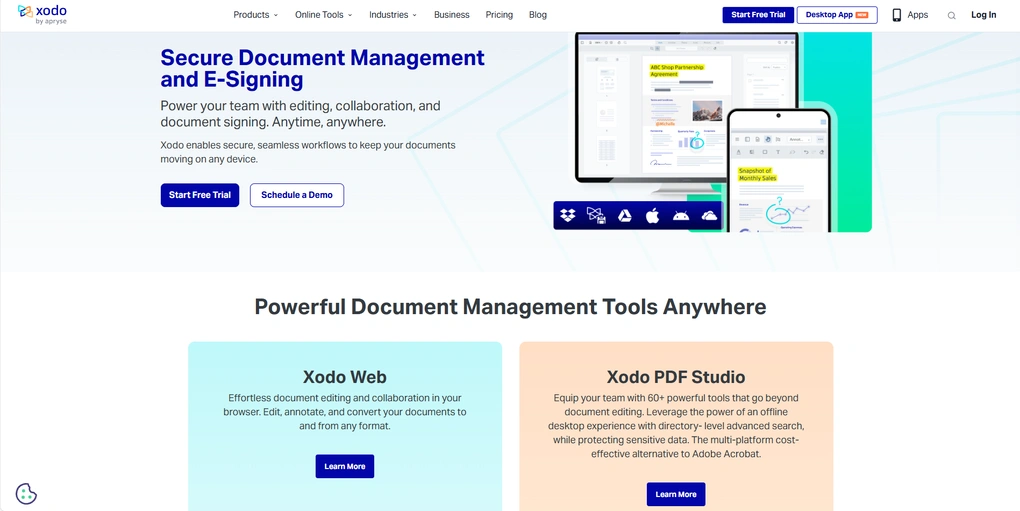
Xodo PDF Studio is a desktop PDF editor that offers a wide range of tools for editing, reading, and securing PDF documents. It works on multiple platforms, including Mac, Windows, Linux, and mobile devices.
Key features
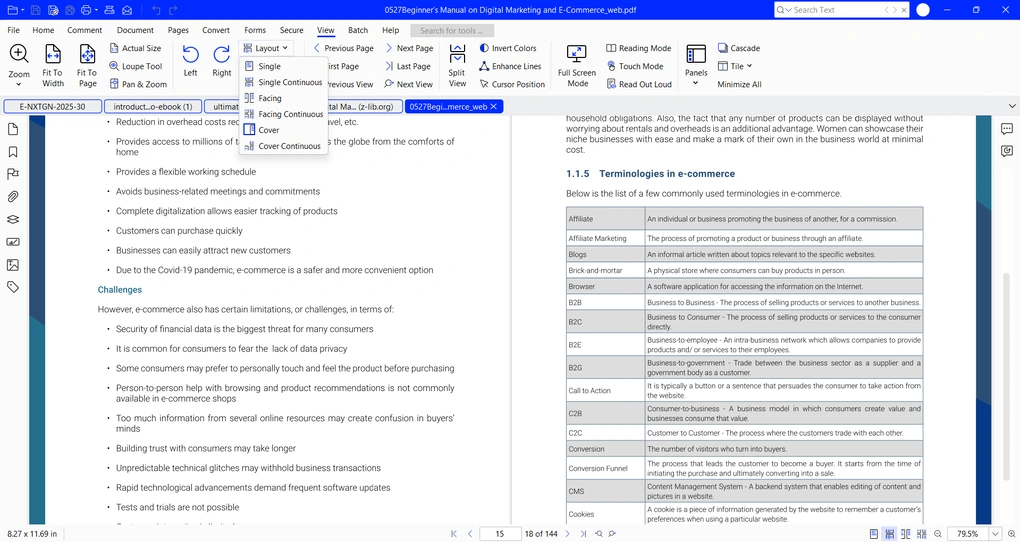
PDF reader: Xodo PDF Studio offers advanced reading options, including single-page, facing-page, and cover layouts. You can also enable split views with two or four pages visible at the same time. Additional features such as color inversion, zoom, and page rotation make reading large documents easier.
PDF editing tools: The editing tools allow you to modify text, images, and other elements within your PDF documents. You can edit text directly by clicking on the text box, and Xodo automatically detects the font type to maintain the original formatting.
Annotate PDFs: Xodo includes a wide range of annotation tools. You can highlight text, add sticky notes, draw shapes, attach files, or record voice comments directly in the document, which can be useful when reviewing documents with a team.
Organize PDF pages: With Xodo, you can insert, delete, rotate, or reorder pages. These tools make it easy to restructure longer documents or combine multiple PDFs.
PDF form filling and signatures: Xodo allows you to create forms using text fields, checkboxes, and radio buttons. It also supports digital signatures through the built-in signing tools and its Xodo Sign integration.
PDF protection: Xodo PDF Studio offers strong security features. You can add passwords, certify documents, apply timestamps, and sanitize PDFs to remove hidden or sensitive information.
Optical Character Recognition (OCR): The OCR tool allows you to convert scanned documents into searchable and editable PDFs. During testing, the OCR worked reliably and allowed me to easily edit scanned files.
PDF conversion: Xodo supports converting PDFs into file formats such as Word, Excel, PowerPoint, and images. The conversion process usually takes around 30 seconds and worked reliably during testing.
Online tools: Besides the desktop editor, Xodo also offers a web version with more than 40 tools to convert, edit, compress, and manage PDF files directly in your browser.
My experience with Xodo PDF Studio
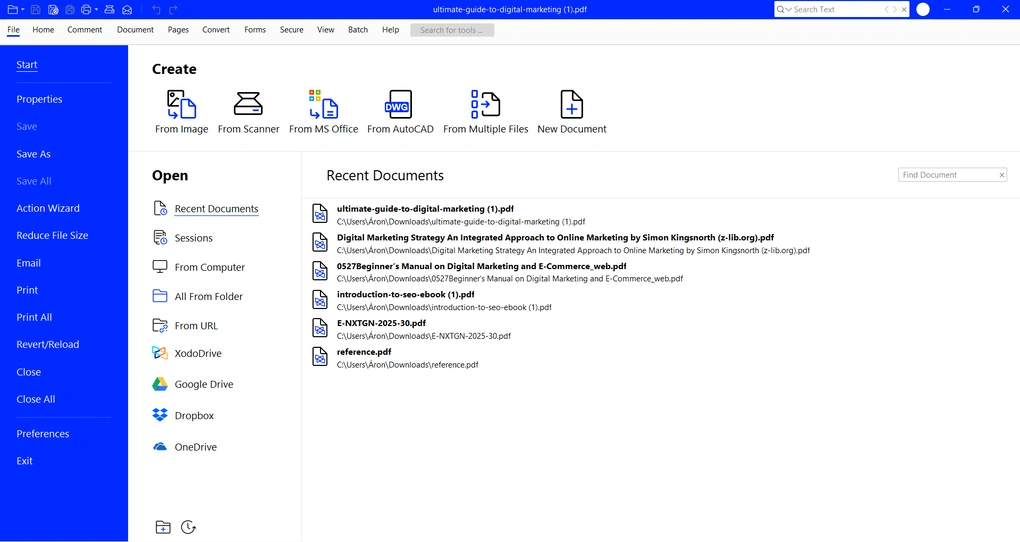
During my testing, Xodo PDF Studio proved to be a capable and reliable PDF editor. I spent several hours working with different documents, testing its editing, reading, and security features.
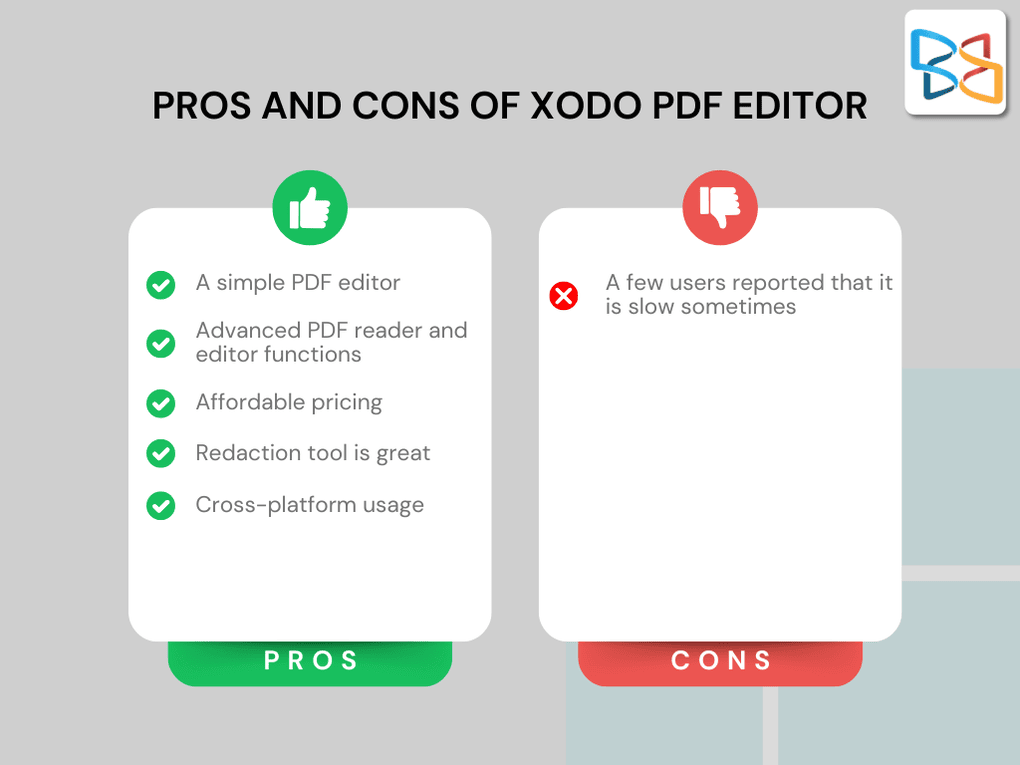
The PDF reader and editing tools were particularly impressive, as they offered more advanced functionality than many other PDF editors I tried. The redaction and security tools also stood out, especially for users working with sensitive documents.
The interface feels slightly old-fashioned compared to some newer PDF editors, but it is still straightforward and easy to use.
Overall, my experience with Xodo was very positive, and it offers a strong set of tools for professional document management.
Pricing
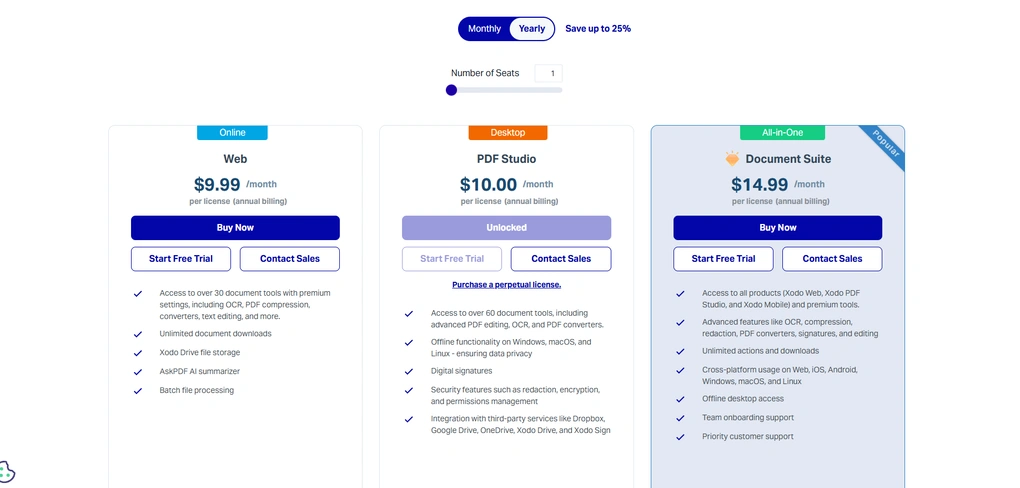
Xodo PDF Studio offers several pricing plans depending on which tools you need. The Essentials plan starts at $4.99 per month with annual billing and provides access to the basic web tools with unlimited downloads. However, advanced features like text editing and OCR require upgrading to a higher plan. Xodo also offers a 7-day free trial, so you can test the features before committing.
The Web plan costs $9.99 per month with annual billing and unlocks advanced tools such as OCR, PDF compression, text editing, and batch file processing. It also includes access to Xodo Drive storage and the AskPDF AI summarizer.
If you prefer a desktop editor, the PDF Studio plan costs about $10 per month with annual billing. It includes more than 60 document tools, such as advanced PDF editing, OCR, converters, digital signatures, and integrations with services like Dropbox and Google Drive.
Finally, the Document Suite plan provides access to all Xodo tools across web, desktop, and mobile platforms for $14.99 per month on annual subscription. It is designed mainly for teams and includes cross-platform support, onboarding, priority support, and volume discounts for multiple users.
Pros and cons of Xodo PDF editor
Pros of Xodo PDF editor
Cons of Xodo PDF editor
Why is it the best for advanced offline PDF editing on Mac?
Xodo PDF Studio combines advanced editing tools, strong security features, and offline functionality in a single desktop application. Because of its redaction tools, document sanitization features, and advanced reader capabilities, it is a strong option for professionals or teams that need a more powerful PDF editor on Mac.
🔎Read my full review: Xodo PDF Editor Review | A Top Choice (2026)
Short on time? Here’s a quick overview of Xodo PDF
Best PDF editor for Mac #6 | Foxit
Best for advanced PDF editing on Mac
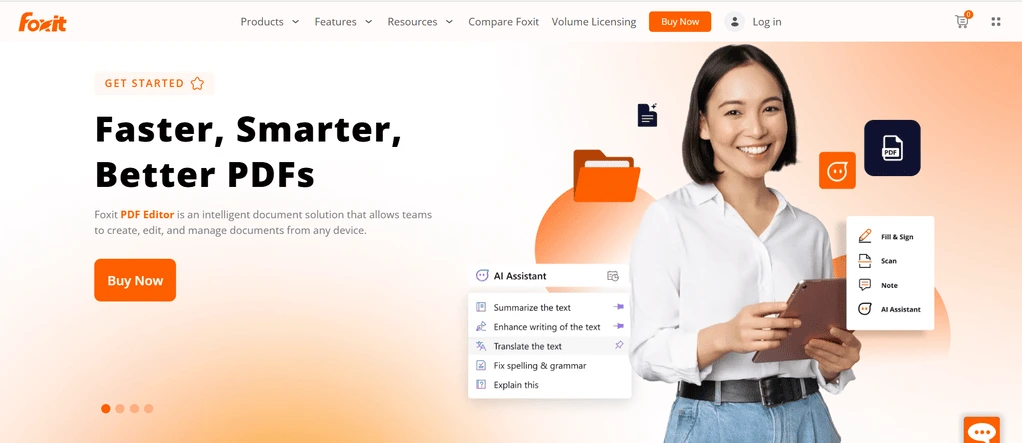
Foxit PDF Editor is a feature-rich PDF editor that offers a wide range of tools for editing, organizing, and securing PDF documents. It works across multiple platforms, including Mac, Windows, iOS, Android, and web browsers.
Key features
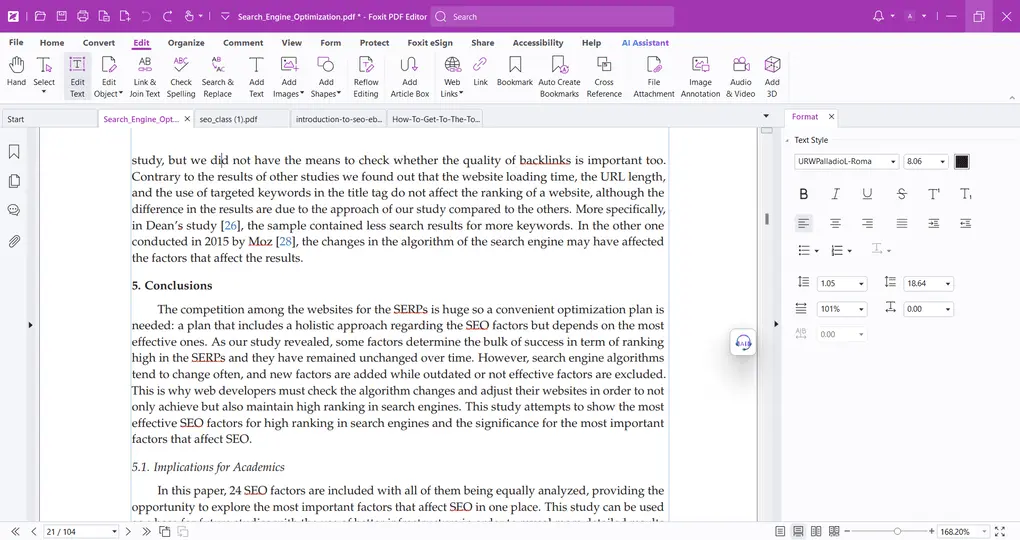
PDF reader: Foxit offers several viewing options to make reading PDF documents easier. You can switch between different layouts, enable read mode, and activate night view for more comfortable reading.
PDF editing tools: Foxit uses a smooth drag-and-drop editing system. You can edit existing text, add new text boxes, insert images, and adjust formatting such as fonts, margins, alignment, and spacing.
Annotate PDFs: Foxit includes a strong set of annotation tools. You can highlight text, add comments, insert notes, and create callouts. These tools make reviewing documents faster and more efficient, especially when working with teams.
Organize PDF pages: Foxit allows you to rearrange, insert, delete, crop, extract, or split pages with a few clicks. It also includes a document comparison feature that highlights differences between two PDF files.
PDF conversion: Foxit allows you to convert PDFs into Microsoft Office formats or images. You can also scan paper documents and convert them into editable PDFs.
PDF protection: Foxit provides strong security options. You can add password protection, restrict access permissions, and control actions such as printing, editing, or copying text.
Optical Character Recognition (OCR): Foxit includes OCR functionality that converts scanned documents or images into searchable and editable text.
PDF conversion: Foxit allows you to convert PDFs into Microsoft Office formats or images. You can also scan paper documents and convert them into editable PDFs.
AI assistant: Foxit also includes an AI assistant that can summarize documents, answer questions about PDF content, and extract key information from files.
My experience with Foxit PDF editor
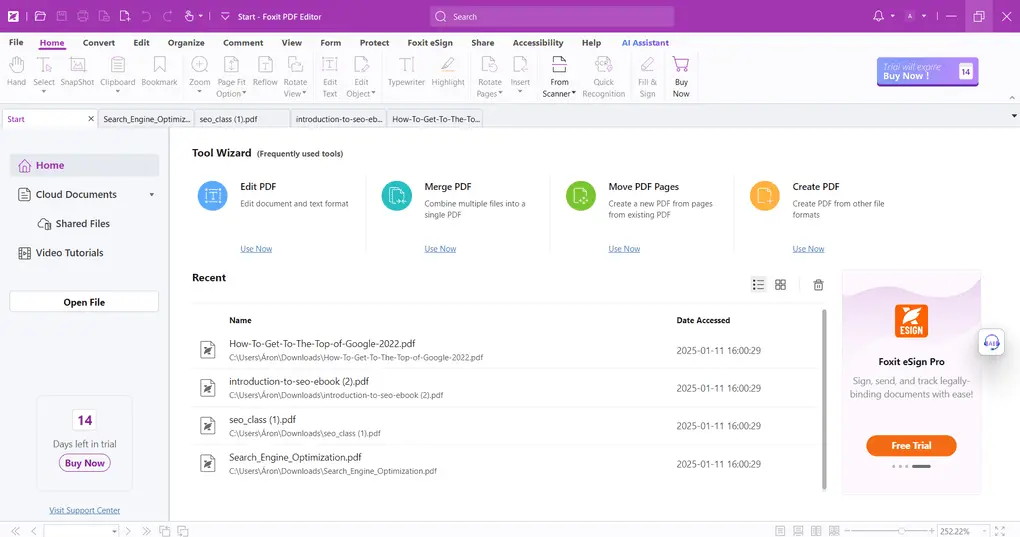
After testing Foxit, I had a very positive experience overall. The software feels fast and responsive, even when opening larger PDF documents.
The drag-and-drop editing tools make it easy to modify text and images without spending time learning complicated workflows. I also enjoyed using the annotation tools, as they offer many options for reviewing documents.
Compared to many other PDF editors, Foxit offers a very strong combination of performance, features, and pricing.
Pricing
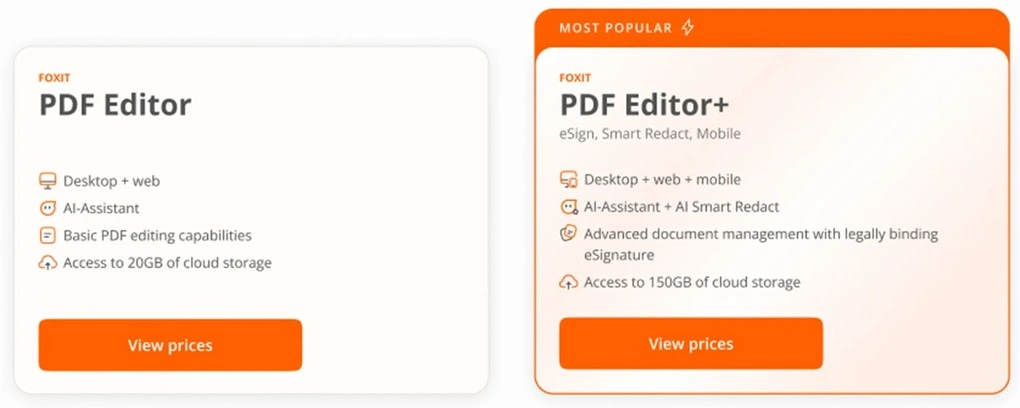
Using Foxit’s free version, you can view and read your PDFs and utilize its PDF reader tools. Besides the free version, Foxit offers two plans.
The PDF editor includes the essential features to edit PDF files for $129.99. By choosing this plan, you can create documents, edit them, fill out forms, add security, and more.
Essentially, you can have many advanced features with this plan; the real limitations of this plan are the limited AI credits and signing tools.
Nevertheless, if you need the eSign, smart redact features, and want to use Foxit on your mobile, you must go with the PDF Editor+. You can get this plan for $172.79 per year and access all the advanced features of Foxit.
Lastly, if you want to add an AI Assistant, which includes 2000 credits per month, that is an extra $49.99/year.
Pros and cons of Foxit PDF editor
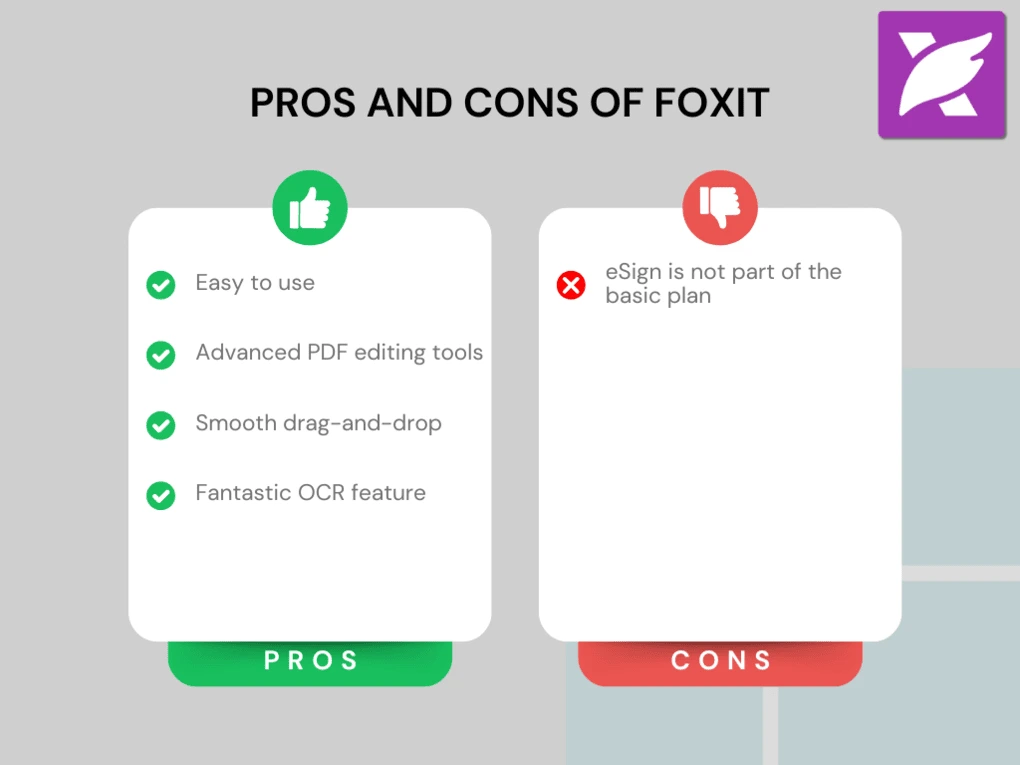
Pros of Foxit PDF editor
Cons of Foxit PDF editor
Why is it the best for advanced PDF editing on Mac?
Foxit combines powerful editing tools, fast performance, and strong security features in a single PDF editor. Because of its advanced editing capabilities and flexible feature set, it is one of the best options for users who need a professional-level PDF editor on Mac.
🔎Read my full review: My Honest Foxit Review After Trying +30 PDF Editors (2026)
Short on time? Here’s a quick overview of Foxit
Best PDF editor for Mac #7 | Adobe Acrobat
Best PDF editor for businesses
Adobe Acrobat is one of the most widely used PDF editors and has long been considered the industry standard for managing PDF documents. It offers a comprehensive set of tools to create, edit, organize, and share PDFs across macOS, Windows, mobile devices, and the web.
Key features
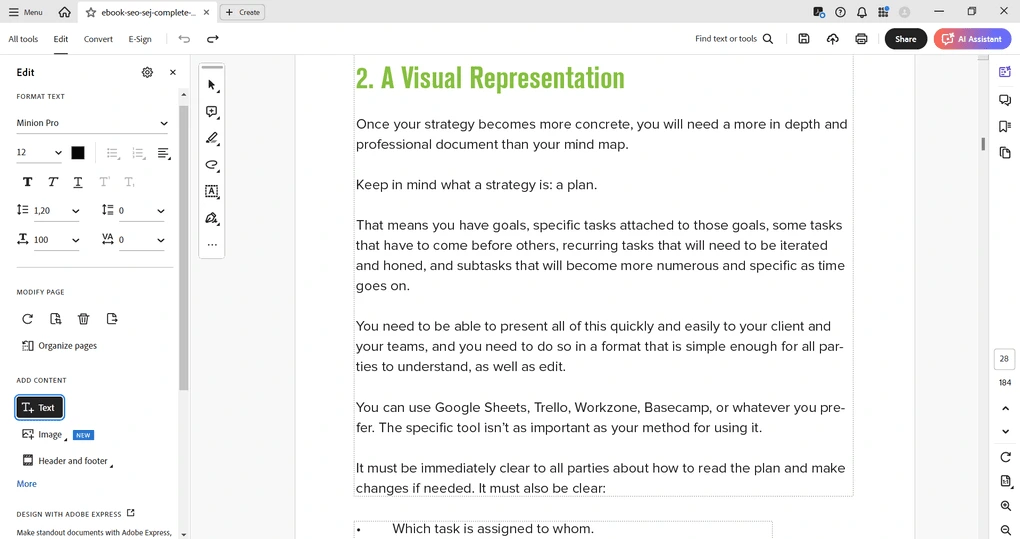
PDF editing: Adobe Acrobat provides advanced editing capabilities that allow you to modify text, images, and other elements directly in your PDFs. It also includes built-in OCR, so you can convert scanned documents into editable and searchable text.
Annotate PDFs: The annotation tools allow you to highlight text, add comments, sticky notes, shapes, and callouts. These features are useful for reviewing documents or collaborating with colleagues when multiple people need to provide feedback.
Organize PDFs: Adobe Acrobat allows you to insert, replace, rotate, split, and extract pages easily. You can also drag and drop page thumbnails to reorganize documents and insert files from other formats directly into an existing PDF.
Forms and signatures: Using the Fill & Sign tool, you can quickly complete forms and add electronic signatures. Adobe Acrobat also supports creating digital forms and sending documents for signature, which is useful for business workflows.
Security and sharing: You can protect documents with passwords and control permissions such as printing or editing. Acrobat also allows you to share PDFs through cloud links or email directly from the app.
AI assistant: Adobe Acrobat includes an optional AI assistant that can summarize documents, answer questions about PDFs, and help extract key insights. However, this feature requires an additional subscription.
My experience with Adobe Acrobat
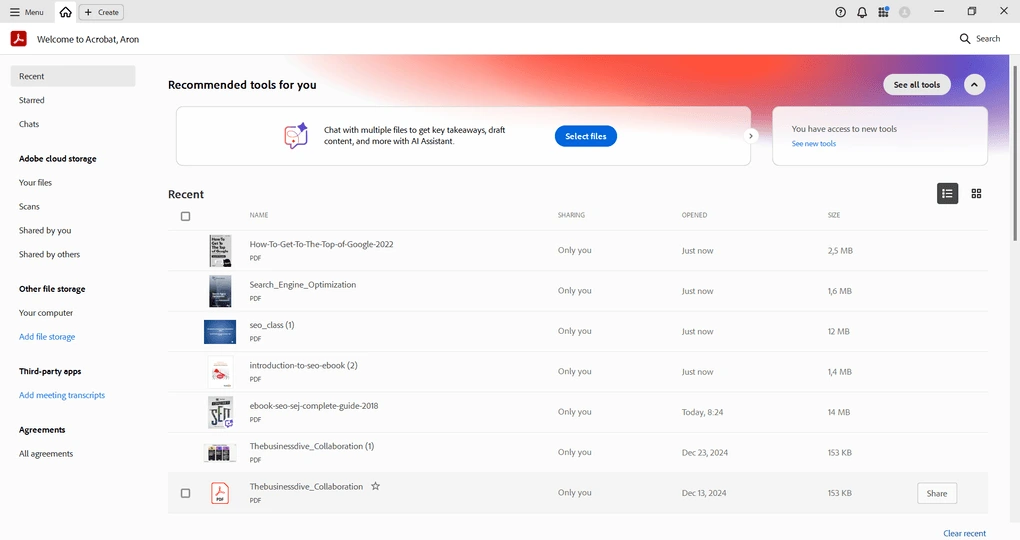
Adobe Acrobat offers one of the most comprehensive sets of PDF tools available. It covers almost everything you might need when managing documents, especially in professional environments where editing, signing, and sharing PDFs are daily tasks.
That said, during testing I noticed that it can be slower than many modern PDF editors, particularly when opening larger files. Considering its high price compared to alternatives, it might feel like overkill for casual users.
Pricing
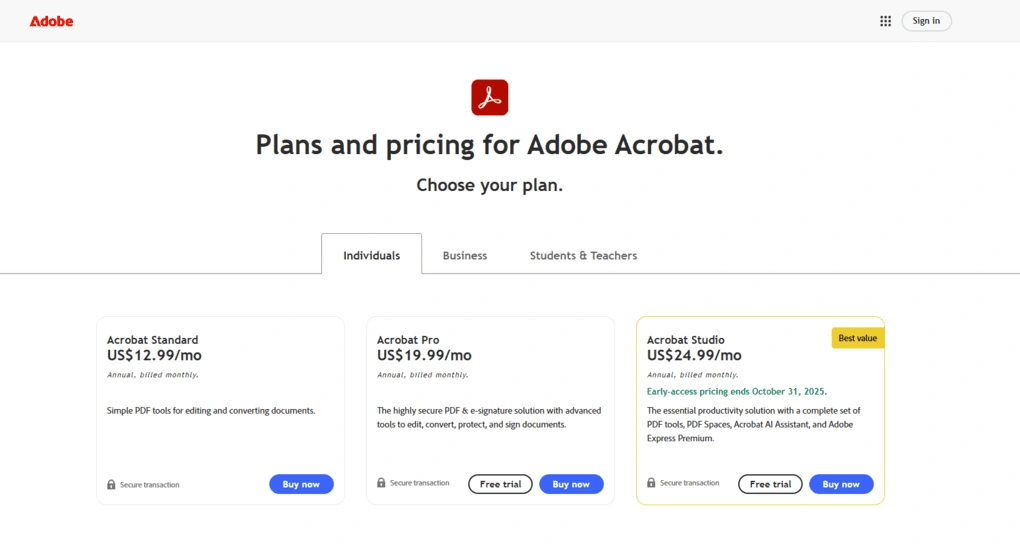
Adobe Acrobat offers three main plans, and you can add the AI Assistant for $4.99 per month. Pricing also varies depending on whether you purchase it as an individual, business, or student, but the core features remain similar across plans.
The free Adobe Reader plan includes only basic tools for viewing, printing, sharing, and commenting on PDFs. If you need editing capabilities, you will need the Acrobat Standard plan, which allows you to edit text and images, create and fill forms, and add signatures. This plan costs $155.88 per year for individuals and $179.88 per year for businesses.
The Acrobat Pro plan unlocks the full feature set, including advanced editing tools, OCR for scanned documents, document comparison, and bulk e-signature requests. It costs $239.88 per year for individuals and $287.88 per year for businesses, with the optional AI assistant costing $59.88 per year. Overall, Adobe Acrobat is significantly more expensive than many competing PDF editors.
Pros and cons of Adobe Acrobat
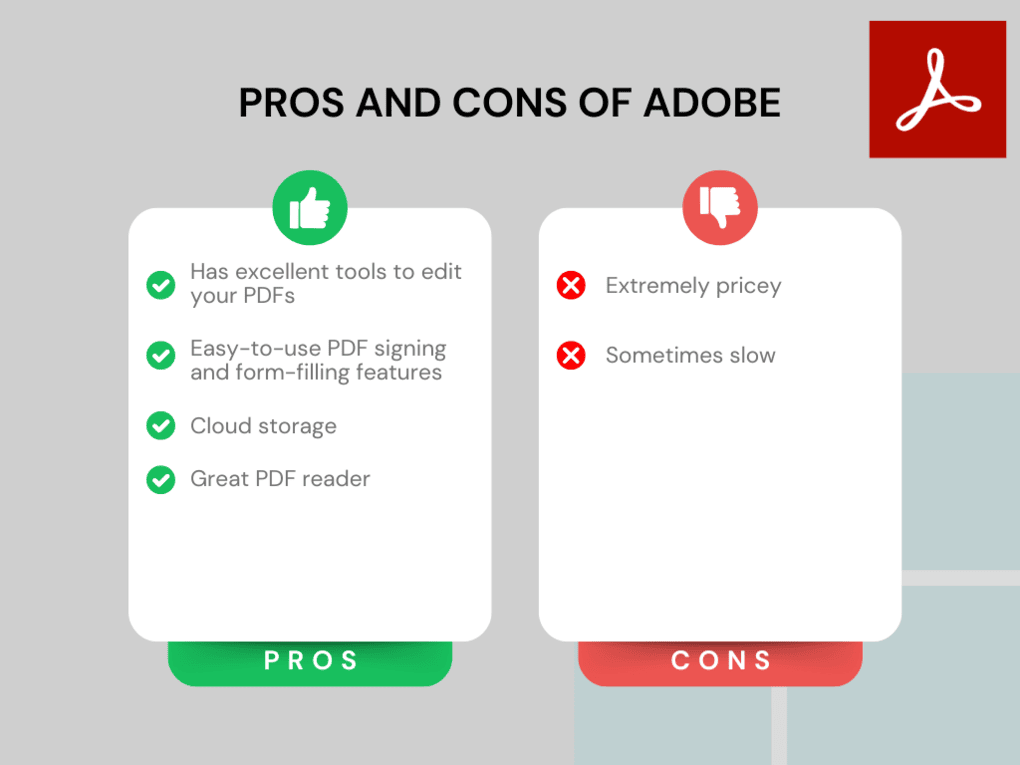
Pros of Adobe Acrobat
Cons of Adobe Acrobat
Why is it the best PDF editor for Mac for businesses?
Adobe Acrobat Pro DC remains one of the most comprehensive PDF solutions available, especially for businesses that rely heavily on document workflows.
Its advanced editing tools, digital forms, signing capabilities, and security features make it suitable for professional environments where managing large volumes of PDFs is part of everyday work.
🔎Read my full review: Adobe Acrobat Review: What Nobody Tells You (2026)
Short on time? Here’s a quick overview of Adobe Acrobat
Summary: The best PDF editors for Mac in 2026
After extensive research and testing, these are the best PDF editors for Mac in 2026. While there are many tools available, only a few provide the right balance of performance, usability, features, and pricing for macOS users.
If you are choosing a PDF editor for Mac, I recommend carefully evaluating the editing capabilities, OCR accuracy, AI features, security options, and overall pricing before making a decision. Some tools are better for simple document editing, while others are more suitable for professional or business workflows.
Related articles:
- 6 Best OCR Software For 2026 | 30+ Personally Tested Tools
- The 6 Best PDF Readers For 2026 (Only FREE Options)
- The 10 Best PDF Editors In 2026 | 30+ Personally Tested PDF Tools
- 6 Best PDF Converter For 2026 | 30+ Personally Tested Tools
I hope this guide helps you find the best PDF editor for your Mac. As always, I will continue updating this list to keep it accurate and relevant as new tools and features appear.
Looking for similar tools?
Visit our library of PDF editors to explore other apps we’ve reviewed in this space and how they compare.
Why you can trust our reviews
At thebusinessdive.com, our team tests, reviews, and compares hundreds of productivity apps every year — from project management tools to note-taking apps. We dive deep into real-world use cases to help you find the right tools that actually improve your workflow, not just add noise.
Our mission? No fluff, no shortcuts—just honest, hands-on insights from productivity pros.
Discover how we stay transparent, read our review methodology, and let us know about any tools we missed.
Frequently asked questions
What is the best PDF editor for Mac in 2026?
The best PDF editor for Mac depends on what you need. For example, PDF Expert is one of the best choices for native macOS performance, UPDF and Tenorshare PDNob offer strong AI-powered features, while PDFgear is currently one of the best free PDF editors available for Mac.
If you feel like none of these is the perfect one for you, here are other great alternatives:
- EaseUS PDF Editor: It is an all-in-one PDF software to read, edit, annotate, and convert your documents.
- Smallpdf: It is an online PDF software with numerous tools to convert, compress, and edit PDF files for free.
- Nitro: A feature-rich PDF editor with a strong focus on PDF editing.
- PDFelement: An easy-to-use PDF editor with valuable features for a reasonable price.
- pdfFiller: It offers a signing and editing solution that lets users sign and edit documents, send them for signature, and manage the full electronic document workflow in one place.
- LightPDF: LightPDF is an AI-powered PDF editor that lets you edit, convert, OCR, sign, annotate, chat with PDFs, and more.
- PDF-XChange: A powerful Windows-based PDF editor with advanced editing, annotation, security, and conversion tools.
- Sejda PDF Editor: An intuitive and simple PDF software best suited for personal use for those who need a PDF editor for basic PDF tasks.
- Soda PDF: A user-friendly PDF editor with solid core features, strong security tools, and broad file conversion options, but its advanced features come at a relatively high price.
- PDF Candy: A very practical PDF toolkit with a large number of useful tools, solid performance, and affordable pricing.
- Tungsten Power PDF: A powerful PDF editor and document management tool designed for businesses, offering advanced editing, security, OCR, and collaboration features.
Is there a free PDF editor for Mac?
Yes, there are several free PDF editors for Mac. PDFgear is one of the best completely free options, offering editing, OCR, annotation, and AI tools without a subscription. Some other editors like UPDF and Adobe Acrobat also offer free plans, but their advanced editing features usually require a paid upgrade.
Is Adobe Acrobat still the best PDF editor for Mac?
Adobe Acrobat is still a powerful PDF editor with advanced tools for editing, forms, and document management. However, many modern alternatives like Foxit, PDF Expert, and UPDF offer similar features at a lower price and often with better performance on Mac devices.
Which PDF editor for Mac has the best AI features?
If AI tools are important to you, editors like UPDF, Tenorshare PDNob, and PDFgear offer some of the best AI-powered features. These tools can summarize documents, answer questions about PDFs, translate text, or help extract key insights from large files.
What features should you look for in a Mac PDF editor?
When choosing a PDF editor for Mac, look for essential features like PDF editing, annotation tools, OCR for scanned documents, file conversion, and security options such as password protection. Many modern PDF editors also include AI tools that help summarize or analyze documents more efficiently.
Disclosure: I only recommend products I would use myself and all opinions expressed here are our own. This post may contain affiliate links that at no additional cost to you, I may earn a small commission. Read the full privacy policy here.

Hey there! I am Aron, the founder of Thebusinessdive. I have been testing productivity apps for almost three years now. I reach 25.000 -50.000 people monthly with the mission to help you find the perfect productivity apps. Subscribe to my YouTube channel, newsletter, and social media to hear more about the best productivity tools. Let’s dive in!