


7 Best Foxit Alternatives 2026 (#1 Will Surprise You)
Foxit is a decent PDF editor, but recently we & our followers (thanks for the feedback, guys) have also experienced that it is slow and crashes sometimes. Therefore, I decided to find & select the best Foxit alternatives in 2026.
After testing more than 30 PDF editors and spending hundreds of hours with them, these are the best Foxit alternatives available right now:
🥇 WPS →Best all-in-one Foxit alternative
💼 Nitro PDF → Best Foxit alternative for business teams
🪟 PDNob → Best Foxit alternative for Windows
🌐 Smallpdf → Best Foxit alternative for Web
💰 EaseUS PDF → Best affordable Foxit alternative
👩💻 PDF Expert → Best Foxit alternative for Mac
🆓 PDFgear → Best free Foxit alternative
Quick Comparison Before Switching From Foxit
|
Tool |
Where it beats Foxit 🎯 |
My favorite feature ✨ |
Where Foxit is stronger 💪🏻 |
Price 💰 |
|---|---|---|---|---|
|
Complete Office suite, built-in AI, and better value for money |
PDF editor integrated with a full Office suite |
Better if you only want a lightweight PDF editor |
Free; Pro from $2.99/month |
|
|
Business workflows, Admin Portal, Analytics, and dedicated support |
Smart Redaction |
Better suited for casual users thanks to its lower price |
From $180/year |
|
|
Faster, more intuitive editing with stronger AI features |
AI assistant for summarizing, translating, rewriting, and chatting with PDFs |
Better free version and broader platform support |
From $35.99/year |
|
|
Better browser experience with Google Workspace and Dropbox integrations |
Chrome extension and Google Workspace integration |
More advanced desktop editing capabilities |
Free; Pro from $10/month |
|
|
More affordable while offering strong OCR and document protection |
OCR accuracy |
Mobile apps and built-in AI tools |
From $19.95/month |
|
|
Faster, smoother experience for Mac users |
Reading modes (Day, Night & Sepia) |
Available on more operating systems and offers more advanced PDF features |
From €63.74/year |
|
|
Completely free while covering most everyday PDF tasks |
AI Copilot |
More advanced editing, document security, and permission controls |
Free |
How we selected the best Foxit alternatives
To keep our reviews and final scores fair and consistent, we evaluate every PDF editor using a standardized testing framework built on over 3 years of hands-on experience testing these tools in real-world scenarios.
I specifically evaluated how each PDF editor stacks up against Foxit in editing, OCR, AI features, pricing, performance, and usability.
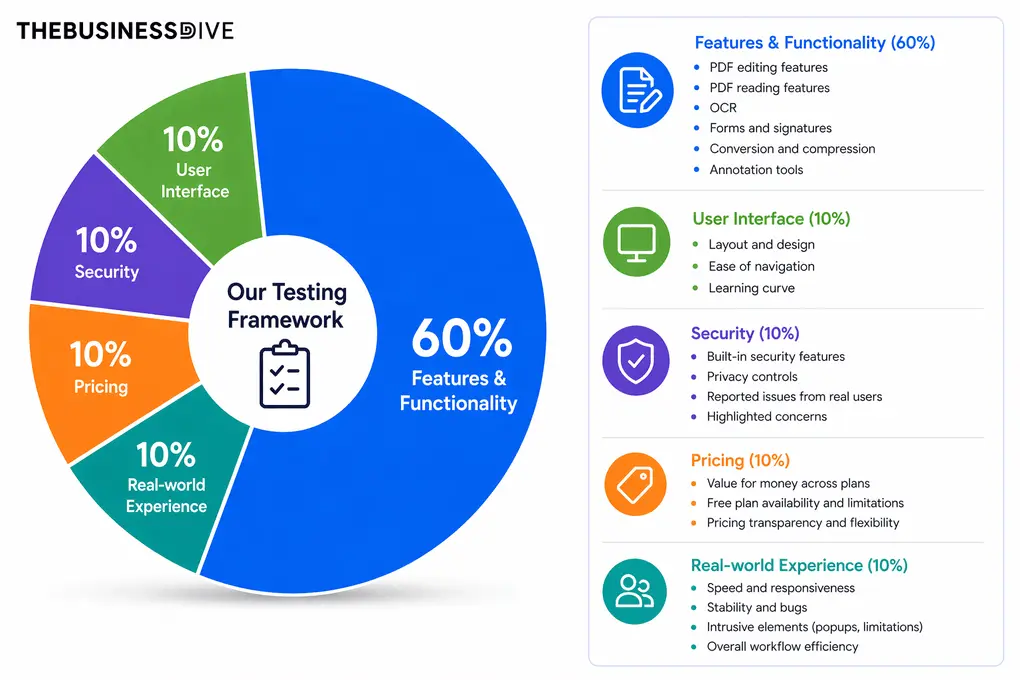
Our scoring breakdown after testing 30+ PDF editors:
✍️ Features & functionality — 60%
🖥️ User interface — 10%
🔐 Security — 10%
💰 Pricing — 10%
👥 Real-world experience — 10%
Want a detailed breakdown of how we test each category?
Learn exactly how we test tools → Review methodology
A Closer Look at Each Foxit Alternative

WPS Office
WPS is more than just a PDF editor. It is an AI-powered Office Suite with PDF, Doc, Slides, Sheet, and Photo features to replace Microsoft Office.
Bottom line
Individuals and businesses looking for a PDF editor that also includes a complete office suite.
You only need a lightweight PDF editor and don’t plan to use document, spreadsheet, or presentation tools.
Combines advanced PDF editing with a full Office suite, so you can manage nearly all document work from one platform.
Some AI features require a separate subscription.
How WPS’s Features Performed During My Testing
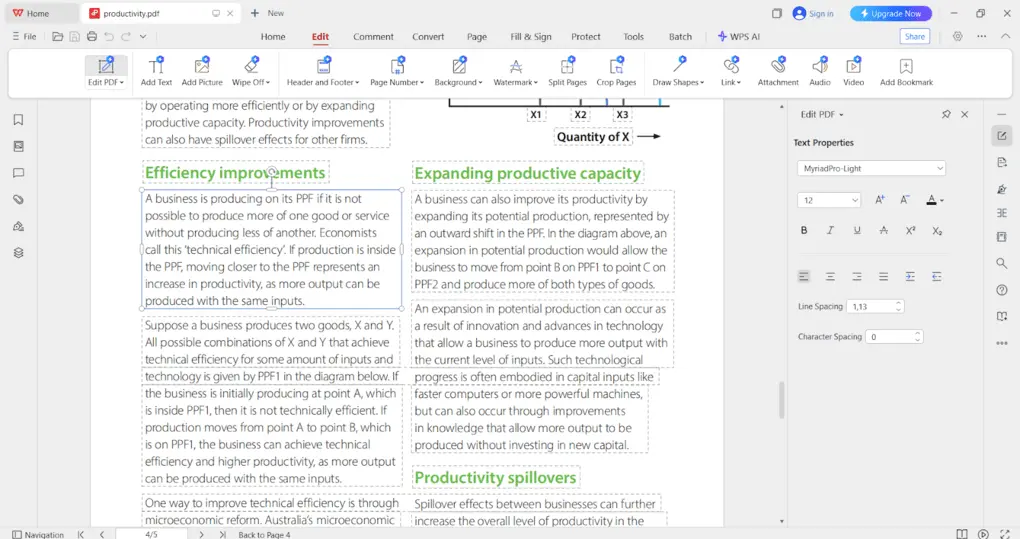
PDF reader: WPS offers one of my favorite PDF reading experiences. You can switch between single-page and two-page layouts, choose different scrolling options, and enable eye protection modes like Night Mode to make long reading sessions more comfortable.
PDF editing: Editing PDFs was straightforward throughout my testing. WPS automatically detected text boxes, making it easy to modify text, adjust fonts, spacing, and formatting, or insert images. Beyond the basics, I could also add headers, footers, hyperlinks, watermarks, videos, and even audio files, making it one of the more capable PDF editors I tested.
OCR: WPS includes two OCR modes. One converts scanned PDFs into editable and searchable documents, while the other extracts text from images into Word, Excel, or TXT files. Both worked reliably during testing and are particularly useful if you regularly work with scanned documents.
PDF conversion: Converting PDFs to Word, Excel, PowerPoint, images, or TXT files only took a few clicks. The process was quick and the formatting remained accurate in my tests.
Annotations: WPS includes a complete annotation toolkit with highlights, comments, notes, callouts, and file attachments. I especially liked that you can highlight both text and specific areas of a page instead of being limited to text selections.
PDF organization: Organizing documents was simple thanks to drag-and-drop page management. I could merge, split, rotate, replace, delete, and rearrange pages without any issues, and batch tools made working with larger documents much easier.
Forms and signatures: WPS covers the essentials for filling forms and signing documents. You can create signatures by typing, drawing, or uploading an image, then place them wherever needed.
Security: Password protection is more flexible than with many competing PDF editors. Besides restricting document access, WPS also lets you control editing and extraction permissions, which adds another layer of protection for sensitive files.
AI tools: WPS AI can summarize, translate, and answer questions about PDF documents directly inside the editor. I found the summarization tools especially useful when reviewing longer documents.
WPS pricing
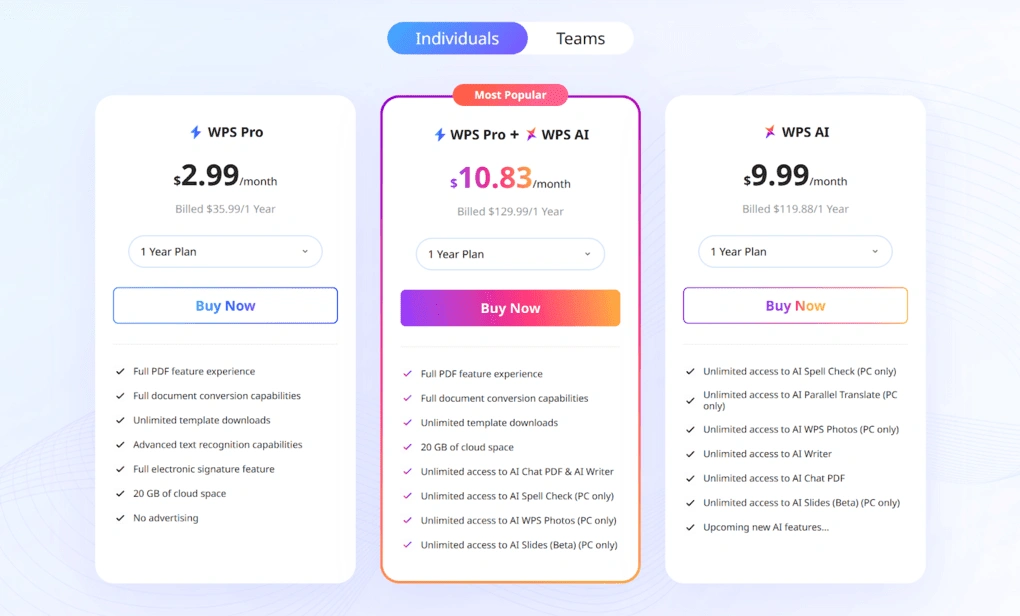
- Free plan available
- WPS Pro: $2.99/month (annual billing)
- WPS Pro + AI: $10.83/month (annual billing)
- WPS AI: $9.99/month (annual billing)
WPS’s Strengths
Short wrap-up: I recommend WPS if you want more than just a PDF editor. It offers one of the best combinations of PDF editing, document creation, and value for money, making it an excellent replacement for Foxit for both individuals and businesses.
WPS’s Limitations
Short wrap-up: If you’re only looking for a lightweight PDF editor and don’t need the additional Office apps, a more specialized solution like Nitro PDF or PDF Expert may be a better fit.
Use the above link, and you automatically get a 30-Day FREE Pro Access to WPS (no credit card required) to fully experience the advanced PDF editing features.
Nitro PDF
Nitro PDF is a robust PDF editor for document workflows. It combines advanced features with a user-friendly interface, making it a capable choice for professionals and businesses working with PDFs regularly.
Bottom line
Businesses that rely on PDFs for contracts, approvals, forms, and other daily document workflows.
You only edit PDFs occasionally and want the lowest-cost option.
A business-focused platform with advanced document workflows, admin tools, AI tools at no extra cost, dedicated 24/7 customer support, and enterprise-grade security.
Its pricing makes the most sense for professionals and teams that use PDF software every day.
How Nitro PDF’s Features Performed During My Testing
PDF reader: Nitro includes all the core viewing modes I expected, including single-page, facing pages, continuous view, and full-screen mode. The only feature I missed was a dark mode for reading PDFs.
PDF editing: This was one of Nitro’s strongest areas. Unlike many PDF editors, it lets you edit individual lines instead of selecting entire text blocks, making precise edits much easier. The image editor was equally impressive.
Annotations: Nitro includes everything I expect from a business PDF editor, including highlights, notes, callouts, stamps, drawings, shapes, and file attachments. These tools make reviewing and collaborating on PDF documents straightforward.
PDF forms and signatures: Nitro includes powerful form creation tools, automatic form detection, and Nitro Sign for complete e-signature workflows with audit trails and custom signing fields.
PDF organization: Nitro lets you reorder, rotate, delete, and manage pages without difficulty. That said, I would still prefer a drag-and-drop page view, which would make organizing large documents faster.
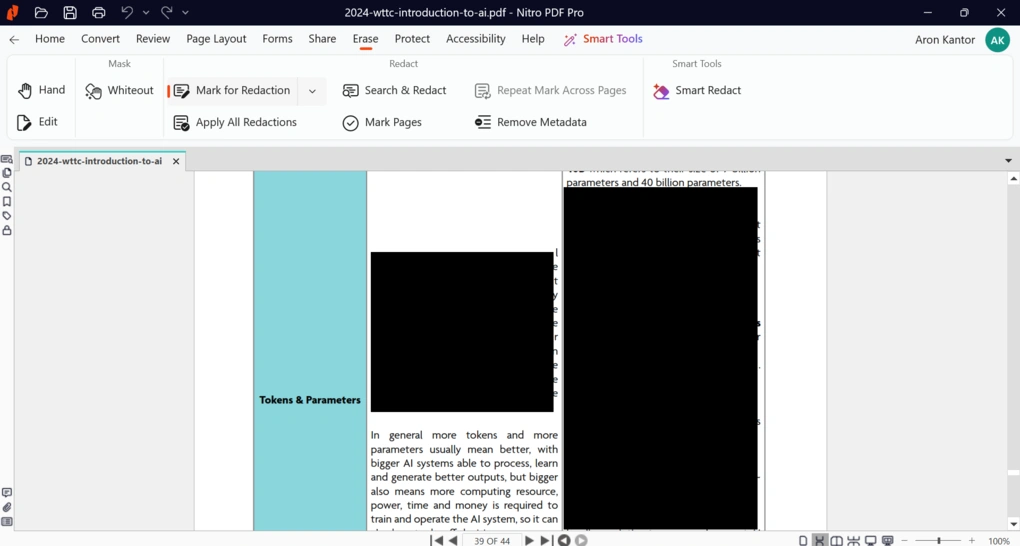
Security: Besides password protection and permission controls, Nitro PDF includes permanent redaction tools and AI-powered Smart Redaction that automatically detects sensitive information such as email addresses and financial data. This is one of the most capable document protection systems I’ve tested.
PDF conversion: Nitro quickly converts PDFs into Word, Excel, PowerPoint, and image formats while preserving formatting. Its compression tools also reduced my test files by more than 50% without noticeably affecting quality.
Compress PDFs: Nitro also offers PDF compression features to strip unnecessary objects and compress images to the minimum size. Based on my testing, it worked well and reduced the files’ size by more than 50%.
OCR: OCR accuracy was excellent. Nitro converted scanned documents into editable PDFs in about 20–40 seconds while preserving the original layout surprisingly well.
AI tools: Nitro Assistant can summarize PDFs, answer questions, and extract information from tables and forms through the web version. Table Extract uses AI to automatically convert any PDF into a clean, organized Excel file. Form Extract automatically extracts names, dates, and key data points from PDF and turns into Excel-ready insights.
Admin Portal & Analytics: One feature I didn’t find in many competing PDF editors is Nitro’s Admin Portal. It lets organizations manage licenses, control AI access, monitor adoption across teams, track ROI and sustainability savings. This is a must-have feature for IT Asset Managers and Digital Transformation buyers, and it is included in Nitro’s subscription while Foxit does not have such comprehensive capabilities.
Nitro PDF pricing
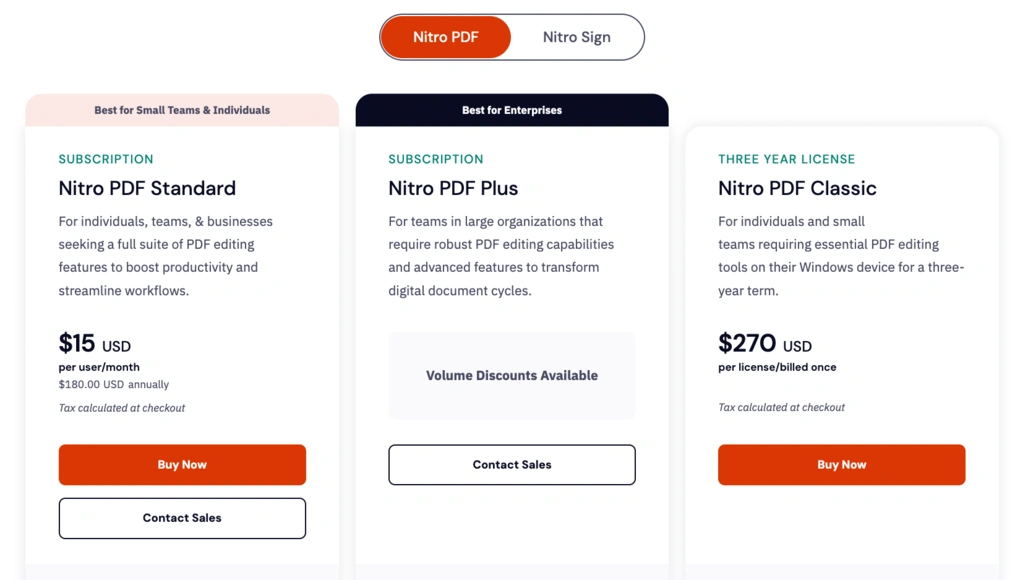
- Nitro Pro Standard: $180/user/year
- Nitro PDF Classic: $270 one-time purchase
- Nitro PDF Plus: Custom pricing for businesses
- Nitro Sign Standard: $120/user/year
Although Nitro isn’t the cheapest PDF editor, I think it delivers strong value for the price.
It offers a lower total cost of ownership than Foxit thanks to transparent pricing, no true-up licensing surprises, and AI-powered tools included at no extra cost, such as Table Extract, Form Extract, and AI Knowledge Assistant. These AI features aren’t available in any Foxit plan.
Nitro PDF’s Strengths
Short wrap-up: Nitro is a strong choice for teams that rely on PDFs every day. Along with editing, it includes eSignatures, document automation with Nitro Automate, analytics, enterprise-grade data privacy backed by the EU–U.S. Data Privacy Framework, and the admin tools businesses need to manage document workflows efficiently.
Nitro PDF’s Limitations
Short wrap-up: If your needs are limited to basic PDF editing, you’ll find more affordable alternatives on this list. But for businesses that need dependable software backed by enterprise features and responsive support, Nitro offers considerably more than just a PDF editor.

Tenorshare PDNob
Tenorshare PDNob is one of the most underrated PDF editors I’ve tested. It combines PDF editing, OCR, AI, conversion, annotation, and document organization in a clean, beginner-friendly interface. Throughout my testing on Windows, it consistently felt fast, easy to learn, and much less intimidating than Foxit.
Bottom line
Windows users who want an intuitive PDF editor with powerful AI, OCR, and PDF conversion tools.
You need a cross-platform solution with Linux support or want a feature-rich free plan.
A faster, more intuitive editing experience combined with excellent OCR and AI tools.
The free trial includes watermarks and limits some features.
How PDNob’s Features Performed During My Testing
PDF reader: PDNob covers all the essentials for reading PDF documents. Navigation was smooth, and I had no issues reviewing both short and lengthy files.
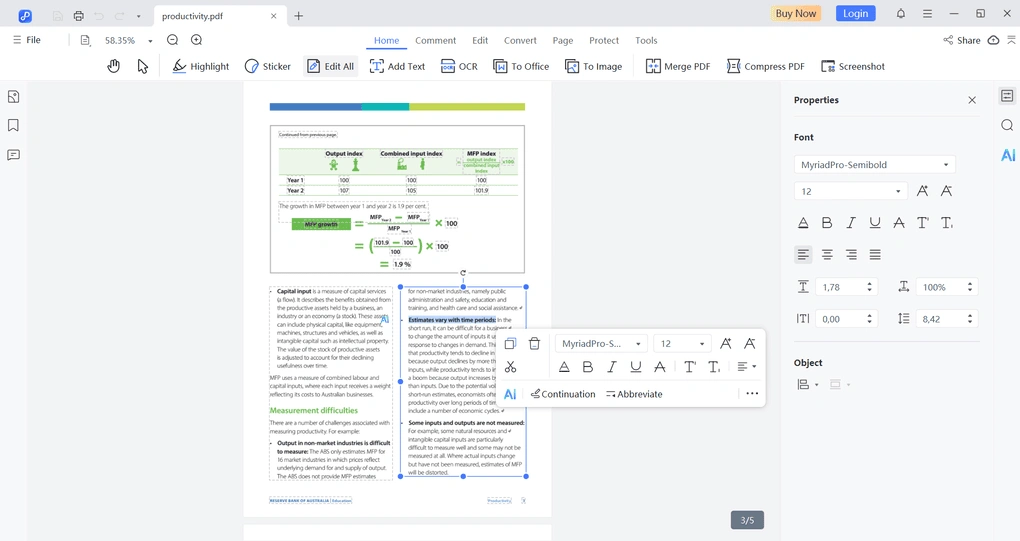
PDF editing: Editing PDFs was one of PDNob’s strongest areas. The drag-and-drop interface made it easy to move text and images, while adjusting fonts, formatting, backgrounds, watermarks, and other document elements only took a few clicks.
OCR: PDNob’s OCR performed very well during testing. It accurately recognized scanned documents and quickly converted them into editable files without requiring much manual correction.
PDF conversion: Converting PDFs to Word, Excel, PowerPoint, images, and other formats was consistently fast. Most conversions finished within seconds while preserving the original formatting surprisingly well.
Annotations: PDNob includes all the annotation tools I expected, including highlights, comments, and text markup. Similar to the editing tools, everything felt intuitive and required almost no learning curve.
PDF organization: Managing pages was straightforward. I could reorder, insert, rotate, split, and replace pages using simple drag-and-drop controls, making it easy to organize larger documents.
PDF compression: One feature I particularly appreciated was the PDF compression tool. Even when selecting higher-quality compression, it noticeably reduced file sizes without significantly affecting document quality.
Security: Password protection is flexible and easy to configure. Besides restricting document access, PDNob also lets you control what other users are allowed to do, such as printing or editing sensitive documents.
AI tools: PDNob offers an impressive collection of AI features. Besides summarizing documents, I could chat with PDFs, translate content, rewrite text, and ask the AI to explain complex sections directly inside the editor.
PDNob pricing
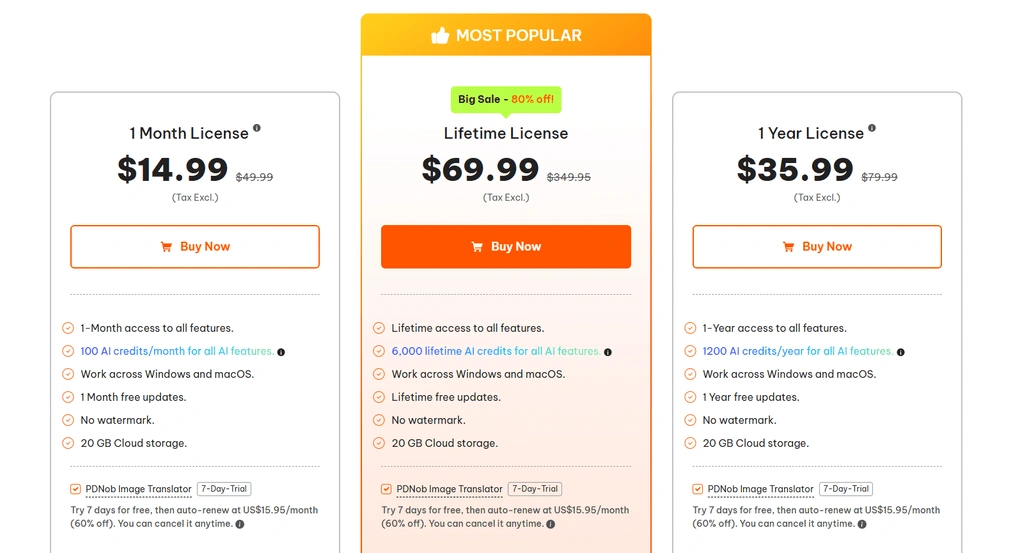
- One-week free trial available
- Monthly plan: $14.99/month (discounted)
- Annual plan: $35.99/year (discounted)
- Lifetime license: $69.99 (discounted)
PDNob’s Strengths
Short wrap-up: I recommend PDNob for Windows users who want a fast, beginner-friendly PDF editor without sacrificing advanced features. Between its OCR, AI tools, and smooth editing experience, it offers excellent value for everyday PDF work.
PDNob’s Limitations
Short wrap-up: If you need a completely free solution or frequently switch between operating systems, another Foxit alternative may be a better fit. However, if you primarily work on Windows, PDNob is one of the easiest PDF editors to recommend.
Use the above link and the discount code TS-TBD-20 to get 20% OFF from the paid plans.
Explore our Apps directory
A curated directory of software tools we’ve independently reviewed, with links to full reviews, comparisons, and category guides.
Smallpdf
If you need a simple Foxit alternative, you should check out Smallpdf. It offers a Chrome extension that allows you to use its tools when you open a PDF in your browser, and you can access its tools inside your Google Workspace and Dropbox.
Bottom line
Individuals and teams who primarily work with PDFs in their browser and want quick access to document management tools.
You need advanced PDF editing features without subscription limits or frequently work offline.
An excellent browser-based experience with seamless integrations for Google Workspace and Dropbox.
Some advanced editing and OCR features require a paid plan.
How Smallpdf’s Features Performed During My Testing
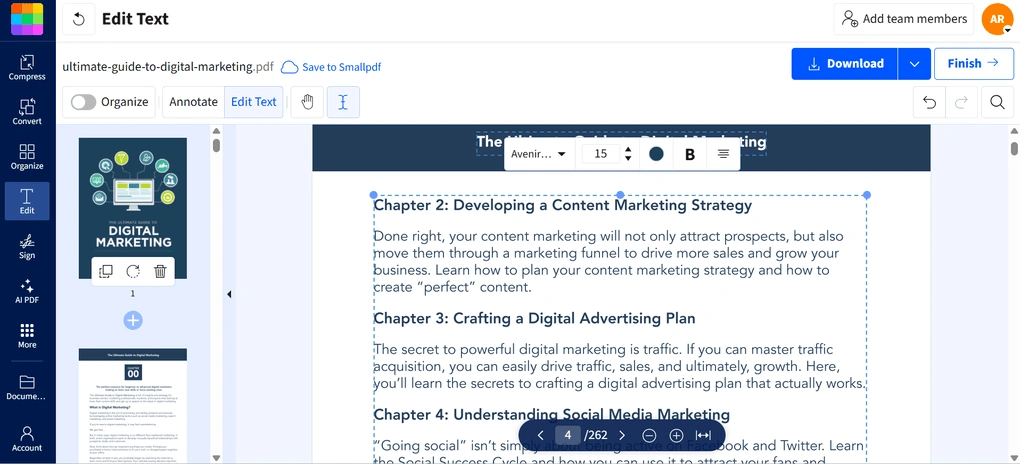
PDF reader: Smallpdf made reviewing PDF documents simple on both desktop and web. I could quickly zoom, navigate through pages, and organize files without running into any performance issues.
PDF editing: Editing PDFs felt intuitive thanks to the drag-and-drop interface. I could easily modify existing text, change fonts, resize text boxes, adjust formatting, and insert new text or images without much effort.
Annotations: Smallpdf includes all the annotation tools I expected, including highlights, comments, drawings, shapes, and text boxes. I also liked that it supports underline, strikethrough, and squiggly highlights for reviewing documents.
PDF organization: Organizing documents was one of Smallpdf’s stronger areas. I could merge, split, rotate, extract, and rearrange pages in just a few clicks, and it also supports working with Word, Excel, PowerPoint, and image files alongside PDFs.
Forms and signatures: Creating electronic signatures was quick and straightforward. You can type, draw, or upload your signature, then resize and position it anywhere inside the document.
PDF conversion: Converting PDFs to Word, Excel, PowerPoint, images, and other formats worked reliably throughout my testing. Smallpdf also supports converting those file types back into PDFs.
OCR: The OCR tools accurately converted scanned PDFs and images into searchable and editable documents, making them useful for digitizing printed files.
Security: Besides password-protecting PDF files, Smallpdf also includes an Unlock tool for removing passwords from documents you already have permission to access, which can save time when managing protected files.
AI tools: Smallpdf offers several AI-powered features, including PDF summarization, translation, document chat, and question generation based on uploaded files. These tools made it easier to review longer documents without leaving the platform.
Smallpdf pricing
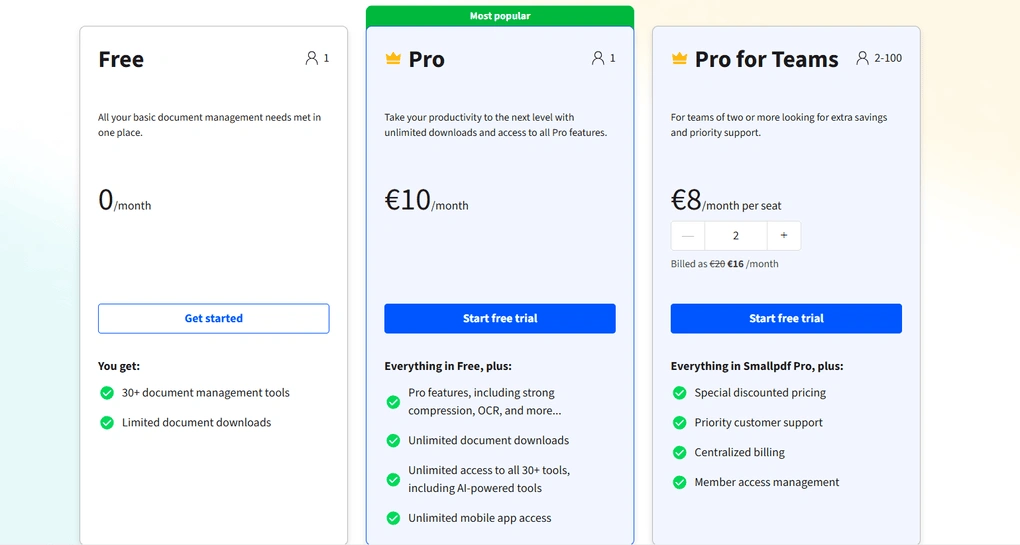
- Free plan available
- Pro: $10/month (annual billing) or $15/month (monthly billing)
- Pro for Teams: $8/user/month (annual billing) or $12/user/month (monthly billing)
Smallpdf’s Strengths
Short wrap-up: I recommend Smallpdf for users who spend most of their time working in a browser. Its combination of web accessibility, document management tools, and intuitive interface makes it one of the strongest Foxit alternatives for online PDF workflows.
Smallpdf’s Limitations
Short wrap-up: If you regularly edit complex PDF documents or need advanced desktop features, you’ll likely get more value from WPS, Nitro PDF, or another full-featured PDF editor. However, for browser-based workflows, Smallpdf remains one of the best options I’ve tested.

EaseUS PDF Editor
EaseUS PDF is an affordable Foxit alternative for Windows and Mac. It combines editing, annotation, OCR, PDF conversion, forms, and document protection in a clean interface that’s easy to learn.
Bottom line
Individuals and businesses looking for a capable PDF editor with strong editing, OCR, and security features at a reasonable price.
You need a mobile app or built-in AI features for working with PDF documents.
Delivers advanced PDF editing, OCR, and document protection tools at a more affordable price.
No mobile apps and no integrated AI assistant.
How EaseUS PDF’s Features Performed During My Testing
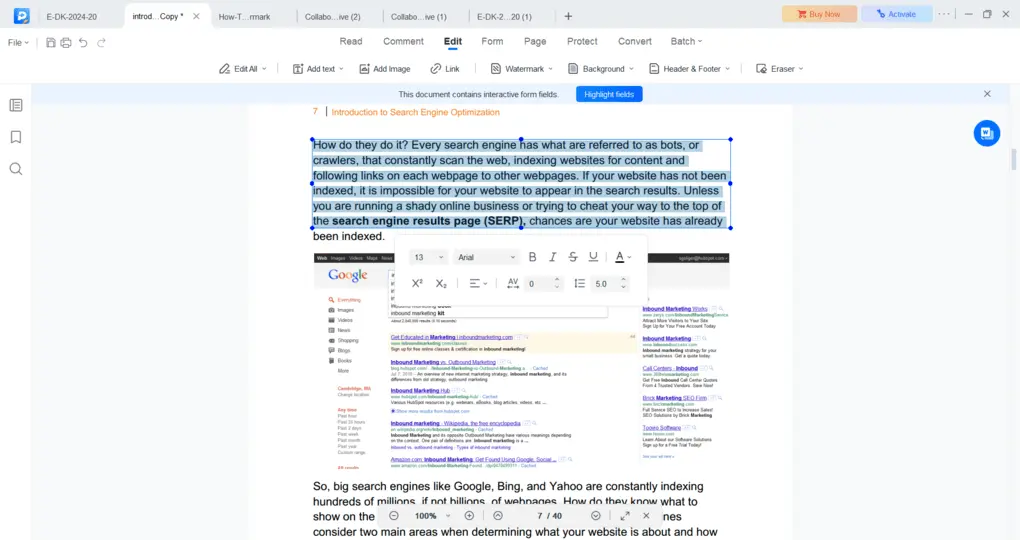
PDF reader: EaseUS PDF Editor offers a solid reading experience with multiple viewing layouts, including single-page and two-page modes. I also liked that it includes a dedicated reading mode for e-books, making longer documents more comfortable to review.
PDF editing: Editing PDFs was quick and intuitive. I could easily add, modify, or remove text with only a few clicks, and finding the editing tools never took more than a few seconds.
Annotations: EaseUS includes a complete set of annotation tools, including highlights, comments, callouts, shapes, stamps, and freehand drawing. I especially liked being able to customize highlight colors, which made reviewing documents much easier.
PDF organization: Managing pages was straightforward. I could reorder, extract, split, merge, and replace pages directly from the Page menu without running into any issues.
Forms and signatures: EaseUS makes it easy to create fillable PDF forms with text fields, checkboxes, and dropdown menus. Creating an electronic signature was equally simple, whether I chose to draw, type, or import it.
PDF conversion: The editor supports converting PDFs into more than ten file formats, including Word, Excel, and PNG. Most conversions finished in around 20–30 seconds during my testing and preserved the original formatting well.
OCR: OCR is one of EaseUS PDF Editor’s strongest features. It accurately recognized scanned documents and supports 29 languages, making it a reliable option if you frequently work with scanned PDFs.
Security: EaseUS offers more advanced document protection than many PDF editors I tested. Besides adding open and permission passwords, I could control whether others were allowed to view, copy, edit, or print documents. It also includes decryption tools and watermark management.
PDF compression: Compressing PDF files was fast and straightforward. I only needed to upload the file and choose the compression level, and the results were consistently good without a major loss in quality.
EaseUS PDF pricing
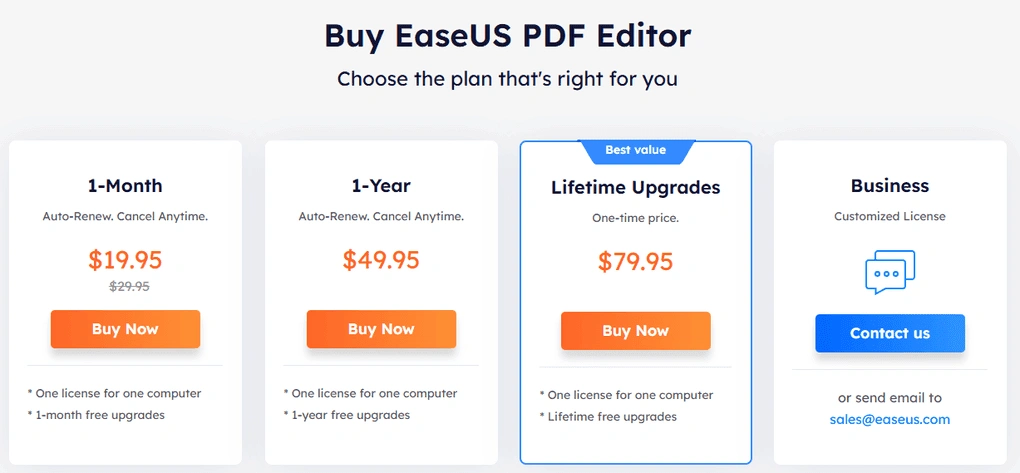
- Monthly plan: $19.95/month
- Annual plan: $49.95/year
- Lifetime plan: $79.95
EaseUS PDF’s Strengths
Short wrap-up: I recommend EaseUS PDF Editor if you’re looking for a feature-rich PDF editor without paying premium prices. Its combination of editing, OCR, forms, and document security makes it one of the strongest value picks on this list.
EaseUS PDF’s Limitations
Short wrap-up: If AI-powered document workflows or mobile editing are important to you, WPS or Nitro PDF may be better alternatives. However, if your priority is getting a capable desktop PDF editor at a reasonable price, EaseUS PDF is an excellent choice.
If you think you may need the advanced features, use the above link for signup and enter the code THEBUSINESSDIVE20 to receive 20% OFF if you fall in love with EaseUS PDF later.
PDF Expert
If you need a Foxit PDF editor alternative for Mac, PDF Expert is my number one recommendation. It is fast, easy to use, and offers numerous features to manipulate PDFs.
Bottom line
Mac users who want a fast, lightweight PDF editor with all the essential editing and annotation tools.
You need advanced PDF automation features or support for Windows and Android devices.
A smoother, more intuitive PDF editing experience designed specifically for macOS.
Offers fewer advanced PDF editing features than some all-in-one PDF editors.
How PDF Expert’s Features Performed During My Testing
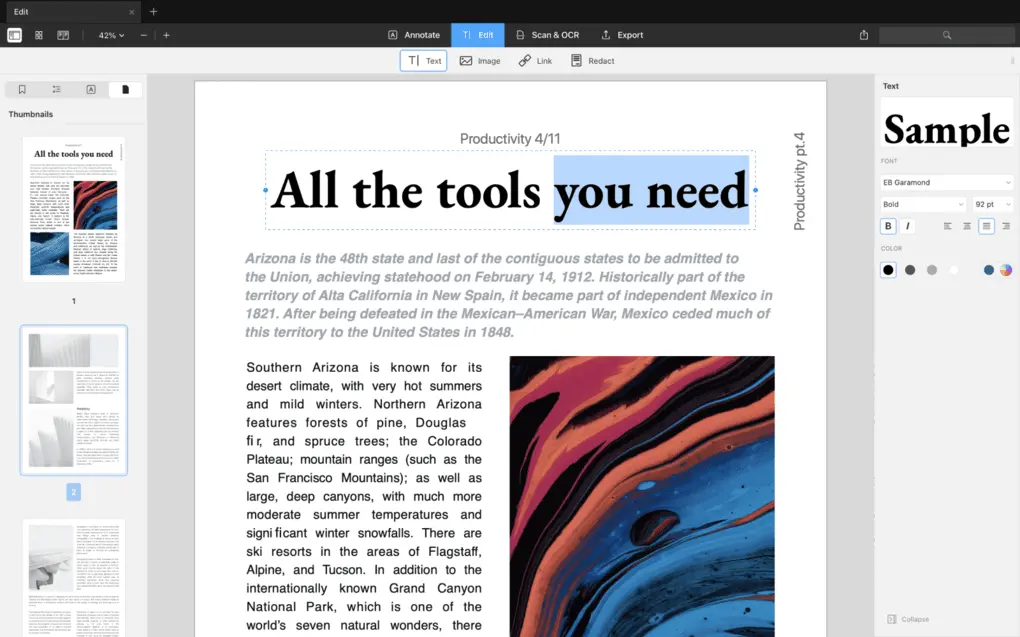
PDF reader: PDF Expert offers one of the most comfortable reading experiences I tested. Besides single-page and two-page layouts, it supports vertical and horizontal viewing modes, along with Day, Night, and Sepia themes that make reading long PDF documents much easier on the eyes.
PDF editing: Editing PDFs felt simple and intuitive. I could quickly add, replace, and resize both text and images, while inserting hyperlinks to external websites or other pages inside the document only took a few clicks.
Annotations: PDF Expert includes all the annotation tools I expected, including highlights, comments, drawings, shapes, and stickers. One feature I particularly liked was the ability to leave audio comments, which can save time when collaborating with teammates.
PDF organization: Managing pages was effortless. I could reorder, rotate, insert, delete, merge, and split PDF documents without any issues, making it easy to organize larger files.
Forms and signatures: PDF Expert supports both fillable forms and electronic signatures. I could create forms with text fields, checkboxes, and signature fields, while generating a signature by simply typing my name was surprisingly quick.
PDF conversion: Converting PDFs to and from Word, Excel, PowerPoint, JPG, PNG, and other formats worked reliably throughout my testing and preserved the formatting well.
OCR: The built-in OCR technology accurately recognized scanned text while preserving the original font style, which made editing scanned documents feel much more seamless.
Security: PDF Expert lets you password-protect sensitive documents in just a few clicks. While its security tools aren’t as extensive as some enterprise-focused PDF editors, they cover the needs of most individuals and small businesses.
AI tools: PDF Expert includes an AI assistant that can summarize PDF documents and extract the key points, making it useful when reviewing lengthy reports or research papers.
PDF Expert pricing
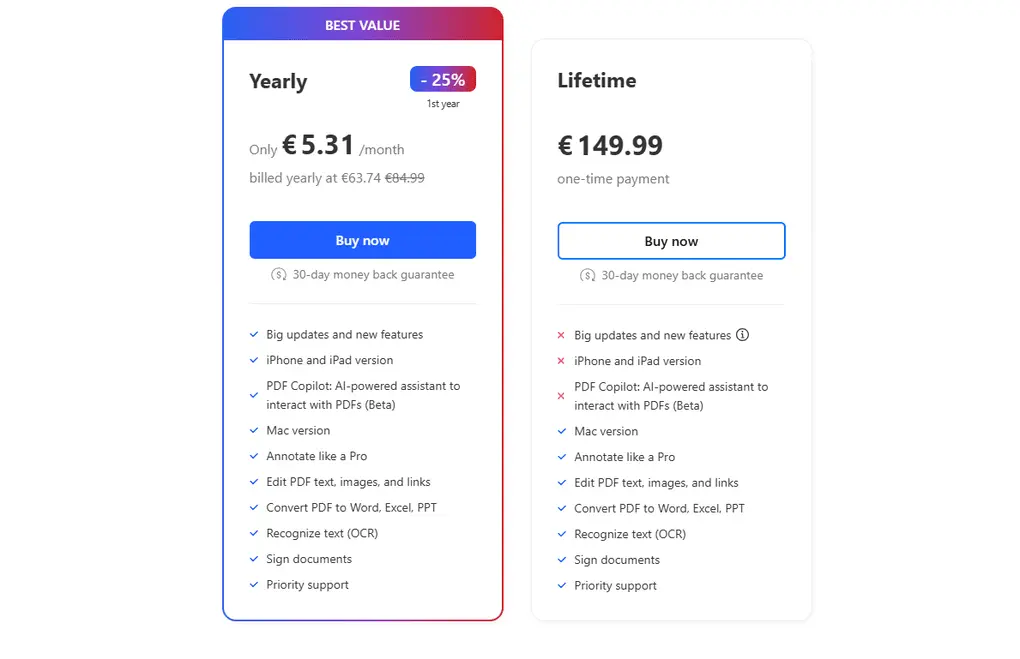
- Annual subscription: €63.74 for the first year, then €84.99/year
- Lifetime license: €149.99 (updates sold separately)
PDF Expert’s Strengths
Short wrap-up: I recommend PDF Expert to Mac users who want a fast, reliable PDF editor that focuses on the features people use most often. It delivers an excellent balance between simplicity, performance, and functionality.
PDF Expert’s Limitations
Short wrap-up: If you need a PDF editor for multiple operating systems or require more advanced PDF automation features, another Foxit alternative will likely be a better fit.
PDFgear
PDFgear is the best free PDF editor, currently, in my opinion. With this free Foxit alternative, you can read, edit, convert, merge, and sign PDF files across your devices with PDFgear.
Bottom line
Individuals who want a capable PDF editor without paying for a subscription.
You need advanced editing features, enterprise-grade security controls, or detailed permission management.
A surprisingly complete feature set that’s available completely free.
It lacks some of the advanced editing and document protection features found in premium PDF editors.
How PDFgear’s Features Performed During My Testing
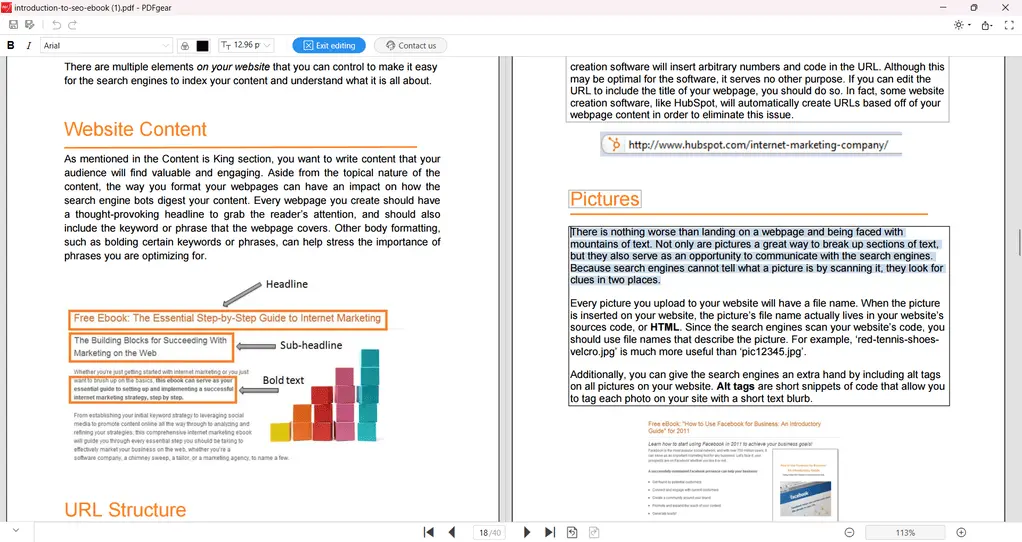
PDF reader: PDFgear offers a comfortable reading experience with single-page and two-page layouts, as well as an auto-scroll mode for reading longer documents. It felt very similar to using dedicated PDF readers like Foxit Reader or Adobe Reader.
PDF editing: While it doesn’t include as many editing tools as premium alternatives, PDFgear covers the features most people actually use. I could edit text, adjust fonts, change formatting, and modify existing content without any problems.
Annotations: PDFgear includes a well-rounded set of annotation tools, including highlights, underlines, strikethroughs, notes, text boxes, shapes, and freehand drawing. One feature I particularly liked was the ability to highlight specific areas of a page instead of only selected text.
PDF organization: Organizing PDF files was simple thanks to drag-and-drop page management. I could insert, extract, delete, rotate, and rearrange pages in just a few clicks.
Forms and signatures: PDFgear includes the essentials for filling forms and signing documents. Creating an electronic signature was quick, and I had no trouble adding it to PDF files during testing.
PDF conversion: The conversion tools support PDFs, Microsoft Office documents, and images in both directions. The process was straightforward and worked reliably throughout my testing.
OCR: The OCR feature is easy to access from the homepage and quickly converts scanned documents into editable text. It performed well on the documents I tested.
Security: PDFgear lets you password-protect PDF files, but its security features are fairly basic. Unlike some premium competitors, it doesn’t let you control editing or printing permissions in greater detail.
AI tools: One feature that surprised me was the AI Copilot. Besides chatting with PDF documents, it can also execute commands like converting files or password-protecting documents, making it more practical than a standard AI chatbot.
PDFgear pricing
- Free plan: Completely free
PDFgear’s Strengths
Short wrap-up: PDFgear is the most extensive free PDF editor, and can replace Foxit for casual users. I had a positive experience with this PDF tool, and can recommend it for individuals.
PDFgear’s Limitations
Short wrap-up: If you regularly work with sensitive business documents or need advanced editing, encryption, and workflow tools, you’ll likely benefit from upgrading to a paid PDF editor. For everyday PDF tasks, though, PDFgear offers exceptional value considering it costs nothing.
Related readings:
- The 8 Best PDF Editors In 2025 | 30+ Personally Tested PDF Tools
- Adobe Acrobat Vs Foxit: I Tried Both and Found The BEST (2025)
- Adobe Acrobat Vs Nitro: A Honest Comparison (2025)
- I Tested +30 PDF editors for Windows | Here Are The 8 Best
- Adobe Acrobat Pricing In 2025 | Why I Regret Buying It
Summary: Best Foxit Alternatives in 2026
Foxit is a capable PDF editor, but it’s no longer the only strong option. After testing more than 30 PDF editors, I found several alternatives that outperform Foxit in different areas, whether you’re looking for better value, business-focused features, AI tools, or a smoother experience on your preferred platform.
I hope this guide helps you find the right replacement for your workflow. As I continue testing new PDF editors and existing tools evolve, I’ll keep this list updated to make sure it reflects the best Foxit alternatives available.
Looking for similar tools?
Visit our library of PDF editors to explore other apps we’ve reviewed in this space and how they compare.
Why you can trust our reviews
At thebusinessdive.com, our team tests, reviews, and compares hundreds of productivity apps every year — from project management tools to note-taking apps. We dive deep into real-world use cases to help you find the right tools that actually improve your workflow, not just add noise.
Our mission? No fluff, no shortcuts—just honest, hands-on insights from productivity pros.
Have a question or suggestion? I’d love to hear from you. Feel free to reach out anytime at aronkantor@thebusinessdive.com.
Frequently asked questions
What is the best Foxit alternative?
WPS is my top overall PDF editor, Nitro PDF is ideal for business teams, PDF Expert is best for Mac, Smallpdf excels at web-based editing, and PDFgear is the best free PDF editor. All of them let you edit PDF files, manipulate PDFs, and manage documents with different strengths.
Is there a free alternative to the Foxit PDF Editor?
Yes. PDFgear is my favorite free PDF editor because it includes AI features that are often locked behind a paid version. WPS and Smallpdf also offer a free version, while their Pro version unlocks more advanced features and additional editing tools.
Which PDF editor is the best alternative to Adobe Acrobat?
Adobe Acrobat is still the industry standard for PDF editing software, and Adobe Acrobat DC (Acrobat Pro) offers one of the most complete feature sets. However, alternatives like WPS, Nitro PDF, and PDF Expert provide PDF creation, OCR, electronic signatures, and other essential features at a lower cost compared to Adobe.
Are there other Foxit alternatives worth considering?
Yes. PDF-XChange Editor, Wondershare PDFelement, Master PDF Editor, PDF Architect, and DocHub are also capable PDF tools. PDF-XChange Editor is available in two versions (Editor and Editor Plus), while Wondershare PDFelement offers OCR, form creation, annotation, and page organization.
Can I edit scanned PDF documents without Adobe Reader or Acrobat Reader?
Yes. Most modern PDF apps include OCR for scanned documents. Tools like WPS, Nitro PDF Pro, EaseUS PDF Editor, PDNob, and PDF Expert let you edit an existing PDF, add text, delete pages, convert PDF files to Word or Excel, share PDF files, and handle sending documents without relying on Adobe Reader, Acrobat Reader, or Adobe Acrobat Reader.
Related article:
- The 8 Best Adobe Acrobat Alternatives: 30+ PDF Editors Tested
- Adobe Acrobat Pricing In 2025 | Why I Regret Buying It
Disclosure: I only recommend products I would use myself, and all opinions expressed here are our own. This post may contain affiliate links through which, at no additional cost to you, I may earn a small commission. Read the full privacy policy here.

Hey there! I am Aron, the founder of Thebusinessdive. I have been testing productivity apps for almost three years now. I reach 25.000 -50.000 people monthly with the mission to help you find the perfect productivity apps. Subscribe to my YouTube channel, newsletter, and social media to hear more about the best productivity tools. Let’s dive in!