


10 Best Claude Connectors for Real Work (My Tested Setup)
Looking for ways to maximize your workflows with Claude? In this guide, I break down the best Claude connectors I’ve tested so far—based on real use, not just feature lists.
From my experience, Fellow stands out for AI meeting notes, HubSpot for CRM, and Monday for project management, along with seven other tools that can boost your productivity across different use cases.
Stick around, because I’ll walk you through each connector’s key features, pricing, pros and cons, and show you exactly how to connect them with Claude.
Let’s dive in!
The best Claude connectors at a glance
|
Best Claude connectors |
Category |
Best for |
|---|---|---|
 |
Meetings |
Meeting-heavy teams that need a compliant meeting record Claude can access |
 |
CRM |
Growing sales and marketing teams that want Claude to interpret CRM data and pipeline activity |
 |
Project Management |
Teams tracking project progress, risks, and updates that Claude can help make sense of |
 |
Document Workflows |
Teams handling contracts and approvals that Claude can help track and manage |
 |
Documentation |
Teams and individuals managing a central workspace that Claude can search, summarize, and update |
 |
Automation & AI workflows |
Users who want Claude to automate actions across multiple apps and tools |
 |
Note-Taking |
Individuals building a personal knowledge base that Claude can explore and connect |
 |
Team Communication |
Teams that run their work and communication in Slack, where Claude can summarize and surface key conversations |
 |
Research |
Researchers and students who want Claude to build on source-grounded insights from dense materials |
 |
Email Management |
Inbox-heavy users who want Claude to summarize long threads and draft responses faster |
My top Claude connectors
Let’s see the best Claude connectors I have tested so far!
Fellow
Best for: Meeting-heavy teams that need a compliant meeting record Claude can access
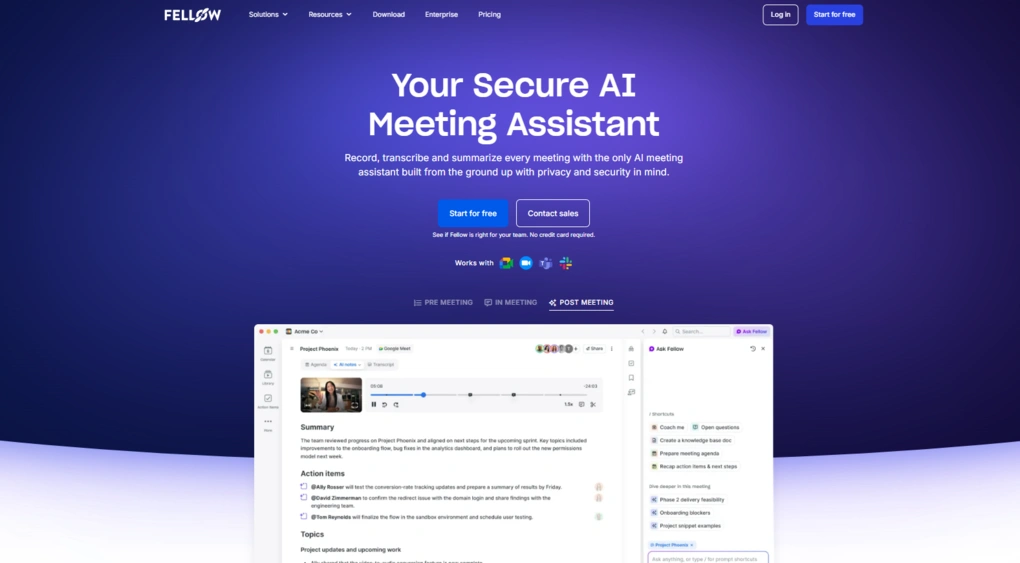
For teams and professionals who have many meetings, Fellow is one of the most useful Claude connectors you can add.
On its own, Fellow is the secure AI meeting note taker that handles the heavy lifting around meetings. It records calls, creates summaries, and keeps everything organized. But where it becomes much more powerful is when you start using that data with Claude through Fellow’s Claude Connector.
Instead of just knowing what happened in a meeting, you can start understanding patterns, decisions, and next steps across all your conversations, not just one.
Fellow’s Claude connector lets you:
- Build cross-tool workflows with your meeting data: use Claude to pull insights from Fellow and create content in connected apps, like drafting a Notion project brief from a planning call, turning a client call into a CRM update, or building a LinkedIn post ideas database from your customer conversations.
- Search past meeting discussions: ask Claude to surface specific conversations, concerns, or topics raised in any meeting you have access to in Fellow
- Find decisions and budget allocations: retrieve final decisions from strategy, planning, or budget meetings without manually reviewing notes
- Summarize across multiple meetings: ask Claude to synthesize action items and key decisions across a series of meetings (standups, 1:1s, project syncs) to prepare for upcoming conversations
- Track your personal action items: ask Claude what you committed to across all your meetings in a given week or with a specific person
- Get performance coaching: ask Claude to analyze how your recent calls went and suggest improvements to your approach
- Push action items to your task manager: ask Claude to send your meeting action items directly to your to-do list app (Notion, Asana, Linear, Todoist) without switching tools or copying notes manually
Key Fellow features
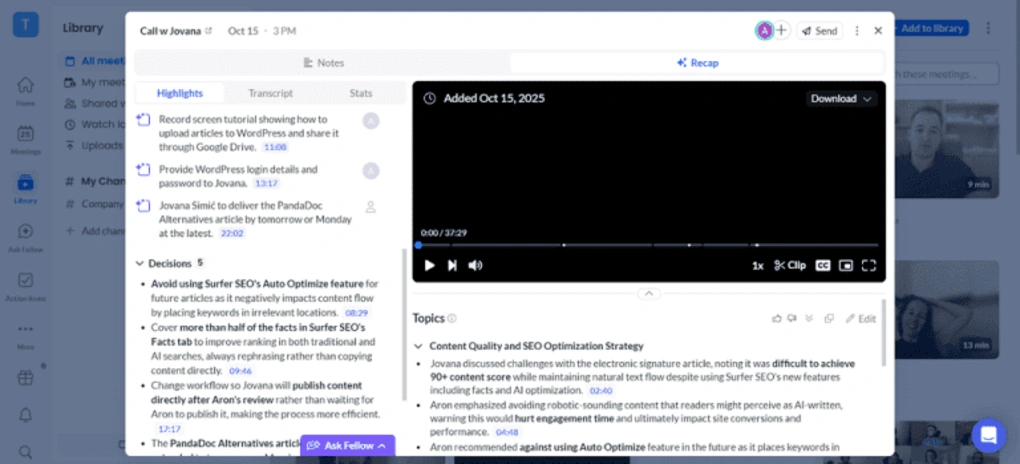
Recordings and summaries: Fellow records your meetings and turns them into clean summaries with key decisions, action items, and takeaways. When you bring Claude into the workflow, those summaries become more than just notes. Instead of asking “what happened in this meeting,” you can ask things like “what changed across the last five client calls” or “what are the most common action items this week,” and Claude can build on top of those structured summaries.
Bot and bot-less recording: Fellow can also automatically join your Zoom, Google Meet, and Microsoft Teams calls. And if you don’t want it on every single call, you can just tweak that in the settings. For Zoom, Google Meet, and MS Teams, you can choose to record with a bot (video recording) or botless (audio-only).
Transcriptions: Fellow supports more than 92 languages, and in my experience, transcripts usually show up just a few minutes after the meeting. They’re very accurate and capture context surprisingly well. This matters more than it seems, since tools like Claude depend heavily on clean input.
Ask Fellow: This feature lets you search your meetings using natural language. It is already useful on its own, but it mostly works within the scope of your meeting data. When you bring Claude in, you are no longer limited to searching. You can start analyzing. For example, instead of just finding one answer, you can have Claude compare multiple meetings, summarize trends, or highlight recurring issues.
Centralized meeting library: All your meetings, recordings, and summaries are stored in one place and can be organized into channels like sales, internal, or hiring. This becomes more useful over time, because instead of looking at meetings one by one, you have a clean, structured history. That’s what makes it easier to use Claude across multiple conversations instead of just a single call.
Meeting agendas and context: Fellow also helps before meetings with shared agendas and short AI-generated briefs from previous conversations. This keeps meetings more structured, which usually leads to clearer notes and better data to work with later.
Pricing
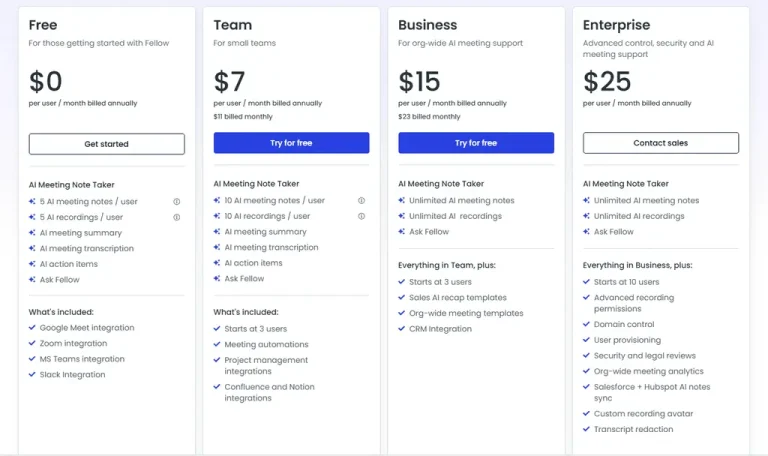
- Free plan available
- Paid plans start at $7/user/month
Pros and cons of Fellow
Pros
Cons
How to connect Fellow with Claude
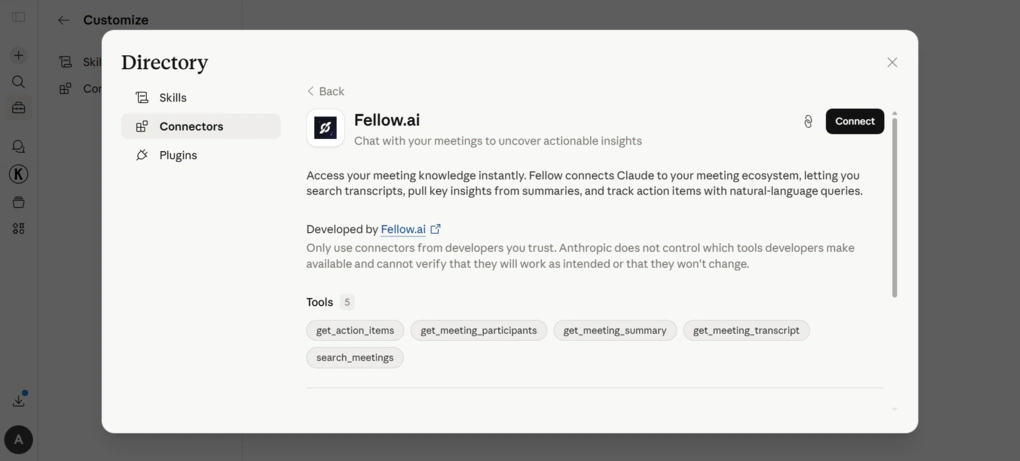
If you go to the Directory and type “Fellow AI”, you can directly connect Claude with this AI note-taker.
Fellow connects Claude to your meetings, allowing you to search transcripts, pull key insights from summaries, and track action items with natural-language queries.
Once you connect the two through your workflow, you can go beyond simple summaries and start analyzing patterns across meetings, generating better follow-ups, extracting decisions over time, and turning conversations into reports or next steps.
The main difference is that you are no longer working with isolated meetings. You are working with all of them together, and that is where Claude really adds value.
🔎 Read my full review: Fellow Review: My Thoughs After +12 Months (2026)
Short on time? Here’s a quick overview of Fellow
Use this link to sign up and get 10% off the paid plans if you upgrade.
Hubspot
Best for: Growing teams that want Claude to interpret CRM data and pipeline activity

HubSpot is the strongest Claude connector if you already rely on a CRM for your day-to-day work. It lets Claude work directly with your deals, contacts, and activity history, so you can skip dashboards and just ask questions to understand what’s happening in your pipeline.
Key features
Contact management: HubSpot keeps all your contacts and companies in one place, with a full timeline of emails, calls, notes, and tasks. Over time, this builds a clear history of every interaction. This is what allows you to ask Claude questions about a specific lead or relationship and get answers based on actual past activity.
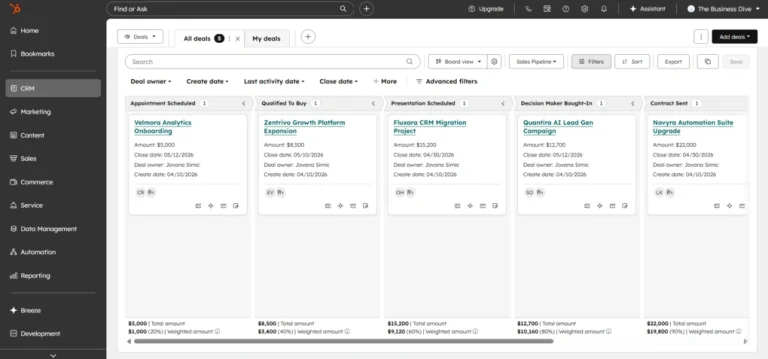
Sales pipeline management: Deals are organized in a visual pipeline where you can move them across stages and track their progress. You can customize pipelines, add multiple ones, and adjust stages to match your process. Each deal includes value, close date, contacts, and activity history. Claude makes it easier to analyze pipeline trends, spot bottlenecks, or understand why deals are getting stuck.
Lead capture (forms, landing pages, chat): HubSpot includes built-in tools for capturing leads through forms, landing pages, pop-ups, and live chat. New leads are automatically added to the CRM and can be assigned or moved into workflows right away, so everything stays organized from the start.
Activity tracking and timelines: All activity is logged and connected across contacts, companies, and deals. Emails, calls, meetings, and notes appear in one timeline, so you always have full context before taking action. This also makes it easier to quickly review interactions or summarize them when needed.
Automation and workflows: You can automate repetitive tasks using simple triggers, like updating deal stages, assigning tasks, or sending follow-ups. This reduces manual work and keeps data consistent across your pipeline, especially as it grows.
Reporting and analytics: HubSpot includes dashboards and reports for tracking pipeline performance, deal progress, and conversion rates. Instead of building reports manually, you can use Claude to ask questions about your pipeline and get answers directly from your data, without filtering or exporting anything.
Pricing
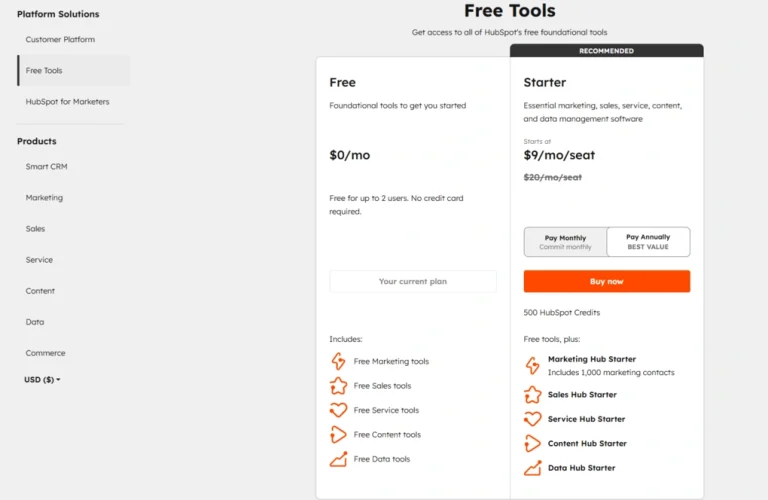
- Free plan available
- Paid plans start at $9/user/month
Pros and cons of HubSpot
Pros
Cons
How to connect HubSpot to Claude
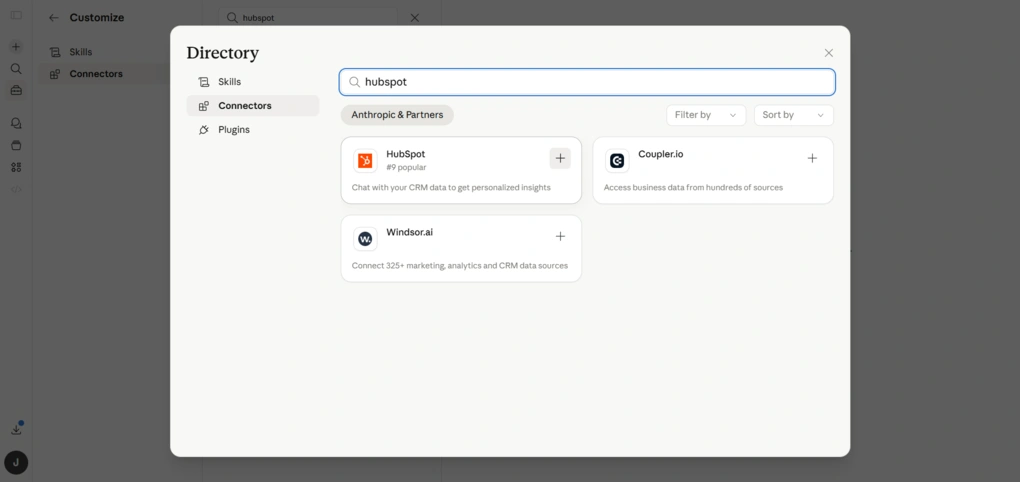
If you go to Customize → Connectors in Claude, and then type ”HubSpot”, you can directly connect HubSpot to your workspace and use it as a data source in your chats.
Once connected, Claude can access your CRM data like contacts, deals, and activities, and use it to answer questions, generate insights, and even suggest or apply updates inside HubSpot.
🔎 Read my full HubSpot Review 2026 | I Tested It — Here’s the Truth
Short on time? Here’s a quick overview of HubSpot
Monday
Best for: Teams tracking project progress, risks, and updates that Claude can help make sense of
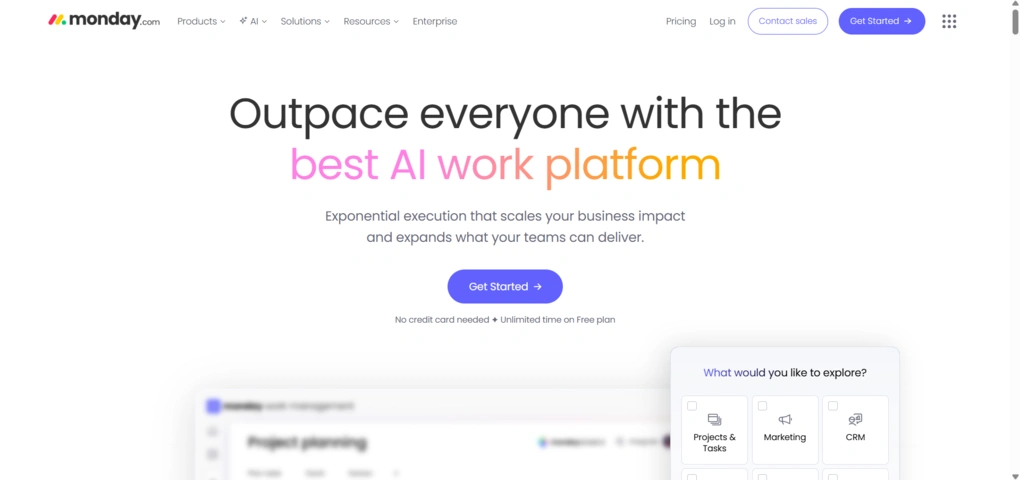
When it comes to project management, Monday.com is one of the best tools you can connect with Claude.
On its own, Monday is a highly visual platform where you can organize tasks, track progress, and collaborate with your team. With Claude, it goes beyond just managing projects and helps you understand what is actually happening inside them.
Once connected, the connector makes it much easier to ask questions, generate summaries, and automate actions based on your workspace data.
Key features
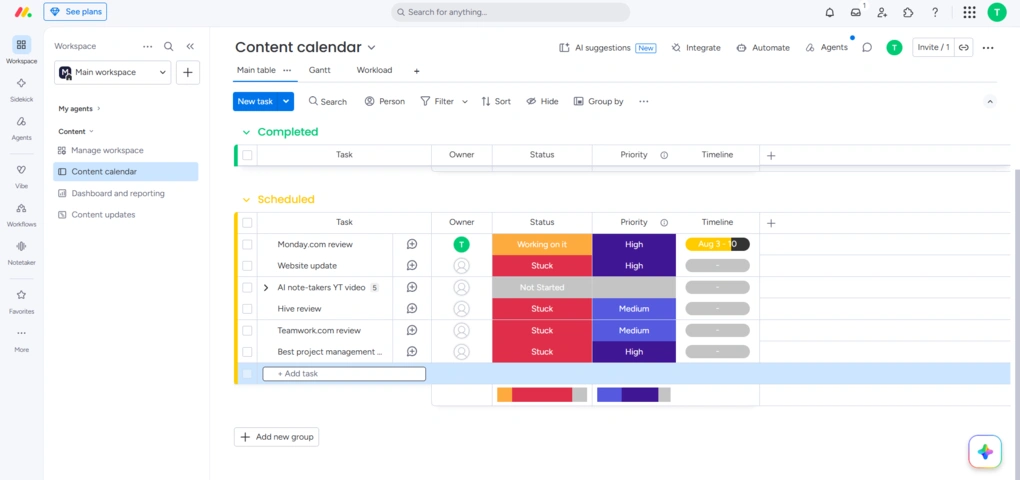
Project and task management: Monday lets you organize your work into boards, where you can track tasks with statuses, owners, timelines, and priorities. You can also break tasks into sub-items and fully customize how everything is structured.
Multiple project views: One of Monday’s strongest features is the number of ways you can visualize your work. You can switch between Kanban, Gantt, calendar, workload view, and more more through the Views Center, with up to 100 views per board.
Custom dashboards: Monday allows you to build dashboards with 30+ widgets to track progress, workloads, and budgets across multiple boards. Instead of manually interpreting that data, Claude can summarize key changes, highlight risks, or explain what actually matters in your dashboard.
Automation: You can create automations using simple triggers, like moving tasks, assigning owners, or updating statuses. While this already saves time, Claude adds another layer by helping you decide what to automate, or by triggering actions based on natural language prompts.
Docs and collaboration: Monday includes built-in docs where you can write notes, create knowledge bases, and collaborate with your team. You can also comment on tasks, mention teammates, and track updates in real time. With Claude, you can summarize discussions, turn notes into tasks, or generate updates.
AI features: Monday’s AI features cover tasks ranging from content generation and workflow automation to app building and meeting summaries. When combined with Claude, this creates a much more flexible system where AI can both analyze and act on your workflows.
Pricing
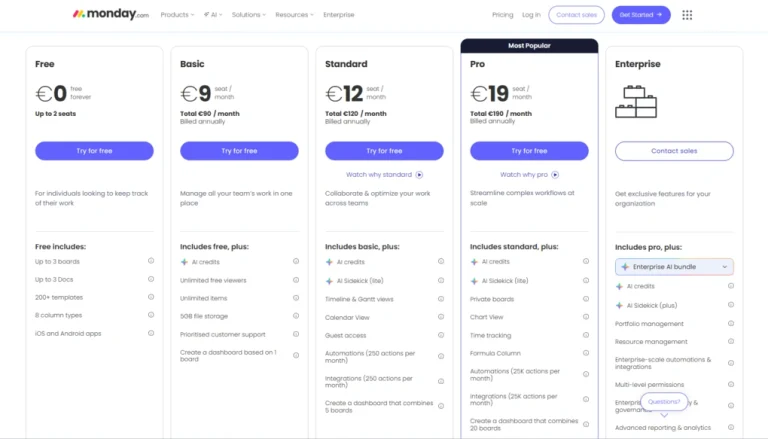
- Free plan available
- Paid plans start at €9/user/month
Pros and cons of Monday.com
Pros
Cons
How to connect Monday with Claude
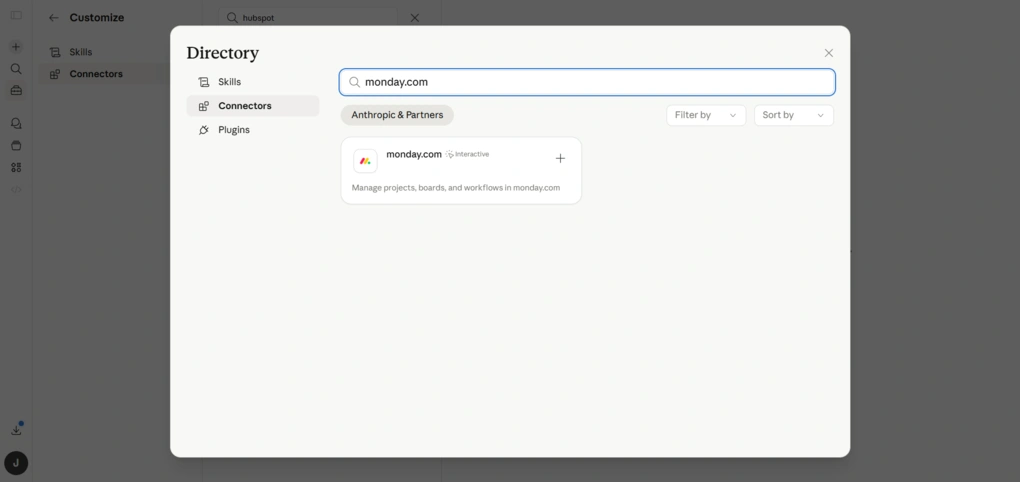
The connection process is the same as with the before-mentioned tools. Go to Customize → Connectors → Browse connectors inside Claude and search for Monday.com.
Click Connect, complete the authorization, and your workspace will be available inside Claude.
After that, you can start using Monday as a data source in your chats to pull insights, update tasks, and manage your projects through natural language.
If you’re using Monday in a team or enterprise setup, your admin may need to enable the integration first before you can connect it.
🔎 Read my full Monday.com Review 2026: Is the $228 Price Tag Justified?
Short on time? Here’s a quick overview of Monday
SignNow
Best for: Teams handling contracts and approvals that Claude can help track and manage
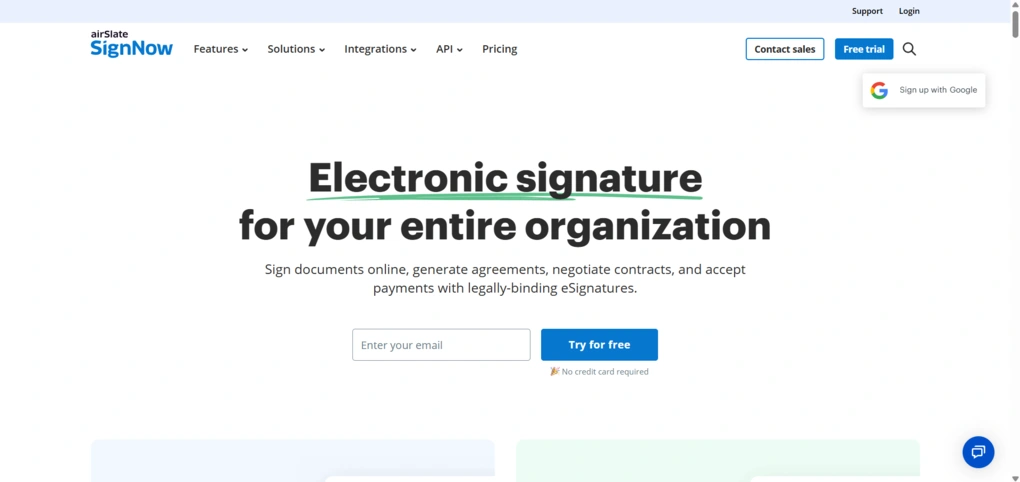
Next on the list is SignNow, one of the more practical tools you can connect with Claude if you work with contracts, agreements, and recurring document workflows.
SignNow is built for fast and structured e-signature workflows. You can upload documents, add fields, assign roles, and send everything out for legally binding signatures in just a few steps.
With SignNow, Claude is not just analyzing your data. It actively runs your document workflows, from creating and sending agreements to tracking signatures and retrieving completed files.
Key features
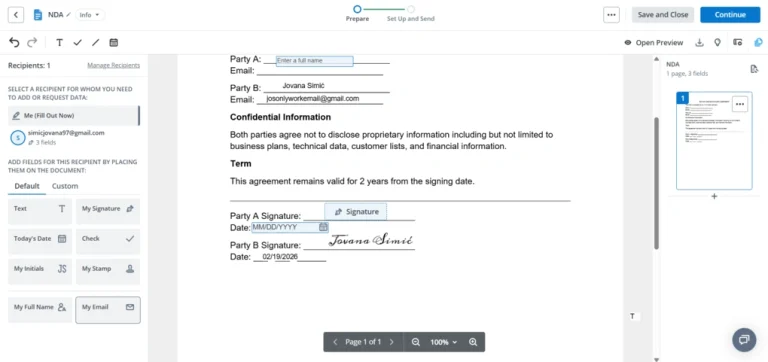
Document preparation and signing: SignNow lets you upload PDFs, create templates, and add fields like signatures, initials, dates, and custom inputs. You can assign multiple recipients, define roles, and set signing order. This structured setup works well with Claude, since you can quickly check document progress or identify delays without opening each file.
Templates and reusable workflows: You can save documents as templates and reuse them for recurring workflows. This is especially useful for contracts, agreements, or onboarding documents. With Claude, you can manage these workflows more efficiently by tracking how often they’re used or identifying bottlenecks in the process.
Bulk sending and scheduling: SignNow supports sending documents in bulk, scheduling invites, and setting reminders or expiration dates. This makes it easier to manage high volumes of documents, while Claude helps you monitor what’s been sent, what’s still pending, and where follow-ups are needed.
Contacts and team management: There’s a built-in contact system where you can store client details, track document history, and share access with your team. You can also assign permissions and manage users at a team level.
Reporting and tracking: SignNow includes reporting tools that show document statuses, completion rates, and activity across your workspace. Instead of manually reviewing reports, Claude can summarize this data and highlight what needs your attention.
Workflow flexibility (roles, reminders, audit trail): You can define signing roles, control the order of signatures, send reminders, and track every step through audit trails. These features make SignNow reliable for business workflows, and with Claude, you can quickly check the status of any document or process.
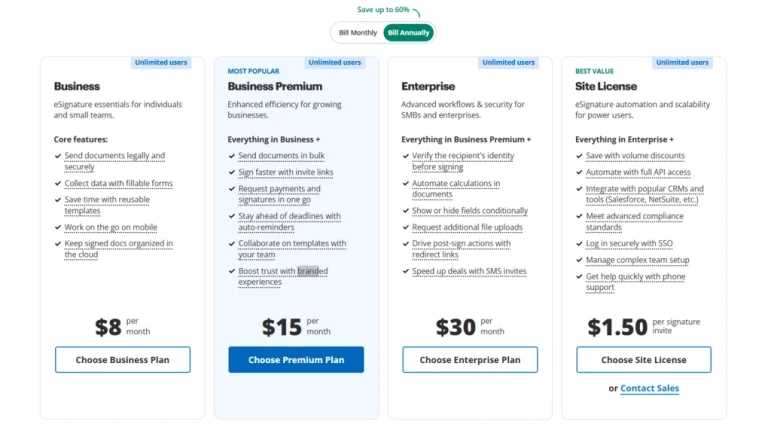
Pricing
- No free plan (7-day free trial available)
- Paid plans start at $8/user/month
Pros and cons of SignNow
Pros
Cons
How to connect Claude with SignNow
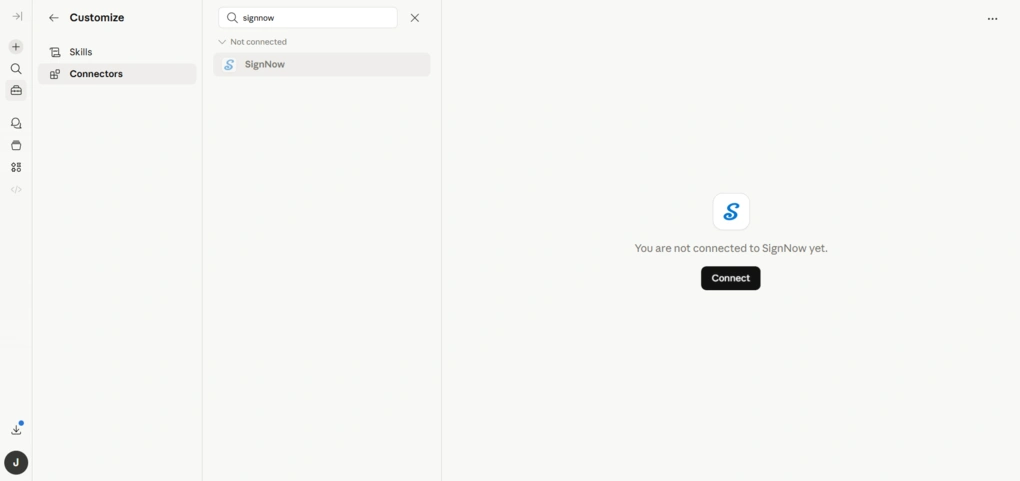
Connecting SignNow works the same way as with the other tools in this guide.
Just go to Customize → Connectors → Browse connectors inside Claude, search for SignNow, and click Connect. After a quick authorization step, your documents will be available inside your chats.
From there, Claude acts like a command layer on top of SignNow that lets you manage documents through simple prompts.
🔎 Read my full review: An Honest SignNow Review 2026 | Before You Buy
Short on time? Here’s a quick overview of SignNow
Notion
Best for: Teams and individuals managing a central workspace that Claude can search, summarize, and update
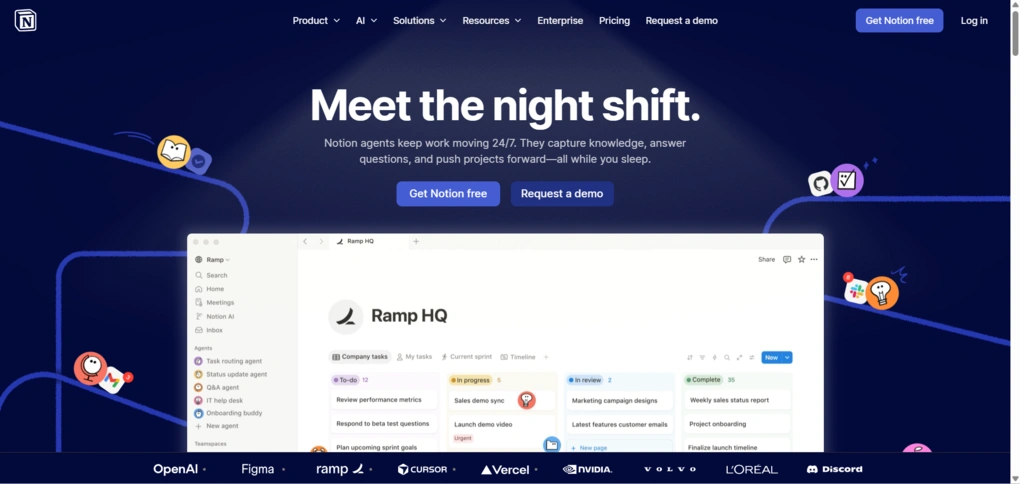
Notion is one of the most flexible tools you can connect with Claude, especially if you already use it as your main workspace for notes, tasks, and documentation.
Notion acts as an all-in-one hub where you can organize everything from meeting notes and project plans to knowledge bases and internal docs, so it usually ends up holding a lot of the information you need day to day.
Once Claude is connected, that information becomes much easier to work with. Instead of opening page after page or searching through databases by hand, you can ask Claude to find a specific note, pull details from a project page, summarize a document, or help update existing content.
Key features
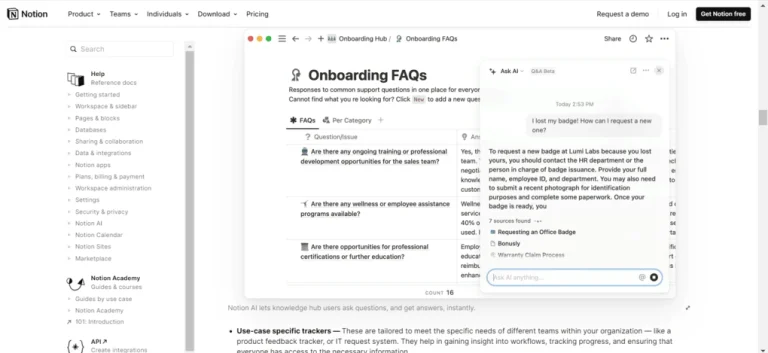
Notes and content organization: Notion is built around pages and blocks, which means you can structure your notes however you want. You can create documents, embed media, organize content into subpages, and keep everything in one place. This makes it easier to keep your information organized and accessible as your workspace grows.
All-in-one workspace (notes, tasks, projects): You can use Notion not just for writing, but also for managing tasks and projects. It supports different views like boards, calendars, and lists, along with task properties like status, assignee, and due dates. This makes it a solid lightweight project management tool alongside note-taking.
Templates: Notion offers thousands of templates that help you get started quickly, whether you’re building a task tracker, content calendar, or internal wiki. Instead of creating everything from scratch, you can reuse existing structures and adjust them to your needs.
Wikis and knowledge management: One of Notion’s strongest use cases is building internal knowledge bases. You can organize company information, onboarding materials, or documentation in a way that is easy to navigate and update over time.
Collaboration tools: Notion makes it easy to collaborate with your team in real time. You can assign tasks, leave comments, mention teammates, and work together on the same pages without switching tools.
Databases and structured data: You can create databases for tasks, projects, or any kind of structured information. These can be filtered, sorted, and viewed in different formats, which helps when managing more complex workflows.
Pricing
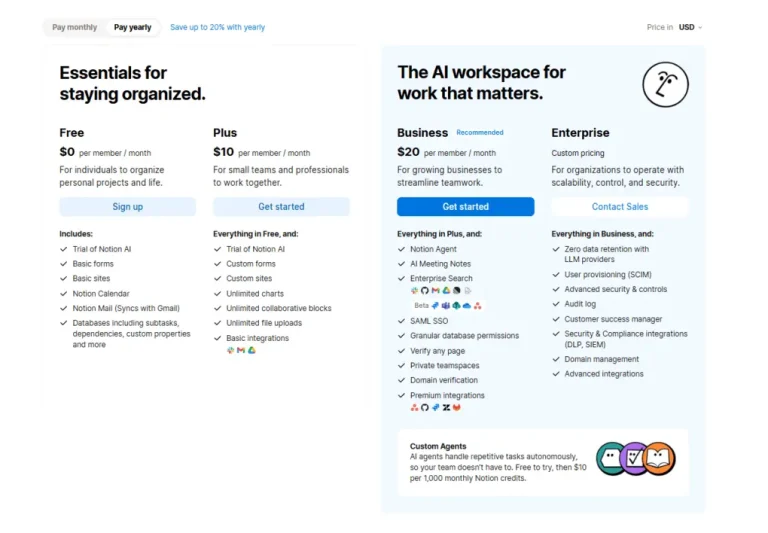
- Free plan available
- Paid plans start at $10/user/month
Pros and cons of Notion
Pros
Cons
How to connect Notion with Claude
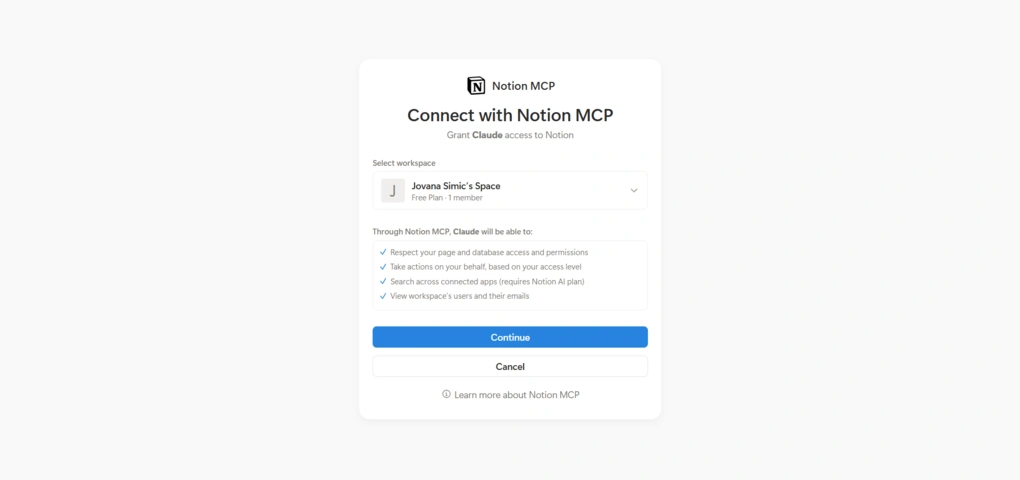
By now, the connection process should feel familiar – just go to Customize → Connectors → Browse connectors inside Claude, search for Notion, click Connect, and complete the authorization. After that, your workspace will be available inside Claude.
Once connected, Claude can work directly with your Notion pages and databases. You can ask it to find specific notes, pull details from documents, summarize long pages, or create and update content without going into Notion yourself. Instead of manually searching and editing, you can handle most of your day-to-day work through simple prompts.
🔎 Read my full review: My Honest Notion Review After Using It For +2 Years (2026)
Short on time? Here’s a quick overview of Notion
Zapier
Best for: Users who want Claude to automate actions across multiple apps and tools
Zapier is the connector you reach for when your work is spread across multiple apps, and you need to connect Claude with more tools across your stack. Claude’s Zapier connector is built for read and write access, and Zapier’s current MCP setup gives Claude access to 9,000+ apps, so it can do things like send emails, update CRMs, manage calendars, and post messages instead of only summarizing what is already there.
Key features
Cross-app workflows: Claude can use Zapier to prepare for meetings with context from your calendar and CRM, turn conversation takeaways into tasks or tickets, and handle email follow-ups. That is where Zapier is most useful in a Claude setup: it connects the dots between tools that usually do not talk to each other directly.
Automation logic that scales: Zapier’s workflow engine supports Filters, Paths, Scheduling, Formatter, Looping, and Webhooks, so you can do more than simple one-step automations. That means you can route data to different teams based on conditions, delay actions, format inputs, or connect to almost any API without code.
Tables, Interfaces, and built-in AI tools: Zapier now bundles Tables and Interfaces into Free, Pro, and Team plans, and its AI features include Copilot and the AI Zap builder, which can suggest trigger and action steps from a plain-language workflow description. Tables can store and organize data, while Interfaces let you build simple forms and client-facing tools that feed into automations.
Security and control: Zapier says every action is logged, and you control which apps and actions your AI can access, including read-only, sending messages, or updating records. For larger teams, that matters because the same MCP connection can be governed at the workspace level.
Pricing
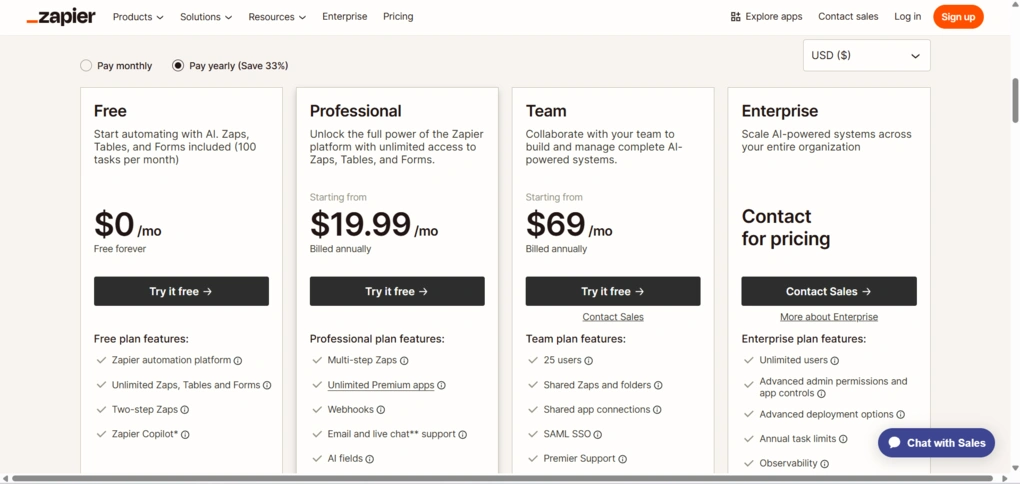
- Free plan available
- Paid plans start at $19.99/user/month
Pros and cons of Zapier
Pros
Cons
How to connect Zapier with Claude
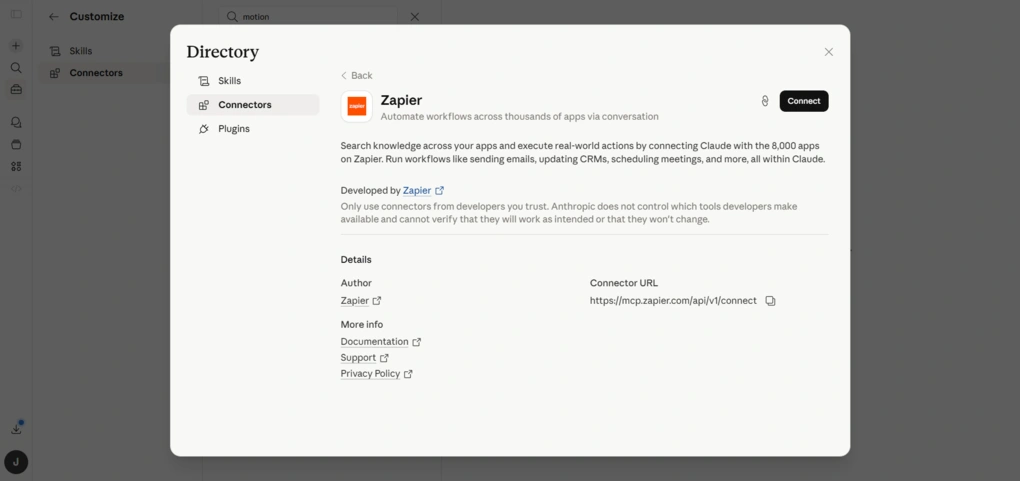
The setup is the same as with the other tools – type ‘’Zapier’’ into the directory, and click ‘’Connect’’.
Once it is connected, Claude can act on the apps already in your Zapier account.
Obsidian
Best for: Individuals building a personal knowledge base that Claude can explore and connect
Obsidian is very different from tools like Notion or Monday. It is built for personal use, with a strong focus on privacy and control, since all your notes are stored locally on your device.
Obsidian is designed for building a personal knowledge base where your notes are connected, not just stored. You can link ideas together, visualize relationships between them, and create a “second brain” that grows over time.
When you connect it with Claude, it becomes easier to work with that knowledge. Instead of manually going through notes and links, you can ask for specific information, explore connections between ideas, or get a quick overview of complex topics stored in your vault.
Key features
Local-first note-taking: Obsidian stores your notes locally using markdown files, which means you fully own your data and can move it between tools if needed. This also makes it a strong option for users who care about privacy and control.
Bidirectional links: You can link notes to each other, creating a network of connected ideas instead of isolated documents. This is one of Obsidian’s core strengths and what makes it useful for long-term knowledge building.
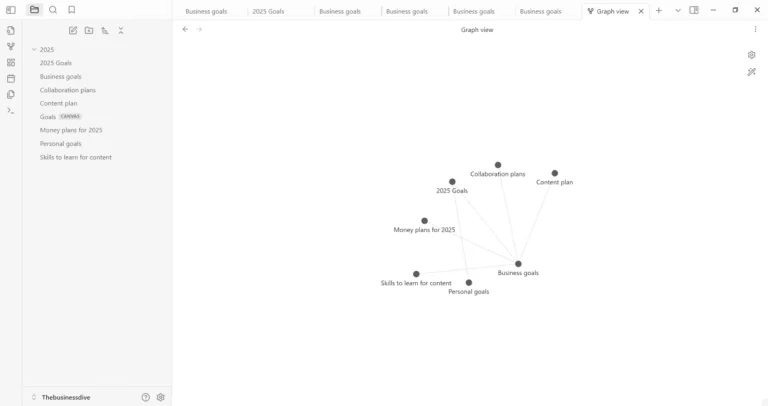
Graph view: Obsidian includes a visual graph that shows how your notes are connected. It helps you see relationships between topics and explore your knowledge from a broader perspective.
Canvas view: For more visual workflows, you can use canvas to map out ideas, connect notes, and organize information spatially instead of in a linear format.
Plugins and customization: Obsidian supports 2,000+ plugins, which allow you to extend its functionality with features like advanced tables, integrations, or custom workflows.
Tags and organization: You can organize notes using tags, folders, and links, which makes it easier to structure large amounts of information over time.
Pricing
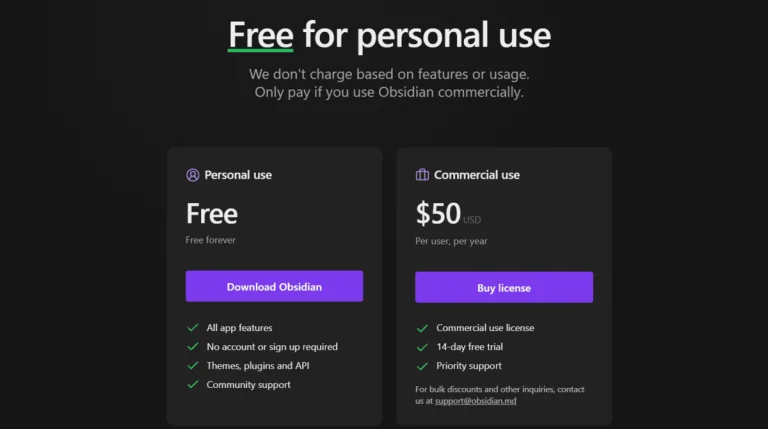
- Free for personal use
- Paid add-ons available (Sync: $4/month, Publish: $8/month)
Pros and cons of Obsidian
Pros
Cons
How to connect Obsidian with Claude
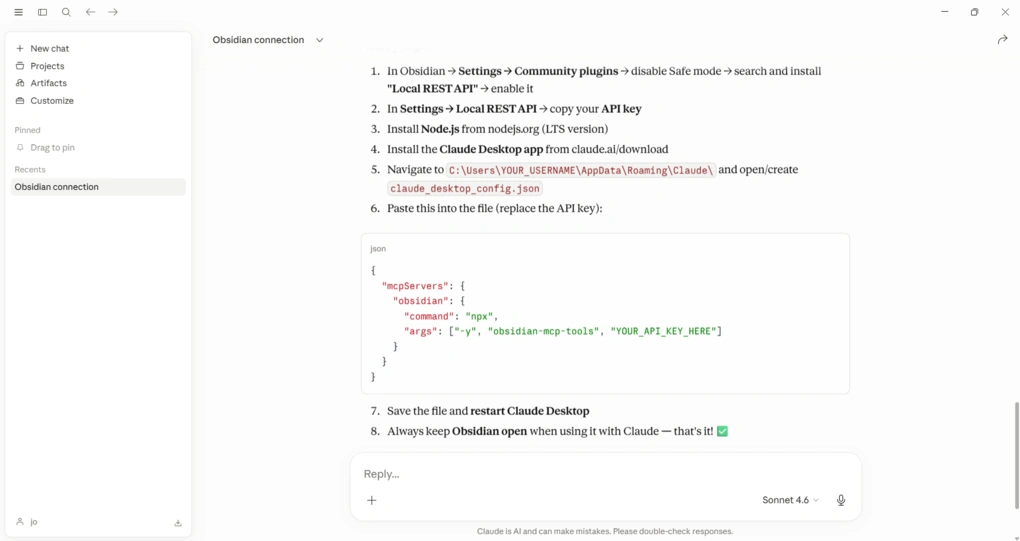
Connecting Obsidian is a bit more technical compared to the other tools in this guide, since there is no built-in connector. Instead, there are a few different ways to set it up.
The simplest approach is using Claude Code. Since Obsidian stores all notes as local markdown files, you can open a terminal, navigate to your vault folder, and run Claude from there. Once you do that, Claude automatically has access to your notes and can read, search, and edit them directly, because it is operating inside that folder.
If you are using Claude Desktop instead of Claude Code, the setup requires an MCP (Model Context Protocol) server. In this case, you install a local MCP bridge and connect it to Claude through a configuration file. After restarting Claude Desktop, your vault becomes available as a data source inside your chats.
There is also a plugin-based approach, where you install an Obsidian community plugin that runs a local server and exposes your vault to Claude. Some plugins even embed Claude Code directly inside Obsidian, allowing you to interact with your notes from a sidebar or terminal view.
🔎 Read my full Obsidian Review: What Nobody Tells You About This App (2026)
Short on time? Here’s a quick overview of Obsidian
Slack
Best for: Teams that run their work and communication in Slack, where Claude can summarize and surface key conversations
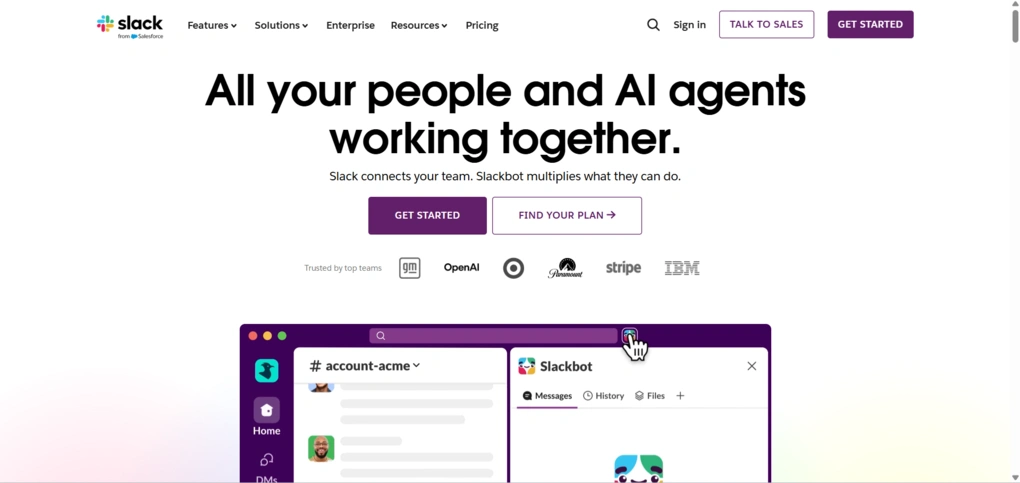
Slack is one of the most natural tools to connect with Claude, because it is already where most team communication happens.
Slack is a collaboration platform built around channels, messages, and integrations. Teams use it to discuss projects, share files, run quick calls, and stay aligned in real time.
When you connect it with Claude, it becomes more than just a chat tool. Instead of scrolling through channels and catching up manually, you can ask Claude what happened, get summaries of conversations, or pull specific information from messages and shared files.
Key features
Channels and team communication: Slack organizes conversations into channels based on teams, projects, or topics. This keeps discussions structured and easier to follow compared to email threads.
Search across messages and files: Slack stores conversations and files so you can search through them later. Even on the free plan, you get searchable message history (with limits), while paid plans unlock full history.
Integrations with other tools: Slack connects with thousands of apps like Google Drive, Salesforce, Jira, and Notion, so updates from those tools can appear directly in your channels.
Workflow Builder (automation inside Slack): You can automate repetitive processes like onboarding, reminders, or status updates using Slack’s built-in workflow tools, without coding.
Calls, huddles, and file sharing: Slack supports voice and video calls, quick “huddles,” and file sharing, so teams can collaborate without switching tools.
Built-in AI features (Slack AI & Slackbot): Slack now includes features like message summaries, search answers, and writing assistance, along with an upgraded Slackbot that can answer questions and pull context from conversations and connected tools.
Pricing
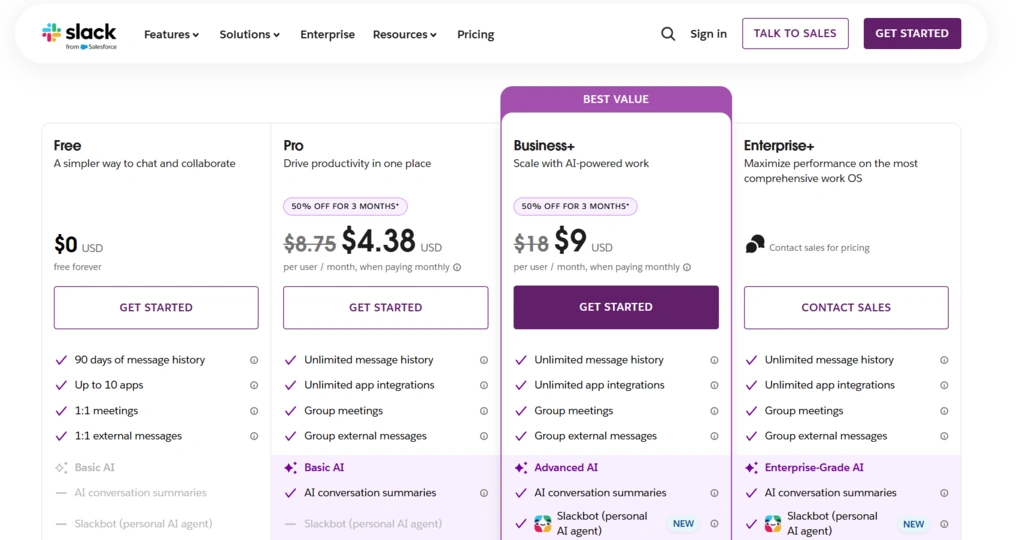
- Free plan available
- Paid plans start at $4.38/user/month
Pros and cons of Slack
Pros
Cons
How to connect Slack with Claude
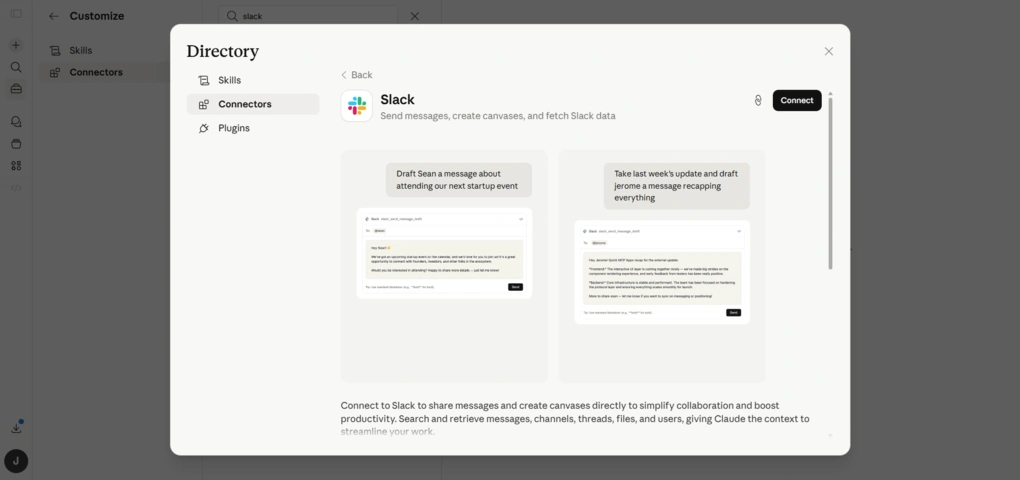
Again, the same, simple connection process: go to Customize → Connectors → Browse connectors inside Claude and search for Slack.
Click Connect, complete the authorization, and your workspace will be available inside Claude.
Once connected, Claude can work with your Slack conversations and data. You can ask it to summarize channels, find specific messages, pull updates from discussions, or quickly understand what changed without reading everything yourself.
NotebookLM
Best for: Researchers and students who want Claude to build on source-grounded insights from dense materials
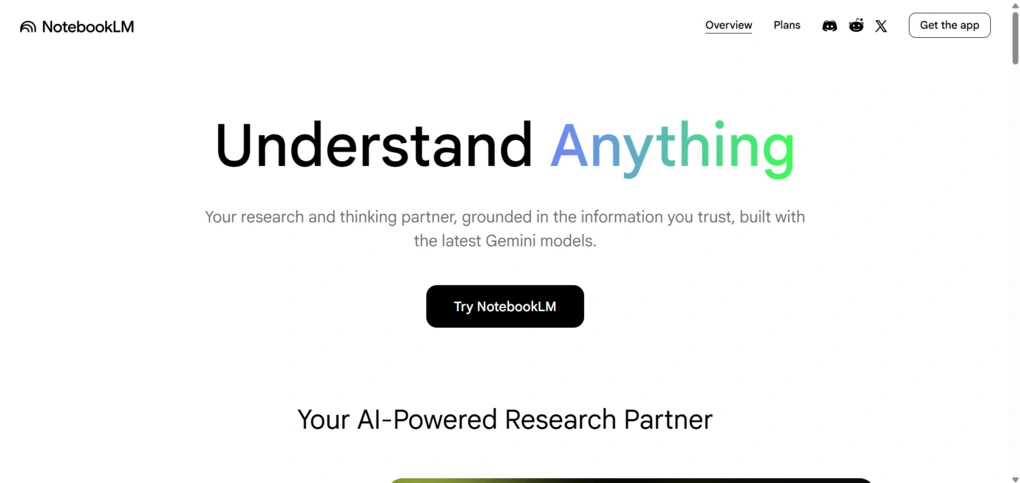
NotebookLM is not a typical note-taking tool, and more importantly, it is not a Claude connector in the usual sense.
It is a research-focused app developed by Google that works with sources you upload, like PDFs, Google Docs, or videos. Instead of generating answers from general knowledge, it only uses your materials, which makes the output more reliable and easier to verify.
This is exactly why people use it alongside Claude. NotebookLM helps you understand and break down complex information, while Claude is better for writing, structuring, and turning that information into final outputs.
Key features
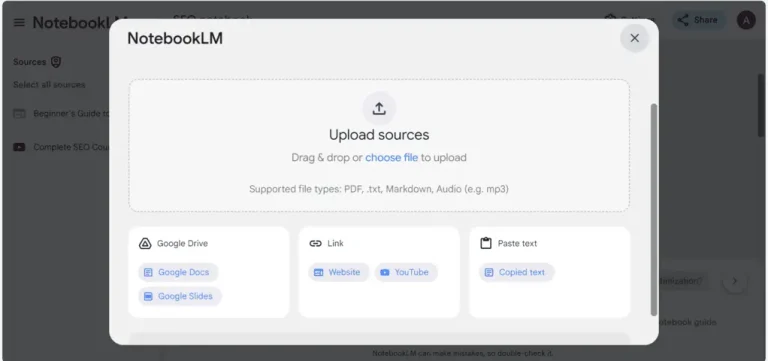
Source-grounded workflow: NotebookLM only works with the content you provide. It does not pull random information from the web, which makes answers more focused and tied to your actual data.
Ask questions across multiple documents: You can upload multiple sources and ask questions across all of them at once. The answers include citations, so you can always trace where the information comes from.
Summaries, study guides, and structured outputs: It can turn large amounts of content into summaries, FAQs, timelines, and study guides, which helps when dealing with complex topics.
Audio overviews (podcast-style): One of its standout features is turning documents into podcast-like conversations, which makes it easier to consume dense material.
Large context and document handling: NotebookLM can process a large number of sources and combine them into a single understanding, which is where it becomes especially useful for research-heavy workflows.
Pricing
- Completely free to use
Pros and cons of NotebookLM
Pros
Cons
How to Use NotebookLM with Claude
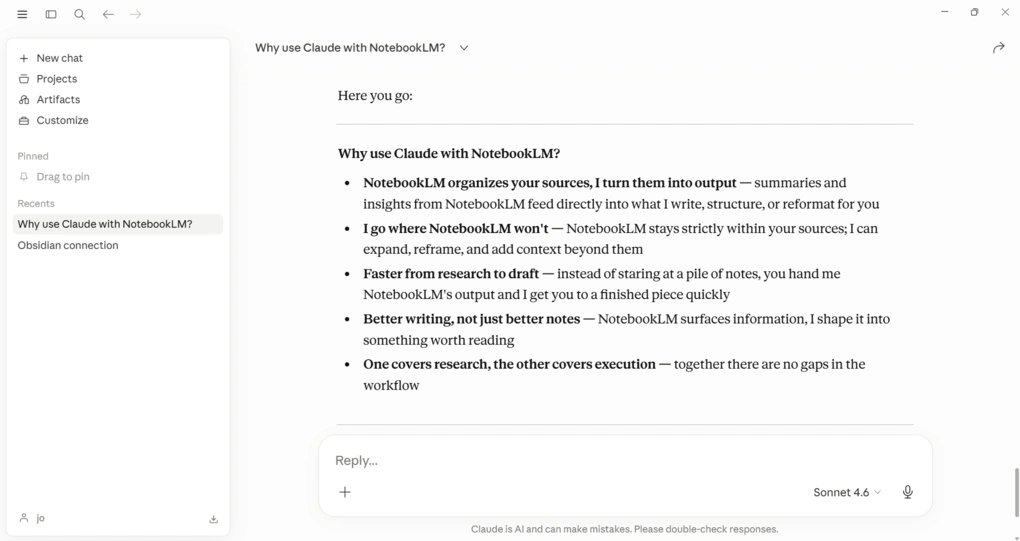
NotebookLM does not have a native integration with Claude, and there is currently no MCP server or public API that connects the two directly. Google has not opened NotebookLM to external integrations, which means any tool or guide claiming otherwise is likely inaccurate.
That said, the two tools complement each other well when used side by side. The most common workflow starts in NotebookLM — you upload your sources, whether research papers, transcripts, or notes, and let it surface connections and generate source-grounded summaries.
That output then moves to Claude, where you can turn rough insights into structured writing, sharpen the argument, adjust the tone, or expand a summary into a full draft. Used together, they cover the gap between raw research and finished content.
There is also a plugin-based approach, where you install an Obsidian community plugin that runs a local server and exposes your vault to Claude. Some plugins even embed Claude Code directly inside Obsidian, allowing you to interact with your notes from a sidebar or terminal view.
Short on time? Here’s a quick overview of NotebookLM
Gmail
Best for: Inbox-heavy users who want Claude to summarize long threads and draft responses faster
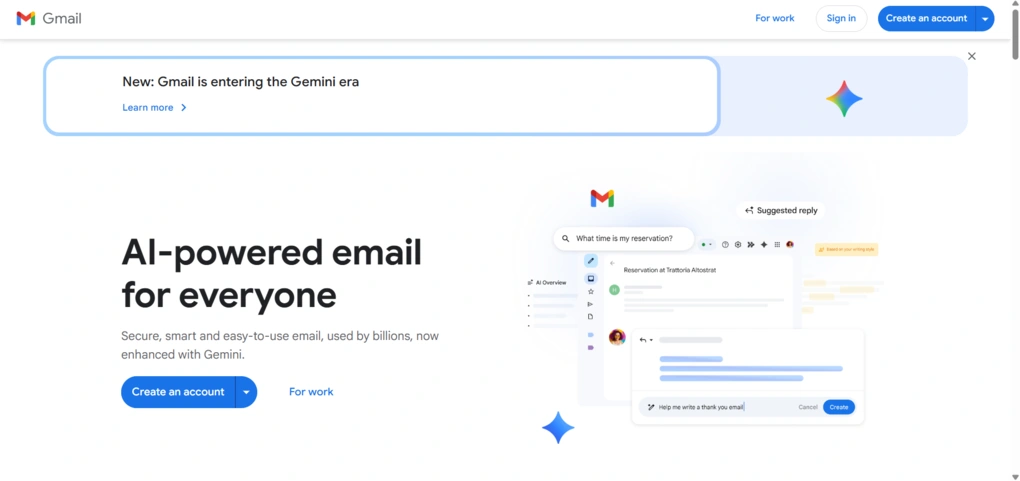
Gmail is one of the most practical connectors you can use with Claude, simply because email is still where a lot of work happens.
On its own, Gmail is where conversations, decisions, and updates live. But once you connect it with Claude, you no longer have to manually search through threads or keep track of everything yourself.
Instead of opening your inbox and digging through emails, you can ask Claude for exactly what you need and get answers based on your actual messages.
Key features
Email search and retrieval: Once connected, Claude can go through your inbox and find specific emails based on what you ask. Instead of manually searching, you can reference conversations directly in chat and get answers pulled from real messages, with links back to the original threads for context.
Thread summaries: Gmail conversations tend to get long and messy, especially when multiple people are involved. Claude can take an entire thread and break it down into a clear summary, highlighting what was discussed, what decisions were made, and what still needs attention.
Reply drafting: You can also use Claude to write replies based on the context of an email. It looks at the conversation and generates a draft you can edit before sending. The idea is not to automate your inbox completely, but to remove the repetitive part of writing similar responses over and over.
Inbox overview and prioritization: Instead of scanning your inbox manually, you can ask Claude what needs a reply or which conversations are still active. It can surface the important threads and give you a quick overview of where things stand across your emails.
Works with the rest of Google Workspace: Since Gmail is part of Google Workspace, Claude can combine email data with information from Docs or Calendar when needed. This gives you more complete answers instead of treating each tool separately.
Pricing
- Free plan available
- Paid plans start at $6.30/user/month
Pros and cons of Gmail
Pros
Cons
How to connect Gmail with Claude
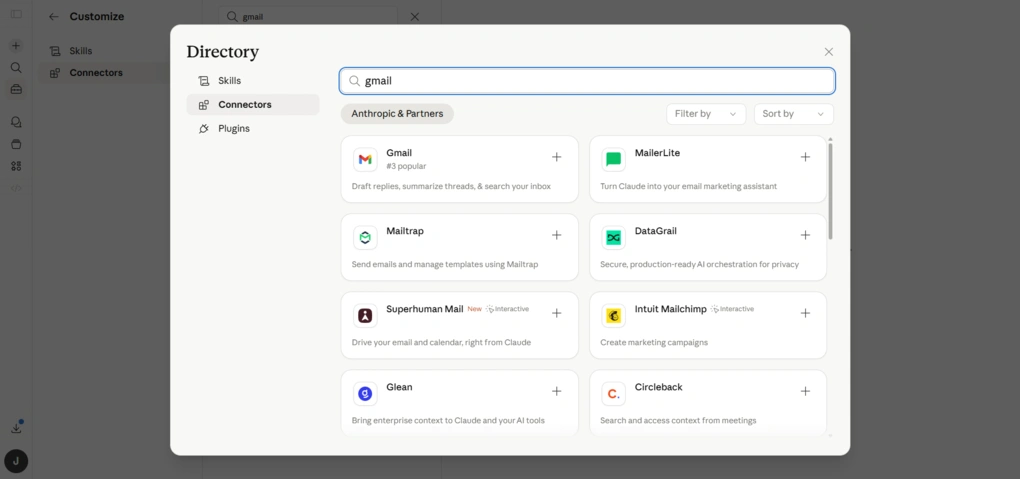
Go to Settings → Connectors → Gmail inside Claude and click Connect. Then sign in with your Google account and approve access.
Once connected, Claude can access your emails when you ask for them, so you can search, summarize, and draft replies without opening Gmail or going through your inbox manually.
Wrap-up: Best Claude connectors in 2026
If there is one thing I learned while testing all of these, it is that Claude on its own is not the full story. It becomes genuinely useful when it can see your work.
That is what connectors actually solve, and how connectors work in practice: they give Claude controlled access to your tools and data, whether that is meetings, emails, projects, or documents. And that changes how you use it day to day.
Why you can trust our reviews
At thebusinessdive.com, our team tests, reviews, and compares hundreds of productivity apps every year — from project management tools to note-taking apps. We dive deep into real-world use cases to help you find the right tools that actually improve your workflow, not just add noise.
Our mission? No fluff, no shortcuts—just honest, hands-on insights from productivity pros.
Discover how we stay transparent, read our review methodology, and let us know about any tools we missed.
Frequently Asked Questions
What are Claude connectors and how do they work?
Claude connectors are integrations built on the Model Context Protocol that allow Claude to connect directly to external tools, apps, and data sources. Instead of working with generic prompts, Claude can access your real data, pull information, and take actions inside connected tools. This is what allows it to move from simple answers to actually supporting real workflows.
How do you connect tools to Claude?
To connect Claude with a tool, you typically go to the connectors directory, browse available integrations, and complete the authentication process. In most cases, this includes an OAuth flow where you grant Claude access to your account. Even if your organization approves a tool, you still need to authorize access individually before Claude can use it.
Are Claude connectors secure?
Yes, most connectors use OAuth-based authentication, which means you explicitly control what data Claude can access. Permissions are handled at the user level, and tools can be configured as read-only or with limited actions depending on what you allow. This ensures that Claude only interacts with the data and systems you approve.
Can you add your own custom connector?
Yes, Claude allows you to add custom connector by connecting an MCP server. This means you can link Claude to internal databases, proprietary systems, or any API that supports the protocol. In practice, this is how teams extend Claude beyond the official directory and connect it to their own workflows or tools that are not publicly available.
What can you actually do with Claude connectors?
Once connected, Claude can search files, analyze structured data, summarize documents, and even interact with tools directly inside the chat interface. Some connectors can render interactive elements like dashboards or task boards, so you can view and update data without leaving the conversation. This is what makes connectors useful for things like reporting, managing multiple projects, or analyzing performance across tools.
Disclosure: I only recommend products I would use myself, and all opinions expressed here are our own. This post may contain affiliate links through which, at no additional cost to you, I may earn a small commission. Read the full privacy policy here.

Hey! I’m Jovana, a content writer who loves writing, researching, and testing new productivity apps. With a background in philosophy, I bring a thoughtful but no-bullshit approach to everything I do. Let’s connect on Linkedin!