


10 Best PDF Editors In 2026 | 30+ Personally Tested PDF Tools
Looking for the best PDF editor, but tired of marketing claims, endless feature lists, and complicated software? You just want to edit a PDF in a few seconds and move on.
There are over 100 PDF editors on the market, but finding one that is actually worth paying for is harder than it looks.
Over the past three years, I tested more than 30 PDF tools and spent 200+ hours comparing them.
In this guide, I break down the best PDF editors in 2026 based on hands-on testing and real-world use cases, so you can quickly find the right option without wasting time or money.
Best PDF Editors in 2026 (Quick Picks)
🏆 Best overall: EaseUS PDF Editor
🤖 Best AI-powered PDF editor with OCR: Tenorshare PDNob
📂 Best for document management & e-signatures: pdfFiller
🌍 Best for browser-based PDF editing: Smallpdf
💼 Best PDF software for small business: Nitro PDF
🆓 Best completely free PDF editor: PDFgear
🖥️ Best PDF editor for Mac users: PDF Expert
👥 Teams that want PDF editing inside an office suite: ONLYOFFICE PDF Editor
⚙️ Best for advanced editing features: Foxit
🏛️ Best enterprise-grade PDF solution: Adobe Acrobat
Short on Time? Here’s the Quick Take
Here are the top 10 PDF editors that stood out the most to me in 2026:
|
PDF editors |
Best for 🎯 |
Standout feature ⚡ |
Main drawback⚠️ |
Pricing starts 💰 |
Test score ⭐ |
|---|---|---|---|---|---|
|
Best overall |
Fast, distraction-free reading + easy editing tools |
No built-in AI in the desktop app |
Free plan + paid from $49.95/year |
4.6/5 |
|
|
Best AI-powered PDF editor with OCR |
Powerful AI features and accurate OCR |
No Android version |
Free plan + paid from $49.99/year |
4.6/5 |
|
|
Best PDF editor for document management & e-signatures |
Full document workflow + advanced e-signature tools |
Lacks advanced PDF reading features |
Free trial+ paid from $96/year |
4.1/5 |
|
|
Best browser-based PDF editor |
Works in browser + Google Workspace integration |
Limited annotation tools |
Free plan+ paid from $120/year |
4.4/5 |
|
|
Best PDF software for small business |
Advanced editing + business security |
Expensive for casual users |
Free trial + paid from $180/year |
4.5/5 |
|
|
Best free PDF editor |
Completely free + cross-platform support + basic AI tools |
Privacy concerns |
Free |
4.1/5 |
|
|
Best PDF editor for Mac users |
Optimized for macOS + fast performance with large files |
Platform support |
Free plan+ paid from $79.99/year |
4.4/5 |
|
|
Teams that want PDF editing inside an office suite |
Collaboration tools + shared workspaces + document management |
Limited PDF editing and reading features |
Free plan+ paid from $240/year |
4.3/5 |
|
|
Best PDF editor for advanced editing features |
Advanced editing + OCR + strong alternative to Adobe Acrobat |
Higher pricing than budget tools |
Free plan+ paid from $129.99/year |
4.1/5 |
|
|
Best enterprise PDF editor |
Industry-standard features + strong security + full PDF toolkit |
Expensive compared to competitors |
Free plan+ paid from $179.88/year |
3.8/5 |
Detailed Reviews of the Best PDF Editors
Let’s see the best PDF editors in 2026!

EaseUS PDF Editor
EaseUS PDF Editor is an affordable yet powerful PDF editor for Windows and Mac, offering strong OCR, editing, and security features with an intuitive interface.
Bottom line
Individuals who need a budget-friendly PDF editor with an extensive feature set
Enterprises
Fast, distraction-free reading + easy editing tools
AI features
How EaseUS PDF performed in my daily workflow
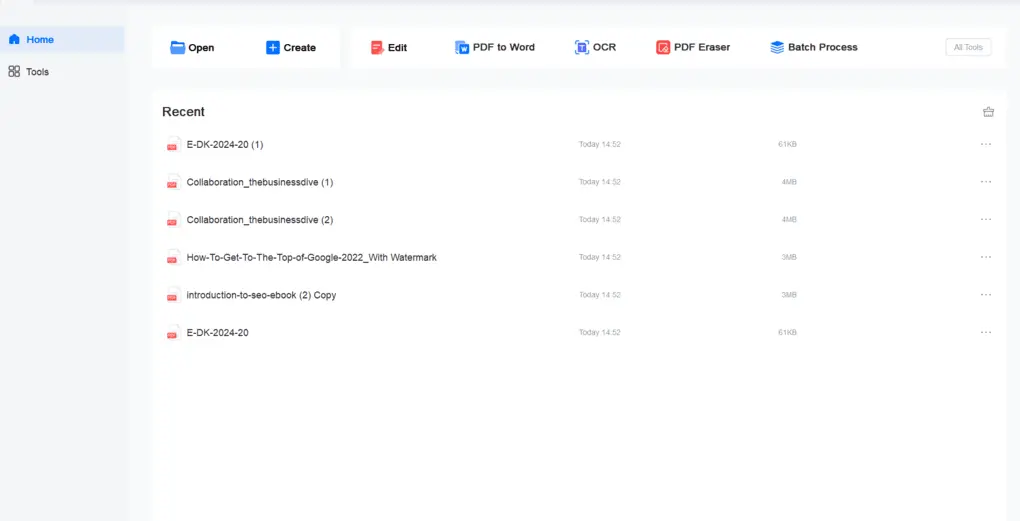
EaseUS PDF has an intuitive interface and some useful tools for editing and reading PDF files. This tool is very simple.
You can find all the tools you need, whether it is OCR or annotation tools in seconds. Furthermore, I did not notice any performance issues even when I worked with larger PDF documents.
There is one key limitation here: the AI assistant is currently only available online.
Nevertheless, I had a good experience with EaseUS PDF, and it is ultimately an affordable PDF editor for Mac & Windows users.
Where EaseUS impressed me & where it fell short
| What stood out | The trade-offs |
|---|---|
| 🟢 Affordable PDF software — Compared to most PDF editors on the market like Adobe Acrobat or PDF-XChange Editor, you can get this PDF software at a very reasonable price. | 🔴 No mobile version — It would be useful if you could access its features on iOS and Android. |
| 🟢 Easy to use — You can smoothly edit your PDFs and access the tools you need. | 🔴 No built-in AI features — I missed the built-in AI features when using EaseUS PDF Editor on my PC’s desktop app. |
| 🟢 Smooth performance — I did not experience any performance issues when using EaseUS PDF Editor, even when working with larger PDF files. | |
| 🟢 Great OCR capabilities — For me, it is among the top OCR tools currently. | |
| 🟢 Advanced PDF protection — You can set open and permission passwords, select the encryption algorithm, and add or remove watermarks. |
Who gets the most value from EaseUS PDF Editor
When EaseUS PDF Editor might not work for you
Pricing structure
| Plan | Price | What you get | My take |
|---|---|---|---|
| 1-Month | $19.95/month | One license for one computer with one month of upgrades. | 🟡 Best for short-term use — Useful if you only need a PDF editor for a specific project, but it becomes expensive if you keep it for several months. |
| 1-Year | $49.95/year | One license for one computer with one year of upgrades. | 🟢 Good value for regular users — At less than the cost of three monthly payments, the yearly plan makes much more sense if you’ll use EaseUS regularly. |
| Lifetime Upgrades | $79.95 one-time | One license for one computer with lifetime upgrades. | 🟢 Best long-term value — It costs only $30 more than the yearly plan, so this is the option I’d consider if you expect to use EaseUS for more than a year. |
| Business | Custom pricing | Customized licensing for business use. | 🟢 For businesses — Makes more sense if you need licenses beyond a single computer. |
🔎Read my full review: EaseUS PDF Editor Review 2026 | My Unfiltered Opinion
If you think you may need the advanced features, use the above link for signup and enter the code THEBUSINESSDIVE20 to receive 20% OFF if you fall in love with EaseUS PDF later.
Tenorshare PDNob
PDNob is an AI-powered PDF editor for Windows and Mac that offers many features to edit, read, organize, and annotate files.
Bottom line
If you need advanced PDF editing & OCR features
Users need to edit a PDF on Android
Powerful OCR features
No Android version
How PDNob performed in my daily workflow
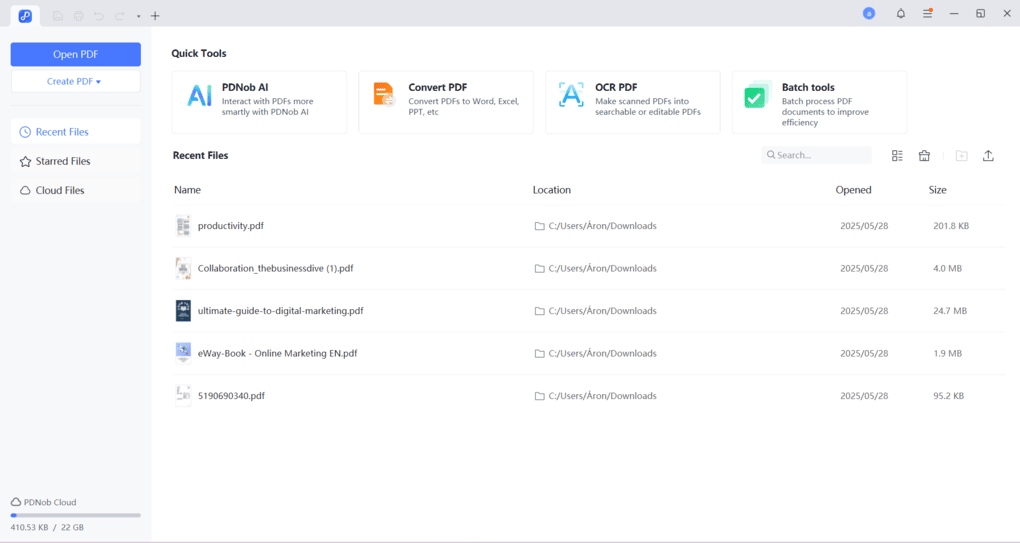
After I tested PDNob, it became my default PDF editor, so needless to say, it performed well during testing. But let’s break it down.
PDNob PDF editor offers a wide range of PDF editing and annotation tools. With its easy-to-use tools and user-friendly interface, I had almost zero learning curve with this PDF editor.
It has one of the most accurate OCR engines, and its advanced PDF reading capabilities make it easy to read long PDF documents.
During my Tenorshare PDNob review, I especially loved the AI features. I received relevant and accurate answers to my questions. So, it helped me a lot to extract insights from my PDF files and save time.
To summarize, I had an absolutely positive experience with the PDNob PDF editor, and I recommend it to those who need a simple yet effective solution for PDF management.
Compared to Adobe Acrobat or Foxit, PDNob offers a similar feature set but at a more affordable price.
Where Tenorshare PDNob impressed me & where it fell short
| What stood out | The trade-offs |
|---|---|
| 🟢 User-friendly and modern interface — You can quickly find the tools you want to use, and it has a short learning curve. | 🔴 No Android mobile support — The only con for me is that PDNob currently lacks an Android version. |
| 🟢 Straightforward PDF editing — PDNob has simple and straightforward PDF editing tools. | |
| 🟢 Solid AI features — Powered by GPT-4.1 and DeepSeek R1, the AI features helped me a lot with summarizing and explaining PDF documents. | |
| 🟢 Efficient OCR functionality — Its OCR feature can turn scanned PDFs into editable documents. |
Best use cases for Tenorshare PDNob
Where Tenorshare PDNob falls short
What does it cost?
| Option | Price | What you get | My take |
|---|---|---|---|
| Annual plan | $49.99/year promotional price; $159.98/year regular price | Ongoing access to PDNob’s advanced PDF features. | 🟢 Good value at the promotional price — At $49.99, PDNob is significantly cheaper than many premium PDF editors. The regular price is much harder to justify. |
| Lifetime license | $64.99 one-time | Lifetime access to PDNob without an annual subscription. | 🟢 Best long-term value — At the listed prices, it costs only $15 more than the promotional annual plan, making it the more interesting option if you plan to keep using PDNob. |
| Unlimited AI | $39.99 | Unlimited access to PDNob’s AI features. | 🟡 Useful for heavy AI users — Worth considering if you regularly use PDNob for summarizing and explaining PDFs. |
🔎Read my full review: Tenorshare PDNob Review 2026 | My Unfiltered Opinion
Use the above link and the discount code TS-TBD-20 to get 20% OFF on the paid plans.

pdfFiller
pdffiller is a cloud-based PDF editor with numerous tools to work with your PDF documents. It offers a signing and editing solution that lets users sign and edit documents, send them for signature, and manage the full electronic document workflow in one place.
Bottom line
Individuals & teams need an all-in-one cloud solution
If you need a free PDF editor
Offers many tools for document management
No advanced PDF reading features
How pdfFiller performed in my daily workflow
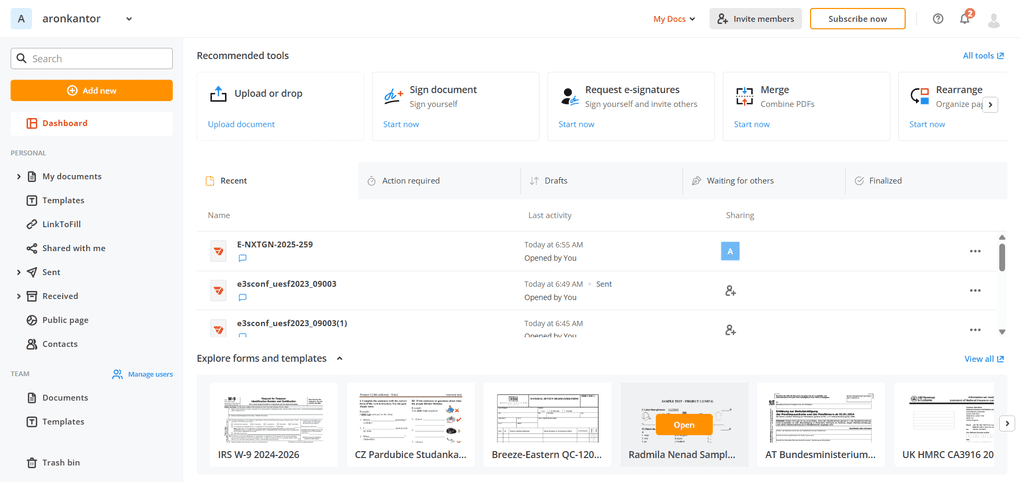
Honestly, pdfFiller surprised me. With its solid team collaboration and document management features, it showed something different after testing many PDF editors.
pdfFiller’s signing and editing solutions allow users to sign documents, edit them, send them for signature, and manage the full electronic document workflow.
As someone who works in a team, it helped a lot in my daily work that I can organize documents in team and personal spaces as well, and I have plenty of options to share documents.
When editing PDFs, it has various tools to manipulate the file. Here, I especially loved how easy it is to add, remove, and adjust images.
If I consider its feature set, the only thing I missed was some more advanced PDF reading features, but apart from that, I was fully satisfied.
Where pdfFiller impressed me & where it fell short
| What stood out | The trade-offs |
|---|---|
| 🟢 Solid team collaboration — Its collaboration features make it an ideal Adobe Acrobat alternative for teams. | 🔴 Fewer advanced PDF reading features — It has fewer advanced reading features than Adobe Acrobat Pro. |
| 🟢 Reusable templates — Unlike Adobe Acrobat, you can create reusable templates with pdfFiller. | 🔴 No free plan — pdfFiller does not offer a free plan. |
| 🟢 Extensive e-signature tools — It has one of the most extensive electronic signature solutions on the PDF editor market. | 🔴 No OCR — pdfFiller does not have an OCR feature at all. |
| 🟢 Easy document organization — Tags and folders make it easy to structure your digital documents. | |
| 🟢 User-friendly interface — pdfFiller provides a straightforward and easy-to-use interface. |
Who pdfFiller is best for
When pdfFiller is not the right choice
Paid plans
| Plan | Price | What you get | My take |
|---|---|---|---|
| Basic | $8/month annually or $20/month monthly | PDF editing, filling, drawing, page rearrangement, Word conversion, and customer support within a day. | 🟢 Best for basic PDF work — Makes sense if you mainly need everyday editing and document management without the more advanced features. |
| Plus | $12/month annually or $30/month monthly | Adds smart document tags and folders, password protection, reusable templates, and basic fillable fields. | 🟢 Best balance of features and price — The reusable templates and document organization tools make this more useful for regular business workflows. |
| Premium | $15/month annually or $40/month monthly | Adds document signing, US legal forms, custom branding, and more advanced features. | 🟢 Best for advanced workflows — The small annual price difference from Plus makes Premium more attractive if you need e-signatures and the additional business features. |
| Business plans | Custom / 10+ users | Two dedicated business plans for larger teams. | 🟢 For larger teams — Worth considering once you have at least 10 users and need a more business-focused setup. |
pdfFiller doesn’t have a free version, but its 30-day free trial gives you plenty of time to test it before committing to a subscription.
🔎Read my full review: pdfFiller Review 2026: Here is what surprised me
Smallpdf
Smallpdf is an online PDF software with numerous tools to convert, compress, and edit PDF files for free.
Bottom line
Teams & individuals who need a versatile online PDF editor
Users who prefer a desktop-first PDF workflow
You can use it inside your Google Workspace and Dropbox
Does not support too many PDF reading functions
How Smallpdf performed in my daily workflow
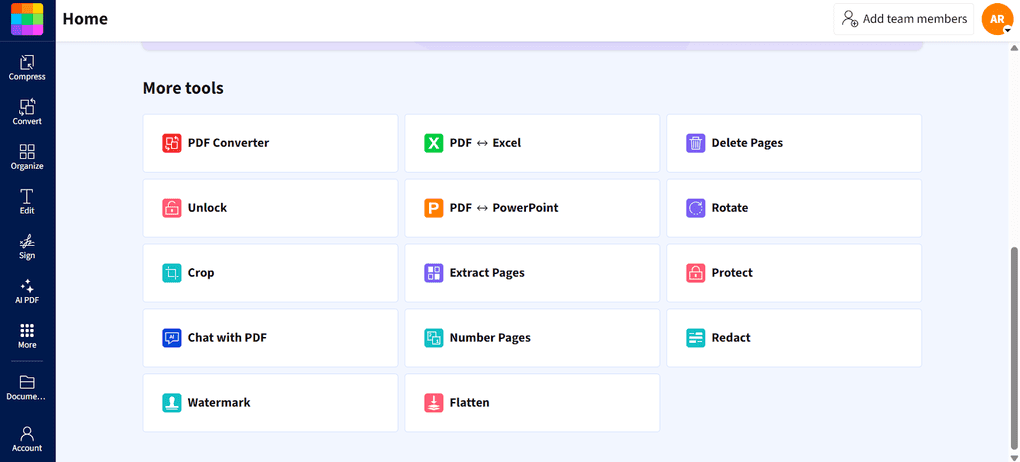
During my testing, I used Smallpdf’s online PDF editor. I found it really simple to use thanks to its clean and intuitive interface.
For me, the most unique feature was its Chrome extension that lets you use its tools when you open a PDF in your browser. This way, you can compress, sign, merge, convert, and summarize PDF files with SmallPDF’s AI feature without leaving your Google Workspace.
Overall, I had an absolutely positive experience with Smallpdf, and it is the best PDF editor software for online editing.
Where Smallpdf impressed me & where it fell short
| What stood out | The trade-offs |
|---|---|
| 🟢 Intuitive design — I really loved Smallpdf’s design. Its intuitive interface makes navigation easy. | 🔴 Limited annotation tools — I would like to see more annotation features. |
| 🟢 Advanced PDF organization — You can easily split, rotate, delete, extract, and merge PDFs and other files. | 🔴 Basic PDF reading — Smallpdf lacks some advanced PDF reading features compared with desktop PDF editors. |
| 🟢 Fantastic AI tools — It only takes a few seconds to generate outputs, which were highly accurate and relevant in my testing. | |
| 🟢 Quick PDF compression — You can quickly compress PDFs into smaller files without much hassle. | |
| 🟢 Convert PDF files simply — What stood out wasn’t the number of supported formats, but how easy and straightforward the conversion tools were to use. | |
| 🟢 Useful Chrome extension — You can access Smallpdf’s tools directly when opening a PDF in your browser, which is a huge extra for users working in the Google ecosystem. |
Who gets the most value from Smallpdf
When Smallpdf might not work for you
Cost breakdown
| Plan | Price | What you get | My take |
|---|---|---|---|
| Free | $0 | Basic document management, compression, conversion, passwords, PDF editing, and e-signatures, with daily download limits. | 🟢 Good for occasional use — You get most of the basic tools, but the daily download limit makes it less practical for frequent PDF work. |
| Pro | $10/month billed annually or $15/month monthly | Everything in Free without the limits, plus access to additional advanced features. Includes a 7-day free trial. | 🟢 Best for professionals — Makes the most sense if you regularly work with PDFs and need unlimited downloads and the full feature set. |
| Pro for Teams | $8/month per seat | Advanced features, faster support, and team-focused access. | 🟢 Better value for teams — At $8 per seat, it can save quite a bit compared with purchasing individual Pro subscriptions. |
🔎Read my full review: Smallpdf Review 2026 | The Top Lightweight PDF Tool
Nitro PDF
Nitro PDF is a feature-rich PDF editor that combines advanced editing, OCR, redaction, compression, forms, and business-grade security into a single intuitive platform.
Bottom line
Businesses and professionals who need a complete PDF workflow solution
Users with basic PDF needs
Advanced PDF editing and security
Pricing is better suited for professionals than casual users
How Nitro PDF performed in my daily workflow
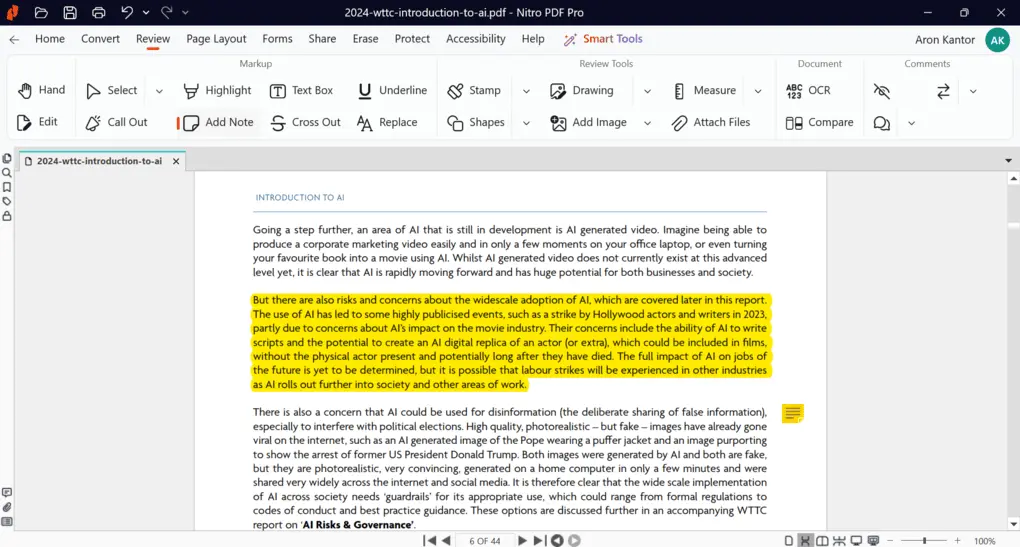
Nitro PDF exceeded my expectations during testing. The editing tools are precise, especially when working with text, as I could edit individual lines instead of entire text blocks.
The image editing tools are equally impressive. I could adjust brightness, colors, resolution, and positioning without breaking the document layout, which isn’t always the case with PDF editors.
What really stood out, however, were Nitro’s business features. The Smart Redaction tool automatically detected sensitive information, while Nitro Sign made it easy to build complete document signing workflows with audit trails and custom fields.
Overall, Nitro delivered one of the strongest all-around PDF editing experiences among the 30+ PDF editors I tested. It offers an excellent balance between advanced functionality, usability, and business-focused features.
Where Nitro PDF impressed me & where it fell short
| What stood out | The trade-offs |
|---|---|
| 🟢 Advanced PDF editing capabilities— One of the most advanced PDF editing experiences I tested. | 🔴 Better suited for professionals — Nitro makes more sense for businesses and professionals than occasional PDF users. |
| 🟢 Excellent OCR & conversion — Excellent OCR accuracy and conversion quality during my testing. | 🔴 Switching between PDFs could be easier — Working with multiple open PDFs isn’t as convenient as it could be. |
| 🟢 Outstanding document redaction — The AI-powered Smart Redact add-on makes finding and removing sensitive information particularly efficient. | 🔴 AI tools are web-only — Nitro’s AI tools are currently only available through the web version. |
| 🟢 Clean, intuitive interface — Easy to navigate despite Nitro’s extensive feature set, with a minimal learning curve. | |
| 🟢 Admin Portal & Analytics included — Businesses get access to administration and analytics tools at no extra cost. | |
| 🟢 24/7 live support — Includes round-the-clock access to live technical support. | |
| 🟢 Enterprise-grade security — Strong security features make Nitro suitable for professional and business workflows. |
Who gets the most value from Nitro PDF
When Nitro PDF might not work for you
Pricing
| Plan | Price | What you get | My take |
|---|---|---|---|
| Nitro PDF Standard | $15/user/month billed annually ($180/year) | Full PDF editing, OCR, AI tools, security features, Admin Portal, integrations, and support. | 🟢 Best for professionals & small teams — This is the plan I’d choose if you use PDFs regularly and want access to Nitro’s more advanced features. |
| Nitro PDF Plus | Custom pricing | Everything in Standard plus enterprise security, Nitro Analytics, and additional enterprise features. | 🟢 Best for larger businesses — The main reason to upgrade is the additional security, administration, and analytics functionality rather than PDF editing itself. |
| Nitro PDF Classic | $270 one-time | Core PDF editing tools for Windows with a three-year license. | 🟡 Best if you want to avoid a subscription — You pay upfront, but you miss some of the advanced capabilities included with Standard and Plus. |
Nitro isn’t one of the cheapest PDF editors I’ve tested, but its pricing makes more sense for professionals and businesses that will actually use its AI, administration, and advanced PDF features.
🔎Read my full review: Nitro PDF Review: My findings after testing +30 PDF editors
PDFgear
PDFgear is currently one of the best completely free PDF editors on the market. It offers strong editing, annotation, conversion, OCR, and AI tools without any subscription cost
Bottom line
If you need a completely free PDF editor with reliable core tools
User seeking advanced editing controls or more robust security/privacy options
100% free
Concerns about privacy
How PDFgear performed in my daily workflow
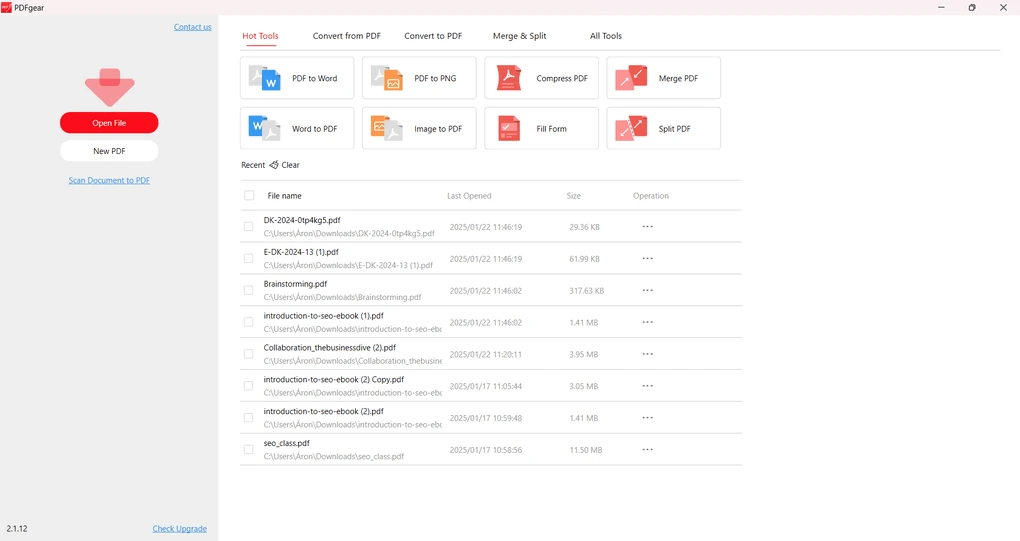
Straight to the point: PDFgear is currently the best free PDF editor. It offers solid editing, annotation, AI, and conversion features for free, while these features are normally included in paid plans.
During my PDFgear review, I experienced smooth performance, and especially enjoyed using the PDFgear Copilot feature that works like a personal assistant.
As for drawbacks, I’d appreciate more advanced editing and security controls. Furthermore, there is still debate about PDFgear’s security, which poses a potential privacy risk (more information on the debate in the full review).
I haven’t personally experienced any security issues while using PDFgear over the past three years. However, the privacy concerns are still worth considering, particularly when handling sensitive business documents
Where PDFgear impressed me & where it fell short
| What stood out | The trade-offs |
|---|---|
| 🟢 Completely free PDF editor — You can access its PDF tools without the hidden costs and paywalls common with other PDF editors. | 🔴 Missing some advanced features — PDFgear still lacks some of the advanced editing and PDF management capabilities I found in premium editors. |
| 🟢 Faster than Adobe Acrobat in my experience — PDFgear felt noticeably faster during my testing. | 🔴 Privacy concerns are still discussed — I found ongoing discussions about PDFgear’s safety, which are worth considering if you work with sensitive documents. |
| 🟢 Advanced AI features for free — You get AI-powered PDF tools without paying for an additional subscription. | |
| 🟢 More straightforward than Adobe Acrobat — I found PDFgear easier and simpler to navigate for everyday PDF work than other PDF editor apps, including Adobe. | |
| 🟢 Works across multiple devices — PDFgear is available across desktop and mobile platforms, making it easy to work with PDFs on different devices. |
Who should use PDFgear
Who should NOT use PDFgear
Pricing
PDFgear is a completely free PDF editor. You might wonder how it could be free.
Well, the business is currently in a stage where it is focusing on growth and acquiring users. So, they will introduce some advanced features in the future and offer paid plans for that. But for now, it is a completely free online PDF editor with a desktop version.
🔎Read my full review: My Honest PDFgear Review 2026 | What They Don’t Tell You
PDF Expert
PDF Expert is a PDF editor for Mac, iPhone, and iPad users. It offers all the tools you need to manage your PDF files, from annotation tools to signing PDFs.
Bottom line
Individuals who need an intuitive and fast PDF editor for Mac
Users who need Windows or cross-platform support
Smooth PDF reading
Apple-only platform support
How PDF Expert performed in my daily workflow
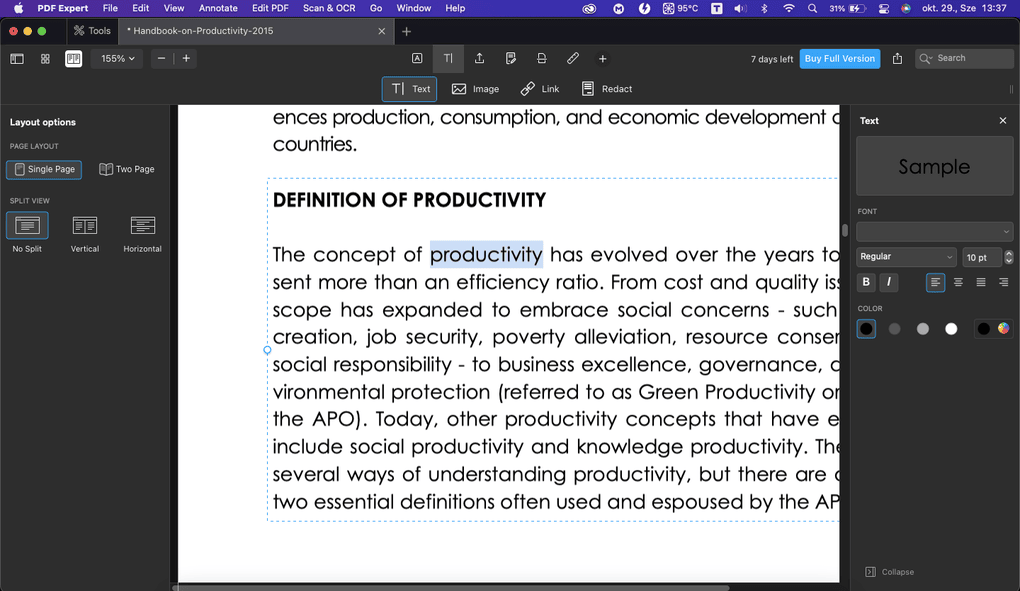
PDF Expert is a straightforward, fast, and reliable PDF editor for Apple devices. I mostly used its Mac version, and I was 100% satisfied with what I saw. While it offers numerous tools for your PDF documents, I did not feel that it was overwhelming.
Compared to Adobe Acrobat Pro, it’s not only substantially cheaper, but also feels that it has more accessible PDF editing features, and offers a much better experience performance-wise. That said, I did not have to wait long when opening large PDF documents; there were no crashes, and so on.
Additionally, PDF Expert has an intuitive, user-friendly interface that is often simpler than Adobe Acrobat’s more complex design. For me, these are the most crucial aspects when ranking PDF editors.
So, if you are considering whether to choose PDF Expert or Adobe Acrobat Pro, my obvious answer is PDF Expert, especially if you work within the Apple ecosystem. It is ideal for individuals and small businesses.
Nevertheless, if you need a PDF editor for mid-to-large-sized businesses, PDF Expert will likely be limited in terms of features. For enterprise use, I found Tungsten Power PDF and Nitro to be a more suitable choice.
Where PDF Expert impressed me & where it fell short
| What stood out | The trade-offs |
|---|---|
| 🟢 Simple, fast, and reliable — PDF Expert has many tools to manipulate PDF documents while remaining easy to use. | 🔴 Limited platform support — It only works with Apple devices, so I would love to see Windows support in the future. |
| 🟢 Excellent PDF reading — One of the best PDF reading experiences I’ve seen after testing 30+ PDF editors, with themes, layout options, and bookmarks. | 🔴 No PDF form creation from scratch — You can fill and sign forms, but PDF Expert doesn’t currently let you create PDF forms from scratch. |
| 🟢 Reasonable pricing — Compared with Adobe Acrobat Pro, PDF Expert costs significantly less. | |
| 🟢 Intuitive interface — Navigating the app and finding the tools you need is quick and straightforward. | |
| 🟢 Useful redaction tools — You can easily remove confidential information when working with sensitive documents. |
Ideal users for PDF Expert
When PDF Expert might not work for you
Cost vs value
| Plan | Price | What you get | My take |
|---|---|---|---|
| Free | $0 | Basic PDF functionality, but advanced features such as PDF editing and document signing require a paid plan. | 🟢 Good for basic PDF use — Fine if you only need simple PDF tools, but you’ll need to upgrade for the features that make PDF Expert particularly useful. |
| Yearly | $79.99/year ($6.67/month) | Access to PDF Expert’s premium features across Mac, iPhone, and iPad, plus ongoing updates. | 🟢 Best for most Apple users — This is the better choice if you want to use PDF Expert across multiple Apple devices and receive future features. |
| Lifetime | $139.99 one-time | Lifetime access on Mac only, including bug fixes and support. Major future features may require an optional paid upgrade. | 🟢 Best long-term value for Mac-only users — It costs only $60 more than one year, so it can make more financial sense if you plan to use PDF Expert for around two years or longer and don’t need the mobile apps. |
🔎Read my full review: PDF Expert Review 2026 | Is it REALLY the best for Mac Users?
ONLYOFFICE
ONLYOFFICE is an open-sourced office suite offering a full range of tools to create, edit, and collaborate on text documents, spreadsheets, presentations, and PDF files.
Bottom line
Teams that want PDF editing inside a broader office suite
If you use MS Office
Security
Limited PDF editing and reading features
How ONLYOFFICE performed in my daily workflow
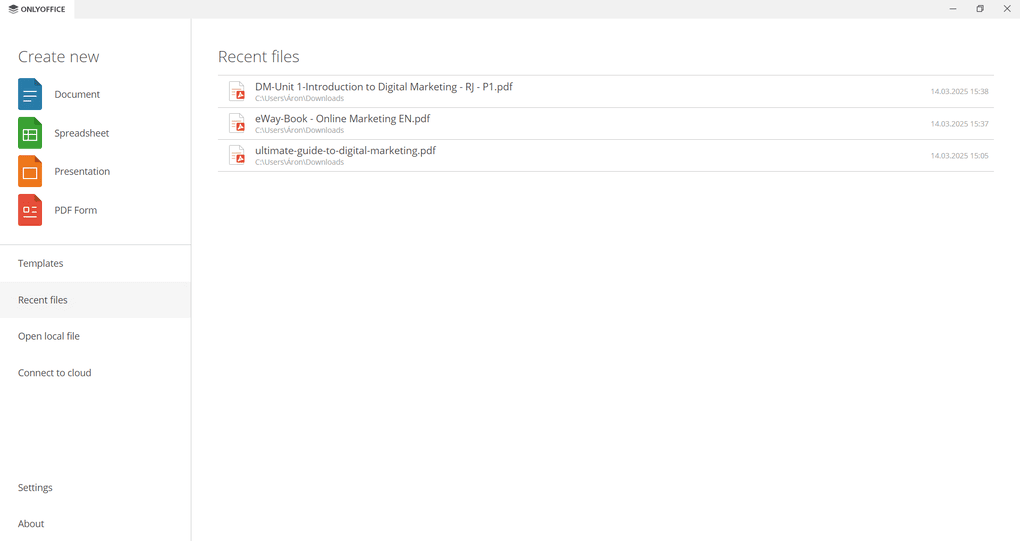
During my ONLYOFFICE PDF editor review, I used the ONLYOFFICE desktop app for my PDF files and forms. Just out of curiosity, I also took a look at the spreadsheet, document, and presentation editors.
They work quite similarly to Microsoft Word, Excel, and PowerPoint and offer a smooth experience. Overall, my feeling was that ONLYOFFICE is one of the best alternatives to Microsoft Office in terms of document compatibility and user interface.
Its PDF editor had a smooth experience as well. I did not experience any learning curve, and the whole process was very intuitive. I especially enjoyed trying some plugins and the way I can customize my tool stack for PDF documents.
During my ONLYOFFICE PDF editor review, I did not experience any performance issues compared to Adobe Acrobat.
Ultimately, I had a smooth and positive experience with ONLYOFFICE PDF editor. It offers not only a PDF editing solution but a wide array of tools for your documents, presentations, and spreadsheets.
Where ONLYOFFICE impressed me & where it fell short
| What stood out | The trade-offs |
|---|---|
| 🟢 Completely free for individuals — ONLYOFFICE gives individual users access to its PDF editor without paying for a subscription. | 🔴 Limited PDF reading features — I would like to see more reading options, such as 2-page, 4-page spread, or split views. |
| 🟢 Much more than a PDF editor — You also get tools to create, edit, and collaborate on text documents, spreadsheets, and presentations. | |
| 🟢 Customizable with plugins — You can add plugins and customize which tools you want to use when working with PDF files, which is unusual among PDF editors. | |
| 🟢 Easy and intuitive — Despite its broad feature set, I found ONLYOFFICE’s PDF editor straightforward to use. |
Who should use ONLYOFFICE
Who should NOT use ONLYOFFICE
Pricing
| Plan | Price | What you get | My take |
|---|---|---|---|
| Desktop Editors | $0 | Free desktop apps for working with PDFs, documents, spreadsheets, and presentations. | 🟢 Best for individuals — This is where ONLYOFFICE really stands out. You can use its PDF editor and broader office suite completely free on your desktop. |
| DocSpace Free | $0 | Cloud-based access to PDFs and other office files with online collaboration. | 🟢 Best for basic online collaboration — A good option if you want to work in the browser and collaborate without paying. |
| DocSpace paid plan | From $20/admin/month | Additional DocSpace functionality and more storage for teams and businesses. | 🟡 Best for teams — The paid plan makes more sense if you need additional storage and collaboration features rather than simply PDF editing. |
🔎Read my full review: ONLYOFFICE PDF Editor Review | An Exciting Option (2026)

Foxit
Foxit offers many features, such as text editing, image manipulation, page organization, and annotation tools. It works on Windows, Mac, iOS, Android, and Online as well.
Bottom line
Advanced PDF editing
Casual or occasional users
Wide range of PDF editing features
Some features locked behind higher tiers
How Foxit performed in my daily workflow
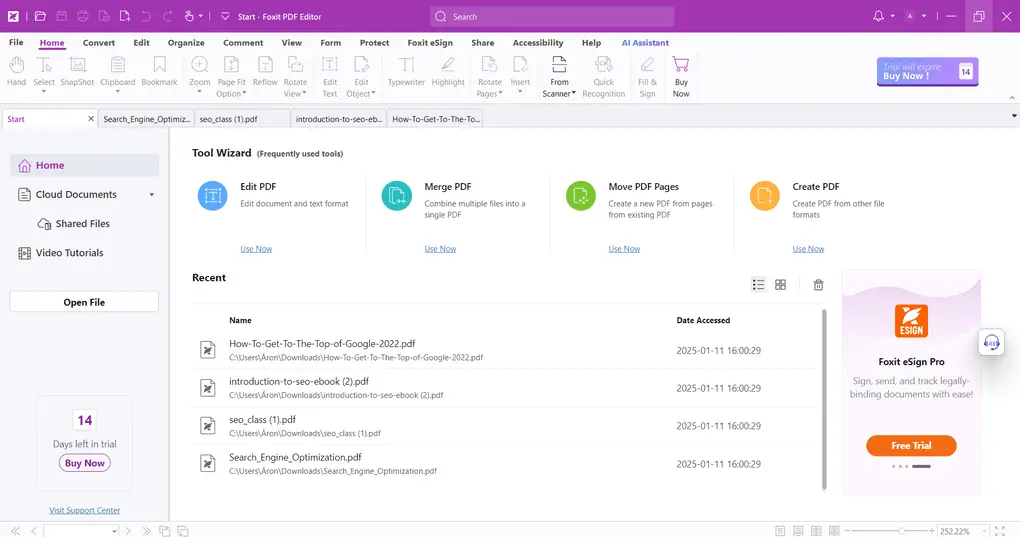
Foxit offers many of the same features as Adobe Pro, but at a lower price. Another difference I noticed is that Foxit is a fast PDF reader. Even when I opened large files, I did not have any issues with loading time.
Like some of the other PDF editors I have tested, Foxit adopted a drag-and-drop feature for editing text and images. It makes it easy to edit or create PDFs quickly and smoothly.
I also enjoyed using its annotation tools. It is super easy to add annotations, and it offers a variety of annotation tools to choose from.
Overall, I had a positive experience with Foxit. Compared to other PDF editors on the market, I think it is one of the most complete solutions, though I wouldn’t call it cheap.
Where Foxit impressed me & where it fell short
| What stood out | The trade-offs |
|---|---|
| 🟢 Easy to use — Foxit is easy to navigate and loads PDF documents quickly. | 🔴 E-signatures aren’t included in the essential plan — Considering how frequently documents need to be signed digitally, I think this should be part of the basic package. |
| 🟢 Advanced PDF editing — Its editing tools covered everything I needed for everyday PDF work. | |
| 🟢 Smooth drag-and-drop editing — Inserting and moving text or images felt particularly smooth during my testing. | |
| 🟢 Fantastic OCR — Foxit’s OCR worked great for me and was one of its stronger features. |
Who gets the most value from Foxit
When Foxit might not work for you
Available plans
| Plan | Price | What you get | My take |
|---|---|---|---|
| Free | $0 | PDF viewing, reading, and Foxit’s basic reader tools. | 🟢 Good for reading PDFs — Fine if you mainly need a PDF reader, but you’ll need a paid plan for editing. |
| PDF Editor | $129.99/year | Core PDF editing, document creation, editing, forms, security features, desktop + web access, and 20 GB cloud storage. | 🟢 Best for everyday PDF editing — This gives you the essential editing tools without paying for Foxit’s more advanced features. |
| PDF Editor+ | $172.79/year | Adds eSign, Smart Redact, mobile access, advanced document management, and 150 GB cloud storage. | 🟢 Best for professionals — The $42.80/year difference is easier to justify if you regularly sign documents, work on mobile, or need Smart Redact. |
| AI Assistant add-on | +$49.99/year | 2,000 AI credits per month. | 🟡 Only if you’ll use AI regularly — Since it’s an additional cost, I’d only add it if AI becomes part of your regular PDF workflow. |
🔎Read my full review: My Honest Foxit Review After Trying +30 PDF Editors (2026)

Adobe Acrobat
Adobe Acrobat allows you to create, view, manipulate, print, and manage PDF files. It supports Mac, Windows, Android, and iOS devices.
Bottom line
A reliable PDF editor for enterprises
Users looking for a budget-friendly solution
Solid feature set
One of the most expensive options I tested
How Adobe Acrobat performed in my daily workflow
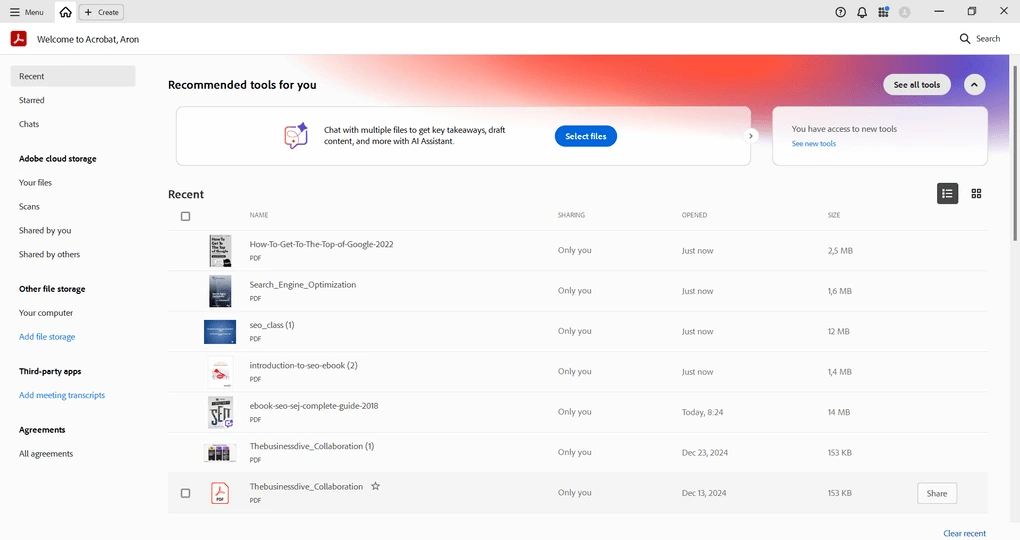
Adobe Acrobat has massive PDF editing features. However, they are not experimental. I found numerous PDF editors with PDF editing features that are as advanced or more advanced than those in Adobe Acrobat. At the same time, the Adobe Pro License is way more pricier than others on the market.
And honestly, I don’t feel it is justified. When testing UPDF or EaseUS PDF Editor, I could do the same PDF editing as with Adobe Acrobat’s paid plans, and still, I can buy these software’s license for a fraction of Adobe Acrobat Pro’s price.
Adobe Acrobat is still a solid choice for enterprises thanks to its high security. Nonetheless, for individuals, professionals, or small- and mid-sized businesses, it is extremely overpriced.
Where Adobe Acrobat impressed me & where it fell short
| What stood out | The trade-offs |
|---|---|
| 🟢 Extensive PDF toolkit — Adobe Acrobat offers many tools to manipulate, annotate, and edit PDFs. Acrobat Pro should cover almost all your PDF needs. | 🔴 Advanced e-signature workflows require a higher plan — Basic signing is straightforward, but more advanced signature-request workflows require Acrobat Pro. |
| 🟢 Easy PDF signing & form filling — Adding signatures and filling out PDF forms is smooth and straightforward. | |
| 🟢 Cloud storage included — You can store documents in the cloud and access them across your devices. |
Best use cases for Adobe Acrobat
When to consider alternatives to Adobe Acrobat
Free and paid plans
| Plan | Price | What you get | My take |
|---|---|---|---|
| Adobe Reader | $0 | View, print, share, and comment on PDFs. | 🟢 Good for basic PDF use — Fine if you only need to read and annotate PDFs, but it isn’t a full PDF editor. |
| Acrobat Standard | $179.88/year individual | PDF editing, including text and images, plus basic and some advanced PDF tools. | 🟡 Best for basic editing — Covers most everyday editing needs, but the price is already higher than several full-featured competitors I’ve tested. |
| Acrobat Pro | $239.88/year individual / $287.88/year business | Adds OCR, PDF comparison, branding, bulk e-signature requests, and other advanced tools. | 🟢 Best for advanced PDF work — This is the full Acrobat experience, but you’re paying a significant premium for it. |
| AI Assistant | +$59.88/year | Adobe’s AI features for working with and analyzing documents. | 🟡 Only if you’ll use AI regularly — At $4.99/month, it adds another cost on top of an already expensive subscription. |
| Acrobat Studio | $299.88/year | Acrobat’s features plus AI Assistant and Adobe Express Premium. | 🟢 Best if you want the complete Adobe package — Makes more sense than stacking separate subscriptions if you’ll actually use the additional AI and Express tools. |
Related readings:
- The 7 Best Adobe Acrobat Alternatives: 30+ PDF Editors Tested
- Adobe Acrobat Vs Foxit: I Tried Both and Found The BEST (2026)
- Adobe Acrobat Vs Nitro: A Honest Comparison (2026)
- I Tested +30 PDF editors for Windows | Here Are The 8 Best
🔎Read my full review: Adobe Acrobat Review: What Nobody Tells You (2026)
Summary: The best PDF editors in 2026
After my long research and continuous testing, I found these to be the best PDF editors in 2026. Although there are many options on the market, I recommend you always go through the key features, trustworthiness, and pricing before making a purchase.
Related article:
- 6 Best OCR Software For 2026 | 30+ Personally Tested Tools
- The 6 Best PDF Readers For 2026 (Only FREE Options)
I hope I was able to find the best PDF editors in 2026. As always, I will keep updating this list to ensure it reflects reality.
Looking for similar tools?
Visit our library of PDF editors to explore other apps we’ve reviewed in this space and how they compare.
How We Test PDF Editors
To keep our reviews and final scores fair and consistent, we evaluate every PDF editor using a standardized testing framework built on over 3 years of hands-on experience testing these tools in real-world scenarios.
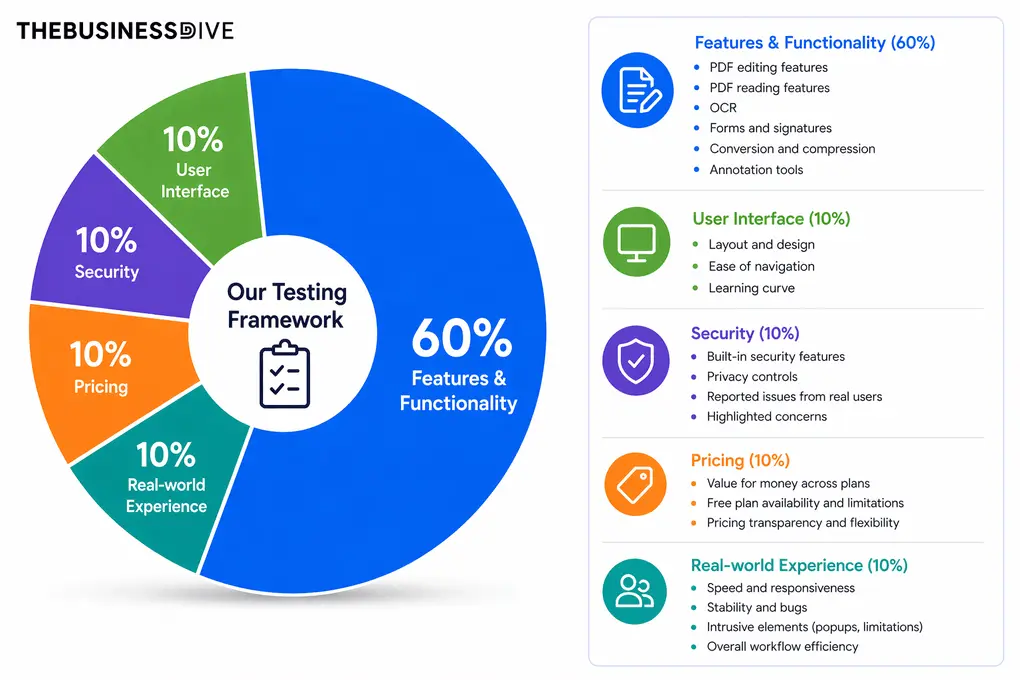
Our scoring breakdown after testing 30+ PDF editors:
🛠️ Features & functionality — 60%
🖥️ User interface — 10%
🔐 Security — 10%
💰 Pricing — 10%
👥 Real-world experience — 10%
You will find each tool’s final score in the comparison table and review sections, along with detailed hands-on reviews explaining the reasoning behind every rating.
However, the rankings in this list are not based only on the overall scores. Each PDF editor earned its place based on specific use cases, strengths, and the type of user it serves best.
Want a detailed breakdown of how we test each category?
Learn exactly how we test tools → Review methodology
Why you can trust our reviews
At thebusinessdive.com, our team tests, reviews, and compares hundreds of productivity apps every year — from project management tools to note-taking apps. We dive deep into real-world use cases to help you find the right tools that actually improve your workflow, not just add noise.
Our mission? No fluff, no shortcuts—just honest, hands-on insights from productivity pros.
Discover how we stay transparent, read our review methodology, and let us know about any tools we missed.
Frequently asked questions
Which PDF editor is best?
There isn’t one PDF editor that’s best for everyone. After testing 30+ tools, EaseUS PDF Editor is my best overall pick, while PDNob stands out for AI and OCR, PDFgear for a completely free option, and Nitro PDF for business use.
Besides the ones I highlighted in the list, there are some PDF apps you can check out, including QuillBot’s PDF Editor, WPS, and PDFelement.
Which is the best free PDF editor?
The best free software is PDFgear for PDF editing. It is a very intuitive app and a completely free PDF editor. You can read, edit, convert, reorder pages, and sign PDF files across your devices with PDFgear. It is also great that it has numerous free online tools that you can access on its homepage.
How can I edit PDF files for free?
There are numerous free online PDF editors. However, if you want a reliable option, I recommend checking PDFgear.
Is Adobe Acrobat Pro a good PDF editing software?
Adobe Acrobat Pro is considered the industry standard for PDF editing. However, compared to other PDF editing software on the market, it is very pricey, considering the value it offers.
After testing 30+ PDF editors, these are the best Adobe Acrobat Pro alternatives:
- Foxit PDF Editor: Foxit PDF Editor is a strong alternative to Adobe Acrobat Pro, offering a range of features for power users.
- PDF Expert: PDF Expert is recommended for Mac users due to its seamless integration with the Apple ecosystem.
- EaseUS PDF Editor: EaseUS PDF Editor is recognized for its affordability and essential tools for managing PDF files.
- Smallpdf: It is one of the best PDF software for online PDF editing tasks. It is a lightweight Adobe Acrobat alternative with affordable pricing.
- UPDF: With its budget-friendly pricing, it is an excellent Adobe Acrobat Pro alternative.
- Nitro PDF Pro: Nitro PDF Pro is a robust PDF editor, but it has quite expensive paid plans.
Here, you can check out my full list of best Adobe Acrobat alternatives: The 8 Best Adobe Acrobat Alternatives: 30+ PDF Editors Tested
Disclosure: I only recommend products I would use myself and all opinions expressed here are our own. This post may contain affiliate links that at no additional cost to you, I may earn a small commission. Read the full privacy policy here.

Hey there! I am Aron, the founder of Thebusinessdive. I have been testing productivity apps for almost three years now. I reach 25.000 -50.000 people monthly with the mission to help you find the perfect productivity apps. Subscribe to my YouTube channel, newsletter, and social media to hear more about the best productivity tools. Let’s dive in!
I will say Thankyou for You… 5stars for this article 🙂
Finally i get .pdf Rearder and Editor iclude OCR, the best ya EaseUs Pdf.
Only 100MB ya… isn’t that very light… very. But don’t be mistaken EaseUs Pdf is very powrful, clean UI and ful features. Equal to Adobe Acrobat DC 1.3GB and more wow.
“Wow, Aron Kantor’s dedication to testing over 30 PDF tools for over 200 hours is commendable! In a world flooded with PDF editors, having a curated list of the top 9 for 2025 is invaluable. It’s reassuring to know that experts like Aron are narrowing down the best options, saving us from the overwhelming task of sifting through countless tools. Great job on the comprehensive review!”
Thanks for the thorough comparison. For the lighter workflow of putting several receipts or supporting documents into one file before editing, a browser-based merger that processes files locally can be a helpful privacy-conscious option.