


Kai Review 2026: How It Helped Me Save 90 Minutes a Day
In this Kai review, I break down how it fit into my workflows and how it saved me 90 minutes each day.
When guiding you through the features, I will share my honest experience with each feature and how it helped me make my workflows more efficient after using it for a month.
Let’s dive in!
My Take After Using Kai
Before going into the details, here are my main takeaways after testing Kai:
🎯 Best for: Busy professionals, founders, and managers who want one AI assistant to manage emails, calendars, meetings, and daily planning
🚫 Not ideal for: Users with only a few emails and meetings, as the monthly price would not make sense to them
⭐ Biggest strength: Combines your most time-consuming workflows into one place and provides personalized help based on your actual schedule and context
⚠️ Biggest weakness: Kai is still in beta, so occasional errors and small workflow issues can happen
⚖️ Verdict: Kai is one of the few apps that actually helped me to save time without a robust productivity tool stack by reducing app switching, organizing my schedule, and automating meeting summaries & emails.
🏆 Score: 4.6/5
✅ Tested with our review & scoring methodology ✅ Real-world testing ✅ Unbiased evaluation
Kai review
Summary
Kai is an AI executive assistant that brings email, calendar, meetings, and tasks into one workspace. It helped me save around 90 minutes per day by automating email triage, meeting notes, scheduling, and daily planning while keeping everything simple to use.
|
|
Centralizes email, calendar, tasks, meetings, and AI in one place
|
|
|
Simple and easy to use
|
|
|
Fast voice capture for ideas and tasks
|
|
|
Relevant, concise AI responses
|
|
|
Automatically timeboxes and schedules tasks
|
|
|
Occasional failed AI responses
|
|
|
Could use more prompt and workflow templates
|
|
|
Gmail draft suggestions sometimes appear after being disabled
|
How We Test Email Apps
To keep our reviews & final score for each email app fair and consistent, we evaluate every tool using the same testing framework based on real-world usage, feature depth, and overall value.
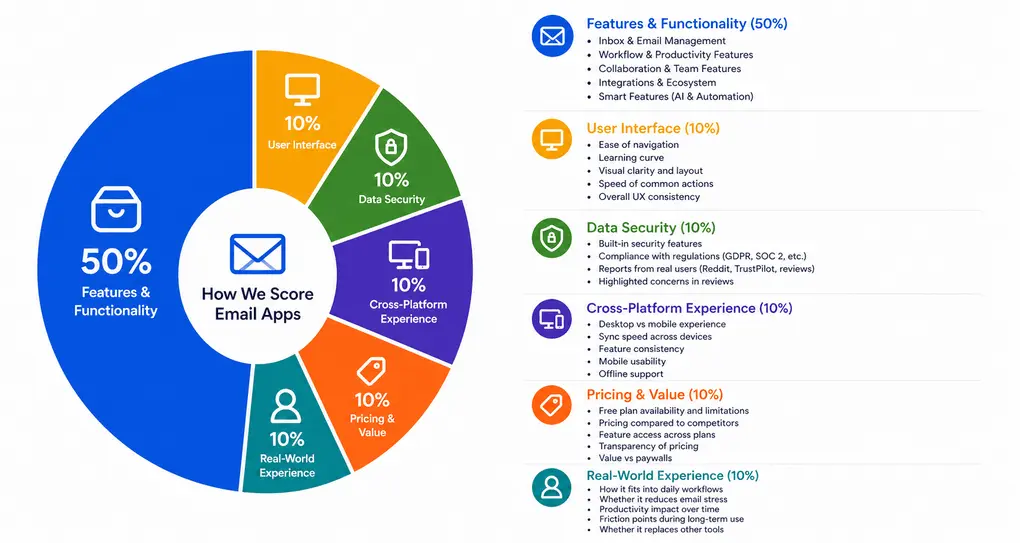
Our scoring breakdown after testing 10+ email apps:
⚙️ Features & functionality → 50%
🖥️ User interface → 10%
🛡️ Data security → 10%
📱 Cross-platform experience → 10%
💰 Pricing & value → 10%
👥 Real-world experience → 10%
Want a detailed breakdown of how we test each category?
Learn exactly how we test tools → Review methodology
Short on time? Here’s a quick overview of Kai
Why Kai get a 4.6 / 5 score?
Kai earned a 4.6/5 because it pulled my most time-consuming workflows into one place and helped make them more efficient. It reduced app switching, organized my schedule, automated meeting summaries and emails, and provided personalized help based on my actual schedule and context.
The only reason Kai didn’t receive a perfect score is that it’s still in beta. I occasionally ran into failed response messages, a few workflow issues, and some features didn’t always work as expected, but these weren’t significant enough to outweigh the overall experience.
Who will benefit most from Kai?
Who should skip Kai?
Where Kai Excels
Where Kai Falls Short
What is Kai?
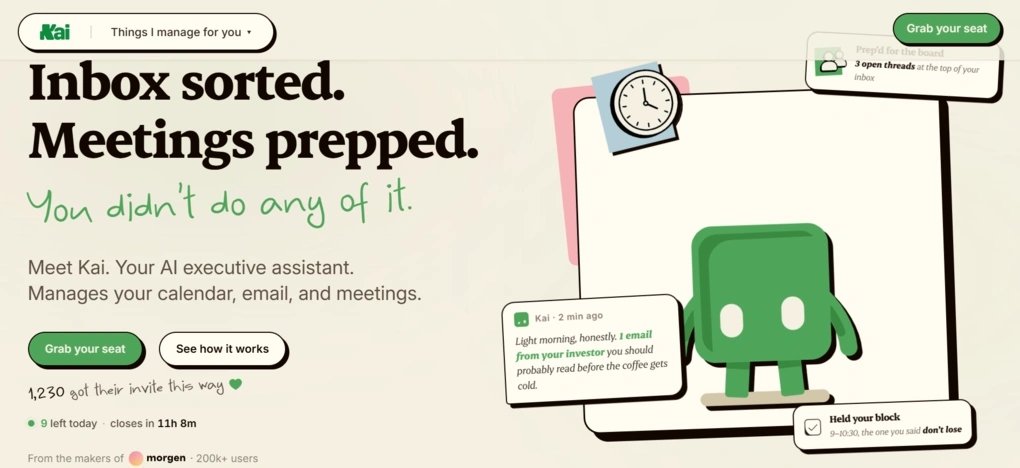
Kai is an AI assistant that helps you manage your calendar, email inboxes, and meetings in a centralized space. So, it’s not an AI meeting assistant, nor just an email or calendar app.
The real power of Kai is that it pulls all the time-consuming workflows into one place and helps to make them more efficient.
Features that helped me save ~90 Minutes a Day
Here, I show you each feature, explain how they performed in practice, and the approximate time it saved me each day.
AI assistance | Saved ~10 minutes/day
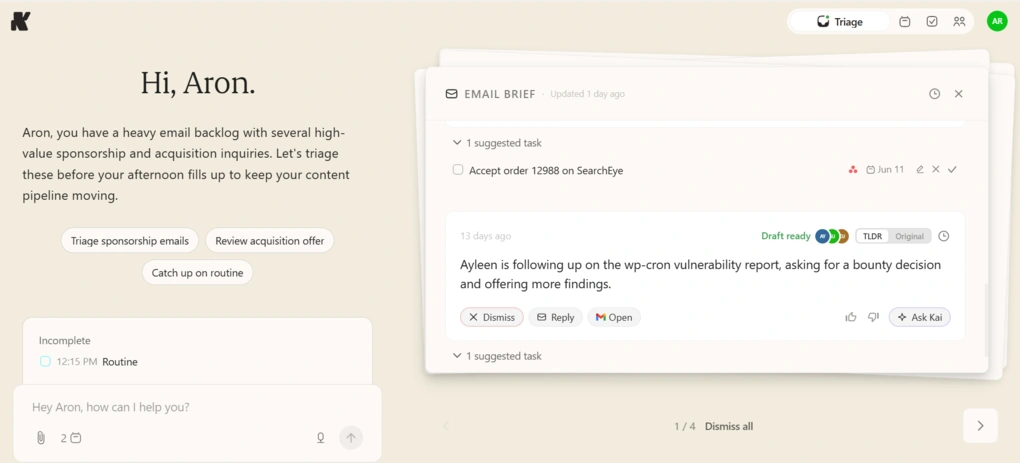
Most of the time, I used Kai for timeboxing, summarizing today’s main priorities, or asking questions about emails without switching to my Gmail account.
But the key question is: why is Kai different from most AI executive assistants?
For me, the biggest difference was context.
Kai connects to your emails, calendar, meetings, and tasks, so the AI assistant already understands your schedule and workload. So instead of getting generic answers, it can provide more personalized suggestions based on your actual daily schedule.
However, this integration with your tool stack is practical for numerous workflows. For example, when I asked Kai to block time for a task, it automatically found space in my schedule and added the time block directly to my calendar.
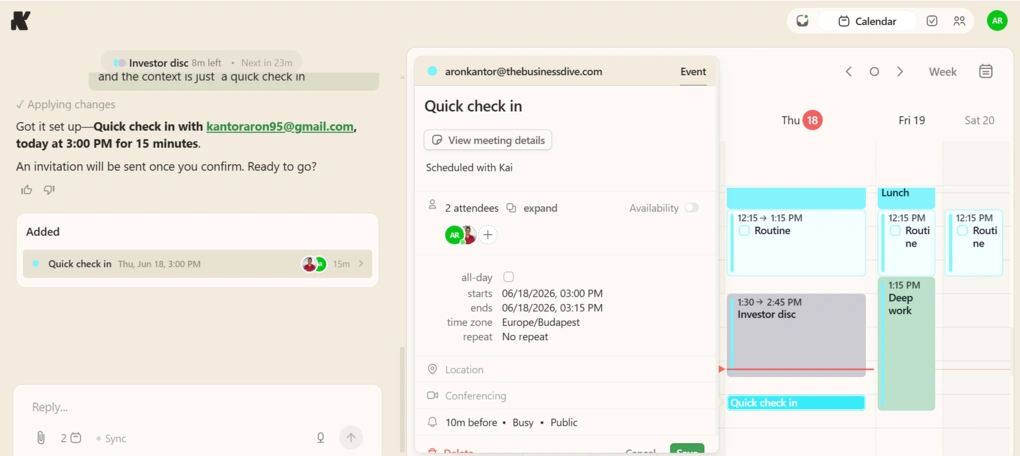
Another area where Kai saved me time was scheduling meetings. Kai lets me do it in the app without switching to Google Calendar.
I only need to type who I wanted to meet with, when the meeting should happen, and what the topic was. From there, Kai created the event and handled the calendar invitation.
Furthermore, if you don’t want to type, you can use Kai’s dictation mode to give tasks, ask for information, summarize todos, and more.
In general, I received highly personalized and accurate answers from Kai, and it understands the tasks perfectly. Nonetheless, I sometimes run into an error of failed responses, but it’s probably because Kai is still in beta.
Depending on my day, Kai’s AI assistant features saved me around 10–20 minutes per day. For my workflow, I would lean closer to 10 minutes because I regularly have 3–5-hour deep work sessions where I intentionally avoid all apps, including Kai.
Email management | Saved ~40 mintes/day
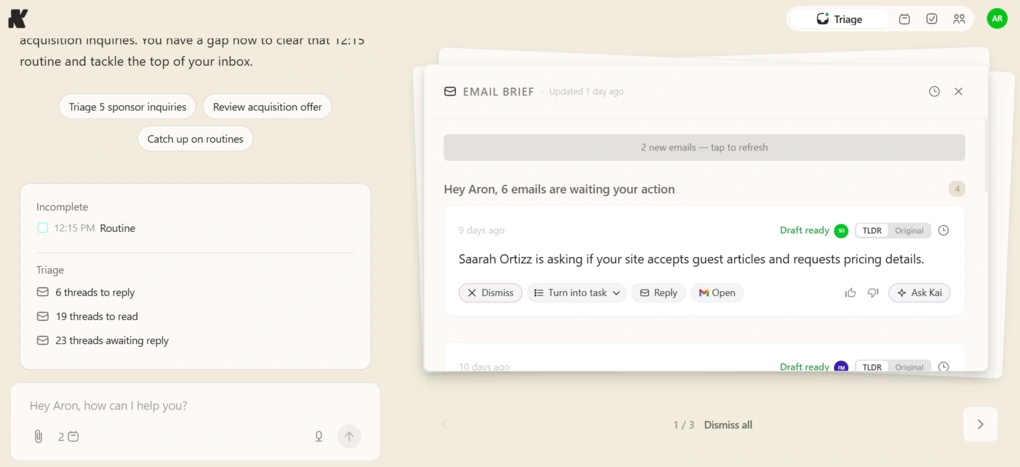
Where Kai saved the most time is in the emails. It’s probably because I send between 20 – 40 emails daily, so it has the greatest potential for making my workflows more efficient.
First of all, Kai scans through my emails every time I log in to my account and prepares an Email triage based on urgency and required action, so you don’t have to read them chronologically from top to bottom.
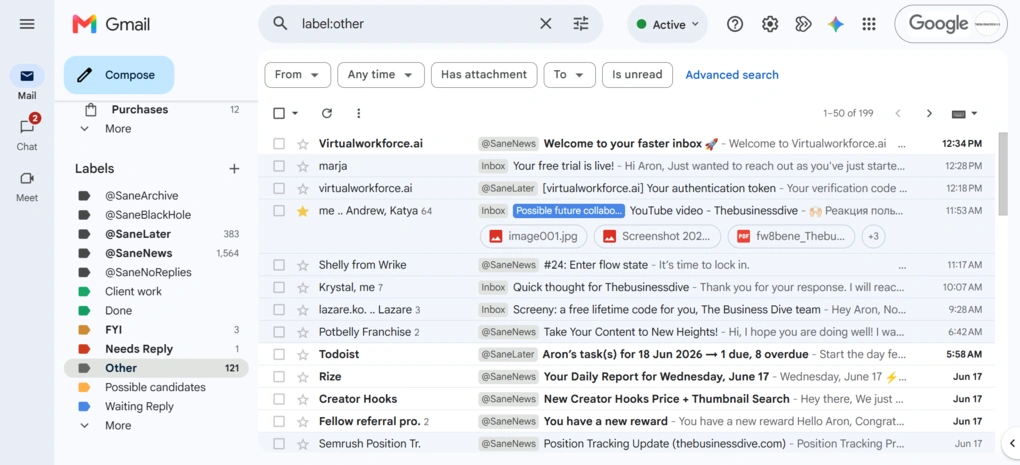
Next, Kai organizes my emails in Gmail using labels like Done, FYI, and more. The ones you see above them (SaneArchive, SaneLater, etc.) were created by SaneBox, so disregard them in my screenshot.
Afterward, Kai prepares draft reply emails automatically using my style. Nonetheless, you will always have the chance to modify them before sending them.
Compared to the built-in Gemini auto-draft function, I noticed that Kai’s writing style better matches my style. So I was satisfied with the quality of email drafts.
Just out of curiosity, I wanted to disable the automatic replies to see how flexible Kai is. While I switched off this function in most cases, I ran into draft emails a few times.
To summarize, Kai saved me around 40 minutes per day by handling, in writing, between 20 and 40 emails. This was definitely the most impactful feature for me.
Calendar and task management | Saved ~10 minutes/day
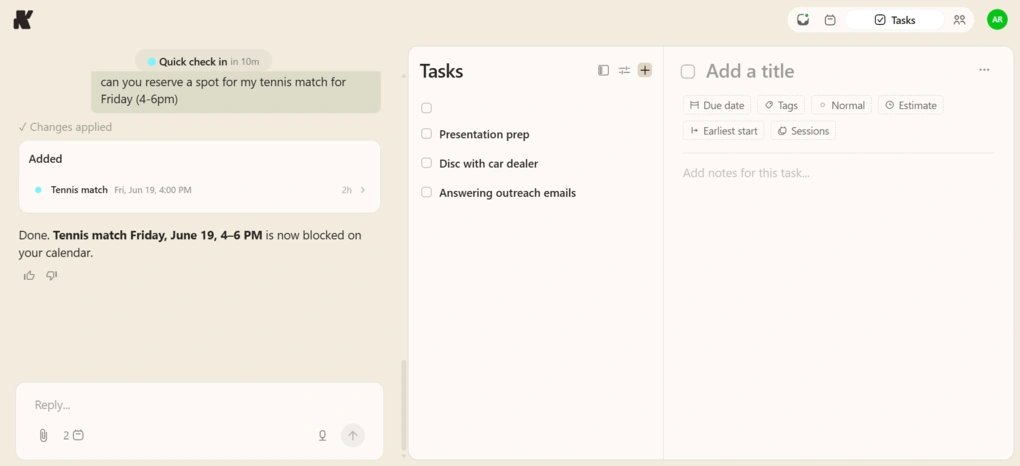
The combination of timeboxing and dictation mode in one platform made my planning significantly faster. The way I use Kai to save time with calendar management is this:
- Collect my to-dos under the “Tasks” tab
- Use the dictation mode to block time for them during my day
- Apply different colors for better differentiation
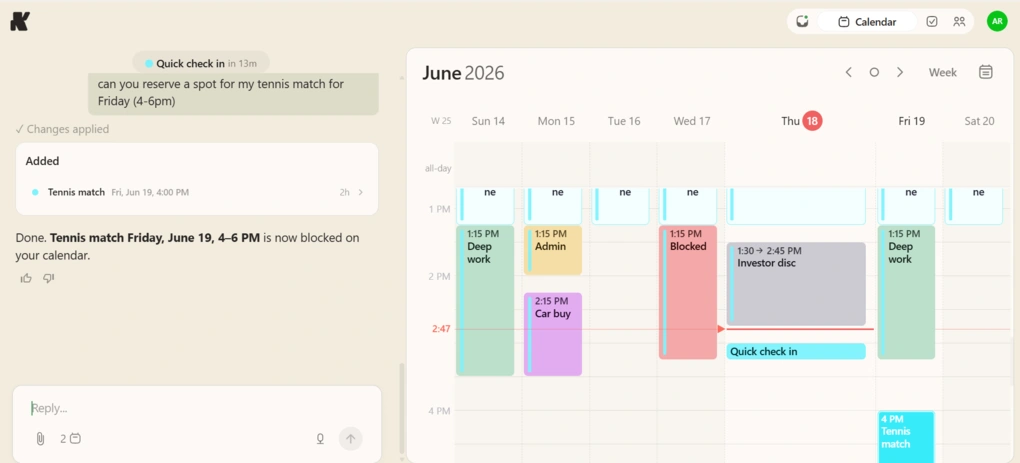
This way, Kai not only helps with planning, but actual execution. Using this methodology, Kai saved me around 10 minutes each day over the past few weeks, as I no longer need to switch to Todoist and use another app to block time for them.
AI Note-taking | Saved ~30 minutes/day
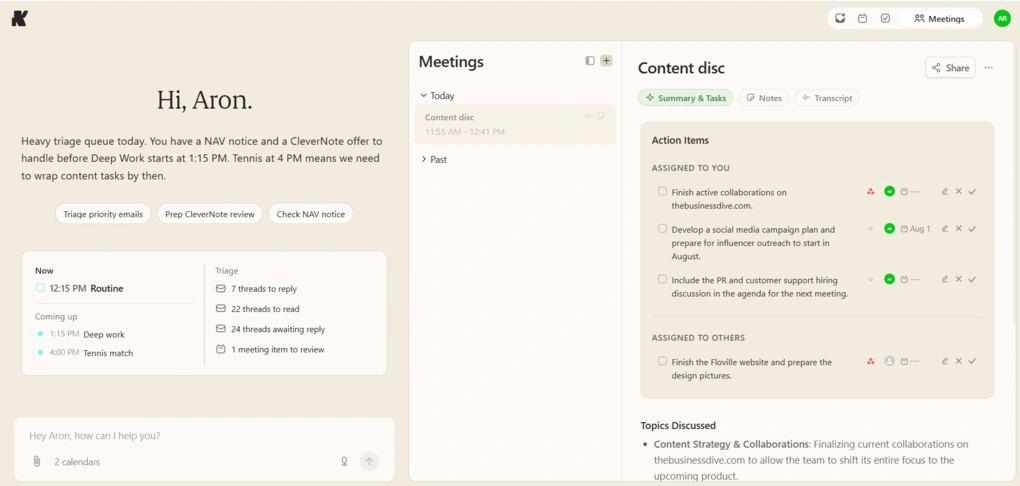
Kai’s AI note-taking features saved me about 30 minutes a day by automating meeting notes. It offers botless recording, so a bot does not take up a spot on the calls.
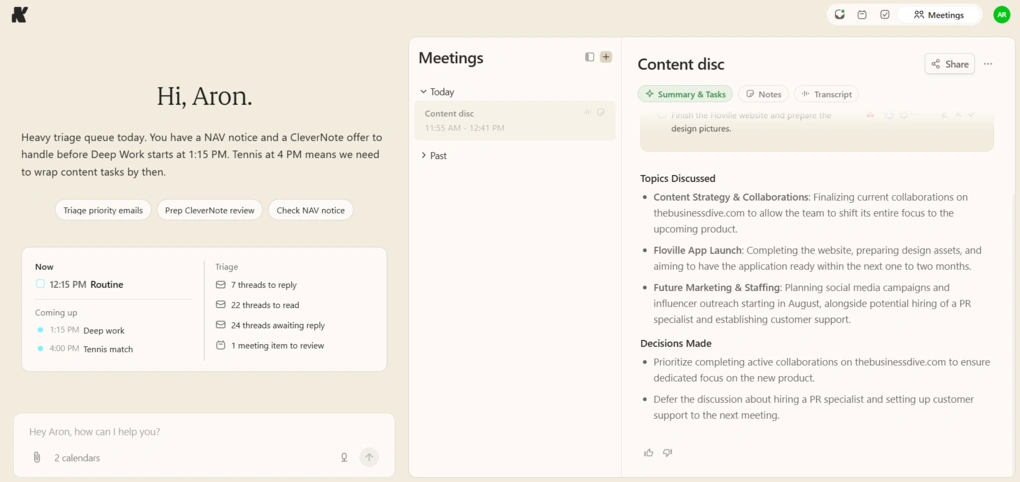
The meeting notes include the action items, topics discussed, and decisions. Also, you can access your meeting transcription and share it with your team members with a few clicks.
Compared to AI note-takers (not AI personal assistants), Kai offers a lighter experience. It’s fast, easy to use, and focuses on the essentials: meeting notes.
If you are looking for a robust AI note-taking experience with advanced features like meeting agendas, video recording, or conversation insights, you won’t find it with Kai. However, if you need a more lightweight solution, Kai could be an ideal choice.
Cost vs value
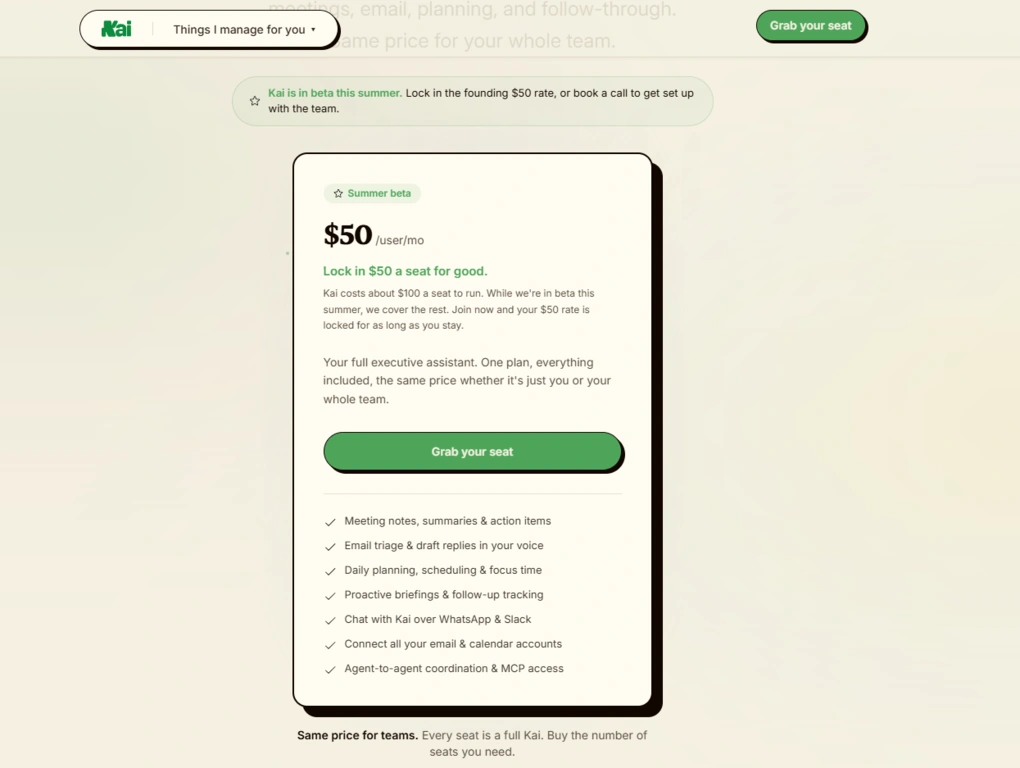
Kai currently offers one plan while it’s still in beta. So if you think Kai fits your workflow perfectly, it’s the best time to lock in.
It’s $50 per user per month, and this price will likely increase after the summer, as Kai costs $100 per seat, according to the company’s communication.
This plan includes all the features I showed you before, plus more, such as Agent-to-agent coordination & MCP access.
Although the $50 per seat monthly fee sounded high at first, I started calculating how much I would spend on an AI note-taker, an email app, a calendar app, and an AI assistant. It would be around $60-$90 monthly, and most importantly, they would be separate apps which would require constant switching.
So, the $50 makes sense to me.
Kai alternatives
If you feel Kai is not the right pick for you, here are some of the alternatives:
|
App |
Best for |
Description |
|---|---|---|
|
Clean Email |
Best for inbox cleanup |
A reliable and transparent inbox management tool that gives you full control over email cleanup, but most advanced features require a paid plan. |
|
Proton Mail |
Best for privacy |
Proton Mail combines a familiar email experience with strong privacy and security features, making it a well-rounded choice for users who value both usability and control over their data. |
|
MailBroom |
AI-Powered Inbox Cleanup |
An AI-powered email cleanup tool that helps you quickly declutter your inbox with bulk actions, smart recommendations, and granular search controls. |
|
Cleanfox |
Best free unsubscribe tool |
A free tool designed to help users remove unwanted marketing emails and unsubscribe from newsletters. Like Unroll.me, it relies on data monetization rather than a paid subscription model. |
|
Spark |
Best AI email client |
A popular email client with built-in AI features, smart inbox organization, and collaboration tools. Unlike Clean Email, Spark focuses more on AI assistance and email productivity than long-term inbox cleanup. |
|
Missive |
Best for team collaboration |
A collaborative email client designed for teams, with shared inboxes and task assignment. It’s more of a productivity workspace than a cleanup tool, but useful if you need collaboration plus email management. |
|
Sanebox |
Best for automatic email filtering |
An email organizer that filters unimportant messages into separate folders automatically. It works with any email provider and focuses on a clean inbox, though its feature set and pricing differ from Clean Email. |
|
Unroll.me |
Best for simple unsubscribing |
One of the more popular free apps for unsubscribing from marketing emails. However, it monetizes user data, which may raise security concerns. |
|
Virtualworkforce.ai |
Best for AI email automation |
An AI agent platform that automates complete email workflows, from drafting replies and labeling messages to extracting data and retrieving information from connected knowledge sources. Full Virtualworkforce.ai review | Quick Virtualworkforce.ai overview |
Final thoughts about Kai
There aren’t many productivity apps that can save 90 minutes a day; believe me, I have tested +100 alternatives. But Kai is one of them.
While it has a high impact on your daily workflows, it remains a very straightforward app, which is exactly what most of us need.
Related articles:
- The 7 Best Unsubscribe Apps in 2026 | My Honest List
- 8 Best Email Apps in 2026 | My Thoughts After Testing +15 Apps
Explore our Apps directory
A curated directory of software tools we’ve independently reviewed, with links to full reviews, comparisons, and category guides.
Why you can trust our reviews
At thebusinessdive.com, our team tests, reviews, and compares hundreds of productivity apps every year — from project management tools to note-taking apps. We dive deep into real-world use cases to help you find the right tools that actually improve your workflow, not just add noise.
Our mission? No fluff, no shortcuts—just honest, hands-on insights from productivity pros.
Discover how we stay transparent, read our review methodology, and let us know about any tools we missed.
Frequently asked questions
What does Kai actually do?
Kai sorts your emails, summarizes your calls, centralizes calendars, and helps you plan and execute your days.
How is Kai different from other AI tools?
Most AI tools focus on only one workflow, such as online meetings, email, or calendar management. In contrast, Kai helps you manage your calendar, email inboxes, and meetings in one platform and offers highly personalized replies as it is aware of your schedule.
Is Kai free?
No, Kai currently offers one plan, still in beta, for $50 per user per month.

Hey there! I am Aron, the founder of Thebusinessdive. I have been testing productivity apps for almost three years now. I reach 25.000 -50.000 people monthly with the mission to help you find the perfect productivity apps. Subscribe to my YouTube channel, newsletter, and social media to hear more about the best productivity tools. Let’s dive in!
The time breakdown makes this review much more useful than a generic productivity roundup. Separating email triage, calendar work, and note-taking gives readers a way to judge whether the claimed savings match their own routine, and I appreciate that you also explain who should skip Kai. I keep image experiments in a separate part of my AI workflow with Nano Banana (https://nanobanana.wiki/), so the comparison between focused tools and all-in-one assistants resonates.