


How to Transcribe Google Meet Meetings Automatically
Every professional who runs a lot of meetings reaches the same point eventually. You finish a call, switch to the next one, and by the time you sit down to write up what was discussed, the details have already started to blur.
What exactly did the client say about the deadline? Who was supposed to handle the follow-up?
Automatic transcription solves this. Google Meet has a built-in option, and there are third-party tools that go much further. Here is how each approach works, what it costs, and when each one makes sense.
Option 1: Google Meet’s Built-In Transcription
Google Meet includes native transcription, but it comes with conditions.
You need a Google Workspace plan at the Business Standard level or above. Free accounts and the basic Business Starter plan do not include this feature. If you are not sure which plan your organization is on, check with your admin or look in the Google Admin console under Apps, then Google Workspace, then Google Meet.
If you have the right plan, here is how to turn it on during a meeting:
- Join or start a Google Meet session
- Click the three-dot menu at the bottom right of the screen
- Select “Meeting tools” then “Transcribe”
- Click “Start transcription”
A small indicator appears in the top right corner so all participants can see that transcription is active. When the meeting ends, a transcript file is automatically saved to the meeting organizer’s Google Drive and attached to the Google Calendar event.
To have transcription start automatically every time without manual activation, a Google Workspace admin can enable it at the organizational level through the Admin console.
The limitations worth knowing:
The built-in transcription only works during live meetings. There is no native way to transcribe a Google Meet recording after the fact. It also only supports eight languages: English, French, German, Italian, Japanese, Korean, Portuguese, and Spanish. Speaker labels are not included, so the transcript shows what was said but not who said it.
For straightforward internal meetings where everyone is on the same plan and the language is covered, it works fine. For anything more demanding, a third-party tool will give you better results.
Option 2: A Third-Party AI Note Taker
This is where the real difference in output quality shows up. Third-party tools go beyond raw transcription to give you structured summaries, speaker identification, action item extraction, and integrations with the tools you already use.
There are two technical approaches to how these tools work, and the difference matters depending on your use case.
Bot-based tools join your Google Meet as a named participant. You will see something like “Fireflies Notetaker” or “tl;dv” appear in the attendee list. These tools record the meeting in the cloud.
Extension-based or device-level tools capture audio directly from your browser or device without joining as a participant. Nothing appears in the attendee list. Other people on the call see a normal meeting.
For internal team meetings, the distinction usually does not matter. For external client calls, first meetings with new contacts, or any sensitive conversation, the bot-free approach is noticeably cleaner. There is no moment where a client asks what the extra participant is or why an AI bot has been invited.
The Tools Worth Using
Here are some of the tools I have tried & make sense to use for Google Meet calls.
Bluedot
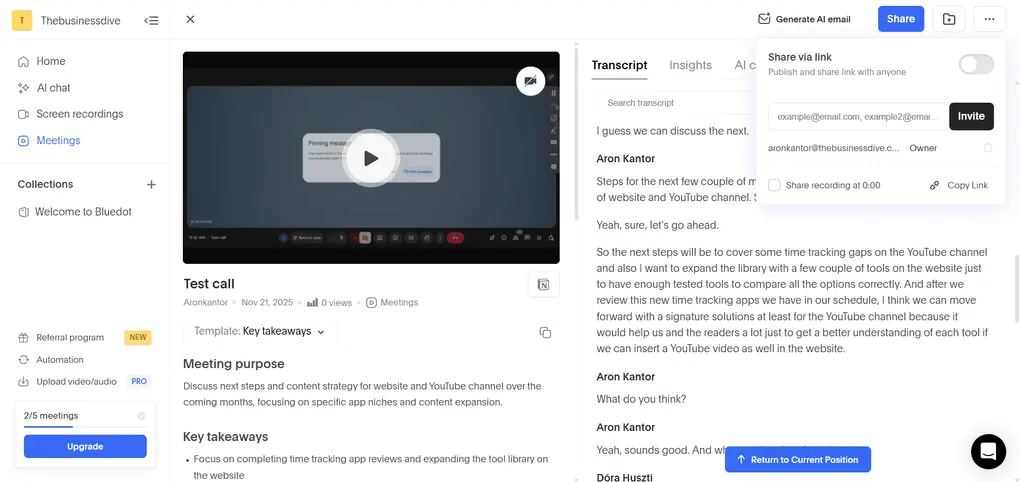
Bluedot works through a Chrome extension and captures your Google Meet sessions without joining as a visible participant. The recording happens on your device, so the attendee list stays clean.
After the meeting, Bluedot produces a structured summary with decisions, action items, and discussion points organized separately. An AI chat across your meeting history lets you search past calls by asking questions in plain language. It supports over 100 languages and keeps transcripts private by default, meaning they are not automatically shared with anyone else on the call.
If you want to see how Bluedot compares to other tools in this category, the best AI note takers roundup covers the main options in detail.
The free plan covers 5 lifetime meetings, which is enough to properly test it across a real week of calls. Paid plans start at $14 per user per month on annual billing.
Best for: External client calls, sensitive meetings, or anyone who wants accurate transcripts without a bot appearing in the attendee list.
🔎 Read my full review: My Honest Bluedot Review After Testing 25+ AI Note-Takers
Tactiq
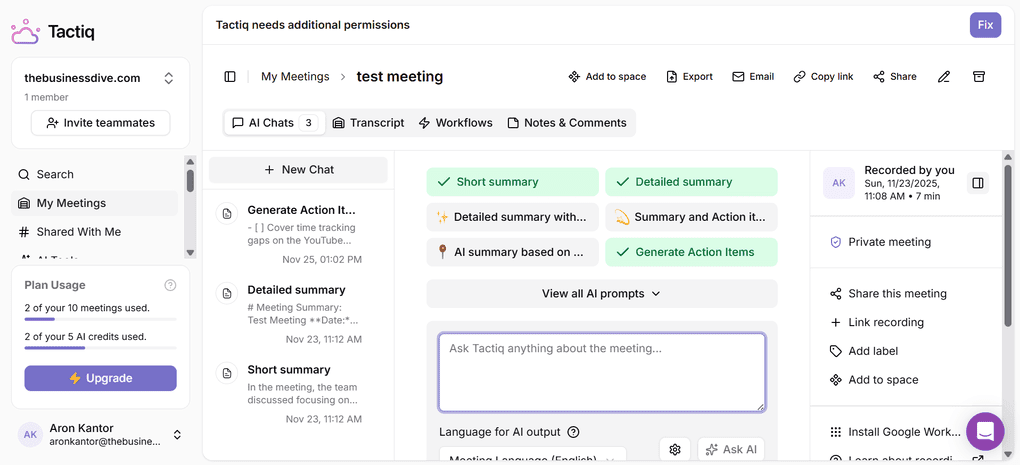
Tactiq is a Chrome extension that transcribes Google Meet calls without joining as a bot. It captures the live captions generated by Google Meet in real time, so no audio recording is ever created. This makes it one of the more privacy-preserving options, since there is no audio file sent to any external server.
The trade-off is accuracy dependency. Tactiq supports transcription in over 30 languages. But because it relies on Google Meet’s own captioning rather than independent audio processing, accuracy can drop with heavy accents, background noise, or fast technical speech.
The free plan includes 10 meeting transcriptions. The Pro plan is $8 per month on annual billing and unlocks unlimited summaries and exports.
Best for: Teams with strict data policies around audio recording, or anyone who prefers not to have audio files processed by a third party.
🔎 Read my full review: Tactiq Review 2026: 5 Pros & 6 Cons — Is It Actually Worth It?
Fellow
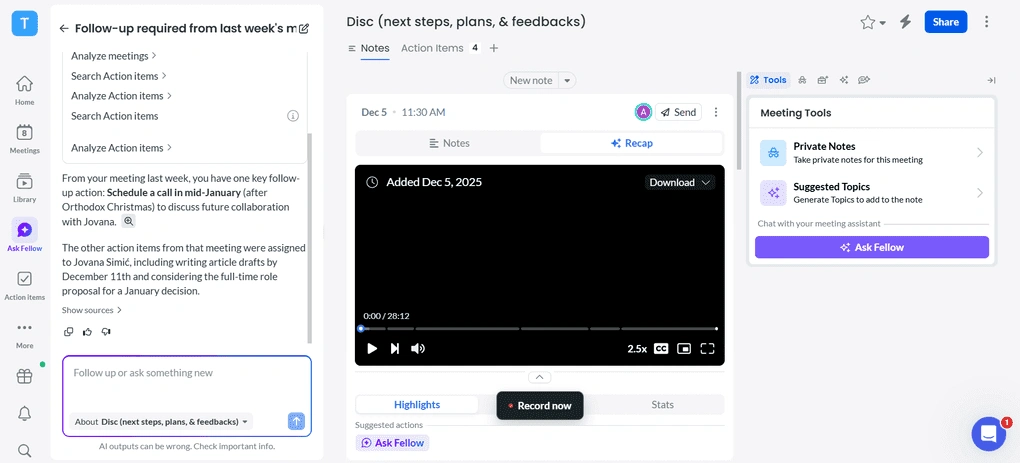
After testing numerous AI note-takers, I found Fellow the most accurate and safest one. It is full of AI tools to supercharge productivity and save time with your online calls.
And this is one of the main reasons why I use it as my default AI note-taker for more than a year now.
Based on my experience, Fellow transcribes my online meetings with 95%+ accuracy. After my video calls, it prepares the AI meeting summaries and transcription within minutes, so I can quickly review how it went.
One of the most underrated features of Fellow is the meeting agendas. Using this feature, you can collect all the points you want to discuss in the next meeting, and you will see them next to the meeting participants during your calls.
While Fellow just recently implemented its bot-free AI note-taker feature, it works reliably in the background and captures all the meetings effortlessly and securely, whether you’re online, in person, or somewhere in between.
Best for: Professionals and teams needing strong collaboration features
🔎 Read my full review: Fellow Review: My Thoughts After +12 Months (2026)
Tl;dv
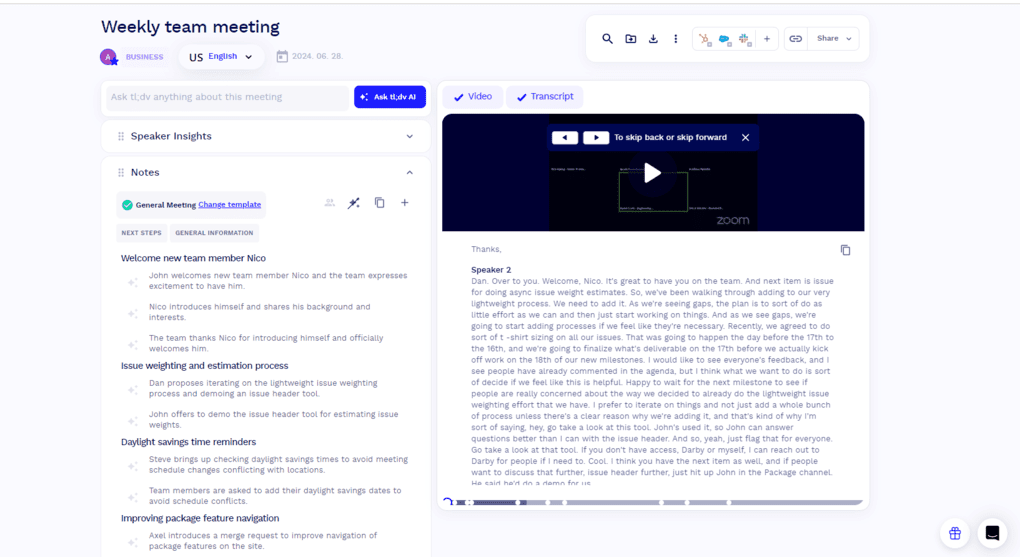
tl;dv is a free Google Meet recorder and AI note taker used by over a million teams. It records Google Meet calls automatically, provides transcripts with speaker labels, and generates AI summaries. It joins as a visible participant in the meeting.
The standout feature is video clip creation. You can highlight any line in the transcript and tl;dv generates a shareable clip of that exact moment, which is useful for sharing specific meeting moments with colleagues or stakeholders who were not on the call.
The free plan allows unlimited recordings but caps AI-powered summaries at 10 for the lifetime of the account. The Pro plan is approximately $10 per month on annual billing.
Best for: Teams that regularly need to share specific call moments with people who were not in the meeting.
🔎 Read my full review: My Honest Tl;dv Review After Using It For +18 Months (2026)
Which Approach Should You Use?
The built-in Google Meet transcription is the right starting point if your organization is already on Business Standard or above and your meetings are simple, internal, and in one of the eight supported languages. It requires no additional setup or cost.
If you need speaker identification, more languages, structured AI summaries, or notes that connect to other tools in your workflow, a third-party tool will give you meaningfully better output.
For external client calls where a visible bot would be awkward, Bluedot or Tactiq are the practical choices. For internal team meetings or async collaboration where sharing video clips matters, tl;dv covers that well.
The setup for any of these tools takes less than five minutes. The time you stop spending on manual note-taking starts immediately.
Frequently asked questions
Can I get a transcript from a Google Meet?
Yes, if you have a paid Google subscription, you can use Gemini’s Take Notes for me feature for meeting notes and transcription.
Does Google Meet have AI transcribe?
Yes, Google’s Take Notes For Me can transcribe and summarize your calls without a bot. However, you can only use it with Google Workspace paid plans.
Can you transcribe a Google Meet without recording?
Yes, you can use a third-party tool like Bluedot, Tactiq, Fellow, or tl;dv, or use Google’s built-in feature.
Does Google Meet have auto translation?
Google has an auto-translation feature that supports English, German, French, Italian, Portuguese, and Spanish.

Hey there! I am Aron, the founder of Thebusinessdive. I have been testing productivity apps for almost three years now. I reach 25.000 -50.000 people monthly with the mission to help you find the perfect productivity apps. Subscribe to my YouTube channel, newsletter, and social media to hear more about the best productivity tools. Let’s dive in!