


6 Best Apps for Recording In-Person Meetings in 2026
In-person conversations are often where the most important decisions, ideas, and action items happen, but they are also the easiest to lose track of once the meeting ends.
That is where meeting recording apps come in. The best ones don’t just record audio, but also organize conversations, highlight key moments, and turn discussions into structured notes.
In this guide, we will break down the best apps for recording in-person meetings in 2026, focusing on tools that are reliable, easy to use, and genuinely helpful in real-world scenarios.
Let’s dive in!
The Shortlist: Best Apps for Recording Meetings
🤝 Best for teams: Fellow
✨ Best for automated AI summaries: MeetGeek
🔍 Best for searchable meeting intelligence: Fireflies.ai
🌍 Best for multilingual meetings: Notta
🎙️ Best for live transcription: Otter.ai
🧠 Best for personal note-taking: Granola
How We Test AI Note-Takers
The scores you see for each tool come from our dedicated review articles using our standardized testing framework built on real-world usage and hands-on experience.
That said, the rankings in this guide are not based solely on overall scores, but also on how well each app performed specifically for recording and managing in-person meetings.
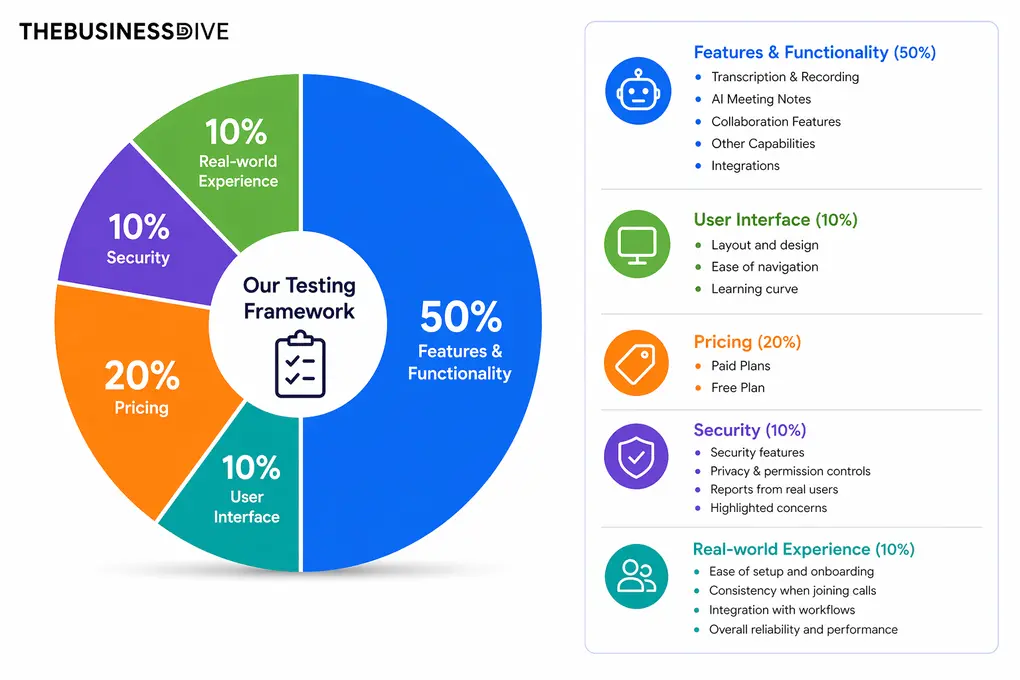
Our scoring breakdown after testing 20+ AI note-takers:
🤖 Features & functionality — 50%
🖥️ User interface — 10%
💰 Pricing — 20%
🔐 Security — 10%
👥 Real-world experience — 10%
Want a detailed breakdown of how we test each category?
Learn exactly how we test tools → Review methodology
A Side-by-Side Look at the Options
|
App |
Best meeting workflow for 🎯 |
What stood out 🎙️ |
Biggest limitation ⚠️ |
Pricing 💰 |
|---|---|---|---|---|
|
Team collaboration |
Botless recording + AI follow-ups |
Limited free plan |
Free + paid from $7/user/month |
|
|
Detailed AI summaries |
Structured summaries & analytics |
Usage limits on cheaper plans |
Free + paid from $9.99/user/month |
|
|
Searchable meeting history |
Smart search & conversation intelligence |
Limited free plan |
Free + paid from $10/user/month |
|
|
Multilingual meetings |
Real-time translation |
Basic AI summaries |
Free + paid from $8.17/user/month |
|
|
Live transcription |
Real-time transcription |
No native video recording |
Free + paid from $8.33/user/month |
|
|
Personal AI note-taking |
Minimalist workflow |
Limited advanced features |
Free + paid from $14/user/month |
My list of the best apps for recording in-person meetings in 2026
Here are the best in-person meeting recording apps in 2026:
Fellow
Fellow is an AI meeting assistant and note-taker that captures conversations, turns them into transcripts and summaries, and helps teams manage everything from meeting agendas to follow-ups in one place.
Bottom line
Teams and professionals who want a secure AI meeting recorder with strong collaboration and follow-up workflows.
You’re looking for a completely free or ultra-lightweight note-taking app.
Botless recording combined with highly accurate AI summaries and enterprise-grade collaboration features.
The free plan is more like a limited trial than a fully usable free version.
Testing Fellow in Everyday Meetings
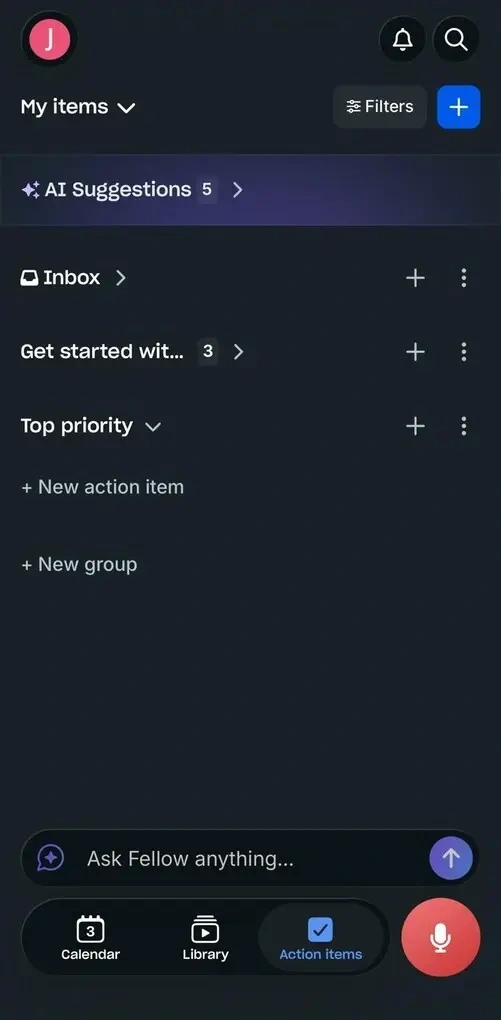
My experience with Fellow was, and still is, very positive. The recordings are strong, the transcription is accurate, and it’s easy to revisit important moments through summaries and a clean meeting library. What I like the most is the workflow around the meeting itself.
Before the meeting, Fellow helps structure the agenda and bring context forward through pre-meeting briefs. During the meeting, it captures the discussion reliably. Afterward, it quickly produces summaries and action items, which makes follow-up much easier.
For in-person meetings, that matters a lot, because the value is not just in recording the conversation, but in making the outcome immediately usable.
Who should use Fellow for in-person meetings
Who should look for alternatives
Why is it the best in-person meeting recording app for teams?
Fellow earns the top spot because it supports the complete in-person meeting workflow from capture to follow-up.
Unlike bot-dependent tools, Fellow can record conversations directly through its native desktop app (Mac and Windows) and mobile app (iOS and Android), no meeting bot required.
Fellow then generates accurate transcripts and AI-powered summaries, organizes all recordings in a centralized library, and automatically extracts action items and next steps.
It is also a strong choice for teams that care about security and control. Fellow emphasizes privacy-first infrastructure, access controls, SOC 2 Type II and HIPAA positioning, and enterprise-grade governance features like transcript redaction and advanced recording permissions.
For teams managing frequent in-person meetings, that combination works extremely well.
Most Useful Features
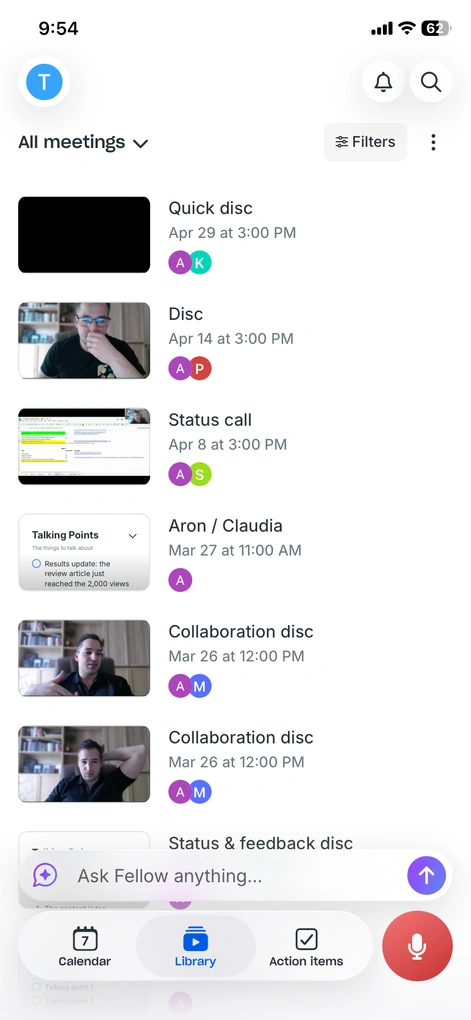
Desktop botless recording: Fellow’s biggest advantage for in-person meetings is that it does not rely on a bot entering the room. You can record face-to-face conversations directly from your device, using Fellow’s botless recording mode on the desktop app, making it a more discreet option for private discussions, office meetings, and situations where you don’t want an extra virtual participant.
Fellow mobile app: Fellow’s mobile app is a big part of why it’s so practical for in-person use. It records audio directly from your phone, so you don’t need a bot in the room or a laptop setup. The app lets you start recording with a single tap, then automatically creates a transcript, summary, and action items after the meeting ends. Fellow keeps your recordings, calendar events, and meeting agendas in one place, so the meeting history is easy to find later.
AI transcriptions: After the meeting ends, Fellow converts the recording into a transcript. It delivers highly accurate transcriptions (95%+ accuracy), capturing not just the words but also the context of the conversation. In most cases, transcripts are ready within a few minutes, so you can review discussions almost immediately. Audio quality still plays a role, but overall, the results are reliable enough for detailed review and follow-up work.
AI summaries: Fellow also automatically generates summaries with key takeaways, decisions, and action items after every meeting, so you don’t need to read through the full transcript every time. I liked that they are concise but still capture the most important points.
Collaborative meeting agendas & AI note templates: Fellow helps teams prepare for meetings with shared agendas and structured notes. The AI can also suggest talking points and generate pre-meeting briefs based on previous discussions. After the meeting, you can create custom AI meeting minutes templates or use pre-built ones for different meeting types.
Searchable meeting library: All recordings, notes, and summaries are stored in one centralized place, so it’s easy to revisit past conversations when you need context, decisions, or follow-up details. For teams with frequent meetings, this means they have a useful knowledge base instead of a pile of scattered files.
Ask Fellow: Fellow includes an AI search and Q&A feature that lets you ask questions about your meetings and extract insights instantly from one or multiple meetings at the same time. Compared to similar AI search tools I tested, it felt more reliable and context-aware.
Security and control: Fellow places a strong emphasis on privacy and security, with controls designed for teams and organizations. It is SOC2 compliant, which means it stores and processes client data securely. Furthermore, it doesn’t train any models on your data, and it is the only tool that offers enterprise-level restrictions and controls for AI governance at the organization level.
Integrations: Fellow integrates with Slack, Google Calendar, Google Docs, Microsoft Outlook, ClickUp, and over 50 other apps. For me, the most useful integration was the Google Calendar because I could use the Ask Fellow feature to provide answers about my tasks, appointments, etc. So, it felt like having a personal assistant.
Subscription plans and pricing
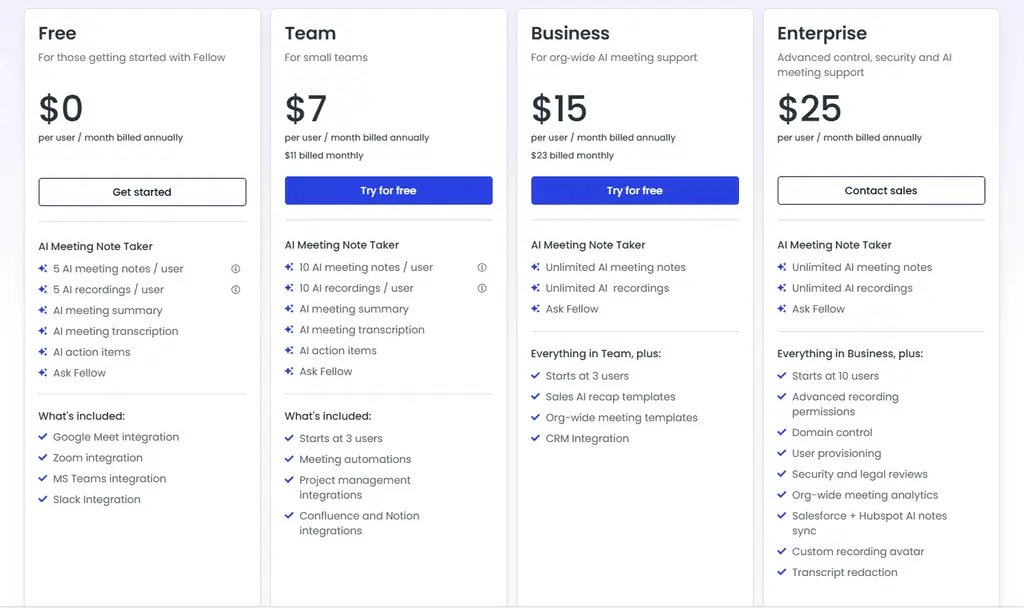
- Free plan: AI recording, recaps, transcriptions, collaborative notes, agendas, meeting timers, and integrations with Zoom, Slack, Microsoft Teams, and Google Meet. Great for testing the platform.
- Team plan ($7/user/month with annual billing): Includes higher limits, meeting automation, and integrations with Notion and project management tools.
- Business plan ($15/user/month with annual billing): Unlimited recordings and transcription minutes, organization-wide templates, sales AI recaps, and expanded integrations.
- Enterprise plan ($25/user/month with annual billing): Advanced security, custom recording rules, AI meeting support, and increased recording/transcription capacity.
What I Liked and What Could Be Better
Here are the biggest strengths I noticed while using Fellow, along with a limitation worth keeping in mind.
What Stood Out
What Frustrated Me
🔎Read my full Fellow Review: My Thoughts After +12 Months (2026)
MeetGeek
MeetGeek is an AI meeting assistant that records conversations, creates transcripts and highly detailed AI summaries, and helps teams organize meeting insights in one searchable place.
Bottom line
Teams and professionals who want highly detailed AI meeting summaries and advanced meeting insights.
You’re looking for a lightweight or ultra-simple AI note-taking app.
Exceptionally detailed and well-structured AI meeting summaries.
Limited transcription minutes and storage capacity on lower-tier plans.
Testing MeetGeek in Everyday Meetings
My experience with MeetGeek was very positive, especially when it came to post-meeting organization. The transcription quality was excellent, but what impressed me most was how detailed and structured the AI summaries were.
Compared to most AI note-takers I tested, MeetGeek did the best job of breaking conversations into action items, decisions, concerns, next steps, and key discussion points.
For in-person meetings, I liked that MeetGeek supports botless recording through its desktop app, Chrome extension, and mobile app. That flexibility makes it practical for different meeting environments, whether you are recording a workshop, internal office discussion, client meeting, or interview.
Another thing I appreciated was the conversation intelligence layer. Beyond simple transcription, MeetGeek analyzes participation, engagement, talk time, and other meeting dynamics, which adds much more depth than basic AI note-taking apps.
Who should use MeetGeek for in-person meetings
Who should look for alternatives
Why is it the best in-person meeting recording app for automated AI summaries?
While many AI note-takers focus mainly on transcription, MeetGeek excels at turning conversations into structured, actionable summaries that are genuinely useful for teams.
Its AI summaries are among the most detailed I tested, automatically organizing discussions into tasks, decisions, concerns, next steps, and key takeaways.
For in-person meetings, its combination of botless recording, advanced summaries, and meeting analytics makes it one of the strongest options currently available.
Most Useful Features
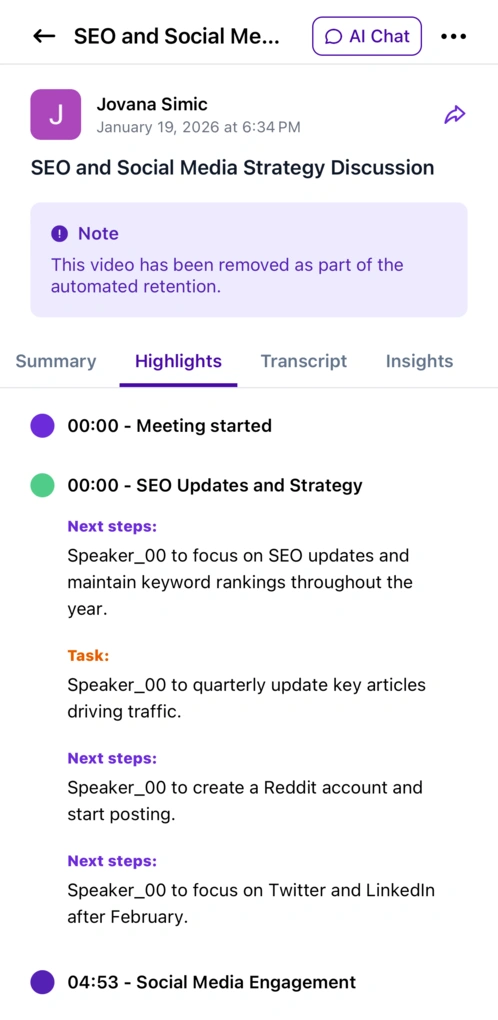
Transcription: Whenever you join meetings on Microsoft Teams, Zoom, or Google Meet, MeetGeek automatically transcribes them. It supports more than 60 languages and lets you control which meetings the bot should join. In my experience, the transcription quality was excellent, especially with decent audio quality. It also uses speaker IDs and timestamps, so it is easy to track who said what during the conversation.
Recording: MeetGeek automatically records meetings using AI voice agents that join calls on your behalf. Once they are set up, they can attend scheduled meetings, record conversations, and generate transcripts and summaries automatically. Besides bot-based recording, MeetGeek also offers a botless recording option if you do not want a bot visible during the meeting.
AI meeting summaries: MeetGeek offers some of the best AI meeting summaries among all the AI note-takers I tried. It breaks meetings into tasks, next steps, concerns, facts, and decisions in a very structured way. The summaries are also shareable and editable, so you can quickly forward them to team members or remove unnecessary points before sharing.
AI chat: AI chat works like a shortcut to your meeting history. I mostly used it to double-check details from past meetings when I could not remember where something was mentioned. Once you have many meetings stored in MeetGeek, this feature becomes genuinely useful because it helps you find information without reopening multiple transcripts.
Conversation intelligence: MeetGeek’s conversation intelligence analyzes not only what was said during meetings, but also how the conversation unfolded. It tracks metrics like participation levels, talk time distribution, engagement, punctuality, and silence rate. This feature can be especially valuable for sales teams because it helps identify patterns and improve future conversations.
Team collaboration features: MeetGeek helps centralize meetings into one searchable location, making it easier to share knowledge across teams. You can also share recordings, transcripts, and summaries with just a few clicks.
Integrations: MeetGeek supports over 8,000 integrations, including HubSpot, Slack, Google Calendar, and Microsoft Outlook. I particularly liked the HubSpot integration because it automatically synced meeting highlights and customer discussions into the CRM.
Subscription plans and pricing
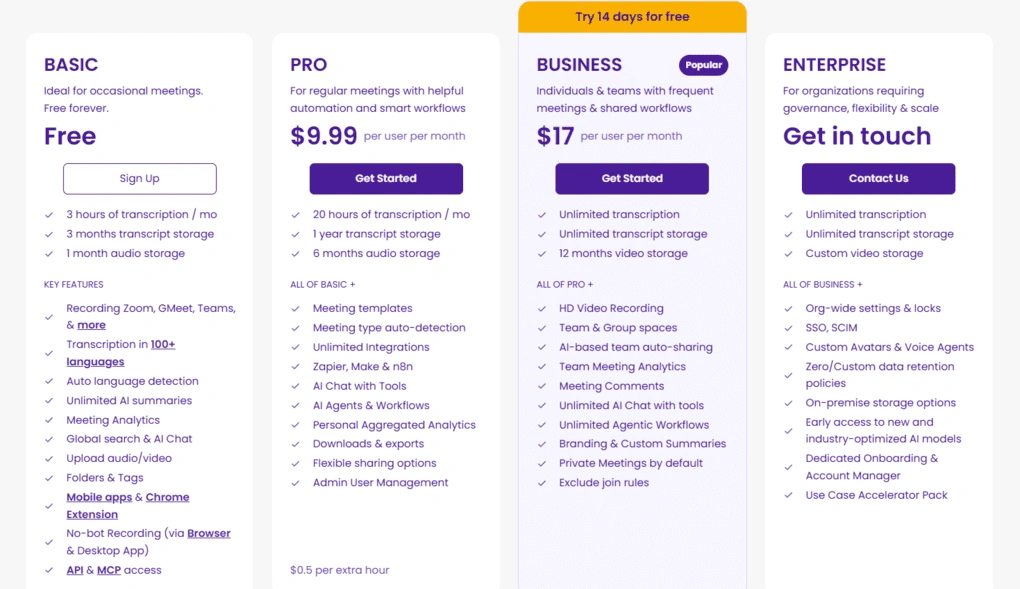
- Free plan: 3 hours of transcription per month, AI summaries, meeting insights, folders, file uploads, and search features.
- Pro plan ($9.99/user/month): 20 transcription hours per month, meeting templates, AI tools, and integrations.
- Business plan ($17/user/month): Unlimited transcription, team collaboration features, custom dictionary, and team-wide meeting insights.
- Enterprise plan (Custom pricing): Organization-wide controls, branded emails, dedicated support, and advanced administrative features.
What I Liked and What Could Be Better
After using MeetGeek across multiple meetings, these were the areas where it impressed me most and the main limitations I ran into.
What Stood Out
What Frustrated Me
🔎Read my full MeetGeek Review: Is It The Best AI Note-Taker For You? (2026)
Fireflies AI
Fireflies AI is one of the most balanced AI note-takers, combining reliable transcription, meeting summaries, collaboration tools, and conversation intelligence in a way that works well for both individuals and teams.
Bottom line
Teams that want searchable meeting intelligence with strong collaboration and integrations.
You’re looking for the most advanced AI summaries or a generous free plan.
Excellent language support and searchable meeting workflows.
The free plan is fairly limited compared to some competitors.
Testing Fireflies AI in Everyday Meetings
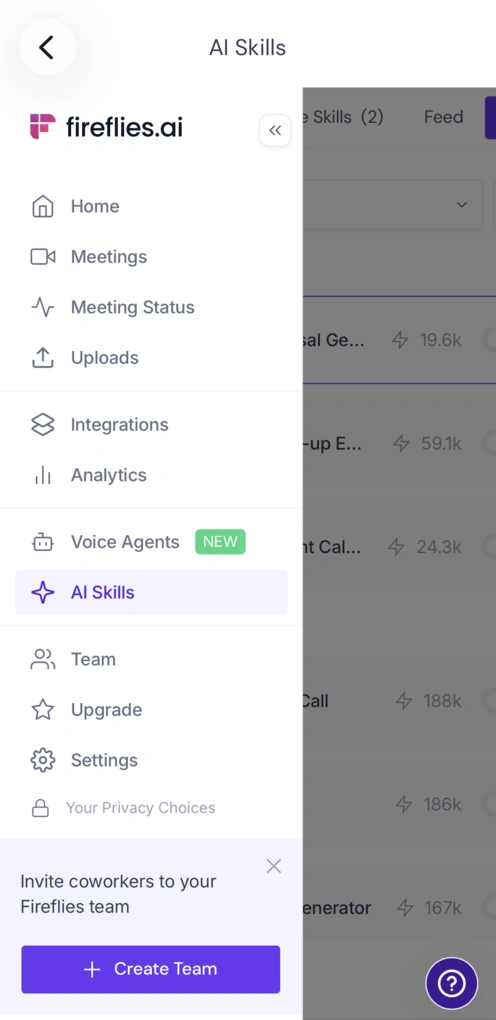
My overall experience with Fireflies AI was solid, especially considering how easy it is to get started. Setup took only a few minutes, and it worked reliably across different platforms, which made it easy to integrate into my existing workflow.
In my testing, the transcription accuracy was not quite as strong as Fellow’s. Still, it consistently outperformed one of its most popular alternatives, Otter AI, in both transcript reliability and summary quality.
For me, Fireflies AI stands out because it balances usability, transcription quality, integrations, and pricing better than most competitors.
Who should use Fireflies.ai for in-person meetings
Who should look for alternatives
Why is it the best in-person meeting recording app for searchable meeting intelligence?
Fireflies AI earned its place on this list because of how easy it makes searching, organizing, and revisiting meeting knowledge over time. Between the transcripts, AI summaries, smart filters, conversation intelligence, and AI assistant, it feels much more like a searchable meeting database than just a transcription tool.
Most Useful Features
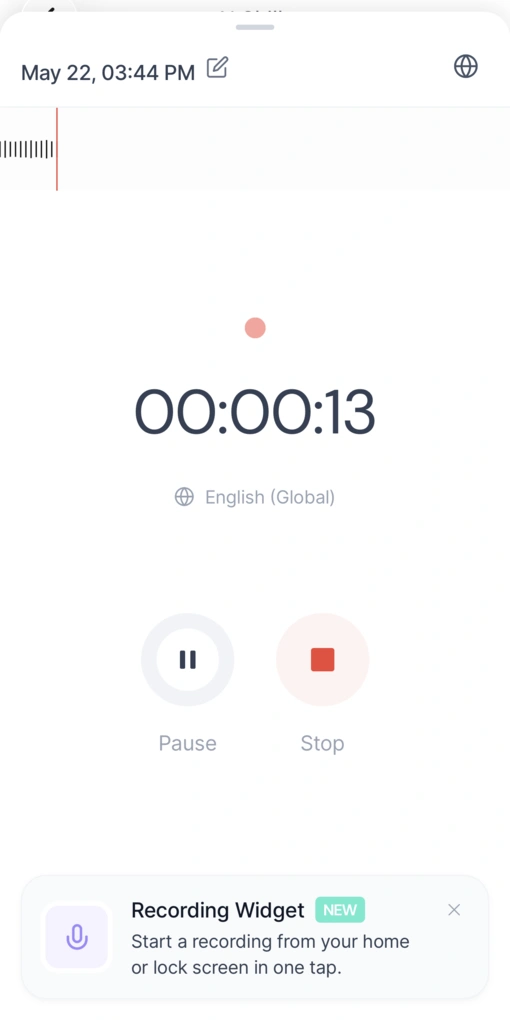
Transcription tool: Fireflies AI can transcribe both meetings and uploaded audio or video files. It supports over 100 languages and automatically separates conversations using speaker IDs, making transcripts much easier to review later. In my experience, transcription quality was reliable overall.
Automated meeting summaries: After meetings end, Fireflies AI automatically generates summaries with key points, timestamps, and action items. The summaries are well-structured and easy to scan quickly. I also liked the smart search filters that let me quickly find questions, dates, metrics, and other important discussion points across meetings.
Live Assist: Live Assist helps during meetings by summarizing discussions in real time, highlighting action items, and helping you catch up if you join a meeting late. I did not use it constantly, but during longer meetings it was genuinely helpful.
Recordings: Fireflies AI automatically joins and records meetings, then stores the recordings together with transcripts and notes in one place. It also supports botless video capture, which is useful for some in-person meeting workflows.
Collaboration features: One of Fireflies AI’s strongest areas is collaboration. Teams can organize meeting notes, recordings, and transcripts into shared spaces, leave comments on transcripts, and easily share meeting content with others.
Conversation intelligence: Fireflies AI includes conversation intelligence and analytics features like talk time tracking, speaker insights, and sentiment analysis. This is especially useful for sales teams or managers who want to improve communication and meeting performance over time.
Integrations: Fireflies AI integrates with Google Calendar, Google Meet, Slack, Notion, ClickUp, Asana, monday.com, and many other tools. It fits very naturally into existing workflows.
Subscription plans and pricing
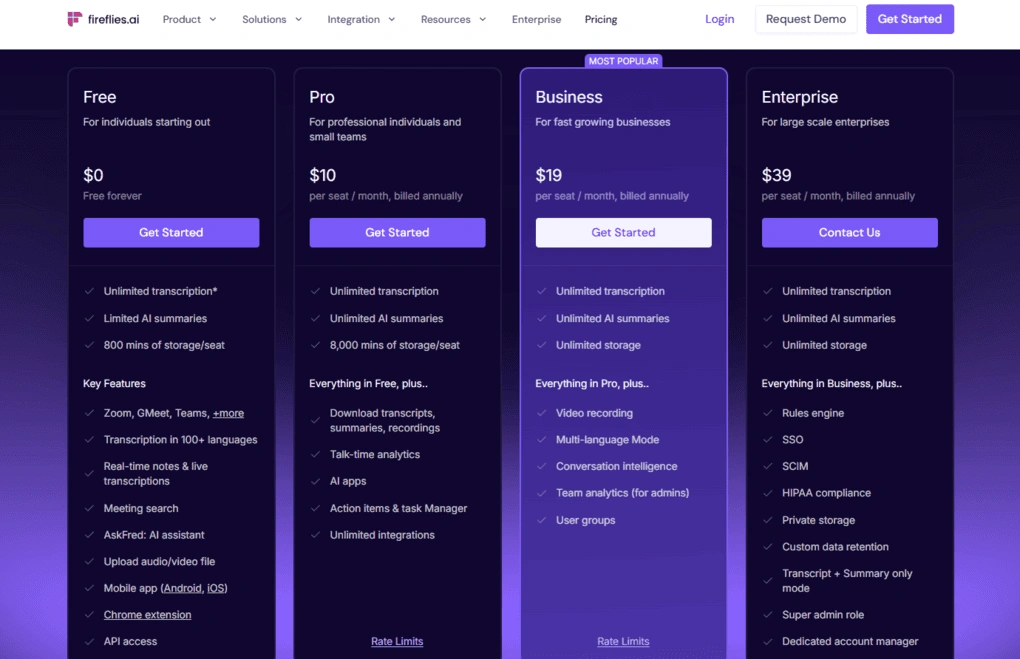
- Free plan: Unlimited storage and transcription for shared bot meetings, but limited advanced functionality.
- Pro plan ($10/seat/month billed annually): Unlimited transcription, meeting recaps, AI assistant, and smart search filters.
- Business plan ($19/seat/month billed annually): Conversation intelligence, team insights, and advanced collaboration features.
- Enterprise plan ($39/seat/month billed annually): Dedicated support, onboarding, and enterprise-level controls.
What I Liked and What Could Be Better
Here are the biggest strengths I noticed while using Fireflies AI, along with the main limitations that became noticeable during regular use.
What Stood Out
What Frustrated Me
🔎Read my full Fireflies AI Review 2026: My Opinion After 10+ Meetings
Notta
Notta is a unique AI note-taker that focuses heavily on multilingual transcription, translation, and productivity features for international teams and conversations.
Bottom line
Professionals and teams that need multilingual or bilingual transcription during meetings.
You only need basic AI note-taking features, or are sensitive to aggressive billing practices.
Its bilingual transcription and translation capabilities.
Aggressive billing practices and a fairly limited free plan.
Testing Notta in Everyday Meetings
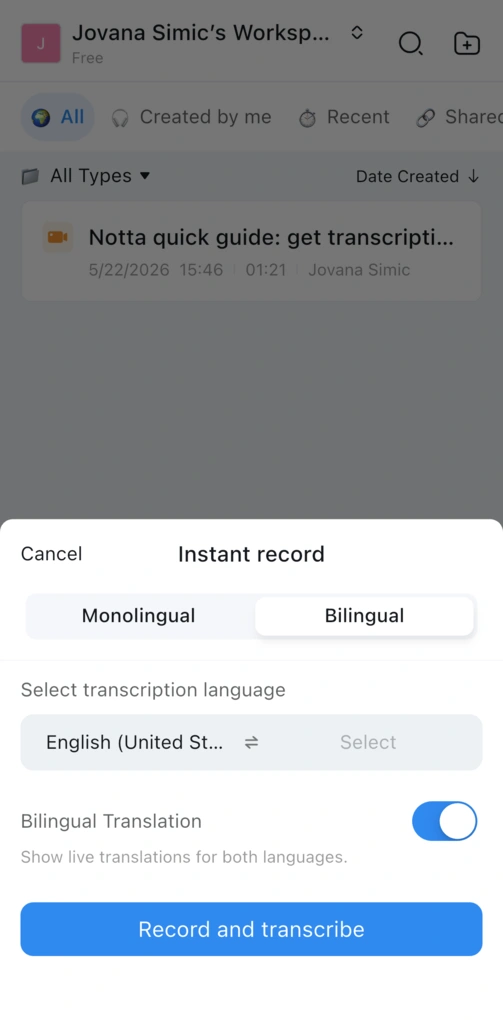
After my Notta review, I discovered that it is a special AI note-taker. It can not only transcribe meetings and files but also offer additional tools to enhance productivity, which I did not see in other AI note-takers. For example, a meeting scheduler tool or a mind map feature.
During my testing, I experienced high transcription accuracy, and the multi-language transcription and translation tools stood out. Thanks to these features, Notta offers numerous additional use cases for international teams and professionals.
On the other hand, I noticed that Notta offers too basic AI notes, and its free plan is limited. Also,if you want to upgrade, some users report frustration with its billing practices.
Who should use Notta for in-person meetings
Who should consider alternatives
Why is it the best in-person meeting recording app for multilingual meetings?
I included Notta in this list because it solves a problem that most AI note-takers still struggle with: multilingual conversations.
Its bilingual transcription and translation features are very useful for international teams, client calls, interviews, and meetings where participants speak different languages.
I also considered tools like Fireflies AI for this category because they support many languages as well, but Notta’s real-time bilingual workflows and translation tools are much more specialized for multilingual collaboration, in my opinion.
Explore our Apps directory
A curated directory of software tools we’ve independently reviewed, with links to full reviews, comparisons, and category guides.
Most Useful Features
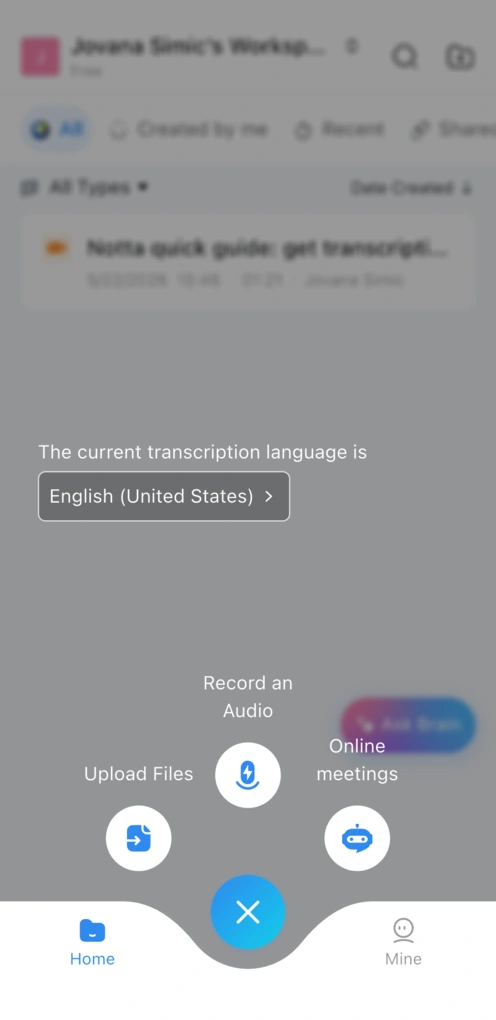
AI transcription tool: Notta supports real-time transcription across Zoom, Google Meet, Microsoft Teams, and Webex in 58 languages. It also separates conversations using speaker labels and timestamps, making transcripts easy to review afterward. In my experience, the transcription quality was generally solid.
Multi-language transcription: This is the feature that makes Notta stand out. It can transcribe bilingual meetings in real time and automatically translate conversations into another language. After testing many AI note-takers, I can confidently say that very few tools currently offer this type of multilingual workflow.
Meeting recording: After meetings end, Notta stores both the recording and transcript together, making it easy to revisit conversations later. Playback speed controls are also included for reviewing longer meetings.
AI notes: Notta automatically creates summaries with chapters, action items, and timestamps. You can also customize templates for different meeting types like interviews, sales calls, or team meetings. That said, the summaries felt more basic compared to some competitors.
Mind maps: One of the most unique features in Notta is its mind map tool. I especially liked it for brainstorming sessions because it visually connected ideas from the meeting in a much cleaner way than traditional notes.
Translation feature: Notta supports translation in more than 50 languages for both meetings and uploaded files. For international teams, this can be an extremely valuable feature.
Meeting scheduler: Notta also includes a built-in meeting scheduler for booking calls and reducing back-and-forth emails. It is a surprisingly useful addition that most AI note-takers do not offer.
Team collaboration features: Teams can organize transcripts into folders, leave comments, add bookmarks, and share transcripts or recordings with others. The Business plan also includes collaborative workspaces and permission controls.
Conversation insights: Notta includes analytics features like speaker time, silence duration, monologues, and sentiment analysis. While not as advanced as MeetGeek, it still provides useful meeting insights.
Integrations: Notta integrates with tools like Slack, Notion, ClickUp, Salesforce, Pipedrive, Google Calendar, and Zapier, giving it access to thousands of third-party workflows.
Subscription plans and pricing
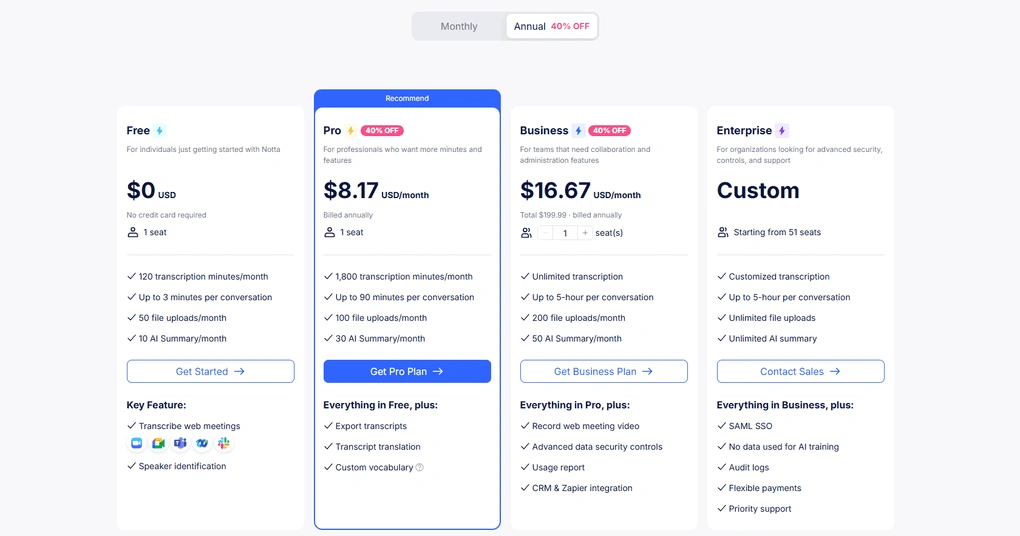
- Free plan: 120 transcription minutes monthly, 3-minute transcription limits per conversation, limited AI summaries, and limited translation usage.
- Pro plan ($8.17/month billed annually): More transcription minutes, AI chatbot access, customized templates, and translation features.
- Business plan ($16.67/user/month billed annually): Unlimited transcription, collaborative workspace, admin controls, analytics, and advanced sharing permissions.
- Enterprise plan: Custom pricing with advanced security, controls, and support.
What I Liked and What Could Be Better
Notta performed especially well in multilingual and bilingual transcription, but there were still a few trade-offs to keep in mind.
What Stood Out
What Frustrated Me
🔎Read my full Notta Review | A Unique AI Note-Taker (2026)

Otter AI
Otter AI is an AI-powered meeting assistant that transcribes conversations in real time, generates meeting summaries, and helps teams collaborate through shared notes and searchable transcripts.
Bottom line
Teams and professionals who want simple real-time transcription during meetings.
You need video recording or highly accurate transcription for critical workflows.
Fast and reliable real-time transcription with strong collaboration tools.
No native call recording functionality.
Testing Otter AI in Everyday Meetings
My experience with Otter AI was okay overall.
Otter’s AI transcription tool captured everything in real time. Speaker identification was mostly correct, and only a few lines needed manual editing. The transcription accuracy was around 85%, which matches what most reviews and user tests report online.
Although my experience with Otter AI was mostly positive, I would have expected more from a leading AI note-taker.
It provided me with less accurate transcriptions than Fireflies AI or Fellow, for example, it transcribed Fireflies AI as Fireplace AI or best regeneration tools instead of best lead generation tools. Also, there were times when it identified a third person during calls, whereas we were only two.
Who should use Otter.ai for in-person meetings
Who should look for alternatives
Why is it the best in-person meeting recording app for live transcription?
Honestly, my experience with Otter AI was not as strong as with tools like Fellow or MeetGeek. The transcription accuracy was less reliable during testing, speaker identification occasionally struggled, and the lack of recording capabilities is limiting compared to newer AI note-takers. So why did Otter still make this list?
Because, despite its flaws, Otter remains one of the easiest and most accessible tools for live transcription.
The real-time transcript works smoothly, the interface is beginner-friendly, and the collaboration features are genuinely solid for teams. So it still earns its place here as one of the better options for simple, real-time meeting transcription.
Most Useful Features
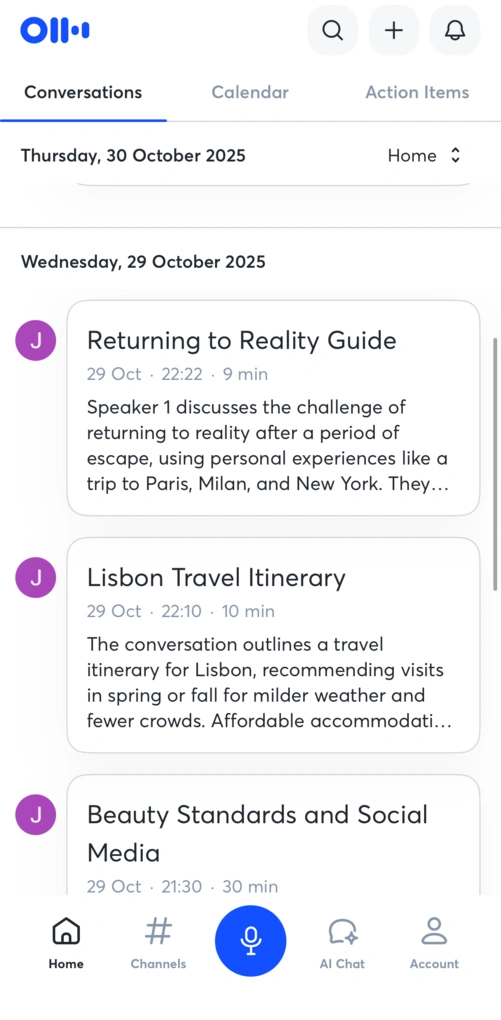
Real-time transcription: Otter’s biggest strength is its real-time transcription. Once the meeting starts, Otter transcribes conversations live with timestamps and speaker labels. The transcripts are searchable, editable, and easy to navigate afterward.
Audio uploads: Otter supports uploading audio and video files in formats like MP3, WAV, and MP4. Uploaded files are processed quickly, and transcripts sync automatically across devices.
Meeting summaries: After meetings end, Otter automatically generates summaries, key takeaways, and action items. The summaries are useful for quick recaps, although they feel more basic compared to tools like Fellow or MeetGeek.
Collaboration tools: The collaboration features were one of the biggest positives during testing. Teams can share transcripts, add comments, assign action items, and control permissions for collaborators.
AI chat: Otter AI Chat lets you interact with meeting transcripts through a built-in AI assistant. I mostly used it to pull quick information from older meetings or summarize conversations without reading the entire transcript.
Integrations: Otter integrates with Zoom, Google Meet, Microsoft Teams, Google Calendar, and cloud storage platforms like Dropbox. It can automatically join scheduled meetings and generate searchable summaries afterward.
Subscription plans and pricing
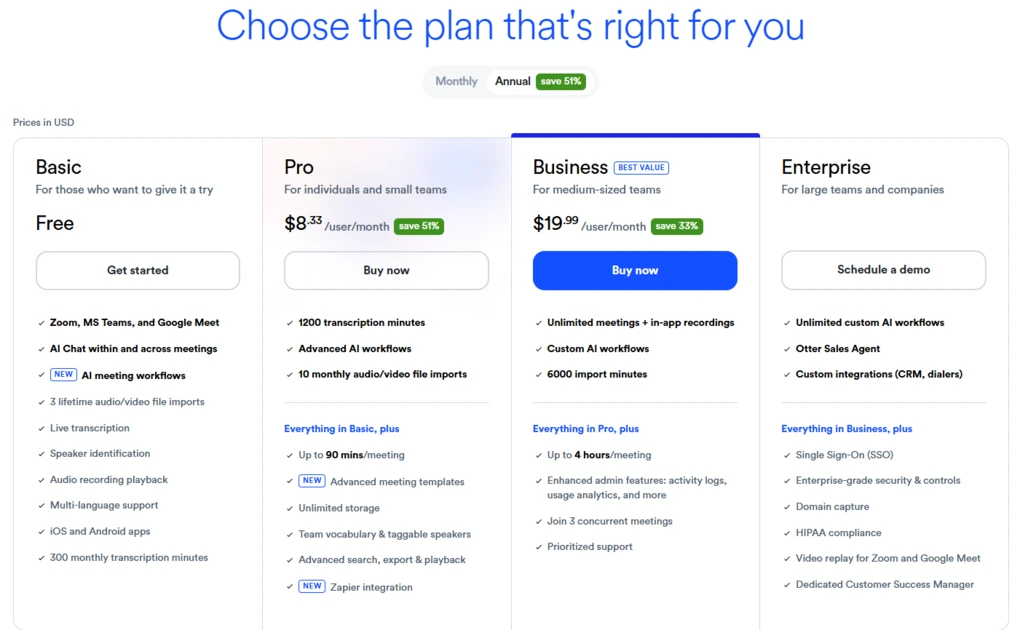
- Free plan: 300 transcription minutes per month and 30-minute limits per recording.
- Pro plan ($8.33/user/month billed annually): 1,200 transcription minutes, longer recordings, and richer summaries.
- Business plan ($19.99/user/month billed annually): Team collaboration tools, admin controls, shared spaces, and custom vocabulary.
- Enterprise plan: Custom pricing with advanced security, compliance, and organization-wide management features.
What I Liked and What Could Be Better
Below, you can see where Otter AI stood out and where it falls short.
What Stood Out
What Frustrated Me
🔎Read my full Otter AI Review | My Brutal Honest Take (2026)
Granola
Granola is a lightweight, bot-free AI note-taker designed for people who want simple meeting notes without the complexity of a full meeting management platform.
Bottom line
Individuals who want lightweight, bot-free AI note-taking for in-person meetings.
You or your team needs video recordings, advanced collaboration features, or deeper meeting workflows.
The way it combines your own notes with AI-generated summaries.
Its feature set still feels limited compared to others on this list.
Testing Granola in Everyday Meetings
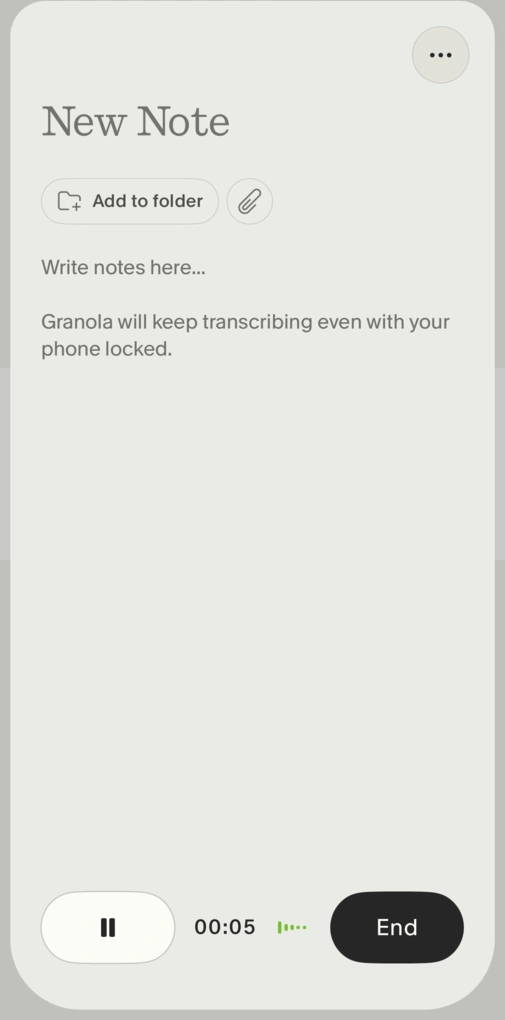
During my Granola review, I had some ups and downs. From the positive side, Granola provided accurate transcriptions and impressed me with the way it converted my own notes into AI-generated summaries. The desktop app is intuitive, lightweight, and very easy to use.
What makes Granola different from most AI note-takers is its minimalism. There are no meeting bots, no cluttered interface, and very little setup involved. For in-person meetings, that lightweight approach actually works great because it’s less intrusive than traditional AI meeting assistants.
On the other hand, Granola lacks workflow depth. The missing recording feature was probably the biggest downside for me, especially when reviewing past meetings.
Who should use Granola for in-person meetings
Who should look for alternatives
Why is Granola a strong option for personal AI meeting notes
Granola focuses almost entirely on lightweight transcription and AI-generated notes without interrupting the meeting experience.
While it lacks the depth of tools like Fellow or MeetGeek, it works extremely well for individuals who simply want clean, distraction-free AI note-taking.
Most Useful Features
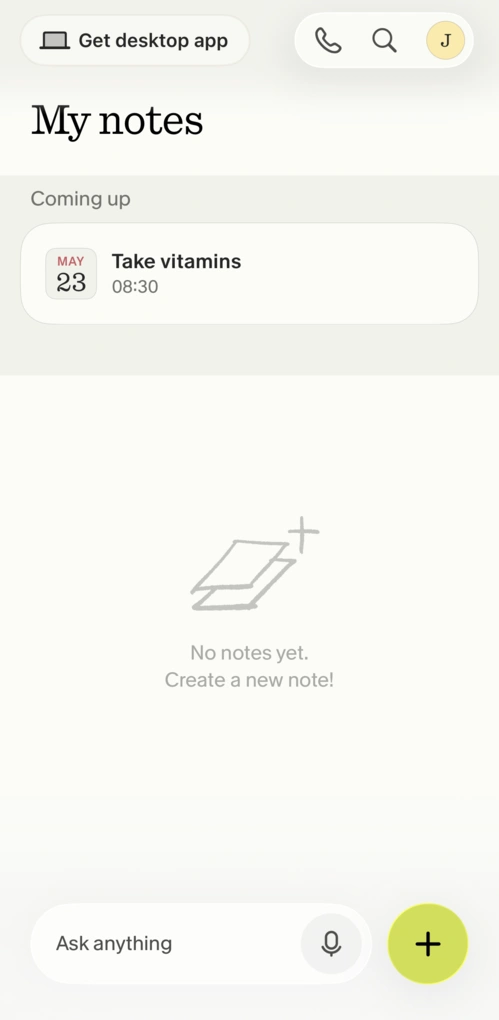
Bot-free transcription: Granola does not use meeting bots to transcribe conversations. Instead, it listens directly to your device audio. The live transcript is simple and easy to follow, and speaker recognition automatically separates conversations between participants. However, speaker labeling is fairly basic compared to more advanced tools.
AI notes: Granola’s AI notes work differently from most AI note-takers because they incorporate your own notes into the final AI-generated summary. This was probably the moment where Granola impressed me the most. I often wrote messy shorthand notes during meetings, and Granola turned them into structured summaries that actually sounded usable afterward.
Ask Granola: Ask Granola works like an AI chatbot for your meetings. I mostly used it to pull information from past conversations, create follow-ups, or identify action items. It was fast, useful, and practical for everyday use.
Team features: Granola includes lightweight collaboration features like shared folders and easy note sharing through Slack, email, or links. That said, I still would not recommend it for larger teams because it lacks more advanced collaboration tools and permissions.
Integrations: Granola integrates with Google Workspace, HubSpot, Slack, and Zapier. I especially recommend connecting it with Google Calendar for a smoother experience.
Subscription plans and pricing
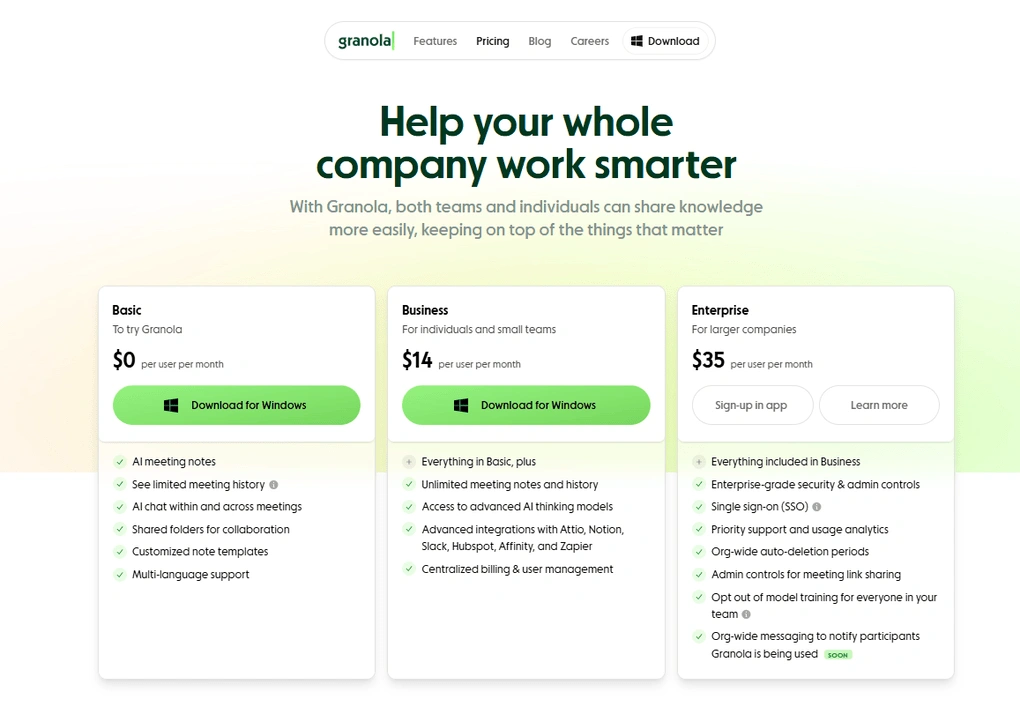
- Free plan: AI meeting notes, Ask Granola, shared folders, templates, and multilingual support.
- Business plan ($14/user/month): Unlimited meeting history, advanced AI models, and integrations with Slack, HubSpot, Notion, Zapier, and more.
- Enterprise plan ($35/user/month): Enterprise-grade security, SSO, usage analytics, and priority support.
What I Liked and What Could Be Better
After using Granola in real meetings, these were the areas where it felt refreshingly different from other apps and the main limitations I noticed.
What Stood Out
What Frustrated Me
🔎Read my full Granola Review 2026: Why It Won’t Work for Everyone
Final verdict: The best apps for recording in-person meetings in 2026
After testing and researching all these AI note-takers, I can honestly say there is no single perfect option for everyone. Some tools are better for teams, some for personal notes, some for multilingual meetings, and others for searchable meeting history or live transcription.
Hopefully, this guide helped you find the right AI note-taker for your meetings and workflow. And if you end up trying any of these apps, I’d genuinely love to hear what your experience was like.
Looking for similar tools?
Visit our library of PDF editors to explore other apps we’ve reviewed in this space and how they compare.
Why you can trust our reviews
At thebusinessdive.com, our team tests, reviews, and compares hundreds of productivity apps every year — from project management tools to note-taking apps. We dive deep into real-world use cases to help you find the right tools that actually improve your workflow, not just add noise.
Our mission? No fluff, no shortcuts—just honest, hands-on insights from productivity pros.
Discover how we stay transparent, read our review methodology, and let us know about any tools we missed.
Frequently asked questions
Can I use AI to record an in-person meeting?
Yes, many AI note-takers now support in-person meetings through desktop and mobile apps. Tools like Fellow, Granola, Notta, and Otter AI can record conversations directly from your device without needing a virtual meeting setup.
Some apps also support botless recording, which feels much more natural during face-to-face conversations because there is no visible AI participant joining the meeting.
What is the best way to record and transcribe an in-person meeting?
The easiest way is to use an AI note-taker on your laptop or phone during the meeting. Most apps automatically record conversations, create transcripts, generate AI meeting summaries, and organize everything into searchable notes.
For better transcription accuracy, it also helps to reduce background noise and keep participants relatively close to the device.
Are in-person meetings still better than virtual meetings?
It depends on the situation, but in-person meetings still offer some advantages that virtual meetings struggle to replace. Face-to-face conversations make it easier to read body language, hear tone changes, and build trust through human interaction.
Research also suggests that in-person collaboration can generate 15% to 20% more ideas compared to virtual meetings, especially during brainstorming sessions and strategic discussions.
What are the biggest benefits of in-person meetings?
One of the biggest benefits is stronger communication. When people share the same room, it is easier to engage in conversations, reduce distractions, and build stronger relationships with colleagues, clients, and teams. In-person meetings also help participants interpret nonverbal cues like facial expressions and gestures, which creates a stronger sense of connection and improves collaboration.
What are the biggest challenges of virtual meetings?
The most common challenges are technology issues, lower engagement, and distractions. Problems like audio lag, unstable internet, or video glitches can interrupt conversations and make communication less effective.
Virtual meeting participants are also more likely to multitask, which can reduce participation and make discussions feel less natural compared to in-person meetings.
Disclosure: I only recommend products I would use myself, and all opinions expressed here are our own. This post may contain affiliate links that, at no additional cost to you, may earn a small commission. Read the full privacy policy here.

Hey! I’m Jovana, a content writer who loves writing, researching, and testing new productivity apps. With a background in philosophy, I bring a thoughtful but no-bullshit approach to everything I do. Let’s connect on Linkedin!