


8 Best PDF Redaction Tools in 2026 | Personally Tested 30+ Apps
Finding the best PDF redaction tools for your workflow is tough. There are more than a hundred PDF editors on the market. But only a few offer reliable PDF redaction tools that can permanently remove sensitive information from your documents.
If you work with confidential files, redaction is essential. Simply covering text or images is not enough. Without proper PDF redaction, hidden data and sensitive content can still be recovered.
To find the best solutions, I tested multiple tools and analyzed their redaction features, security options, ease of use, and pricing. Some tools are great for quick manual redaction, while others offer advanced features like batch processing and automated search-and-redact functions.
In this guide, I will show you the best PDF redaction tools in 2026 and help you choose the right option for your workflow.
Let’s dive in!
Which PDF redaction tools are best in 2026?
When putting together my best PDF redaction tools list, I considered features, versatility, my experience, and user interface. While I can not summarize all my findings in this table, this will help you get an overview of the key information for each PDF redaction tool.
Here are the top 8 PDF redaction tools that stood out the most to me in 2026:
|
PDF redaction tools |
My ratings |
My top picks |
|---|---|---|
 |
Best PDF redaction tool overall |
|
 |
Best online PDF redaction tool |
|
 |
Best advanced PDF redaction tool for Windows |
|
 |
Best free PDF redaction tool |
|
 |
Best PDF redaction tool for Apple users |
|
 |
Best PDF redaction tool for professional workflows |
|
 |
Best enterprise PDF redaction tool |
|
 |
Best user-friendly PDF redaction tool |
Best PDF redaction tools in 2026
Let’s see the best PDF redaction tools in 2026!
Best PDF redaction tool #1 | Tenorshare PDNob
Best redaction tool overall
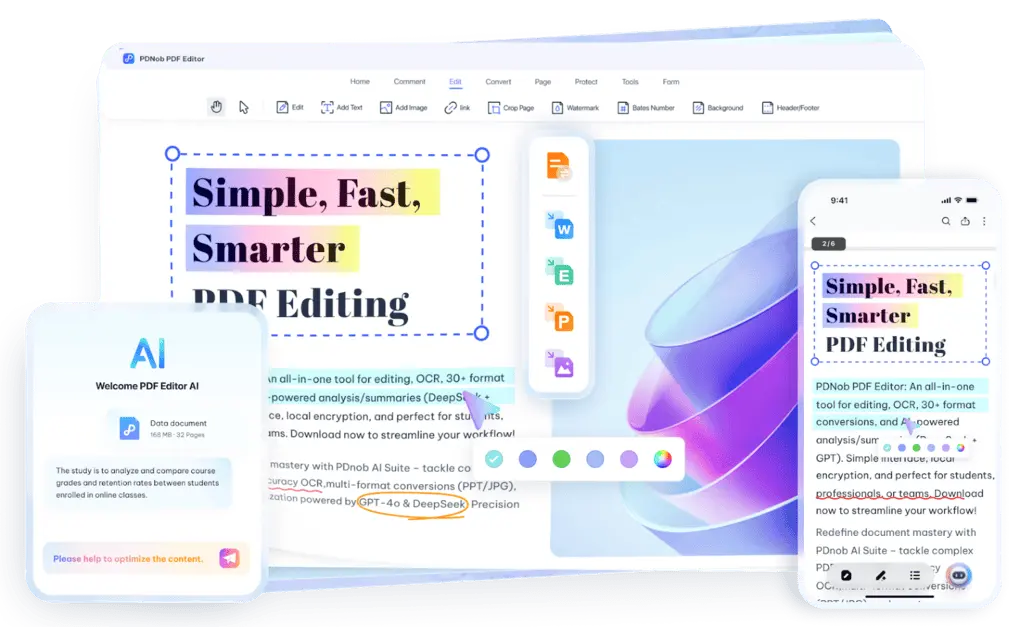
Tenorshare PDNob is an AI-powered PDF editor that offers many features to edit, read, organize, convert, and annotate files. It is a top PDF editor offering robust redaction features with an intuitive interface.
Tenorshare PDNob’s redaction feature
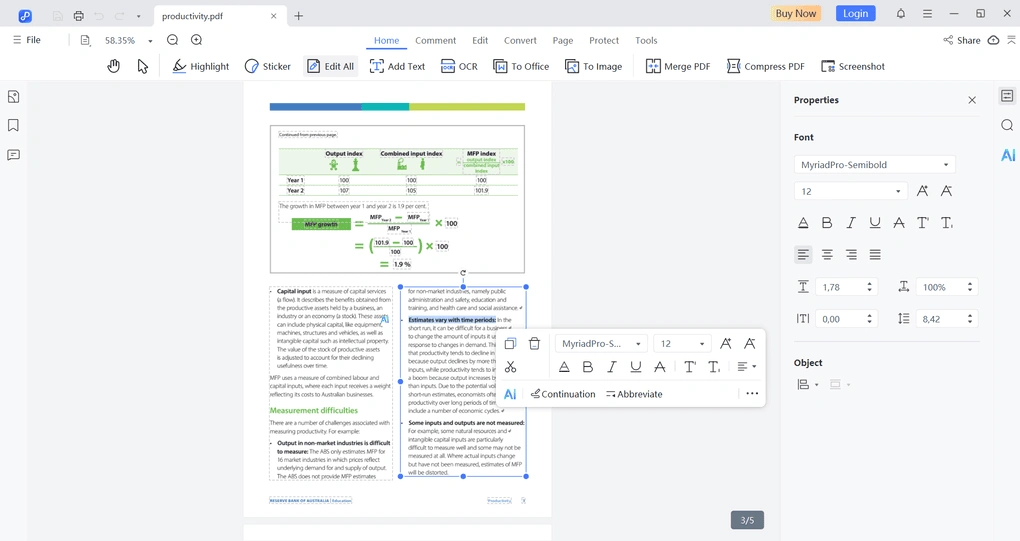
Tenorshare PDNob allows you to remove sensitive information directly from your PDF documents by editing or deleting text, images, watermarks, or backgrounds. While it does not offer a dedicated enterprise redaction tool, it still allows you to remove confidential content before sharing files externally.
Its OCR feature is particularly useful for redaction workflows. It converts scanned PDFs into editable text so you can identify and remove sensitive information that would otherwise remain locked inside the document.
Use the above link and the discount code TS-TBD-20 to get 20% OFF from the paid plans.
Tenorshare PDNob’s other features
PDF editing: Tenorshare PDNob allows you to edit text, images, and other elements in your PDF files. You can easily remove or modify sensitive information before sharing documents externally. The editor uses a drag-and-drop system, so adjusting text boxes, images, or formatting takes only a few clicks.
Organizing PDFs: You can insert, rotate, delete, or reorder pages inside your PDF documents. These tools help restructure documents before sharing them externally, especially if certain pages contain confidential information.
PDF conversion and compression: The software allows you to convert PDFs into formats such as Word, Excel, PowerPoint, or images. It also includes compression tools that reduce file size without significantly affecting document quality.
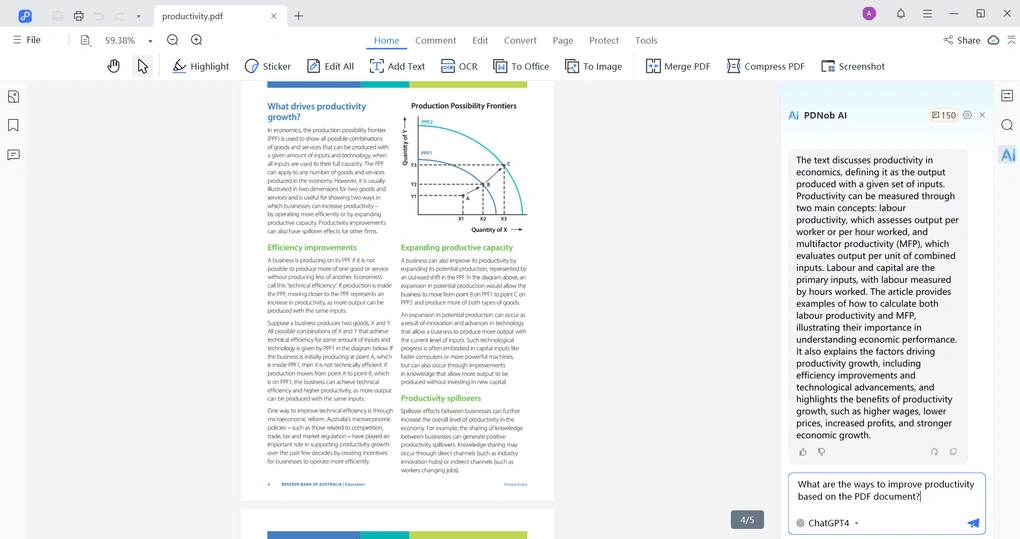
AI-powered tools: Tenorshare PDNob includes an AI assistant that can summarize documents, answer questions about the content, or help extract important information. You can also ask the AI to translate, rewrite, or explain parts of the document, which can speed up document review workflows.
My experience with Tenorshare PDNob
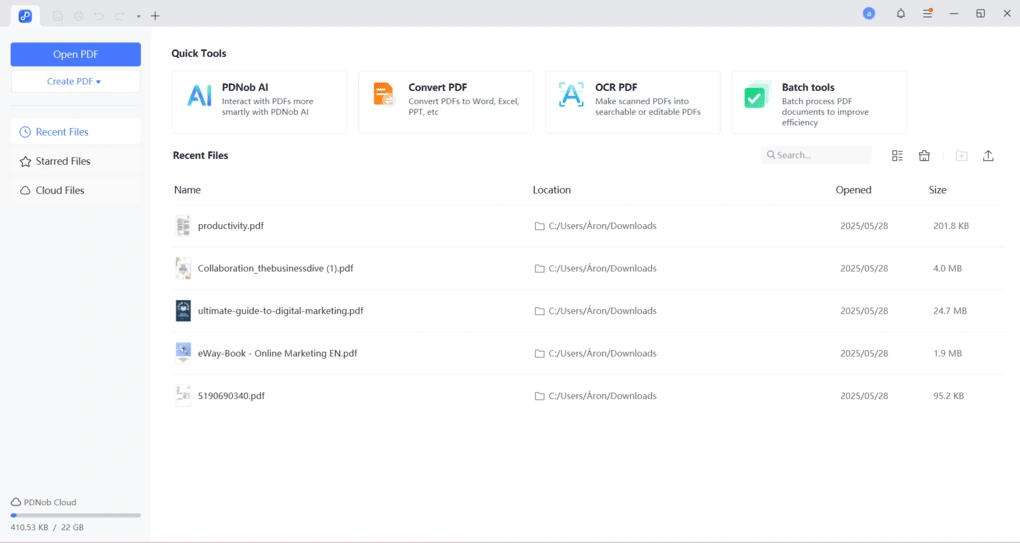
Honestly, Tenorshare PDNob was one of the easiest PDF editors to use. Editing documents and removing sensitive content worked smoothly, and the AI assistant was very useful when I was working with longer files.
Overall, Tenorshare PDNob focuses more on simplicity and productivity than advanced enterprise features, but it is still a solid option for everyday PDF editing and document redaction.
Pricing
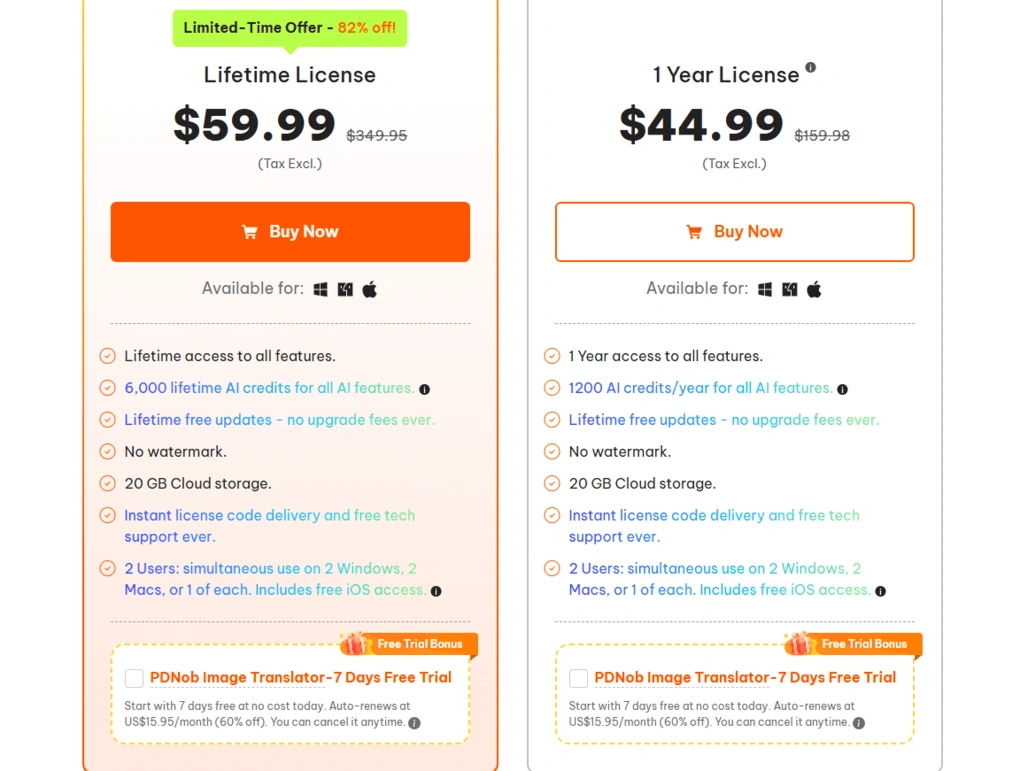
Tenorshare PDNob offers an unlimited free trial (i.e. free plan). You can access 50 AI Credits, 2 GB cloud storage, and the ability to upload 120 pages per file, and the size has to be below 15MB. Also, you can access some advanced features, but they include a time or file limit.
The one-year license’s original price is $159.98, but you can get it for $44.99 now. It unlocks the premium features, 20 GB of cloud storage, and includes no watermarks.
Finally, Tenorshare PDNob has lifetime access for $349.95. Its current price is $59.99, and it offers lifetime access to all the features.
Use the above link and the discount code TS-TBD-20 to get 20% OFF from the paid plans.
Pros and cons of PDNob
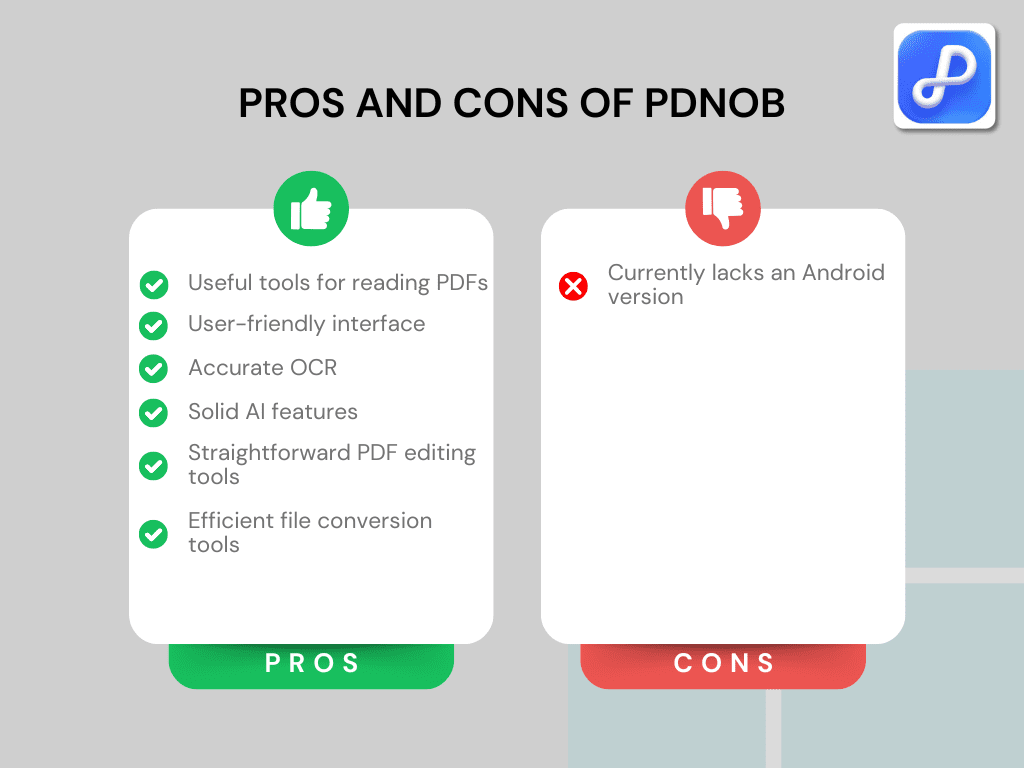
Pros of Tenorshare PDNob
Cons of Tenorshare PDNob
Use the above link and the discount code TS-TBD-20 to get 20% OFF from the paid plans.
Why is it the best PDF redaction tool?
Tenorshare PDNob is ideal for users who want a simple and practical way to remove sensitive information from PDFs, but don’t want to use complex enterprise software.
Its combination of easy editing tools, OCR support, and AI-powered document analysis makes it a convenient solution for quickly reviewing and preparing documents before sharing them.
🔎Read my full review: Tenorshare PDNob Review 2026 | My Unfiltered Opinion
Short on time? Here’s a quick overview of Tenorshare PDNob
Best PDF redaction tool #2 | Smallpdf
Best online PDF redaction tool
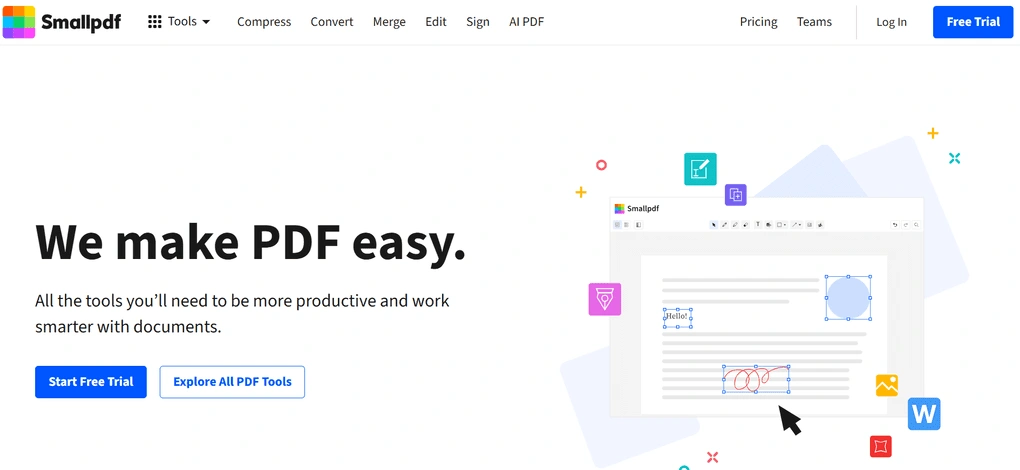
Smallpdf is a lightweight online PDF platform that offers more than 30 tools for editing, converting, compressing, and managing documents. Because it runs directly in the browser, you can redact sensitive information from PDFs without installing software.
Smallpdf’s redaction feature
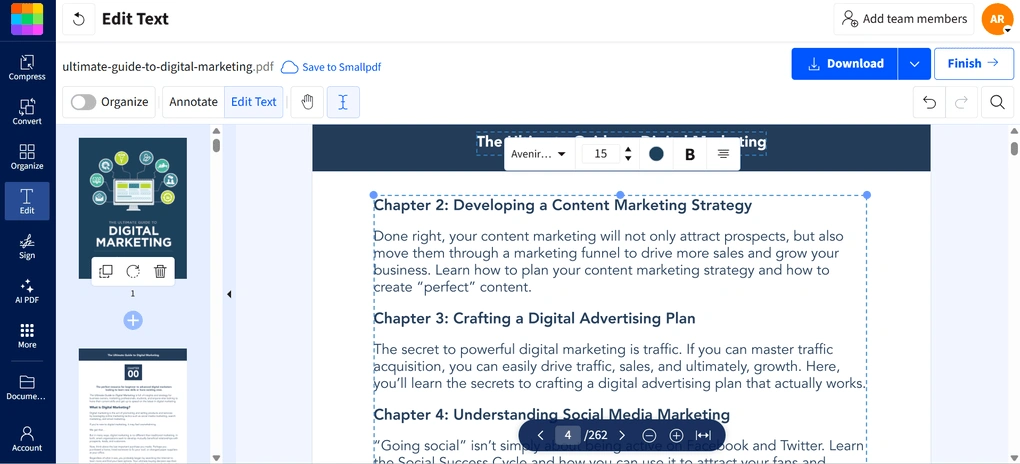
If you don’t want to install any software, Smallpdf allows you to redact sensitive information directly in your browser. You can upload a PDF file, select the text or sections you want to hide, and apply redaction using its editing and annotation tools.
Smallpdf allows you to remove sensitive information by editing or covering text and sections inside the document. You can add shapes or text overlays to redact confidential data before sharing the file. The drag-and-drop editor makes it easy to move, resize, or modify elements in a PDF.
Another useful capability is its OCR feature, which converts scanned PDFs into editable text. This way, you can locate sensitive information in scanned documents faster and redact it properly.
Smallpdf’s other features
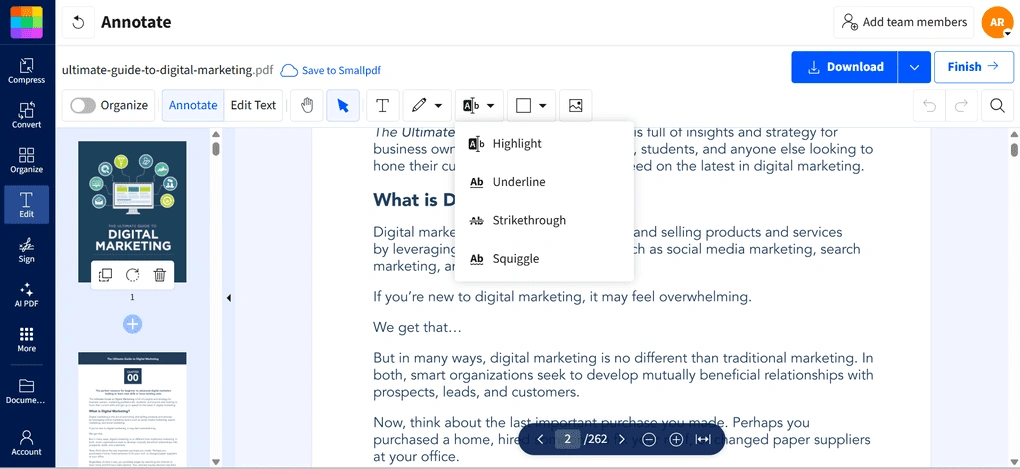
PDF editing: Smallpdf has a simple drag-and-drop editor. You can move text boxes, resize them, and change font, size, color, and alignment. It also lets you add new text and insert images, which you can adjust easily. Most of these features are paid, but there’s a 7-day free trial to test them.
PDF organization: Smallpdf includes strong document organization tools. You can split, merge, rotate, extract, or delete pages, which can be useful when preparing documents before redaction. For example, you can remove entire pages that contain confidential information.
Conversion and compression: The platform allows you to convert PDFs to Word documents, Excel, PowerPoint, or image formats and vice versa. You can also compress files significantly without losing much quality, which is useful when sharing redacted documents via email.
AI-powered tools: Smallpdf also includes AI features that allow you to summarize, translate, or chat with your PDF documents. There is even an AI question generator that can create quizzes or study questions from PDF content.
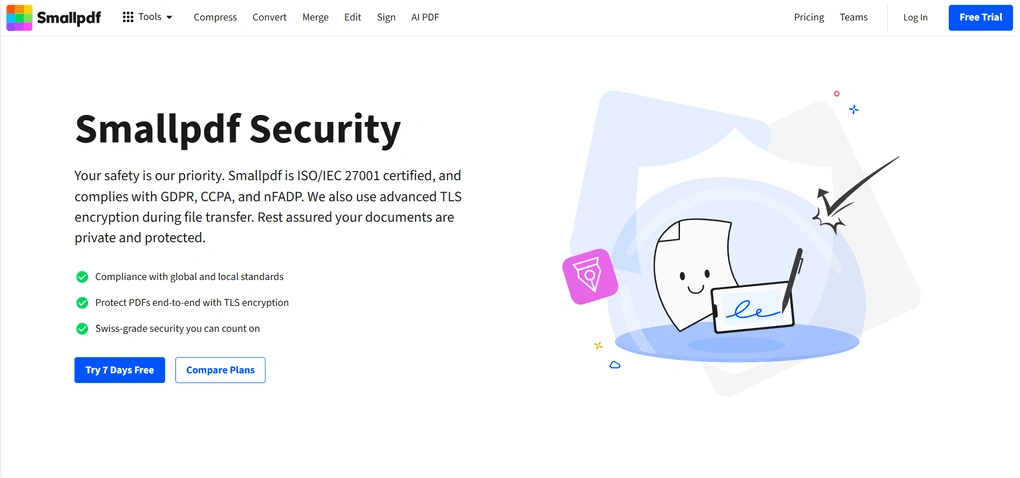
Security: Smallpdf is ISO/IEC 27001 certified and GDPR compliant, and it uses TLS encryption during file transfers. Uploaded files are automatically deleted after processing unless you choose to save them in Smallpdf’s cloud storage.
My experience with Smallpdf
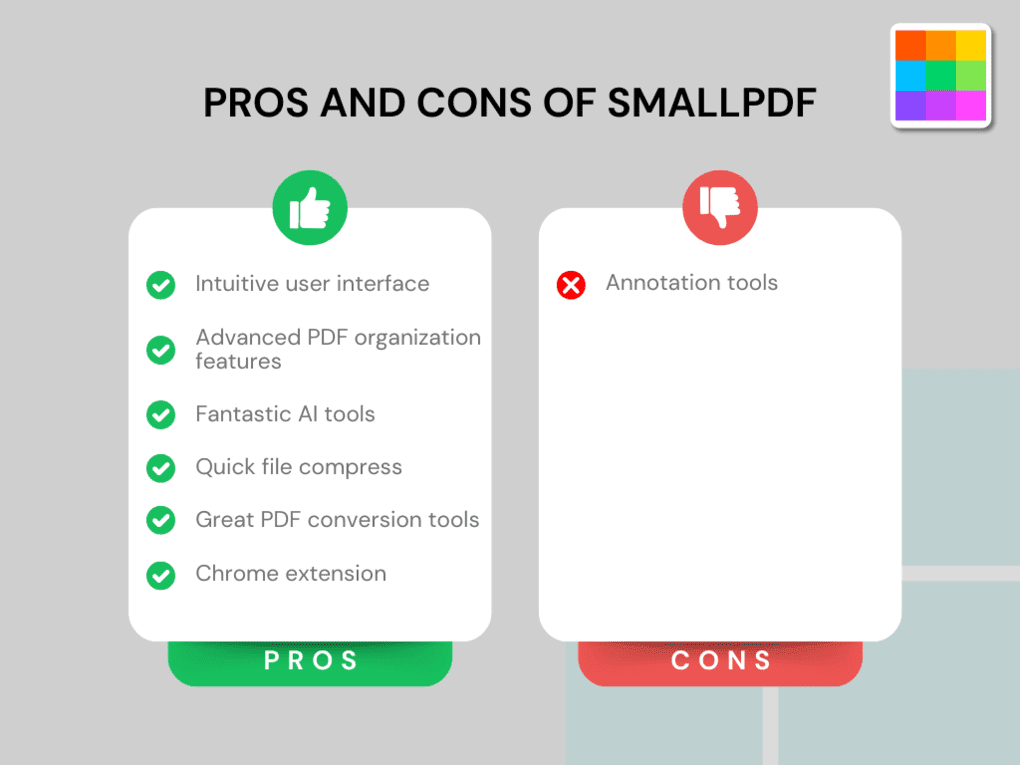
Smallpdf was very convenient during my testing because of its accessibility. I could upload files from my laptop or directly from Google Drive, Dropbox, or OneDrive, edit them in the browser, and download the redacted version in seconds. It also offers a Chrome extension, so I could use it whenever I opened a PDF in my browser.
I especially liked its document management capabilities. Besides redaction, it offers powerful conversion, compression, and AI tools that help manage documents faster. The only limitation I noticed is that the annotation features are not as advanced as in some desktop PDF editors.
Pricing
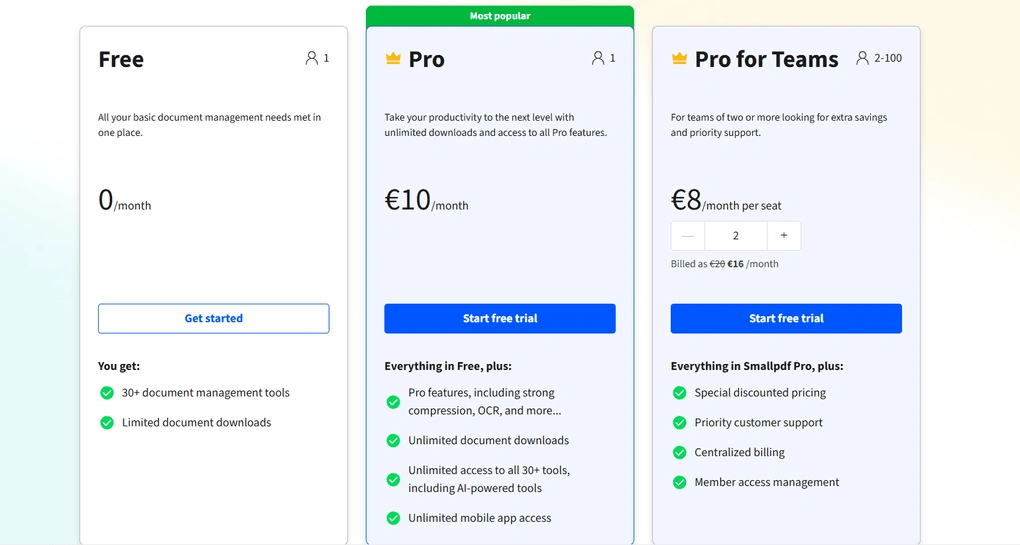
Smallpdf offers a free plan that includes access to basic tools such as PDF conversion, compression, editing, and e-signatures, although it has daily usage limits.
The Pro plan starts at €10 per month (annual billing) or €15 per month with monthly billing and unlocks unlimited downloads, advanced editing features, OCR, batch processing, and stronger compression tools. There is also a Pro for Teams plan starting at €8 per user per month, which includes centralized billing and team management features.
Pros and cons of Smallpdf
Pros of Smallpdf
Cons of Smallpdf
Why is it the best online PDF redaction tool?
Smallpdf is ideal for users who want a fast and accessible way to redact PDFs directly from their browser. Its combination of cloud integrations, OCR capabilities, AI tools, and simple drag-and-drop editing makes it one of the most convenient online solutions for preparing and redacting documents before sharing them.
🔎Read my full review: Smallpdf Review 2026 | The Top Lightweight PDF Tool
Short on time? Here’s a quick overview of Smallpdf
Best PDF redaction tool #3 | PDF-XChange
Best advanced PDF redaction tool for Windows
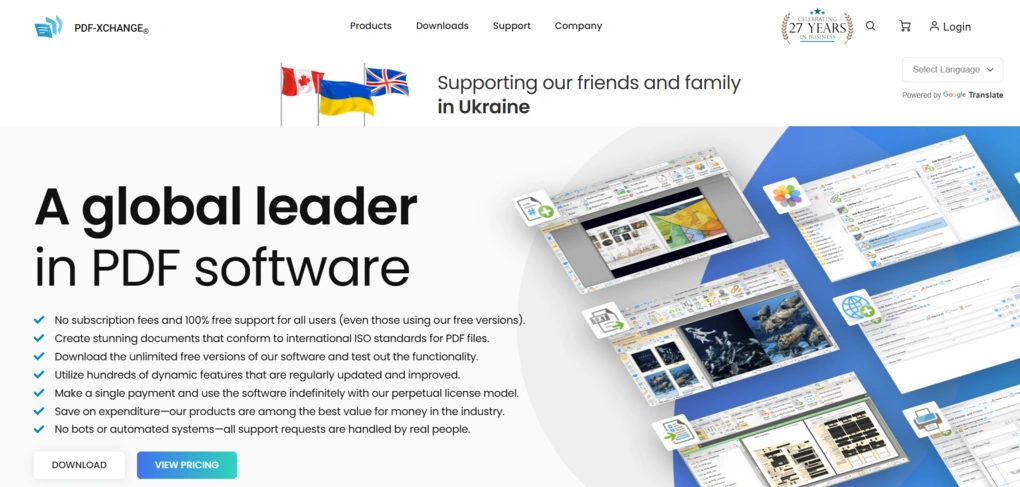
PDF-XChange Editor is a powerful Windows-based PDF editor developed by Tracker Software. It offers a wide range of features for editing, reviewing, securing, and managing PDF documents. Compared to many lightweight PDF tools, PDF-XChange focuses on advanced functionality and strong document security.
PDF-XChange Editor’s redaction feature
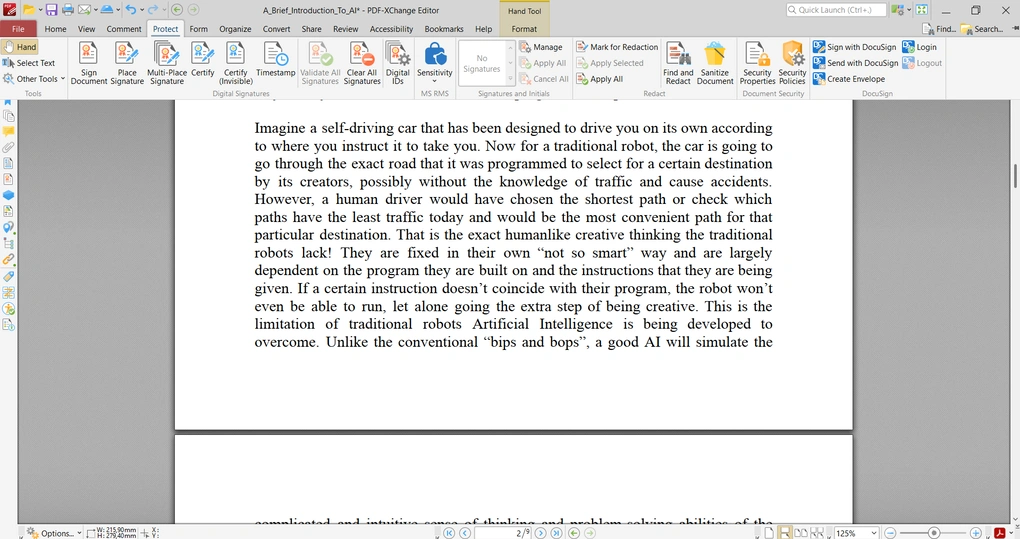
PDF-XChange Editor includes a dedicated redaction tool that allows you to permanently remove sensitive information from your PDF documents. You can mark text, images, or entire sections for redaction and then apply the changes with the “Apply All” option to ensure the data is permanently deleted.
One feature I particularly liked is the Find and Redact function. It allows you to search for specific words, phrases, or patterns and automatically redact them throughout the entire document. This can save a lot of time when working with longer files that contain repeated sensitive information.
Overall, PDF-XChange provides one of the most advanced redaction workflows among desktop PDF editors. It’s a strong option for users who regularly handle confidential documents.
PDF-XChange Editor’s other features
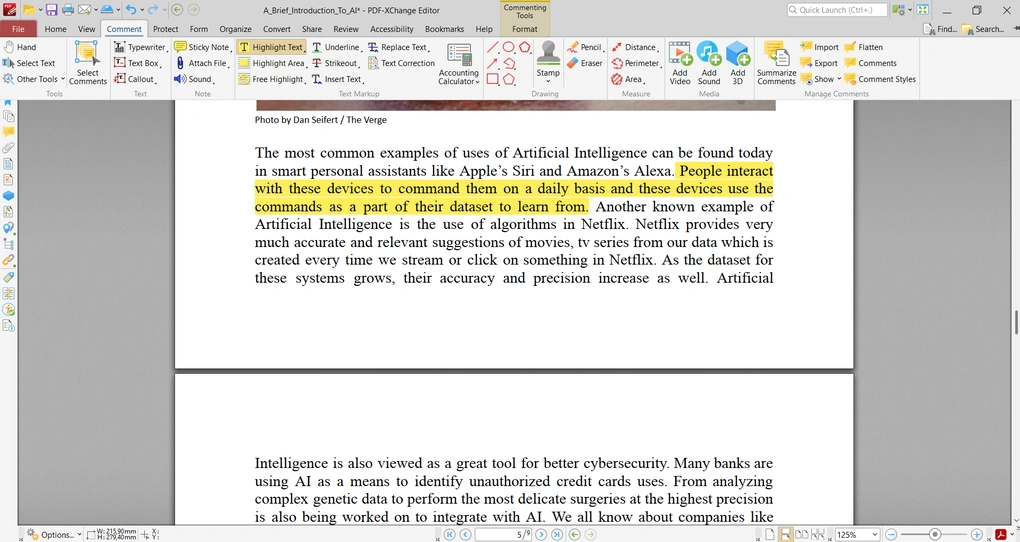
PDF editing tools: You can modify text, change fonts and alignment, add new text boxes, insert images, and attach files to your documents. In my experience, the editing tools worked smoothly and offered plenty of customization options.
Annotation and review tools: The annotation tools are among the most extensive I have seen in a PDF editor. Besides highlights, callouts, and sticky notes, you can add audio comments, video files, and even 3D annotations. It also includes document comparison and spell-checking features, which can be of great use when reviewing documents before redaction.
Conversion features: PDF-XChange makes file conversion quick and flexible. You can turn PDFs into Word, Excel, PPT, or images with solid accuracy. It also lets you control things like layout, comments, tables, and links. On top of that, you can drag and drop other file types to convert them into PDFs.
OCR support: OCR converts scanned documents into searchable and editable PDFs. It supports more than 150 languages and allows batch OCR processing.
PDF security: Security is one of the strongest aspects of PDF-XChange. In addition to redaction tools, you can apply password protection or certificate-based security to your PDF files. These features make it suitable for handling confidential documents.
My experience with PDF-XChange
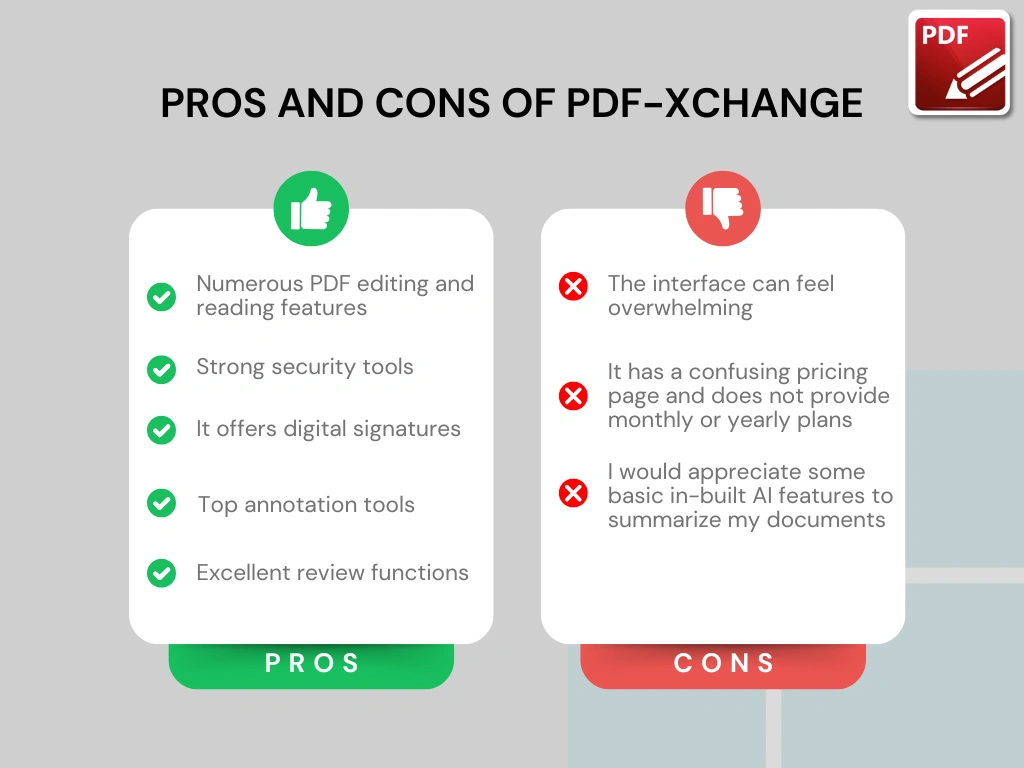
After testing PDF-XChange, I found it to be one of the most powerful PDF editors available. It offers an extensive set of features similar to tools like Adobe Acrobat or Nitro, but at a more reasonable price.
That said, the interface can feel overwhelming at first. The toolbar is full of icons and options, which means there is a learning curve before you become comfortable navigating the software.
Pricing
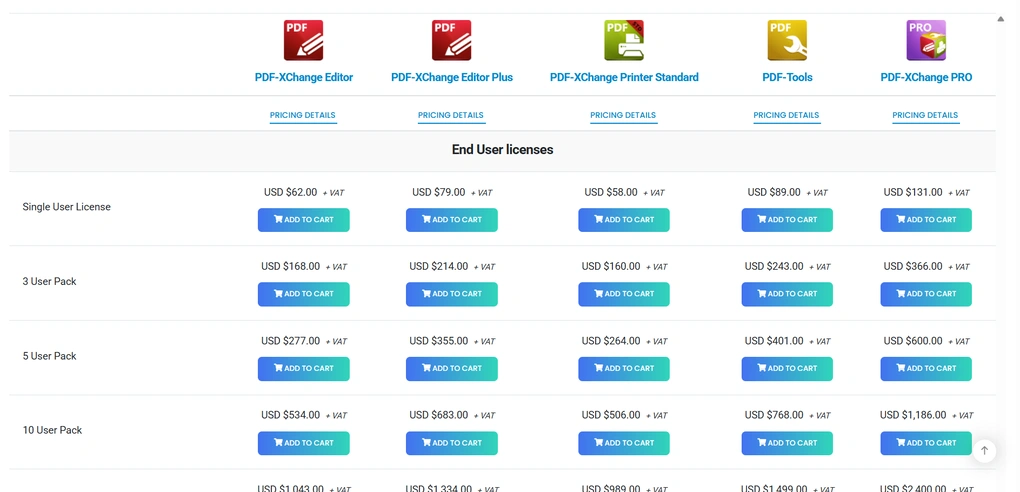
PDF-XChange uses perpetual licenses, meaning you pay once instead of subscribing monthly or yearly.
The PDF-XChange Editor license costs around $62 per user, while the Editor Plus version costs about $79 per user and adds features like enhanced OCR and fillable forms. There are also additional tools, such as PDF-XChange Tools ($89) and the PDF-XChange Pro bundle ($131), which includes several products together.
Pros and cons of PDF-XChange
Pros of PDF-XChange
Cons of PDF-XChange
Why is it the best advanced PDF redaction tool?
PDF-XChange is ideal for users who need powerful redaction and security features. With tools like Find and Redact, strong password protection, advanced annotations, and OCR support, it provides one of the most comprehensive solutions for securely removing sensitive information from PDF documents.
🔎Read my full review: My Unfiltered PDF-XChange Review 2026
Short on time? Here’s a quick overview of PDF-XChange
Best PDF redaction tool #4 | PDFgear
Best free PDF redaction tool
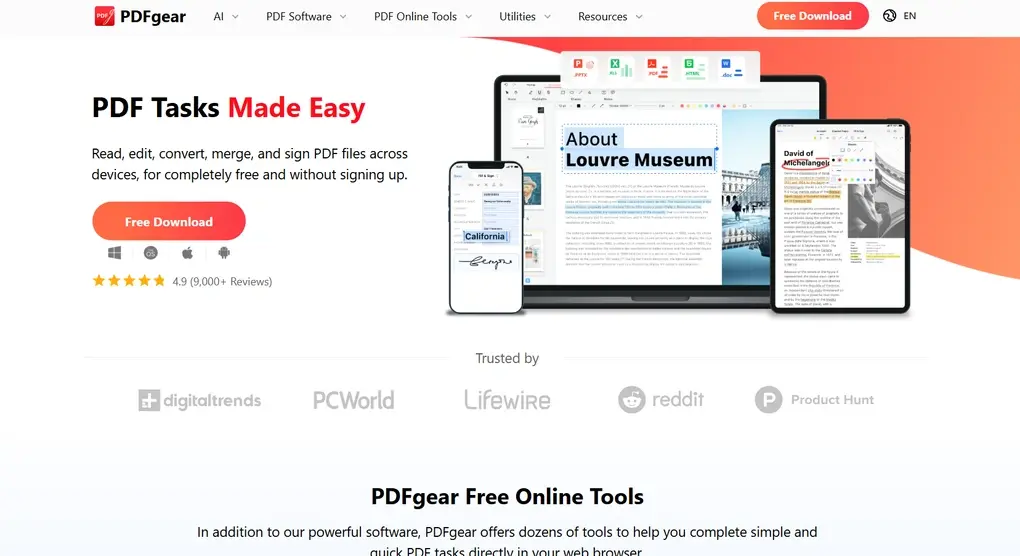
PDFgear is a completely free PDF editor that offers a surprisingly strong set of tools for editing, annotating, converting, and managing PDF documents. Unlike many competitors that place advanced features behind a paywall, PDFgear provides most of its functionality without requiring a subscription.
Additionally, PDFgear works offline after installation, which means your documents are processed locally instead of being uploaded to an online service.
PDFgear’s redaction feature
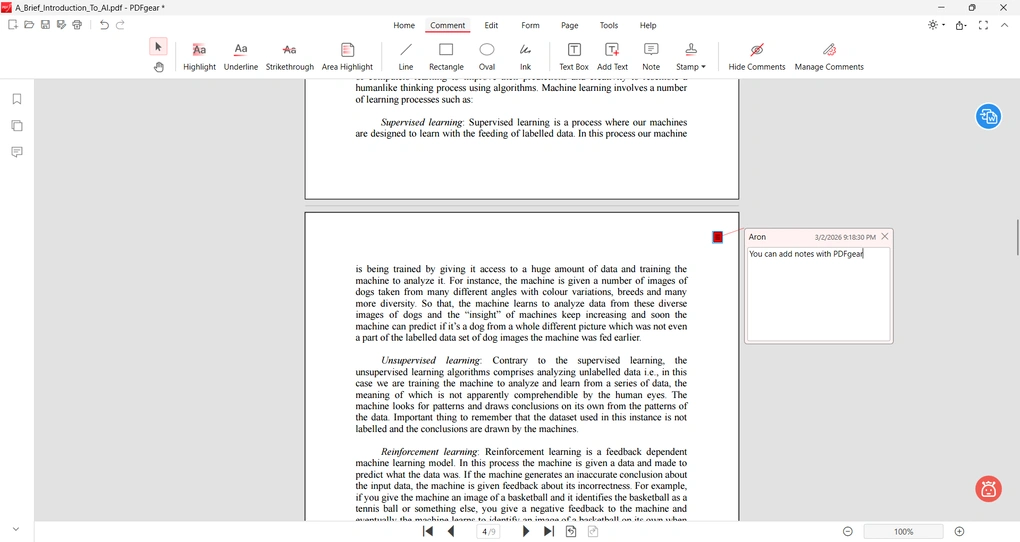
PDFgear doesn’t include a dedicated enterprise-style redaction tool, but it still allows you to remove sensitive information from PDF documents in a few simple steps. First, you can edit or delete text and images directly from the file, thus removing confidential content.
Another option is to cover sensitive sections using shapes or annotations. This approach works well for quick manual redaction when preparing documents for internal reviews or external sharing.
Additionally, PDFgear’s OCR feature converts scanned PDFs into editable text. This makes it easier to locate sensitive information in scanned files and remove it during the redaction process.
PDFgear’s other features
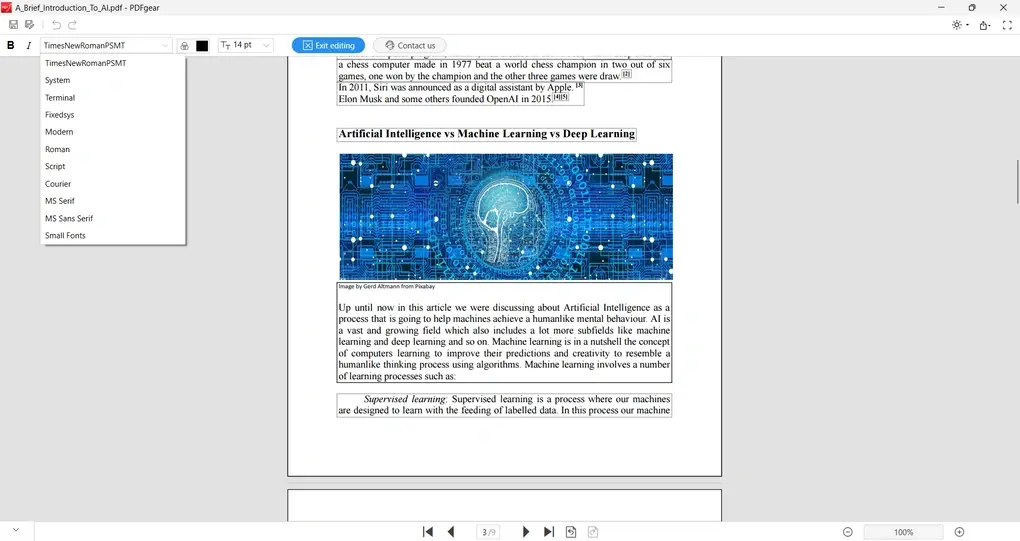
PDF editing: PDFgear lets you edit text and images with just a few clicks. You can change fonts, size, and color, and add new text boxes or images without issues. The editor works smoothly and is easy to use. It lacks some advanced options like text alignment and spacing, but it’s more than enough for basic, free PDF editing.
PDF organization: You can insert, rotate, crop, delete, or extract pages inside your PDF documents. These features are useful when preparing documents for redaction, for example by removing entire pages that contain confidential information.
Conversion and compression: The tool also includes fast conversion options between PDFs and formats like Word, Excel, images, and text. You can also compress large PDF files to reduce their size without significantly affecting document quality.
OCR support: PDFgear offers built-in OCR technology that converts scanned PDFs into searchable and editable text. It supports more than 30 languages.
AI-powered PDF assistant: PDFgear includes an AI feature called PDFgear Copilot, powered by ChatGPT. It allows you to summarize documents, ask questions about PDF content, and quickly extract key information from long files.
My experience with PDFgear
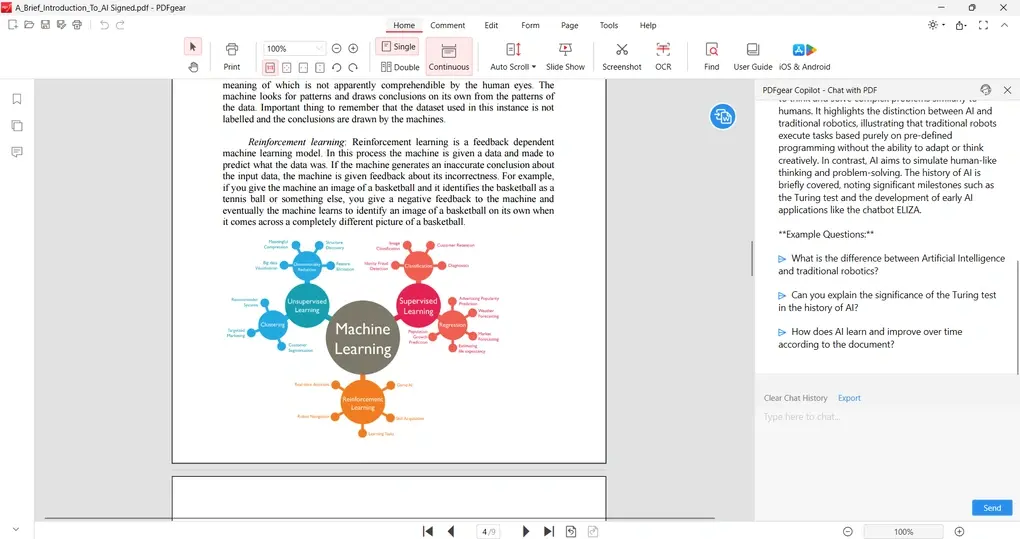
During testing, PDFgear performed surprisingly well for a free PDF editor. The interface is simple and easy to navigate, and most tools are accessible within a few clicks.
I especially liked its performance and AI assistant, which helped quickly analyze long documents. However, compared to paid PDF editors, it lacks some advanced security and editing features.
Pricing
PDFgear is currently 100% free to use, with no subscription required. According to the company, they may introduce paid plans in the future, but for now the full feature set is available without hidden costs.
Pros and cons of PDFgear
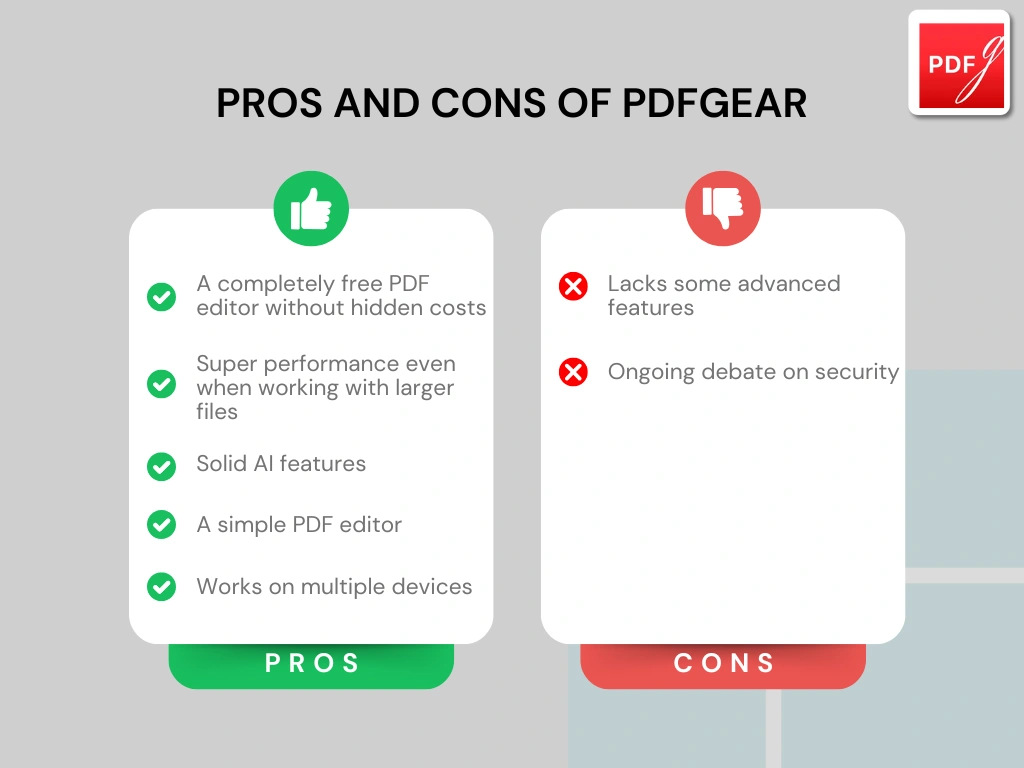
Pros of PDFgear
Cons of PDFgear
Why is it the best free PDF redaction tool?
PDFgear is ideal for users who need a free solution to edit and redact PDF documents. While it does not include enterprise-level redaction tools, its combination of editing features, OCR support, AI assistance, and offline processing makes it one of the best free options for preparing and redacting documents before sharing them.
🔎Read my full review: My Honest PDFgear Review 2026 | What They Don’t Tell You
Short on time? Here’s a quick overview of PDFgear
Best PDF redaction tool #5 | PDF Expert
Best PDF redaction tool for Apple users
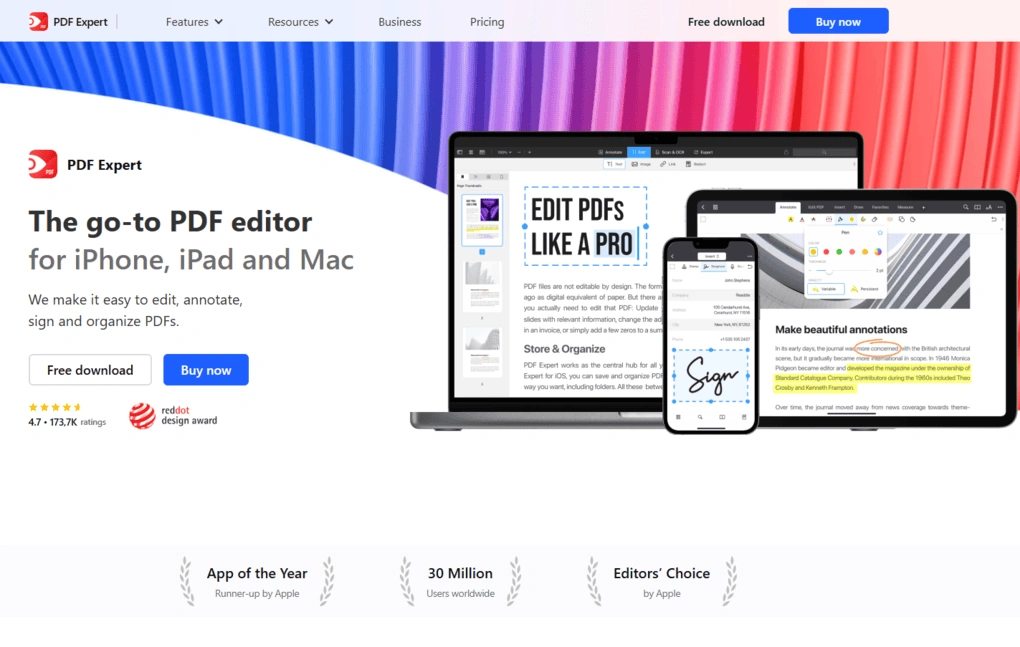
PDF Expert is a powerful PDF editor designed specifically for Mac, iPhone, and iPad users. Developed by Readdle, it offers a balanced combination of speed, usability, and advanced document tools, including built-in PDF redaction and protection features.
PDF Expert’s redaction feature
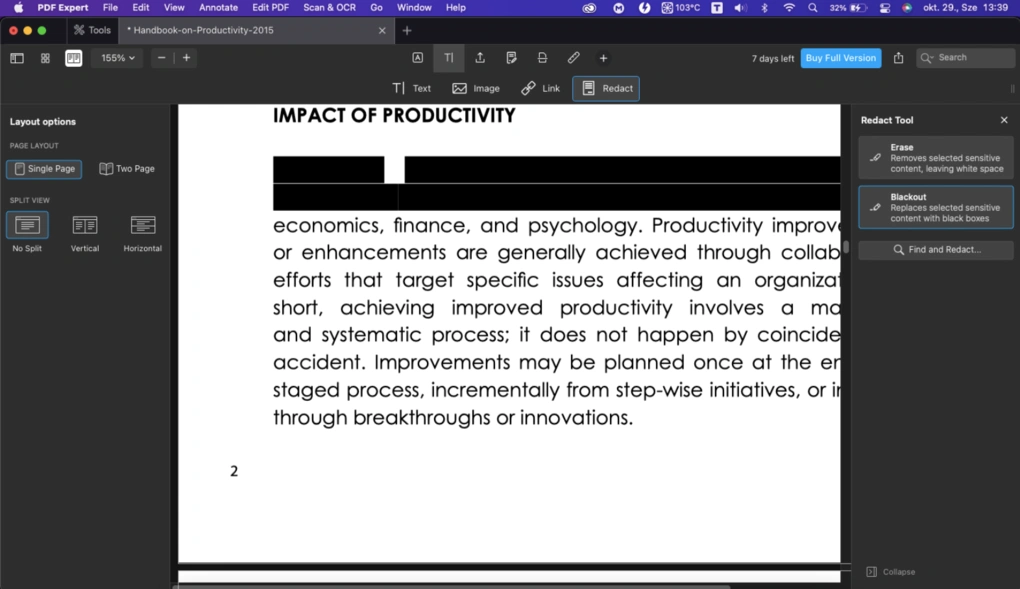
PDF Expert includes built-in redaction tools that allow you to permanently remove sensitive information from your PDF documents. You can select the content you want to hide and apply redaction to blackout or erase the selected text before sharing the file.
Another helpful feature is that you can protect documents with passwords. This adds an additional security layer when working with confidential files, ensuring that only authorized users can access or modify the document.
PDF Expert’s other features
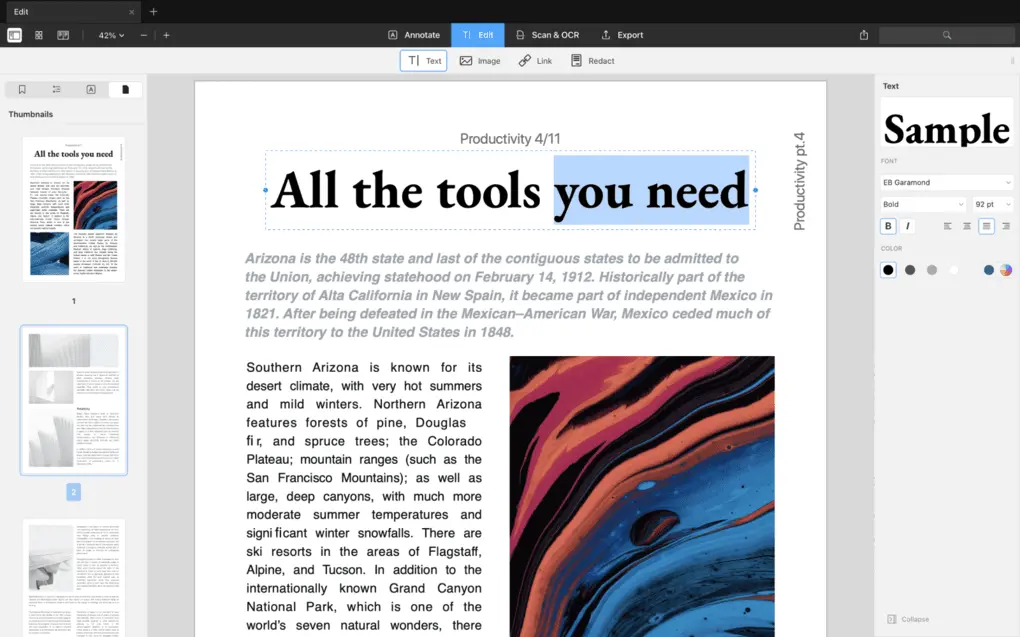
PDF editing: You can edit existing text, add new text boxes, insert images, and crop pages directly inside your PDFs. The editing experience is smooth and intuitive, making it easy to remove or adjust content during the redaction process.
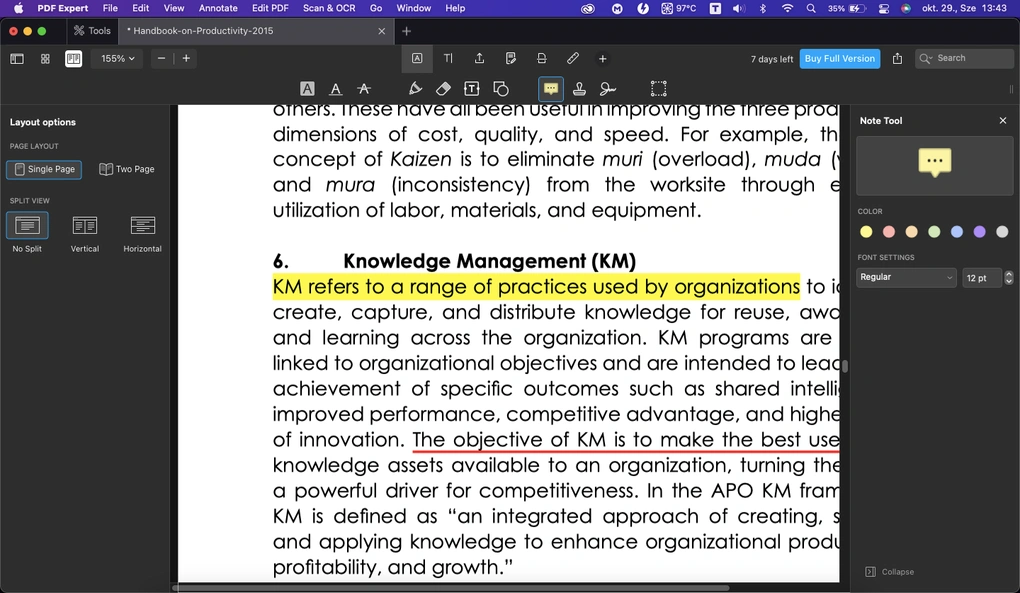
Annotation tools: PDF Expert offers strong annotation features, including highlights, notes, stamps, shapes, links, and strikethrough text. These tools are useful when reviewing documents and marking sections that need redaction.
OCR: The built-in OCR tool allows you to convert scanned PDFs into editable text. Once recognized, the text can be edited or redacted just like a regular document.
PDF organization: You can easily reorder, insert, rotate, copy, or extract pages within a document. This is particularly helpful when preparing files before sharing or removing pages that contain sensitive information.
AI-powered PDF Copilot: PDF Expert includes an AI assistant (currently in beta) that helps summarize, translate, and analyze long PDF files. This feature can help quickly identify sections that may require redaction.
My experience with PDF Expert
During testing, PDF Expert felt incredibly fast and stable. Even when opening large documents, it loaded quickly and ran smoothly without crashes.
Compared to heavier tools like Adobe Acrobat, PDF Expert provides a much simpler and cleaner experience, especially for Mac users.
Explore our Apps directory
A curated directory of software tools we’ve independently reviewed, with links to full reviews, comparisons, and category guides.
Pricing
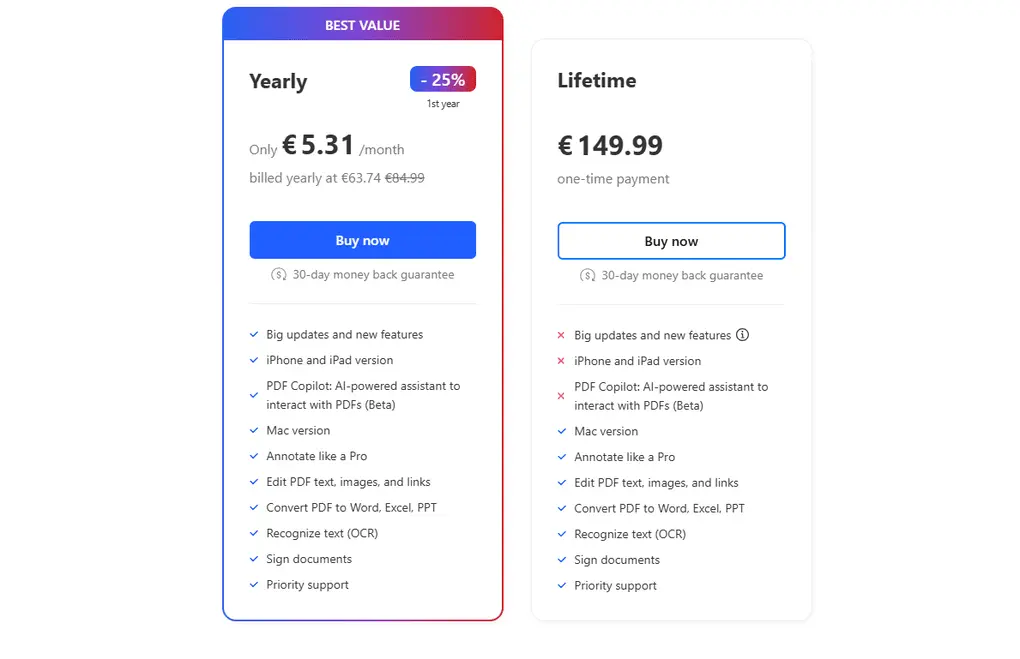
PDF Expert offers two paid plans.
You can get a lifetime subscription for a one-time fee of €149.99. While it includes almost all the features except the PDF Co-pilot, you have to pay for the updates, and you will not have access to the iPhone and iPad versions.
The annual subscription is €63.74 for the first year and €84.99 for the remaining years. It includes the updates, iPhone and iPad versions, and the PDF Co-pilot.
All in all, PDF Expert is a great free PDF viewer. If you decide to upgrade to one of its paid plans for the advanced features, PDF Expert comes at a reasonable price. It is way cheaper than Adobe Acrobat Pro, Nitro, or Foxit.
Pros and cons of PDF Expert
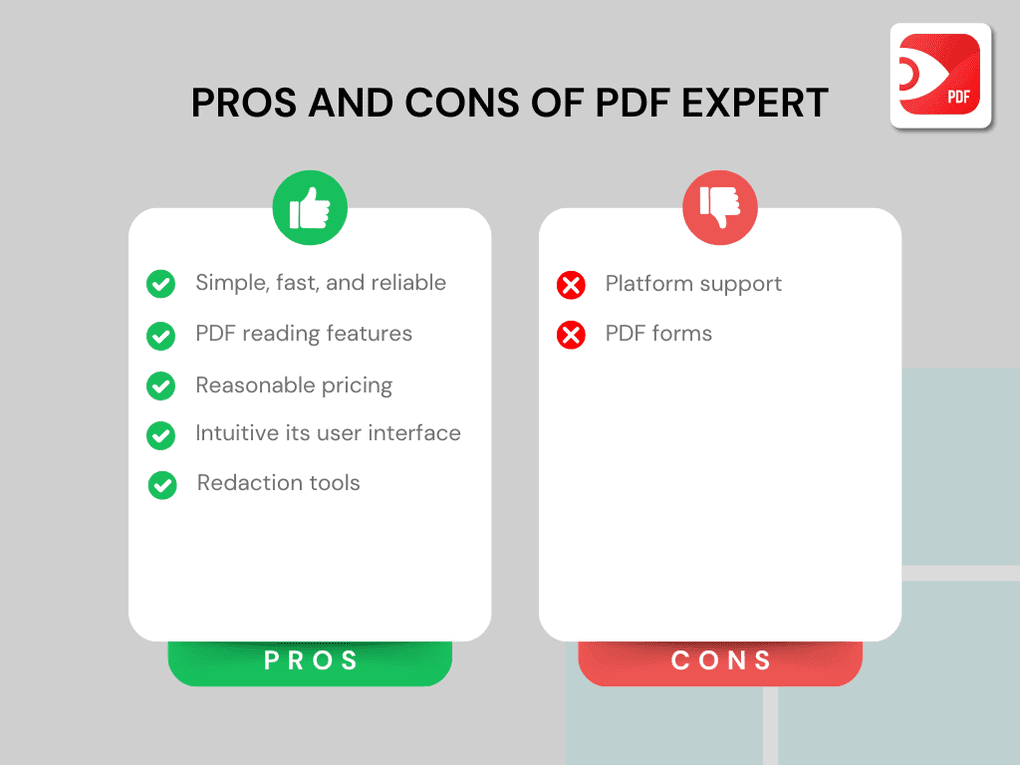
Pros of PDF Expert
Cons of PDF Expert
Why is it the best PDF redaction tool for Apple users?
PDF Expert is one of the best redaction tools for users working within the Apple ecosystem. It combines fast performance, intuitive design, and reliable redaction tools while remaining significantly more affordable than many enterprise PDF editors.
🔎Read my full review: PDF Expert Review 2026 | Is it REALLY the best for Mac Users?
Short on time? Here’s a quick overview of PDF Expert
Best PDF redaction tool #6 | Adobe Acrobat
Best PDF redaction tool for professional workflows
Adobe Acrobat is one of the most widely used PDF tools and has long been considered the industry standard for working with PDF documents. It offers a comprehensive set of features for editing, organizing, securing, and sharing files. Because of that, it’s a common choice in professional environments where documents often contain sensitive information.
Adobe Acrobat’s redaction feature
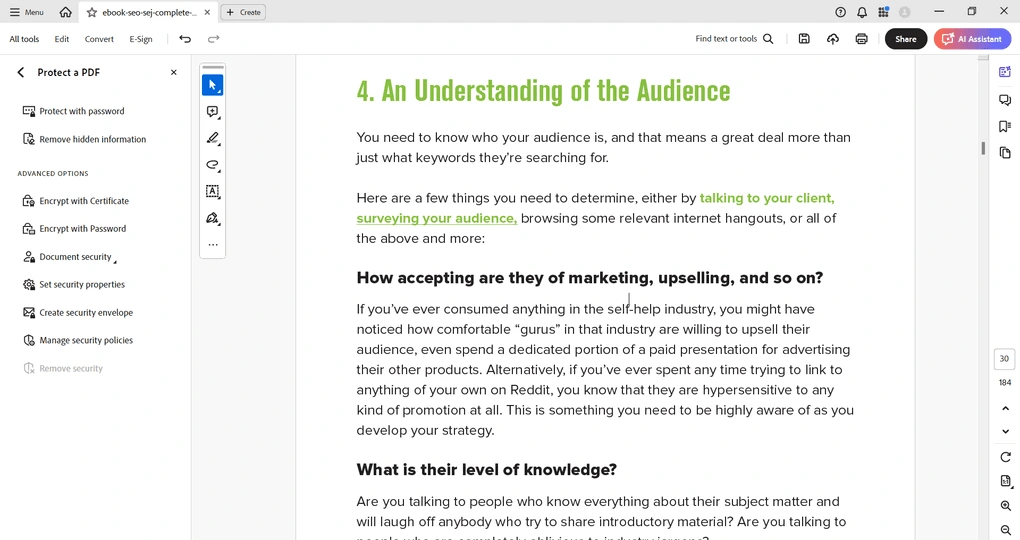
Adobe Acrobat includes one of the most advanced PDF redaction tools available. You can manually select text, images, or entire sections and permanently remove them from the document before sharing it.
Similarly to PDF-Xchange, it has the “Find text & redact” option. It allows you to search for specific words, phrases, or patterns and automatically redact them across the entire document.
Adobe Acrobat provides a professional-grade redaction workflow, though its price makes it a better choice for organizations rather than individuals.
Adobe Acrobat’s other features
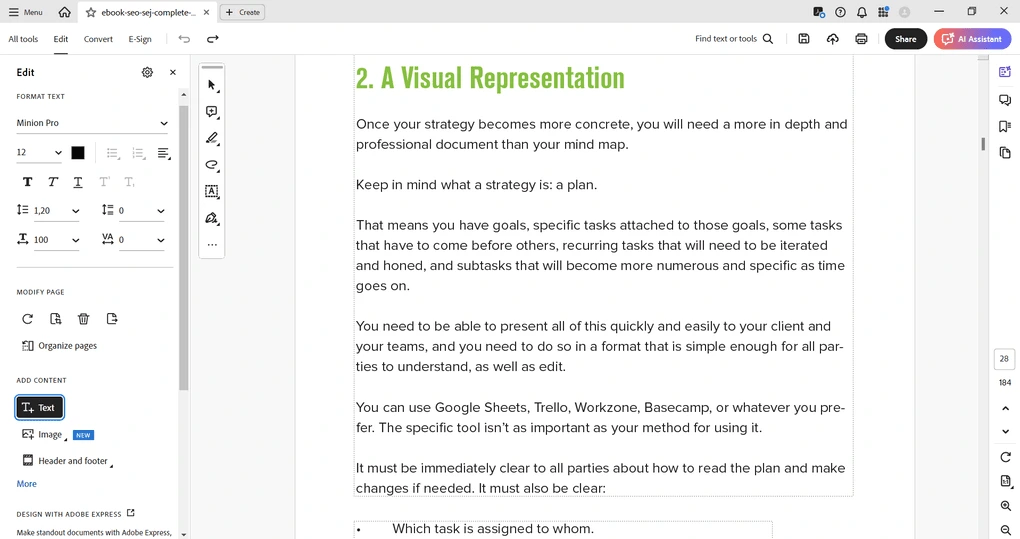
PDF editing: Adobe Acrobat has solid editing tools that are easy to access from the “All tools” tab. You can add, remove, and edit text, highlight content, and work with forms or drawings. However, moving text or images isn’t very smooth, since the drag-and-drop feels limited compared to other editors.
OCR: On the other hand, Adobe Acrobat does a great job when it comes to editing text in a scanned image. It performs an optical character recognition, and after, it allows you to insert, change, or remove the recognized text. This feature works great even in the case of old printed documents.
Annotation tools: Adobe Acrobat offers robust commenting tools, including highlights, sticky notes, shapes, and callouts. These features are useful when reviewing documents and marking areas that should be removed before publishing or sharing.
Document organization: You can insert, replace, rotate, split, and extract pages within your documents. The drag-and-drop page management system also makes it easy to reorganize large PDF files.
Forms and electronic signatures: Using the Fill & Sign feature, you can complete forms and add digital signatures quickly. Acrobat also supports sending documents for signature, which is especially useful in business workflows.
Security and sharing: Adobe Acrobat allows you to protect documents with passwords and control permissions such as printing, editing, or copying content. Files can also be shared through cloud links or email directly from the app.
My experience with Adobe Acrobat
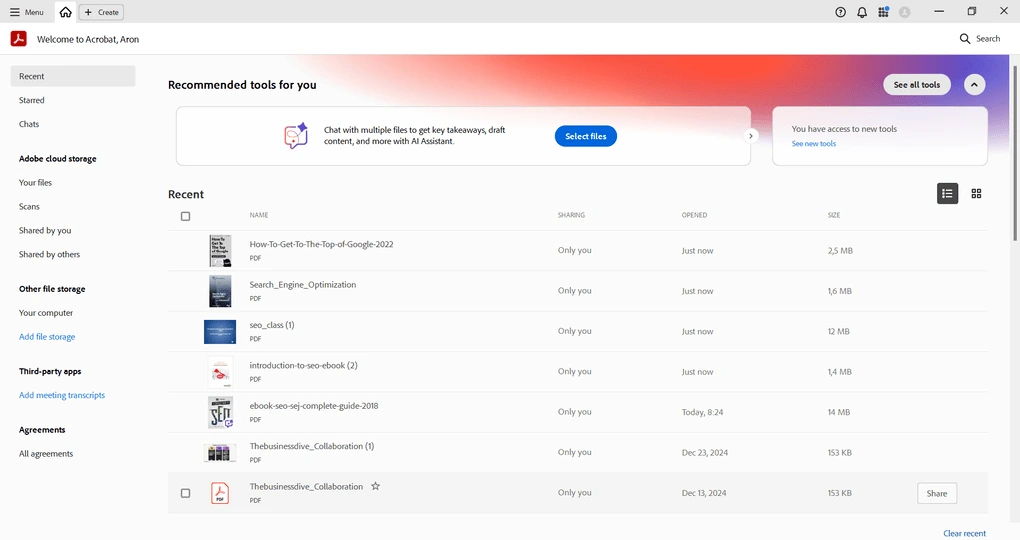
Adobe Acrobat offers one of the most comprehensive PDF toolsets available. It covers nearly every task related to PDF management, from editing and signing documents to securing and redacting confidential information.
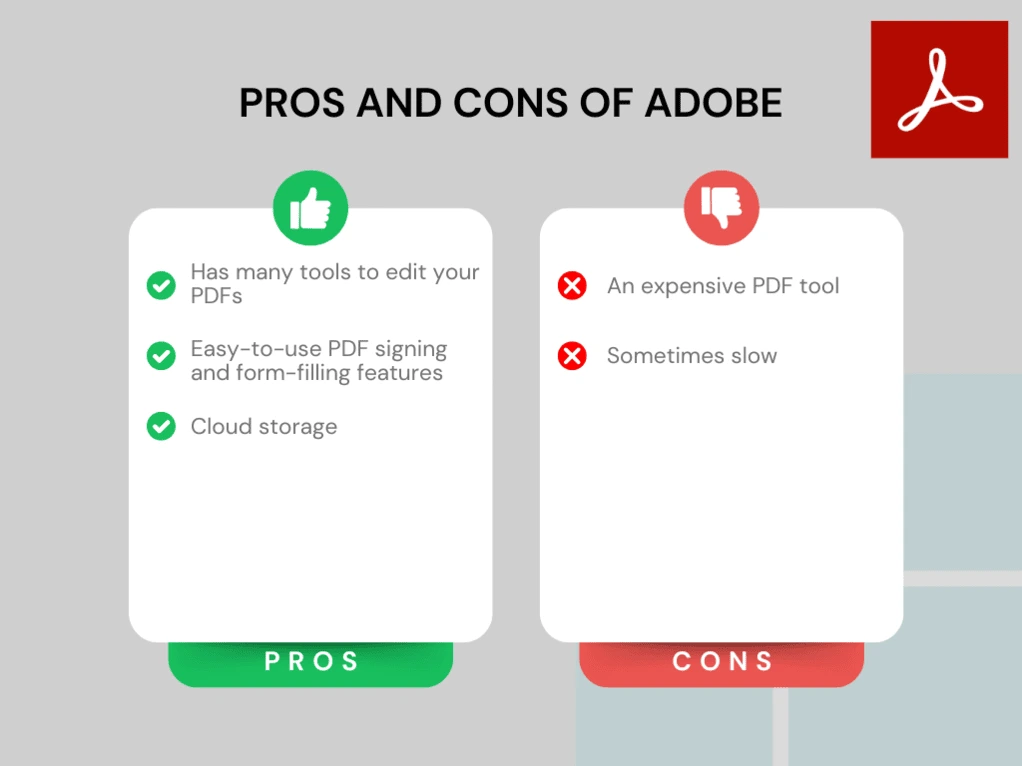
However, during testing I noticed that it can feel slower than many modern PDF editors, especially when opening larger files. Considering its relatively high price compared to alternatives, it may be more suitable for professional users and teams rather than casual users.
Pricing
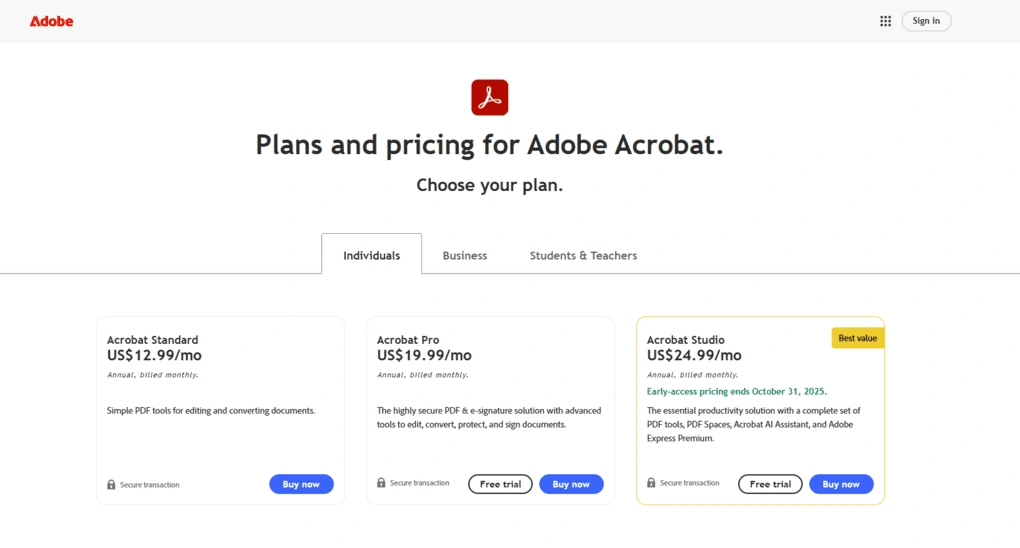
Adobe Acrobat offers three main plans, and you can add the AI Assistant for $4.99 per month. Pricing also varies depending on whether you purchase it as an individual, business, or student, but the core features remain similar across plans.
The free Adobe Reader plan includes only basic tools for viewing, printing, sharing, and commenting on PDFs. If you need editing capabilities, you will need the Acrobat Standard plan, which allows you to edit text and images, create and fill forms, and add signatures. This plan costs $155.88 per year for individuals and $179.88 per year for businesses.
The Acrobat Pro plan unlocks the full feature set, including advanced editing tools, OCR for scanned documents, document comparison, and bulk e-signature requests. It costs $239.88 per year for individuals and $287.88 per year for businesses, with the optional AI assistant costing $59.88 per year. Overall, Adobe Acrobat is significantly more expensive than many competing PDF editors.
Pros and cons of Adobe Acrobat
Pros of Adobe Acrobat
Cons of Adobe Acrobat
Why is it the best PDF redaction tool for professional use?
Adobe Acrobat remains one of the most powerful solutions for professionals who frequently work with sensitive documents. Its advanced redaction tools, strong security features, and extensive PDF management capabilities make it a reliable option for legal teams, consultants, analysts, and other professionals who need precise control over confidential information.
🔎Read my full review: Adobe Acrobat Review: What Nobody Tells You (2026)
Short on time? Here’s a quick overview of Adobe Acrobat
Best PDF redaction tool #7 | Tungsten Power PDF
Best enterprise PDF redaction tool
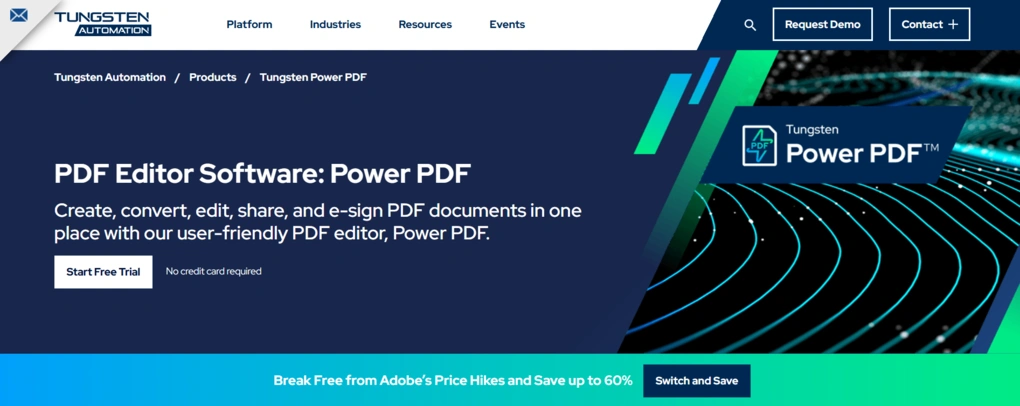
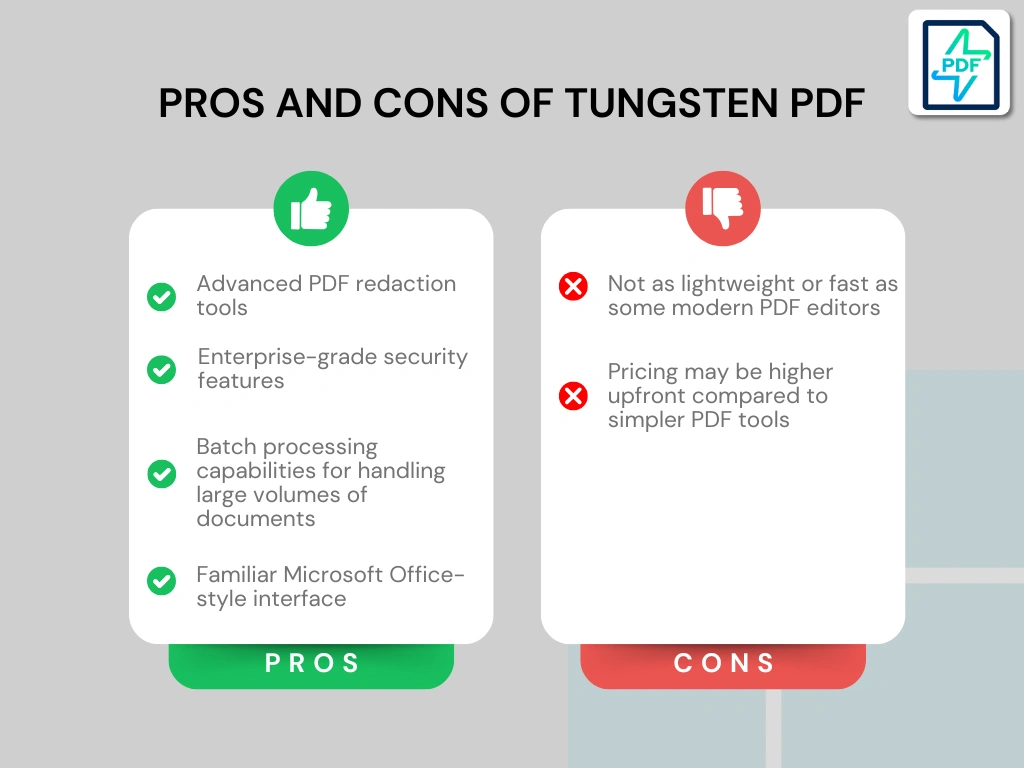
Tungsten Power PDF is an enterprise-grade PDF editor designed for organizations that handle large volumes of documents and sensitive information. It combines advanced editing tools, strong security features, and professional redaction capabilities in a familiar Office-style interface that is easy for teams to adopt.
The platform is widely used in environments where document security and compliance are essential, such as legal, healthcare, and corporate workflows. Its built-in redaction and encryption tools help ensure that confidential information is permanently removed before documents are shared.
Tungsten Power PDF’s redaction feature
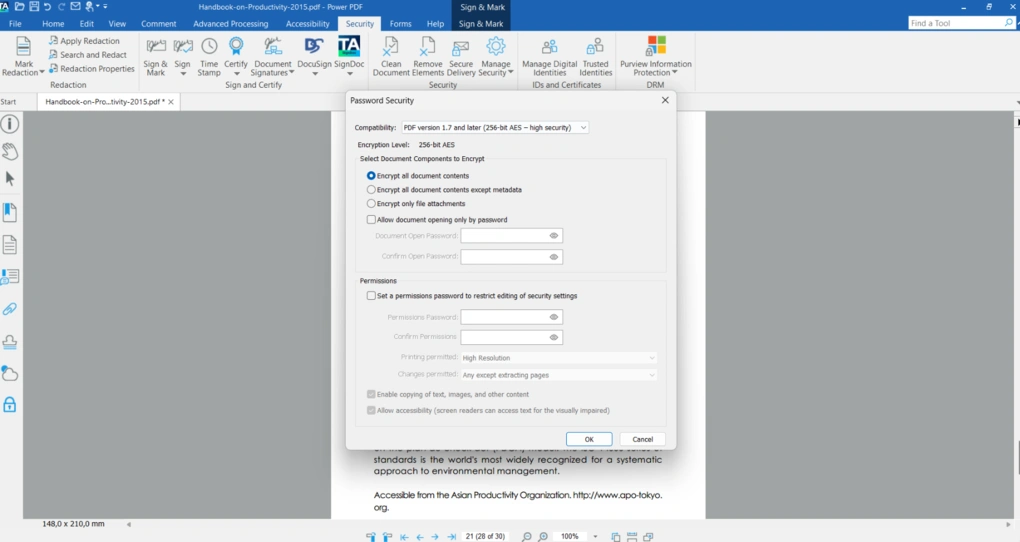
Tungsten Power PDF includes advanced redaction tools designed for professional and enterprise environments. You can mark sensitive text, images, or sections of a document and apply permanent redaction to remove them so the information cannot be recovered.
Similar to PDF-Xchange and Adobe Acrobat, Tungsten Power PDF has search and redact functionality. It allows you to locate specific words, phrases, or patterns and automatically redact them across an entire document or multiple files.
Another powerful capability is batch redaction, which lets you apply redactions across multiple files at once with maximum data protection. Combined with the built-in audit trail, this makes Tungsten Power PDF particularly useful for compliance-heavy workflows such as legal reviews or regulatory reporting.
Tungsten Power PDF’s other features
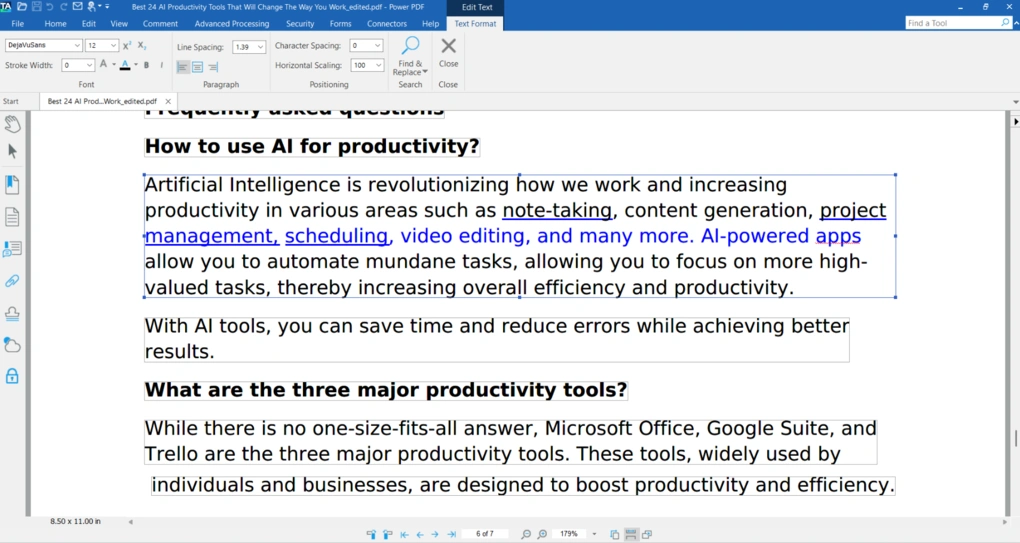
OCR and document editing: The built-in OCR technology converts scanned PDFs and images into searchable and editable text, making it easier to locate and redact confidential information within scanned documents.
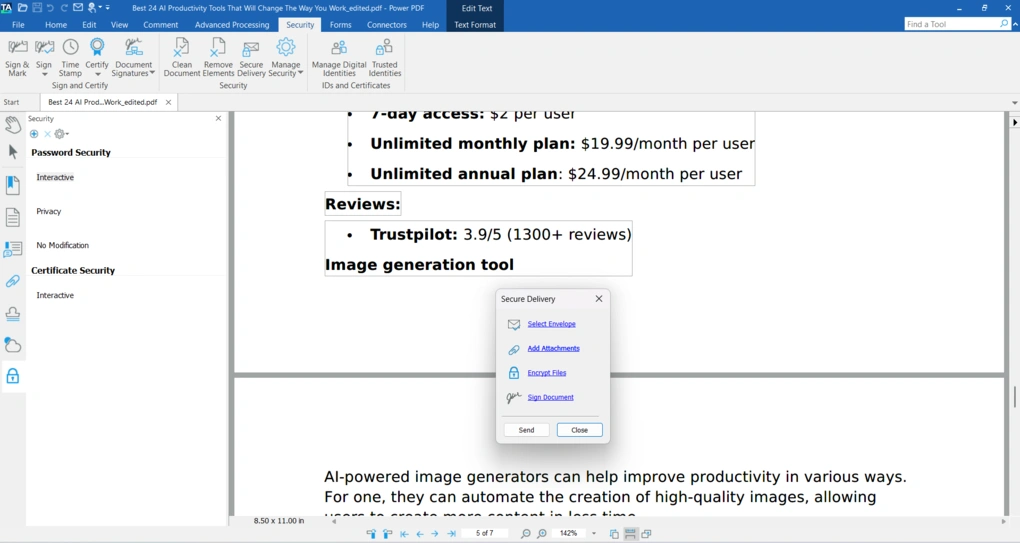
Security and encryption: Power PDF includes strong security features such as encryption, metadata removal, and digital certificates. These tools help ensure that sensitive information remains protected even after documents are shared.
PDF conversion and collaboration: Users can convert PDF files into formats like Word, Excel, or PowerPoint and collaborate with teams using integrations with platforms like Microsoft Teams and cloud storage services.
My experience with Tungsten Power PDF
What stood out the most during testing were the redaction features. Instead of manually hiding content, you can quickly locate and remove sensitive information across the entire document. This way, the process becomes much more efficient when dealing with longer files.
Another thing I appreciated is the Office-style interface. If you have used Microsoft tools before, the layout looks familiar, so navigating through the features is relatively straightforward despite the large number of tools available.
Pricing
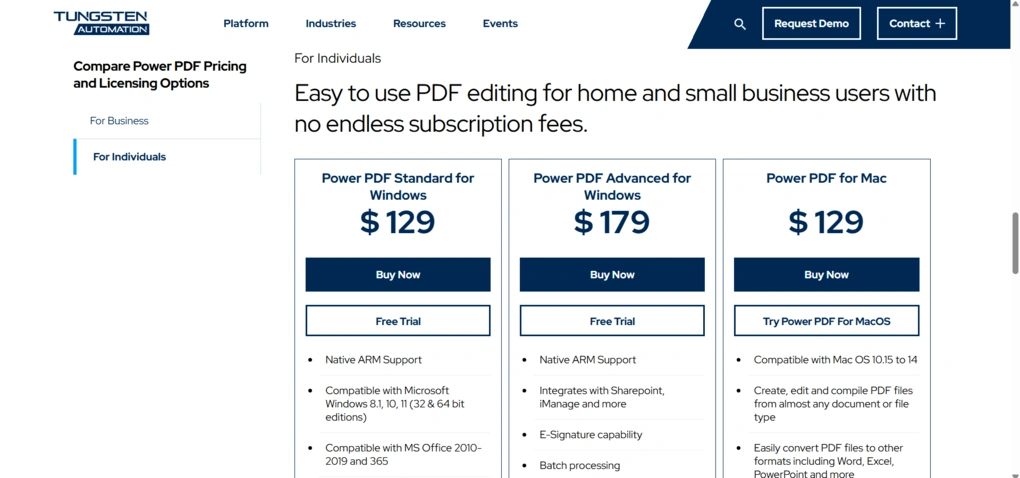
Tungsten Power PDF uses a one-time licensing model, which means you purchase the software once and own it permanently without paying monthly or yearly subscription fees.
The Power PDF Standard plan starts at $129 per license and includes core PDF tools such as editing, conversion, digital signatures, and password protection.
For more advanced functionality, there is Power PDF Advanced, which costs $179 per license, and adds features such as enhanced security tools, Bates stamping, and built-in redaction capabilities.
Tungsten also offers a Power PDF Business plan with custom pricing designed for teams and organizations that need centralized deployment and enterprise-level management features.
Additionally, Tungsten provides a 15-day free trial.
Pros and cons of Tungsten Power PDF
Pros of Tungsten Power PDF
Cons of Tungsten Power PDF
Why is it the best enterprise PDF redaction tool?
Tungsten Power PDF stands out for organizations that need reliable redaction, strong security controls, and scalable document workflows. With features like batch redaction, audit trails, and OCR-powered document processing, it is a powerful solution for enterprises that handle sensitive data on a daily basis.
🔎Read my full review: My Honest Tungsten Power PDF Review 2026
Short on time? Here’s a quick overview of Tungsten Power PDF
Best PDF redaction tool #8 | Soda PDF
Best user-friendly PDF redaction tool
Soda PDF is a PDF editor available both as a desktop application and an online tool. While the desktop version works only on Windows, Soda PDF Online allows users to manage and edit PDF files directly in their browser from virtually any device.
Soda PDF’s redaction feature
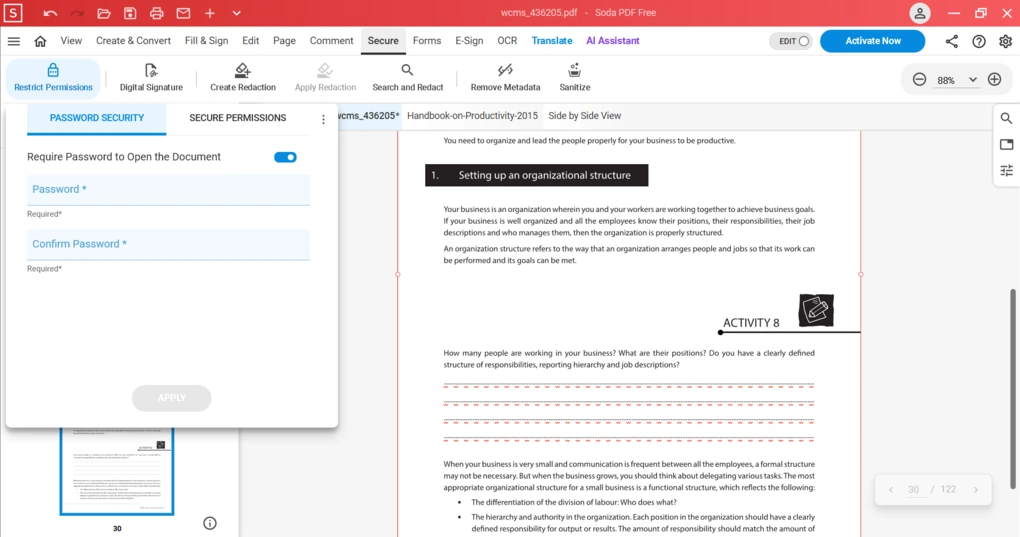
Soda PDF includes a very straightforward built-in redaction tool. Just hit the “Create redaction”, and once you select all the text you want to remove, click on “Apply Redaction”.
To make redaction even faster, you can use Soda PDF’s search function, which allows you to locate specific words or phrases and redact them across the entire document.
If you want to make sure that the information is removed before sharing the PDF document, you can use the sanitize tool. This feature removes hidden metadata and other sensitive data from your documents, ensuring that confidential information is not accidentally shared when distributing the redacted file.
Soda PDF’s other features
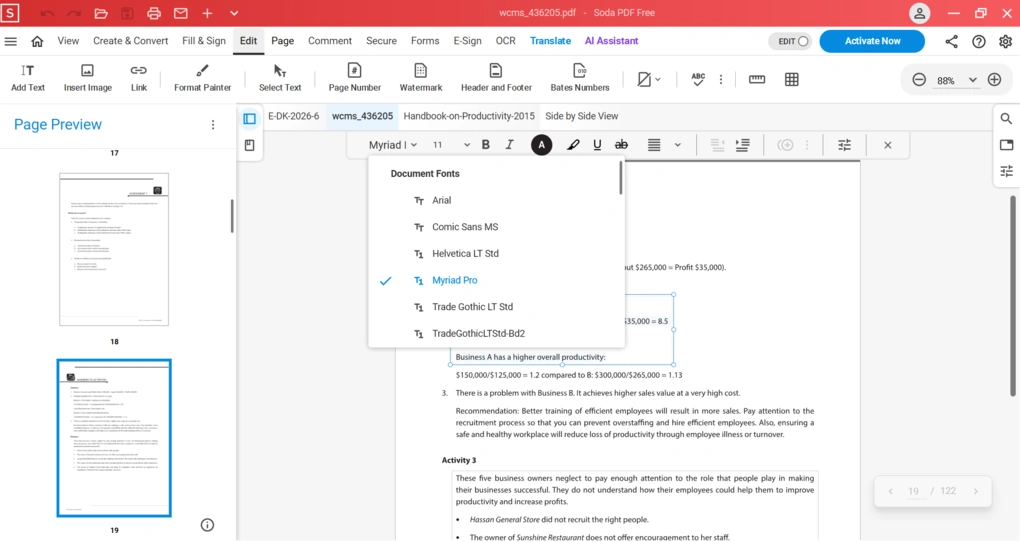
PDF editing: You can edit existing text, insert new text boxes, and add images directly to your PDFs. Soda PDF also allows you to adjust fonts, colors, and paragraph alignment, making it relatively easy to modify document content when preparing files for redaction.
Annotation tools: The software offers several annotation features such as sticky notes, shapes, stamps, and attachments. These tools are helpful when reviewing documents and marking sections that require changes or redaction.
PDF organization: Soda PDF allows you to organize pages by inserting, extracting, replacing, moving, or cropping them. These features help structure large documents before sharing or removing sensitive content.
Forms and electronic signatures: Users can create and fill forms and add legally binding electronic signatures. You can type, draw, or upload a signature image and place it anywhere in the document.
Security features: Soda PDF includes password protection and permission controls to restrict actions such as editing or printing. The sanitize tool can also remove hidden metadata and confidential information from files.
OCR support: The built-in OCR technology converts scanned images into editable text. Soda PDF supports 130+ languages and allows bulk document processing.
My experience with Soda PDF
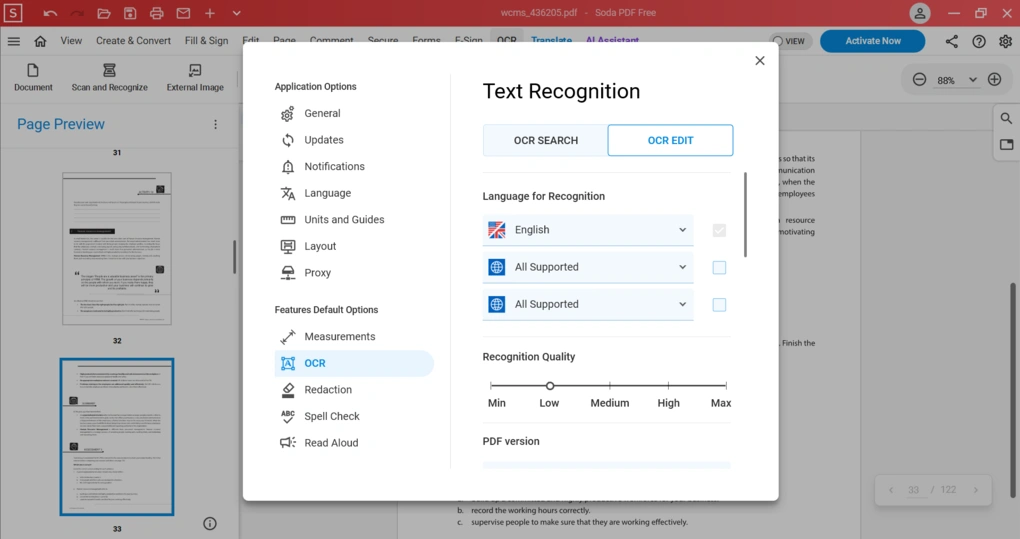
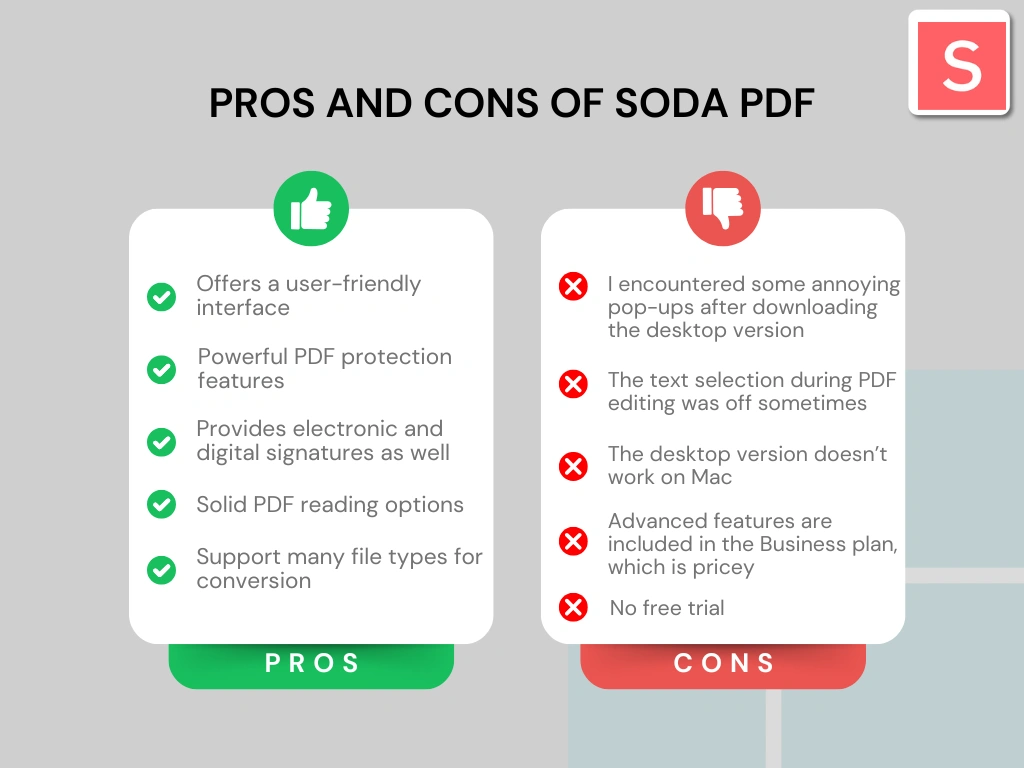
During testing, I mostly used the desktop version of Soda PDF. Thanks to its clean and intuitive interface, it was easy to navigate the tool and quickly access the features I needed.
The editing tools worked well overall, although selecting text sometimes felt inconsistent. I also encountered a few pop-ups while using the desktop version, which interrupted the workflow occasionally.
Pricing
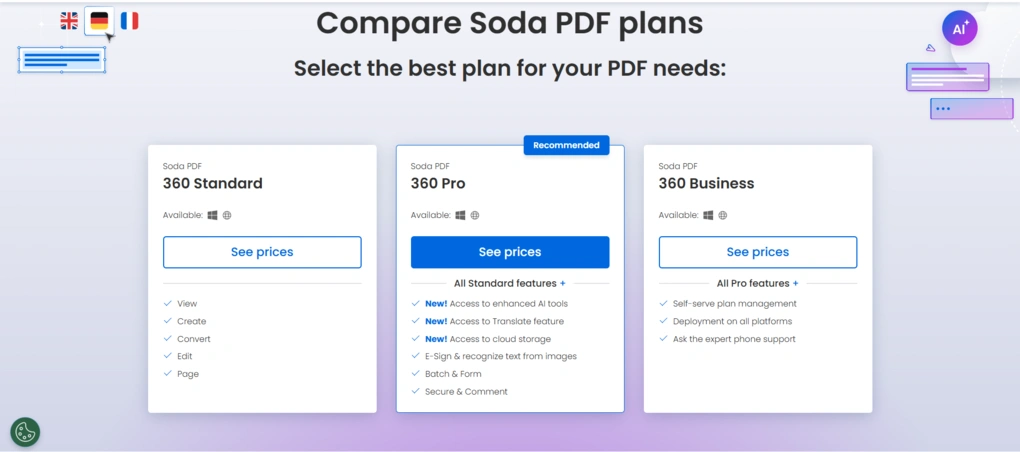
Soda PDF offers a free download to use the desktop version. With the free version, you can edit, annotate, and view PDFs. Also, you will access the security and signing features as well.
Unfortunately, Soda PDF does not offer a free trial, so you can try the advanced features only if you actually upgrade.
The Standard plan is $7.00 per month with annual billing and covers some additional features like converting and 10 questions/month for the AI tools, and 2GB cloud storage.
With the Pro subscription, you access some advanced features, for example, batch processing or OCR search, 50 questions per month for the AI tools, and 5 GB cloud storage. This plan is $10.42 per month with annual billing.
If you need all the advanced features of Soda PDF review, you have to go with the Business plan. It costs $16.50 per month, billed annually, and includes all the features, 200 questions per month for the AI features, and access to 10 GB cloud storage.
Overall, I think Soda PDF is a bit overpriced compared to other apps since the advanced features are available in the Pro and Business plans.
Pros and cons of Soda PDF
Pros of Soda PDF
Cons of Soda PDF
Why is it the best user-friendly PDF redaction tool?
Soda PDF stands out because it offers a simple and intuitive interface. Combined with its built-in editing, security, and document management features, it allows users to quickly remove sensitive information and prepare PDFs for sharing.
Full review: My Honest Soda PDF Review 2026 | It Failed Successfully?
🔎Read my full review: My Honest Soda PDF Review 2026 | It Failed Successfully?
Short on time? Here’s a quick overview of Soda PDF
Summary: The best PDF redaction tools in 2026
After extensive research and testing, these are the best PDF redaction tools in 2026. While many PDF editors include redaction features, only a few provide the right balance of security, usability, and reliable document redaction.
If you need to redact a PDF, I recommend carefully evaluating the redaction process, security features, and the ability to permanently remove sensitive information from your documents. Some tools are better for simple manual redaction, while others offer advanced features such as batch processing, OCR for scanned PDFs, and automated search-and-redact functions.
Related articles:
- 6 Best OCR Software For 2026 | 30+ Personally Tested Tools
- The 6 Best PDF Readers For 2026 (Only FREE Options)
- The 10 Best PDF Editors In 2026 | 30+ Personally Tested PDF Tools
- 6 Best PDF Converter For 2026 | 30+ Personally Tested Tools
I hope this guide helps you find the best PDF redaction tool for your needs. As always, I will continue updating this list to keep it accurate and relevant as new tools and features appear.
Looking for similar tools?
Visit our library of PDF editors to explore other apps we’ve reviewed in this space and how they compare.
Why you can trust our reviews
At thebusinessdive.com, our team tests, reviews, and compares hundreds of productivity apps every year — from project management tools to note-taking apps. We dive deep into real-world use cases to help you find the right tools that actually improve your workflow, not just add noise.
Our mission? No fluff, no shortcuts—just honest, hands-on insights from productivity pros.
Discover how we stay transparent, read our review methodology, and let us know about any tools we missed.
Frequently asked questions
What are PDF redaction tools and why are they important?
PDF redaction tools help remove sensitive information from PDF documents before sharing them. During the redaction process, sensitive text, images, and confidential information are permanently removed from the PDF file so they cannot be recovered.
How can I redact a PDF online?
To redact PDF online, simply upload your PDF file to a redaction tool or PDF editor. Then select the sensitive content you want to remove and apply the redaction. Most online tools also remove hidden data and metadata to ensure the redacted document is secure.
What types of sensitive data should be removed from PDF documents?
You should redact sensitive data such as personally identifiable information, social security numbers, credit card numbers, and confidential business data. Removing this information helps organizations comply with privacy regulations and protect sensitive information.
Can PDF redaction tools remove content from multiple pages?
Yes, many PDF redaction tools allow you to redact text across multiple pages or even entire sections of a document. Some advanced tools also support batch processing, which can save time when you need to redact multiple PDF files at once.
Disclosure: I only recommend products I would use myself, and all opinions expressed here are our own. This post may contain affiliate links that, at no additional cost to you, I may earn a small commission. Read the full privacy policy here.

Hey there! I am Aron, the founder of Thebusinessdive. I have been testing productivity apps for almost three years now. I reach 25.000 -50.000 people monthly with the mission to help you find the perfect productivity apps. Subscribe to my YouTube channel, newsletter, and social media to hear more about the best productivity tools. Let’s dive in!