



The 9 Best Email Unsubscribe Apps in 2026 | My Honest List
My inbox used to be constantly filled with newsletters, promotions, and unwanted messages. Starting my day by clearing my inbox and unsubscribing one by one quickly became time-consuming and frustrating.
So, I was curious. What is the best way to reach inbox zero? I started testing and trying to unsubscribe from free apps to paid ones to see which is the best unsubscribe app in 2026.
In this article, I’ll walk you through the best unsubscribe apps available today. I selected the top eight based on personal testing, so you don’t have to waste your time and money on finding the best unsubscribe app for you.
Let’s dive in!
Best Unsubscribe Apps at a Glance
When preparing my list of the best unsubscribe apps, I considered how effectively they reduce unwanted newsletters and promotional email overload. I looked at how easy they are to use, whether they offer automation or bulk actions, and how much manual effort is required to keep the inbox clean over time.
Some tools on this list focus on bulk unsubscribing, while others help reduce newsletter overload through inbox cleanup, filtering, or privacy-focused controls.
Using these criteria, here are my best unsubscribe apps in 2026:
|
Best Unsubscribe Apps |
My Experience |
|
|---|---|---|
 |
Best for automatically managing newsletter overload |
|
 |
Best unsubscribe app for full subscription control |
|
 |
Best unsubscribe app for data-driven Gmail cleanup |
|
 |
Best simple unsubscribe app |
|
 |
Best for fast AI-powered inbox cleanup |
|
 |
Best for eco-friendly email cleanup |
|
 |
Best for one-click Gmail unsubscribing |
|
 |
Best for privacy-first inbox cleanup |
|
 |
Best free unsubscribe app (with privacy trade-offs) |
Best Unsubscribe Apps for 2026
Now, let’s see a more detailed breakdown of the best unsubscribe apps in 2026!
Best Unsubscribe App #1 | SaneBox
Best for automatically managing newsletter overload
SaneBox is an AI-powered email app that helps you manage your inbox and incoming emails with high efficiency. Instead of replacing your existing email client, it works alongside Gmail, Outlook, or Apple Mail and optimizes your inbox directly inside them. It is especially useful for handling large volumes of newsletters and subscription emails automatically.
SaneBox key features
SaneLater: This feature filters incoming emails and moves non-urgent messages into the SaneLater folder so you can focus on important emails in your main inbox. You can check this folder whenever you want, and SaneBox also sends you a summary of these messages once a day or more often, depending on your preferences. This feature helps reduce daily distractions caused by less important emails.
SaneBlackHole: It allows you to block unwanted senders so their emails never appear in your inbox again. Instead of manually deleting the same emails over and over, you simply move one message to the BlackHole folder. If you later realize that an email is important, you can remove it from the BlackHole, and SaneBox will stop blocking that sender.
SaneNews: SaneNews manages newsletters and subscription emails by keeping them organized in a separate folder. Once activated, future subscription emails are collected there, so you no longer face newsletter overload in your inbox. SaneBox also sends a digest of these emails, and you can set rules to automatically move them to the trash or another folder.
SaneReminders: SaneBox lets you schedule reminders for emails that need attention. When creating a reminder, you can choose exactly when SaneBox should notify you. This feature is especially useful when combined with other email tracking tools, helping you avoid forgetting important messages.
SaneNoReplies: This feature collects all unanswered emails in one folder, making it easier to track which messages still require a response. Instead of searching through your inbox, you can quickly see which emails need follow-up. When used together with reminders, it offers a very efficient way to stay on top of communication.
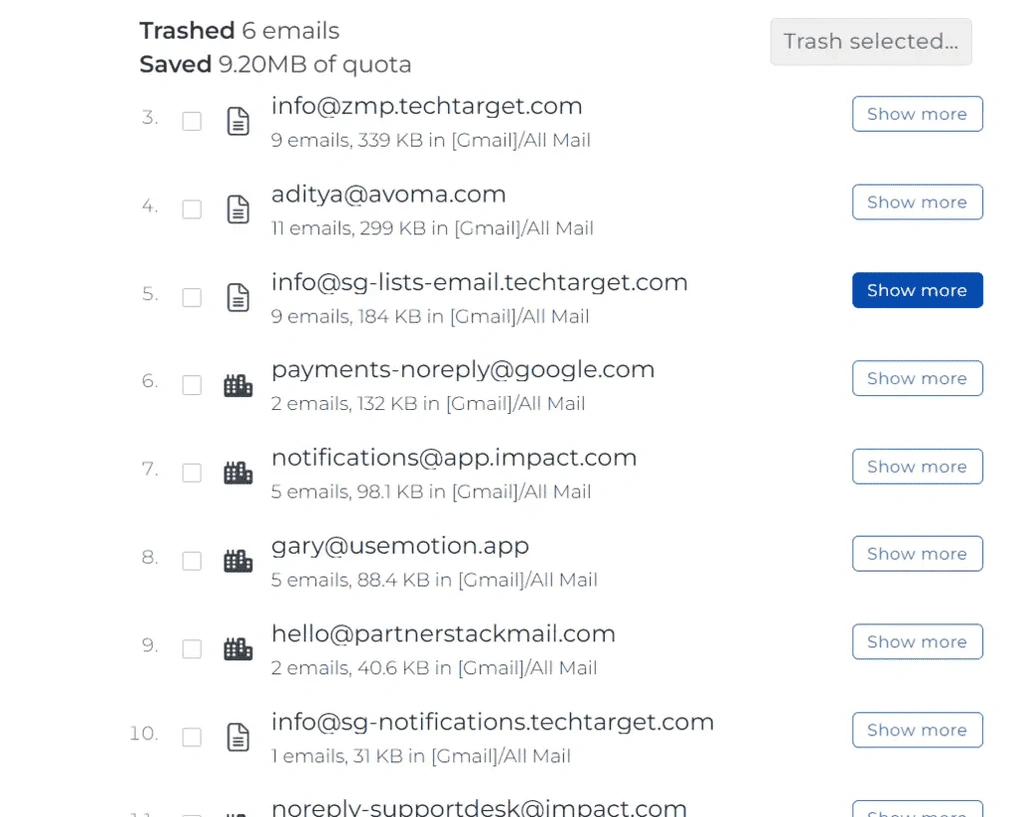
Deep Clean: This is an easy-to-use feature designed to help you free up storage space and delete old emails. SaneBox scans your inbox and summarizes non-important emails by size and count. You can then delete thousands of emails in a short amount of time, while still reviewing details before confirming the removal.
Daily Digest: This feature provides a summary of unopened emails that were sorted out of your inbox. From the email digest view, you can take bulk actions such as marking emails as read, archiving them, or moving them to the trash. You can also handle emails one by one if you prefer more control.
SaneDoNotDisturb: It helps eliminate distractions by moving incoming emails into a separate folder. You can set specific rules for when this folder should be active, such as during weekends or certain times of the day. This allows you to focus on work without constant email interruptions.
Email Organize: Email Organize provides a central hub to review all emails from both your Inbox and Sane folders. It works similarly to the Daily Digest, but includes both opened and unopened emails. This makes it easier to manage and delete non-important emails efficiently.
SaneAttachments: This lets you store large email attachments in connected cloud storage services such as Google Drive, Dropbox, Box, OneDrive, and Evernote. It helps keep your inbox lean and allows emails to load faster while still keeping attachments accessible.
SaneBox pricing
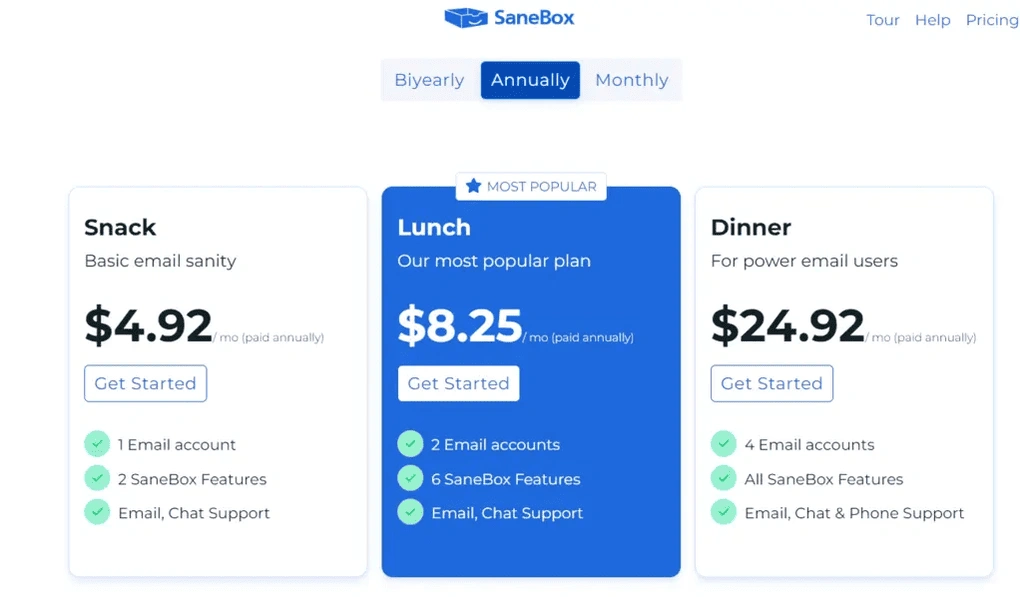
Sanebox offers a 14-day trial, which is a good thing for trying out all the features and deciding if this is the right email app for you.
Sanebox has three plans. The Snack plan is $4.92 per month if choosing the annual payment. It includes the Deep Clean, Email Organize, and Daily Digest features. Also, you can choose two features from the Power Tools. If I had to choose, SaneNews and SaneBlackHole would be the most useful features for me to achieve and maintain inbox zero. With the Snack plan, you can connect one email account to Sanebox. In case of any issues, you can email or chat with Sanebox support.
The Lunch plan is $8.25 per month if opting for the annual payment. It includes everything from the Snack plan but has some more juice in it. The Lunch plan allows you to use six features from the Power Tools per email account. Furthermore, you can connect two email accounts to Sanebox if you choose the Lunch plan.
Lastly, Sanebox offers its ultimate package called the Dinner plan for $24.92. It includes all the features, and you can connect four email accounts. When it comes to customer support, you get email, chat, and phone support.
My experience with SaneBox
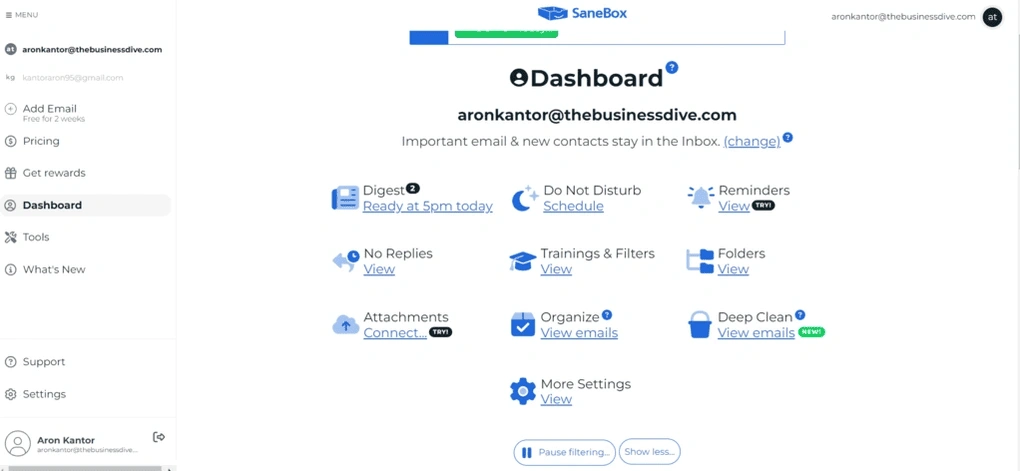
My experience with SaneBox was very positive. It helped me clean up my Gmail inbox quickly and organize incoming messages without changing how I normally use email. The automatic sorting significantly reduced email overload, and only important messages remained in my main inbox. Overall, it made reading and managing emails much less stressful and saved a lot of time.
SaneBox pros and cons
Pros of SaneBox:
Cons of SaneBox:
Why is it the best unsubscribe app for automatically managing newsletter overload?
SaneBox is one of the best options for managing newsletter overload because it automatically separates subscription emails from important messages without changing how you use email. Instead of manually unsubscribing, newsletters are organized in a dedicated folder and reviewed through digests. This makes it much easier to keep the inbox clean and focused with minimal ongoing effort.
🔎 Read my full SaneBox review: The Best Email App For Inbox Management? (2026)
Short on time? Here’s a quick overview of SaneBox
Best Unsubscribe App #2 | Clean Email
Best unsubscribe app for full subscription control
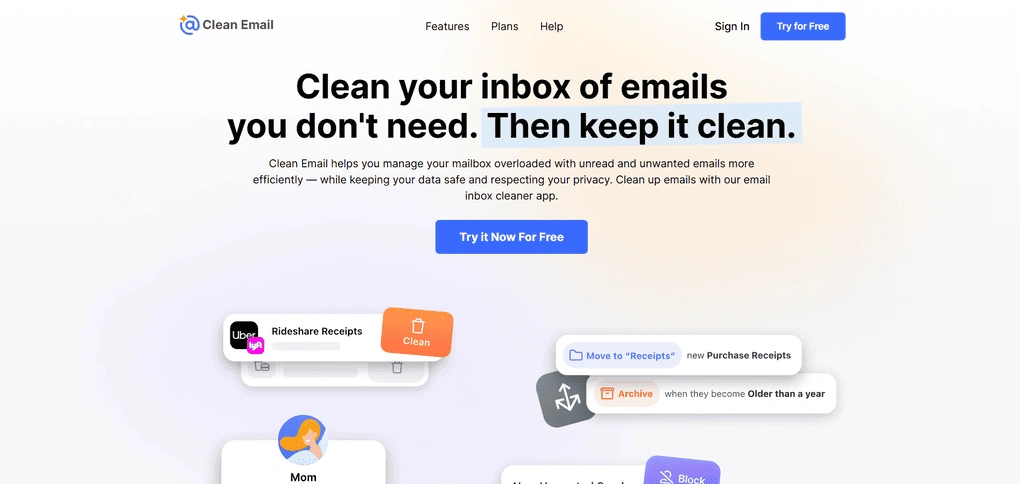
Clean Email is an inbox management tool built specifically for cleaning, organizing, and controlling high email volume, without relying on AI-driven automation.
It works with Gmail, Outlook, Yahoo, iCloud, and any IMAP-based email account, and is especially useful if you want to unsubscribe in bulk, review every action before it happens, and keep long-term control over newsletters and recurring emails.
Clean Email key features
Cleaning Suggestions: This feature scans your inbox for patterns such as frequent senders, mailing lists, and repetitive emails, then groups them into clear cleanup suggestions. Nothing happens automatically, and each action requires confirmation, so it’s safe and reliable.
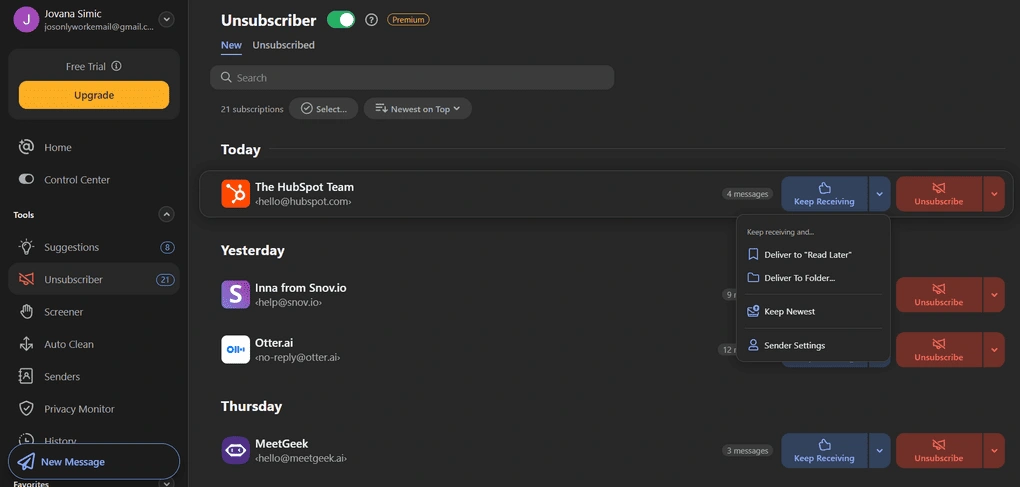
Unsubscriber: Unsubscriber is the core feature for subscription management. It shows all active newsletters and mailing lists in one place and lets you unsubscribe, pause emails, or keep them. Clean Email also offers a bulk unsubscribe feature, which makes cleaning up years of newsletter clutter extremely fast. This feature is more like a subscription control center than a simple unsubscribe button.
Smart Folders: Smart Folders automatically organize emails into predefined categories such as newsletters, social notifications, travel, finance, and more. While you can’t create custom Smart Folders, the built-in selection is extensive enough to cover most real-world inboxes.
Screener: Screener blocks emails from first-time senders before they reach your inbox. New senders are held for review, where you can allow, block, or redirect future messages. It does a great job of stopping accidental subscriptions, cold emails, and unwanted sign-ups before they have a chance to clutter your inbox.
Auto Clean rules: For users who want automation with full control, Auto Clean rules let you define exactly how certain emails should be handled. You can automatically move, archive, or label emails based on sender, domain, keywords, or age, while still keeping a clear activity history and the option to pause or edit rules at any time.
Privacy Monitor: This feature checks whether your email address appears in known data breaches. While it runs quietly in the background, it adds an extra layer of security awareness without interfering with inbox cleanup.
Clean Email pricing
Clean Email offers a free plan and a generous 14-day free trial. The free version lets you clean up to 1,000 emails and unsubscribe from up to 25 newsletters. However, it doesn’t include premium features like Unsubscribe, Screener, Sender and Mailing List Settings, and Auto Clean.
Unlike free services like Unroll.me or Cleanfox, which monetize user data, Clean Email operates on a paid subscription model and does not sell user information.Premium plans are based on the number of email accounts you want to manage.
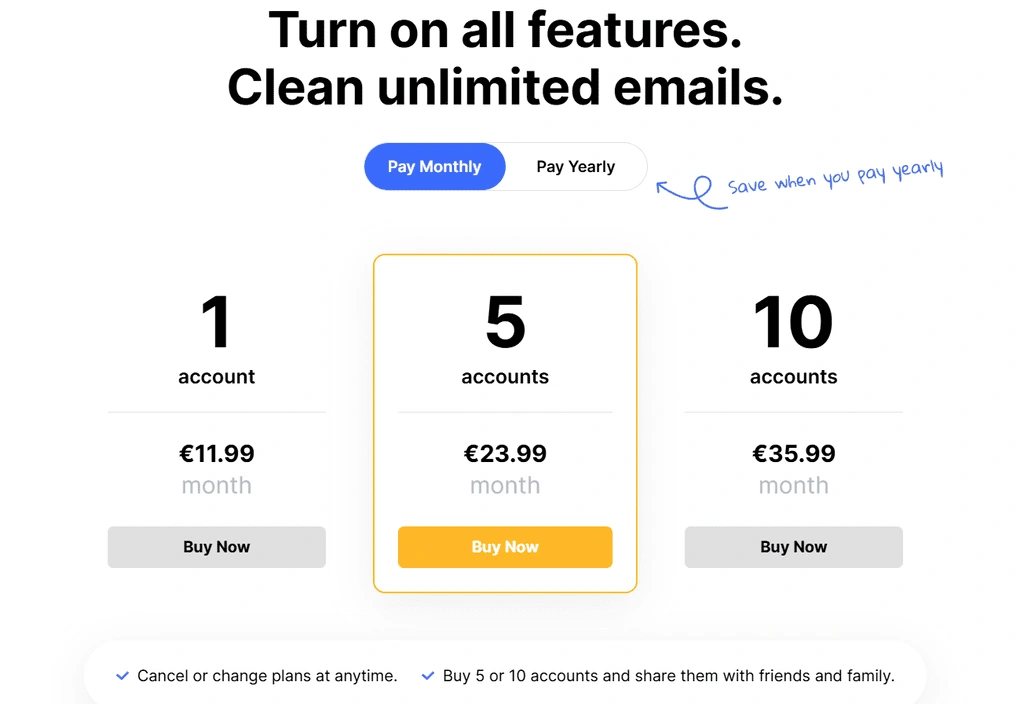
Pricing starts at €11.99 per month with monthly billing for one account. If you want 5 accounts, the price is €23.99 monthly, while 10 accounts will cost you €35.99. You can see the prices for annual billing in the screenshot.
Overall, Clean Email is not the cheapest, but its pricing is reasonable for what you get.
My experience with Clean Email
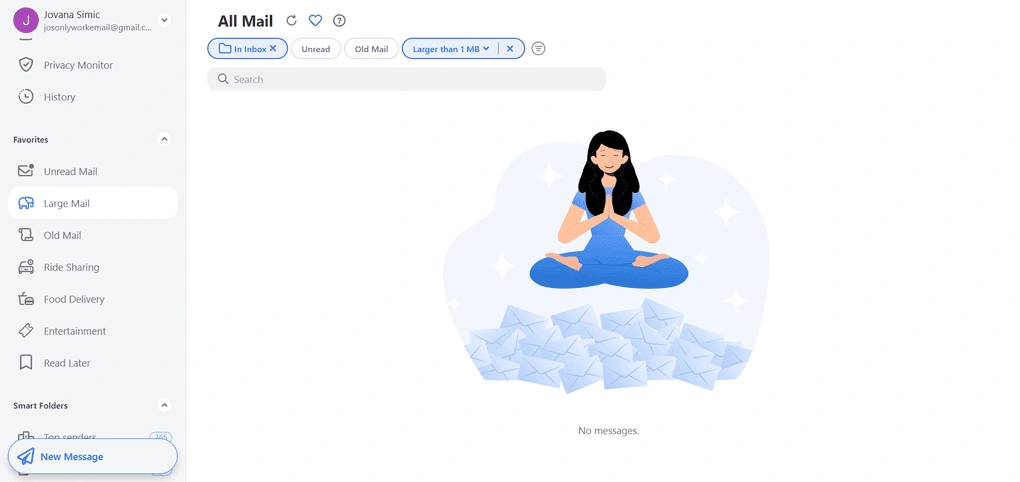
I used this app regularly for several weeks, and I didn’t run into any issues during testing. The experience was smooth and predictable from the start, and I really liked the balance between automation and manual control. I could complete most of the actions in just a few clicks.
I’d recommend Clean Email to anyone who wants a reliable, long-term way to keep their inbox organized, especially if they deal with a lot of newsletters and recurring emails. If you’re looking for AI-powered features or smart replies, this probably isn’t the right tool, but for practical inbox cleanup, it works really well.
Clean Email pros and cons
Pros of Clean Email:
Cons of Clean Email:
Why is it the best unsubscribe app for full subscription control?
Clean Email stands out because it treats unsubscribing as an ongoing inbox management process, not a one-click shortcut. Unlike apps that make decisions for you in the background, Clean Email focuses on user-approved actions, strong subscription management, and transparent cleanup.
🔎 Read my full Clean Email review: My Independent View (2026)
Short on time? Here’s a quick overview of Clean Email
Best Unsubscribe App #3 | Gmailytics
Best unsubscribe app for data-driven Gmail cleanup
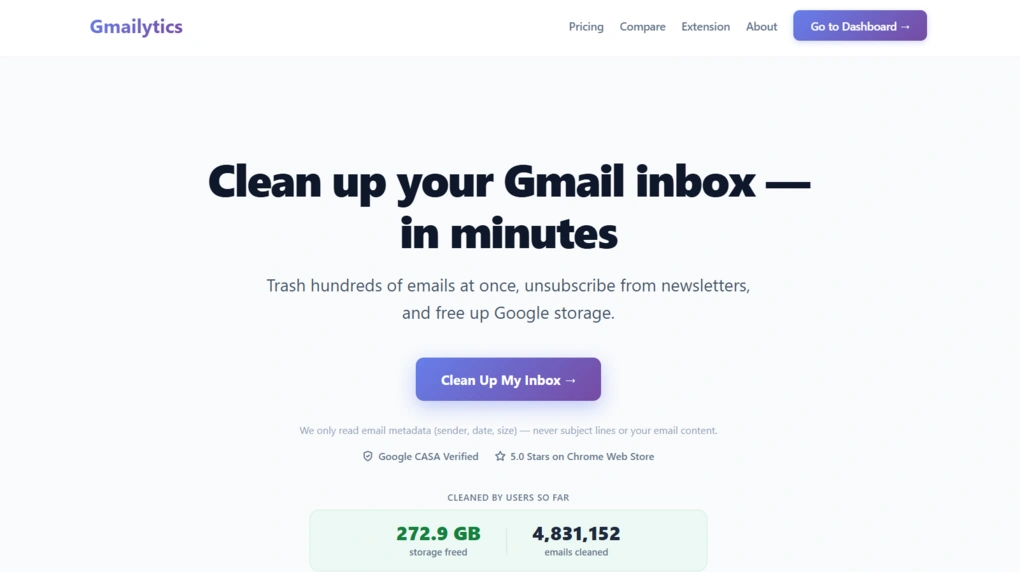
Gmailytics is a Gmail cleanup tool that helps you organize your inbox, remove unwanted emails, and unsubscribe from newsletters. It gives you an overview of your senders, email volume, and storage usage, then lets you clean up messages or manage subscriptions in bulk. It also includes inbox statistics that show patterns in your email activity and help you see where most of your inbox clutter comes from.
Gmailytics key features
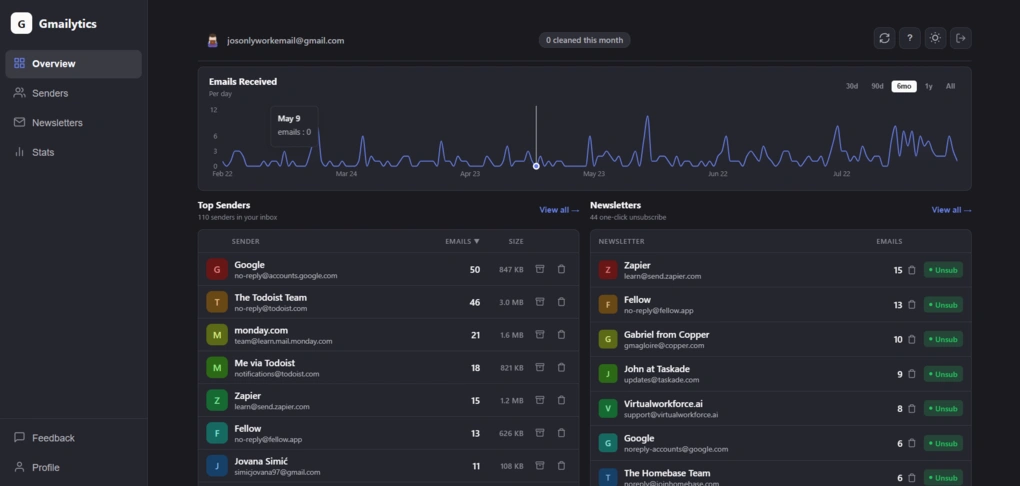
Bulk cleanup by sender: Gmailytics shows which senders are responsible for the most emails in your inbox, making it easy to target the biggest sources of clutter. You can select a sender and trash or archive all of their emails at once. The tool can handle thousands of emails in a single action.
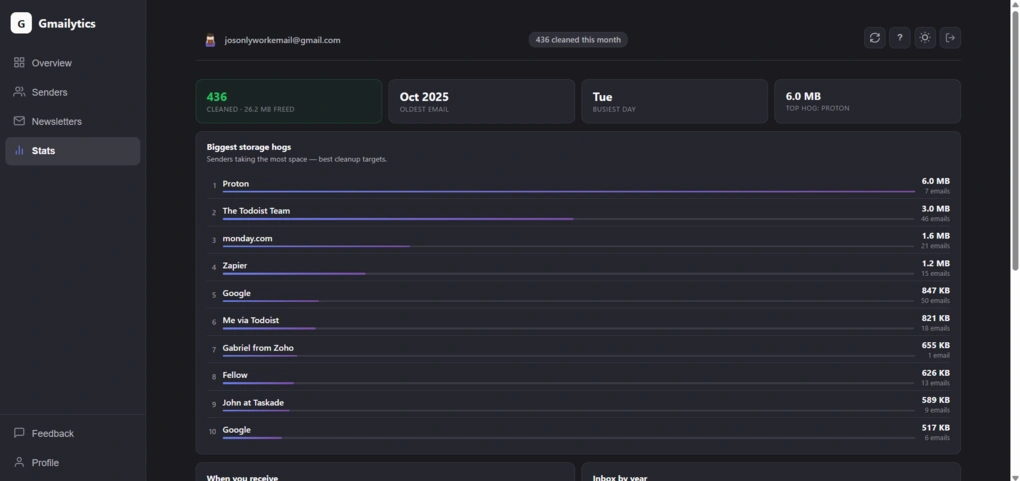
Storage analytics: The sender list also shows how much storage each sender uses. In my inbox, Proton was the biggest storage hog at 6 MB across seven emails, followed by The Todoist Team at 3 MB across 46 emails and monday.com at 1.6 MB across 21 emails. Gmailytics also provides daily email-volume trends, top senders, inbox categories, busiest days, and other statistics.
Newsletter unsubscribe: The Newsletters section puts subscriptions in one place and clearly indicates how each one can be removed. You can see whether a newsletter offers One-click unsubscribing, requires a Manual unsubscribe request, or has No link available. During my testing, one-click unsubscribing was usually genuinely one click, or two at most. Manual options instead opened a pre-written unsubscribe email that I had to send to the sender myself.
Browser extension: Gmailytics also offers browser extensions for Chrome, Edge, and Firefox. The extension shows a live unread count on your toolbar and keeps your inbox statistics synced in the background, so you can check your inbox status without opening the Gmailytics dashboard. This can also help you see when another cleanup might be worth doing.
Gmailytics pricing
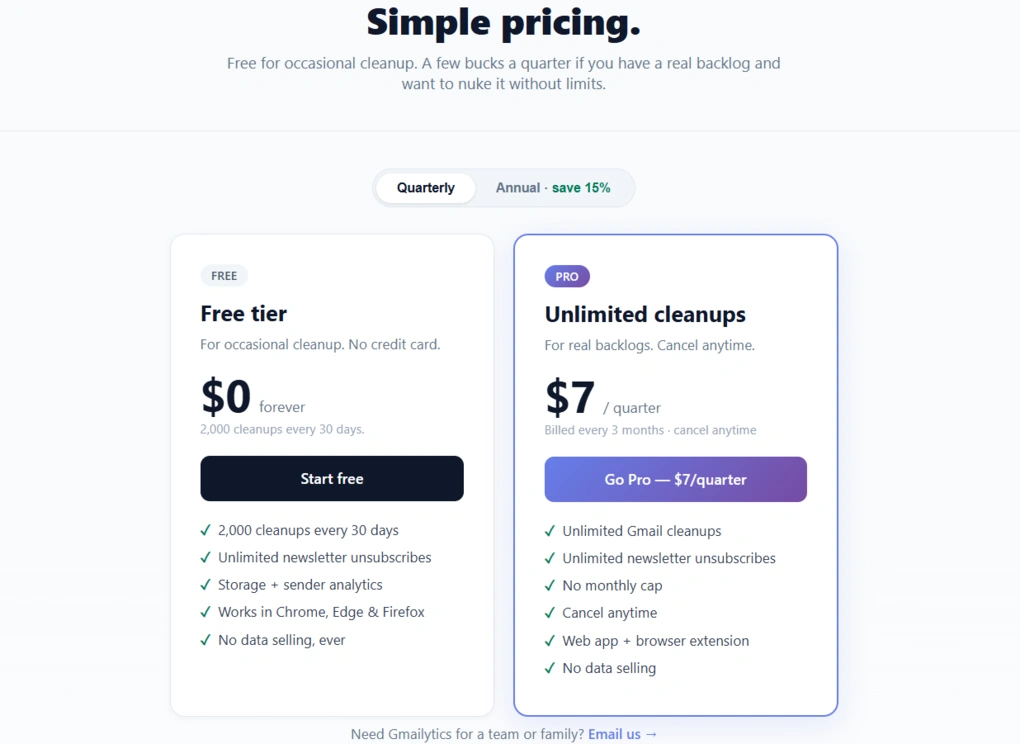
Gmailytics has a free plan that includes up to 2,000 email cleanups every 30 days and unlimited newsletter unsubscribes, with no credit card required. I tested the app entirely on the free plan and had enough room to clean up my inbox without hitting any limits.
If you need more, the Pro plan costs $7 per quarter or $24 per year and removes the monthly cleanup limit, while keeping the newsletter unsubscribe feature. For occasional inbox cleanup, though, the free plan is already quite generous.
My experience with Gmailytics
I had neglected my inbox for a while. Even though I had been cleaning it occasionally while testing other unsubscribe tools, emails and newsletters had quickly started piling up again.
Gmailytics made the cleanup surprisingly satisfying. I had full control over which senders and emails I wanted to remove and which ones I wanted to keep, while bulk actions made the process much faster. I cleaned up 436 emails and freed 26.2 MB of storage, and the whole process took under 10 minutes.
I also liked the Stats section. The information is presented visually, so I could quickly see patterns such as my busiest day, oldest email, email volume over time, and which senders were taking up the most storage. It made the cleanup more purposeful than simply deleting messages at random.
The fact that I could do all of this on the free plan makes Gmailytics particularly useful for a one-off inbox cleanup or regular maintenance.
One thing worth considering before connecting your Gmail account is privacy. Security is an important consideration with any free unsubscribe tool, especially when it requires access to your inbox. Overall, I found Gmailytics’ privacy approach reassuring.
Gmailytics says it only accesses email metadata, does not sell or share Google user data, and has completed Google’s CASA Tier 2 security assessment. However, some metadata is cached on its servers while your account is active, so it is not a completely local solution.
The cache includes only information such as the sender, date, email size, read status, category, and unsubscribe link. Gmailytics says subject lines, message bodies, and attachments are never stored or even requested from Gmail. The company also says the cached data is deleted when you delete your account.
Gmailytics pros and cons
Pros of Gmailytics:
Cons of Gmailytics:
Why is it the best unsubscribe app for data-driven Gmail cleanup?
Gmailytics is a good fit if you want more than a simple unsubscribe button. Its sender breakdowns, storage statistics, email trends, and newsletter data give you a clear picture of what’s filling your inbox before you start cleaning.
Best Unsubscribe App #4 | Leave Me Alone
Best simple unsubscribe app
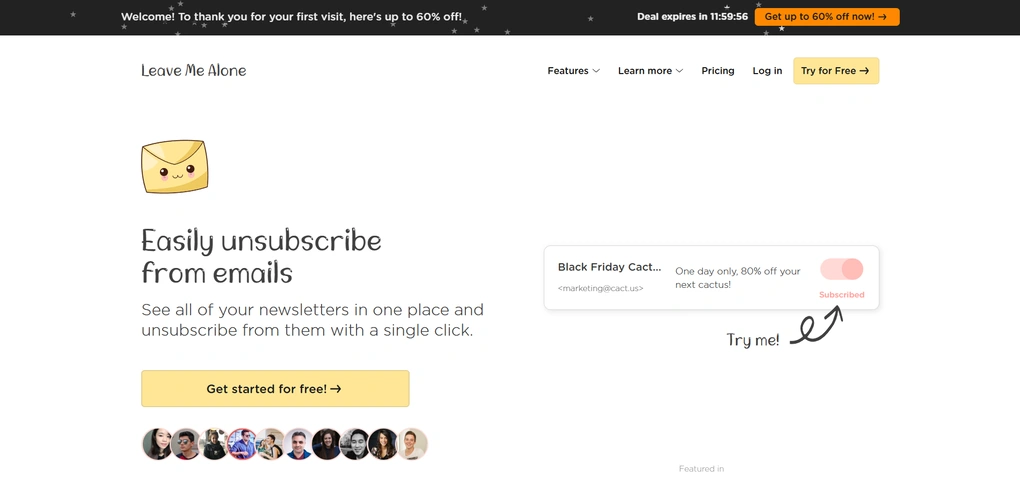
While tools like Clean Email focus on long-term control and SaneBox works quietly in the background, Leave Me Alone is for when you want to see all your subscriptions at once, unsubscribe from what you no longer read, and be done with it.
Leave Me Alone key features
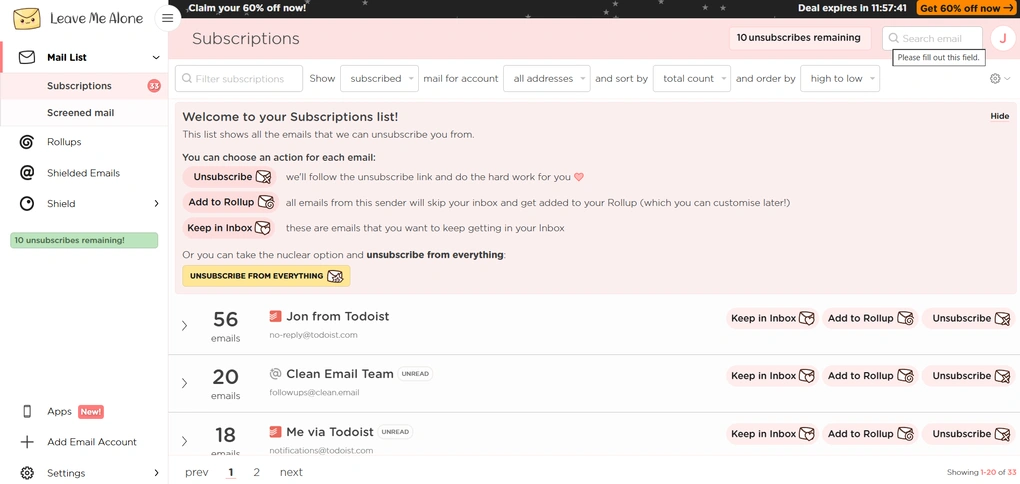
Subscriptions list: This is the core of the app, and a main view you’ll use when you open it. It scans your inbox and shows all detected mailing lists and newsletters in one place. For each sender, you can choose to unsubscribe, keep emails in your inbox, or add them to a Rollup. There’s also a one-click “unsubscribe from everything” option if you want a fast, no-mercy cleanup.
Screener and Shield: This feature is similar to the Screener feature in Clean Email, but the execution is much simpler. Leave Me Alone also holds emails from new senders before they reach your inbox, but without advanced rules or customization. When a new sender appears, you just need to decide whether to allow future emails or block them entirely.
Rollups: Rollups are like a compromise between keeping a subscription and unsubscribing completely. If you are not ready to unsubscribe from something completely, you can bundle emails from selected senders into a single daily summary. This keeps newsletters out of your main inbox, but saves the information you might still find useful.
Shielded emails: Leave Me Alone gives you the option to use shielded email addresses when signing up for new services. These act as aliases that forward emails to your inbox while keeping your real address private. If a sender starts spamming later, you can block them without affecting your real inbox.
Leave Me Alone pricing
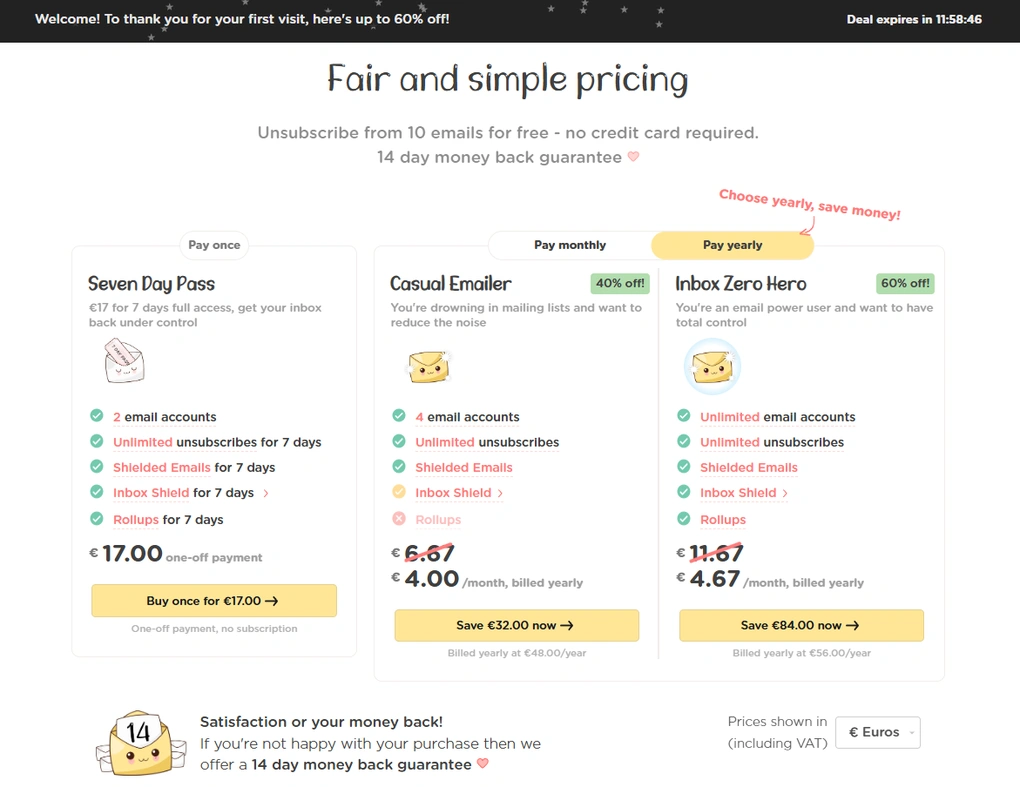
Leave Me Alone has a free plan and three pricing plans.
The free plan is very limited and lets you unsubscribe from up to 10 email subscriptions, which is useful if you just want to test the app.
For short-term cleanup, there’s a 7-Day Pass, priced at $7, which unlocks unlimited unsubscribes and access to all features for one week. You can use it for multiple accounts.
If you want ongoing protection, you can choose between the Casual Emailer plan for €4.00/month, or Inbox Zero Hero, for €4.67/month with annual billing. Both options include unlimited unsubscribes, the Screener feature, Rollups, and shielded email addresses.
My experience with Leave Me Alone
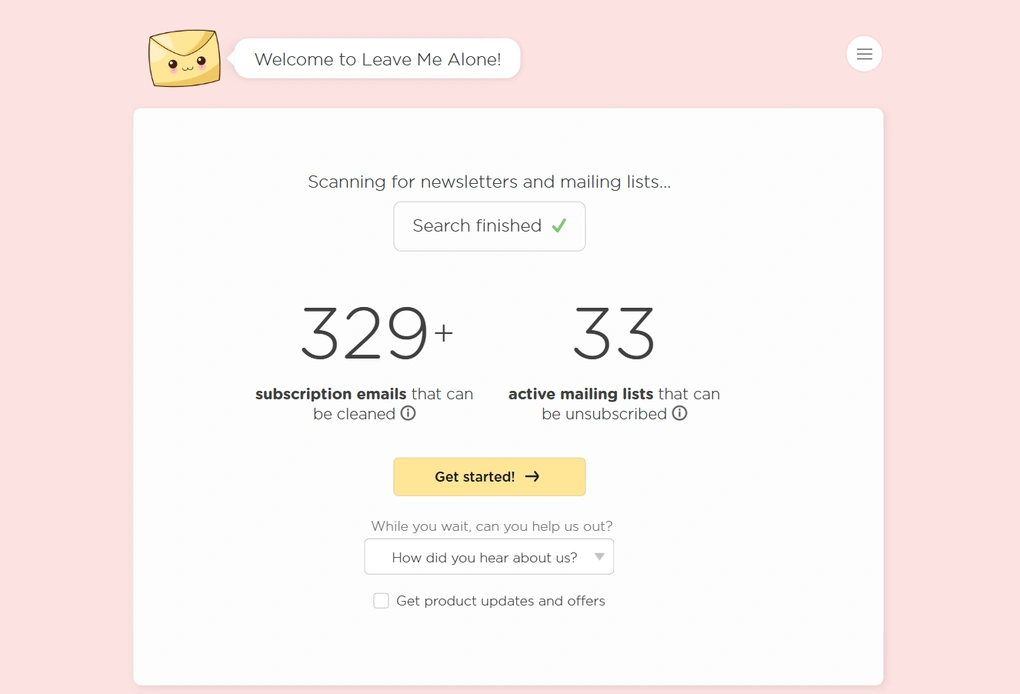
Overall, I had a very good experience with this app. I liked that everything was clearly laid out and that every action required a conscious decision, with nothing happening automatically in the background. It’s a tool I’d use when I want to unsubscribe with intention and know exactly what I’ve done by the end of the session.
Leave Me Alone pros and cons
Pros of Leave Me Alone:
Cons of Leave Me Alone:
Why is it the best simple unsubscribe app?
Leave Me Alone earns its spot on this list because it prioritizes unsubscribing over inbox organization or automation. Instead of building a full inbox management system, it focuses on making unsubscribing fast, clear, and intentional.
Best Unsubscribe App #5 | MailBroom
Best for fast AI-powered inbox cleanup
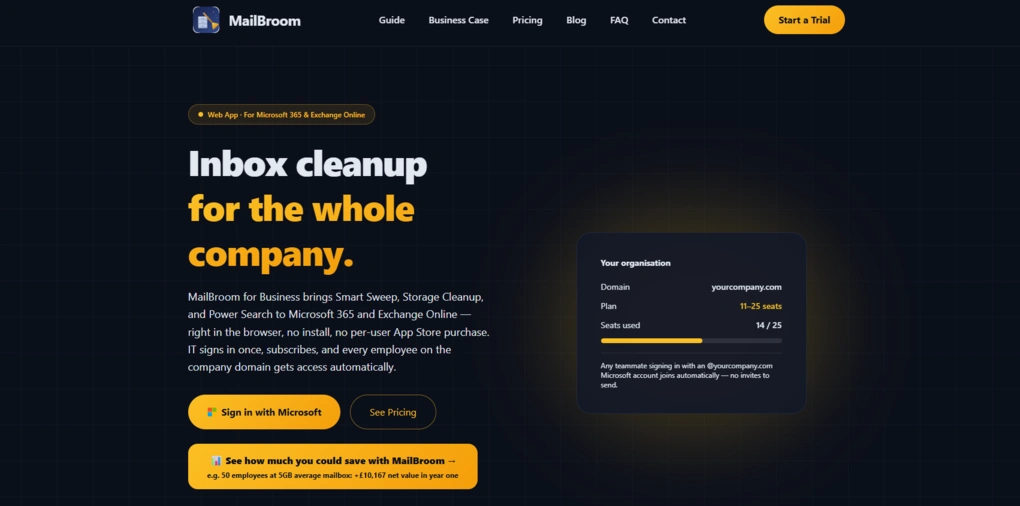
MailBroom is a little different from the other unsubscribe apps on this list. While tools like Leave Me Alone focus mainly on unsubscribing and SaneBox works in the background to manage incoming email, MailBroom takes a broader approach to cleaning up an existing inbox. It uses AI to classify emails and combines bulk cleanup, unsubscribing, storage management, and more granular search tools in one place.
MailBroom key features
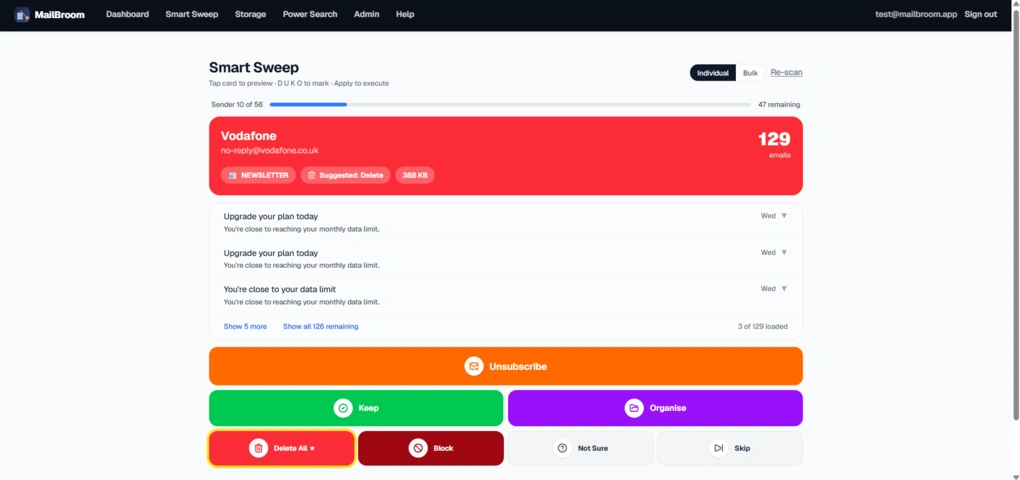
Smart Sweep: This is MailBroom’s main cleanup feature and one of the fastest ways to work through a cluttered inbox. It groups emails by sender and suggests an action for each one, including Delete, Unsubscribe, Keep, or Organise. You can work through senders individually or use Bulk mode to handle several senders at once.
Storage Cleanup: If storage is your main concern, Storage Cleanup lets you find emails based on their age, domain, and storage usage. You can see how many emails each sender has and how much space they take up, making it easier to target the biggest sources of clutter.
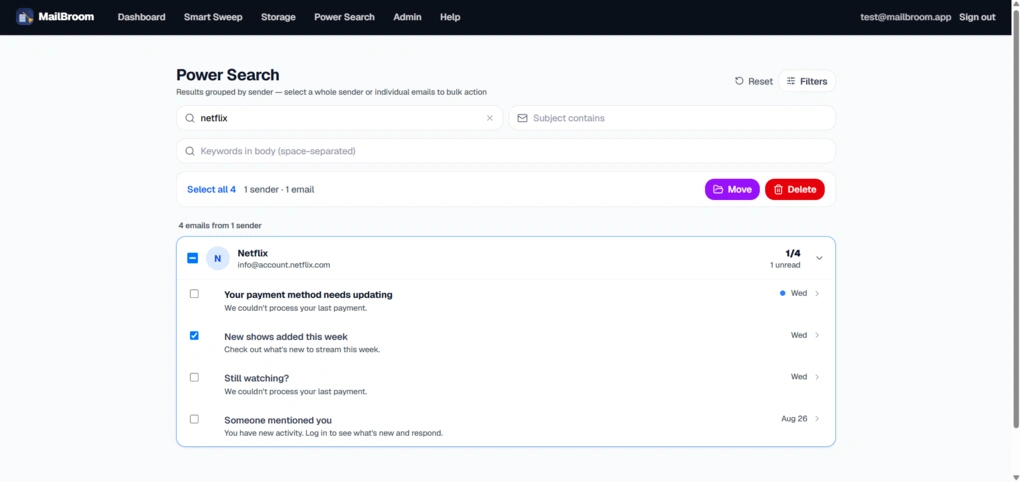
Power Search: Unlike the more bulk-focused cleanup tools, Power Search is useful when you’re looking for a specific type of message rather than everything from a particular sender. You can combine different filters, select individual emails or bulk-select results, and then move or delete the messages you want to act on.
AI-powered recommendations: MailBroom uses AI to classify emails and recommend actions based on the sender and type of message. On iOS, the processing happens entirely on the device, which is a nice advantage if privacy is a priority.
Smart Unsubscribe: Unsubscribing is built directly into the cleanup workflow, so you don’t have to treat newsletters as a separate task. You can unsubscribe from unwanted senders while also cleaning up their existing emails.
MailBroom pricing
MailBroom has a free iOS tier with no time limit, although the available actions are limited. The free version includes five Sweep sessions, one mass delete, five unsubscribe operations, three AI reply scans, and one Organise rule.
If you need more, MailBroom Pro starts at £0.99 for the first month, followed by plans from £1.99 per month depending on the number of email accounts. There are four tiers covering up to 3, 10, 20, or 50 accounts, with discounted annual plans also available.
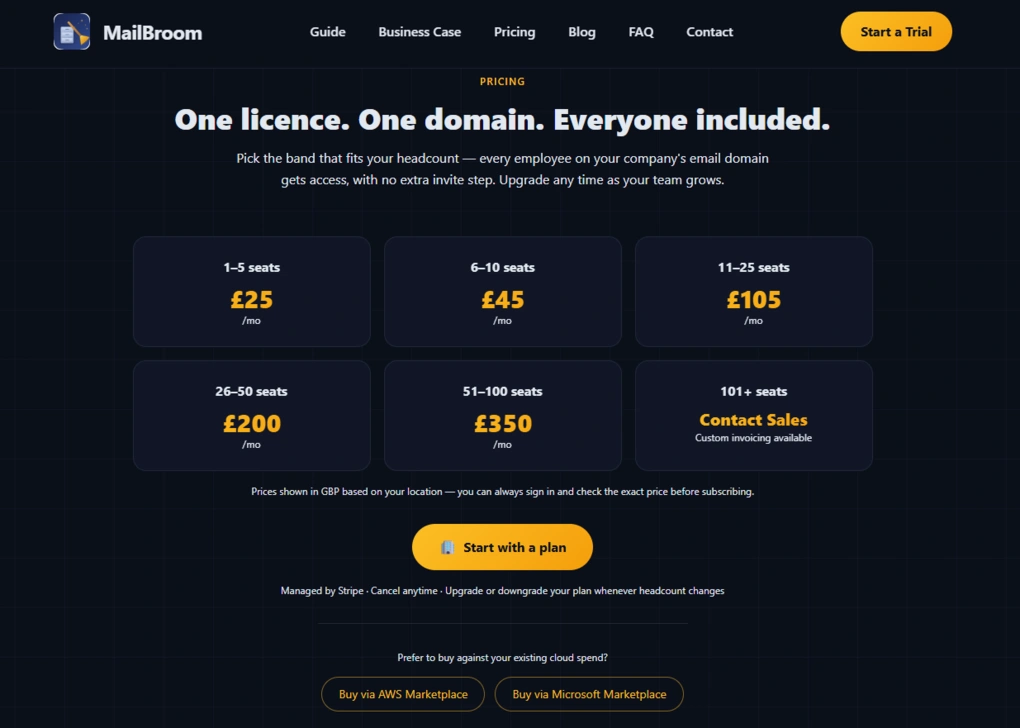
MailBroom for Business uses separate seat-based pricing, starting at £25 per month for 1–5 users. Larger teams can choose plans covering up to 100 seats, while businesses with more than 101 users can contact MailBroom for custom pricing. There’s also a free 30-day IT assessment for the Business version.
My experience with MailBroom
I tested MailBroom across both its Business web app and iOS app, focusing mainly on Smart Sweep, Storage Cleanup, Power Search, and its AI-powered cleanup recommendations. What stood out most was how quickly it can deal with a large inbox.
The sender-based approach works particularly well when you have hundreds of emails from senders you already know you don’t need. Instead of opening messages one by one, you can make a decision for an entire group and move on. When I needed more precise control, Power Search gave me the option to select individual emails instead.
I also liked that MailBroom gives you several ways to approach cleanup. You can work through senders with Smart Sweep, target storage-heavy emails with Storage Cleanup, or search for specific messages with Power Search. That makes it more versatile than unsubscribe-only tools.
Privacy is another area where MailBroom stands out, particularly on iOS. The app processes emails entirely on the device rather than sending them to a MailBroom backend, which makes its privacy approach particularly appealing.
🔎Read my full MailBroom review: MailBroom Review: Here’s What It Gets Right (and Wrong)
Short on time? Here’s a quick overview of MailBroom
MailBroom pros and cons
Pros of MailBroom:
Cons of MailBroom:
Why is it the best unsubscribe app for fast AI-powered inbox cleanup?
MailBroom earns its place on this list because it goes beyond simply helping you unsubscribe from newsletters. It gives you several ways to clean up a cluttered inbox quickly, with AI recommendations, bulk actions, storage cleanup, and more granular search when you need it.
If your main goal is to get rid of thousands of unwanted emails rather than simply manage subscriptions, MailBroom is one of the more capable options on this list.
Use the promo code BUSINESSDIVE at checkout and get 10% off your first invoice.
Best Unsubscribe App #6 | Cleanfox
Best for eco-friendly email cleanup
Cleanfox is different from the other unsubscribe apps on this list, and that’s exactly why I included it. The eco-friendly angle genuinely matters to me, and I like the idea that cleaning up my inbox can also reduce unnecessary digital waste.
But Cleanfox earned its place here not just because of that. It’s also a genuinely solid unsubscribe tool that makes it easy to review newsletters, unsubscribe in bulk, and clean up a cluttered inbox without overcomplicating the process.
Cleanfox key features

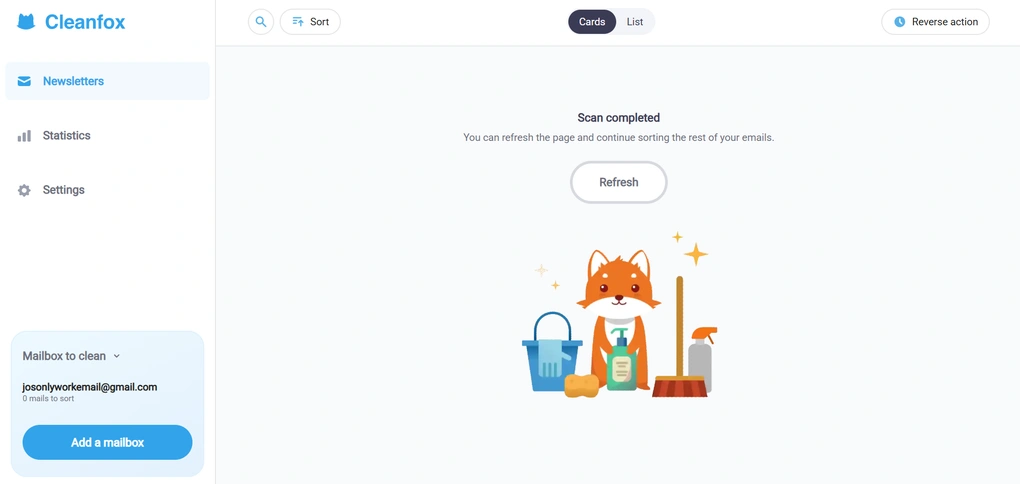
Newsletter cleanup with one-click actions: At its core, Cleanfox works similarly to other unsubscribe tools. It scans your inbox, detects newsletters and recurring emails, and shows them in a clean list or card-based view. For each sender, you can unsubscribe, keep receiving emails, or delete existing messages in bulk. The process is fast and does not require setting up rules or learning a new system.
Card view with keyboard sorting: One feature I genuinely enjoyed using is the card view with swipe-style sorting actions. You can sort newsletters using only your keyboard arrows, and for me, that made the whole cleanup process surprisingly fun.
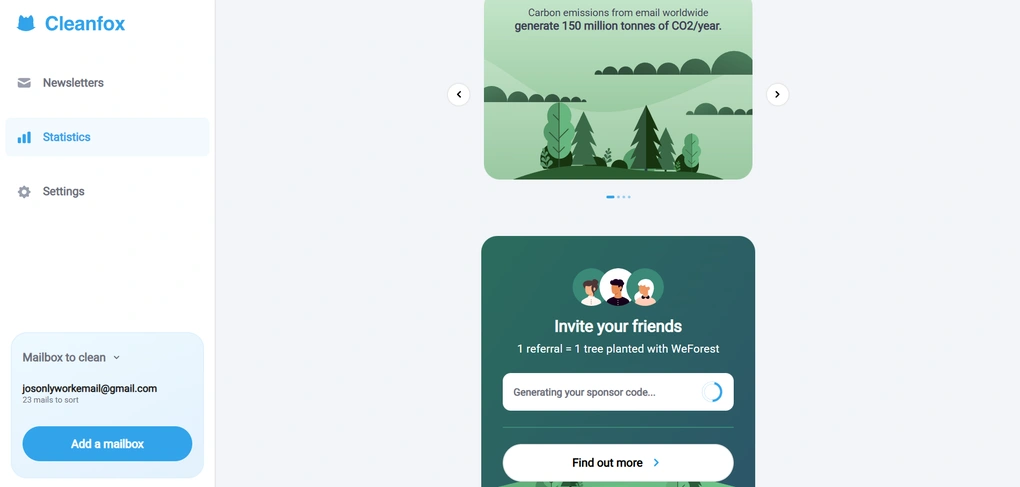
Statistics and environmental impact: This is where Cleanfox clearly stands apart. The app shows statistics like how many emails you receive from a sender, how often you open them, and how much unnecessary email traffic you are generating. It also highlights the estimated carbon impact of email usage, connecting inbox clutter to environmental cost. If you do not care about stats, you can ignore this section entirely. But if you find motivation in numbers and impact, this feature makes inbox cleanup feel more purposeful.
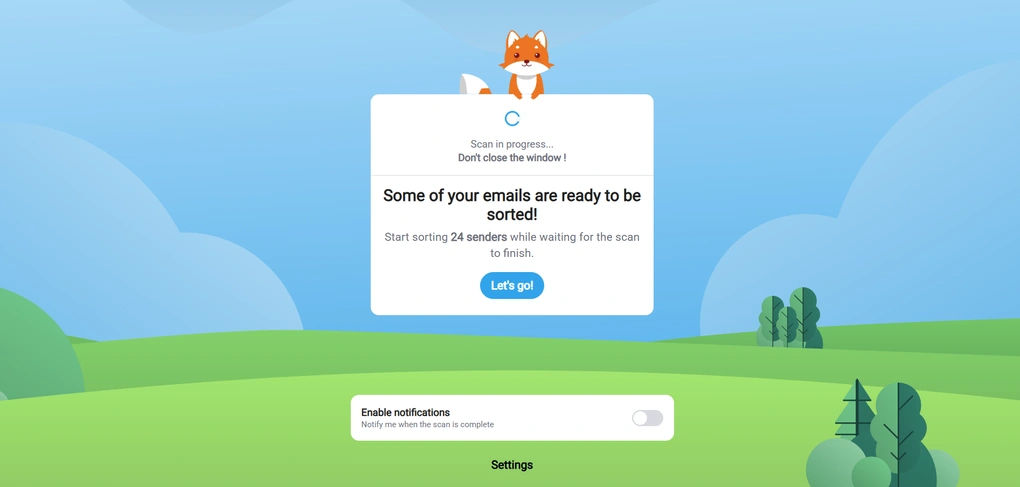
Bulk cleanup while scanning: One thing I liked is that Cleanfox lets you start cleaning before the full scan finishes. As soon as it detects newsletters, you can begin unsubscribing and deleting, instead of waiting for the process to complete.
Simple interface with minimal setup: Cleanfox has no advanced filters, no automation rules, and no deep customization. You connect your mailbox, review detected newsletters, and clean them up. That is it. If you are looking for something closer to Clean Email’s long-term control or SaneBox’s automation, this will feel limited. But for quick cleanup, that simplicity works in its favor.
Cleanfox pricing
Cleanfox is completely free to use. There are no subscriptions, paid plans, or hidden costs, which naturally raises the question of how the app makes money.
According to Cleanfox’s FAQ, the app does not sell personal user data and does not share inbox content for advertising or profiling purposes. Instead, Cleanfox generates revenue through statistical analysis of anonymized e-commerce data as part of its parent company’s business model.
If you are not comfortable with this, Cleanfox allows you to opt out of the statistical panel directly in your account settings. This level of transparency is something I appreciated, especially when comparing it to other free tools like Unroll.me, where data usage is less intuitive.
Overall, Cleanfox remains a genuinely free unsubscribe tool, with a monetization model that is clearly explained and easy to opt out of if needed.
My experience with Cleanfox
During testing, I liked that I could jump straight into cleaning without setting anything up, and the card-based sorting made it easy to move quickly through newsletters. It’s not a tool I would keep running in the background long term, but for focused inbox cleanup sessions, it worked really well.
Cleanfox pros and cons
Pros of Cleanfox:
Cons of Cleanfox:
Why is it the best eco-friendly email cleanup app?
Cleanfox adds an extra layer of meaning to inbox cleanup without getting in the way of actually doing the job. The eco-friendly perspective is there if it matters to you, but it never overshadows the core experience.
At the end of the day, Cleanfox works because it makes unsubscribing fast, intuitive, and low-effort, which is exactly what most people want when they decide it’s finally time to clean up their inbox.
🔎 Read my full review: Cleanfox Review 2026 | Is It Safe for Your Privacy?
Short on time? Here’s a quick overview of Cleanfox
Best Unsubscribe App #7 | Trimbox
Best for one-click Gmail unsubscribing
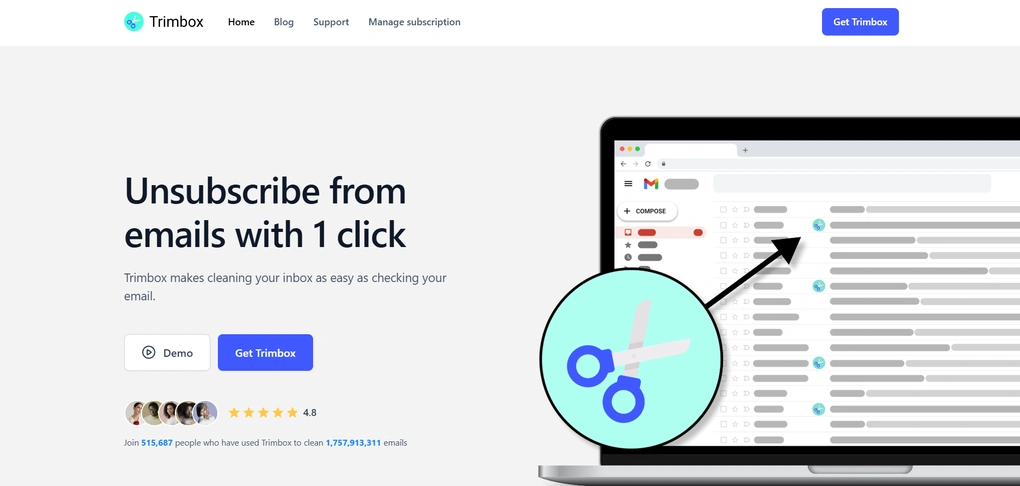
Trimbox is a Gmail browser extension that works directly inside your inbox. It allows you to unsubscribe from mailing lists without leaving Gmail or using a separate web app. So, if you want to clean up your inbox quickly with a straightforward unsubscribe app, Trimbox can be ideal for you.
Trimbox key features
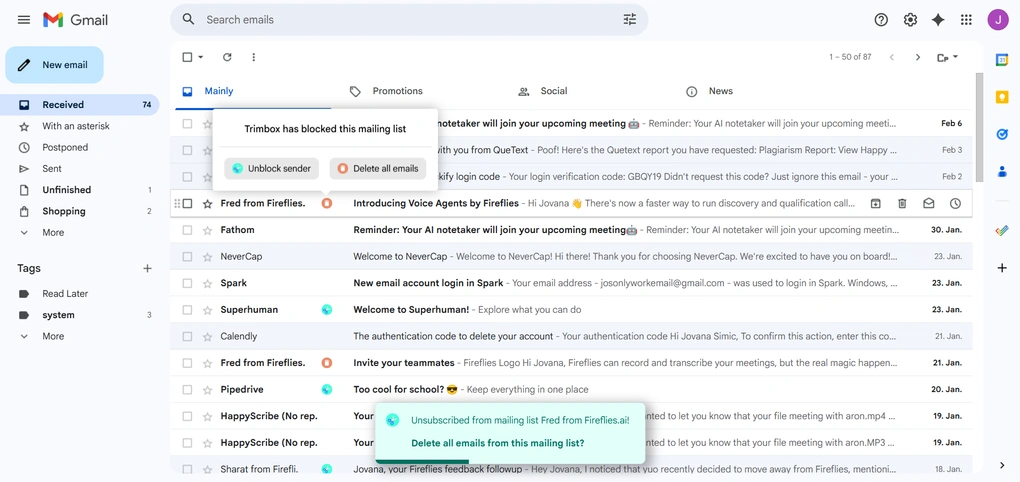
One-click unsubscribe inside Gmail: Trimbox adds inline buttons directly next to detected mailing lists in your inbox. When an email is recognized as part of a mailing list, you can unsubscribe with a single click, without opening the message or scrolling to the footer.
Mailing list detection and bulk cleanup: When you unsubscribe from a sender, Trimbox can also delete all existing emails from that mailing list at once. This makes it easy to clean up historical clutter, not just stop future emails. You don’t have to manually search or filter messages first.
Block and unblock senders: Trimbox clearly shows when a mailing list has been blocked and lets you undo that decision just as easily. If you unsubscribe by mistake, you can unblock the sender and continue receiving emails.
Progress tracking and cleanup stats: Trimbox shows basic progress indicators, such as how many lists you’ve unsubscribed from, how many emails were deleted, and how much of your inbox has been cleaned. It’s not deep analytics, but gives a clear sense of progress.
Trimbox AI: Trimbox includes an AI-powered reply assistant that can suggest draft responses when replying to emails. It works best when replying to existing emails with some context, but offers limited value for short unsubscribe messages and can throw errors in empty or new drafts.
Trimbox pricing
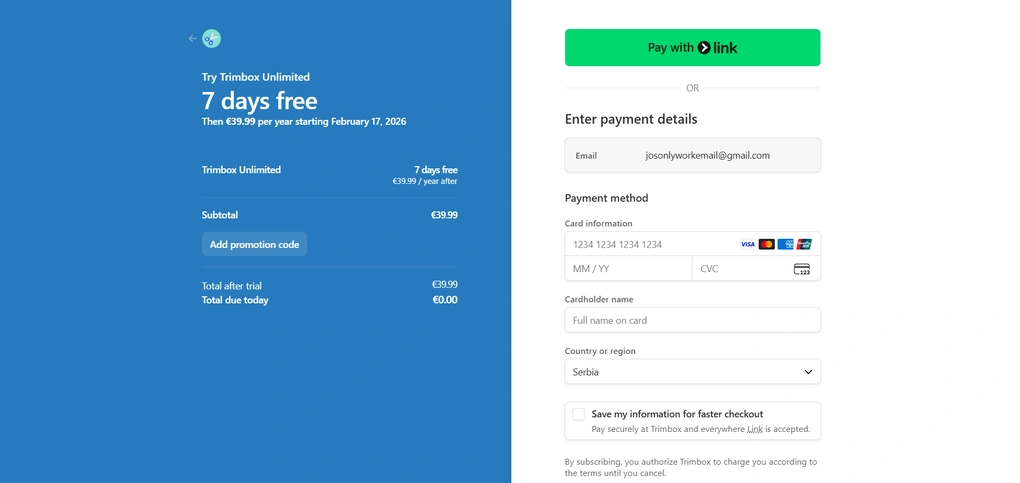
Trimbox positions its pricing around privacy, explicitly stating that it does not sell user email data and relies on subscriptions instead.
Hence, it’s free plan is very limited – you can unsubscribe from 10 mailing lists before you hit the limit.
The paid plan, Trimbox Unlimited, comes with a 7-day free trial and costs €39.99 per year. This plan unlocks unlimited unsubscribes, bulk email deletion, and continued access to all core features.
My experience with Trimbox
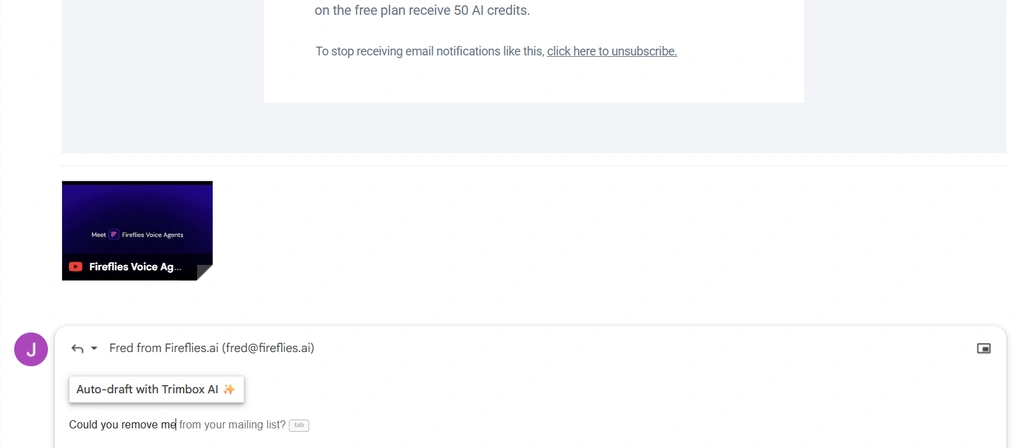
Using Trimbox as a Chrome extension inside Gmail was very practical, especially since Gmail is my primary inbox. Having unsubscribe and block actions available directly in the inbox made cleanup faster and less disruptive, and the one-click unsubscribe worked exactly as advertised.
The Trimbox AI feature, however, was less convincing. I expected it to help more with composing replies, but in practice it mostly behaved like occasional smart autocomplete and didn’t consistently add much value beyond that.
Trimbox pros and cons
Pros of Trimbox:
Cons of Trimbox:
Why is it the best one-click Gmail unsubscribe app?
Trimbox makes sense if you already live in Gmail and don’t want to think about inbox cleanup more than necessary. There’s no setup, no separate dashboard, and no decisions beyond clicking unsubscribe when an unwanted email shows up.
Best Unsubscribe App #8 | AgainstData
Best for privacy-first inbox cleanup
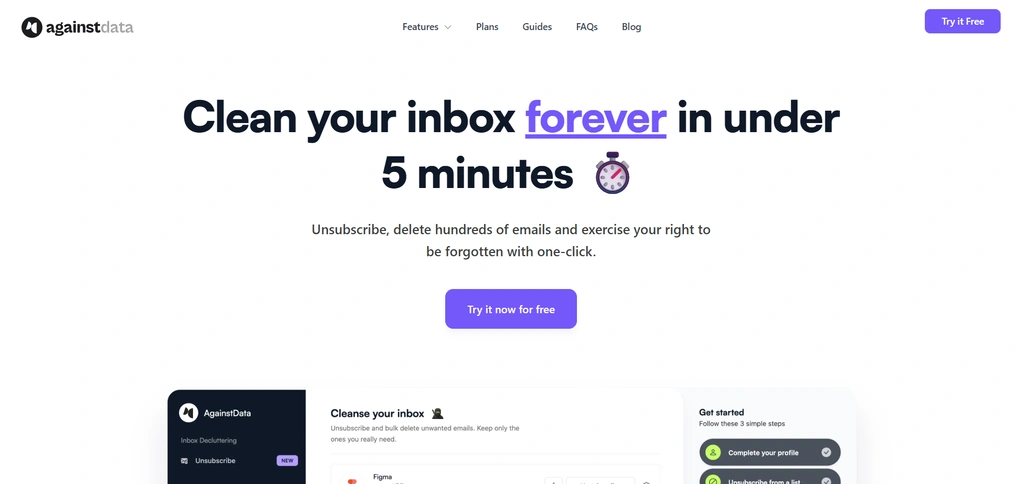
AgainstData goes beyond basic inbox cleanup. While it does let you unsubscribe from mailing lists and delete unwanted emails, its real focus is on privacy and personal data control.
AgainstData key features
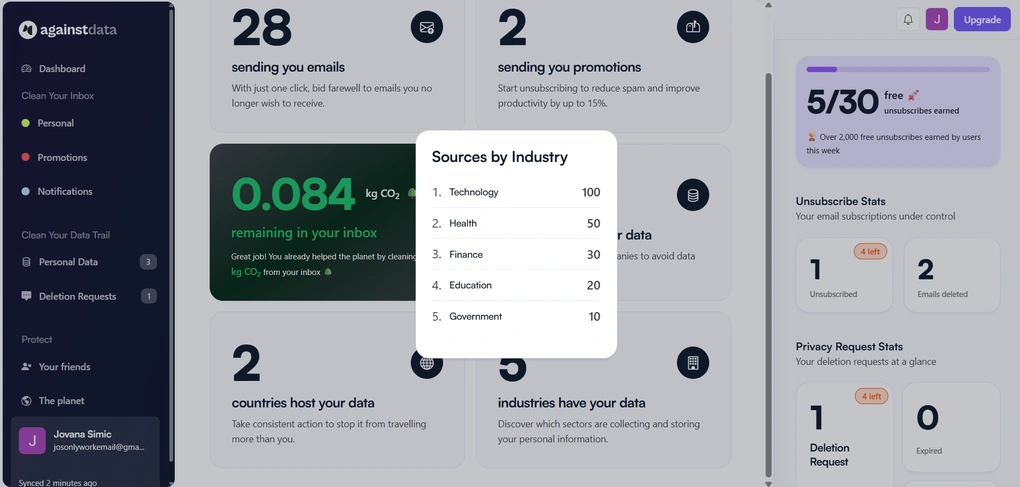
Inbox cleanup and unsubscribing: AgainstData scans your inbox and groups senders into clear categories like personal emails, promotions, and notifications. From there, you can unsubscribe or delete emails in bulk with a single click. The process is straightforward and does not require setting up rules or automations.
Personal data discovery: The app identifies companies that store or process your personal data based on your email activity. You can see which industries they belong to, where they are based, and what type of data they may hold.
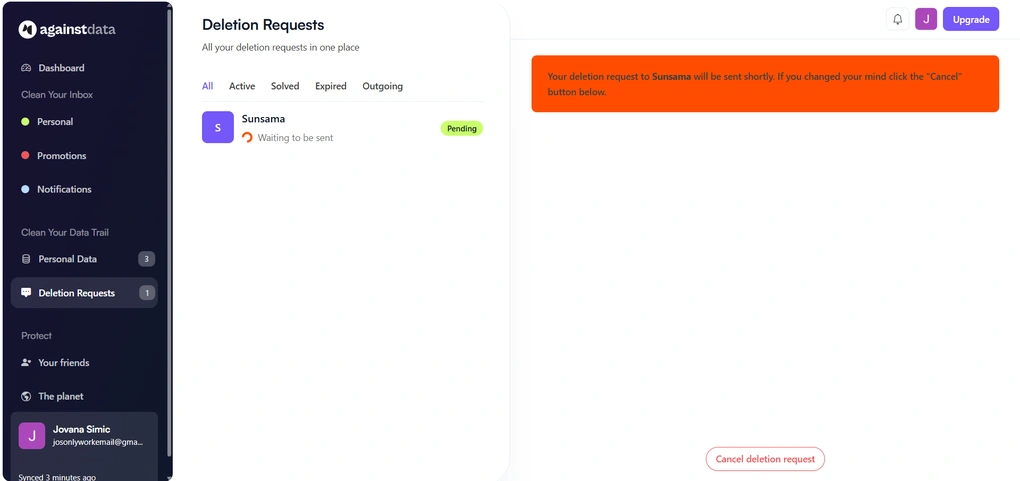
One-click data deletion requests: For supported companies, you can send data deletion requests directly from the dashboard. Instead of hunting for privacy emails or GDPR forms, AgainstData handles the request flow and tracks its status for you.
Deletion request tracking: All deletion requests are visible in one place, with clear statuses like pending, active, solved, or expired. If you change your mind, you can cancel a request before it is sent.
Environmental impact stats: AgainstData also shows estimated CO₂ impact related to stored emails and remaining inbox clutter. This part is optional, but it adds an extra layer of awareness for users who care about the environmental side of digital cleanup.
AgainstData pricing
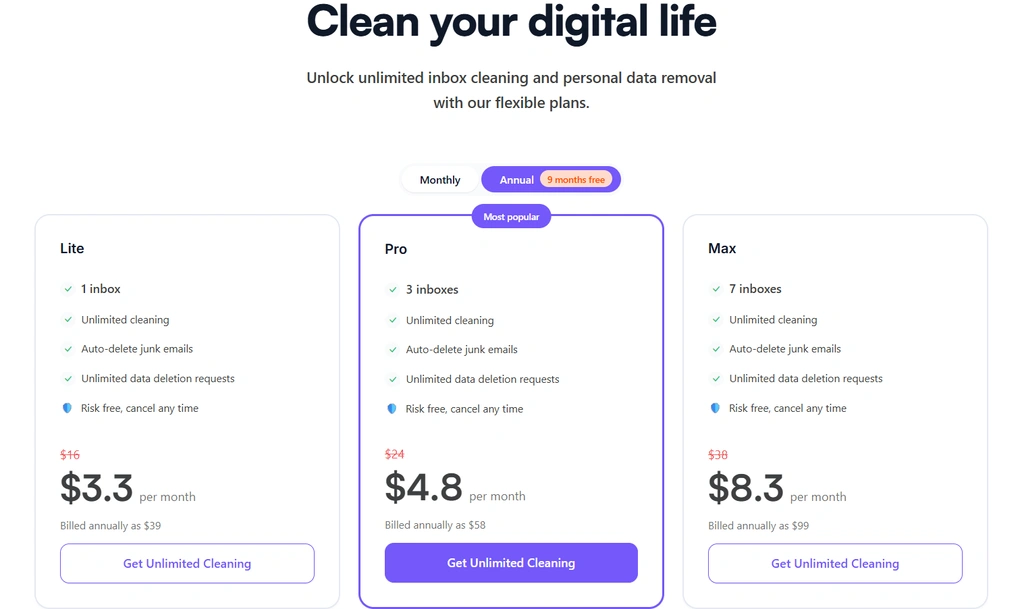
AgainstData offers a free plan and three paid plans.
The Lite plan is $3.3 per month with annual billing. It supports one inbox and includes unlimited inbox cleaning, automatic junk email deletion, and unlimited data deletion requests. This plan is ideal if you want a privacy-first cleanup solution for a single email account at a very low cost.
The Pro plan costs $4.8 per month when billed annually. It allows you to manage up to three inboxes and includes the same unlimited cleaning and data deletion features. For most users, this plan offers the best balance between flexibility and price.
The Max plan is priced at $8.3 per month with annual billing, and supports up to seven inboxes. It’s clearly designed for users with multiple email accounts who want centralized inbox cleanup and full control over their personal data.
My experience with AgainstData
This app is my personal favorite from the list. It lowers the barrier to doing things I would otherwise probably never bother with, like sending data deletion requests or tracking where my information ends up.
What really won me over is that AgainstData has a similar eco-friendly mindset to Cleanfox, but with a much broader scope. It does not just frame inbox cleanup as a productivity win, but also as a way to reduce unnecessary digital waste.
AgainstData pros and cons
Pros of AgainstData:
Cons of AgainstData:
Why is it the best privacy-focused email cleanup app?
There are many “unsubscribe-only” tools that ignore the bigger data trail behind email subscriptions. Against Data tackles this complex topic while being practical. For anyone who wants cleaner inboxes and better control over personal data, AgainstData goes further than most tools in this space.
Explore our Apps directory
A curated directory of software tools we’ve independently reviewed, with links to full reviews, comparisons, and category guides.
Best Unsubscribe App #9 | Unroll.me
Best free unsubscribe app (with privacy trade-offs)
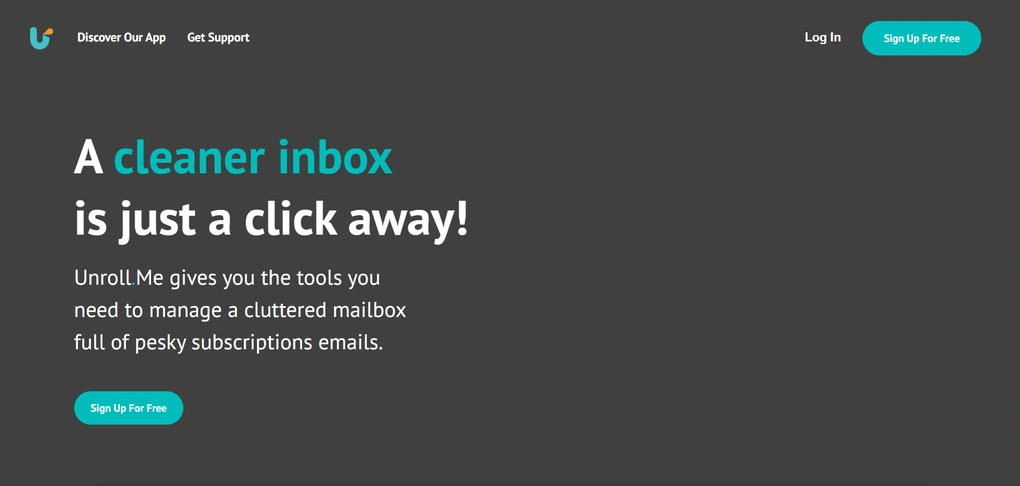
Unroll.me is one of the earliest and most recognizable tools in the email cleanup space. It became popular because it made unsubscribing from newsletters incredibly easy at a time when most inboxes were already overflowing.
While it still works as intended for basic inbox cleanup, its approach to privacy has pushed many users to look for safer alternatives.
Unroll.me key features
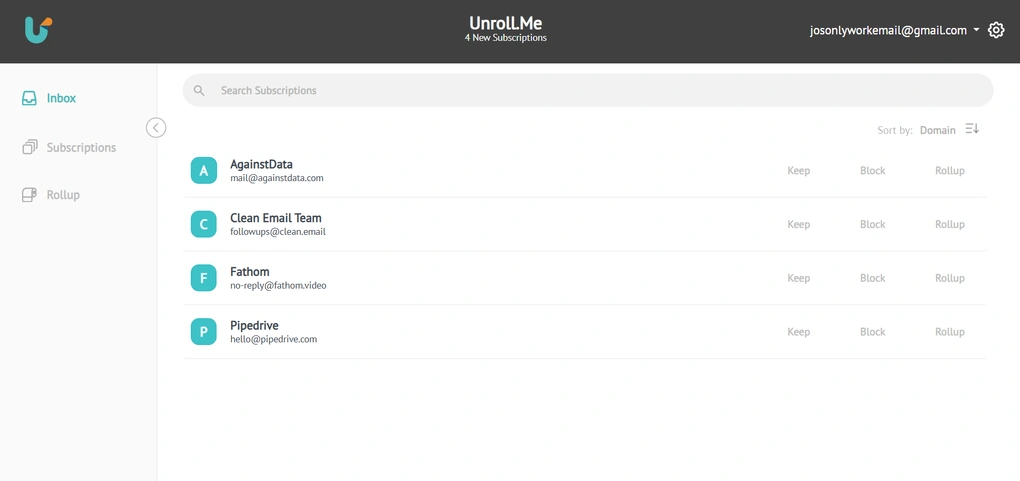
Subscription overview: Unroll.me scans your inbox and pulls all detected subscription and newsletter emails into a single, centralized list. This way, it’s easy to see how many mailing lists you’re actually subscribed to, including ones you may have forgotten about.
Unsubscribe actions: From the subscription list, you can unsubscribe from unwanted senders with just a few clicks. Unroll.me follows the unsubscribe links provided by senders and removes future emails from your main inbox. The process is simple and requires no rule-building or manual filtering.
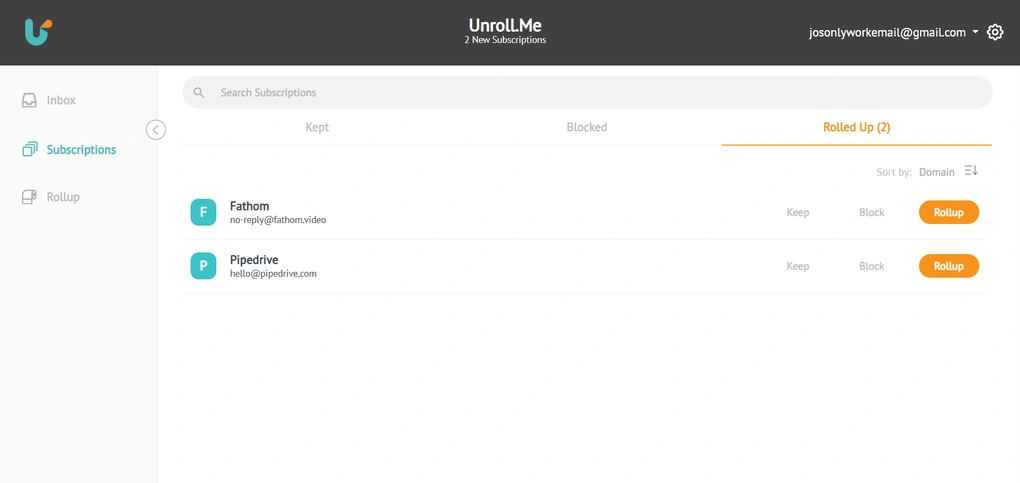
Rollup digest: Instead of unsubscribing from everything, Unroll.me lets you group selected newsletters into a single daily email called a Rollup. This keeps your inbox quieter during the day while still allowing you to review promotions, updates, or content you might want to skim later.
Bulk subscription management: Unroll.me allows you to take bulk actions across multiple subscriptions at once. If you want a fast cleanup session, you can unsubscribe from dozens of newsletters in a single pass without going through them one by one.
Multiple email accounts: You can connect more than one email account and manage subscriptions across all of them from the same dashboard. This is useful if you have separate personal and work inboxes or multiple addresses collecting newsletters over time.
Broad email provider support: Unroll.me supports most major email providers, including Gmail, Outlook, Yahoo, iCloud, AOL, and others.
Unroll.me pricing
Unroll.me is completely free to use. There are no paid plans, subscriptions, or upgrades.
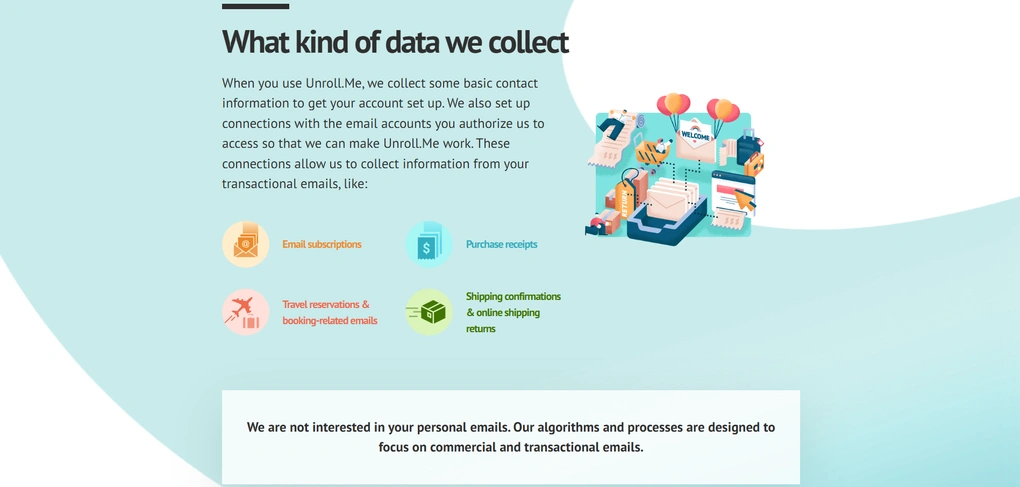
However, the free pricing comes with an important caveat: Unroll.me monetizes the product by collecting and selling anonymized user data to third parties. This includes information related to your email subscriptions, purchase receipts, travel confirmations, and similar metadata found in your inbox.
In other words, there’s no free plan since you are not paying with money, but with data.
My experience with Unroll.me
In terms of usability, Unroll.me is still very straightforward. However, knowing how the tool makes money changes the experience. While nothing feels “off” during daily use, the lack of transparency around where the data goes makes it harder to fully trust it, especially when there are privacy-first alternatives that offer similar functionality for a reasonable price.
For casual users who only care about convenience, this may not matter much, but for anyone even slightly privacy-conscious, it becomes hard to ignore.
Unroll.me pros and cons
Pros of Unroll.me:
Cons of Unroll.me:
Why is it the best free unsubscribe app?
Unroll.me earned its reputation by making inbox cleanup simple long before it became a crowded market. However, its data-selling business model has made it increasingly controversial, especially as users become more aware of privacy risks.
Today, Unroll.me is less about being the “best” unsubscribe app and more about being the most familiar, a tool that works, but comes with a trade-off many users are no longer willing to make.
🔎 Read my full Unroll.Me review: What They Don’t Tell You About Safety
Short on time? Here’s a quick overview of Unroll.Me
Summary: The best unsubscribe apps in 2026
When deciding whether to use an unsubscribe app, it’s worth thinking about how much headspace your inbox actually takes up. Not just how long you spend there, but how often it distracts you and stresses you out.
If you’re constantly scanning past newsletters you never read, deleting the same promotions over and over, or postponing cleanup for “later,” that mental friction adds up.
Even saving a few minutes a day by unsubscribing properly can make your inbox feel lighter and easier to deal with.
Related articles:
- Best 5 Email Productivity Apps To Accomplish More In 2026
- 8 Best Email Apps in 2026 | My Thoughts After Testing +15 Apps
- Best 3 Unroll.me Alternatives In 2026 (EASY & SAFE To Use)
I’ll keep updating this article as tools evolve, and I’d love to hear your thoughts or experiences in the comments.
Why you can trust our reviews
At thebusinessdive.com, our team tests, reviews, and compares hundreds of productivity apps every year — from project management tools to note-taking apps. We dive deep into real-world use cases to help you find the right tools that actually improve your workflow, not just add noise.
Our mission? No fluff, no shortcuts—just honest, hands-on insights from productivity pros.
Discover how we stay transparent, read our review methodology, and let us know about any tools we missed.
Frequently asked questions
What are the best unsubscribe apps in 2026, and how do they work?
The best unsubscribe apps help you manage unwanted emails, marketing emails, and persistent subscription emails by scanning your inbox and identifying mailing lists tied to your email accounts.
Most unsubscribe tools collect these subscriptions in one dashboard, where you can send unsubscribe requests in bulk instead of clicking individual unsubscribe links hidden in footers.
Some apps focus on automation, others on privacy or inbox organization, but the goal is always the same: reduce inbox clutter and regain control of incoming messages.
Is it safe to click an unsubscribe link inside an email?
Not always. While legitimate newsletter senders include a proper unsubscribe link or appear in the list unsubscribe header, many spam emails and commercial emails use deceptive unsubscribe pages.
Studies show that at least one out of every 644 unsubscribe links leads to a malicious website. Clicking the wrong unsubscribe option can confirm your email is active, redirect you to phishing pages, or even trigger malware downloads.
This is why many experts recommend using a trusted email unsubscribe app or the unsubscribe button provided by your email provider instead of clicking random links.
Do unsubscribe apps work across multiple email accounts and providers?
Yes. Most modern unsubscribe services support multiple accounts, including Gmail accounts, Yahoo Mail, and Apple Mail, as long as the email provider allows third-party access.
Tools like Clean Email, Leave Me Alone, and AgainstData work across different inboxes and email clients, letting you manage subscriptions from multiple emails in one place.
This is especially useful if you’ve signed up for newsletters using different addresses over the years and want centralized inbox management.
What’s the difference between free unsubscribe apps and paid services?
A free unsubscribe app often limits features or monetizes in other ways. Some free apps rely on selling anonymized data for marketing purposes, which raises privacy risks.
Paid unsubscribe tools typically offer stronger privacy protections, more advanced features like bulk unsubscribe, smart folders, or the ability to automatically delete emails. Many paid services also provide a free plan or trial so you can test the unsubscribe feature before committing.
Do unsubscribe apps actually stop unwanted emails and spam?
They can, but results depend on the sender. Legitimate newsletter senders are legally required to honor unsubscribe requests, but not all do. Some unsubscribe apps also create filters that hide or block future incoming emails instead of fully removing you from email lists.
If a sender ignores unsubscribe requests, marking messages as spam or adding them to a block list is often more effective. For persistent junk emails, combining unsubscribe tools with inbox filters is the most reliable way to maintain a clean inbox.
Disclosure: I only recommend products I would use myself, and all opinions expressed here are our own. This post may contain affiliate links that, at no additional cost to you, I may earn a small commission. Read the full privacy policy here.

Hey! I’m Jovana, a content writer who loves writing, researching, and testing new productivity apps. With a background in philosophy, I bring a thoughtful but no-bullshit approach to everything I do. Let’s connect on Linkedin!