


File Splice Review 2026: Is It For You?
Wondering if File Splice is for you, but don’t want to pay before seeing whether it actually makes sense for you?
I had the same question, so I decided to test it myself.
In this File Splice review, I’ll show you exactly what it does well, where it falls short, who it’s best for, and how well the software performs in practice.
Let’s dive in!
Verdict
Here’s the quick verdict if you don’t want to read the full review:
🎯 Best for: Print shops, mailing operations, and teams handling large-scale document assembly workflows
🚫 Not ideal for: Casual users looking for traditional PDF editing features like annotations or OCR
⭐ Biggest strength: Strong batch processing and print-production workflow automation
⚠️ Biggest weakness: Comes with a learning curve and lacks a free trial
⚖️ Verdict: File Splice is a niche but powerful platform for document assembly, imposition, and batch PDF workflows, though it’s not designed for standard PDF editing needs.
🏆 Score: 4.5 / 5
✅ Tested with our review & scoring methodology ✅ Real-world testing ✅ Unbiased evaluation
File Splice
Summary
File Splice is a powerful platform for document assembly, batch processing, and print-production workflows. It handled large PDF workflows reliably during testing and offers strong merge, collate, and mail merge tools. While the interface looks outdated and comes with a learning curve, the pricing and workflow automation make it a great fit for print shops and teams handling large batches of documents.
|
|
Strong set of print-production and document assembly tools
|
|
|
Flexible template system for recurring workflows
|
|
|
Supports batch processing and bulk workflows
|
|
|
Cloud-based and easy to access from a browser
|
|
|
Affordable pricing compared to traditional prepress software
|
|
|
Comes with a learning curve for first-time users
|
|
|
No free plan nor free trial
|
How We Test PDF Editors (And Why File Splice Is Different)
To keep our reviews and final scores fair and consistent, we evaluate every PDF editor using a standardized testing framework built on over 3 years of hands-on experience testing these tools in real-world scenarios.
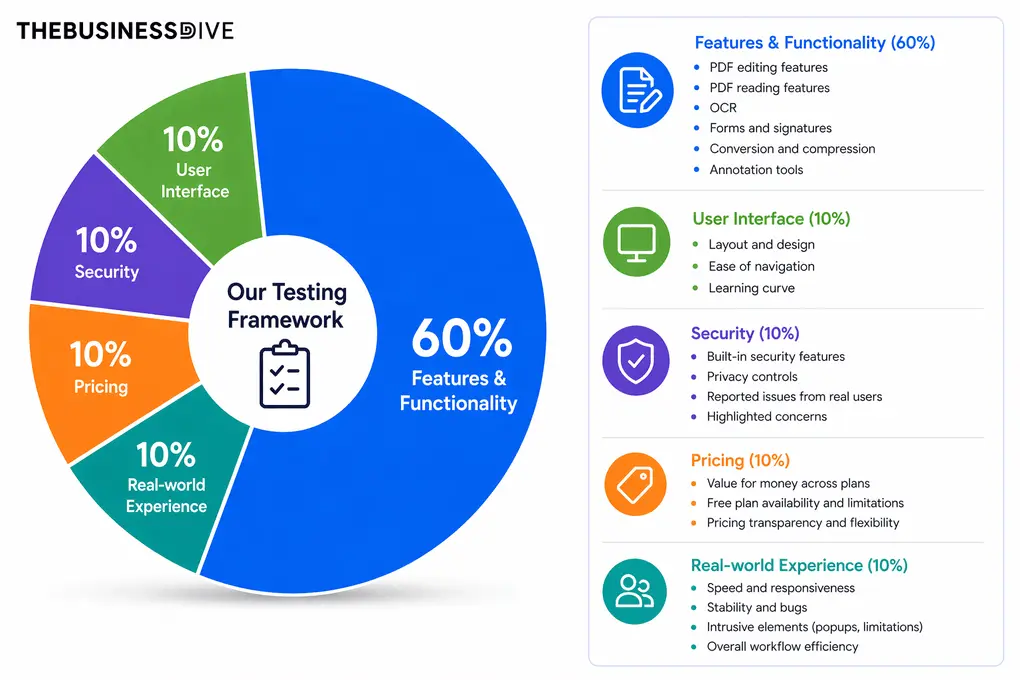
We score every PDF editors using this weighted framework based on hands-on testing and real use cases.
Our scoring breakdown after testing 30+ PDF editors:
🛠️Features & functionality — 60%
🖥️ User interface — 10%
🔐 Security — 10%
💰 Pricing — 10%
👥 Real-world experience — 10%
Nevertheless, since File Splice is a PDF management software rather than a PDF editor, for the features that account for 60% of the total score, we considered only those that File Splice offers. The remaining 40% of the score comes from the same criteria we use for PDF editors.
Want a detailed breakdown of how we test each category?
Learn exactly how we test tools → Review methodology
What is File Splice?
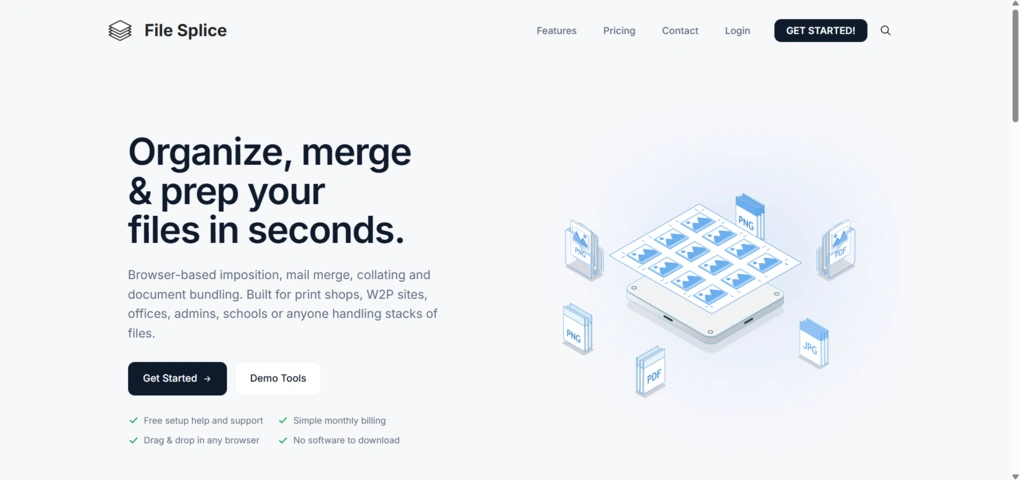
File Splice is a small U.S.-based software company focused on cloud-based PDF imposition and print workflow automation tools. The platform was created to give print shops, web-to-print businesses, mailing operations, and production teams a simpler alternative to traditional prepress software.
Rather than functioning as a standard PDF editor, File Splice is built around batch document processing and production workflows. Its feature set focuses on tasks like imposition, collating, splitting, mail merge, document bundling, and automated print preparation.
What it was like using File Splice
Testing File Splice was very different from using a typical PDF tool like Smallpdf or Adobe Acrobat. Instead of focusing on quick edits or simple document management, the platform is built around production workflows and batch document processing.
At first, the workflow structure took some getting used to, mainly because most tools are connected through templates and page-based document assembly. But after spending more time with the platform, the logic behind it became much clearer.
The interface itself isn’t especially modern, but most workflows are organized in a practical way. During testing, the platform handled file processing reliably, and the output documents generated correctly across all the tools I tried.
Why File Splice got this score?
File Splice gave me a positive experience overall. The platform offers a strong set of tools for merging, splitting, collating, mail merge, batch processing, and document assembly, and the workflows are well-connected across the platform.
Another major advantage is the pricing. For $4.99/month, File Splice includes access to all tools, API access, cloud workflows, and support, which is significantly cheaper than many traditional prepress tools.
The main reason File Splice didn’t get a higher score is that it doesn’t offer a free plan or free trial for the full platform, which makes it harder to properly test everything before subscribing.
It’s also not really designed for standard PDF editing tasks like annotations, text editing, OCR, or e-signatures, and some workflows come with a learning curve if you’re not already familiar with print-production software.
File Splice is best suited for
File Splice may not be the best choice for
Core features breakdown
Now that I’ve covered the basics, let’s take a closer look at the key features it offers and how they performed during my File Splice review.
Templates
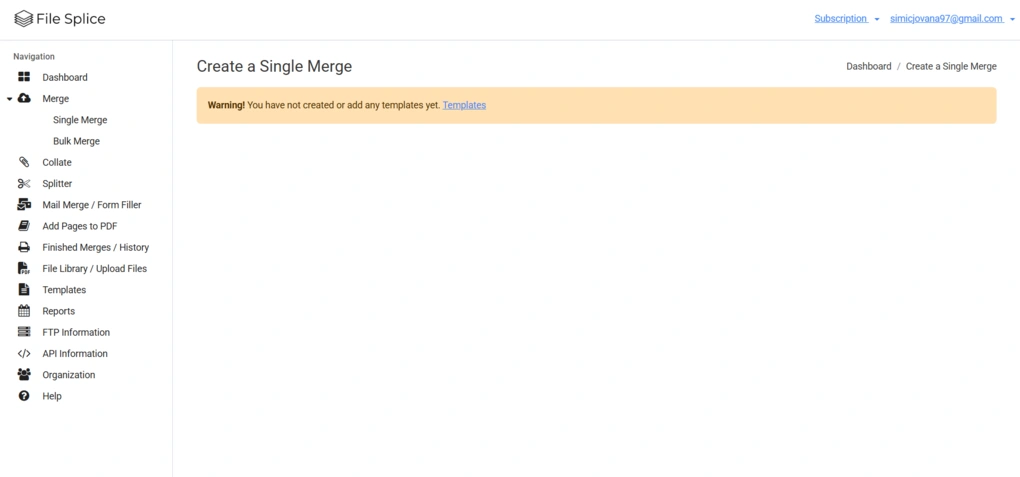
Templates are the foundation of nearly every workflow in File Splice, so before doing anything else, you first need to create or select a template that defines how documents will be processed.
Rather than acting as simple presets, templates work more like reusable workflow configurations, controlling settings such as sheet size, item size, margins, spacing, bleed, crop marks, rows and columns, and merge style.
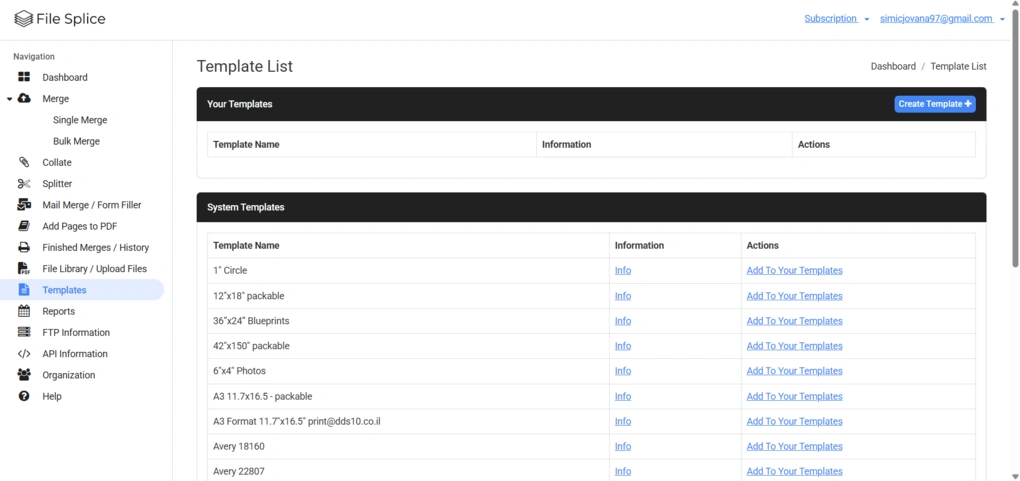
File Splice includes a library of prebuilt system templates for common print formats, including Avery labels and other standard production layouts, but it also allows you to create fully custom templates for specific products, customers, or recurring workflows.
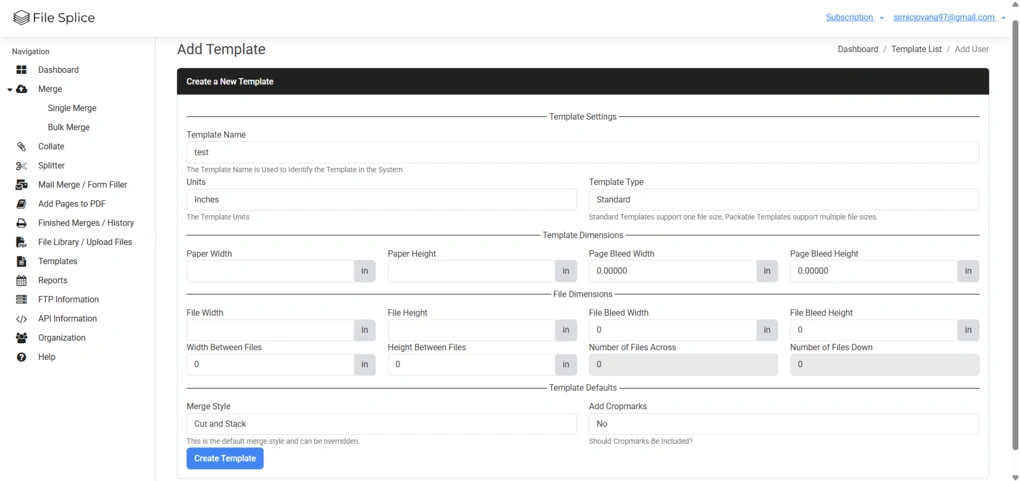
During testing, I found the template system flexible and consistent across the platform. Once configured, I could reuse templates across different workflows. This helped speed up repetitive document-processing tasks and made the overall workflow more streamlined.
The platform also supports multiple imposition styles within templates, including N-up, step-and-repeat, cut-and-stack, and packable layouts for mixed file sizes.
Merge
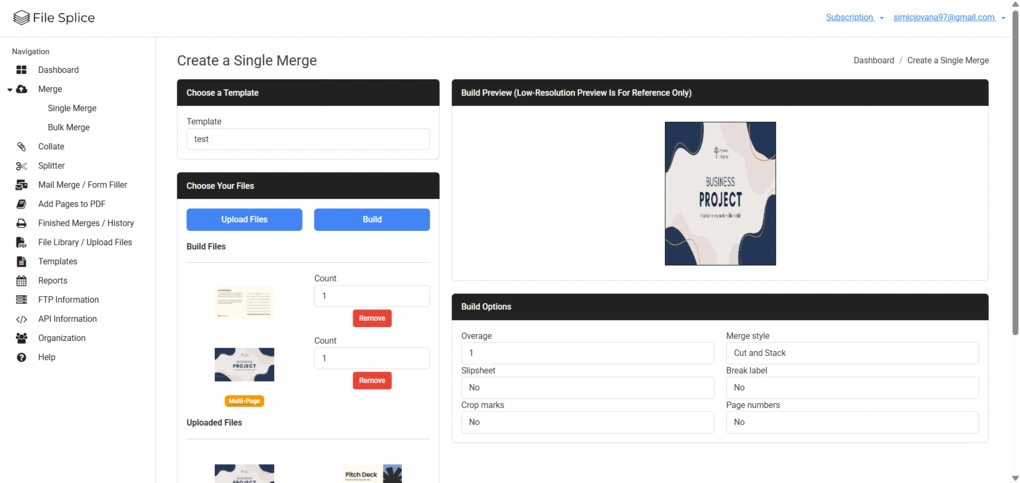
Once a template is configured, you can use it across File Splice’s different merge workflows. Unlike traditional PDF merge tools that simply combine documents in sequential order, File Splice approaches merging from a print-production perspective, using templates to determine how files should be arranged, imposed, and exported.
File Splice includes both Single Merge and Bulk Merge workflows, depending on whether you’re working with smaller document jobs or larger production batches.
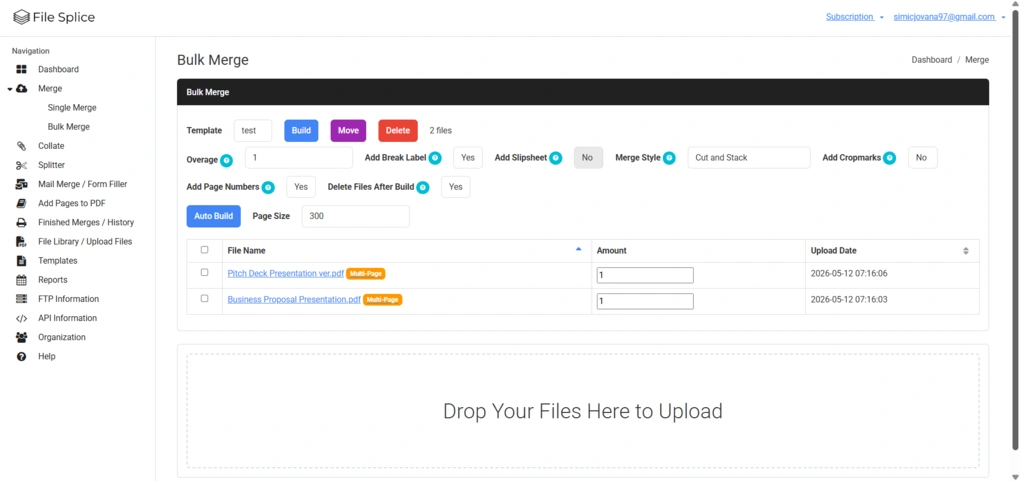
The platform supports several merge and imposition styles, including cut-and-stack, N-up, step-and-repeat, and packable layouts for mixed file sizes. It can also automatically arrange multiple files onto a single sheet, which is useful for batch printing and production workflows.
The Merge workflow also works closely with tools like Splitter and Collate. Together, they let you split PDFs into individual pages, rearrange them, and generate new output documents.
Collate
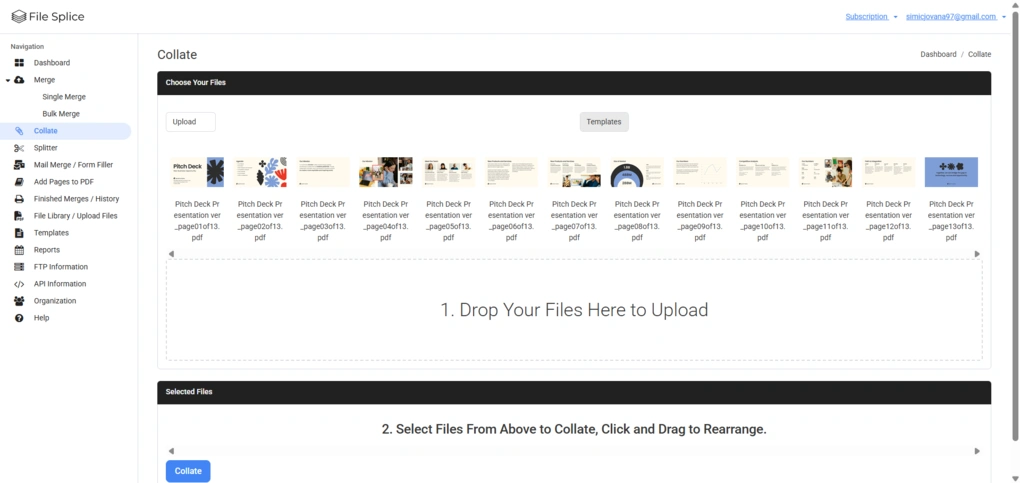
Collate is one of File Splice’s document assembly tools for reorganizing and rebuilding PDFs. It allows you to select individual pages from uploaded files, rearrange them using drag-and-drop controls, and generate a new output document in whatever order you want.
The feature works great alongside Splitter, since you can first separate a multipage PDF into individual pages and then use Collate to manually assemble a new document. During testing, the workflow was easy to follow, particularly compared to some of the platform’s more production-oriented tools.
File Splice also provides thumbnail previews for each page, so it’s easy to review and reorganize documents before generating the final output.
Splitter
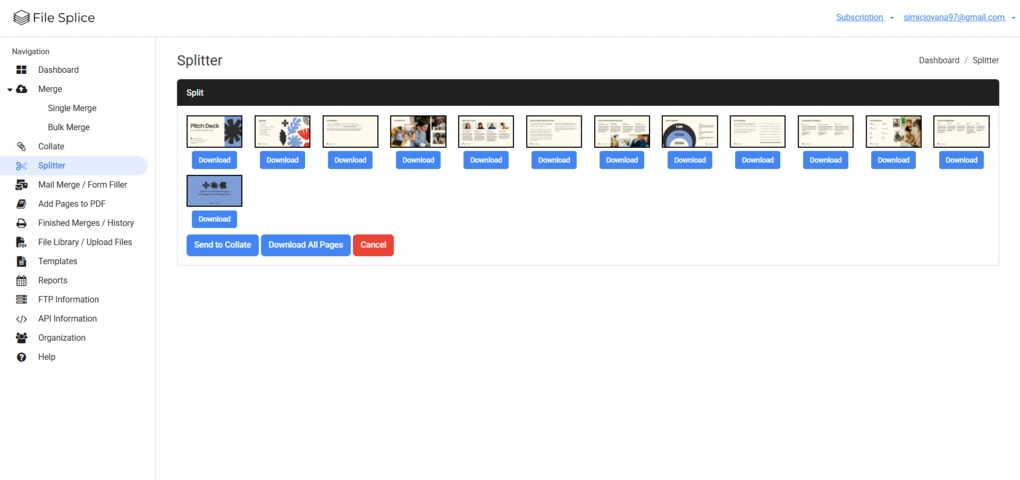
Splitter lets you split multipage PDFs into individual pages. You can then download those pages separately or use them in other File Splice workflows like Collate and Merge, as I mentioned.
During testing, I used Splitter to pull specific pages from larger PDF documents before rearranging them inside Collate.
Mail Merge / Form Filler
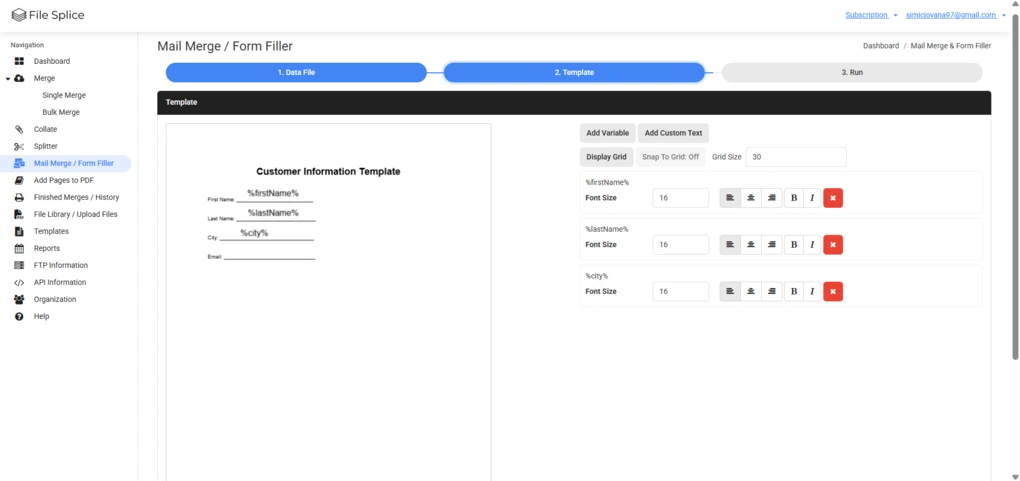
Mail Merge and Form Filler let you create personalized documents using spreadsheet data. You can upload a CSV file, connect it to a PDF template, and automatically fill documents with names, emails, addresses, and other information.
During testing, I uploaded a sample CSV file and added the fields to a PDF template using File Splice’s drag-and-drop editor.
File Splice also shows a preview of your spreadsheet data before generating the final documents, so you can check everything before exporting. The feature works well for things like labels, invoices, forms, certificates, and other batch documents.
Add Pages to PDF
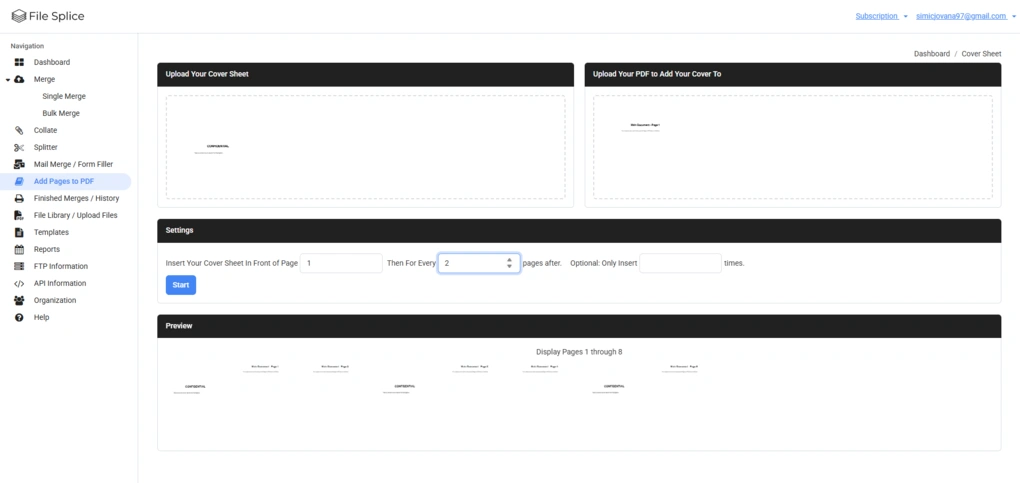
This feature lets you insert extra pages into an existing PDF document. This can be a cover page, separator page, disclaimer, instruction sheet, or any other PDF page you want repeated throughout the file.
The workflow is very simple. You upload the page you want to add, upload the main PDF, then choose where the new page should appear and how often it should repeat.
It’s a practical feature for things like reports, training materials, invoices, mailing packets, or any other documents that need recurring intro or separator pages.
Other Features
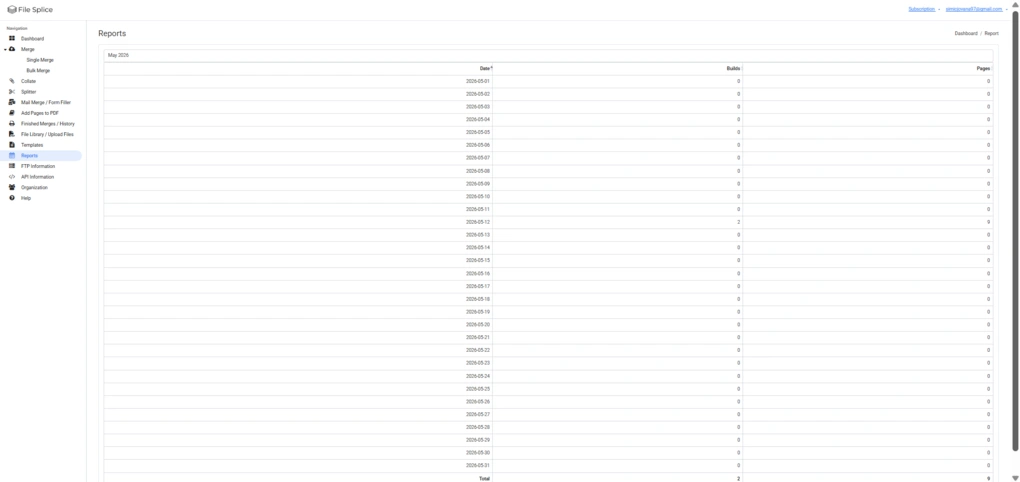
Besides its core document tools, File Splice also includes a few features for managing files and tracking workflows.
The Dashboard gives you a quick overview of your account activity, including files stored in the system, total quantity processed, and pages created during the month.
There’s also a Finished Merges / History section where you can view completed jobs, check their progress, and download generated files.
The File Library lets you upload, organize, download, and reuse files across different workflows. Files can also be connected to specific templates.
File Splice also includes a Reports section that tracks daily build activity and generated pages throughout the month. This gives you a simple overview of how much processing activity is happening inside your account.
File Splice user interface
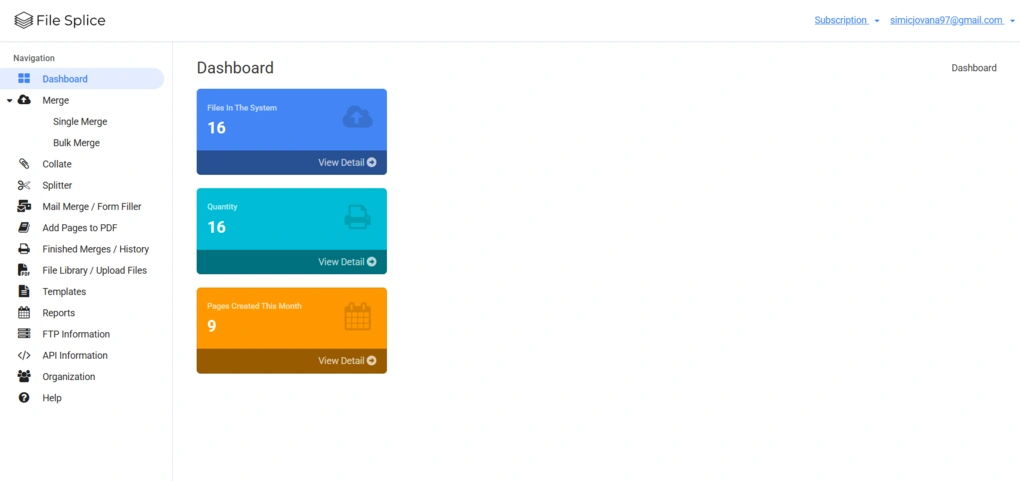
File Splice’s interface is simple and very workflow-focused. To me, the design looks a bit outdated, but that’s pretty common for tools built around print-production and batch processing workflows.
Most tools are organized clearly, with step-by-step workflows, thumbnail previews, drag-and-drop controls, and large action buttons that make navigation easier once you get used to the platform’s production-oriented structure.
Explore our Apps directory
A curated directory of software tools we’ve independently reviewed, with links to full reviews, comparisons, and category guides.
File Splice pricing overview
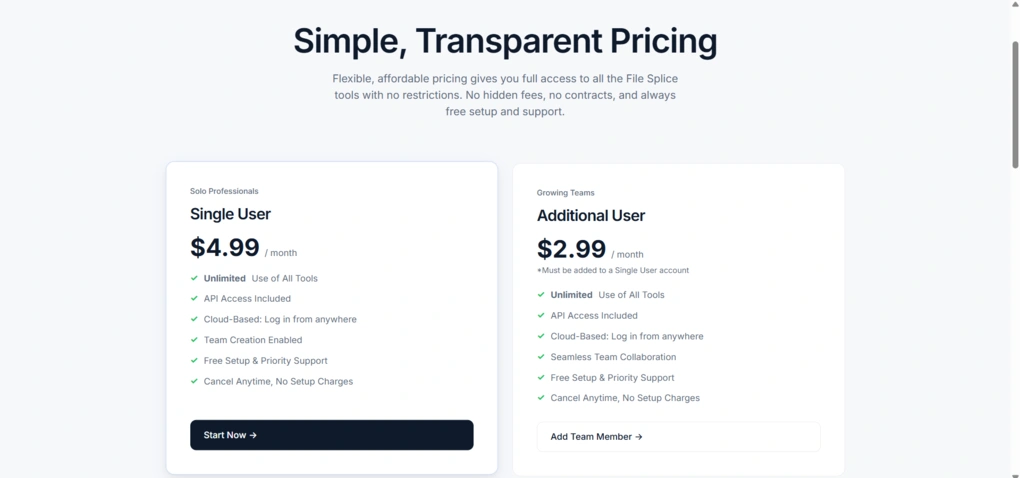
File Splice does not offer a permanent free plan, but it does provide free demo pages for some tools, like Collate and PDF Splitter, so you can test parts of the platform before signing up.
The platform keeps pricing very simple. There’s one main paid plan priced at $4.99/month for a single user, which includes unlimited access to all tools, API access, cloud-based workflows, team creation, and free setup/support. Additional team members can be added for $2.99/month per user.
What Works Well and What Doesn’t
After my File Splice testing, these were the things I liked most and the main drawback I noticed.
What I Liked About File Splice
Where File Splice Falls Short
File Splice review conclusion
As I mentioned at the beginning of this review, File Splice belongs to a pretty niche category of software built around document assembly, imposition, batch processing, and print-production workflows.
After testing the platform, I can definitely see the appeal. If you regularly work with large batches of files and production-style document workflows, File Splice is definitely worth considering.
Hopefully, this File Splice review gave you a clearer picture of how the platform works in practice and whether it’s the right fit for your workflow.
Looking for similar tools?
Visit the link to explore other apps we’ve reviewed in this space and how they compare.
Why you can trust our reviews
At thebusinessdive.com, our team tests, reviews, and compares hundreds of productivity apps every year — from project management tools to note-taking apps. We dive deep into real-world use cases to help you find the right tools that actually improve your workflow, not just add noise.
Our mission? No fluff, no shortcuts—just honest, hands-on insights from productivity pros.
Discover how we stay transparent, read our review methodology, and let us know about any tools we missed.
Frequently asked questions
Is FileSplice a PDF editor?
Not really. FileSplice is much more focused on document assembly, batch processing, imposition, mail merge, and print-production workflows than traditional editing features like annotations or text editing.
Does FileSplice offer a free plan?
No, FileSplice does not currently offer a free plan or full free trial. However, some tools and demo workflows can be tested directly on the website before subscribing.
Who is FileSplice best for?
FileSplice is best for print shops, mailing operations, web-to-print businesses, and teams that regularly handle large batches of documents and repetitive production workflows.

Hey there! I am Aron, the founder of Thebusinessdive. I have been testing productivity apps for almost three years now. I reach 25.000 -50.000 people monthly with the mission to help you find the perfect productivity apps. Subscribe to my YouTube channel, newsletter, and social media to hear more about the best productivity tools. Let’s dive in!