



TrackingTime Review 2026 | Is It Worth It for Agencies?
TL;DR: In this TrackingTime review, I’ll share my honest experience after testing its web and Windows desktop apps. I’ll show you why I think it’s one of the best time-tracking tools I’ve tested, how its AutoTrack, reporting, and invoicing features performed, and ultimately, whether TrackingTime is worth paying for.
My Testing Results in Short
Here’s the quick verdict if you don’t want to read the full review:
🎯 Best for: Agencies, consultancies, and teams that bill by the hour.
🚫 Not ideal for: Users who only need a simple time tracker without project management, detailed reports, or invoicing.
⭐ Biggest strength: Combining automatic activity tracking, project management, detailed reporting, and invoicing in one intuitive workspace.
⚠️ Biggest weakness: Some of TrackingTime’s most useful features require a paid plan.
⚖️ Verdict: A well-rounded time-tracking tool with intuitive project management, detailed reports, and convenient invoicing features. Its pricing is the main drawback, but the overall experience makes it a strong choice for teams managing multiple clients and projects.
🏆 Score: 4.7/5
✅ Tested with our review & scoring methodology ✅ Real-world testing ✅ Unbiased evaluation
TrackingTime Review
Summary
TrackingTime is a well-rounded time-tracking tool for agencies and teams that bill by the hour. I particularly liked AutoTrack, detailed reports, and built-in invoicing. While some advanced features require a paid subscription, it offers an intuitive way to manage billable hours, client projects, and retainers.
AutoTrack | |
Flexible time tracking | |
Color-coded projects and tasks | |
Detailed reporting tools | |
Built-in invoicing | |
Client reports | |
Desktop and web apps |
Limited AutoTrack availability | |
Advanced features behind paid plans | |
A simpler desktop app | |
Some setup required for invoicing |
How We Test Time Tracking Apps
We evaluate the time-tracking apps we have tested using a standardized testing framework we built based on 3+ years of experience with time-tracking apps.
Using this system, we can keep our scores objective and consistent, helping you compare time-tracking apps and make better, faster decisions.
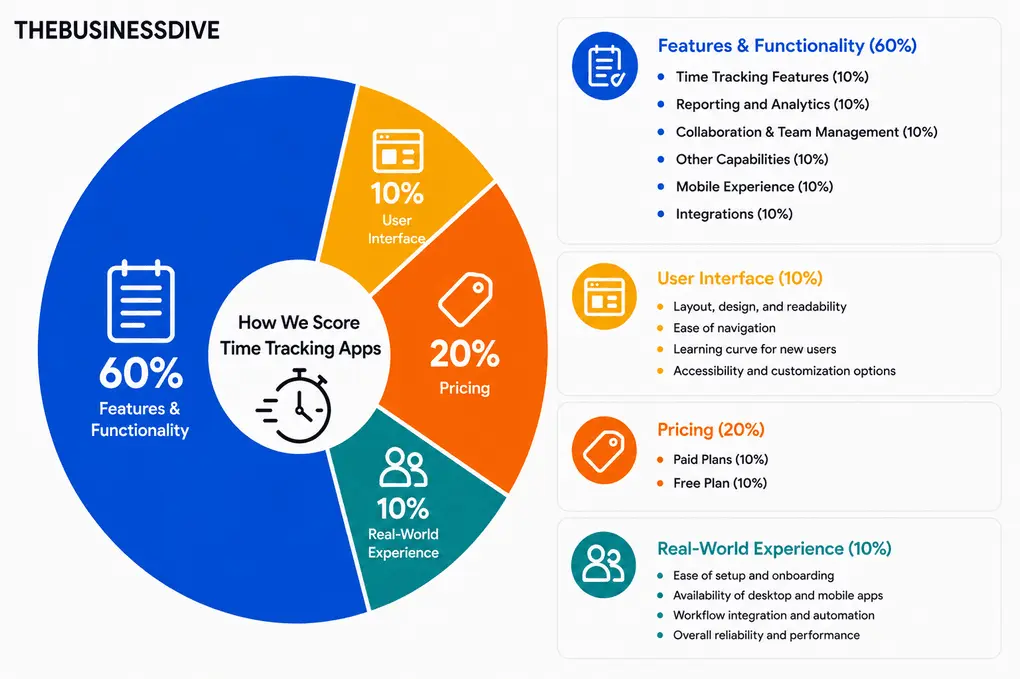
Our scoring breakdown after testing 25+ time-tracking apps:
🛠️Features & functionality — 60%
🖥️ User interface — 10%
💰 Pricing — 20%
👥 Real-world experience — 10%
Want a detailed breakdown of how we test each category?
Learn exactly how we test tools → Review methodology
TrackingTime in a nutshell
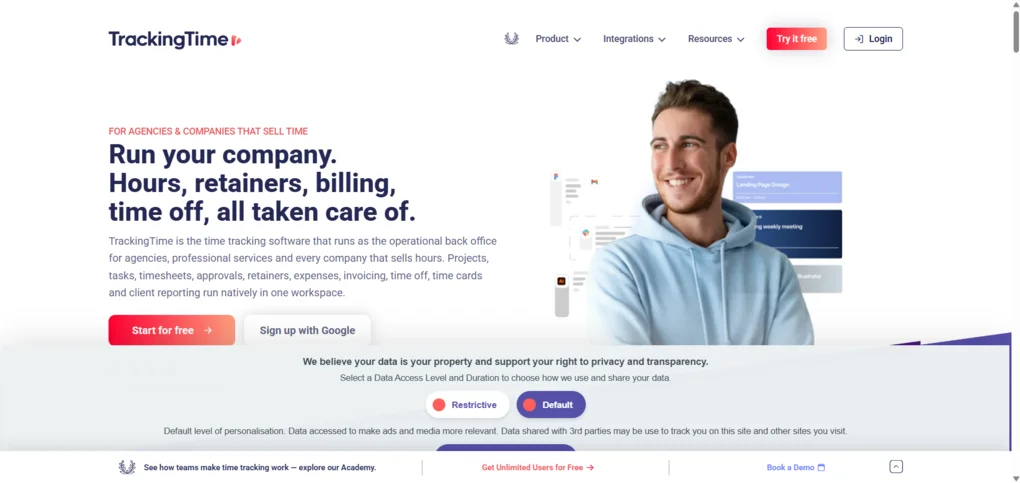
TrackingTime is a time-tracking and project management platform designed for freelancers, agencies, and businesses that bill clients by the hour. It combines time tracking, project and task management, timesheets, reporting, and invoicing in one workspace.
Founded in 2012, TrackingTime was built to address the practical needs of teams managing projects and client work.
What sets TrackingTime apart is its focus on connecting tracked hours with the rest of a business’s workflow. Rather than simply recording how long you work, it can also help you organize projects, review team timesheets, monitor costs, and create invoices from tracked time.
What I learned after tracking time with TrackingTime?
💡 What I learned: TrackingTime helped me track my work across different projects, review how I spent my time, and generate invoices from tracked hours. AutoTrack was the most useful feature for me, while the reporting interface took some time to get used to.
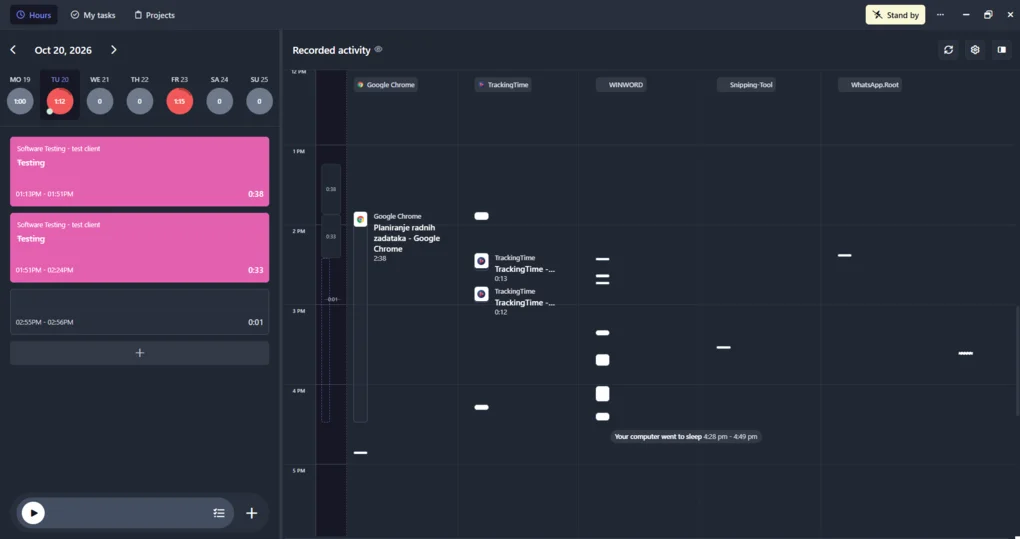
I mainly tested TrackingTime’s web app, using the Windows desktop app to try AutoTrack. I created projects for content writing, updates, software testing, and admin tasks.
AutoTrack was the standout feature. It recorded my computer activity in the background, including the applications and browser pages I used. I could review the timeline later and turn selected activities into time entries instead of starting a timer for every task.
I also found the weekly calendar useful for reviewing my hours. I could add entries manually, edit them, and move them with drag-and-drop. Color-coded projects made it easier to see how I divided my time.
Reports is one of TrackingTime’s strongest features, although it took some time to explore. I could review individual time entries, compare project hours with estimates, analyze client activity, and use audit checks to spot potential errors.
Invoicing was straightforward once I configured my clients and billing rates. I could generate an invoice from a timesheet, let TrackingTime calculate the amounts, and share the finished invoice through a link.
Overall, TrackingTime is a good fit for freelancers and teams that need to connect time tracking with project reporting and invoicing. Its reporting tools offer plenty of useful detail, but you’ll need some time to get familiar with them. Access to advanced features also depends on your subscription plan.
What I liked about TrackingTime
Where TrackingTime falls short
Why did I give it a 4.7/5 score?
TrackingTime scored highly because it combines flexible time tracking, automatic activity recording, detailed reports, and client invoicing in one intuitive workspace.
Honestly, I found very little to criticize during my testing, as the features worked well together and the interface was easy to navigate.
The main reason I deducted points was pricing. Although the Free plan includes unlimited users, projects, and clients, some of TrackingTime’s most useful features require a paid subscription, starting at $4.50 per user per month with annual billing. This can add up for teams, especially if they need advanced reporting, billing rates, and invoicing.
Who Should Use TrackingTime?
🟢 TrackingTime is a good fit if… | 🔴 TrackingTime is not ideal if… |
|---|---|
You need to track billable hours: Track time by project and task, calculate billing amounts, and generate invoices from timesheets. | You want a simple timer: TrackingTime offers more project management and reporting features than you may need for basic time tracking. |
You want to reconstruct your workday: AutoTrack records computer activity in the background, so you can review it and turn selected activities into time entries later. | You don’t want to install a desktop app: AutoTrack requires the Windows or macOS app, even though most other features are available on the web. |
You need detailed reports: Review timesheets, compare project hours with estimates, analyze client activity, and spot potential errors. | You prefer a very simple interface: The range of reports, filters, and settings can take time to learn. |
You manage multiple projects or clients: Organize work with projects, tasks, color coding, client reports, and invoicing. | You need advanced features on a free plan: AutoTrack and invoicing are included in paid plans, while the free plan covers more basic time tracking. |
You manage a team: Review submitted hours, approve timesheets, and use reporting tools to monitor team activity. | You want to do everything in the desktop app: The desktop version is more limited, and you’ll need the web app for reports and other advanced features. |
Is TrackingTime worth it?
💡 Key takeaway: TrackingTime offers a useful free plan, but some of its most valuable features, including AutoTrack and invoicing, require a paid subscription. I think the Pro plan offers the best value for freelancers and agencies that want to track billable hours and create invoices without relying on separate tools.
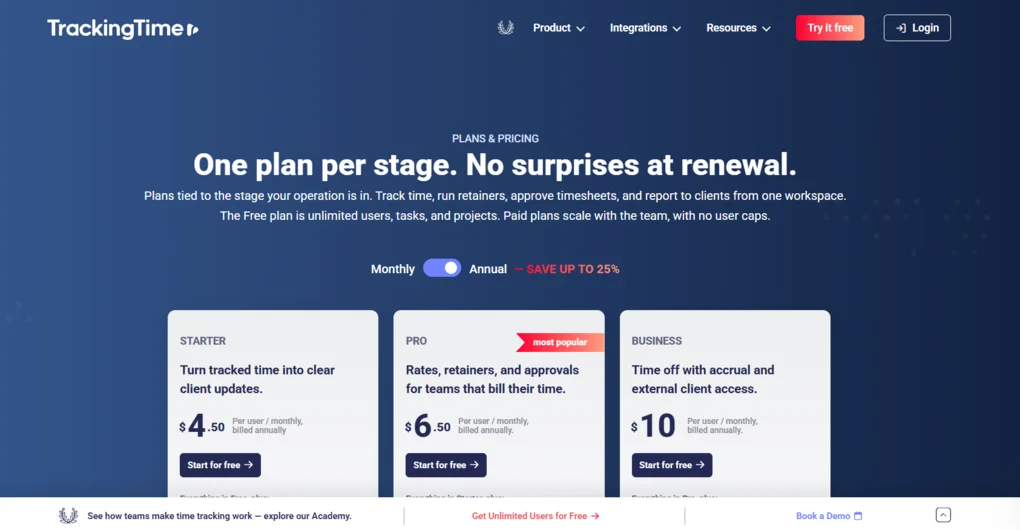
Plan | Price | Best for | Key features |
|---|---|---|---|
Free | $0 | Individuals and teams who need basic time tracking | Unlimited users, projects, and tasks; desktop and mobile apps; time tracking in 50+ apps; PDF exports |
Freelancer | $8/month, billed annually | Freelancers and independent professionals | AutoTrack, work schedules, client reports, scheduled report delivery, CSV and Excel exports, 50+ integrations, billing rates, costs, invoicing, expense tracking, and project retainers |
Starter | $4.50/user/month, billed annually, or $6/user/month, billed monthly(2-user minimum) | Teams that need more reporting and client collaboration features | Saved and shared reports, branded client reports, AutoTrack, project views, advanced filters, and Google Calendar and Outlook integrations |
Pro | $6.50/user/month, billed annually, or $8.50/user/month, billed monthly(2-user minimum) | Teams that bill clients for their time | Everything in Starter, plus billing rates, invoicing, expense tracking, retainers, timesheet approvals, and time-off management |
Business | $10/user/month, billed annually, or $13.50/user/month, billed monthly | Teams that need advanced access controls and security | Everything in Pro, plus external client access, advanced permissions, SSO, audit logs, and priority support |
Additional pricing details: TrackingTime starts new accounts with a 14-day trial of its premium Business features, without requiring a credit card. When the trial expires, your account moves to the Free plan unless you choose a paid subscription.
My take: If you’re working alone, the Freelancer plan is worth considering because it combines AutoTrack, client reporting, and invoicing in one subscription. If you only need a timer and basic project organization, the Free plan may be enough.
How TrackingTime’s Features Performed During My Testing:
I tested TrackingTime’s main features, focusing on how well they supported my everyday work, from tracking hours to managing projects and preparing client invoices.
Here’s what I found out.
AutoTrack: Powerful, unobtrusive activity tracking
💡 Key takeaway: AutoTrack is useful for recovering time I might otherwise forget to log, since it records my computer activity without requiring me to start a timer. I also like being able to review the timeline and choose which activities to turn into time entries, rather than having everything recorded automatically as work.
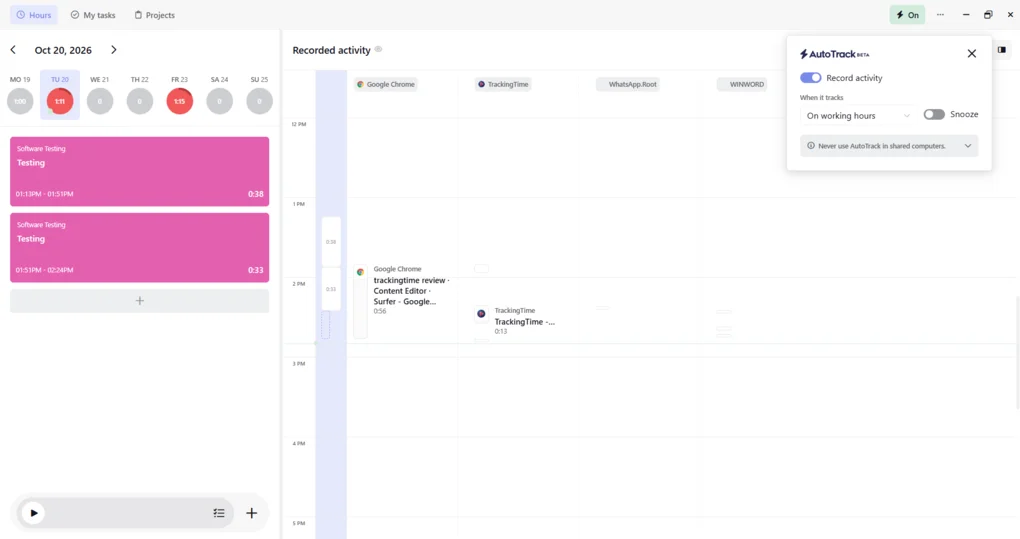
What I like about AutoTrack is how powerful yet unobtrusive it is. I simply enabled Record activity in the desktop app and continued working as usual, without starting the timer.
TrackingTime recorded the applications I used, along with browser tabs, page titles, and document names, and organized this information into a timeline I could review later. I was impressed by how accurately it captured my activity, including the specific content I had open in my browser.
AutoTrack doesn’t automatically turn everything you do into billable hours or completed time entries. Instead, it gives you a detailed overview of your activity and lets you decide which periods to add to your timesheet, assigning them to the appropriate projects and tasks.
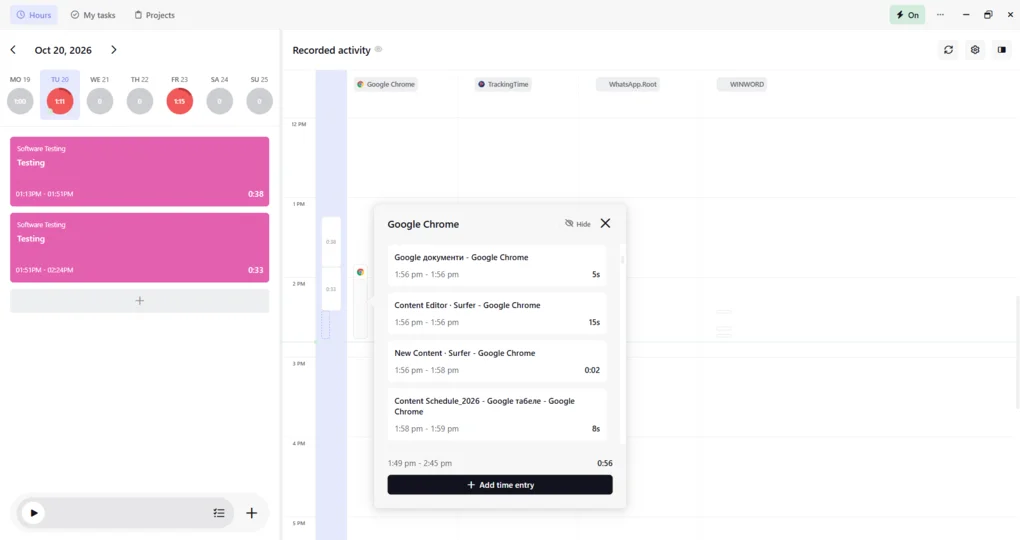
I also appreciated the privacy-first approach: activity records are stored locally on your computer and aren’t accessible to workspace administrators unless you manually add them as time entries.
The feature also offers useful customization options. You can choose to record activity only during your configured working hours or at all times, disable recording when you don’t need it, and temporarily pause it using the Snooze option. You can also configure the desktop app to launch when you log in to your computer.
However, one limitation worth noting is that AutoTrack is available only in the Windows and macOS desktop apps, although you can access a shortcut to your recorded activity from the web version.
Time Tracking: Flexible time tracking with a handy calendar
💡 Key takeaway: I found the weekly calendar view the easiest way to review how I divided my time across projects and tasks. Being able to track time live, add entries manually, and reschedule them with drag-and-drop gave me flexibility without having to manage every entry through a separate form.
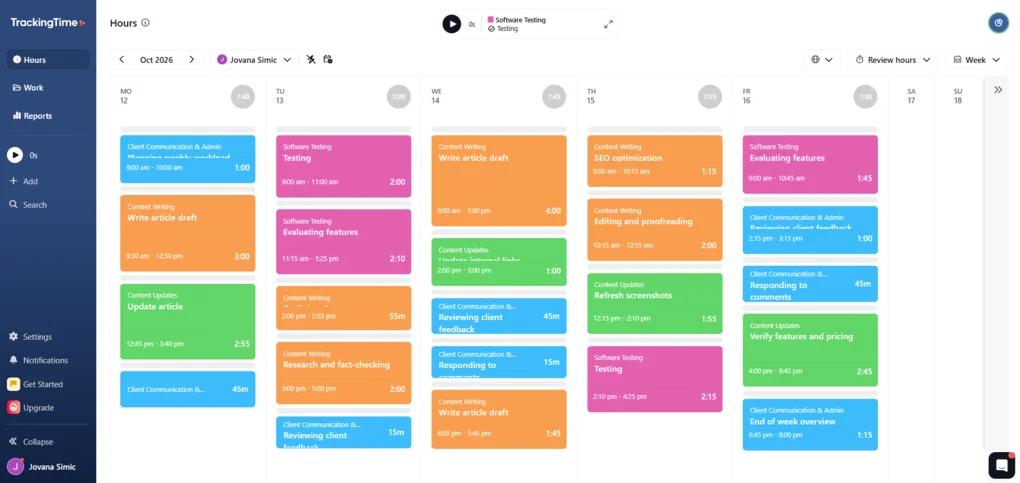
I mostly used TrackingTime’s web version for this review. I started testing it there and found it easier to work with than the desktop app.
The timer is always easy to access, no matter which section you’re in. When you click it, you can select a project and task, add details about what you’re working on, and start tracking. If you’d rather get started right away, you can skip these details and fill them in later.
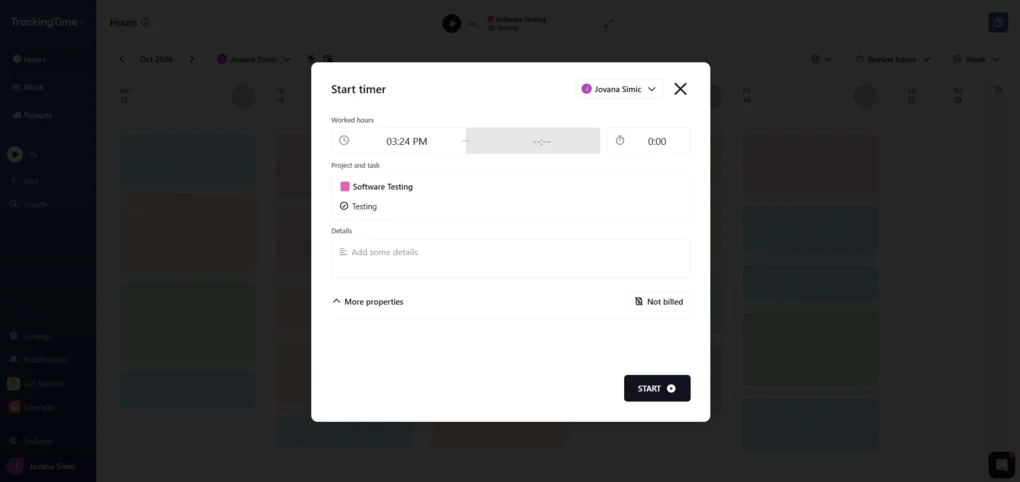
I spent most of my time in the Hours tab, where you can log hours manually, edit existing entries, or schedule work for later.
You can switch between day, week, and month views, but I found the week view the most useful. It gave me a clear picture of how I had divided my time across different tasks. I also like being able to drag and drop entries in the calendar instead of editing each one through a form.
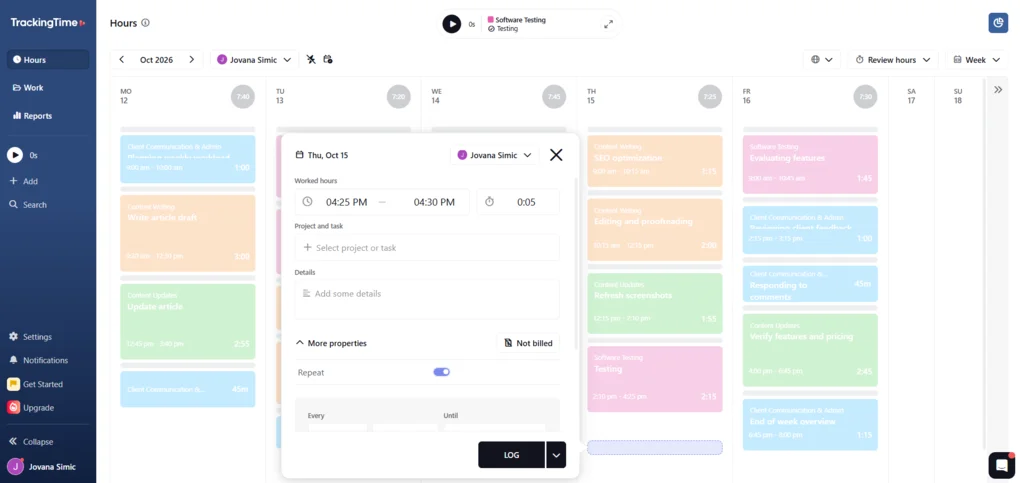
Another useful option is recurring time entries. You can set them to repeat at regular intervals, for example, when you have a task scheduled for the same time every week.
Just keep in mind that scheduling an entry isn’t the same as logging completed work. Planned hours don’t count as worked time until you record them as such.
Projects and Tasks: A straightforward way to organize work
💡 Key takeaway: I found it easier to manage my workload when I separated all my projects. Color coding also helped me see how my time was distributed across these activities without having to read every calendar entry.
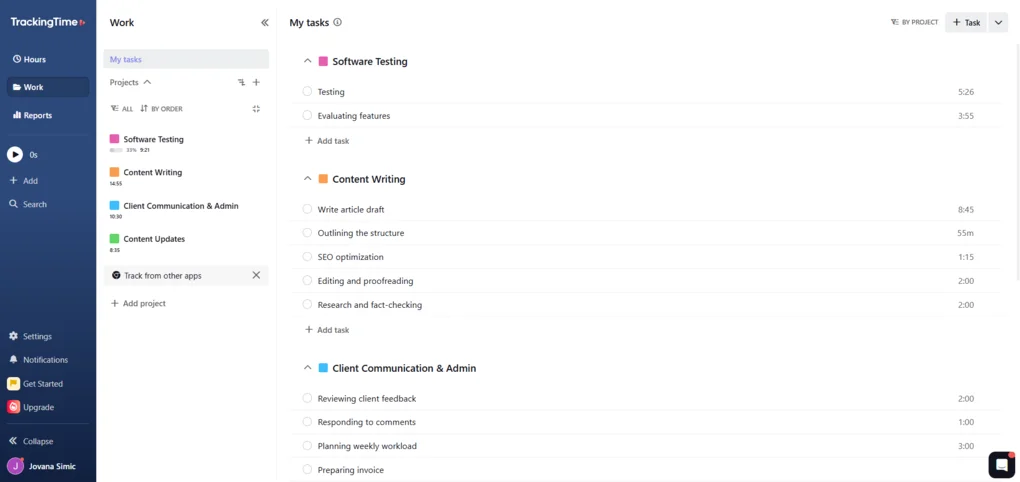
In TrackingTime, projects and tasks are closely tied to time tracking functionality, so I’ve already covered some of their features in the previous section.
I organized my work into separate projects for content writing, content updates, software testing, and client communication. This gave me a clearer structure than keeping everything in one long list. I could create tasks within each project and keep related activities grouped together, which made the overall setup easier to follow.
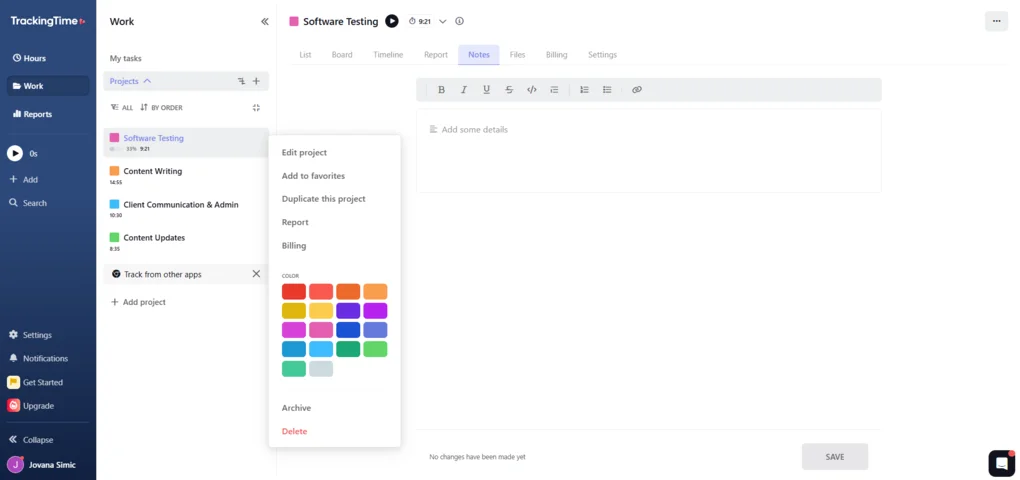
I also like the color-coding options. Each project can have its own color, making it easier to tell different types of work apart in the calendar. When I looked at my week, I could quickly see how my time was split between writing, updates, testing, and admin tasks without having to read every entry.
Reports: Complex but useful
💡 Key takeaway: TrackingTime’s reports are useful for more than checking my total hours. I could review individual entries, compare time spent with project estimates, and spot records that needed attention. The trade-off is that the number of reports and options takes some getting used to, especially if you only need a quick overview.
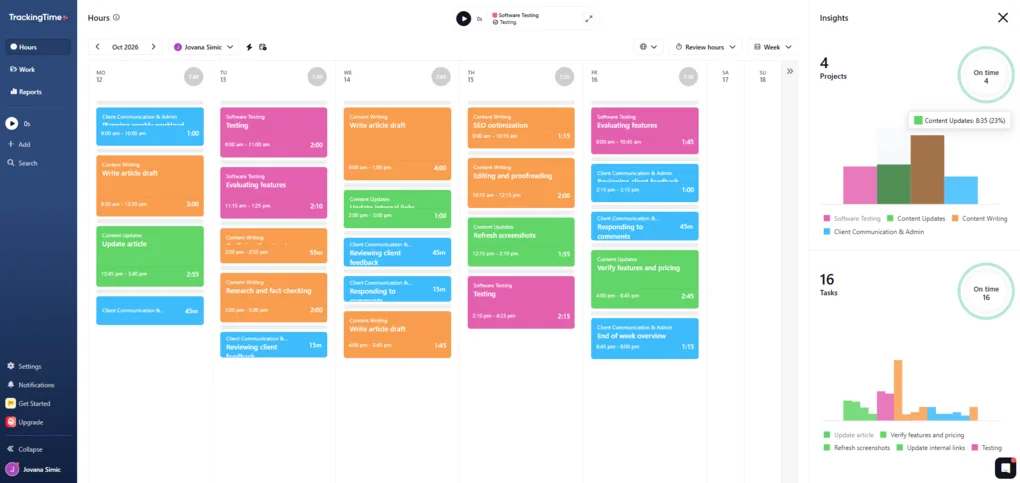
Reports were one of the more complex parts of TrackingTime for me because it offers several ways to look at the same work data.
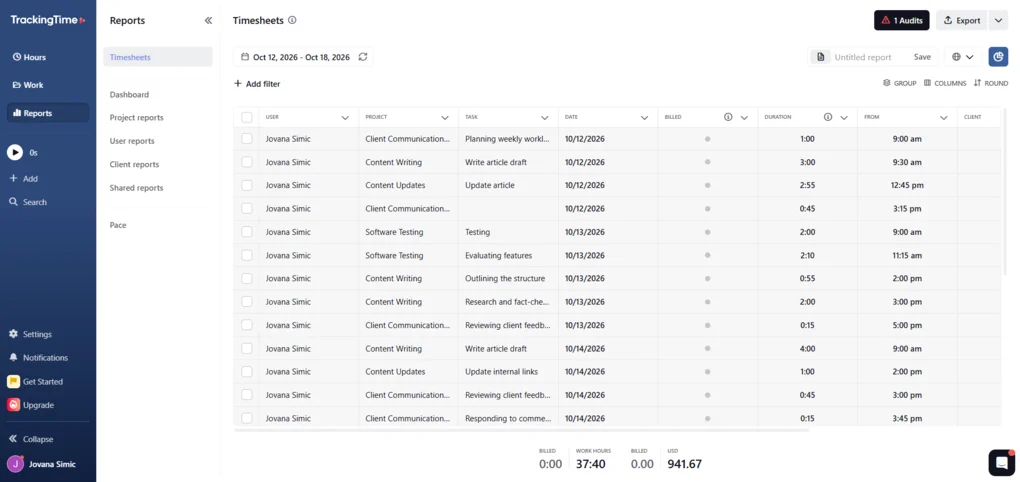
I started with Timesheets, which I found useful for checking individual entries and making sure I’d assigned my hours to the right projects and tasks. The filters and grouping options helped me narrow down the results when I wanted to focus on a specific part of my workload.
I would also note that for teams, there’s timesheet approval functionality. Managers can review submitted hours, approve or reject entries, and request missing hours before using time records for reporting or billing. Approved entries can also be locked to prevent further edits.
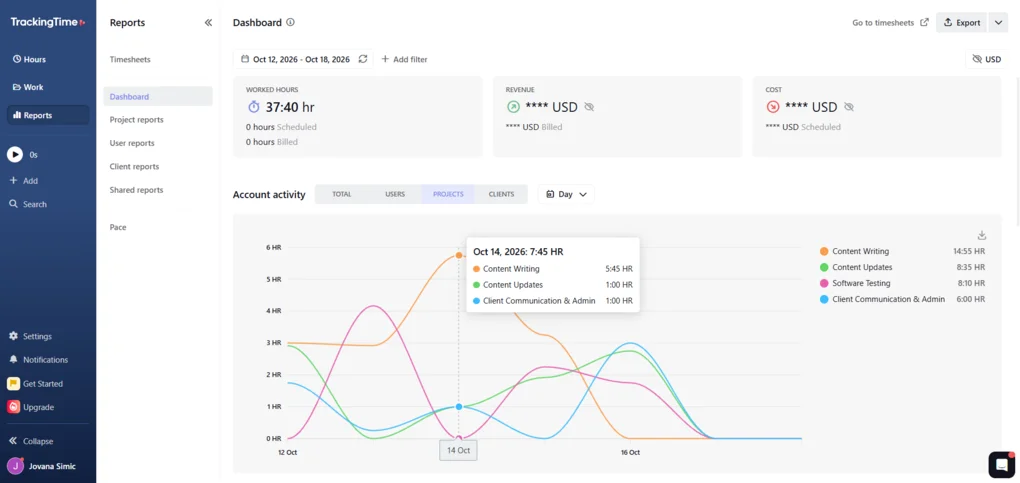
The Dashboard is better for getting a quick overview. Instead of looking through individual entries, I could see how my hours were distributed across projects over the week.
Project reports go a step further by showing how much time I’ve spent on each project and how that compares with estimated hours. I can see how this would be useful when managing several projects or checking whether a task is taking longer than expected.
Client reports add another useful layer, especially for freelancers and agencies working with multiple clients. I could review a client’s activity over time, switch between total hours, users, and projects, and compare worked hours with the displayed rates and costs.
I also tested the audit feature, which flags entries that might need attention. For example, it can highlight unusually long or short entries, overlapping time records, or tasks without an assigned project. I like having these checks in one place because they make it easier to catch gaps or mistakes before relying on the data.
When I needed to work with the results outside TrackingTime, I could export reports to Excel, CSV, or PDF and choose which columns to include.
Client Management and Invoicing: From tracked hours to shareable invoices
💡 Key takeaway: I was able to turn tracked hours into a client-ready invoice without calculating the amounts manually, since TrackingTime used my configured rates. Once I assigned clients to my projects and enabled invoicing, I could generate an invoice from Timesheets and get a shareable link to send to the client.
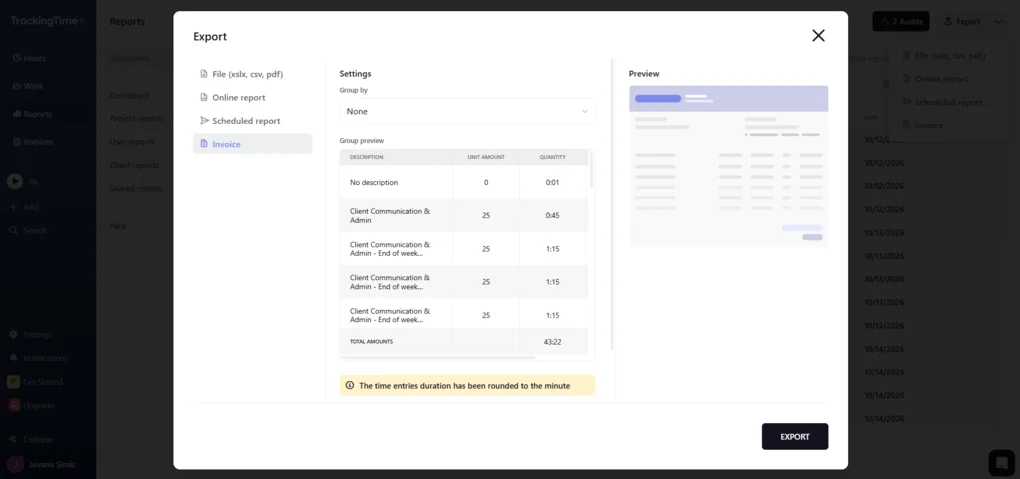
To test TrackingTime’s invoicing features, I first enabled invoicing in Settings and assigned clients to my projects. Once that was set up, I could go to Reports, open Timesheets, and select Export → Invoice to create an invoice from my tracked time.
I like that TrackingTime automatically calculated the amounts based on the configured rates, so I didn’t have to work everything out manually. The invoice editor also lets you review how the entries are grouped and check the amounts before finishing the invoice.
Once I clicked Finish Invoice, TrackingTime generated a link I could share directly with the client.
The setup takes a few steps, but the overall process makes sense once everything is in place. I can see this being useful for freelancers and agencies that bill clients by the hour and want to handle invoicing alongside time tracking rather than moving their data into another tool.
Project Retainers: Keep Client Budgets on Track
💡 Key takeaway: Project retainers are one of TrackingTime’s key differentiators. They help teams monitor how quickly they’re using allocated client hours, track project costs, and spot potential budget issues before they become a problem.
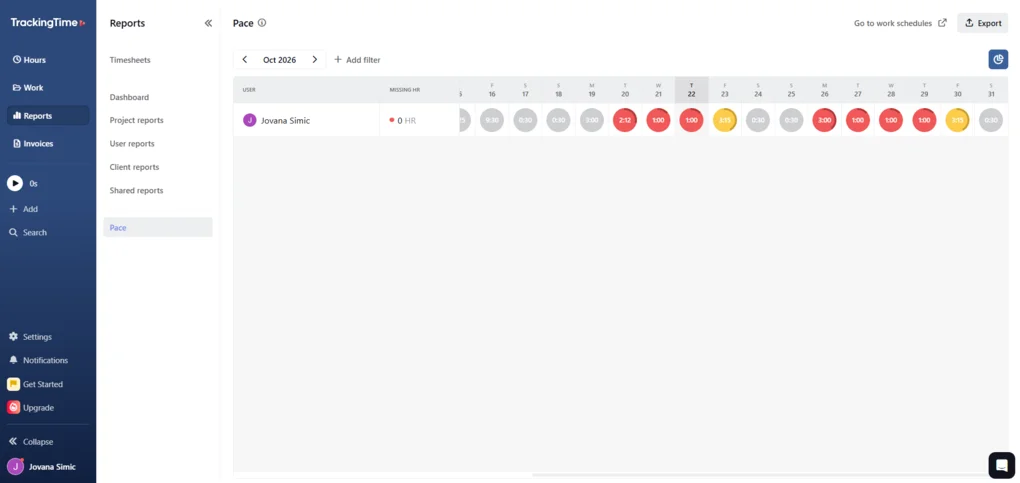
For agencies and consultancies that work with clients on recurring agreements, TrackingTime’s project retainer feature adds another layer of visibility to time tracking.
Comparing logged hours with a client’s allocated time makes it easier to understand how much of a retainer remains available during each billing period.
I also like the idea of pace tracking and burn alerts. Rather than discovering at the end of the month that a team has used its hours too quickly, these features can help identify when time consumption is running ahead of schedule.
The option to set different billing rates by team member or task also gives agencies more flexibility when accounting for different types of work.
For teams managing multiple client retainers, these features can make it easier to keep track of hours, costs, and project profitability without relying on separate spreadsheets.
Testing TrackingTime user interface
TrackingTime has both a web app and a desktop app for Windows and macOS. I tested the web and Windows desktop app, although I spent most of my time in the web version. I found it easier to get used to, especially when working with projects, reviewing time entries, and exploring reports.
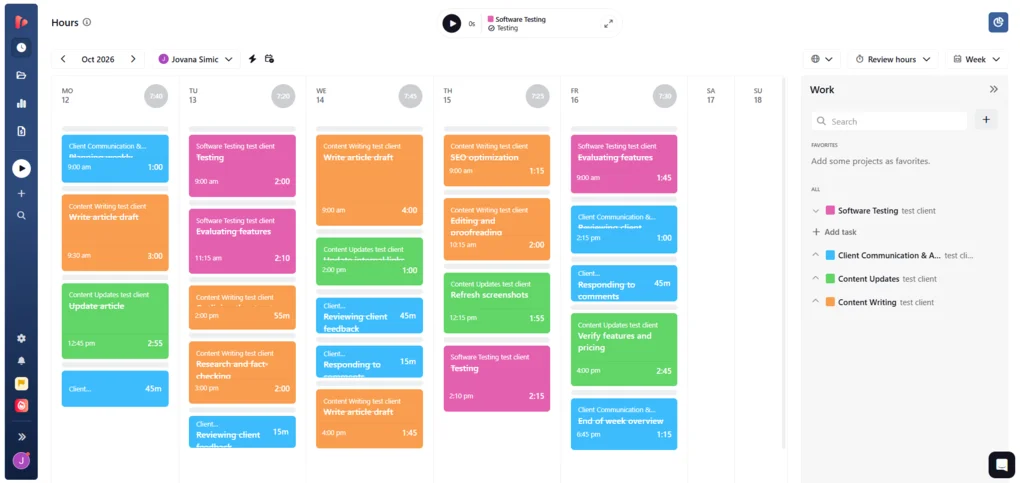
The web app brings most of TrackingTime’s features together in one place. You can manage projects and tasks, review your timesheets, and access detailed reports without leaving the browser.
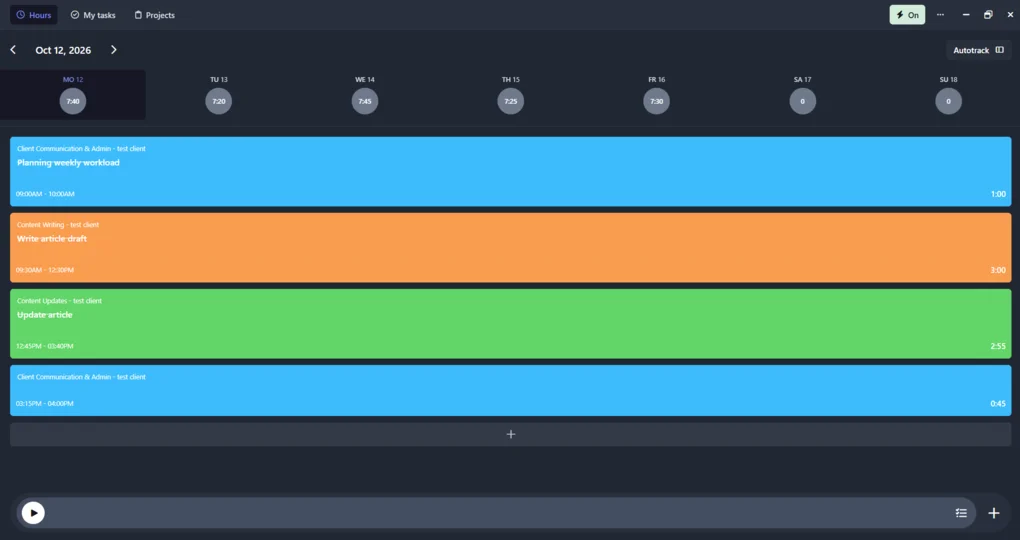
The desktop app, on the other hand, has a simpler interface focused on core time-tracking features. When I wanted to access reports or other advanced options, the desktop app redirected me to the web version.
Overall, I preferred the web app because it gave me access to more features in one place, while the desktop version was useful for quick time tracking and accessing AutoTrack. Both versions, however, are very user-friendly with intuitive interfaces.
Explore our Apps directory
A curated directory of software tools we’ve independently reviewed, with links to full reviews, comparisons, and category guides.
Integrations: Track time without switching between apps
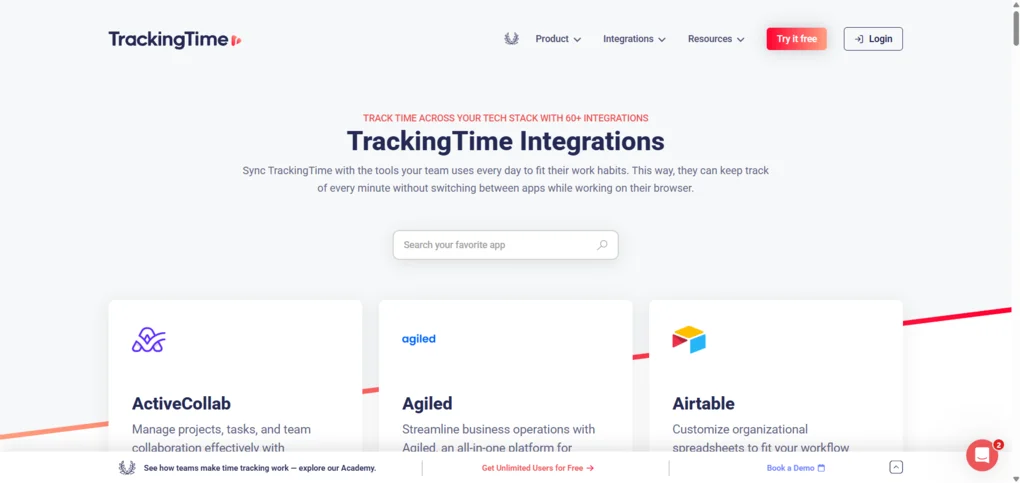
The range of integrations is one of TrackingTime’s strengths, particularly if you already manage projects and tasks in other tools.
Its browser extension works with more than 50 online services, including Asana, Trello, Jira, ClickUp, Notion, and Gmail. It adds time-tracking controls directly to supported apps, so you can start a timer while working on a task and sync the recorded time with TrackingTime.
TrackingTime also integrates with Google Calendar and Microsoft Outlook, so calendar events can be reflected in your time records. For teams, integrations with Slack and Microsoft Teams support collaboration, while Zapier and Make let you connect TrackingTime with other apps and automate workflows.
TrackingTime also supports AI assistants through its MCP server, which connects the platform with tools like Claude, ChatGPT, and Gemini. You can use conversational prompts to log hours and query project information, and the MCP server is available on every plan, including Free.
TrackingTime alternatives
If you are not sure whether TrackingTime is the best time-tracking software for you, here are some alternatives:
App | Best for | Description |
|---|---|---|
Rize | Best for focus and productivity habits | An AI-powered time tracker that has helped me a lot with focus and building more sustainable working habits. Works great for solo entrepreneurs, business owners, and professionals. |
Clockify | Best free time tracker | It is a time tracker and timesheet app that is used by millions of people. It is a pretty versatile app, as it offers a desktop app for Windows and Mac. |
Toggl Track | Best for team-friendly tracking | It is a user-friendly time-tracking app that offers desktop and mobile apps and a web version as well. It’s particularly useful when managing teams. |
Time Doctor | Best for workforce analytics | An app with robust time-tracking features and advanced analytics tools. It has employee monitoring, workforce, and productivity analytics features. |
Harvest | Best for invoicing and billing | A popular time-tracking app with massive invoicing and reporting capabilities. |
Hubstaff | Best for productivity monitoring | A time-tracking and productivity-monitoring app with in-depth reporting features. |
ClockShark | Best for field teams | A cloud-based time-tracking and employee scheduling software built for field service businesses with crews working outside the office. |
Jibble | Best for attendance tracking | A user-friendly time tracking solution ideal for teams with one of the best free plans. |
Insightful | Best for real-time employee tracking | It is time tracking and employee monitoring software for teams that captures daily work in real time and offers numerous productivity tools. |
MinuteShark | Best for freelancers | A time-tracking app for freelancers and solo professionals to track time, manage projects, and invoice them. |
Wrap Up: TrackingTime Review
After testing TrackingTime, I can confidently say it’s one of the most well-rounded time-tracking tools I’ve used. It combines time tracking, project management, reporting, and invoicing in one workspace, making it easier to manage my workload and keep track of billable hours.
What impressed me most was AutoTrack, flexible time tracking, and detailed reports. I could review my computer activity, organize time entries in the weekly calendar, and get a clear picture of how I spent my time across projects. I also liked how easily I could turn tracked hours into client invoices.
Pricing is the main drawback. TrackingTime’s Free plan is generous, with unlimited users, projects, and clients, but features such as AutoTrack and advanced reporting require a paid subscription. Paid plans start at $4.50 per user per month when billed annually, which is worth considering for teams managing multiple seats.
⚖️ My final verdict: If you’re looking for a time-tracking tool that goes beyond a simple timer and helps you manage projects, analyze your hours, and invoice clients, TrackingTime is an excellent choice. However, if you only need basic time tracking or want advanced features without a paid subscription, a more affordable alternative may be a better fit.
Related articles:
Looking for similar tools?
Visit the link to explore other apps we’ve reviewed in this space and how they compare.
Why you can trust our reviews
At thebusinessdive.com, our team tests, reviews, and compares hundreds of productivity apps every year — from project management tools to note-taking apps. We dive deep into real-world use cases to help you find the right tools that actually improve your workflow, not just add noise.
Our mission? No fluff, no shortcuts—just honest, hands-on insights from productivity pros.
Discover how we stay transparent, read our review methodology, and let us know about any tools we missed.
Frequently asked questions
Is TrackingTime free?
Yes, TrackingTime offers a free forever plan with unlimited users, projects, and basic time-tracking features. However, features such as AutoTrack, advanced reports, and invoicing require a paid plan. TrackingTime pricing varies by subscription tier, so check the current pricing page to find the plan that fits your needs.
Does TrackingTime offer employee monitoring software features?
No. TrackingTime has no screenshots, no keystroke logging and no GPS, and you choose what becomes a time entry. The tool focuses on time tracking, timesheets, and project management rather than extensive employee surveillance.
Its AutoTrack feature records computer activity to help users reconstruct their workday, but TrackingTime does not support GPS tracking. It may not be suitable for businesses that need advanced compliance or location-monitoring features for field teams.
Can TrackingTime track billable and non-billable hours?
Yes. TrackingTime lets you log billable and non-billable hours, organize time entries by project and task, and create detailed timesheets. Its reporting tools help you review time data, track project progress, and understand how many hours you spend on different activities. Invoicing is also available on eligible paid plans.
Does TrackingTime include project management features?
Yes. TrackingTime includes project management features that let you create projects, organize tasks, assign work, set due dates, and compare tracked hours with project estimates. These tools can help small teams and medium-sized businesses streamline time tracking and monitor project progress, although it is not a full replacement for a dedicated project management platform.

Hey! I’m Jovana, a content writer who loves writing, researching, and testing new productivity apps. With a background in philosophy, I bring a thoughtful but no-bullshit approach to everything I do. Let’s connect on Linkedin!