


8 Best Productivity Apps for iPhone I’d Actually Use in 2026
Your iPhone can easily become your most useful productivity tool, but only if you use the right apps. The App Store is full of options, and most of them promise to help you stay organized, save time, or get more done.
So how do you know which ones to choose?
In this guide, I’ve picked the best productivity apps for iPhone in 2026 based on how useful they are in real situations.
These are apps that help you manage meetings, tasks, note taking, time tracking, and workflows in a practical way.
The focus is on tools that are reliable, easy to use, and worth keeping in your daily routine.
Let’s dive in!
Best Productivity Apps For iPhone in 2026 (Quick Picks)
🎙️ Best for meetings: Fellow
🗓️ Best for daily planning: Morgen
✅ Best for task management: Todoist
🧠 Best for notes and flexible workspaces: Notion
🔗 Best for personal knowledge management: Obsidian
📬 Best for email management: Spark
⏱️ Best for time tracking: Toggl Track
⚡ Best for AI scheduling: Motion
Best Productivity Apps for iPhone Compared
If you are short on time, this table summarizes the key points of our experience using these productivity apps on iPhone.
|
App |
Best on iPhone for 🎯 |
What stands out 📱 |
Main limitation ⚠️ |
Mobile experience 📲 |
Pricing 💰 |
|---|---|---|---|---|---|
|
Meetings |
AI summaries & action items |
Limited free plan |
Smooth & practical |
Free + paid from $7 |
|
|
Daily planning |
Calendars + tasks in one place |
No free plan |
Well-organized features |
Paid from €15 |
|
|
Task management |
Fast task capture |
Limited time blocking |
Lightweight & fast |
Free + paid from $5 |
|
|
Flexible workspaces |
All-in-one organization |
Learning curve |
Powerful but complex |
Free + paid from $10 |
|
|
Personal knowledge management |
Linked notes & graph view |
Lacks collaboration features |
Powerful for note-taking |
Free |
|
|
Email management |
Smart inbox & AI tools |
Limited free plan |
Intuitive |
Free + paid from $8.25 |
|
|
Time tracking |
Easy tracking & reports |
No GPS tracking |
Simple |
Free + paid from $9 |
|
|
AI scheduling |
Automatic calendar planning |
Expensive |
Feature-rich |
Paid from $19 |
A Closer Look at the Best Productivity Apps for iPhone
Below, I’ll break down my experience with each app, who it’s best for, and where it still has limitations.
Fellow
Fellow is an AI meeting assistant that lets you record, transcribe, and manage meetings directly from your iPhone. In addition to recording, it includes tools for agendas, notes, summaries, and action items, so you can handle both the meeting itself and the follow-up in one app.
Bottom line
Professionals who want to record, organize, and follow up on meetings directly from their iPhone
You only need a simple voice recorder without AI summaries or meeting management tools
Combines recording, transcripts, summaries, and action items in one organized workflow
Limited free plan
Testing Fellow in Daily Use
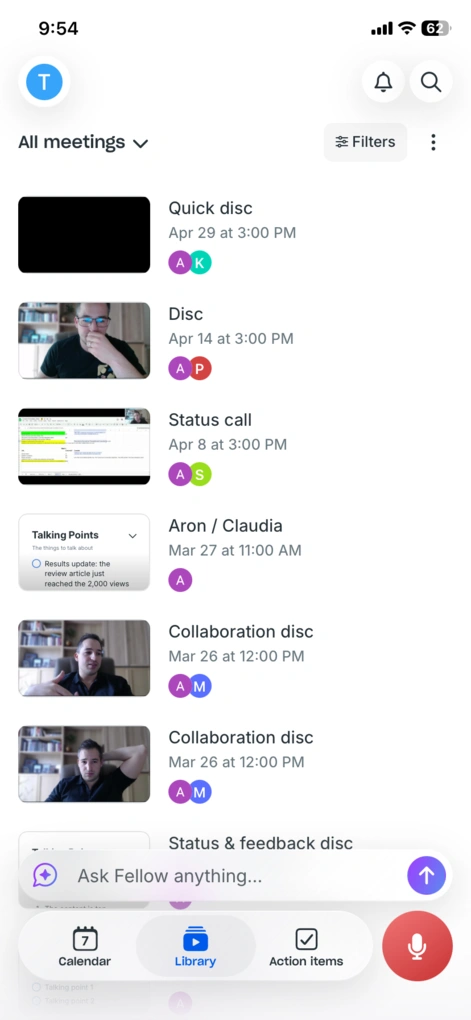
My experience with Fellow has been very positive. The recordings are strong, the transcription is accurate, and it’s easy to revisit important moments through summaries and a clean meeting library.
On iPhone, Fellow works best as a practical meeting note-taker tool rather than a fully standalone productivity app. Recording is quick and reliable, and the real value comes after the meeting, when transcripts, summaries, and action items are already organized and ready to use.
It may not replace your desktop workflow entirely, but for capturing and processing in-person meetings, it does a great job.
It’s also great for when you remember something on the go and want to add it as a talking point in your upcoming meeting agenda, or when you want to Ask Fellow what happened during a previous meeting during your daily commute.
Who should use Fellow on iPhone
Who should skip Fellow on iPhone
Why is it the best iPhone productivity app for meetings?
Most meeting apps on iPhone are either basic recorders or tied to video calls. As mentioned earlier, Fellow works differently.
You can use it for in-person meetings, record directly from your phone, and still get a full output with transcripts, summaries, and action items for all your meetings (whether in person or virtual) in one place.
That combination of recording, organization, and follow-up in a single app is the main reason it earned a spot on this list of the best iPhone productivity apps.
Key Features I Tested
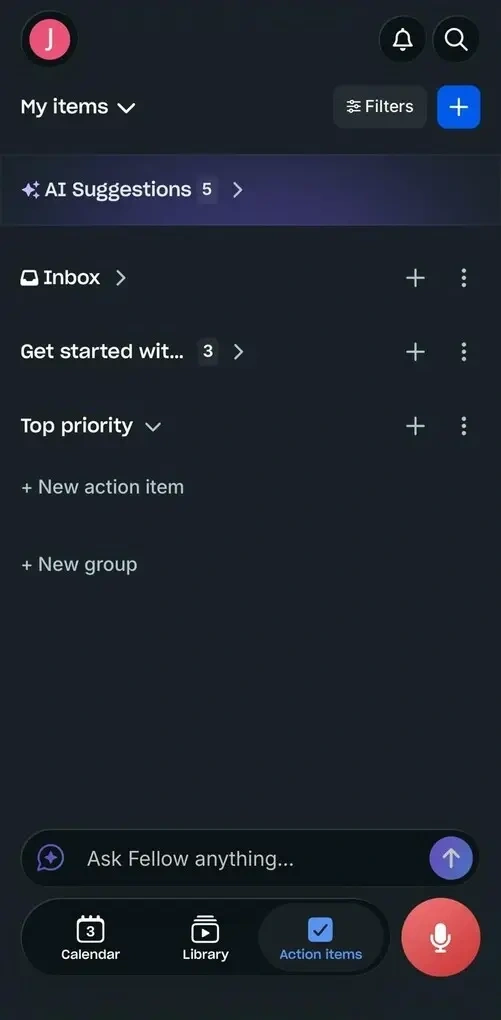
Meeting recording: Fellow’s iPhone app lets you record meetings directly from your device, using the phone’s microphone to capture in-person conversations. Recording starts with one tap, so you can quickly capture meetings without setting up a laptop or joining a call.
Bot-free recording: For in-person meetings, Fellow records directly from your iPhone instead of relying on a meeting bot. This approach fits real-world scenarios where there is no video call, and you simply need your phone to capture the conversation.
AI transcriptions: After each meeting, Fellow generates a transcript with 95%+ accuracy. Transcripts are usually ready within minutes and can be reviewed directly from your phone, so you can review what was said almost right away.
AI summaries and action items: Fellow creates structured summaries that extract key points from the meeting, then pulls out action items and turns them into next steps. These are easy to scan on your phone, so you can quickly understand outcomes and next steps without going through the full transcript.
Meeting agendas: You can create and edit meeting agendas directly from your phone. Fellow also supports structured notes and pre-meeting preparation, so the app covers more than just recording.
Searchable meeting history: All recordings, transcripts, summaries, and notes are stored in one place, so you can return to past meetings when you need context or a decision that was already made. That turns the app into a useful meeting archive rather than just a recorder.
Ask Fellow: Fellow includes a search feature that lets you ask questions about past meetings and get answers directly on your phone. This reduces the need to manually go through notes when you need quick information.
Centralized storage and access controls: Fellow keeps recordings in a centralized library with access controls, which matters if you are dealing with team conversations or sensitive discussions. It is built with privacy in mind, and Fellow says user data is not used to train its AI.
Integrations and workflow connections: Fellow integrates with tools like Slack, Zoom, Google Meet, and CRMs. While many integrations are set up on desktop, the results (notes, action items, updates) can be accessed and reviewed from your iPhone, which keeps your workflow connected even when you are away from your computer.
Pricing Plans
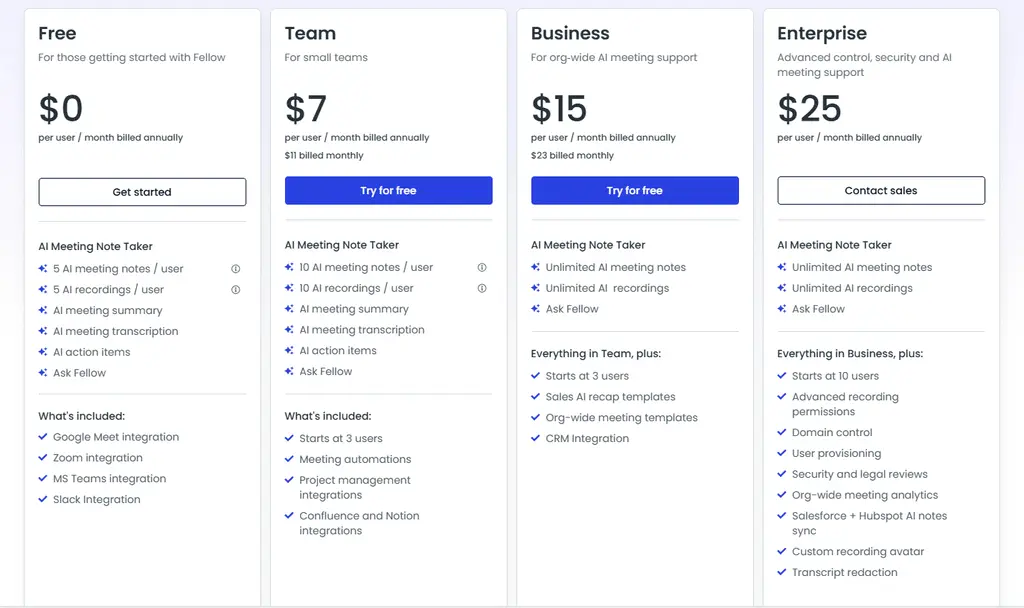
- Free plan: AI recording, recaps, transcriptions, collaborative notes, agendas, meeting timers, and integrations with Zoom, Slack, Microsoft Teams, and Google Meet. Great for testing the platform.
- Team plan ($7/user/month with annual billing): Includes higher limits, meeting automation, and integrations with Notion and project management tools.
- Business plan ($15/user/month with annual billing): Unlimited recordings and transcription minutes, organization-wide templates, sales AI recaps, and expanded integrations.
- Enterprise plan ($25/user/month with annual billing): Advanced security, custom recording rules, AI meeting support, and increased recording/transcription capacity.
Fellow Pros: Where It Wins
|
Pro |
Why It Matters |
|---|---|
|
In-person recording |
It’s easy to record and manage meetings directly from your iPhone. |
|
Accurate transcripts |
Reliable transcripts and AI summaries that help you quickly review important discussions and decisions. |
|
Action items |
Action items and follow-ups that Fellow automatically creates help teams stay organized after meetings. |
|
Organized meeting hub |
Recordings, transcripts, notes, summaries, and agendas stay centralized, making past meetings easy to search and revisit. |
|
Helpful integrations |
Integrations with tools like Slack, Zoom, Google Meet, and CRMs help connect meeting workflows with the rest of your productivity stack. |
Fellow Cons: Where It Struggles
|
Con |
Why It Hurts |
|---|---|
|
Limited free plan |
The free version could include more features and higher usage limits for regular users. |
🔎Read my full Fellow Review: My Thoughts After +12 Months (2026)

Morgen
Morgen is a cross-platform calendar and task app that helps you plan your day in one place. Its iPhone app works best for managing tasks, meetings, and scheduling on the go, while keeping your calendars and planning tools connected in one workflow.
Bottom line
Users who want calendars and tasks in one iPhone app.
You’re looking for a free app or advanced AI scheduling.
Combines calendars, tasks, and scheduling in one clean, mobile-friendly app.
No permanent free plan.
Testing Morgen in Daily Use

I spent a few weeks planning everything in Morgen, mostly on my laptop but sometimes on my phone too. It didn’t take long to get used to, and I liked how everything was easy to manage, regardless of whether they were personal or professional activities.
Morgen is packed with helpful features to help you manage your calendars, scheduling, and task management more effectively. I absolutely love its iOS app, and the fact that it offers seamless third-party service connections with numerous apps I use.
Nevertheless, I still think the AI planner needs a bit of work, but apart from that, Morgen met all my expectations. It felt steady, reliable, and something I could actually see myself using every day.
Who should use Morgen on iPhone
Who should skip Morgen on iPhone
Why is it the best productivity app for iPhone for daily planning?
Morgen is one of the best apps you can use on your iPhone because it does more than just show your schedule.
It combines calendars, tasks, scheduling, and mobile planning in one app, and the iPhone version makes it easy to keep everything in sync when you are away from your desk. That balance of organization, planning, and mobile convenience is what makes it stand out.
Key Features I Tested
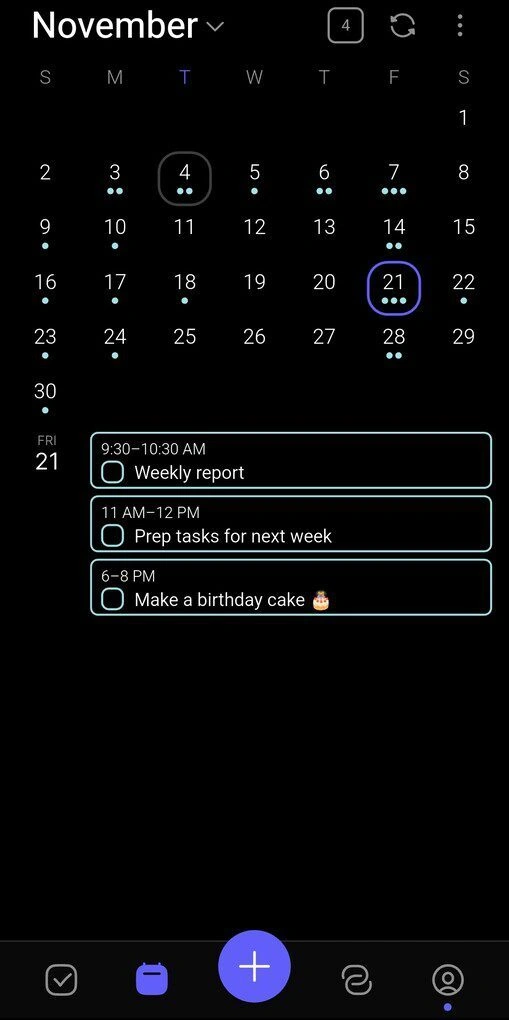
Calendar management: Morgen lets you manage personal, work, and group calendars in one place and switch between day, week, month, or agenda views. You can color-code events, customize layouts, and quickly edit meetings from the calendar grid. I also liked how easy it was to drag and drop tasks or events when plans changed.
Task management: Morgen combines tasks and calendar planning in one workflow. You can create lists, subtasks, due dates, tags, and priorities, then drag tasks directly onto your calendar to schedule time for them.
Meeting scheduler: Morgen includes built-in scheduling tools that make booking meetings straightforward. You can add Zoom, Google Meet, or Teams links, share booking pages, and let others schedule time based on your availability. It also respects busy times across connected calendars to help avoid double bookings.
AI planner: Morgen’s AI Planner can automatically place tasks into open time slots based on priority and duration. In my experience, it still feels a bit early compared to more advanced AI schedulers, but the feature shows a lot of potential. I especially liked Frames, which help structure deep work, admin, or outreach blocks more realistically.
Cross-platform sync and integrations: Morgen works across desktop, web, iPhone, and Android, while integrating with tools like Google Calendar, Outlook, Todoist, Notion, ClickUp, and Apple Reminders. Everything synced reliably during testing, which made it easier to keep my schedule and tasks connected across devices.
Pricing Plans
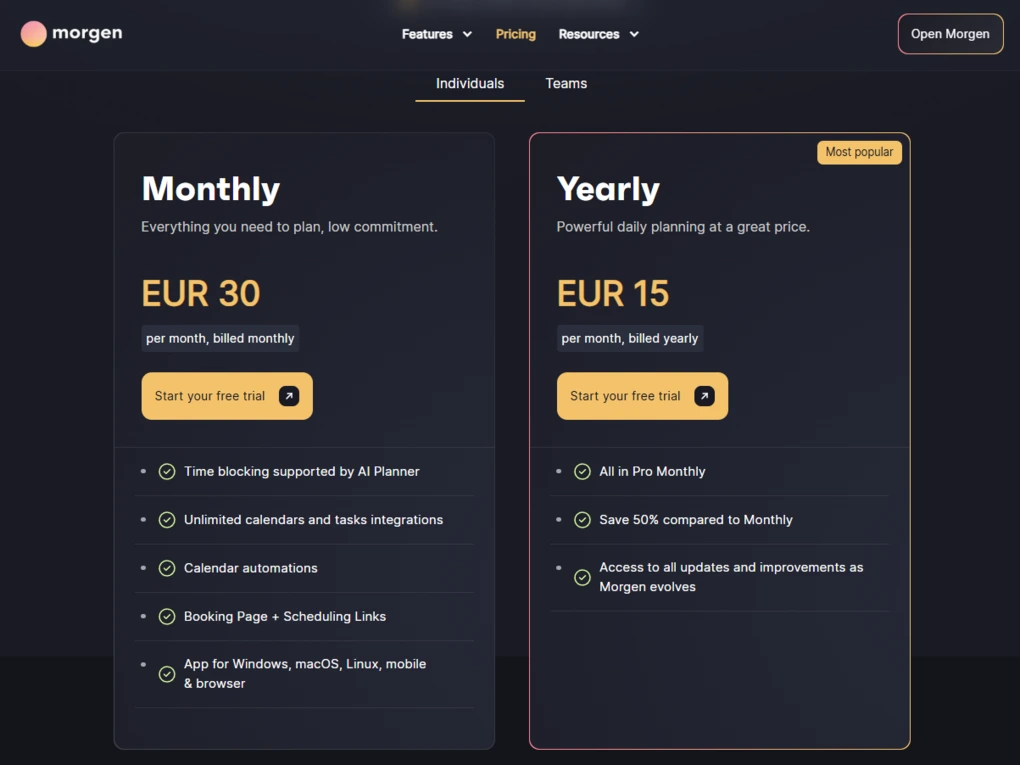
- No free plan available, only 14-day trial
- Monthly plan: €30/month, billed monthly
- Yearly plan: €15/month, billed yearly
Morgen Pros: Where It Wins
|
Pro |
Why It Matters |
|---|---|
|
Clean interface |
Makes daily planning feel simple and less overwhelming |
|
Tasks + calendar together |
Helps manage schedules and to-dos in one workflow |
|
Quick setup |
Easy to learn without a long onboarding process |
|
Reliable calendar sync |
Keeps multiple calendars updated and organized |
|
Strong integrations |
Works well with popular calendar and task tools |
|
Smart planning features |
Makes scheduling and daily organization more efficient |
|
Great mobile app |
Smooth experience for planning on the go |
Morgen Cons: Where It Struggles
|
Con |
Why It Hurts |
|---|---|
|
No free plan |
Users must pay after the 14-day trial ends |
|
AI Planner limitations |
Some AI scheduling suggestions still feel unfinished |
🔎Read my full review: My Honest Morgen Review After 5 Weeks (2026)

Todoist
Todoist is a task management and to-do list app that helps you organize personal and work tasks from your iPhone. It focuses on fast task capture, clean organization, and reliable syncing across devices, making it one of the easiest productivity apps to use every day.
Bottom line
Users who want a simple and reliable task manager on iPhone.
You need advanced time blocking or full project management tools.
Fast task capture with excellent cross-platform sync.
Limited calendar and time-blocking features.
Testing Todoist in Daily Use
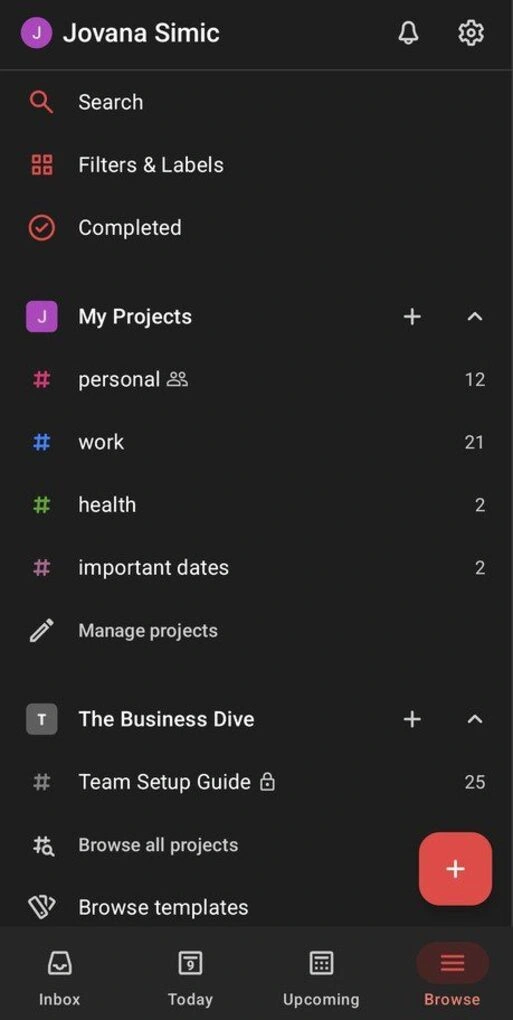
I’ve used Todoist for years, and it still remains one of the easiest productivity apps to return to. Everything is quick, from adding tasks to organizing projects, and the mobile app is a time-saver during busy days.
On iPhone, Todoist works best as a lightweight task manager that helps you quickly capture ideas, organize routines, and stay on top of deadlines. It is not as advanced as some AI planning tools, but that simplicity is also part of the appeal.
Who should use Todoist on iPhone
Who should skip Todoist on iPhone
Why is it the best productivity app for iPhone for task management?
Todoist works especially well on iPhone because it makes task capture fast and easy. It gives you multiple ways to capture tasks quickly.
You can add them with Quick Add, use widgets, iOS shortcuts, or iOS automation tools to jump straight into your lists, and even dictate tasks with Ramble when you are on the go. It also syncs reliably across devices, so your task list stays up to date wherever you check it.
Key Features I Tested
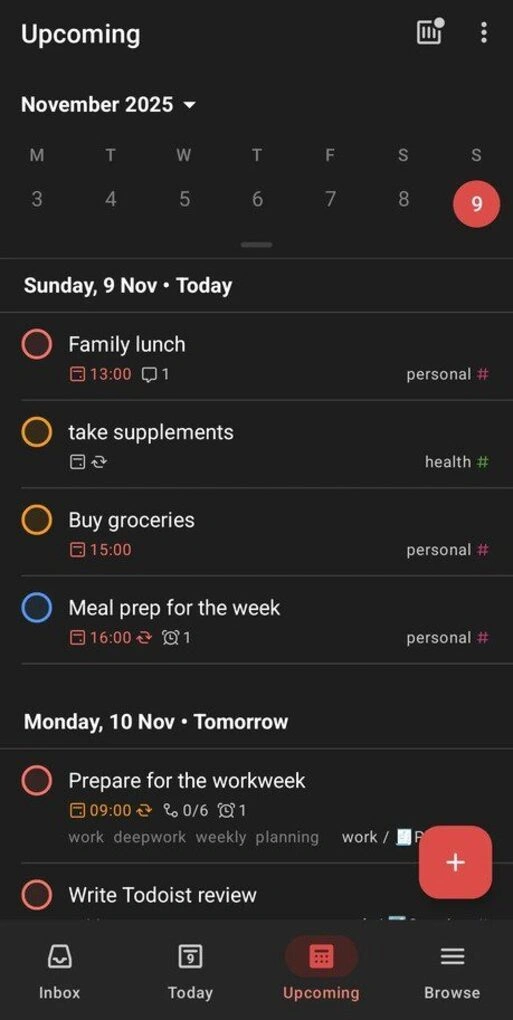
Task management and organization: Creating tasks in Todoist is extremely fast. You can add priorities, labels, due dates, reminders, subtasks, and recurring tasks in just a few taps. I also liked how easy it was to organize projects into simple color-coded sections.
Natural language input: This is one of my favorite features. Instead of manually setting dates and times, you can simply type something in natural language like “Doctor appointment Friday at 2 PM,” and Todoist understands it automatically.
Productivity tools: Todoist also includes recurring tasks, reminders, productivity streaks, and templates that really help with habit formation, routines, and everyday planning.
Collaboration and sharing: Todoist also works well for lightweight collaboration. You can share projects, assign tasks, leave comments, and upload files, which is enough for small teams or shared personal projects.
Customization and integrations: The app gives you a lot of flexibility. You can create custom filters, organize tasks with labels, switch layouts, and connect Todoist with tools like Google Calendar, Outlook, Zapier, and Google Drive.
Pricing Plans
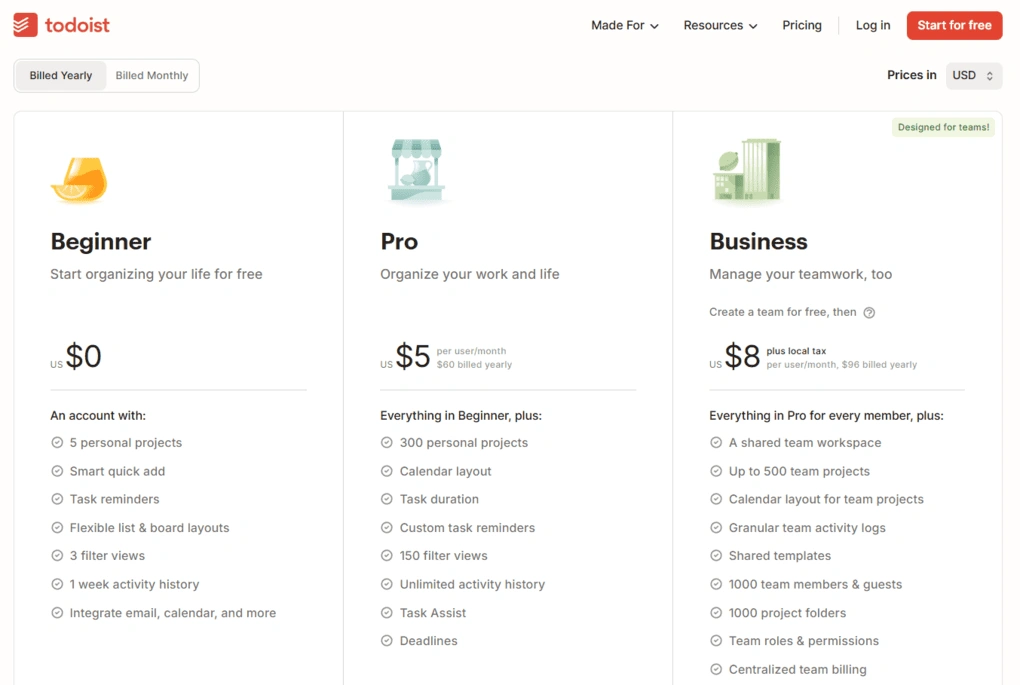
- Free plan available
- Pro plan: $7 per month ($5/month billed yearly)
- Business plan: $10 per user monthly ($8/month billed yearly)
Todoist Pros: Where It Wins
|
Pro |
Why It Matters |
|---|---|
|
Fast task creation |
Makes it easy to quickly capture tasks and ideas during busy days |
|
Cross-platform sync |
Keeps tasks updated and accessible across iPhone, desktop, and web |
|
Highly customizable |
Gives users flexibility to organize projects, filters, and workflows their own way |
|
Productivity features |
Reminders, recurring tasks, and streaks help users stay consistent and motivated |
|
Reliable integrations |
Connects smoothly with calendars and popular productivity tools |
|
Strong free plan |
Includes enough features for many users without requiring an upgrade |
|
Affordable pricing |
More budget-friendly than many advanced productivity apps |
Todoist Cons: Where It Struggles
|
Con |
Why It Hurts |
|---|---|
|
Natural language issues |
Dates or reminders can occasionally be interpreted incorrectly |
|
Slow customer support |
Some users report delays when trying to resolve problems |
|
Limited time blocking |
Not ideal for users who rely heavily on calendar-based scheduling |
|
Basic project management |
Lacks advanced workflows and collaboration tools for larger teams |
🔎Read my full review: My Honest Todoist Review After 3 Years & 1,400 Tasks
Notion
Notion is an all-in-one workspace app that combines notes, tasks, projects, databases, and collaboration tools in one place.
Bottom line
Users who want notes, tasks, and projects in one app.
You want a simple app with almost no setup.
Flexibility and ability to replace multiple apps.
It takes time to set up and learn properly.
Testing Notion in Daily Use
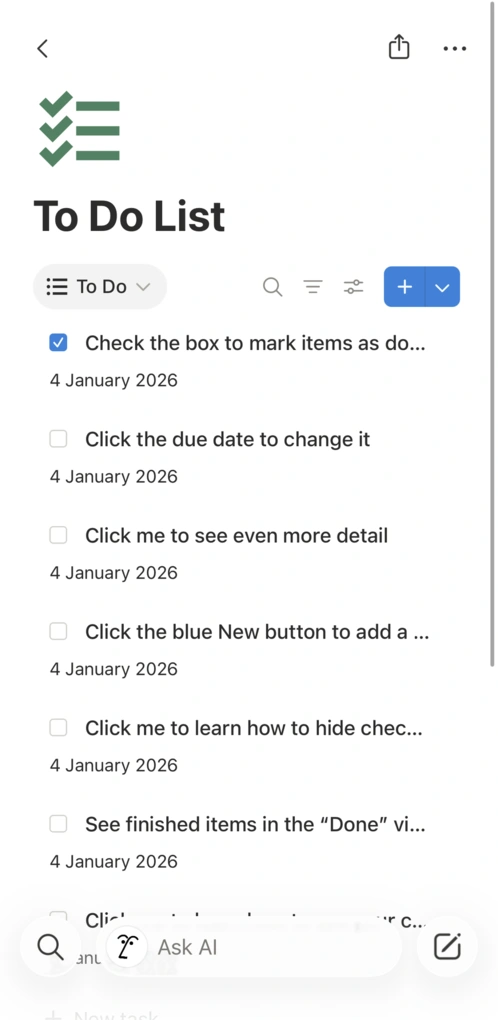
After using Notion daily for over two years, it has become a must-have tool for me to keep my notes and projects organized, even while constantly testing other alternatives.
While there are tools with more advanced note-taking or project management features, Notion’s flexibility and all-in-one approach make it an ideal choice for anyone who wants to avoid using separate tools for notes, projects, email, and more.
That said, it does come with a learning curve, especially compared to simpler tools. But if you invest the time, Notion can easily replace 4–5 tools and become the backbone of your entire workflow.
Who should use Notion on iPhone
Who should skip Notion on iPhone
Why is it the best productivity app for iPhone for notes and flexible workspaces?
Notion is one of the best productivity software because it lets you organize a lot of different things without forcing you into one system.
You can keep notes, tasks, project boards, meeting docs, and databases inside the same workspace, then pin your most-used pages as iPhone widgets for faster access.
Key Features I Tested
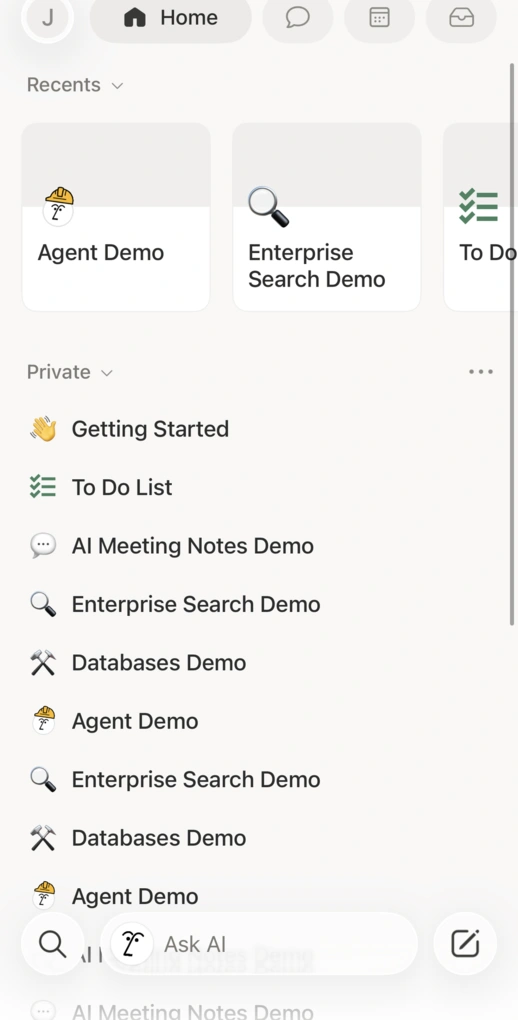
Note-taking: Notion’s note-taking system is built around pages and blocks, which makes it easy to organize notes however you want. You can add headings, tables, images, videos, bookmarks, kanban boards, and embeds without leaving the editor. This makes Notion great for creative brainstorming and organizing ideas.
Projects and tasks: Notion also works well for lightweight project management. You can organize work using boards, calendars, task lists, and databases, then add statuses, assignees, due dates, and dependencies. It takes more setup than dedicated project management tools, but it gives you a lot of flexibility.
Templates: Notion includes thousands of templates for notes, projects, to-do lists, planning, and workflows.
Collaboration: You can share pages and workspaces with other people, leave comments, assign tasks, and edit pages together in real time. During testing, it was much stronger for collaboration than most note-taking apps I tried.
Calendar and organization: Notion Calendar connects meetings, notes, and projects into the same workspace. It helps centralize planning and keeps your notes connected to your schedule, which is especially useful on mobile.
Pricing Plans
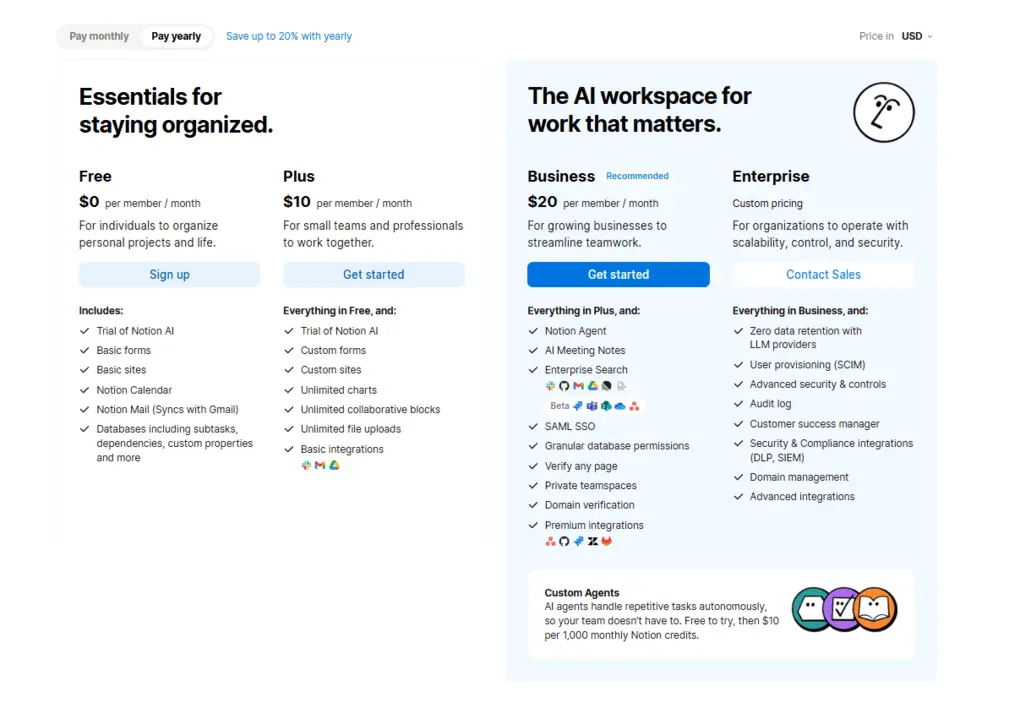
- Free plan available
- Plus plan: $10 per seat/month
- Business plan: $20 per seat/month
- Enterprise plan: Custom pricing
Notion Pros: Where It Wins
|
Pro |
Why It Matters |
|---|---|
|
Easy to use |
The interface feels intuitive and becomes comfortable to navigate after a short time |
|
All-in-one workspace |
Combines notes, tasks, docs, databases, and projects in one organized platform |
|
Strong collaboration |
Makes sharing pages, assigning tasks, and working with teams very seamless |
|
Helpful tutorials |
Extensive documentation and guides help users learn advanced workflows faster |
|
Strong free plan |
Includes enough features for personal use, students, and smaller teams without paying |
Notion Cons: Where It Struggles
|
Con |
Why It Hurts |
|---|---|
|
Limited offline access |
Full functionality depends on internet access since only downloaded pages work offline |
|
Steep learning curve |
The flexibility can feel overwhelming for new users at the beginning |
|
Limited security options |
Advanced privacy and protection features are still missing compared to some competitors |
🔎Read my full review: My Honest Notion Review After Using It For +2 Years (2026)
Obsidian
Obsidian is a powerful note-taking app built around markdown files, linked notes, and personal knowledge management.
Bottom line
Users who want a powerful personal knowledge base on iPhone.
You’re looking for a simple or beginner-friendly notes app.
Excellent free plan with advanced note organization features.
Steeper learning curve and limited collaboration tools.
Testing Obsidian in Daily Use
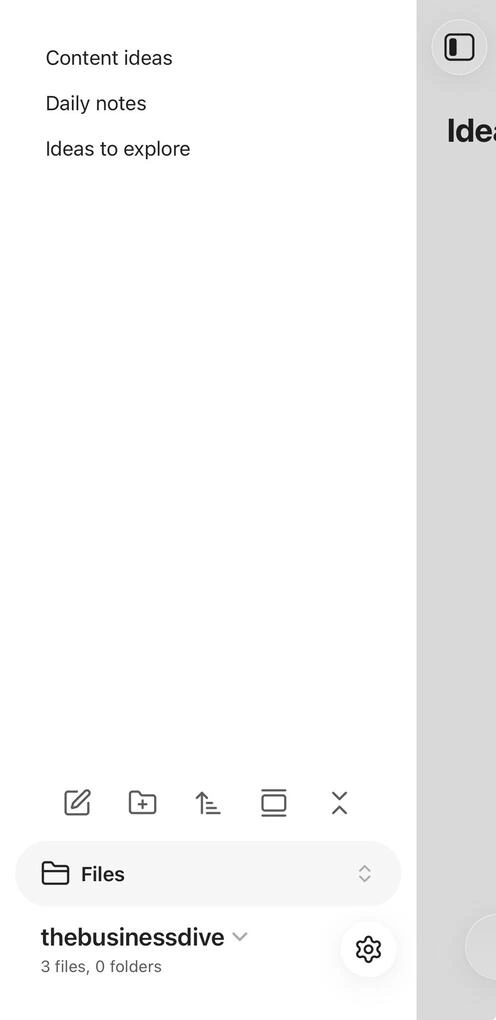
Obsidian is one of the most powerful note-taking apps on the market. Thanks to the plugins, it offers a comprehensive feature set compared to many note-taking apps.
As a notes app, I think it is definitely among the best. It helps you organize and visualize your notes in a way that other apps cannot. Also, you can access all the features with the free version, which is great.
While it has a learning curve, compared to Anytype, you can learn the functions of this note-taking app significantly faster, and it offers similar advanced features.
On the other hand, Obsidian is ideal for personal use only, as it lacks collaboration features. That said, compared to Notion, Obsidian is limited to note-taking and was not designed for teams.
Moreover, the front end of Obsidian needs some development. The UI of the Obsidian app seems old-fashioned in my opinion.
Who should use Obsidian on iPhone
Who should skip Obsidian on iPhone
Why is it the best productivity app for iPhone for personal knowledge management?
Obsidian is built around connecting ideas instead of just storing notes. The combination of linked notes, graph view, markdown files, and plugins makes it much better for building a long-term personal knowledge system than a typical notes app.
On iPhone, that means you can quickly capture ideas, review connected notes, and keep your entire knowledge base with you wherever you go.
Key Features I Tested
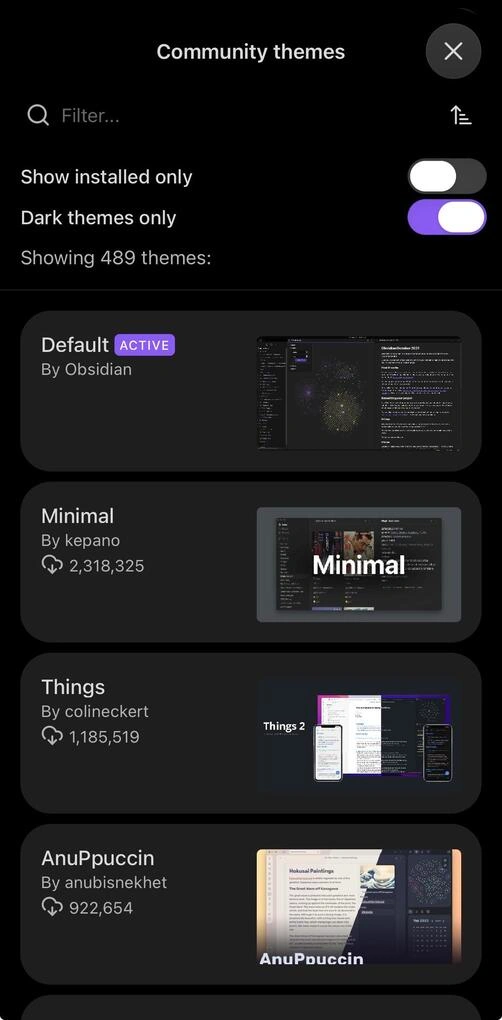
Vaults and local storage: Obsidian stores your notes locally inside vaults, which gives you full ownership over your files. You can create multiple vaults, customize them with themes, and even use end-to-end encryption with Obsidian Sync.
Markdown note-taking: Obsidian uses markdown formatting for notes, which keeps files lightweight and portable. You can organize notes with tags, attachments, PDFs, audio files, embeds, and links while keeping everything accessible from your own file system.
Bidirectional links: One of Obsidian’s best features is how easily you can connect notes together. Internal links make it possible to build relationships between ideas instead of keeping notes isolated in folders.
Graph and canvas views: The graph view visualizes how your notes connect to each other, while Canvas gives you a more visual way to organize ideas, notes, and relationships. These features make Obsidian more like a knowledge management tool than a basic notes app.
Plugins and customization: Obsidian supports thousands of community plugins that add extra features and workflows. During testing, this was one of the biggest reasons the app was so powerful compared to simpler note-taking tools.
Explore our Apps directory
A curated directory of software tools we’ve independently reviewed, with links to full reviews, comparisons, and category guides.
Pricing Plans
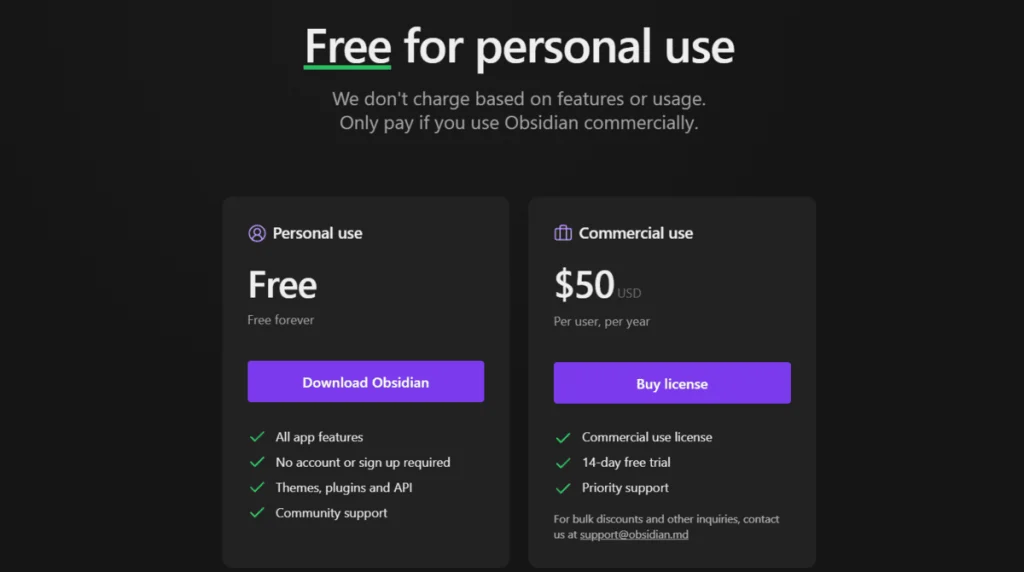
- Completely free for personal use
- Commercial use license: $50/year
Obsidian Pros: Where It Wins
|
Pro |
Why It Matters |
|---|---|
|
Excellent free version |
Most core features are available without needing a paid upgrade |
|
Strong note organization |
Linked notes and tags make large knowledge bases easier to manage |
|
Privacy-focused storage |
Local storage gives users more control over their files and data |
|
Plugin support |
Frequent updates and community plugins greatly expand functionality |
Obsidian Cons: Where It Struggles
|
Con |
Why It Hurts |
|---|---|
|
Complex for beginners |
The interface and advanced features can feel overwhelming at first |
|
Limited collaboration |
Not ideal for teams that need real-time collaboration features |
|
No web version |
Access is limited compared to browser-based productivity tools |
🔎Read my full Obsidian Review: What Nobody Tells You About This App (2026)
Spark
Spark is an email app that combines inbox management, calendar tools, AI features, and light collaboration in one place.
Bottom line
Users who want a modern email app with smart inbox organization and productivity features.
You’re looking for a strong free plan or maximum email privacy.
Clean interface combined with useful inbox and workflow tools.
Most advanced features are locked behind paid plans.
Testing Spark in Daily Use
I tested Spark for two months, and overall, I’m genuinely very satisfied with the experience. I didn’t encounter any issues, and all features worked well throughout my testing period.
It effectively combines numerous tools and workflows into a single platform that you can access on desktop and mobile.
If there’s one downside, it’s the pricing structure. The free plan is quite limited, and the free trial lasts only seven days.
Who should use Spark on iPhone
Who should skip Spark on iPhone
Why is it the best productivity app for iPhone for email management?
Spark earned this spot because it makes email feel much more organized on iPhone. It works especially well for people who spend a lot of time in email and want something cleaner and more modern than the default Mail app.
Features like Smart Inbox, swipe actions, Home Screen scheduling, and the built-in calendar make it easier to stay on top of emails without constantly feeling distracted by them.
Key Features I Tested
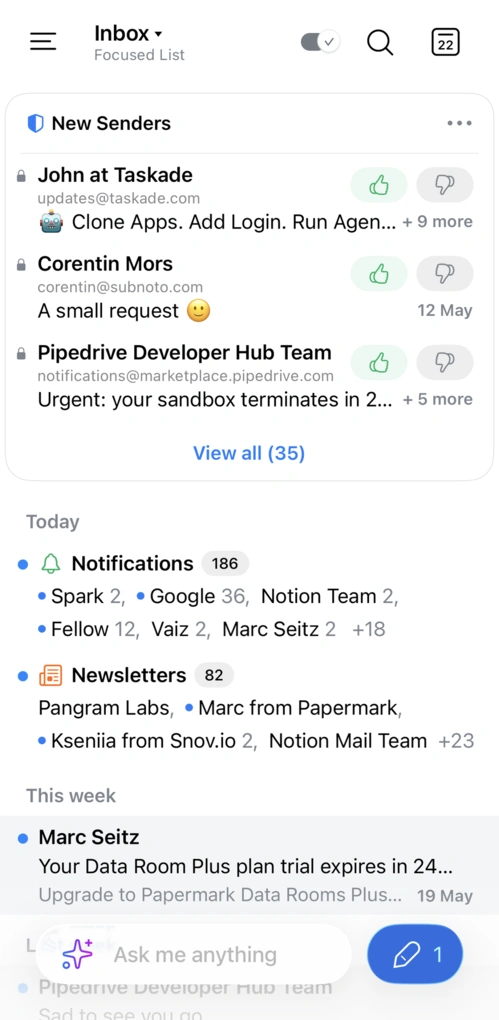
Smart Inbox: Spark automatically groups emails into categories such as newsletters, notifications, and new senders, making busy inboxes much easier to manage. I also liked the ability to pin, snooze, prioritize, or bulk-manage emails quickly.
Home Screen: One of Spark’s most unique features is its Home Screen, which encourages you to check emails at scheduled times instead of constantly refreshing your inbox. Surprisingly, this helped reduce distractions and unnecessary screen time during testing.
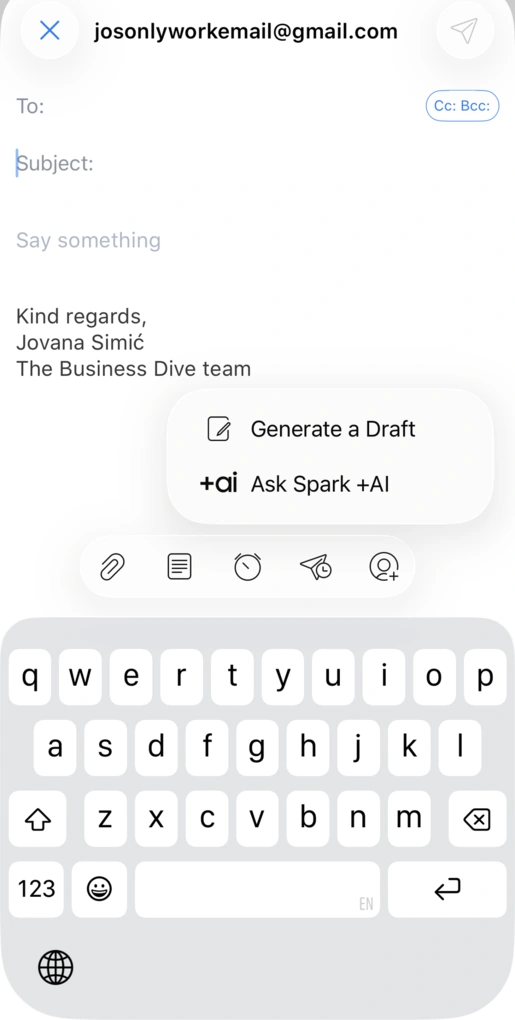
AI features: Spark’s AI can help you write, understand, search, summarize, and even translate emails. One of the most immediately useful functions is the AI-powered writing assistance that can help you draft emails faster. It also includes AI summaries that turn long email threads into quick overviews with different summary styles, translation tools, and multilingual support for other languages. Its AI Assistant can also answer questions about your inbox and help manage tasks or calendar events connected to your emails.
Calendar integration: Spark includes a built-in calendar that combines multiple accounts into one view. You can create events, invite attendees, add meeting links, and manage schedules directly inside the app.
Collaboration and integrations: Spark supports shared drafts, internal comments, task assignments, and integrations with tools like Todoist, Trello, Evernote, Google Drive, Zoom, and Dropbox. It works especially well for small teams that want lightweight collaboration without using a separate workspace app.
Pricing Plans
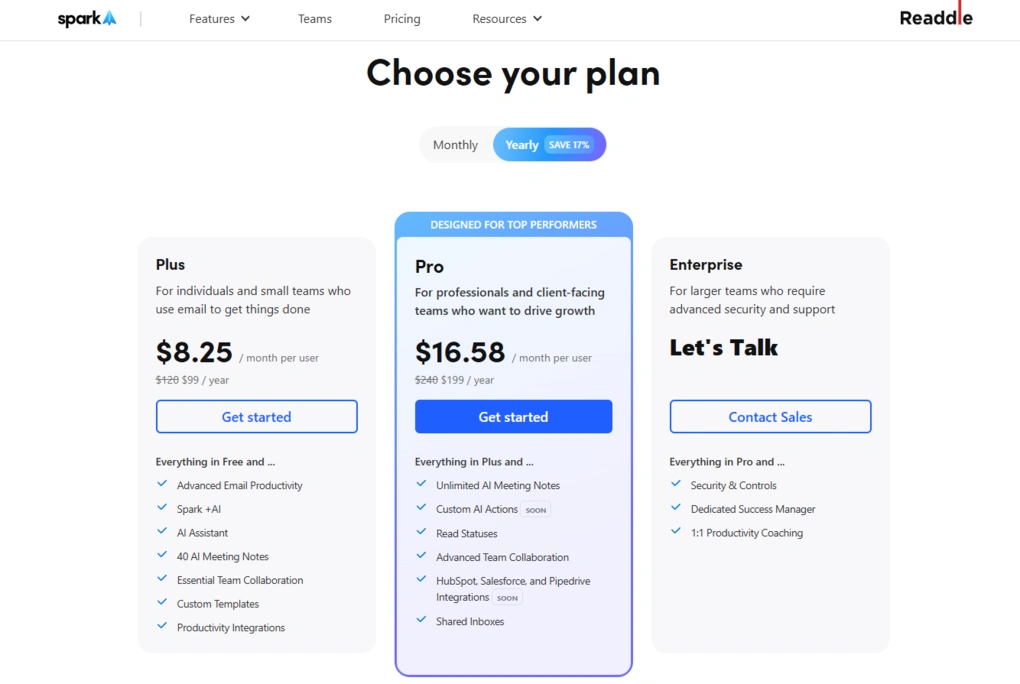
- Free plan available
- Plus plan: $8.25/user/month
- Pro plan: $16.58/user/month
- Enterprise plan: Custom pricing
Spark Pros: Where It Wins
|
Pro |
Why It Matters |
|---|---|
|
User-friendly interface |
Makes email management feel cleaner and easier to navigate |
|
Unique Home Screen |
Helps reduce distractions and organize email routines better |
|
Built-in AI tools |
Speeds up writing, summaries, translations, and inbox searches |
|
Integrated calendar |
Keeps emails and schedules connected in one app |
|
AI Meeting Notes |
Automatically creates transcripts and action items from meetings |
|
Team collaboration |
Useful shared inbox and commenting tools improve teamwork |
Spark Cons: Where It Struggles
|
Con |
Why It Hurts |
|---|---|
|
Limited free plan |
Many advanced productivity and AI features require a paid plan |
|
Cloud-based processing |
Some user data is processed outside the device, which may concern privacy-focused users |
🔎Read my full Spark Review 2026 | My Honest Experience After 2 Months
Toggl Track
Toggl Track is a time tracking app designed for freelancers, remote workers, and teams who want an easy way to track work hours, projects, and billable time from their iPhone.
Bottom line
Freelancers and teams who want simple, reliable time tracking on iPhone.
You have a business that need GPS or employee surveillance features.
Excellent reporting and very easy to use.
No GPS tracking.
Testing Toggl in Daily Use
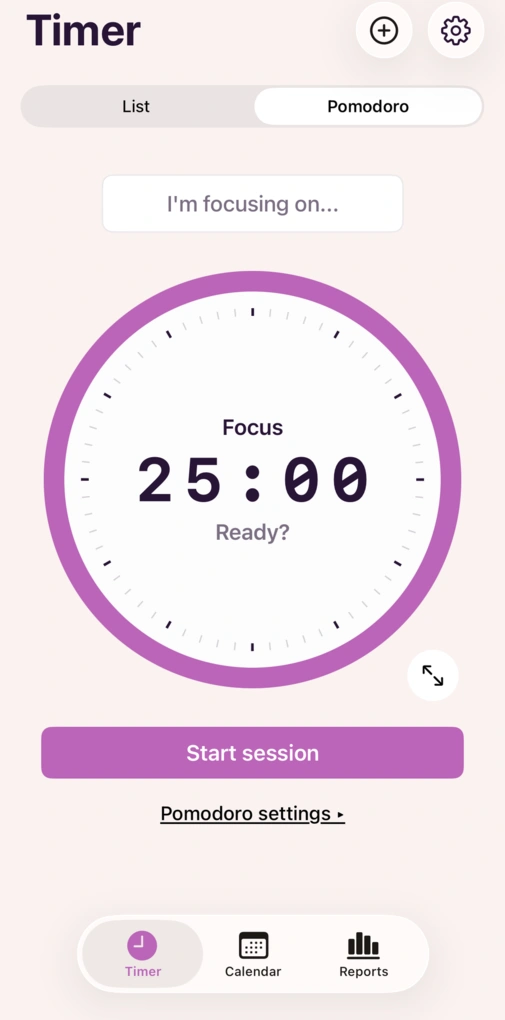
I spent a few weeks using Toggl Track in my own workflow, and overall, I was really satisfied with the experience. The app focuses heavily on time tracking and reporting instead of trying to become a full project management platform, and honestly, I think that works in its favor.
What stood out most was its simplicity. Tracking time, organizing projects, checking reports, and even invoicing clients was never complicated. On iPhone, the app worked especially well for quickly starting timers with its simple one-tap timer setup, checking tracked hours, and reviewing work while away from my desk.
Who should use Toggl Track on iPhone
Who should skip Toggl Track on iPhone
Why is it the best productivity app for iPhone for time tracking?
Toggl Track works so well on iPhone because tracking time only takes a few taps. You can quickly start timers, switch between projects, check reports, and log hours, and it’s much easier to actually stay consistent with time tracking.
Key Features I Tested
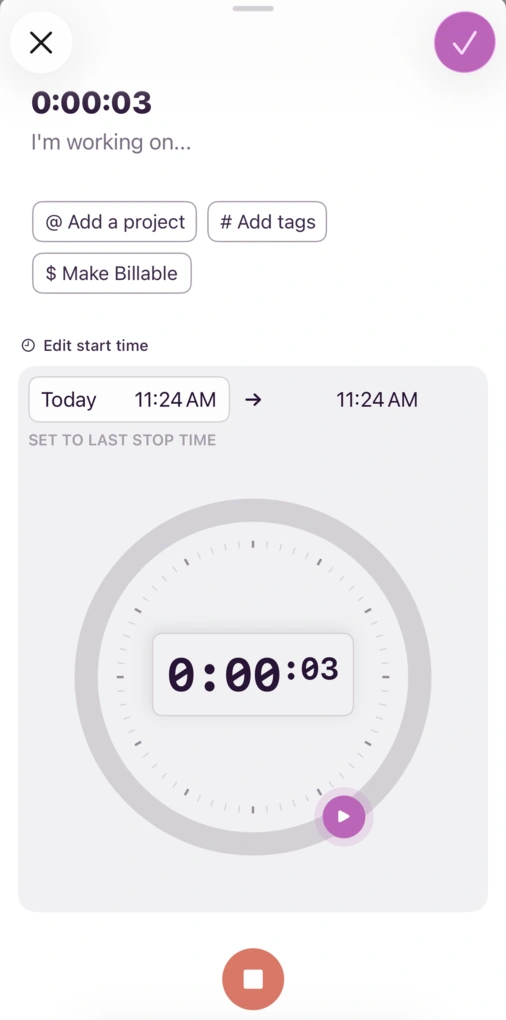
Time tracking: Starting and stopping timers in Toggl Track is very quick, which matters a lot on mobile. The app also includes built-in Pomodoro timers for structured focus sessions. You can add descriptions, tags, projects, and billable hours in seconds, and the app also supports offline tracking on iPhone.
Automatic tracking: Toggl Track can automatically track activity on desktop and browser extensions, which helps reduce manual time entries during busy workdays. During testing, this saved me more time than I expected.
Projects and clients: The app lets you organize tracked time by projects, clients, and team members, making it easier to understand how time spent across projects is distributed. I also liked how easy it was to filter reports and tracked hours.
Reporting and analytics: Reporting is probably Toggl Track’s strongest feature. You can filter reports by projects, clients, billable hours, tags, and team members, which makes it genuinely useful for freelancers, agencies, and remote teams.
Invoicing and integrations: Toggl Track can generate invoices directly from tracked hours, which is especially useful for client work. It also integrates with tools like Asana, ClickUp, Notion, Evernote, and over 100 other apps.
Pricing Plans
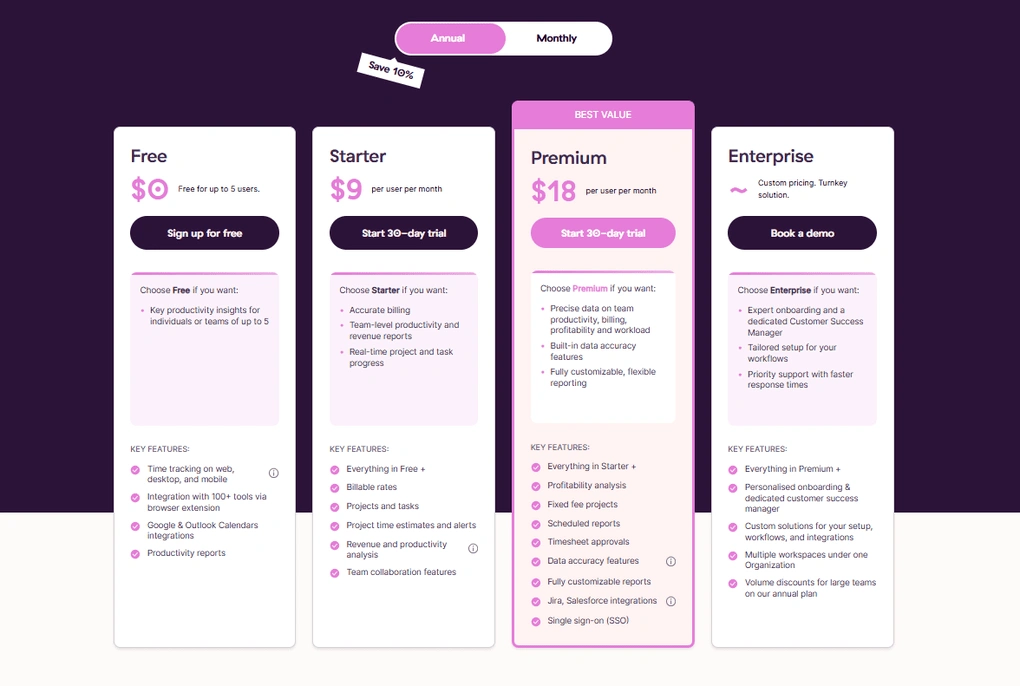
- Free plan available
- Starter plan: $9/user/month
- Premium plan: $18/user/month
- Enterprise plan: Custom pricing
Toggl Pros: Where It Wins
|
Pro |
Why It Matters |
|---|---|
|
Easy to use |
Time tracking feels simple and fast even during busy workdays |
|
Strong reporting |
Detailed reports help users better understand time usage and productivity |
|
Cross-platform access |
Works smoothly across web, desktop, and mobile devices |
|
Offline tracking |
Lets users continue tracking time without internet access |
|
Great free plan |
Offers enough features for many freelancers and solo users |
Toggl Cons: Where It Struggles
|
Con |
Why It Hurts |
|---|---|
|
No GPS tracking |
Less useful for field teams or location-based work tracking |
|
Advanced reports cost extra |
More detailed analytics and reporting require higher-tier plans |
🔎Read my full review: Toggl Review 2026: My 4-Week Personal Experience

Motion
Motion is an AI-powered productivity app that combines calendar management, tasks, projects, and scheduling into one tool.
Bottom line
Busy professionals and teams who want AI to organize their schedule automatically.
You’re looking for a budget-friendly app or advanced project management features.
Excellent AI scheduling and automation.
High pricing and no free plan.
Testing Motion in Daily Use
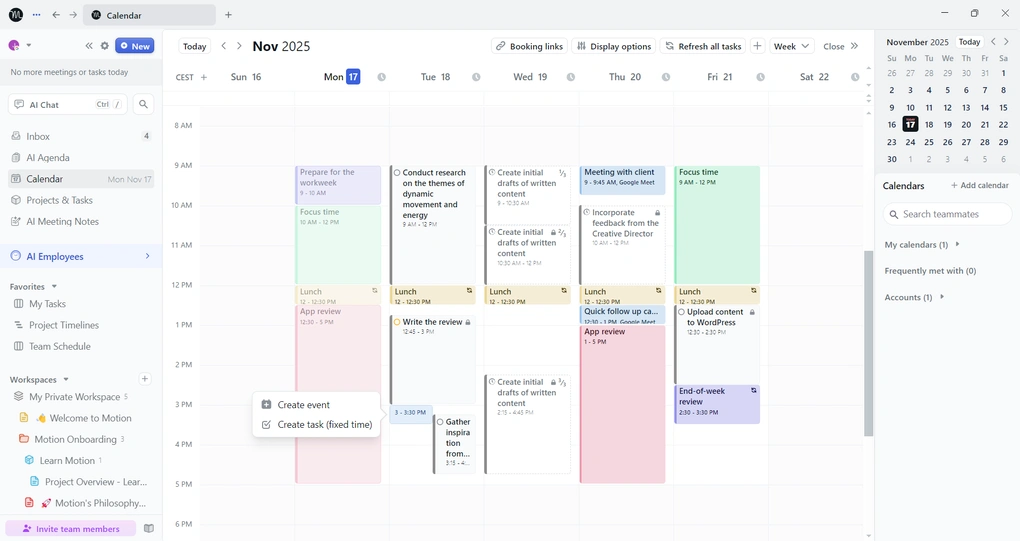
During the Motion app review, the first thing that came up was that the navigation was pretty straightforward. It was also easy to locate all the key features and start using them.
However, I would say it has a steep learning curve compared to most productivity tools. For example, it took me 10-15 minutes to set up my booking page and find all the relevant options for this.
Moreover, Motion provides users with many customizable options to make sure they will not miss any important information. Entering tasks, changing existing tasks, or adding new tasks to a project work smoothly for me.
I particularly liked Motion as a project management software and scheduling tool. It is a great combination for quickly organizing projects and schedules.
Who should use Motion on iPhone
Who should skip Motion on iPhone
Why is it the best productivity app for iPhone for AI scheduling?
What makes Motion different is that your calendar is constantly adjusting itself throughout the day. If meetings move, tasks take longer, or something urgent comes up, Motion automatically reshuffles your schedule instead of leaving you to manually fix everything on your iPhone.
Key Features I Tested
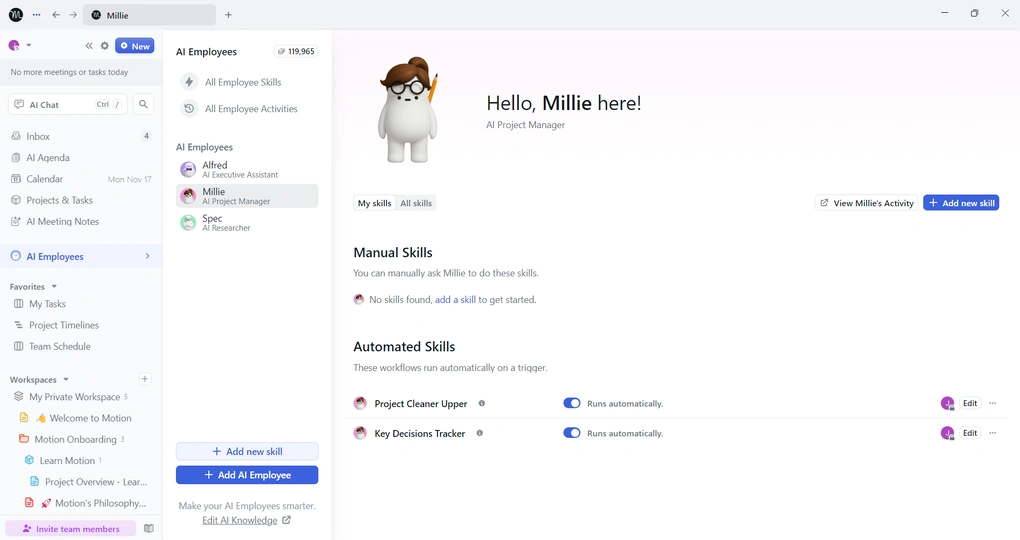
AI scheduling: Motion’s biggest feature is its AI assistance for automatic scheduling. Once you add tasks, meetings, deadlines, and priorities, the app automatically finds time for everything inside your calendar. If plans change or tasks take longer than expected, Motion reorganizes the schedule for you.
Calendar management: Motion combines Google Calendar, Apple Calendar, and Outlook into one centralized calendar view. I especially liked how easy it was to drag, drop, and reorganize events directly from the calendar.
Task management: The task system is simple but very practical. You can add durations, due dates, priorities, assignees, recurring tasks, and scheduling preferences, while Motion automatically places tasks into your day.
Meeting scheduler: Motion includes booking links and meeting scheduling tools that help reduce back-and-forth emails. You can customize availability, add buffers, limit meeting times, and let people book directly into your schedule.
Projects and collaboration: Motion also includes lightweight project management features like Kanban boards, list views, comments, task assignments, and Gantt charts. It is not as advanced as tools built specifically for project managers, but it works well for smaller teams.
Pricing Plans
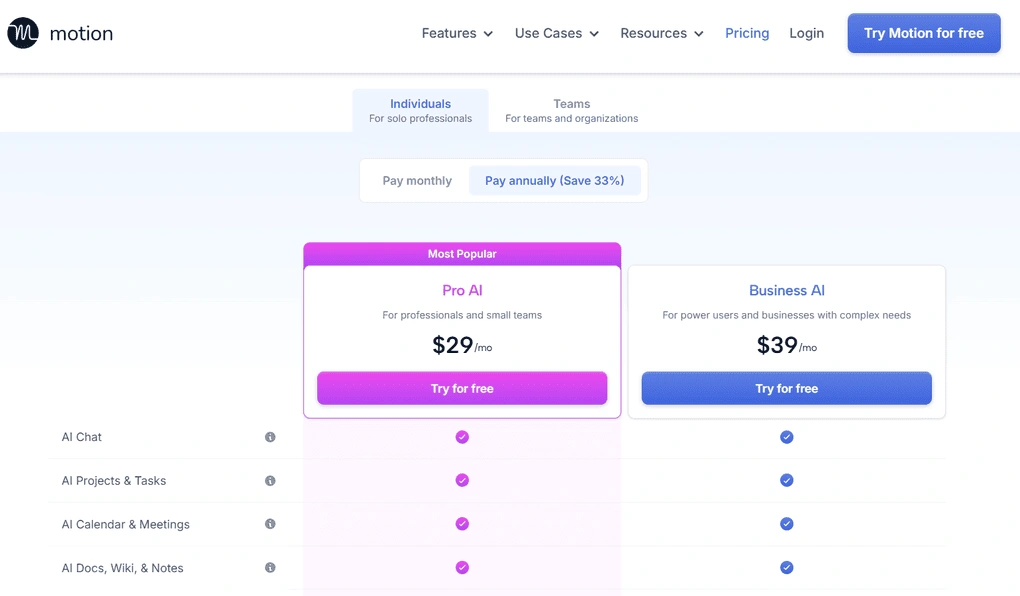
- No free plan available, only 7-day trial
- Pro AI plan: $29 per month
- Business AI plan: $39 per month
- Pro AI team plan: $19 per seat per month
- Business AI team plan: $29 per seat per month
- Enterprise plan: Custom pricing
Motion Pros: Where It Wins
|
Pro |
Why It Matters |
|---|---|
|
All-in-one workspace |
Combines calendars, tasks, and projects in one centralized app |
|
AI auto-scheduling |
Automatically reorganizes schedules when priorities or meetings change |
|
Unified calendar sync |
Keeps multiple calendars connected and easy to manage |
|
Small team management |
Works well for lightweight collaboration and project coordination |
|
Easy task management |
Adding, editing, and organizing tasks feels fast and simple |
Motion Cons: Where It Struggles
|
Con |
Why It Hurts |
|---|---|
|
No free plan |
Users must subscribe after the short trial period ends |
|
Expensive pricing |
Higher costs may not fit every budget or workflow |
|
Evolving AI features |
Some AI scheduling features still feel inconsistent or unfinished |
🔎Read my full Motion App Review: My $348 Experience and Why I Don’t Regret It
Final Thoughts on the Best Productivity Apps for iPhone
The best productivity apps are usually the ones productive people actually keep using every day, not the ones with the most features. After testing and researching dozens of productivity tools, these are the ones that I would recommend.
Some are better for planning, others for notes, meetings, email, or time tracking, so the best choice really depends on how you work and what you want to improve in your daily workflow.
I hope this guide helped you find the best productivity app for your iPhone. As always, I’ll keep updating this list over time to make sure it stays accurate and reflects how these apps actually perform in real-world use.
Looking for similar tools?
Visit our library of PDF editors to explore other apps we’ve reviewed in this space and how they compare.
Why you can trust our reviews
At thebusinessdive.com, our team tests, reviews, and compares hundreds of productivity apps every year — from project management tools to note-taking apps. We dive deep into real-world use cases to help you find the right tools that actually improve your workflow, not just add noise.
Our mission? No fluff, no shortcuts—just honest, hands-on insights from productivity pros.
Discover how we stay transparent, read our review methodology, and let us know about any tools we missed.
Frequently asked questions
What are the best productivity apps for iPhone in 2026?
Some of the best productivity apps for iPhone in 2026 include Fellow for meetings, Morgen for planning, Todoist for task management, Notion for note-taking and flexible workspaces, Obsidian for building a second brain, Spark for email management, Toggl Track for time tracking, and Motion for AI scheduling.
The best choice depends on whether you want better focus, easier task organization, stronger collaboration, or more automation in your daily workflow.
Which iPhone productivity apps work best for task management and to-do lists?
If your main goal is pure task management, Todoist is one of the best apps because it keeps tasks, due dates, recurring reminders, and to do lists simple and fast to manage.
Motion is better for users who want AI scheduling and automatic planning, while Notion works well for people managing multiple projects, project boards, and documentation in one workspace.
Users who only need very basic note taking may still prefer Apple Notes, but apps like Notion and Obsidian offer much more flexibility for organizing larger workflows and projects.
Are there any free productivity apps for iPhone worth using?
Yes. Several productivity apps on this list offer a strong free version. Todoist, Notion, Obsidian, Spark, and Toggl Track all include free plans with useful core features.
Toggl Track is especially good if you need free time tracking and detailed reporting, while Notion and Obsidian are excellent for note taking and organizing information. However, some apps like Motion and Morgen do not offer a permanent free plan.
Which productivity apps for iPhone work offline?
Some productivity apps continue working even without an internet connection. Obsidian is one of the strongest options here because it stores notes locally and works offline by default.
Toggl Track also supports offline mode for time tracking on iPhone, which is useful when you need to start tracking or stop timers away from Wi-Fi. Offline access can be important for users who travel often or want more control over their files and workflows.
How do productivity apps improve focus and efficiency on iPhone?
Most productivity tools help boost efficiency by reducing manual work and keeping everything organized in one place. Apps like Motion automate scheduling, Todoist simplifies task capture with natural language input, and Toggl Track helps users understand how much time is actually spent on tasks and projects.
Many iPhone apps also support widgets, Apple Shortcuts, Siri Shortcuts, integrations with Google Calendar, and easy integration with other apps, which helps automate repetitive workflows and stay focused throughout the day.
Disclosure: I only recommend products I would use myself, and all opinions expressed here are our own. This post may contain affiliate links that, at no additional cost to you, may earn a small commission. Read the full privacy policy here.

Hey! I’m Jovana, a content writer who loves writing, researching, and testing new productivity apps. With a background in philosophy, I bring a thoughtful but no-bullshit approach to everything I do. Let’s connect on Linkedin!