


6 Top Online PDF Editors for Editing PDFs Without Installing Software
After testing dozens of PDF tools over the years, Smallpdf is my top pick for most users looking for a top online PDF editor.
It combines editing, conversion, compression, signing, organization, OCR (optical character recognition), and AI tools in a clean browser-based experience that is easy to use yet powerful enough for regular document work.
That said, the best online PDF editor depends on what you need.
Adobe Acrobat Online is a stronger choice for professional and business use; Sejda is ideal if you want a simple free editor, and pdfFiller stands out for forms and document workflows.
However, you can give PDFgear a try as it offers excellent value as a free PDF toolkit, and Xodo is the best option for collaboration and shared document management.
How These Online PDF Editors Compare
|
PDF editors |
Best for 🎯 |
Standout feature ⚡ |
Main drawback⚠️ |
Pricing starts 💰 |
Test score ⭐ |
|---|---|---|---|---|---|
|
Best overall |
All-in-one browser PDF toolkit + AI |
Free-plan usage limits |
Free plan+ paid from $10/month |
4.4/5 |
|
|
Best for forms and workflows |
E-signatures + workflows + collaboration |
No permanent free plan |
From $8/month |
4.1/5 |
|
|
Best for collaboration |
Collaboration tools + cloud storage + e-signatures |
Limited free plan/daily limits |
Free + $4.99/month |
4.5/5 |
|
|
Best simple free online editor |
Free editing + compression + security tools |
Limited advanced features |
Free + $8.50/month |
3.8/5 |
|
|
Best for professionals |
Advanced editing + OCR + security |
Expensive pricing |
Free + from $29.99/month |
3.8/5 |
|
|
Best free PDF toolkit |
Free OCR + conversions + compression |
Cannot edit existing PDF text online |
Free |
4.1/5 |
How we test PDF editors
To keep our reviews and final scores fair and consistent, we evaluate every PDF editor using a standardized testing framework built on over 3 years of hands-on experience testing these tools in real-world scenarios.
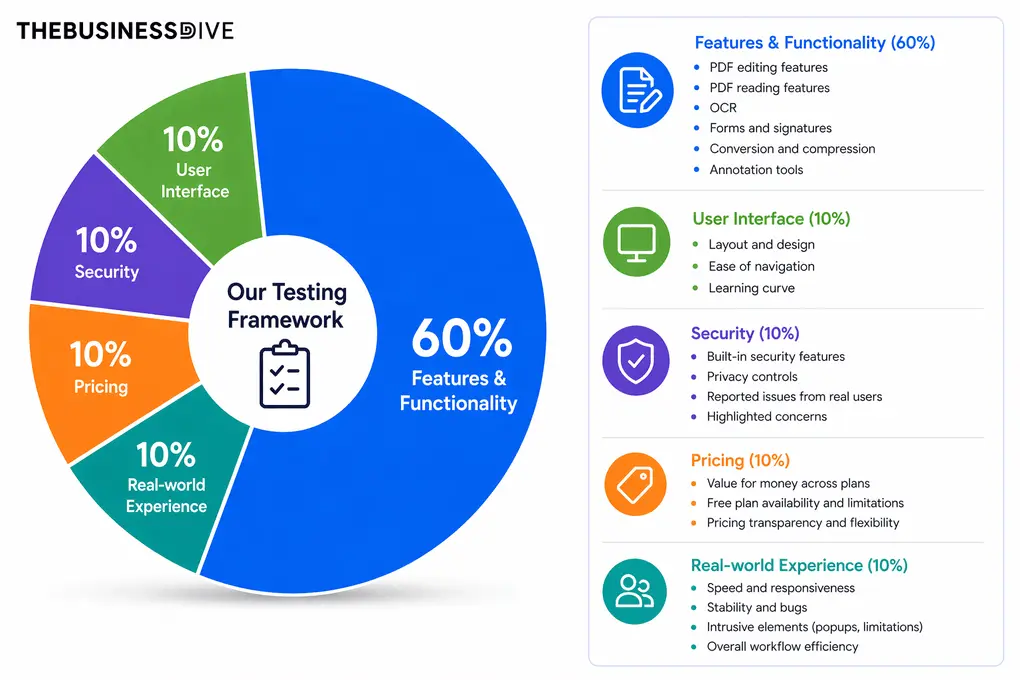
This list, however, focuses specifically on online PDF editors and browser-based workflows. So, while the overall testing framework will be the same as you can see in the image above, for the features & functionalities (60% of the total score), we focused solely on the online tools of the listed PDF editors.
If you’re looking for a broader comparison that includes desktop software, check out our Best PDF Editors roundup.
That being said, the rankings in this list are not based solely on overall scores. Each tool earned its position based on a specific use case, such as collaboration, document workflows, free features, or professional business use.
To keep our reviews fair and consistent, we tested each tool using the same evaluation framework and focused on tasks that people commonly perform directly in the browser.
Learn exactly how we test tools → Review methodology
Online vs desktop PDF editors
Online PDF editors have improved significantly over the last few years. For many users, they now cover everything needed for everyday PDF work, from editing and signing documents to converting, compressing, and organizing files.
That said, browser-based tools and desktop software still serve different purposes.
When online PDF editors are enough
An online PDF editor is usually the better choice if you:
When you need desktop PDF software instead
A desktop PDF editor may be a better fit if you:
Full breakdown of the top online PDF editors
Smallpdf
Smallpdf is an online PDF software with numerous tools to convert, compress, and edit PDF files for free.
Bottom line
Teams and individuals who need a versatile online PDF editor
Users who need advanced desktop PDF editing and reading features
Seamless browser-based workflow with Google Workspace, Dropbox, and OneDrive integrations
Limited annotation and advanced PDF reading tools compared to desktop editors
Why is Smallpdf the best online PDF editor overall?
Smallpdf combines a clean interface with a surprisingly large set of PDF tools. You can edit, convert, compress, organize, sign, and protect PDF files from one place.
During testing, Smallpdf handled everyday PDF tasks smoothly and offered more than basic editing. The Google Workspace, Dropbox, and OneDrive integrations are genuinely useful for people who work with documents daily, while the AI tools, OCR, and strong free tier add even more value.
Compared to many online PDF editors that focus on one or two features, Smallpdf covers almost every common PDF workflow in a simple and accessible way, which is why I consider it the best solution for most online PDF users.
How Smallpdf performed in my daily workflow
Smallpdf was easy to navigate from the start, and the main tools were simple to find and use.
During testing, I had a feeling that it was more than just a PDF editor; it felt closer to abrowser-based document management tool.
Compared to numerous other online PDF editors like PDF Candy, Smallpdf is a more complete platform that supports various formats and works well both for quick PDF tasks and regular browser-based document work.
When editing PDFs, Smallpdf adopted a drag-and-drop functionality, which made it easy to edit PDFs quickly and smoothly. Furthermore, Smallpdf offers strong PDF organization, conversion, and AI features.
Overall, I had an absolutely positive experience with Smallpdf, and I think it is among the best online PDF and document management solutions.
Who should use Smallpdf
Who should NOT use Smallpdf
Smallpdf’s strengths
|
Pro |
Why it’s important |
|---|---|
|
Intuitive and beginner-friendly interface |
Easy to navigate, with a zero-learning-curve feel. |
|
Strong PDF organization tools |
Lets you merge, split, rotate, delete, and extract pages in just a few clicks. |
|
Fast and accurate AI features |
Includes chat, summaries, translation, and question generation, with quick output. |
|
Quick PDF compression |
Shrinks file size in seconds, which is useful for sharing PDFs online. |
|
Easy-to-use conversion tools |
Converts PDFs and other files directly in the browser without downloads or sign-ups. |
|
Useful Chrome extension for browser workflows |
Lets you use Smallpdf tools while working inside your browser, which fits online PDF use perfectly. |
|
Security |
Smallpdf is ISO 27001-certified and GDPR and eIDAS-compliant. |
Smallpdf’s limitations
|
Con |
The Tradeoff |
|---|---|
|
Limited annotation tools |
The annotation feature set is basic compared to desktop PDF editors. |
|
Lacks advanced PDF reading features |
It is not the best choice for users who need deep reading or markup functions. |
Smallpdf’s features
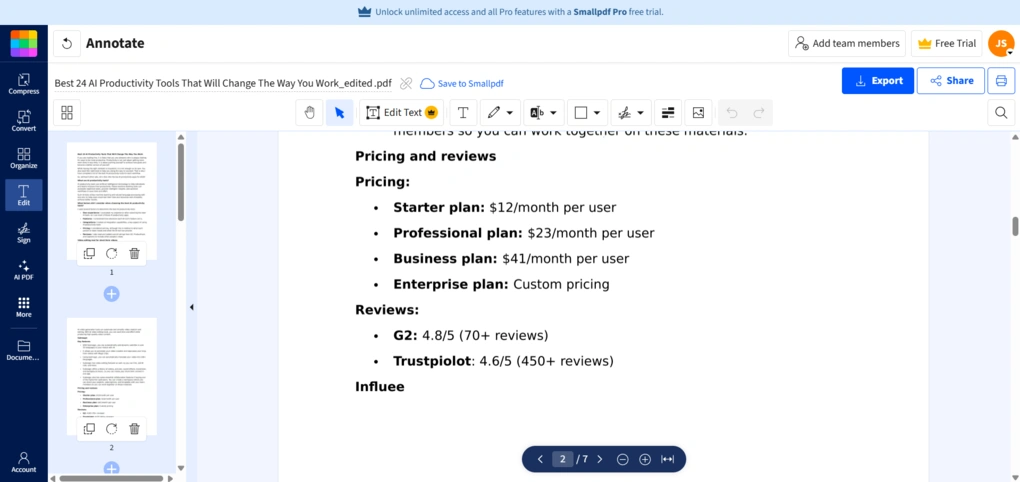
PDF editor: Smallpdf uses a drag-and-drop editor. You can resize and move text boxes freely, and if you double-click on the text, you can change the font, size, alignment, and color. Besides editing existing text, it also lets you add new text boxes and insert images into your PDF documents. Once uploaded, images can be resized, repositioned, and adjusted with opacity controls.
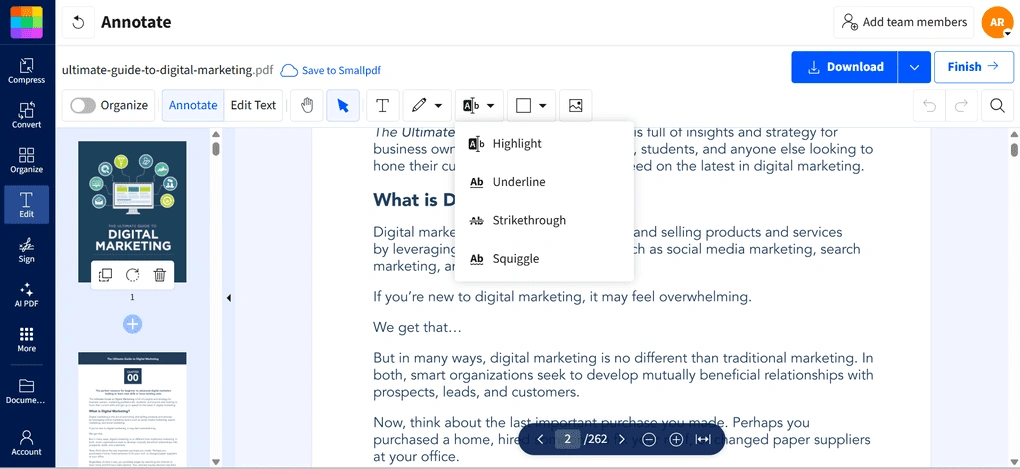
Annotate PDF documents: Smallpdf includes the essential annotation tools, although it’s clearly not the platform’s main focus. You can add text, drawings, shapes, and highlights to your PDF files. The highlight tool also includes underlining, strikethrough, and squiggle options for reviewing documents.
PDF organizer: Smallpdf offers strong PDF organization features and supports additional file formats like JPG, PNG, Word, Excel, and PowerPoint files. You can merge, split, rotate, delete, and extract pages in just a few clicks.
PDF conversion tools: You can convert PDFs into Word documents, Excel spreadsheets, PowerPoint presentations, and image files, and also convert those files back into the PDF format. Many conversion tools work directly in the browser without downloads or sign-ups. It also includes OCR for scanned documents and images.
PDF protection: You can secure sensitive documents by adding passwords to PDF files and other supported formats directly from the browser. It also has an Unlock feature that allows you to remove password protection by uploading the file and entering the password.
Compress PDF files: This feature reduces file sizes significantly while keeping the documents usable, which is useful for sharing large PDFs through email or cloud platforms. You just drag-and-drop the file, choose the compression level, and download the smaller version. It only takes a few seconds.
Sign PDFs: Similar to Smallpdf’s other PDF tools, you only need to drag and drop the file you want to work with. After, you can either draw, type, or upload the signature you want to use to sign PDFs. Once you have your signature, you only need to insert it in the place where you need to sign the PDF. It works like images, so you can move, rotate, and adjust the size.
AI features: Smallpdf has one of the more impressive AI toolsets among online PDF editors. You can chat with PDFs, summarize documents, translate files, and even generate questions from uploaded PDFs. The AI chat tool also includes references to the original source text for easier fact-checking. I also liked the AI Question Generator, which can create multiple-choice, true/false, and open-ended questions from PDF documents.
How much Smallpdf cost?
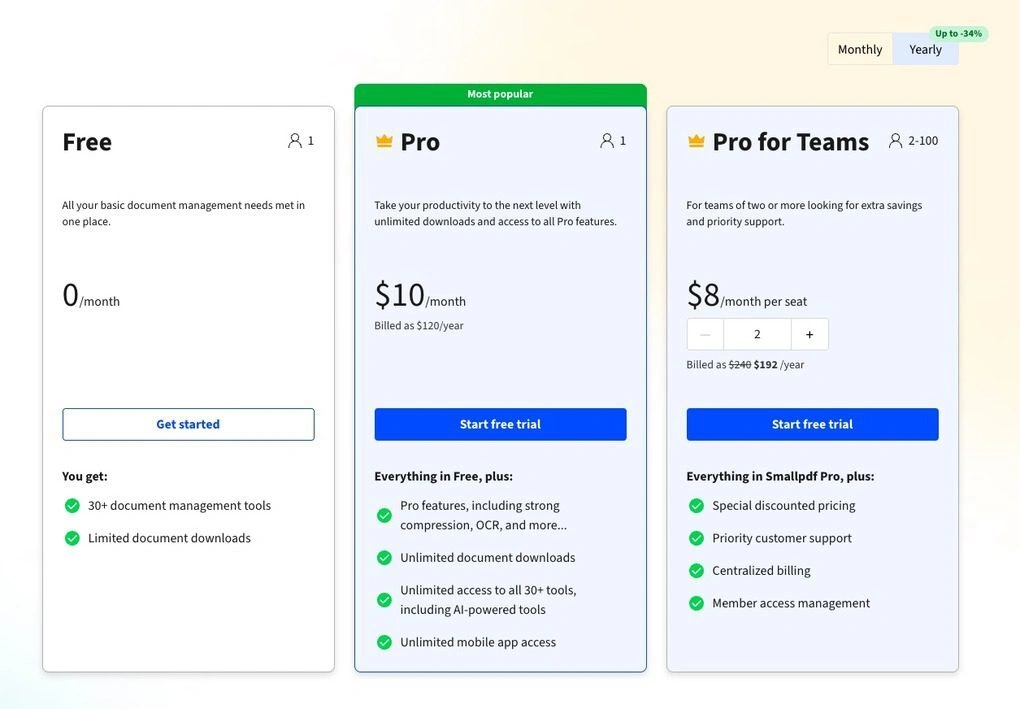
- Free plan available
- Pro plan: $10/month
- Pro for teams: $8/month/seat (min. 2 seats)
🔎Read my full review: Smallpdf Review 2026 | The Top Lightweight PDF Tool

pdfFiller
pdfFiller is a cloud-based PDF editor built around document workflows, combining PDF editing, e-signatures, collaboration tools, shared workspaces, templates, and document management features in one platform.
bottom line
Teams and professionals managing forms and document workflows
Users looking for a free online PDF editor
Strong document management and e-signature features
No OCR functionality
Why is pdfFiller best for forms and workflows?
What is great about pdfFiller is that it goes beyond basic PDF editing and leans into the full document workflow. In the browser, you can edit PDFs, fill out forms, add signatures, share files with teammates, and keep everything organized in one cloud-based space.
What really separates it from many other online PDF editors, though, is how well it supports collaboration and document management.
It has shared workspaces, reusable templates, folders, tags, and audit trails, so it feels built for teams that need to move documents through a process instead of just editing a file once.
I also liked that pdfFiller offers one of the strongest e-signature experiences in this category. You can draw, upload, capture, or type signatures, and the platform is designed to handle the edit → send → sign → store workflow in one place.
The downside is that it does not have a permanent free plan, so it makes less sense for users who only need the occasional free edit.
How pdfFiller performed in my daily workflow
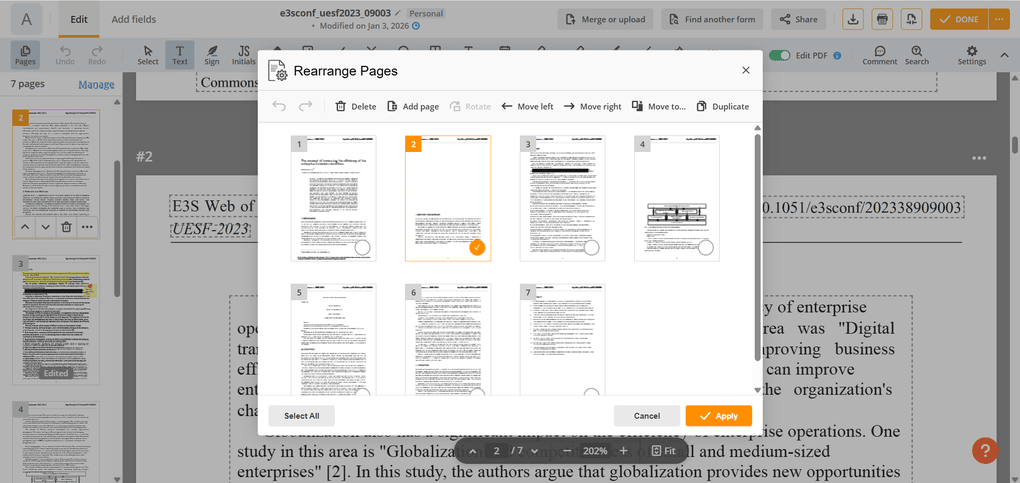
Honestly, pdfFiller surprised me. After testing many online PDF editors, this was one of the few that genuinely felt built around workflows and collaboration instead of just PDF editing.
What stood out most during testing was how easy it was to organize documents, switch between personal and team spaces, share files, and manage signatures from one place. I also really liked the tagging, folders, and reusable templates that helped me save time when handling repetitive tasks.
The editing experience itself was smooth as well. In particular, image editing is much more advanced than in many browser-based PDF editors I tested. It’s easy to add images, resize them, rotate them, crop them, and reposition them inside PDF documents.
Who should use pdfFiller?
Who should NOT use pdfFiller?
pdfFiller’s strengths
|
Pro |
Why It’s Important |
|---|---|
|
Strong document workflow tools |
Helps manage editing, signing, sharing, and storage in one platform. |
|
Excellent e-signature features |
Supports typed, drawn, uploaded, webcam, QR code, and email signatures. |
|
Great collaboration features |
Shared workspaces, comments, mentions, and templates work well for teams. |
|
Advanced image editing tools |
Makes adjusting, cropping, rotating, and positioning images very easy. |
|
Strong document organization |
Tags, folders, templates, and audit trails help structure documents efficiently. |
pdfFiller’s limitations
|
Con |
The Tradeoff |
|---|---|
|
No permanent free plan |
You need a paid subscription after the trial ends. |
|
No OCR tools Limited PDF reading features |
Cannot turn scanned PDFs into editable text. Missing more advanced viewing and reading options. |
pdfFiller’s features
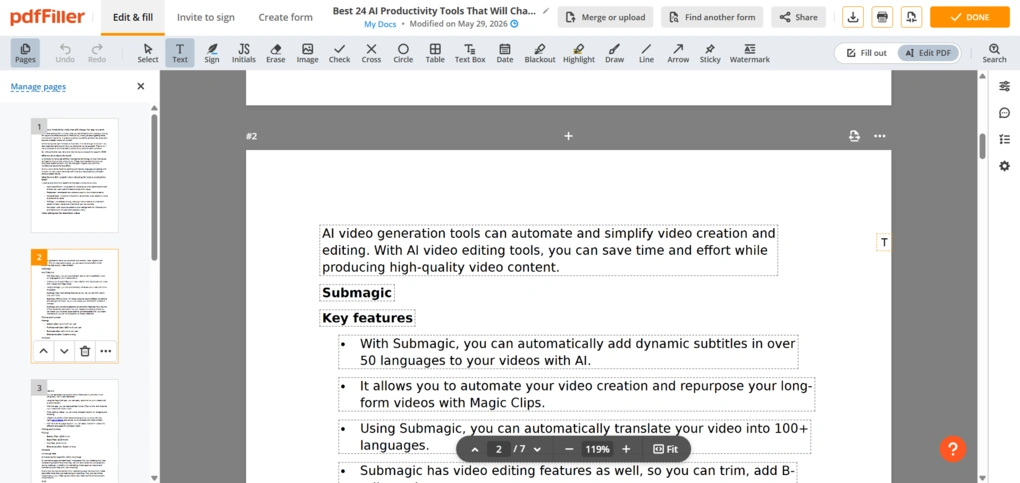
PDF editor: PdfFiller’s editing functionality is very flexible for a browser-based editor. You can adjust text boxes, fonts, opacity, and formatting, while image editing is especially strong. Moving, cropping, resizing, rotating, and erasing images all work well.
Annotation tools: The annotation feature set includes highlighting, sticky notes, comments, drawing tools, underlining, and text formatting. Most tools are highly customizable, including opacity, size, and color adjustments. pdfFiller also includes blackout tools for redacting sensitive information.
Forms and electronic signatures: Forms are one of pdfFiller’s strongest areas. You can create fillable forms with fields, checkboxes, dates, and signatures, while the e-signature workflow supports typed, drawn, uploaded, webcam, QR code, and email signatures. It also includes audit trails and compliance certifications for business use.
Security features: pdfFiller includes password protection, secure AWS storage, audit trails, and 256-bit encryption. You can also protect documents with permissions and secure sharing workflows for sensitive files.
Converting PDFs: The conversion tools support PDF exports to Word, Excel, PowerPoint, and image formats, and vice versa. The conversion workflow was fast and easy to access from multiple places inside the platform.
Team features: Team collaboration is one of pdfFiller’s biggest strengths. Shared workspaces, centralized controls, reusable templates, comments, mentions, and audit trails make it much more collaboration-focused than most online PDF editors.
Document management: pdfFiller also works as a lightweight document management platform. You can organize files with folders and tags, search documents more easily, and access a large library of legal and business templates directly inside the platform.
AI features: The AI tools include PDF chat, summarization, translation, and AI-powered document generation. Compared to many online PDF editors, pdfFiller’s AI functionality felt surprisingly advanced during testing.
How much pdfFiller cost?
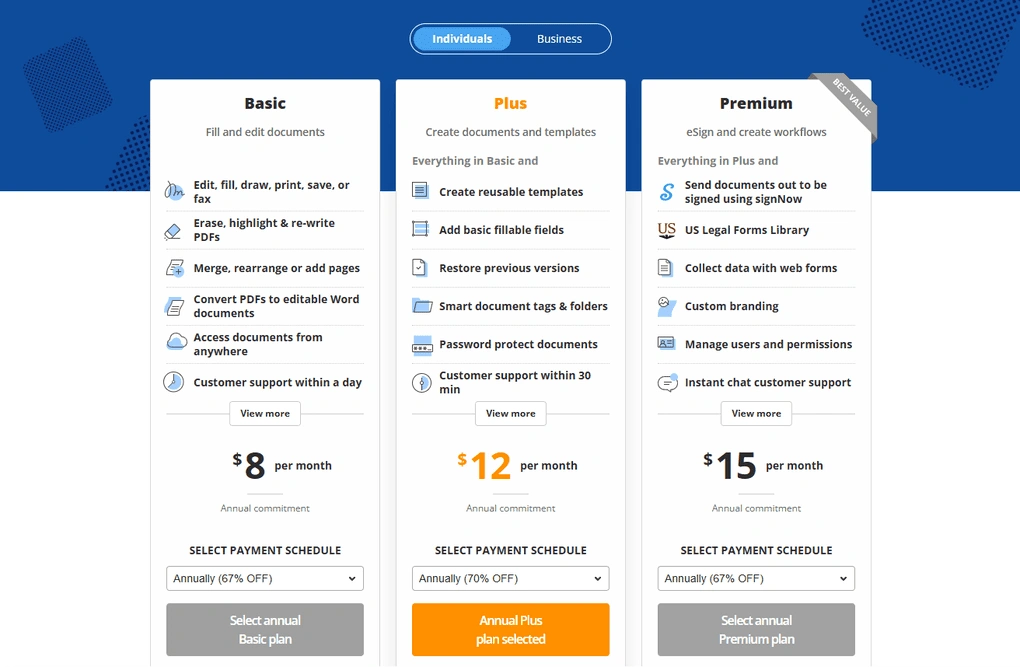
- No free plan available, only a 30-day trial
- Basic plan: $8/user/month
- Plus plan: $12/user/month
- Premium plan: $15/user/month
🔎Read my full review: pdfFiller Review 2026: Here is what surprised me
Xodo PDF Editor
Xodo is a browser-based document management and PDF platform that combines online PDF tools, cloud storage, document sharing, e-signatures, and cross-platform access.
Bottom line
Teams and collaborative document workflows
Users who only need quick one-off PDF edits
Collaboration and cross-platform document management
Some advanced tools require higher-tier plans
Why is Xodo the best online PDF editor for collaboration?
Besides editing and organizing files, Xodo offers cloud storage through Xodo Drive, e-signature workflows through Xodo Sign, cross-platform access, and document-sharing tools that make it easier to work with other people.
Since Xodo is a document ecosystem, files can move between web, desktop, mobile devices, cloud storage, and signing workflows without constantly switching platforms. That flexibility makes much more sense for teams than using separate tools for editing, storage, and signatures.
While some advanced features require paid plans, Xodo offers one of the strongest collaboration-focused experiences among online PDF platforms. For teams, small businesses, and professionals working with shared documents, it is one of the most complete options on this list.
How Xodo performed in my daily workflow
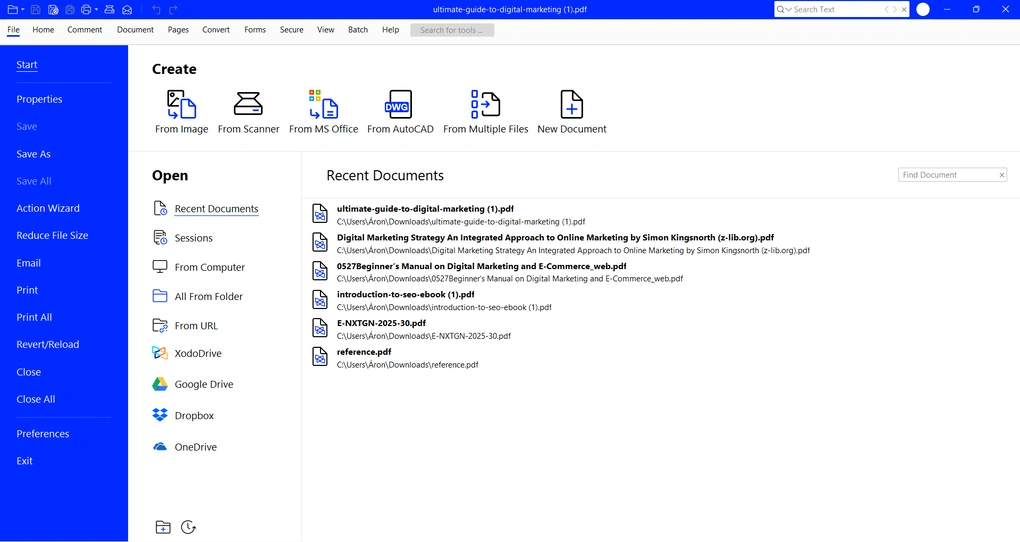
Compared to many online PDF editors that focus mostly on editing files, Xodo is much more workflow-oriented. I spent most of my time using its document organization, sharing, signing, and cloud-related tools rather than treating it as a simple PDF editor.
Furthermore, Xodo combines web tools, cloud storage, document sharing, e-signatures, and cross-platform access, so it works well when documents move between multiple people or devices.
Who should use Xodo PDF?
Who should NOT use Xodo PDF?
Xodo PDF’s strengths
|
Pro |
Why It’s Important |
|---|---|
|
Strong collaboration features |
Supports document sharing, cloud workflows, and team-based document management. |
|
Cross-platform support |
Works across web, Windows, macOS, Linux, Android, and iOS. |
|
Excellent signing workflows |
Xodo Sign helps manage approvals and e-signatures in one ecosystem. |
|
Large collection of online tools |
Includes 40+ browser-based PDF tools for editing, organizing, and converting files. |
|
Cloud storage integration |
Supports Xodo Drive, Google Drive, Dropbox, and other storage services. |
Xodo PDF’s limitations
|
Con |
The Tradeoff |
|---|---|
|
Some users report performance slowdowns |
Larger workflows and files may occasionally feel slower. |
Xodo’s features
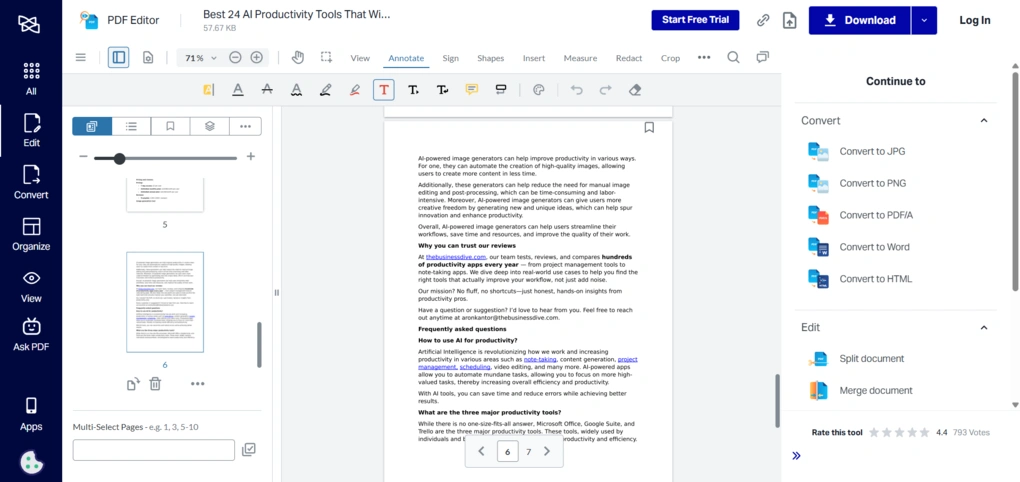
PDF editing: Xodo Web includes tools for editing, organizing, converting, filling, signing, compressing, and managing PDF files directly in the browser. Advanced PDF text editing is available on higher-tier web plans.
Annotation tools: You can highlight content, add comments, insert notes, draw on documents, and collaborate through markup tools when reviewing files.
Collaboration tools: Through Xodo Drive and Xodo Sign, teams can share documents, collect signatures, manage approvals, and access files across web, desktop, and mobile devices. Combined with cloud storage integrations and cross-platform support, keeping document workflows in one place is effortless.
Document organization: The online tools support page rotation, deletion, merging, splitting, reordering, and other common PDF organization tasks. The workflow is drag-and-drop-based and easy to navigate.
Forms and signatures: Xodo supports form filling, e-signatures, and document approvals. Through Xodo Sign, users can prepare, send, sign, and manage documents across multiple parties.
Cloud storage and sharing: Xodo integrates with Xodo Drive, Google Drive, Dropbox, OneDrive, and other storage services, making it easier to share and access files across devices.
PDF security: Password protection, document security tools, and protected signing workflows are available across the Xodo ecosystem. Some advanced protection tools depend on the plan you choose.
Conversion features: Xodo supports conversions between PDFs and Word, Excel, PowerPoint, images, HTML, and several other formats. Conversion tools are available across its web platform and apps.
OCR: OCR tools are available through Xodo’s higher-tier plans and allow scanned documents to become searchable and editable.
AI features: Xodo offers AskPDF, a browser-based AI assistant that can summarize PDFs, answer questions about documents, and help users find information faster. One useful feature is that AskPDF can reference the exact pages it used when generating answers, which makes document review more efficient.
How much Xodo PDF cost?
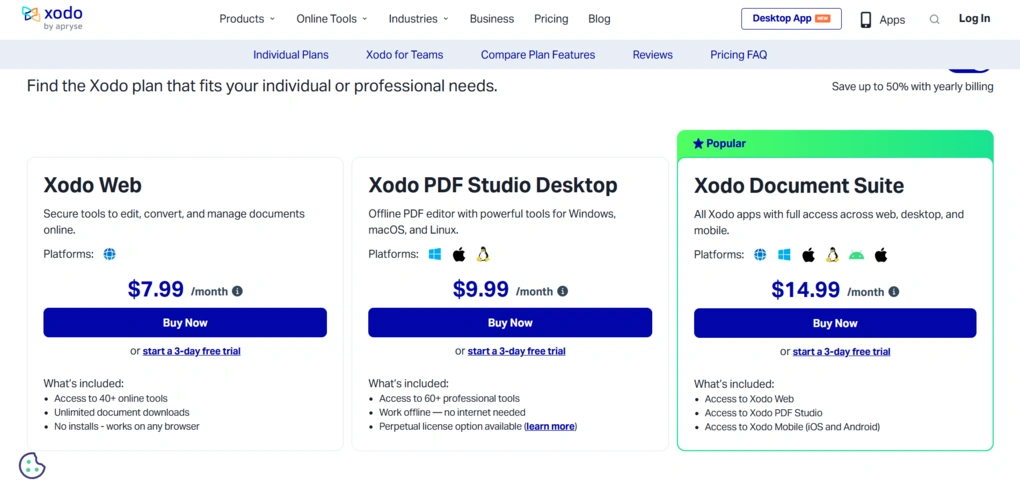
- Xodo Web plan: $7.99/month
- Document Suite plan: $14.99/month
🔎Read my full review: Xodo PDF Editor Review | A Top Choice (2026)

Sejda PDF
Sejda PDF Editor is a browser-based PDF editor focused on simple, everyday PDF tasks.
bottom line
Users looking for a free PDF editor for everyday browser-based tasks
Professionals and teams needing advanced PDF workflows
Clean and intuitive browser-based interface
Limited advanced editing and AI features
Why is Sejda PDF Editor the best simple online PDF editor?
I included Sejda on this list because it is one of the most capable free & simple PDF editor options available online.
Even on the free plan, it includes editing, signing, annotating, compression, and basic organization tools, and it also offers a 7-day Web Pass for short-term projects.
The accessibility of the online version earned it bonus points – you can use many of the tools directly in the browser without creating an account. Sejda also automatically deletes uploaded files after processing, which is a nice touch for privacy-conscious users.
How Sejda PDF Editor performed in my daily workflow
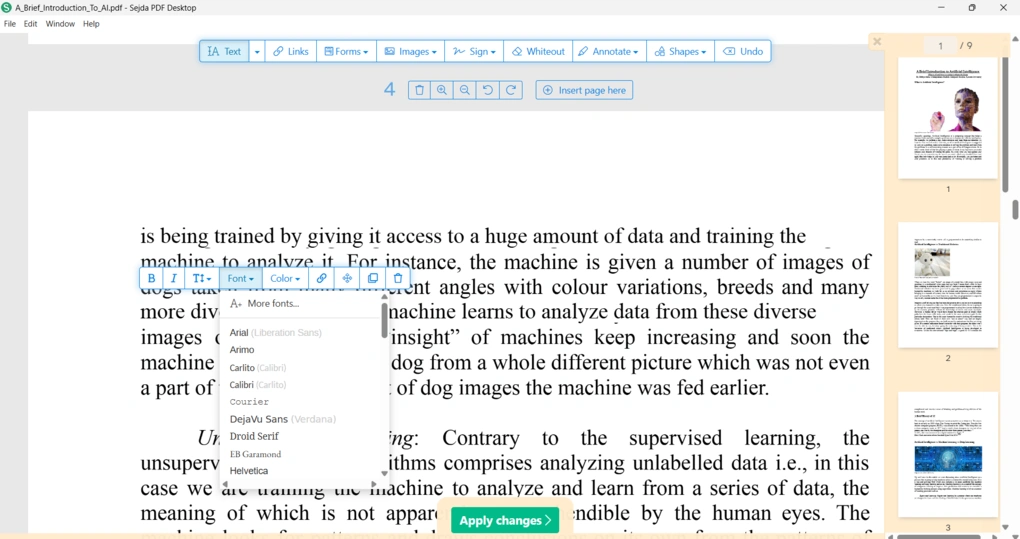
In my experience, Sejda was simple and easy to navigate from the start. Since it is not overloaded with features, the interface has almost no learning curve, and most tools are straightforward to use.
Because of that, I mostly used Sejda for quick browser-based PDF tasks like compression, signing, annotations, password protection, and basic document organization. These tools worked reliably and only took a few clicks to use.
That said, the simplicity also comes with limitations. Text editing is sometimes restrictive, the PDF reading tools are basic, and there are no AI features for summarizing documents or chatting with PDFs.
Who should use Sejda PDF?
Who should NOT use Sejda PDF?
Sejda’s strengths
|
Pro |
Why It’s Important |
|---|---|
|
Intuitive user interface |
The layout is simple and easy to navigate, even for beginners. |
|
Strong password and security features |
Includes password protection, permissions, and watermark tools. |
|
Solid PDF compression tools |
Compresses files quickly and gives you multiple quality options. |
|
Web-based workflow |
Lets you edit and manage PDFs directly in the browser. |
|
Affordable short-term pricing |
The 7-day web pass is useful for temporary projects. |
Sejda’s limitations
|
Con |
The Tradeoff |
|---|---|
|
Lacks advanced PDF editing features |
Text editing is restrictive compared to more advanced editors. |
|
Limited PDF reading tools No AI features |
Missing features like layouts, themes, and dark mode. Does not include summaries, PDF chat, or AI-powered search tools. |
Sejda’s features
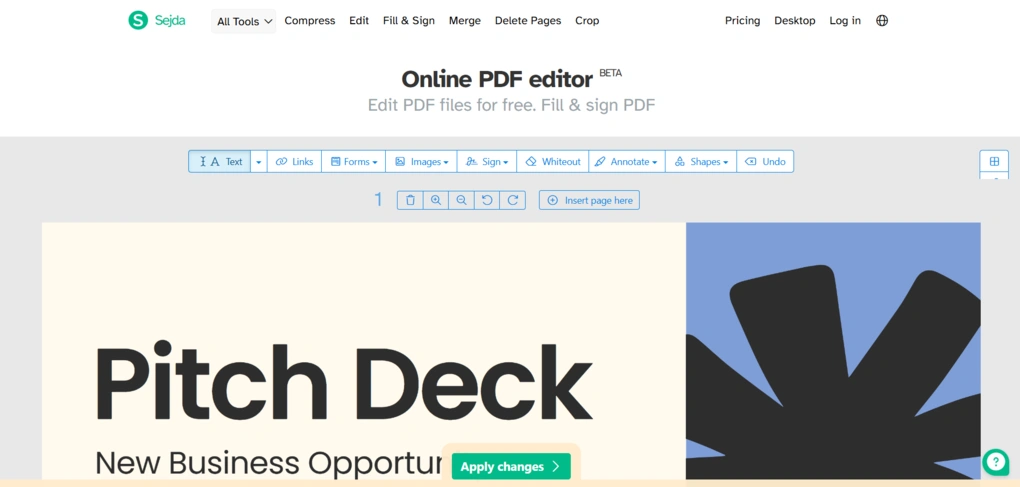
PDF editor: Editing existing text is fairly straightforward, and you can choose from different fonts, sizes, and colors. Unlike many PDF editors, the text selection works sentence by sentence instead of through text boxes, which can make editing restrictive at times. Image editing and positioning were much smoother during testing.
Annotation tools: The annotation feature set covers the essentials, including highlighting, underlining, drawing, and strikethrough. You can also insert links to URLs, email addresses, and phone numbers, which is useful for forms and shared documents.
PDF forms and signatures: Form creation supports text fields, checkboxes, dropdowns, radio buttons, and signature boxes. When signing documents, you can type, draw, upload, or even photograph your handwritten signature.
Password protection: Security tools are surprisingly solid for a lightweight online PDF editor. Besides password protection, you can control permissions for printing and editing, apply watermarks, and redact sensitive information.
Conversion features: Converting PDFs to Word, Excel, PowerPoint, image, and text files only takes a few seconds. While the conversion speed was good during testing, formatting and images were not always preserved perfectly in Word exports.
Compressing tools: File compression is one of the strongest parts of Sejda. You can adjust image quality, resolution, fonts, and multimedia settings, and the process is fast even with larger files.
OCR: Scanned PDFs can be turned into searchable and editable documents through the OCR tools. In general, the OCR is accurate, although processing can slow down with larger or more complex files.
How much Sejda PDF cost?
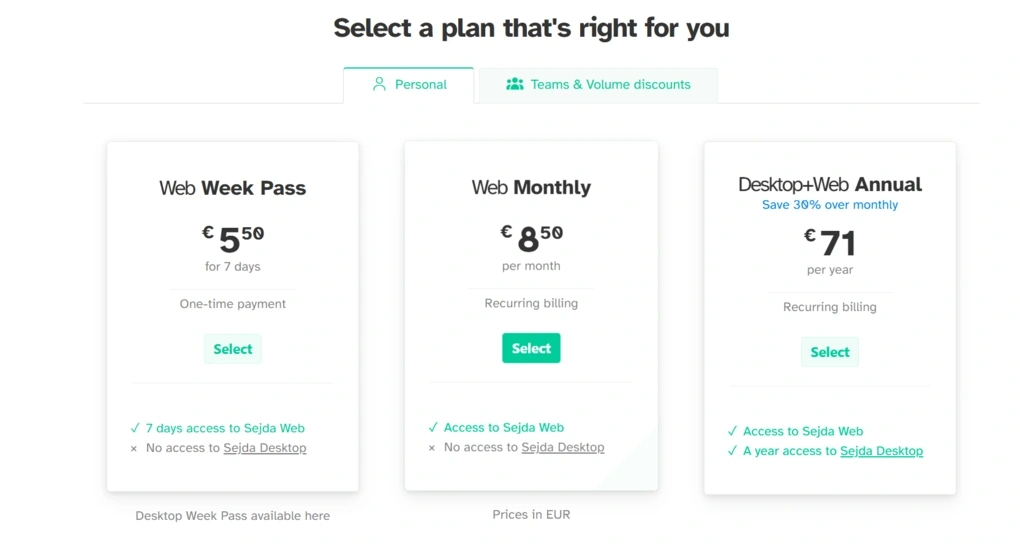
- Free plan available
- Web Week Pass: €5.50/user
- Web Monthly: €8.50/user/month
- Desktop+Web Annual: €71/user/year
🔎Read my full review: Sejda PDF Editor Review 2026 | My Unfiltered Thoughts
Explore our Apps directory
A curated directory of software tools we’ve independently reviewed, with links to full reviews, comparisons, and category guides.

Adobe Acrobat
Adobe Acrobat Online is the web-based version of Adobe’s PDF editor that lets you edit, sign, organize, convert, and manage PDF files directly from your browser.
bottom line
A reliable PDF editor for businesses
If you need a budget-friendly solution
Robust PDF editing features
Performance may slow when working with larger files
Why is Adobe Acrobat the best online PDF editor for professionals?
Adobe Acrobat earns its place near the top because it still delivers the kind of reliability professionals expect from Adobe. It handles the core PDF workflows well and has the kind of security and document-handling features that matter in business settings.
What pushes it above many other online PDF editors is definitely not the price, but trust and depth. Adobe Acrobat has long been the industry standard, and the online version keeps enough of that DNA to work well for teams and professionals who need a dependable browser-based PDF tool.
That is also why it lands behind Smallpdf but ahead of the rest of the list: Smallpdf is the better all-around online PDF editor, while Adobe Acrobat is the stronger pick for serious professional use.
How Adobe Acrobat performed in my daily workflow
During testing, Adobe Acrobat handled everyday PDF tasks reliably and gave me quick access to tools for editing, signing, organizing, sharing, and protecting documents.
However, it sometimes felt heavier and slower than other browser-based PDF editors I tested. Larger PDF files occasionally took longer to load, and moving text or image elements around documents was not always without frustration.
And while it does deliver reliable functionality overall and offers enhanced security, it’s extremely overpriced.
Who should use Adobe Acrobat
Who should NOT use Adobe Acrobat
Adobe Acrobat’s strengths
|
Pro |
Why It’s Important |
|---|---|
|
Advanced PDF editing tools |
Covers editing, organizing, OCR, signing, and document protection in one platform. |
|
Easy-to-use signing and forms |
Filling forms and adding signatures is quick and straightforward. |
|
Strong security features |
Password protection and cloud-based workflows work well for business use. |
|
Reliable OCR functionality |
Handles scanned PDFs and older documents accurately. |
|
Smooth document sharing |
Makes it easy to share PDFs through links, cloud storage, or email. |
Adobe Acrobat’s limitations
|
Con |
The Tradeoff |
|---|---|
|
Expensive pricing |
Costs significantly more than most online PDF editors. |
|
Slow with larger PDF files Limited free plan |
Bigger documents can take longer to load and edit. Many editing and workflow tools are locked behind the premium version. |
Adobe Acrobat’s features
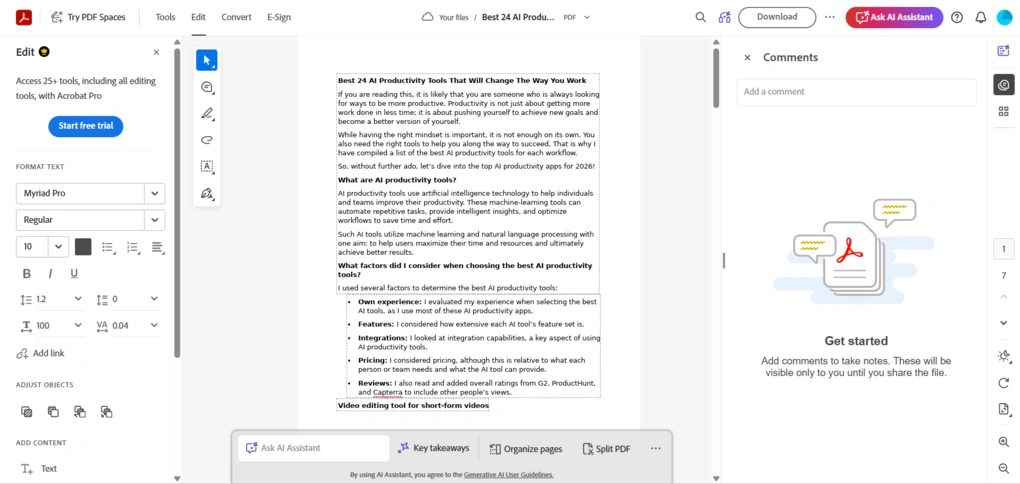
PDF editor: Adobe Acrobat has solid tools for editing PDFs directly in the browser. From the All tools tab, you can access the main editing functions, and clicking on text lets you highlight, underline, strikethrough, or copy it. You can also edit PDF text, add new text, or remove existing content directly in the browser. The editing tools are reliable, although moving text or images around is not always as smooth as in some other PDF editors.
Annotate PDF documents: Adobe’s annotation tools let you add comments, text fields, sticky notes, shapes, and basic text markup like highlighting and underlining. It covers the core review workflow well, even if it’s not especially lightweight.
Organizing PDFs: You can organize, reorder, rotate, split, extract, and remove pages, as well as drag page thumbnails to rearrange documents. One downside is that the free version doesn’t include even basic organization tools, so this feature is only useful on paid plans.
PDF form filling and signatures: The Fill & Sign tool makes form filling and signing very easy. You can click into form fields, type information, or insert text boxes, then draw or type your signature and place it on the document. It is a practical setup for contracts, forms, and routine business paperwork, especially if you regularly create PDFs for clients or internal teams.
Encrypt and share: Adobe Acrobat lets you password-protect PDF files and limit access to actions like printing or editing. You can also share documents directly from Acrobat or export them as public links or email attachments, which fits well into cloud-based workflows.
OCR: Acrobat’s OCR tools work well for scanned documents and old printed files. After OCR processing, scanned PDFs become searchable and editable, so it’s useful if you work with non-digital documents. The OCR is solid, even if some competing tools are a bit more accurate.
AI assistant: Adobe’s AI assistant is included for paid users. It can answer questions about your PDFs, summarize content, and help you digest documents faster. The summary feature is one-click and works especially well when you need the main points from a longer file, though the AI tools can be limited compared with more advanced AI-first editors.
How much Adobe Acrobat cost?
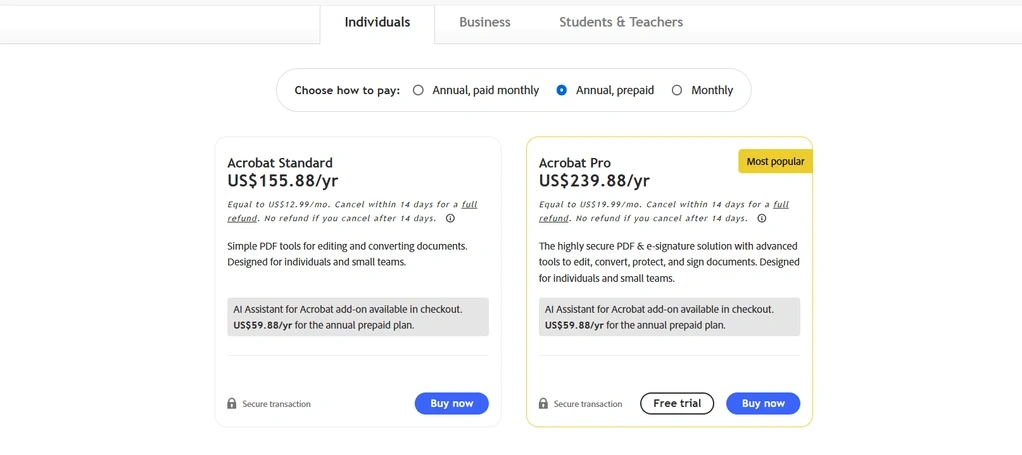
- Free plan available
- Acrobat Standard: $155.88/year/user for individuals and $179.88/year/license for businesses
- Acrobat Pro: $239.88/year for individuals and $287.88/year/license for businesses
- AI Assistant: $59.88/user/year
🔎Read my full review: Adobe Acrobat Review: What Nobody Tells You (2026)
PDFgear
PDFgear is a free PDF toolkit that combines PDF conversion, compression, OCR, annotations, signatures, and document management tools in one platform.
Bottom line
Users looking for a free all-in-one PDF toolkit
Users who need advanced PDF editing directly in the browser
A wide range of PDF tools available for free
The online editor cannot directly edit PDF text that already exists in the document
Why is PDFgear the best free PDF toolkit?
I included PDFgear on this list because it offers an impressive collection of free online tools for OCR, file conversion, compression, annotations, signatures, password protection, and document organization without subscriptions, watermarks, or mandatory account creation.
While it lacks some advanced editing and security features, PDFgear delivers exceptional value for anyone who needs a capable set of PDF tools without paying a cent.
How PDFgear performed in my daily workflow
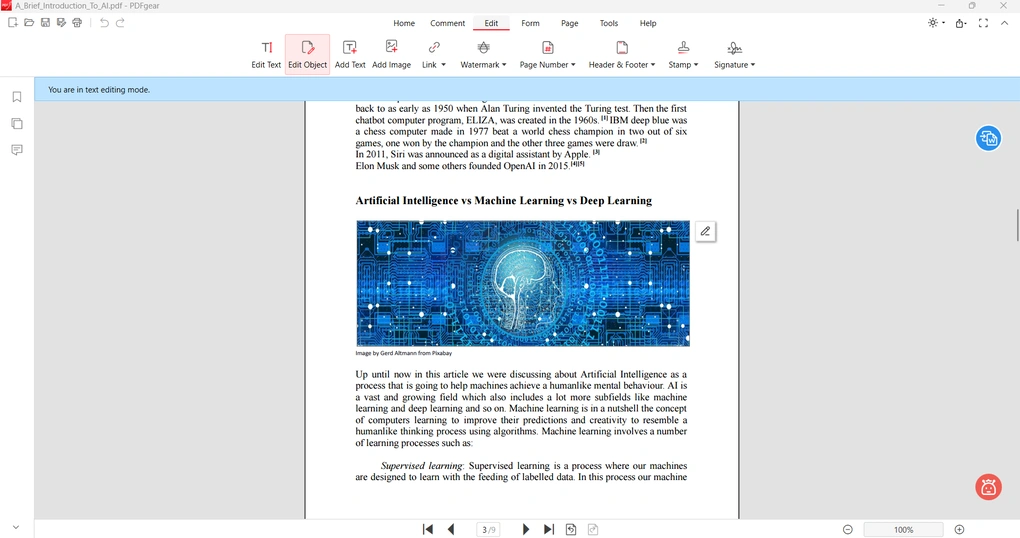
For a free tool, PDFgear handled everyday PDF tasks well. I mostly used it for annotations, signatures, OCR, compression, and file conversions, and it delivered good performance even with larger PDFs.
What I liked most was how much you can get at no cost. Many tools that competitors place behind paid plans, such as OCR and advanced conversion features, are available for free.
However, PDFgear is not a true replacement for a full online PDF editor. While you can add text boxes, annotations, signatures, and other elements, direct editing of existing PDF text requires the desktop application.
Who should use PDFgear?
Who should NOT use PDFgear?
PDFgear’s strengths
|
Pro |
Why It’s Important |
|---|---|
|
Completely free |
Includes OCR, conversion, compression, and signature tools at no cost. |
|
Strong OCR functionality |
Turns scanned documents into searchable PDFs and editable text. |
|
Fast performance |
Remained responsive even when working with larger PDF files. |
|
Excellent conversion tools |
Supports numerous file formats and delivers quick results. |
|
Simple interface |
Most tools are easy to find and require little learning. |
PDFgear’s limitations
|
Con |
The Tradeoff |
|---|---|
|
Limited online editing |
Direct editing of existing PDF text requires the desktop app. |
|
Security concerns |
Ongoing privacy discussions may be a drawback for some users. |
|
Limited advanced features |
Missing some of the controls available in premium PDF editors. |
PDFgear’s features
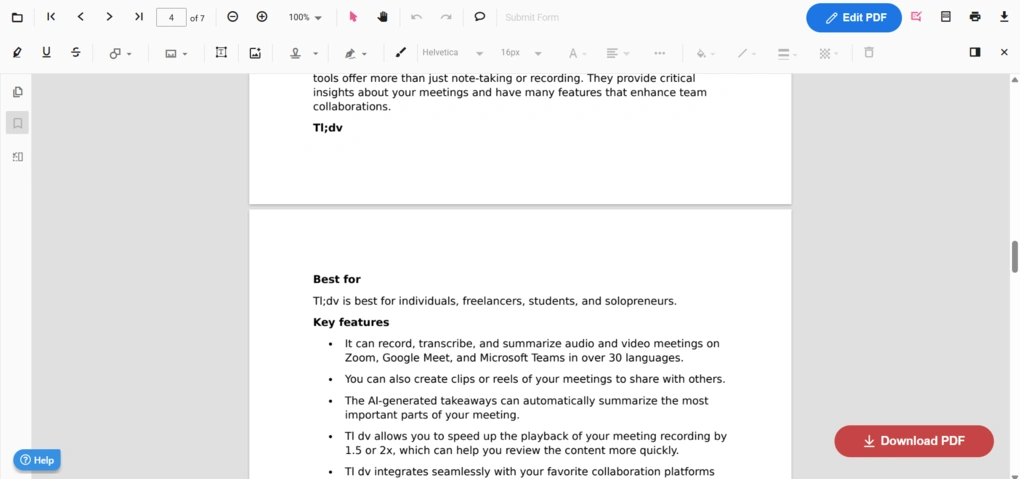
PDF editor: The online editor focuses on annotations, text boxes, images, signatures, and form elements rather than direct editing of existing PDF text. If you need to replace or modify text already inside a PDF, you’ll have to get the desktop app.
Annotation tools: You can highlight text, add notes, underline content, apply strikethrough formatting, insert shapes, and use stamps when reviewing documents. The annotation tools cover most everyday review needs.
Forms and signatures: PDFgear supports text fields, shapes, images, and electronic signatures. Signatures can be created by drawing, typing, or uploading an image and reused across documents.
PDF security: Password protection is available, although the security controls are more limited than those offered by business-focused PDF editors.
Conversion features: PDFgear supports conversion between PDFs and popular file formats such as Word, Excel, PowerPoint, images, and text files. The conversion process is generally fast and easy to use.
Compressing tools: Compression is one of PDFgear’s strongest areas. It can significantly reduce file sizes while preserving document quality, making documents easier to share and store.
OCR: OCR support is available for more than 30 languages, allowing scanned documents to be converted into searchable and editable Word, TXT, and other document formats. Accuracy is generally good, although complex layouts may require some manual corrections.
How much PDFgear cost?
Completely free.
🔎Read my full review: My Honest PDFgear Review 2026 | What They Don’t Tell You
Summary: The Best Online PDF Editors in 2026
After testing and comparing the most popular browser-based PDF tools, I found these to be the best online PDF editors in 2026.
Before choosing one for yourself, I recommend looking beyond the feature list. Consider how often you work with PDFs, whether you need advanced editing or collaboration tools, and if the pricing makes sense for your use case.
Related articles:
- 9 Best PDF Editors In 2026 | 30+ Personally Tested PDF Tools
- The 8 Best Adobe Acrobat Alternatives: 30+ PDF Editors Tested
- 8 Best PDF Redaction Tools in 2026 | Personally Tested 30+ Apps
I will continue testing new tools and updating this guide to ensure the rankings reflect the current state of the online PDF editor market.
Looking for similar tools?
Visit our library of PDF editors to explore other apps we’ve reviewed in this space and how they compare.
Why you can trust our reviews
At thebusinessdive.com, our team tests, reviews, and compares hundreds of productivity apps every year — from project management tools to note-taking apps. We dive deep into real-world use cases to help you find the right tools that actually improve your workflow, not just add noise.
Our mission? No fluff, no shortcuts—just honest, hands-on insights from productivity pros.
Discover how we stay transparent, read our review methodology, and let us know about any tools we missed.
Frequently asked questions
What is the best online PDF editor?
Smallpdf is my top overall pick because it combines PDF editing, file conversion, OCR support, password protection, e-signatures, and document organization tools in a beginner-friendly interface. If you need advanced business features, Adobe Acrobat Online and pdfFiller are also strong options.
What is the best free PDF editor?
Sejda is one of the best free PDF editor options if you need to edit PDF documents, sign PDF forms, and organize PDF pages directly in your browser. PDFgear is another excellent choice, offering a free PDF toolkit with OCR support, file conversion tools, and annotations at no cost.
Can I edit PDF files online without downloading software?
Yes. Most online PDF editors allow you to edit a PDF online directly from your web browser. Depending on the tool, you can add and edit text, highlight text, add comments, insert text boxes, create digital signatures, and add annotations without installing desktop software.
Can I convert PDFs to Word and other file formats?
Yes. Most PDF editors include a PDF converter that can convert PDFs into Word documents, Excel spreadsheets, PowerPoint presentations, images, and other file types.
High-quality conversion tools preserve the original layout, fonts, images, and formatting throughout the conversion process.
Are online PDF editors secure?
Most online PDF editors offer security features such as password protection, encrypted file transfers, and automatic file deletion after processing.
However, because online PDF editing requires uploading files to external servers, I would avoid using them for highly sensitive information such as confidential legal, financial, or client documents. For those cases, a desktop version of a PDF editor may be the safer option.
Disclosure: I only recommend products I would use myself, and all opinions expressed here are our own. This post may contain affiliate links that, at no additional cost to you, I may earn a small commission. Read the full privacy policy here.

Hey! I’m Jovana, a content writer who loves writing, researching, and testing new productivity apps. With a background in philosophy, I bring a thoughtful but no-bullshit approach to everything I do. Let’s connect on Linkedin!