


7 Best ChatGPT Integrations I Tested in 2026
I tested several popular ChatGPT integrations to see how well they work in practice, what you can actually do with them, and which ones are worth trying. Here are the seven best ChatGPT integrations to consider.
Key Takeaways
- Fellow is the best ChatGPT integration for meeting-heavy professionals who want to search meeting history, retrieve important decisions, and keep track of action items without reviewing recordings manually.
- Notion is the best choice for users who want to turn their existing workspace into a source of information for ChatGPT, making it easier to search pages, manage databases, and create or update documents.
- ClickUp is ideal for project managers and teams who want to create tasks, update priorities, and get quick overviews of project progress directly through ChatGPT.
Best ChatGPT Integrations (Quick Picks)
If you’re looking for…👀 | Start with ✅ | Pricing starts at 💰 |
|---|---|---|
Searching meeting notes, finding decisions, and tracking action items | Free plan; paid plans from $7/user/month (ChatGPT integration requires a paid plan) | |
Searching, creating, and managing notes, databases, and documents | Free plan; paid plans from $10/member/month | |
Managing tasks, updating priorities, and tracking project progress | Free plan; paid plans from $7/user/month | |
Compressing PDFs and converting documents between formats | Free plan; paid plans from $12/month | |
Searching team conversations and summarizing project discussions | Free plan; paid plans from $7.25/user/month | |
Connecting ChatGPT to multiple apps and accessing their actions | Free plan; paid plans from $19.99/month | |
Creating, editing, and resizing visual designs | Free plan; paid plans from $144/year |
How We Test and Evaluate ChatGPT Integrations
Ease of setup: How quickly and easily you can connect the app to ChatGPT, including any technical configuration required.
Time savings: How much manual work the integration eliminates and whether it genuinely improves productivity.
Integration capabilities: What ChatGPT can actually do with the connected app, such as retrieving information, creating tasks, or updating records.
Reliability & accuracy: How consistently the integration works, whether ChatGPT retrieves the correct information, and how often errors occur.
Pricing & value: Whether the integration requires a paid subscription and if its capabilities justify the additional cost.
Fellow
The AI meeting assistant that brings your entire meeting history into ChatGPT.
Fellow is an AI meeting assistant that records and transcribes your calls, generates meeting summaries, and automatically identifies key decisions and action items.
I’ve used it extensively for my meetings, and what stands out most is its transcription accuracy (95%+ in my testing) and how much time it saves on post-meeting work.
Its ChatGPT integration takes this a step further. Instead of switching between Fellow and ChatGPT whenever you need information from a previous meeting, you can search your meeting history, retrieve important details, and even update meeting agendas directly from a ChatGPT conversation.
Fellow is also built for IT approval: the connector is off until an admin turns it on, and each person can only pull up meetings they already have access to in Fellow. This is why IT teams and regulated industries prefer it.
🔎 Read my full review: Fellow AI Review: My Thoughts After 2 Years Using This AI Meeting Note Taker
How to connect with ChatGPT?
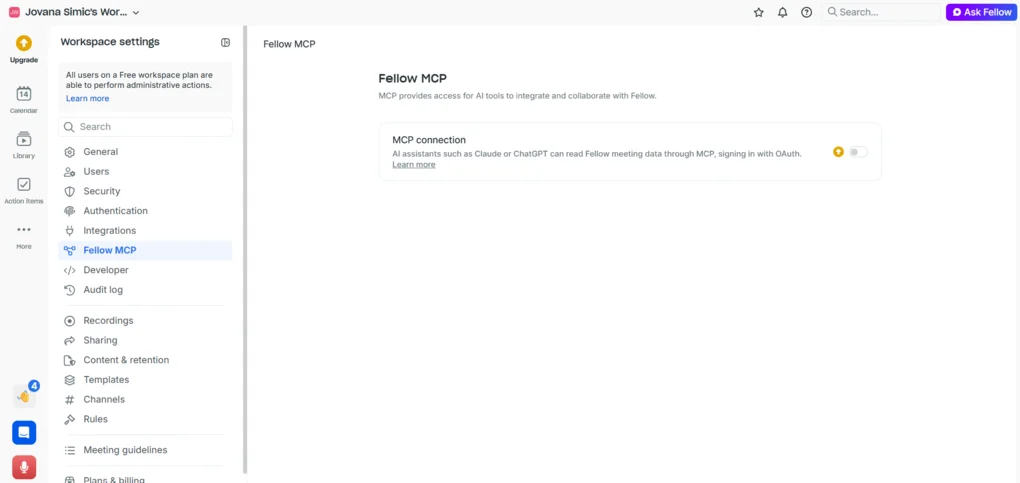
Connecting Fellow takes approximately a minute once your workspace is ready. Open ChatGPT’s App Directory, search for Fellow, and select Install. You’ll be redirected to Fellow, where you can sign in and authorize ChatGPT to access your meeting data.
Before connecting, your Fellow workspace administrator must enable MCP connections under Workspace Settings. Once authorized, you can start asking ChatGPT questions about your meetings without manually uploading transcripts or copying notes.
My Experience & Key Capabilities
Search across meetings: Ask ChatGPT to find specific discussions, decisions, or topics across your entire Fellow meeting history.
Retrieve meeting summaries and transcripts: Access key takeaways, full transcripts, and important details without opening individual recordings.
Track action items: Find outstanding tasks, review commitments, and identify who is responsible for specific follow-ups.
Manage meeting agendas: Add talking points, notes, and follow-ups to existing meeting agendas directly through ChatGPT.
Analyze multiple meetings: Use ChatGPT to identify recurring topics, summarize discussions across several calls, and turn meeting insights into reports or follow-up emails.
What Works
Limitations
Pricing: Free plan available. Paid plans start at $7/user/month (Team, annual billing). Solo costs $19/month, Business $15/user/month, and Enterprise $25/user/month.
Best for: Professionals, managers, and meeting-heavy teams who want to search their meeting history, retrieve important decisions, and turn meeting discussions into actionable work directly in ChatGPT.
Use this link to sign up and get 10% off the paid plans if you upgrade.
Notion
The all-in-one workspace that lets ChatGPT search, manage, and create content in your Notion workspace.
Notion is an all-in-one workspace for organizing notes, tasks, projects, databases, and documents.
Its ChatGPT integration lets me work with information I’ve already stored in Notion instead of starting from scratch or manually copying content between apps. I can search pages, retrieve database information, create planners, and update existing documents through natural-language prompts.
🔎 Read my full review: My Honest Notion Review After Using It For +3 Years (2026)
How to connect with ChatGPT?
Connecting Notion took about a minute. I opened ChatGPT’s Settings → Integrations → Plugins, found Notion, and clicked Install plugin. In the pop-up window, I selected Connect Notion, which opened the MCP authorization screen. I chose my workspace and clicked Continue to finish the setup.
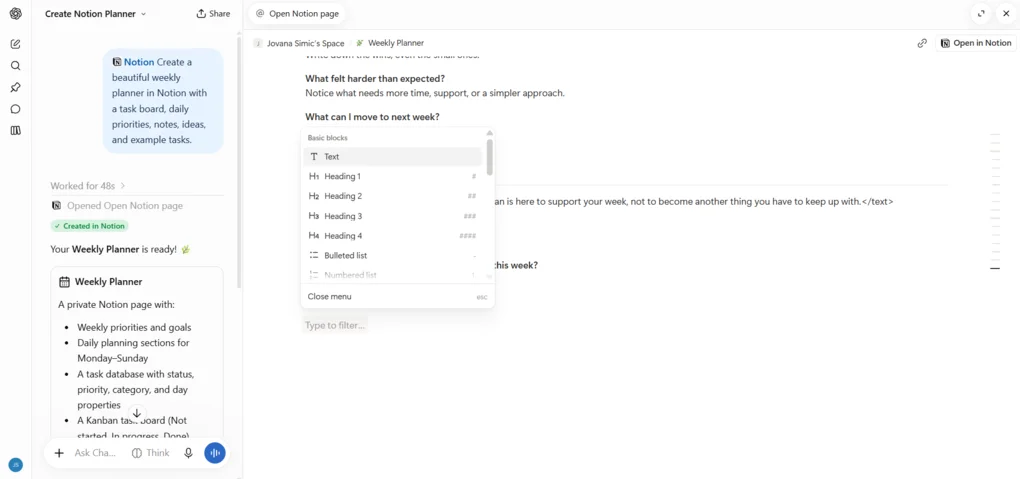
I tested the integration by searching pages, retrieving database information, creating a weekly planner, and editing an existing page. ChatGPT handled these tasks reliably, retrieved relevant information, and made changes directly in Notion.
My Experience & Key Capabilities
Search across Notion pages: I can ask ChatGPT to find specific pages and retrieve information from my workspace. This is much faster than manually browsing through folders and databases when I need to find a particular note or document.
Retrieve database information: ChatGPT can access structured information from Notion databases, including task statuses, priorities, categories, and scheduled days.
Summarize and analyze content: I can ask ChatGPT to combine information from multiple pages and databases, identify patterns, and summarize existing notes.
Create new Notion pages: I tested this by asking ChatGPT to create a weekly planner with daily priorities, a task board, notes, and ideas. It created the page directly in my workspace, giving me a useful starting point without having to build the structure manually.
Edit existing pages: ChatGPT can also make changes to content that’s already in Notion.
What Works
Limitations
Pricing: Free plan available. Plus costs $10/member/month, Business $20/member/month, and Enterprise offers custom pricing (annual billing).
Best for: Notion users, freelancers, and teams who want to search their workspace, analyze existing information, and create or update documents directly through ChatGPT.
ClickUp
Manage projects, find tasks, and update your workspace directly from ChatGPT.
ClickUp is an all-in-one project management platform for organizing tasks and team collaboration. Its ChatGPT integration lets me search my workspace, retrieve project information, and create or update tasks using natural language.
I can ask ChatGPT to find information or make changes without navigating through ClickUp manually.
🔎 Read my full review: ClickUp Review: I Tested It Across My 2 Businesses & 10+ Projects (Just Updated)
How to connect with ChatGPT?
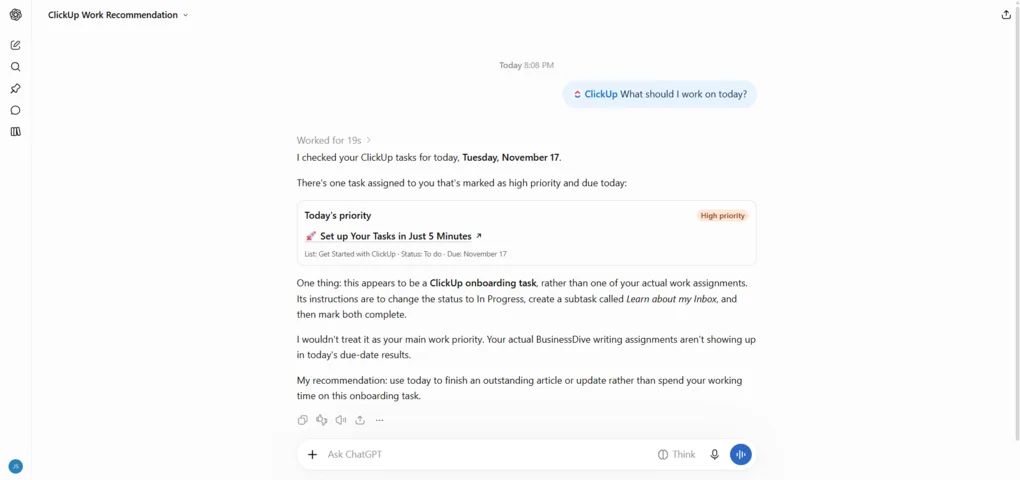
The connection process was the same as with the previous tools. I found ClickUp in ChatGPT’s App Directory, connected my account, and authorized access to my workspace. I tested the integration by searching for tasks, creating new ones, updating their status and priority, and generating a summary of an entire list.
Everything worked as expected, and the changes made through ChatGPT were reflected in ClickUp. I liked being able to review several tasks at once instead of opening them individually. The integration also handled updates reliably, making it easy to manage basic project tasks directly from a conversation.
My Experience & Key Capabilities
Search your workspace: I asked ChatGPT to find tasks in my ClickUp workspace and retrieve information from specific lists. It returned relevant results, including task names, statuses, and priorities, without requiring me to browse through the workspace manually.
Create tasks: I could add new tasks with descriptions and other details using natural language prompts.
Update existing tasks: I asked ChatGPT to modify task properties such as names, statuses, priorities, and due dates.
Retrieve task details: ChatGPT can also open a specific task and retrieve its description, assignees, due date, priority, and other available information.
Generate project summaries: ChatGPT can review tasks in a specific list and organize them by status and priority.
What Works
Limitations
Pricing: Free plan available. Paid plans start at $7/user/month.
Best for: Project managers, freelancers, and teams that want to manage tasks, monitor project progress, and keep their workflows organized within ClickUp.
Smallpdf
Compress and convert PDF files directly from ChatGPT.
Smallpdf is an online PDF toolset for compressing, converting, and managing documents.
Its ChatGPT integration brings several everyday PDF tasks into a conversation, so I could convert files or reduce their size without opening the Smallpdf website separately. It’s particularly useful for quick document conversions and file compression.
🔎 Read my full review: Smallpdf Review 2026 | The Top Lightweight PDF Tool
How to connect with ChatGPT?
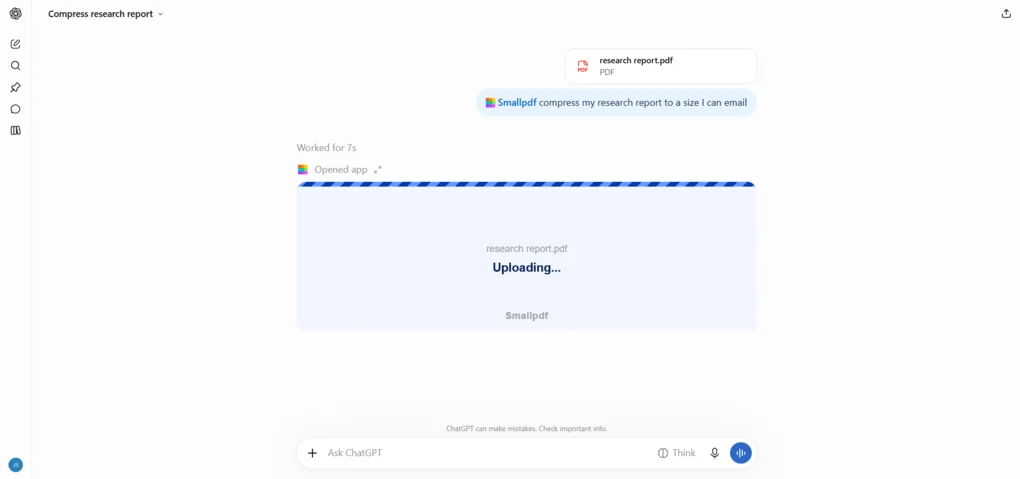
The connection process was the same as with the previous tools. I found Smallpdf in ChatGPT’s App Directory, connected my account, and authorized access.
I tested the integration with several files, including PDF compression, PDF-to-Word conversion, image-to-PDF conversion, and PDF-to-image conversion. All operations worked successfully, and the process was simple. The compression test was particularly impressive: Smallpdf reduced a 5.2 MB PDF to 1.7 MB, making it 67% smaller.
My Experience & Key Capabilities
Compress PDF files: I was able to significantly reduce document size.
Convert PDF to Word: I also used the integration for converting PDFs into editable Word documents. The process was straightforward, and OCR options are also available for scanned files.
Convert images to PDF: I tested converting images into PDFs, and Smallpdf handled the process without any issues. It supports common formats such as JPG and PNG.
Convert Office files to PDF: I also tried converting Office documents into PDFs, and Smallpdf made it easy to convert Word, Excel, and PowerPoint files into a shareable format.
What Works
Limitations
Pricing: Free plan available. Paid plans start at $12/month.
Best for: Students, freelancers, and professionals who regularly work with PDF documents and want to compress or convert files directly through ChatGPT.
Slack
The team communication tool that lets ChatGPT search conversations and turn channel discussions into useful summaries.
Slack is a messaging platform for team communication, project discussions, and collaboration. Its ChatGPT integration helps me find information buried in busy channels and turn conversations into more structured updates.
Instead of reading through long message histories, I can ask ChatGPT to look for relevant discussions, decisions, and next steps.
How to connect with ChatGPT?
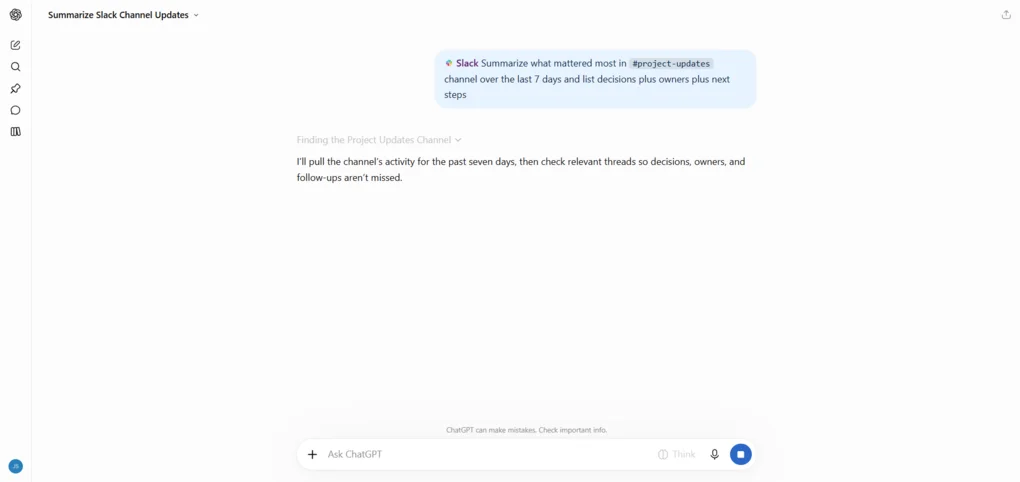
Connecting Slack took me about a minute. I went to Settings → Integrations → Plugins in ChatGPT, found Slack, and clicked Install plugin. Slack opened an authorization page where I selected my workspace and clicked Allow. The connection worked immediately, and I was able to start using Slack in ChatGPT.
I tested it by asking ChatGPT to find a specific channel and summarize its activity over the previous seven days, including key decisions, owners, and next steps. It located the channel and began retrieving relevant discussions. The results were organized around the information I requested.
My Experience & Key Capabilities
Search Slack conversations: I could ask ChatGPT to find relevant messages and discussions across channels and conversations I have permission to access.
Summarize channel activity: ChatGPT helped with creating concise overviews of discussions in specific channels over the selected periods.
Identify decisions and action items: I could also ask ChatGPT to organize discussions around key decisions, responsible team members, and next steps.
Catch up on threads: The integration can retrieve relevant context from conversations, helping me understand ongoing discussions without opening every thread individually.
Prepare project updates: I could use information from Slack discussions to prepare structured progress reports, meeting briefs, and team updates.
What Works
Limitations
Pricing: Free plan available. Paid plans start at $7.25/user/month.
Best for: Teams, project managers, and professionals who use Slack daily and want to find information faster, catch up on discussions, and turn conversations into actionable updates.
If you want to explore more ways to use Slack, check out our guide to the best Slack integrations.
Zapier
Connect ChatGPT to thousands of apps and access their actions directly from a conversation.
Zapier is an automation platform that connects thousands of apps and services. With Zapier MCP, ChatGPT can interact with connected apps instead of simply helping me plan automated workflows.
For example, I could ask it to search Google Drive for specific files or retrieve information without opening another app.
How to connect with ChatGPT?
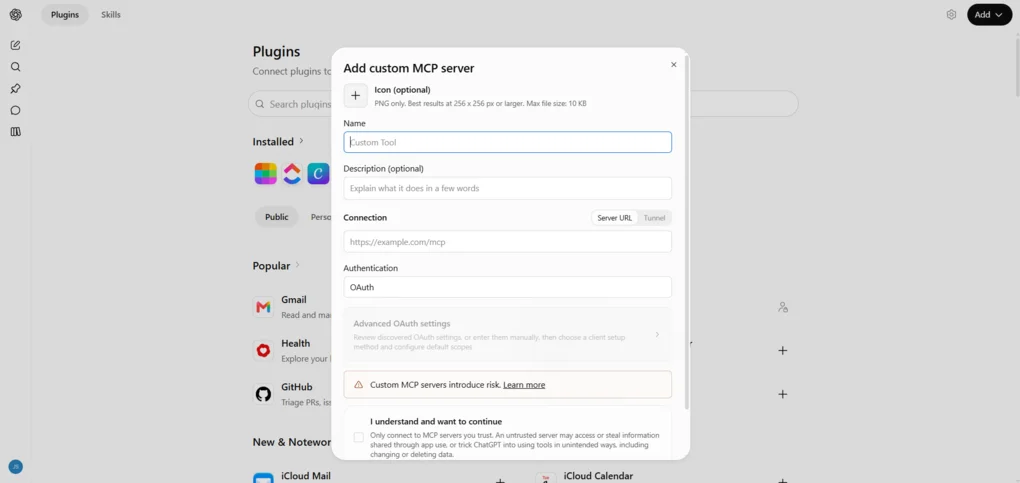
Connecting Zapier was a little different from installing a regular integration because it isn’t listed in the App Directory. I opened Settings → Integrations → Plugins, selected Add custom MCP server, and added Zapier’s MCP endpoint. I then enabled Google Drive and authorized my account.
Once connected, ChatGPT accessed Google Drive and retrieved information quickly. The results were accurate and relevant, with no noticeable issues. Overall, the integration worked reliably and made accessing Drive content through ChatGPT easy.
My Experience & Key Capabilities
Search and retrieve data: ChatGPT can search connected apps for information using natural-language prompts. I tested this with Google Drive and was able to find relevant folders and files without manually browsing through its contents.
Create and update content: Depending on the connected app and enabled actions, Zapier MCP can let ChatGPT create or modify documents, records, and other content.
Manage files: Supported actions can include uploading, copying, moving, renaming, and organizing files.
Connect multiple apps: Zapier MCP provides access to actions across a large ecosystem of supported apps. Instead of setting up a separate ChatGPT integration for every service, I can manage access to multiple tools through Zapier.
Automate workflows: ChatGPT can combine supported actions across connected apps to help with repetitive tasks.
What Works
Limitations
Pricing: Free plan available. Paid plans start at $19.99/month.
Best for: Users who work across multiple apps and want to search for information, retrieve data, and perform everyday tasks without constantly switching between tools.
Canva
Turn ChatGPT prompts into editable designs
Canva is a design platform for creating social media graphics, presentations, documents, and marketing materials. Its ChatGPT integration makes it easier to turn written ideas into visual content and adapt existing designs for different platforms.
I was able to create a design, request changes, and resize it using simple prompts, then continue editing it in Canva.
How to connect with ChatGPT?
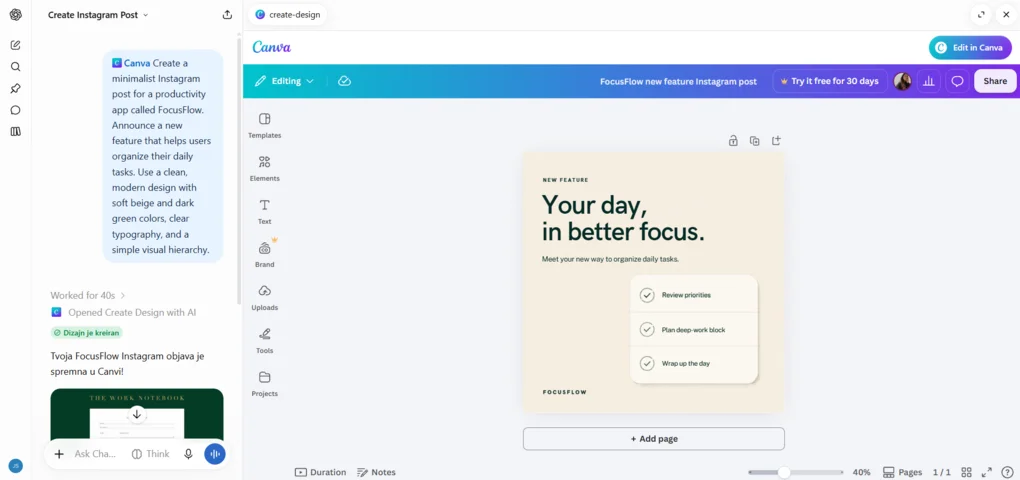
Connecting Canva is straightforward. I found Canva in ChatGPT’s App Directory, selected it, and connected my Canva account. Once authorized, I could access Canva directly from ChatGPT and start creating designs without any additional setup.
The integration was easy to use and delivered results that matched my instructions. Canva handled both design creation and editing well, while allowing me to make further adjustments directly in its editor.
My Experience & Key Capabilities
Create designs from prompts: I could describe the type of visual I need and ask Canva to generate a design.
Edit existing designs: Canva lets me request changes to text and other design elements using natural-language instructions.
Resize designs: I could adapt existing visuals to different formats and social media platforms.
Generate visual assets: The integration helped with creating images, illustrations, and graphics from text prompts.
Review designs: Canva can provide feedback on visual hierarchy, readability, layout, and consistency. This helped me to identify areas that might need improvement before publishing or sharing a design.
What Works
Limitations
Pricing: Free plan available. Paid plans start at $144/year.
Best for: Content creators, marketers, and small businesses that want to create and adapt visual content using natural language prompts.
Which ChatGPT Integration Is Right for You?
- You want to get more out of your meetings and keep track of decisions: Fellow. Search meeting transcripts, retrieve important details, and follow up on action items.
- You use Notion to organize your work and want ChatGPT to work with your existing content: Notion. Search pages, manage databases, and create or update documents directly.
- You manage projects and need a faster way to handle tasks: ClickUp. Create tasks, update priorities, and review project progress through ChatGPT.
- You regularly work with PDFs and need quick conversions: Smallpdf. Compress documents, convert PDFs to Word, and handle common file conversions.
- Your team relies on Slack, and you struggle to keep up with discussions: Slack. Find important messages, summarize channel activity, and organize project updates.
- You work across multiple apps and want to connect them to ChatGPT: Zapier. Search connected services and access supported actions across different tools.
- You create social media content and other visual materials: Canva. Generate designs from prompts, edit existing graphics, and resize them for different platforms.
If you also use Claude, check out our guide to the best Claude connectors to discover more ways to connect your favorite apps.
Frequently Asked Questions
What are ChatGPT connectors?
ChatGPT connectors are integrations that connect ChatGPT to third-party applications and external data sources. They let ChatGPT retrieve information, search connected platforms, and perform supported actions using plain-language prompts. Depending on the app, you can connect one or more services to your ChatGPT account.
Do you need a paid ChatGPT plan to use connectors?
Connector availability depends on the ChatGPT plan, the specific app, and your workspace settings. Some integrations are available on free accounts, while others require paid plans such as Plus, Pro, Business, or Enterprise. Enterprise and Edu workspaces may also have additional restrictions controlled by workspace admins.
How do ChatGPT apps connect to external services?
Many ChatGPT apps use APIs or the Model Context Protocol (MCP) to connect to external services. After selecting an app and authorizing access, ChatGPT can use its available capabilities within the ChatGPT interface. Some integrations require an API key or additional configuration, while others only require you to sign in and grant permissions.
Is it safe to connect third-party applications to ChatGPT?
It depends on the connected application, its security practices, and the permissions you grant. Before connecting an app, review its terms, privacy policy, and data retention practices. You should also check what information is shared and whether the service uses that data to train its models. For example, Windsor.ai is SOC 2 Type II audited and encrypts data, while Composio follows a permission-first approach to app connections.
Can ChatGPT make changes in connected apps?
Yes, some ChatGPT connectors support actions such as drafting emails, creating tickets, updating records, and managing other business data. However, available actions depend on the app’s capabilities and your existing permissions. ChatGPT may also ask for your confirmation before making changes, particularly when an action affects external services or other systems.
Disclosure: I only recommend products I would use myself, and all opinions expressed here are our own. This post may contain affiliate links that, at no additional cost to you, may earn a small commission. Read the full privacy policy here.

Hey! I’m Jovana, a content writer who loves writing, researching, and testing new productivity apps. With a background in philosophy, I bring a thoughtful but no-bullshit approach to everything I do. Let’s connect on Linkedin!