


6 Best Notion Integrations I Swear By In 2026
Notion is already a powerful workspace on its own, but the right integrations can make it much more useful.
Whether you want to automate repetitive tasks, manage projects, schedule meetings, collect data, or share documents more securely, connecting Notion with other tools can help streamline your workflow.
To help you find the best options, I researched and evaluated a range of Notion integrations across different use cases.
In this guide, you’ll find the best Notion integrations for automation, communication, document sharing, scheduling, project management, and more, along with what each one does best and who it’s most suitable for.
Let’s dive in!
The best Notion integrations at a glance
|
Best Notion Integrations |
Category |
Best for |
|---|---|---|
|
Secure document sharing |
Sharing Notion pages securely with analytics and access controls |
|
|
Project management |
Managing complex projects and tasks alongside Notion documentation |
|
|
Workflow automation |
Automating workflows between Notion and thousands of other apps |
|
|
No-code app builder |
Building client portals, internal tools, and apps from Notion databases |
|
|
Software development |
Connecting engineering projects and issue tracking with Notion |
|
|
Team communication |
Sharing Notion content and keeping teams updated in Slack |
My top Notion Integrations
Let’s see the best Notion integrations I have tested so far!

Papermark
Papermark is a secure document-sharing and virtual data room platform that enhances Notion with advanced sharing controls, viewer analytics, and access management features.
Quick verdict
Notion users and teams who need a secure way to share documents while tracking engagement and controlling access
Individuals who only need basic document sharing without analytics, access controls, or virtual data room features
Detailed page-by-page analytics and document engagement tracking
Many advanced features require a paid plan
What I liked about Papermark
What could be improved
What you get after connecting Papermark to Notion
Document Upload and Link Sharing: Connecting Papermark to Notion took me less than a minute. I simply copied a public Notion page link, pasted it into Papermark, and instantly got a shareable link. Before sharing it, I could customize settings like email capture, download permissions, viewer restrictions, and password protection.
Page-by-Page Analytics: After opening the shared document from a secondary email address, I immediately received a notification and could follow the activity almost in real time. Papermark showed how much time was spent on each page, overall engagement, and completion rates in a very visual and easy-to-understand dashboard.
Document Versioning: I also liked how easy it was to manage multiple versions of the same document. Each version gets its own analytics and shareable link, while older versions can be archived instead of deleted. This made it much easier to track updates without losing historical engagement data.
Link Permissions & Access Controls: Papermark gives you much more control than sharing a regular Notion link. During testing, I could require visitors to enter their email addresses, enable password protection, set expiration dates, and restrict access to specific viewers. More advanced controls are available on paid plans.
Custom Branding: For teams sharing proposals, reports, or client documents from Notion, Papermark also supports custom domains, logos, and branded document pages. Most branding features require a paid plan, but they can make shared content look much more professional.
Virtual Data Rooms: For more advanced use cases, I tested Papermark’s Data Rooms feature using the free trial. It allowed me to organize Notion content into structured folders, create separate shareable links, manage permissions at the file level, and track engagement across the entire data room. I found the data room setup much easier to manage when multiple documents and stakeholders were involved.
Pricing
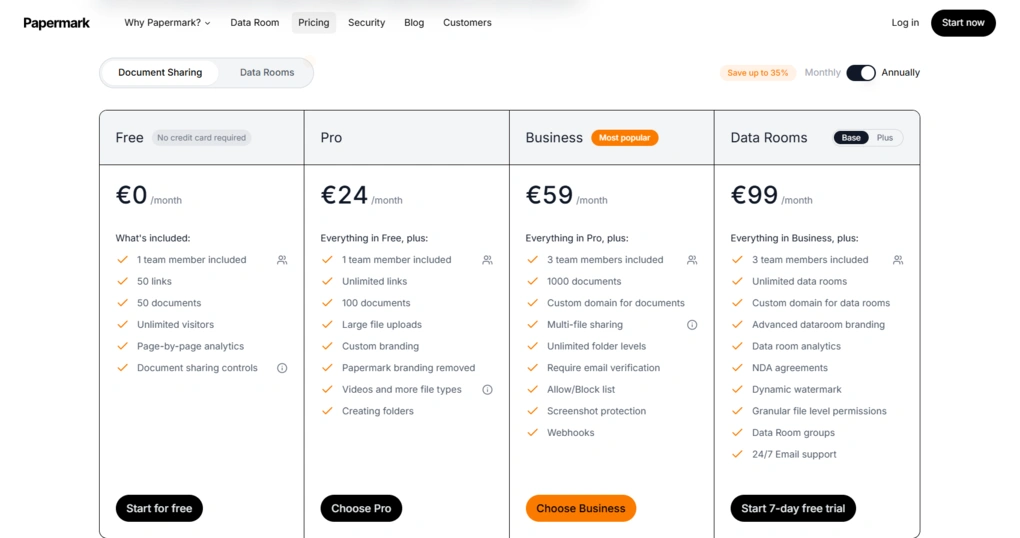
- Free plan available (more than enough for most Notion sharing use cases)
- Pro plan: €24/month
- Business plan: €59/month
- Data Rooms plan: €99/month
- Data Rooms Plus: €249/month
- Data Rooms Premium: €549/month
- Data Rooms Unlimited: €999/month
- Data Rooms Custom: Custom pricing
How to connect Papermark to Notion
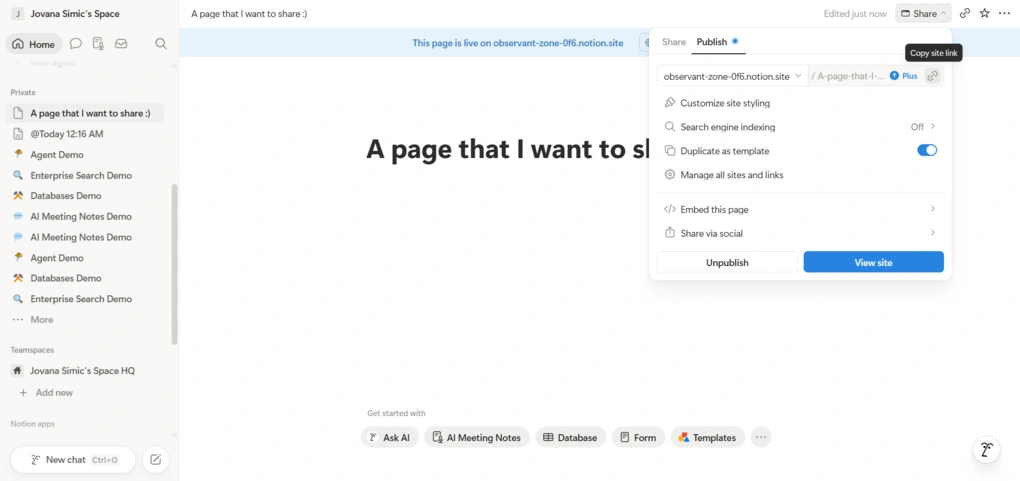
First, open the Notion page you want to share, click ‘Publish’, and copy the public link. Then go to Papermark Documents, More Add Notion page, and finally, paste the Notion link. From there, you can add a custom domain, password, expiration date, or other controls before sending the final link.
If you are building a Notion data room, Papermark also offers a “Connect Notion” flow where you link your workspace and select the page that will serve as the data room homepage. Any pages nested under that parent page are automatically included in the data room.
🔎 Read my full review: Papermark Review 2026: Here’s What I Liked (And What I Didn’t)

ClickUp
ClickUp is an all-in-one project management platform that complements Notion with advanced task management, team collaboration, automation, and workflow customization.
Quick verdict
Teams that want to manage tasks and projects across Notion and ClickUp
Users looking for a simple, lightweight workspace with minimal setup
Advanced project management features and customization options
Can feel overwhelming for new users
What I liked about ClickUp
What could be improved
What you get after connecting ClickUp to Notion
Project and Task Management: After connecting ClickUp with Notion, I could keep documentation in Notion while managing tasks and projects inside ClickUp. For larger workflows where Notion handled knowledge management and ClickUp handled execution, this worked especially well.
Multiple Project Views: One thing I liked about ClickUp was the variety of project views. Depending on the project, I could switch between List, Board, Calendar, and Gantt views to track progress in a way that made the most sense for the team.
Advanced Task Tracking: ClickUp gave me much more control over tasks than a typical Notion database. I could create subtasks, set priorities, assign owners, add due dates, attach files, create dependencies, and manage everything from a single workspace.
Team Collaboration Tools: During testing, I found ClickUp’s collaboration features very strong. Teams can work together using Docs, Chat, Whiteboards, comments, and real-time editing while keeping project information connected to Notion documentation.
Workflow Automation: ClickUp also includes built-in automation tools that can reduce manual work. I was able to use automation templates and create rules for updating task statuses, assigning work, and managing recurring workflows.
Custom Dashboards and Reporting: For teams managing multiple projects, ClickUp offers customizable dashboards that provide visibility into workloads, project progress, deadlines, and team performance.
Pricing
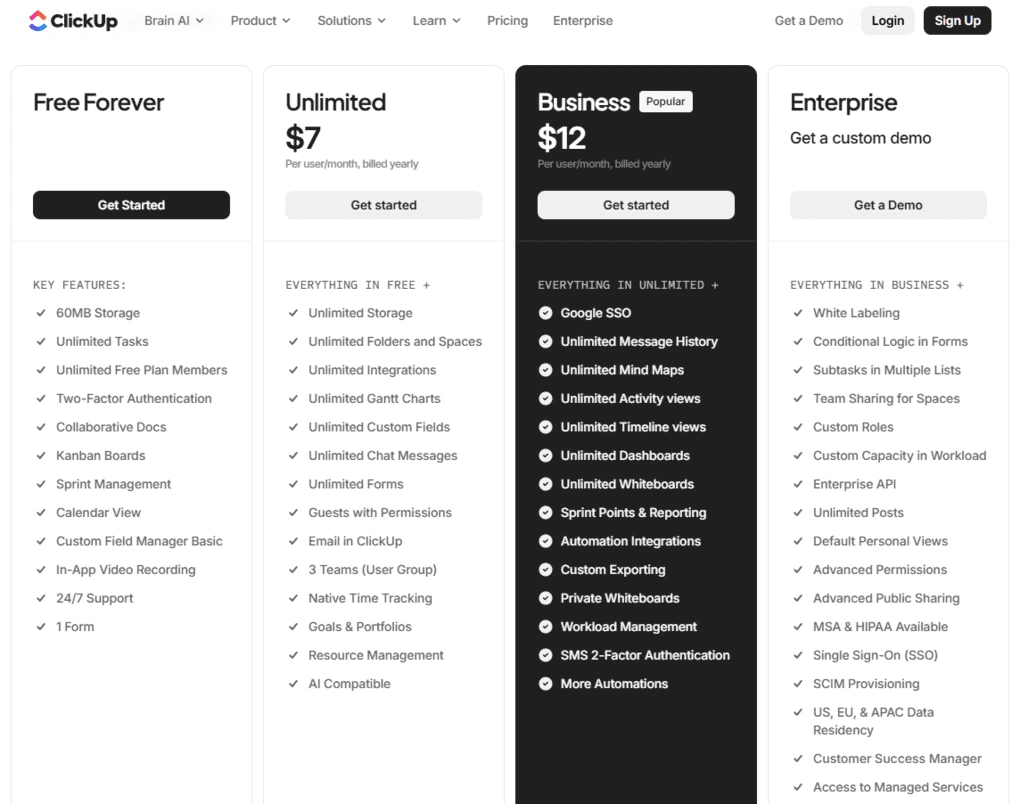
- Free plan available
- Unlimited plan: $7/user/month (annual billing)
- Business plan: $12/user/month (annual billing)
- Enterprise plan: Custom pricing
- ClickUp AI: Available as a separate add-on
How to connect ClickUp to Notion
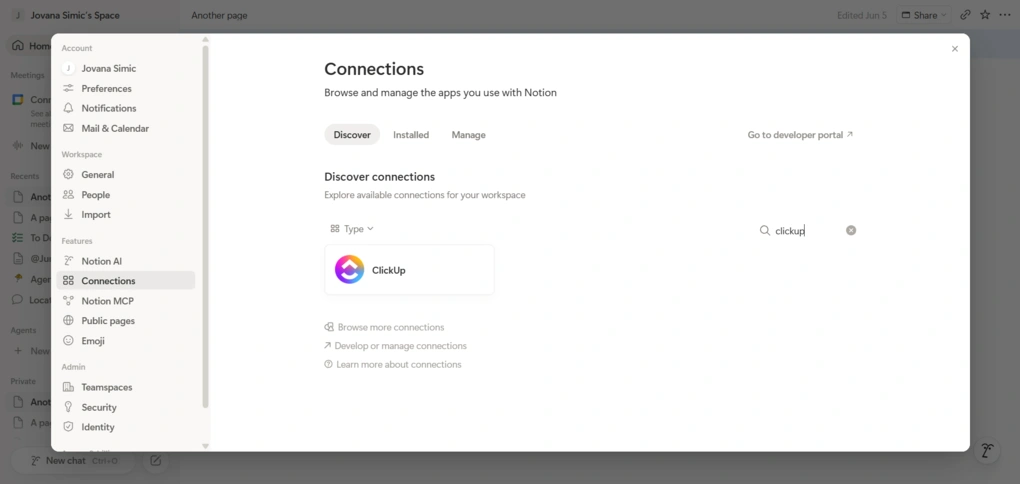
First, open Settings → My connections in Notion and connect your ClickUp account. Once connected, you can paste ClickUp task links directly into Notion pages and choose Paste as preview to view task details without leaving Notion.
You can also connect Notion inside ClickUp by opening App Center → Notion, authorizing your Notion workspace, and granting the required permissions. After connecting the two tools, you’ll be able to search Notion pages and databases directly from ClickUp and keep project documentation and task management closely connected.
🔎 Read my full review: My Honest ClickUp Review After Using It For +3 Months (2026)

Zapier
Zapier is a no-code automation platform that connects Notion with thousands of other apps, allowing users to automate repetitive tasks and build workflows without writing code.
Quick verdict
Users who want to automate workflows between Notion and thousands of other apps
Users who only need a few basic integrations and do not require automation
Connects Notion with thousands of apps through powerful no-code automations
Costs can increase quickly as workflow usage grows
What I liked
What could be improved
What you get after connecting Zapier to Notion
Automated Database Updates: The first workflow I tested automatically created a new Notion database entry whenever information was submitted through another app. Setup only took a few minutes, and once it was running, I no longer had to copy information manually between tools.
Connections With Thousands of Apps: What stood out to me most is how many apps Zapier can connect with Notion. Whether you use Slack, Google Drive, Gmail, Calendly, or HubSpot, it is surprisingly easy to build workflows that move information between platforms automatically.
Multi-Step Workflows: I also liked that a single action in Notion can trigger multiple follow-up actions. For example, creating a new database item can automatically send a notification, update another tool, and create a task elsewhere without any manual input.
Automation Templates: Instead of building workflows from scratch, I was able to start with pre-built templates and customize them to fit specific use cases. This made the setup process much faster, especially for common workflows.
Advanced Workflow Controls: For more complex automations, Zapier includes filters, conditional logic, scheduling options, and webhooks. While most users will probably never need all of these tools, I liked having the flexibility to create more advanced workflows when necessary.
Pricing
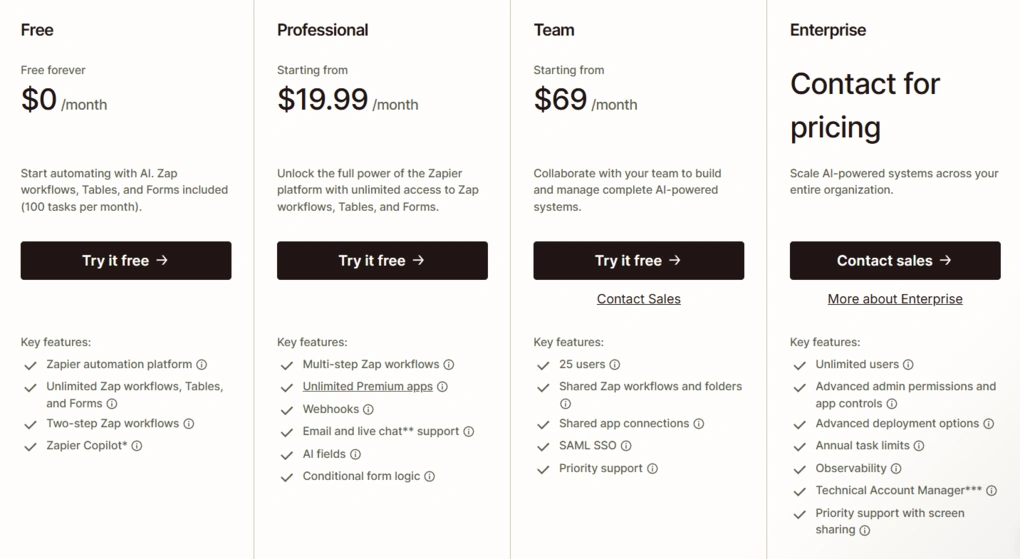
- Free plan available
- Professional plan: $19.99/month
- Team plan: $69/month
- Enterprise plan: Custom pricing
How to connect Zapier to Notion
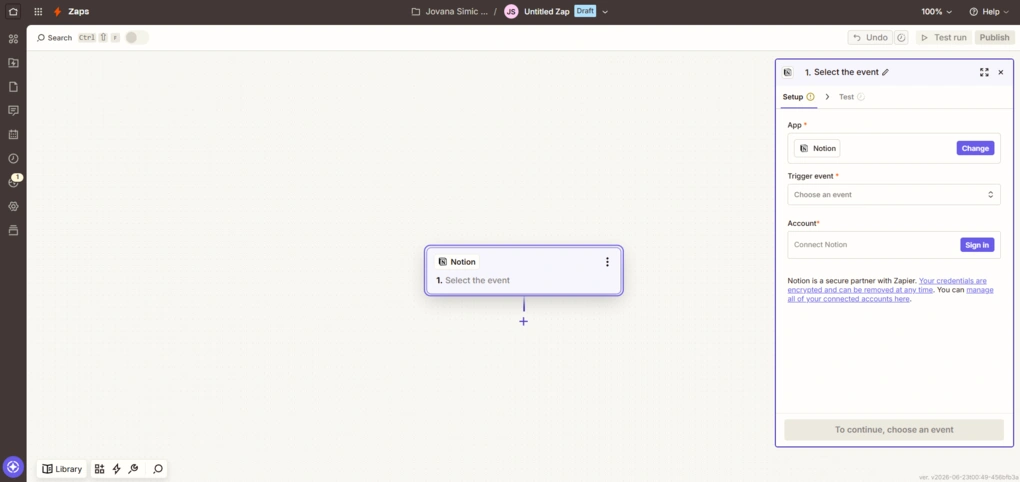
First, create a Zap in Zapier and connect your Notion workspace. Then choose Notion as either the trigger or action app, select the database you want to use, and configure the workflow. Once activated, Zapier will automatically move information between Notion and your other apps.

Softr
Softr is a no-code app builder that lets users turn Notion databases into client portals, internal tools, directories, and other data-driven applications without writing code.
Quick verdict
Building client portals, internal tools, and business apps from Notion data
Users who need highly custom frontend design or full coding flexibility
Turns Notion databases into functional apps without code
More limited than fully custom development
What I liked
What could be improved
What you get after connecting Softr to Notion
App building: When I connected Softr to my Notion database, I was able to generate a working app in just a few minutes. Instead of starting with an empty canvas, Softr created pages, navigation, sample data, and the basic structure automatically, giving me something functional to work with right away.
Managing access: I liked how easy it was to create different user roles and decide which Notion-based content each group could access. I could hide specific pages, limit access to certain data, and manage permissions without touching any code.
Client portal creation: Softr works great for creating client portals, internal company tools, directories, and resource hubs. Rather than sharing raw Notion databases with external users, I could present the same information through a dedicated client portal. This felt much cleaner when working with clients, partners, or external stakeholders who didn’t need access to the entire workspace.
Customization: Most changes only required clicking on a page element and adjusting the settings. I could change layouts, update content pulled from Notion, modify visibility rules, and reorganize pages directly from the editor.
Workflow automation: I liked that workflows were built directly into the platform. For example, actions could be triggered when users submitted forms, updated information, or created new records connected to the app, without relying on a separate automation tool.
Pricing
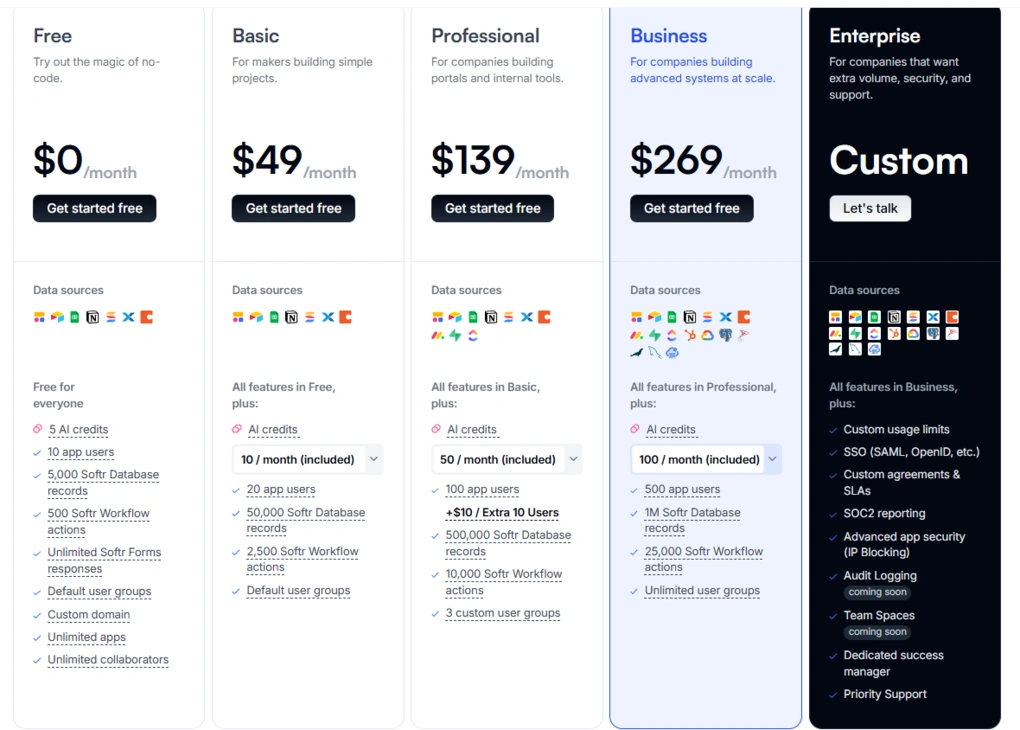
- Free plan available
- Basic plan: $49/month
- Professional plan: $139/month
- Business plan: $269/month
- Enterprise plan: Custom pricing
How to connect Softr to Notion
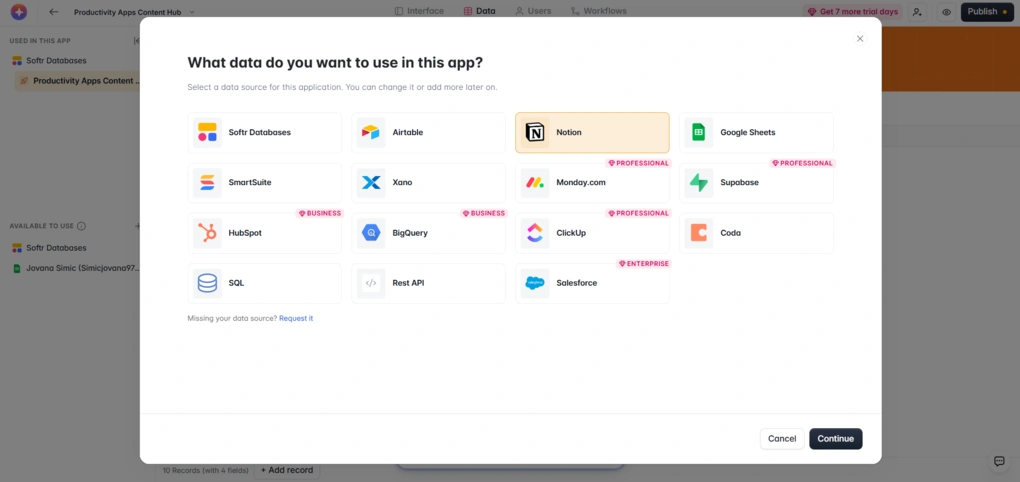
First, open your Softr app and go to Data → Add Data Source. Select Notion from the list of available data sources.
A Notion authorization window will then open. Click Select pages, choose the pages you want to share with Softr, and grant access. Once approved, your Notion data will be available inside Softr and ready to use in your app.
🔎 Read my full review: Softr Review 2026: I Spent $1,668 To See How It Actually Performs
Explore our Apps directory
A curated directory of software tools we’ve independently reviewed, with links to full reviews, comparisons, and category guides.

Jira
Jira is an issue tracking and project management platform that helps software teams manage development workflows, bugs, sprints, and engineering projects while keeping progress visible inside Notion.
Quick verdict
Software and engineering teams that want to connect project documentation with development work
Non-technical users looking for a simple task management solution
Syncs Jira projects and issues directly into Notion
Requires time to learn and configure properly
What I liked about Jira
What could be improved
What you get after connecting Jira to Notion
View Issues: Once connected, Jira issues can be displayed inside Notion as synced databases. I could see issue statuses, assignees, priorities, and due dates without switching between tools.
Track Progress: Jira’s issue tracking is one of its strongest features, and the integration makes that information much easier to access from Notion. I could follow tasks as they moved through different workflow stages and keep development work visible alongside project plans and notes.
Filter and Organize: After syncing Jira data, I could sort issues by assignee, status, priority, or project using Notion’s database views and filters. This made it easier to focus on specific projects without changing anything in Jira.
Share Updates: Not everyone on a team needs to learn Jira. With the integration enabled, product, marketing, and leadership teams can follow project progress from Notion while engineering teams continue working in Jira.
Keep Context Together: I liked being able to keep Jira issues next to requirements, meeting notes, roadmaps, and other project information stored in Notion. This reduced the amount of back-and-forth between tools when reviewing ongoing work.
Stay Up to Date: When issue statuses changed in Jira, those updates appeared automatically in Notion. This helped keep project information current without manually updating multiple systems.
Pricing
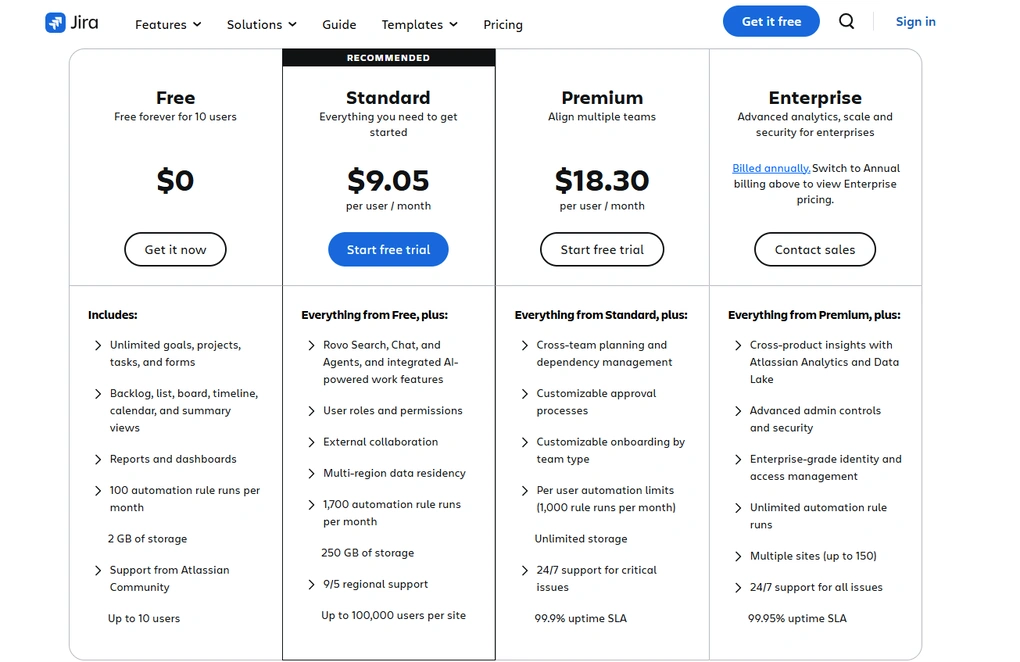
- Free plan available
- Standard plan: $9.05/user/month
- Premium plan: $18.30/user/month
- Enterprise plan: Custom pricing
How to connect Jira to Notion
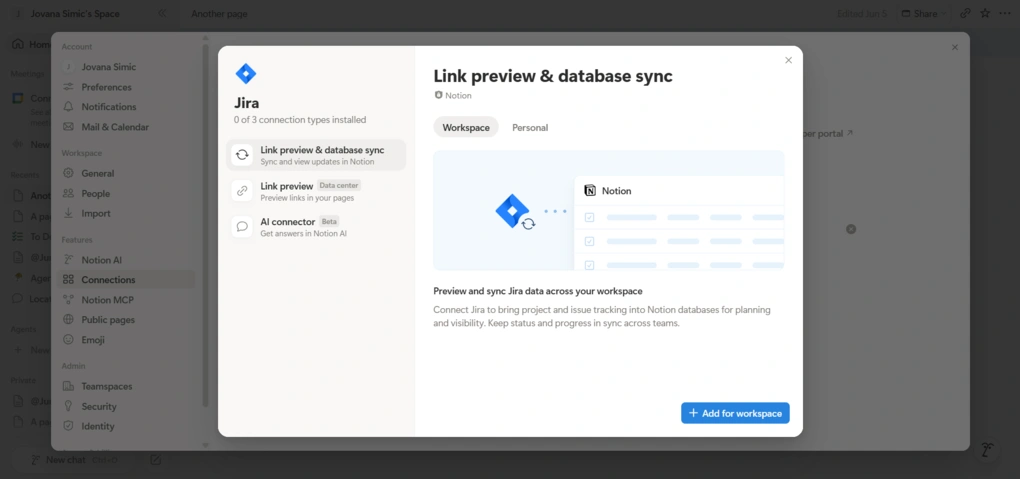
First, open Settings → My connections in Notion and connect your Jira account. Once authorized, copy the URL of the Jira project you want to sync. Then paste the link into a Notion page and select Paste as database. Notion will automatically create a synced database containing your Jira issues.
After the database is created, Jira issues will stay synced with Notion automatically. You can filter, sort, and organize the data using Notion views while continuing to manage the actual issues in Jira.
🔎 Read my full review: Brutal Honest Jira Review 2026 | Before You Use It

Slack
Slack is a team communication platform that lets users share Notion pages, receive database notifications, and turn conversations into actionable work without leaving Slack.
Quick verdict
Teams that want to connect communication with project documentation
Individuals who don’t collaborate through Slack channels
Brings Notion content directly into team conversations
Most of the value depends on your team actively using Slack
What I liked
What could be improved
What you get after connecting Slack to Notion
Share Pages: When I pasted a Notion link into Slack, it automatically generated a preview of the page. Instead of asking teammates to open a separate tab just to understand what I was sharing, they could immediately see the title, content, and context of the page directly in the conversation.
Get Database Updates: I could send Notion database notifications to specific Slack channels and receive updates when tasks were assigned, statuses changed, or new records were added. I could follow project activity from Slack instead of opening Notion every time something changed.
Save Important Messages: One thing I liked is that Slack messages can be sent directly to a Notion database. I could save feature requests, feedback, meeting takeaways, and action items directly to a Notion database instead of leaving them in Slack
Keep Conversations Connected: Project discussions often happen in Slack, while plans, notes, and documentation live in Notion. Connecting the two meant I spent less time jumping between tools and searching for information.
Share Information Faster: Instead of copying summaries or manually updating teammates, I could simply share a Notion page in Slack. This was especially useful for meeting notes, project updates, and internal documentation that needed to be distributed across multiple channels.
Automate Team Workflows: Slack workflows can also interact with Notion. For example, teams can collect requests through Slack forms and automatically send them to a Notion database, so new submissions appeared in the right place without any manual sorting or data entry.
Pricing
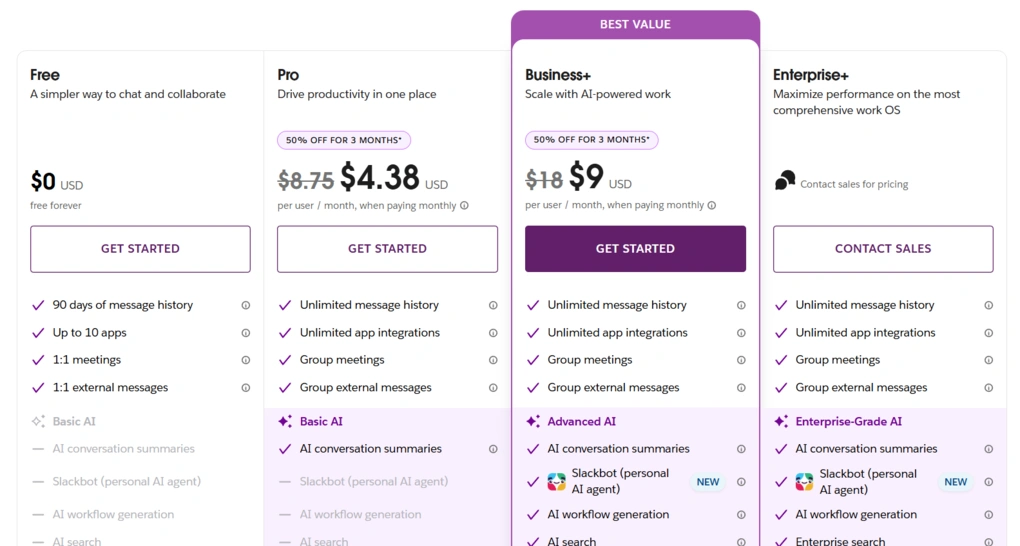
- Free plan available
- Pro plan: $4.38/user/month
- Business+ plan: $9/user/month
- Enterprise+ plan: Custom pricing
How to connect Slack to Notion
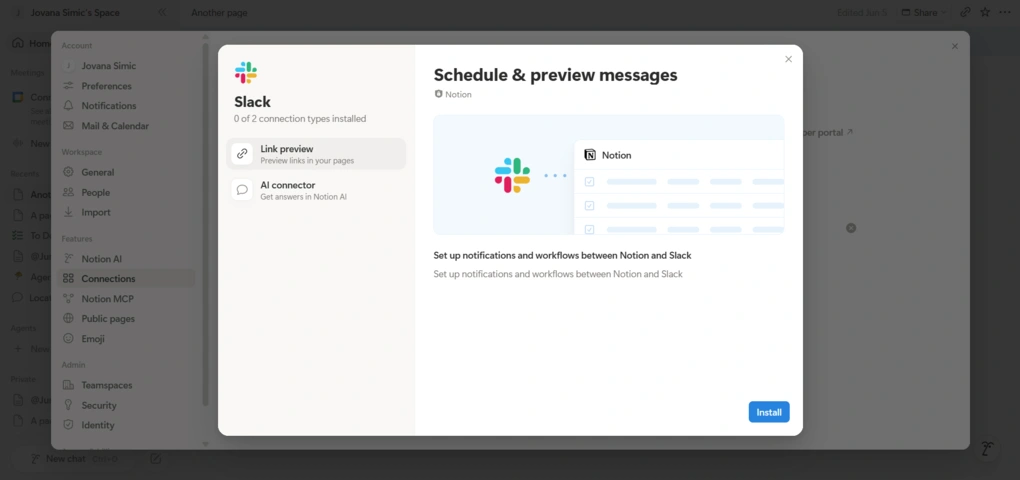
First, open Settings → My connections in Notion and connect your Slack workspace. Once authorized, you’ll be able to use Slack notifications, page previews, and message-to-database features.
To receive database updates in Slack, open the Notion database you want to track, click ⋯ → Automations, create a trigger, and select Send Slack notification to… as the action. Then choose the Slack channel where you want updates to appear.
After setup, you can share Notion pages directly in Slack with rich previews, send Slack messages to Notion databases, and receive notifications whenever important changes happen in Notion.
Final thoughts on best Notion integrations
Notion is a great workspace on its own, but the right integrations can help you get much more out of it.
Whether you want to automate workflows with Zapier, improve communication through Slack, share documents securely with Papermark, build apps with Softr, or manage projects through ClickUp and Jira, there’s an integration for almost every use case.
Hopefully, this list helped you find the right Notion integration for your workflow. As always, I’ll continue updating it as new integrations and features become available.
Looking for similar tools?
Visit our library of PDF editors to explore other apps we’ve reviewed in this space and how they compare.
Why you can trust our reviews
At thebusinessdive.com, our team tests, reviews, and compares hundreds of productivity apps every year — from project management tools to note-taking apps. We dive deep into real-world use cases to help you find the right tools that actually improve your workflow, not just add noise.
Our mission? No fluff, no shortcuts—just honest, hands-on insights from productivity pros.
Discover how we stay transparent, read our review methodology, and let us know about any tools we missed.
Frequently Asked Questions
What are the best Notion integrations?
There are many great Notion integrations available today. Zapier is excellent for automation, Slack helps teams collaborate, Papermark improves document sharing, Softr turns Notion databases into apps, and Jira works well for software development teams. Other popular Notion integrations include Google Calendar, Figma, Miro, Asana, Trello, and Google Sheets.
Can I connect Notion with Google Calendar?
Yes. You can connect Notion with Google Calendar to sync Google Calendar events, deadlines, and reminders. This helps keep meetings, project timelines, and tasks in one centralized location instead of switching between multiple apps.
Can Notion automate repetitive tasks?
Yes. By connecting Notion with automation tools like Zapier, you can automate repetitive tasks such as creating database entries, sending notifications, updating records, syncing data between platforms, and reducing manual data entry across your everyday work apps.
Can I sync a Notion database with Google Sheets?
Yes. Many users sync a Notion database with Google Sheets to work with real-time data, build reports, create embeddable charts, and perform more advanced analysis. This setup is particularly useful for teams that rely on data-driven decisions and need information from multiple systems in one place.
Can Notion replace project management tools?
For simple workflows, Notion can work as an all-in-one workspace for documentation, tasks, databases, and knowledge management. However, teams with more complex project management needs often connect Notion with dedicated tools like Jira, ClickUp, Asana, GitHub, or Microsoft Teams to access advanced workflows, custom workflows, issue tracking, and team collaboration capabilities.
Disclosure: I only recommend products I would use myself, and all opinions expressed here are our own. This post may contain affiliate links that, at no additional cost to you, may earn a small commission. Read the full privacy policy here.

Hey! I’m Jovana, a content writer who loves writing, researching, and testing new productivity apps. With a background in philosophy, I bring a thoughtful but no-bullshit approach to everything I do. Let’s connect on Linkedin!