



How to Use Jira: Step-by-Step Guide for Beginners
Jira can feel overwhelming at first, and it’s not a surprise since it’s full of features and functions. Even a guy like me who tests apps daily took me some time to understand how to use Jira.
But once you learn the basics of how to use Jira, it’s a practical way to organize tasks, track progress, and help team members work together.
Here, I will show you everything step by step — workspace setup, project management, and connecting workflows.
Let’s dive in!
What is Jira?

Jira is Atlassian’s project management tool. Originally built for software development teams to track bugs, but IT, marketing, HR, and operations use it for agile work.
- Perfect for Scrum or Kanban teams (tasks, processes, real-time visibility)
- Unlike a basic to-do list, you can customize boards + run reports to prioritize, track, and see what’s happening
From a simple task management to a complex product launch, Jira helps you organize tasks and manage work.
Wondering if Jira is the right project management tool for you?
Check out my Jira review here.
Step-by-Step Guide to Using Jira
You’re likely using Jira Cloud (most common for beginners). I made these steps detailed so you can skip the usual setup mistakes.
Step 1 – Creating a Workspace
Before managing tasks, you need a workspace. That’s Jira’s name for your team’s home. Here’s the setup:
- Go to Atlassian’s site. Click “Get it free.” Sign up with a work email or Gmail to create a Jira account.
- Choose the Free plan. Works for up to 10 users. Includes boards and basic reports.
- Pick a unique URL. Like yourcompany.atlassian.net. Make it memorable.
- Verify your email. Then you’ll see the main dashboard.
- Invite teammates right away. Settings (gear icon) > User management > Invite users. Add emails. Grant Atlassian access.
Pro tip: Use business email addresses when inviting people. It makes things much easier to manage later on.
Step 2 – Adding a Project
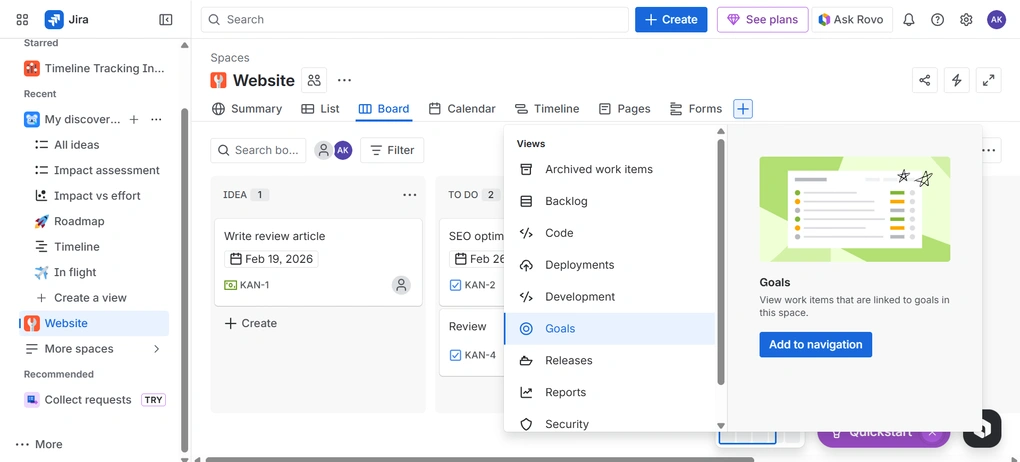
If you are looking for projects in Jira, you’re not going to find them, at least in this way. Instead of projects, Jira uses spaces to better represent the workflows as flexible, ongoing work containers rather than just time-bound projects.
In Jira, a project serves as a container for all associated tasks. For instance, you may have two projects: “Customer Support Tickets” and “Website Redesign.”
When creating spaces, you can choose from numerous templates for software development, marketing, finance, product management, and more. It takes 30-40 seconds, and Jira will add it to your workspace.
Step 3 – Adding Tasks
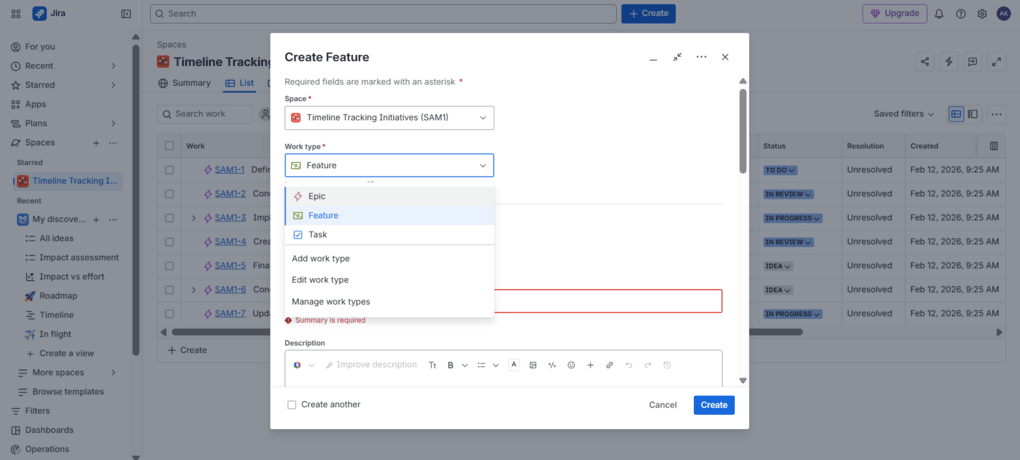
In your spaces, you can create tasks with a few clicks. But the tasks can be different work types, like a feature, an epic, or a simple task. You can customize and add work types to your workflows.
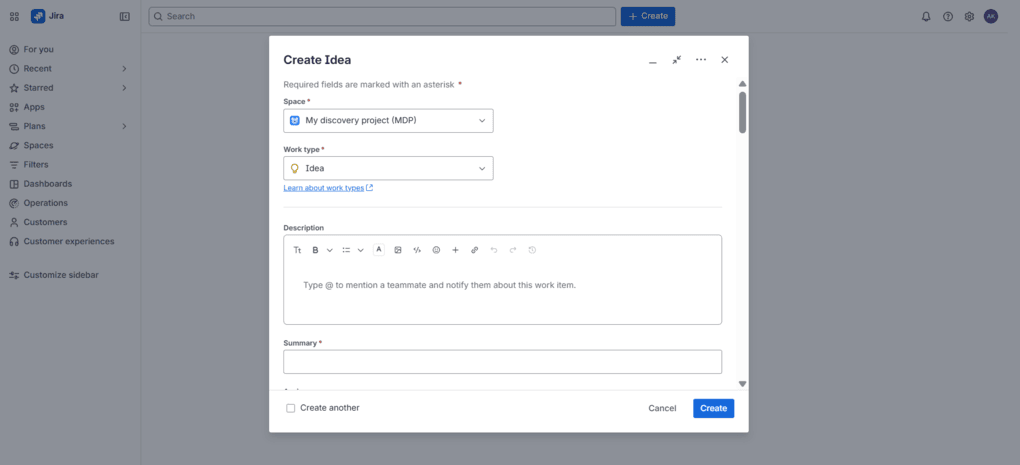
Look for the blue Create button (top of screen) or + on your board. A pop-up appears. Fill out:
- Work Type: “Task” or “Epic” or “Feature”
- Summary: Short and action-driven. Bad: “Fix website.” Good: “Fix broken ‘Contact Us’ form validation.”
- Description: Add details, links, screenshots. Use bold or bullets.
- Assignee: Pick who’s responsible.
- Priority: Highest → Low. Be honest.
Click Create — it shows up in “To Do.”
Sub-tasks (optional): Open the task → More (···) > “Create sub-task.” Example: “Launch newsletter” → “Write copy,” “Design banner,” “Send test email.”
Power tip: Use Jira’s quick-create shortcut for faster actions. Press the C key on your keyboard from anywhere in Jira to instantly open the task creation window.
Step 4 – Visualizing Projects
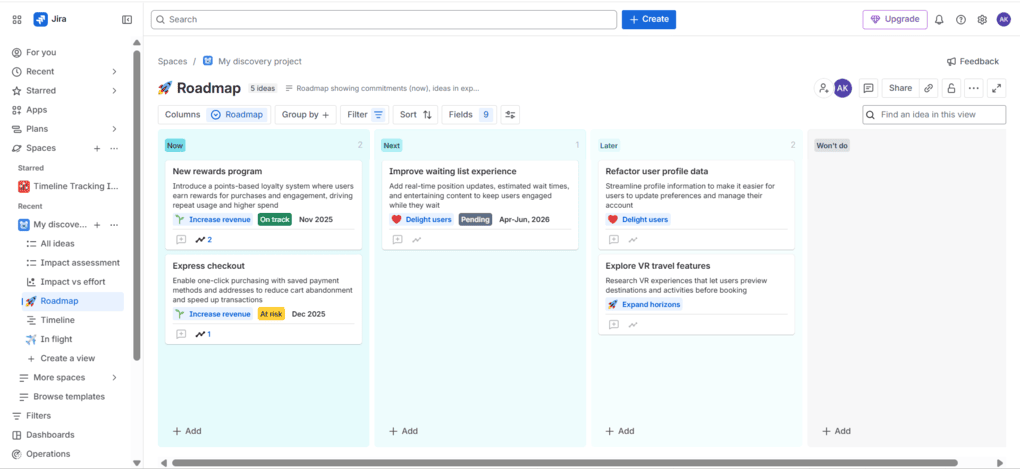
Jira’s real magic is its visual boards. A board shows all tasks as cards that move through columns representing your workflow stages.
- Go to your project and click the Board link in the sidebar (for Kanban) or Active sprints (for Scrum).
- Customize your columns: Click the Board settings button (gear icon, usually top-right). Under “Columns,” you can rename, add, or remove columns.
- Default Kanban columns: To Do, In Progress, Done.
- Better columns for beginners: Backlog, To Do, In Progress, Review/QA, Done.
- Drag and drop cards: Take your task (e.g., “Fix broken form”) and drag it from “To Do” to “In Progress.” Then drag it to “Done” when finished. The card’s status updates automatically.
- Add swimlanes: Swimlanes are horizontal rows that group tasks. Click Board settings > Swimlanes. You can group by assignee (“Show all of Anna’s tasks in one row”) or by priority (“Show all High priority tasks at the top”).
- Use fast filters: You may make filter buttons above the board, such as “Only show my tasks” or “Only show blocked tasks.” When you have more than fifty cards on your board, this is helpful.
Example: A marketing team might set columns to: Drafting → Design → Legal Review → Ready to Publish → Live.
As the graphic designer finishes a Facebook ad, they drag it from “Drafting” to “Design.” The copywriter sees it move and knows it is no longer their responsibility.
Step 5 – Task and Issue Tracking
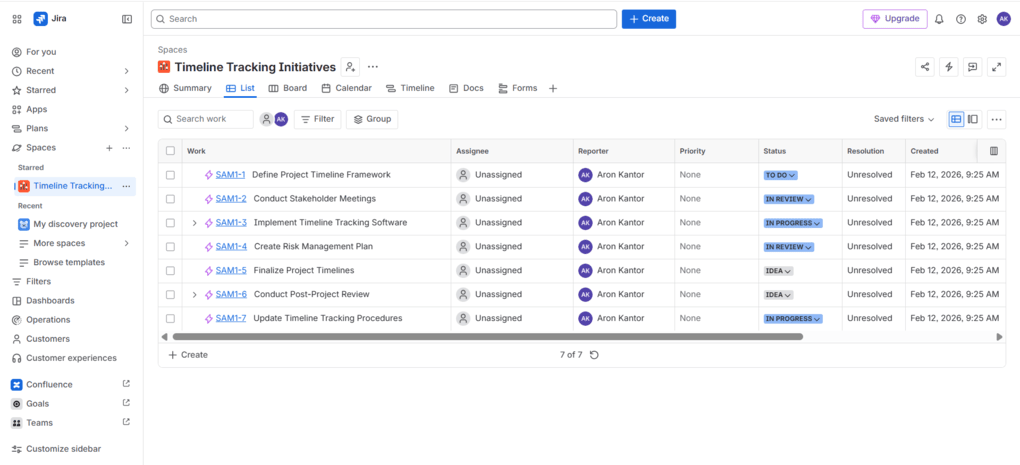
Tracking is what separates Jira from a simple whiteboard. You can see exactly who did what, when, and why.
- Unlike a whiteboard, Jira tracks everything. You see who did what, when, and why.
- Click any card → the issue detail view opens with an activity log on the right.
- Tag people: Type @username in a comment. Example: “@John, here’s the broken form screenshot. Can you check by 3 PM?” John gets an email.
- Log work hours: Go to More (···) > Log work, enter 2h 30m + a comment. That updates timesheets and burndown charts.
- Move tasks along: Click “In Progress” or “Done” at the top. If something’s blocked (e.g., waiting on client), set status to “Blocked” and add a reason.
- Find anything: Use the Issues menu or search bar. Filter by assignee (assignee = currentUser()), date (created >= -7d), or label. Save frequent searches as one-click filters.
How does it work in practice? Your manager asks, “Why is task QM-12 still open?” You open the task, scroll to the activity log, and see that you commented “Waiting for legal sign-off” three days ago. Furthermore, you notice that the assignee has not logged any work since then, so you know where the process is exactly and how to take the next step.
Step 6 – Integrating Jira Into Your Workflows
A standalone project management tool is useful, but a connected tool is transformative. Integrating Jira into your existing workflows means your team no longer needs to switch between 5 different apps to update a task status.
Start with these essential integrations:
- Slack: Auto-post high-priority tasks to a channel. Create Jira issues with /jira create.
- GitHub / Bitbucket: Link commits and pull requests to Jira issues. Push a message like QM-12 fixed the form – Jira auto-comments with the commit link.
- Google Drive / Microsoft Teams: Attach Drive files without downloading. Pin the Jira tab in Teams to view your board without leaving chat.
Many teams use Jira for internal work (bugs, features, sprints) and Salesforce for customer-facing data (cases, opportunities, accounts). The problem? These two systems often live in silos.
A support agent resolves a Salesforce case, but the engineering team never knows. A salesperson promises a feature in an opportunity, but the product manager cannot see that promise.
This is when it makes sense to think about connecting Jira with Salesforce. If you connect both platforms, you can:
- Bidirectional sync: A high-priority Salesforce case automatically creates a Jira bug. When a developer moves that bug to “Done,” the Salesforce case status updates to “Resolved – Fix Deployed.”
- Contextual data: From within a Jira issue, you can see the related Salesforce opportunity amount, account owner, and case history. No more “What customer requested this?” confusion.
- Automated SLAs: If a Salesforce case is marked “Urgent,” Jira creates a task with a 24-hour due date and assigns it to the on-call engineer.
To set this up without writing custom code, many teams use a dedicated connector. You can learn more about the best practices and technical setup through this resource on Jira Salesforce integration.
This integration is particularly valuable for organizations where customer success, sales, and product development share responsibility for the same deliverables.
Other workflow automations (no coding required):
- Navigate to Automation under Project Settings.
- Make a rule: Send a message to the #urgent Slack channel and designate the job to the Project Lead when its priority shifts to “Highest.”
- Another rule is to add a label “stale” and ping the assignee in Jira when a task has been in “In Progress” for five days without a remark.
Your workflow becomes a single, cohesive system instead of a collection of disparate phases when you integrate Jira with your development, communication, and CRM applications.
Final thoughts: How to use Jira
Jira is a robust project management tool with a steep learning curve. However, in the right hands, it can become a versatile engine for any team that values openness, accountability, and continuous progress.
When getting started with Jira, first you need to understand the basics, such as creating a workspace, adding work items, checking the project types, visualizing projects, and collaborating with your team members.
Do not try to enable all features on the first day. Begin with a simple Kanban board with three columns. Once your team is comfortable, introduce Scrum sprints, then automations, and lastly complex connections such as Jira-Salesforce.
And after these, focus on continuous improvement: watch tutorials, discover more advanced topics and features, and more.
Frequently Asked Questions
Is Jira free for small teams?
Yes. The Free plan includes up to 10 users and core features like boards and reports, which is sufficient for most new teams.
Can I use Jira for HR or marketing projects?
Yes. Atlassian offers templates for different departments. Choose one and customize the columns to fit your process.
What are the main differences between Jira products?
Jira Software is designed for development teams, while Work Management is lighter and better for business users. Jira Service Management focuses on support and request handling.
Beginners usually start with Jira Software.
How do I delete a task in Jira?
Issues cannot be permanently deleted. Mark them as Done to preserve history. Only administrators can delete test items.
Does Jira work with Gmail or Outlook?
Yes, through Marketplace integrations that allow you to turn emails into tasks easily.
What is an Epic?
An Epic is a large project that groups several smaller tasks. It helps organize related work and keep the board clear.
Why is my board missing some tasks?
Review your board filter and confirm that all statuses are mapped to columns.
How long is the Jira learning curve?
The basics can be learned in a few hours. Full proficiency usually develops over 2–4 weeks.

Hey there! I am Aron, the founder of Thebusinessdive. I have been testing productivity apps for almost three years now. I reach 25.000 -50.000 people monthly with the mission to help you find the perfect productivity apps. Subscribe to my YouTube channel, newsletter, and social media to hear more about the best productivity tools. Let’s dive in!
