



Brutal Honest Jira Review 2026 | Before You Use It
Jira is one of the most popular project management apps, but is it worth it these days? After testing 20+ project management apps, I will answer this question shortly.
Stay here, because in this brutally honest Jira review, I will share insights from 3 years of experience in testing project management software and help you decide whether this app is for you or if you should look elsewhere.
Let’s dive in!
Verdict
Here’s the quick verdict if you don’t want to read the full review:
🎯 Best for: Software, IT, and agile teams needing deep customization and issue tracking
🚫 Not ideal for: Small teams or non-technical users looking for simplicity
⭐ Biggest strength: Unmatched customization and powerful workflows
⚠️ Biggest weakness: Steep learning curve and complexity
⚖️ Verdict: Jira is one of the most powerful project management tools on the market, especially for software teams, but its complexity makes it overkill for most general use cases.
🏆 Score: 4.3 / 5
✅ Tested with our review & scoring methodology ✅ Real-world testing ✅ Unbiased evaluation
Jira
Summary
Jira is a project management and issue tracking tool developed by Atlassian. It was primarily designed for agile project management and is particularly effective for software and IT teams. Nonetheless, its extensive feature set can be daunting and overwhelming for beginners and teams that need a simple project management app.
|
|
Numerous customization options
|
|
|
You can connect it with numerous third-party apps through its marketplace
|
|
|
Advanced AI features
|
|
|
Solid free plan
|
|
|
Ideal for software, IT, and tech-heavy teams
|
|
|
Native integrations with developer tools (Bitbucket, GitHub)
|
|
|
Extremely long learning curve
|
|
|
You need to buy the Jira service management and Confluence separately
|
|
|
Not ideal for individuals or small teams looking for a simple solution
|
|
|
The space-focused approach, instead of project focus, might be confusing first
|
How We Test Project Management Tools
To keep our reviews & final score for each project management app fair and consistent, we evaluate every tool using the same testing framework based on real-world usage, feature depth, and overall value.
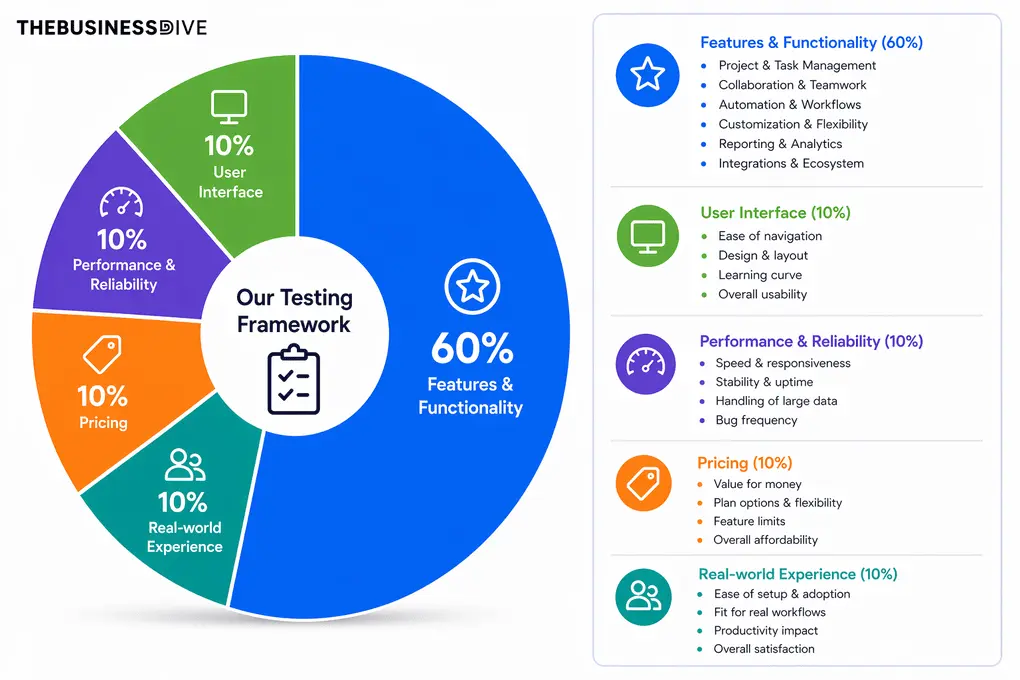
Our scoring breakdown after testing 20+ project management apps:
⚙️ Features & functionality — 60%
🖥️ User interface — 10%
⚡ Performance & Reliability —10%
💰 Pricing — 10%
👥 Real-world experience — 10%
Want a detailed breakdown of how we test each category?
Learn exactly how we test tools → Review methodology
Short on time? Here’s a quick overview of Jira
What is Jira?
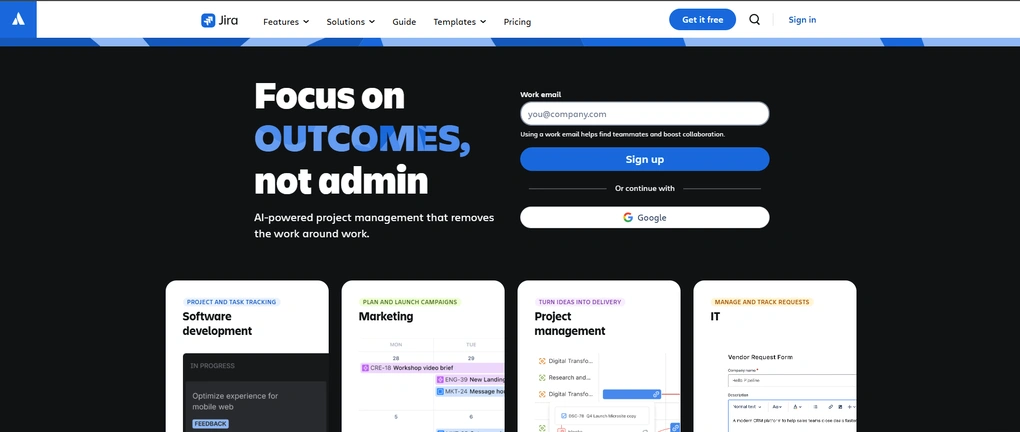
Jira is a project management and issue tracking tool developed by Atlassian. It was primarily designed for agile project management and is particularly effective for software and IT teams.
Jira offers agile boards (Scrum/Kanban), reporting, and customized workflows to visualize work progress and track projects.
It’s integrated with Confluence, which is a cloud-based team workspace and knowledge management tool ideal for creation, collaboration, and organization.
While this Jira review will mainly focus on the project management features, I will also cover and share my thoughts about Confluence.
My experience with Jira
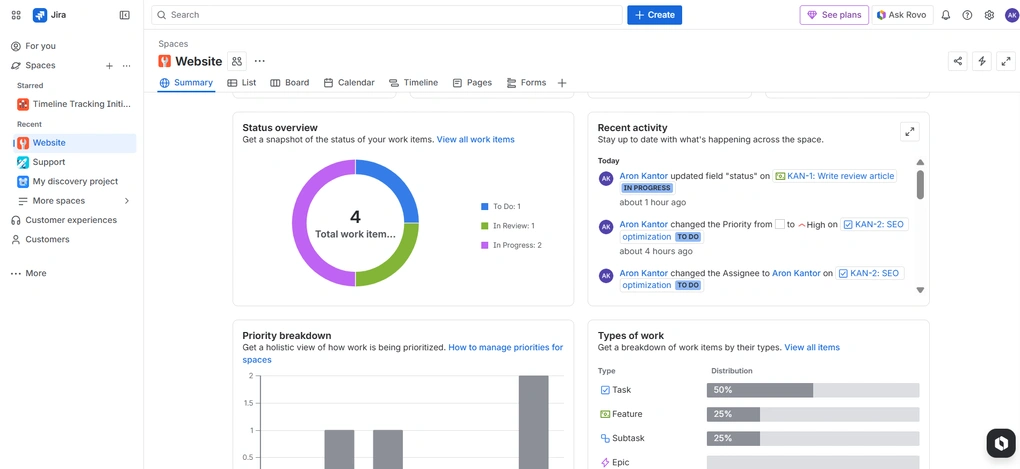
Jira is a powerful and robust project and issue tracking software developed for larger businesses. Its features are mostly useful for technical teams requiring traceable workflows and in-depth reporting. For example, software development businesses, IT DevOps, or tech-heavy teams.
In terms of customization options, Jira is outstanding. You can customize workflows, issue types, custom fields, and a wide range of automations to help reduce repetitive tasks.
Nonetheless, this extensive feature set, options, and space-focused approach can be daunting and overwhelming for beginners.
Most of the teams I talk with require a simple project management app for tracking tasks and projects and collaborating. For those, Jira is an “overkill” app. The time it takes to master it simply does not make sense to them.
Based on my experience during my Jira review, it is an ideal project management app for teams above 100 users and/or those working in a tech-heavy industry.
Why Jira got a 4.3 / 5 score
Jira scored highly because of its exceptional depth in features and customization. It performed near the top across most categories compared to other project management apps we have tested.
However, it didn’t achieve a higher score for a few key reasons.
First, reporting—while solid—is not as intuitive or accessible as in some competing tools, especially for non-technical users. Extracting insights often requires more setup and familiarity with the system.
Second, and more importantly, Jira’s user experience significantly impacts usability. The platform has a steep learning curve, and its structure (like the “spaces” approach) can feel confusing at first.
Even though the interface looks clean, the sheer number of features and configuration options makes it overwhelming, especially for new users or non-technical teams.
Who Jira is a good fit for
Who Jira is not ideal for
Jira’s key features
Here, I collected the tools I tried during my Jira review.
Homepage
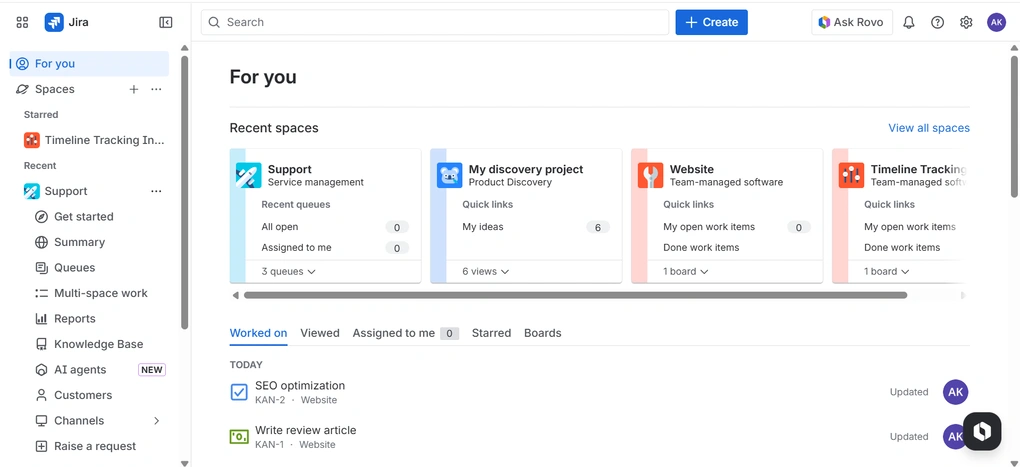
Jira’s dashboard provides a quick look at the recent spaces showing open queries, tasks, and ideas, depending on the type of space.
If you scroll down, you will access the outstanding tasks for today, assigned and viewed tasks, starred spaces, and boards. Unfortunately, I missed the option to customize this page with widgets, for example, showing the timeline view of one of my most urgent projects or a calendar.
Project management
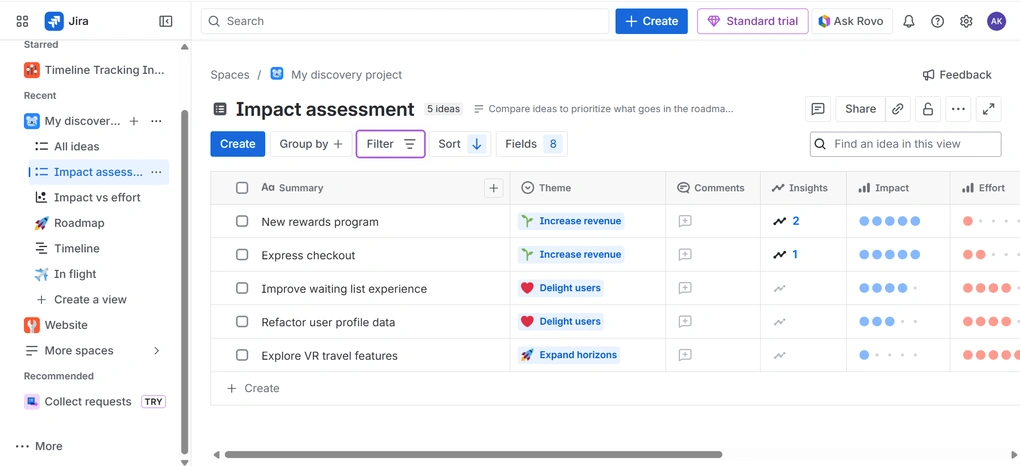
If you are looking for projects in Jira, you’re not going to find them, at least in this way. Instead of projects, Jira uses spaces to better represent the workflows as flexible, ongoing work containers rather than just time-bound projects.
When creating spaces, you can choose from numerous templates for software development, marketing, finance, product management, and more. It takes 30-40 seconds, and Jira will add it to your workspace.
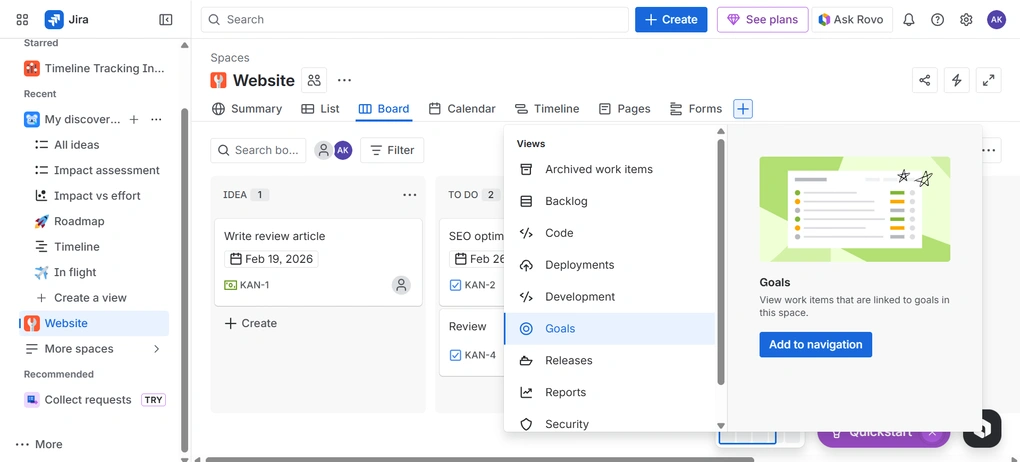
You can visualize project lists, boards, calendars, and timeline views. However, your space (i.e., project) can include way more views and functions, such as goals, backlog, security, etc. You can add these to the navigation panel with a click.
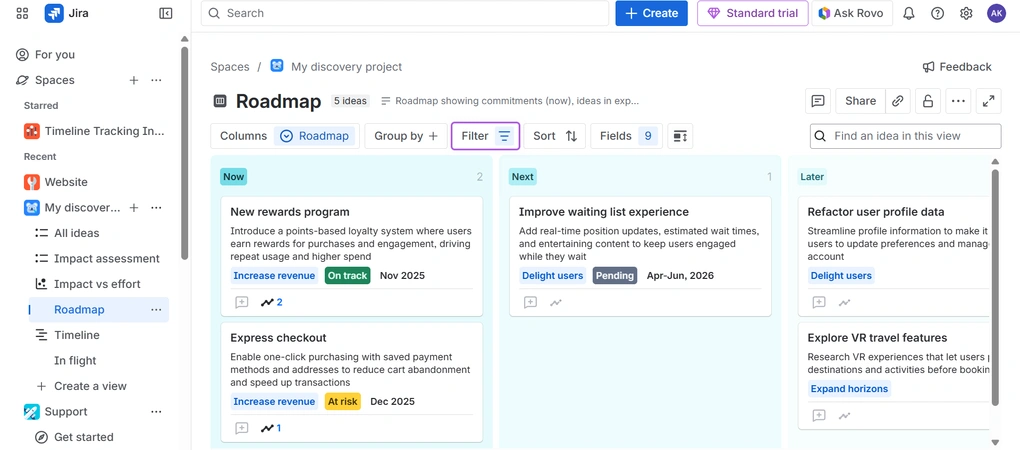
Inside your spaces, you can add further views to give you a picture of your project from a different angle. You have numerous options here, and if you used a template, Jira will pre-fill your space with relevant view options, and you only need to change the parameters.
Task and issue tracking
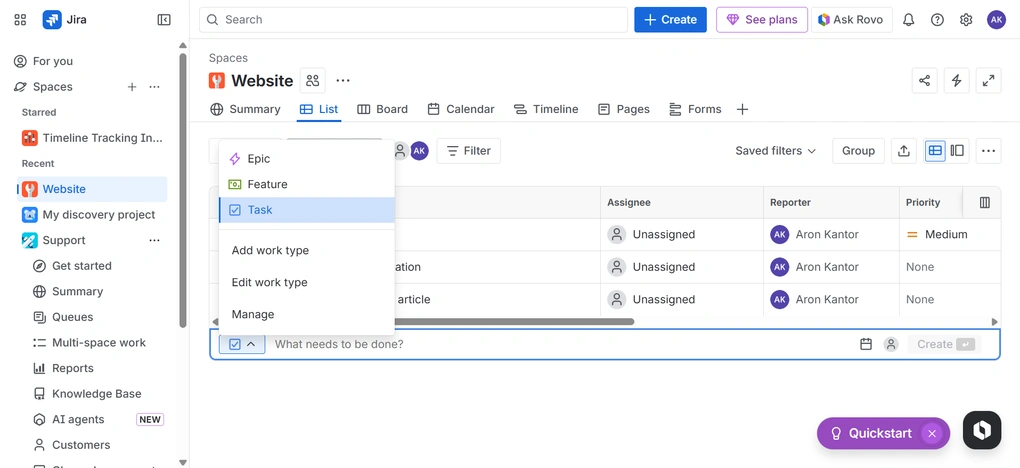
In your spaces, you can create tasks with a few clicks. But the tasks can be different work types, like a feature, an epic, or a simple task. You can customize and add work types to your workflows.
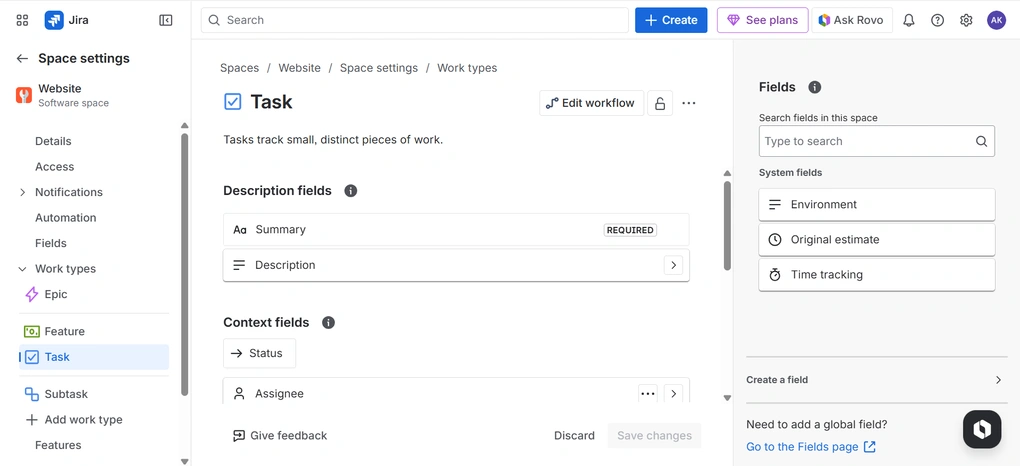
In contrast to the homepage, Jira provides many customization options here. You have full control over what the fields should include. That said, you can add labels, URLs, tracked time, and many other options.
With this feature, you can easily track issues with customizable fields, types, and workflows that match your team’s processes. It allows you to map issues through stages (e.g., To Do, In Progress, Done) and prioritize to efficiently manage issues.
When creating tasks, you only need to type the name, add an assignee, and a due date, and you are good to go. If you click on your task, you can create sub-tasks and link to other work items.
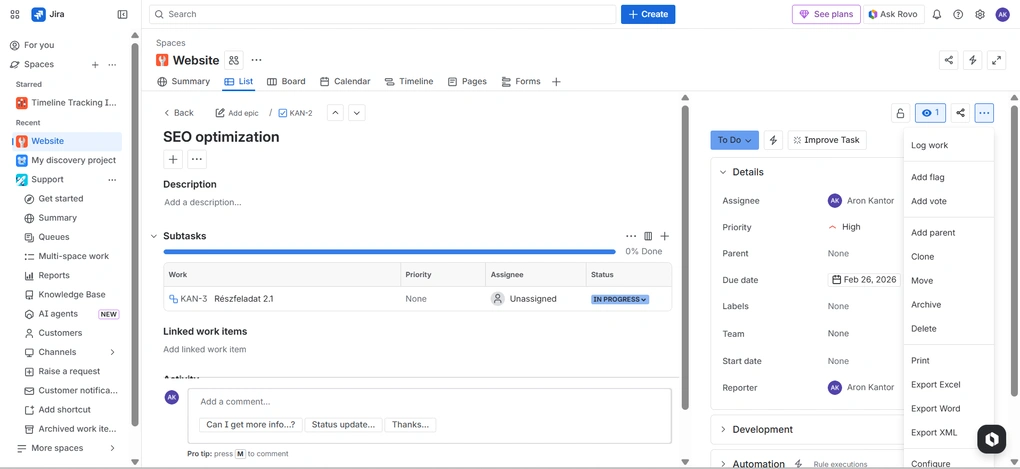
Nevertheless, there are numerous other smaller tools you can use for your tasks. You can move them, add flags, votes, clone them, add to a parent, and export.
Overall, Jira has one of the most robust task and bug tracking features I have tried so far. It not only offers many functions, but you can further customize them to design them for your workflows.
Service management
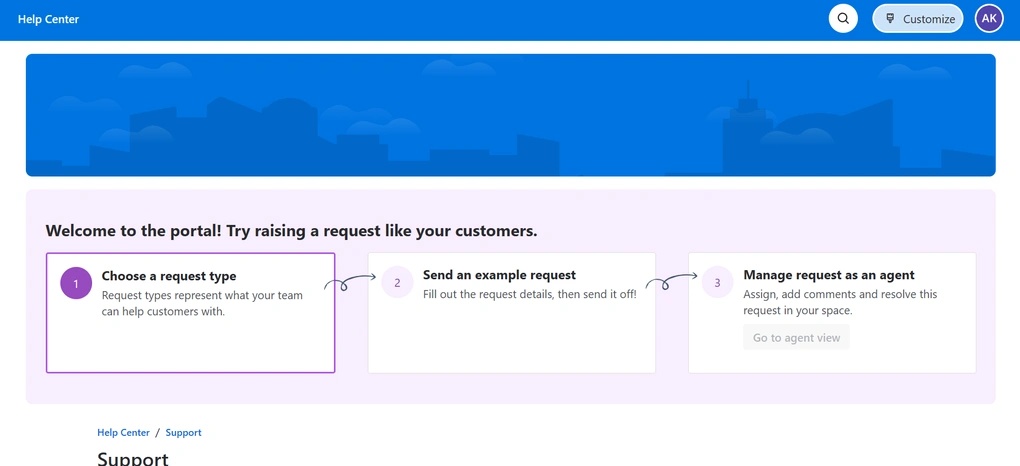
Using Jira Service Management, you can receive, track, manage, and resolve requests from your team’s customers. It allows them to share requests via email, help centers, and an embeddable widget. With this tool, you can categorize requests, issues, and changes and prioritize them in one place.
Jira Service Management enables Customer Satisfaction (CSAT) surveys to collect feedback trends upon ticket resolution.
Just a heads-up: It’s a separate Atlassian product that requires an additional fee to use it. However, Jira Service Management offers a free tier for up to three agents, allowing users to try the product at no cost.
Team collaboration features
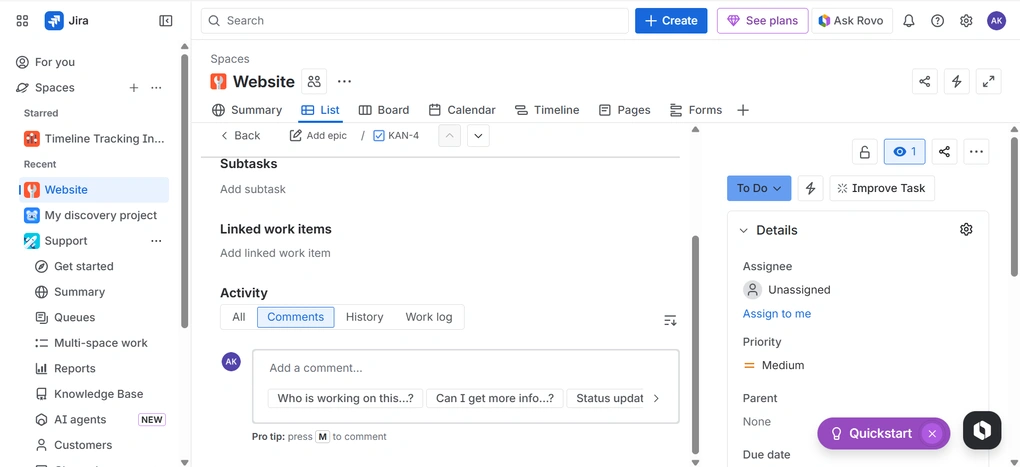
With Jira, you can share spaces and assign tasks to your team members. When you click on the task, you can add comments, mention others, share files, and set up automatic notifications. In addition to assigning tasks to your team members, you can assign them to teams as well.
In your task, you will access the activity history and work log if your team members used time tracking. Furthermore, you can also see team members editing in real-time, with instant updates on issues to avoid duplicate work.
When it comes to the team collaboration features, we also need to cover Confluence. Scroll down, because in the next step of this Jira review, I will guide you through Confluence and what it can offer.
Confluence
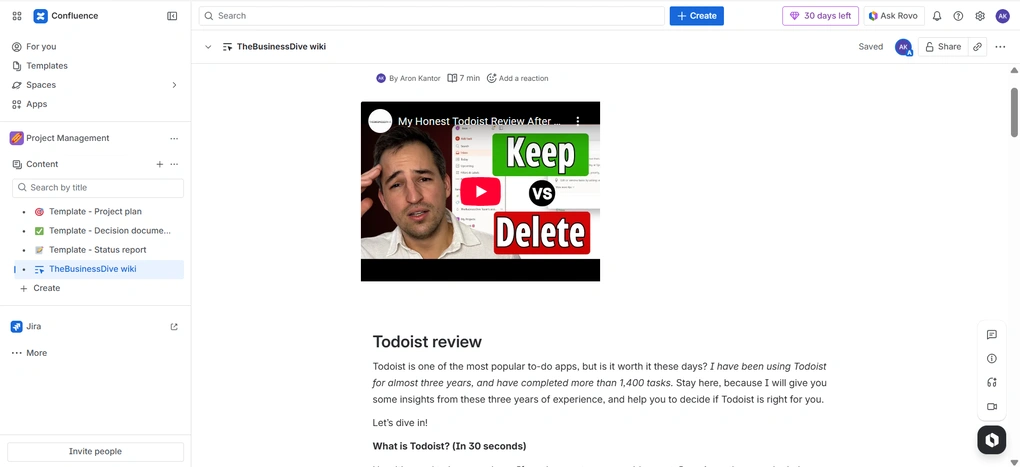
Confluence works as a collaborative knowledge base and documentation hub. It lets you create, share, and organize team knowledge, documents, and meeting notes. So, essentially, it works like a Wiki for your business.
You can create folders to organize content and share them with your team members, but you can keep them private as well. Confluence allows you to add pages, whiteboards, databases, live docs, and more.
It uses a block-based text editor similar to Notion, and you can place headings, pictures, pie charts, links, and many other items in your document.
Confluence is a different product of Atlassian, so even if you use the paid version of Jira, you need to buy Confluence to use it. Nevertheless, up to 10 users can use its basic functionalities for free.
AI features
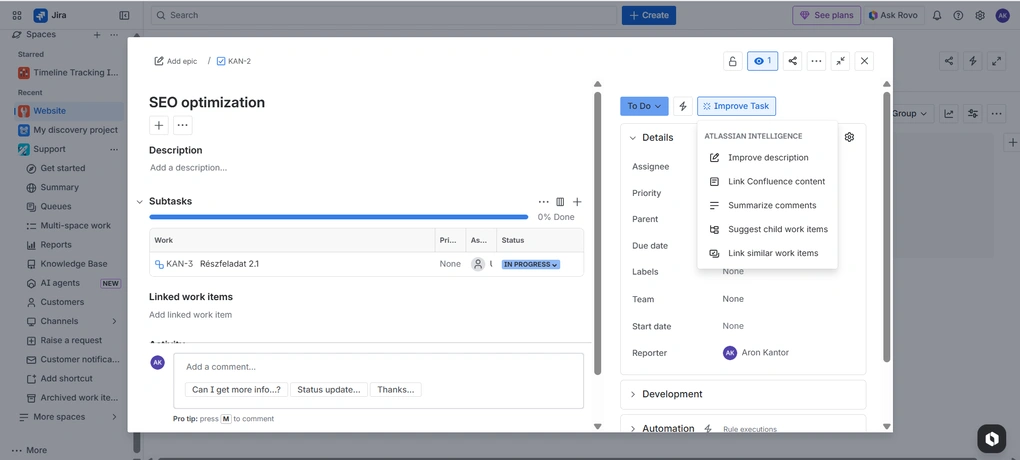
Jira has numerous built-in AI features across the platform. When clicking on a task, just hit the “Improve Task” and you can improve the description, summarize comments, and more. Furthermore, you can use natural language for searching, and Jira uses AI to find the tasks you need.
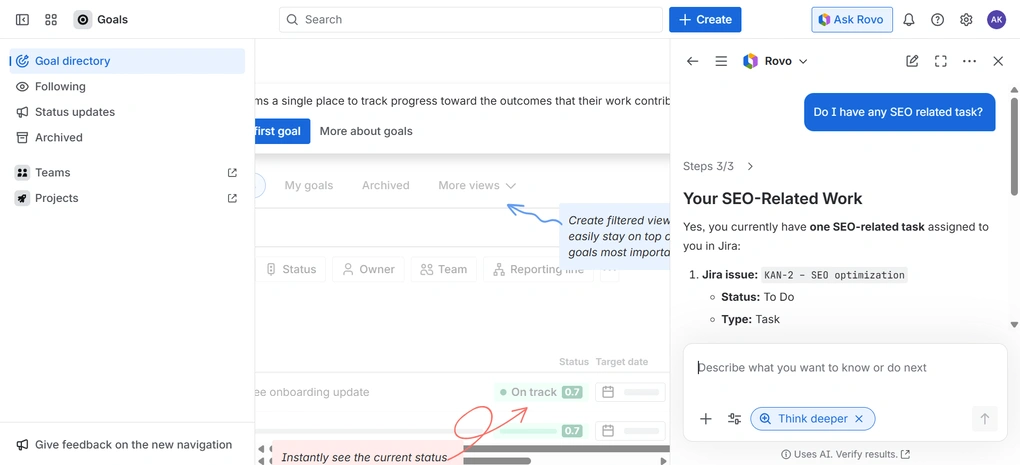
Jira also offers a feature called Rovo. It is an AI-powered assistant designed to accelerate workflows, accessing all the Atlassian tools and third-party integrations. You can use it for finding tasks, creating content, or asking for definitions of acronyms and company jargon.
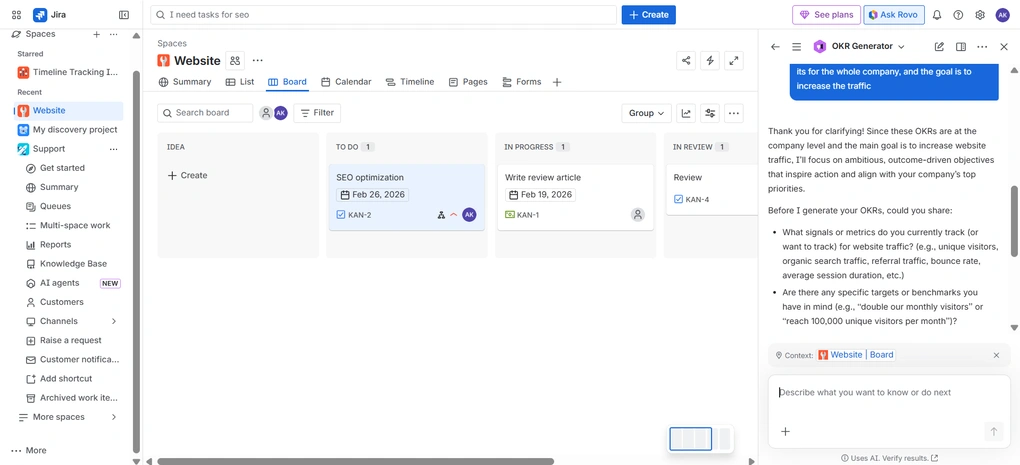
Moreover, with Rovo, you can create AI agents to organize work, automate, write content, prepare OKRs, and more. Based on my experience during Jira review, I found such AI agents useful and helped to avoid switching to ChatGPT when a bit of AI assistance is needed.
Automations
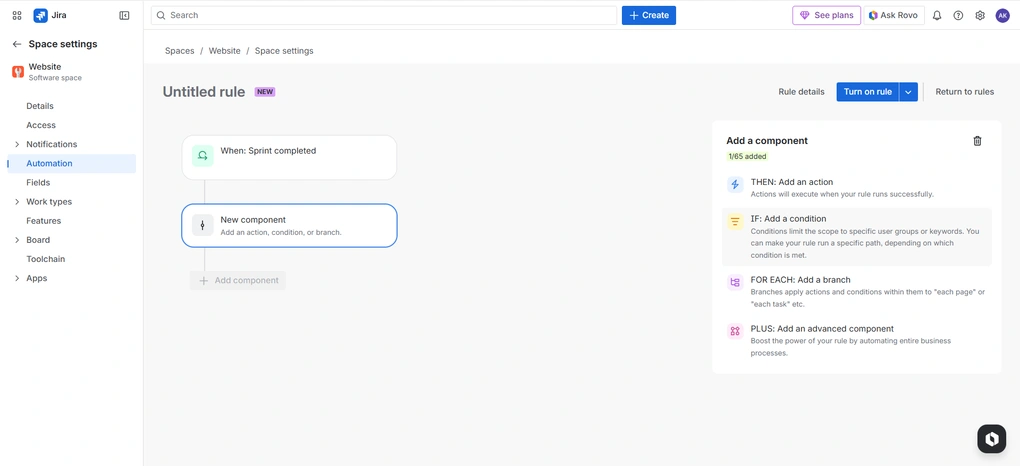
Jira lets you use automations to avoid repetitive manual tasks. For this, the Jira software uses rules. Rules are automations you define in an “If This, Then That” format. Each rule has these elements:
- When: add a trigger
- If: add a condition
- For each: add a branch
- Then: add an action
You can create quite complex automations that include up to 65 components.
Ultimately, you can create powerful automations with Jira. Again, its capacity for components, plus its massive customization options, make it a robust project management app for automations.
Jira’s integrations
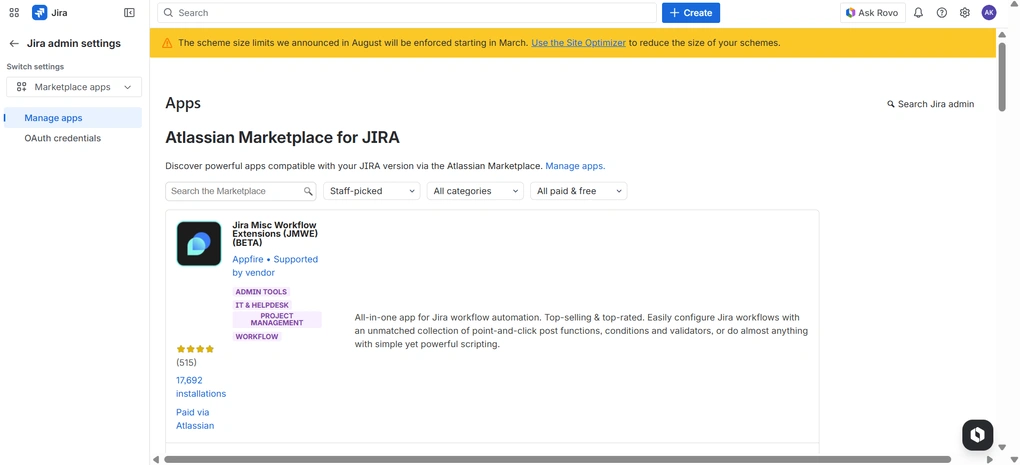
To further improve your experience with Jira software, you can add further apps from the marketplace. Jira has a large app marketplace that allows for extensive integrations with third-party tools. For example, you can download apps for time tracking, creating timesheets, script running, and more.
It supports 1,000 integrations, which you can access through the Atlassian Marketplace. You can filter by pricing, category, use cases, and trust signals to find the ideal apps more easily.
Jira’s user interface
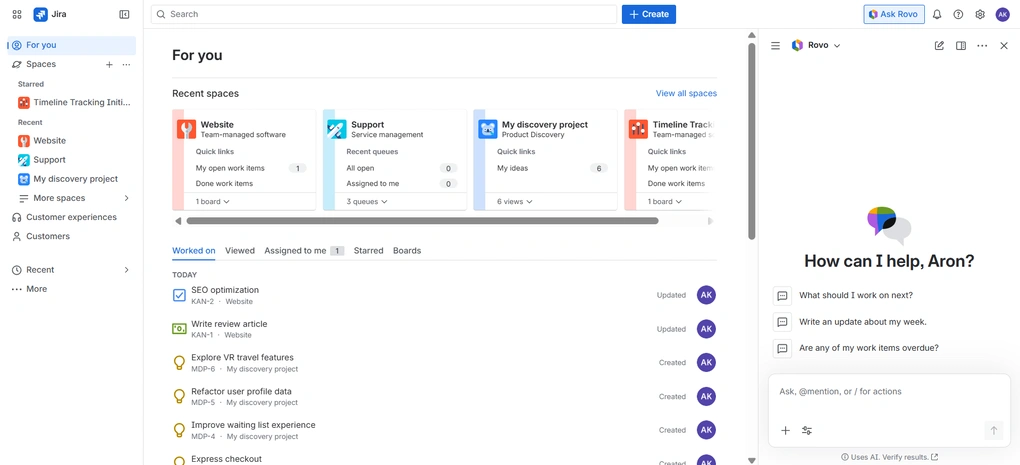
During my Jira review, I discovered that it has a good-looking user interface. You can easily switch between the Atlassian apps and access your spaces fast.
Nevertheless, despite its user interface, Jira is a complex app with a very long learning curve. It’s packed with features, integrations, and customization options, which will take time to learn.
Furthermore, in contrast to other project management apps, Jira utilizes spaces, which makes it even more difficult for beginners to use this app.
Explore our Apps directory
A curated directory of software tools we’ve independently reviewed, with links to full reviews, comparisons, and category guides.
Jira’s pricing
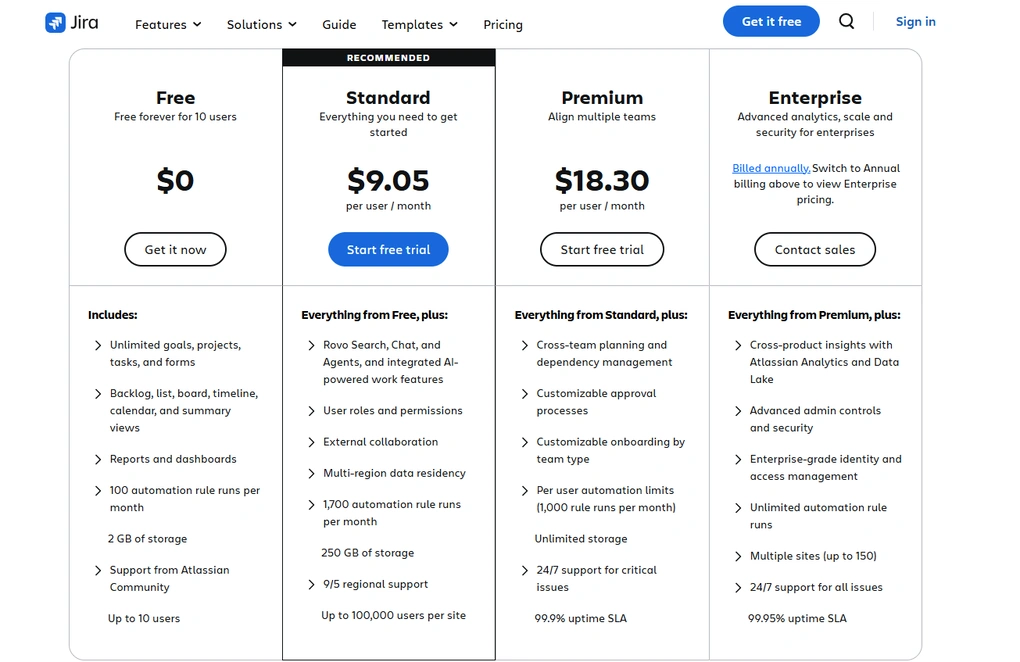
Jira has a free plan and three paid plans. If you need Jira Service Management or Confluence, you need to purchase them separately.
Jira offers a 7-day free trial for its paid plans, which can be extended to 30 days upon request.
Let’s break down the pricing plans of Jira!
Free plan
Jira’s free version includes unlimited goals, projects, tasks, and forms. Also, you will access backlog, list, board, timeline, calendar, and summary views.
Furthermore, you can use the reports and dashboards, and get 100 automations per month and 2 GB storage. You can utilize the Free plan up to 10 users, which is quite good.
To summarize, Jira has a solid free version ideal for smaller teams. However, it can be an “overkill” for small teams in the sense that this project management app is very complex and full of features. Even though it is an ideal free option, if you are looking for a simple solution, Jira is not ideal for you.
Standard plan
Jira offers a Standard plan for $9.05 per user per month with monthly billing. Besides the features in the Free version, it covers Rovo, user roles and permissions, external collaboration features, multi-region data residency, 1,700 automations per month, and 250 GB storage.
The Standard plan for Jira provides access to customer support via a ticket system during business hours.
It’s recommended for mid-sized businesses. Overall, it has decent pricing, although it would be great if it had a higher automation limit.
Premium plan
Jira’s Premium plan is $18.30 per user per month if choosing the monthly billing. It includes everything in the Standard plan, plus cross-team planning, customizable approval and onboarding, 1,000 automations per user per month, and unlimited storage. The Premium plan for Jira offers 24/7 ticket support for critical issues only.
It was developed for mid-sized and large businesses. After testing numerous project management apps, Jira’s Premium plan’s price tag is okay. However, it has some hidden costs, especially if you start integrating it with third-party apps or want to use Confluence as well.
Enterprise plan
Jira’s Enterprise plan pricing is available when you enter 801 or more users. They offer customized pricing here. Jira’s Enterprise plan includes 24/7 support for all issues.
Pros and cons I discovered during my Jira review
Let’s summarize the pros and cons I found during my Jira review!
Pros of Jira
Cons of Jira
Jira alternatives
Here are some alternatives to Jira if you think it is not right for you.
|
App |
Best for |
Description |
|---|---|---|
|
Hive |
Best for small teams |
A project management app for small teams with advanced collaboration and AI features. |
|
SmartSuite |
Best for no-code workflow building |
A collaborative work management solution for teams to track and manage workflow. |
|
Monday.com |
Best for visual workflows |
An intuitive project management app with advanced features for teams. |
|
Teamwork.com |
Best for client work |
An excellent project management software for client-facing teams. |
|
Motion |
Best for AI scheduling |
It is an AI calendar app, but it also works as a project management software. |
|
Coda |
Best for custom workflows |
An all-in-one app that is similar to Notion, however, with more massive project management tools. |
|
Asana |
Best for ease of use |
A popular and easy-to-use project management tool. |
|
ClickUp |
Best all-in-one |
An easy-to-use AI-powered project management software. |
|
Notion |
Best for notes & projects |
It provides a centralized workspace where you can organize your thoughts, notes, tasks, projects, and documents in one place. |
|
ProofHub |
Best for approvals & feedback |
A project and team management app with outstanding collaboration, proofing, and customization options. |
|
Taskade |
Best lightweight AI tool |
An AI-powered workflow and lightweight project management app. |
|
Zoho Projects |
Best for structured planning |
A structured project management tool designed to help teams plan, track, and deliver projects with clear processes and long-term visibility. |
|
Vaiz |
Best lightweight all-in-one |
A lightweight project management platform that combines tasks, docs, collaboration, automation, and AI in one workspace. |
Wrap-up: Jira review
Jira is an excellent project management app if you are running software development or similar projects, and use Agile or Scrum methodology. While it provides a ton of value for software and larger teams, it’s not a good fit for most other use cases.
It is complex, has a steep learning curve, and is overkill for simple project management and collaboration.
Related posts:
- 8 Best Project Management Software in 2025 | My Honest List
- 5 Best Jira Alternatives | 20+ Personally Tested Apps (2025)
- How to Use Jira: Step-by-Step Guide for Beginners
Looking for similar tools?
Visit the link to explore other apps we’ve reviewed in this space and how they compare.
Hope I was able to help you find the best project management app for you. As always, I will update this Jira review over time so you guys have up-to-date information about this project management software.
Why you can trust our reviews
At thebusinessdive.com, our team tests, reviews, and compares hundreds of productivity apps every year — from project management tools to note-taking apps. We dive deep into real-world use cases to help you find the right tools that actually improve your workflow, not just add noise.
Our mission? No fluff, no shortcuts—just honest, hands-on insights from productivity pros.
Discover how we stay transparent, read our review methodology, and let us know about any tools we missed.
Frequently asked questions
Who is Jira’s biggest competitor?
Besides the popular project management apps like Asana, Monday, or ClickUp, which are better for more use cases, I found Nulab Backlog as one of the biggest competitors of Jira.
In addition to Nulab Backlog, Linear, and GitLab are also great choices for software teams.
Is Jira free or paid?
Jira’s free version includes unlimited goals, projects, tasks, and forms. Also, you will access backlog, list, board, timeline, calendar, and summary views.
If you have a team bigger than 10 users and want to access advanced features, you need to purchase one of the paid plans.
Is Jira still popular?
Jira was among the first project management apps developed for software development and agile teams. Currently, it has over 300,000 customers, and in 2026, it is still the most popular project management app for software development.
Why is Jira so difficult?
Jira provides an extensive feature set with high customization. Therefore, finding all the key features and mastering Jira’s functions takes a lot of time.

Hey there! I am Aron, the founder of Thebusinessdive. I have been testing productivity apps for almost three years now. I reach 25.000 -50.000 people monthly with the mission to help you find the perfect productivity apps. Subscribe to my YouTube channel, newsletter, and social media to hear more about the best productivity tools. Let’s dive in!