


Pipedrive Vs HubSpot 2026 | My Findings After 4 Weeks
Comparing Pipedrive and HubSpot isn’t really about picking a “winner.” They’re both good, but in a way that makes them hard to compare directly.
So instead of forcing a verdict, here are the key takeaways:
- Pipedrive is built for sales teams that want a clean pipeline and straightforward deal tracking.
- HubSpot is an all-in-one platform that combines CRM, marketing, and automation into one system.
- Pipedrive is easier to use with minimal setup and is very intuitive from day one.
- HubSpot is more powerful (but more complex), especially once you start using automation and multiple hubs.
- Pipedrive starts paid but stays predictable, while HubSpot starts free and gets expensive as you scale.
If this alone isn’t enough to make a decision, keep reading! In this review, I’ll walk you through everything you might want to know about these two tools, from features and integrations to pricing and real-world use.
And in the end, I will share my personal pick and why it’s my take.
Let’s dive in!
Verdict
Here’s the quick verdict if you don’t want to read the full HubSpot vs Pipedrive review:
🎯 Best for:
HubSpot: Growing teams that want CRM, sales, and marketing tools in one platform
Pipedrive: Sales-focused teams that need strong pipeline and deal management
🚫 Not ideal for:
HubSpot: Small teams looking for a lightweight or budget-friendly CRM
Pipedrive: Businesses looking for an all-in-one CRM with advanced marketing tools
⭐ Biggest strength:
HubSpot: Strong all-in-one ecosystem with powerful automation and integrations
Pipedrive: Clean, intuitive pipeline management built around sales workflows
⚠️ Biggest weakness:
HubSpot: Gets expensive quickly as you scale
Pipedrive: Pricing can increase quickly with add-ons
⚖️ Verdict:
Pipedrive is the better choice for teams prioritizing simplicity, speed, and sales-focused workflows, while HubSpot makes more sense for businesses that need a broader platform with marketing and automation tools.
🏆 Winner:
Pipedrive for simplicity and sales workflow, HubSpot for advanced features and scalability
✅ Tested with our review & scoring methodology ✅ Real-world testing ✅ Unbiased evaluation
My ratings: Pipedrive Vs HubSpot
Pipedrive
|
|
Very easy to use and quick to set up
|
|
|
Clean, intuitive interface with a strong visual pipeline
|
|
|
Great deal and pipeline management
|
|
|
Good automation for everyday sales tasks
|
|
|
Flexible filtering and reporting
|
|
|
Strong integrations
|
|
|
No free plan
|
|
|
Pricing can increase quickly with add-ons
|
HubSpot
|
|
Strong all-in-one approach (CRM + marketing + sales tools)
|
|
|
User-friendly interface
|
|
|
Strong pipeline management with clear visual overview
|
|
|
Good automation capabilities (once unlocked)
|
|
|
Powerful integrations
|
|
|
Generous free plan for basic use
|
|
|
Gets expensive quickly as you scale
|
|
|
Onboarding and setup can be expensive on higher plans
|
|
|
Not ideal if you just want a lightweight, simple CRM
|
How We Test CRM Apps
To keep our reviews and final scores fair and consistent, we evaluate every CRM app using a standardized testing framework based on real-world sales workflows and hands-on testing.
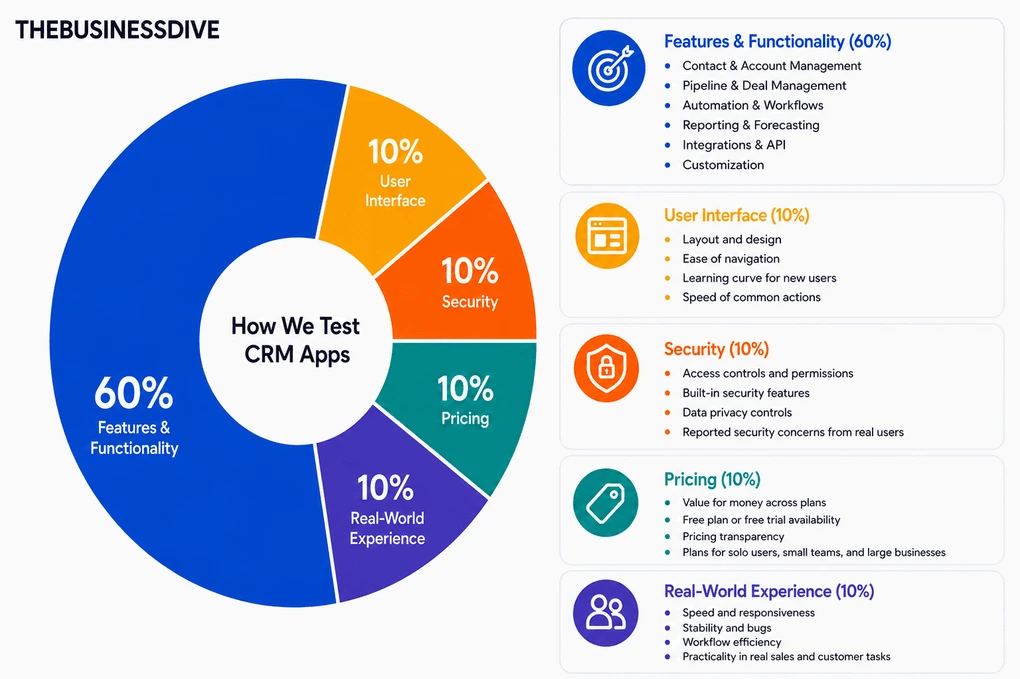
Our scoring breakdown after testing 10+ CRM apps:
🤖 Features & functionality — 60%
🖥️ User interface — 10%
💰 Pricing — 10%
🔐 Security — 10%
👥 Real-world experience — 10%
Want a detailed breakdown of how we test each category?
Learn exactly how we test tools → Review methodology
Key differences between Pipedrive and HubSpot
Here is a short overview of the key differences I found in the Pipedrive vs HubSpot showdown:
|
|
|||
|---|---|---|---|
|
Best for |
Sales-focused teams wanting simple pipeline management |
Businesses needing CRM, marketing, and automation in one platform |
|
|
Core focus |
Visual sales pipeline and deal tracking |
All-in-one CRM with sales, marketing, and automation |
|
|
Key strengths |
|
|
|
|
Main limitations |
Limited marketing and business management tools |
Complexity and rapidly increasing pricing |
|
|
Ease of use |
Easy |
Moderate |
|
|
Pricing |
|
|
|
|
Integrations |
Extensive integrations |
Extensive integrations |
|
|
Cross-platform |
Web / Desktop / Mobile |
Web / Desktop / Mobile |
Comparison: HubSpot vs Pipedrive
First, I will show you the features of both tools one by one. After, I will guide you through their integrations, pricing, and user interfaces. Finally, I collected the pros and cons that I discovered during the Pipedrive vs HubSpot comparison.
My impressions after using Pipedrive
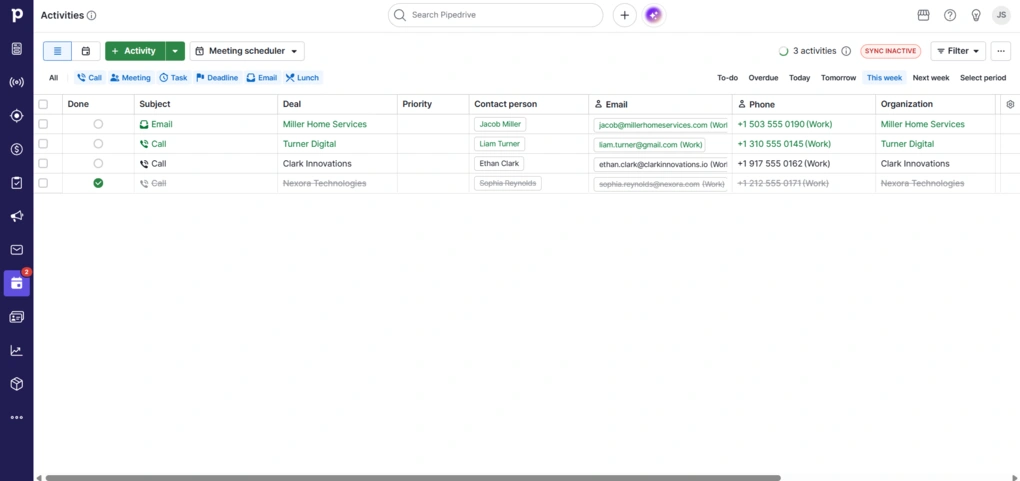
While using Pipedrive, I mostly focused on how it handles day-to-day deal tracking and follow-ups.
The visual pipeline felt very intuitive, and it was easy to see where each lead stood right away.
I also liked how much emphasis Pipedrive puts on activities, which helped keep follow-ups visible and organized. Overall, it’s a practical tool for sales teams that already have leads coming in and need a clear way to manage conversations and move deals forward.
🔎 Read my full Pipedrive Review 2026: Tested Firsthand — Here’s the Truth
Short on time? Here’s a quick overview of Pipedrive
Who will benefit most from Pipedrive
Who may be better off with another CRM
My personal experience with HubSpot CRM

When it comes to my personal experience during testing HubSpot, it was very smooth at the beginning.
However, the more I explored, the more complex it started to feel. Not in a bad way, but it definitely takes some time to get comfortable with all the options, especially when you get into automation or reporting.
One thing I realized pretty quickly is that the tool only works as well as you use it. If you keep everything updated, it’s really useful.
Overall, I didn’t have the feeling that it’s hard to use, just that there’s a lot of it.
Who gets the most value from HubSpot
Who won’t get the most out of HubSpot
Key features
Let’s begin with Pipedrive’s features!
Pipedrive’s features
Below, I guide you through the key features I tried during my Pipedrive vs HubSpot testing.
Contact management
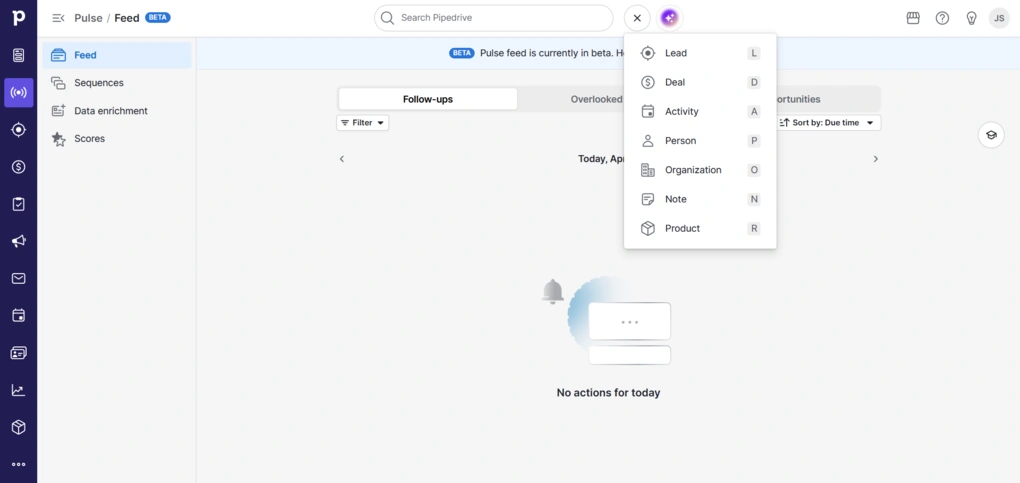
I started testing Pipedrive with contact management, since that’s the foundation of any CRM.
I was able to add contacts easily. There’s a “+” button fixed at the top of the interface that stays visible no matter where you are, and it works as a shortcut for everything. From there, you can add a person, organization, lead, deal, activity, note, or product in literally seconds.
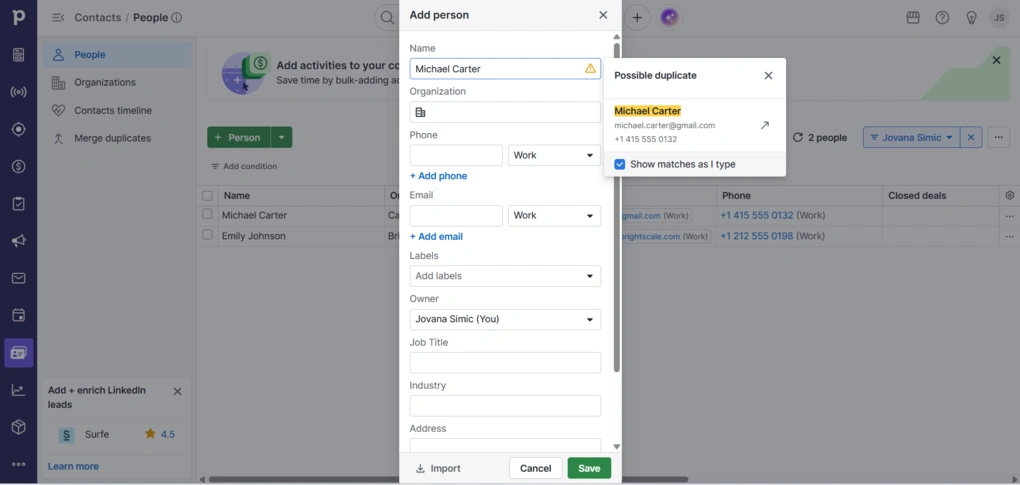
At the same time, there’s a dedicated Contacts tab where everything is laid out in a clear, table-style view. This is where it becomes easier to manage a larger database. Adding a contact takes only the basic fields, but you can create custom fields like labels, job titles, and other. Adding organizations follows the exact same logic.
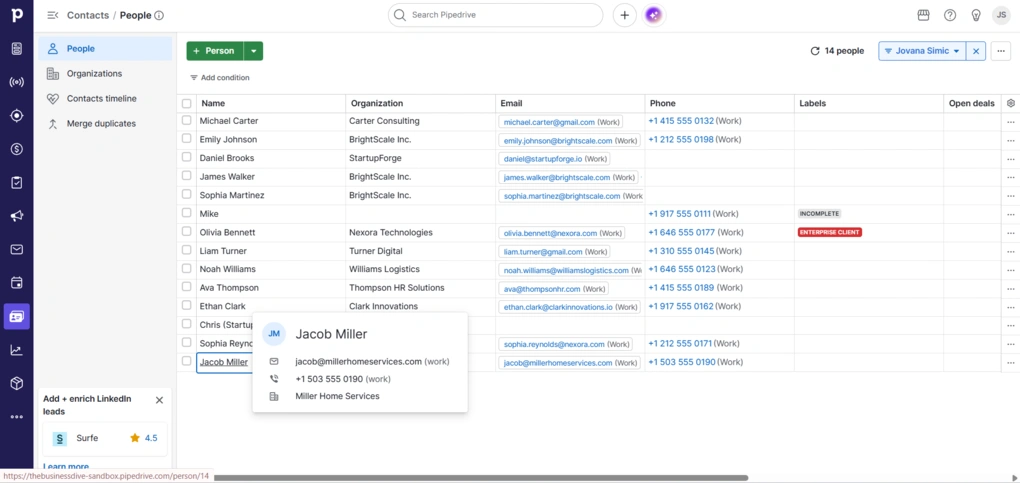
Filtering is flexible and becomes useful once the list grows. You can segment contacts based on different criteria and adjust what you see on screen. This kind of segmentation and filtering is a core part of how Pipedrive handles contact data overall.
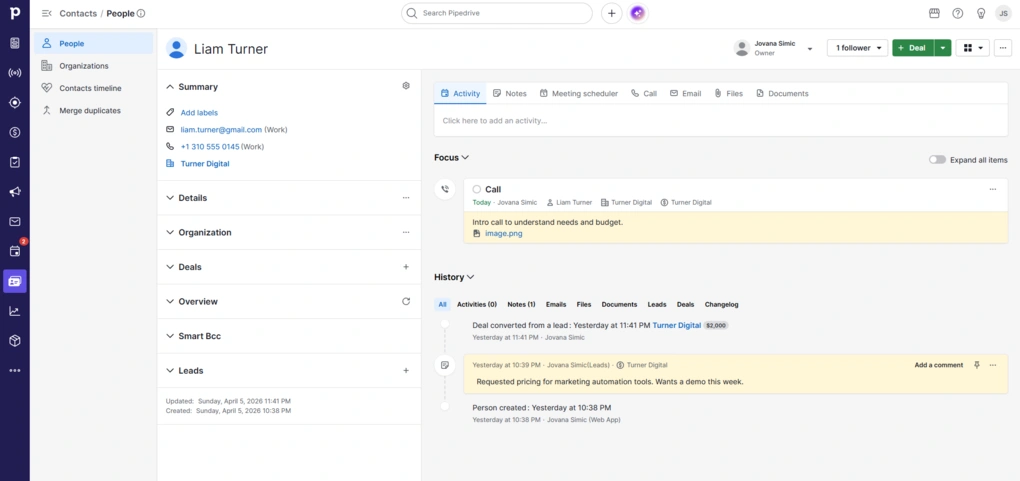
When you hover over a contact, you get a quick preview of key information. Clicking on an email lets you send a message right away, and clicking on a phone number gives you the option to call directly. Each contact also has a full timeline with activities, notes, emails, and deal updates, so you always have context in one place, which is a standard but important part of CRM contact tracking.
There’s also support for bulk actions, like sending emails to multiple contacts or adding activities to several people at once.
Lead management
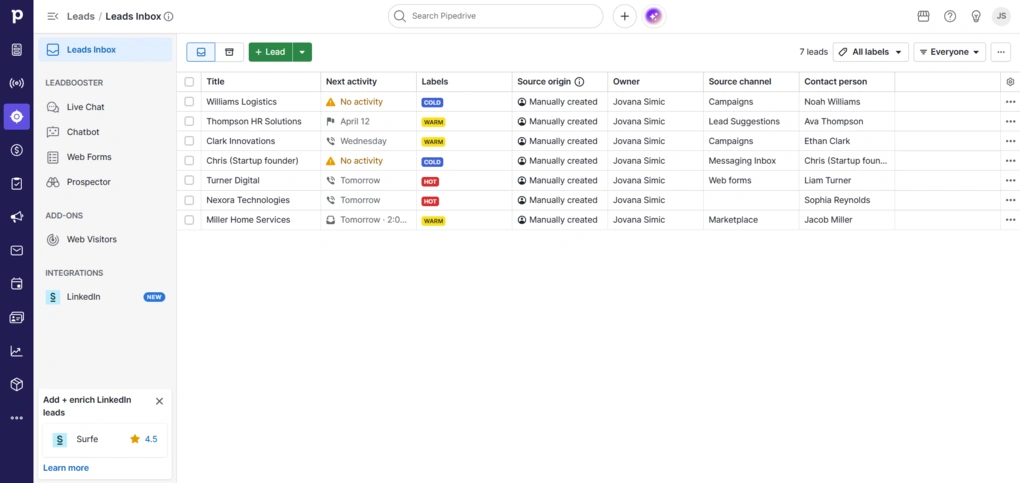
Leads in Pipedrive build naturally on top of contacts. From the contact view itself, you can create a lead directly.
Leads are organized in a separate Leads Inbox, which acts as a holding area before something becomes a deal. They don’t go into the pipeline right away, so you first need to convert them into deals. This keeps the pipeline focused on actual opportunities.
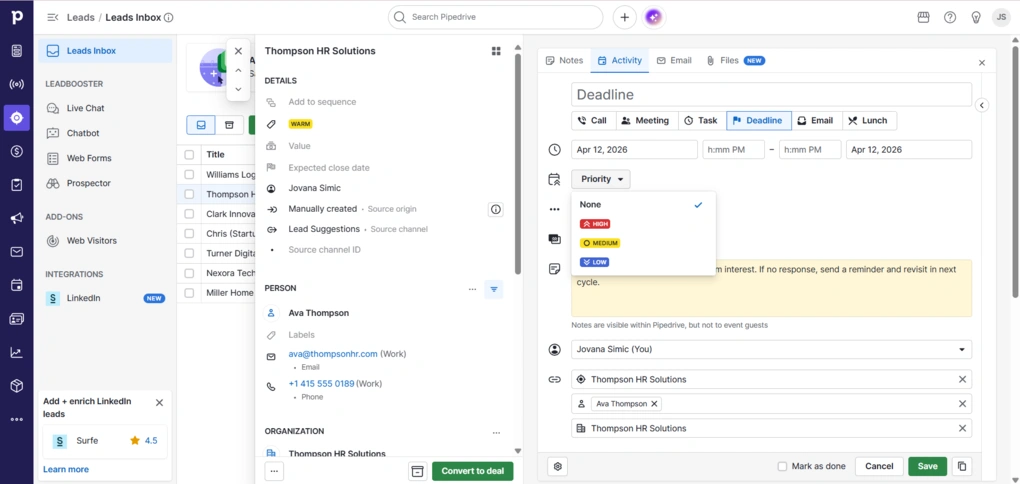
Adding a lead follows the same logic as contacts. You link it to a person and organization, assign a label, estimate its value, and set an expected close date.
There’s also space to define where the lead came from, which becomes useful later when you want to understand which channels actually bring results. You can just add basic info, or go deeper with details.
Deal management
Once a lead is qualified, converting it into a deal takes a few clicks. It moves straight into the pipeline and keeps all the existing data, so there’s no need to start from scratch.
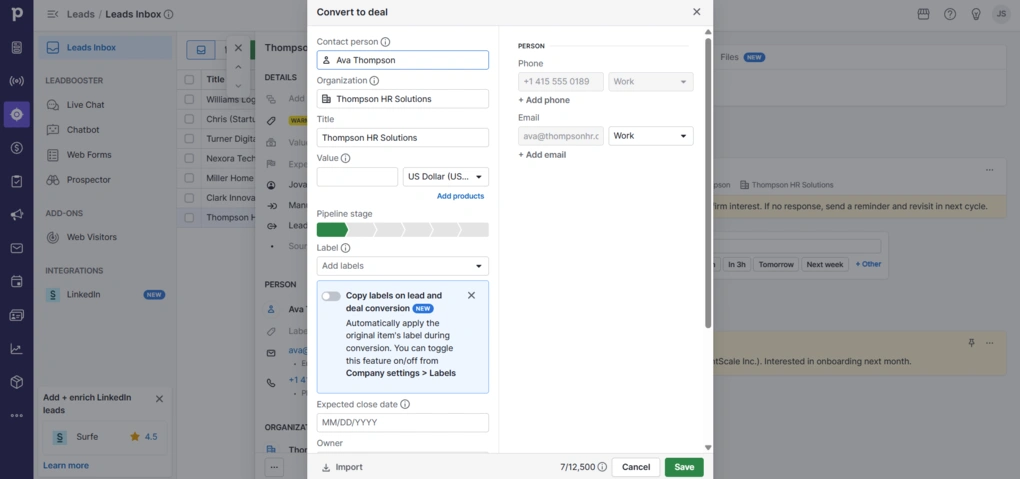
Deals are organized in a visual pipeline, where each stage represents a step in your sales process. You can move deals across stages with drag-and-drop as they progress.
Each deal is tied to a person and organization, and you can also attach activities, notes, emails, and even products. Everything related to that opportunity stays in one place.
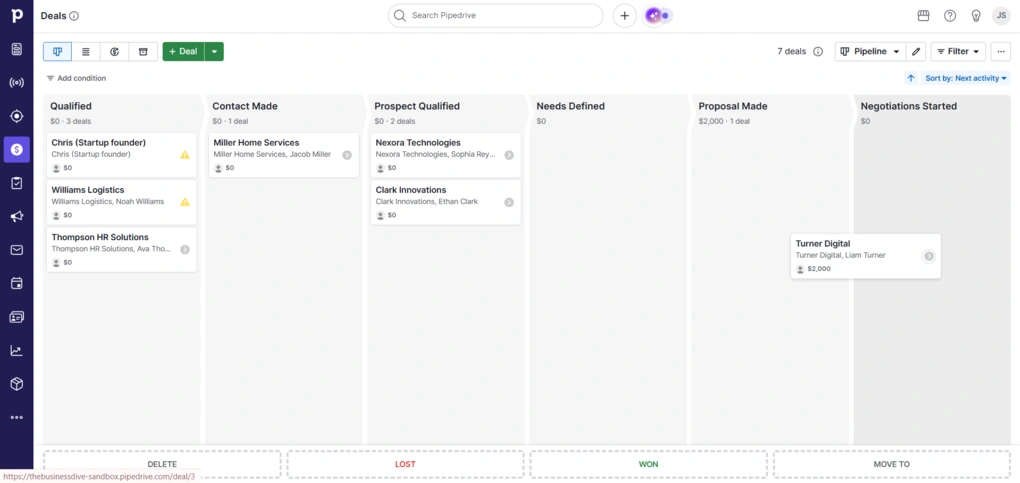
The pipeline itself is customizable, and you can adjust stages to match your own sales process. There’s also a clear focus on next steps. Deals are tied to activities, so it’s easy to see what needs attention and what can wait.
Pulse
Pipedrive recently introduced a feature called Pulse, which builds on top of deal management. It acts as a centralized feed that highlights follow-ups, overdue tasks, and new opportunities across deals that need your attention. These aren’t new data points, just a different way of looking at your existing deals.
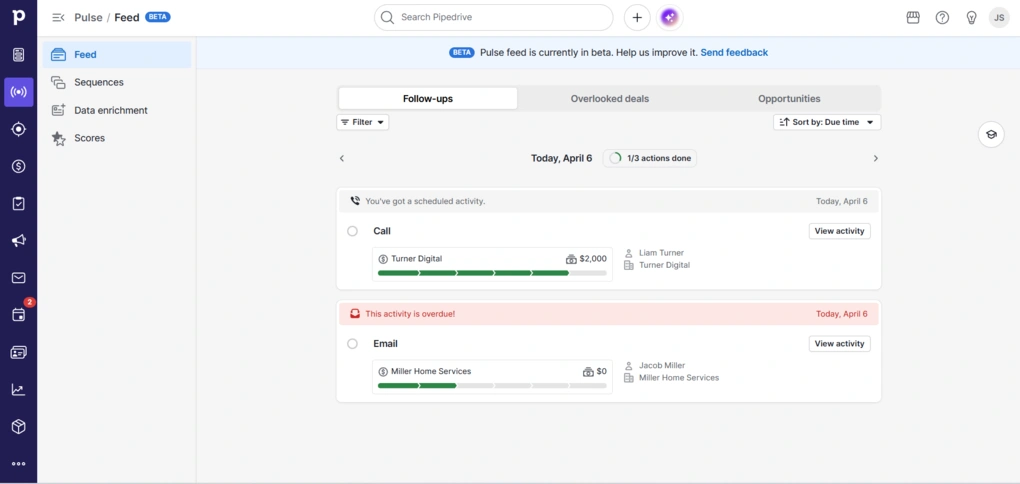
‘Follow-ups’ is where you see all active tasks and recent activity. This includes scheduled calls, emails, and also situations where a contact hasn’t replied in a while. It works like a focused to-do list tied directly to deals.
‘Overlooked deals’ highlights deals with no follow-up or overdue activities. It’s basically a safety net for inactive deals. Finally, ‘opportunities’ shows deals that exist but haven’t been touched yet.
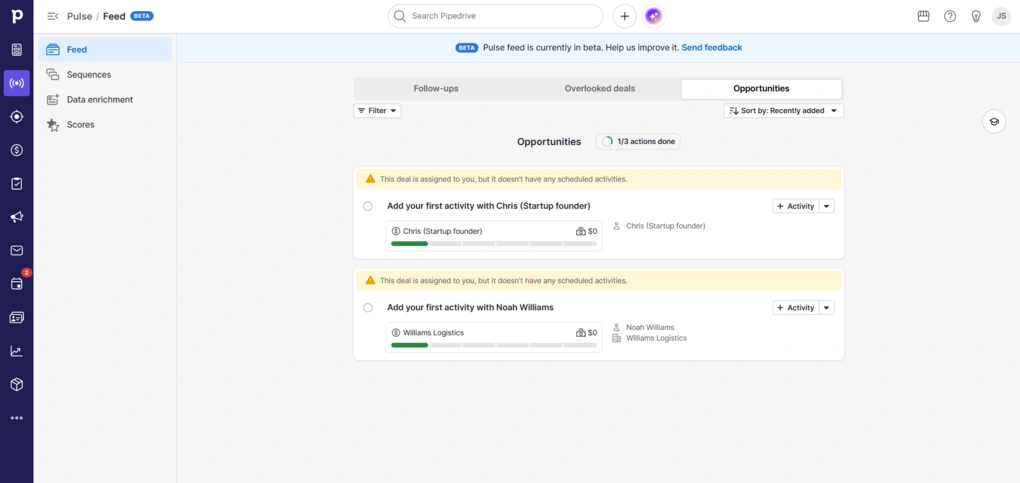
I really liked that you can act directly from here – you can add an activity, send an email, or open the deal. You also see enough context on each card to understand what’s going on without opening the full view.
Overall, Pulse doesn’t add new functionality. It just reorganizes your workflow into a single feed so you don’t have to check different parts of the CRM.
Products
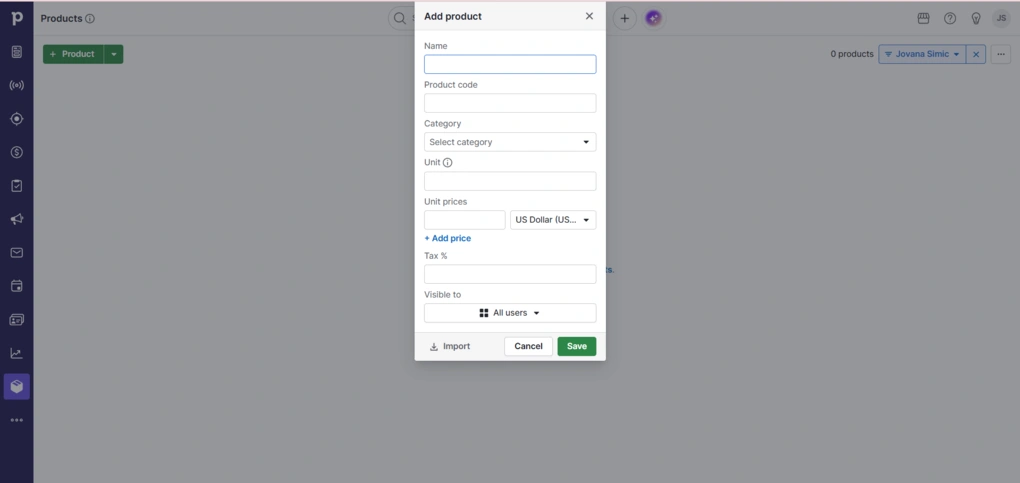
Pipedrive also has a Products feature, which is tied directly to deals. You can define what exactly you’re selling, whether that’s a subscription, service, or one-time package.
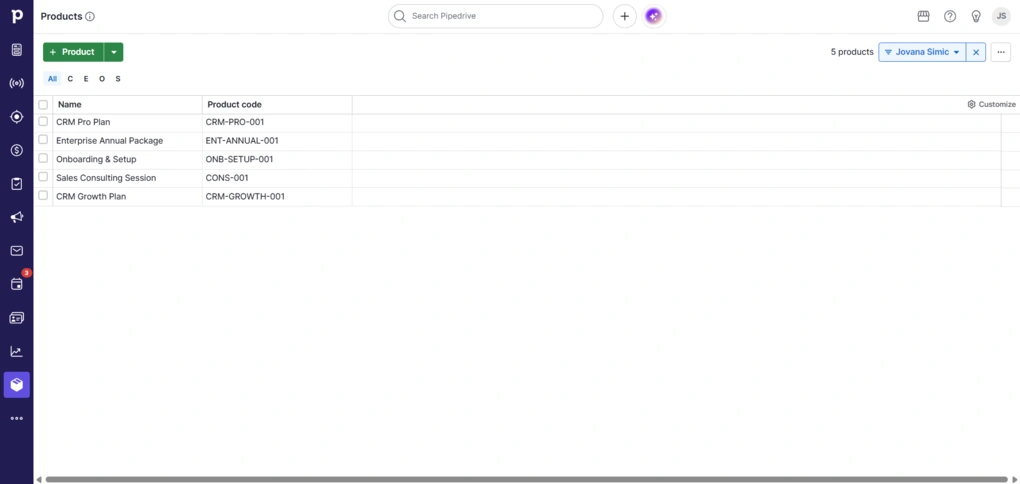
You can create products with a name, price, billing type, and additional details. Once that’s set up, products can be attached to deals, so instead of just estimating deal value, you’re working with actual items.
You can also add multiple products to a single deal, which is useful if you’re selling bundles or combined services.
Automation
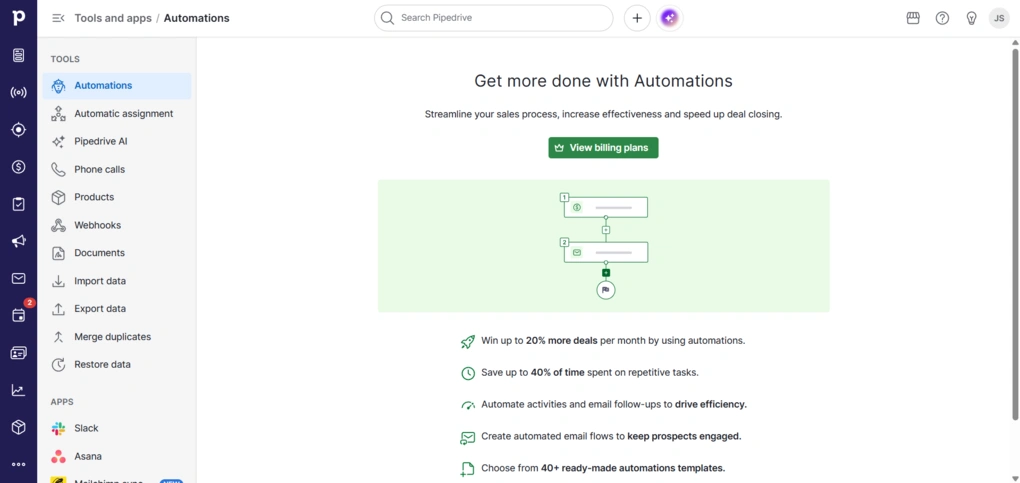
Automation in Pipedrive is built around simple “if this, then that” logic. For example, when a deal moves to a new stage, it can create a task, assign it to someone, or send a follow-up email. This way, you can reduce the chance of missing follow-ups or forgetting tasks, which is a common issue in manual workflows.
The setup process is visual and straightforward. There are also pre-built templates, so you don’t have to start from scratch.
Reporting & insights
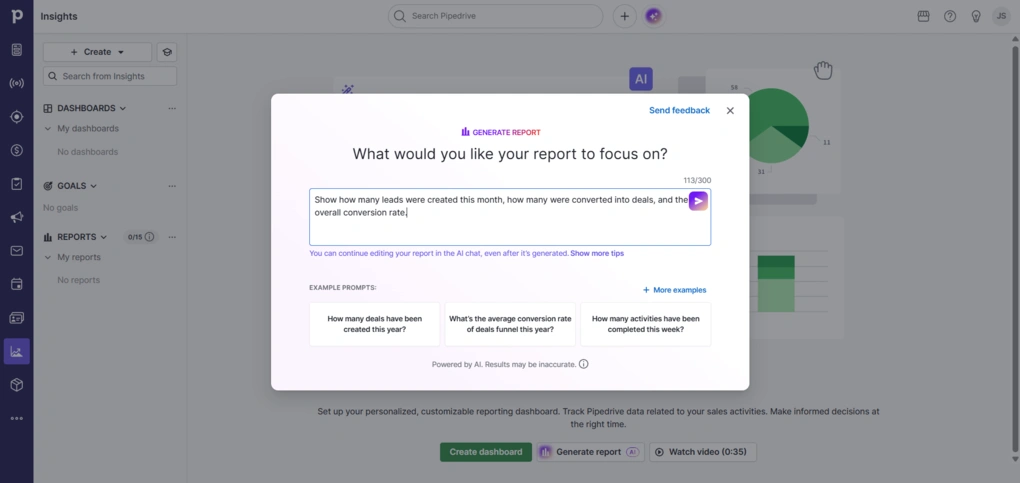
This section in Pipedrive is highly visual. Reports are shown as charts, tables, or simple graphs, not raw data. If you’re a visual type like me, I’m sure you’ll appreciate it.
You can track things like pipeline health, win rates, sales activity volume, or revenue, and break them down by time, user, stage, or pretty much any filter you apply.
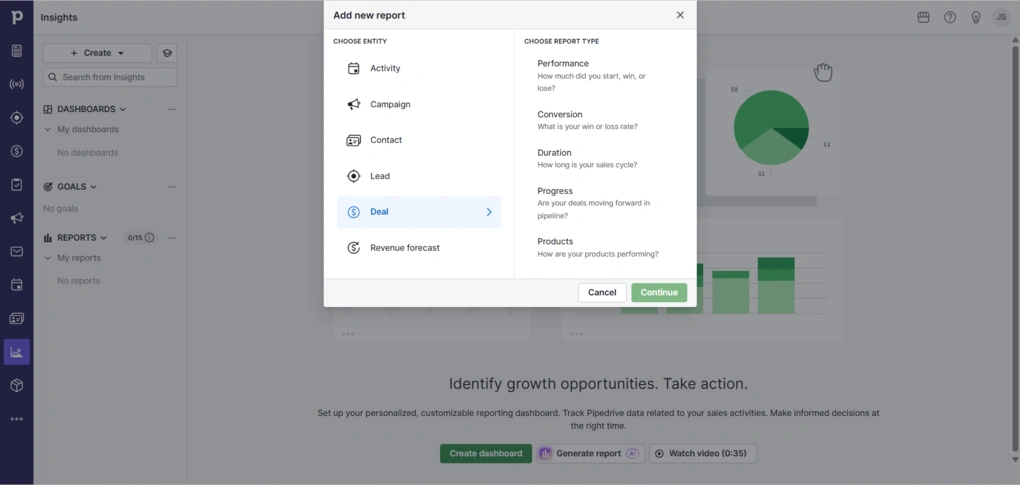
Creating a report is easy. You choose what you want to analyze first. That can be deals, activities, leads, or revenue. Then you pick the type of report, like performance, conversion, or duration. From there, everything is filter-based. You can narrow it down by date ranges, deal status, pipeline, or custom fields, and the chart updates instantly.
Furthermore, you can combine multiple reports into a single view.
There’s also a new AI report option. You can type what you want to see, like lead conversion over time, and it generates a report for you.
HubSpot’s features
Now, it’s time to delve into HubSpot’s features!

See HubSpot overview
All-In-One CRM With A Strong Free Plan
Contact Management
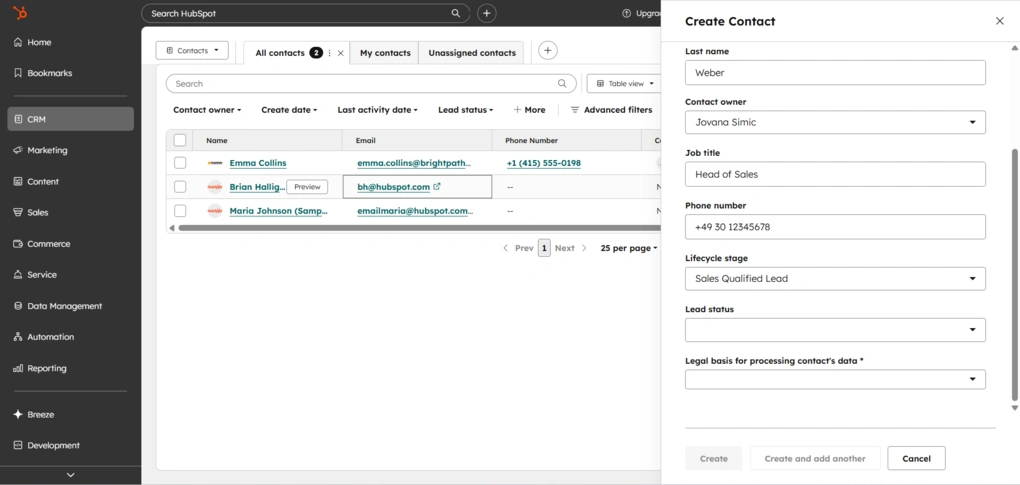
At the start of the workflow, I added contacts by going to CRM in the left sidebar and then clicking on Contacts. The process itself is pretty standard. You can either import contacts or create them from scratch.
Importing is flexible. You can upload a file from your computer, such as a CSV or Excel file, sync contacts from external apps, or use HubSpot’s data transfer option to move data from another system. There is also a guided import setup with sample files and instructions to make the process easier if you are starting from scratch.
If you create a contact manually, you get a standard form with fields like name, email, company, and so on. What I liked here is that the form is customizable. By clicking on edit form, you can rearrange fields, add new ones, remove anything you do not need, and mark certain fields as required.
Adding companies follows the same logic.
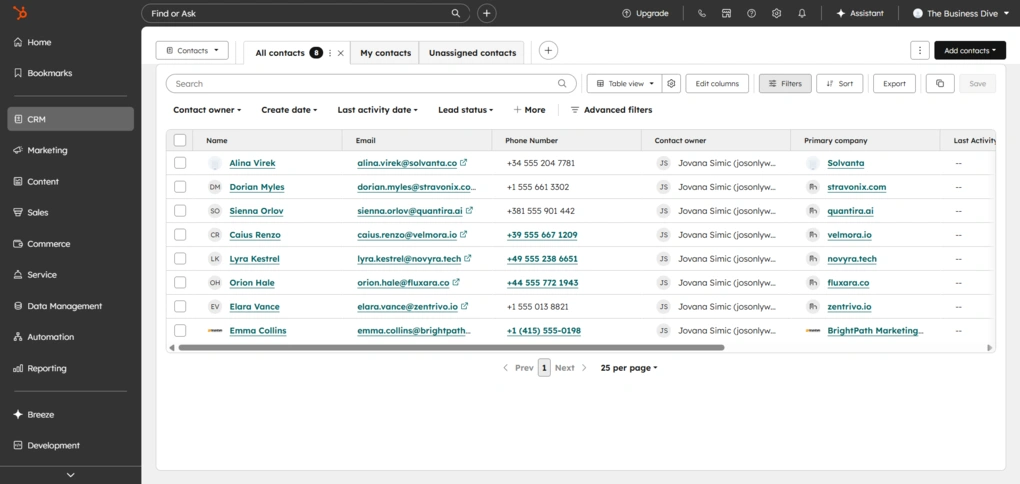
Once contacts are added, you can switch between a table view and a board view. In both views, you can quickly edit contact details directly without opening each profile.
Filtering options are strong. You can segment contacts by lifecycle stage, owner, company, or pretty much any property. There are also solid customization options if you want to adjust how data is displayed.
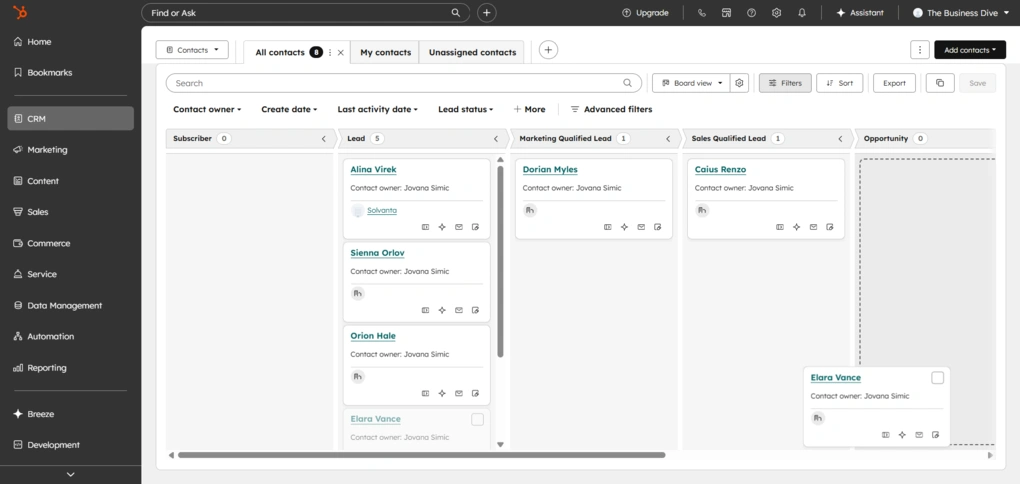
Personally, I preferred the board view. It gives a clearer, more visual overview of contacts based on their lifecycle stage. It also supports drag and drop, so you can move contacts between stages in a very intuitive way.
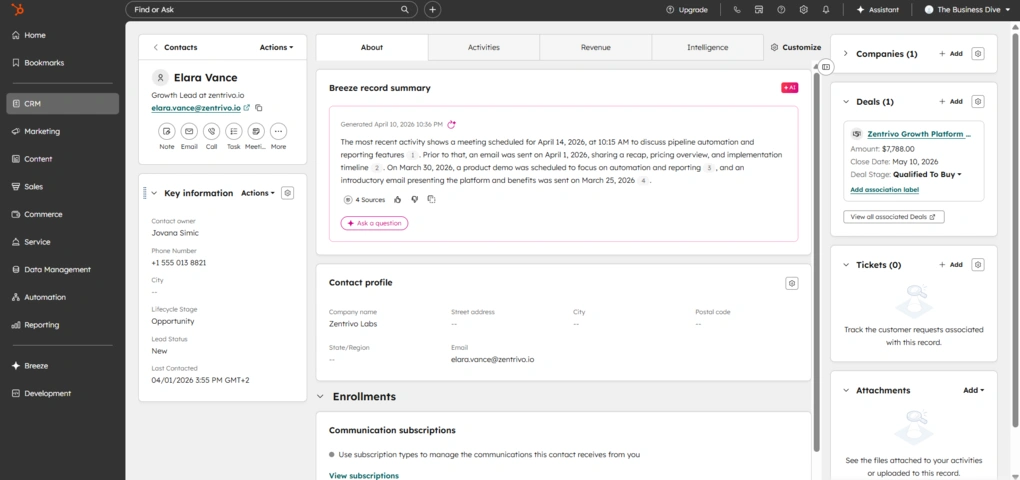
No matter which view you use, clicking on a contact opens a detailed profile. You can see the full activity timeline, add notes, log emails and calls, create tasks, and basically build a complete picture of each contact in one place.
Compared to tools like Nutshell or Pipedrive, HubSpot is more flexible when it comes to contact data and customization. You get more control over fields, filtering, and how information is displayed.
At the same time, Nutshell and Pipedrive are simpler and more focused. HubSpot gives you more options, but it also comes with more complexity, especially as you start customizing things.
Lead Capture
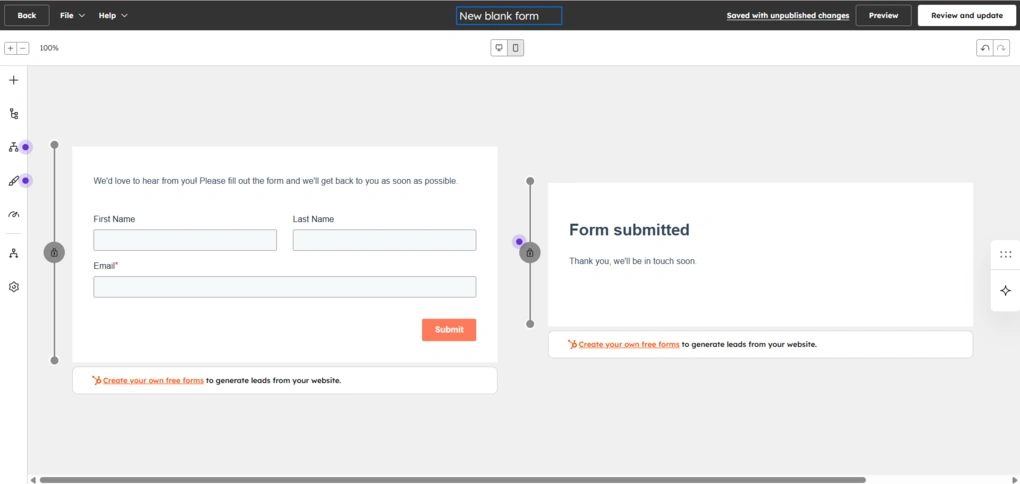
In addition to manually adding contacts, HubSpot also offers built-in tools for capturing leads.
You can create forms and embed them on your website, or use landing pages to collect contact information directly into the CRM. Once someone submits a form, they are automatically added as a contact.
Forms can be customized with different fields, and you can decide which data you want to collect. HubSpot also supports pop-up forms, embedded forms, and live chat, including chatbots that can capture leads automatically.
Forms can also be connected to workflows, so new contacts can be automatically assigned, segmented, or moved into follow-ups.
Sales Pipeline Management
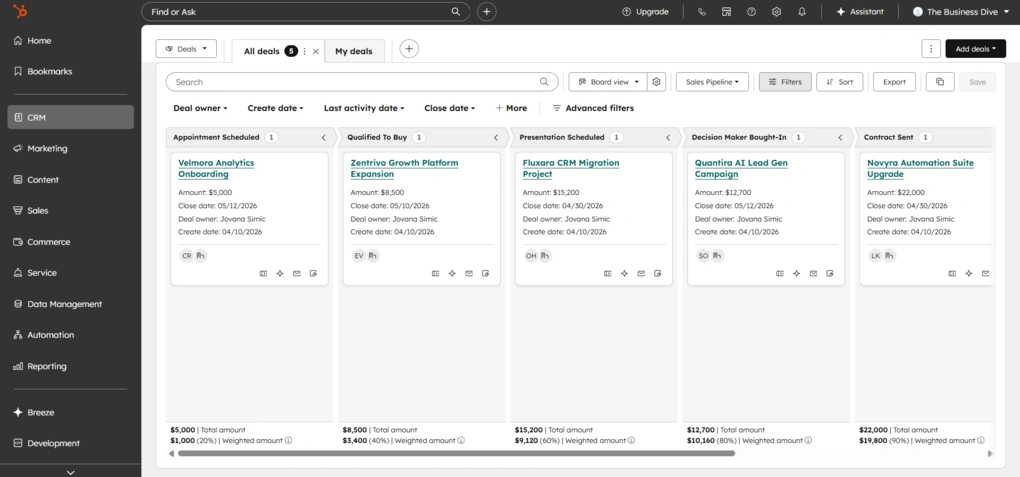
Once contacts are in place, the next step is managing deals.
Deals are also located in the left sidebar under CRM. Just like contacts, they can be imported by uploading a file, syncing from apps, or transferring data from another system.
You can also create them manually, and the process is very similar to adding contacts or companies. The form is customizable, so you can adjust fields, add new properties, and structure it based on your workflow.
There are two views here as well, the table and the board. The board view shows deals across different stages in a kanban-style pipeline, and supports drag and drop.
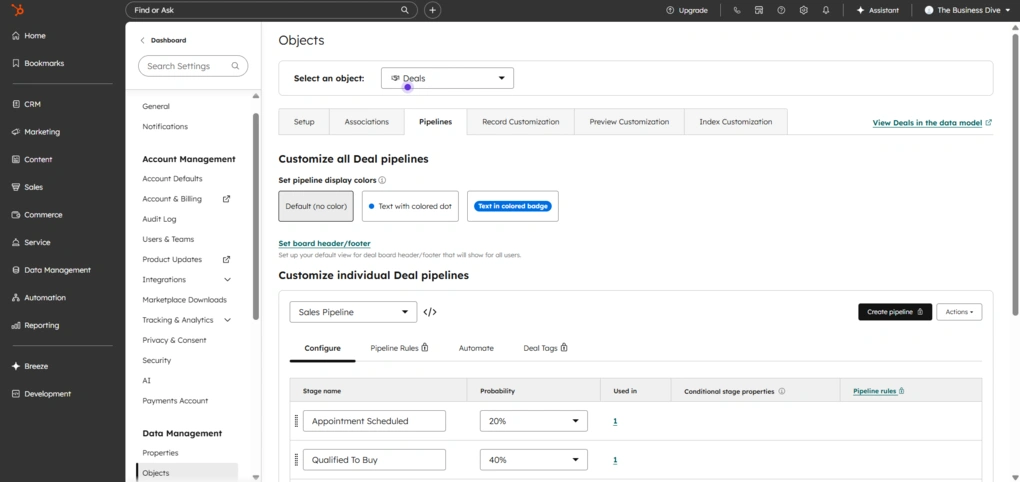
Pipelines themselves are customizable designed for sales teams. You can create multiple pipelines, rename stages, and adjust them to match your actual sales process.
By default, HubSpot comes with predefined stages like appointment scheduled, qualified to buy, contract sent, and closed won or lost, but you can change all of this.
Furthermore, each deal can be linked to a contact and a company. Once you open a deal, you get a detailed view with a full activity timeline, where you can log emails, calls, meetings, notes, and tasks in one place.
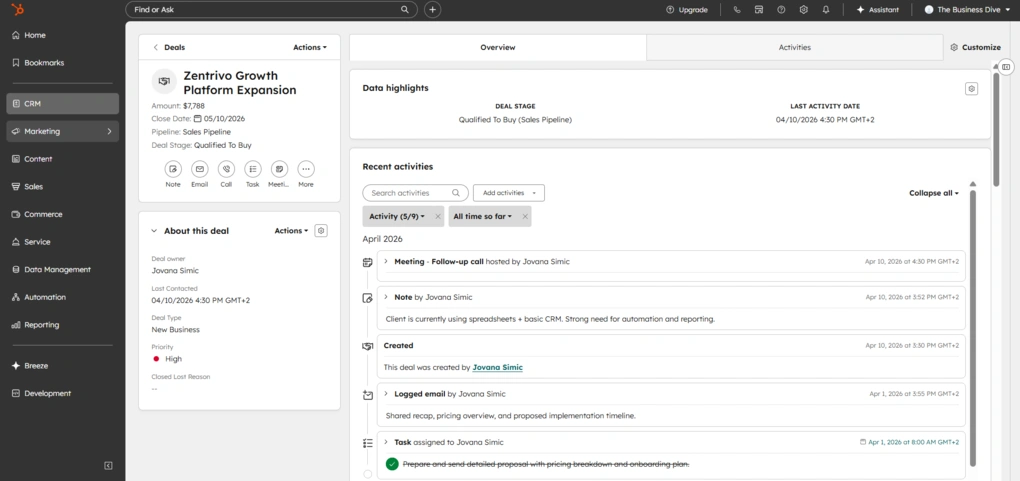
You can also assign deal owners, set deal value, expected close date, and priority, which helps with tracking and basic forecasting. The pipeline itself gives you a quick overview of how many deals you have in each stage and their total value.
One thing that stands out is how flexible the deal structure is. You can add multiple contacts to a deal, attach products and line items, and break down the total value into specific services or subscriptions.
Overall, this setup makes HubSpot a strong fit for sales teams. It gives a clear overview of the pipeline, while still being flexible enough to adapt to different sales processes. At the same time, it stays relatively easy to use, which is not always the case with more advanced CRM tools.
Products & Line Items
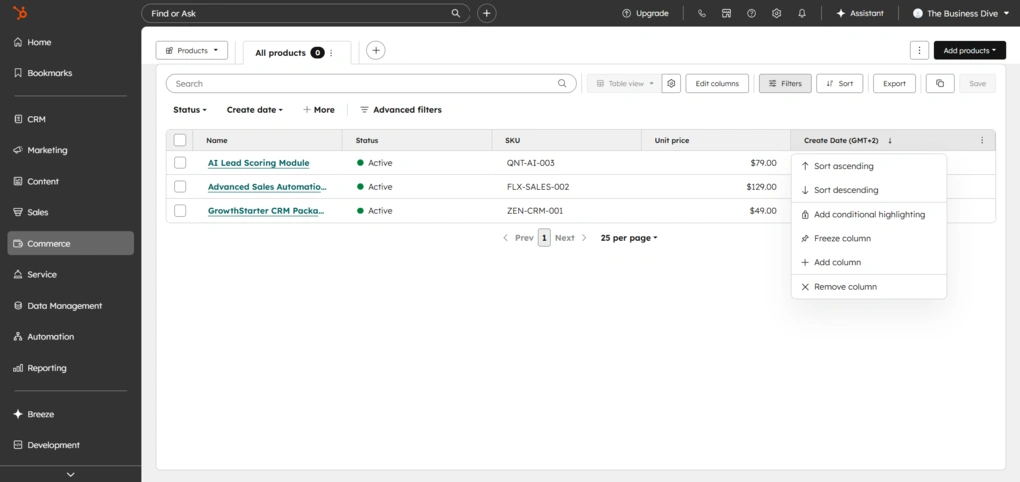
One thing that becomes important once you start working with deals is how deal value is actually calculated.
Products are basically a library of what you sell. You can create and store all your services or offerings there, with predefined names, prices, and descriptions.
When you add a product to a deal, it becomes a line item. This is where things get more flexible. A line item is a specific instance of a product inside a deal, which means you can change details like price, quantity, discount, or billing terms without affecting the original product.
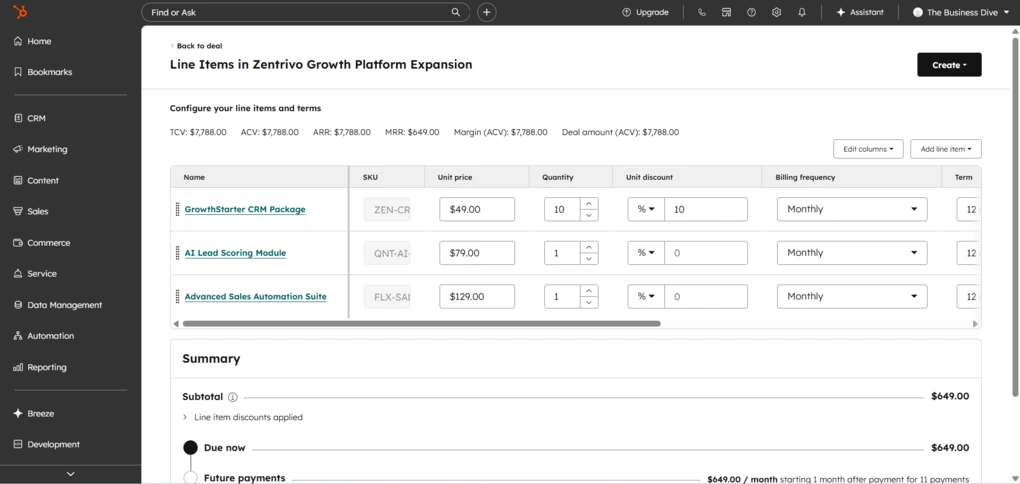
Inside a deal, you can add multiple line items and build out the full structure of the offer. You are not limited to just setting a total value. You can mix different products, adjust quantities, apply discounts, and combine one-time and recurring pricing.
There is also a dedicated line item editor, where you can manage everything in one place. You can edit pricing, set billing frequency, define contract terms, and apply taxes or discounts.
HubSpot can automatically calculate values like total contract value, monthly recurring revenue, or annual revenue based on the line items you add.
Once the deal structure is set through line items, HubSpot also covers the final step.
Commerce Features
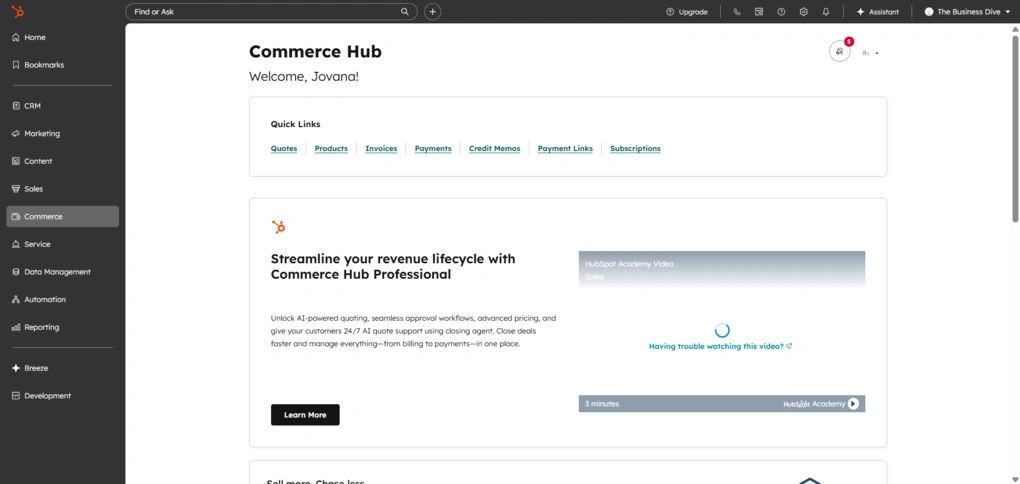
HubSpot includes basic commerce features that cover the final part of the sales process.
You can create quotes directly from deals, send invoices, and collect payments without leaving the platform. There are also payment links that can be shared with customers, as well as support for subscriptions and recurring billing.
Everything is connected to the CRM, so when a payment is made, it updates the deal and contact automatically. This keeps revenue data in the same place as your sales activity.
Activity Tracking
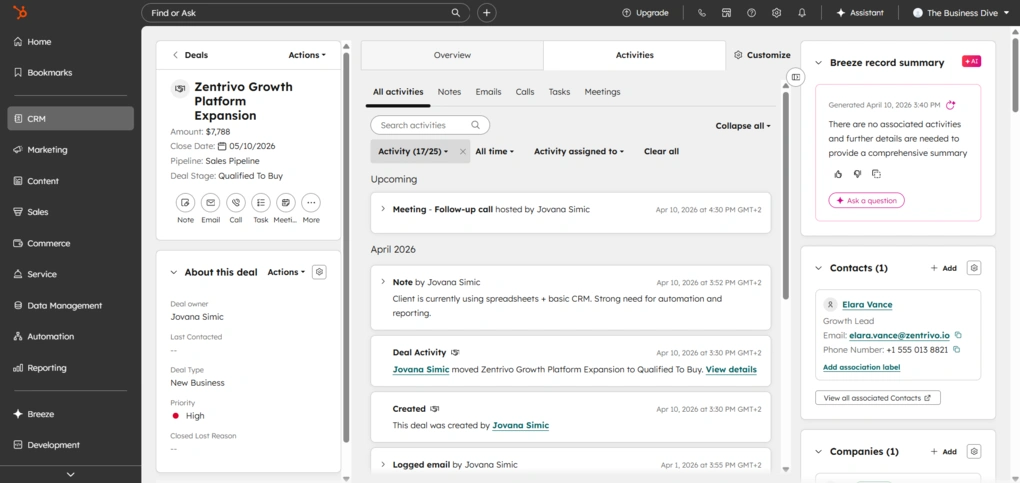
Activities are built directly into both contacts and deals, so you don’t need to switch. They are automatically linked across contacts, companies, and deals. Email activity can also be tracked automatically, including opens and engagement.
You can log emails, calls, meetings, and notes, or schedule future actions like follow-ups and tasks.
When it comes to tasks, you can set due dates, priorities, reminders, and assign them to specific users. Meetings can also be scheduled directly from the deal or contact view, and they appear in the same timeline.
The timeline itself is one of the stronger parts of this feature. It gives a chronological view of everything that has happened and what is coming next.
Automation & Workflows
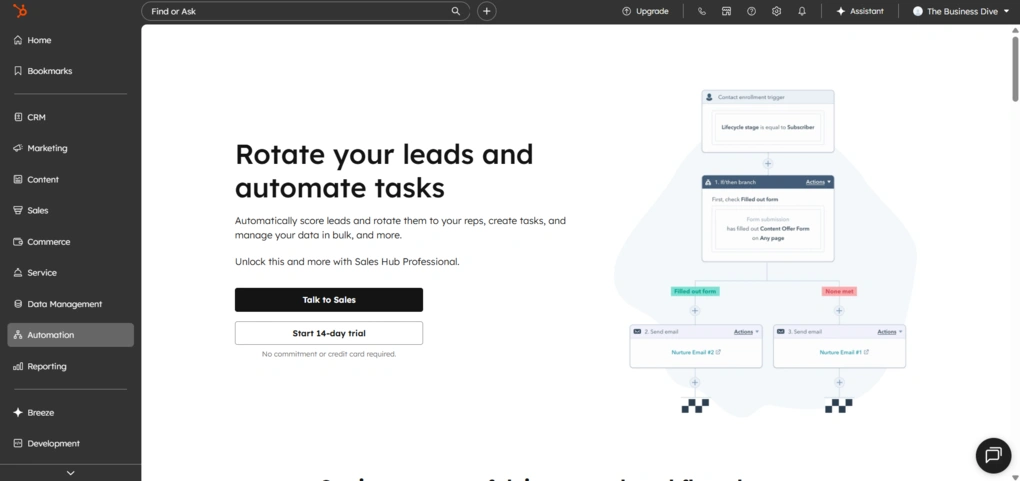
Workflows in HubSpot allow you to automate repetitive actions based on triggers. For example, you can automatically create a task when a deal moves to a new stage, send a follow-up email, or update contact properties.
The logic is based on simple if/then conditions. You define a trigger, like a deal entering a stage, and then set actions that follow, such as assigning tasks, sending emails, or updating data.
Automation can also be used for marketing tasks and lead nurturing, so instead of manually following up, you can guide contacts through the process automatically.
One important limitation is that more advanced automation features are not available in the free plan and require higher-tier subscriptions.
Compared to tools like Pipedrive or Nutshell, HubSpot offers more advanced automation options, especially when it comes to building multi-step workflows and combining sales and marketing actions. On the other hand, it also comes with more setup and a steeper learning curve once you go beyond basic automation.
Reporting & Analytics
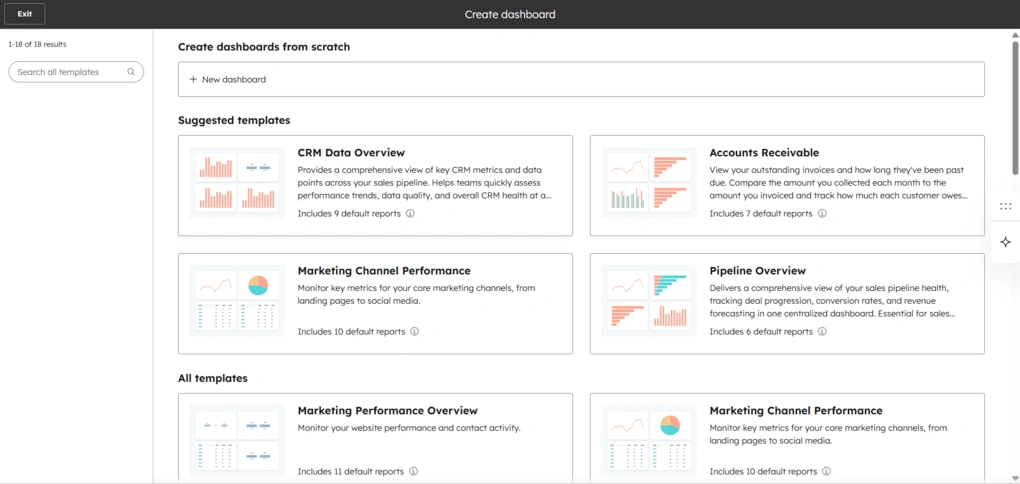
HubSpot provides reporting dashboards and reports that give you an overview of your pipeline, deal progress, and overall performance. You can track things like deal value, conversion rates, and how deals move through different stages.
Reports can be filtered and customized based on different properties, such as deal stage, owner, or time period.
The dashboards are easy to read and give a quick snapshot of what is happening. You can quickly see how many deals are open, how much revenue is in the pipeline, and where things are slowing down.
One limitation is that more advanced reporting tools are not fully available in the free plan, so deeper analysis requires a paid upgrade.
AI capabilities
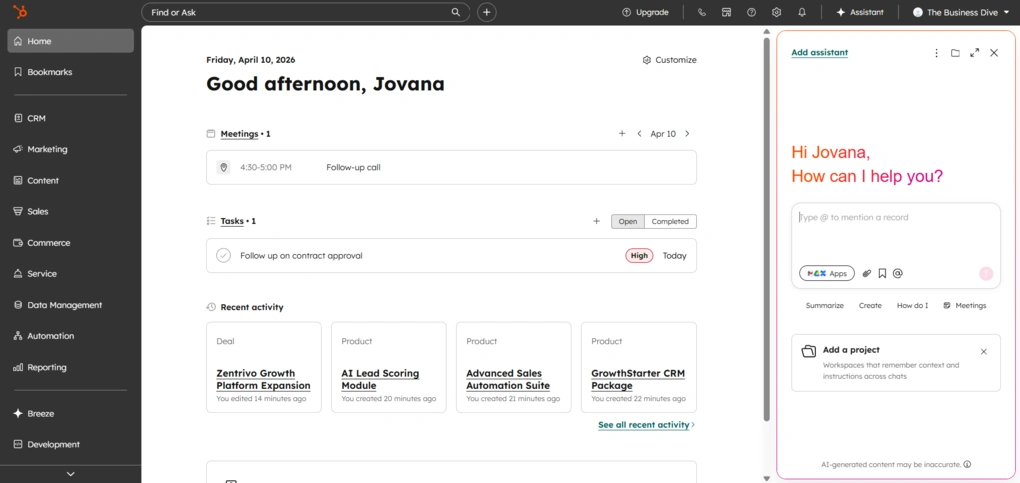
HubSpot also includes AI features across the platform, grouped under its Breeze AI.
It includes tools like Breeze Assistant, which helps with everyday tasks like writing emails or summarizing data, as well as AI agents that can handle more complex workflows automatically.
I used it occasionally for small things like rewriting emails or checking suggestions, but it did not change how I use the tool overall.
Integrations
Now, it’s time to compare their integration options!
Pipedrive’s integrations
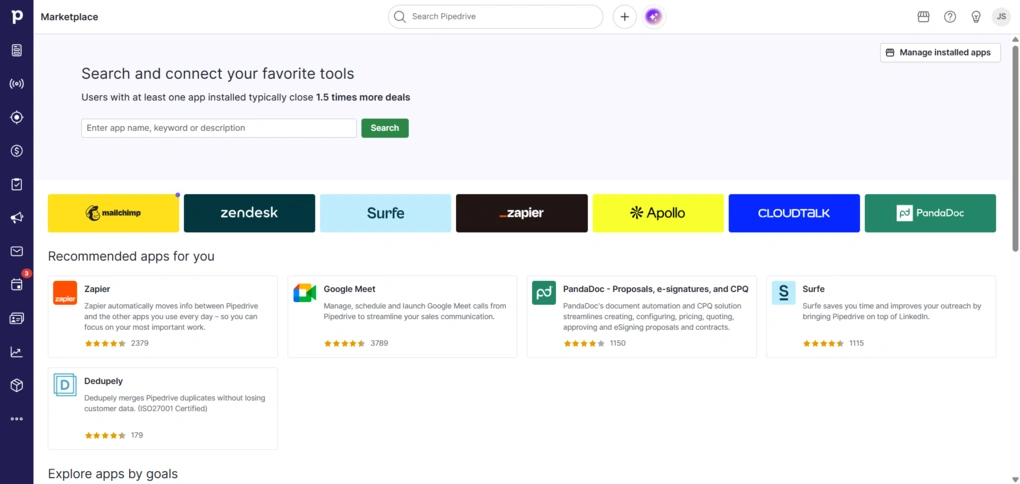
Pipedrive has a built-in Marketplace with 500+ ready-to-use integrations across categories like communication, marketing, lead generation, project management, and finance. These include popular tools like Slack, Trello, Asana, Zoom, and QuickBooks.
There’s also a native integration with Zapier, so Pipedrive lets you connect it with thousands of other apps and automate workflows.
If something isn’t available, Pipedrive also provides an open API, so you can build custom integrations.
HubSpot’s integrations
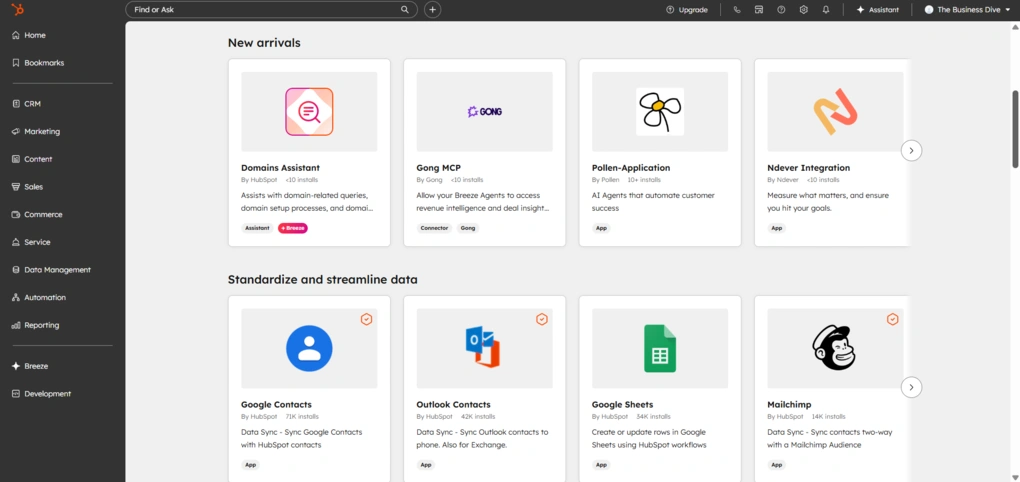
HubSpot offers a large integration ecosystem through its App Marketplace.
You can connect tools like Gmail or Outlook for email tracking, Slack for communication, Google Calendar for meetings, and platforms like Zapier for connecting more than 8000 additional apps.
HubSpot also supports custom integrations through its API, but more advanced syncing and customization often require higher-tier plans.
Explore our Apps directory
A curated directory of software tools we’ve independently reviewed, with links to full reviews, comparisons, and category guides.
Pricing & value
Let’s take a look at the pricing structure of each tool.
Breaking down Pipedrive pricing
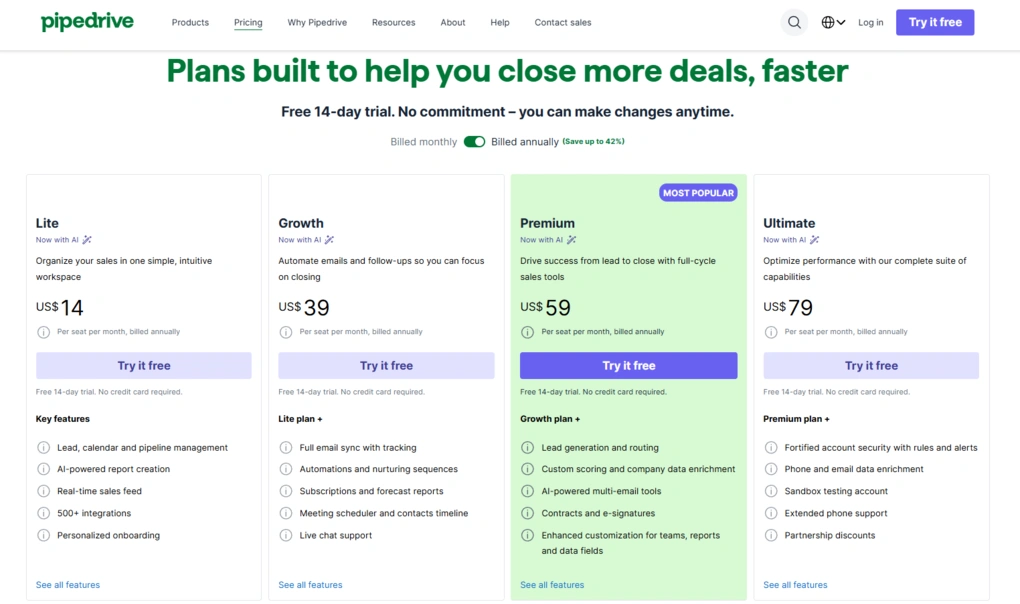
Pipedrive doesn’t offer a free plan, but there is a 14-day free trial to test all the features.
The entry-level Lite plan starts at $14 per user per month (billed annually). It covers the basics like contact and deal management, pipeline tracking, and simple reporting. It’s enough if you just need a clean, functional CRM.
The Growth plan, at $39/month per user, adds email sync, workflow automation, better reporting options, and live chat support. This is probably the plan most small teams would actually use day to day.
Premium, at $59/month per user, builds further with more advanced features like lead generation tools, deal scoring, e-signatures, and additional customization options. It’s more suited for teams that have a structured sales process and want more control.
The top tier, Ultimate at $79/month per user, focuses more on scaling. It includes advanced permissions, security features, and data enrichment, along with extended phone support. This one is clearly aimed at larger teams or companies with more complex setups.
On top of these paid plans, there are several add-ons. These include tools like LeadBooster for capturing leads (starting at $32.50/month), Web Visitors for tracking who’s browsing your site (from $41/month), Campaigns for email marketing (from $13.33/month), Smart Docs for managing proposals and contracts (from $32.50/month), and Projects for task and project tracking (from $6.67/month).
HubSpot pricing structure
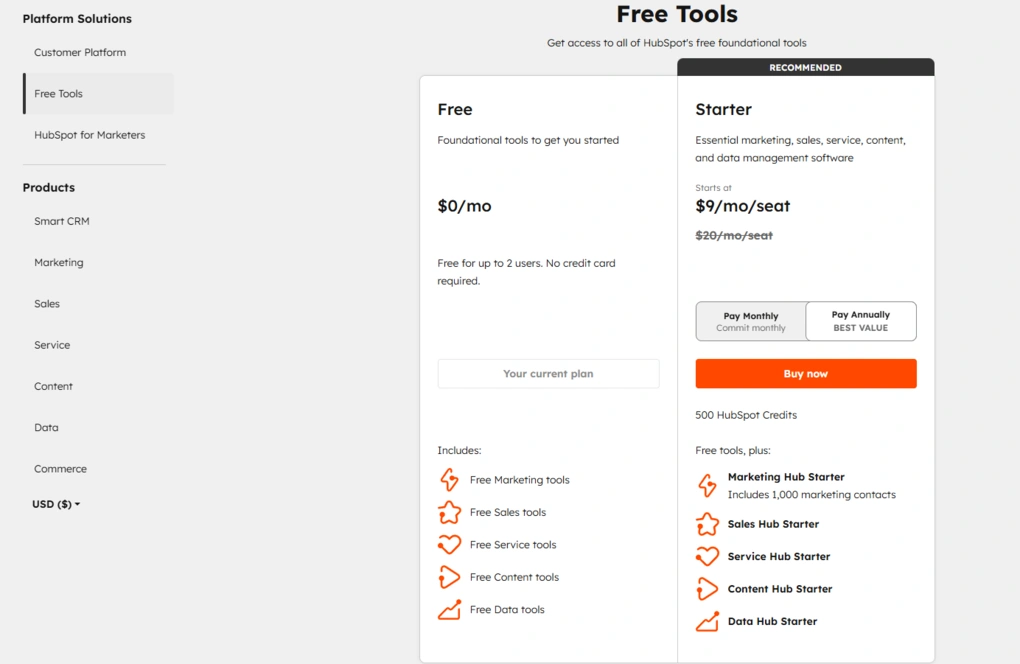
HubSpot uses a modular pricing structure, which means you pay separately for each hub, including HubSpot Sales Hub, Marketing Hub, Service Hub, CRM, and others. Pricing is mostly seat-based, but in the HubSpot Marketing Hub, it also depends on the number of marketing contacts, which can significantly increase total cost.
There is a free CRM plan that includes core features like contact management, deal tracking, email marketing tools, lead tracking, and basic reporting dashboards. This free version is genuinely usable for small businesses and simple setups, but most advanced features like marketing automation, reporting tools, and automated workflows are locked behind paid plans.
Paid plans start with Starter, which typically costs around $9–$20 per user per month and includes basic sales and marketing tools, simple automation capabilities, and limited email marketing automation. This tier works for small teams, but has clear limitations when it comes to reporting, customization, and scaling.
The biggest jump happens with Professional plans. For example, Sales Hub Professional costs around $90–$100 per user per month, while Marketing Hub Professional starts at around $800–$900 per month and includes automation, lead scoring, reporting dashboards, and more advanced marketing campaigns. This is where HubSpot becomes a full marketing automation platform, but also where pricing increases significantly.
Enterprise plans go even higher. Sales Hub Enterprise starts at $150 per user per month, while Marketing Hub Enterprise can reach $3,600+ per month, depending on contacts and features. These tiers add advanced features like predictive analytics, custom objects, and deeper customization for larger teams.
Another important detail is onboarding fees. For higher pricing tiers, there is often a mandatory one-time onboarding cost, typically around $1,500 for Professional and $3,500–$7,000 for Enterprise, depending on the hub. This is something many users overlook when comparing CRM tools.
In practice, HubSpot starts as an affordable free CRM, but becomes one of the more expensive CRM tools as you scale. While it offers strong automation capabilities, marketing tools, and an all-in-one platform for managing customer relationships, the pricing structure and higher pricing tiers can be a limiting factor for smaller teams or businesses comparing it to alternatives like Zoho CRM or other tools.
User interface
Pipedrive’s user interface

The interface in Pipedrive is clean and easy to navigate. There are a lot of features, but they’re well-connected.
I like that the whole experience is guided. There are built-in tips and a lot of short video tutorials that explain how things work, and they’re actually useful.
Overall, I didn’t have any real issues with the interface.
HubSpot’s user interface
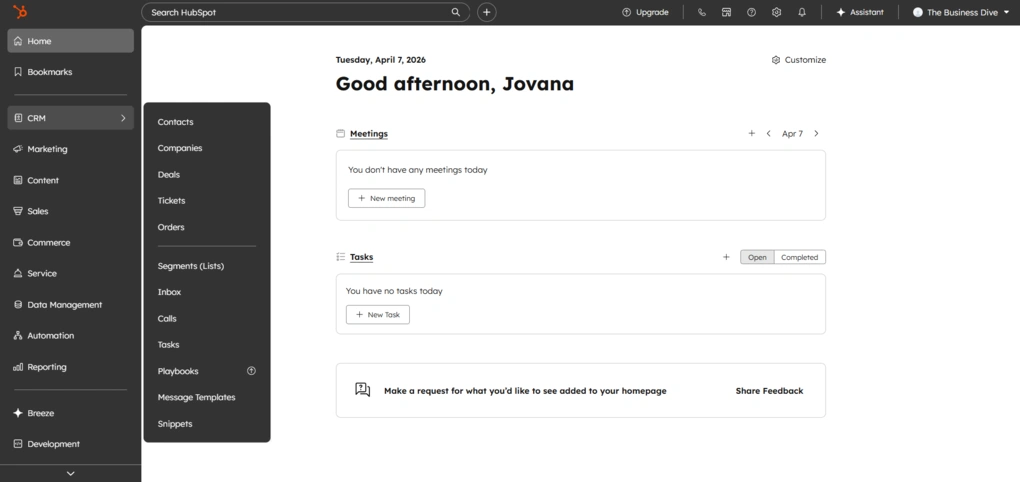
Since HubSpot includes a lot of different features, the interface can feel a bit heavy at first. There is a lot going on, but it is structured in a way that makes sense. Additionally, when you first start using it, the platform guides you through most actions, so even though it looks complex, it is not hard to get into.
Everything is organized through the left sidebar, so once you learn where things are, navigation becomes pretty straightforward.
You can rearrange widgets on the dashboard, which gives some flexibility. There is also a search bar that makes it easy to jump to things quickly, and a bookmarks bar that you can customize based on what you use most.
Filtering and customization options are strong across the tool, especially when working with contacts and deals.
Pipedrive’s strengths and limitations
After spending time testing Pipedrive, these are the main advantages and drawbacks that stood out most.
Pipedrive’s advantages
Pipedrive’s drawbacks
What HubSpot does well and where it falls short
Here’s a quick breakdown of where HubSpot performs well and where it falls short.
What it does well
Where it falls short
Alternatives to Pipedrive and HubSpot
If you are not sure if HubSpot and Pipedrive are the best choice for you, here are some:
|
App |
Best for |
Description |
|---|---|---|
|
Nutshell |
Best for simple all-in-one CRM |
Nutshell is a well-rounded CRM that brings contact management, pipeline tracking, and communication tools into one place. |
|
Zoho CRM |
Best budget-friendly CRM |
A flexible CRM platform with a wide range of features, including automation, analytics, and customization options. Often used by businesses looking for a more affordable all-in-one solution. |
|
Salesforce |
Best for enterprise teams |
A highly customizable CRM designed for large organizations, offering advanced automation, reporting, and integration capabilities across complex business processes. |
|
Monday CRM |
Best for visual workflows |
A visual CRM built on a flexible workspace, allowing teams to manage pipelines, tasks, and processes in a highly customizable way. |
My pick: Pipedrive vs HubSpot
We’ve come to the end of this Pipedrive vs HubSpot comparison, and I hope it helped you get closer to a decision.
The truth is, this isn’t a typical “better vs worse” situation, it’s about choosing the tool that actually fits the way you work.
If you want a straightforward CRM focused on deals and pipelines, Pipedrive is the obvious choice.
If you need something more robust and scalable, HubSpot makes more sense. It brings together sales, marketing, and automation into one system, which is powerful, but also requires more time, effort, and budget to fully take advantage of.
My take is: go with Pipedrive if you value simplicity, speed, and a clean sales workflow. I would personally use this tool and feel it is a more practical solution.
On the other hand, HubSpot could be ideal if you’re building a more complex system and want everything in one place, even if it comes with a learning curve.
Either way, you’re not making a bad choice, just a different one.
Looking for similar tools?
Visit our AI note-takers library to explore other apps we’ve reviewed in this space and how they compare.
Why you can trust our reviews
At thebusinessdive.com, our team tests, reviews, and compares hundreds of productivity apps every year — from project management tools to note-taking apps. We dive deep into real-world use cases to help you find the right tools that actually improve your workflow, not just add noise.
Our mission? No fluff, no shortcuts—just honest, hands-on insights from productivity pros.
Discover how we stay transparent, read our review methodology, and let us know about any tools we missed.
Frequently asked questions
What is the main difference between Pipedrive vs HubSpot?
The main difference in Pipedrive vs HubSpot comes down to focus. Pipedrive is a sales-focused CRM built around sales pipeline management, helping sales teams track deals and manage their sales process with a clean, visual pipeline.
HubSpot, on the other hand, is a broader CRM platform that combines sales, marketing automation, and customer service tools into one system, making it better suited for sales and marketing teams working together.
Is Pipedrive or HubSpot better for sales teams?
For most sales teams seeking simplicity and speed, Pipedrive is the better choice. It offers an intuitive user interface, strong deal management, and a highly visual sales pipeline that helps sales reps stay focused on their sales activities and improve sales efficiency.
HubSpot is better for teams dealing with complex sales processes or those that need deeper sales automation, lead scoring, and advanced reporting features.
Does HubSpot or Pipedrive offer better features and automation?
When it comes to advanced features, HubSpot stands out. Tools like marketing automation, predictive lead scoring, custom workflows, and its HubSpot Sales Hub make it a more powerful option for managing the entire sales process and running marketing campaigns.
Pipedrive offers solid core sales features and automation, but it focuses more on simplicity and visual pipeline management rather than comprehensive sales automation.
Which CRM is more affordable: HubSpot or Pipedrive?
In terms of pricing, HubSpot offers a free CRM plan, but costs can increase quickly with higher-tier plans and advanced features.
Pipedrive doesn’t have a free plan, but it provides more predictable and affordable pricing, which makes it a strong option for small businesses and sales teams that want powerful CRM functionality without unexpected costs.
Which is better for small businesses: HubSpot CRM or Pipedrive CRM?
For small businesses, the choice depends on your needs. Pipedrive is ideal if you want a simple, sales-focused CRM with fast setup, intuitive deal tracking, and strong pipeline management.
HubSpot is a better fit if you need an all-in-one platform with built-in marketing tools, email marketing, and the ability to manage customer relationships across sales and marketing in one place.
Disclosure: I only recommend products I would use myself, and all opinions expressed here are our own. This post may contain affiliate links through which, at no additional cost to you, I may earn a small commission. Read the full privacy policy here.

Hey! I’m Jovana, a content writer who loves writing, researching, and testing new productivity apps. With a background in philosophy, I bring a thoughtful but no-bullshit approach to everything I do. Let’s connect on Linkedin!