


Step-by-Step Murf AI Tutorial For 2026 | 7 EASY Steps
In this Murf AI tutorial, I will show you how to use this AI voice solution effectively in your business.
Probably, most of the businesses use it for training their teams, so I will use this example throughout this Murf AI tutorial.
With seven easy steps, I will guide you on how to use Murf’s voice agents, Studio, and AI dubbing.
Let’s dive in!
Why Murf matters for scaling training videos
Are you thinking of rolling out a new onboarding or training program across several regions?
You want consistency in tone and accurate messaging, with voiceovers localized for each region. You do not want to manage dozens of different voice actors or deal with multiple recording sessions.
Murf solves that by giving you:
- Access to 200+ Voices in 20+ Languages, and you do not have to create voice-overs manually.
- Full control over voice style: pitch, speed, emphasis, pronunciation.
- Tools to sync up voice with video visuals and background music inside their Studio.
- AI dubbing for localization into 40+ languages.
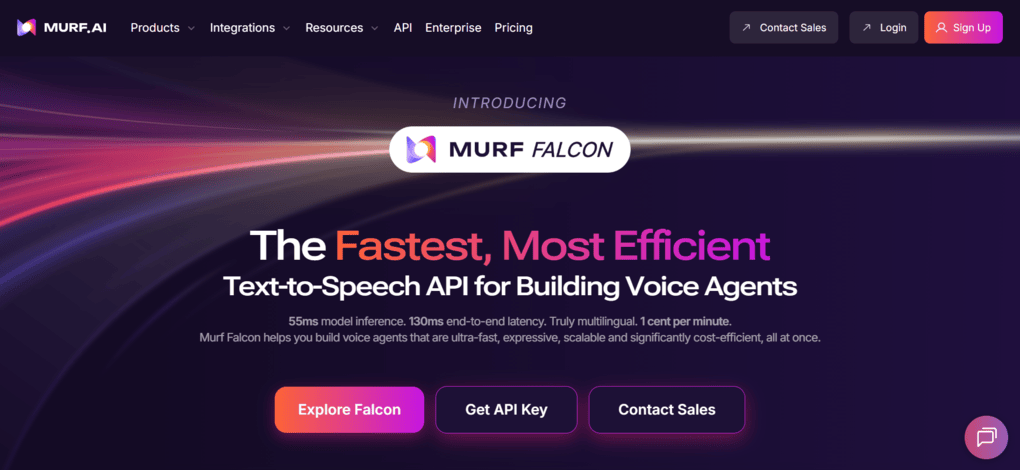
- An API, Murf Falcon, if you want to embed voices into agents, chatbots, or scalable systems.
Put differently, you get not only a voiceover tool but also a complete, scalable audio infrastructure for business training content.
Murf AI tutorial in 7 Easy steps
Here, I will show you how to use Murf AI in seven steps.
Step 1: Set up your project in Murf Studio
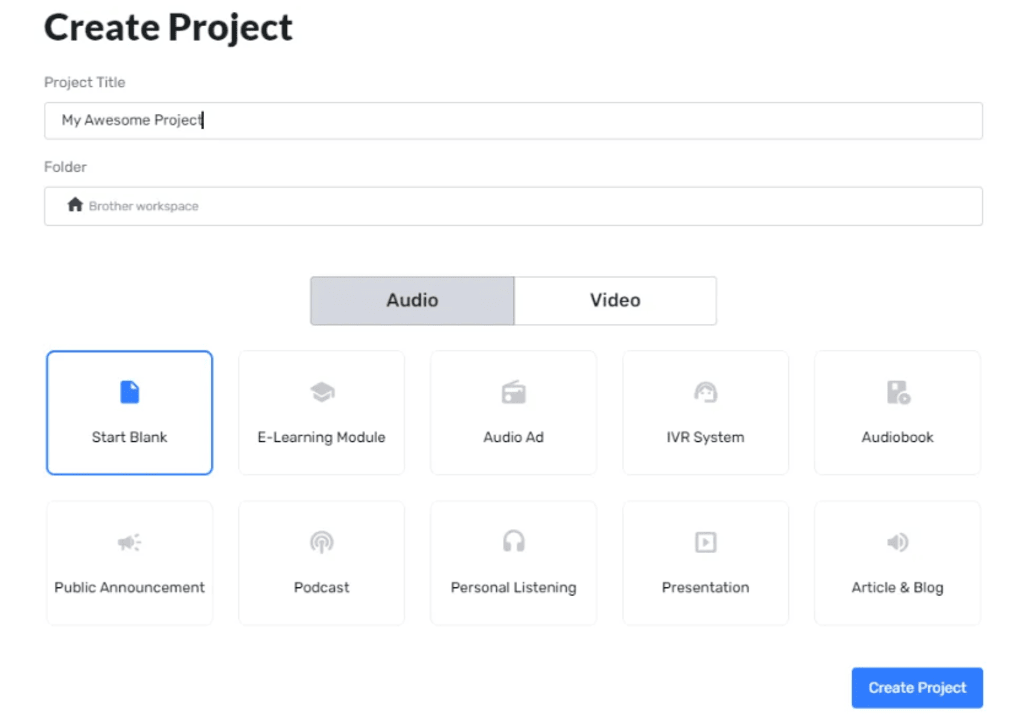
Head to Murf Studio and click “Create Project.” When prompted, select “Video” for the content type. This tells you that you are going to sync visuals to your voice.
Next, upload your raw training video, either directly from your computer or by importing via platforms such as YouTube and Vimeo.
Please note that Murf supports common video formats and even image slides if you’re converting a presentation.
Step 2: Import or write your script
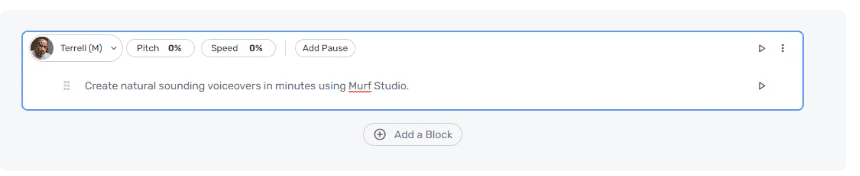
Once you create a project, paste your training script into the Murf text editor. If you already have the text, perhaps from a slide deck or a written outline, just copy and paste.
Murf AI converts text-to-speech in multiple languages and creates high-quality voices. This can help you accelerate the content creation process.
Break the script into smaller paragraphs using the ‘+’ button, not only because it makes editing easier, but also because it helps you render more precisely. Smaller chunks = more control.
Step 3: Choose & customize your AI voice
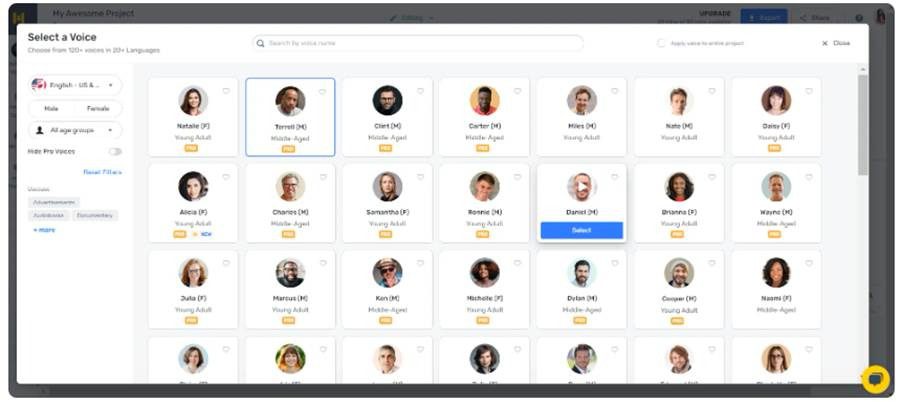
Here’s where the strength of Murf comes in. Click the “Explore AI voices” to open the library of 200+ AI voices. You can filter by language, age, gender, or accent, whatever voice fits the tone of your training.
Once you’ve selected a voice, customize it by selecting speed, pitch, and volume adjustments on the toolbar. You can also highlight words by clicking on the emphasis icon, moving a node to dynamically soften or boost the pitch, or inserting pauses by choosing from pre-set lengths or typing your own length. Adding a pause is helpful in giving learners a second or two to digest what they are hearing.
Furthermore, you can improve pronunciation for technical terms, acronyms, or names by using IPA or alternate spellings.
Once you are satisfied with the customizations, press the play button beside each block to get an idea of what the voice is like in context.
Step 4: Sync voice with video & add background music
Good training videos shouldn’t feel robotic. They should feel human. To accomplish this, sync your narration with your visuals using the timeline at the bottom of the Studio.
If your video is divided into several scenes, adjust the length of single voice blocks so that the speech fits each of the scenes. Want to breathe before the new section? Add more pauses or deliver it more slowly.
Next, select a background track. Murf has an integrated library of royalty-free music labeled by use case, such as corporate, motivational, calm, etc. Use music very sparingly as it should enhance your narration, not overwhelm it.
Step 5: Preview, tweak & render
Hit Play in the middle of the Studio to get an idea about the combined video and voice.
Listen carefully. Are there mismatches in timing? Do some words not feel natural? If anything is amiss, change the script, move your blocks, re-render that section, and preview again.
Once you’re happy with it, click the Render button. The Studio will stitch your video, voiceover, and background music into a single output. If you are on a paid plan, you can render in HD.
Step 6: Leverage voice agents for interactive training
If your business training includes conversational flows, like simulations, quizzes, or role-playing, Murf Falcon is where you lean into voice agents. It’s not just voiceover, but it means building an AI-powered agent that can talk back.
By using Murf Falcon, the API, you can:
- Create a voice agent that speaks in the same tone as your training narration.
- Integrate it into LMS platforms or chatbots so learners interact with an AI guide.
- Scale these agents with ease, without managing voice actors.
You will need support from a developer to embed the API; however, once done, voice agents become reusable across cohorts and regions.
Step 7: Localize training with AI dubbing
If your company is global or operates in diverse regions, you can scale training by localizing voiceovers with the help of Murf’s AI dubbing feature. Export the original project or script and duplicate it in the Studio. Then, replace it with a different script variant (translated) or use a different voice in another language. Murf supports more than 40 languages for dubbing.
Adjust timing, emphasis, and pauses in the new language to preserve the pacing. Render the new version.
This drastically cuts down on time and overhead in localizing training content, as recording talent does not need to be hired for every region.
You can get started with 100 free minutes.
Pro tips for better training voiceovers
Some real-world lessons from working with Murf:
- Use shorter blocks of text: Breaking your script into small paragraphs gives you more control over emphasis, pauses, and pronunciation.
- Spell tricky words: Spell names or products phonetically, or use IPA; it pays off in clarity.
- Don’t overdo music: Pick the track that will complement your narrator, not compete with it.
- Preview often: small changes in timing or pacing can make a big difference in how natural the voice feels.
- Train your team: Once you have a “brand voice” in Murf, keep it consistent. Document which voices, speeds, and pauses work best for the training style.
Scaling for the long-term: Building a voice strategy
To make Murf part of your long-term training infrastructure, follow these steps:
- Choose a core voice or two: Pick voices that best describe your brand or training tone; use them consistently.
- Style guide: Document your use of emphasis, pause, pronunciation fixes, and music.
- Train content creators to do this: Teach your L&D team or training creators how to write for AI voice, which means short paragraphs, clear structure, and marked-up emphasis.
- Centralize projects: Use Murf Academy (their tutorials) to onboard more users through their tutorials.
- Measure impact: Compare video engagement, comprehension, and feedback between human-recorded training vs Murf-generated. Adjust your process based on real data.
Summary: Murf AI Tutorial
What this means in real terms is that Murf.AI isn’t a quick workaround but a strategic, scalable tool for business training. By creating polished voiceovers in its Studio, leveraging its voice agents for flow and interaction, and tapping its AI dubbing capabilities for localization, you can deliver consistent high-quality training content within your budget and your timeline.
Related articles:
- Vidnoz AI Review: Is it the Best AI Video Generator? (Tried & Tested)
- Submagic Review 2026 | A Content Creator’s Test
- How to Choose An Online Video Editor in 2026? (Tips from a Pro)
Adopt Murf as part of your training playbook, and you will never be limited by voice-talent schedules or recording costs. You will scale your voice like software and reuse, iterate, and localize as your business grows.
Frequently asked questions
How do you use Murf AI?
You can get started with Murf AI with these seven steps:
- Step 1: Set up your project in Murf Studio
- Step 2: Import or write your script
- Step 3: Choose & customize your AI voice
- Step 4: Sync voice with video & add background music
- Step 5: Preview, tweak & render
- Step 6: Leverage voice agents for interactive training
- Step 7: Localize training with AI dubbing
Can I use Murf AI for free?
Yes, Murf AI has a free plan that allows you to use up to 10 projects and allows 10 minutes of voice generation.
Is Murf AI voice easy to use?
Murf AI is an easy-to-use text-to-speech application. It is ideal for professionals, businesses, and educators to improve content and training creation.

Hey there! I am Aron, the founder of Thebusinessdive. I have been testing productivity apps for almost three years now. I reach 25.000 -50.000 people monthly with the mission to help you find the perfect productivity apps. Subscribe to my YouTube channel, newsletter, and social media to hear more about the best productivity tools. Let’s dive in!