


How to Electronically Sign a Document Without Paying for the Wrong Tool
You just received a contract, but you’re not sure how to sign it electronically.
The good news is that electronically signing a document usually takes less than a minute but the right way to do it depends on the file in front of you. Pick the wrong one and you either pay for a subscription you didn’t need or end up with a signature that’s hard to prove later.
The quickest way to choose is to start from your own case, so find it in the table below and follow the steps for that method.
Which E-Signature Method Fits Your Case
| Case | Best method | Cost | Good to know |
| A PDF only you need to sign | Adobe Acrobat (Fill & Sign) | Free | Works in Reader, the desktop app and the browser |
| A file stored in Google Drive | DocHub | Free for up to 5 signed PDFs a month | Opens from Drive and saves back to it |
| A contract several people must sign | Loio | From $15 a month, 7-day free trial | Signing order, tracking and reminders for up to 10 signers |
| A Word file that has to stay in Word | Word’s signature line | Included with Word | A verified signature needs a digital certificate |
| A government or regulated filing | Digital or qualified signature | Varies by provider | Your identity gets verified first |
What Makes an Electronic Signature Valid
A typed name can be just as binding as ink, as long as a few conditions are met. In the US, the ESIGN Act and UETA give electronic signatures the same legal weight as handwritten ones.
Courts tend to look for intent (the signer clearly meant to sign), consent (everyone agreed to handle the deal electronically), and a record (the signed file is stored and shows who signed and when).
A signature image pasted into a file proves very little, while a platform that logs emails, timestamps, and every action proves a lot.
Wills and a few other documents still sit outside these laws, so check before e-signing anything headed for a court or notary.
How to Sign a PDF Electronically with Adobe Acrobat
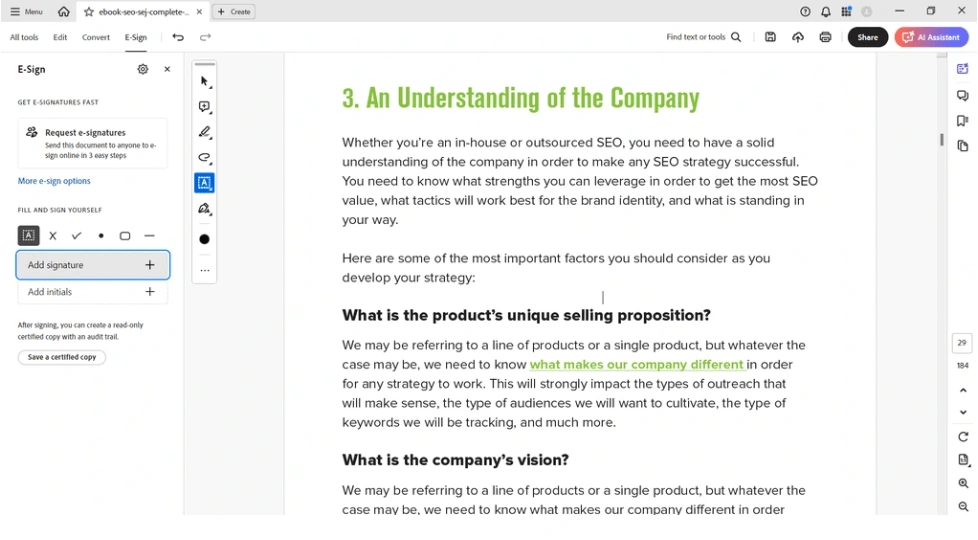
Adobe created the PDF format, so Acrobat is the default answer for most people. The free Reader app is enough when you’re the only signer.
- Open the PDF in Acrobat or Acrobat Reader. Nothing installed? Adobe’s online Fill & Sign tool runs in a browser.
- Select E-Sign in the top bar, or go to All tools > Fill & Sign.
- Click Add signature, then type, draw or upload an image of your signature.
- Click where the signature belongs and resize it.
- Save the file.
Need someone else to sign?
Choose Request e-signatures, enter their email and mark where they sign. They don’t need an Adobe account. Adobe lets you send requests with a free account, but regular senders soon run into the paid plans.
When deciding which paid plan to choose, I recommend checking Adobe Acrobat alternatives, as it’s quite likely you can get the tools you want for significantly less money.
How to Sign a Document in Google Drive with DocHub

Downloading a file from Drive, signing it and uploading it again leaves you with two copies, and one of them is always the wrong one. DocHub skips the round trip.
- Install DocHub – PDF Sign and Edit from the Google Workspace Marketplace and approve the permissions.
- In Drive, right-click the file and choose Open with > DocHub.
- Pick Sign in the toolbar, create a signature or choose a saved one, and drop it on the page.
- Export the file back to Drive, either as a new copy or over the original.
The free plan covers five signed PDFs and three signature requests a month.
One caution for work accounts, though. The add-on asks for access to your Drive files, and some IT teams block that.
How to Send a Contract to Multiple Signers with Loio
Signing gets harder the moment a second person is involved, and a contract makes it harder again. Somebody has to fix the typo in clause 4, decide who signs first and chase the person who never opened the email. Contract management by Loio helps deal with all that.
Loio is built for exactly that job. It puts a PDF editor, an AI contract summary and signature requests in one browser tab, which makes it the best fit in this guide for multi-signer contracts.
- Upload the contract. Drag in a PDF or DOCX of up to 10 MB, import one from Google Drive, or start from a Loio template.
- Clean it up first. Fix names, dates and amounts in the editor now, because the document shouldn’t change once a request goes out.
- Add your signers. Switch to For signers mode and click Add signer. Enter a name and email for each person, up to ten.
- Place the fields. Drag Signature, Initials, Date, Text or Checkbox fields onto the page. Each signer gets a color, so it’s clear who fills in what.
- Choose the order. Turn on Set signing order to route the contract one person at a time, or leave it off and everyone receives it at once.
- Send and track. Signers get an email link and sign in their browser. Watch the status in the Signatures tab and send a one-click reminder if someone stalls.
Other Ways to Sign a Document Electronically
Signing a Word document
Some clients want to receive the .docx back specifically, which rules out and makes Word’s own signature line the better option.
To do that on Windows, there are only a few simple steps. First, open the Insert tab and choose Signature Line. Then, right-click the line that appeared and choose Sign.
Here, Word will ask for a digital certificate before it lets you finish. Provide it if you have one. If you don’t, you can paste in a picture of your signature instead.
Signing in Google Docs
You can also ask for signatures without exporting anything, if your team already drafts their contracts in Docs. When working on a document, go to Tools > eSignature. There, you can drag the signature and date fields into place, add up to ten signers and click Request signature.
If you don’t see eSignature in your menu, it’s probably because of the plan. To use it, you may need Workspace Individual, Business Standard, and above.
When you need a digital or qualified signature
Standard e-signature isn’t always enough. Look for the words “certificate,” “digital signature,” or, in the EU, “qualified electronic signature.” These are typically used by tax portals, banks, regulated industries, etc.
In these cases, you’ll need to be verified by an approved trust provider before you sign, so ask the recipient which providers are accepted if necessary.
If you look for the best esign solutions, we collected here the top nine after testing twenty alternatives: 9 Best eSign Software for 2027 | Bigger Brand ≠ Better Tool
How to Keep an E-Signed Document Secure and Provable
Electronically signed documents can be just as legally binding as documents with regular signature. That means you have to be very careful when handling them, especially you sign online.
These are a few practices that will help you with that:
- Make sure the signed PDF and its audit trail are stored together. This can really come in handy if or when you need to prove who signed, when, and from which email.
- Never edit after signing. Even fixing a typo can break the record of a completed document. If there’s a real need for changes or updates, create a new version, and make sure all the changes are clear to everyone involved. Only then you can sign again.
- Watch out for unexpected or suspicious signing emails. Check the sender’s address and don’t click any links until you can verify the email is legit.
Pick the Method for the Person Who Might Doubt It
All of the methods in this section involve placing a signature on a page, but the quality of that signature depends upon subsequent scrutiny.
Picture that person before you sign. If no one is ever going to ask, a quick Fill & Sign will do.
You need the audit trail that a signing platform offers in case it’s a client or their lawyer. Match the proof to the likely doubter and you probably won’t make the wrong choice
Frequently asked questions
What is the easiest way to digitally sign a document?
If you need to sign a single PDF document, Adobe Acrobat Reader works best. This method is free and takes just a moment of your time.
In Adobe Acrobat Reader you choose Fill & Sign, add your signature and save. Another simple option is through Google Docs, but it requires a paid plan.
How do I insert an electronic signature in a document?
For most signing tools, you just need to select the signature option, then click where the signature should go. In Word, that’s Insert > Signature Line. In Google Docs, it’s Tools > eSignature.
How can I create an e-signature for a document?
Most tools allow you to type your name, draw with a mouse or finger, or upload a photo of your handwritten signature with just a few clicks. These are the most common and widely accepted options, but you can also use certificates.
They require you to verify your identity. Then the signer’s identity is linked to a cryptographic key that can be used for signatures.
What is the difference between a digital signature and an electronic signature?
An electronic signature is any electronic mark that shows you agree to and accept the contents of the document. This mark can be as simple as a typed name.
A digital signature, on the other hand, uses an encrypted certificate to confirm your identity and reveal any change made after signing.

Hey there! I am Aron, the founder of Thebusinessdive. I have been testing productivity apps for almost three years now. I reach 25.000 -50.000 people monthly with the mission to help you find the perfect productivity apps. Subscribe to my YouTube channel, newsletter, and social media to hear more about the best productivity tools. Let’s dive in!