


Clever Cleaner Review: AI-Powered App to Maximize Your iPhone Productivity
Today, we’ll take a close look at Clever Cleaner, a free AI-powered app that claims to make iPhone cleanup painless while boosting productivity. I’ve spent a full week using it, testing every feature it offers, so this is going to be a full-fledged Clever Cleaner review, not a reworded App Store feature list.
If you’re curious whether it actually delivers, you’re in the right place.
I’ll walk you through what it does, what actually worked, what felt smooth (or didn’t), and whether it’s worth a spot on your own home screen.
Let’s dive in!
Who Made Clever Cleaner and What Makes It Stand Out
The app comes from CleverFiles Inc., so I guess the name Clever Cleaner checks out. As of writing this, it’s ranked in the top 200 under the Productivity category on the App Store and holds a 4.8 rating from over 15,000 users.
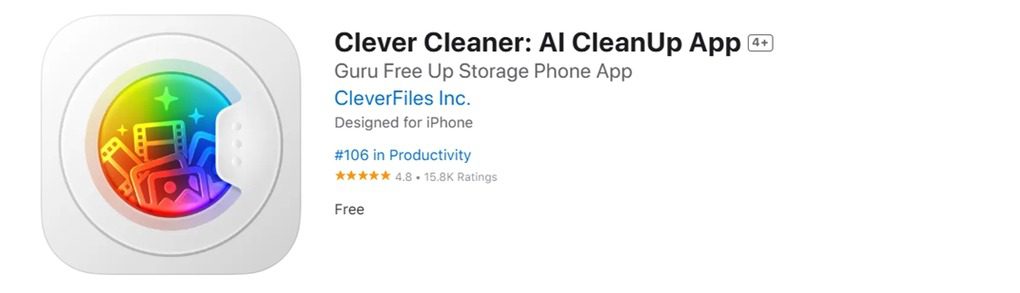
Most of the reviews I’ve come across are genuinely positive, and a lot of people seem to really appreciate one thing above all: it’s actually free. No “unlock premium” tricks.
And I get it – because I’ve been burned by this kind of app before. You install something that says it’s free, it scans your phone, gives you hope, then right before cleanup… a paywall.
Some even make you subscribe after you’ve already picked the files to delete. In my opinion (and it’s one I know a lot of people share), apps on the App Store that are free to download but not free to actually use shouldn’t be labeled as “free” at all. It’s misleading.
I can confirm that Clever Cleaner does none of that. Everything is unlocked from the start. No ads even.
Key Features of Clever Cleaner
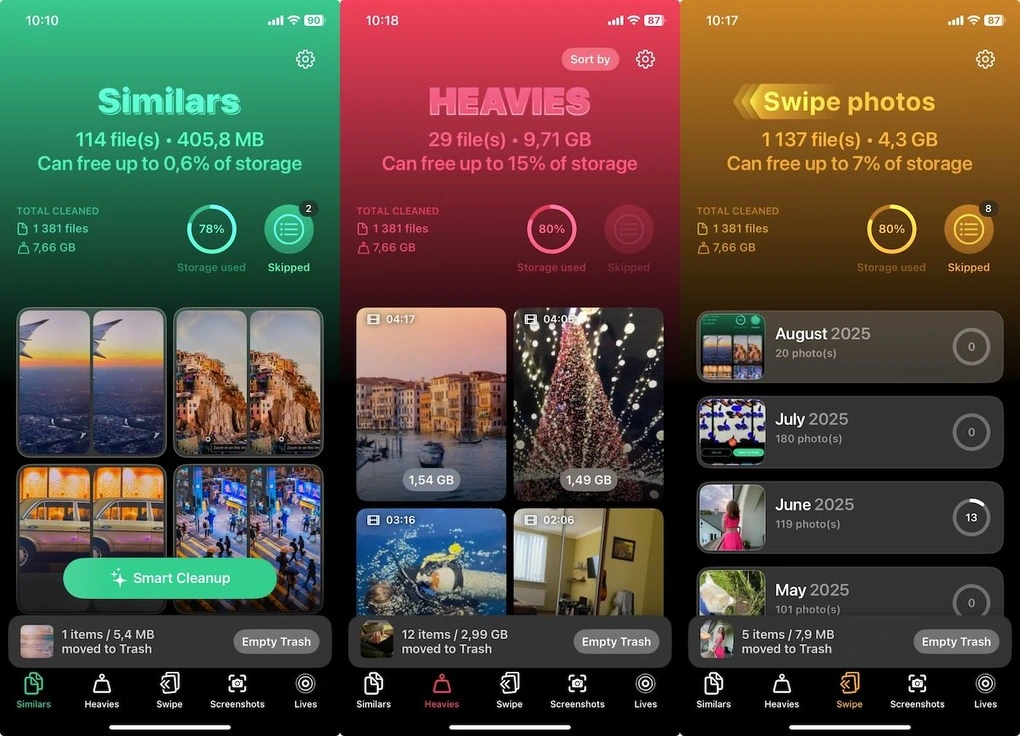
Okay, so the app is honest. That’s good, refreshing, actually, but what do you actually get for that price of zero dollars? Let’s break it down:
- The main attraction is called Similars, and it’s front and center on the app’s home screen for a reason. This is where Clever Cleaner shows off what its AI can actually do. Unlike the default Duplicates folder in the iPhone Photos app, which only finds pixel-perfect copies, Clever Cleaner scans for similar-looking photos. Think: the same person or object shot a few times in a row, different angles of the same scene, or nearly identical photos taken with different lighting.
- The Heavies tab is another useful one. It scans your entire library for the largest media files and ranks them by size. Most of these end up being 4K videos or long screen recordings;
- Then there’s Screenshots. You probably don’t realize how many you’ve piled up until you see them all in one place. Clever Cleaner gathers every screenshot on your device so you can wipe them out in bulk. Technically, you can do this in the Photos app too (there’s a “Screenshots” album tucked away), but it’s nice having all your cleanup tools in one spot.
- If you’re not into auto-cleanups or suggested picks, the Swipe Photos feature might be your thing. This lets you go through your library month by month, swiping left to delete or right to keep. Great for people who want full control but without the usual scrolling.
- And if you’re one of those people (like me) who accidentally fills up their phone with Live Photos, there’s a fix for that too. Clever Cleaner gives you the option to convert Live Photos into still images.
On paper, that’s a solid set of tools – even for a paid app. Honestly, I don’t remember seeing Live Photo conversion in many other free iPhone cleaners. That feature alone can save you a lot of space if you’re someone who snaps photos with Live turned on.
And yes, I would’ve loved to see a video compression option too. I deal with 4K footage fairly often, and trimming those down without deleting them would be huge. But even without that, this is a satisfying set of features.
Hands-On Test (How Clever Cleaner Performed)
Now I want to cover each feature separately and share my actual experience using them – what worked and how it all felt in real-world use. Let’s start with the star of the show: Similars.
Similars
This is where Clever Cleaner flexes its AI muscle. After the initial scan (which took about 10 seconds for my photo library), the app showed me a bunch of photo groups it thought were nearly identical.
And I have to admit, they really were. People, places, pets, random objects – everything was neatly categorized.
I didn’t see a single group where two unrelated photos got lumped together, which tells me this isn’t some shortcut using filenames or metadata. It’s actual image analysis. Real AI, and not just a buzzword slapped on to ride the trend.
The app also picks a “Best Shot” for each group. That’s the one it plans to keep if you hit the Smart Cleanup button. Most of the time, its picks made sense. I changed the selection a few times, but nothing major or weird.
And I liked that the app never forced anything – it let me review every group, skip ones I wasn’t sure about, switch the selected photo, or exclude them entirely.
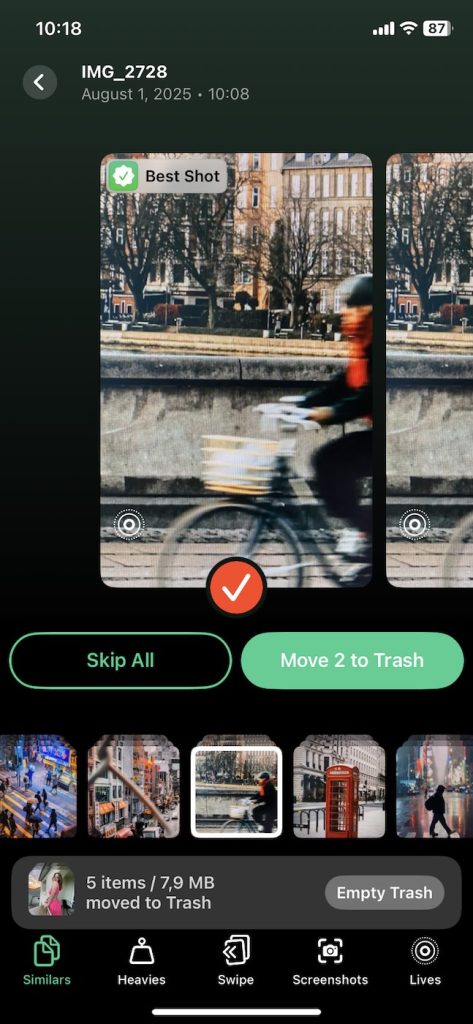
Once I was ready, the deletion took one tap. Simple.
You can also skip the whole review process and just tap Smart Cleanup if you’re feeling confident. And if you change your mind after that, the app has its own Trash folder.
It doesn’t immediately wipe anything from your phone. Deleted files sit there for a while, giving you a chance to restore anything important before it’s gone for good.
Heavies
This one is underrated, in my opinion. If you’ve ever tried to sort files in Photos by size, you know what I mean – it’s not something the native app lets you do.
You can’t just tap a button and see which videos or images are taking up the most space. You end up scrolling, maybe spotting a few obvious ones, but that’s it.