


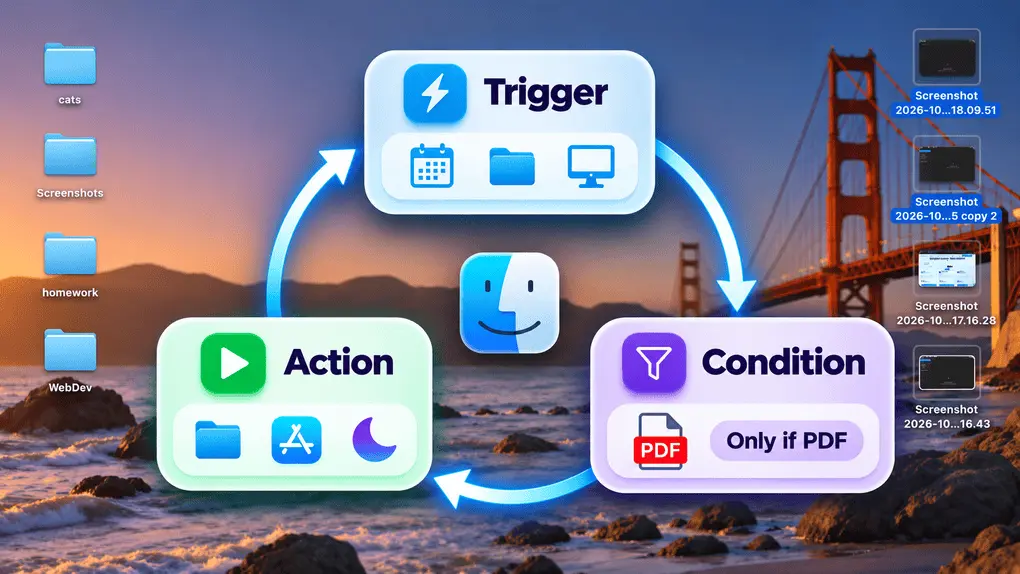
7 Mac Automation Tips: Give Me 5 Minutes, I’ll Save You 40 Every Week
Most of us repeat the same small chores on a Mac every day, like dragging files into folders, opening the same apps, and renaming screenshots one by one.
These Mac automation tips show you how to hand that work to macOS and a few trusted apps, with ready-to-copy workflows and honest opinions on what’s worth your time.
Mac Automation: My Quick Recommendations
- Start with Shortcuts, because on macOS Tahoe and later it runs automations on its own when a trigger fires.
- Use Finder Quick Actions for batch jobs like converting or renaming dozens of files at once.
- Pay for Keyboard Maestro or Hazel only when Shortcuts can’t do what you need.
- Let a maintenance app like MacKeeper handle cleanup and security scans in the background.
- Test every new automation with confirmation turned on before you let it run by itself.
- Across the three workflows below, I save roughly 40 minutes a week, and none of them cost a cent.
Mac automation concepts in plain words
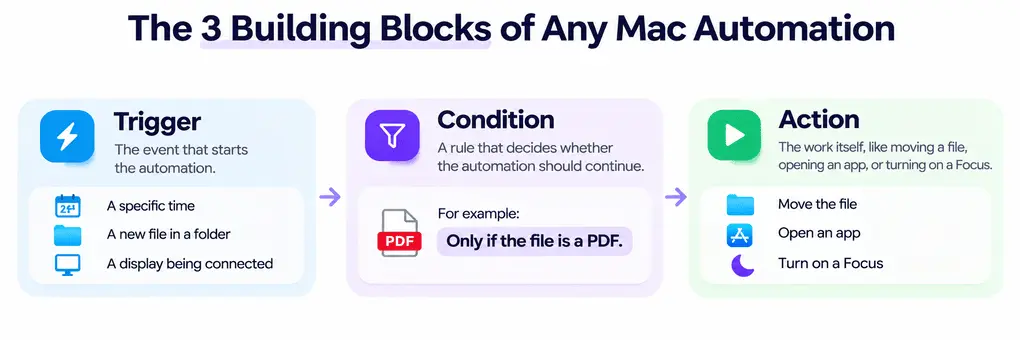
Before you build anything, it helps to know the three Mac automation concepts that every tool shares. Once you see them, Shortcuts, Hazel, and Keyboard Maestro stop looking different and start looking like the same idea with different controls.
The three building blocks of any automation:
- Trigger. The event that starts the automation, such as a set time, a new file in a folder, or a display being connected.
- Condition. A rule that decides whether the automation should continue, for example, “only if the file is a PDF.”
- Action. The work itself, like moving a file, opening an app, or turning on a Focus.
In my view, the condition is where most people go wrong. My first Downloads rule had no condition at all, and within a day it had swept a half-finished Keynote export and two app installers into my Documents folder.
A single check for the PDF extension fixed it, and I haven’t had a stray file since.
Start with the tools already on your Mac
You don’t need to buy anything to get real results. Apple ships three automation tools with macOS, and for most people they cover the bulk of everyday tasks.
Shortcuts automations
Shortcuts used to wait for you to press a button on the Mac, but since macOS Tahoe, it can run by itself.
A Mac Shortcuts automation can start at a time of day, when an app opens or quits, when files change in a folder, when an external drive or display is connected, when a Focus turns on, or when your MacBook battery drops below a set level.
macOS 27 Golden Gate goes further and lets Apple Intelligence draft a shortcut from a plain-language description.
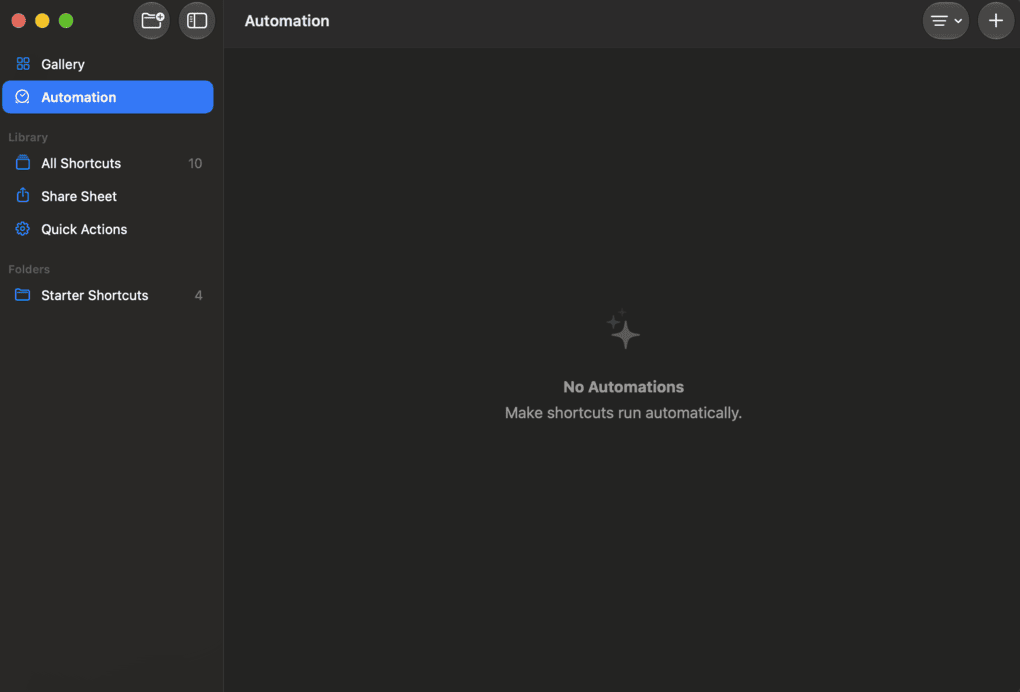
Here’s how to create your first automation:
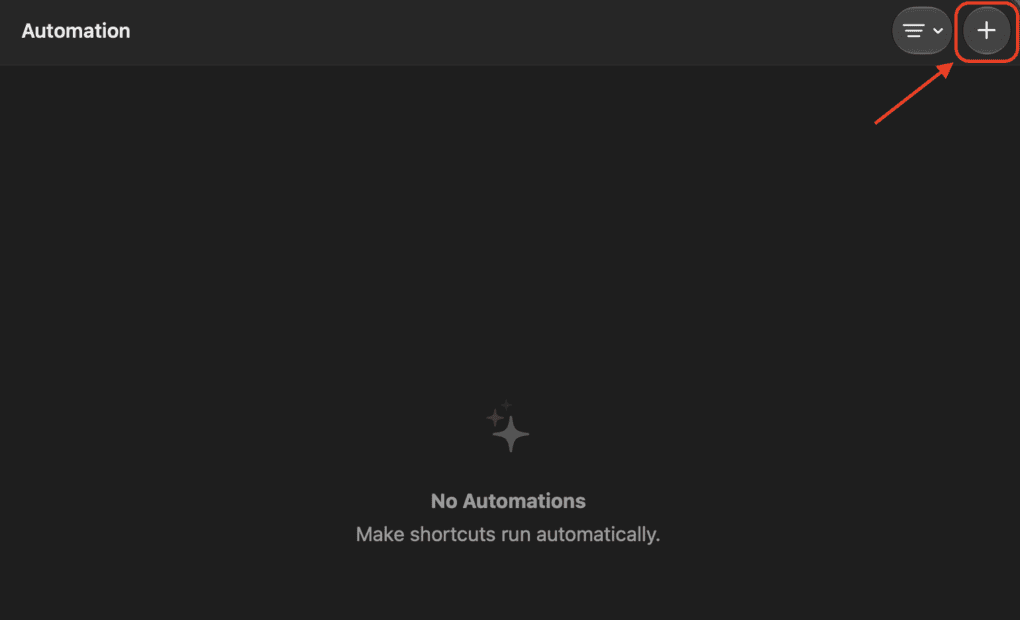
- Open the Shortcuts app and select Automation in the sidebar.
- Click the + button and choose a trigger, such as Folder or Time of Day, then set its options.
- Choose Run After Confirmation while you test it, and switch to Run Immediately once it works.
- Add the actions you want from the library on the right.
Finder Quick Actions and batch rename
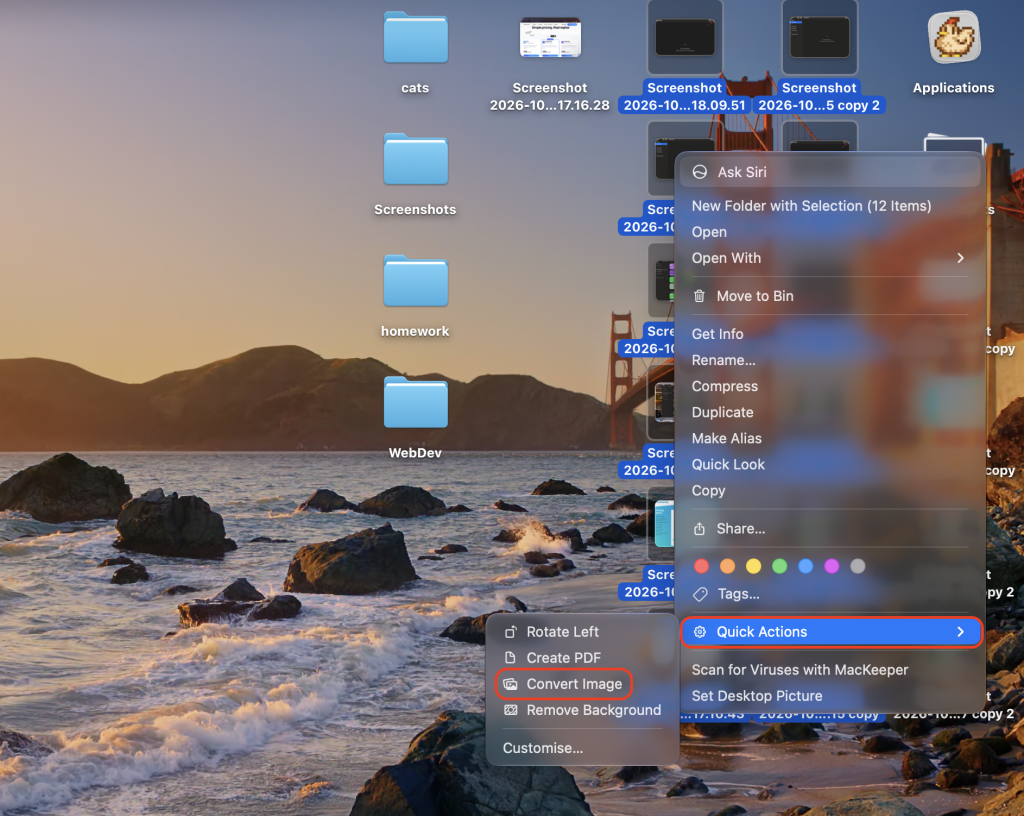
Some of the fastest wins don’t need a single rule. After a round of app testing, I had 64 screenshots with names like “Screenshot 2026-09-14 at 10.32.18” that needed to become “settings-01” through “settings-64.”
The first time, I renamed them by hand, and it took me about 11 minutes. Finder’s batch rename did the same job in under 20 seconds.
Try these two Finder shortcuts:
- Select several images, Control-click them, and choose Quick Actions > Convert Image to change their format and size together.
- Select a group of files, Control-click, choose Rename, and pick Format to give them a shared name with a number.
Automator and Folder Actions
Automator still runs older workflows and Folder Actions, so there’s no rush to rebuild something that already works.
That said, Apple’s new automation features land in Shortcuts, and Shortcuts can import many Automator workflows, so I’d build anything new there.
Three workflows worth copying
These are the kinds of Mac workflow automation setups that pay off within a week, because each one replaces a chore you’d otherwise repeat every day.
1. Keep Downloads tidy on autopilot
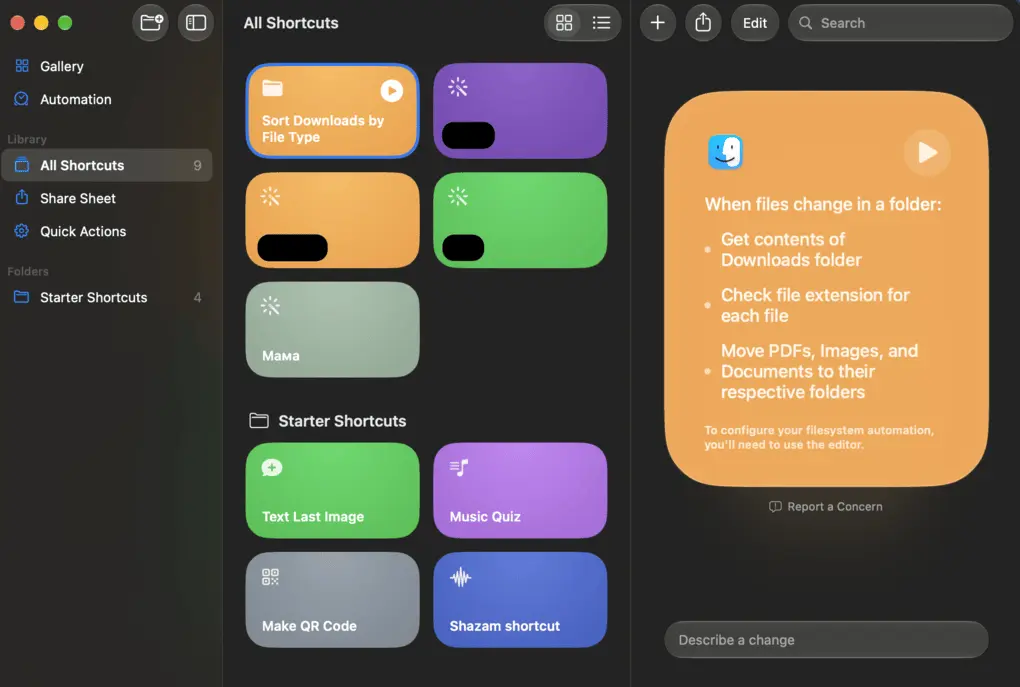
Downloads is where clutter piles up fastest. Before I set this up, my Downloads folder held just over 900 files, and I spent around 15 minutes every Friday sorting them.
A Folder automation in Shortcuts now sorts new files the moment they arrive, so PDFs go to Documents and images go to Pictures.
Build the sorting automation like this:
- Create a Folder automation for your Downloads folder.
- Add Get Details of Files and set it to read the file extension.
- Add an If action for each file type, with a Move File action inside it.
🔎 My results after two weeks: My Downloads folder went from over 900 files to just 23, all downloaded that day. I also discovered that large files sometimes moved before Safari finished downloading them, but adding a 5-second Wait action solved the issue.
2. Set up your desk when a display connects
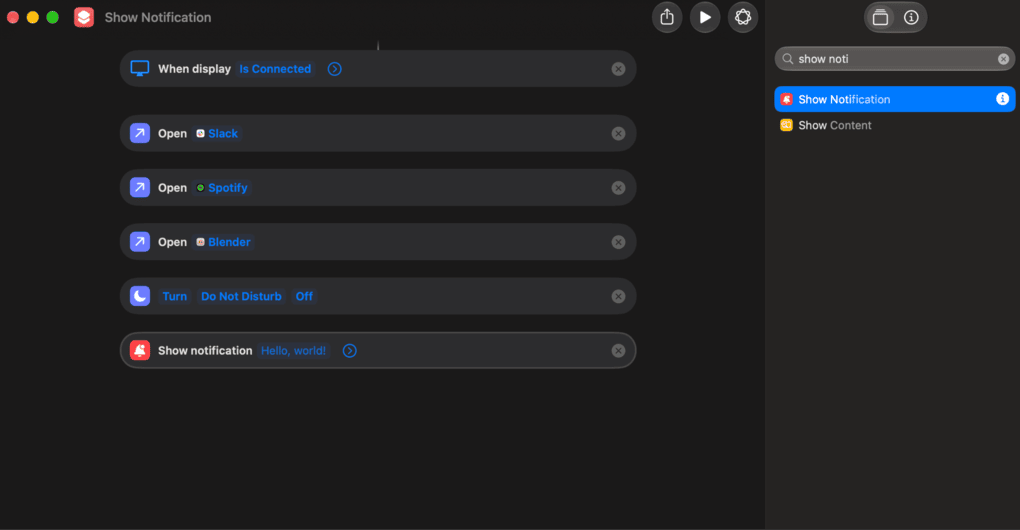
I plug my MacBook Pro into a 27-inch monitor every morning, and the same routine used to take about 3 minutes. I’d open Slack, Spotify, and Blender, turn on Work Focus, and drag every window into place.
I counted 14 clicks before the automation and none after it, since a Display trigger now does everything while the screen wakes up. On macOS 27, Shortcuts can also resize and position the windows for you.
Add these actions to a Display trigger:
- Open App for each app you start the day with
- Set Focus to turn on your Work Focus
- Show Notification to confirm that everything is ready
3. Save battery before it runs out
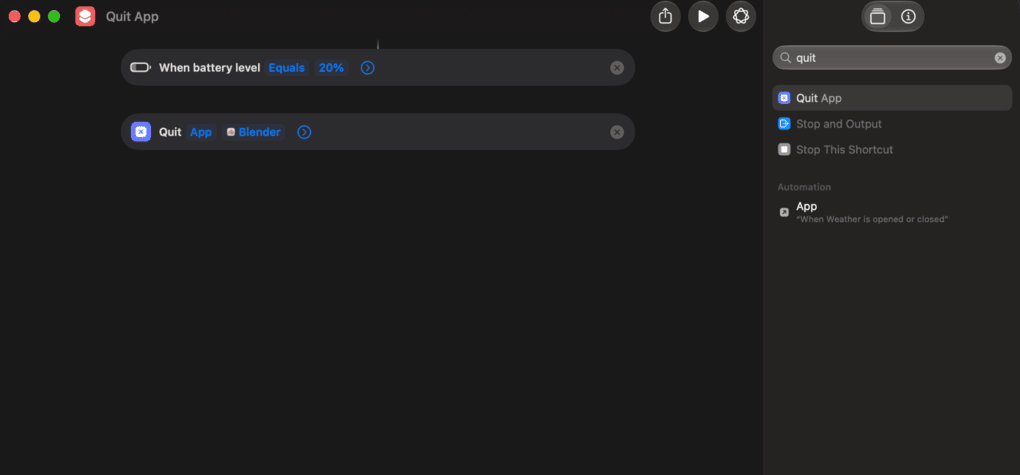
Battery anxiety is real when you work from cafés. I set a MacBook Battery Level trigger to fire below 20% and quit Photoshop, Blender, and Chrome, the three apps that drain my laptop fastest, then show a notification.
🔎 My results: I tested it on two afternoons with the same workload, and with the automation on, my MacBook lasted roughly 40 minutes longer from 20%.
Mac automation software worth installing
Built-in tools go a long way, but some jobs need more control. Here are the automation tools Mac power users rely on, and what each one is good for.
Keyboard Maestro
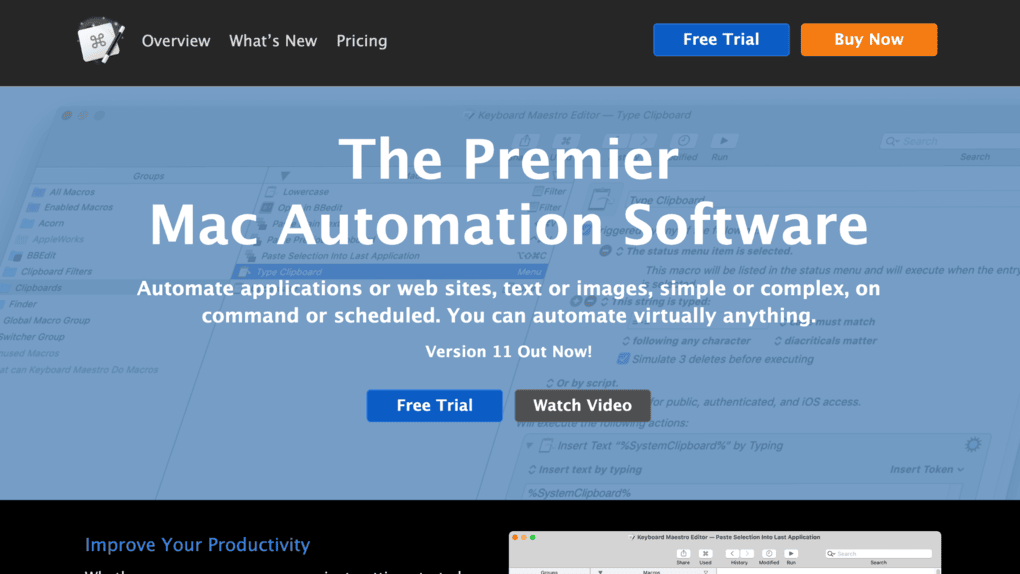
Keyboard Maestro is the most capable Mac automation app in this list. It can fill in web forms, manage clipboard history, arrange windows, and chain hundreds of actions with conditions and loops.
It costs $36 once, with no subscription, but expect a learning curve before it pays off.
The macro I use most fills in the same five fields of a client invoice form in about two seconds, a job I used to do by copying and pasting every week.
Hazel
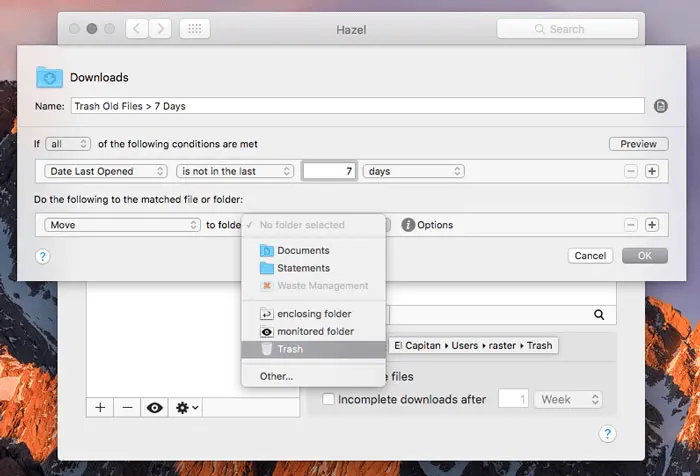
Hazel watches folders and applies rules to files, so it’s the natural upgrade once Shortcuts’ folder automations feel limited. It can recognize text inside documents, rename and move files by their content, and empty old files from Trash.
A license costs $42, and Hazel 6 needs macOS Ventura or later.
I use it to rename bank statements by the date printed inside them, and after a few months I can’t remember the last time I renamed one by hand.