


5 Ways I Use an AI Meeting Notetaker Every Week (Founder Edition)
Fellow is an AI meeting assistant that records, transcribes, and summarizes meetings on Zoom, Microsoft Teams, and Google Meet, either with a bot that joins the call or without one. It also lets me capture in-person meetings through its mobile app, keeping those conversations alongside my online meeting notes.
I’ve used Fellow for more than two years, and as a founder, I’ve found that recording a meeting is only a small part of what I need from it. I also need to remember decisions, follow up on action items, find information from past conversations, and prepare for upcoming meetings.
Over time, I’ve built a few workflows around Fellow to handle those tasks, from recording calls without adding another bot to asking questions across my meeting history and using Claude when I need to work with meeting information outside Fellow.
Here are five ways I use Fellow in my work every week, and the workflows that have proved most useful.
1. Can an AI notetaker record a meeting without a bot?
Yes. With Fellow, I can choose the botless recording option, and the desktop app records the meeting in the background without adding a bot to the call. This is useful when I want to capture a conversation without having a recording bot appear as another participant. The main limitation is that botless recording requires the Fellow desktop app.
The process is straightforward. I select the option to record without a bot, let Fellow capture the conversation, and wait a couple of minutes for the transcript and notes to become available. In my testing, Fellow’s transcripts have been more than 95% accurate.
For other meetings, I use the bot recording option instead. Fellow joins calls on platforms such as Zoom, Microsoft Teams, Slack, and Google Meet as a visible participant, so everyone can see that the meeting is being recorded.
Both methods follow the same retention and access controls. Organizations can also set recording rules and use consent capture when needed, which helps them manage how meetings are recorded and who can access them.
2. I turn meetings into action items before I forget them
Once the meeting is over, I don’t want the recording and its transcript to just sit in my library, only to come back to them later because I can’t remember what we decided on or which deadline we agreed on. Instead, I can open Fellow and quickly see the key takeaways, decisions, and action items.
My workflow looks like this:
Meeting → transcript → summary → decisions → action items → assignment
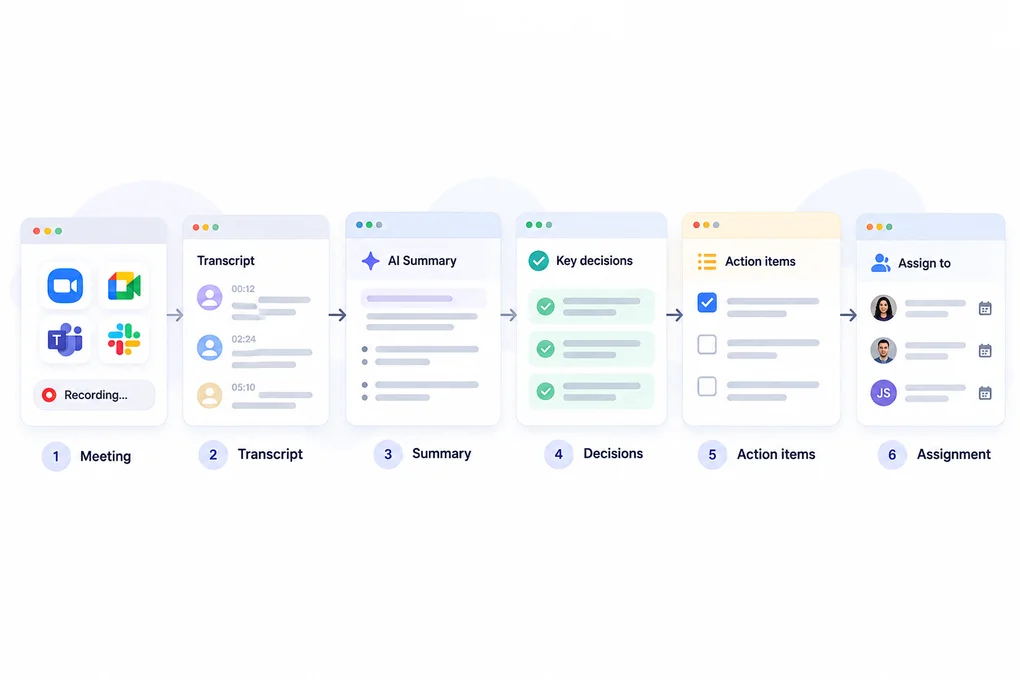
I use the transcript when I need to check exactly what was said, but I don’t want to read through an entire conversation every time I need to remember a decision. The summary gives me the main points, while the decisions and action items show me what actually came out of the discussion.
When a meeting leaves me with several things to follow up on, I can see those action items directly in the meeting notes and assign them to the right people. That saves me from taking the meeting notes and then turning them into a separate task list afterward.
If I need to move those tasks into the rest of my workflow, Fellow also connects with project management and workplace tools. So the meeting doesn’t end with a summary sitting in my Fellow library. I can take the decisions and action items and continue working with them elsewhere.
3. I ask questions instead of searching through old meetings
After months of meetings, I don’t always remember which conversation contained a particular decision, follow-up, or piece of information. I might remember the topic, but not whether we discussed it during a sales call, a customer call, or another client meeting.
That’s when I use Ask Fellow.
Instead of opening individual meeting notes and searching through transcripts, I can ask questions such as:
- “What did we decide on X topic?”
- “What should I follow up on from yesterday?”
- “Which sales calls do I still need to follow up on?”
For example, imagine I’ve spoken with a potential client twice over the past few weeks and had ten other sales calls in between. Rather than reviewing each meeting recap to work out who needs a response, I can ask Fellow to identify the sales calls that require follow-up. It can also draft follow-up emails based on the meeting content.
I still review those drafts before sending them. I check that the important details are correct, that the email reflects what we actually discussed, and that the proposed next step makes sense. The AI can help me find the relevant conversation and prepare a first draft, but I make the final call on what gets sent.
I use a similar approach with action items. Fellow identifies tasks and decisions in meeting notes, lets me assign action items to team members, and integrates with project management tools such as Jira, Asana, and Linear. This means I can move from discussing a task in a meeting to giving it an owner and tracking it in the tool where the work happens, rather than copying every task into a separate list manually.
Ask Fellow is also useful before a meeting. I can ask it to create an agenda for an upcoming call, add talking points to an existing agenda, or rewrite and reorder items based on what I need to cover. That helps me prepare using the context from previous conversations instead of starting from scratch.
For me, the biggest benefit is spending less time searching for information and organizing follow-ups. I still check important details against the original notes or transcript, but I don’t have to dig through every past conversation just to figure out what needs my attention.
4. I use Claude when I need more than Fellow’s standard summary
Fellow handles everything I need immediately after a meeting: the recording, transcript, summary, decisions, and action items. But when I want to do more with that information, I sometimes take the workflow into Claude.
The workflow looks like this:
Meeting → Fellow → meeting context → Claude → next step
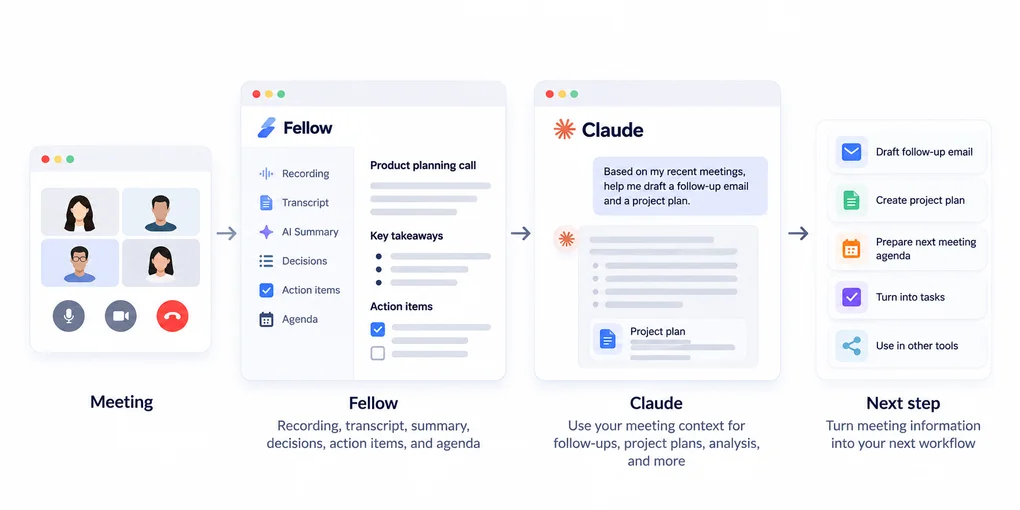
Fellow has a native Claude integration, and its MCP server lets Claude securely access my meeting information. That means I don’t have to manually copy meeting context from Fellow when I want to use it in another AI workflow.
I don’t use Claude to replace what Fellow does. I use it for the step that comes after. Fellow gives me the meeting context, and Claude gives me another way to work with that context when the standard Fellow notes aren’t quite the end of the workflow.
I can also use Claude through MCP to work with Fellow’s agenda information, including creating agenda items. So I can take information from previous meetings and use it when preparing for what’s next.
5. I capture conversations when I’m away from my computer
I use Fellow mostly for online meetings, but not every useful conversation happens in front of my computer. When I’m in an in-person meeting or need to capture a conversation while I’m away from my usual setup, I use the Fellow mobile app.
This is also useful for hybrid meetings, where some people are in the room while others join remotely. If I need to capture the in-person discussion without adding a bot to the online call, I can use Fellow’s botless recording option through the mobile app, while remote participants can join through their usual meeting platform.
Afterward, I can return to the recording, transcript, and notes in Fellow, just as I would with a regular online meeting. This keeps the discussion in the same searchable meeting library instead of splitting the information between separate sets of notes.
For remote teams, that makes it easier to keep track of decisions and follow-ups even when everyone wasn’t physically in the same room. I still review the notes afterward to make sure important details from the conversation have been captured correctly.
Bonus: I organize meetings by project instead of letting them disappear into a library
Once I’ve accumulated enough meetings, a searchable library isn’t enough on its own. I often need to find not just one meeting, but the conversations that happened around a particular project, client, or team.
That’s when I use Fellow’s Channels.
I can create a Channel for a specific project or team and have the relevant recordings published there automatically. I can also create Channels for myself or for the wider company, depending on who needs access.
This gives me a much easier way to go back through the history of a project. Instead of remembering the date or title of a particular meeting, I can open the