



Obsidian Review: 5 Things I Wish I Knew Before Using It (2026)
Let me guess. You’re looking for an Obsidian review without fluff that answers the questions that actually matter: Should you use Obsidian? Is it really free? How difficult is it to learn? And how does it compare to other note-taking apps?
I spent a few weeks testing Obsidian to answer exactly these questions. Here’s my quick verdict before I break down my experience.
Verdict: More control comes with more complexity
Here’s the quick verdict if you don’t want to read the full review:
🎯 Best for: Users who want a powerful, highly customizable note-taking and knowledge management app
🚫 Not ideal for: Users who want simple note-taking, easy collaboration, or browser access
⭐ Biggest strength: You can customize it to your exact needs
⚠️ Biggest weakness: Steep learning curve and dependency on plugins
💰 Pricing: Free for personal use, Sync and Publish are optional paid add-ons
🧠 Learning curve: Steep — expect to spend some time learning the system and finding the right setup
⚖️ Verdict: A powerful, local-first note-taking app designed for individuals, but it comes with a steep learning curve.
🏆 Score: 4.1 / 5
✅ Tested with our review & scoring methodology ✅ Real-world testing ✅ Unbiased evaluation
Obsidian
Summary
Obsidian is a powerful, local-first note-taking app built around Markdown files, bidirectional links, and extensive customization. Its biggest strength is flexibility, but that comes with a steeper learning curve than most note-taking apps.
|
|
Local-first storage
|
|
|
Excellent free version
|
|
|
Highly customizable
|
|
|
Powerful knowledge management:
|
|
|
Markdown files
|
|
|
Flexible syncing
|
|
|
Steep learning curve
|
|
|
Can be overkill
|
|
|
Plugin dependency
|
|
|
Limited collaboration
|
|
|
No web app
|
|
|
Cross-device setup requires paid plan
|
Obsidian at a glance
| Feature | Obsidian |
|---|---|
| Free plan | ✅ Yes |
| Local storage | ✅ Yes |
| Cross-device sync | 💰 Paid add-on |
| Offline access | ✅ Yes |
| Web app | ❌ No |
| Windows app | ✅ Yes |
| Mac app | ✅ Yes |
| Linux app | ✅ Yes |
| iOS app | ✅ Yes |
| Android app | ✅ Yes |
| Markdown support | ✅ Yes |
| Bidirectional links | ✅ Yes |
| Graph view | ✅ Yes |
| Tags | ✅ Yes |
| Attachments | ✅ Yes |
| Community plugins | ✅ 2,000+ |
| Collaboration | ⚠️ Limited |
| Publish notes online | 💰 Paid add-on |
What is Obsidian, and what makes it different?
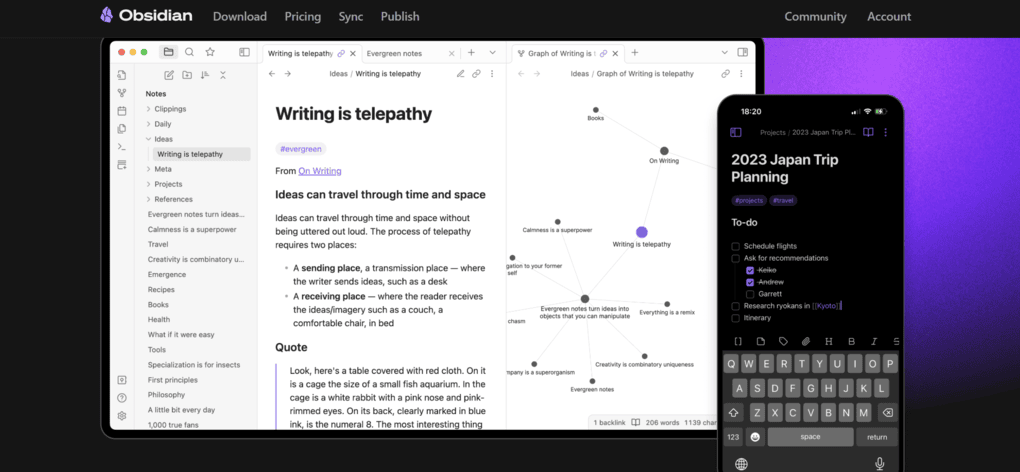
Obsidian is a powerful note-taking application with a local-first approach, meaning your files are stored locally, and only you can access your notes.
Besides using Obsidian on your PC (Mac, Windows, and Linux), you can access your notes from mobile devices, including IOS and Android. Obsidian’s official Sync service is paid, although you can also use third-party solutions to sync your vault.
When it comes to taking notes, Obsidian uses Markdown language. So, when you create paragraphs, Obsidian uses a blank line to separate blocks of text. This way, all your blocks will be separated by a blank line and treated as a distinct paragraph.
What really separates Obsidian is its flexibility. You can connect notes with bidirectional links, visualize relationships in Graph View, and extend the app with 2,000+ community plugins.
However, that flexibility is also its biggest trade-off: Obsidian takes longer to learn and set up than simpler note-taking apps.
In short, Obsidian gives you more ownership and control over your notes, but it expects more effort in return.
5 Things I Wish I Knew Before Using Obsidian
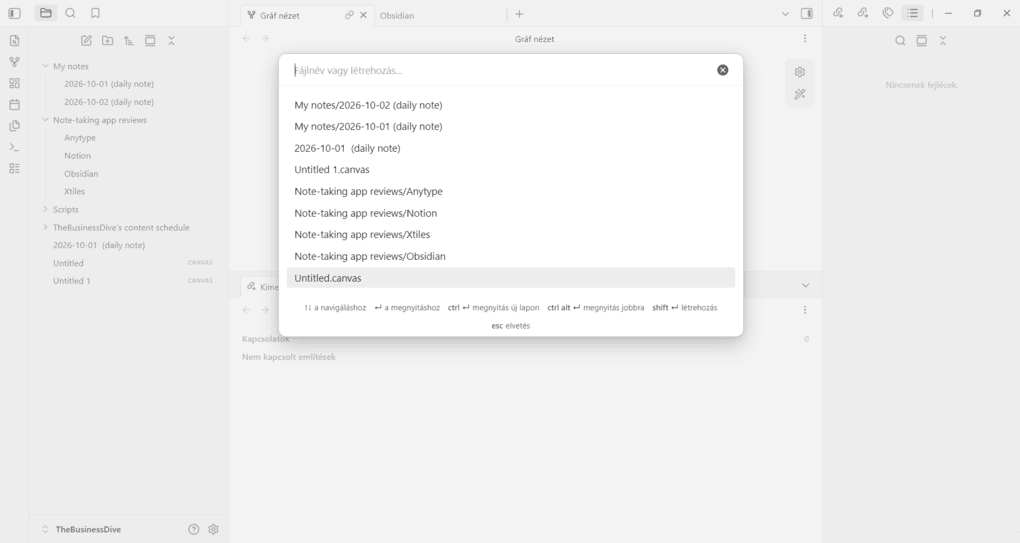
Before diving into my experience and feature breakdown, here are five things that you have to know before getting started with Obsidian.
1. You can spend more time building Obsidian than using it
The customization rabbit hole is real. You can spend an infinite number of hours selecting templates, plugins, and workflows instead of actually taking notes.
My advice: start simple and add plugins only when you actually need them.
2. Local Markdown files might be its most important feature
Your notes are stored locally as Markdown files, so they aren’t locked inside Obsidian and can be opened with other apps.
This matters much more once you have years of notes and want to change your note-taking app.
3. You probably don’t need Obsidian Sync
Obsidian’s own Sync service is optional. Personally, I didn’t need Obsidian Sync, but I’ve also seen users sync their vaults through alternatives like Dropbox or other third-party solutions.
4. Obsidian can be overkill for simple note-taking
Most people who try Obsidian realize only hours or days later that they will never need most of its capabilities.
It’s powerful and fast, but it can be overkill for everyday note-taking. If you just want to capture quick notes, a simpler app may make more sense.
This is especially worth considering if you’re switching from a simpler note-taking app like OneNote. If that’s you, check out my comparison of the best OneNote alternatives, where I compare Obsidian with several easier-to-use options.
5. Switching from Notion doesn’t automatically make your system better
Moving an existing system to Obsidian can create more friction than it removes. Many friends of mine started migrating their notes from Notion and later ended up with information split between Notion and Obsidian, and they struggled to remember where things were stored.
My biggest takeaway: Obsidian makes the most sense when you specifically want a customizable, local-first knowledge system, not simply because it’s a powerful note-taking app.
What I learned using Obsidian for my notes over time
Obsidian is one of the most powerful note-taking apps on the market. Thanks to the plugins, it offers a wide range of customization options compared to many note-taking apps.
As a notes app, I think it is definitely among the best. It helps you organize and visualize your notes in ways other apps cannot. You can also access all the core features in the free version, which I really appreciated.
In terms of learning curve, Obsidian has a longer learning curve than OneNote, Evernote, or Google Keep (even Notion, I think). However, it’s far easier to learn than Anytype while offering similar powerful capabilities.
Obsidian is mostly ideal for personal use thanks to its extensive free plan. While I know developer teams using it, Obsidian lacks advanced collaboration features.
Obsidian’s pros and cons
| What stood out | The trade-offs |
|---|---|
| 🟢 Local-first storage: Your notes are stored locally, giving you more control over your data. | 🔴 Steep learning curve: Obsidian takes longer to learn and set up than simpler note-taking apps. |
| 🟢 Excellent free version: Most of Obsidian’s core functionality is available without a subscription. | 🔴 Can be overkill: If you only need simple note-taking, Obsidian can feel unnecessarily complex. |
| 🟢 Highly customizable: Thousands of community plugins let you adapt Obsidian to your workflow. | 🔴 Plugin dependency: Getting the exact functionality you want can require additional plugins and setup. |
| 🟢 Powerful knowledge management: Bidirectional links and Graph View make it easy to connect and visualize related notes. | 🔴 Limited collaboration: It’s much better suited to personal knowledge management than collaborative team workflows. |
| 🟢 Portable Markdown files: Your notes aren’t locked into Obsidian and can be opened or moved to other compatible apps. | 🔴 No web app: You need to install Obsidian on your device rather than simply accessing your notes through a browser. |
| 🟢 Flexible syncing: Obsidian offers its own Sync service, while local files also make third-party syncing possible. | 🔴 Cross-device setup: Seamless syncing through Obsidian’s own service requires a paid add-on. |
Why Obsidian didn’t score higher (and where it loses points)
Obsidian reached 4.1 thanks to its advanced note-taking & knowledge management capabilities. It also delivered impressive performance, and its free plan is impressive.
Since we factor team features into our final score for note-taking apps, we couldn’t make an exception for Obsidian. That said, it received low scores for team features and task and workflow management.
How Obsidian compares to other note-taking apps
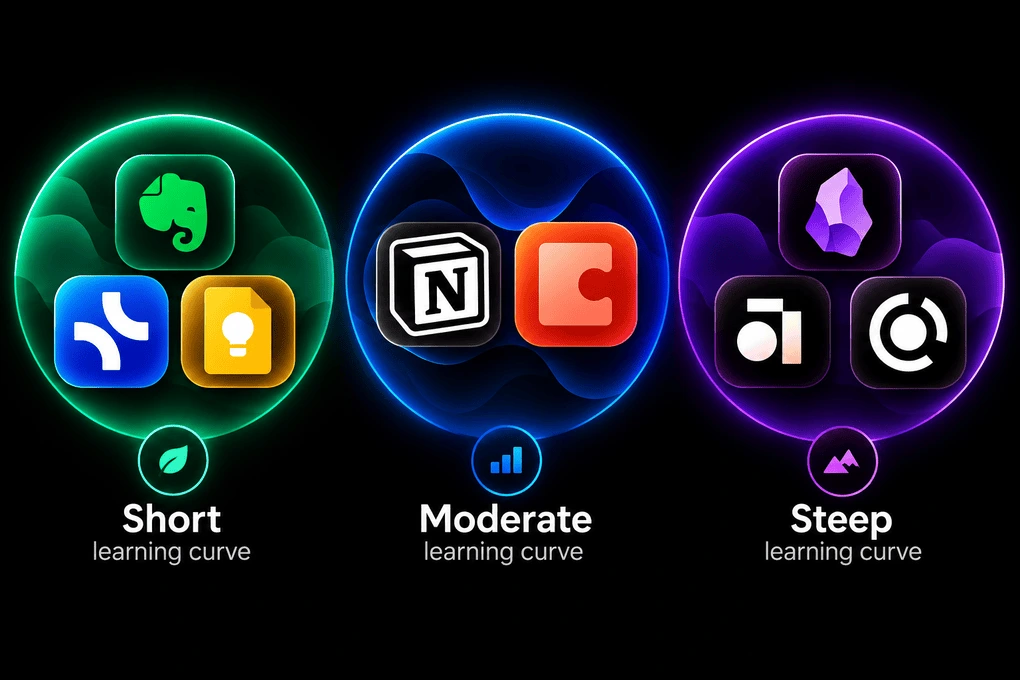
| App | Learning curve | Functionality | Best suited to |
|---|---|---|---|
| Google Keep | 🟢🟢🟢 | Basic | Quick notes & reminders |
| Evernote | 🟢🟢🟡 | Moderate | Everyday notes & organization |
| xTiles | 🟢🟢🟢 | Moderate | Visual notes & planning |
| Notion | 🟡🟡🟡 | Advanced | All-in-one workspaces |
| Coda | 🟡🟡🟡 | Advanced | Docs, data & workflows |
| Capacities | 🟡🟡🔴 | Advanced | Connected knowledge management |
| Obsidian | 🟡🟡🔴 | Very advanced | Customizable personal knowledge systems |
| Anytpe | 🔴🔴🔴 | Very advanced | Local-first knowledge management |
🟢 Pick Obsidian if: You want a powerful, highly customizable note-taking app with local storage, Markdown files, bidirectional links, and plenty of plugins.
🔴 Skip Obsidian if: You want a simple note-taking app with a short learning curve, strong team collaboration, or browser-based access.
If you want a deeper look at how Obsidian compares specifically with Notion, check out my Notion vs Obsidian comparison, where I break down the differences in note-taking, customization, privacy, collaboration, and more:



Notion VS Obsidian
Which Obsidian features actually mattered in my testing
In this part of the Obsidian review, I will show you the key features of this note-taking app!
Obsidian Vault
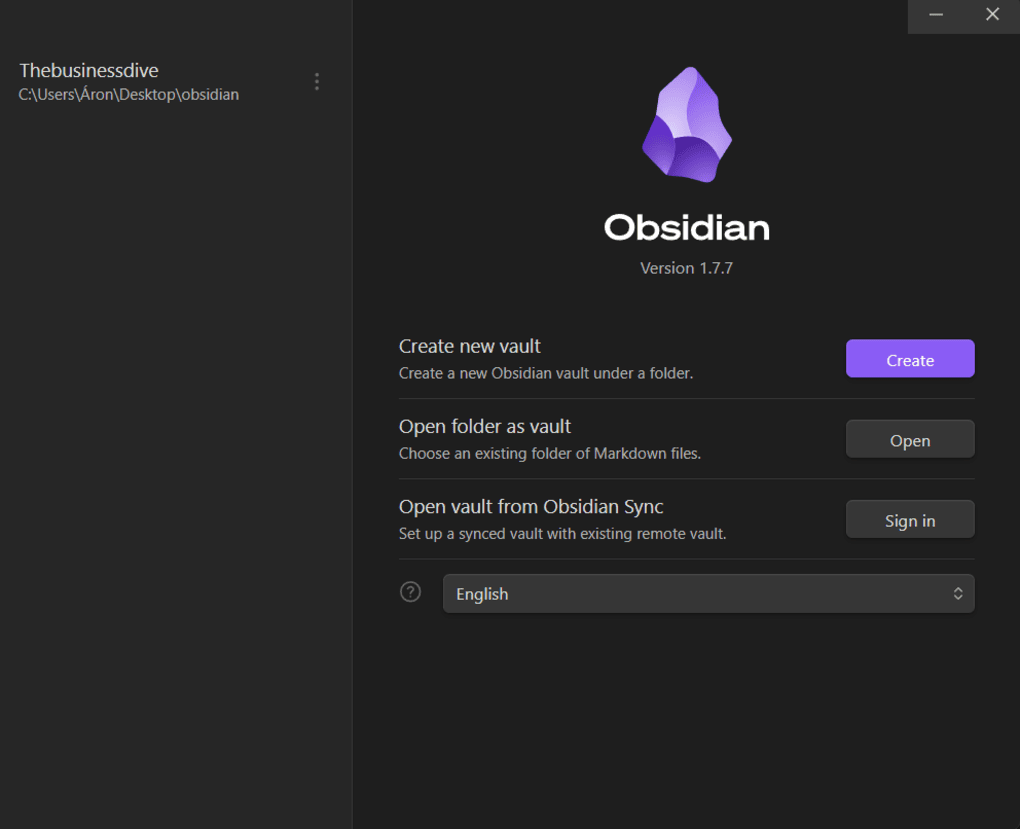
The Obsidian Vault is a folder that contains your notes, attachments, and data. When creating a vault, you can choose end-to-end encryption that offers the strongest security (in case you purchased Obsidian Sync).
However, if you choose end-to-end encryption for your vault, store your encryption password safely, since you cannot access your vault without it.
Installing Obsidian took about 1-2 minutes, and you can create a vault in a few clicks. I also appreciated that you can have multiple vaults and customize them with different themes. If you go to Appearances, there are over 800 themes created by the community that you can install and use right away.
It is great that Obsidian offers these customization options so you can personalize your vaults by color, design, and style.
💡 Key takeaway: Vaults are quick to set up, keep your notes organized locally, and offer plenty of customization.
Note-taking app
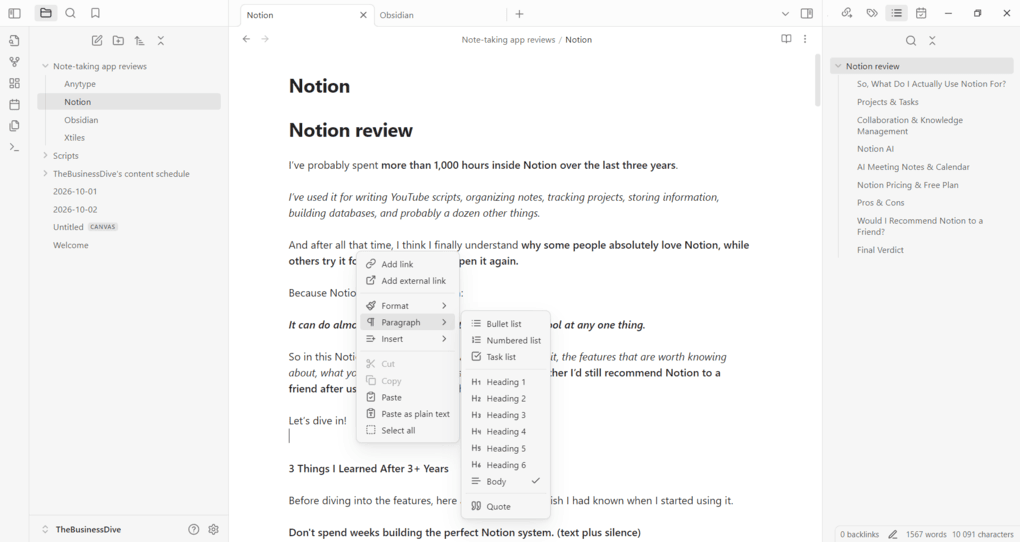
As mentioned before, Obsidian uses markdown language when writing your notes. To create paragraphs, just insert a blank line to separate your paragraphs. If you press Enter, it will create a new line in your note, and it will be treated as a continuation of the same paragraph in the rendered output.
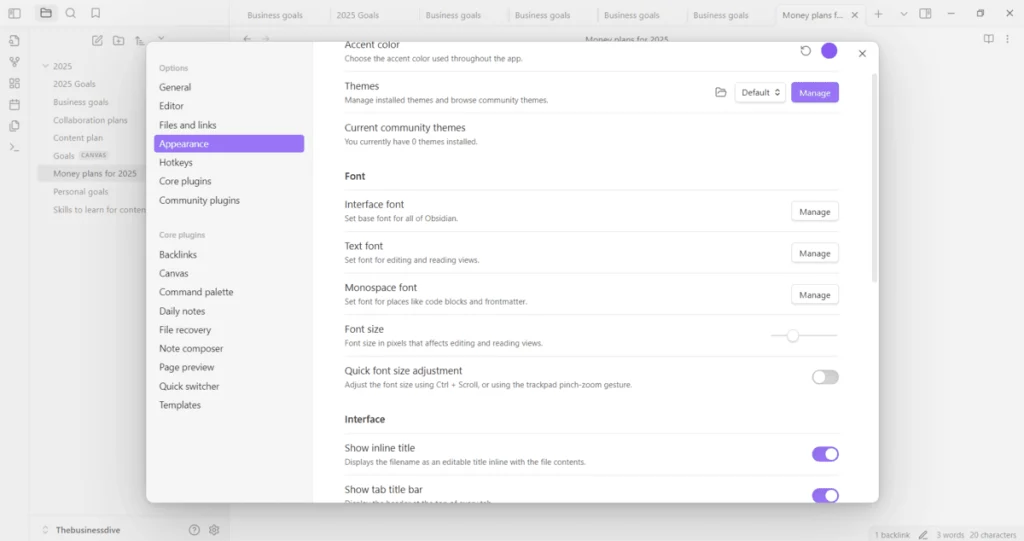
Also, you can change the size of your fonts under the Appearance option in settings even if you use Obsidian on mobile devices.
You can create tags, which help you organize and find your notes more easily. Just enter a hash symbol (#), and you can choose from your tags.
When taking notes, Obsidian allows you to use attachments, such as images, audio files, or PDFs. You can access these files using your files system. Moreover, you can embed web pages as well. To embed a web page, you have to use an iframe.
What stood out to me, though, wasn’t the basic writing experience. Obsidian becomes much more useful as your number of notes grows. Tags help you organize and find information, while attachments and embeds let you keep supporting material alongside your notes.
This is also where Obsidian starts to feel different from a traditional note-taking app. Instead of treating every note as a standalone document, it’s designed to help you build a connected personal knowledge base over time.
💡 Key takeaway: Writing notes is straightforward; Obsidian’s real value comes from organizing and connecting them as your second brain grows.
Bidirectional links
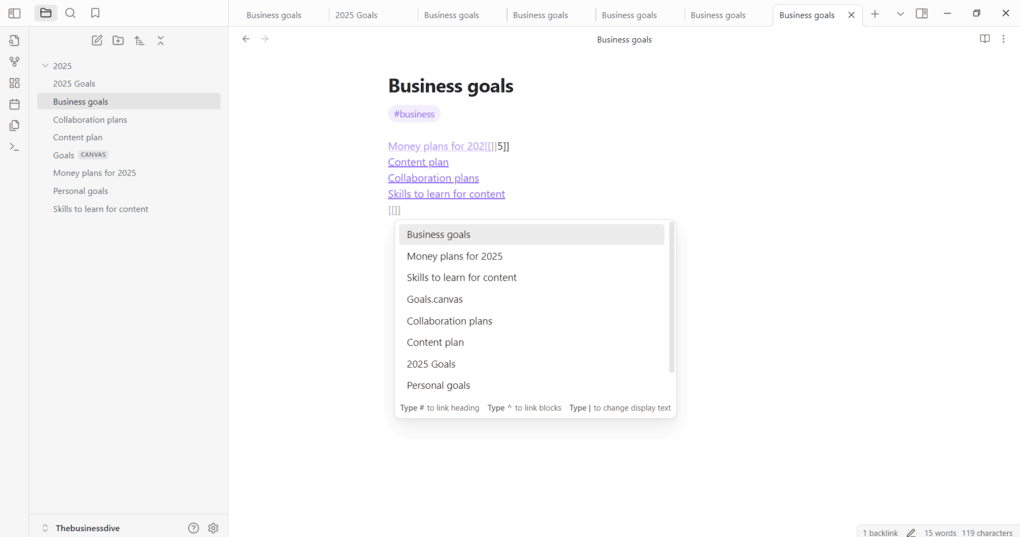
The internal links are one of the best features I discovered during my Obsidian review. Unlike tools like Evernote or Xtiles, which focus more on organizing notes into notebooks or boards, Obsidian is built around connecting ideas. Using this feature, you can link notes to each other and create a more connected system inside your vault.
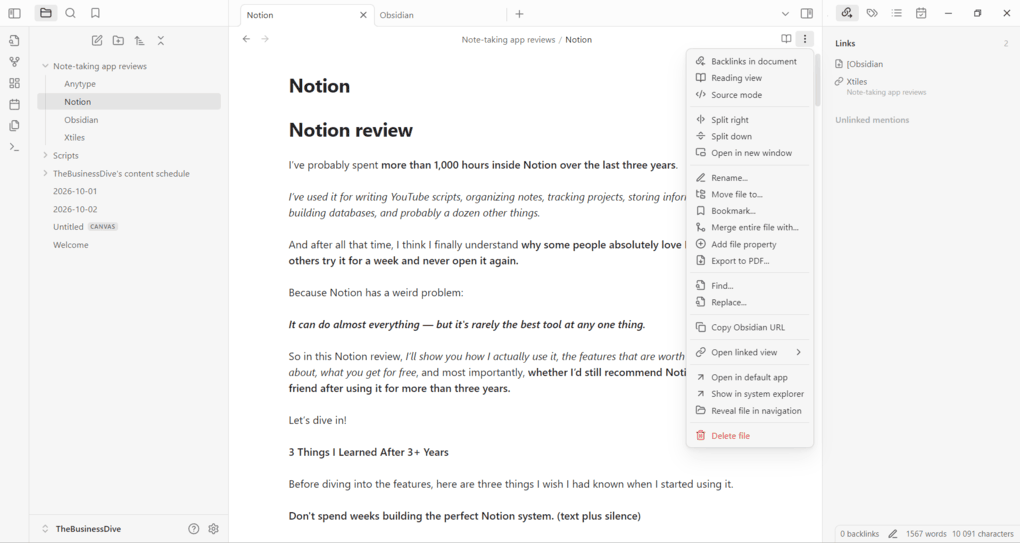
To link notes, just type “[[” in Obsidian and then choose the file to which you want to create a link. Another way to add a link is to select the Command palette and then choose the option of “add an internal link.”
I found this particularly useful when one idea was relevant to several topics, as I could connect it instead of deciding which single folder or category it belonged to.
And these connections become even more useful with Graph View, which I’ll cover next.
💡 Key takeaway: Bidirectional links give you flexibility to connect your notes and reduce your reliance on folders by letting the same idea connect naturally to multiple notes.
Graph view
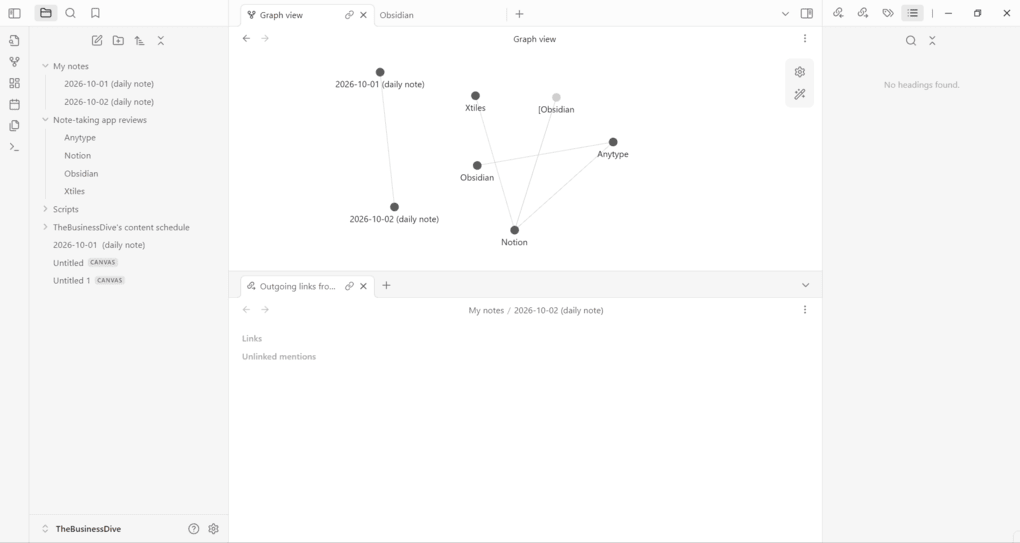
The graph view is perfect for visualizing the relations between your data. Using the graph view makes it easy to create your personal knowledge base, as you can see how your ideas are connected to each other.
You can easily zoom in and out using the scroll wheel on your mouse. What is especially valuable are the filter options. Obsidian’s graph view allows you to filter your notes based on search terms.
For everyday navigation, I’d still use search or folders. But for understanding how different ideas in your vault relate to each other, Graph View is one of Obsidian’s most distinctive features.
💡 Key takeaway: Graph View is better for discovering connections between your notes than for navigating them day to day.
Canvas view
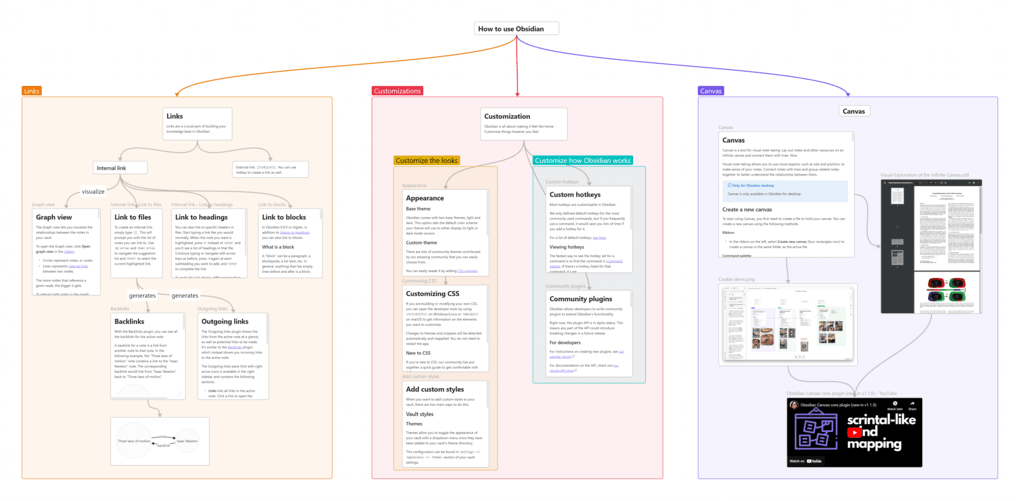
One of the features I recommend you try is the canvas view. It offers an excellent tool for visual note-taking.
This function lets you choose from visual aspects, such as size and position, to make sense of your notes.
I found it particularly useful for brainstorming and mapping out more complex topics, where seeing several related notes at once is more practical than opening them individually.
Unlike Graph View, which automatically visualizes links across your vault, Canvas gives you control over exactly where information appears and how different ideas connect.
💡 Key takeaway: Canvas is more practical than Graph View when you want to manually organize, brainstorm, and connect ideas visually.
Plugins
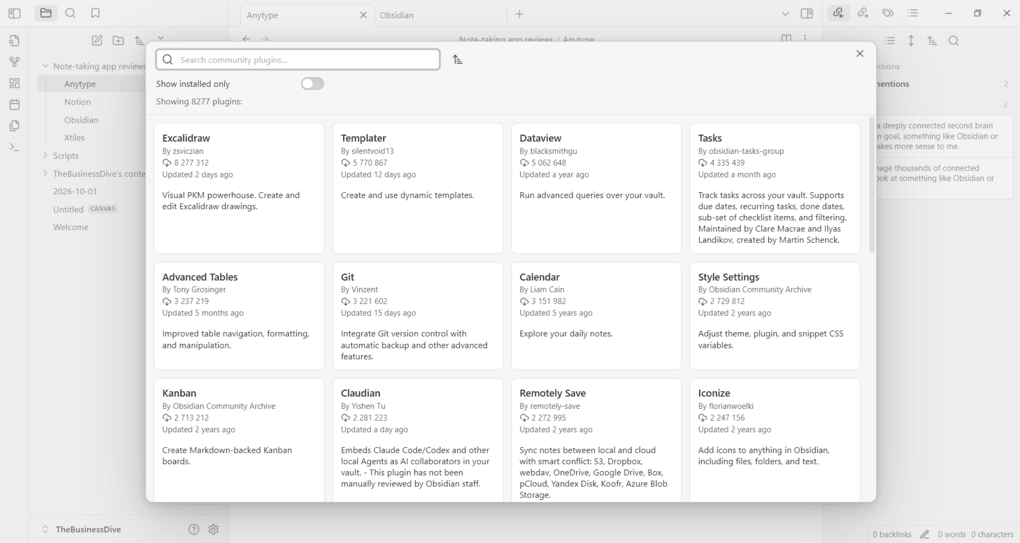
With plugins, you can customize your vault and access many advanced features. There are two types of plugins.
The Obsidian core plugins switch on and off features you do and do not like. For instance, you can switch off the graph view if you do not use it.
When it comes to the community plugins, you can choose from more than 8,000 plugins. The community plugins allow you to access more features like creating Excel-like tables or even a language translator.
To access the community plugins, open settings, select the turn on community plugins, and install the ones you like.
For me, one of the most useful was a calendar plugin, which let me create a note for the current day with one click. This huge plugin ecosystem means you can gradually shape Obsidian around your own workflow instead of adapting your workflow to the app.
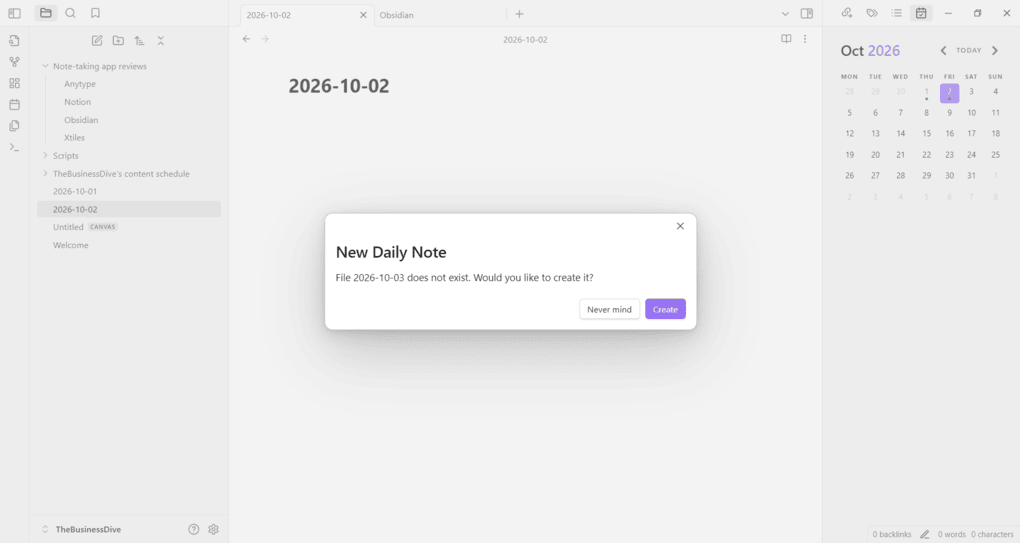
The trade-off is that all these options can easily become a rabbit hole. I’d start with the core features and only add plugins when you actually need them.
💡 Key takeaway: Obsidian’s huge plugin ecosystem gives you exceptional flexibility, but more options also mean more setup and complexity.
Obsidian’s integrations
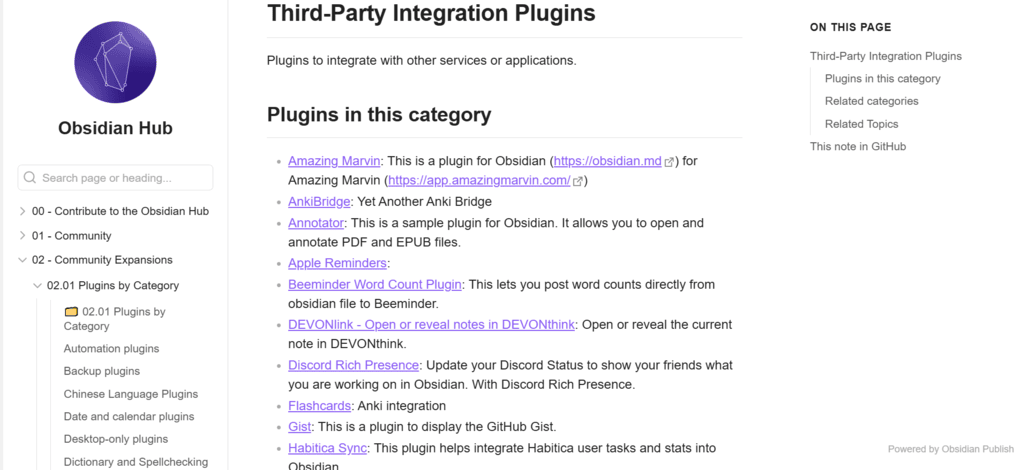
Using the plugins, you can integrate Obsidian with other third-party apps like Todoist, Trello, or Toggl Track. The number of integrations is quite limited, but at least some popular tools are among them.
You can see the full list of integrations here.
Is Obsidian worth it?
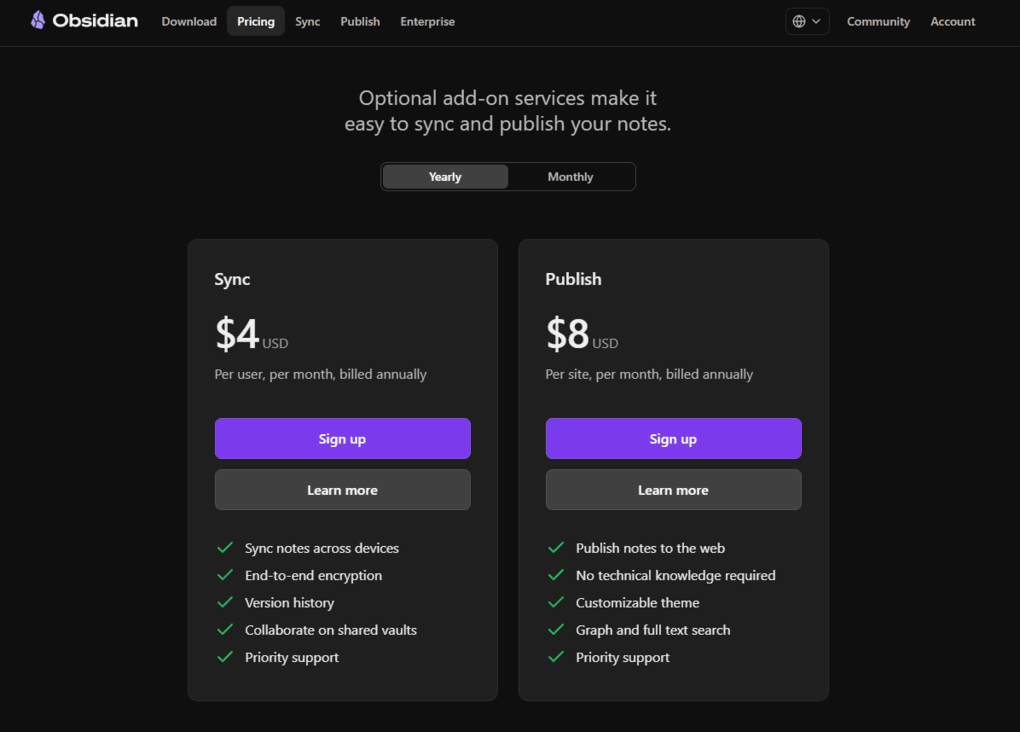
One of the best things I found during my Obsidian review is the pricing and free plan.
| Plan / add-on | Price | Best for | Key features |
|---|---|---|---|
| Free | $0 | Most individual users | Core Obsidian features, local notes, plugins |
| Sync | $4/user/month billed annually | Using Obsidian across devices | Device sync, E2E encryption, version history, shared vaults |
| Publish | $8/site/month billed annually | Publishing notes online | Web publishing, custom themes, graph & search |
| Catalyst | $25 one-time | Users who want to support Obsidian | Beta access, badges, exclusive channels |
| Commercial | $50/user/year | Businesses supporting Obsidian development | Featured organization, supports development |
For most individual users, I don’t think you need to pay for Obsidian at all. The free version doesn’t lock the core note-taking experience behind a subscription. The paid options make more sense if you want convenient cross-device syncing, encrypted version history, or to publish your notes online.
So, is Obsidian worth it? If you want a private, highly customizable note-taking app and don’t mind the learning curve, the free version offers particularly strong value.
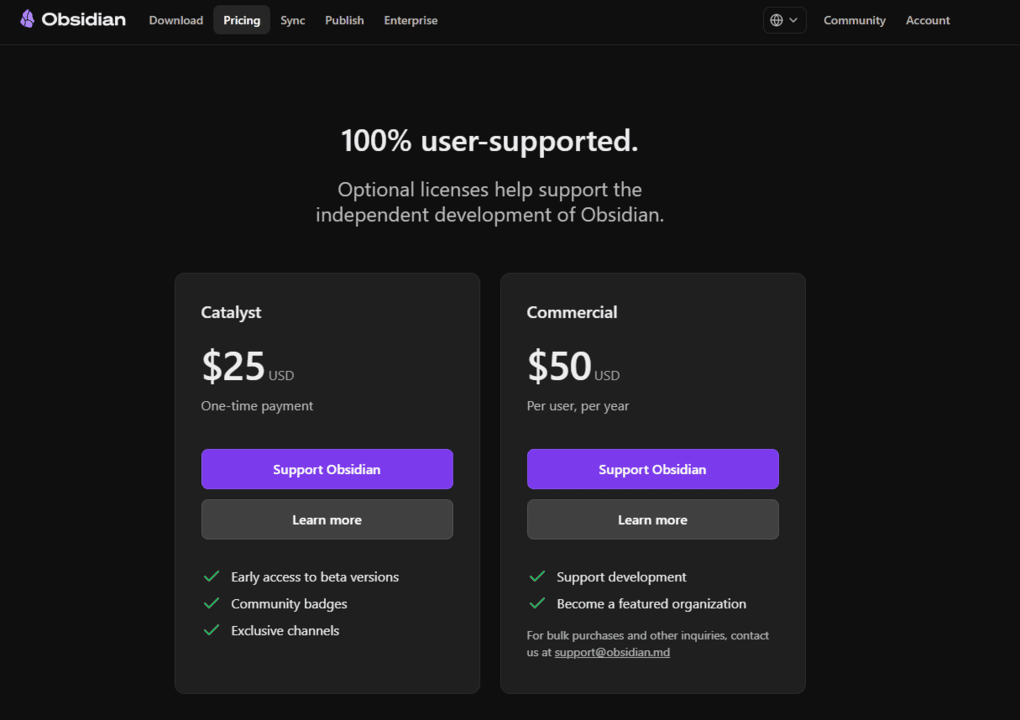
💡 Key takeaway: The free version for personal use includes all the features, themes, plugins, APIs, and community support, so most personal users only need to pay if they want extras like Sync or Publish.
Explore our Apps directory
A curated directory of software tools we’ve independently reviewed, with links to full reviews, comparisons, and category guides.
Obsidian’s user interface
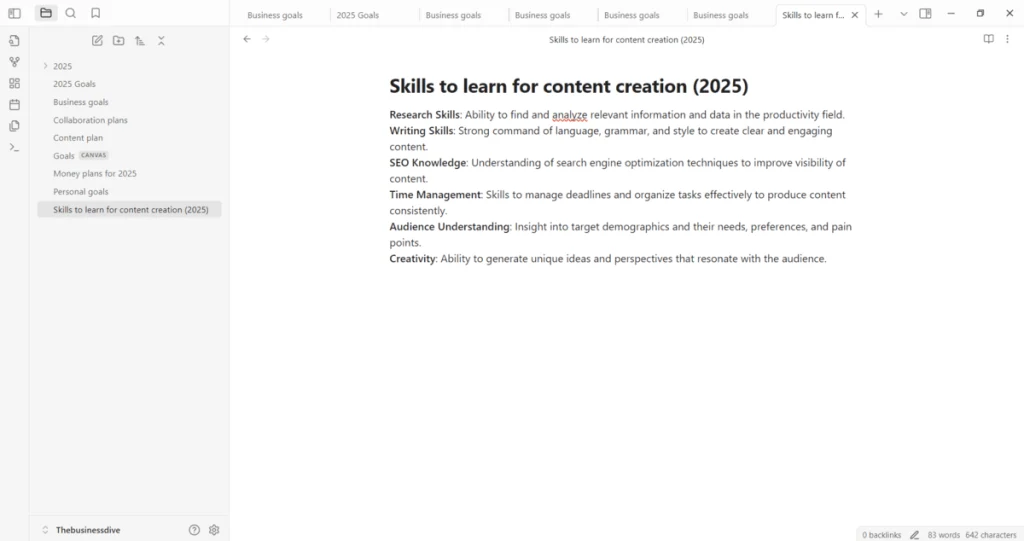
Let’s say Obsidian’s user interface isn’t the prettiest I have seen. It is similar to Apple Notes’ user interface, but you can customize it with themes.
What does the internet say about Obsidian?
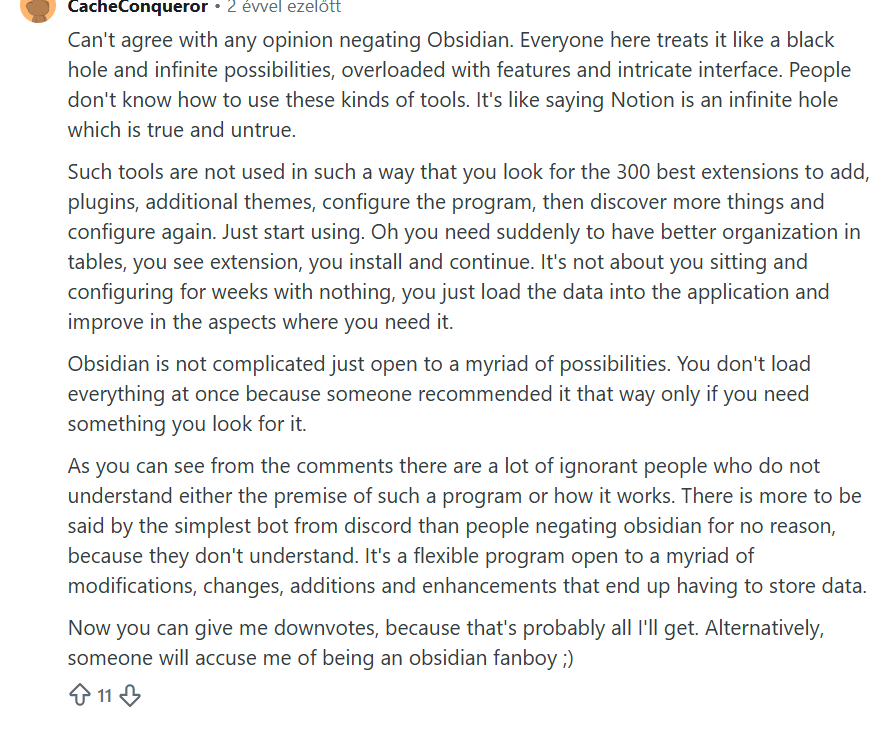
In this Reddit thread, CacheConqueror says Obsidian isn’t inherently complicated; it simply offers many possibilities. And that’s true, since the logic behind how Obsidian works isn’t complicated, and we sometimes make the learning curve harder with a lot of configuration. We can say the same for Anytype, for example, as it is complicated by default.
On the other hand, I do think Obsidian has a longer learning curve than most note-taking apps, because it uses not only the regular folder-based approach but also bidirectional links.
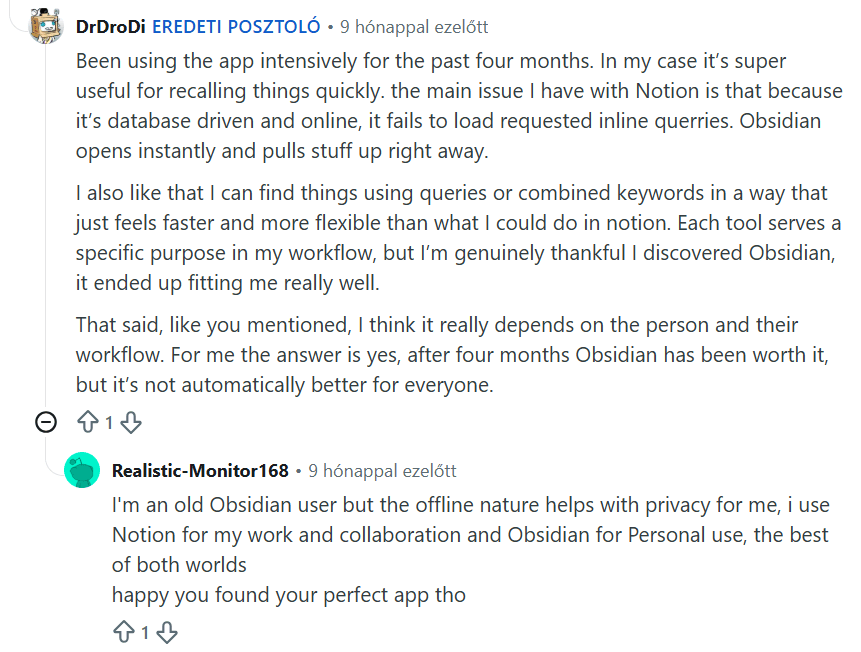
This is also an interesting thread. I know some of you are considering whether to use Notion or Obsidian. As you can see, it’s not always a decision, and you can use both. If you want to stick to only one solution, ask yourself whether you want online or offline note-taking apps, whether you require Markdown files, and whether you need collaboration features.
That said, if you want an offline, Markdown-based note-taking app, Obsidian is your pick. If not, try Notion.
For a more detailed breakdown, check out our Notion vs Obsidian comparison.
Obsidian alternatives
Here are some of the best alternatives to Obsidian:
|
App |
Best for |
Description |
|---|---|---|
|
Xtiles |
Best for visual note-taking |
An easy-to-use note-taking app with visual boards. |
|
Anytype |
Best privacy-focused alternative |
An excellent but more complex Notion alternative. |
|
Notion |
Best all-in-one workspace |
An all-in-one app for data, task, project management, and note-taking. |
|
Taskade |
Best for notes + task management |
A simple but effective note-taking app ideal for more complex project management. |
|
Coda |
Best for doc-based workflows |
An all-in-one collaborative workspace with project, task management, and note-taking tools. |
|
NotebookLM |
Best for AI research notes |
A note-taking and research app with a fantastic podcast feature. |
|
Evernote |
Most popular note-taking app |
A popular, but expensive note-taking app. |
Editor’s pick for Obsidian alternative
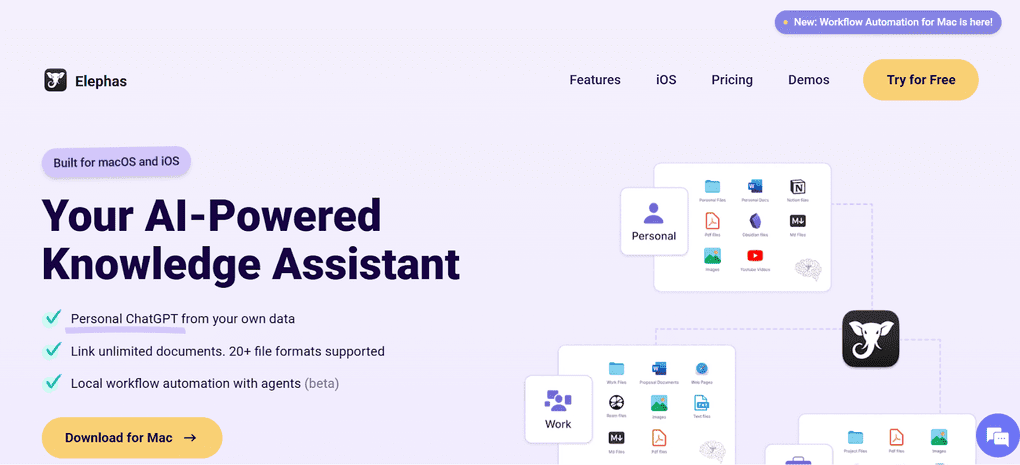
If you use macOS and iOS, you can check out Elephas. It is an AI-powered assistant that helps you create a smart knowledge base. Elephas supports 20+ file formats, including DOCX, PDFs, Images, URLs, Audio files, web pages, and YouTube videos.
Compare Obsidian vs alternatives

Evernote VS Obsidian

Obsidian VS Anytype

Obsidian VS Xtiles

Obsidian VS Coda
Final thoughts: Obsidian review
Overall, it is safe to say that after my Obsidian review, this app is worth a try. It has a fantastic free plan, so you can just give it a try.
For personal use, it is a great note-taking app with a comprehensive feature set. While it is a complex app with a long learning curve, it offers many possibilities to organize and visualize your notes. And most importantly, you can do it safely.
Nonetheless, if you are looking for a note-taking app for your team, Obsidian is not an ideal choice due to the lack of collaboration features. Therefore, I do not recommend Obsidian for project management.
Related articles:
- Notion Vs Obsidian: Side-by-Side Comparison (2026)
- Obsidian vs Anytype: Side-by-Side Comparison (2026)
- Evernote vs Obsidian: A REAL Comparison With No Fluff (2026)
- Best 6 OneNote Alternatives In 2026 | 100+ Personally Tested Tools
Looking for similar tools?
Visit the link to explore other apps we’ve reviewed in this space and how they compare.
How We Test Note-Taking Apps
To keep our reviews & final score for each note-taking app fair and transparent, we evaluate every tool using the same testing framework based on real-world usage, feature depth, and overall value.
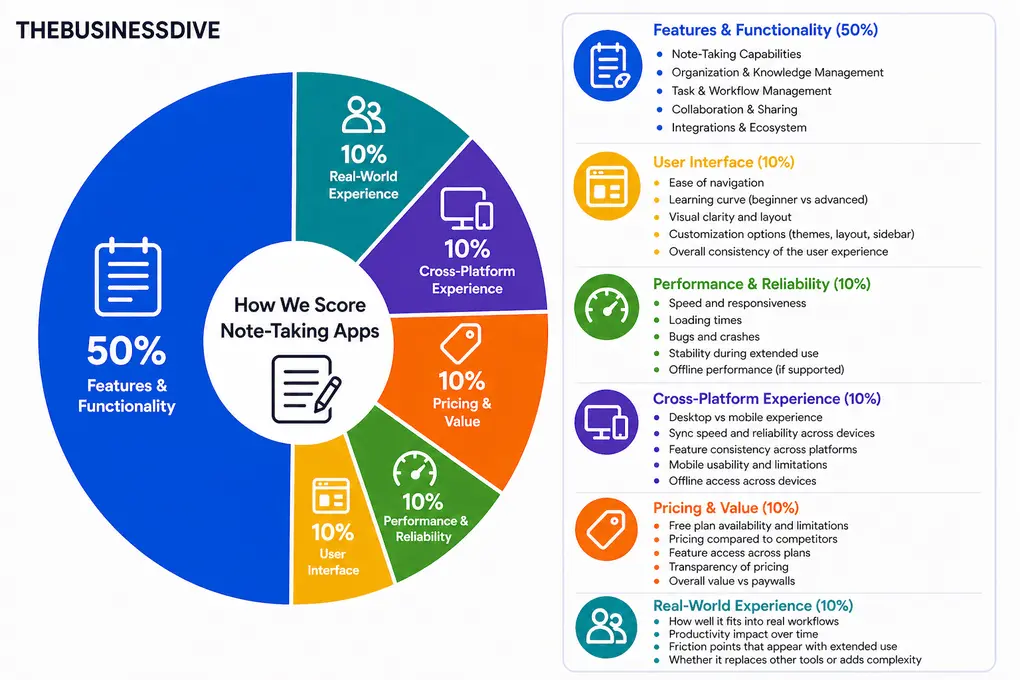
Our scoring breakdown after testing 10+ note-taking apps:
⚙️ Features & functionality — 50%
🖥️ User interface — 10%
⚡ Performance & reliability — 10%
📱 Cross-platform experience — 10%
💰 Pricing — 10%
👥 Real-world experience — 10%
Want a detailed breakdown of how we test each category?
Learn exactly how we test tools → Review methodology
Short on time? Here’s a quick overview of Obsidian
Why you can trust our reviews
At thebusinessdive.com, our team tests, reviews, and compares hundreds of productivity apps every year — from project management tools to note-taking apps. We dive deep into real-world use cases to help you find the right tools that actually improve your workflow, not just add noise.
Our mission? No fluff, no shortcuts—just honest, hands-on insights from productivity pros.
Discover how we stay transparent, read our review methodology, and let us know about any tools we missed.
Frequently asked questions
Is Obsidian actually useful?
Obsidian is a valuable app that helps you create notes and build your personal knowledge base. It offers a platform where you can safely store and organize your data.
Is Obsidian paid worth it?
I think both add-on services (Obsidian Sync and Obsidian Publish) are worth it. Obsidian Sync is especially useful, as it lets you access your vault on multiple devices and uses end-to-end encryption.
What are the negatives of Obsidian?
The main cons of Obsidian are its steep learning curve, reliance on plugins for some functionality, limited collaboration features, and lack of a web app. It can also feel like overkill if you only need a simple app for everyday notes.
Is Obsidian legit?
Yes, Obsidian is legit. It supports local-first data ownership, and the free plan is sufficient for most users. Also, it is a bootstrapped company, so venture capital isn’t pressuring it to boost revenue.
The potential downside is that community plugins introduce additional security considerations. However, based on information from Obsidian’s team, they automatically check all submitted plugins for security vulnerabilities, code quality issues, and malware.
Also, to be 100% sure about safety, you can view each plugin’s safety scorecard in the directory.

Hey there! I am Aron, the founder of Thebusinessdive. I have been testing productivity apps for almost three years now. I reach 25.000 -50.000 people monthly with the mission to help you find the perfect productivity apps. Subscribe to my YouTube channel, newsletter, and social media to hear more about the best productivity tools. Let’s dive in!