


LightPDF Review: My Honest Opinion (2026)
Is LightPDF worth it for you? There are 50+ PDF editors on the market, and it is tough to decide if LightPDF is the right one for you.
Don’t worry, you don’t have to test them all to decide whether you need LightPDF. This is exactly why we are here.
In this LightPDF review, I will help you decide by breaking down its key features, pricing, pros, cons, and my actual experience when using it.
Let’s dive in!
Verdict
Here’s the quick verdict if you don’t want to read the full review:
🎯 Best for: Individuals who need an intuitive AI-powered PDF editor
🚫 Not ideal for: If you need a free PDF editor for desktop
⭐ Biggest strength: AI features
⚠️ Biggest weakness: Lacks drag-and-drop function when editing PDFs
⚖️ Verdict: A lightweight PDF editor with solid AI features
🏆 Score: 4.3 / 5
✅ Tested with our review & scoring methodology ✅ Real-world testing ✅ Unbiased evaluation
LightPDF
Summary
LightPDF is an AI-powered PDF editor that lets you edit, convert, OCR, sign, annotate, chat with PDFs, and more. You can access it through desktop, mobile, and a web app. Overall, I was satisfied with LightPDF’s features & performance during my review.
|
|
User-friendly interface
|
|
|
It has budget-friendly pricing plans
|
|
|
Powerful AI features
|
|
|
Robust protection to your PDFs
|
|
|
Batch processing features
|
|
|
You can easily add annotations and a watermarks
|
|
|
The web version is full of free tools
|
|
|
One subscription works across all devices
|
|
|
Even with the paid plan, you will have limited AI credits
|
|
|
A longer free trial would be great
|
|
|
Drag-and-drop function support would be great when editing PDFs
|
How We Test PDF Editors
To keep our reviews and final scores fair and consistent, we evaluate every PDF editor using a standardized testing framework built on over 3 years of hands-on experience testing these tools in real-world scenarios.
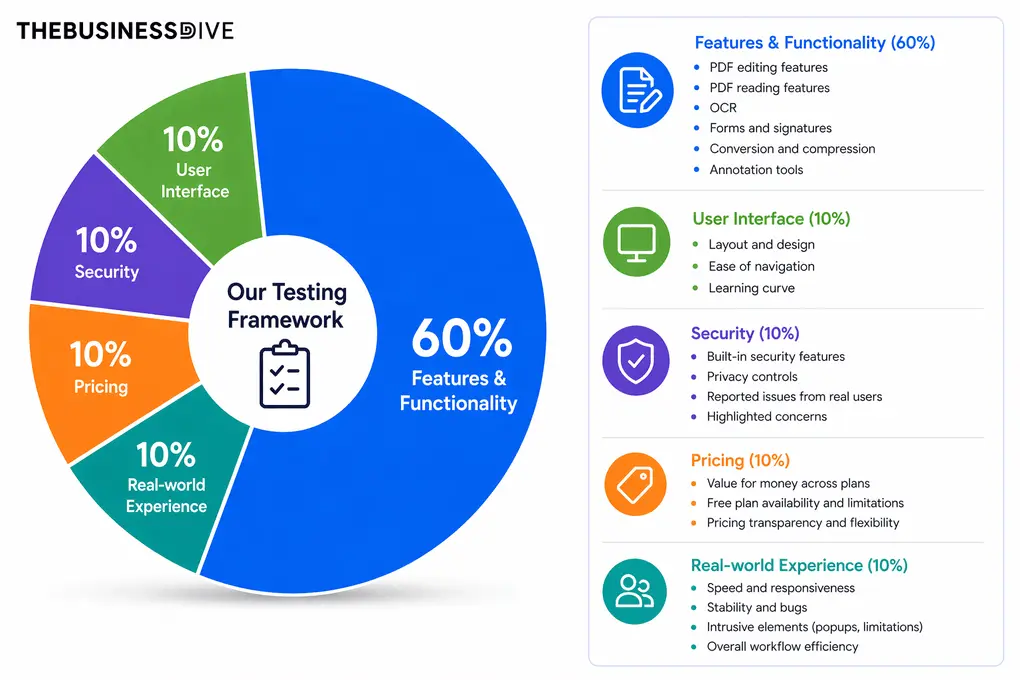
Our scoring breakdown after testing 30+ PDF editors:
🛠️ Features & functionality — 60%
🖥️ User interface — 10%
🔐 Security — 10%
💰 Pricing — 10%
👥 Real-world experience — 10%
Want a detailed breakdown of how we test each category?
Learn exactly how we test tools → Review methodology
Short on time? Here’s a quick overview of LightPDF
What is LightPDF?
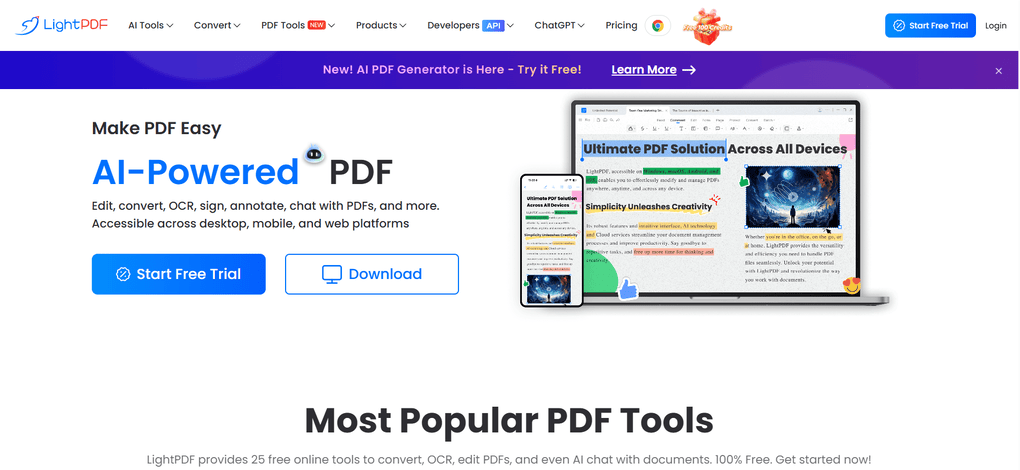
LightPDF is an AI-powered PDF editor that lets you edit, convert, OCR, sign, annotate, chat with PDFs, and more. You can access it through desktop, mobile, and a web app.
While I mostly used the desktop version for testing, its web app offers 25 online tools to work with your PDFs for free. So, if you need a quick PDF conversion or merge, the web app is an ideal solution to complete these tasks quickly.
My real-world experience with LightPDF
LightPDF is an all-in-one PDF tool that offers a clean, fast, and easy-to-understand interface. I found two outstanding features when testing.
Its AI features were impressive and can really help digest PDFs faster. Here, I also appreciated the accuracy of the AI replies to my questions.
Second, its batch processing features are helpful if you need to deal with a high volume of PDF documents. This makes document management fast and efficient.
On the other hand, personally, I prefer PDF editing with drag and drop functionalities, and I did not find this when testing LightPDF.
Apart from this, I was satisfied with LightPDF’s features & performance during my review.
Compared to some other popular PDF editors like PDF-XChange or Foxit, LightPDF is suitable for individuals who do not need advanced PDF editing features and need an easy-to-use tool.
Why LightPDF earned a 4.3 / 5
Overall, it delivered solid features during our LightPDF review, especially in terms of conversion, annotation, and form functions.
However, for me, the PDF editing features fall short of my expectations, so it only gets 3.5 out of 5. Another area where it did not meet my expectations is pricing, given the limited AI credits and short free trial.
Ideal users for LightPDF
When LightPDF might not work for you
Key features & functionalities
Now, let’s see the key features I tried during my LightPDF review!
PDF reading
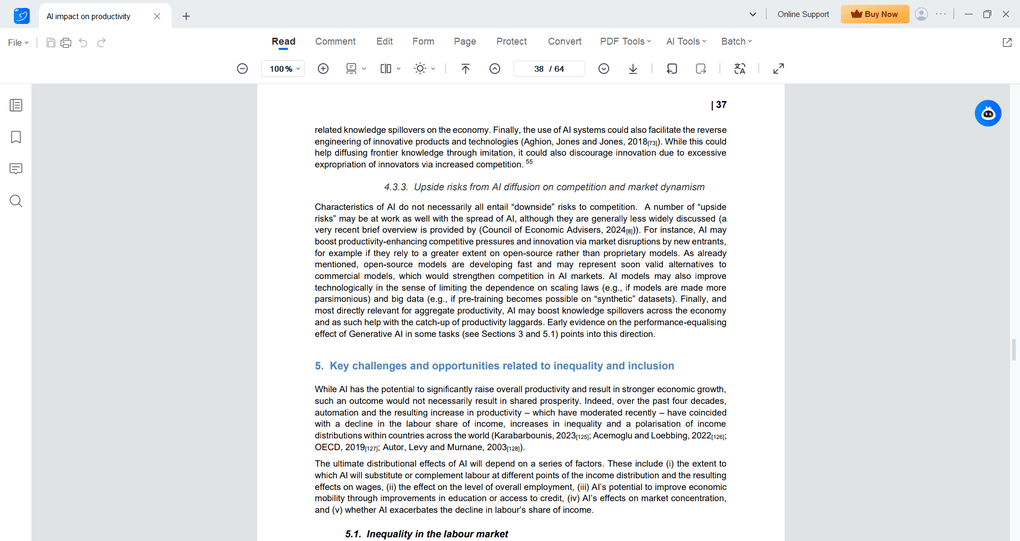
LightPDF offers the essential PDF reading features. It allows you to zoom in and out and offers different layout options, such as single- or two-page view.
I appreciated the option to choose from paper, soft, dark, and the default background color. It helped me achieve ideal eye comfort while reading PDF files.
PDF editor
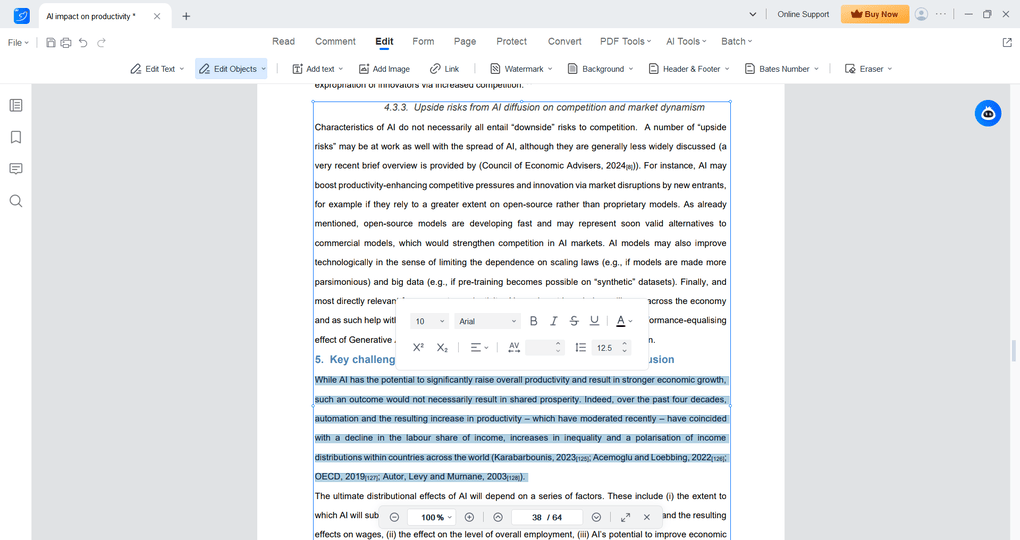
When it comes to PDF editing, I discovered that during my Lightpdf review, it offers two ways to edit documents.
First, you can use the paragraph mode that selects the paragraph (for me, it was normally the whole page), and you can easily make the necessary changes. Alternatively, you can use the line mode for editing, which lets you only select the line you want to work with.
With LightPDF, you can change the size, font type, alignment, color, and more. Basically, you have all the options to change the text in a way that fits your needs. Maybe it’s just me, but I noticed that the layout and editing options were quite familiar to a Word document. So, the learning curve for mastering PDF editing with LightPDF should be minimal.
However, I missed the option to drag and drop text boxes. For me, it feels a bit more convenient to edit PDF documents.
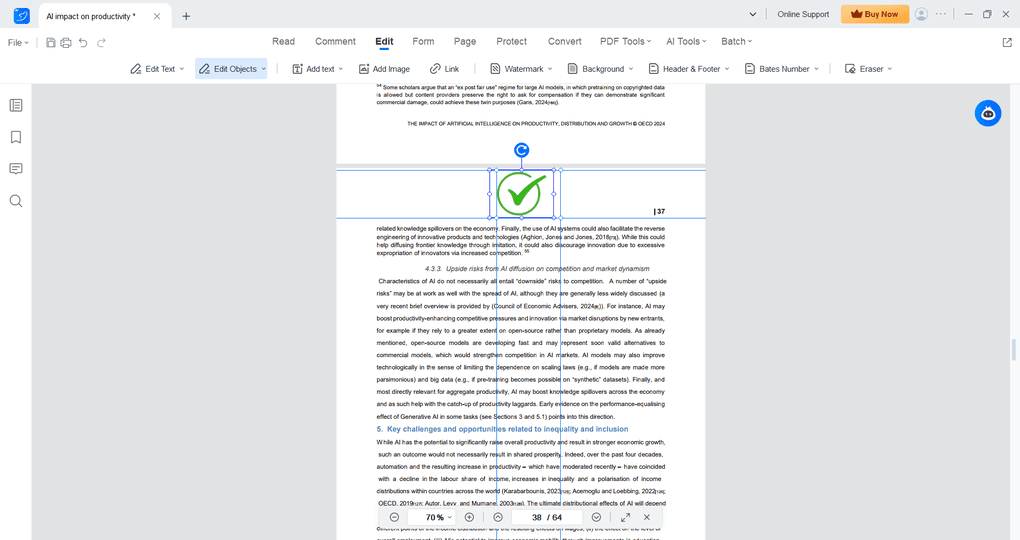
That said, LightPDF offers the drag-and-drop function when adding or editing pictures. With just a few clicks, you can insert images and move or resize them.
Annotate PDF files
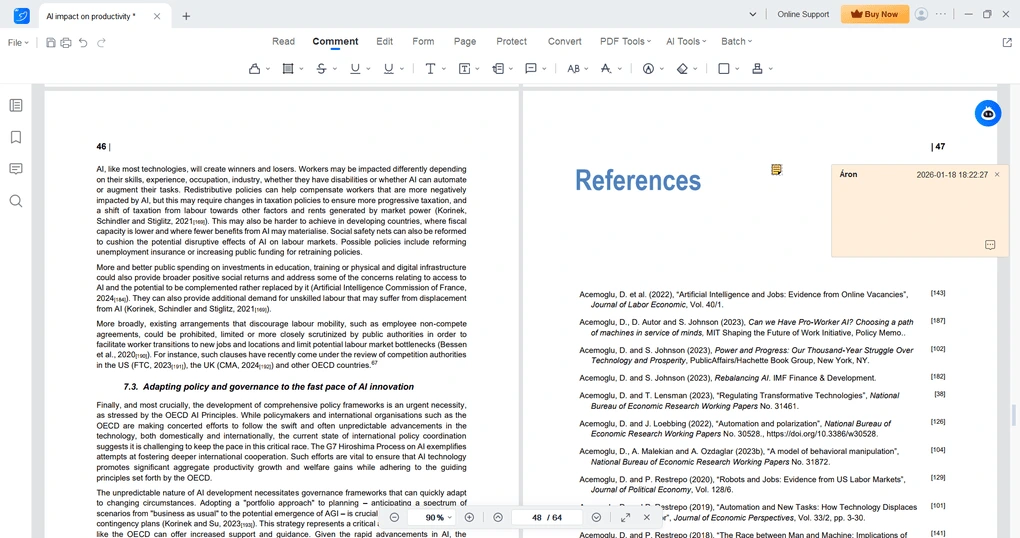
LightPDF provides all the annotation tools you need. If you click on the “Comment”, you can add annotations like highlights, comments, call-outs, shapes, strikethroughs, and more.
I appreciated that it offers some customization options as well. For example, you can click the properties and easily change the opacity level.
During my LightPDF review, I also checked its watermark features. I found that you can add watermarks quite easily.
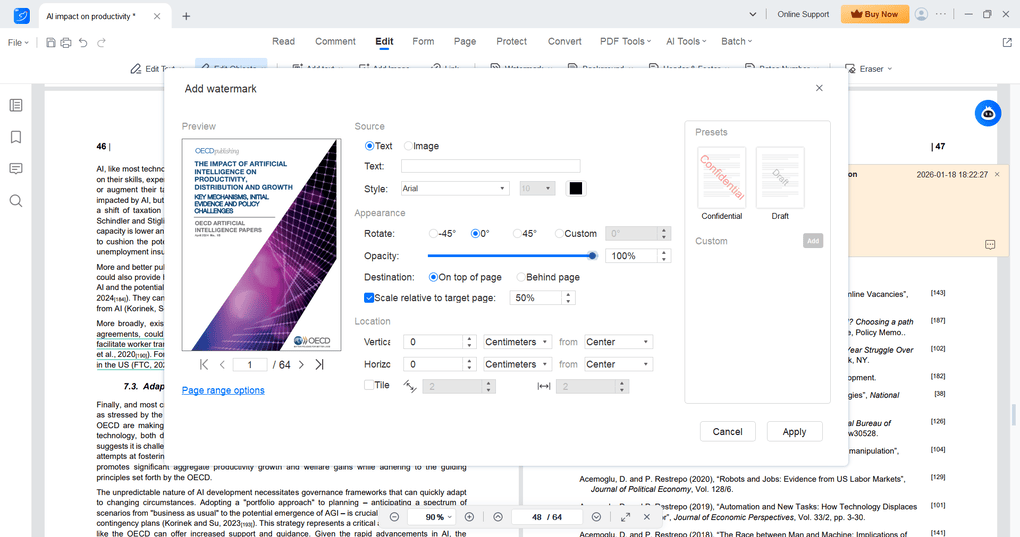
LighPDF offers numerous tools to customize the watermark, including selecting the location, opacity level, rotation, and the text itself. Also, you can create custom watermarks that you can insert easily in the next PDF documents.
LightPDF also helps with watermark removal. Essentially, you can remove the watermark from your PDF files with a few clicks, so it is an easy-to-use feature.
Organize PDFs
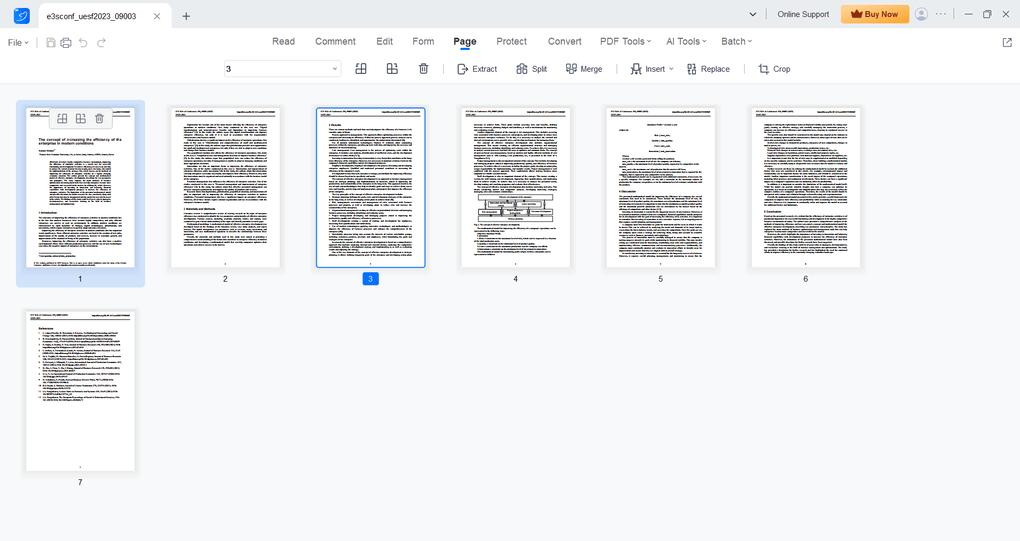
Using LightPDF, you can smoothly organize pages. It allows you to merge, extract, split, replace, and crop your pages.
A quick note: if you want to move a page, LightPDF supports drag-and-drop, so you can easily find the right place for it.
PDF protection
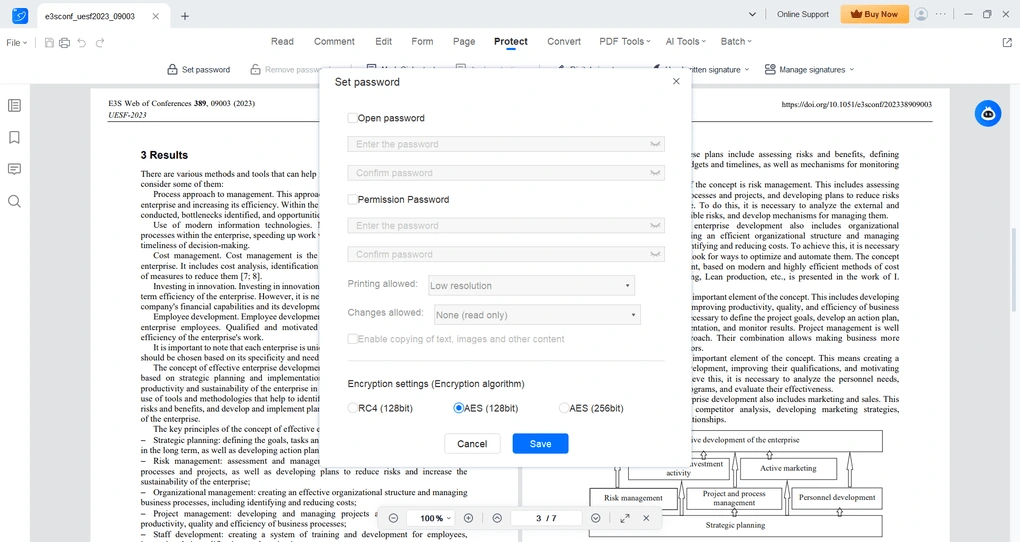
LightPDF offers robust PDF protection. After reviewing 30+ PDF editors, I saw that numerous times, some PDF software only lets you use one type of password protection, and that’s it.
When testing LightPDF, I was glad to see that you can set a permission and an open password as well. If selecting the permission password, you can further control who can do what with the PDF file.
Lastly, you can choose from three different encryption algorithms, such as RC4 (128-bit), AES (128-bit), and AES (256-bit).
Convert PDFs
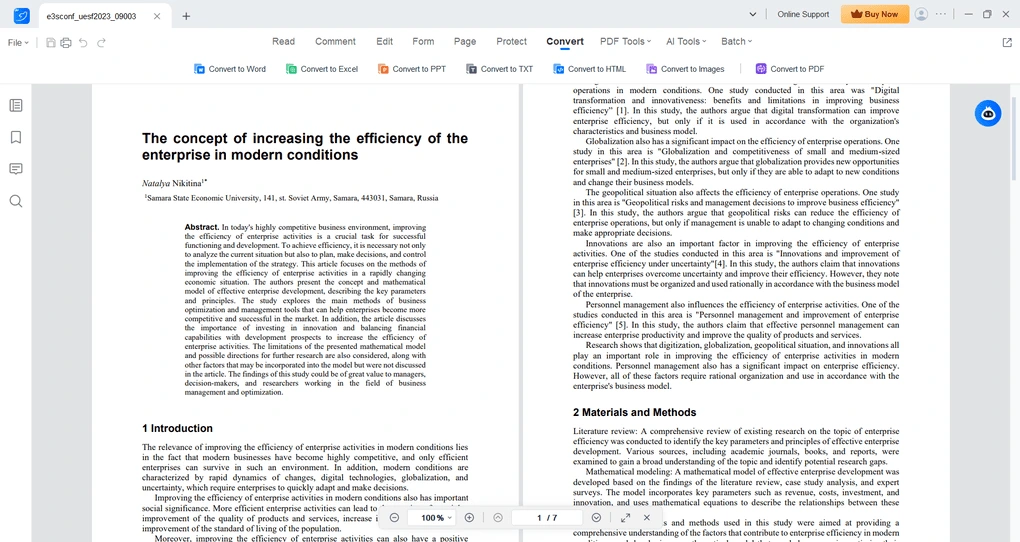
When using the website, LightPDF allows users to convert between PDF and over 15 other formats, including Word, Excel, and PowerPoint. If you use the conversion features on your desktop version, LightPDF allows you to convert PDFs into Word, Excel, PPT, TXT, HTML, and images.
It works both ways, so you can easily convert these files to PDFs.
OCR features
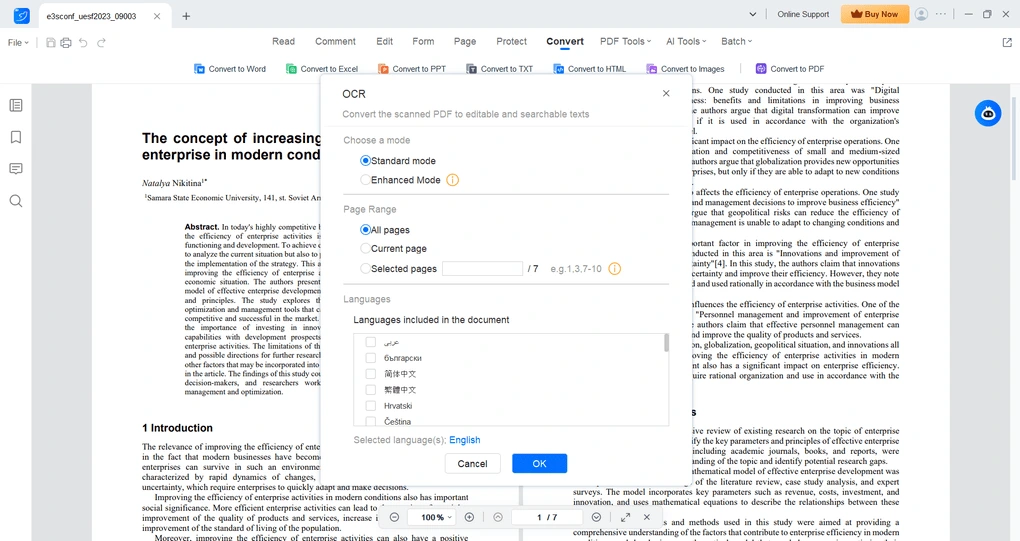
LightPDF supports optical character recognition. That said, you can convert scanned documents into searchable and editable formats.
When using the OCR features, you can select the page range and the language included in the document. LightPDF supports over 20 languages for its OCR capabilities, including handwriting recognition.
When testing the OCR features, I found that LightPDF converts scanned PDFs accurately.
Signing PDFs
With LightPDF, you can create your signature and sign documents easily. You can draw signatures using the cursor, type your name with custom fonts, or upload an image of their signature.
After you finish creating the signature, you can place it anywhere on the page and adjust its size and position.
AI tools
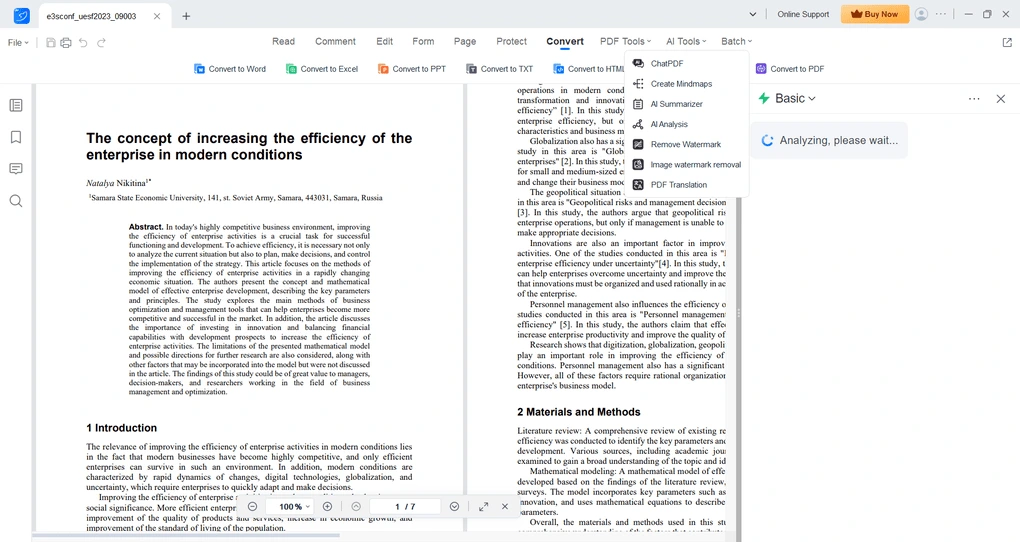
One of the strongest aspect of LightPDF are the AI features. You can chat with PDFs, ask for a summary or a mind map, watermark removal, and so on.
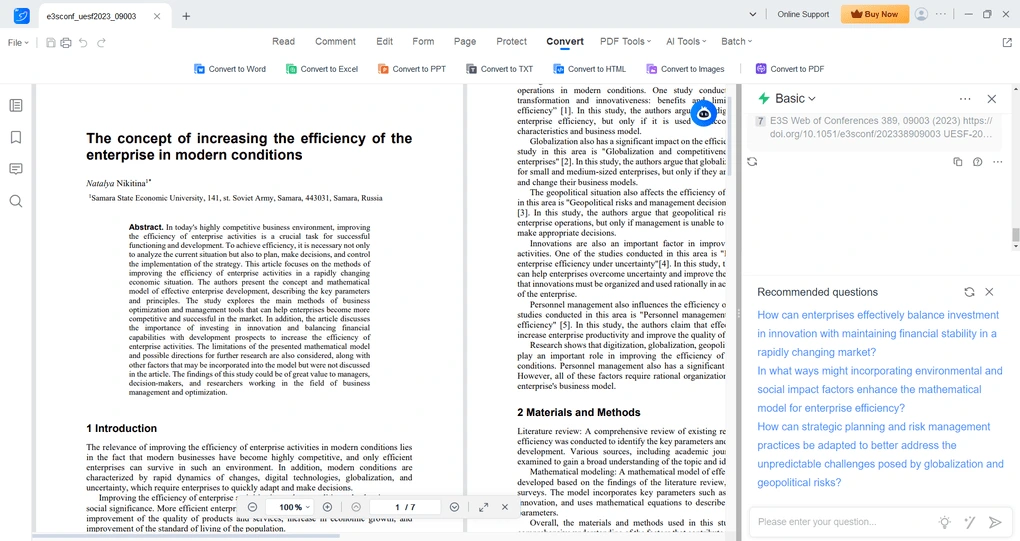
Using such AI features helps you save time when dealing with complex PDFs. When chatting with the PDF files, I also appreciated that it offers recommended questions about the file.
Batch processing
If you are dealing with a lot of complex PDF tasks, you will love the batch processing feature. It helps you to handle multiple files simultaneously.
That means you can convert multiple files, including images and Word documents, to PDF format or process numerous scanned documents into an editable format.
Explore our Apps directory
A curated directory of software tools we’ve independently reviewed, with links to full reviews, comparisons, and category guides.
User interface
When testing and reviewing software, I normally browse the internet to ensure I don’t rely solely on my experience in the reviews, but also include others’ perspectives to provide a full picture of the app.
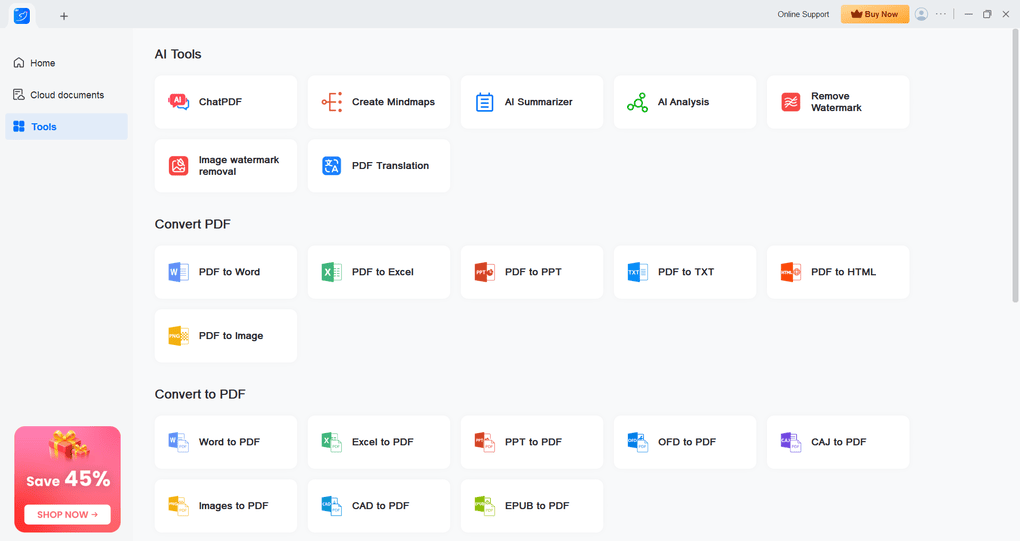
In the case of this PDF editor, I found that users appreciate the clean and easy-to-navigate interface of LightPDF. And my experience was the same.
LightPDF has a user-friendly interface, and it is easy to find the tools you are looking for. On the desktop homepage, you will also find cloud storage that allows you to access, view, and modify them on any device, anywhere.
LightPDF’s web platform
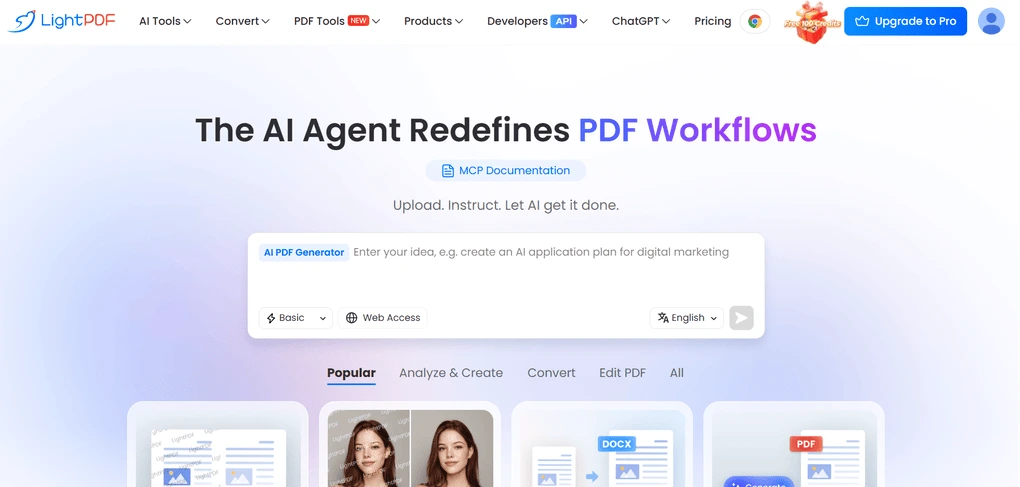
If you don’t want to download LightPDF’s desktop version, you can utilize its editing, conversion, watermark removal, and other features completely free. Nevertheless, there are some unique features I want to highlight here.
Using its web platform, you can access its AI chatbot that simplifies handling multiple complex PDF tasks through a single, intuitive conversation. Also, it offers an AI PDF generator with advanced capabilities for generating content directly within PDFs.
Lastly, it has a unique feature, an AI invoice generator, that lets you create invoices faster with a few clicks online.
LightPDF pricing
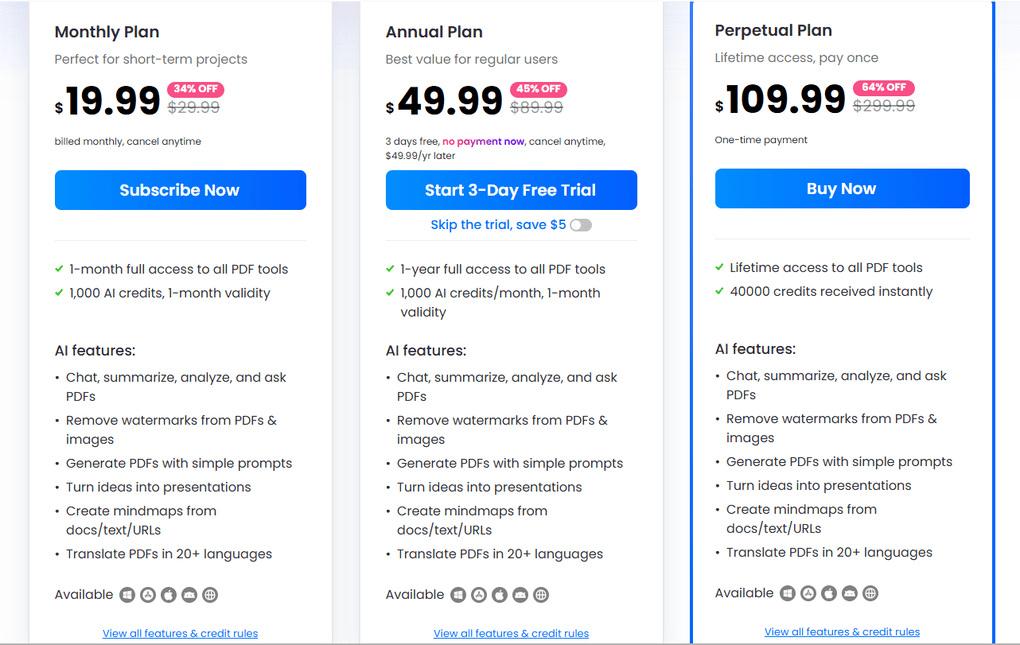
LightPDF offers a free plan that includes 25+ tools and allows users to use the PDF tools for up to five files per day for free. However, the free version is available only on the web.
For individuals, LightPDF offers three paid plans. The monthly plan is $19.99, while LightPDF’s annual plan costs $49.99 and is billed yearly.
These plans cover all the key features I showed you, including PDF editing, annotation, conversion, cloud storage, and AI features. However, there is a cap of 1000 credits/month for the AI features, even with the paid version.
Just a heads-up: LightPDF offers a 3-day free trial for its premium plans.
Furthermore, LightPDF offers a perpetual (lifetime) plan for a one-time payment of $109.99. In terms of features, it includes all the tools available in the monthly and annual plans. When it comes to the AI-powered tools, you will get 40000 credits to utilize them.
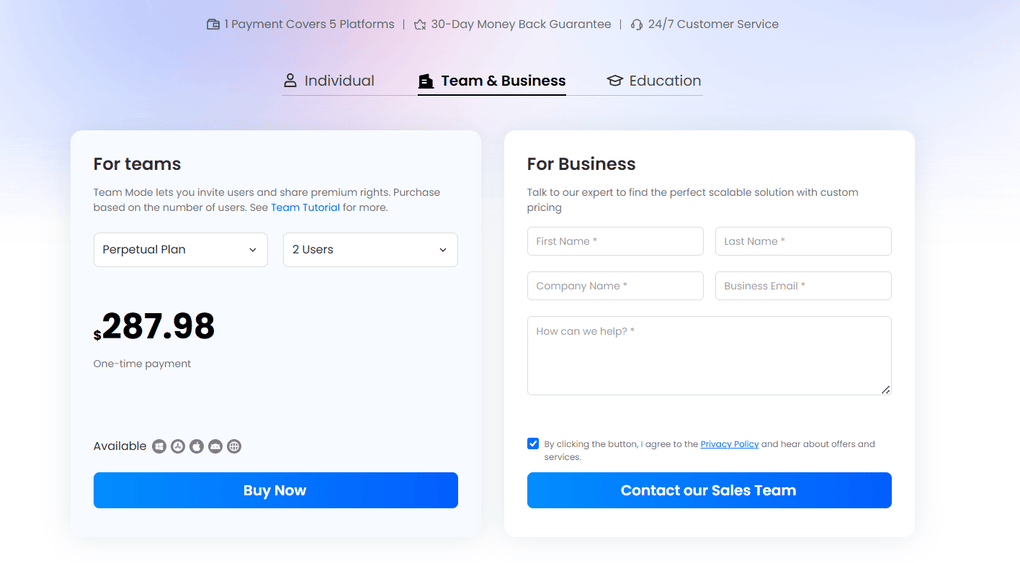
LightPDF provides a team plan as well, starting from 2 users. The annual plan for 2 users is $143.98, while the perpetual plan is $287.98.
Lastly, LightPDF offers a discount for educators and students.
Unlike other tools that charge separately for PDF editing and AI features, LightPDF offers a unified subscription model. One payment unlocks all features, including both PDF tools and AI capabilities.
Moreover, your subscription works across all platforms—Windows, web, and mobile, so you get full access on any device with one subscription.
Overall, LightPDF offers budget-friendly pricing plans, especially compared to Adobe Acrobat’s subscriptions.
Pros and cons I discovered during my LightPDF review
Here, I summarize the pros and cons I found throughout my LightPDF review.
Pros of LightPDF
Cons of LightPDF
LightPDF alternatives
If you feel like LightPDF is not the best PDF editor for you, here are the best alternatives:
|
App |
Best for |
Description |
|---|---|---|
|
Foxit |
Best affordable alternative to Adobe Acrobat |
A PDF editor with an intuitive user interface at an affordable price for Mac and Windows users. |
|
EaseUS PDF Editor |
Best all-in-one PDF editor for beginners |
It is an all-in-one PDF software to read, edit, annotate, and convert your documents. Full EaseUS PDF Editor review | Quick EaseUS PDF Editor overview |
|
Tenorshare PDNob |
Best for AI-powered PDF editing |
It is an easy-to-use AI-powered PDF editor that offers many features to edit, read, organize, and annotate your documents. Full Tenorshare PDNob review | Quick Tenorshare PDNob overview |
|
PDF Expert |
Best for Mac users |
A PDF editor for Mac, iPhone, and iPad users that offers all the tools you need to manage your PDF files, from annotation tools to signing PDFs. |
|
Xodo PDF Studio |
Best offline PDF editor |
A straightforward offline desktop PDF editor for Windows, Linux, and iOS devices, with great PDF reading and editing tools. Full Xodo PDF Studio review | Quick Xodo PDF Studio overview |
|
ONLYOFFICE PDF Editor |
Best for collaboration and team editing |
A versatile tool that combines PDF editing with document collaboration features. It lets you to edit text, add visual elements, and create fillable forms. |
|
UPDF |
Best value PDF editor with AI features |
One of my favorite PDF editors with advanced AI features and budget-friendly pricing. |
|
Nitro |
Best for business PDF workflows |
A feature-rich PDF editor with a strong focus on PDF editing. |
|
Smallpdf |
Best online PDF tool |
An online PDF software with numerous tools to convert, compress, and edit PDF files for free. |
|
Adobe Acrobat |
Most popular PDF editor |
The most popular PDF editor with solid features, but an extremely high price. |
|
pdfFiller |
Best for e-signatures and document workflows |
It offers a signing and editing solution that lets users sign and edit documents, send them for signature, and manage the full electronic document workflow in one place. |
|
PDFgear |
Best free PDF editor |
A completely free, offline PDF editor with solid editing, OCR, conversion, and AI tools. |
|
PDF-XChange |
Best advanced PDF editor for Windows |
A powerful Windows-based PDF editor with advanced editing, annotation, security, and conversion tools. |
|
Sejda PDF Editor |
Best for simple, everyday PDF tasks |
An intuitive and simple PDF software best suited for personal use for those who need a PDF editor for basic PDF tasks. |
|
Soda PDF |
Best for security and file conversion |
A user-friendly PDF editor with solid core features, strong security tools, and broad file conversion options, but its advanced features come at a relatively high price. |
|
PDF Candy |
Best PDF toolkit with multiple tools |
A very practical PDF toolkit with a large number of useful tools, solid performance, and affordable pricing. |
|
Tungsten Power PDF |
Best enterprise-grade PDF solution |
A powerful PDF editor and document management tool designed for businesses, offering advanced editing, security, OCR, and collaboration features. Full Tungsten Power PDF review | Quick Tungsten Power PDF overview |
|
ABBYY FineReader |
Best for OCR and document digitization |
A powerful OCR-focused PDF tool with strong layout detection, flexible conversion, and an efficient workflow. Full ABBYY FineReader review | Quick ABBYY FineReader overview |
|
PDFelement |
Best balance of features and ease of use |
An easy-to-use PDF editor with valuable features for a reasonable price. |
|
WPS Office |
Best easy-to-use office suite and PDF editor |
WPS Office is an easy-to-use office suite with solid PDF editing and AI-powered productivity tools, though its free plan is quite limited. |
Wrap-up: LightPDF review
To wrap up my experience with LightPDF, I was satisfied during the testing. It is a go-to tool for those who need a user-friendly PDF editor and advanced features for batch processing.
It has excellent AI features and works as a Swiss Army knife thanks to its extensive feature set for your PDF workflows.
Related articles:
- The 8 Best Adobe Acrobat Alternatives: 30+ PDF Editors Tested
- The 7 Best PDF Readers For 2026 (Only FREE Options)
- 6 Best OCR Software For 2026 | 30+ Personally Tested Tools
- 5 Best PDFelement Alternatives 2026 (NOT What You’d Think)
Hope I was able to help you find the best PDF editor for you. As always, I will update this LightPDF reviewover time so you guys have up-to-date information about this PDF software.
Looking for similar tools?
Visit our PDF editor library to explore other apps we’ve reviewed in this space and how they compare.
Why you can trust our reviews
At thebusinessdive.com, our team tests, reviews, and compares hundreds of productivity apps every year — from project management tools to note-taking apps. We dive deep into real-world use cases to help you find the right tools that actually improve your workflow, not just add noise.
Our mission? No fluff, no shortcuts—just honest, hands-on insights from productivity pros.
Discover how we stay transparent, read our review methodology, and let us know about any tools we missed.
Frequently asked questions
Is LightPDF safe to use?
Yes, LightPDF meets all the industry standards, regulations, and certifications, including ISO/IEC 27001, ISO/IEC 27701, and GDPR.
Moreover, during my research into LightPDF’s safety, I did not identify any red flags about the software.
Which PDF editor is best?
There are more than 50 PDF editors on the market, so finding the ideal one is tough. Based on my experience, LightPDF should definitely be among the ones I can safely recommend to users.
My list of best PDF editors: 10 Best PDF Editors In 2026 | 30+ Personally Tested PDF Tools
Which is the safest free PDF converter?
If you need a completely free PDF converter, I can recommend LightPDF, pdfFiller, and Smallpdf. If you want to check out my full list of best PDF converters, check out this article: 6 Best PDF Converters for 2026 | 30+ Personally Tested Tools
Disclosure: I only recommend products I would use myself, and all opinions expressed here are our own. This post may contain affiliate links that, at no additional cost to you, may earn a small commission. Read the full privacy policy here.

Hey there! I am Aron, the founder of Thebusinessdive. I have been testing productivity apps for almost three years now. I reach 25.000 -50.000 people monthly with the mission to help you find the perfect productivity apps. Subscribe to my YouTube channel, newsletter, and social media to hear more about the best productivity tools. Let’s dive in!