


My Honest Foxit Review After Testing +30 PDF Editors (2026)
In this Foxit review, I’ll share my experience with this PDF editor, including what impressed me most, where it falls short, and whether it’s worth your money.
Over the past three years, we’ve tested 30+ PDF editors across 100+ documents to find the best options. I’ll use that experience to show you how Foxit performs in real-world tasks and how it compares to other PDF editors.
Let’s jump in!
Verdict
Here’s the quick verdict if you don’t want to read the full Foxit review:
🎯 Best for: Business users who need advanced features for PDF editing
🚫 Not ideal for: Users needing built-in eSign in cheaper plans
⭐ Biggest strength: Powerful editing
⚠️ Biggest weakness: Some features locked behind higher tiers
⚖️ Verdict: A complete PDF software, but not the cheapest option
🏆 Score: 4.1 / 5
✅ Tested with our review & scoring methodology ✅ Real-world testing ✅ Unbiased evaluation
Foxit
Summary
Foxit is a PDF editor that offers many features, such as text editing, image manipulation, page organization, and great annotation tools. It works on Windows, Mac, iOS, Android, and Online as well, so it is quite versatile. Overall, I had a very positive experience with Foxit. Compared to other PDF editors on the market, I think it is one of the best now.
Smooth text and image editing, including Reflow Editing | |
Fast, accurate OCR on scanned documents | |
Natural-sounding read-aloud and useful translation | |
Extensive annotation and page organization tools | |
Built-in image editing without switching apps |
Reflow Editing may affect PDF formatting | |
Advanced AI usage and Smart Redact may require additional subscriptions. | |
Full eSign workflows require a higher-tier plan | |
Pricing and licensing concerns reported by some users |
Using Foxit for real-world PDF tasks
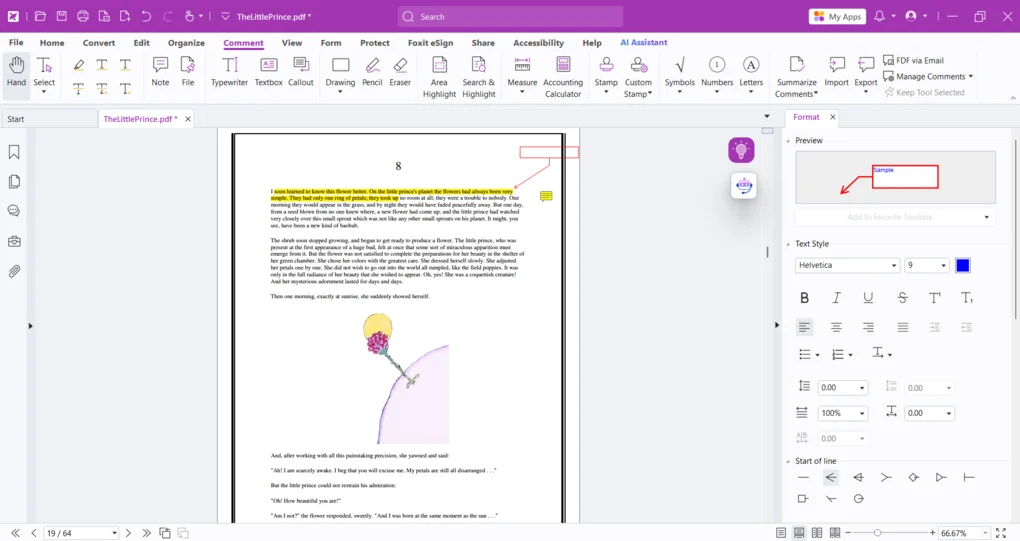
I tested Foxit on several practical PDF tasks, including editing, OCR, reading, and annotations. A few results stood out, both for the right and wrong reasons.
Large PDFs opened in seconds. I didn’t experience noticeable loading delays when opening large files, and editing text or inserting images with drag-and-drop controls was smooth.
For longer text edits, I also tried Reflow Editing, which lets you edit text continuously rather than working within individual text blocks.
OCR handled a 200-page English document in about two minutes. I tested it on a scanned text, and Foxit recognized the text accurately while preserving the original formatting. One limitation is that OCR support for some other languages requires installing an additional add-on first.
Read-aloud works best in English. The English voice sounded natural and was easy to follow, but when I tried it with a text in my native Serbian language, the output was noticeably less convincing.
So if you regularly listen to documents rather than read them, the experience may depend on the language you’re working with.
Foxit also offers extensive annotation tools, including highlights, stamps, and customizable markup, along with options for importing and exporting comments. However, some advanced workflows come at an additional cost.
Overall, I had a positive experience with Foxit. It’s one of the most feature-rich PDF editors I’ve tested, and its performance was impressive, particularly when working with large documents and OCR.
That said, it’s not the cheapest option, and I think some users will find its extensive feature set unnecessary for everyday PDF tasks.
Still, Foxit earned a place on my lists of the best PDF editors, best PDF readers, and Adobe Acrobat alternatives.
While it didn’t take the top spot in any of these categories, I can see why it would be a good choice for professionals who regularly work with PDFs and need advanced editing, OCR, and document management tools in one place.
🟢 Pick Foxit if: You regularly work with large PDFs and need advanced editing, accurate OCR, and extensive document tools in one app.
🔴 Skip Foxit if: You’re on a tight budget, need advanced eSign features included in the basic plan, or don’t want to pay extra for premium tools.
What I Loved & What Could Be Better
This is what I found after trying the Foxit features:
| What Foxit Does Best | Foxit’s Biggest Drawbacks |
| Smooth text and image editing, including Reflow Editing | Reflow Editing may affect PDF formatting |
| Fast, accurate OCR on scanned documents | Advanced AI usage and Smart Redact may require additional subscriptions. |
| Natural-sounding read-aloud and useful translation | Full eSign workflows require a higher-tier plan |
| Extensive annotation and page organization tools | Pricing and licensing concerns reported by some users |
| Built-in image editing without switching apps |
Why Foxit scored 4.1 out of 5
Foxit performed well during our testing of its features and functions. It offered a reliable experience and did not encounter issues when performing PDF tasks.
Where Foxit falls short compared to other PDF editors is pricing. While it’s significantly cheaper than Adobe Acrobat Pro, it’s still an expensive PDF editor.
Is Foxit safe?
Overall, Foxit provides a solid set of tools for protecting sensitive PDFs, although it has had security vulnerabilities that required patches.
Foxit PDF Editor supports 256-bit AES encryption, password protection, access restrictions, certificate-based security, and redaction that permanently removes selected content.
However, these features don’t eliminate every security risk, so it’s important to keep the software updated and verify redactions before sharing sensitive files.
Privacy also depends on which features you use. Foxit’s AI Assistant may send document content and prompts to cloud services for processing. Foxit states that it doesn’t use customer content to train AI models without explicit authorization, and local processing is available for some AI features.
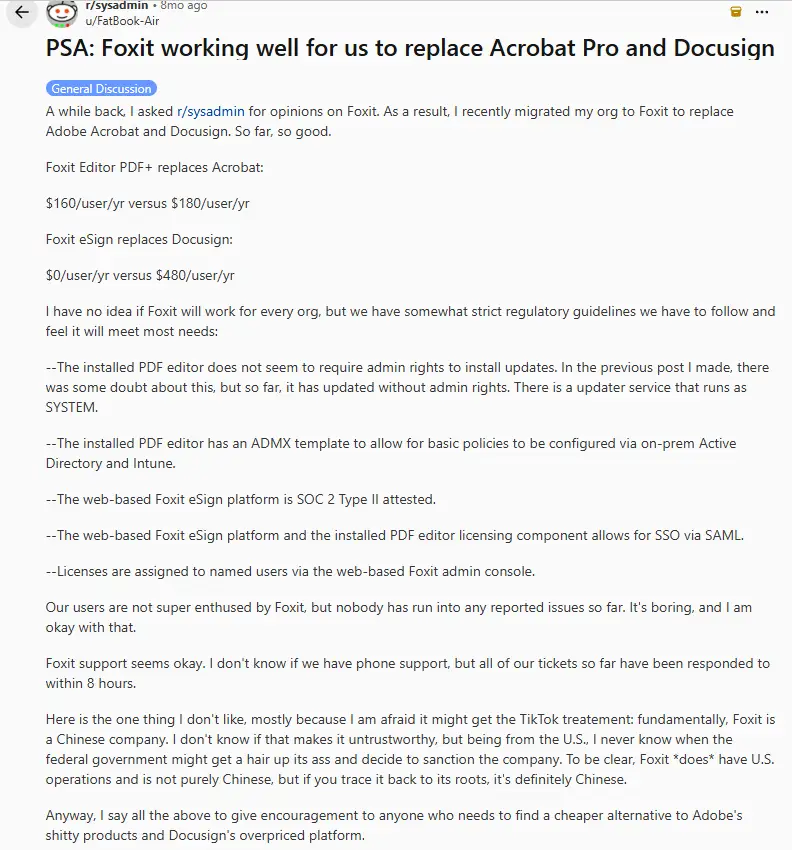
I also found a useful Reddit discussion from an IT administrator whose organization switched from Adobe Acrobat and DocuSign to Foxit.
The administrator reported no major issues so far and noted that Foxit eSign had SOC 2 Type II attestation, while its desktop editor supported centralized policy management and SAML single sign-on.
However, some commenters raised concerns about update permissions and license renewals. These reports suggest Foxit can work in business environments, but organizations should check its administration, licensing, and compliance requirements before rolling it out widely.
Overall, I’d recommend keeping the software updated, using the dedicated redaction tool instead of simply covering text with shapes, and being cautious when submitting sensitive documents to cloud-based or AI features.
How it compares to Adobe Acrobat?
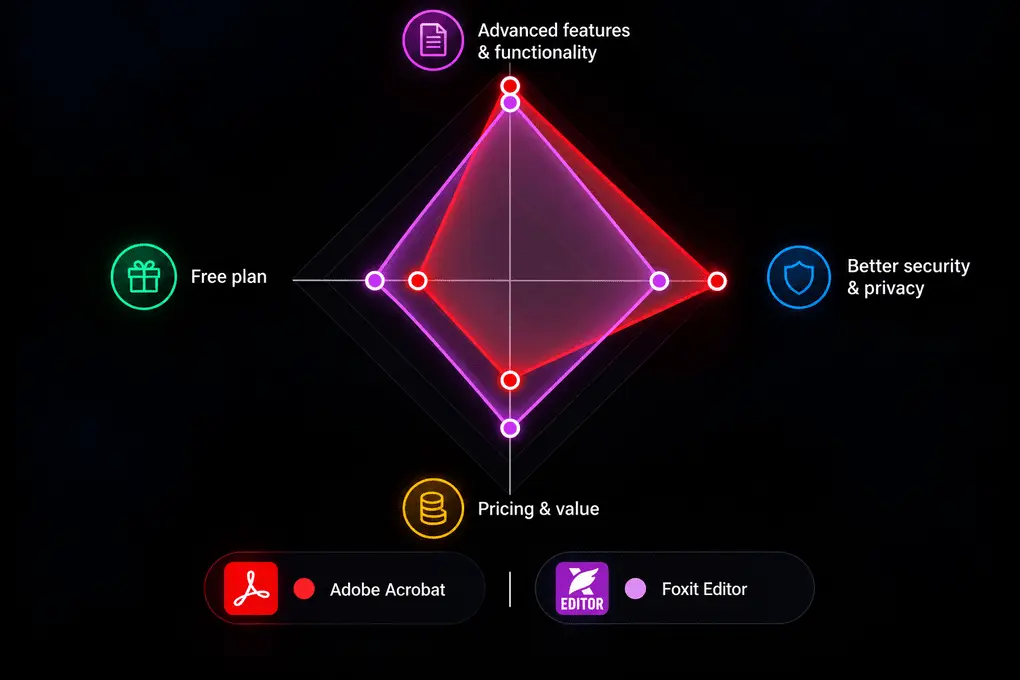
Adobe Acrobat may be the best-known PDF editor on the market, but it’s also known for its relatively high price.
Foxit is a more affordable alternative to Adobe Acrobat, especially if you need advanced PDF editing without paying for Acrobat Pro. Foxit PDF Editor costs $129.99 per year, compared with $239.88 per year for Adobe Acrobat Pro.
Choosing between Foxit and Adobe Acrobat comes down to more than price, especially if you work with large PDFs or need tools for managing software across a team.
In our testing, large PDFs opened in Foxit within seconds, while Adobe Acrobat can experience slowdowns when handling larger files.
For businesses, Foxit supports centralized policy management through tools such as Active Directory and Intune, as well as SAML single sign-on.
Adobe also offers business administration tools, so the right choice depends on your existing setup, required features, and licensing needs.
Pricing
| Plan | Price | Best For | % Cheaper Than Adobe | Key Features |
| Free | $0 | Users who only need to view, read, and annotate PDFs | 100% | PDF viewing, reading, and basic annotation tools |
| PDF Editor | $129.99/year | Individuals and professionals who regularly edit PDFs | 45.8% cheaper | PDF editing, forms, conversion, OCR, organization, and security |
| PDF Editor+ | $159.99/year | Professionals who need advanced PDF tools, mobile access, and e-signatures | 33.3% cheaper | Everything in PDF Editor, plus mobile apps, Smart Redact, and Foxit eSign with 150 envelopes/year |
| AI Assistant add-on | +$49.99/year (optional for users who need more credits) | Users who regularly need AI-powered PDF assistance | N/A | 2,000 AI credits/month, summaries, document Q&A, translation, and rewriting |
The Features That Mattered Most During Testing
Here are my impressions about Foxit’s key features.
Foxit PDF Editor: powerful editing tools, with some trade-offs
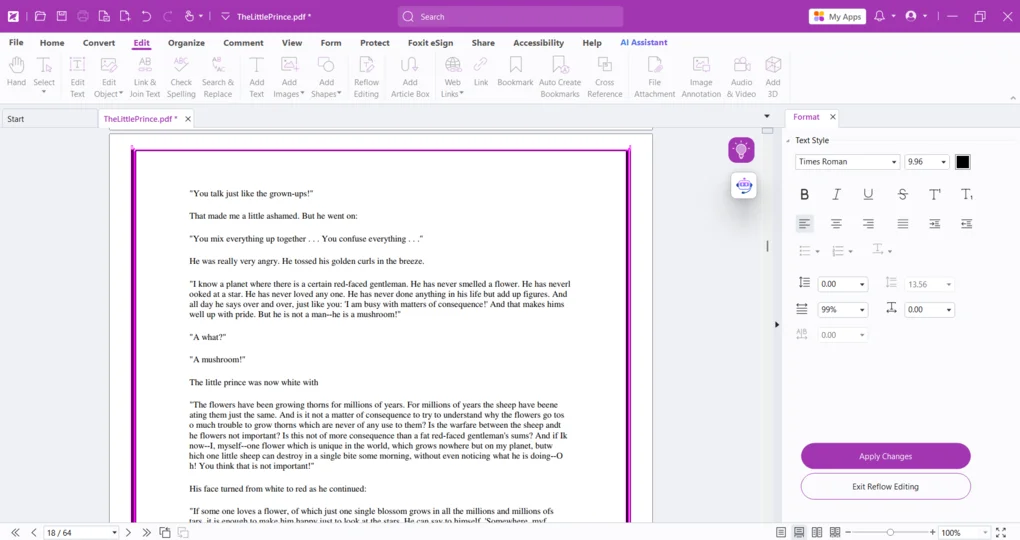
Foxit is a very capable PDF editor, with more editing options than I needed for everyday tasks. I used its text editing tools, Reflow Editing mode, and built-in image editor, and the last two were especially interesting.
Reflow Editing was very useful for longer text edits. Unlike standard editing, which works with individual text blocks, it lets you edit text continuously across pages, with the content reflowing as you add or remove text.
This makes longer edits feel more like working in a word processor. However, Foxit warns that some PDF properties may be lost in this mode, so I’d recommend keeping a copy of the original document.
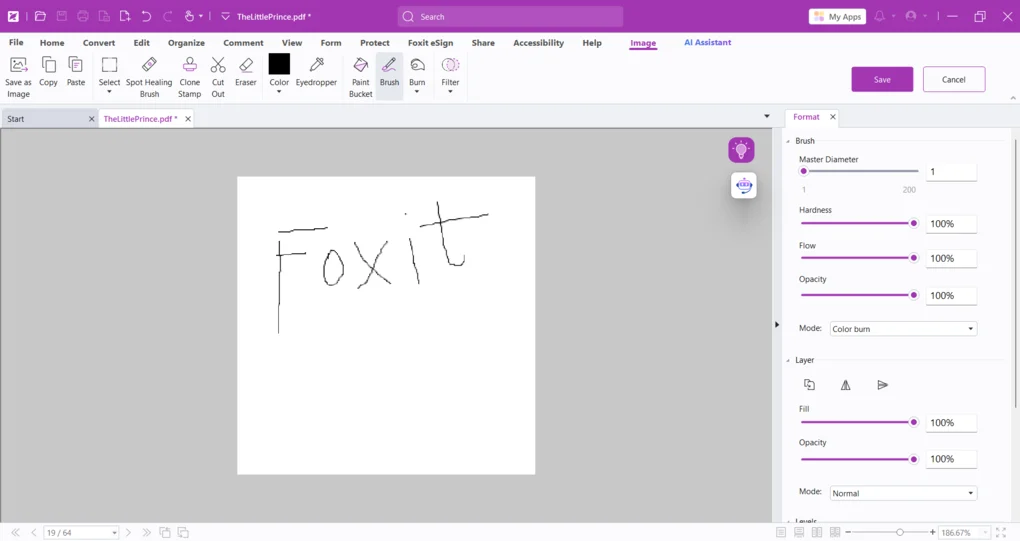
I also like that Foxit includes a built-in image editor – a separate image editing workspace where I could draw directly on images using different tools.
What’s good:
What’s missing:
Foxit PDF Reader: useful reading tools, but read-aloud quality varies by language
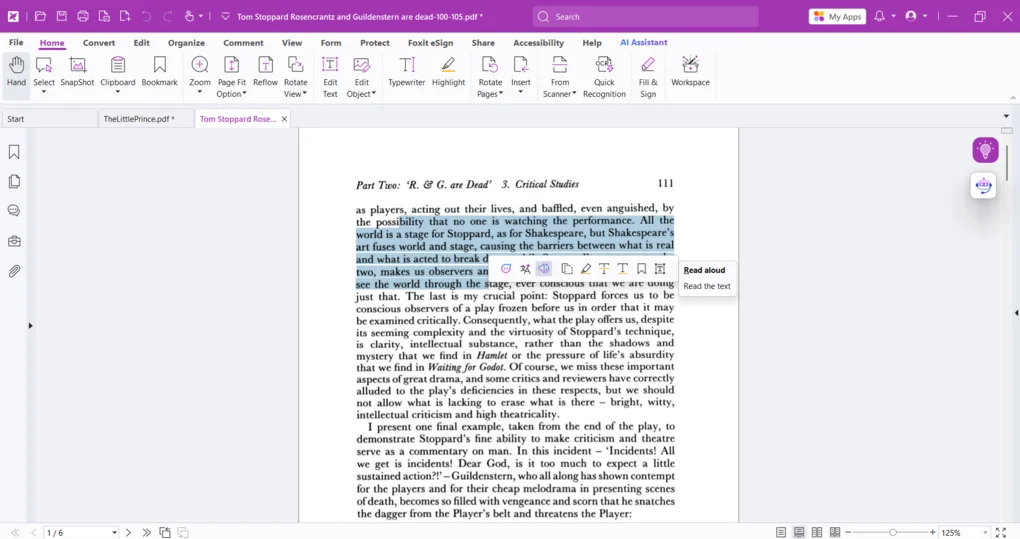
Foxit has a few reading options worth exploring beyond the usual page and layout settings. From the View tab, you can switch to Read Mode, enable night view, and change how pages are displayed.
What I found more useful, though, was being able to work with text without interrupting my reading. The read-aloud feature sounded natural in English, but the quality varied in other languages I tested.
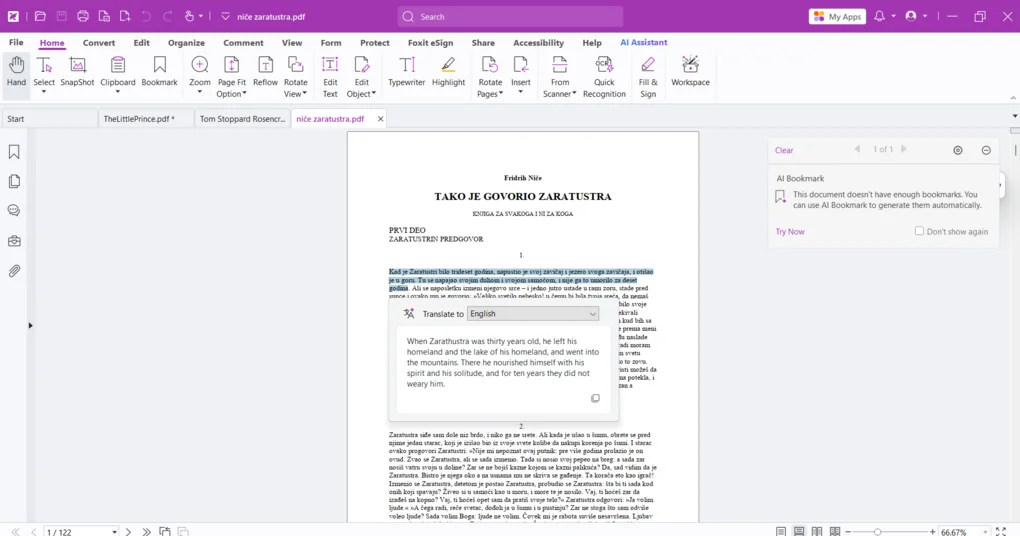
The translation tool also worked well in my tests. If I come across a passage I don’t fully understand, I can translate it, listen to it, edit it, or ask the AI Assistant about it without copying it into another app.
What’s good:
What’s missing:
PDF Annotations: extensive markup tools and flexible comment management
Foxit has more annotation options than I needed for everyday PDF reviews. Alongside highlights, underlining, sticky notes, and freehand drawing, I found stamps. You can also create custom stamps and adjust the color, opacity, and line width of your annotations.
I also like the options for handling comments. You can import and export annotations, including in FDF format, which is useful when exchanging feedback with others. The range of tools makes Foxit good for reviewing documents with lots of comments.
What’s good:
What’s missing:
PDF Organizer: more than basic page management
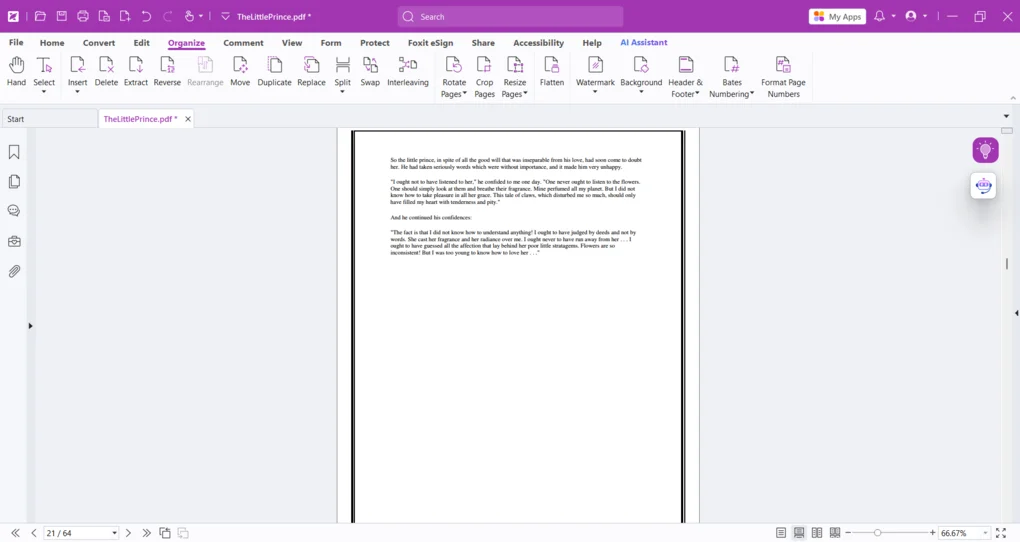
Foxit’s page organizer goes beyond rearranging or deleting pages. One feature I found interesting was Interleaving, which alternates pages from two PDFs. This can save time when combining two sets of scanned pages, such as the front and back sides of documents scanned separately.
Foxit also includes tools for applying Bates numbering, watermarks, headers, and footers, which are useful when preparing documents for business or legal workflows. The Flatten option is worth knowing about, too: it merges annotations and form fields into the page content, but doing so can make them harder to edit later.
What’s good:
What’s missing:
Forms and Signatures: flexible signing options, but advanced eSign costs extra
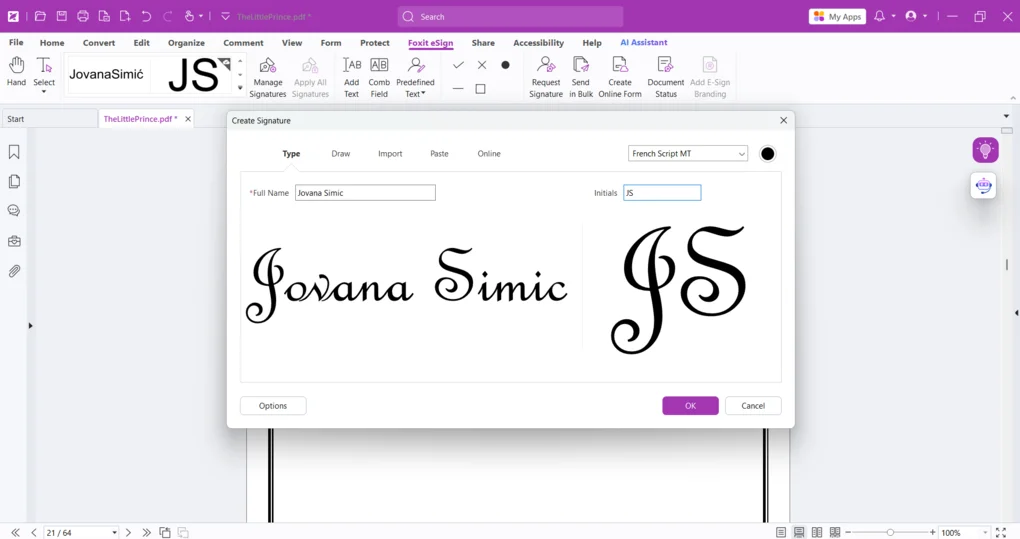
Foxit combines PDF form creation with several options for signing documents. You can create forms with interactive fields or use automatic field recognition to reduce manual setup. For signatures, you can type your name, draw a signature, or import an image to reuse across documents.
Foxit also supports certificate-based digital signatures, which serve a different purpose from inserting a regular electronic signature by helping verify a signer’s identity and protect a document’s integrity. If you need to collect signatures from other people, Foxit’s eSign integration lets you send signature requests, although some workflows require a separate subscription.
What’s good:
What’s missing:
Converting and Scanning PDFs: fast, accurate OCR that preserves formatting
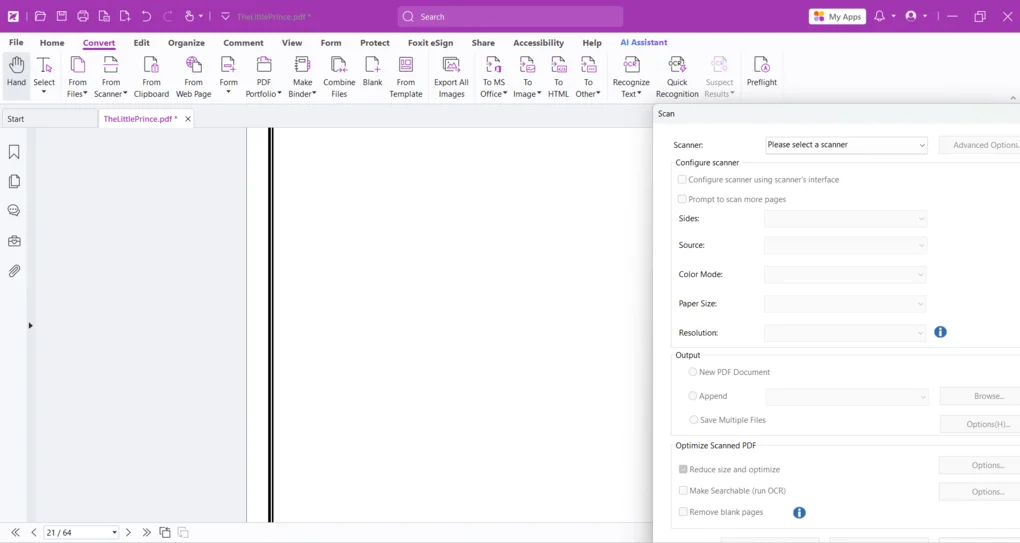
Foxit can convert PDFs to Word, Excel, PowerPoint, HTML, and image formats, as well as create PDFs from scanned documents, web pages, and other files. You can also export images from PDFs or convert selected pages instead of processing an entire document.
I was also impressed with Foxit’s OCR (optical character recognition) feature. When I tested it on a scanned text, it recognized the text quickly and accurately, turning a page that was essentially an image into searchable and editable text.
Foxit also offers a Quick Recognition option, which lets you use the default or previously saved settings to make scanned documents searchable or editable.
What’s good:
What’s missing:
PDF Protection: strong redaction tools
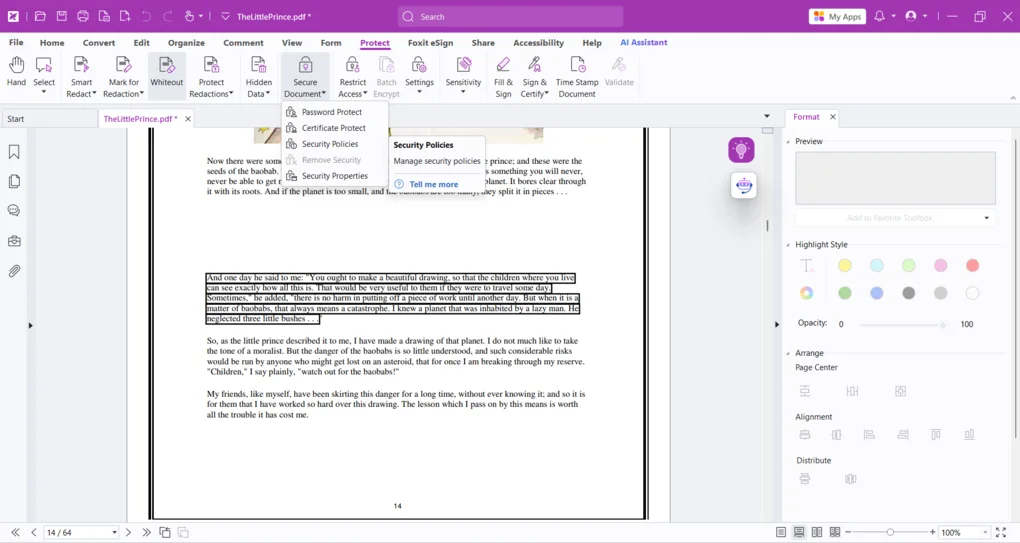
Foxit offers several ways to protect sensitive PDFs, but the distinction between its security tools is worth noting. You can password-protect a document, restrict actions such as printing or copying text, or use certificate-based protection for more controlled access.
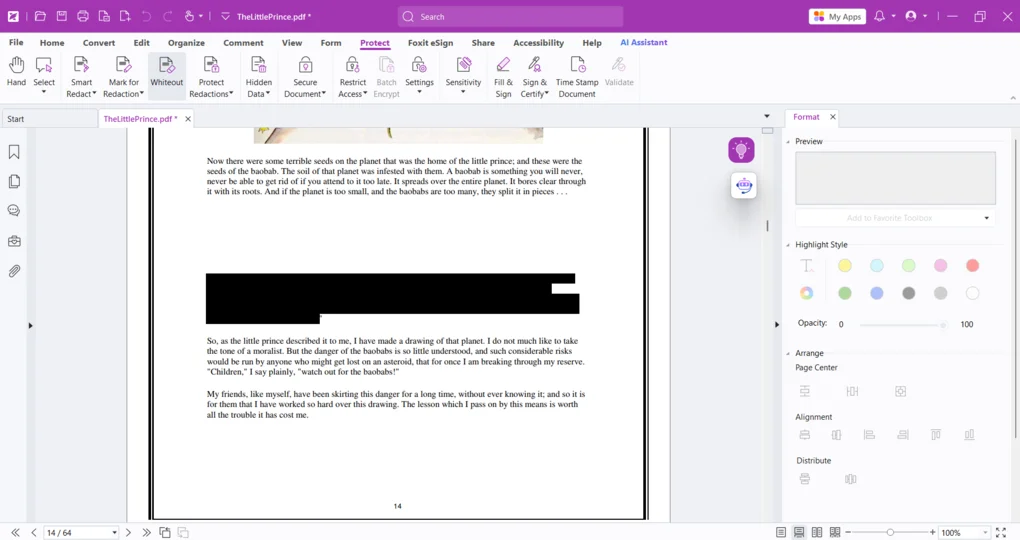
I also tested Foxit’s redaction tools. Redaction permanently removes selected text or images rather than simply covering them up, while Sanitize Document removes hidden information that could remain in a file before you share it.
One limitation I noticed is that Smart Redact requires an additional subscription, so its AI-assisted detection of sensitive information isn’t available with every license. If you regularly handle confidential documents, it’s worth checking which protection features are included in your plan.
What’s good:
What’s missing:
AI Assistant: useful for summarizing and querying PDFs, with credit limits
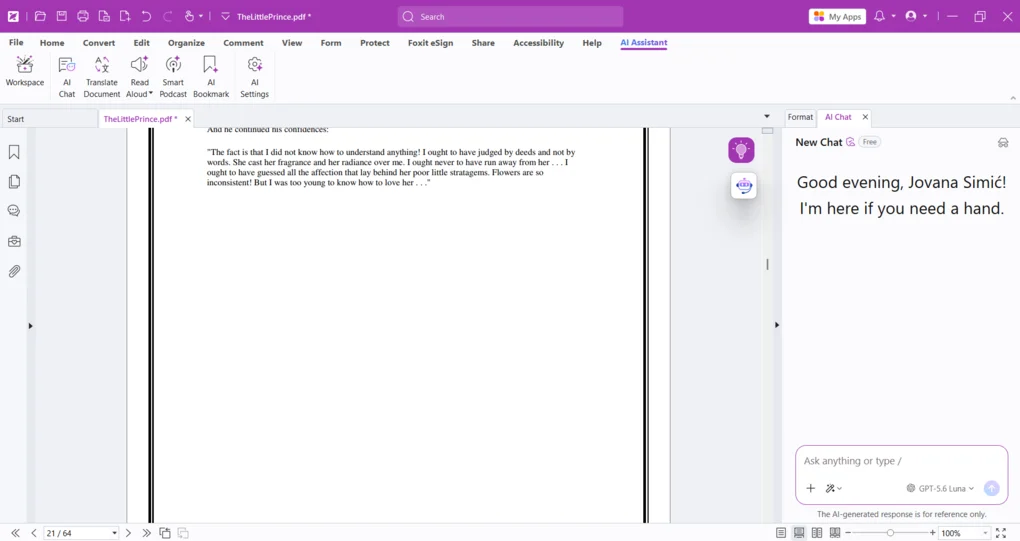
I found Foxit’s AI Assistant useful for getting through long PDFs without having to read every page. The summary feature helped me identify the main points quickly, while the chat function let me ask questions about a document instead of searching for relevant passages manually.
Foxit can also provide citations linking answers to the source material, which gives you a way to check the information rather than relying on the AI’s response alone. The ability to analyze multiple PDFs is another useful addition if you need to compare documents or find information across several files.
Beyond summarizing and answering questions, the assistant can translate and rewrite text and help correct spelling and grammar. However, AI features use credits, and availability depends on your version and subscription, so it’s worth checking the limits of your plan before relying on them regularly.
What’s good:
What’s missing:
Foxit user interface
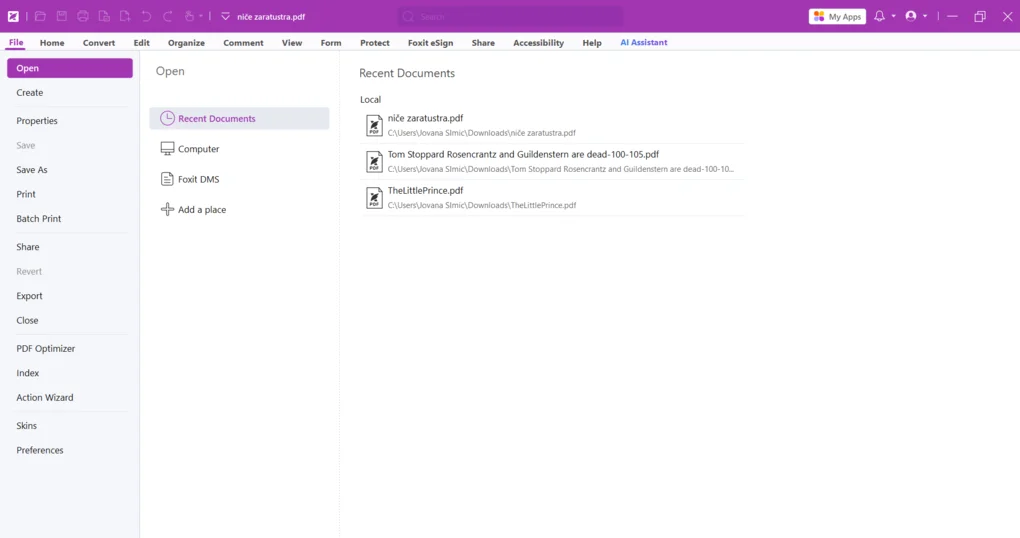
Foxit has an intuitive user interface, and I found its tools easy to use. It is ideal for both work and personal use.
Explore our Apps directory
A curated directory of software tools we’ve independently reviewed, with links to full reviews, comparisons, and category guides.
Foxit alternatives
If you feel like Foxit is not the perfect PDF editor for you, here are the best alternatives:
App | Best for | Description |
|---|---|---|
EaseUS PDF Editor | Best all-in-one PDF editor for beginners | It is an all-in-one PDF software to read, edit, annotate, and convert your documents. Full EaseUS PDF Editor review | Quick EaseUS PDF Editor overview |
Tenorshare PDNob | Best for AI-powered PDF editing | It is an easy-to-use AI-powered PDF editor that offers many features to edit, read, organize, and annotate your documents. Full Tenorshare PDNob review | Quick Tenorshare PDNob overview |
PDF Expert | Best for Mac users | A PDF editor for Mac, iPhone, and iPad users that offers all the tools you need to manage your PDF files, from annotation tools to signing PDFs. |
Xodo PDF Studio | Best offline PDF editor | A straightforward offline desktop PDF editor for Windows, Linux, and iOS devices, with great PDF reading and editing tools. Full Xodo PDF Studio review | Quick Xodo PDF Studio overview |
UPDF | Best value PDF editor with AI features | One of my favorite PDF editors with advanced AI features and budget-friendly pricing. |
Nitro | Best for business PDF workflows | A feature-rich PDF editor with a strong focus on PDF editing. |
PDFelement | Best balance of features and ease of use | An easy-to-use PDF editor with valuable features for a reasonable price. |
Adobe Acrobat | Most popular PDF editor | The most popular PDF editor with solid features, but an extremely high price. |
Smallpdf | Best online PDF tool | An online PDF software with numerous tools to convert, compress, and edit PDF files for free. |
pdfFiller | Best for e-signatures and document workflows | It offers a signing and editing solution that lets users sign and edit documents, send them for signature, and manage the full electronic document workflow in one place. |
LightPDF | Best for AI PDF productivity | An AI-powered PDF editor that lets you edit, convert, OCR, sign, annotate, chat with PDFs, and more. |
PDFgear | Best free PDF editor | A completely free, offline PDF editor with solid editing, OCR, conversion, and AI tools. |
PDF-XChange | Best advanced PDF editor for Windows | A powerful Windows-based PDF editor with advanced editing, annotation, security, and conversion tools. |
Sejda PDF Editor | Best for simple, everyday PDF tasks | An intuitive and simple PDF software best suited for personal use for those who need a PDF editor for basic PDF tasks. |
Soda PDF | Best for security and file conversion | A user-friendly PDF editor with solid core features, strong security tools, and broad file conversion options, but its advanced features come at a relatively high price. |
PDF Candy | Best PDF toolkit with multiple tools | A very practical PDF toolkit with a large number of useful tools, solid performance, and affordable pricing. |
Tungsten Power PDF | Best enterprise-grade PDF solution | A powerful PDF editor and document management tool designed for businesses, offering advanced editing, security, OCR, and collaboration features. Full Tungsten Power PDF review | Quick Tungsten Power PDF overview |
ABBYY FineReader | Best for OCR and document digitization | A powerful OCR-focused PDF tool with strong layout detection, flexible conversion, and an efficient workflow. Full ABBYY FineReader review | Quick ABBYY FineReader overview |
ONLYOFFICE PDF Editor | Best for collaboration and team editing | A versatile tool that combines PDF editing with document collaboration features. It lets you to edit text, add visual elements, and create fillable forms. |
WPS Office | Best easy-to-use office suite and PDF editor | WPS Office is an easy-to-use office suite with solid PDF editing and AI-powered productivity tools, though its free plan is quite limited. |
Foxit vs alternatives



Foxit VS UPDF

Foxit VS PDFelement

Adobe VS Foxit

Foxit VS Nitro
Wrap-up: Foxit review
After testing Foxit, I can see why it’s a popular PDF editor. Large PDFs opened in seconds, OCR handled a 200-page scanned document in around two minutes while keeping the original formatting, and I really liked Reflow Editing and the wide range of annotation tools.
That said, Foxit isn’t exactly cheap. Some features, like Smart Redact and additional AI credits, cost extra, and Reflow Editing can sometimes affect the document’s formatting. So, while there’s a lot to like, I don’t think it’s the best value for everyone.
I’d recommend Foxit if you regularly edit, convert, scan, and organize PDFs and want a more affordable alternative to Adobe Acrobat Pro. But if you only need to make occasional edits or add a few annotations, you can probably get by with a simpler, cheaper tool.
Related articles:
- The 8 Best PDF Editors In 2026 | 30+ Personally Tested PDF Tools
- The 7 Best Adobe Acrobat Alternatives: 30+ PDF Editors Tested
- The 6 Best PDF Readers For 2026 (Only FREE Options)
Looking for similar tools?
Visit our library of PDF editors to explore other apps we’ve reviewed in this space and how they compare.
Why you can trust our reviews
At thebusinessdive.com, our team tests, reviews, and compares hundreds of productivity apps every year — from project management tools to note-taking apps. We dive deep into real-world use cases to help you find the right tools that actually improve your workflow, not just add noise.
Our mission? No fluff, no shortcuts—just honest, hands-on insights from productivity pros.
Discover how we stay transparent, read our review methodology, and let us know about any tools we missed.
How We Test PDF Editors
To keep our reviews and final scores fair and consistent, we evaluate every PDF editor using a standardized testing framework built on over 3 years of hands-on experience testing these tools in real-world scenarios.
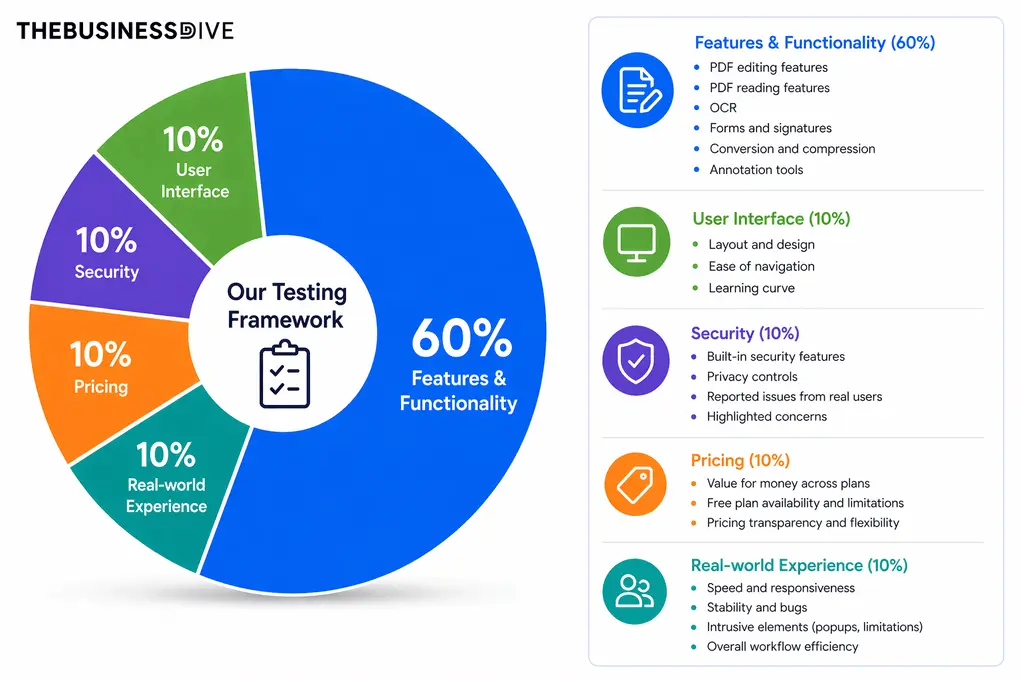
Our scoring breakdown after testing 30+ PDF editors:
🛠️ Features & functionality — 60%
🖥️ User interface — 10%
🔐 Security — 10%
💰 Pricing — 10%
👥 Real-world experience — 10%
Want a detailed breakdown of how we test each category?
Learn exactly how we test tools → Review methodology
Short on time? Here’s a quick overview of Foxit
Frequently asked questions
Is Foxit better than Adobe?
Foxit is a better PDF editor than Adobe Acrobat. It offers similar features, but it is faster and significantly cheaper than Adobe Acrobat.
Is Foxit trustworthy?
After my Foxit review, I checked its security standards, policies, and reviews. And what I found is that they closed all the possible security gaps that could come up in the case of PDF editors. Nevertheless, it is quite common for hackers to deliver malware viruses through PDF files no matter which PDF editor you use, so I recommend you stay vigilant all the time.
Is Foxit PDF Editor no longer free?
Foxit’s free version is called PDF Reader. Using this version, you can read and view your PDF documents, however you can not edit them.
Disclosure: I only recommend products I would use myself, and all opinions expressed here are our own. This post may contain affiliate links that, at no additional cost to you, may earn a small commission. Read the full privacy policy here.

Hey there! I am Aron, the founder of Thebusinessdive. I have been testing productivity apps for almost three years now. I reach 25.000 -50.000 people monthly with the mission to help you find the perfect productivity apps. Subscribe to my YouTube channel, newsletter, and social media to hear more about the best productivity tools. Let’s dive in!